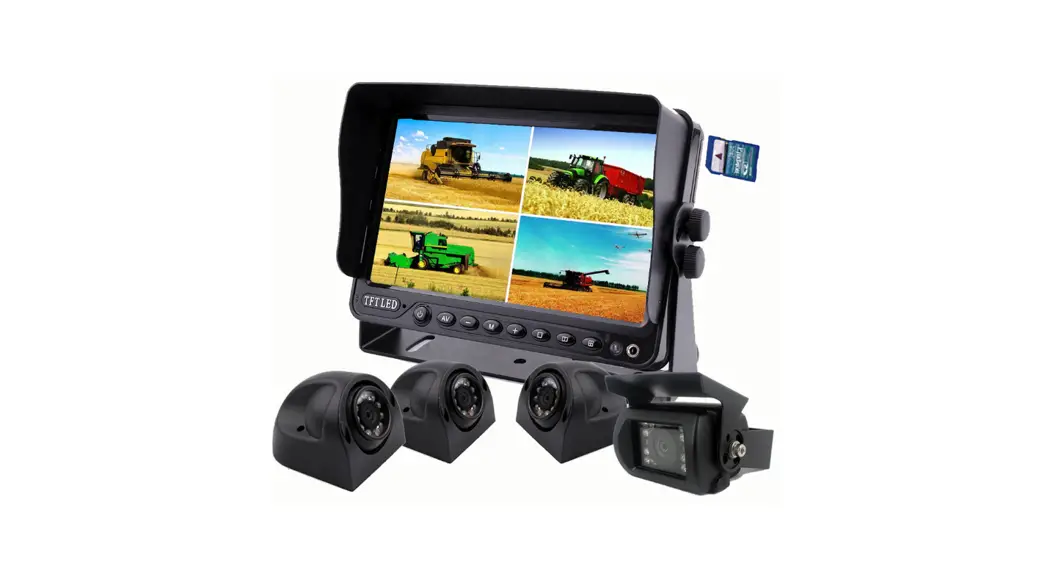
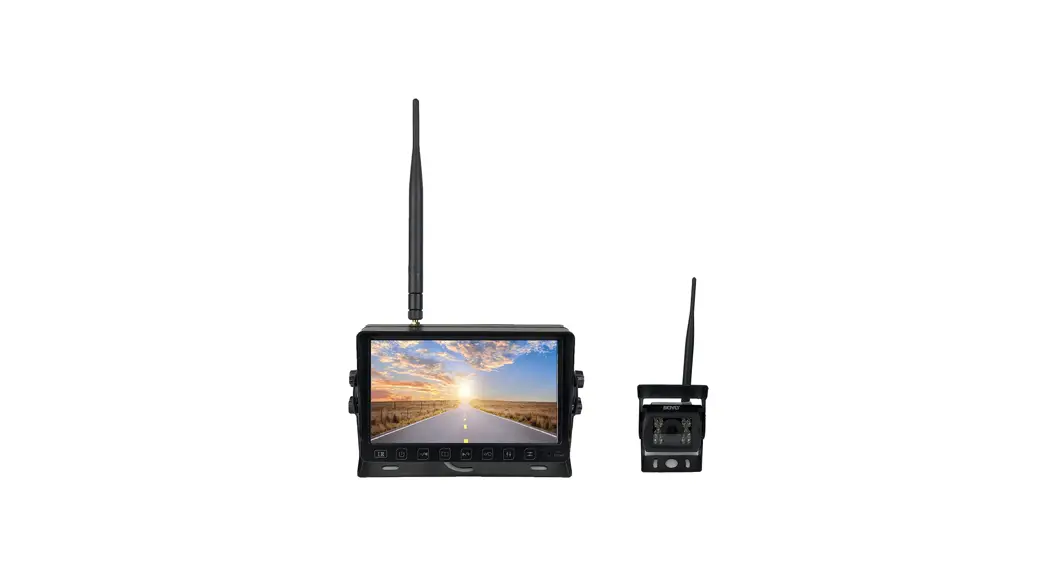
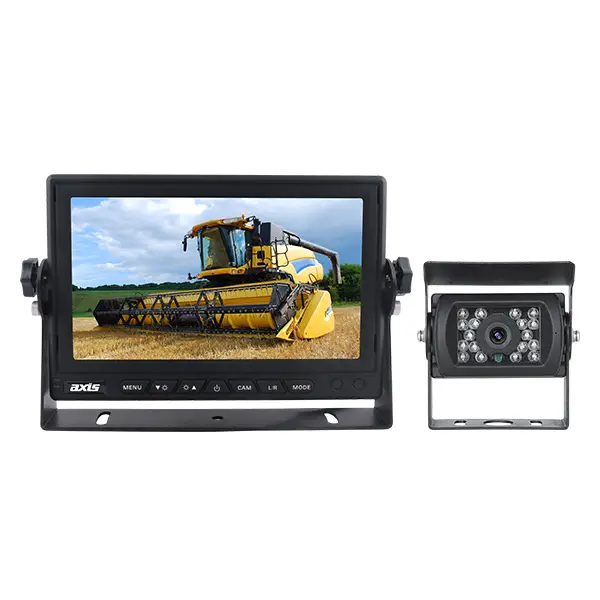
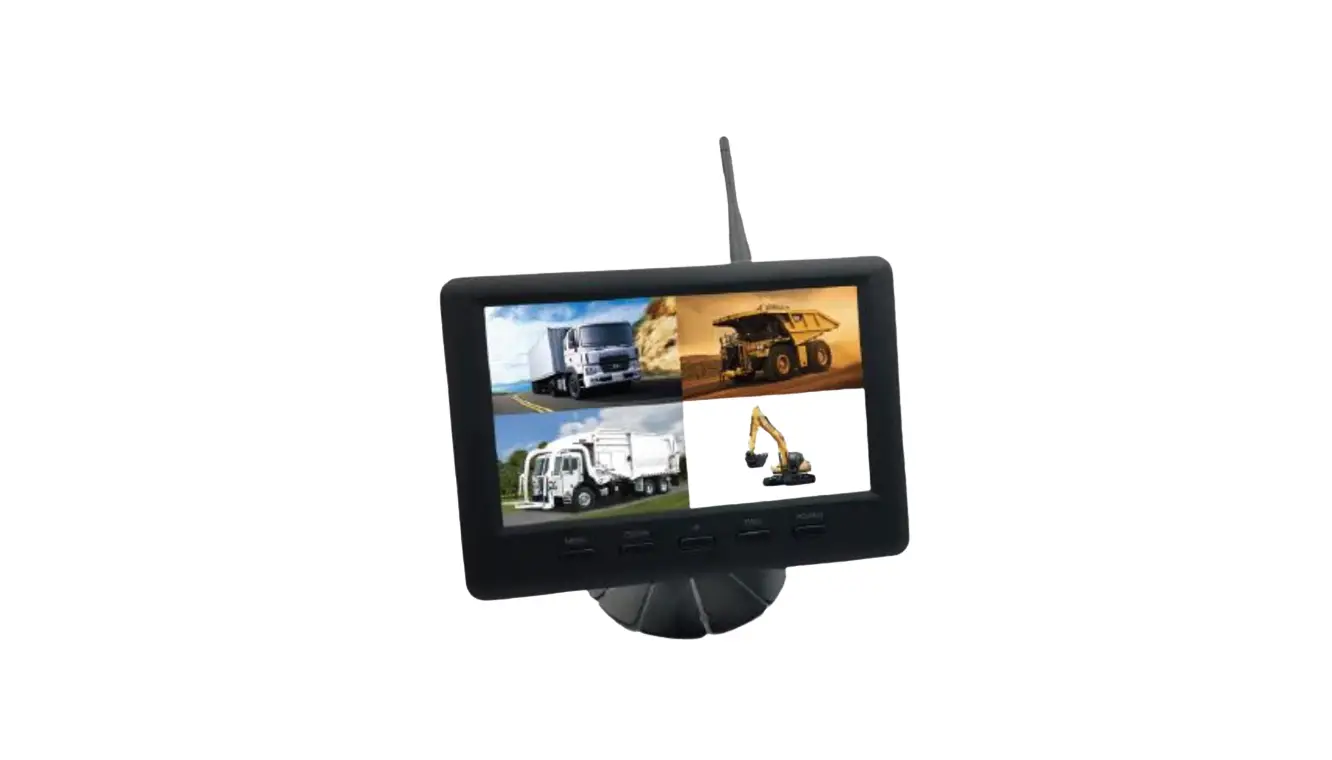
MYTB703 Wireless 7 Inch Monitor with Cameras System
Product Information:
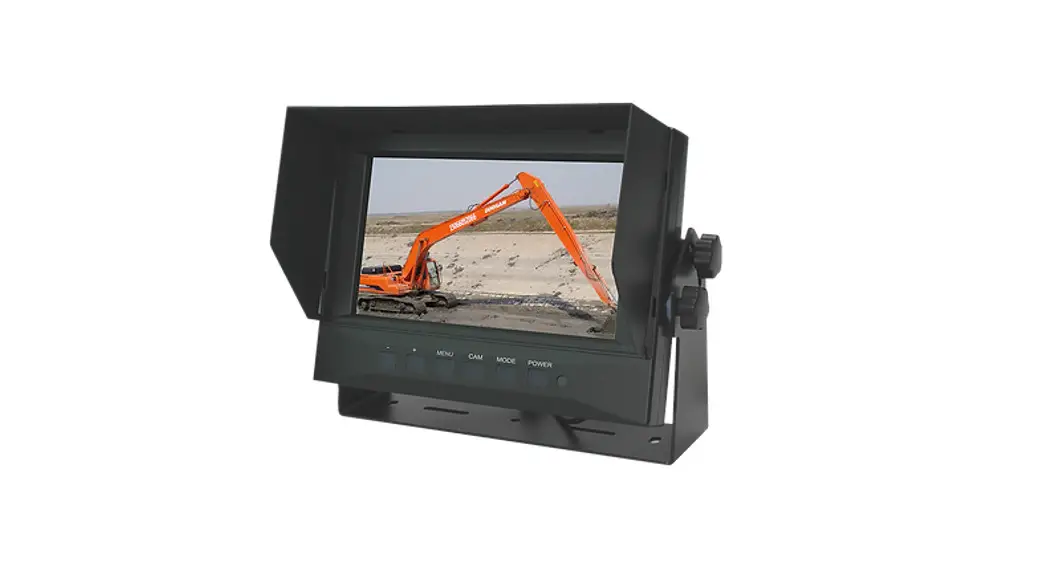
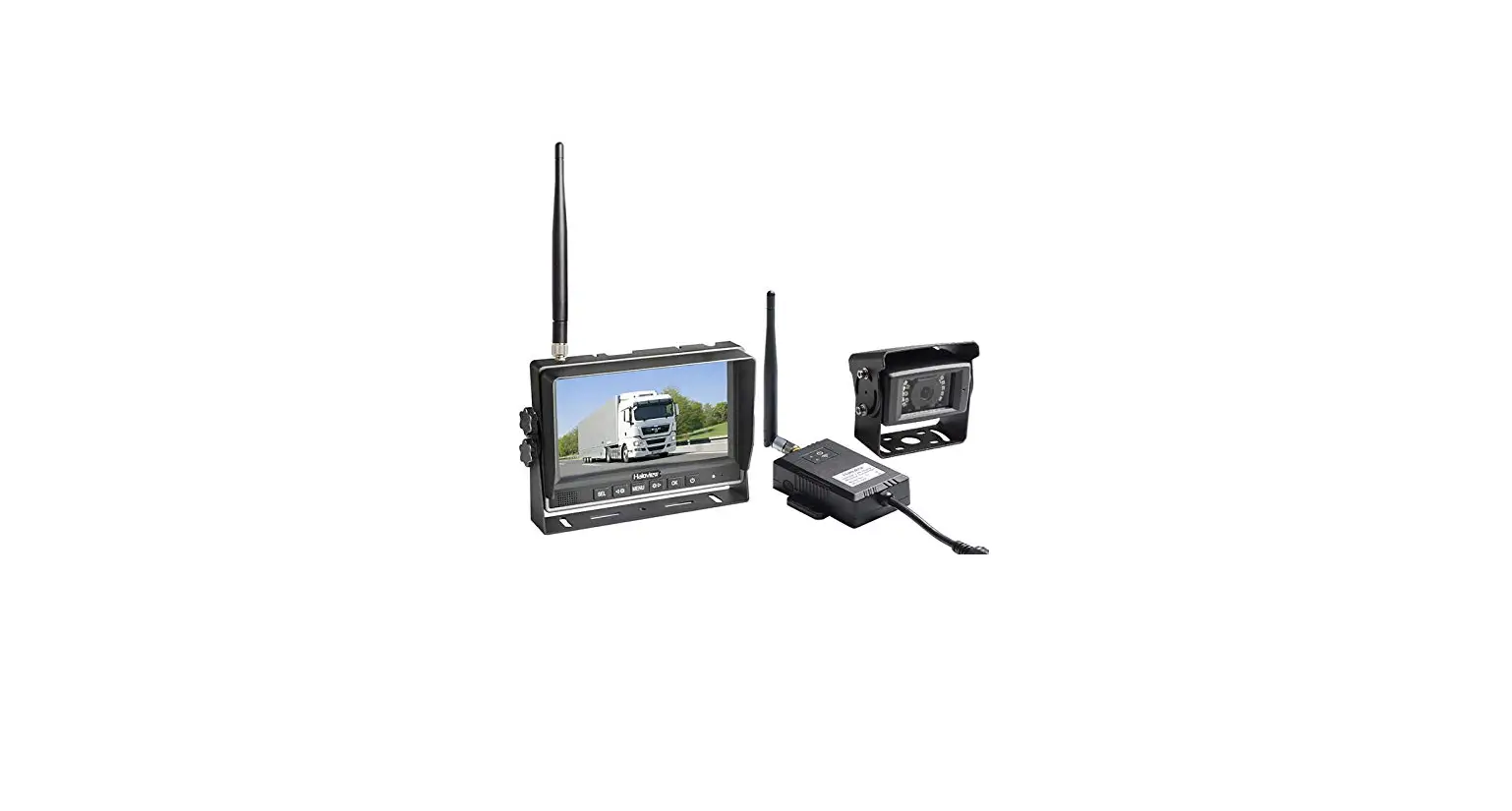
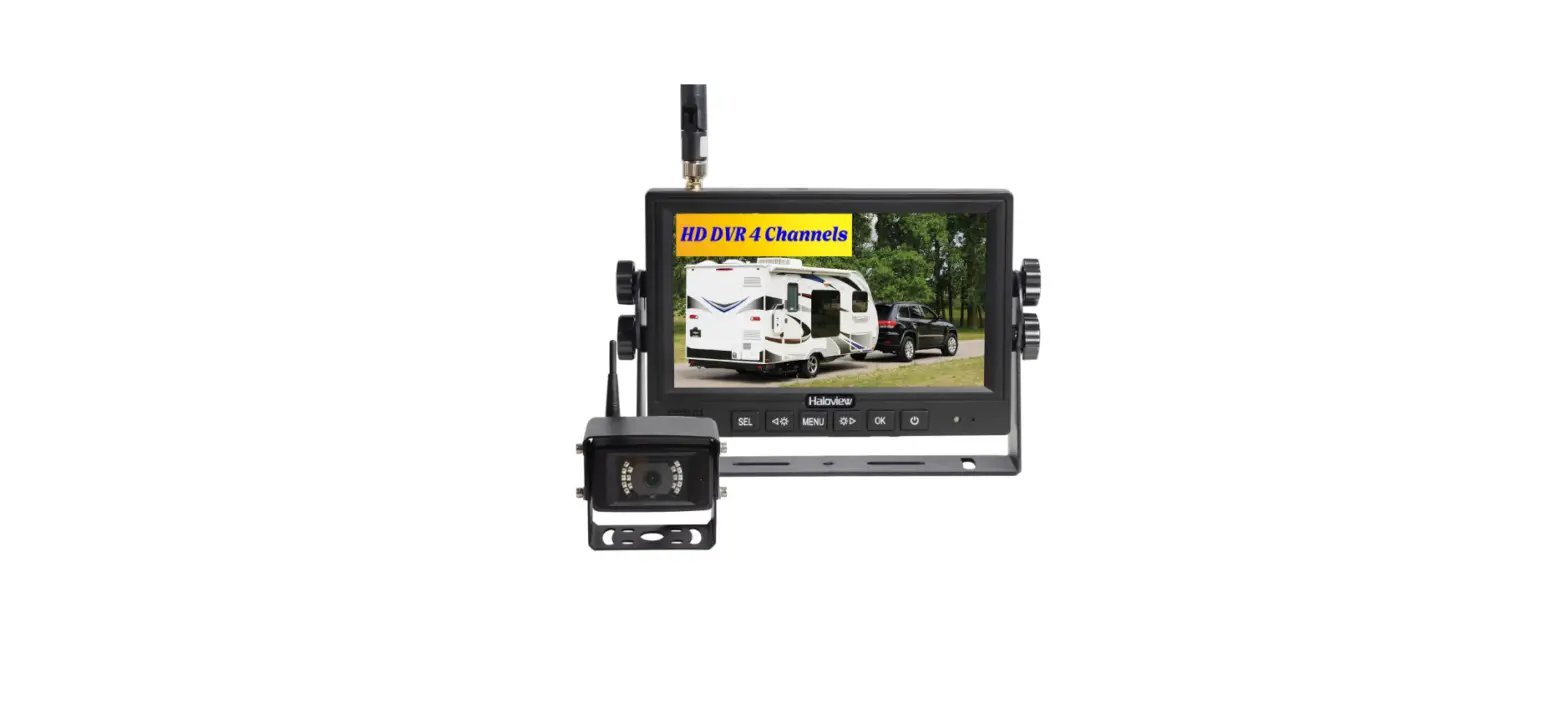
The Wireless 7 Inch Monitor with Cameras System is a vehicle
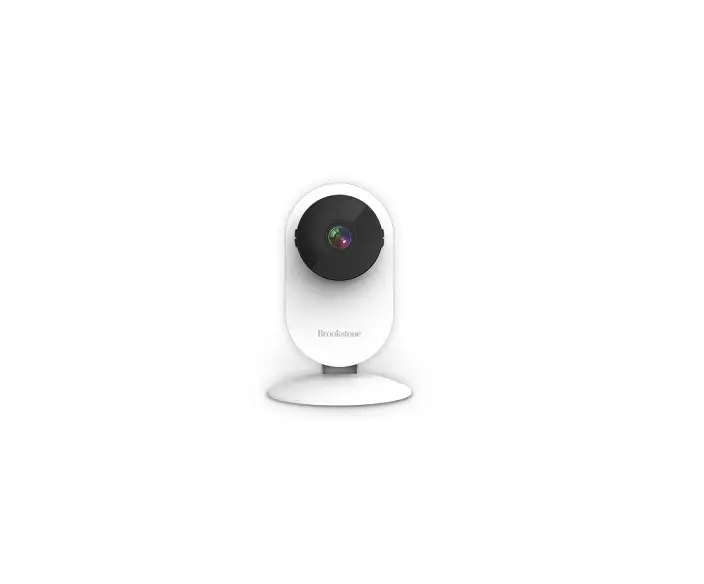
safety solution that includes a 7-inch monitor, HD camera, solar
camera, car charger, U-shaped bracket, power cables, antenna,
screws, sunshade, bracket, iron sheet, and 3M glue.
NOTE: The contents included may vary depending on the purchased
kit.
Product Usage Instructions:
Monitor Operation:
1. Power key (control camera): Switch channel, enter the menu
and move to the left, reduce brightness.
2. Menu key/Back key: Long press to enlarge (1X 1.5X 2.X 3X),
brightness plus, enter the menu (right select), plus.
3. Confirm key: Start/pause recording (after card insertion),
long press to adjust the V/H/W mode of the vehicle ruler.
4. Vehicle ruler shortcut key.
Remote Control Function:
1. Video recording function: Open the SD card slot on the
monitor back with the small blue screwdriver, insert the adapter
and micro SD card for recording.
2. Use a high-speed SD card of class 10 or above (less than
128G) for recording. Make sure to unlock the adapter before
inserting the SD card.
3. Format the memory card for the first time before use.
4. Plug in the card to start recording (ENTER to turn on/off
recording).
Installation Diagram:
Monitor Installation: Choose a monitor location in your
vehicle that does not block your view and complies with local laws
for safe driving. Do not place it in an area where it might
interfere with driving.
Camera Installation: Install the camera in a suitable
position.
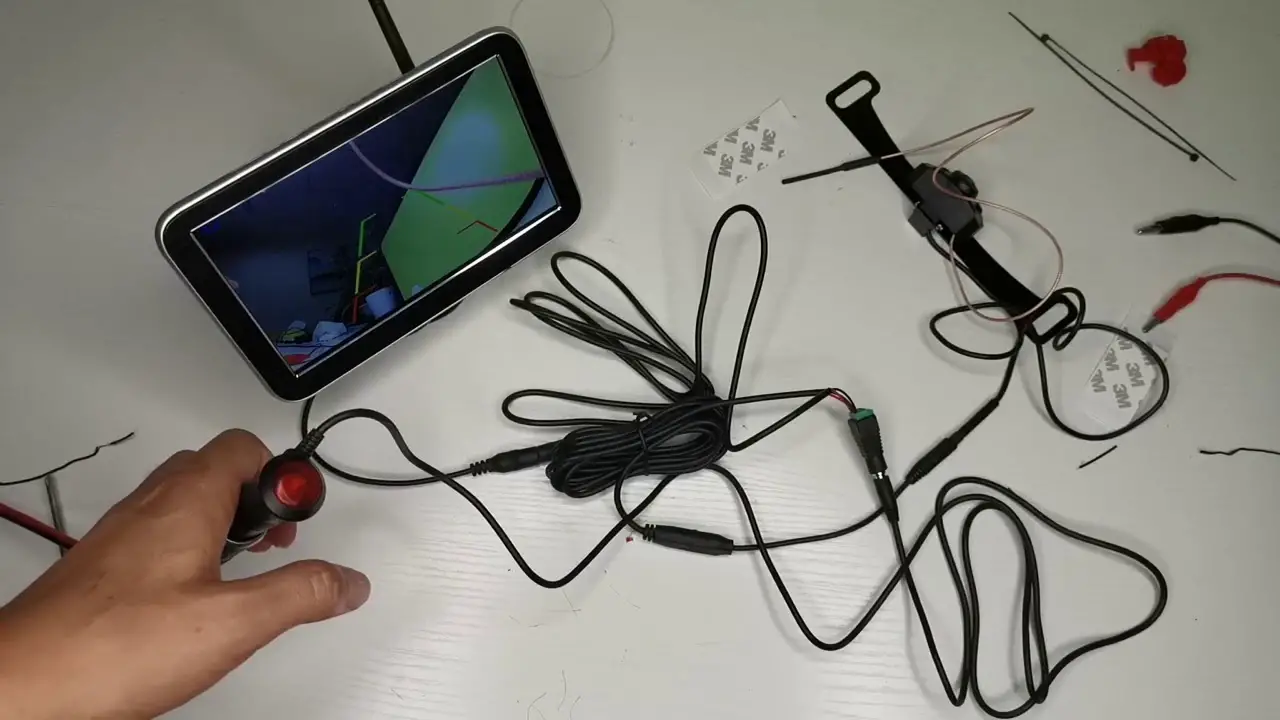
Connection Method: Connect the car charger to the
wireless receiver in the monitor.
Pairing the Camera and Monitor:
1. Select the channel to be paired on the monitor.
2. Enter the menu, select pairing, and press ENTER to
confirm.
3. Wait for the matching and drawing process to complete
successfully.
NOTE: Ensure that the circuit is properly connected and
powered for pairing. If pairing multiple cameras, switch to the
corresponding channel.
Connection Mode:
The system uses 2.4G image signal transmission. The monitor
powers on/off and remotely controls two camera signals. When the
monitor power is turned off, the camera enters the standby
state.
WIRELESS 7 INCH MONITOR WITH CAMERAS SYSTEM
User Manual / Installation Instructions
VEHICLE SAFETY SOLUTIONS
Before installation please read the manual
What’s in the Box?
01
02
03
04
05
06
07
08
09
10
NOTE 1: The contents included may be different based on the kit you purchased. Please take the actual product as standard.
NOTE 2Antenna is divided into 2.4G wireless/433 codepair remote control(Please install it to the corresponding position)
01. 7” monitor 02. HD camera 03. Solar camera 04. Car charger
05. U-shaped bracket 09. Antenna(X4)
06.Screw(x4)
10. Accessories
07. Power cablex3 11. Bracket
08. Sunshade
12. Iron sheet and 3M glue
Introduction
Please read all of the installation instructions carefully before installing the product. Improper installation will void manufacturer’s warranty.
Thank you very much for purchasing a Rear View Backup Camera System. With this manual you will be able to properly install and operate the unit. The Backup Camera System is intended to be installed as a supplement aid to your standard rear view mirror that already exists in your vehicle. The Backup Camera System should not be used as a substitute for the standard rear view mirror or for any other mirror that exists in your vehicle. In some jurisdictions, it is unlawful for a person to drive a motor vehicle equipped with a TV viewer or screen located forward of the back of the driver’s seat or in any location that is visible, directly or indirectly, to the driver while operating the vehicle.
Monitor Operation
1
Power key (control camera) Switch channel
1.Enter the menu and move to the left 2. Reduce brightness 1.Menu key/Back key 2.Long press to enlarge (1X 1.5X 2.X 3X) 1.Brightness Plus 2.(Enter the menu) Right select 3.plus 1.Confirm key 2.Start/pause recording (after card insertion) 3.Long press to adjust the V/H/W mode of the vehicle ruler Vehicle ruler shortcut key
Remote control function?
1
2
1.Confirm key 2.After entering the menu for confirmation 3.Start/pause recording (after card insertion) 1.Power on key 1.Vehicle ruler shortcut key 1.Enter the menu and move to the left 2. Reduce brightness 3.Enter the menu and select from the left 1.Menu key 1.Brightness Plus 2.(Enter the menu) Right select 3.Enter the menu and right select 1.Switch channel 2.CH1—CH2—CH3—CH4 (Split screen) 1.Display channel CH1 screen 1.Display channel CH3 screen 1.Display channel CH2 screen 1.Display channel CH4 screen
Video recording function
Open the SD card slot on the monitor back with the small bluescrew-driver , insert the adapter and micro SD card for recordingHigh-speed SD card of class 10 or above ( Less than 128G ) isrecommended Please make sure to UNLOCK the Adapter before inserting the SD CardThe format al location unit of the micro SD card should be set in EXFAT32 / 64KB , other value is not compatible for the recording function
Please format the memory card for the first time
Plug in the card to start recording(“ENTER” to turn on/off recording) Recording: REC
Installation Diagram
Monitor Installation Choose a monitor location in your vehicle that does not block your view and complies with local laws for safe driving. Do not place in an area where it might interfere with driving.
CH
MENU
ENTER
SEL
Camera Installation Suitable Installation Position
Connection method
Car charger connect to wireless receiver in the monitor
1
“+”ACC/Fuse/radio
“-”
2
Data cable charging Camera is rechargeable
Charging instructions
01. The indicator will flash when charging
02. The red light flashes when the battery is exhausted
03. Four lights are always on, which means the battery is full
Pairing the Camera and Monitor
CAM 2
NO SIGNAL
CH
MENU
ENTER
SEL
CCAAMM22 PAIRING
NO SIGNAL PICTURE
MIR-FLIP
SPLIT MODE
CAM-SETUP
SYSTEM
PLAY
RECORD
CH
MENU
ENTER
SEL
1. Select the channel to be pairing
2. Enter the menu and select pairing and press “ENTER” to confirm
CAM 2 CAM 2
PANIROINSGIGSNTAALRT 18
CH
MENU
ENTER
SEL
CAM 2
CH
MENU
ENTER
SEL
4. Waiting for matching and drawing successfully
NOTE: when you need pairing,please confirm the circuit is properly connected and powered.If you need to pairing multiple cameras, please switch to the corresponding channel.
Connection mode
2.4G image signal transmission
monitor power on/off Remote control of two camera signals The camera is turned on and off under the control of the monitor switch (when the monitor power is turned off, the camera will enter the standby state)
Specifications
Power Supply Wireless Frequency Wireless Range Delaying Time Operating temperature
CAMERA Image Sensor Waterproof Rating esolving power Camera voltage
DC12 to 36V 2.4 GHz 500m(open area) <200ms -20°C ~ 80°C
1/3 inch IP67 720P DC 5V TYPE-C
Image Sensor Waterproof Rating esolving power View Angle Camera voltage
LCD Size Resolution Contrast Brightness Recording period Power Consumption
SOLAR CAMERA
1/3 inch
IP65
720P
110°[H] 140°[D]
MONITOR
DC 5V TYPE-C
7 inch IPS
1024(H) x 600(V)
500:1
600cd/
1 minute/video
<500mA
Troubleshooting
Problem Monitor Won’t turn on Camera and Monitor won’t pair
Weak Signal
Night Vision is poor Dark Picture
Solution Check the cigarette lighter has 12-36V DC Output Check the fuse in the Cigarette socket adapter Check if the camera is receiving power Make sure to follow the instructions to operate the Pairing
Check if the camera and monitor antennas are installed Distance between camera and monitor is too great. Reduce distance between camera and monitor Large dense objects could be obscuring the signal. If possible, move the objects Interference from overhear power lines may be affecting the signal Try unpairing and pairing
The night sensor on the camera may be dirty or obstructed Ensure the camera is installed at least 2 inches away from rear lights Check whether brightness and contrast are adjusted correctly
FCC Warning Statement
Changes or modifications not expressly approved by the party responsible for compliance could void the user’s authority to operate the equipment. This equipment has been tested and found to comply with the limits for a Class B digital device, pursuant to Part 15 of the FCC Rules. These limits are designed to provide reasonable protection against harmful interference in a residential installation. This equipment generates uses and can radiate radio frequency energy and, if not installed and used in accordance with the instructions, may cause harmful interference to radio communications. However, there is no guarantee that interference will not occur in a particular installation. If this equipment does cause harmful interference to radio or television reception, which can be determined by turning the equipment off and on, the user is encouraged to try to correct the interference by one or more of the following measures: Reorient or relocate the receiving antenna. Increase the separation between the equipment and receiver. Connect the equipment into an outlet on a circuit different from that to which the receiver is connected. Consult the dealer or an experienced radio/TV technician for help.
This device complies with part 15 of the FCC Rules. Operation is subject to the following two conditions: (1) This device may not cause harmful interference, and (2) this device must accept any interference received, including interference that may cause undesired operation.