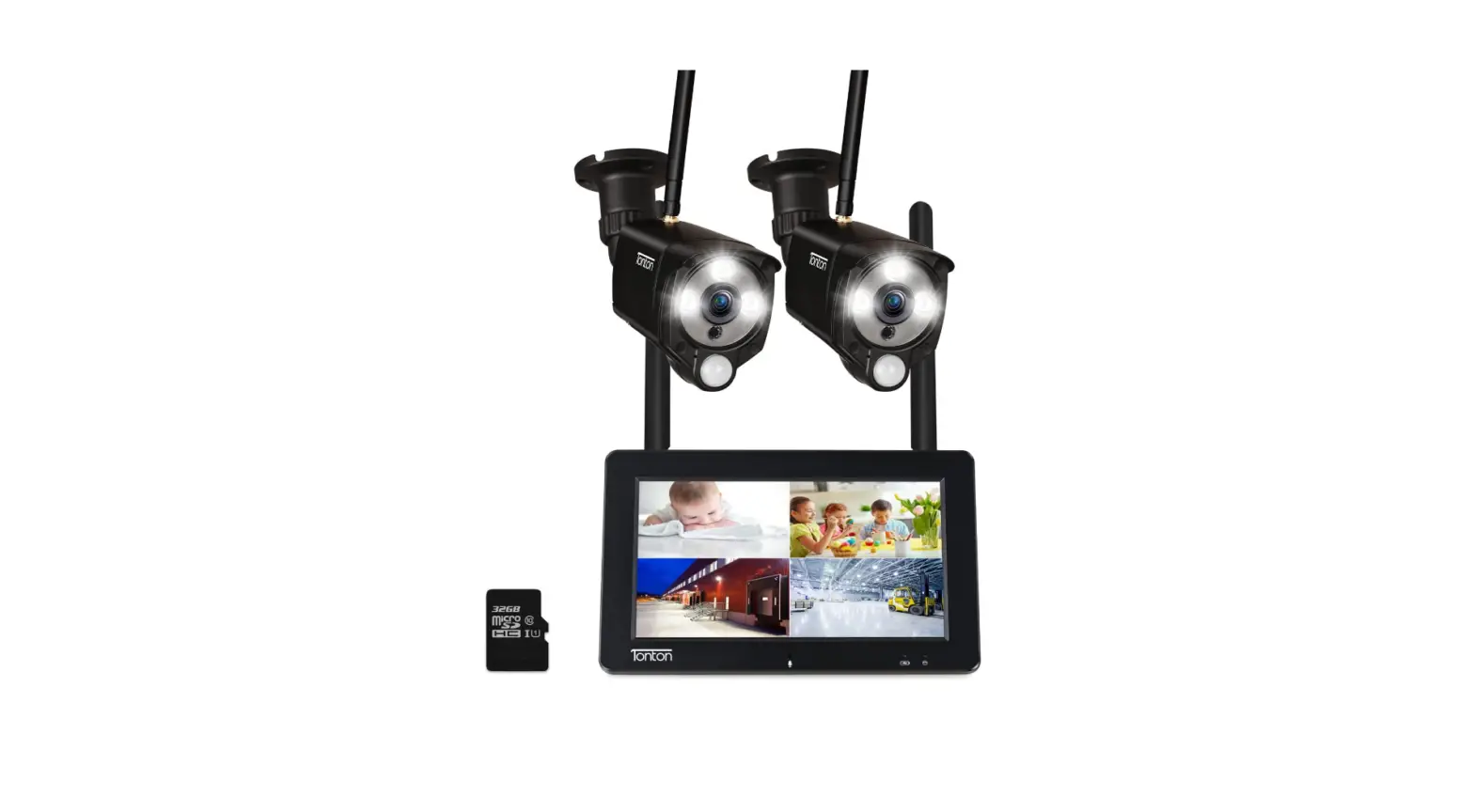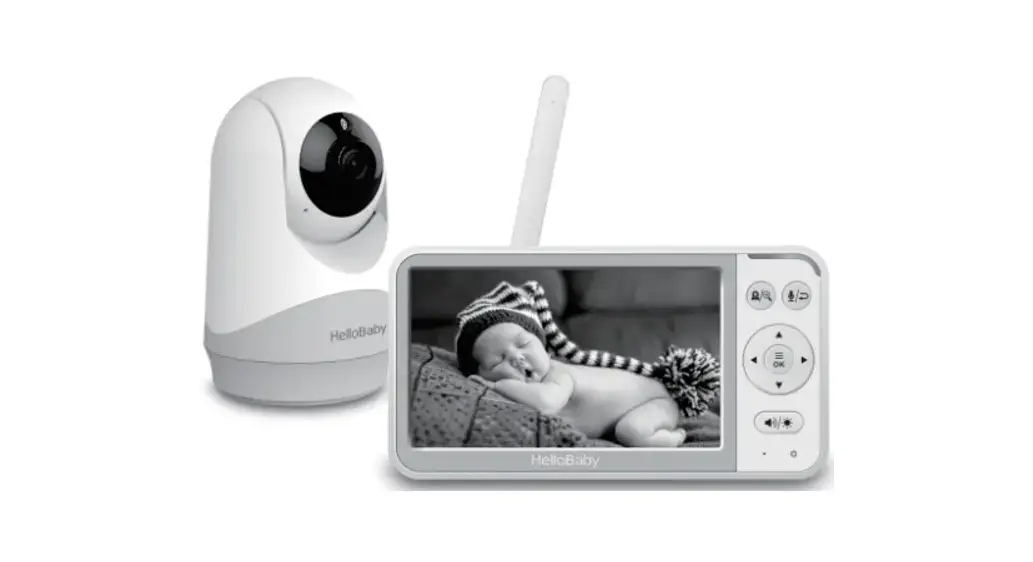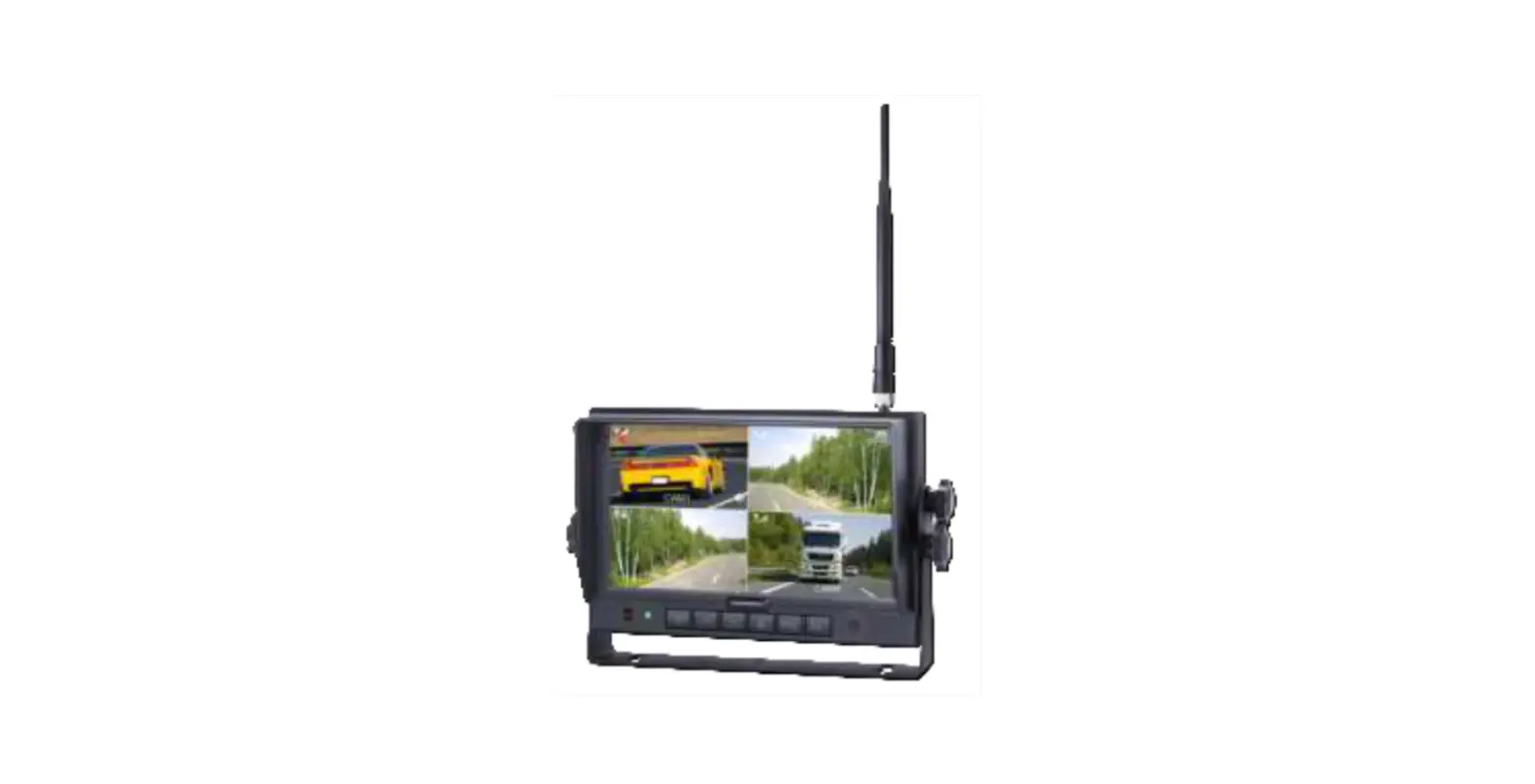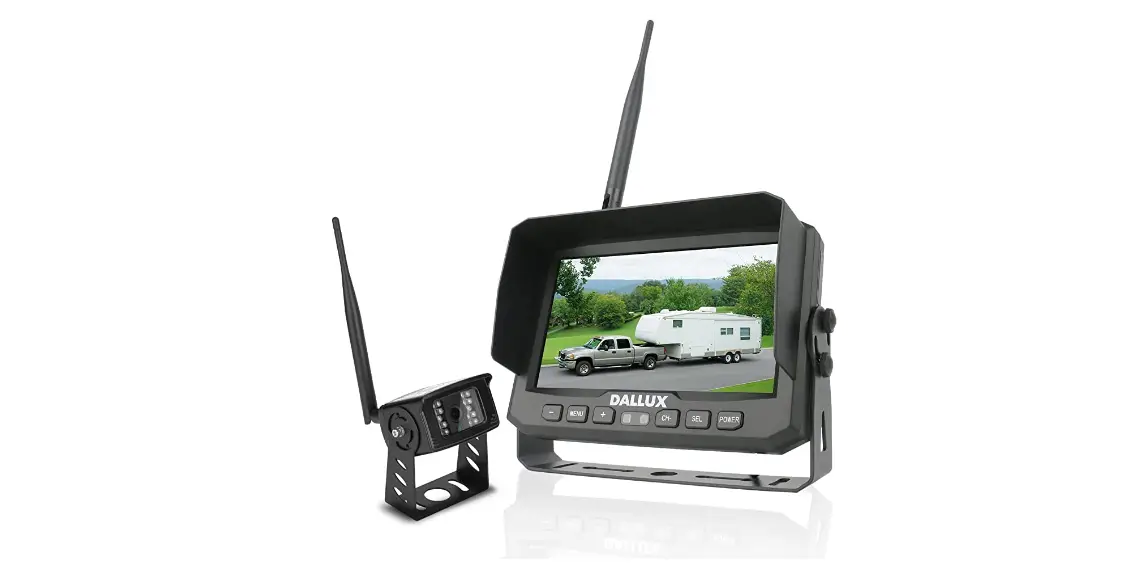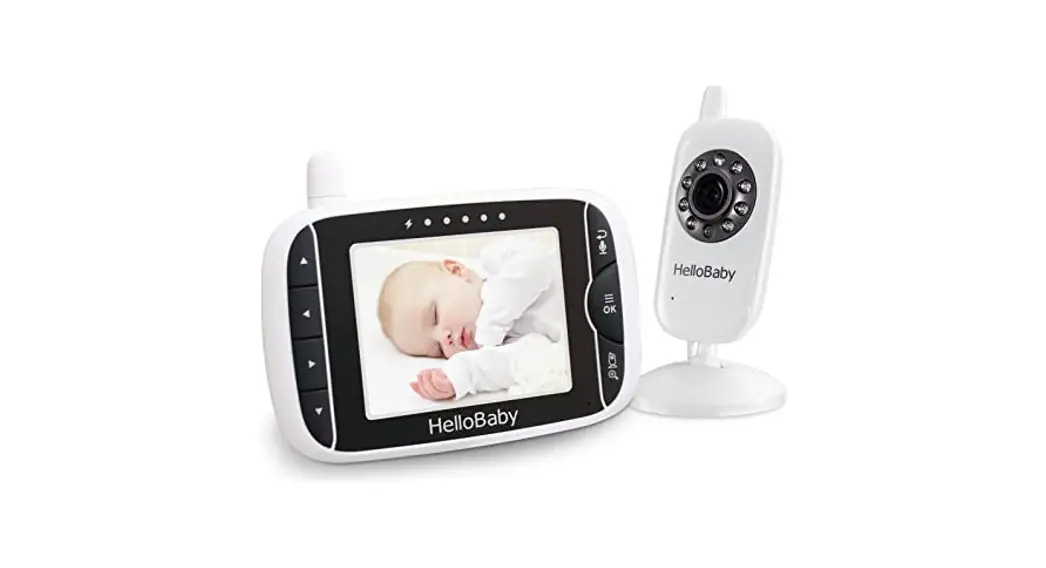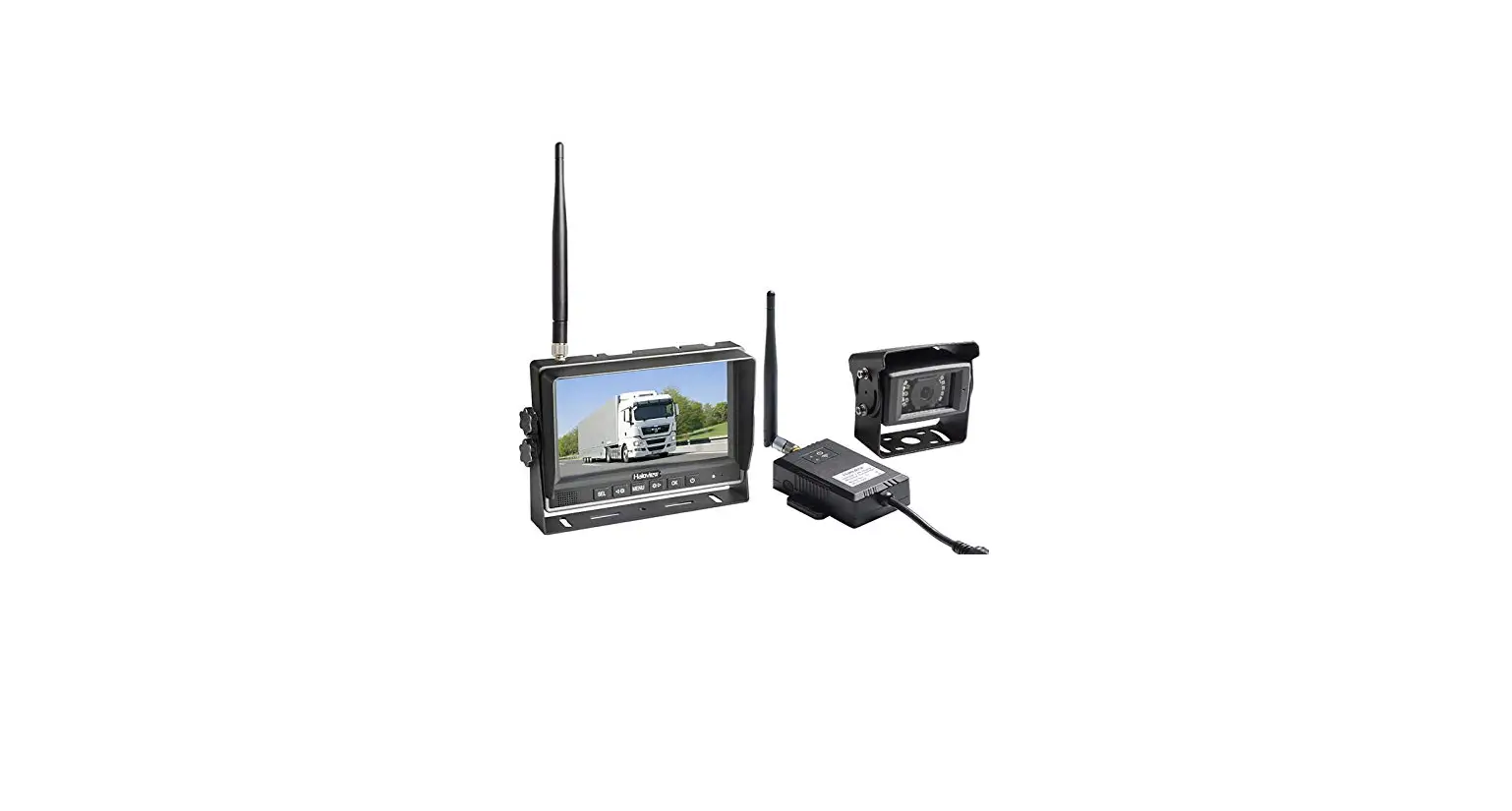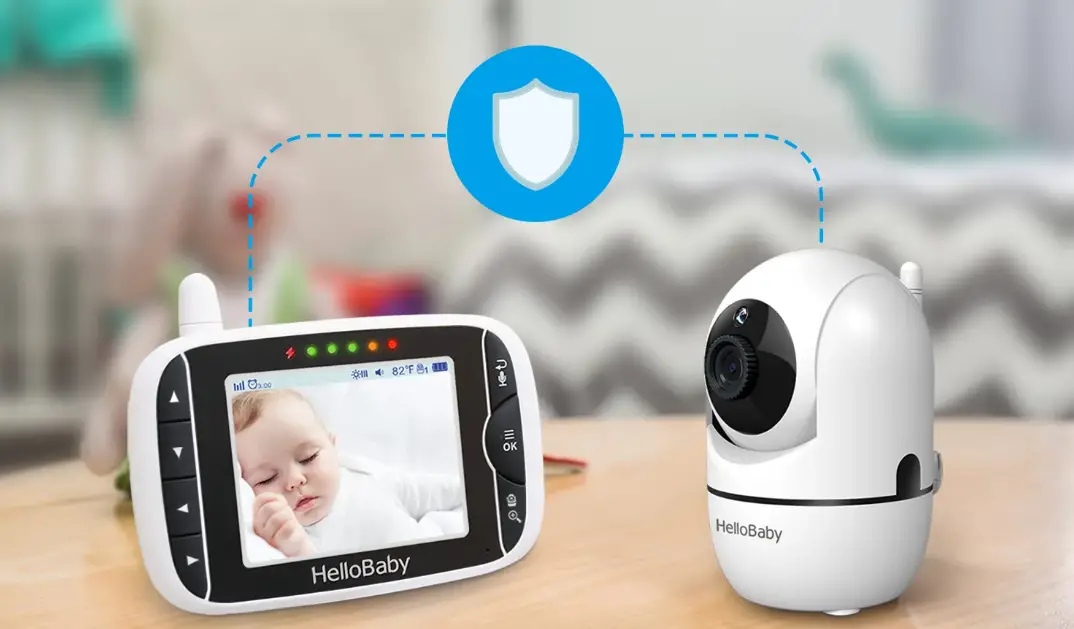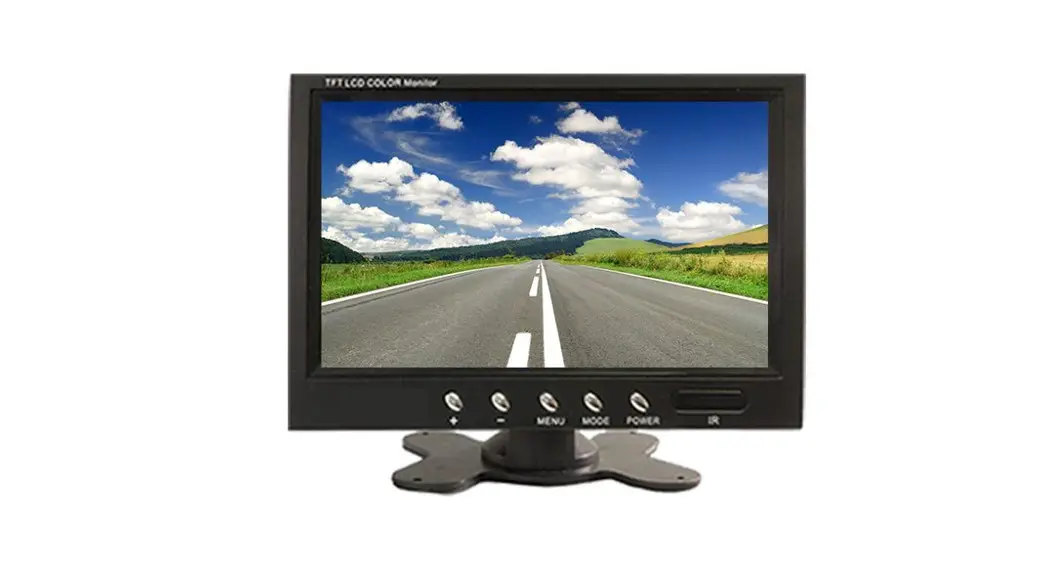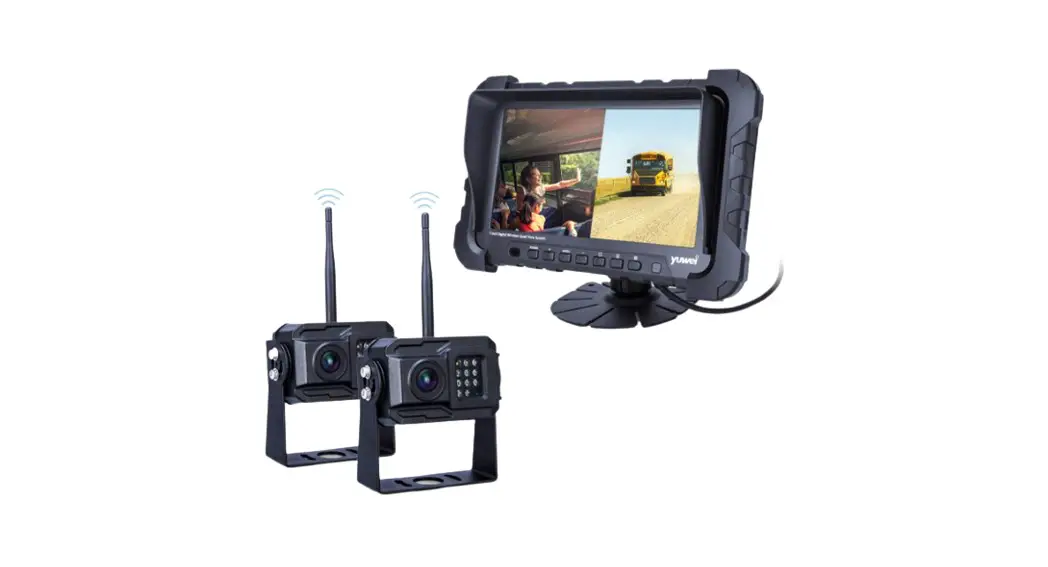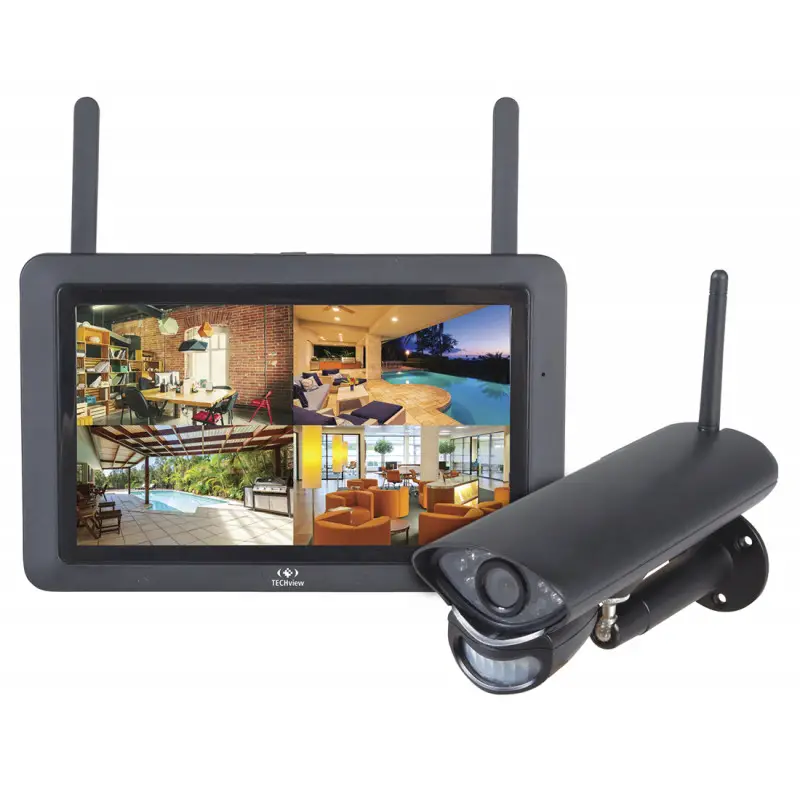
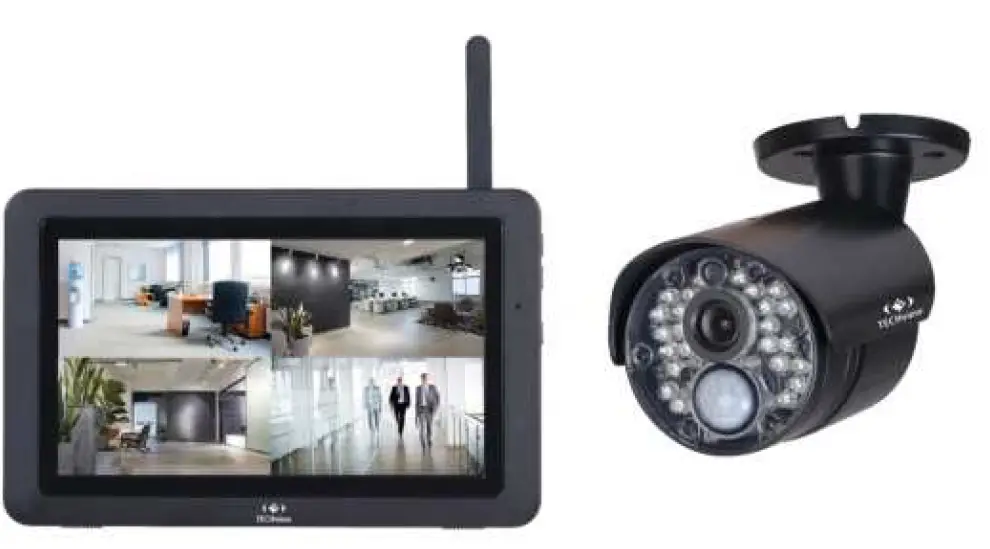
TechBrands 2.4GHz Digital Wireless 7” LCD Surveillance Kit
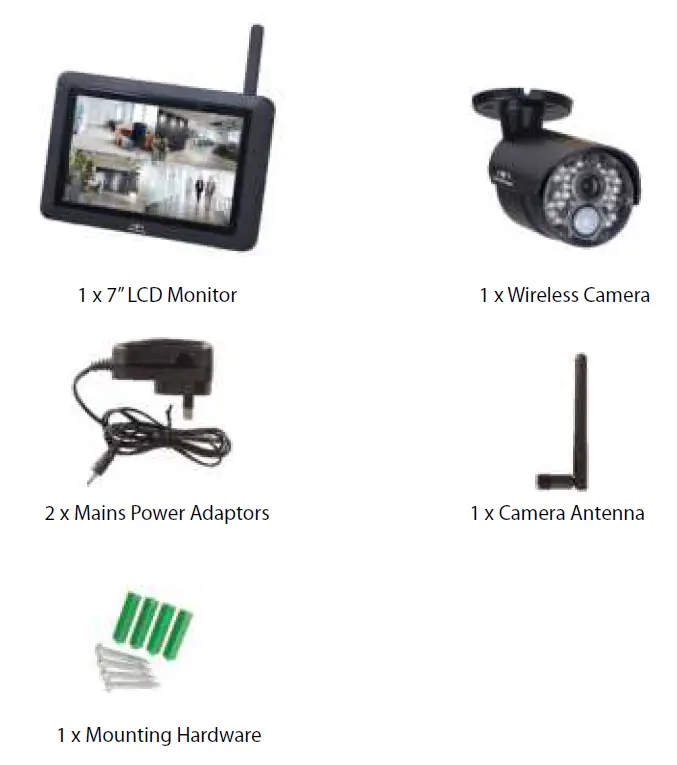
Box Contents:
Product Diagram:
7” LCD Monitor: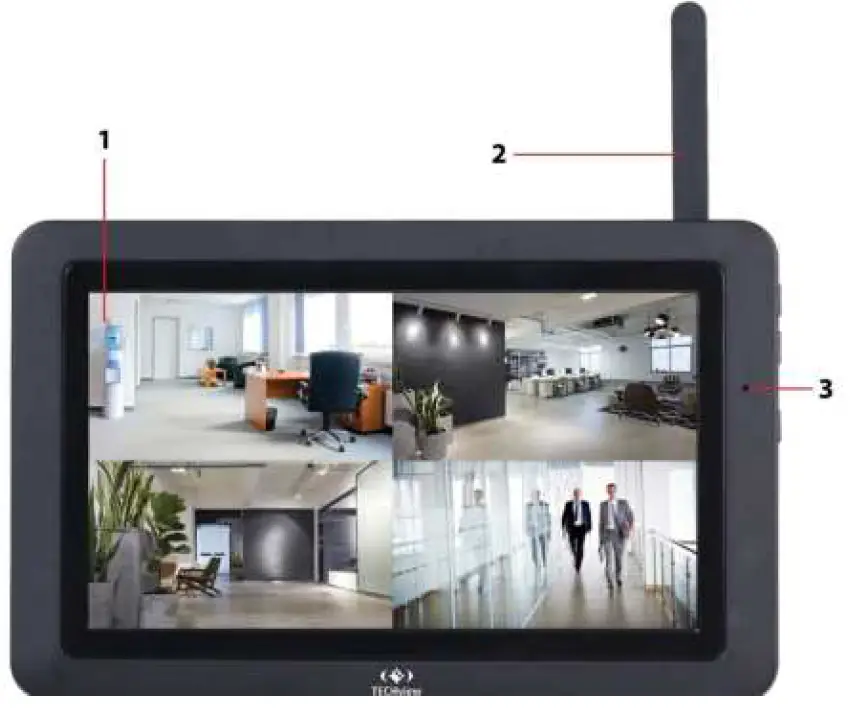
| No. | Description |
| 1 | 7” LCD Touch Screen |
| 2 | Wireless Antenna |
| 3 | Microphone |
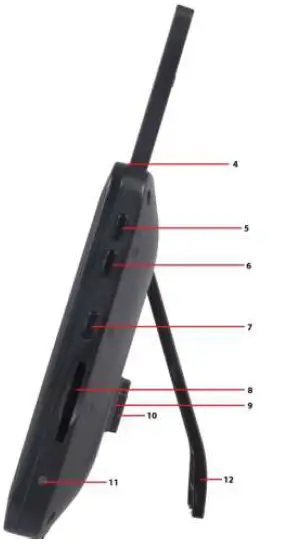
| No. | Description |
| 4 | Power/Scan Button |
| 5 | Volume Up |
| 6 | Volume Down |
| 7 | Talk Button |
| 8 | SD Card Slot |
| 9 | Speaker |
| 10 | Power Socket |
| 11 | LED Status Indicator |
| 12 | Folding Stand |
Wireless Camera:
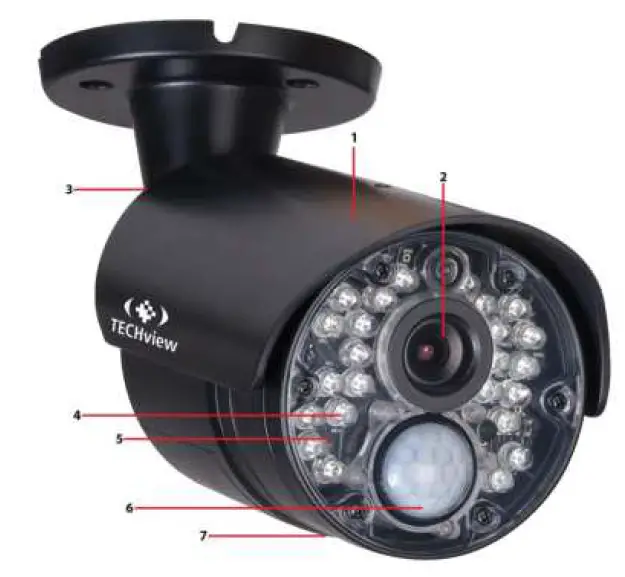
| No. | Description |
| 1 | Weather Shield |
| 2 | Camera Lens |
| 3 | Wireless Antenna |
| 4 | IR LEDs |
| 5 | Microphone |
| 6 | Motion Detector (PIR) |
| 7 | Speaker |
Installation & Setup:
Monitor:
- Pull out the folding stand to position the monitor securely.
- Position the antenna located at the top of the monitor to an upright position.
- Connect the 5VDC,2A mains power adaptor to a 240VAC standard power outlet, and the DC plug in to the power socket of the monitor.
- Press and hold the power/scan button located on the top of the monitor for 3-4 seconds for the unit to power up.
- The monitor will display the TECH view startup screen for a few seconds and will transition to live view.
Please Note: The screen will remain dark until the cameras are powered up.
Camera:
- Position the camera securely in place, it is best to have the monitor located near the camera temporarily so you can see the exact position of the camera.
- Once you have camera in the correct position, mark the location of the screw holes.
- An extra hole may need to be placed for the power cable to run depending on your installation.
- Fix the included screws and anchors to attach the camera to the wall or ceiling.
- Attach the wireless antenna to the rear antenna socket and screw in tightly.
- Connect the 9VDC, 600mA mains power adaptor to a 240VAC standard power outlet, and the DC plug in to the power socket of the camera.
- Once the camera and monitor are powered on, the unit now should be displaying the camera footage.
Please Note: Please install the camera in an undercover area if place outside as the unit is weatherproof only.
Operation:
Viewing Modes:
The live view area displays the live video stream from the cameras, each camera will display its own section of the quad view or can be viewed individually. There are 4 viewing modes That can be displayed as shown below: 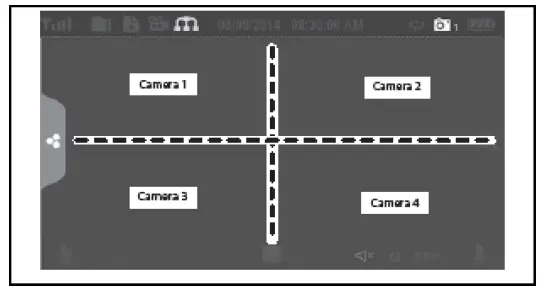
- Quad View: This splits the screen’s image area into 4 quadrants and displays the active camera in each quadrant. Press the center of the individual quadrant to enter single viewing mode.
- Single View: This mode displays one camera at a time on full screen. Press the button to change between the channels. Tap the center of the image to return to quad viewing mode
- Scan Mode: The monitor’s screen and speakers will remain off until a camera detects motion. The camera will then display at full screen (sound and video on) until there has been no motion for 15 seconds. After that, the monitor screen will turn off again. Press and release the power/scan button to turn scan mode on.
- Auto Sequence: Displays each channel automatically in sequence in full screen display. The system defaults to auto sequence mode when scan mode is turned off. Press the SEQ button to turn auto sequence mode off and return to quad viewing mode.
Live Screen Diagram:
Different icons are displayed on the monitor screen depending on what is going on with your cameras. This image shown below is an example of what could be on your screen (the video image is removed to make it easier to see the icons). Please see the icons and descriptions listed below: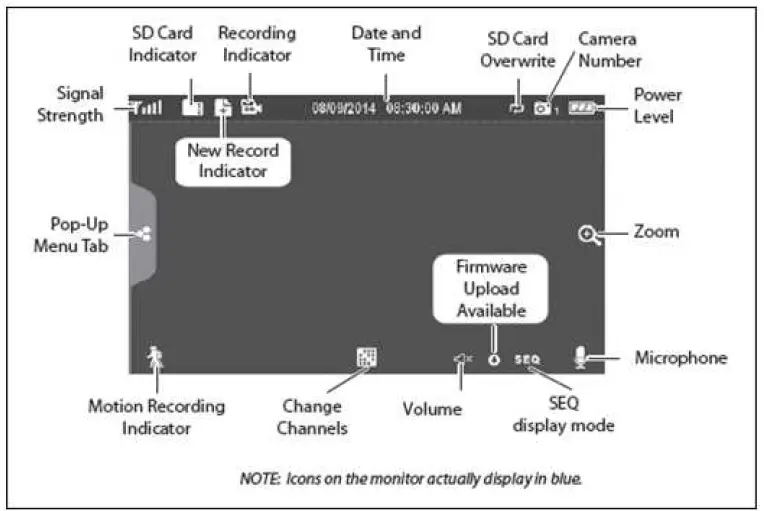
| Icon | Description |
| Signal Indicator
| Shows how strong the camera’s signal is. Signal ranges from 4 bars down to 0 bars (out of range). |
| SD Card
| This graphic displays if an SD card is inserted into the monitor. If the icon is blue, recording space is available. If the icon is red, the SD card is full. Tap this icon to view recorded files. |
| New Recording Indicator | New recordings have been saved on the SD card. |
| Recording Indicator
| When this icon flashes red, it indicates that recording is in progress. |
| Time Stamp | Current date/time is displayed in day/month/year, second/minute/hour format. |
| SD Card Overwrite
| Displays if the SD card is allowed to overwrite files when it is full. |
| Channel Indicator
| Displays the current channel number you are currently viewing. If viewing multiple cameras at once, the camera indicator will appear above each video display. |
| Battery Indicator
| Indicates the LCD monitor’s battery life: Flashing Red – Low battery Green – Full battery Flashing Green – Charging |
| Zoom Indicator
| When you tap this icon on the screen, the monitor breaks the screen image into 5 areas. Tap the area you want to see zoomed in. That area displays in 2X size. Tap the icon again to exit zoom mode. |
| Volume Indicator
| Indicates the current audio volume. You must be in single channel viewing mode to change volume. Tap + or – to raise or lower the volume. will display when the volume is off (muted). |
| Talk Back Indicator
| Displays when the TALK button is pressed. Press and hold the TALK button on the side of the monitor to talk back through the camera. Release the TALK button to wait for a reply. |
| Sequence Indicator
| Displays when the monitor is in auto sequence mode; it will change channels automatically. |
| Change Channel
| Press this icon to manually change channels. |
| Motion Recording Indicator | Indicates motion detection status. Blue – Automatic recording OFF. Red – Automatic recording ON. |
| Pop Up Menu Tab
| Press to access the pop up menu system. |
This pop up menu tab will display settings for playback recorded files, set alarms, change the brightness and general settings. To enter this menu, press the pop up menu tab as shown below: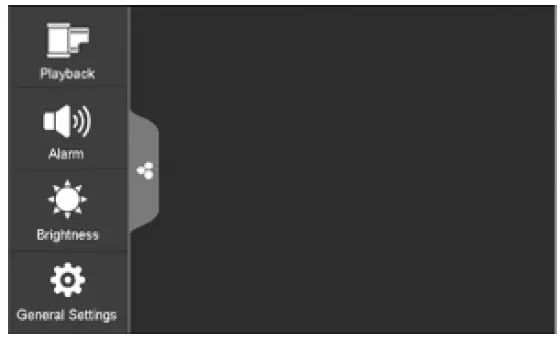
Playback:
You can manage recorded files within this screen. You can see what recorded files you have, play or delete them.
- Press the button playback icon which is as shown below:

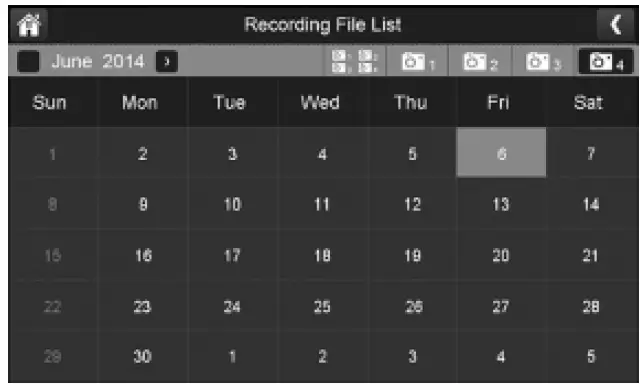
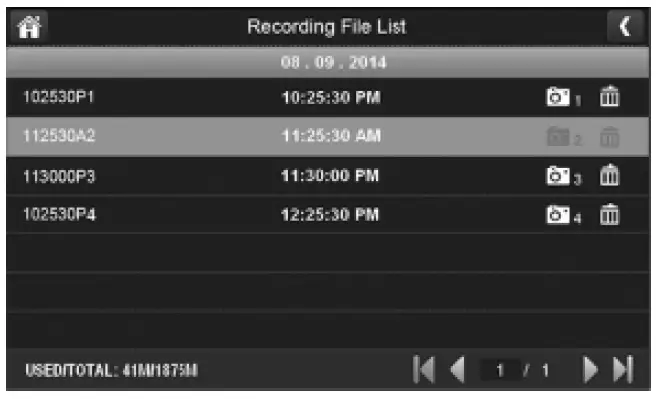
- Days that are highlighted have recorded files. Press the day you want to review and a list of recordings for that day will be displayed as shown below.

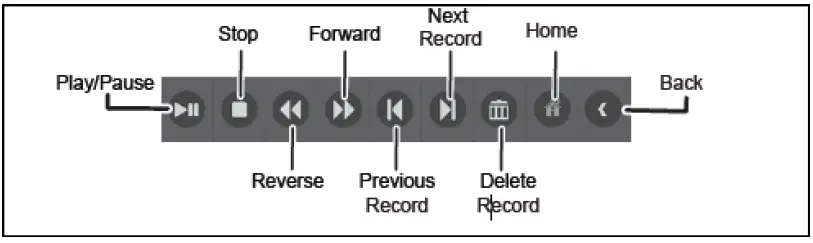
- Press the recorded file you want and it will start playing, with a bar across the bottom of the screen for control.

- When the file is finished playing, the monitor will display the recorded file list again.
- Press the button recycle icon to delete the recorded file.
Alarm:
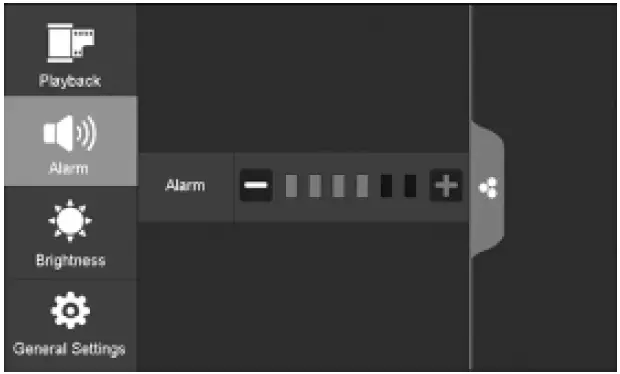
When the motion sensor is triggered, the camera will begin to record. The monitor will sound with an alarm tone. This screen lets you determine how loud the alarm will be.
- Press the alarm icon which is as shown below:
Press + or – to increase or decrease the alarm volume. Press the return to the previous menu.
Brightness:
This allows you to set each camera’s brightness level.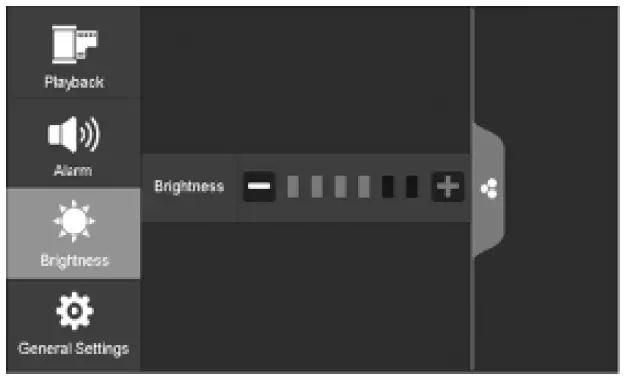
- Press the brightness icon which is as shown below:
- Press + or – to increase or decrease the monitor’s screen brightness. Press the up menu tab to return to the previous menu.
General Settings:
The general settings tab will display camera setup, recording setup, system settings, motion detection settings, network setup and firmware upgrade which is shown below:
Please Note: This model does not support network function.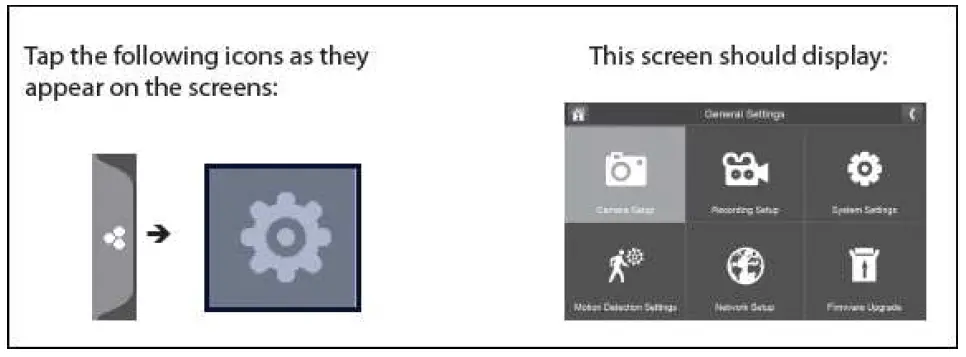
| Main Screen | Sub-Screen | Description |
| Camera Setup | Paring | This system comes with cameras already paired. Use Pairing to assign these cameras to different channels or to pair additional new cameras to the monitor. |
| ON/OFF | Makes the cameras visible to the monitor. | |
| Resolution | Adjusts the video quality of each camera. | |
| Recording Setup | Duration | Set the length of time the camera records once motion sensitivity triggers the camera to record. The options are 15 seconds (Default), 30 seconds, or 1 minute. |
| Scheduled Recording | Set up a schedule for pre-determined recording times and lengths. | |
| File Overwrite | Overwrites the oldest recorded data on the SD card once the card is full. | |
| System Settings | Date & Time | •Time Setting: Set the current time (including daylight savings Time). •Time Zone: Set the time zone for your system. |
| Time Zone | •Set the time zone for your system. •Enable/Disable Daylight Savings Time. | |
| Language | Changes languages setting for the monitor (English, French or Spanish) | |
| Default Settings | Restores the system to default settings. | |
| Format SD Card | Reformats the SD card and deletes all existing data. | |
| Information | Displays the current firmware information for the monitor and each camera. | |
| Motion Detection Settings | A single screen lets you set motion detection sensitivity for each camera. It also lets you determine which viewing areas for each camera should be masked from motion detection. | |
| Firmware Upgrade | Let’s you select to upgrade your firmware if necessary (from SD card). | |
Camera Setup:
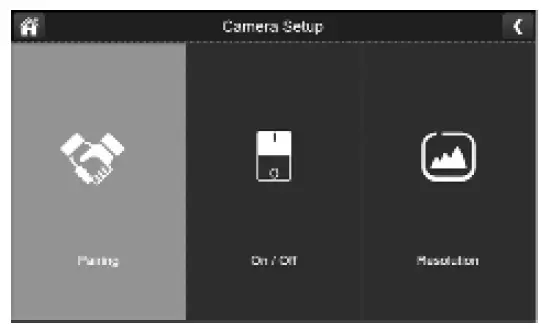
This allows you to pair existing or additional cameras, turn the cameras on or off and adjust the resolution as shown below:
Pairing:
Your camera is already pre-paired to the monitor on channel 1. When you add a new camera to your system, you have to “pair” the camera and monitor to each other so they can communicate. You can also use pairing to change one camera to a different channel if required.
Please Note: If the camera is already assigned to the selected channel, pairing on the same channel will overwrite the current camera with the new one.
Please only pair one camera at a time otherwise the cameras may interfere if multiple is pairing at once.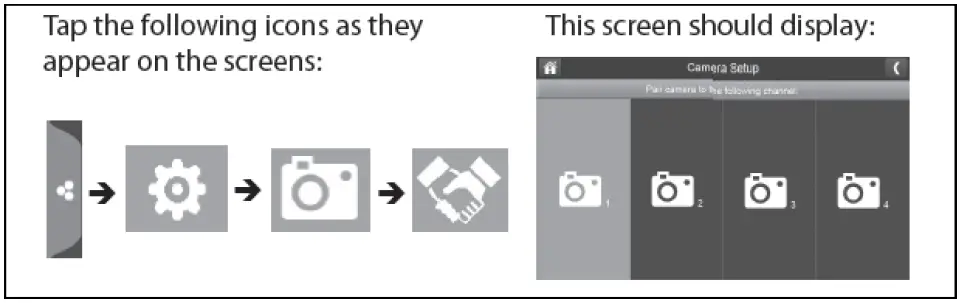
- Press the pairing button on the camera setup screen.
- Select the channel number you want to pair the camera to.
- A message will be displayed with instructions to press the pair button on the camera. Press and release the pair button located at the rear of the camera. A 30-second countdown will begin.
Please Note: You must press the pair button on the camera during the 30-second countdown otherwise the camera will not pair with the monitor - The system will display live video 3 seconds after the camera has successfully paired.
On/Off:
When you add a camera to your system, pair up the camera with the monitor and the system will automatically turn it on.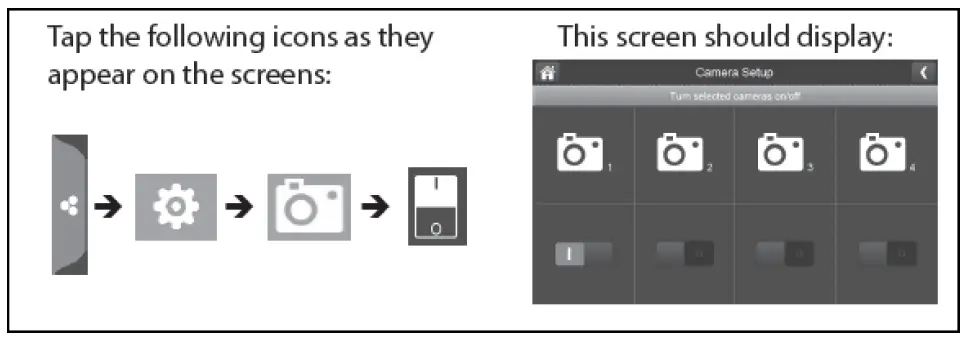
- Press the switch bar under the camera you want to turn on or off.
- The switch bar indicator will turn green when the camera is on. It will be greyed out when the camera is off.
Please Note: Although the camera is turned off, it is still powered on. The monitor will not receive video signals from that camera. - Press the left arrow to return to the previous menu.
Resolution:
You can adjust the resolution between high and a low frame rate for each camera.
Please Note: When you only have 2 cameras paired it will record at 25fps however if you have 4 cameras then it will record and display at 15fps.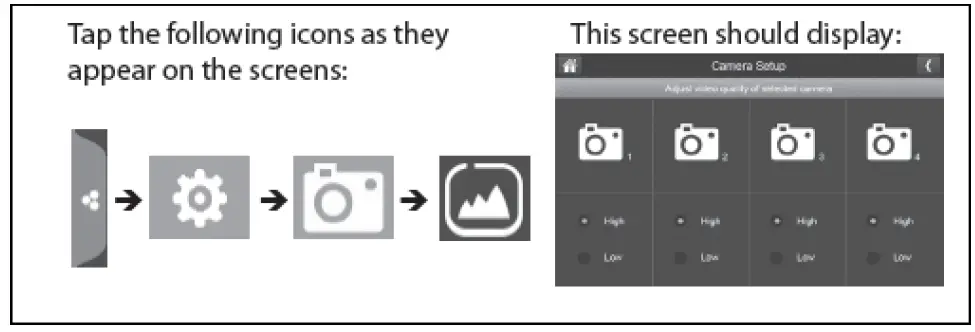
- Press the high or low option to set the frame rate for each camera.
- Press the left arrow to return to the previous menu.
Recording Setup:
This allows you to set the length of time the system will automatically record when the motion trigger records, schedule a set time for recording for set up file overwrite.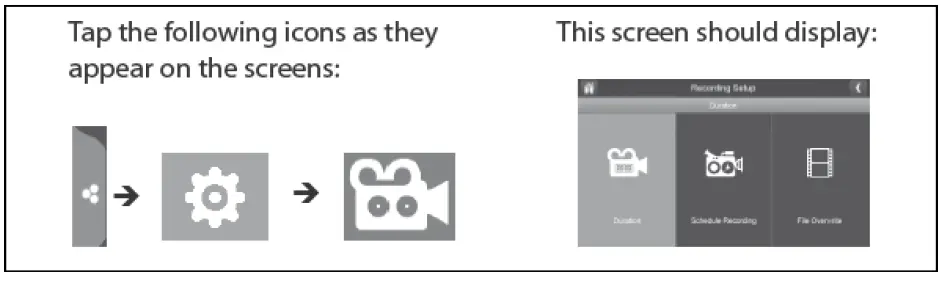
Duration:
You can set how long the camera keeps recording after motion detection is triggered. The options are 15 seconds (Default), 30 seconds, or 1 minute.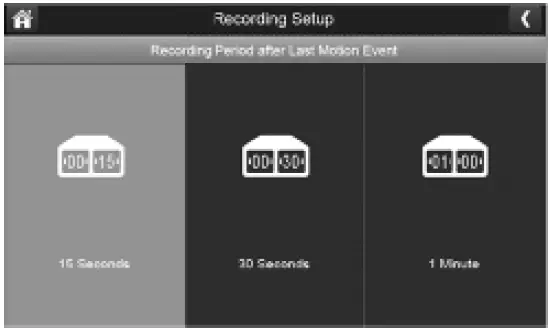
Scheduled Recording:
This feature lets you set up a block of time for a camera to record on a weekly schedule. You can set up multiple cameras to record at the same time and the recording times can overlap between cameras.
Please Note: Total recording time is limited to the space available on the SD card. If you set the SD card to delete the oldest files when it is full, the system continues recording; otherwise, recording stops until space is available.
Live View Functions:
| Live View Functions: | Action |
| Manually Start/Stop Recording Video | 1. Press the blue icon on the monitor screen. The icon turns red and flashes, indicating that recording has started. 2. Press the icon again to stop recording, the icon will then turn blue. |
| Set Up automatic Recording Schedule | 1. From the general settings/recording setup, press the icon. 2. The scheduled recording Overview screen will display 3. Press modify to view the recording setup screen. |
| Delete Recording schedule | 1. From General Settings/Recording Setup, Press the icon. The scheduled recording overview screen will display. 2. Select the day you want to modify and press modify to view the recording schedule for that day. 3. Select the camera(s) whose schedule you want to delete. Enter the schedule (or part of a schedule) you want to delete and press delete. |
| Watch Recorded video | 1. From the main screen, press the pop out menu tab and then press the icon , the recording file list displays the recorded files. 2. Press the day you want to view, and then tap the file. 3. The video will begin playing |
| Delete Recorded Videos | 1. From the Recorded File List, press the icon. 2. Press yes to confirm deletion. |
| Change Channels | 1. Press the icon. 2. The next channel will display |
Troubleshooting:
| If… | Try… |
|
The camera’s signal status icon shows no bars | ·Make sure the camera is connected to power. ·Make sure that the camera’s antenna is attached and the monitor’s antenna is extended. ·Make sure the camera is paired to the correct channel. ·Re-pair the camera and monitor. |
| The camera won’t pair with the monitor | ·Make sure the camera is connected to power. ·Press and release the pairing button quickly. Do not press and hold the pairing button. |
Safety Instructions:
- Do not open the monitor or camera for any reason.
- Do not expose the camera outdoors, it is a weatherproof camera however it is recommended to be placed undercover otherwise it may damage the camera.
- Avoid pointing the camera in direct sunlight.
Specifications:
Monitor:
LCD: 7” Touch Screen
Frequency: 2.4GHz Digital
Wireless Range: Up to 100m
Resolution: 800 x 480 (VGA)
Video Compression: MPEG-4
Recording Format: ASF
Storage: Up to 128GB SD
Battery: 3.7V, 2000mAh Li-Ion
Battery Time: Up to 2.5hrs
Power: 5VDC, 2A
Dimensions: 196(L) x 123(H) x 20(D)mm
Camera:
Image Sensor: ¼” Colour CMOS
Resolution: 640 x 480 (VGA)
Frame Rate: 25fps (Up to 2 x Cameras) 15fps (Up to 4 x Cameras)
Lens: 3.6mm
Viewing Angle: 66°
Night Vision: 24 x IR LEDs
IP Rating: IP65
Power: 9VDC, 600mA
Dimensions: 191(L) x 69(Dia)mm
Recording Time:
| QVGA (15fps) | VGA (25fps) | |||
| SD Card Capacity: | Min | Max | Min | Max |
| 1G | 2.8 Hrs | 10.7 Hrs | 2.6 Hrs | 10.5 Hrs |
| 2GB | 5.6 Hrs | 21.4 Hrs | 5.2 Hrs | 21 Hrs |
| 4GB | 11.3 Hrs | 42.8 Hrs | 10.3 Hrs | 42 Hrs |
| 8GB | 22.6 Hrs | 85.6 Hrs | 20.7 Hrs | 83.9 Hrs |
| 16GB | 45.2 Hrs | 171.3 Hrs | 41.4 Hrs | 167.8 Hrs |
| 32GB | 90.3 Hrs | 342.6 Hrs | 82.8 Hrs | 335.6 Hrs |
| 64GB | 180.6 Hrs | 685.1 Hrs | 165.6 Hrs | 671.2 Hrs |
| 128GB | 361.2 Hrs | 1370.2 Hrs | 331.2 Hrs | 1342.4 Hrs |
File Size:
| QVGA (15fps) | VGA (25fps) | |||
| Time: | Min | Max | Min | Max |
| 1 Min | 1.45Mb | 5.5Mb | 1.48Mb | 6Mb |
| 10 Mins | 14.5Mb | 55Mb | 14.8Mb | 60Mb |
| 30 Mins | 43.4Mb | 165Mb | 44.4Mb | 180Mb |
| 60 Mins | 86.8Mb | 330Mb | 88.8Mb | 360Mb |

Distributed by:
TechBrands by Electus Distribution Pty. Ltd.
320 Victoria Rd, Rydalmere
NSW 2116 Australia
Ph: 1300 738 555
Int’l: +61 2 8832 3200
Fax: 1300 738 500
www.techbrands.com
 Electus Distribution - Home