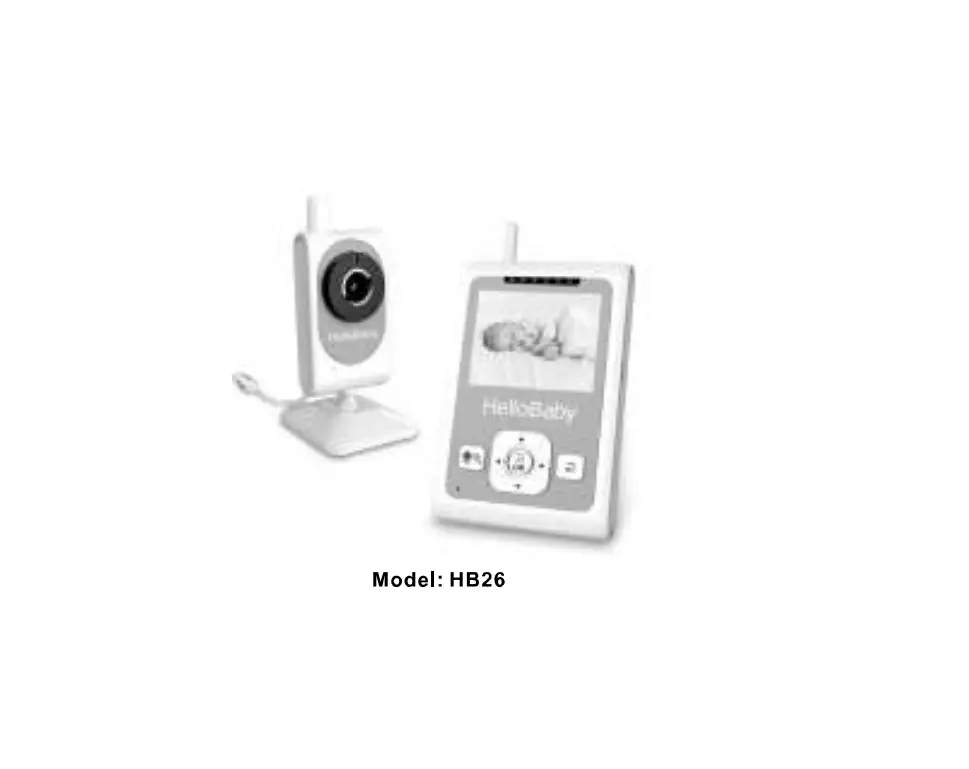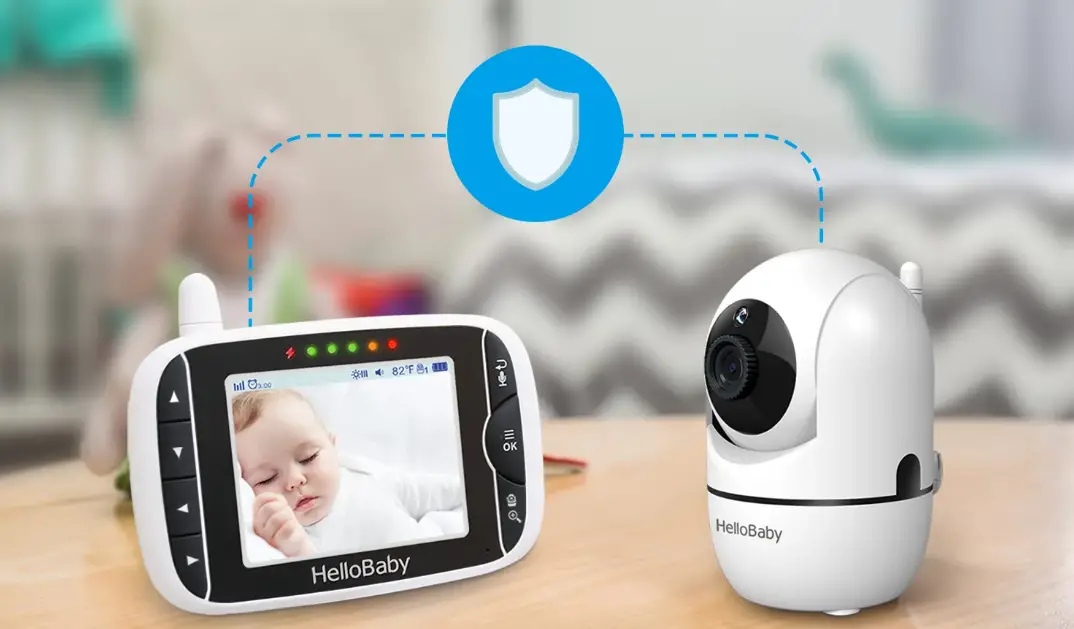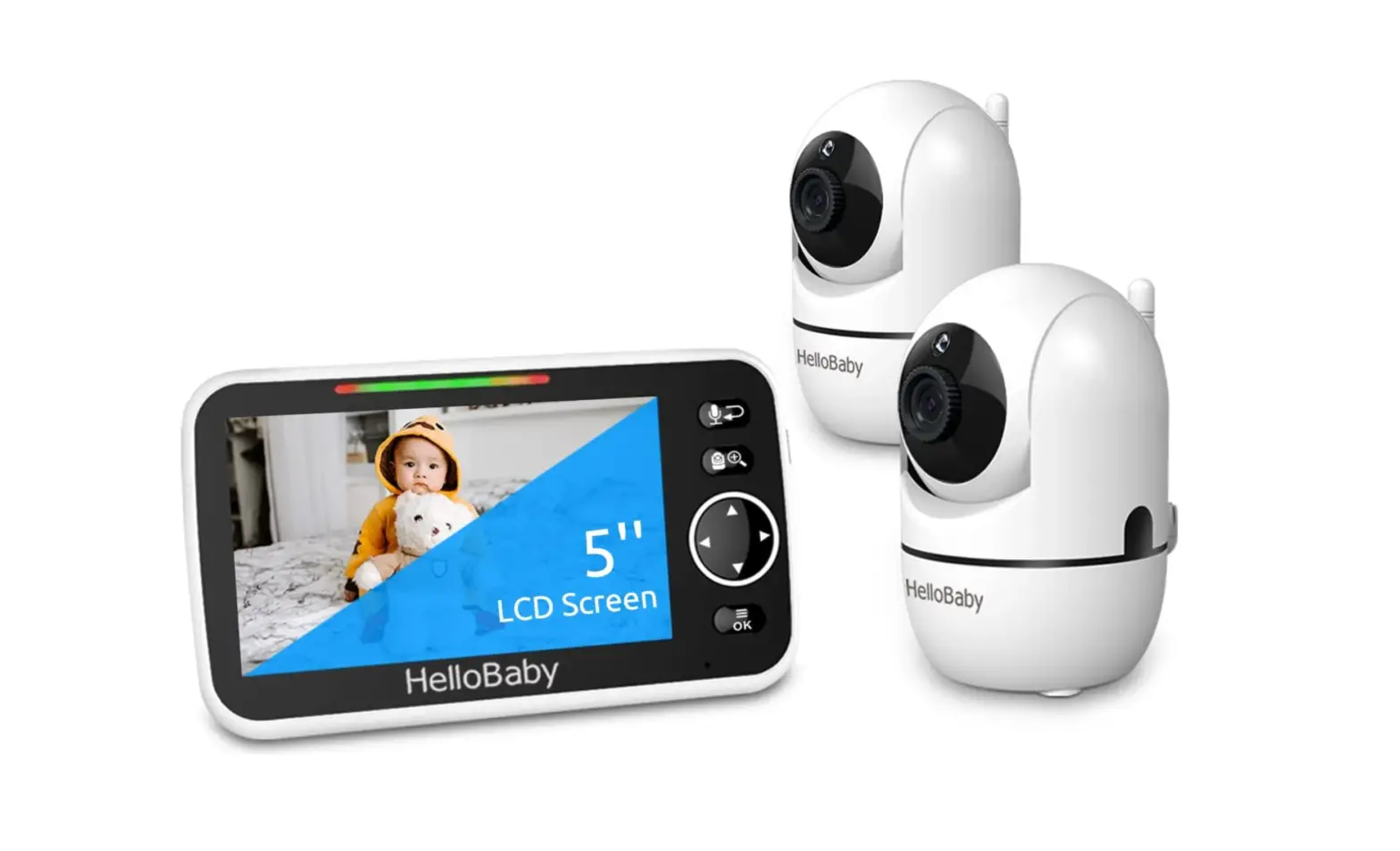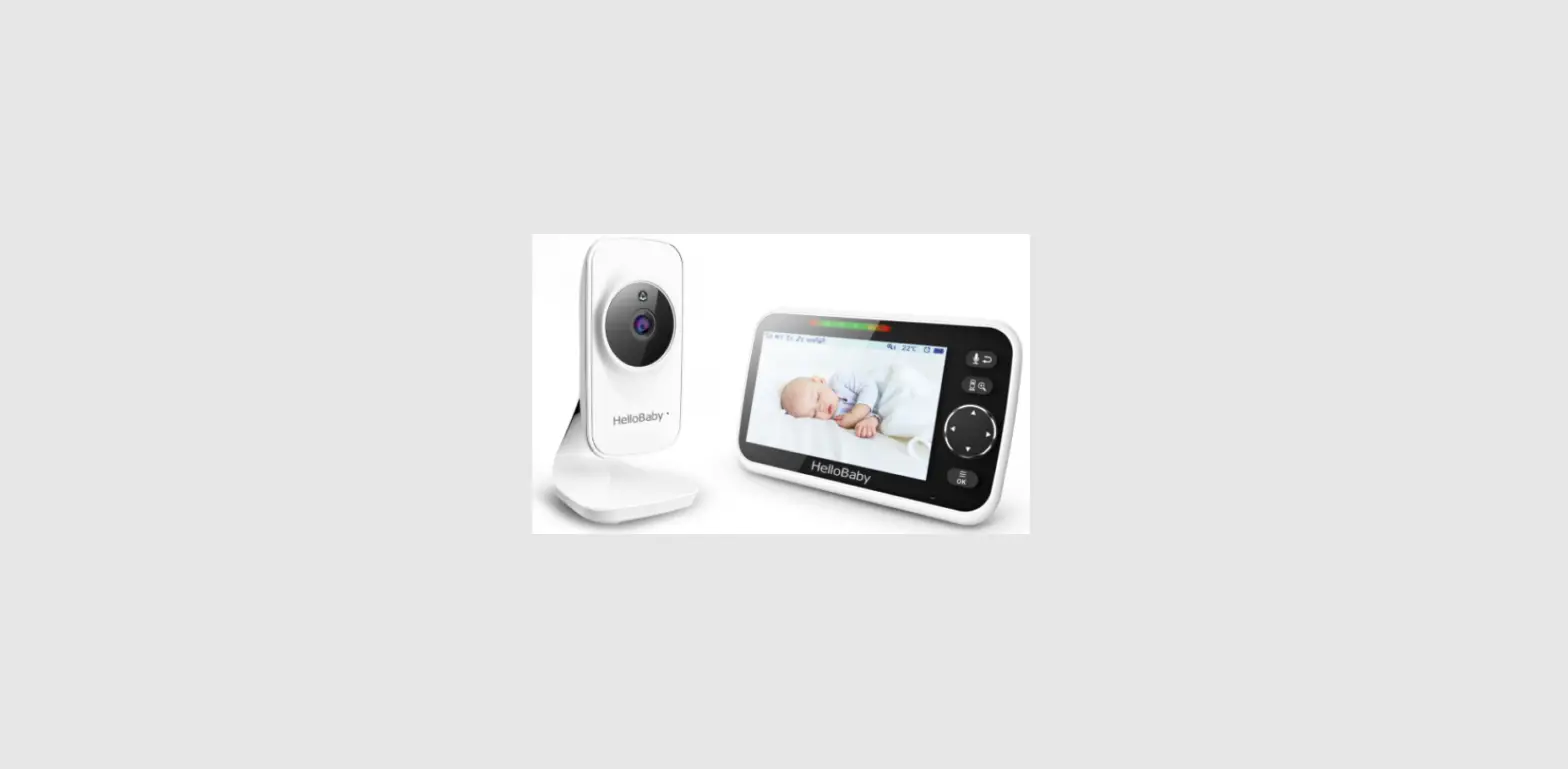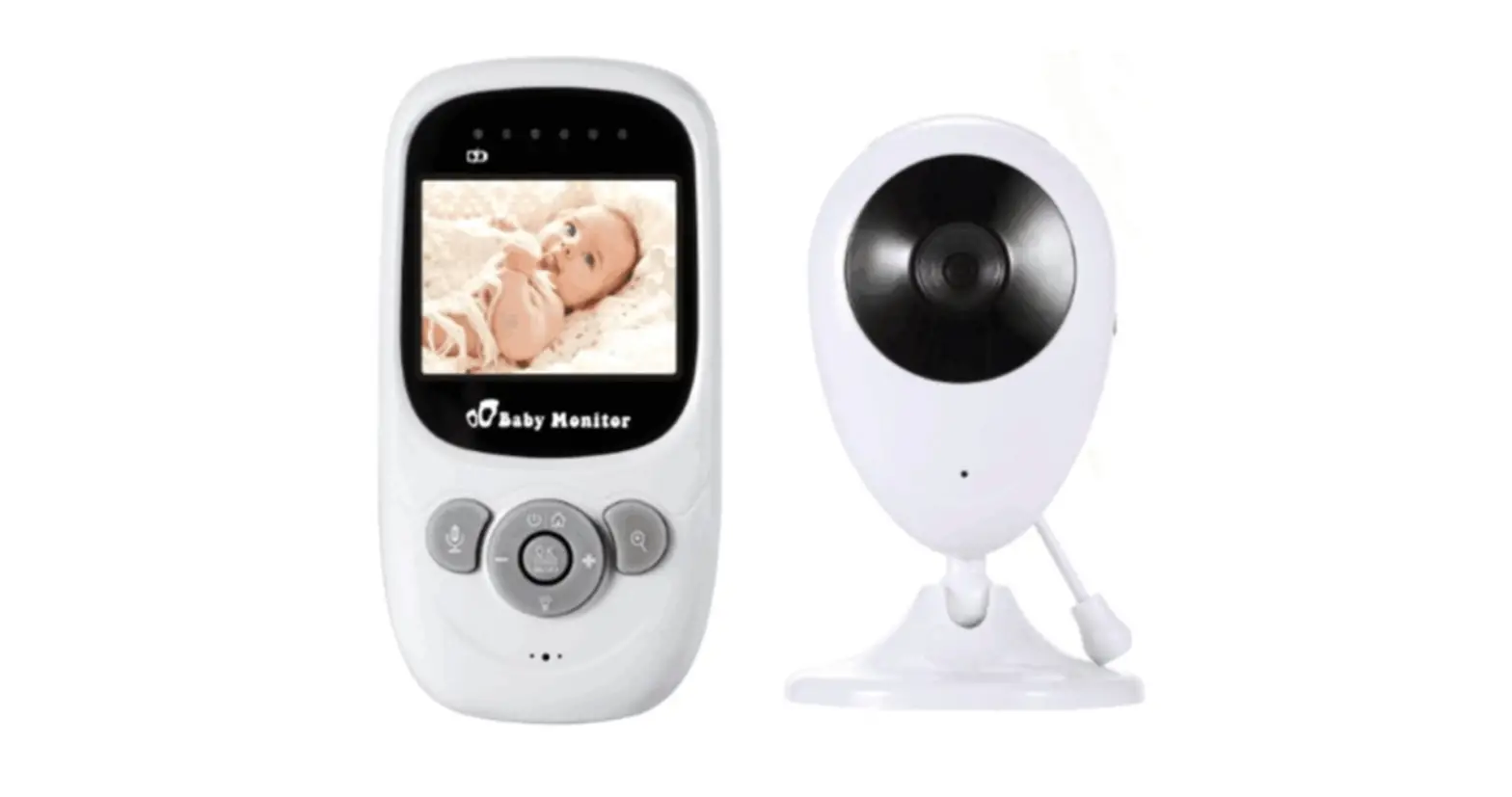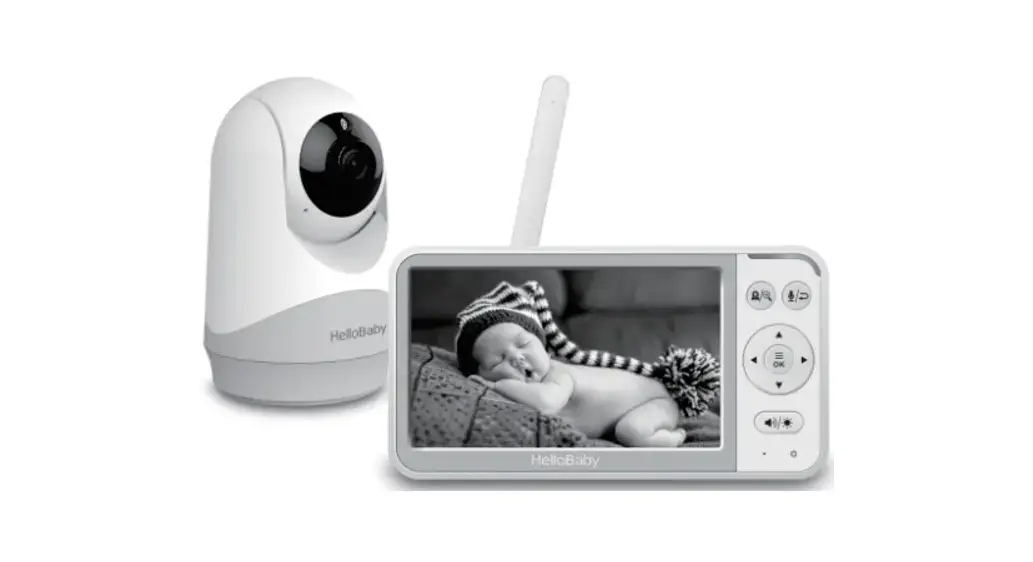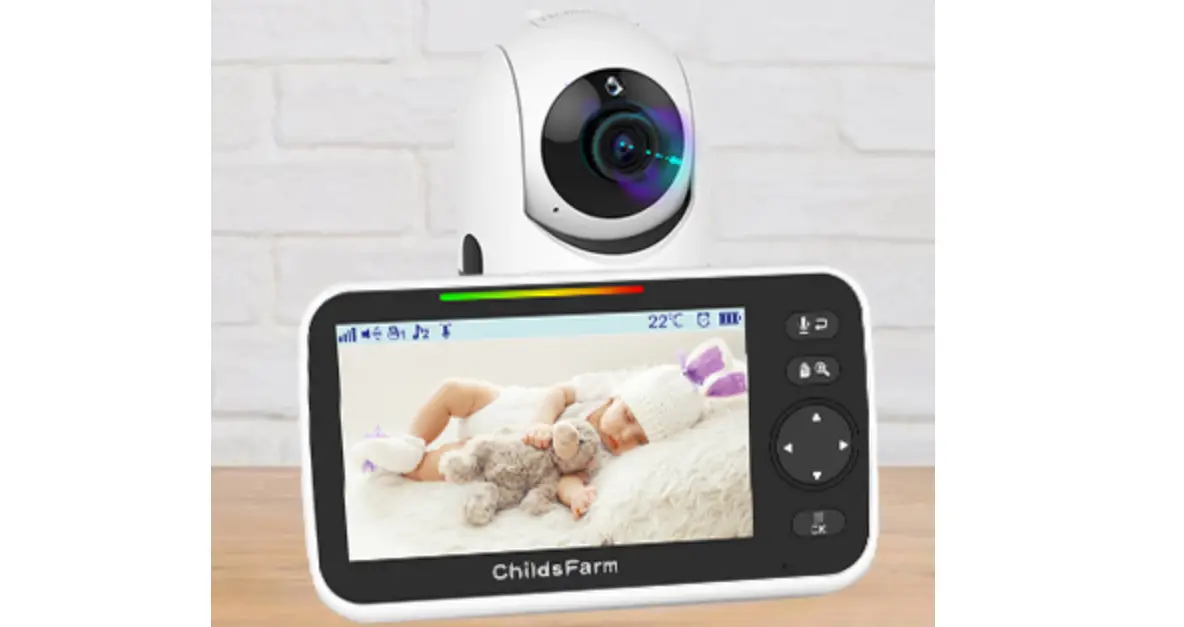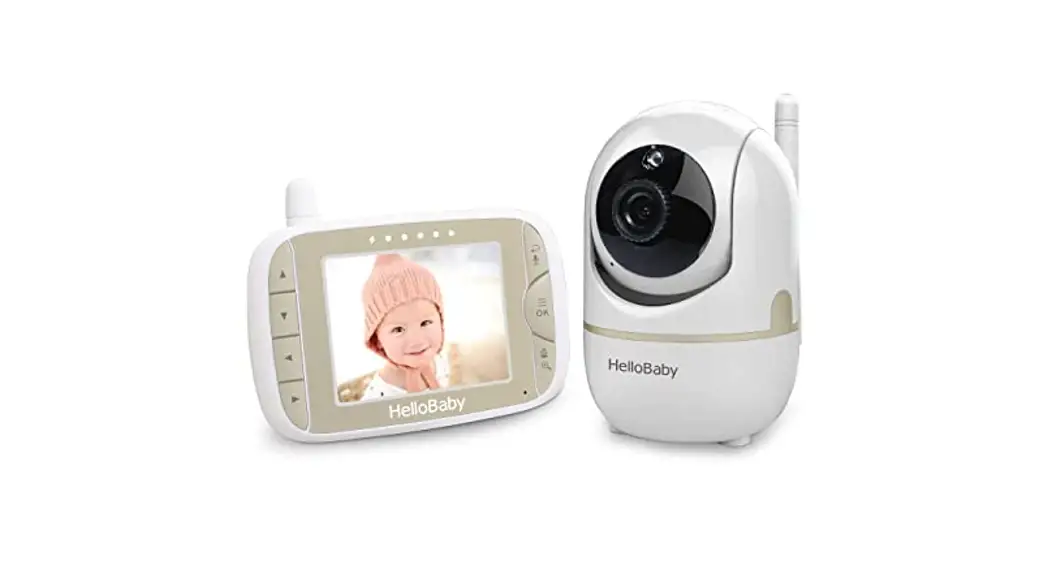
 Ver: 1.0
User Manual
2.4GHz Digital Wireless Video Baby Monitor
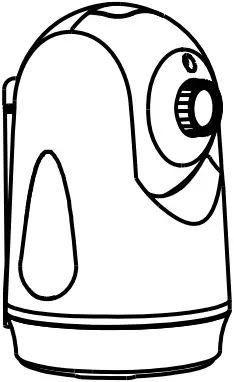
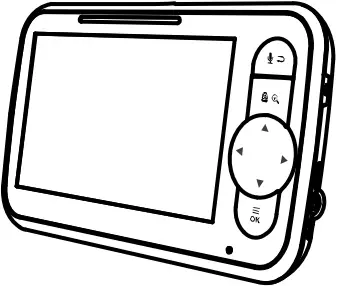
Model: HB6351
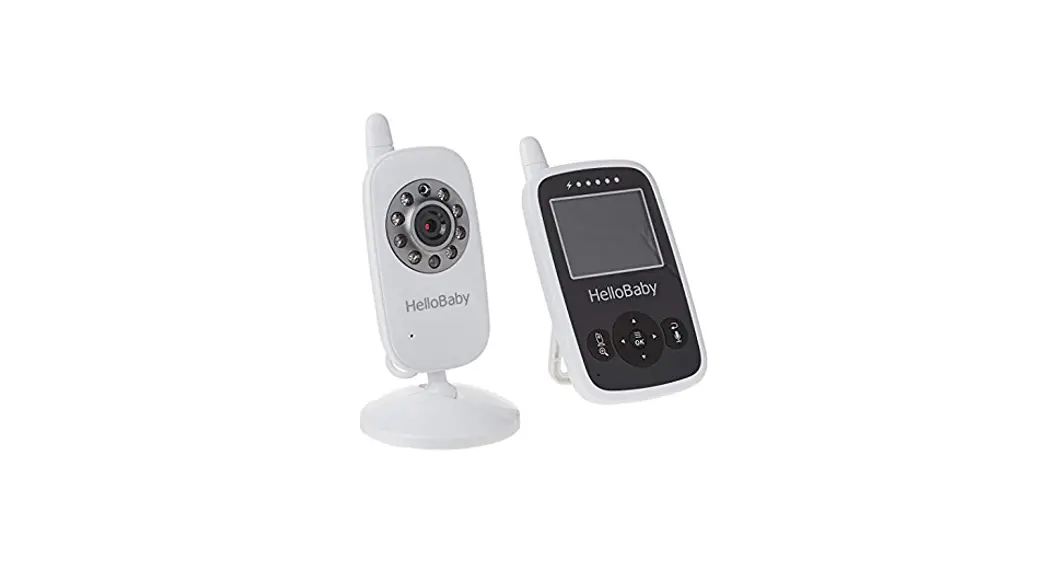
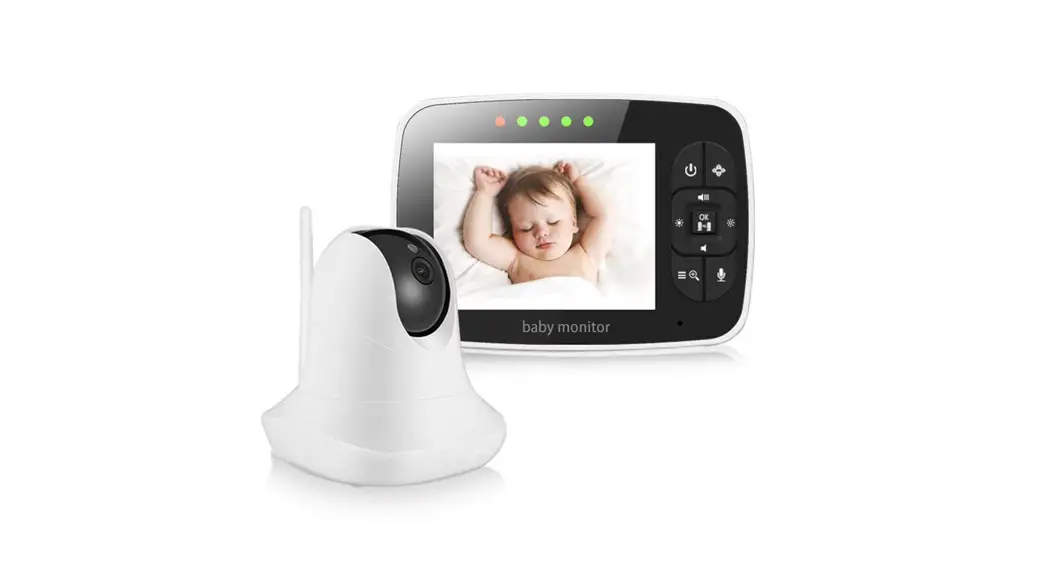
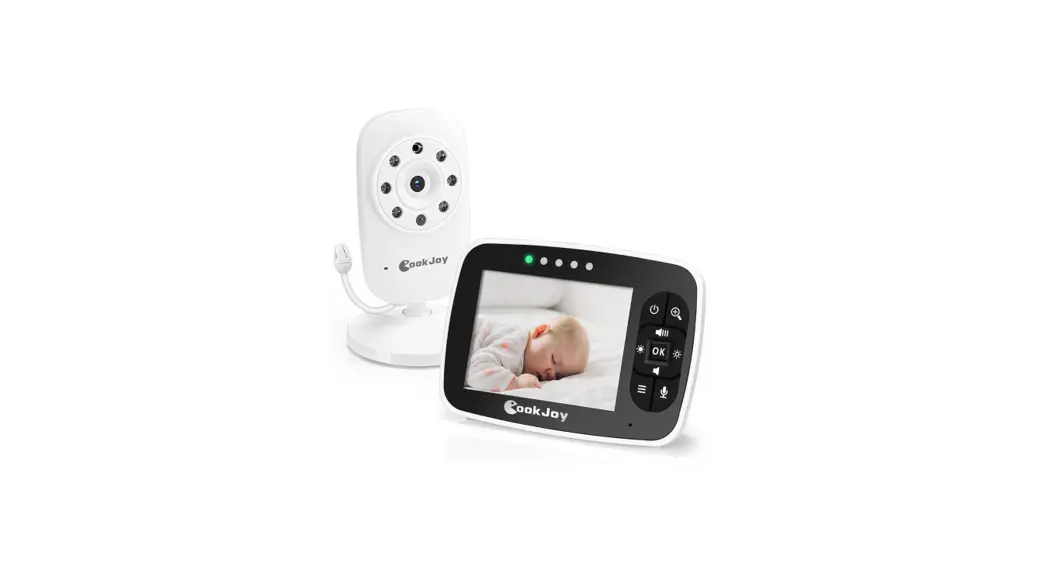
The pictures are for reference only, please subject to practicality.
www.hellobaby.net.cn
[email protected]
Thank you for purchasing the HB6351 Baby Monitor. With our baby monitor, you could see and hear your baby sleeping or playing in their room anytime.
Please retain your original dated sales receipt for your records. For warranty service of your product, you will need to provide a copy of your dated sales receipt to confirm warranty status. Registration is not required for warranty coverage.
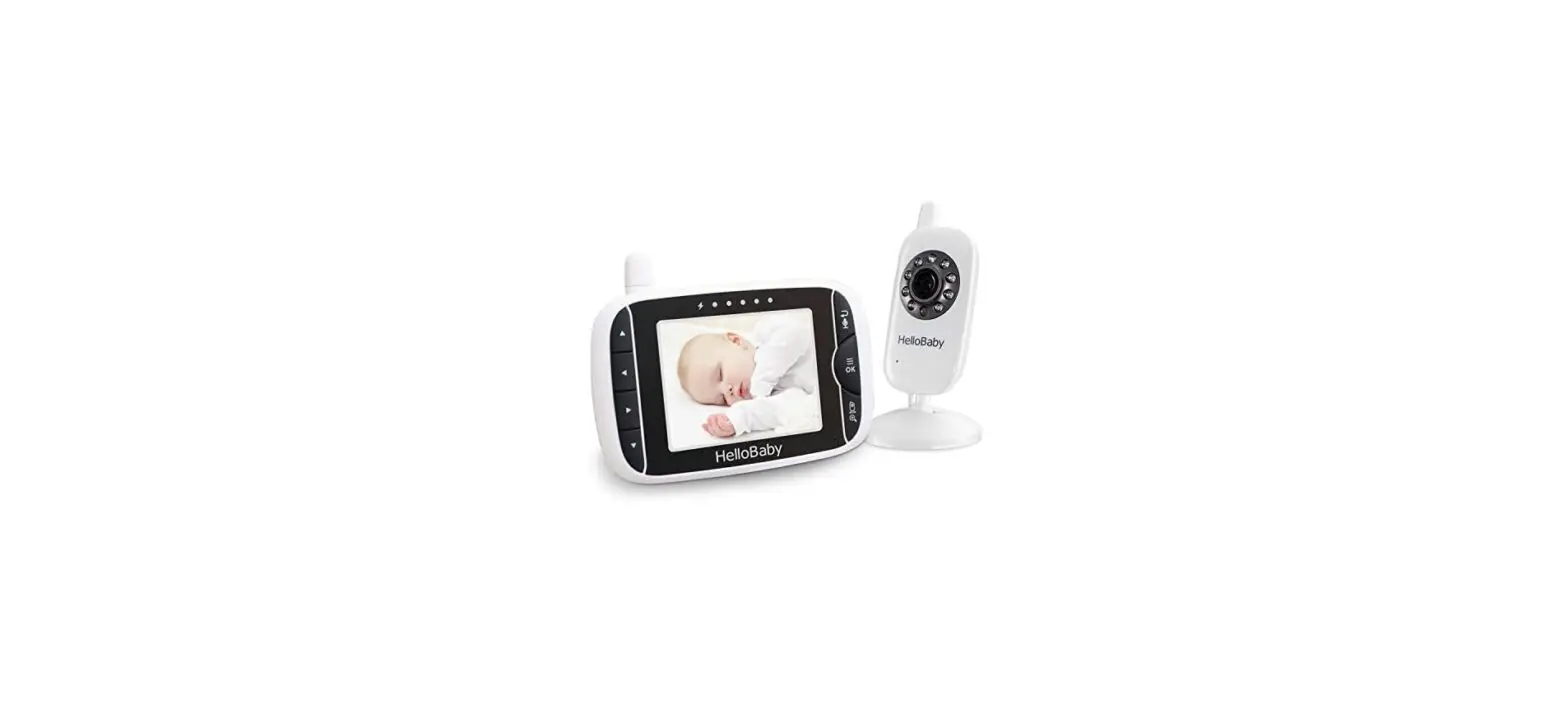
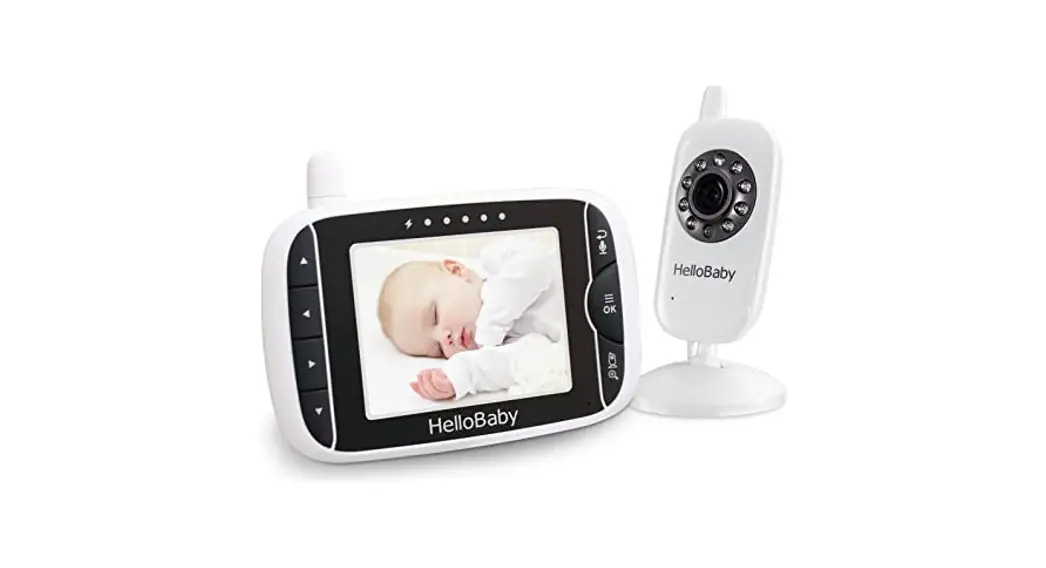
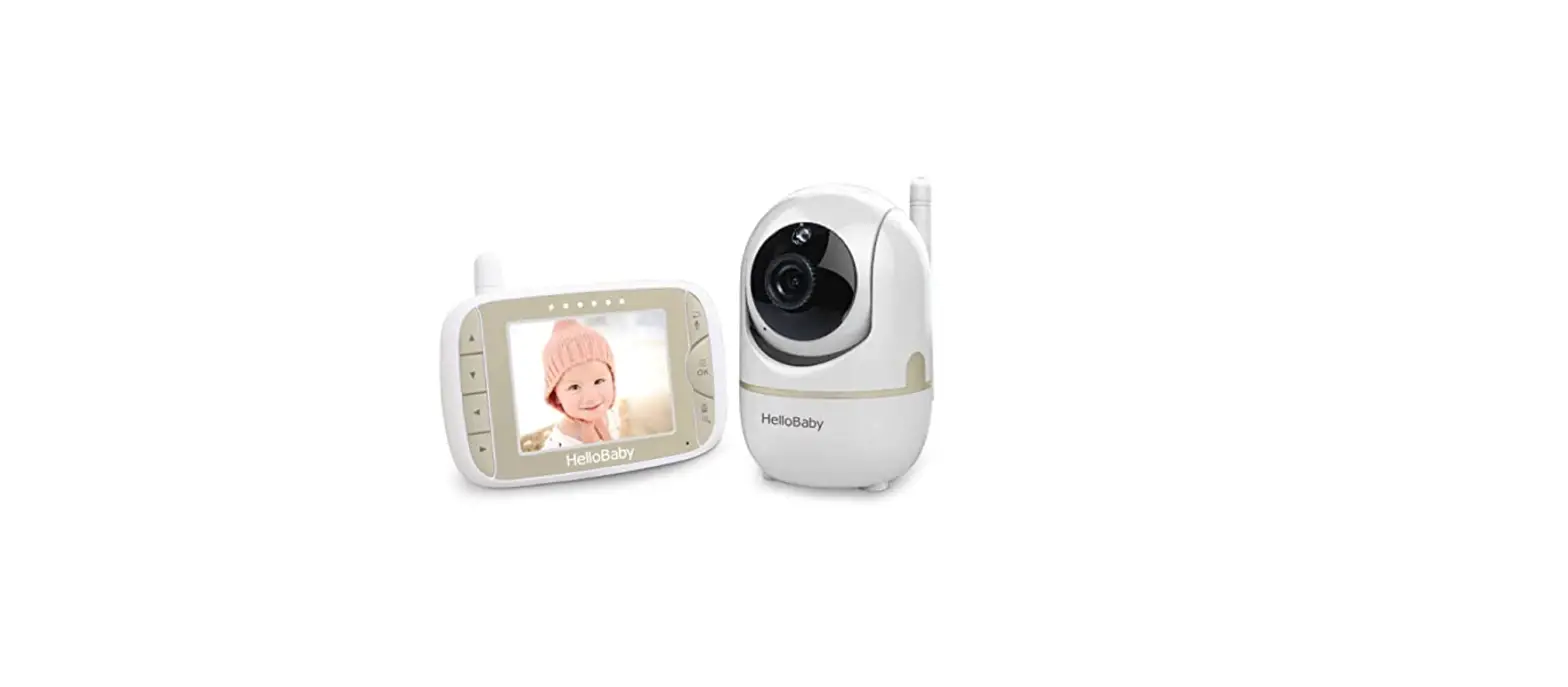
Please make sure the following included in your package
Parent unit x 1 Camera unit x 1 Power Adapter x 2
User manual x 1 Wall-mounting kit x 1
1. SAFETY INSTRUCTIONS
CAUTION: Keep the device away from children.
Strangulation Hazard: Children have STRANGLED in cords. Keep this cord out of the reach of children (more than 3ft (0.9m) away). Never use extension cords with AC Adapters. Only use the AC Adapters provided.
Choking hazard: This product contains small parts, please be careful when unpack and assemble the product.
Read and keep to instructions: All the safety and operating instructions should be read before the video baby monitor is operated. This product cannot replace responsible adult supervision.
Water and moisture: This product is designed for indoor use only. The unit should not be exposed to rain, moisture, dripping or splashing. No objects filled with liquid should be placed on top of, or beside the product, such as a glass or vase. This item should not be used near water.
DO NOT: Use the appliance if the cord or plug is damaged. If your baby monitor is not operating properly or has suffered any damage, contact “Videotimes” service center to request inspection and repair of the appliance in order to avoid any possible risk.
DO NOT: Do not attempt to repair or adjust any of the electrical or mechanical functions of the unit. Otherwise, the guarantee will be made void.
Ventilation: This baby monitor should not be used on a bed, sofa, rug or similar surface that may block the ventilation openings, or be placed in an enclosed area such as a bookcase or drawer that may impede air flow.
Keep away from sources of heat: This unit should not be exposed to direct heat sources such as a candle, radiator, heat register, stove or other appliance that emits heat. The unit should not be left in direct sunlight.
Power source: This unit should only be used with the AC power adapters included in this package (rated 5V DC 1A).
Damage requiring service: This unit should be serviced by qualified personnel only when:
- Objects have fallen or liquid has been spilled into the product;
- The units have been exposed to rain;
- The units do not appear to operate normally or exhibits a distinct change in performance;
- The units have been dropped or the enclosure damaged;
2. WARRANTY TERMS
We offer one-year warranty from the original purchase date against defects in workmanship and materials. If you have warranty or support issues, please contact our after-sales service via email.
3.INSTALLATION GUIDELINES
*To use your parent unit and camera unit together, you have to establish a radio link between them, and the range will be affected by environmental conditions.
* Any large metal object, like a refrigerator, a mirror, a filling cabinet, metallic doors or reinforced concrete between the baby and parent unit may block the radio signal.
*The signal strength may also be reduced by other solid structures, like walls, or by radio or electrical equipment, such as TV, computers, cordless or mobile phones, fluorescent lights or dimmer switches.
* Use of other 2.4G Hz product, such as wireless networks (Wi-Fi routers), Bluetooth systems, or microwave ovens, may cause interference with this product, so keep the baby monitor away at least 5ft (1.5m) from such products, or turn them off if they cause interferences.
4. PLACEMENT OF THE BABY MONITOR
The camera can be placed on the desktop or mounted on the wall. Don’t place baby monitor on soft quilts or blankets or in the corners of cupboards, shelves, etc; Keep the baby monitor away from heat sources such as radiators, chimneys, cookers and direct sunlight; Keep the baby unit away from TV sets, microwave oven and radios. If interference occurs, move the camera to elsewhere;
* Place the camera within 6 feet (2 meters) of the area being monitored for optimum performance.
5. GETTING STARTED
5.1 TURN ON THE BABY UNIT:
- Insert the DC plug of the power adapter into the DC jack in the rear of the Baby Unit;
- Insert the other end of the power adapter into a suitable electrical outlet;
- Once the adapter is connected, the power LED will light up;
5.2 TURN ON THE PARENT UNIT:
- Insert the DC plug of the power adapter into the DC jack in the side of the parent Unit;
- Insert the other end of the power adapter into a suitable electrical outlet;
- Press and hold the power key 3 seconds on the side of the parent unit;
- Once parent unit is on, the power LED will light up and the image will display on the LCD
5.3 INFRARED NIGHT VISION (AUTOMATIC)
The infrared night vision function allows the camera to pick up images in dark or low light conditions. In this mode, only black and white images will be displayed on the monitor. the optimum image lie in where baby unit is 6ft (2m) away from object. The camera is in night vision mode, the icon  will be displayed on the top of screen.
6. PRODUCT OVERVIEW
6.1 ICONS OVERVIEW:
 — Signal Strength
  — Volume
  — Zoom
 — Alarm
  — Brightness
  — Two-Way Talk
 — Lullaby
  — Night vision
  — Battery Level
 — Camera
  — VOX
— VOX  — Temperature
6.2 PARENT UNIT OVERVIEW:
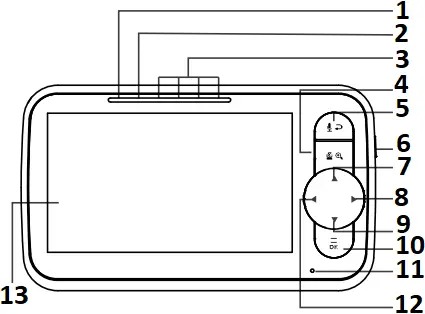
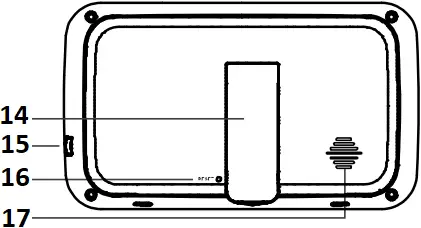
- Charging LED
- Power LED
- Sound Level Indicator
- Zoom/View/Scan
- Exit/Two Way Talk
- Power key
- Up key
- Right Key
- Down Key
- Menu/OK
- MIC
- Left Key
- 5.0″ Diagonal TFT LCD
- Stand
- DC-jack
- Reset Key
- Speaker
6. 3 BABY UNIT OVERVIEW:
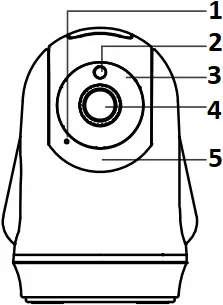
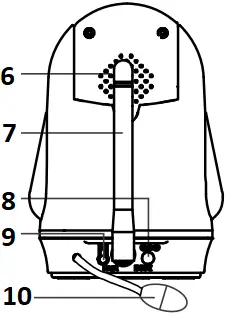
- MIC
- Light sensor
- Infrared LEDs
- Lens
- Power LED
- Speaker
- Antenna
- DC-Jack
- Pair key
- Temperature sensor
7. KEY OPERATION
7.1 TURN ON/OFF
Press and hold the power  key for 3 seconds to turn on / off the parents unit.
7.2 UP  KEY
KEY
 KEY
KEYPress once to tilt the camera up by one step. Press and hold to tilt continuously.
7.3 DOWN KEY
 KEY
KEYPress once to tilt the camera down by one step. Press and hold to tilt continuously.
7.4 LEFT  KEY
KEY
 KEY
KEYPress once to pan the camera left by one step. Press and hold to pan continuously.
7.5 RIGHT KEY
 KEY
KEYPress once to pan the camera right by one step. Press and hold to pan continuously.
7.6 CAMERA VIEW/SCAN
Press scan  key to view/scan camera: during scan mode, the scan icon
  will be displayed on the top of screen. Each camera’s video will be displayed on the LCD around 10 seconds then change to next camera;
7.7 DIGITAL ZOOM
Press and hold the  key around 2 seconds to operate zoom in/ out;
7.8 Two Way Talk
Press and hold  key to enter two way talk mode. A microphone icon will be displayed in the corner of the LCD screen. Release the key to stop.
Note: When you are in the two-way talk mode, the parent unit speaker is muted.
8.1 PAIRING THE CAMERA AND PARENT UNITS
The baby unit is pre-registered to your parent unit. You do not need to register it again unless the baby unit loses its link with the parent unit. To re-register your baby unit, or register a new baby unit, follow the procedure below:
Note: Camera icon with “ “means it is well registered. You should select and pair with the camera icon without “” sign.
8.1.1 ADD CAMERA
- Press the MENU
 key then the menu will pop up;
 - Press the / / / key until the camera icon
 is selected by red box;
 - Press OK key to enter into sub-menu, then press / key to select your desired camera;
- Press key enter into sub-menu; Press / key to select
 then press key;
 - When the icon
 displayed on the LCD screen, press the PAIR button on the back of camera;
 - Once paired, Successful pairing icon
 shows on the LCD screen;
 - If fails, repeat the above steps.
 key then the menu will pop up;
 is selected by red box;
 then press
  displayed on the LCD screen, press the PAIR button on the back of camera;
 shows on the LCD screen;
8.1.2 DELETE CAMERA
- Press the MENU key and the menu will pop up;
- Press the / / / key until the camera icon is selected by red box;
- Press OK key to enter into sub-menu, then press / key to select the camera you want to delete;
- Press key enter into sub-menu; Press / key to select
 then press key;
 - Press key to select
 icon to delete the camera;
 - Press OK key to confirm the option.
 then press
 8.2 VOLUME
- Press the key then the menu will pop up;
- Press the / / / key until the Volume icon is selected by red box;
- Press the key enter into sub-menu;
- Press the / key to select the desired volume level from level 1 ~ 5.
 is selected by red box;
8.3 DISPLAY BRIGHTNESS
- Press the MENU key then the menu will pop up;
- Press the / / / key until the brightness icon is selected by red box;
- Press key enter into sub-menu;
- Press / keys to select the desired brightness level from level 1 ~ 5.
(The default brightness level setting is level 3.)
 is selected by red box;
8.4 TEMPERATURE UNIT SETTING
- Press the MENU key then the menu will pop up;
- Press the / / / until the temperature icon is selected by red box;
- Press the key enter into sub-menu;
- Press the / key to select the °F or °C for setting temperature unit.
- Press key to confirm;
- Press
 key to Exit.
 is selected by red box;
Note: The detected temperature range is 0~40 °C.
8.4.1 TEMPERATURE ALARM SETTING
- Press the / / / key to select
 for turning on alarm function; Press key to confirm;
 - Press the / / / key to select
 for turning off alarm function; Press key to confirm;
 for turning on alarm function; Press
  for turning off alarm function; Press
 8.4.2 SET TEMPERATURE HI/LO ALERT LIMITS
- Press / to select
 or for Hi/Lo limits settings;
 - Press / keys to adjust the Hi limit when (red) is selected;
- Press / keys to adjust the Lo limit when (green) is selected;
 or
or  for Hi/Lo limits settings;
Note: The high temperature alarm default setting is 36 °C. and the low temperature alarm default setting is 8 °C. When the temperature goes above or below the settings, the temperature icon  will display on the screen. It will alert user by beeps. Press any key on the parent unit to stop beeping and flashing.
8.5 LULLABY SETTING
You can soothe the baby to sleep by playing a gentle lullaby from the Camera unit.
- Press the MENU key and the menu will pop up.
- Press the / / / keys until the lullaby icon
 is selected by red box;
 - Press the key enter into sub-menu;
- Press the / / / key to select one of the 8 available lullabies, you can pick single playback, loop (all 8 lullabies) playback
 or stop .
 - Press key to confirm.
 is selected by red box;
 or stop
  .
.Note: The lullaby default setting is OFF.
8.6 ALARM SETTING
- Press the MENU key and the menu will pop up.
- Press the / / / key until the alarm icon
 is selected by red box.
 - Press the / key enter into sub-menu, Press the / / / key to selected the alarm time you need;
- Press key to confirm;
- Press key to Exit.
 is selected by red box.
Note 1: The minimum unit is 0.5 hour. The maximum setting is 5 hours (7 levels).
Note 2: Once the alarm is turned on, alarm icon  will display on the screen;
Note 3: The alarm default setting is OFF.
Note 4: When the alarm is ringing, press any key on the parent unit to turn the alarm off.
Note 5: If you don’t turn off the alarm, the alarm will ring for 1 minute. After three minutes the alarm will ring again far 1 minute. The alarm will ring for three times in total, after this the alarm goes off.
8.7 VOX SETTING
This mode allows you to control the sound activation of your baby unit. If there is no sound around the baby unit within 30 seconds, it will stop audio transmission and turn off the screen of the parent unit. When the baby unit detects any sounds louder than the sensitivity level, it will start transmitting the signal to the parent unit again and turn on the screen of the parent unit. To change the VOX level, please follow the below instructions.
- Press the MENU key and the menu will pop up.
- Press the / / / key until the VOX icon
 is selected by red box.
 - Press key enter into sub-menu, then press / key to select desired level;
- Press key to confirm;
- Press key to Exit.
Note:  is Low sensitivity level, the baby have to make a lot of sound before the VOX function will be activate;
Note:  is middle sensitivity level;
Note:  is High sensitivity level, the baby don’t have to make a lot of sound before the VOX function will be activate;
8.8 LANGUAGE SETTING
- Press the MENU key and the menu will pop up.
- Press the / / / keys until the language icon
 is selected by red box;
 - Press key to enter into sub-menu, then press / / / key to select the language you need;
- Press key to confirm;
- Press key to Exit.
 is selected by red box;
9. TECHNICAL DATA
| Frequency | 2412MHz~2469MHz |
| Power Adaptor | Parent Unit: Input: 100-240VAC 50/60Hz Output: 5V DC 1A Camera Unit: Input: 100-240VAC 50/60Hz Output: 5V DC 1A |
| Operating Range | Up to 1000ft (300m) outdoor (line of sight) Up to 165ft (50m) indoor |
| Display | 5.0″ Diagonal TFT LCD |
| Battery (Parent Unit) | Li-ion 3.7V 2000mAh (7.4Wh) |
| Battery Life | Up to 8 hours |
| Maximum power | <19dBm |
| Operation environment | Operation Temperature: +32F~+104F (0°C~40°C) Battery Charging Temperature: +50F~+104F (10°C~40°C) |
| Relative Humidity: 15%-85% |
10. TROUBLE SHOOTING
| No reception on the monitor | * The power adapters may not be properly connected; * Confirm that the camera and monitor are ON; * Camera may be far away from the monitor; * Camera and monitor may not be properly paired; follow PAIRING instructions; |
| Interference or poor reception | * Move the monitor close to the camera; * The camera or monitor may be placed too close to many metal objects; * Other electronic devices may be interfering with the signal; * The battery power may be too low; |
| Audio feedback (high pitched noise) | * The camera and monitor may be placed too closed; * The volume on the monitor may be set too high; |
| Frozen Picture on Screen | * Repower the baby unit (plug out the adapter, then plug it into the socket again); * Press the RESET key at the back of parent unit |
11. MAINTENANCE
* Clean your baby monitor with a slightly damp or anti-static cloth.
* Never use cleaning agents or solvents.
12. DISPOSAL GUIDE FOR BATTERY AND PRODUCT
* Do not attempt to repair or adjust any of the electrical or mechanical functions of the unit;
* Remember to dispose of the product in an environmentally responsible way;
* For proper collection and processing of these products, take them to the collection points designated by local authorities. You can also contact the store where you purchased the product.
Improper or incorrect use of batteries may cause corrosion or battery leakage, which could cause personal injury or damage to property. Use only the types of the batteries which are indicated in this manual.
CAUTION: Risk of Fire and Burns. Do Not Open, Crush, Heat Above 45 degree C or Incinerate.
Follow Manufacturer’s Instructions.
– Disposal of a battery into fire or a hot over, or mechanically crushing or cutting of a battery, that can result in an explosion;
– Leaving a battery in an extremely high temperature surrounding environment that can result in an explosion or the leakage of flammable liquid or gas;
– A battery subjected to extremely low air pressure that may result in an explosion or the leakage of flammable liquid or gas.
– The battery shall not be exposed to excessive heat such as sunshine, fire or the like;
FCC AND IC REGULATIONS
FCC Part 15
This device complies with Part 15 of the FCC Rules. Operation is subject to the following two conditions: (1) this device may not cause harmful interference, and (2) this device must accept any interference received, including interference that may cause undesired operation.
FCC Caution:
Changes or modifications not expressly approved by the part responsible for compliance could void the user’s authority to operate the equipment.
FCC Statement:
“This equipment has been tested and found to comply with the limits for a Class B digital device, pursuant to part 15 of the FCC Rules. These limits are designed to provide reasonable protection against harmful interference in a residential installation. This equipment generates, uses and can radiate radio frequency energy and, if not installed and used in accordance with the instructions, may cause harmful interference to radio communications. However, there is no guarantee that interference will not occur in a particular installation. If this equipment does cause harmful interference to radio or television reception, which can be determined by turning the equipment off and on, the user is encouraged to try to correct the interference by one or more of the following measures:
-Reorient or relocate the receiving antenna.
-Increase the separation between the equipment and receiver.
-Connect the equipment into an outlet on a circuit different from that to which the receiver is connected.
-Consult the dealer or an experienced radio/TV technician for help.”
Industry Canada
This device complies with Industry Canada licence-exempt RSS standard(s).
Operation is subject to the following two conditions: (1)this device may not cause interference, and (2) this device must accept any interference, including interference that may cause undesired operation of the device.
This equipment complies with Industry Canada radiation exposure limits set forth for an uncontrolled environment.
This device meets the exemption from the routine evaluation limits in section 2.5 of RSS 102 and compliance with RSS 102 RF exposure, users can obtain Canadian information on RF exposure and compliance.
Far camera Unit
This equipment should be installed and operated with minimum distance 20cm between the radiator & your body.
For Parent Unit
Specific Absorption Rate (SAR) information:
This device meets the governments requirements for exposure to radio waves. The guidelines are based on standards that were developed by independent scientific organizations through periodic and thorough evaluation of scientific studies. The standards include a substantial safety margin designed to assure the safety of all persons regardless of age or health. FCC/ISED RF Exposure Information and Statement the SAR limit of USA (FCC)/ Canada(ISED) is 1.6 W/kg averaged over one gram of tissue. Device types: device has also been tested against this SAR limit. This device was tested for typical body-worn operations with the back of the phone kept 0mm from the body. To maintain compliance with FCC/ISED RF exposure requirements, use accessories that maintain an 0mm separation distance between the users body and the back of the device. The use of belt clips, holsters and similar accessories should not contain metallic components in its assembly. The use of accessories that do not satisfy these requirements may not comply with FCC/ISED RF exposure requirements, and should be avoided.
EU Declaration of Conformity (DOC)
Hereby, videotimes declares that the radio equipment type is in compliance with RED Directive 2014/53/EU.
The full text of the EU declaration of conformity is available on the website: www.hellobaby.net.cn
Model: HB6351
Responsible Party(US): Startline LLC
Add: 22 Hazelwood Drive, Jericho, NY 11753 Tel: 1-516-681-3729
Authorized UK Representative(UK): Safestore wen bnt
Add: 10 progress road leigh on sea SS95LY UK Tel: +44(0)740 570 2799
Shenzhen Videotimes Technology Co.,Ltd
701, Building 3, No. 1, Zhenhan Road, Gankeng Community, Jihua Street Office, Longgang District, Shenzhen
Risk Group 1 |
WARNING IR emitted from this product. Do not stare at operating lamp |
Product tested against EN62471 |
 WARNING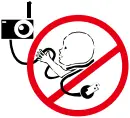
Strangulation Hazard: Children have STRANGLED in cords. Keep this cord out of the reach of children (more than 3 ft (0.9 m) away). Do not remove this tag.
Made in China