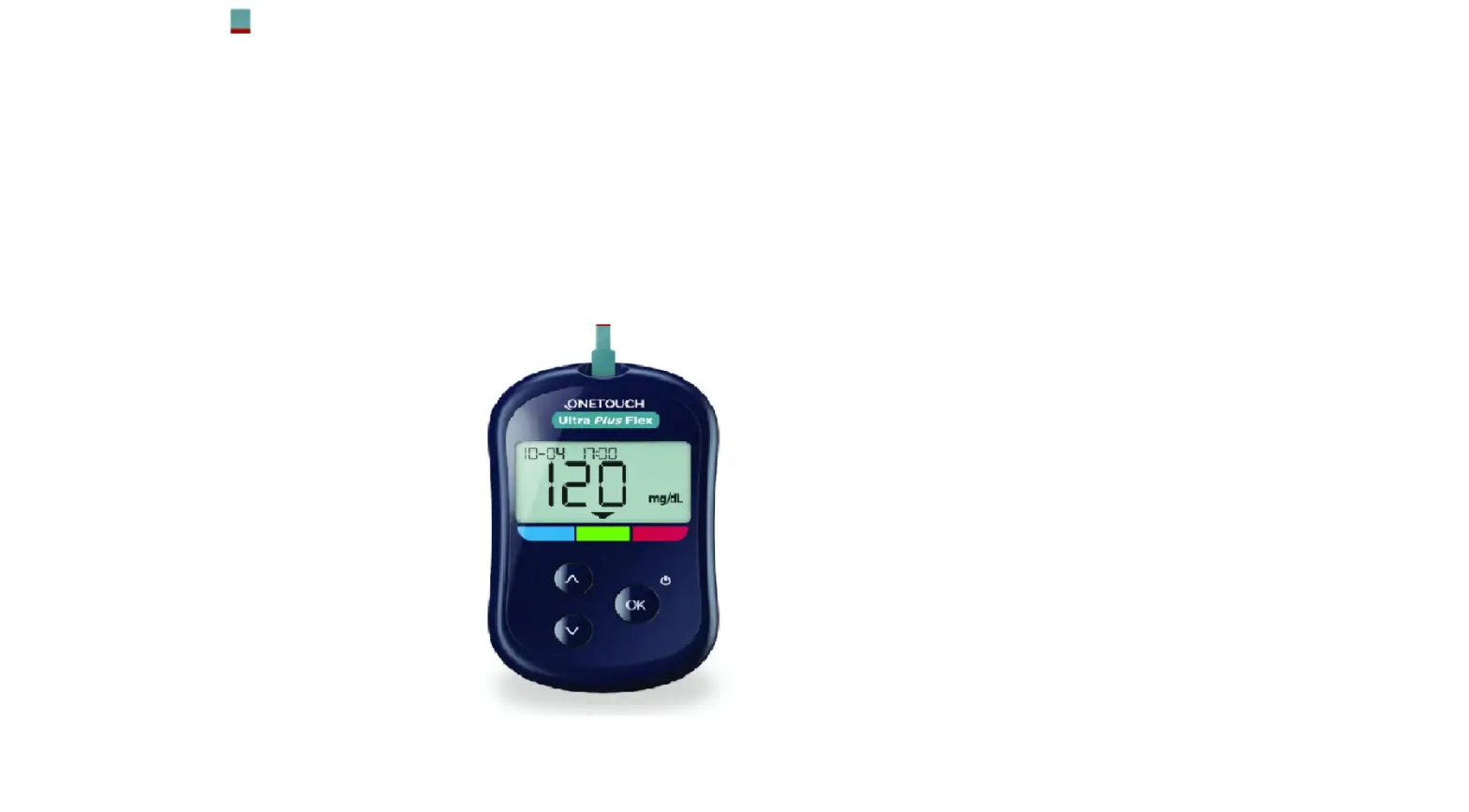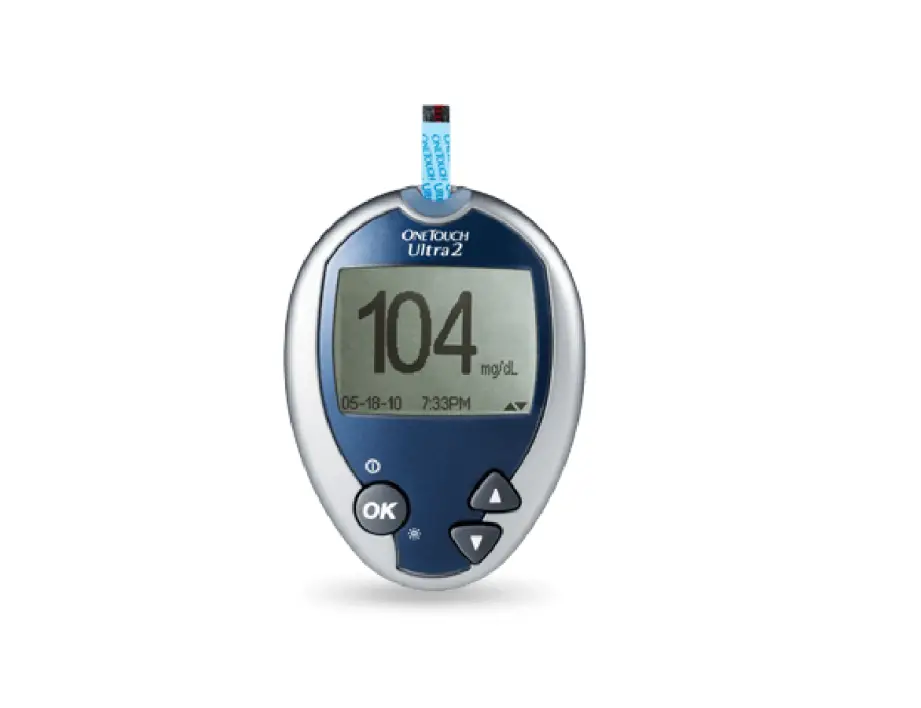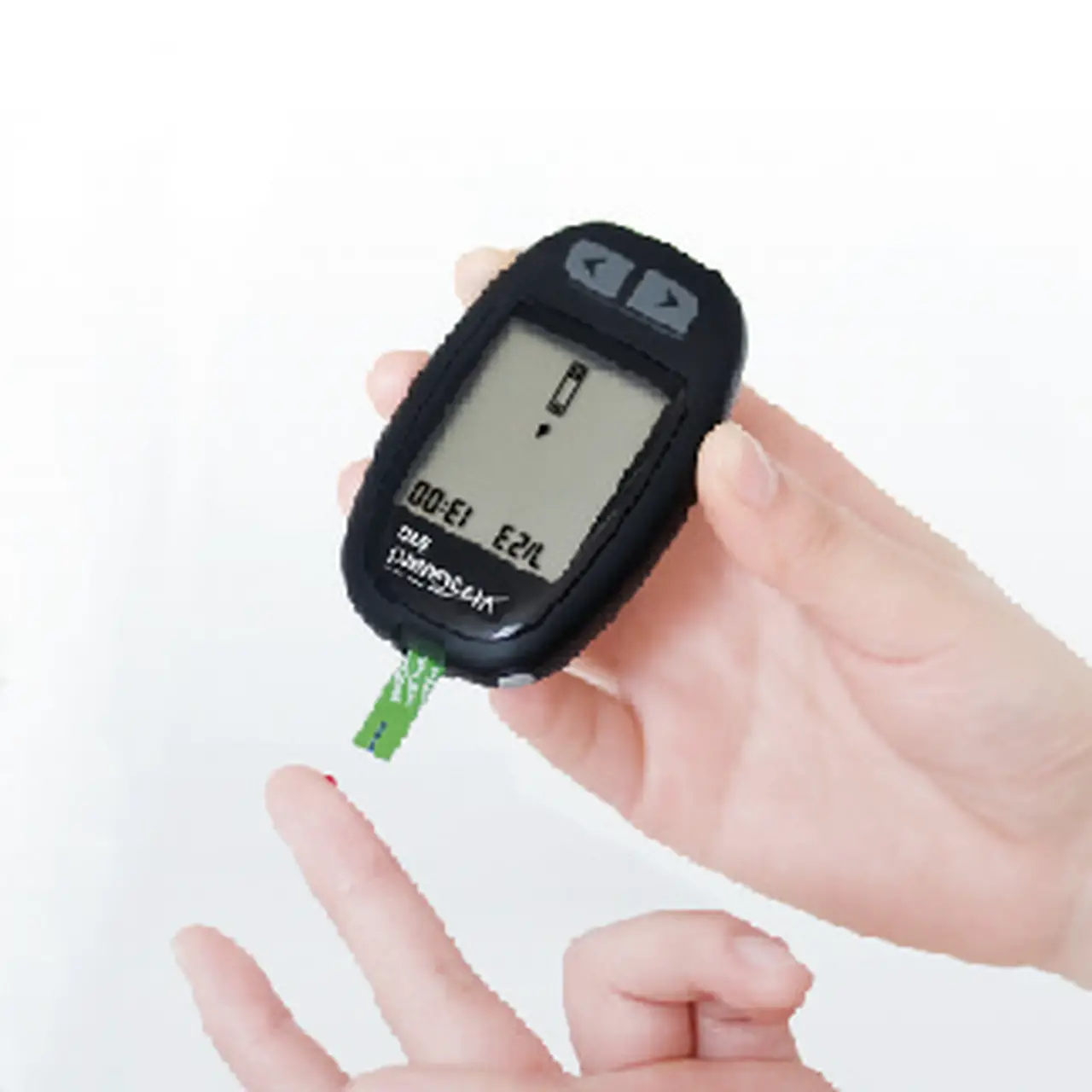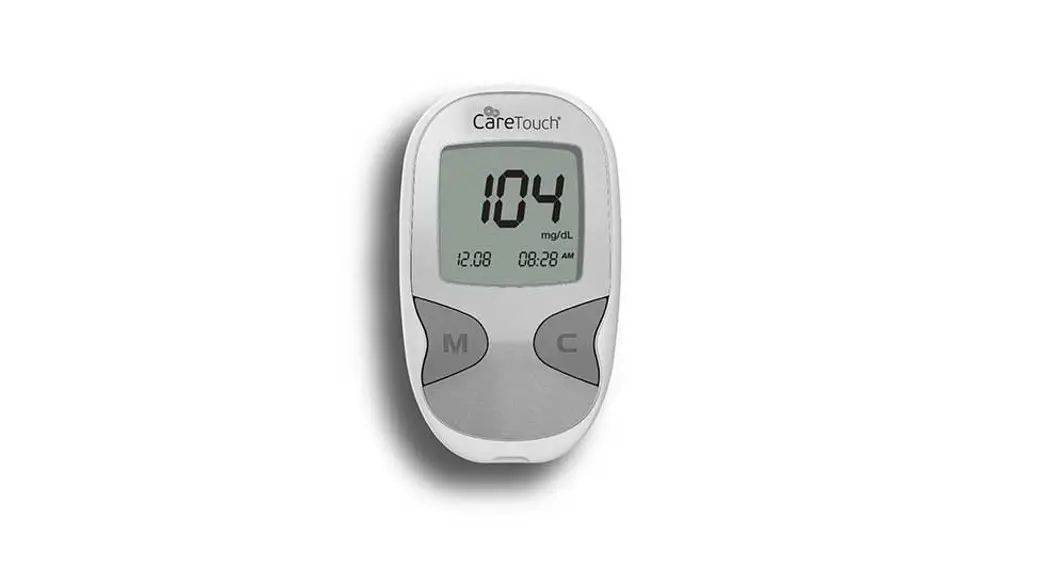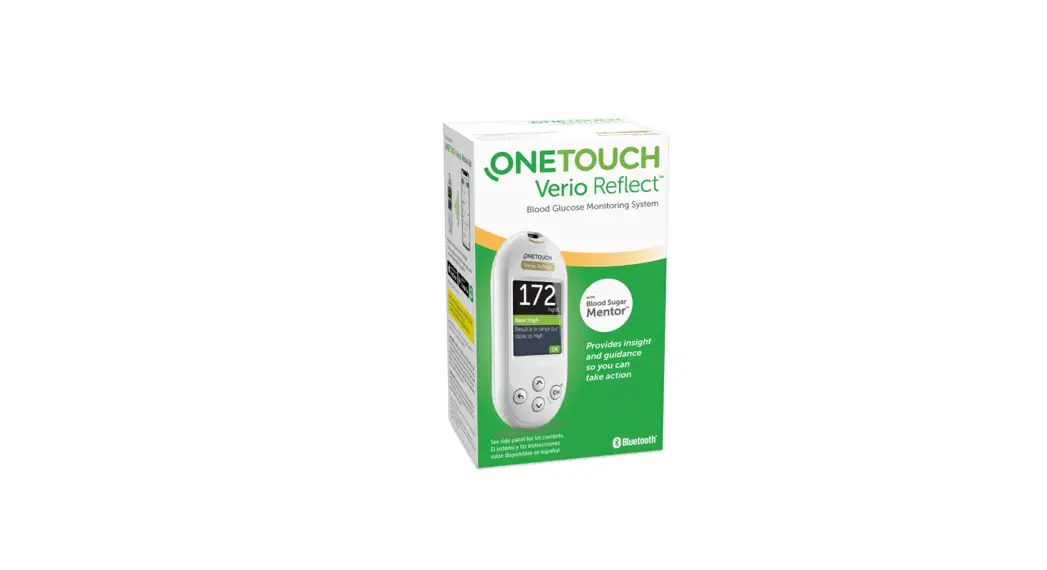

Blood Glucose Monitoring System
Quick Start Guide
Register your meter for help and support: OneTouch.ca/welcome
 https://www.OneTouch.ca/welcome
Set up meter
Turn on meter
Press and hold  until the Welcome screen appears.
Use  buttons to edit each setting and press to confirm.
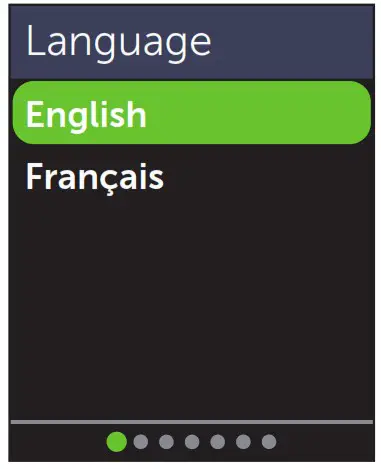
Set language
Highlight the language you want and press
 Optional: Complete setup using the OneTouch Reveal® Mobile App*
Select Yes to have the App walk you through setup.
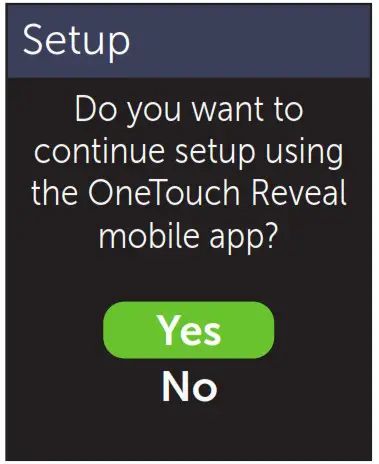 Download the OneTouch Reveal® Mobile App before pairing your meter and mobile device.
 Set time
Press if the time is correct or edit and confirm.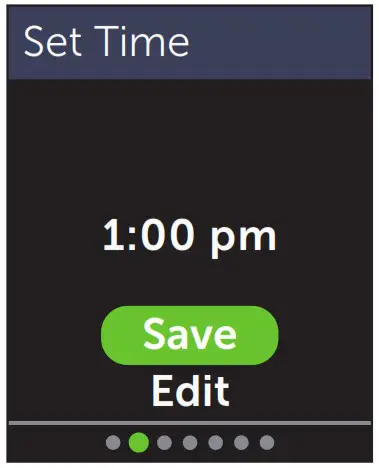 * Visit www.OneTouch.ca to learn more about the OneTouch Reveal® Mobile App.
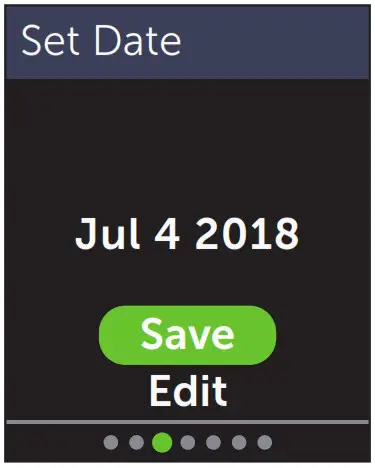
Set date
Press if the date is correct or edit and confirm.
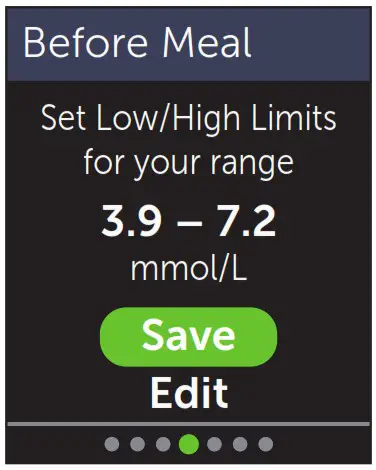
Set mealtime range limits
Press if the pre-set Before Meal and After Meal range limits are correct or edit and confirm.
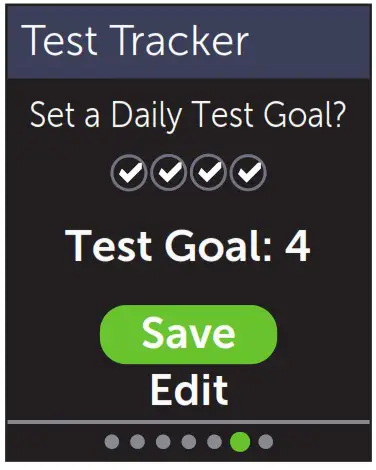
Set Test Tracker
Press if the pre-set goal is correct or edit and confirm.
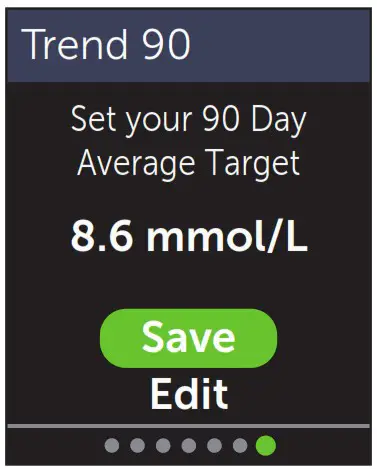
Set 90 Day Average Target
Press if the 90 Day Average Target is correct or edit and confirm.
NOTE: Talk to your healthcare professional about the right range limits, Daily Test Goal, and 90 Day Average Target for you.
Take a test
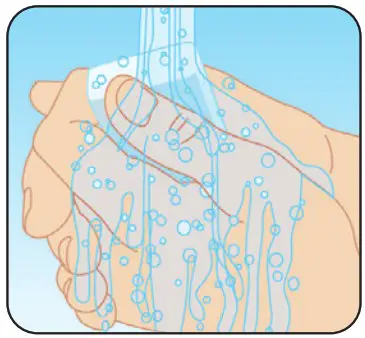
Wash your hands with soap and warm water, rinse and dry before sampling. Remove the lancing devicecap then insert a sterile lancet. Twist the protective cover. Place the cap back onto the device.
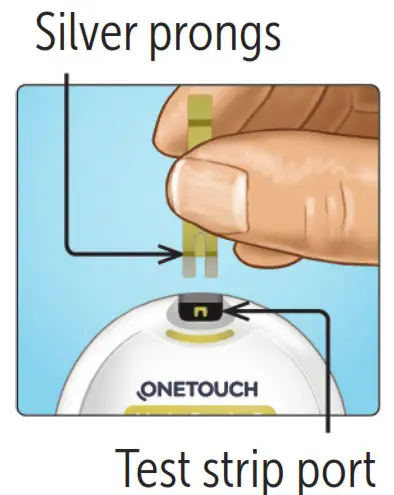
Insert a test strip (gold side and 2 silver prongs facing you) to turn the meter on.
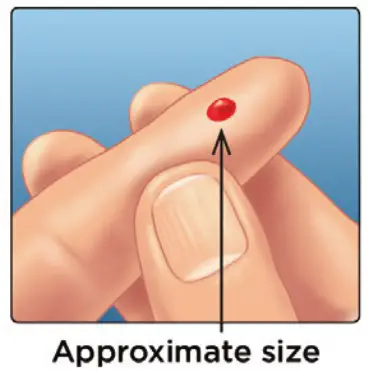
Adjust the depth setting on the lancing device. Cock the lancing device and hold firmly against the side of your finger. Press the release button. Gently squeeze finger to get a round drop of blood.
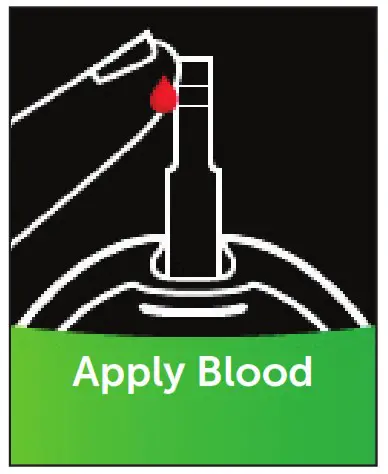
Apply blood sample to the channel on either side of the test strip. Once the channel fills, it will turn red and your result will appear in about 5 seconds.
View your reading
ColourSure™ Dynamic Range Indicator
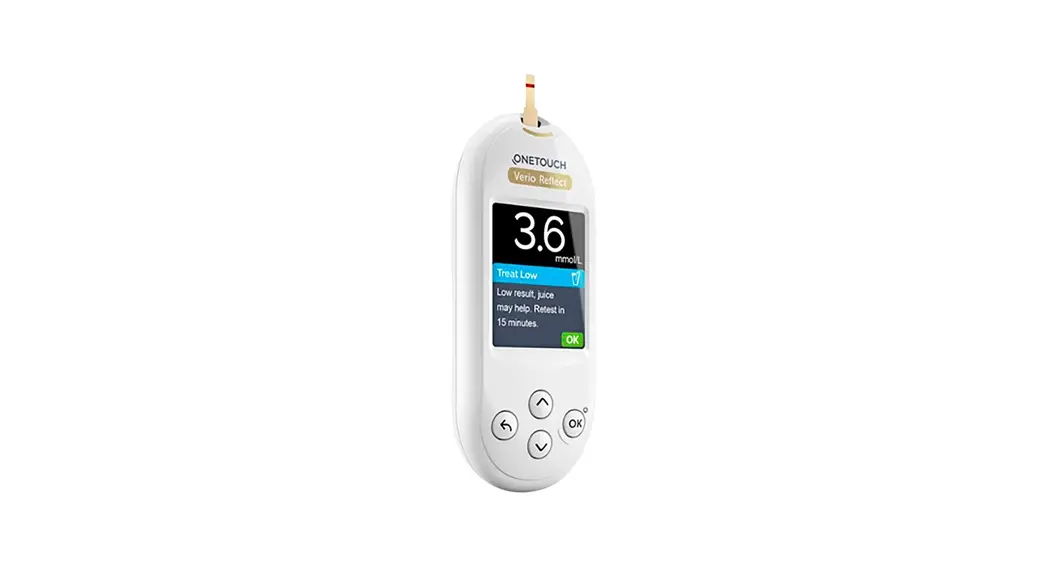
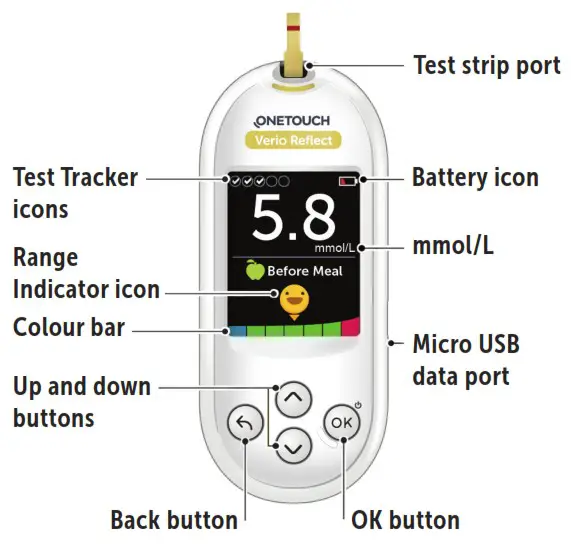
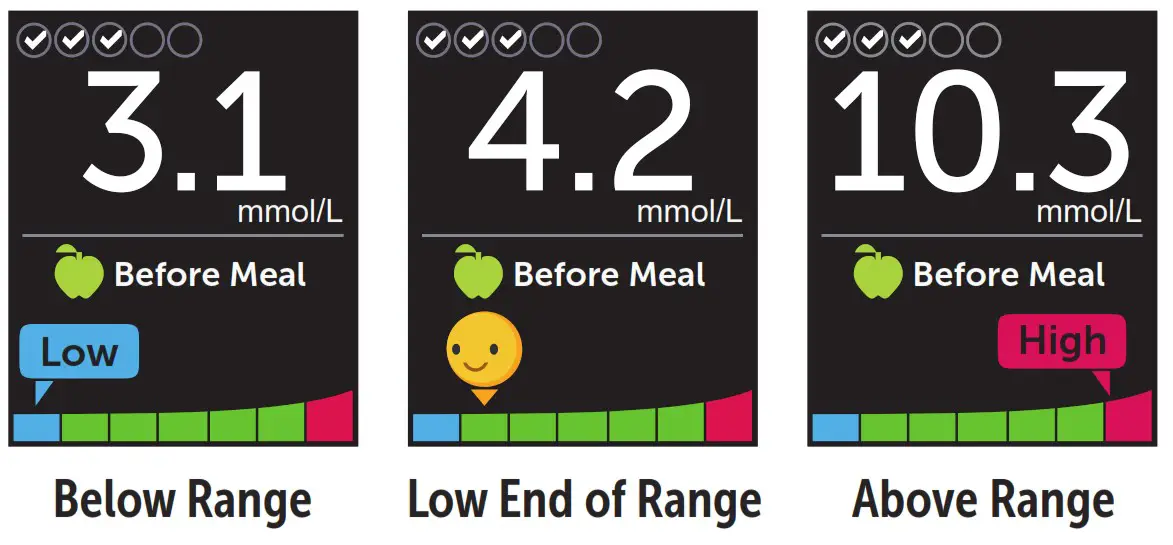
The ColourSure™ Dynamic Range Indicator instantly lets you know if your reading is below (blue), within (green) or above (red) your range limits. It also shows when your reading is near the low or high end of your target range. A text note or emoji points to a segment on the Colour Bar.
Examples of Readings
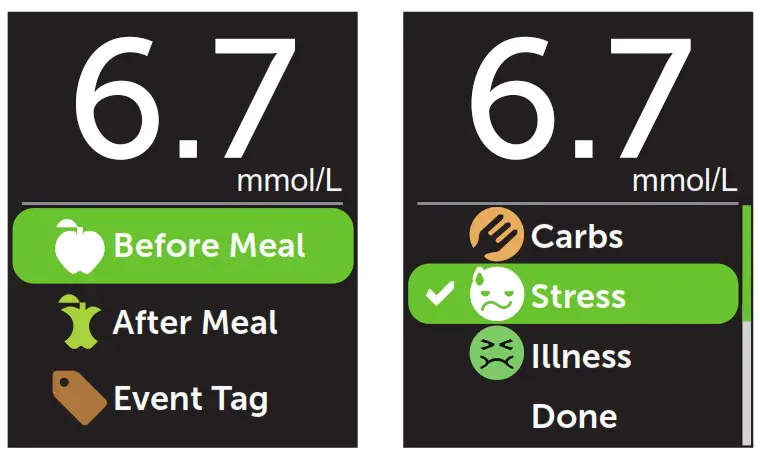
Meal and event tagging
A Before Meal (  ) tag will automatically be applied to your result. You may change your meal tag to After Meal (
  ) and add an Event tag.
Blood Sugar Mentor™ Messages
The Blood Sugar Mentor™ provides insight on how you’re doing and diabetes management guidance, including educational and motivational messages based on your current and previous glucose results and other tracked data.
Examples of Blood Sugar Mentor™ Messages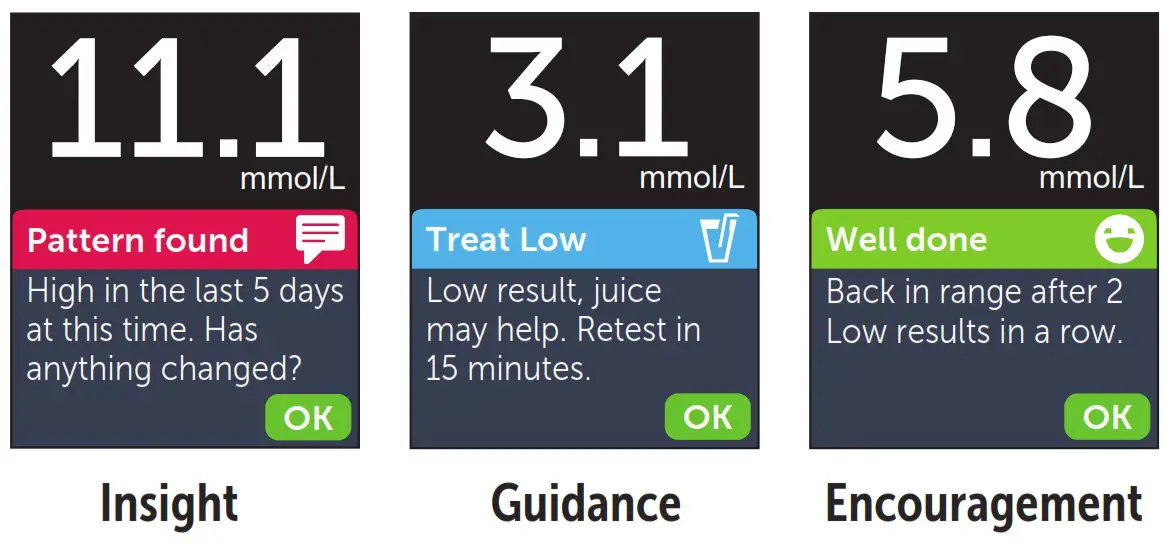 The Bluetooth® word mark and logos are registered trademarks owned by Bluetooth SIG, Inc., and any use of such marks by LifeScan Scotland Ltd. is under license. Other trademarks and trade names are those of their respective owners.
Connect to a mobile device
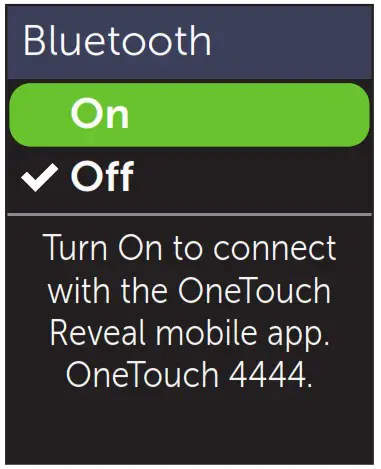
Bluetooth® technology lets you wirelessly send your readings to a mobile device where you can use the OneTouch Reveal® Mobile App to review and graph your results, set Daily Test Goals, see Blood Sugar Mentor™ Messages and help identify patterns.
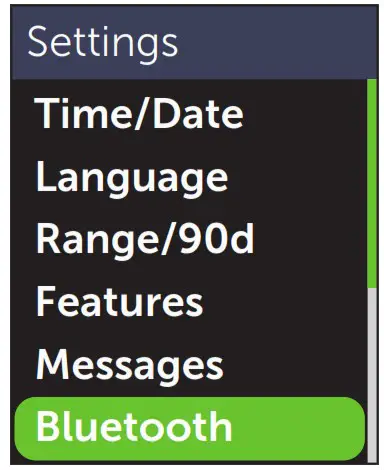
On the Settings Menu, highlight Bluetooth and press
 A √ notes if Bluetooth® is currently set to On Off. Press or to change Bluetooth® status to On and press
  When prompted by your mobile device, enter the PIN shown..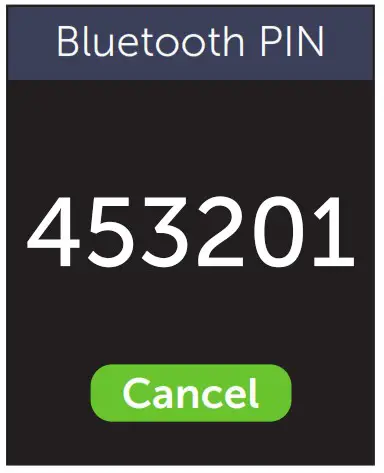
Example PIN
Use this guide to get to know your meter, and follow steps inside to get started.
IMPORTANT: Please read the Owner’s Booklet that came with your system. Meter icons
 | Bluetooth® feature on |
 | Syncing |
 | Control solution result |
 | Low battery |
 | Screen navigation progress dots |
Contact the OneTouch® Customer Care Line at 1 800 663-5521, Monday-Friday, 9am-8pm Eastern, 6am-5pm Pacific, or visit www.OneTouch.ca.
Manufactured by: LifeScan Europe GmbH 6300 Zug Switzerland
 Consult instructions for use.
OneTouch® AW 07200102B
© 2018-2021 LifeScan IP Holdings, LLC
Rev. Date: 01/2021
 Register Your OneTouch® Device | Device Information | OneTouch®
 Homepage | OneTouch®