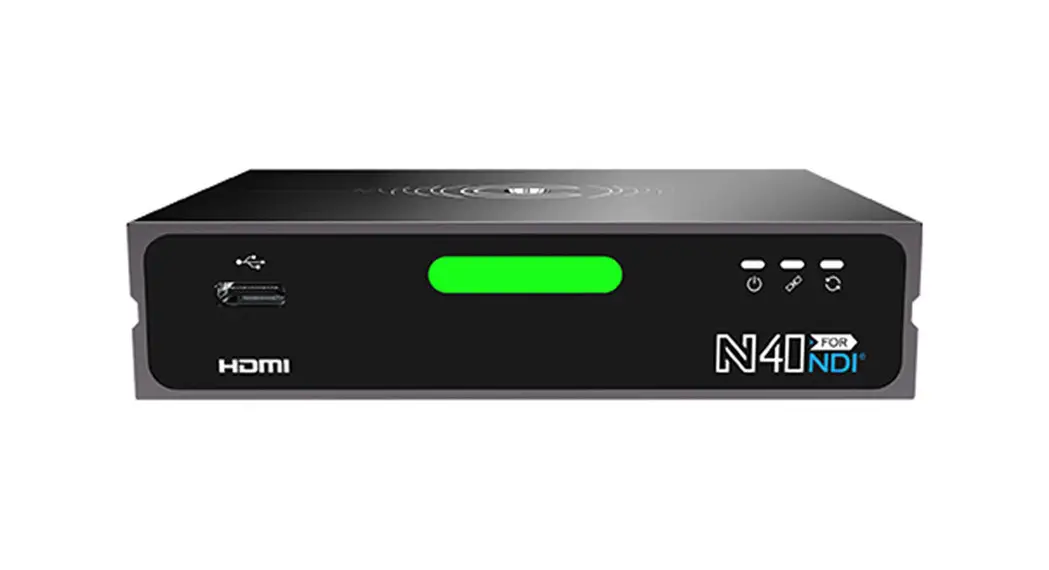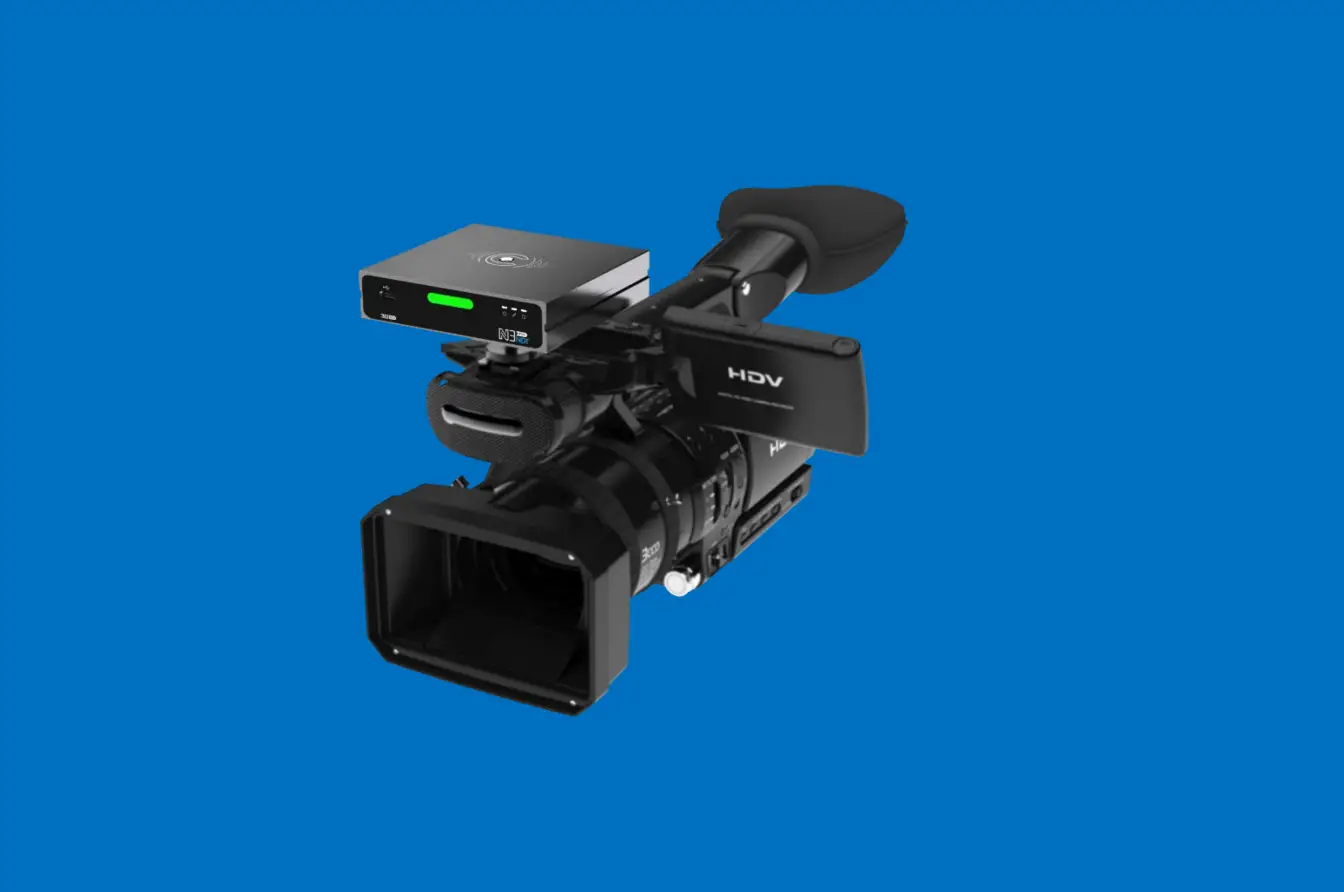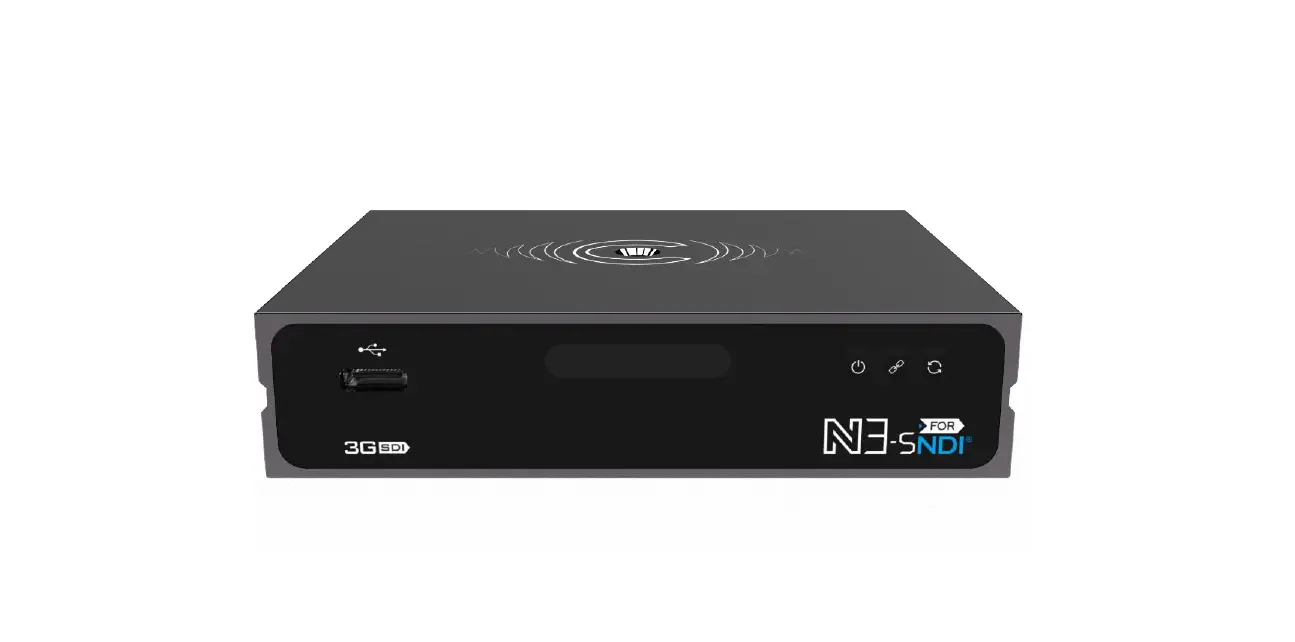
KILOVIEW NDIKN3 N3-S SDI and NDI Bi-Directional Converter
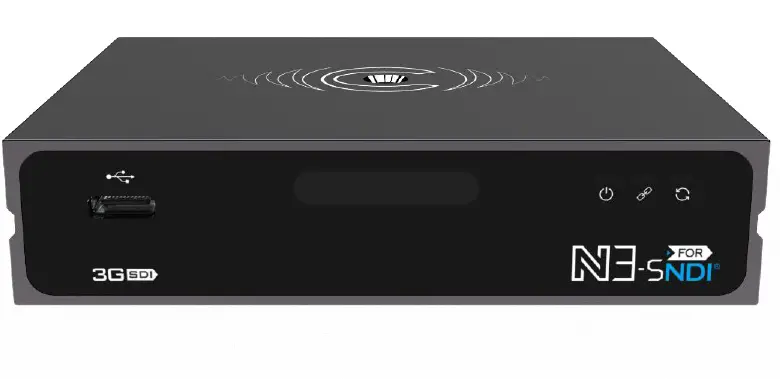 Before using this product, it is recommended that you read the guide carefully. To ensure your personal safety and avoid physical or electrical damage to the device, please strictly follow the instructions of this guide to install and use it under the guidance of professionals. Incorrect electrical connections or physical installation may cause permanent damage to the device and even threaten personal safety.
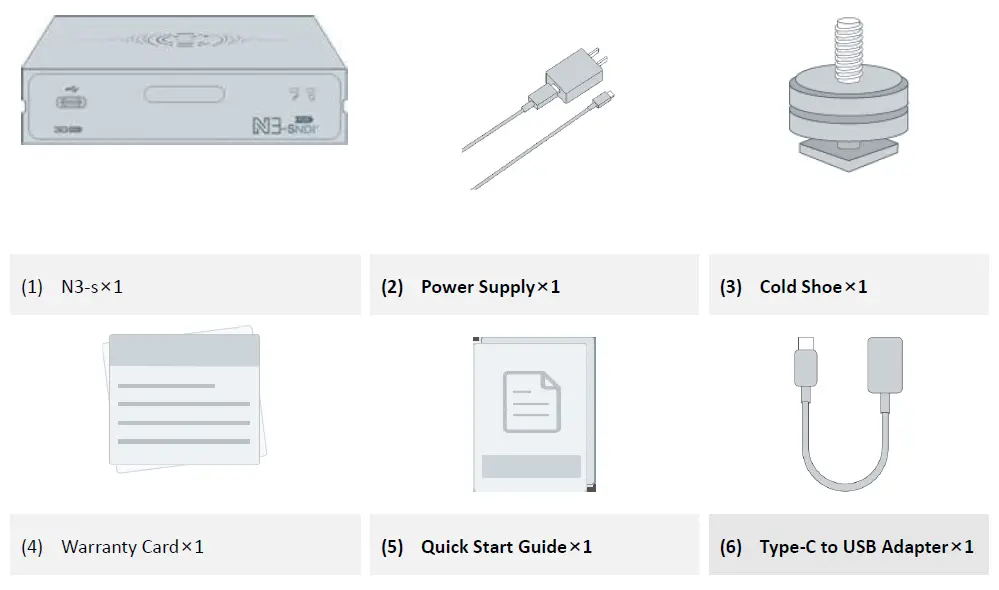
Packing List
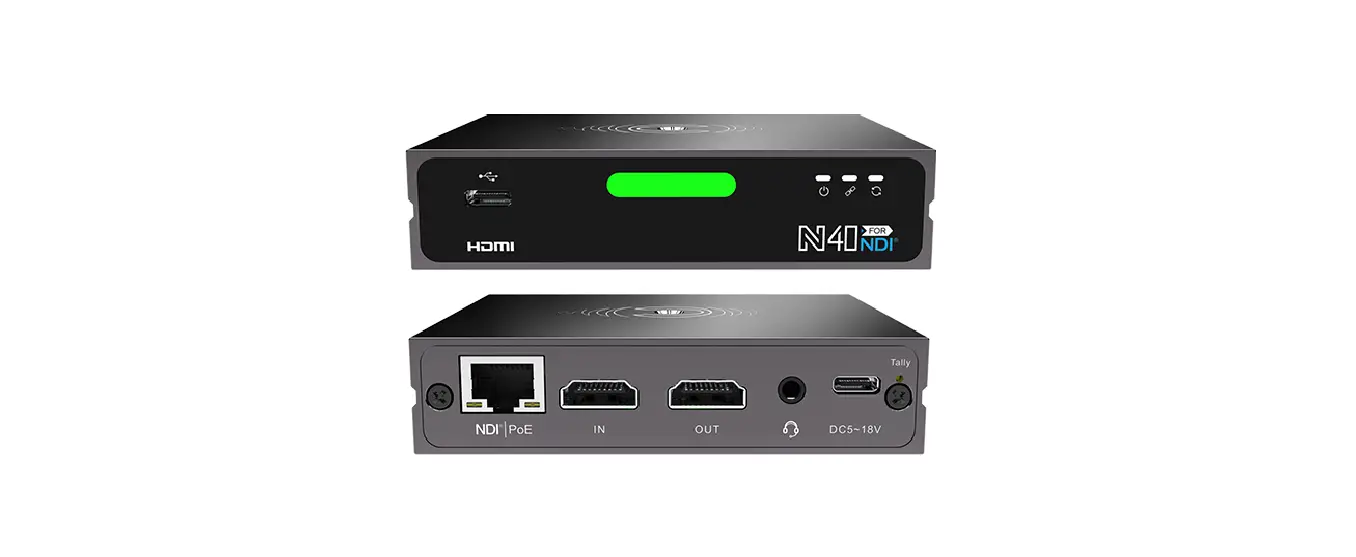
Device Interface

- 1GbE port with PoE
- SDI Output
- SDI Input
- 3.5mm Line In/Line Out
- Power Supply
- Tally
- Type-C Port
- Tally
- Working Indicator

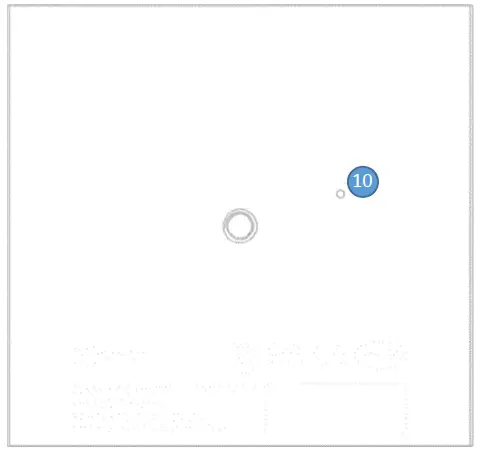
- Reset
Device Indicators
| Tally | Video status under encoding mode | |||
| Green light | PVW | |||
| Red light | PGM | |||
|
LED Indicators | Name | Color | Status | Description |
| Power | White | Always on | Power connected | |
| Off | Power off or failure | |||
| LINK | White | Flashing/Always on | Network connected | |
| Off | Network disconnected/abnormal | |||
|
Run |
White | Flashing | Working normally | |
| Always on | Starting to work | |||
| Off | Working abnormal/not started | |||
Applications
Connection under encoding mode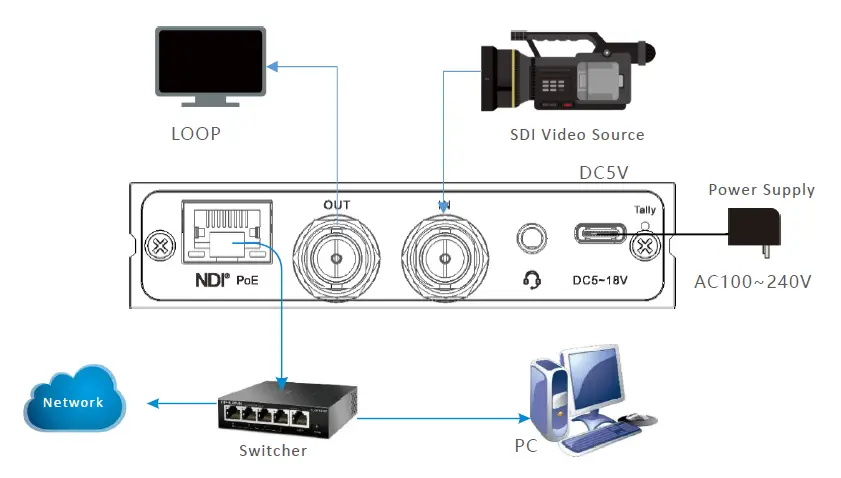
Note
- Please use the standard power adapter equipped in the package. Otherwise, other unqualified power adaptor may damage the device. You can also choose to power via PoE and D-Tap.
- Under encoding mode, please make sure the camera is connected to the SDI IN connector.
- If you wish, you can connect N3-s to your monitor for real-time review by SDI OUT port.
Connection under decoding mode 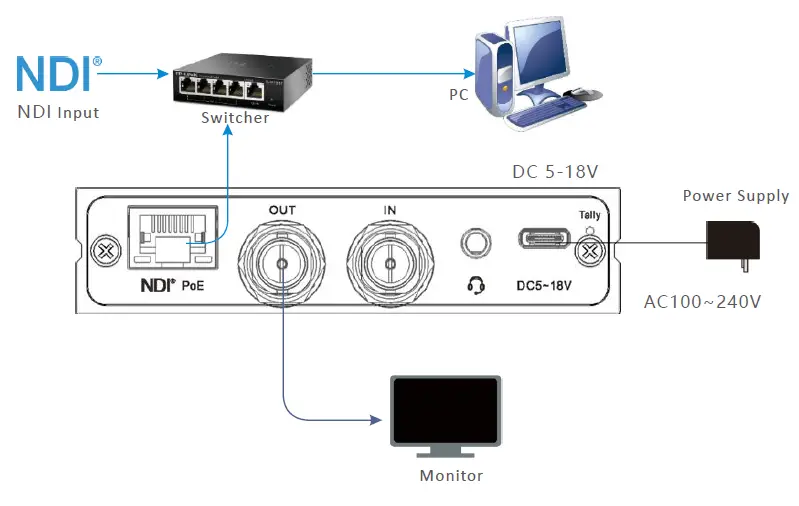
Note
- N3-s cannot do encoding and decoding simultaneously at present.
- Under decoding mode, make sure the monitor is connected to the SDI output connector.
Device discovery
Install Kiloview Multiview NDI Player for free
Download Kiloview Multiview for free
Visit website https://www.kiloview.com/en/ndi/multiview/, select “NDI Series” “ Multiview”and click download, then install the software step by step as instructed. Kiloview Multiview is a free software for NDI video discovery, management and multi-view, which is popular and highly praised all over the world. 
- Start the Kiloview Multiview, open the setting interface.

- Find the device in the device discovery list. Enter management interface through web browser.

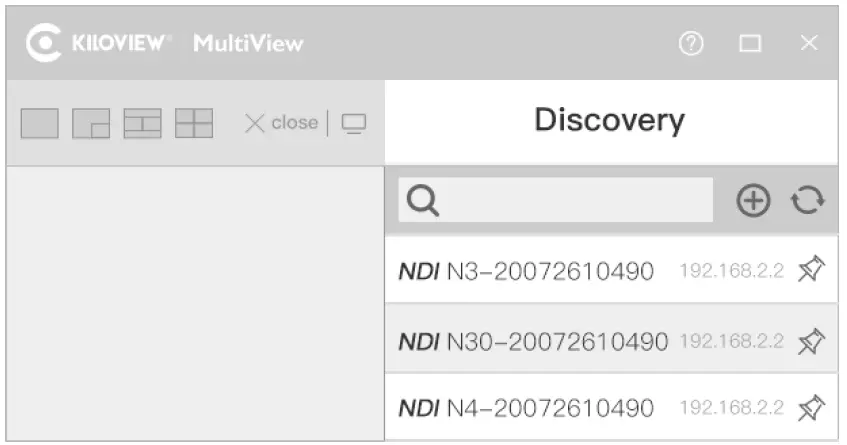
Note N3-s naming rules:N3-s-<serial number>. Serial number refers to the numbers pasted on the device label.
Two ways of accessing to the device management page
- Method 1:Drag the device directly in the discovery list to the left window, wait and click the icon ⓔ appeared in the upper right to access Web UI directly.
- Method 2:Open Web browser, enter: http://device IP address/ (Kindly note the device IP address for N3-s is showed in the discovery device list.)
Use Studio Monitor in the NDI SDK Tools
Download NDI SDK Tools
Download and install NDI SDK Tools through NDI official website
https://www.ndi.tv/tools/tools/. Kindly follow the NDI official instructions for the download method and installation process.
Studio Monitor is one of the NDI SDK Tools for free which is provided officially by NDI for the discovery and monitoring NDI video.
Right click on the Studio Monitor interface,find the name of N3-s in the pop up menu, click it for playing NDI video. At the same time, a gear icon will appear in the lower right corner, click it and then a browser window will pop up for logging in and accessing the Web UI of N3-s.
Note N3-s naming rules:N3-s-<serial number>. Serial number refers to the numbers pasted on the device label.
How to handle if the device can not be found?
If your device can not be found in the network by the above two methods, please configure your computer network to 192.168.1.xxx first, and then access the device by its default fixed IP address 192.168.1.168. That is to say,enter http://192.168.1.168/ in the browser to visit Web UI.
Login to the device management page
Open the Web page of N3-s, default username/password is admin/admin.
Note
- To ensure your information security, we recommend you to revise your password immediately after you first login.
- For the first login or upgrading the firmware, you need to accept the End User License Agreement (EULA). Please read carefully.
Work with your device
Note
- N3-s could only work in either encoding mode or decoding mode currently, but you can switch freely between both.
Encoding mode
The device is under encoding mode by default.
There are icons for switching between encoding mode and decoding mode on the left of the N3-s Web management page. When the device works under other mode, click icon
“Encoder” to switch back to encoding mode.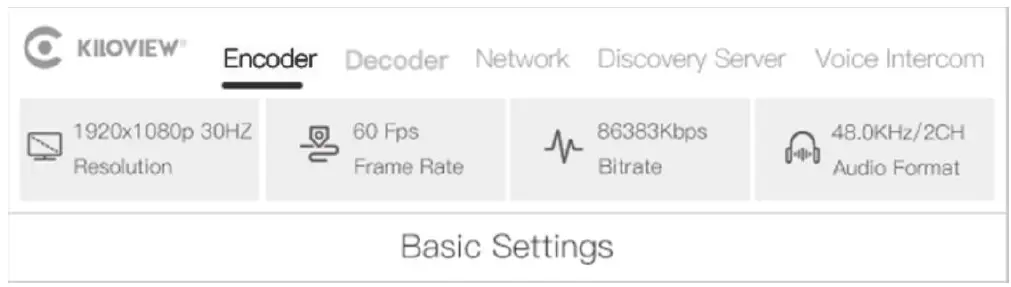
For more configuration and help for N3-s, please visit Kiloview official website https://www.kiloview.com/en/support/docs/N3-s/. 
Decoding mode
There are icons for switching between encoding mode and decoding mode on the left of the N3-s Web management page. Click icon “Decoder” to switch back to decoding mode. 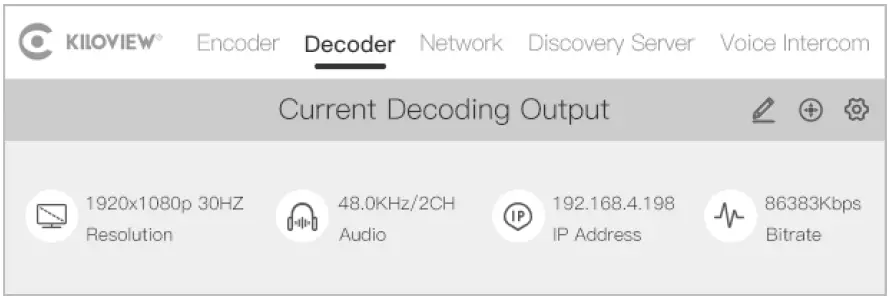
When working under decoding mode, NDI source can be auto-discovered and displayed in the bottom of the decoding Web page. Click the NDI source corresponded icon , which can directly decode and output the video.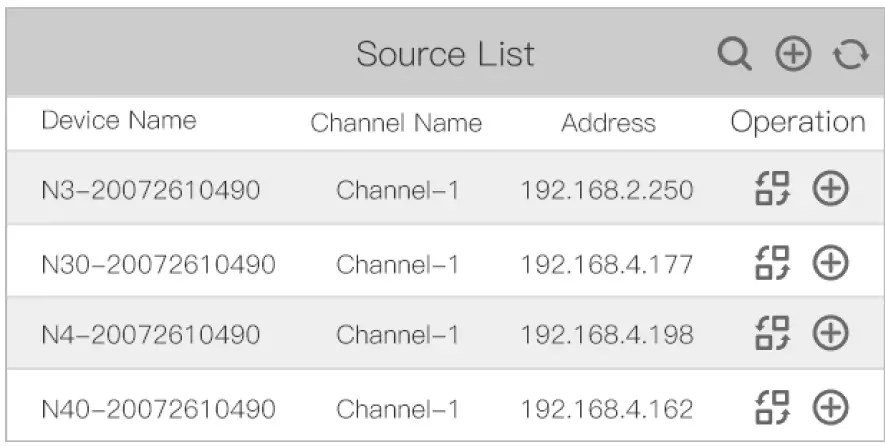
Click the NDI source corresponded icon  , you can add the source to the decoding preset list. There are 9 presets, you can keep nine preset decoding sources in the preset list, thus you can quickly switch and decode by clicking different NDI sources from number 1 to 9 at any time.
For more configuration and help of N3-s decoding mode, please visit Kiloview official website “https://www.kiloview.com/en/support/docs/N3-s/”
Firmware upgrading
Download the upgrading firmware
Kiloview will continue to provide the firmware of updating functions and fix bugs for N3-s. Kindly visit “https://www.kiloview.com/en/support/download/” Select “NDI” in the filter list > “N3-s”, find the latest firmware to download. 
Upgrade device firmware
Login the management Web page of N3-s, click “System Settings”>”Firmware Upgrade” to check whether the latest firmware version is downloaded, select the downloaded firmware and click “Firmware Upgrade”.
After uploaded the firmware successfully, the system indicates rebooting the device, you can either click “ok” or wait for automatically rebooting, please be patient. 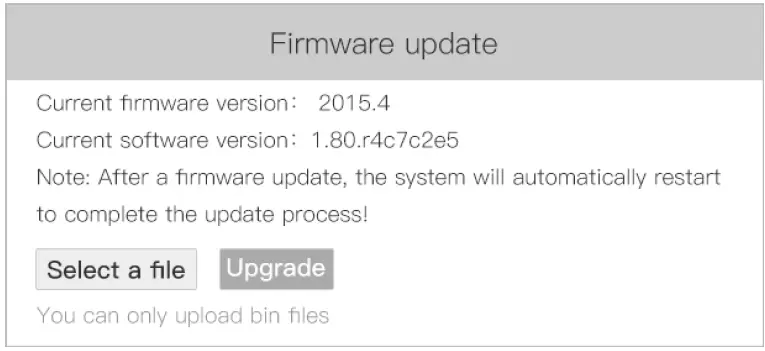
Note
- We recommend you upgrade the firmware via Google Chrome or Edge browser.
- Please do not power off during the upgrade process, otherwise the device could not work.
- Generally speaking, it will take 3-5 minutes to upgrade the device. If it is still not completed after 5 minutes, please try refreshing webpage. If you still can not access it normally, please try to contact technical support for assistance.
Restore factory settings
If the device cannot work normally after you modify the parameters or you forgot IP configuration and could not find the device, please restore factory settings.
Two methods for restoring factory settings:
- If you can login to web page, then via the web page, click “Settings>System settings>Restore factory settings”.
- If you cannot login to web page, press the RESET button for 5 seconds in the bottom of device.
Note
After restoring factory setting, below parameters will be turned to default value:
- Login username and password will be “admin”.
- Your device will be restored to obtain a DHCP-assigned IP address by default and the failover address 192.168.1.168 will be bound to the device.
- All encoding parameters of video and audio will be restored to default value.
Note To prolong the device life,please unplug the power cable and keep it properly if you do not use it for a long time.
For more questions, please contact us via: https://www.kiloview.com/en/support
KILOVIEW Electronics CO., LTD.
Tel:86-18573192787 Email:[email protected]
Web:www.kiloview.com/en
Address: B4-106/109, Jiahua Intelligence Valley Industrial Park, 877 Huijin Road, Yuhua District, Changsha City, Hunan Province, China.
 IP Video Encoders, Decoders and NDI Converters - Kiloview
 NDI Tools | NDI.tv