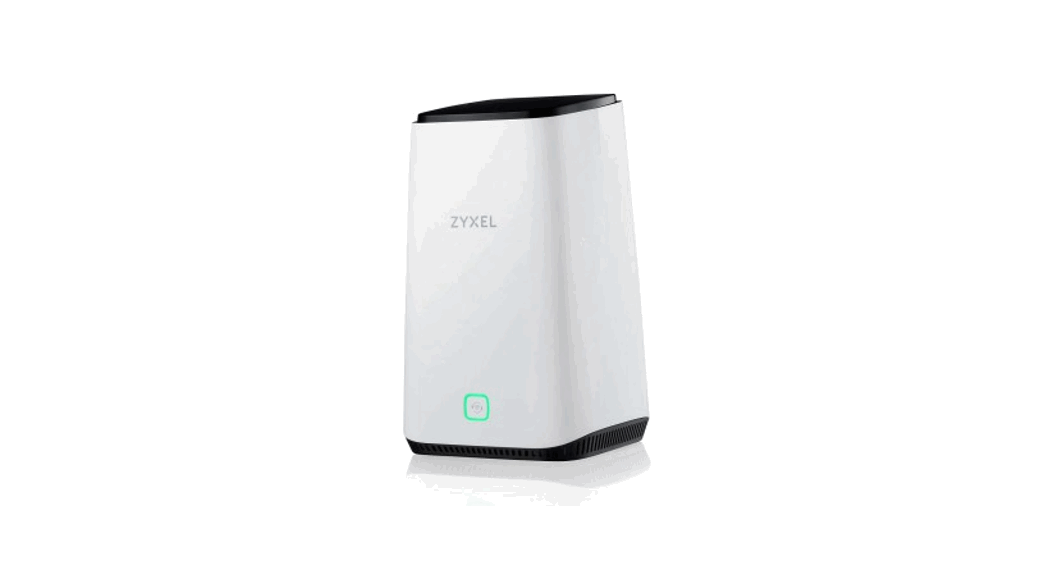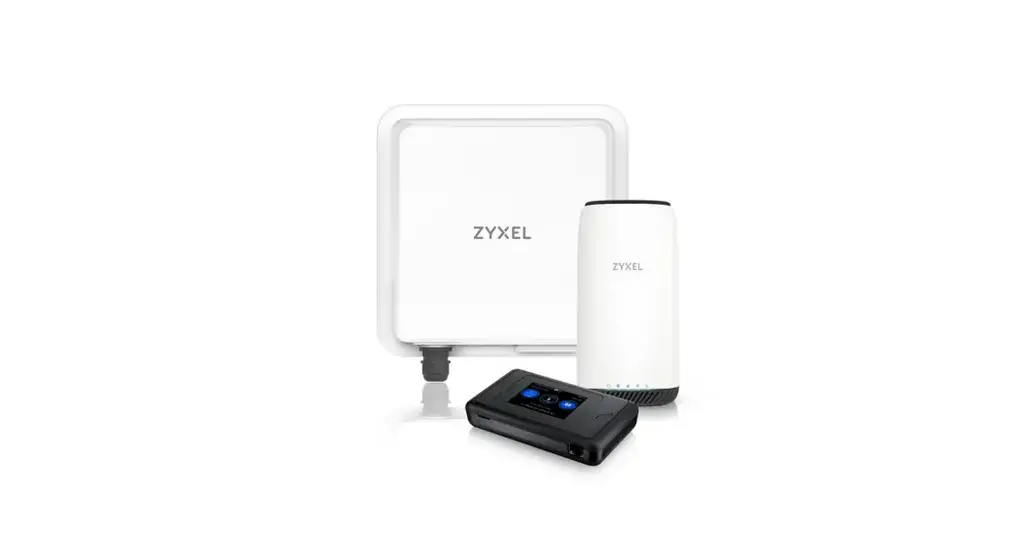

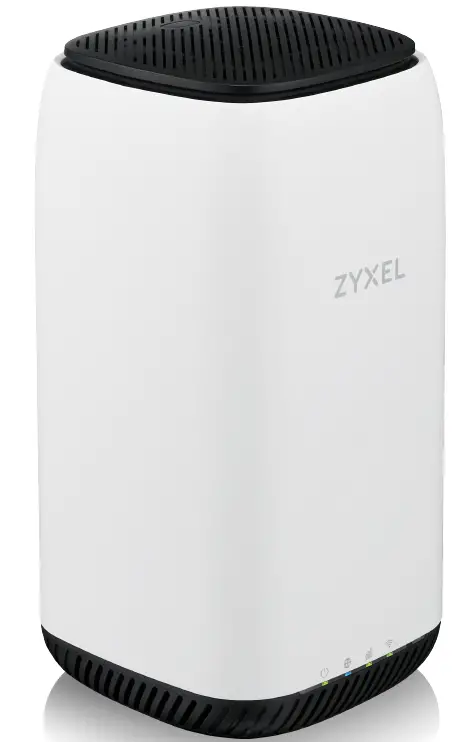
ZYXEL Nebula NR5101 5G NR Indoor IAD
Hardware Installation
- Check that the Zyxel Device is turned off. On the bottom of the Zyxel Device, open the cover of the micro SIM card slot.

- Gently insert the SIM card into the SIM card slot. Put the cover back in place.
 Note: If you have a Nano-SIM card, insert it into a Micro-SIM card adapter. Then, carefully insert the adapter into the SIM card slot
 - Select the type of plug used in your country. Use the included power adapter to connect the power socket to an appropriate power source. Press the POWER button to turn on the Zyxel Device.

- Check that the POWERLED is already on

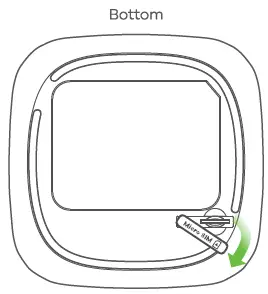
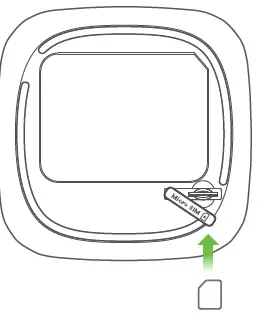 Note: If you have a Nano-SIM card, insert it into a Micro-SIM card adapter. Then, carefully insert the adapter into the SIM card slot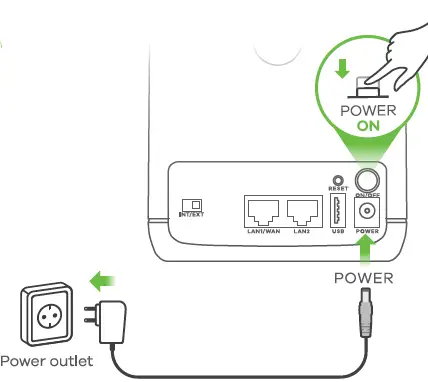
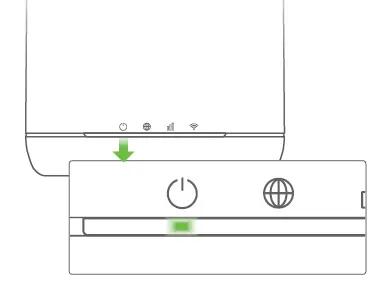
Zyxel Air App Installation and Basic Configuration
Use the Zyxel Air app to find the optimal cellular signal strength.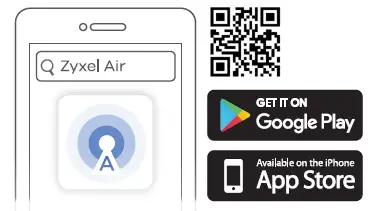 Use the Zyxel Air app for finding the best place to receive a cellular signal and for basic configuration.
- On your smartphone, find the WiFi name (SSID) and enter the WiFi Key to connect (see the label on the device).
- Download and open the Zyxel Air app.
Enter the default user name (admin) and password (see the label on the device). Click Login.
Nebula Cloud Registration and Monitoring
Nebula Mobile App Installation, Registration and Monitoring
Use the Zyxel Nebula Mobile app to register the Zyxel Device with Nebula using a QR code.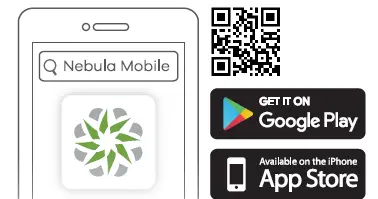 Download and open the Zyxel Nebula Mobile app. Log in with your my Zyxel account.
Create an organization and site or select an existing site. Scan the Zyxel Device’s QR code to add it to the site. (You can find the QR code in its web configurator or on a label on the Zyxel Device or its box.)
Nebula Web Portal Registration and Monitoring
Use the Zyxel Nebula portal to register the Zyxel Device with Nebula using the MAC address and serial number.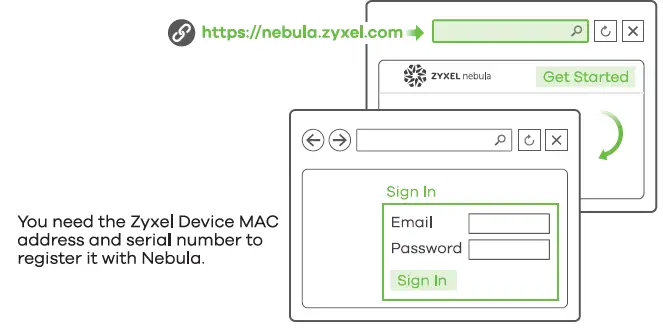 Follow the steps below to manage the Zyxel Device through the Zyxel cloud-based network management system.
- Go to the Zyxel Nebula Control Center (NCC) website (https://nebula.zyxel.com).
Click Get Started to sign up for a my Zyxel account and log in. - Create an organization and a site (network) in the NCC.
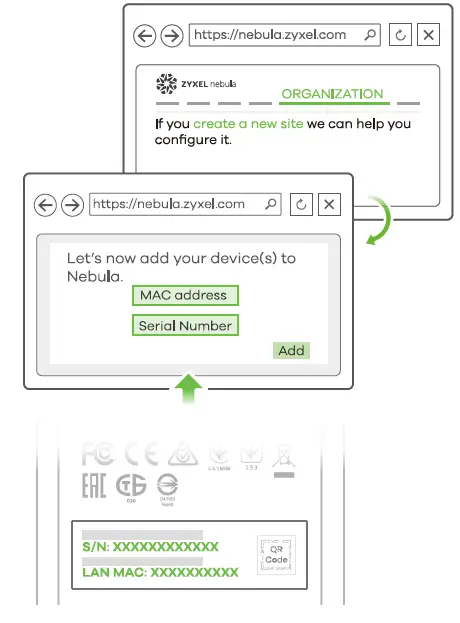
- Enter the Zyxel Device’s LAN MAC address and serial number (S/N) (see the label on the device) in the NCC configuration screen.
Note: See the NCC User’s Guide for more information about configuring the Zyxel Device through the NCC.
Local Web Configuration
1 Network Connection
WiFi connection
Using SSID 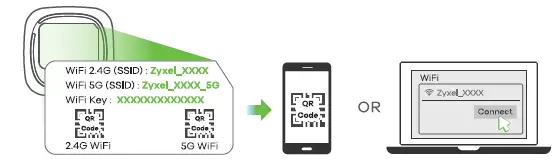 Scan the QR code on the Zyxel Device label to see the SSID and WiFi Key on your smartphone.
Find the WiFi name (SSID) and enter the WiFi Key. On your smartphone or laptop, find this SSID. Enter the key to connect.
Wired Connection
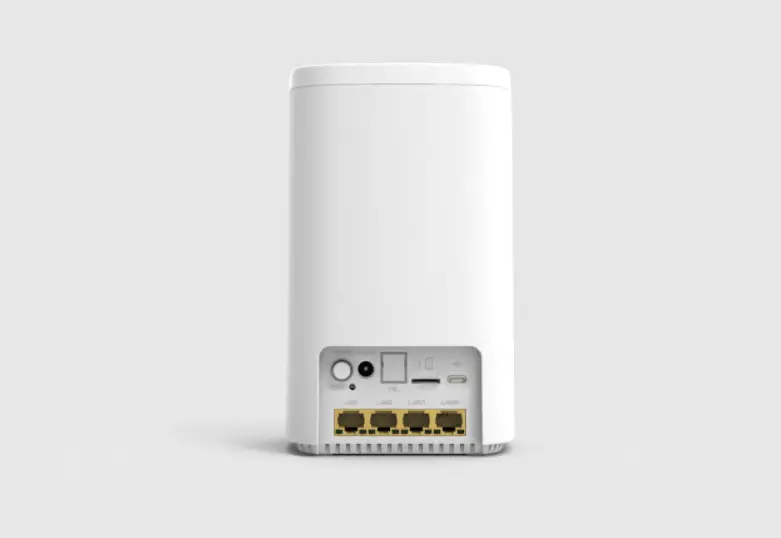
Using Ethernet Cable 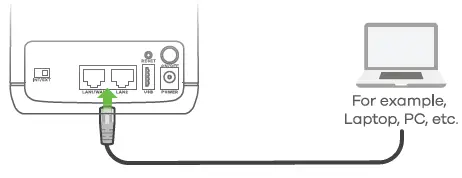 Use an Ethernet cable to connect a computer to one yellow LAN Dort of the Zyxel Device
2 Web Configuration
Use the Web Configurator for advanced configuration.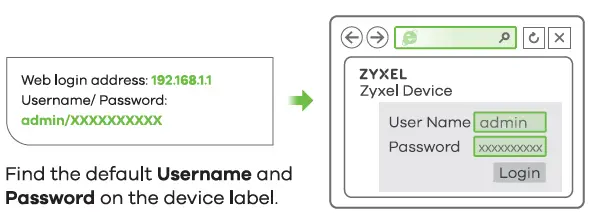 Note:
Note:
When the Zyxel Device is managed by Nebula, use the Nebula-assigned password (Zyxel Nebula website: Site-wide » Configure General settings > Device configuration: Local credentials) to log in.
Open your web browser and enter “http://192.168.11” for initial configuration. Enter the default user name (admin) and passwords (xxxxxxxxxx) Click Login
Turning On/off WiFi (Optional) WiFi
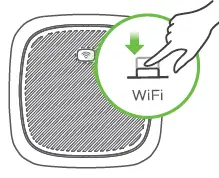
Press for 1 second to turn on/off WiFi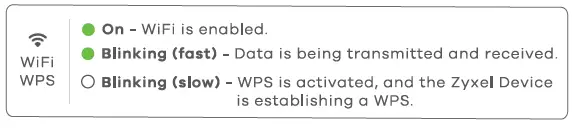
- Zyxel Device WiFi is enabled by default. To disable or enable it again, press the WiFi button for one second and then release it.
Support Information
886 2 2739 9889
https://support.zyxeleu
[email protected]