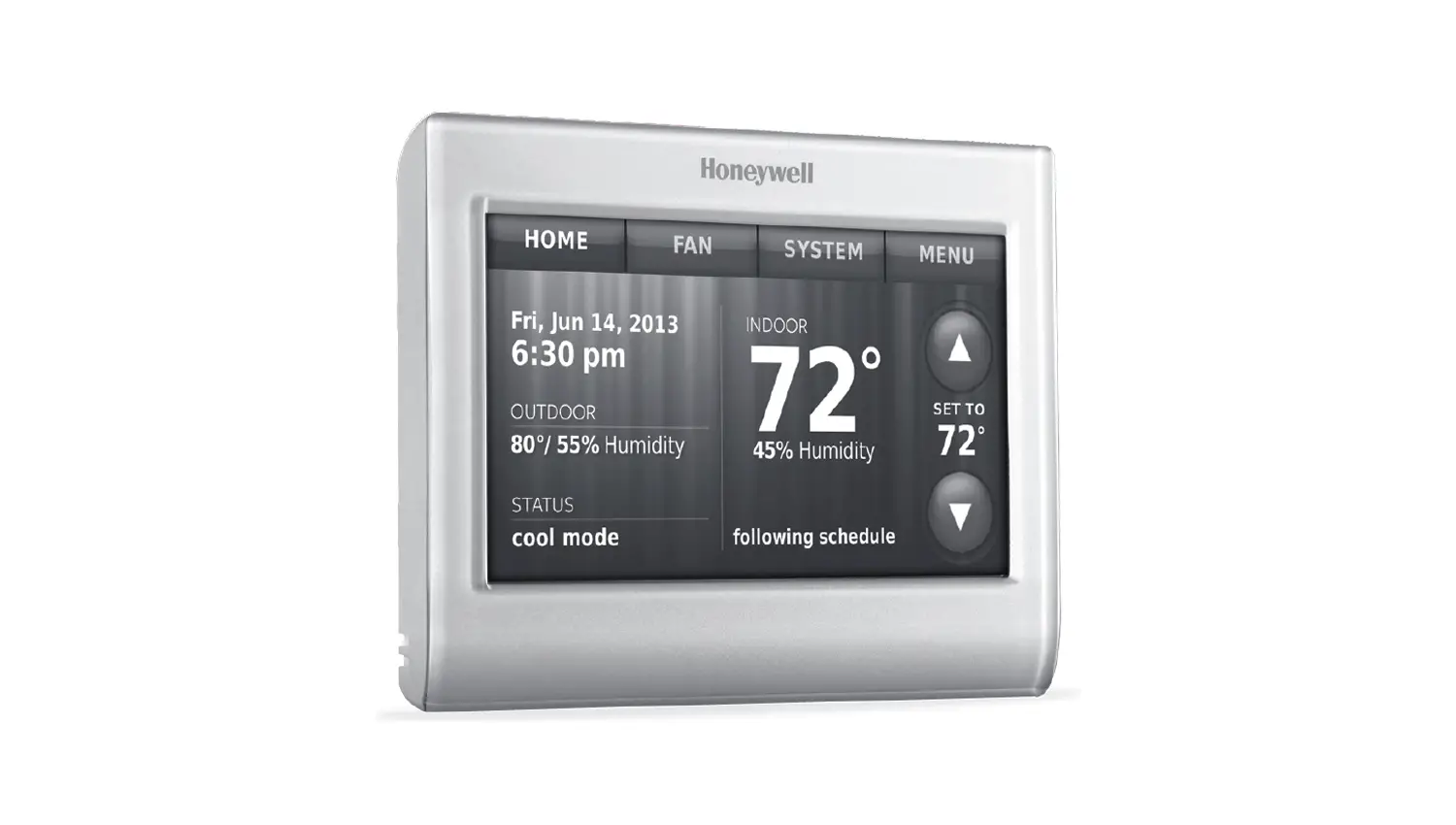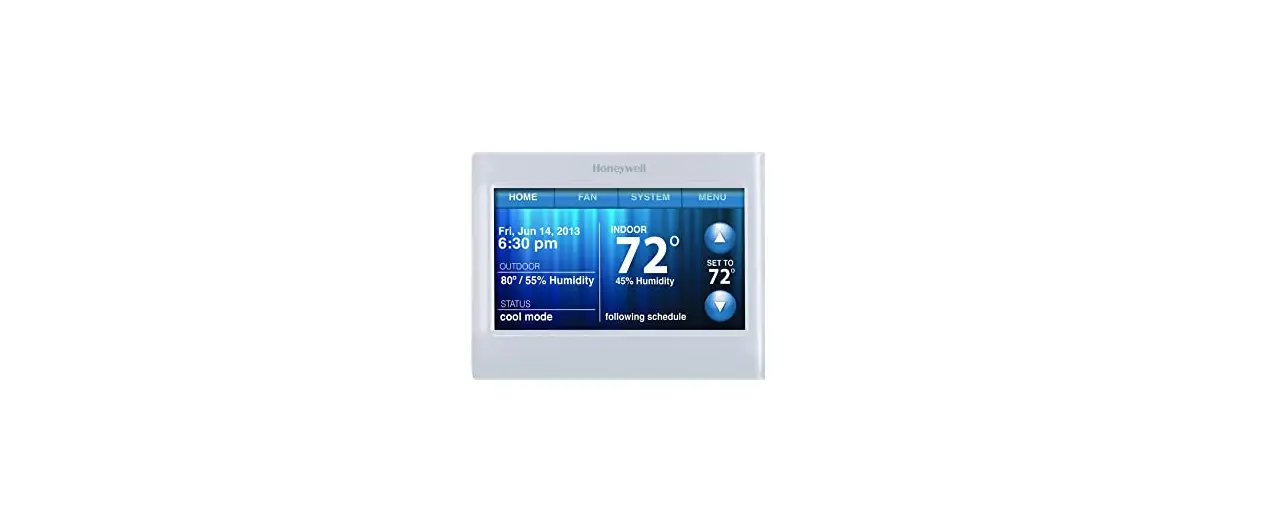

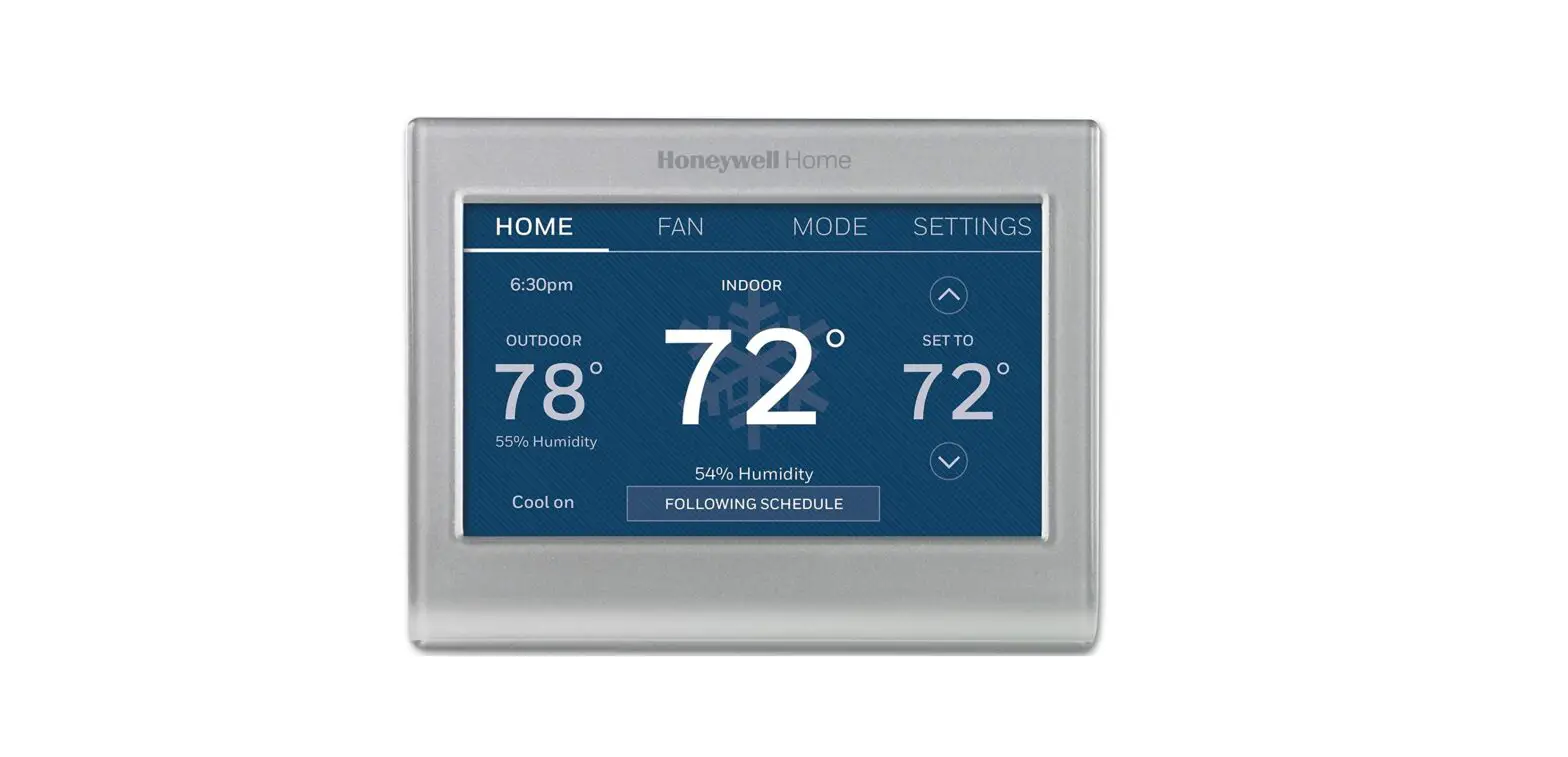
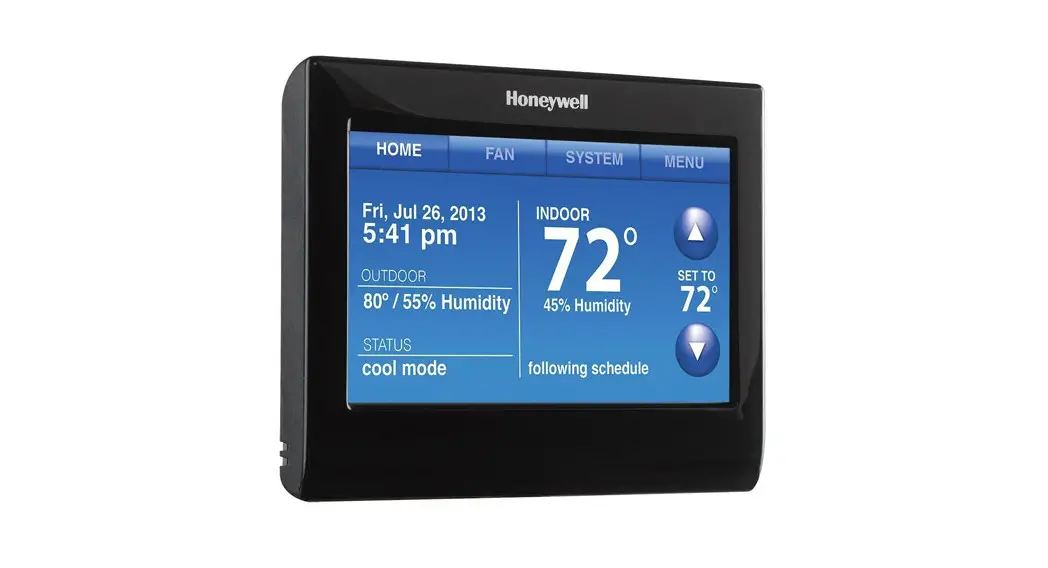
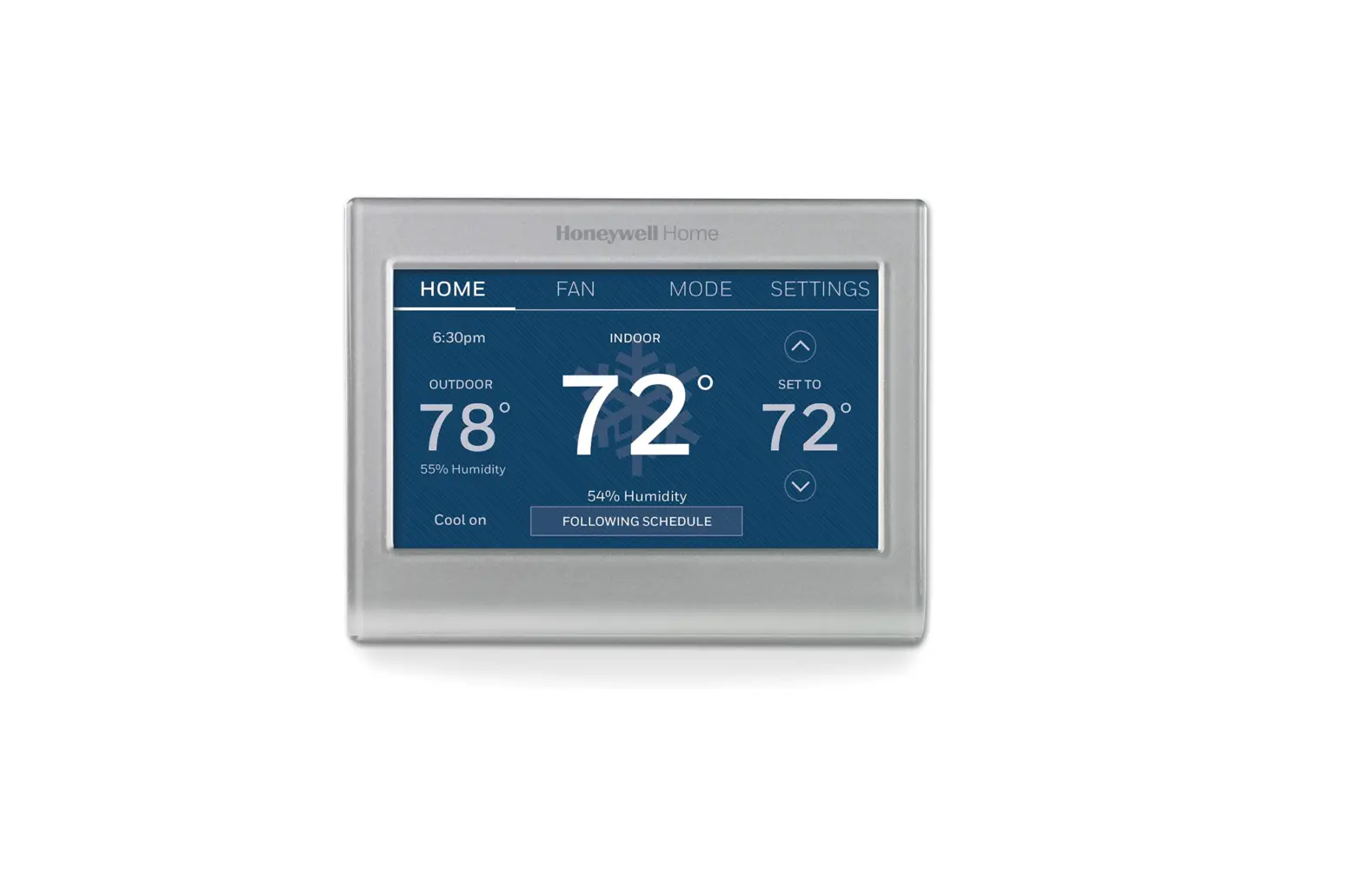
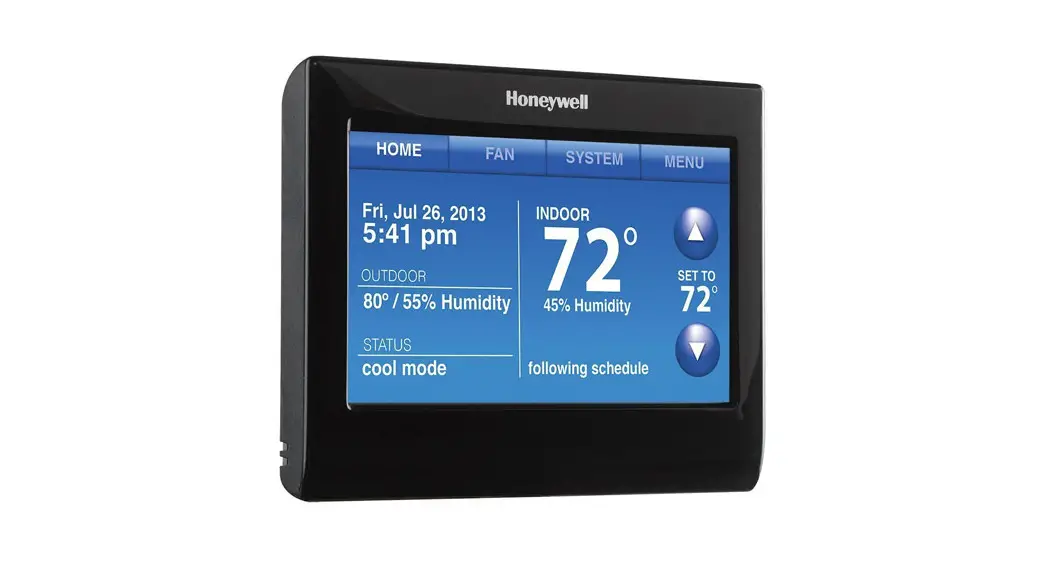
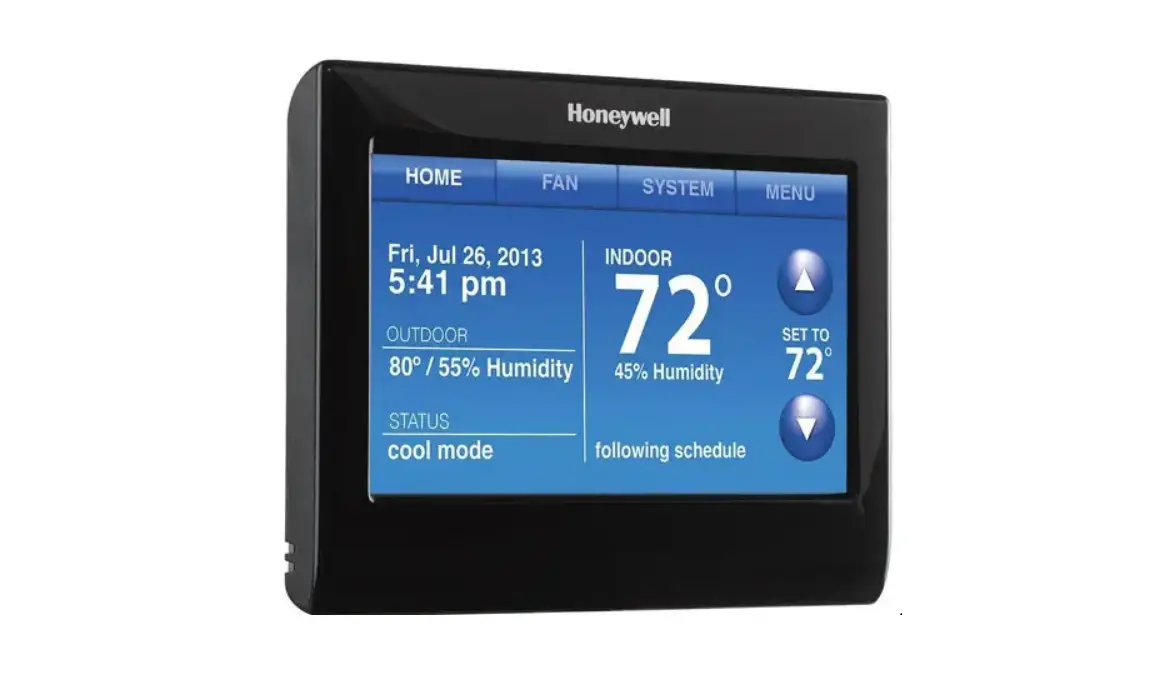
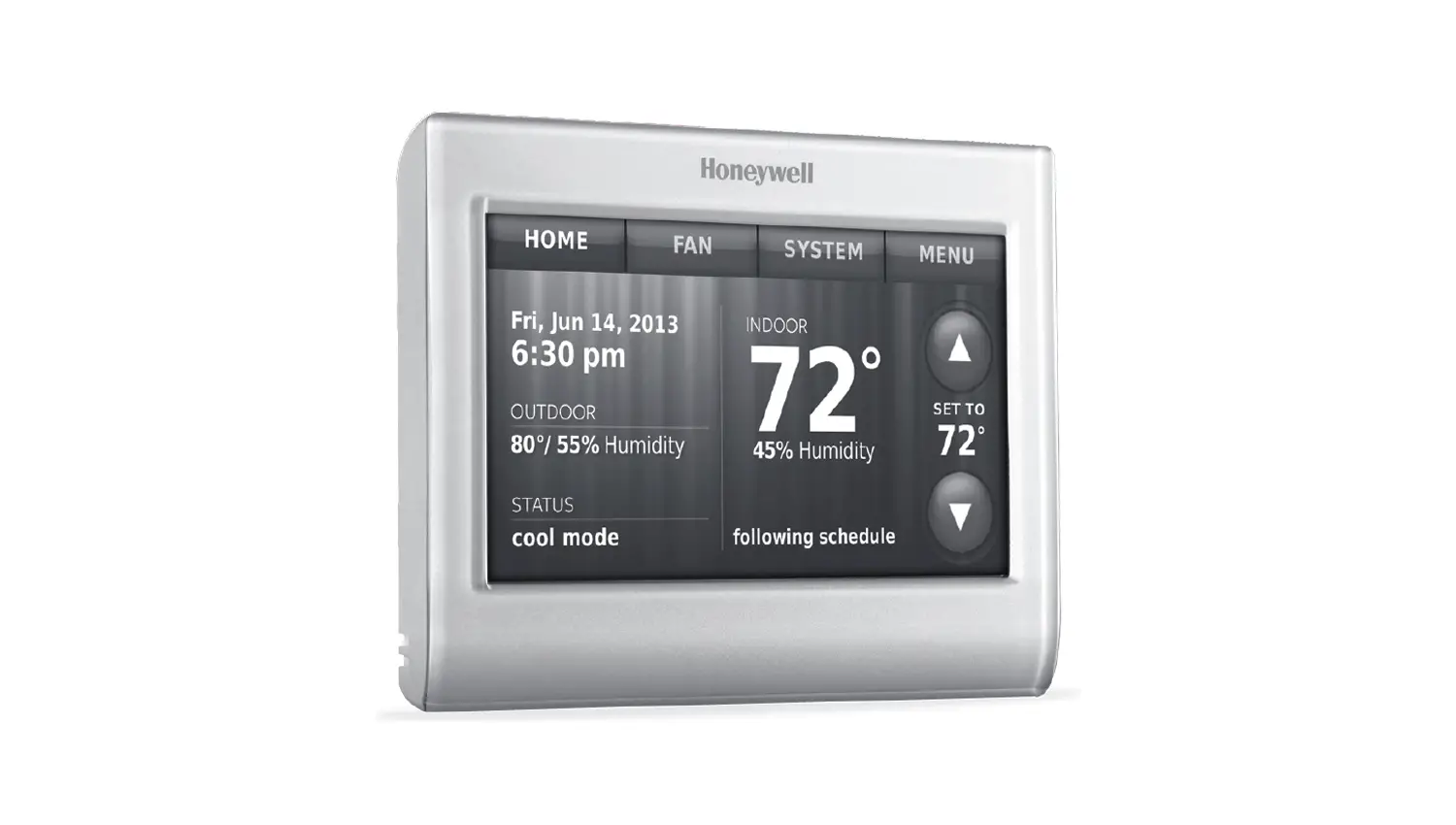
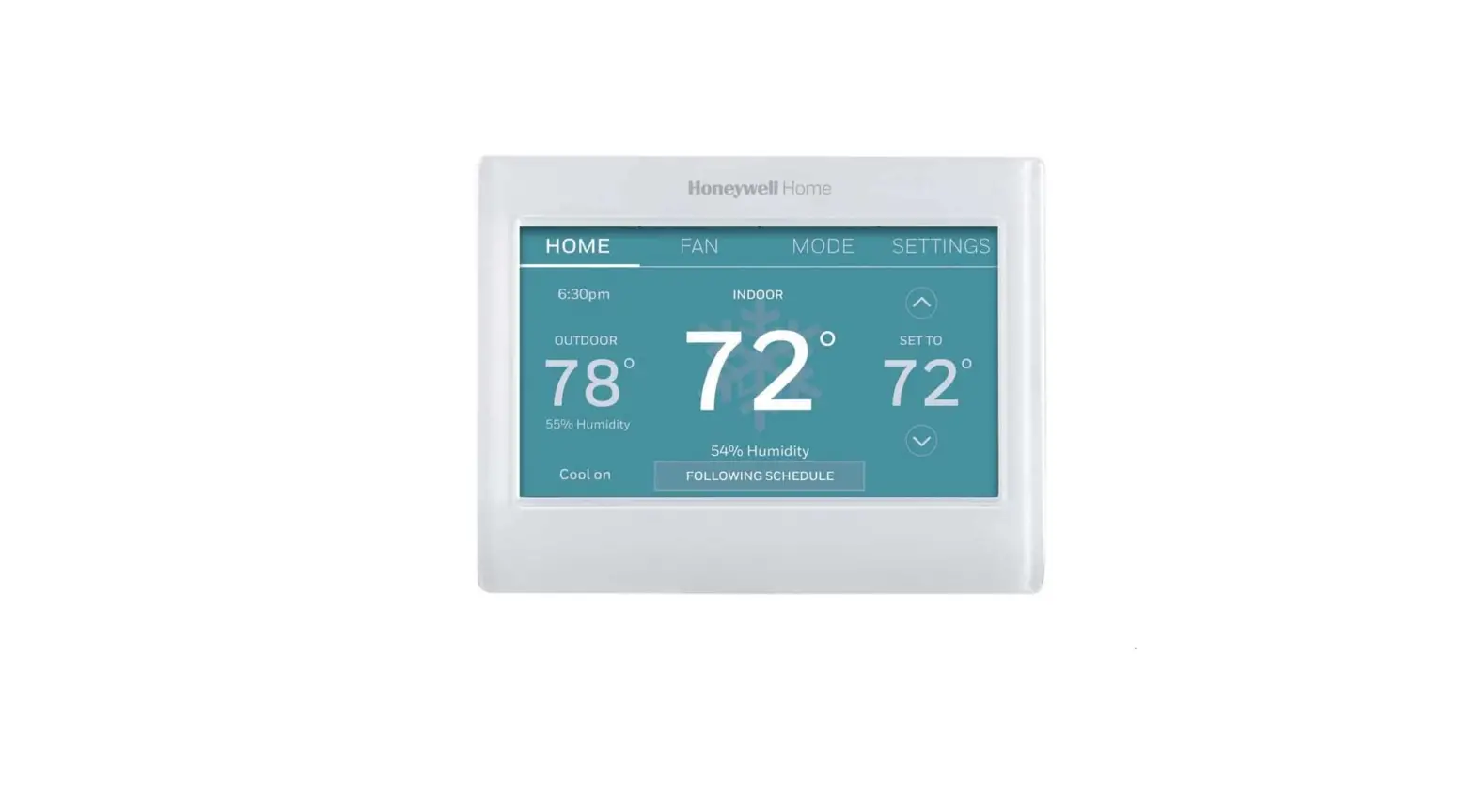
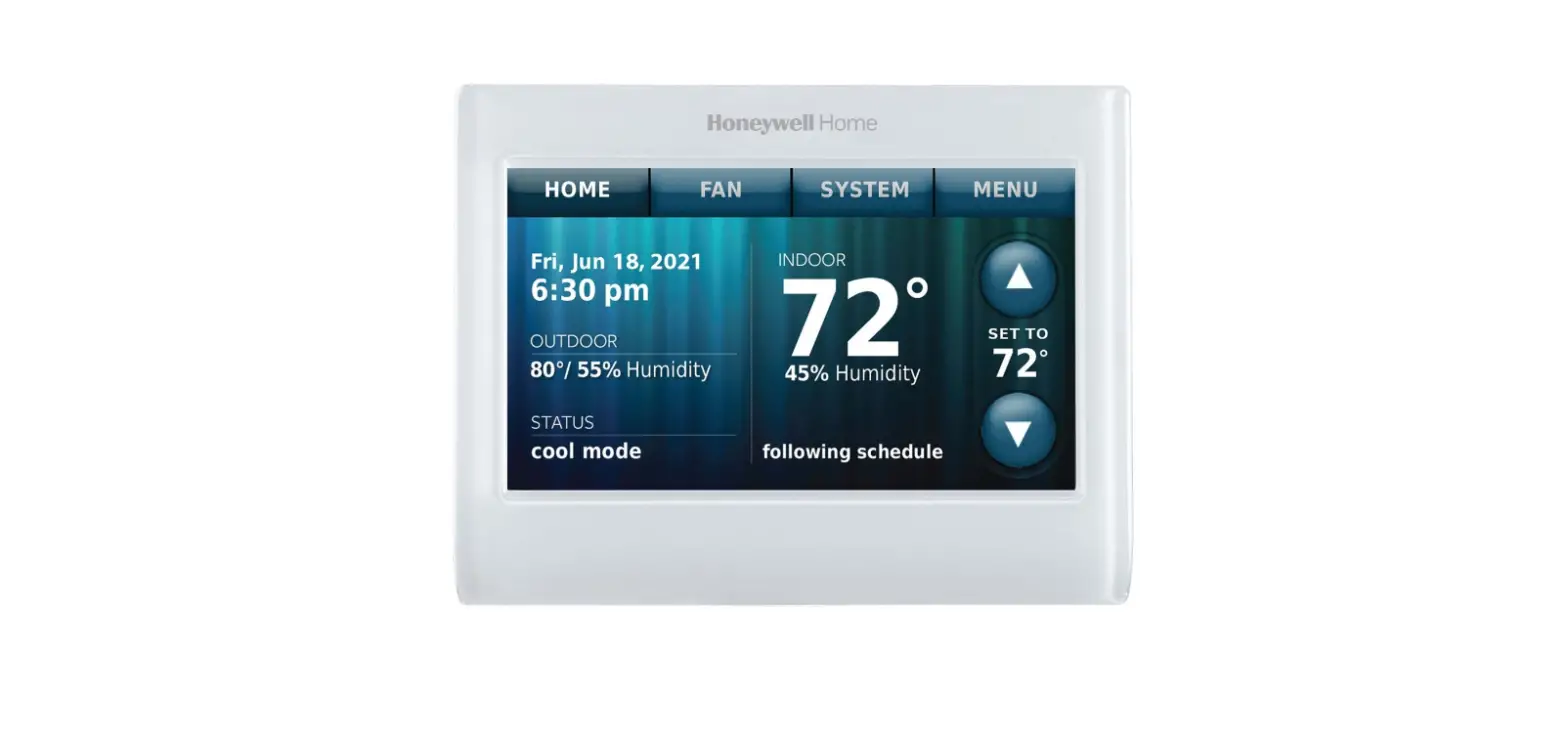
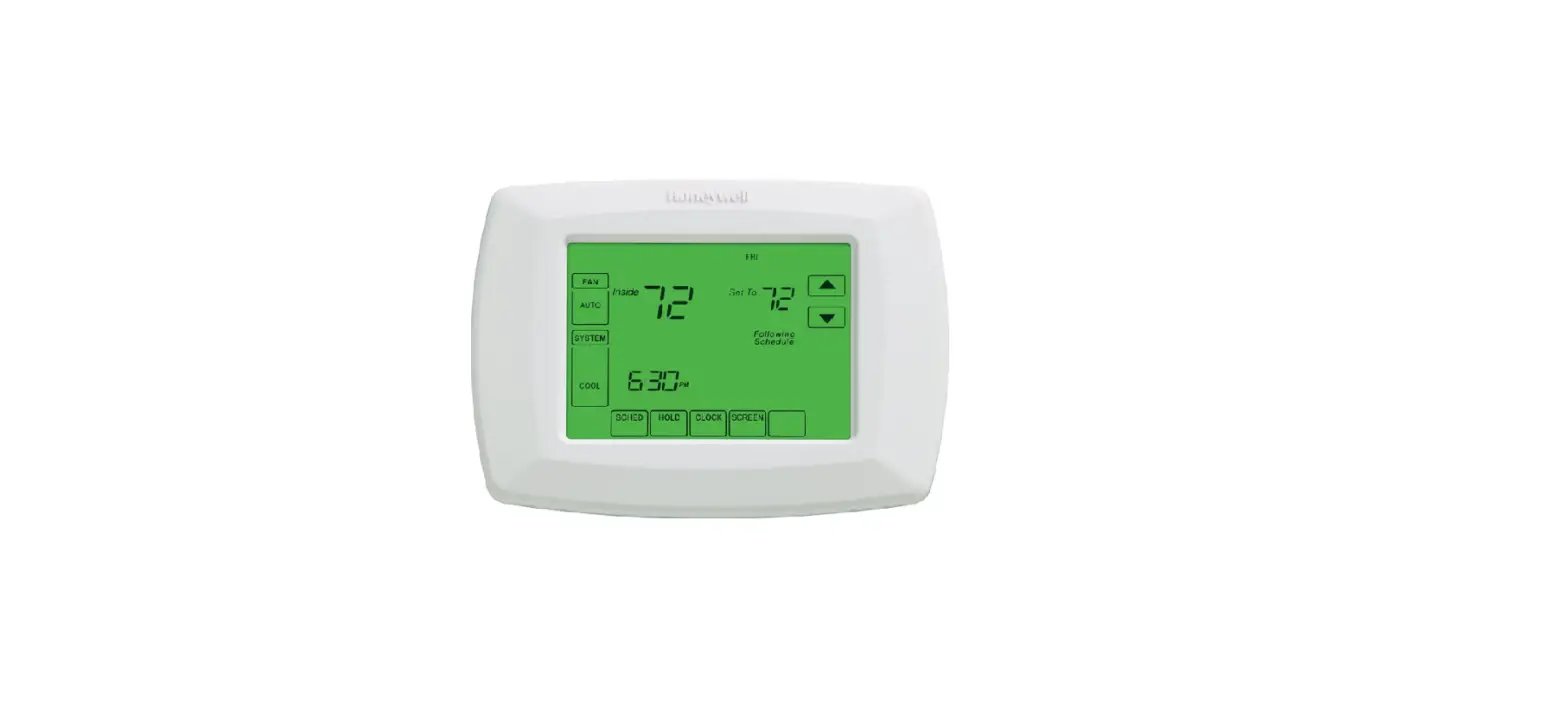
Honeywell RTH9580WF1005-W1 Programmable Color Touch Thermostat
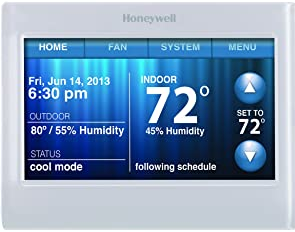
Install your thermostat
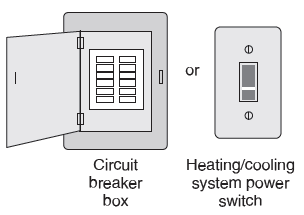
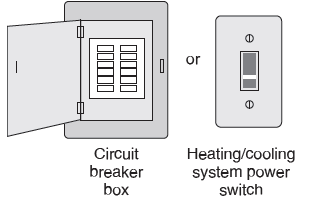
Switch OFF power to your heating/cooling system
- To protect your equipment, switch OFF the power to your heating/ cooling system at the breaker box or the system switch.
- Confirm power is OFF. Try to turn on heating/ cooling equipment by changing temperature on your old thermostat. Your power is OFF if your system does not turn ON.
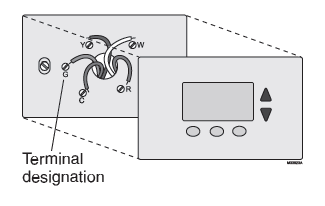
Remove old thermostat faceplate and leave wires connected
- Take a picture of the wire connections for later reference.
- If no wire is connected to a terminal labeled C or no C terminal exists on the old thermostat, view the Alternate Wiring videos at wifithermostat.com/videos
Label wires
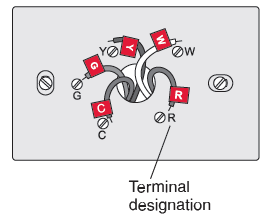
Do not label by wire color. Use the supplied sticky tags to label each wire as you disconnect it. Label wires according to old thermostat terminal designations, not by wire color.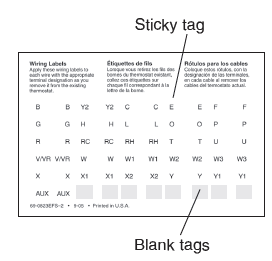
Remove wallplate
Remove the old wallplate from the wall after all wires are labeled and disconnected
Mount wallplate for Wi-Fi thermostat
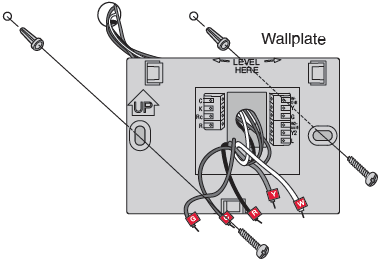
Mount your new wallplate using screws and anchors included with the thermostat.
 If necessary
- Drill 3/16-in holes for drywall
- Drill 7/32-in holes for plaster
Connect wires
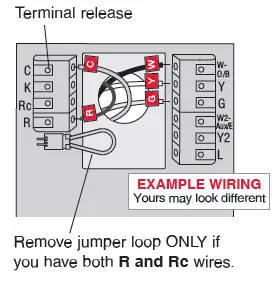
- Starting with the C Wire, match the sticky tag on the wire to the terminal labels.
- Straighten wire and gently slide into terminal hole until it clicks into place. (If you need to remove a wire, use a pen tip to press the terminal release and then pull the wire out.)

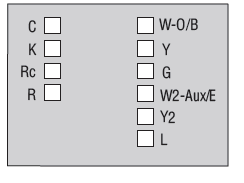
- In the image on the right, check the box next to each connection.
- You will use this checklist in Step 1.9.
- Verify wire is firmly secured by gently pulling on wire.
- Repeat steps a–d for all other wires.
- Push any excess wire back into the wall opening after all wires are installed.

Attach thermostat to wallplate
Align the thermostat with the wallplate and snap into place.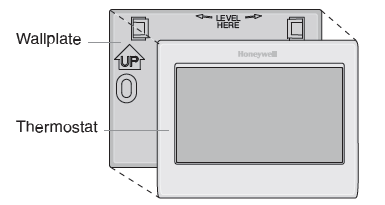
Switch heating/cooling system ON
- Verify that the C wire is connected at the thermostat and at the heating/cooling system.
- Make sure the heating/ cooling system door is firmly secured.
- Switch power back ON for your heating/cooling system at the breaker box or its power switch

Select setup
Before connecting to your Wi-Fi network, you need to set initial thermostat options to define your heating/cooling system:
- Language
- Home or business
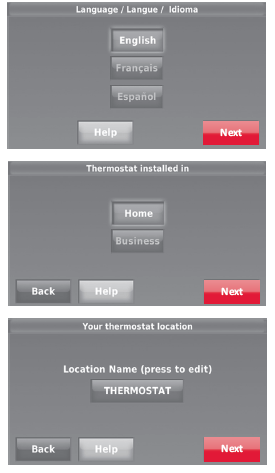
Follow prompts on the screen to select appropriate options.
- Touch the language you want the thermostat to display, then touch Next.
- Select Home or Business application, then touch Next.
- Touch Next or name the thermostat location—touch

- THERMOSTAT and follow the rest of the instructions.
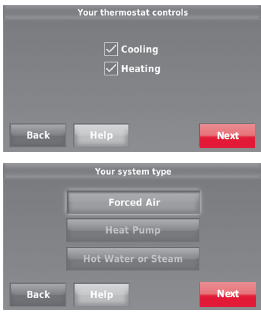
- Select what your thermostat will control and touch Next.
- Select your system type and touch Next The system type determines other selection for completing initial setup.
- Use the checklist from Step 1.6 when making selections.
- Touch Next after making selections on each screen.
- Touch Done on the last screen. The thermostat displays an option to connect to your Wi-Fi network

Connect to your Wi-Fi network
Connect the Wi-Fi network
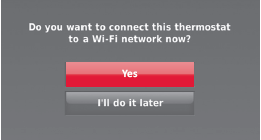
- After touching Done on the final screen of the initial set up (Step 1.9g), the thermostat displays an option to connect to your Wi-Fi network.
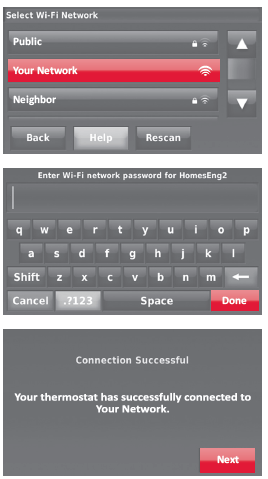
- Touch Yes to connect the thermostat to your Wi-Fi network. The screen displays the message “Searching for wireless networks. Please wait…” after which it displays a list of all Wi-Fi networks it can find.

- Touch the name of the network you want to use. The thermostat displays a password page.
- Using the keyboard, touch the characters that spell out your home network password.
- Touch Done. The thermostat displays “Connecting to yournetwork. Please wait…” then shows a “Connection Successful” screen.

Register online for remote access
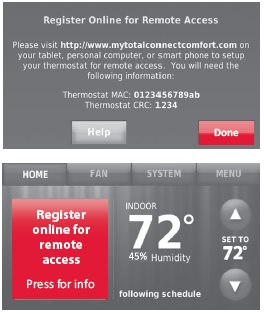
- To register your thermostat, follow the instructions on Step 3.1
- To view and set your Wi-Fi thermostat remotely, you must have a Total Connect Comfort account. Follow the instructions below.

Open the Total Connect Comfort web site
Go to www.mytotalconnectcomfort.com
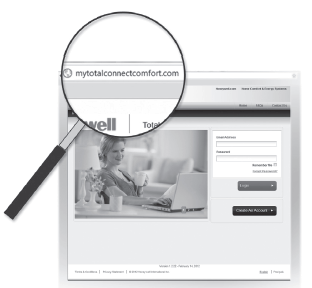
Login or create an account
- If you have an account, click Login – or – click Create An Account.
- Follow the instructions on the screen.
- Check your email for a response from My Total Connect Comfort.
- This may take several minutes.
- Follow activation instructions in the email.
- Log in.

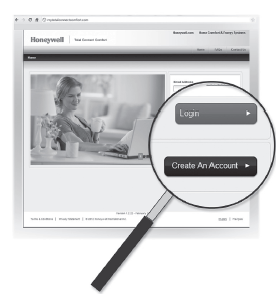
Register your Wi-Fi thermostat
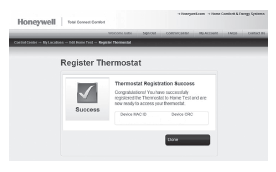
After you are logged in to your Total Connect Comfort account, register your thermostat.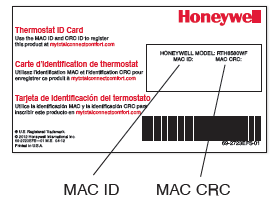
Follow the instructions on the screen. After adding your thermostat location you must enter your thermostat’s unique identifiers:
- MAC ID
- MAC CRC.
Need help?
Visit wifithermostat.com or call 1-855-733-5465 for assistance before returning the thermostat to the store
- Automation and Control Systems
- Honeywell International Inc.
- 1985 Douglas Drive North
- Golden Valley, MN 55422
- wifithermostat.com
FAQS
Why is my Honeywell thermostat not reading temperature correctly?
Cleaning the inside of your thermostat may fix the issue. If there is too much dust inside, the sensor will have trouble working correctly.
What can cause a Honeywell thermostat to stop working?
Put in new batteries; Check the circuit breaker; Check the indoor unit to make sure all the panel doors are closed
Why is my Honeywell wireless thermostat not working?
Make sure your app is up to date and your mobile phone is within 3-5 feet of your thermostat
How do you know if your thermostat is correct?
To do so, locate your home’s thermostat and tape an accurate thermometer on the wall next to it. Wait 15 minutes and check the temperature reading on both devices.
What are the signs of a thermostat not working?
The main symptoms of a failing thermostat are related to engine overheating
What settings should my thermostat be on?
According to ENERGYSTAR.gov, the ideal home temperature should be between 70 to 78 degrees Fahrenheit.
How do I operate my Honeywell home thermostat?
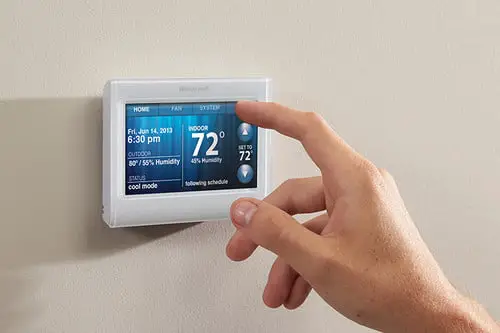
If you have a manual thermostat, setting the temperature on your Honeywell thermostat is simple. All you need to do is to press the up and down buttons to set the temperature.
How does a thermostat work step by step?
A mechanical thermostat uses two strips of metal, laminated together in what’s called a bimetallic strip in the thermostat’s sensor.
What is a common problem with thermostat?
A common thermostat issue that usually results in the temperature never reaching what you have it set for. Grime can build up inside a thermostat
What happens if thermostat stays closed?
If the thermostat becomes stuck in the closed position, the circulation of the coolant is blocked so the coolant cannot get to the radiator to be cooled which causes the engine to overheat.
What happens when the thermostat closes?
When the thermostat is closed (as it should be when first starting the engine), coolant is prevented from circulating
If this is the case in your home, you may need to simply replace the batteries to get the screen up and running again
Yes, the thermostat will continue to operate your heating and/or cooling system even when your Wi-Fi network is down

![Honeywell Ret97c Series Touchscreen Programmable Thermostat [rth7600] User Manual](https://static-data1.manualsee.com/1/img/115/17244/2020/12/Honeywell-RET97C-Series-Touchscreen-Programmable-Thermostat-RTH7600.jpg "Honeywell Ret97c Series Touchscreen Programmable Thermostat [rth7600] User Manual")