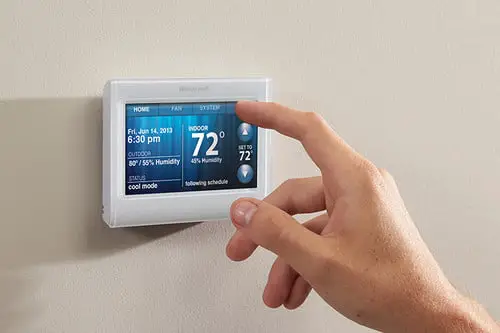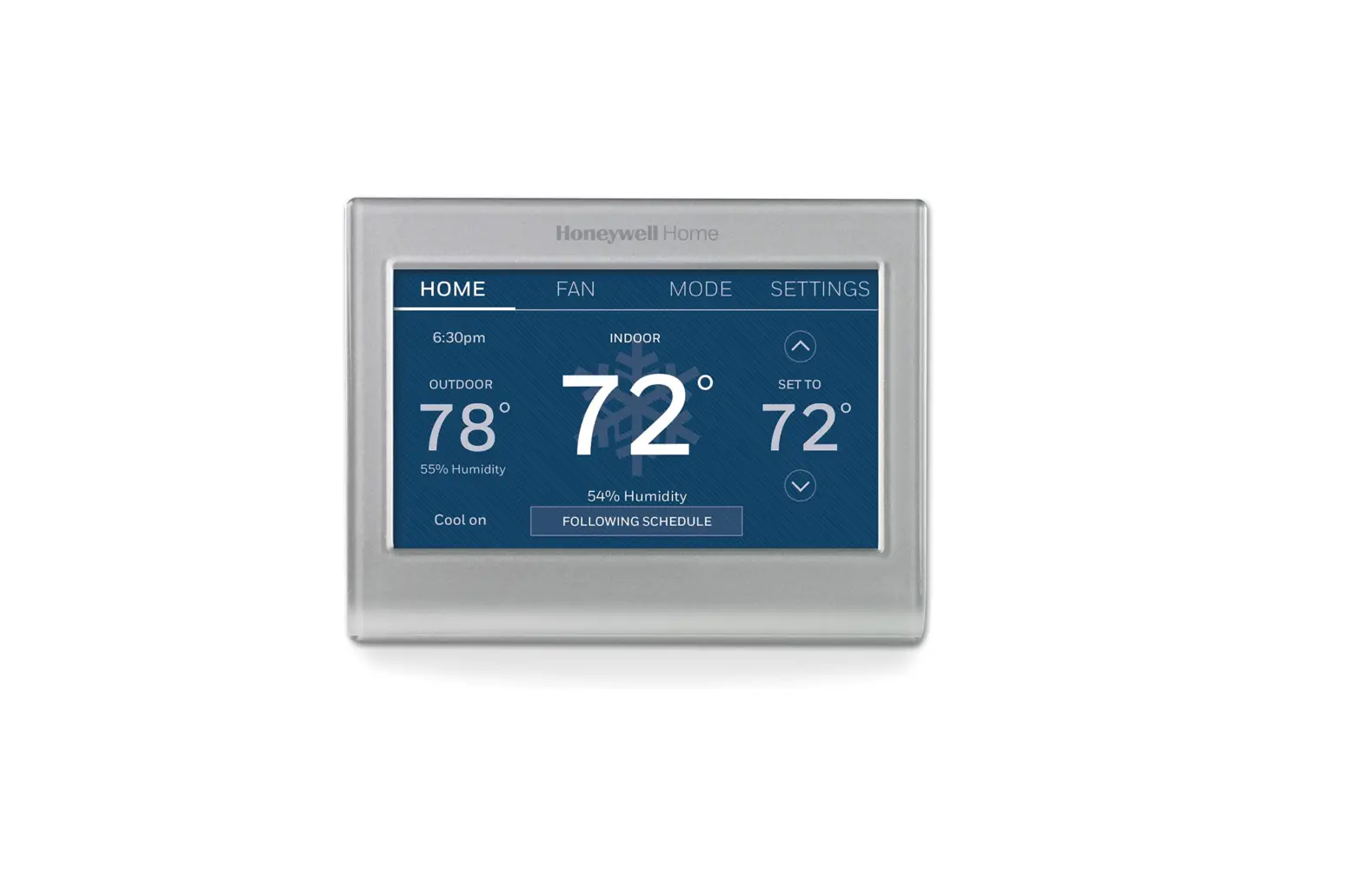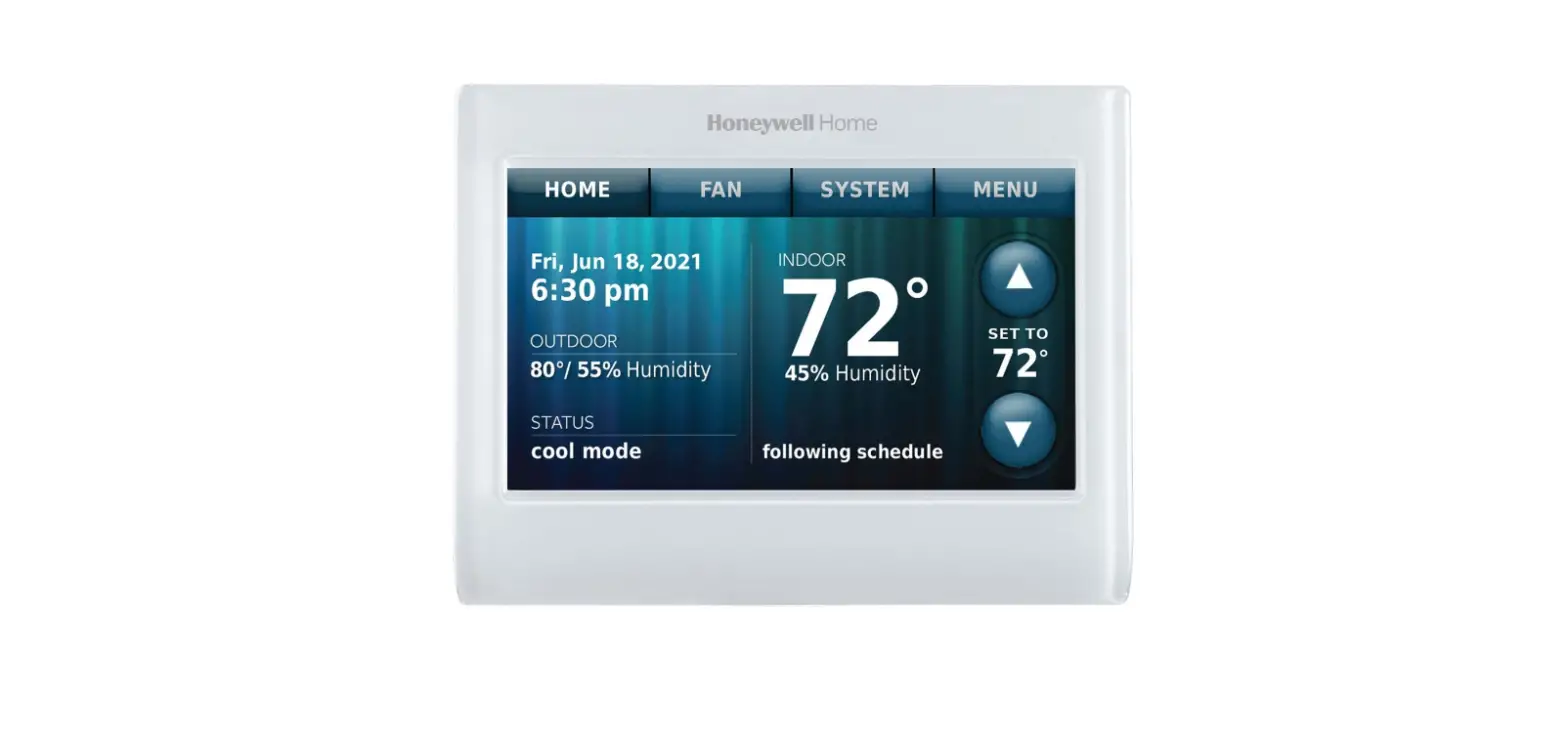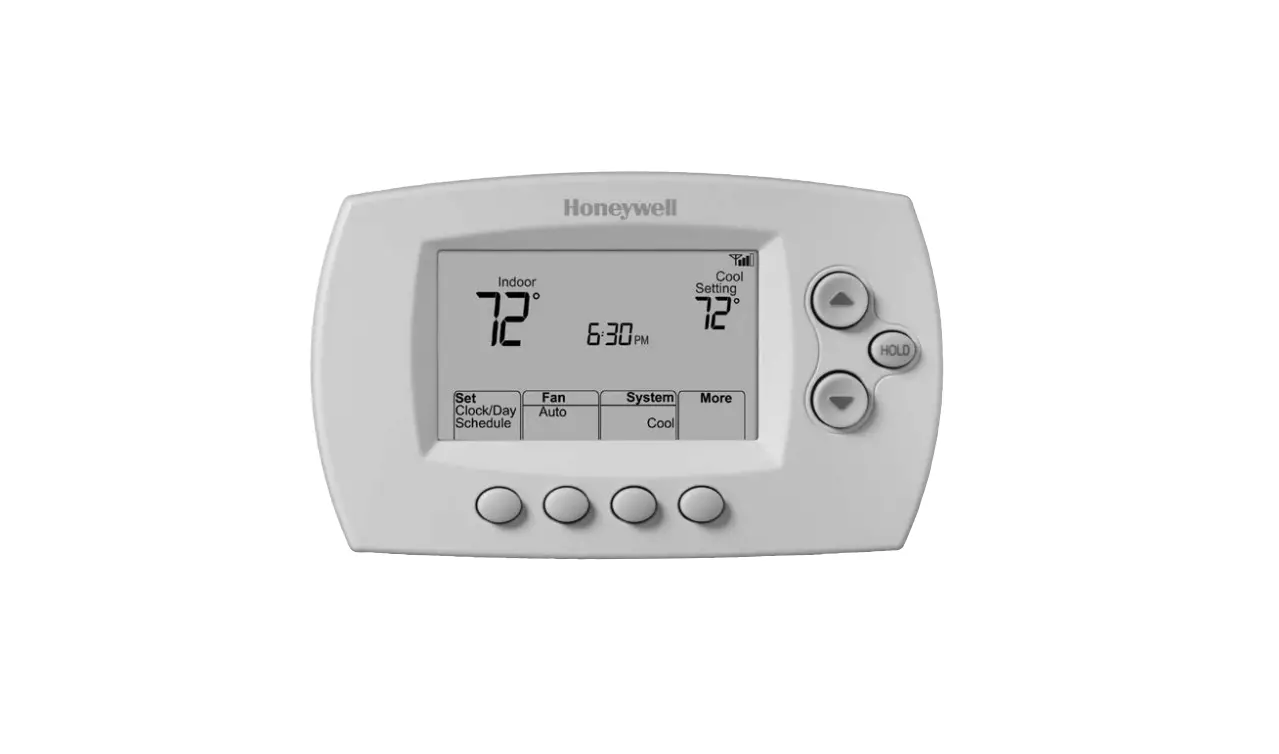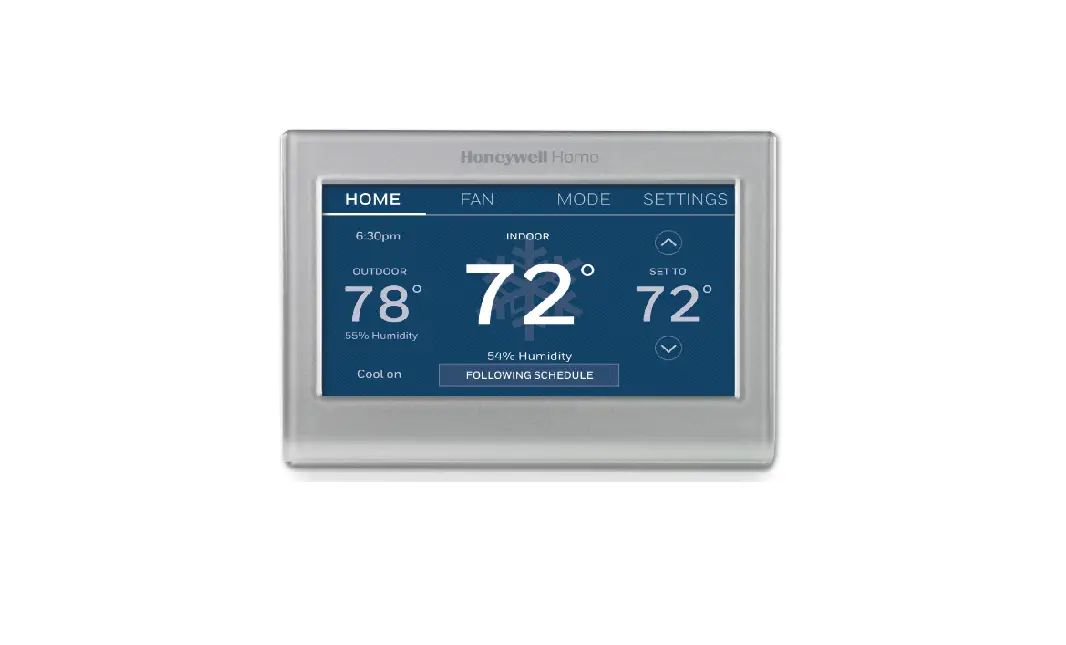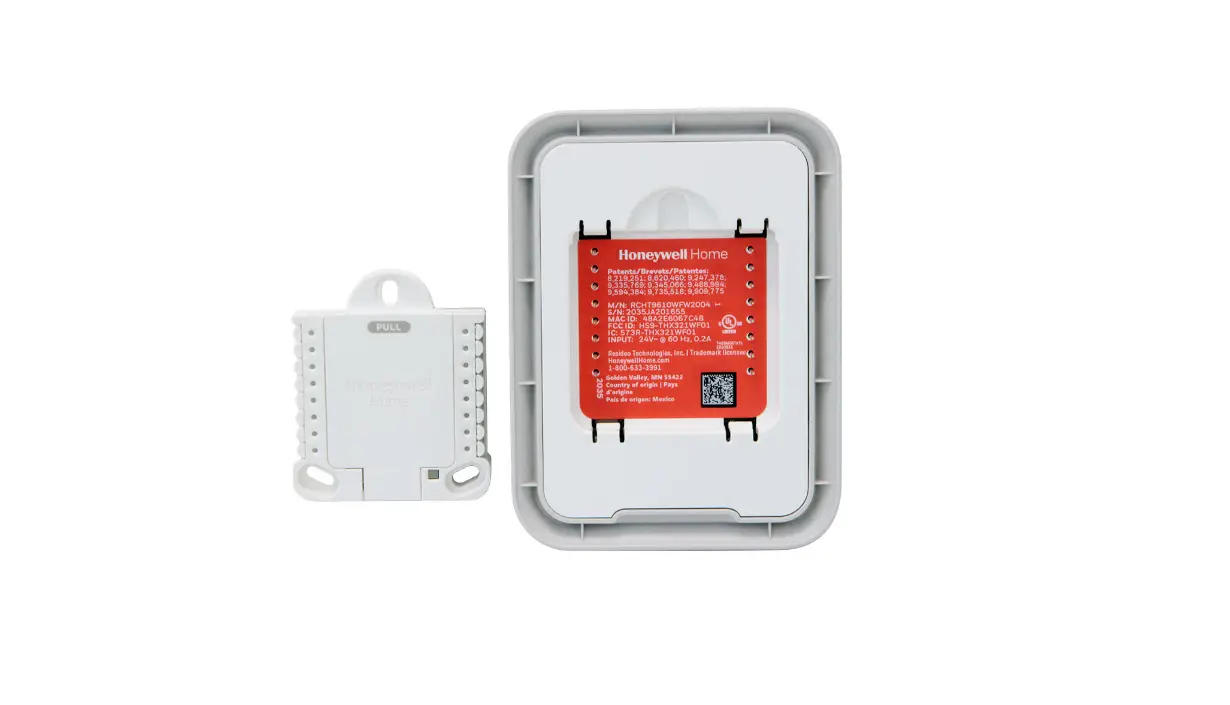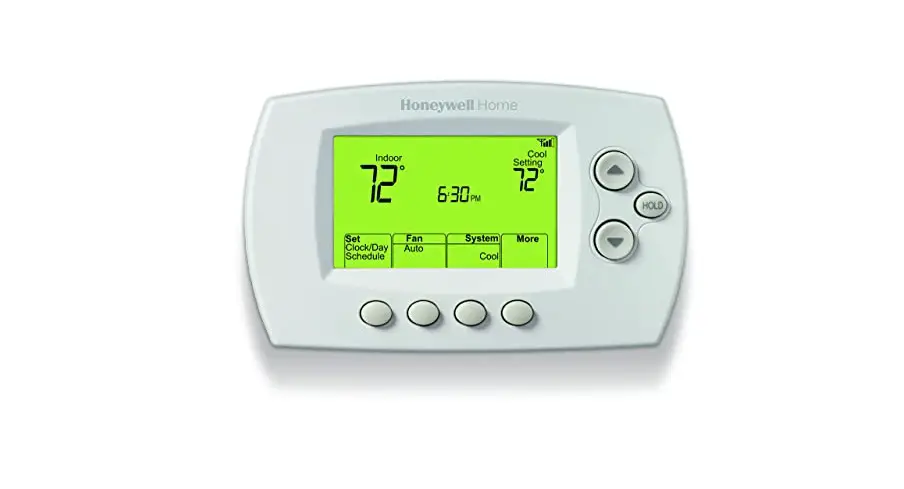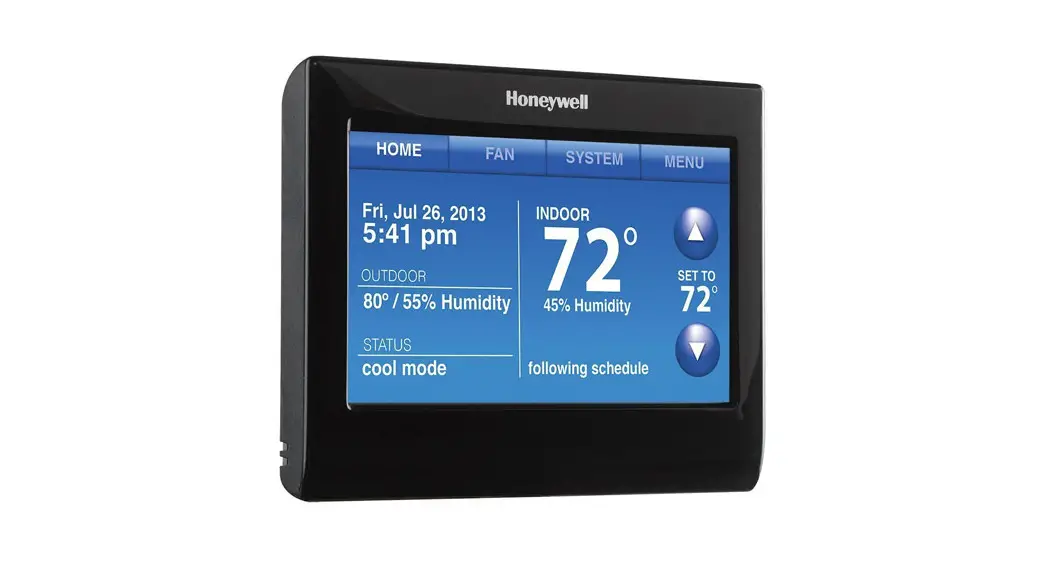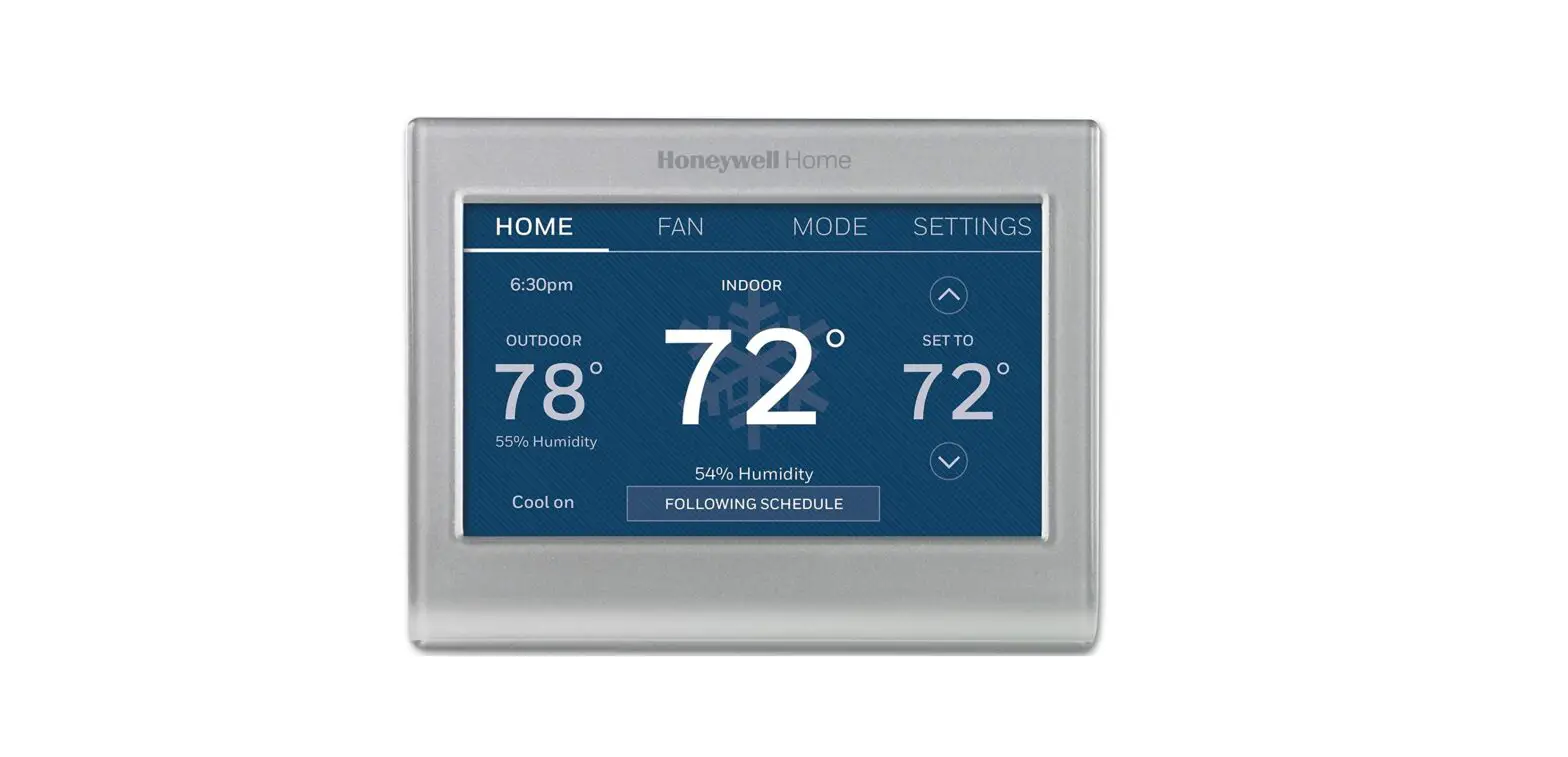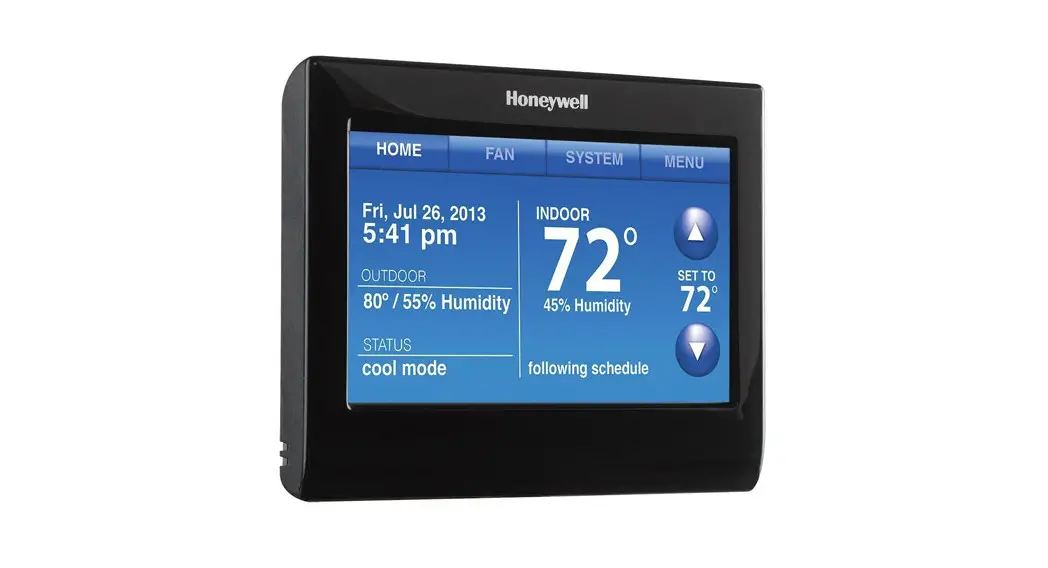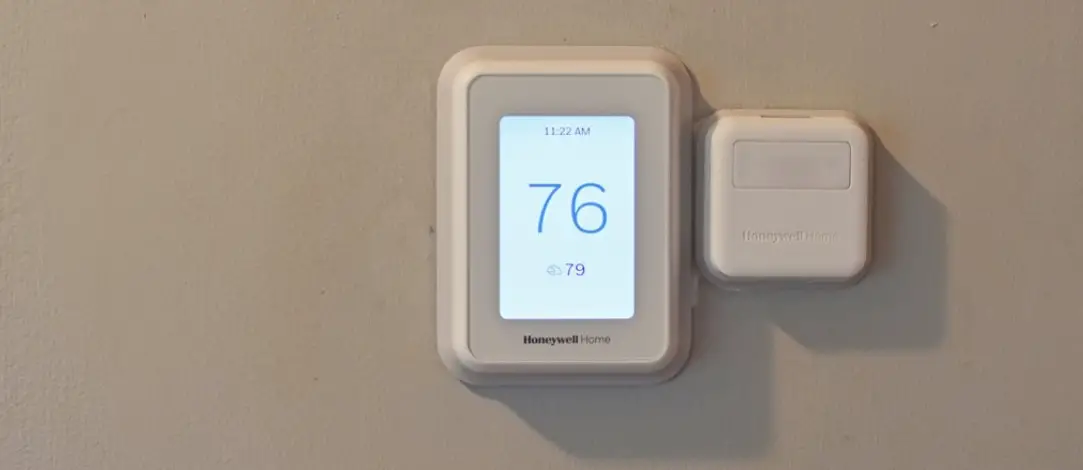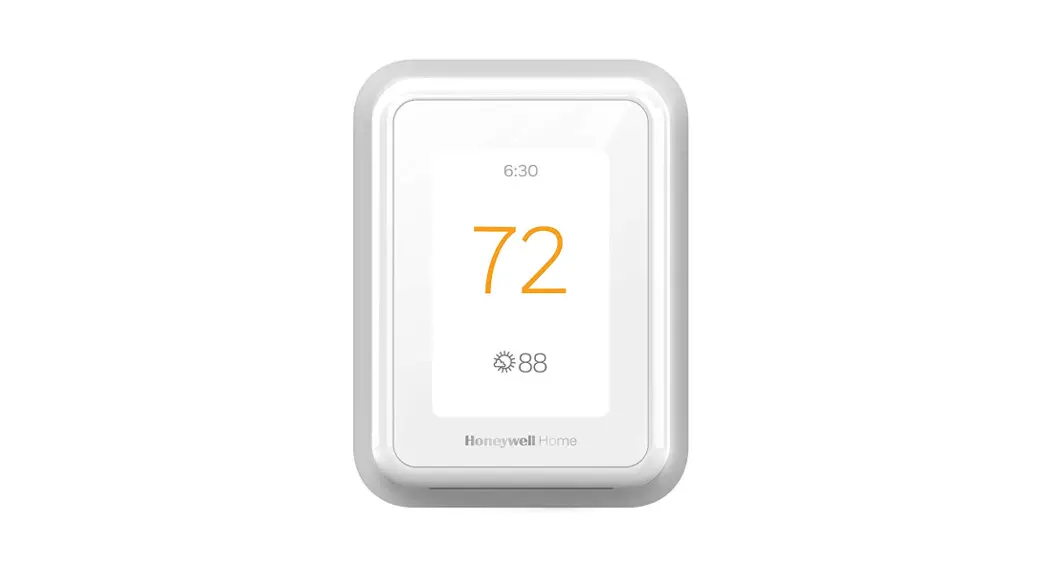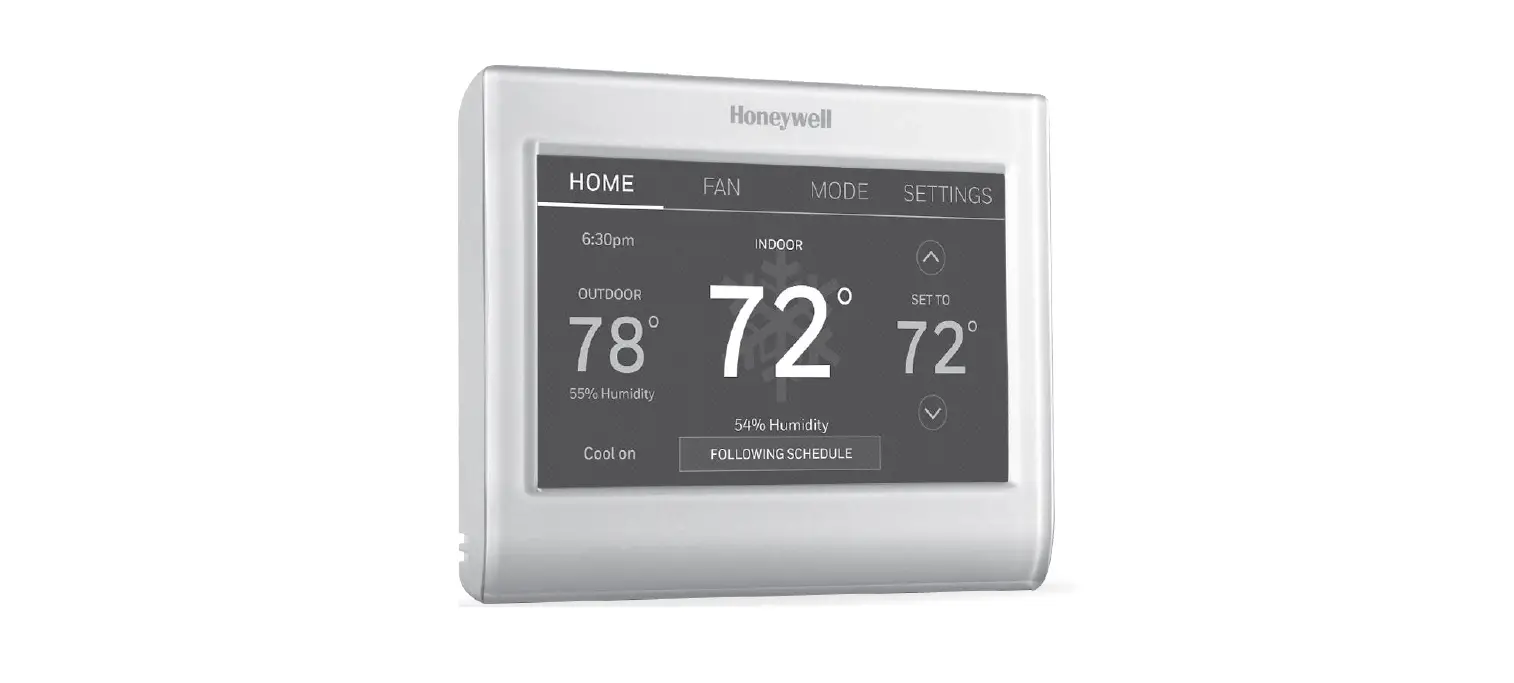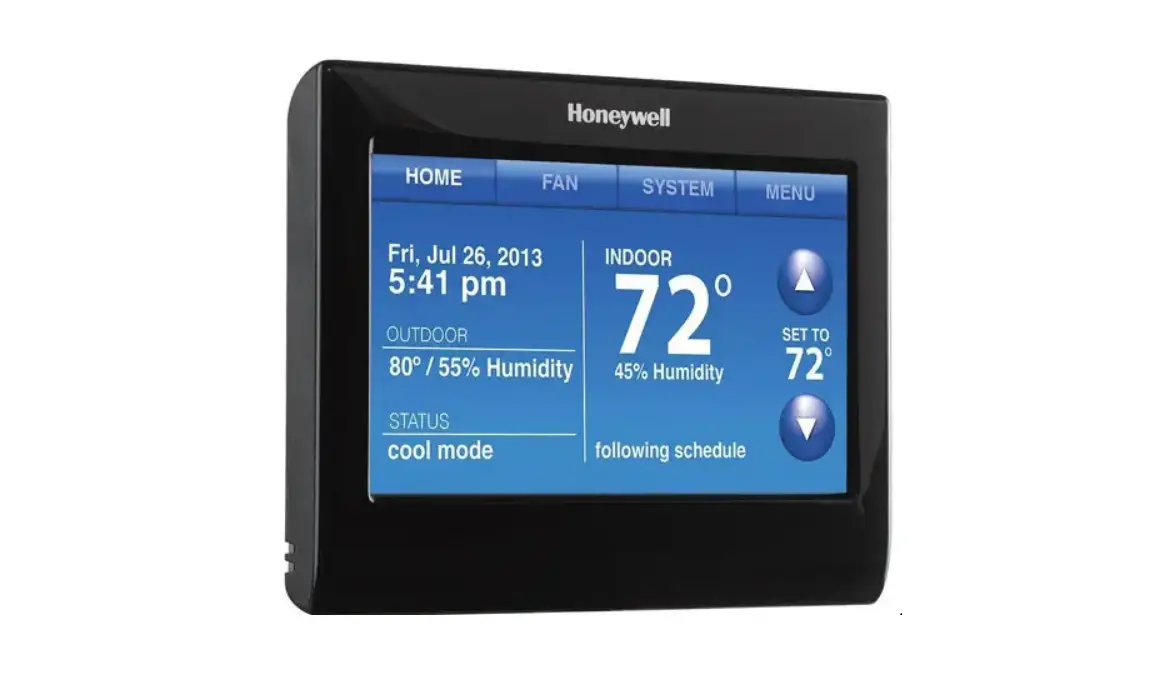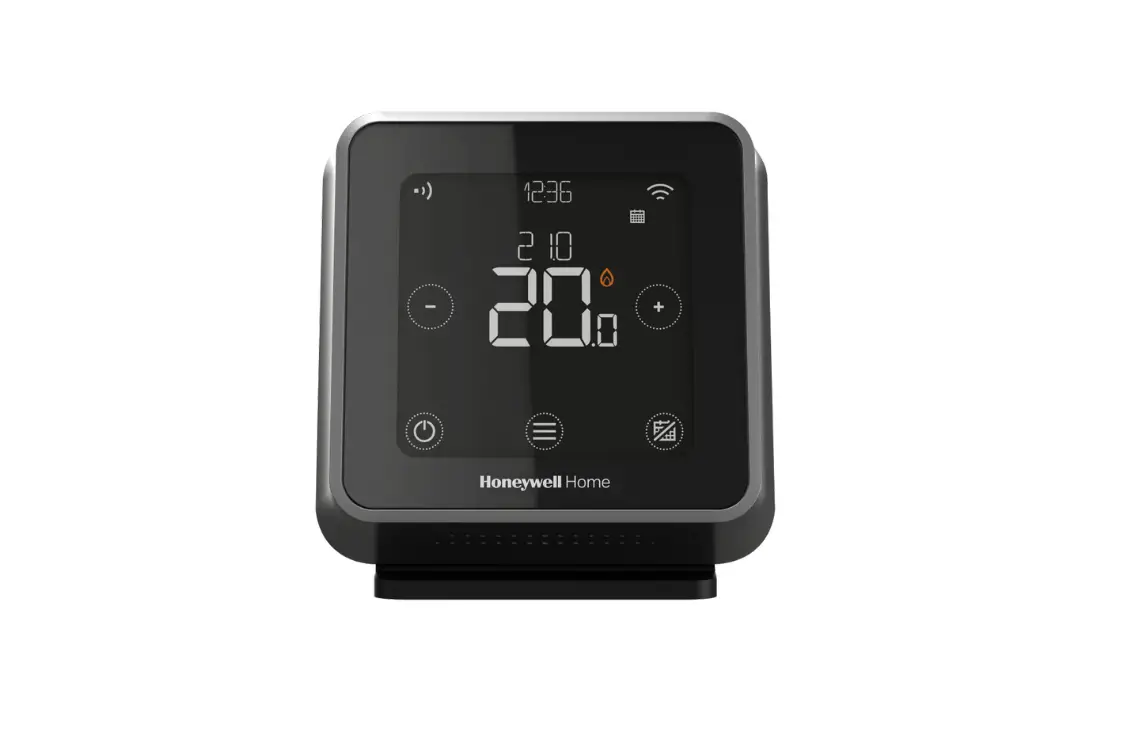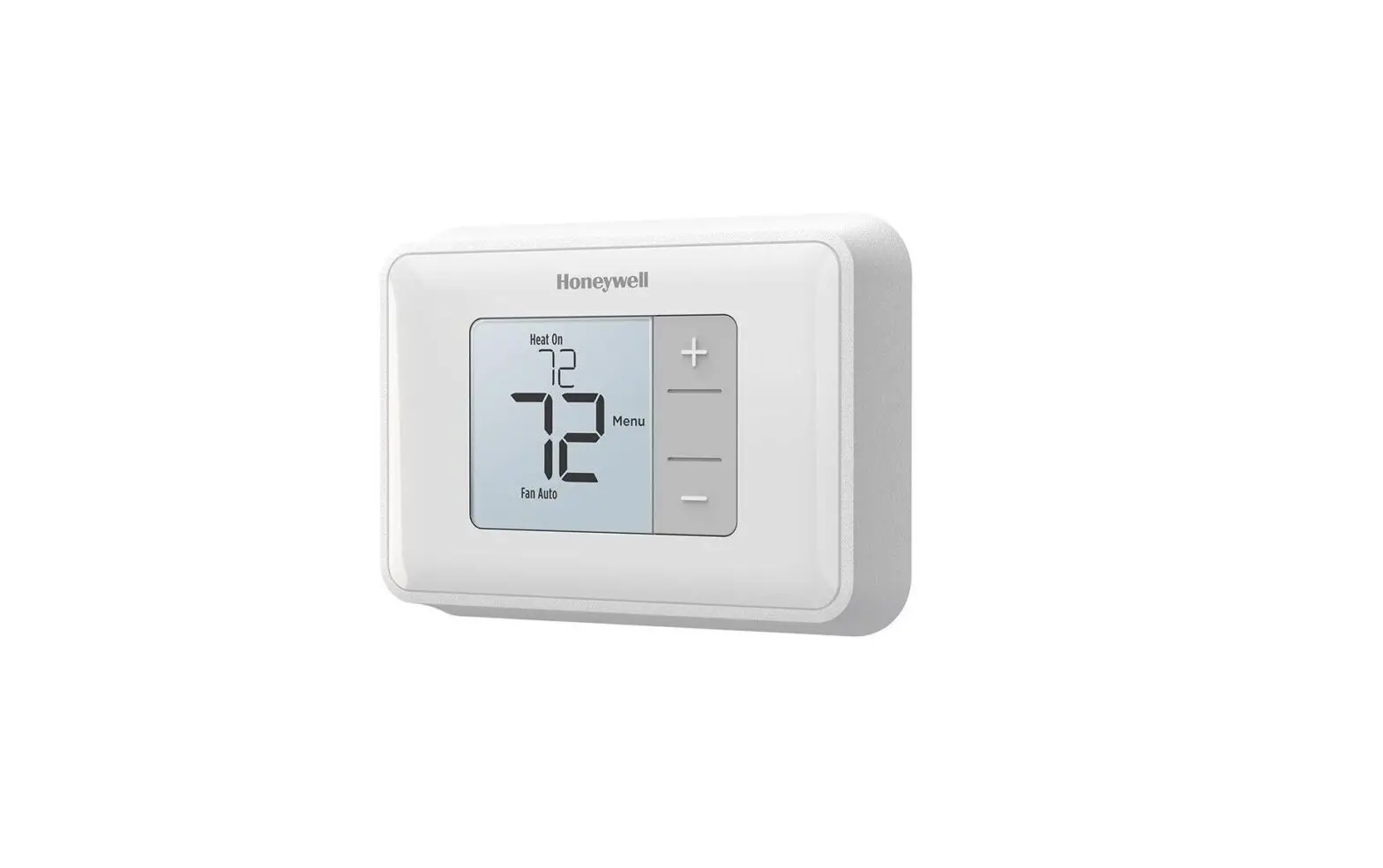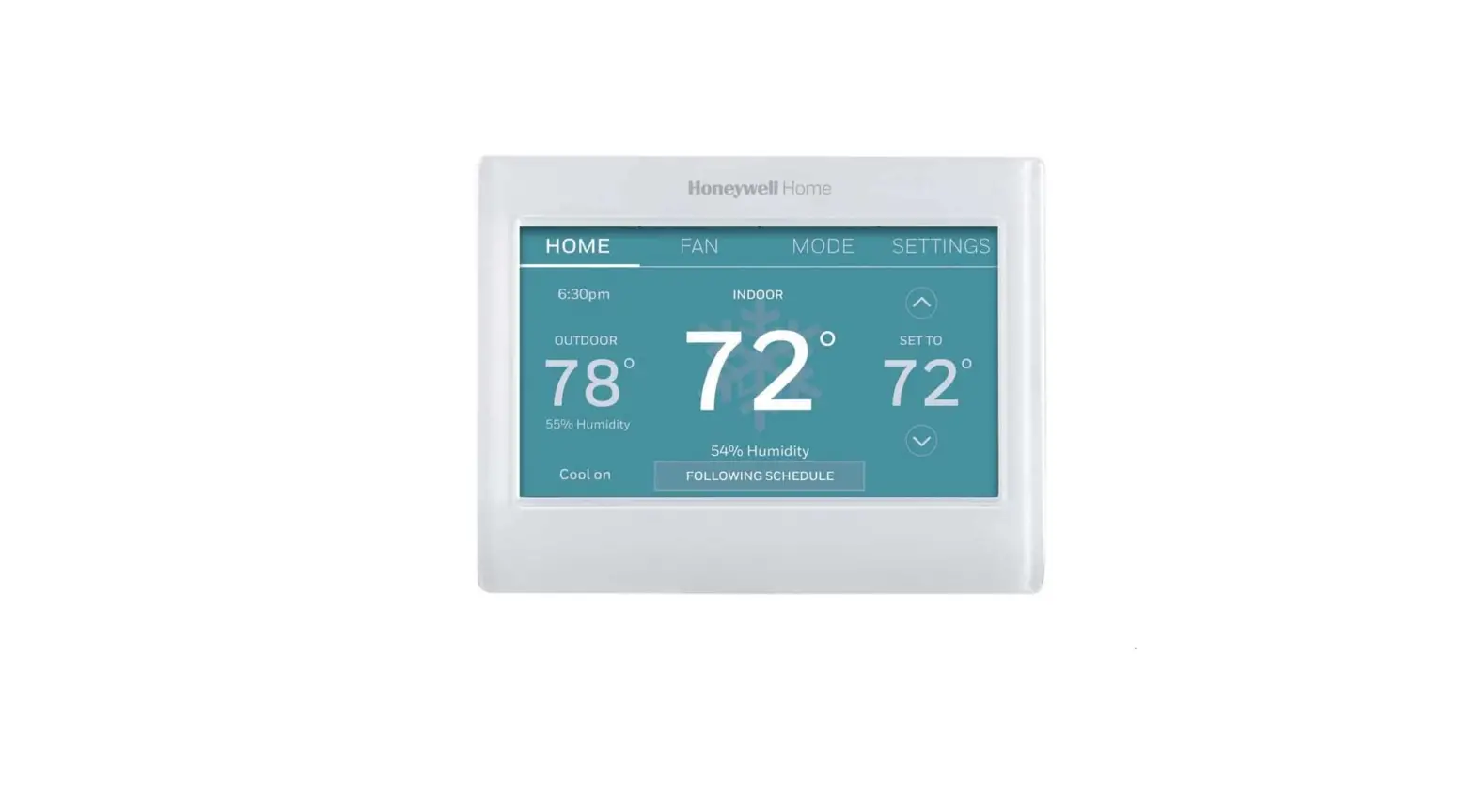

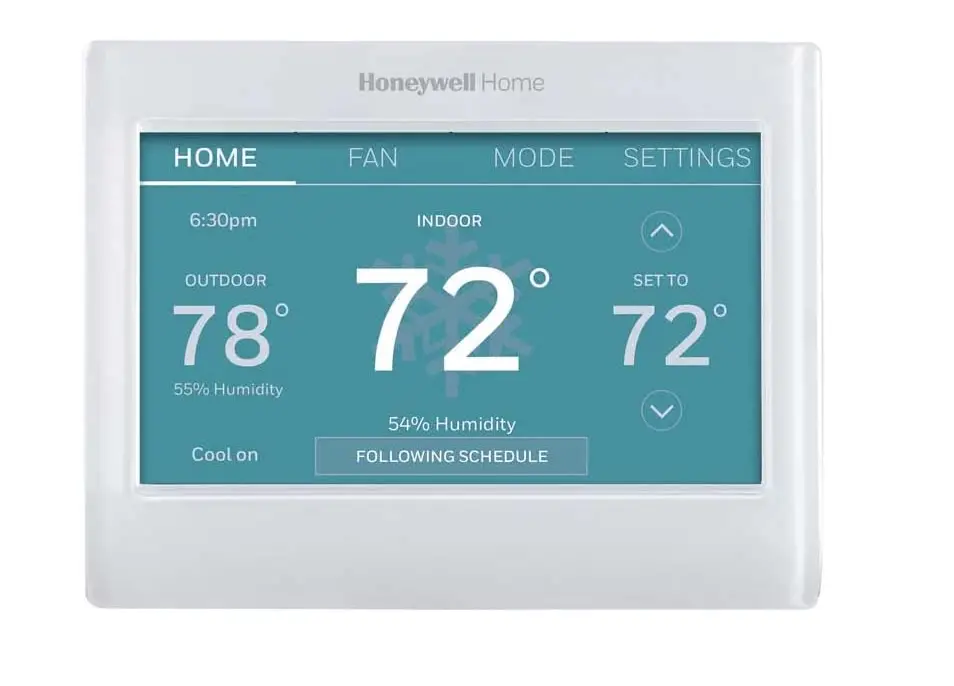
Honeywell Home RTH9600WF Smart Color Thermostat
Specifications
- Product Dimensions
4.5 x 0.88 x 3.5 inches - Item Weight
0.7 Pounds - Power Source
Battery Powered - Controller Type
IFTTT, Google Assistant, Amazon Alexa, IOS, Android - Voltage
240 Volts, 120 Volts - Material
Plastic - Connectivity Protocol
Wi-Fi - Control Method
App, Touch - Mounting Type
Wall Mount - Control Type
Touch - Shape
Rectangular - Brand
Honeywell Home
Introduction
The color display of the Smart Color Thermostat is among its most distinctive characteristics. Modify it to fit your decor. Then, whenever you want, change your mind. This Wi-Fi thermostat also provides versatile programming options for accommodating your schedule or the peak rate pricing of your power company. Operation is made simple by the colour touchscreen’s brightness and readability. You may use the app to remotely monitor and control how comfortable and energy-efficient your house is whenever and wherever you are. Alternately, you can control your comfort by using a smart home partner like Amazon Alexa, Google Assistant, or Microsoft Cortana. Smart alerts for temperature notifications, internet connection alerts, automatic updates for daylight savings time, and multi-language support are further intelligent features.
Additionally, this Wi-Fi thermostat will change With Honeywell Home’s Smart Response technology, which converts heat into cold air and learns your comfort level, the perfect temperature is delivered when you want it by understanding your home’s cycle periods.
In the box, you will find
- Thermostat
- Wallplate
- Screws and anchors
- Quick Start Guide
- Thermostat ID Card
- Wire labels
- User Guide
- C-wire addendum
Welcome
Congratulations on your purchase of a color touchscreen programmable thermostat. When registered to Total Connect Comfort, you can remotely monitor and control the heating and cooling system in your home or business—you can stay connected to your comfort system wherever you go. Total Connect Comfort is the perfect solution if you travel frequently, own a vacation home, a business, or manage an investment property or if you are simply looking for peace of mind.
This thermostat works with common 24 volt systems such as forced air, hydronic, heat pump, oil, gas, and electric. It will not work with millivolt systems, such as a gas fireplace, or with 120/240 volt systems such as baseboard electric heat.
MERCURY NOTICE
Do not place your old thermostat in the trash if it contains mercury in a sealed tube. Contact your local waste management authority for instructions regarding recycling and proper disposal.
NOTICE
To avoid possible compressor damage, do not run air conditioner if the outside temperature drops below 50°F (10°C).
CAUTION
ELECTRONIC WASTE NOTICE: The product should not be disposed of with other household waste. Check for the nearest authorized collection centers or authorized recyclers. The correct disposal of end-of-life equipment will help prevent negative consequences for the environment and human health.
Need help?
Visit resideo.com or call 1-800-633-3991 for assistance before returning the thermostat to the store.
Features of your thermostat
With your new thermostat, you can
- Connect to the Internet to monitor and control your heating/cooling system.
- View and change your heating/cooling system settings.
- View and set temperature and schedules.
- Receive alerts via email and get automatic upgrades.
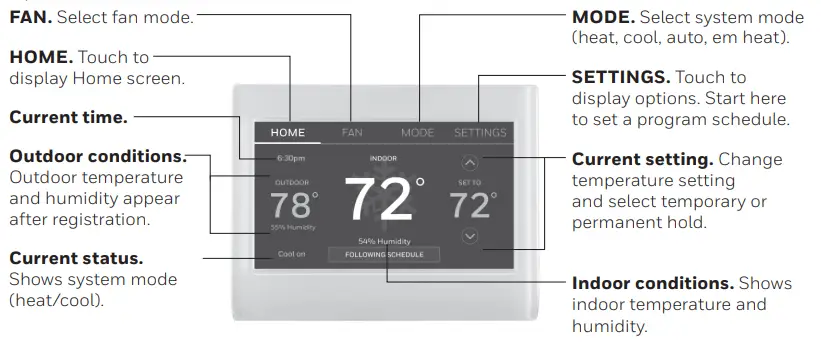
- View outdoor temperature and humidity (requires Wi-Fi set up and registration).
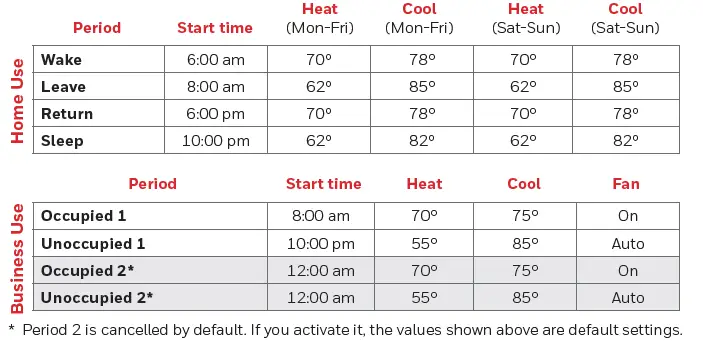
Quick reference: home use
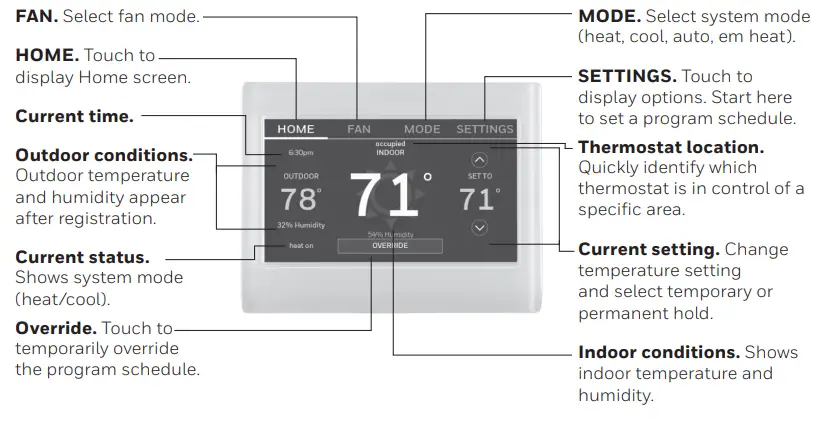
Quick reference: business use
Setting up your thermostat
Setting up your programmable touchscreen thermostat is easy. It is preprogrammed and ready to go as soon as it is installed and registered.
- Install your thermostat.
- Connect it to your home wireless network.
- Register online for remote access.
Before you begin
you may want to watch a brief installation video. Use the QR Code® at the front of this guide, or go to resideo.com

Installing your thermostat
You might need the following tools to install this thermostat
- No. 2 Phillips screwdriver (3/16” for drywall, 7/32” for plaster) (optional)
- Pen
- Pencil
- Level (optional)
- Drill and bits
- Hammer (optional)
- Electrical tape (optional)
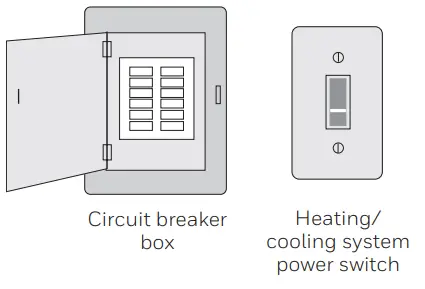
Switch OFF power to your heating/cooling system.
Important
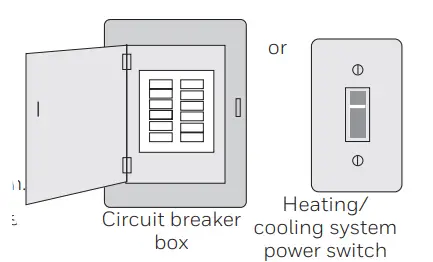
To protect your equipment, switch OFF the power to your heating/cooling system at the breaker box or the system switch.
- Remove old thermostat faceplate and leave wires connected.
- Take a picture of the wire connections for later reference.
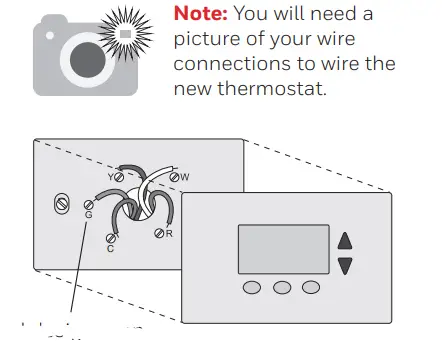
Terminal designation
If you have an older thermostat with a sealed mercury tube, turn to page ii for proper disposal instructions.
Installing your thermostat
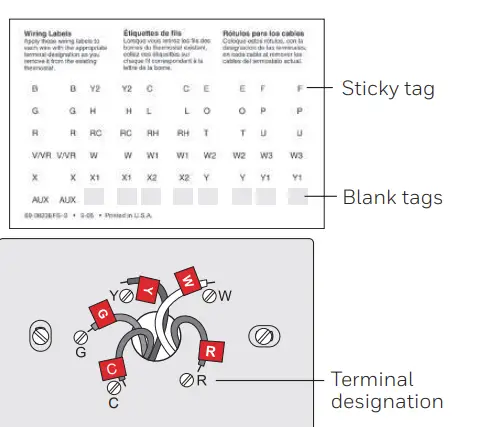
Label the wires.
Use the supplied sticky tags to label each wire as you disconnect it. Label wires according to the old thermostat terminal designations, not by wire color.
Note
If no tag matches a terminal designation, write the appropriate letter on a blank sticky tag.
Note
Wrap the wires around a pencil to prevent them from falling back into the wall.
Mount wallplate for the thermostat
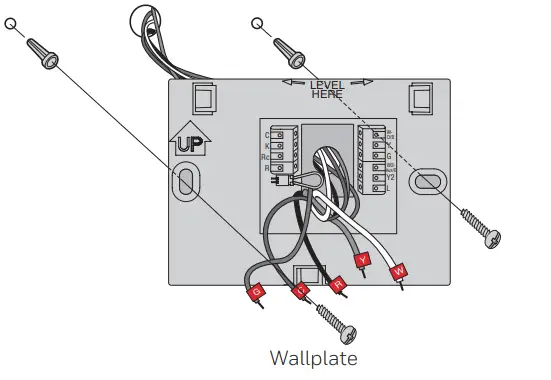
Mount your new wallplate using screws and anchors included with the thermostat. If necessary:
- Drill 3/16-in holes for drywall.
- Drill 7/32-in holes for plaster.
Note
You may be able to use your existing wall anchors. Hold the wallplate up to the existing anchors to check for alignment.
Important
This thermostat requires a C, or common, wire for power. The C, or common, wire brings 24 VAC power to the thermostat. If you are replacing an existing thermostat, it might not have a C wire connected to it. Many older mechanical or battery-operated thermostats do not require a C wire. See the C Wire Addendum document included in this package for more information.
Note
Not all heating/cooling systems label the 24 VAC common C. Check your system manual or contact the manufacturer to find out which terminal is the 24 VAC common.
View the Alternate Wiring videos at resideo.com
Wiring
For conventional heating/cooling systems (natural gas, oil or electric furnace, air conditioner), see page 8. See “Glossary” on page 39 for further definition. For a heat pump system, see page 9. See “Glossary” on page 39 for further definition.
Wiring (Conventional System)
6A Wire the thermostat to your conventional system.
Starting with the C Wire, match the sticky tag on the wire to the terminal labels.
You must have a C wire.
Straighten wire and gently slide into the terminal hole until it clicks into place. (If you need to remove a wire, use a pen tip to press the terminal release and then pull the wire out.)
Note
Refer to the wiring picture you took in Step 2.
Tip
To make it easier to slide the wire into place, use a pen tip to hold down the terminal release.
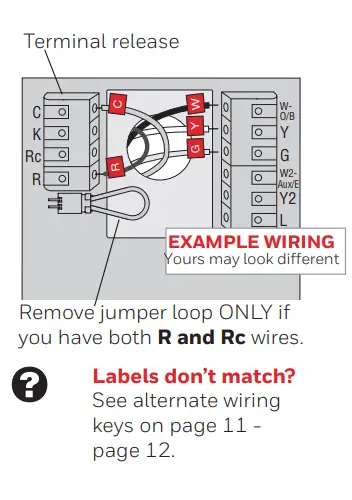
Note
The wiring for your application might be different than the wiring shown below.
Wiring (Conventional System continued)
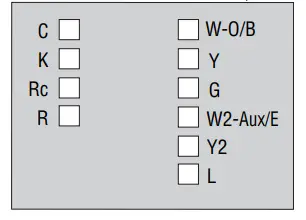
- In the image on the right, check the box next to each connection. You will use this checklist in Step 9.
- Verify wire is firmly secured by gently pulling on wire.
- Repeat steps a–d for all other wires.
- Push any excess wire back into the wall opening after all wires are installed.
- Continue to page 12.
Wiring (Heat Pump System)
6B Wire thermostat to your heat pump.
- Starting with the C Wire, match the sticky tag on the wire to the terminal labels.
You must have a C wire. See page 8 - Slide wire gently into the terminal hole until it clicks into place. (If you need to remove a wire, use a pen tip to press the terminal release and then pull the wire out.)
Note
Refer to the wiring picture you took in Step 2.
Tip
To make it easier to slide the wire into place, use a pen tip to hold down the terminal release.
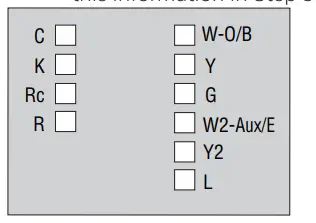
Important
Check the box for each wire you connect. You will need this information in Step 9.
Note
The wiring for your application might be different than the wiring shown below.
Terminal release
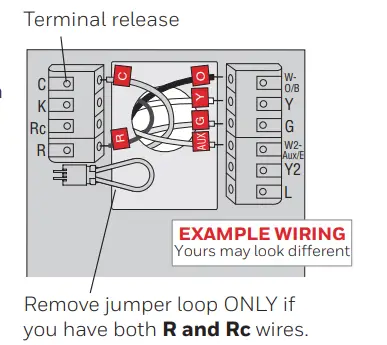
Labels don’t match?
See alternate wiring keys on pages 11 – page 12.
Wiring (Heat Pump System continued)
- In the image on the right, check the box next to each connection. You will use this checklist in Step 9.
- Verify wire is firmly secured by gently pulling on wire.
- Repeat steps a–d for all other wires.
Note
If old thermostat has separate wires on AUX and E, use a wire nut to attach both wires to a separate wire. Slide this third wire into the W2-Aux/E terminal.
- Push any excess wire back into the wall opening after all wires are installed.
- Continue to page 11.
Important
Check the box for each wire you connect. You will need this information in Step 9.
Labels don’t match?
See alternate wiring keys on pages 11 – page 12.
Alternate wiring (Conventional System)
Use this if your wire labels don’t match the terminal labels.
Note
You must have a C wire or equivalent. See page 8.
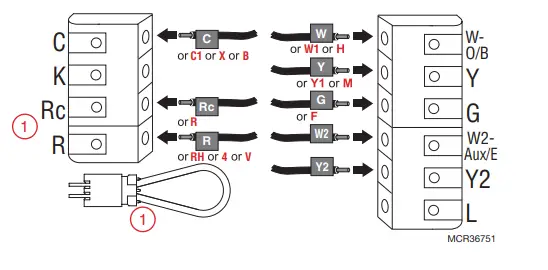
- If you have both an R and Rc wire, unplug the jumper loop by pulling on the wire loop.
- If your old thermostat had both R and RH wires, connect the R wire to the Rc terminal, the RH wire to the R terminal, and unplug the jumper loop.
Alternate wiring (Heat Pump System)
Use this if your wire labels don’t match the terminal labels.
Note
You must have a C wire or equivalent. See page 8.
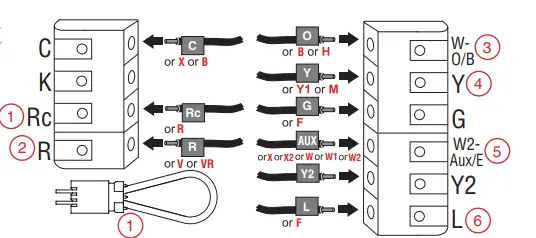
- If you have both an R and Rc wire, unplug the jumper loop by pulling on the wire loop.
If your old thermostat had both R and RH wires, connect the R wire to the Rc terminal, the RH wire to the R terminal, and unplug the jumper loop. - If your old thermostat had both V and VR wires, check resideo.com for help.
- If your old thermostat had separate O and B wires, and is controlling a single zone heat pump system, attach the B wire to the C. If there is more than one thermostat controlling the system, call Resideo zoning at 800-633-3991 for wiring assistance.
- If your old thermostat had separate Y1, W1, and W2 wires, check resideo.com for help.
- If the old thermostat has separate wires on Aux and E, use a wire nut to attach both wires to a separate wire. Slide this third wire into the W2-Aux/E terminal.
- This is the system monitor. If the monitor finds a problem, you will see an orange alert button on the thermostat home screen.
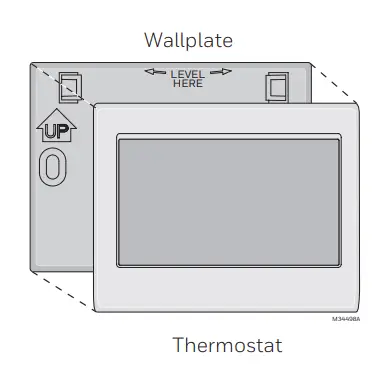
- Attach thermostat to wallplate. Align the thermostat with the wallplate and then snap into place.
Switch heating/cooling system ON.
Important
- 8a Verify that the C wire is connected at the thermostat and at the heating/cooling system.
- 8b Make sure the heating/cooling system door is firmly secured.
- 8c Switch power back ON for your heating/cooling system at the breaker box or its power switch.
Before connecting to your Wi-Fi network, you need to set initial thermostat options to define your heating/cooling system
- Language
- Home or business
You can customize other options later.
- 9 Follow prompts on the screen to select appropriate options.
- 9a Touch the language you want the thermostat to display, then touch Next.
- 9b Select Home or Business installation, then touch Next.
- 9c Touch Next, or name the thermostat location—touch THERMOSTAT and follow the rest of the instructions.
- 9d Select what type of heating and cooling equipment your thermostat will control and touch Next.
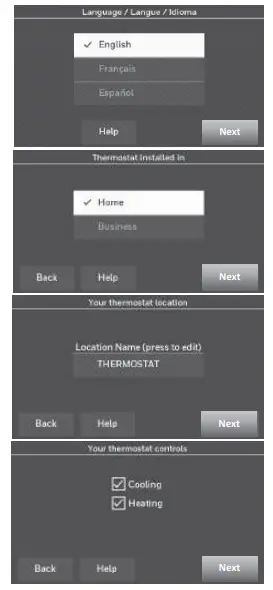
Note
Touch the orange Help button on any screen for more information.
- 9e Select your system type and touch Next. The system type determines other selections for completing the initial setup. Use the checklist from Step 6A-d when making selections.
- 9f Touch Next after making selections on each screen.
- 9g Touch Done on the last screen. The thermostat displays an option to connect to your Wi-Fi network.
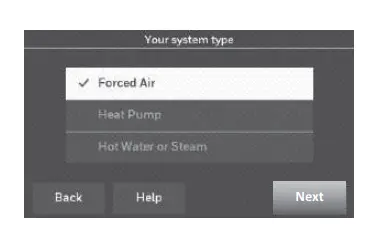
Note
Touch the orange Help button on any screen for more information.
Connecting to your Wi-Fi network
After touching Done on the final screen of the initial setup, the thermostat displays an option to connect to your Wi-Fi network.
Connect the Wi-Fi network.
Touch Yes to connect the thermostat to your Wi-Fi network. The screen displays the message “Searching for wireless networks. Please wait…” after which it displays a list of all Wi-Fi networks it can find.
Note
If you cannot complete this step now, touch I’ll do it later. The thermostat will display the home screen. Complete this process by selecting SETTINGS > Wi-Fi Setup. Continue with Step 2.
Select the network.
- 2a Touch the name of the network you want to use. The thermostat displays a password page.
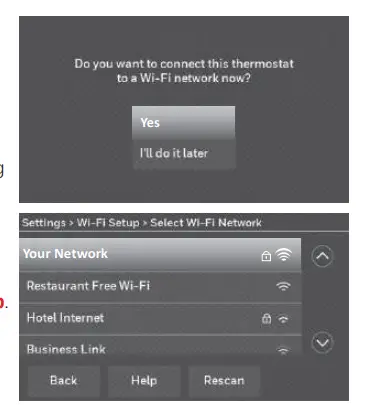
Note
If your home network is not shown on the list, touch Rescan.
- Using the keyboard, touch the characters that spell out your home network password.
- Touch Done. The thermostat displays “Connecting to your network. Please wait…” then shows a “Connection Successful” screen.
- Touch OK to display the registration information screen.
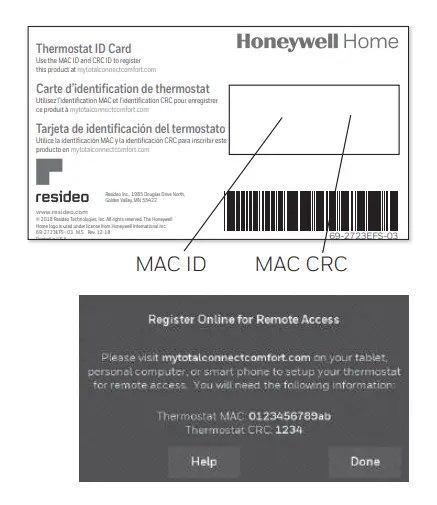
- Note your Thermostat MAC and Thermostat CRC. You need these numbers to complete online registration.
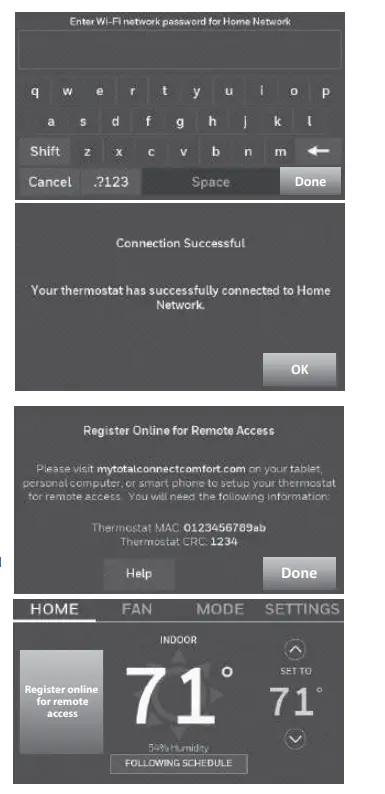
To register your thermostat, follow the instructions beginning on page 18.
Note
The Register Online screen remains active until you complete registration and/or touch Done.
Note
If you touch Done before you register online, your home screen displays an orange alert button telling you to register. Touching that button displays registration information and an option to snooze the task.
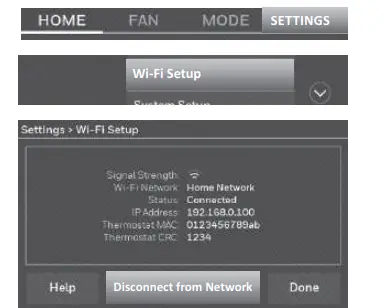
Disconnecting your Wi-Fi network
- Touch SETTINGS.
- Select Wi-Fi Setup.
- Touch Disconnect from Network. The thermostat will display a question to confirm your selection.
- Touch Yes to confirm that you want to disconnect from the network. The thermostat will display the Wi-Fi Setup screen.
- Touch OK to display the menu.
Reconnecting your Wi-Fi network
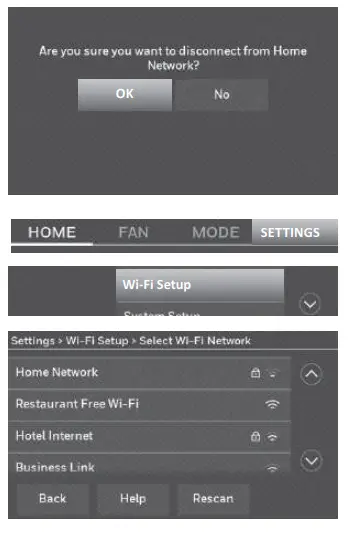
- Touch SETTINGS.
- Select Wi-Fi Setup.
- Touch the name of the network you want to use. The thermostat may display a password page.
- To enter a password, touch characters to spell out your home network password, then touch Done.
- The thermostat displays “Connecting to your network. Please wait…” then a “Connection Successful” screen.
- Touch Next.
- If your thermostat is registered, you will see your signal strength and other status information. Touch Done.
- If the screen displays “Register Online for Remote Access,” follow instructions on page 18.
Registering your thermostat online
To view and set your thermostat remotely, you must have a Total Connect Comfort account. Use the following steps.
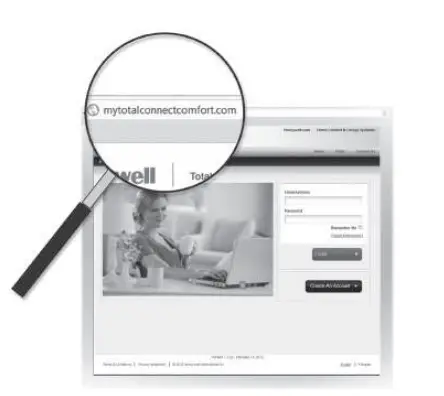
Open the Total Connect Comfort website.
Go to mytotalconnectcomfort.com
View the Thermostat Registration video at resideo.com
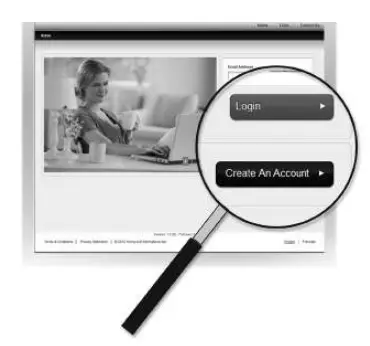
Log in or create an account.
If you have an account, Click Login – or – Click Create An Account
- 2a Follow the instructions on the screen.
- 2b Check your email for an activation message from My Total Connect Comfort. This may take several minutes.
Note
If you do not receive a response, check your junk mailbox or use an alternate e-mail address.
- 2c Follow activation instructions in the email.
- 2d Log in.
Registering your thermostat online
Register your thermostat.
After you are logged in to your Total Connect Comfort account, register your thermostat.
3a Follow the instructions on the screen. After adding your thermostat location, you must enter the thermostat’s unique identifiers
- MAC ID
- MAC CRC
Note
These IDs are listed on the Register Online screen or on the Thermostat ID Card included in the thermostat package. The IDs are not case-sensitive. When the thermostat is successfully registered, the Total Connect Comfort registration screen will display a SUCCESS message. You can now control your thermostat from anywhere through your laptop, tablet, or smartphone.
.
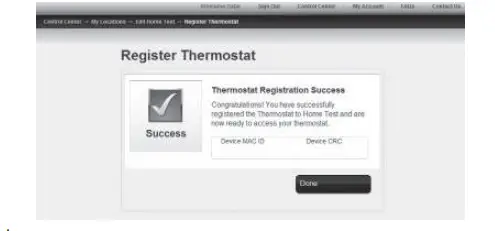
Total Connect Comfort free app is available for Apple® iPhone®, iPad® and iPod touch® devices at iTunes® or at Google Play® for all Android™ devices

Setting the time/date
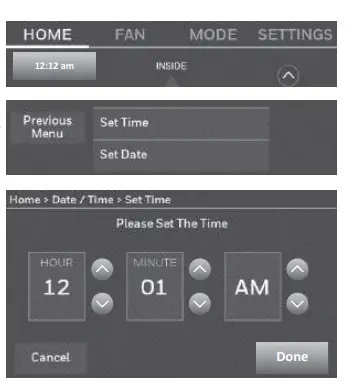
- Touch the current time. The screen displays Set
Time/Set Date. - Touch Set Time or Set Date.
- Touch p or q until the proper time/date is displayed.
- Touch Done to save or Cancel to ignore changes.
Note
This thermostat will automatically update for daylight saving time (if observed in your area) and all date/time information is stored. If the thermostat is connected to Wi-Fi and registered to Total Connect Comfort, the current time is updated from the internet.
Setting the fan
- Touch FAN to display fan settings.
- Touch On, Automatic, Circulate or Follow Schedule.
Note
Follow Schedule option only appears if the fan is set for On or Circulate for one or more program periods. - Touch Done to save and exit.
On
Fan is always on.
Automatic
Fan runs only when the heating or cooling system is on.
Circulate
Fan runs randomly about 35% of the time (home use only).
Follow Schedule
Follow Schedule is not an option if all programs are set to fan auto (see page 20 – page 22).
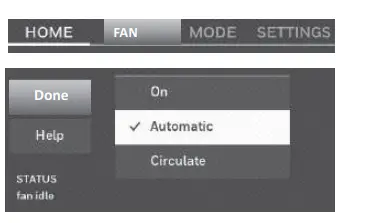
Note
Touch On, Automatic, or Circulate to temporarily override the programmed fan schedule.
Search for local rebates
Your thermostat may now be eligible for local rebates. Search for offers in your area at resideo.com
Setting system mode
- Touch MODE to display system settings.
- Touch desired option
Hea
The thermostat controls only the heating system.
Cool
The thermostat controls only the cooling system.
Off
Heating/cooling systems are off.
Automatic
The thermostat selects heating or cooling as needed depending on the indoor temperature. Emergency Heat (heat pumps with aux. heat): Controls auxiliary/emergency heat. Compressor is locked out. - Touch Done to save and exit.
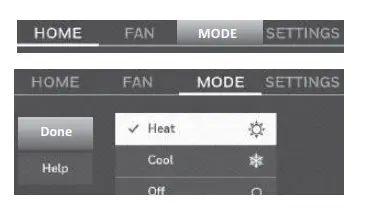
Note
The Automatic and Emergency Heat system settings may not appear, depending on how your thermostat was installed. See Auto Changeover on page 31.
Preset energy-saving schedules
This thermostat uses default Energy Saver settings that can reduce your heating/cooling expenses. To customize settings, see the next page.
Adjusting program schedules
- Touch SETTINGS.
- Select Create/Edit Schedule.
- Touch View/Edit to view the full schedule and make a quick adjustment.
- Touch Guide Me to create a schedule by answering simple questions.
- Touch I’ll do it myself to manually create a program schedule.
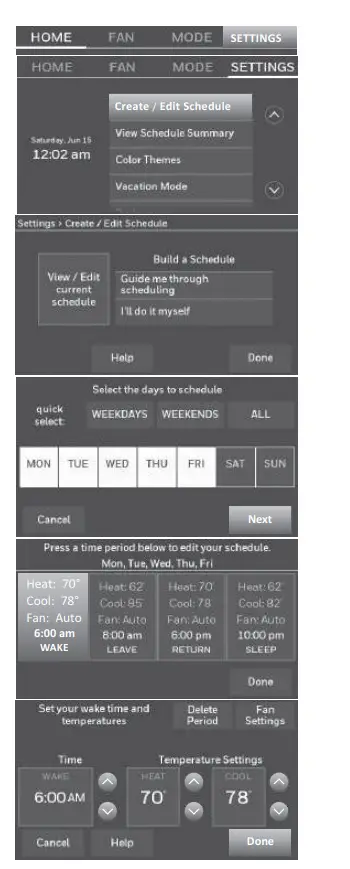
Note
To reduce costs, use the pre-set Energy Saver settings described on page 20.
If you selected I’ll do it myself on the Create/Edit Schedule screen follow these steps:
- Select the days to schedule, touch Next.
- Touch Wake to set your Wake time for selected days.
- Touch p or qto set Heat and Cool temperatures for the Wake period, then touch Done.
- Touch other time periods (Leave, Return, Sleep) to set time and temperatures for each.
- Touch Done to save and exit.
Note
Touch Delete Period to eliminate any unwanted time period.
Note
Touch Fan Settings to customize fan settings for any time period.
Note
When configured for business, the thermostat uses Occupied and Unoccupied instead of Wake, Leave, Return, and Sleep.
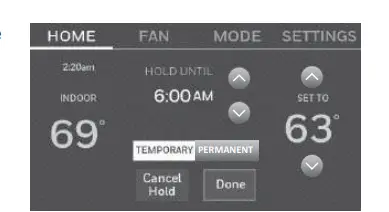
Overriding schedules: home use
- Touch p or qto adjust the temperature (right side of the screen) and the Hold Until time. The schedule will resume when the Hold Until time expires.
- Touch Permanent to keep the same temperature until you change it or resume the program schedule.
- Touch Cancel Hold at any time to resume theprogram schedule.
Overriding schedules: business use
Touch or adjust the temperature. It will be maintained until the hold time you set.
- To change the hold time, touch the Hold Until arrow buttons. This time can be adjusted up to the maximum time set on the Override Duration screen in Advanced Preferences (page 34).
- Touch Override to use a pre-set occupied temperature if a person uses the room during an unoccupied period. The new temperature will be maintained for 1 hour and can be adjusted up to the maximum time set on the Override Duration screen in Advanced Preferences (page 34).
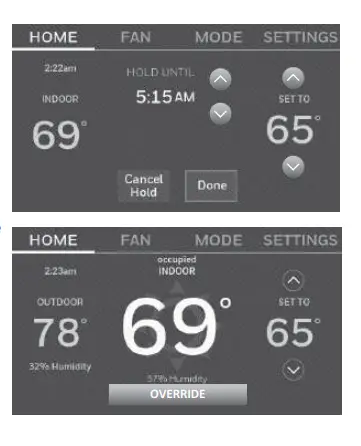
The programmed schedule will resume when the override timer expires. Touch Cancel Hold at any time to resume the program schedule.
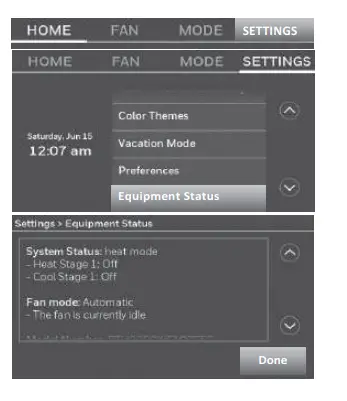
Viewing equipment status
- Touch SETTINGS.
- Select Equipment Status.
- Touch p or qto view the status of all the equipment your thermostat is controlling. Depending on how your thermostat was installed, the Equipment Status screen can report data about the following systems
Heating and cooling
Fan
Thermostat information
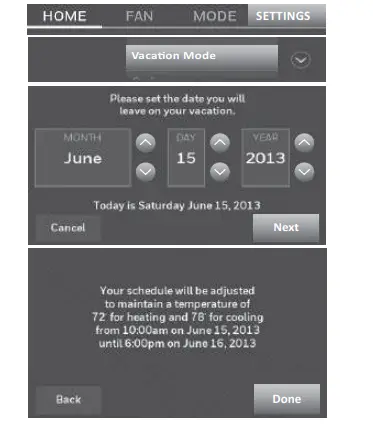
Setting vacation hold: home use
This feature helps you save energy while you are away, and restores comfortable settings just before you return home.
- Touch SETTINGS.
- Select Vacation Mode.
- Touch p or qto select the date you leave, then touch Next for further scheduling details, including times of day, temperature settings, return date, and return settings.
- Review your selections on the last display, and touch Done to save your settings. Touch Back, then Cancel to ignore the changes.
Setting holiday/event schedules: business use
This feature helps you conserve energy when the workplace is unoccupied for special events and holidays.
- Touch SETTINGS.
- Select Holiday/Event Scheduler.
- Select the item you want to schedule.
Custom Events lets you set up other days for special schedules.
US and Canadian Holiday options let you select from a list of holidays commonly observed in each country. - Make selections as prompted on each screen. For more information, see next two pages.
- Touch Done to save your settings.
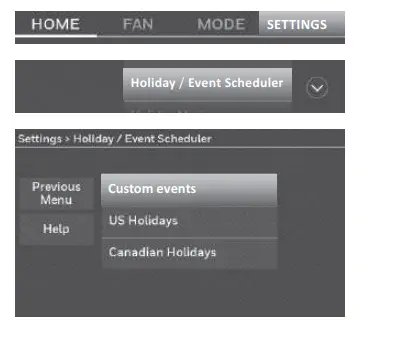
This feature lets you customize temperature settings to be maintained during a specific event. You can set up an event for a specific date or day in a month. The thermostat resumes normal scheduling after the event.
- Touch SETTINGS.
- Select Holiday/Event Scheduler.
- Select Custom events from the Holiday/Event Scheduler menu.
- Select Create a new event.
- Select Unoccupied or Occupied.
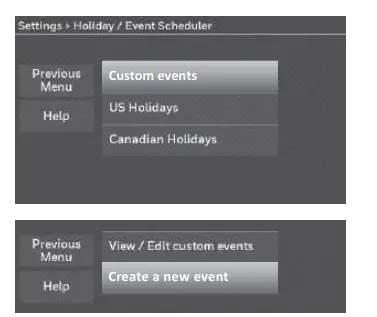
Setting custom events: business use
- Select a Specific Date or Month/Weekday.
- For a Specific Date, you are prompted to select the start date, settings, end date, and frequency for the event.
- For Month/Weekday, you are prompted to select the month, day of the week, week of the month, settings, length of the event, and frequency of the event.
- Review the settings and touch Done to save them. Touch Back, then Cancel to ignore the changes.
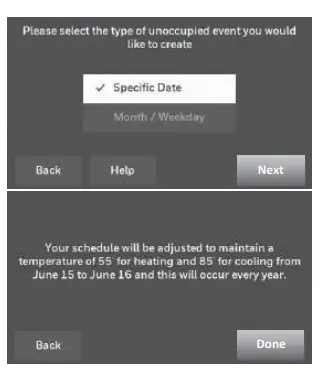
Setting holiday schedule: business use
This feature lets you customize temperature settings to be maintained on specified national holidays. The thermostat resumes normal scheduling between selected holidays.
- Select US Holidays or Canadian Holidays from the Holiday/ Event Scheduler menu.
- Select Add/Edit Holidays. A list of national holidays is displayed.
- Touch the check box next to each holiday for which you want to maintain specific settings, (Touch p or qto scroll through the holiday list.) then touch Next. Set the holiday schedule for Occupied or Unoccupied temperatures, depending on whether the building will be in use.
- Touch p or qto select the Heat and Cool temperatures.
- Review the settings and touch Done to save them. Touch Back, then Cancel to ignore the changes.
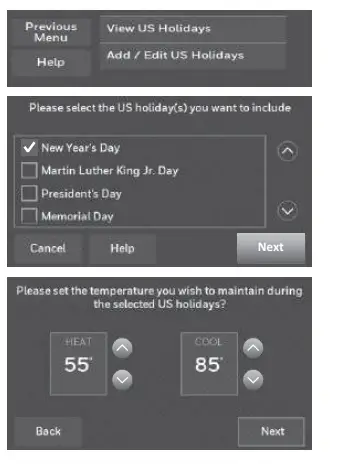
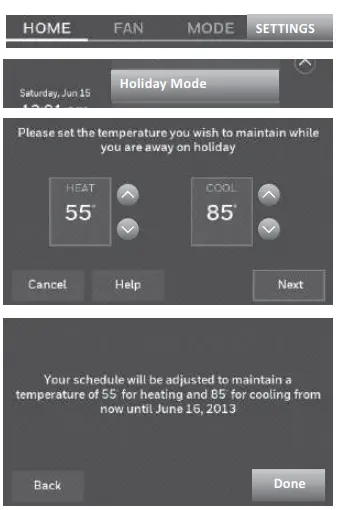
Setting holiday override: business use
This feature lets you customize temperature settings to be maintained from now until a specified date. The thermostat resumes normal scheduling on the date you select.
- Touch SETTINGS.
- Select Holiday Mode to display temperatures while you are away on holiday.
- Touch select the Heat and Cool temperatures, then touch Next to select return date.
- Review the settings and touch Done to save them. Touch Back, then Cancel to ignore the changes.
Note
The cool temperature can only be set higher than the unoccupied program setting and the heat temperature can only be set lower than the unoccupied program setting.
Initiating occupancy mode: business use
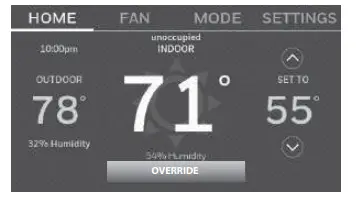
This feature keeps the temperature at an energy-saving level until you touch OVERRIDE. When you arrive, touch the button to maintain a comfortable temperature while the room is occupied.
Touch the p or buttons to set the temperature or the Hold Until time. The temperature is maintained until the time you set. Temperature returns to an energy-saving level after the timer expires, or the “Occupied” period ends.
Customizing screen color
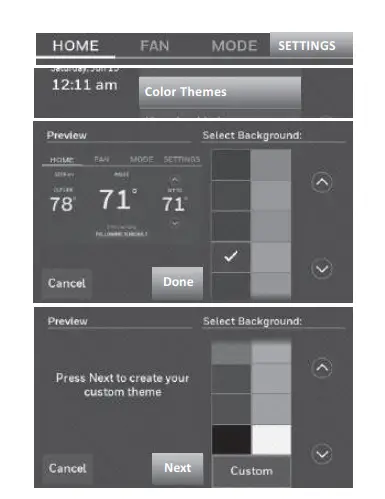
You can customize your thermostat display to match your décor.
- Touch SETTINGS.
- Touch Color Themes.
- Select the name of a color to use a predefined background, or select Custom to define you own background color and text.
If you select a color name, the screen shows an example on the left. Touch Done to accept that selection.
If you touch Custom, the screen gives you instructions. Touch Next to step through the choices; touch Done when you are satisfied with your changes.
Setting preferences
Preference menu options let you select how the thermostat displays information or responds to certain situations.
- Touch SETTINGS and select Preferences.
- Select an option and follow prompts
Reminders
Utility Schedule Options
Backlight
Smart Response Technology*
Advanced Preferences
Restore Default Schedule
Restore Factory Defaults - Touch Done to save your settings. Touch Cancel to ignore changes.
Smart Response is not available if thermostat is configured for business.
Cleaning the thermostat screen
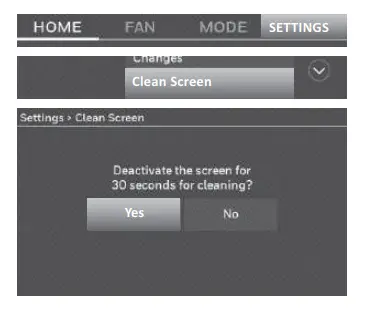
When you select the Clean Screen option, the screen is locked so you don’t accidentally change settings while you clean.
- Touch SETTINGS.
- Select Clean Screen. A prompt asks if you want to clean the screen for 30 seconds.
- Touch Yes. A countdown timer displays elapsed time until the screen is reactivated.
Note
Do NOT spray any liquid directly on the thermostat. Spray liquids onto a cloth, then use the damp cloth to clean the screen. Use water or household glass cleaner. Avoid abrasive cleansers.
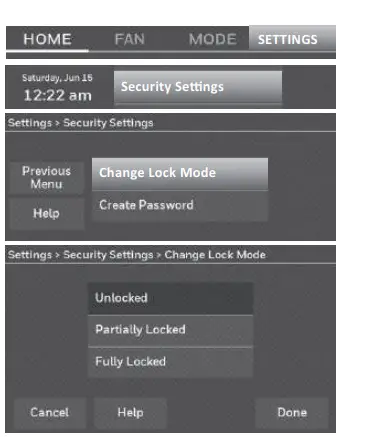
Adjusting security settings
You can adjust security options to prevent unauthorized changes to system settings.
- Touch SETTINGS and select Security Settings.
- Select Change Lock Mode.
- Select an option and follow the prompts:
Unlocked
Full access allowed.
Partially locked
Only temperature can be changed.
Fully locked
No access allowed.
Note
If you choose to use a password for additional security, write it here for reference:
Software updates
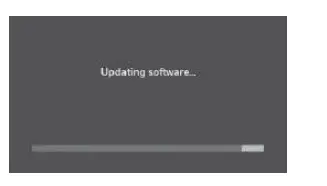
The Wi-Fi app periodically issues updates to the software for this thermostat. The updates occur automatically through your Wi-Fi connection. All your settings are saved, so you will not need to make any changes after the update occurs. Updates occur in the early morning. After your thermostat receives the software, it reboots. The screen then shows “Updating software…” with a green progress bar. When the update is complete, your home screen will appear as usual.
Note
If you are not connected to Wi-Fi or registered at Total Connect Comfort, you will not get automatic updates.
Unregistering your thermostat
If you remove the thermostat from your Total Connect Comfort website account (for example, you’re moving and leaving the thermostat behind), follow these steps:
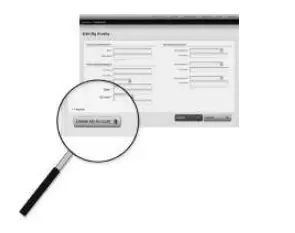
- On mytotalconnectcomfort.com log into your account.
- Under My Account, select Edit My Profile.
- Click the Delete My Account button.
Your thermostat will display an orange button that says Register Online.
Smart Response Technology
This feature (home use only) allows the thermostat to “learn” how long the heating/cooling system takes to reach programmed temperature settings, so the temperature is reached at the time you set.
For example
Set the Wake time to 6:00 am, and the temperature to 70°. The heat will come on before 6:00 am, so the temperature is 70° by 6:00 am.
Note:
Select Smart Response Technology in the Preferences menu (“Setting preferences” on page 27). Smart Response is not available if the thermostat is configured for business.
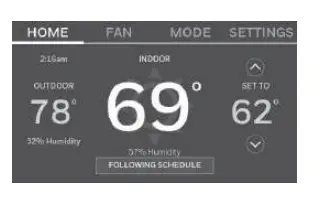
The message “in recovery” is displayed when the system is activated before a scheduled time period.
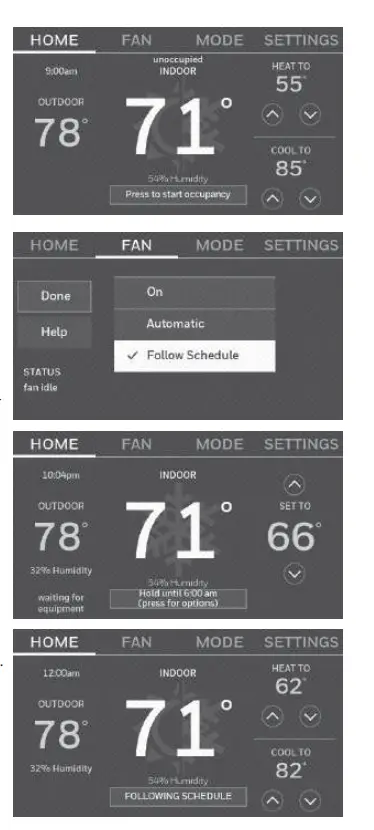
Pre-occupancy purge
This business use feature turns on the fan 1 to 3 hours before each “occupied” time period, to provide a comfortable work environment when you arrive.
Compressor protection
The thermostat keeps the compressor off for a few minutes before restarting, to prevent equipment damage. During this “off” time, the message “waiting for equipment” is displayed on the screen.
Auto changeover
This feature is used in climates where both air conditioning and heating are used on the same day. When the system is set to Automatic, the thermostat automatically selects heating or cooling depending on the indoor temperature. Heat and cool settings must be at least 3 degrees apart. The thermostat will automatically adjust settings to maintain this 3-degree separation.
Note
Select Auto Changeover on the Heating and Cooling System Changeover screen under Advanced Preferences. See “Setting advanced preferences” on page 34.
Setting advanced preferences
You can change options for a number of system functions. Although many options, such as language and temperature indication settings are the same for all setups, others depend on the type of system you have.
- Touch SETTINGS. The thermostat displays a list of options.
- Select Preferences > Advanced Preferences. The thermostat displays the first screen of options that you can change.
- On each screen, make changes as needed, then touch Next to display new options. Repeat this step until you have made all changes. Tables on page 33 -page 34 explain the screens and options under Advanced Preferences.
- When you have made all changes, press Done to save and exit.
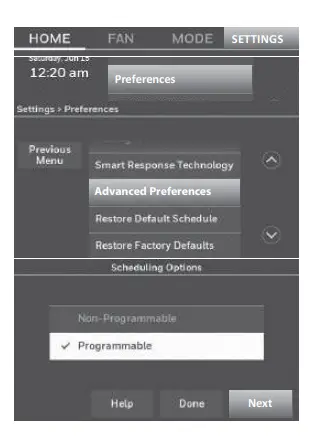
Advanced Preferences Options (SETTINGS > Preferences > Advanced Preferences)
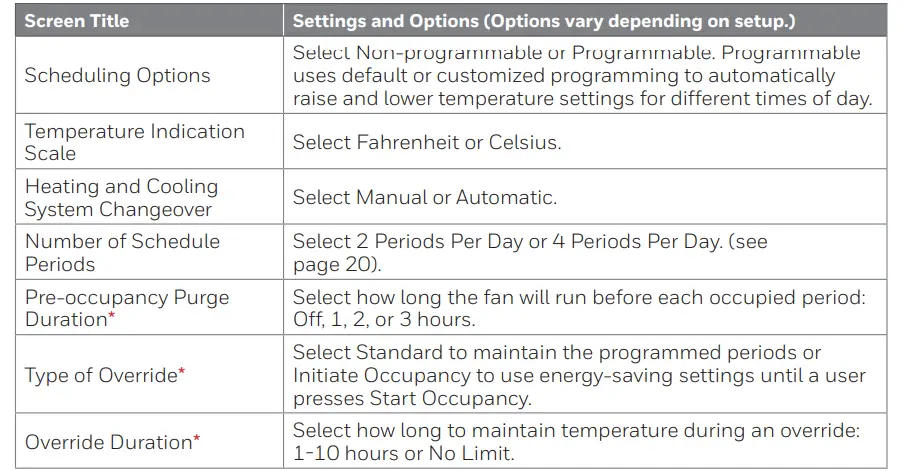
These settings are only available if the thermostat is configured for business.
Setting advanced preferences
Advanced Preferences Options (concluded)
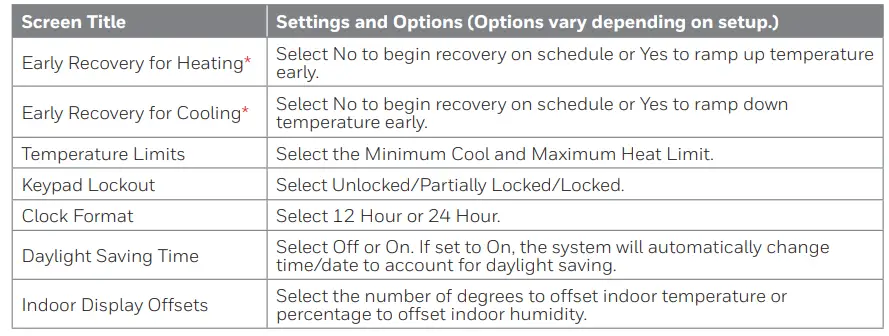
Early recovery only available when configured for business. If configured for Home, see “Smart Response Technology” on page 30.
Changing system setup
If your needs change, you can change the basic system settings you chose during thermostat installation
(page 14).
- Touch SETTINGS. The thermostat displays a list of options.
- Select System Setup. The thermostat displays the first screen of options that you can change.
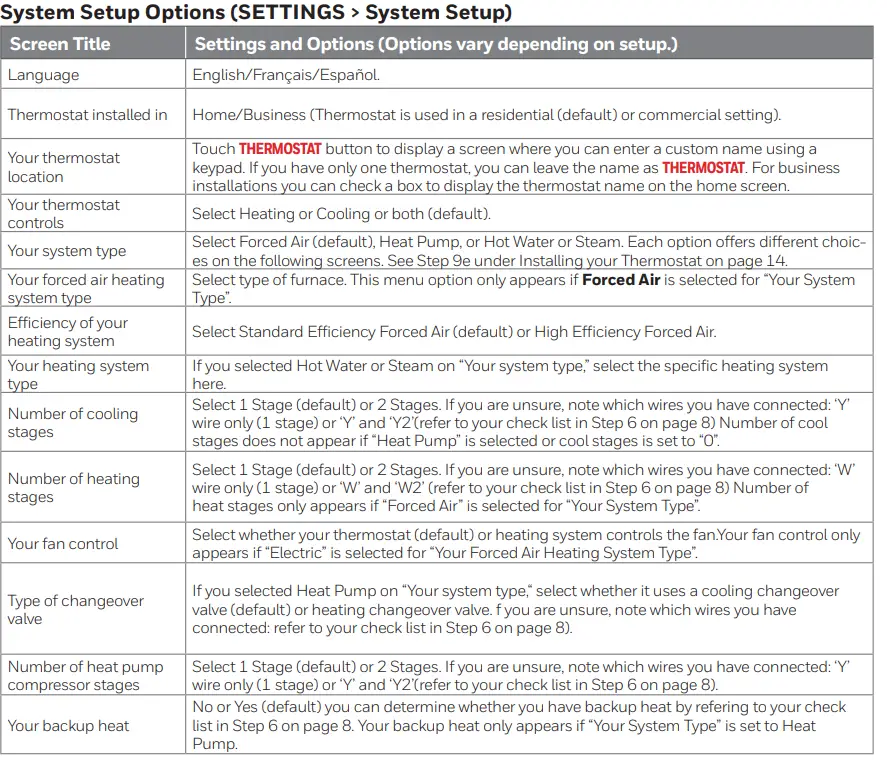
- On each screen, make changes as needed then touch Next to display new options. Repeat this step until you have made all changes. Table on page 35 explain the System Setup screens and options.
- When you have made all changes, press Done to save and exit. Touch the Help button to see information about screen options.
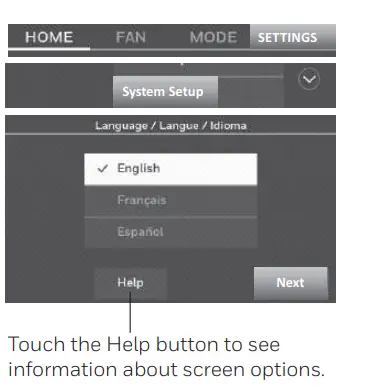
Note
Touch the orange Help button on any screen for more information. System Setup Options (SETTINGS > System Setup)
Getting help and responding to alerts
Your thermostat offers two types of assistance, if these assistance options do not answer your questions, review the FAQs (page 36) and troubleshooting tips (page 38).
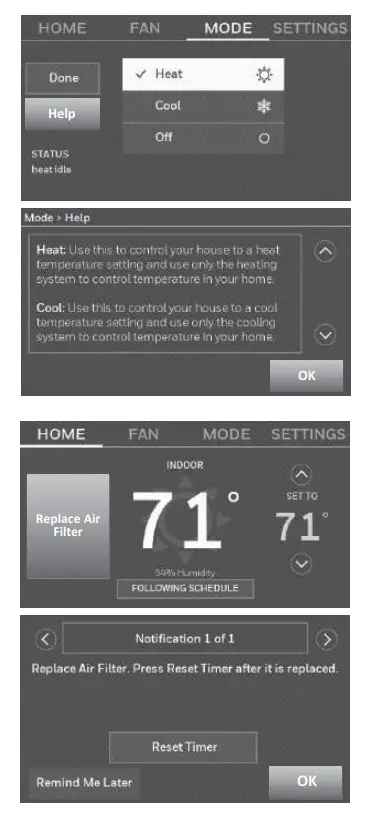
On-screen help
Most displays include an orange Help button.
- Touch Help to display instructions for using the screen.
- Touch OK to redisplay the original screen.
On-screen alerts
Your home screen will display a large orange button when you need to correct a setting or system problem.
- Touch the button, the thermostat displays instructions for completing the task to which you were alerted.
- Touch OK on the instruction display, then carry out the task. When the task is complete, the alert button will no longer be displayed.
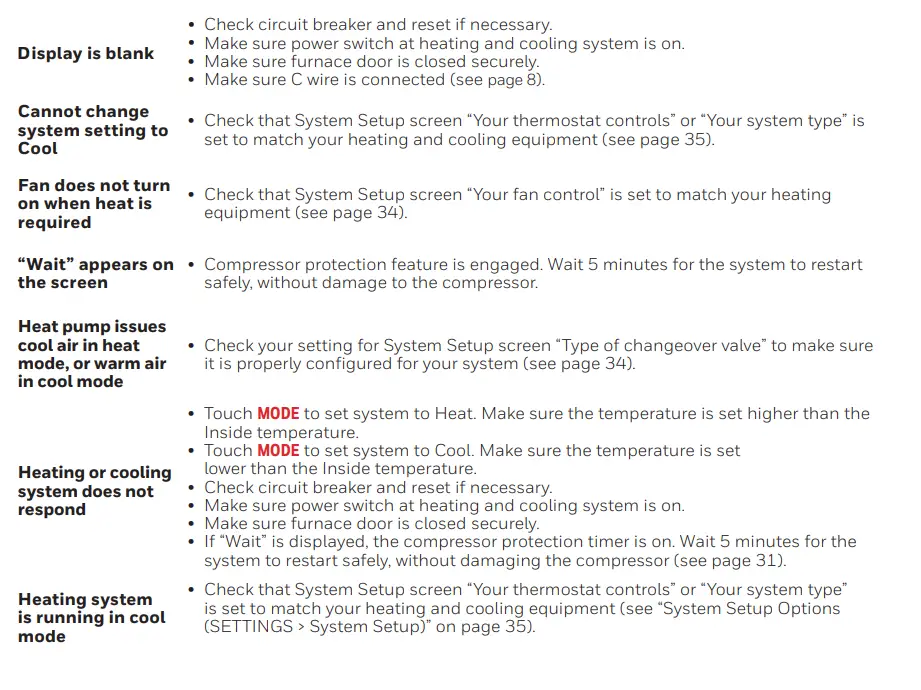
Troubleshooting
If you have difficulty with your thermostat, please try the following suggestions. Most problems can be corrected quickly and easily.
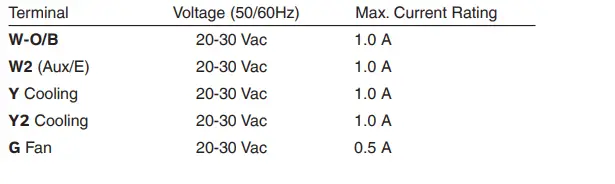
Glossary
C wire
The “C” or common wire brings 24 VAC power to the thermostat from the heating/cooling system. Some mechanical or battery-operated thermostats may not have this wire connection. It is necessary for establishing a Wi-Fi connection to your home network.
Heat Pump heating/cooling system
Heat pumps are used to heat and cool a home. If your old thermostat has a setting for emergency heat, you likely have a heat pump.
Conventional heating/cooling system
Non–heat pump type systems; include air handlers, furnaces, or boilers that run on natural gas, oil, or electricity. They may or may not include an air conditioner.
Jumper Loop
In this thermostat, a plug with a wire loop located below the terminal block is used to connect the R and Rc terminals.
MAC ID, MAC CRC
Alphanumeric codes that uniquely identify your thermostat and are used for registering the thermostat to your account at mytotalconnectcomfort.com
QR Code®
Quick response code. A two-dimensional, machine-readable image. Your wireless device can read the black and white pattern in the square and link its browser directly to a web site. QR Code is a registered trademark of DENSO WAVE INCORPORATED.
Regulatory information
FCC Compliance Statement (Part 15.19) (USA only)
This device complies with Part 15 of the FCC Rules. Operation is subject to the following two condition
- This device may not cause harmful interference, and
- This device must accept any interference received, including interference that may cause undesired operation.
FCC Warning (Part 15.21) (USA only)
Changes or modifications not expressly approved by the party responsible for compliance could void the user’s authority to operate the equipment.
FCC Interference Statement (Part 15.105 (b)) (USA only)
This equipment has been tested and found to comply with the limits for a Class B digital device, pursuant to Part 15 of the FCC Rules. These limits are designed to provide reasonable protection against harmful interference in a residential installtion. This equipment generates uses and can radiate radio frequency energy and, if not installed and used in accordance with the instructions, may cause harmful interference to radio communications. However, there is no guarantee that interference will not occur in a particular installation. If this equipment does cause harmful interference to radio or television reception, which can be determined by turning the equipment off and on, the user is encouraged to try to correct the interference by one of the following measures
- Reorient or relocate the receiving antenna.
- Increase the separation between the equipment and receiver.
- Connect the equipment into an outlet on a circuit different from that to which the receiver is connected.
- Consult the dealer or an experienced radio/TV technician for help.
Thermostats
To comply with FCC and Industry Canada RF exposure limits for general population/ uncontrolled exposure, the antenna(s) used for these transmitters must be installed to provide a separation distance of at least 20 cm from all persons and must not be co-located or operating in conjunction with any other antenna.
RSS-GEN
Under Industry Canada regulations, this radio transmitter may only operate using an antenna of
type and maximum (or lesser) gain approved for the transmitter by Industry Canada. To reduce potential radio interference to other users, the antenna type
and its gain should be so chosen that the equivalent isotropically radiated power (e.i.r.p.) is not more than that necessary for successful communication.
Operation is subject to the following two conditions
- This device may not cause interference, and
- This device must accept any interference, including interference that may cause undesired operation of the device.
1-year limited warranty
Resideo warrants this product, excluding battery, to be free from defects in workmanship or materials, under normal use and service, for a period of one (1) year from the date of first purchase by the original purchaser. If at any time during the warranty period the product is determined to be defective due to workmanship or materials, Resideo shall repair or replace it (at Resideo’s option).
If the product is defective,
- return it, with a bill of sale or other dated proof of purchase, to the place from which you purchased it; or
- call Resideo Customer Care at 1-800-633-3991. Customer Care will make the determination whether the product should be returned to the following address: Resideo Return Goods, 1985 Douglas Dr. N., Golden Valley, MN 55422, or whether a replacement product can be sent to you.
This warranty does not cover removal or reinstallation costs. This warranty shall not apply if it is shown by Resideo that the defect was caused by damage which occurred while the product was in the possession of a consumer.
Resideo’s sole responsibility shall be to repair or replace the product within the terms stated above. RESIDEO SHALL NOT
BE LIABLE FOR ANY LOSS OR DAMAGE OF ANY KIND, INCLUDING ANY INCIDENTAL OR CONSEQUENTIAL DAMAGES RESULTING, DIRECTLY OR INDIRECTLY, FROM ANY BREACH OF ANY WARRANTY, EXPRESS OR IMPLIED, OR ANY OTHER FAILURE OF THIS PRODUCT.
Some states do not allow the exclusion or limitation of incidental or consequential damages, so this limitation may not apply to you.
THIS WARRANTY IS THE ONLY EXPRESS WARRANTY RESIDE MAKES ON THIS PRODUCT. THE DURATION OF ANY IMPLIED WARRANTIES, INCLUDING THE WARRANTIES OF MERCHANTABILITY AND FITNESS FOR A PARTICULAR PURPOSE, IS HEREBY LIMITED TO THE ONE YEAR DURATION OF THIS WARRANTY. Some states do not allow limitations on how long an implied warranty lasts, so the above limitation may not apply to you.
This warranty gives you specific legal rights, and you may have other rights which vary from state to state. If you have any questions concerning this warranty, please write Resideo Customer Care, 1985 Douglas Dr, Golden Valley, MN 55422 or call 1-800-633-3991.
Frequently Asked Questions
Yes, the thermostat will operate your heating and/or cooling system with or without Wi-Fi.
Contact the manufacturer of the router or check the router documentation.
Verify that the password entered for the Wi-Fi router is correct.
Verify that the thermostat is correctly enrolled on your home Wi-Fi network. At SETTINGS > Wi-Fi Setup, check for the Wi-Fi signal strength icon. Verify that the Wi-Fi router has a good internet connection. On your computer, verify that you can open the site at mytotalconnectcomfort.com If you cannot open the site, switch off the internet modem for a few seconds, then power it back on.
Check your email and ensure that you received an activation email. Follow the instructions to activate your account and then log in to the website.
Check for the email in your Junk or Deleted folder
Most standard routers can be set up to be a repeater. You can also purchase and install a Wi-Fi repeater.
I just went to Best Buy to play with the RTH9585WF and see what is the difference in the settings. Color options do seem to be slightly different. Both have 7-day programming (four settings per day) plus vacation etc. The literature says the 9585 automatically switches between cool/heat but in the 9585 system (MODE) there is only “heat”, “cool” and “off”. So my guess is the automatic is not a setting you pick. 9560 offers the fourth option of automatic and will show heat and cool adjustments on the home page setting on the panel. Other than that I do not see any difference. My guess is the 9585 has a newer chipset but honestly, I have no idea. I called Honeywell and the tech could not even tell me the difference other than it’s the second-generation model. Both work with Alexa and other smart devices and smart hubs. I’m still thinking of returning the 9580 for the 9585 but if I have to switch between heat and cold that is a deal breaker and I kind of like seeing the date when I walk buy. My guess is in a few years Honeywell will over a unit to compete with the Ecobee with something like Alexa built into it. Frankly, I’d purchase the Ecobeen 4 but my wife of 35 years thought the Ecobeen was black and kind of large and the white mounting plate was ugly and after 35 years of marriage I felt like this decision was not worth the fight.
This Thermostat truly Rocks!! – It has a screen lock as well as Security codes for front panel access. It also has security if you want to use WiFi to remotely access it. Setup is a breeze also. I HIGHLY recommend this thermostat. The NEST is an excellent choice as well.
YES! You do need a cloud account. All data is sent to the cloud, and the device is controlled remotely only over the cloud, not from the local network. However, the service at present is free and there is no subscription fee (as of 1/2022).
It does show the inside humidity and you can look at the app side and see the outside temp based on the internet lookup of temp but there are no sensors for exterior temp or humidity. Just some additional clarification if it helps.
The Honeywell Wi-Fi Smart Thermostat does have an auto changeover feature in which the thermostat automatically selects heating or cooling depending on the indoor temperature. Heat and cool settings must be at least 3 degrees apart. The thermostat will automatically adjust settings to maintain this 3-degree separation.
you can enable the auto changeover feature on this thermostat. Please go to ‘Settings’, select ‘Preferences’, then ‘Advanced Preferences’, and press ‘Next’ until you see “Heating and Cooling System Changeover” on the top of the screen. Select “Automatic”, then press ‘Done’ and confirm that you want to save the changes ‘Yes’.
This thermostat requires a C wire for power.