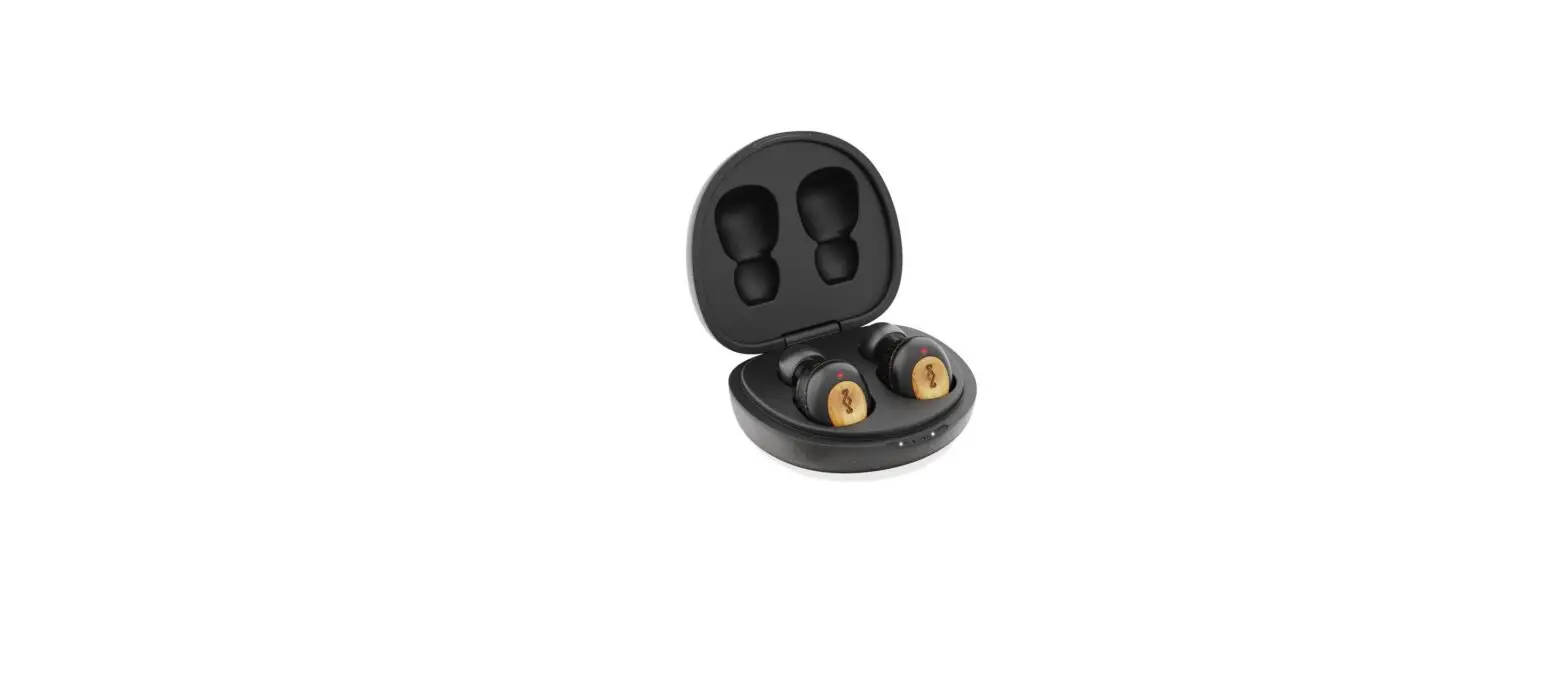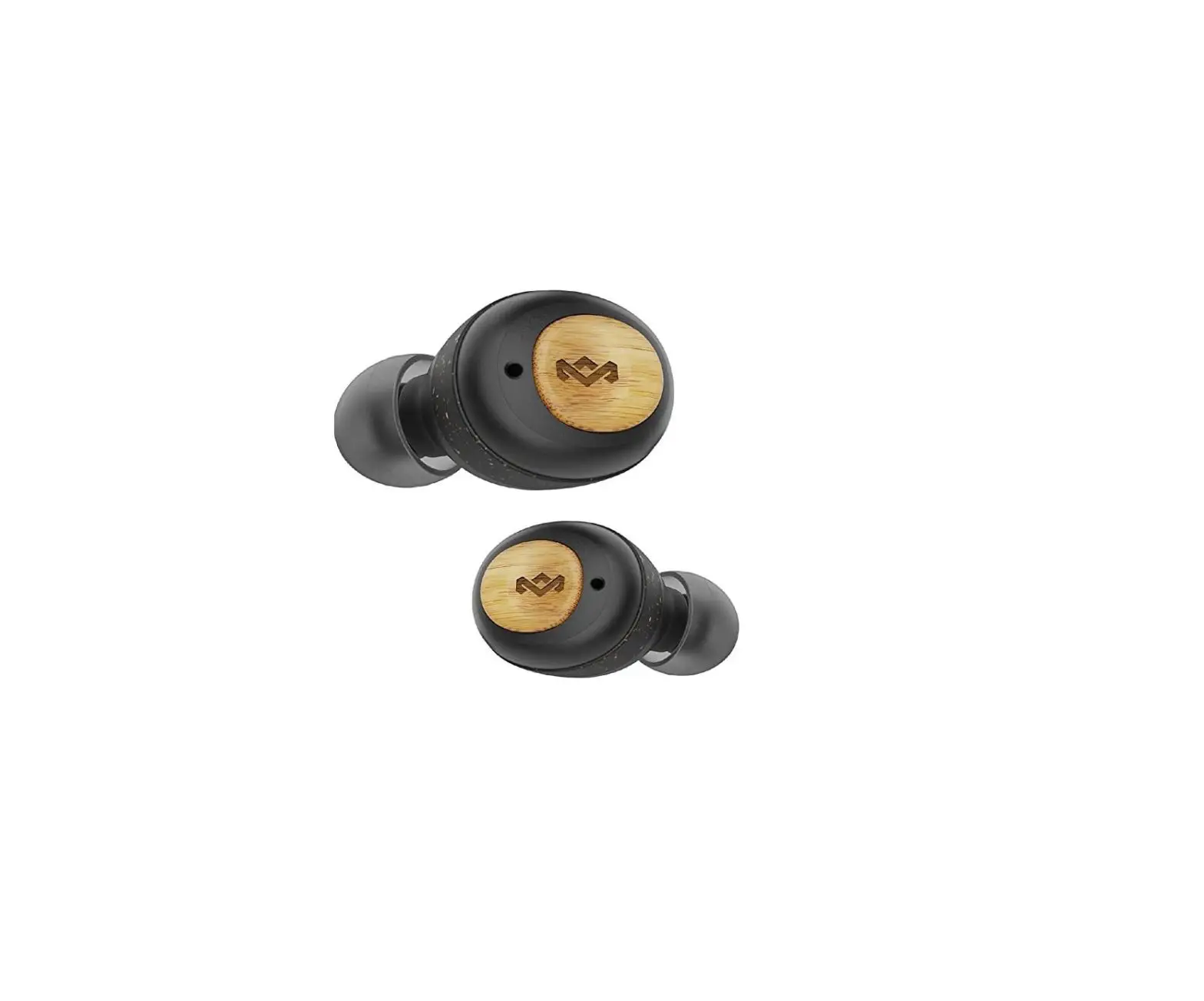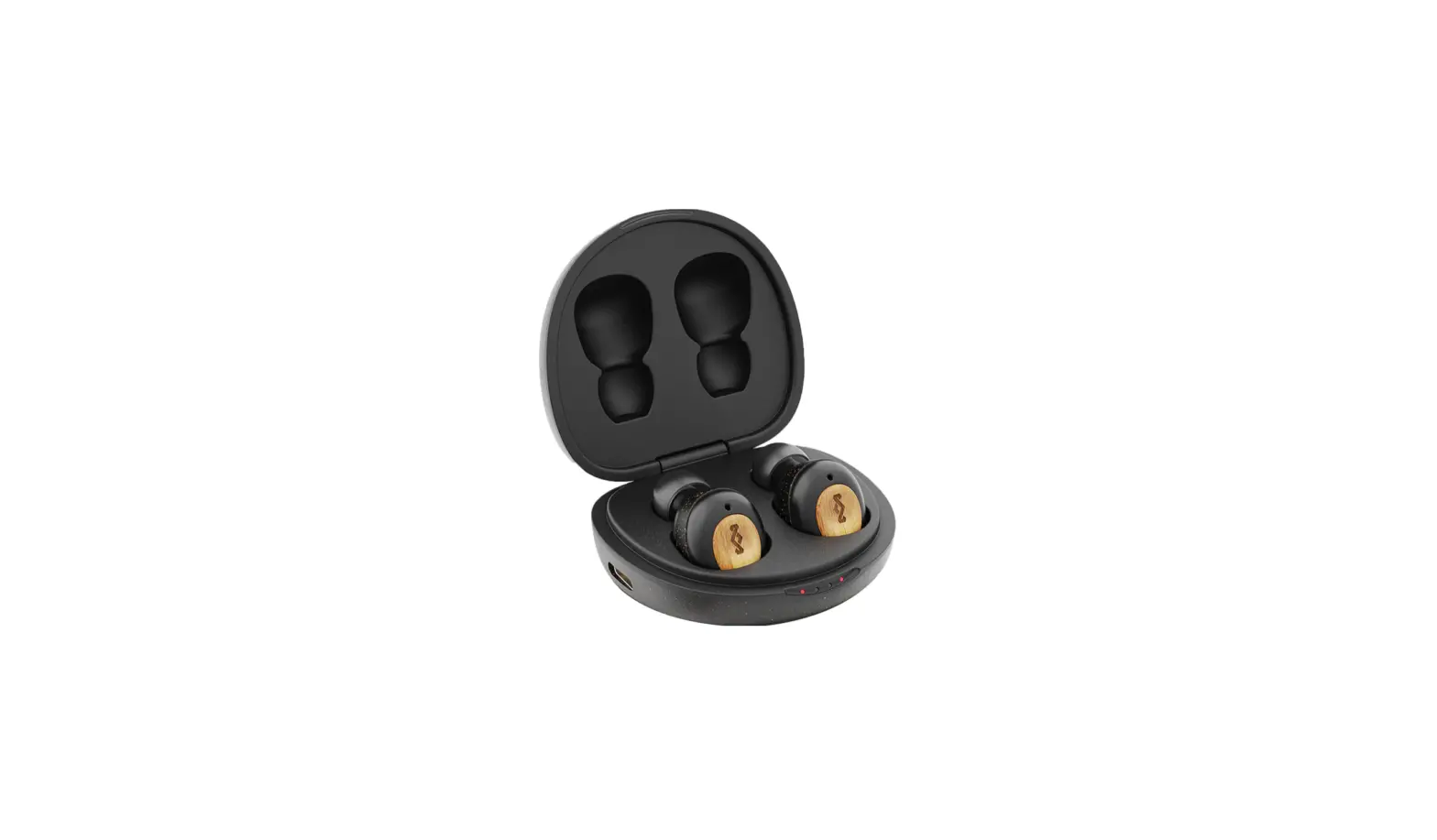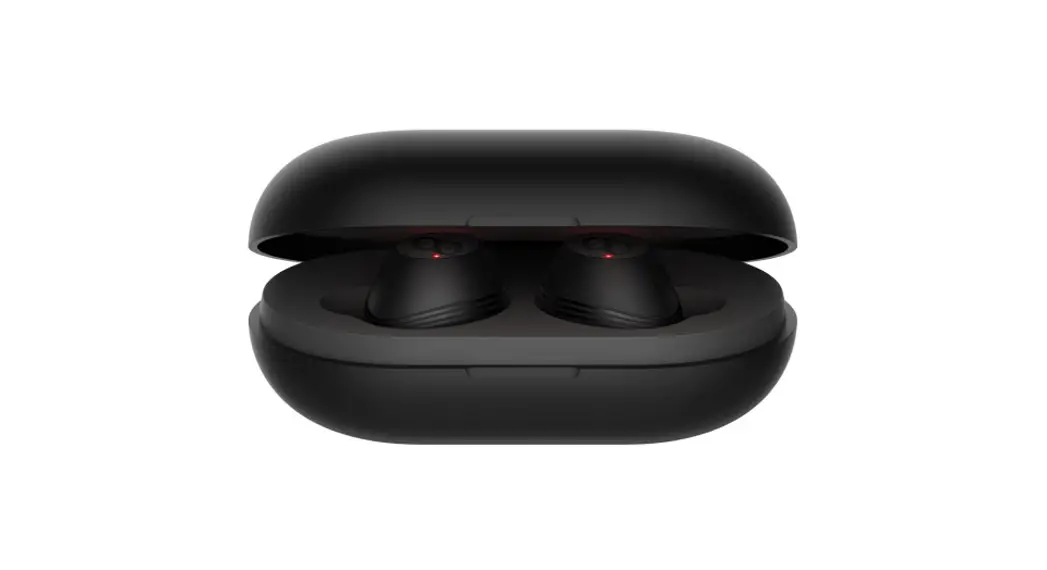
 CLIK S Truly Wireless Earbuds
User Guide
CLIK S Truly Wireless Earbuds
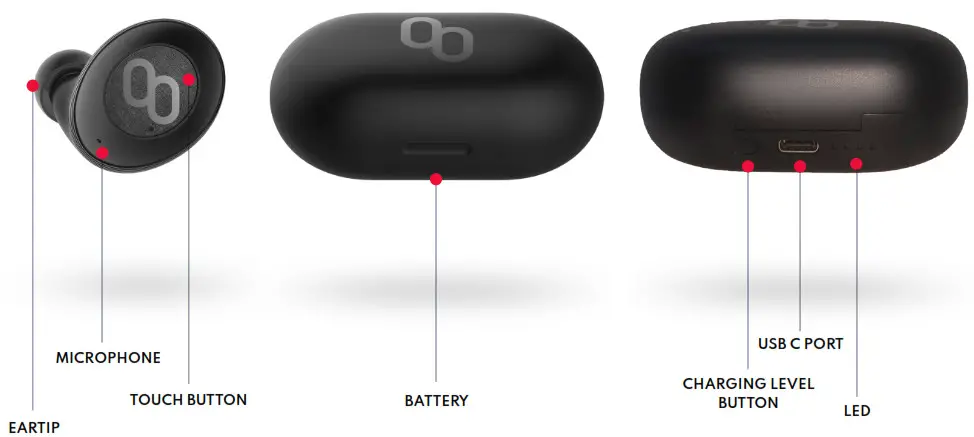
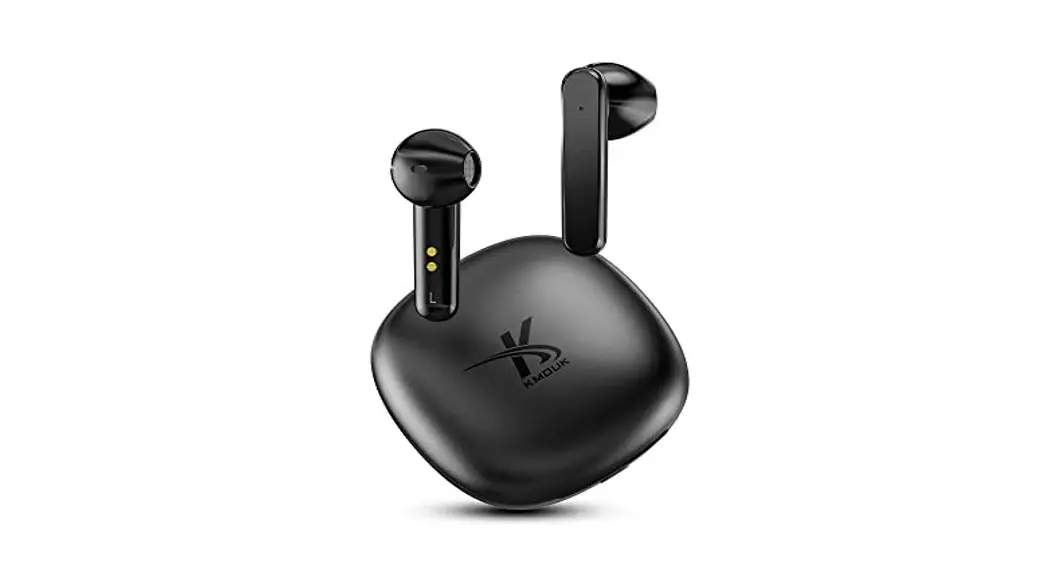
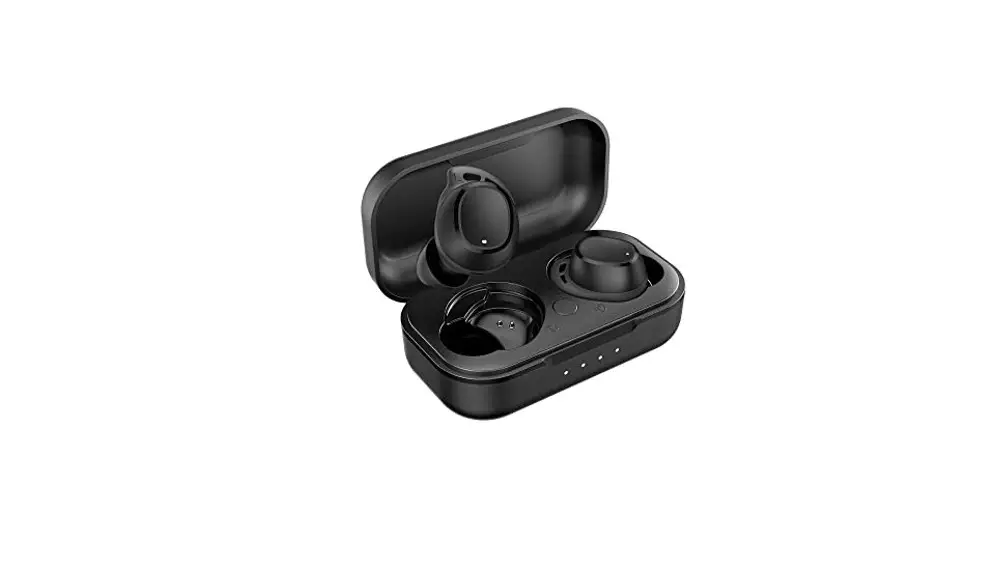
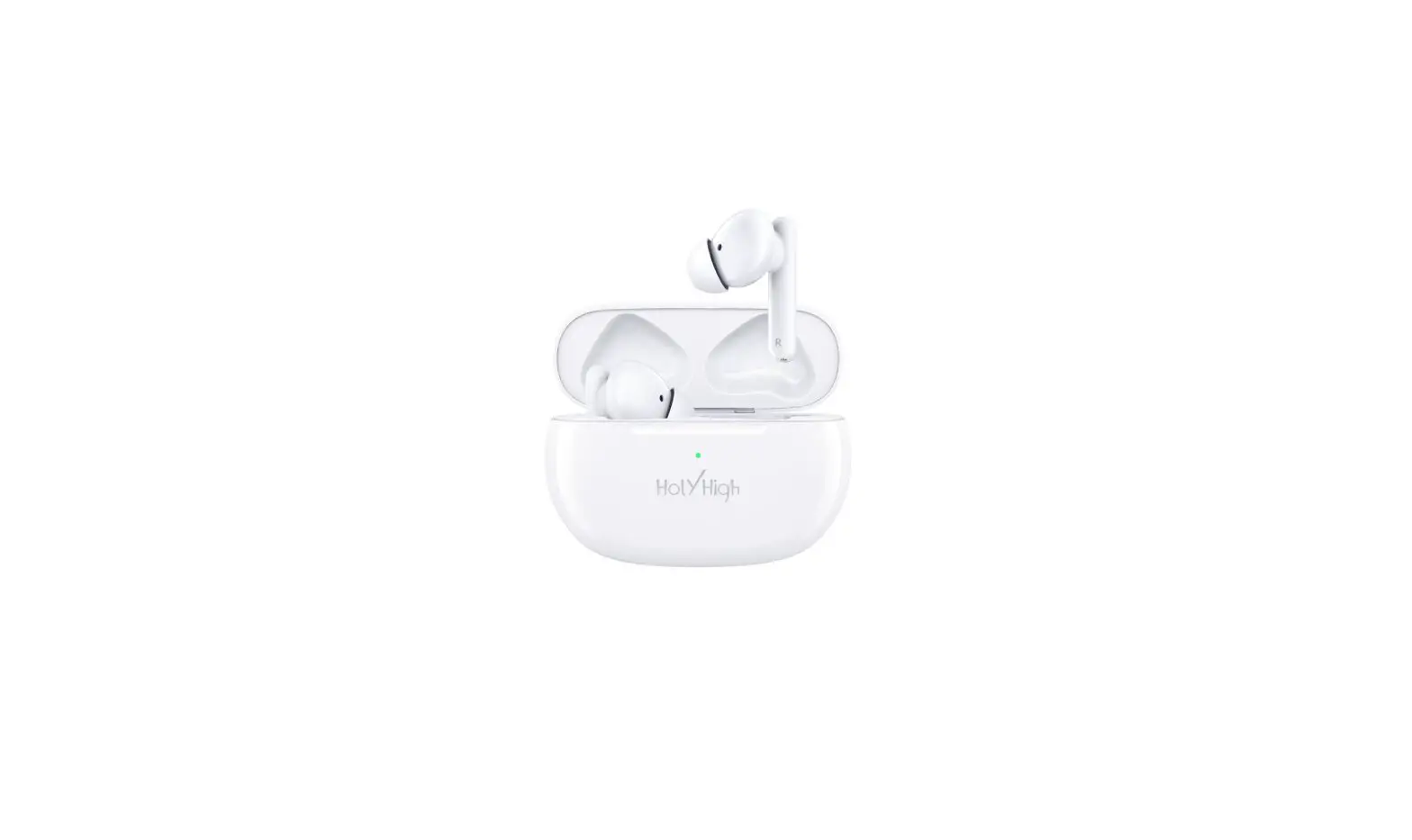
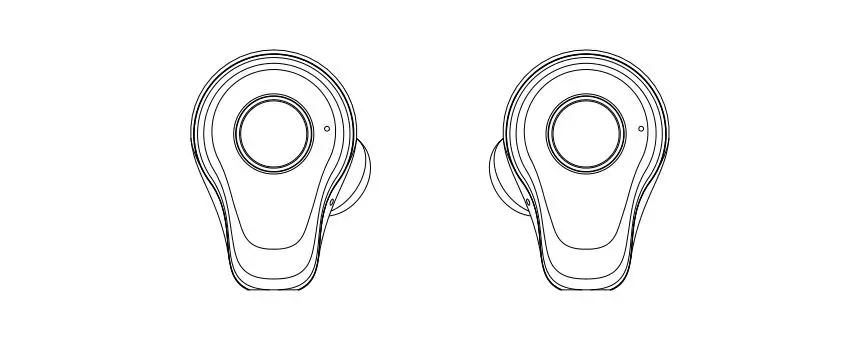
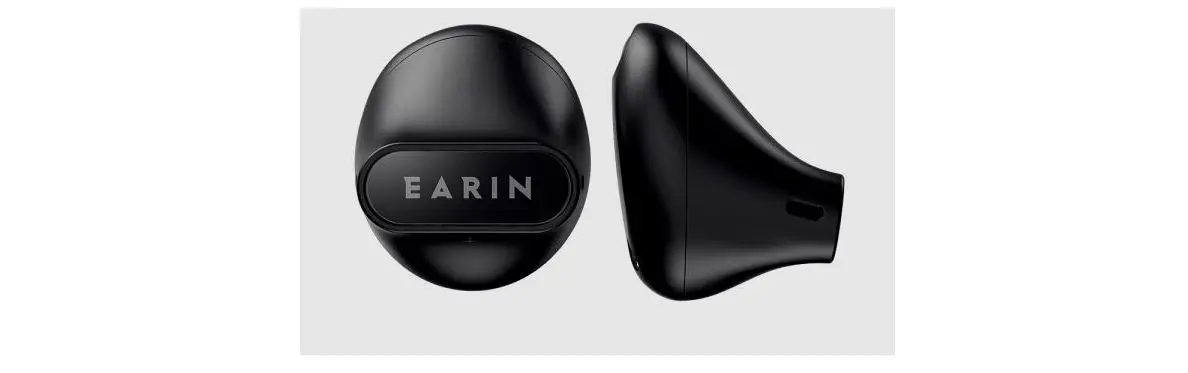
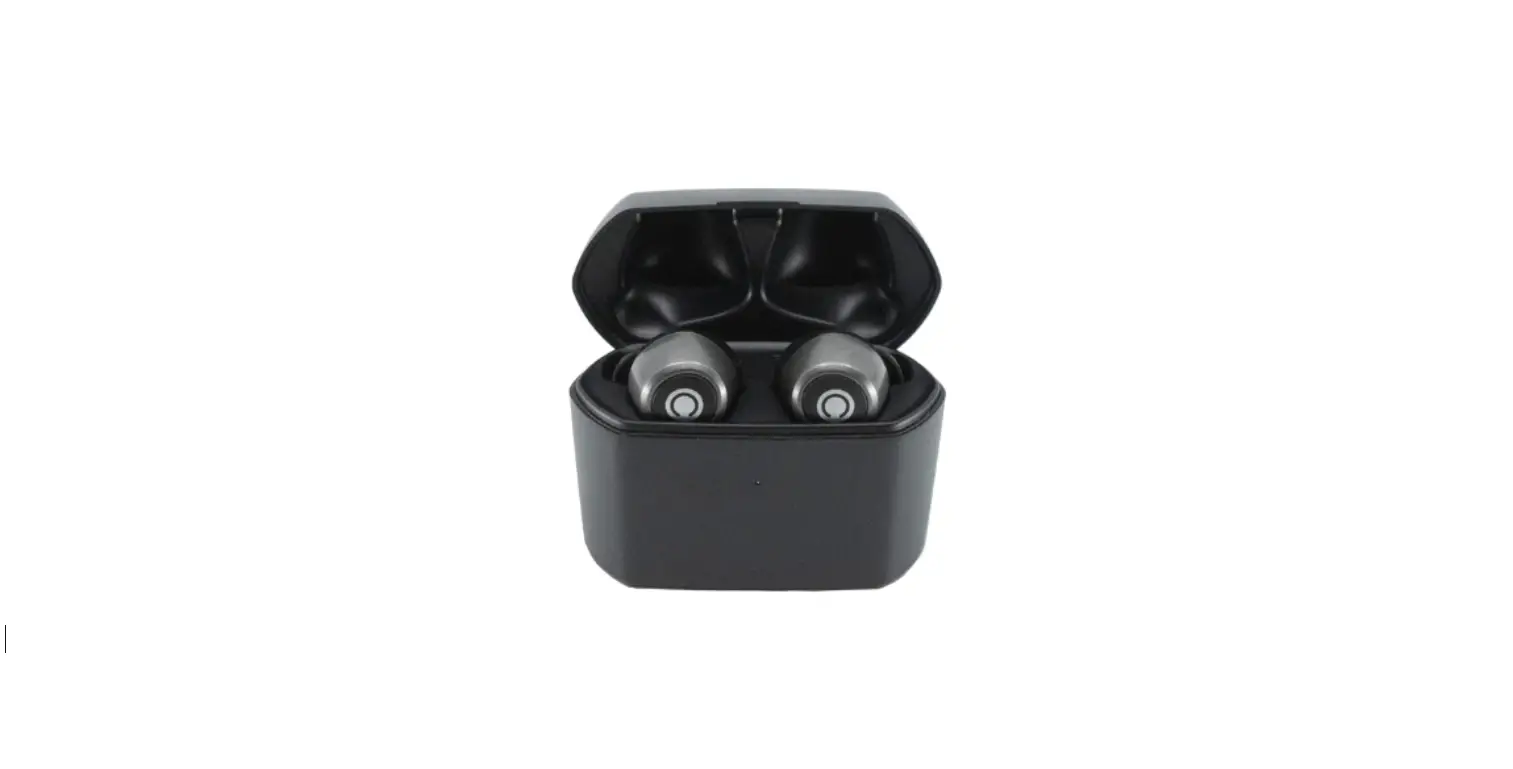
EARBUD INFORMATION
- Both earbuds have buttons that apply different functions
- Earbuds auto connect to each other and the last paired device
- Can be charged using USB C cable or by wireless QI charging
- Holds 10 hours of charge and will recharge themselves using the battery available in the case
- CLIK S will come with 3 different sized ear tips
CHARGING CASE INFORMATION
- Can be charged using USB C cable or by wireless Qi charging
- Press charge check button once and LED lights will indicate the battery level
- Holds 20 hours of battery
How to use for
Music
| LEFT EARBUD | RIGHT EARBUD |
 |  |
 Double Tap Double TapSkip Track | Single Tap Pause + Play |
| Triple Tap Restart Track | Double Tap Volume Up |
| Triple Tap Volume Down |
Calls
RIGHT EARBUD
Single Tap
Answer + End CallDouble Tap
Reject + Put On Hold
Connecting your CLIK S via bluetooth
Your CLIK S earbuds will turn on once removed from the charging case and will automatically pair to each other. The LED lights will flash blue when they are currently trying to pair.
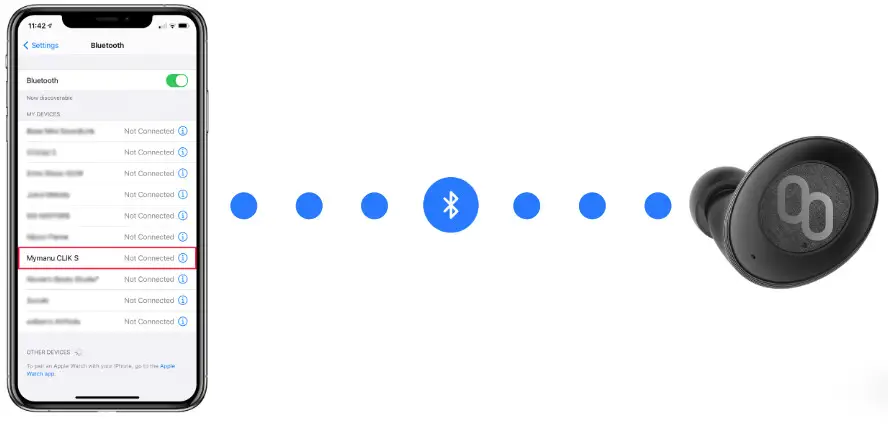
To connect your earbuds to your mobile phone or other device:
- Go to your phones settings
- Select Bluetooth
- Find and select Mymanu CLIK S
Once connected, the LED light will change from blue to red, and your earbuds will say ‘connected’.
Getting started for translation
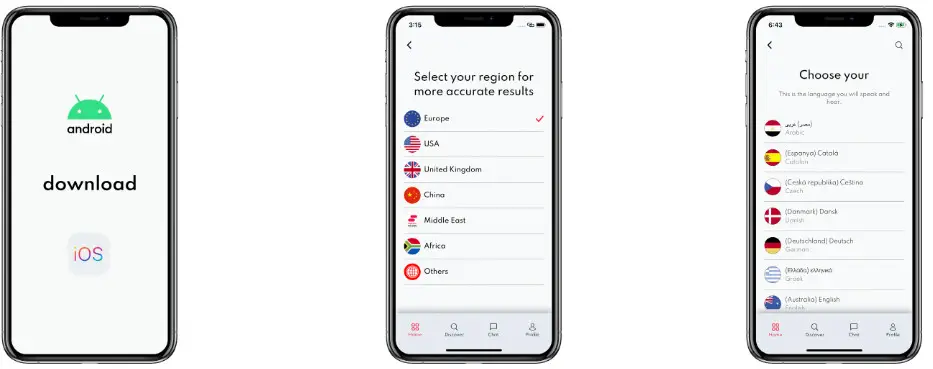 | ||
| 1. Download the MyJuno app on Android or IOS 2. Create an account | 3. Go to settings, select my region, and choose your region – this provides you with the fastest translation | 3. Go to settings, select my region, and choose your region – this provides you with the fastest translation |
Get your free premium subscription
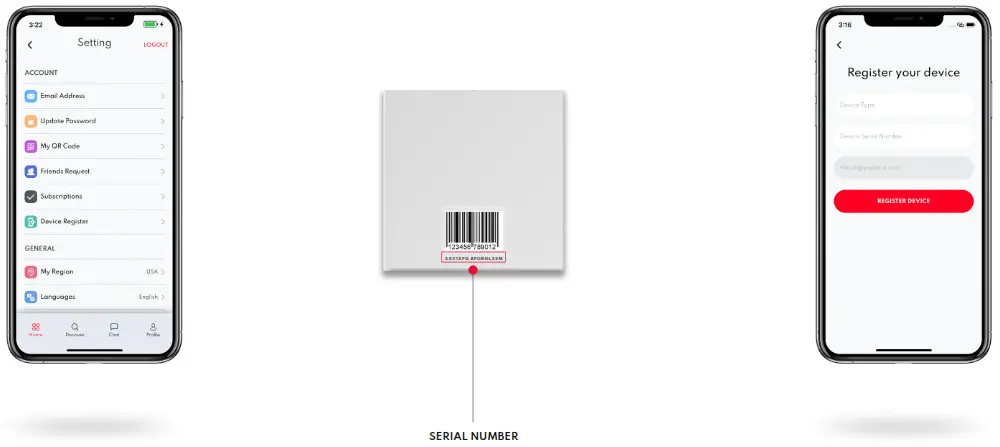 | ||
| 1. In the MyJuno app, go to settings, select register device | 2. Input device type and serial number (this can be found on your CLIK box and manual) | 3. Once activated, you can enjoy to all the languages and functionalities |
Solo Translation – How to use CLIK S
 | Solo translate is for in-person, physical conversations and can be used with or without CLIK earbuds. |  |
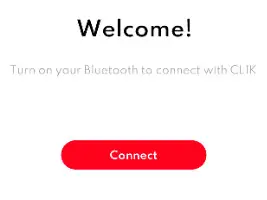
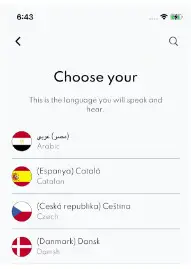
| 1. Connect your earbuds to your device via bluetooth 2. Open MyJuno and select solo translation | 3. Select connect to link your earbuds to the MyJuno app | 4. Select your language |
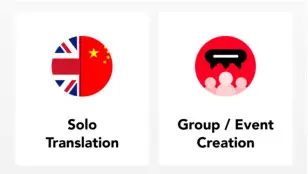 |  |  |
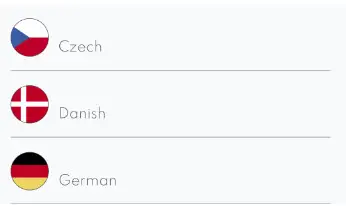
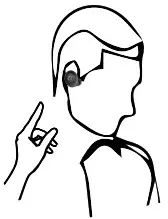
| 5. Select your translation language | 6. Click and hold your left earbud button and speak. Release button after sentence. | 7. The person receiving your conversation will hear the translation through the phone. For further translation, they can tap and hold the flag button to speak and release the button after their sentence. |
 |  |  |
How to use group translation
Group translation is used for conversations with two or more people, wearing CLIK S or not, wherever they are in the world.
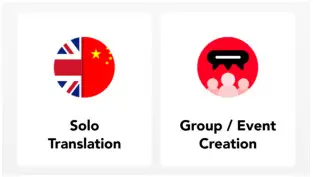
Step 1 – Create a group
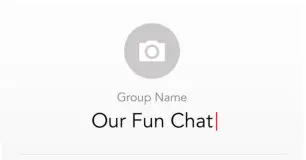
| 1. Open the MyJuno app | 2. Select Group and create a new group | 3. Name your group (you can add a picture to personalise it) |
 |  |  |
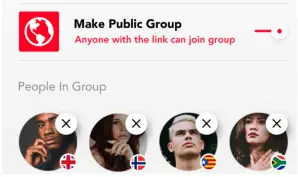
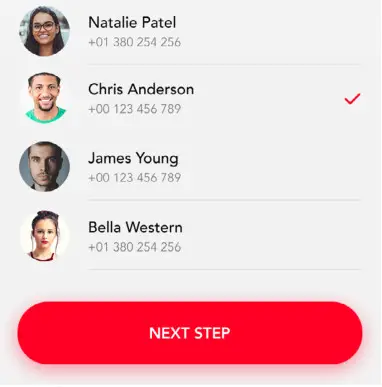
| 4. Set your group to public or private | 5. Search for the people you want in your group and send them an invite or the group QR code | 6. Invited parties can accept your invite requests or join the group by scanning the QR code |
 |  |  |
Step 2 – Start chatting
- Find your group by selecting chat and clicking Groups

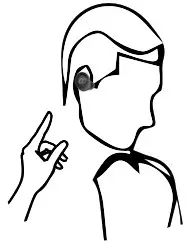
If you wear CLIK S - Click and hold your left earbud button and speak. Release button after sentence. Your speech will be instantly translated and your interlocutor will hear the translation
 If interlocutor doesn’t wear CLIK S
2. Tap and hold the talk button on your screen. Release button after sentence Text and speech will be instantly translated into the languages of your recipients and sent as a written transcript and as audio played through the interlocutor device. (or CLIK S earbuds if applicable).
 - You can also press the keyboard icon to write a message

 If interlocutor doesn’t wear CLIK S
Contact us
For further information, please visit www.mymanu.com or email: [email protected]
 Translation earbuds |Translator | language translation device – Mymanu®