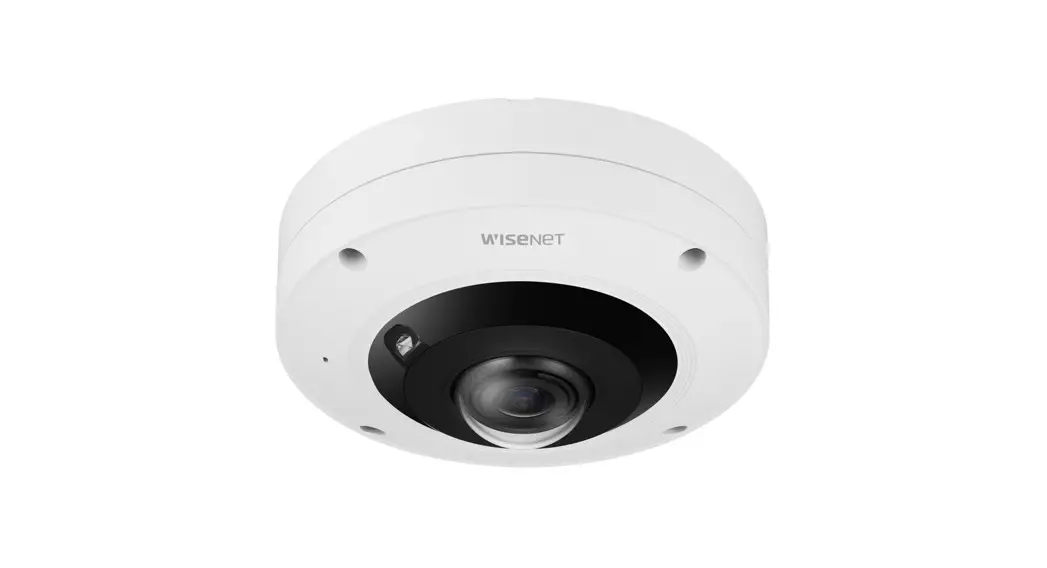
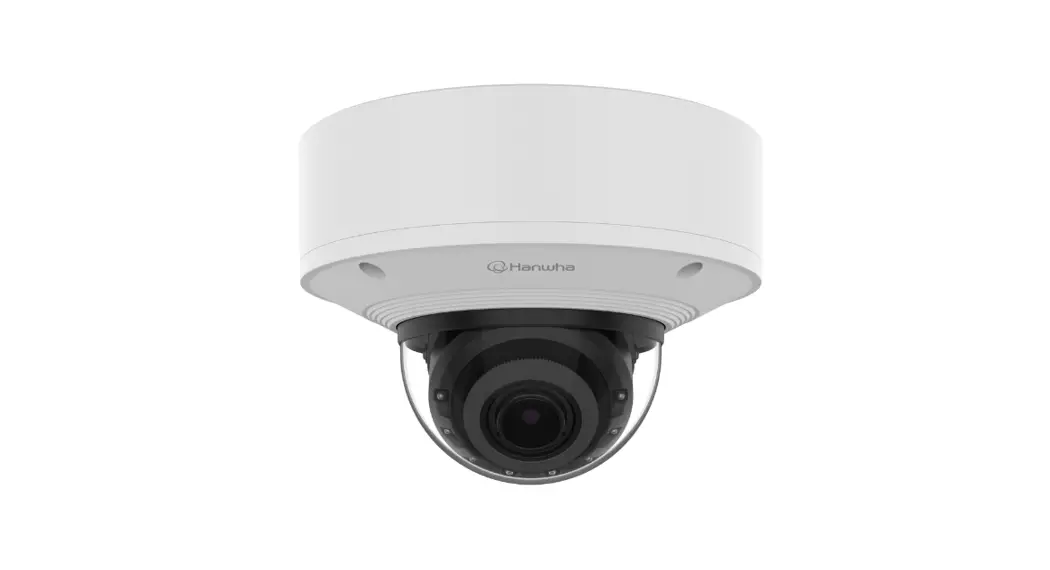
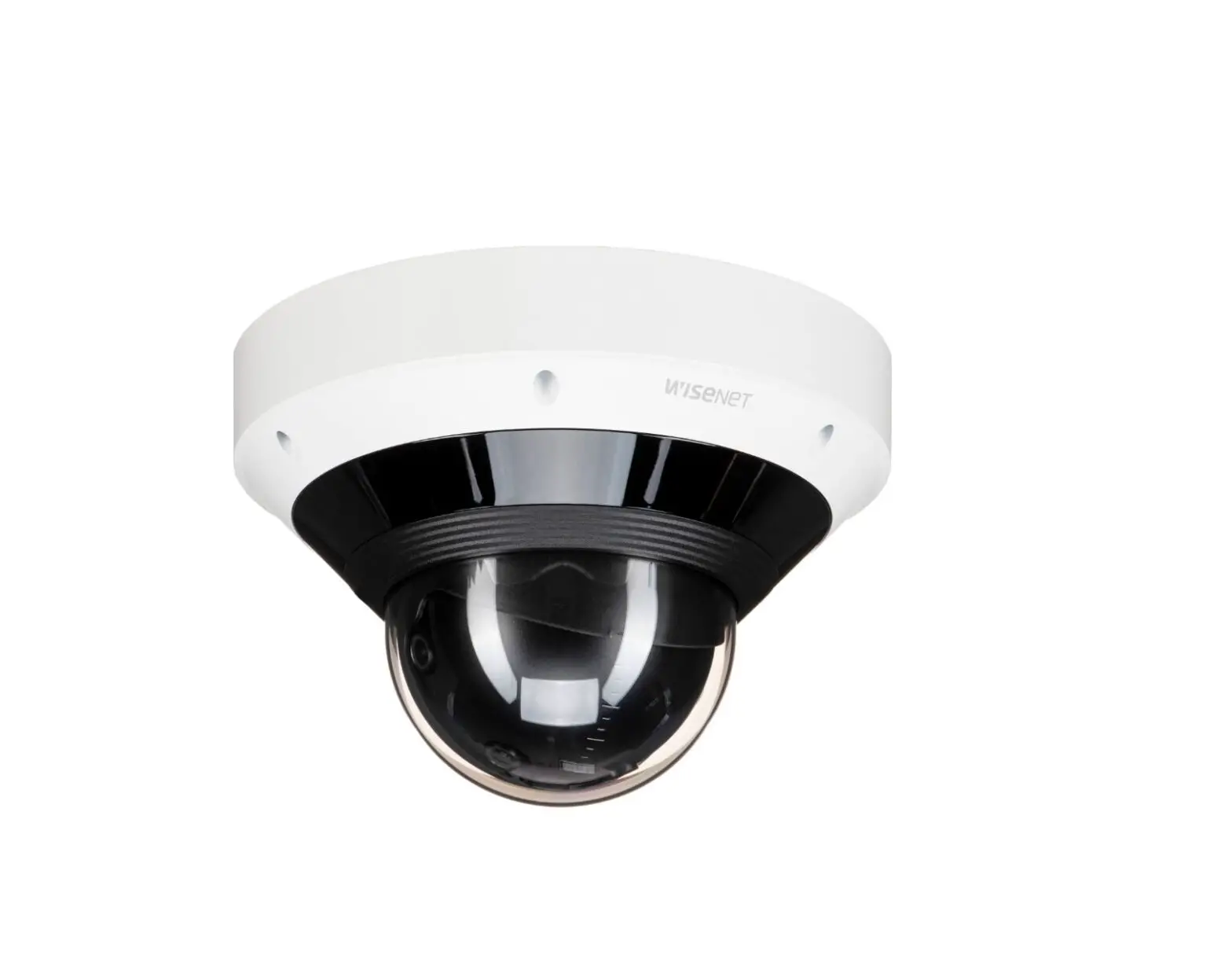
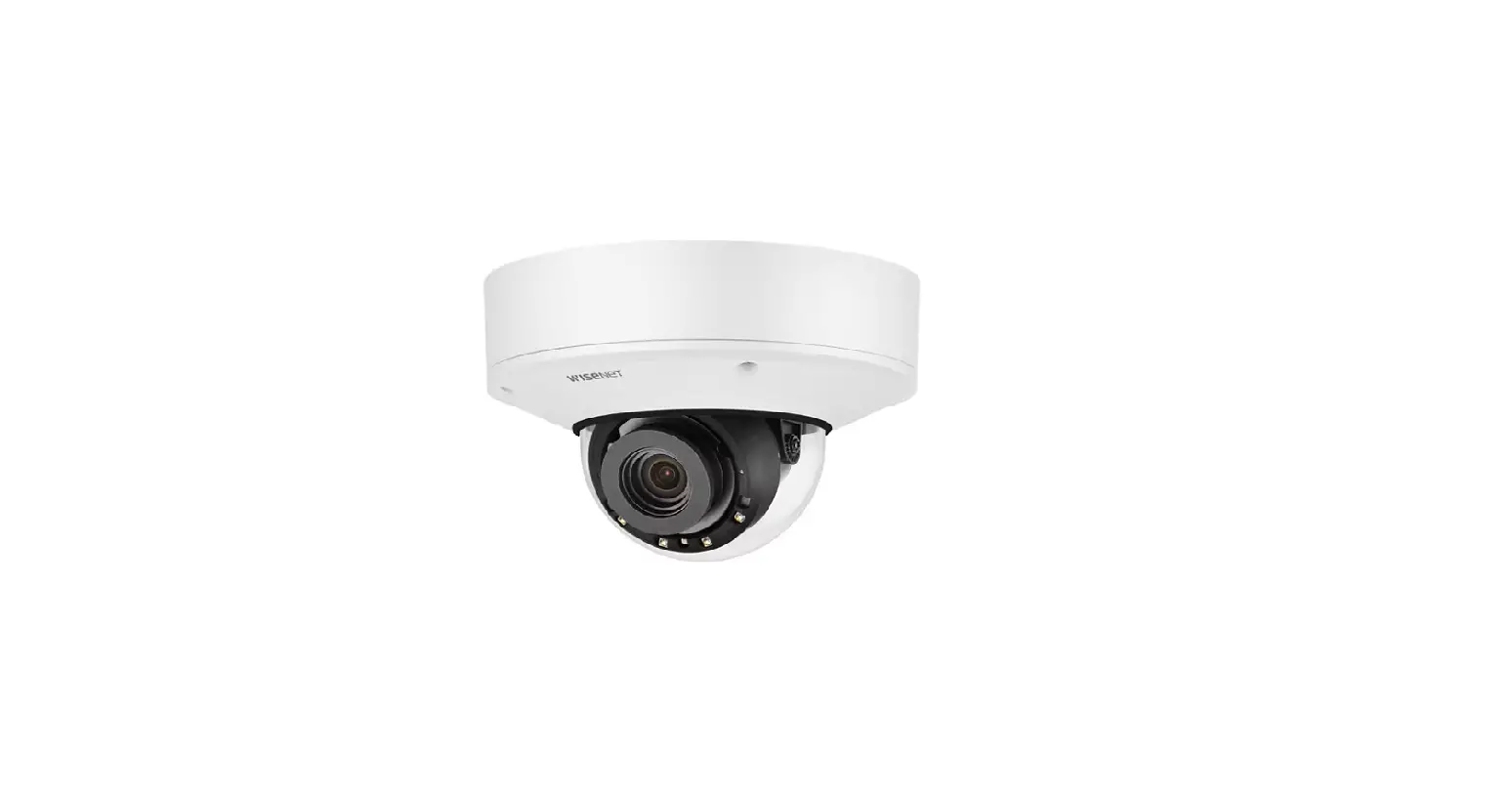
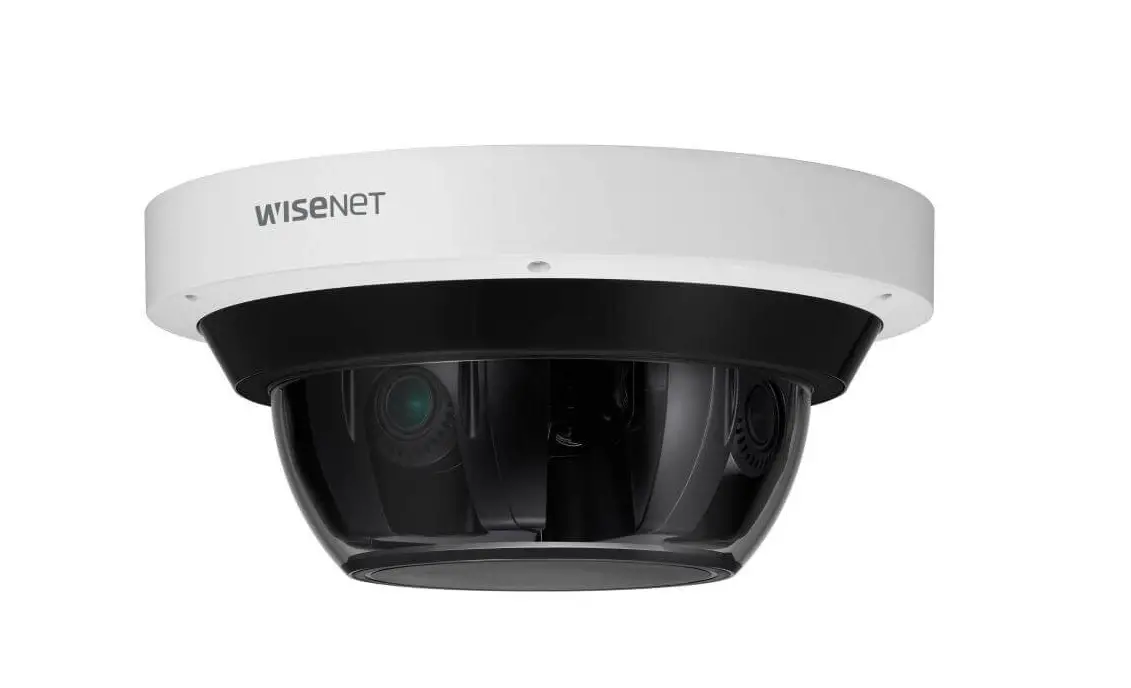
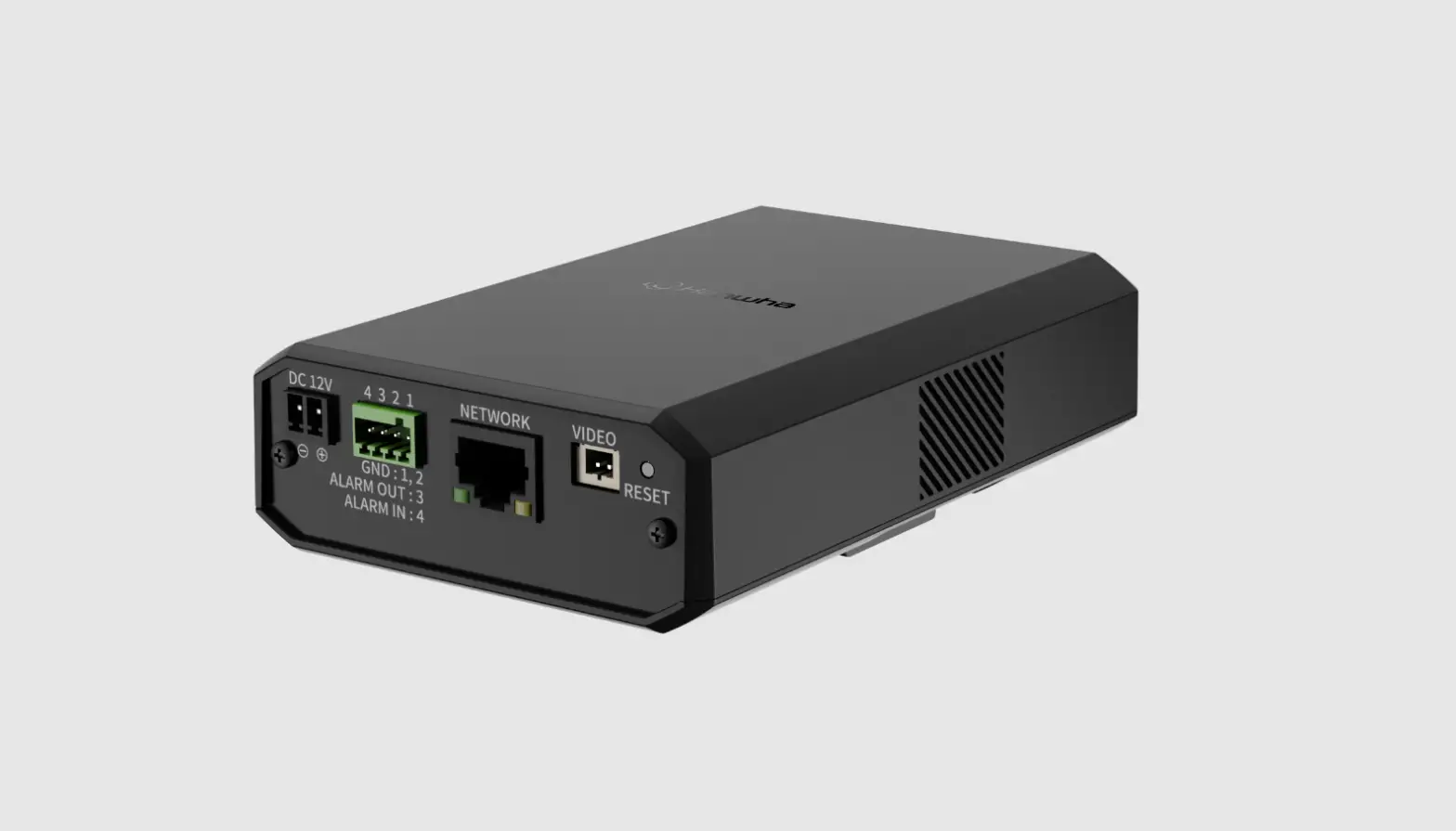
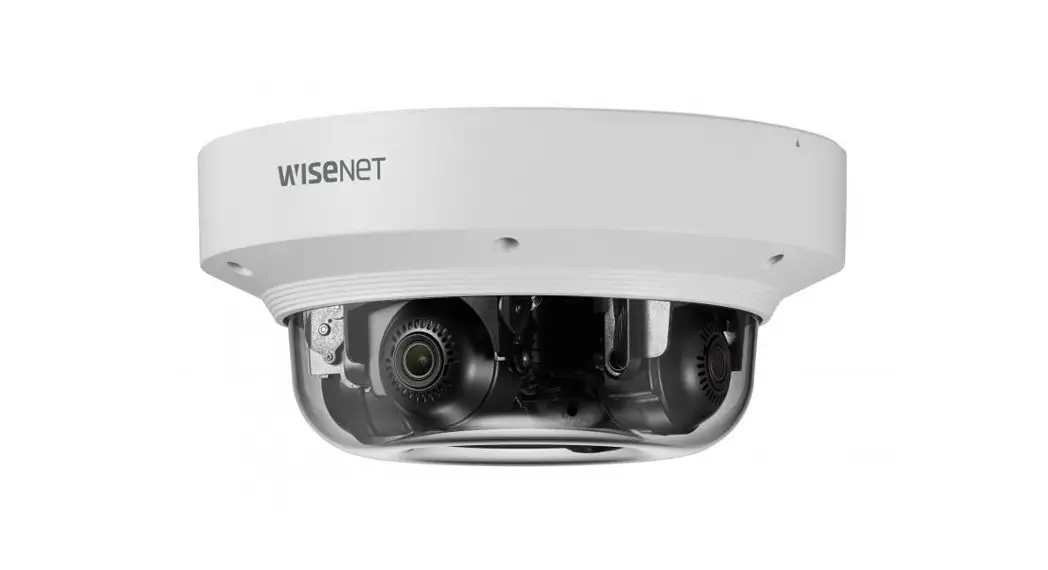
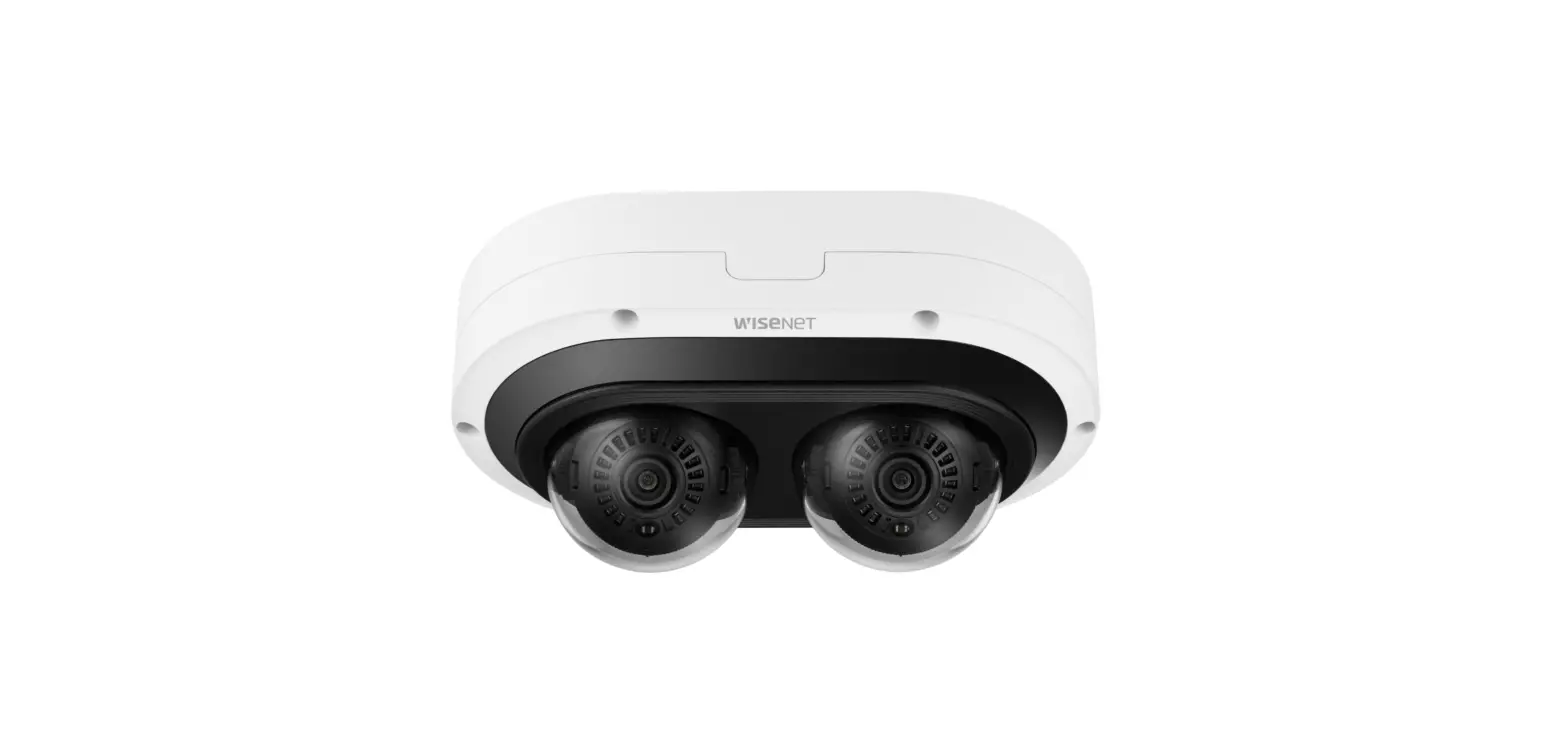
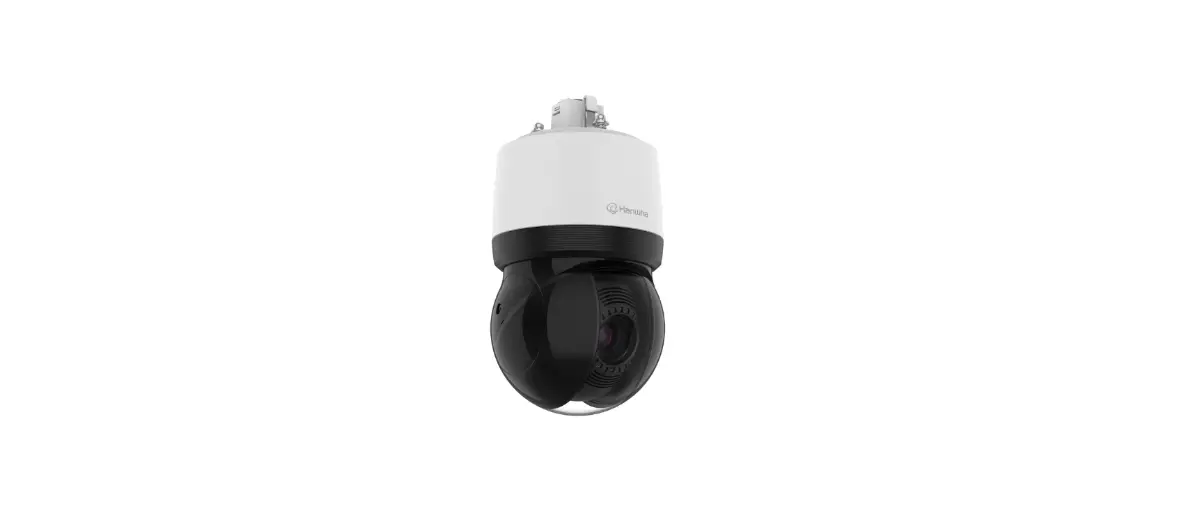
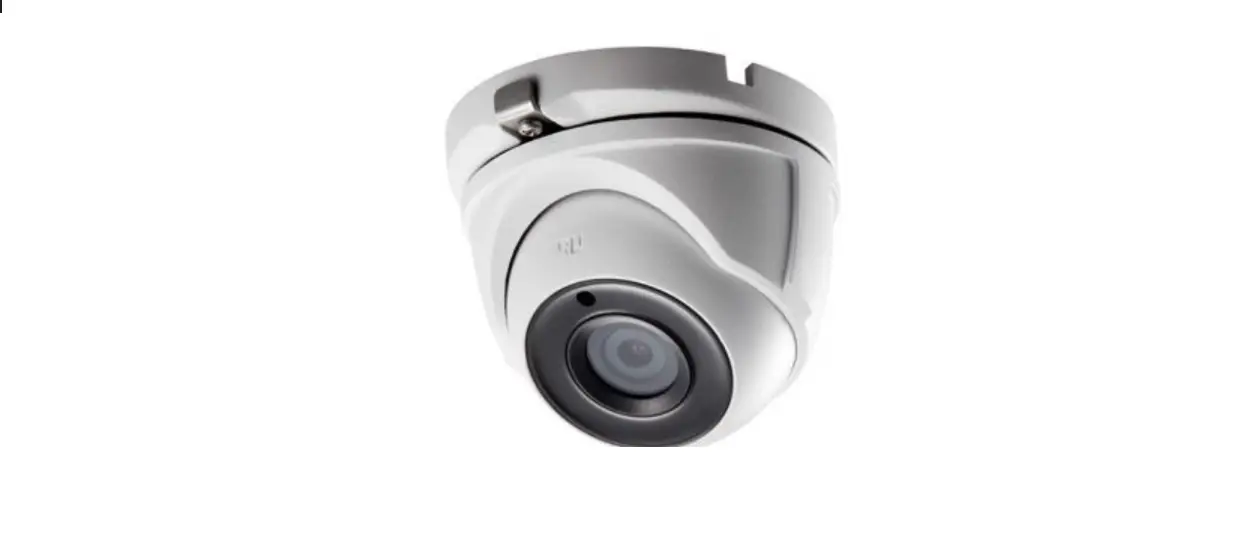
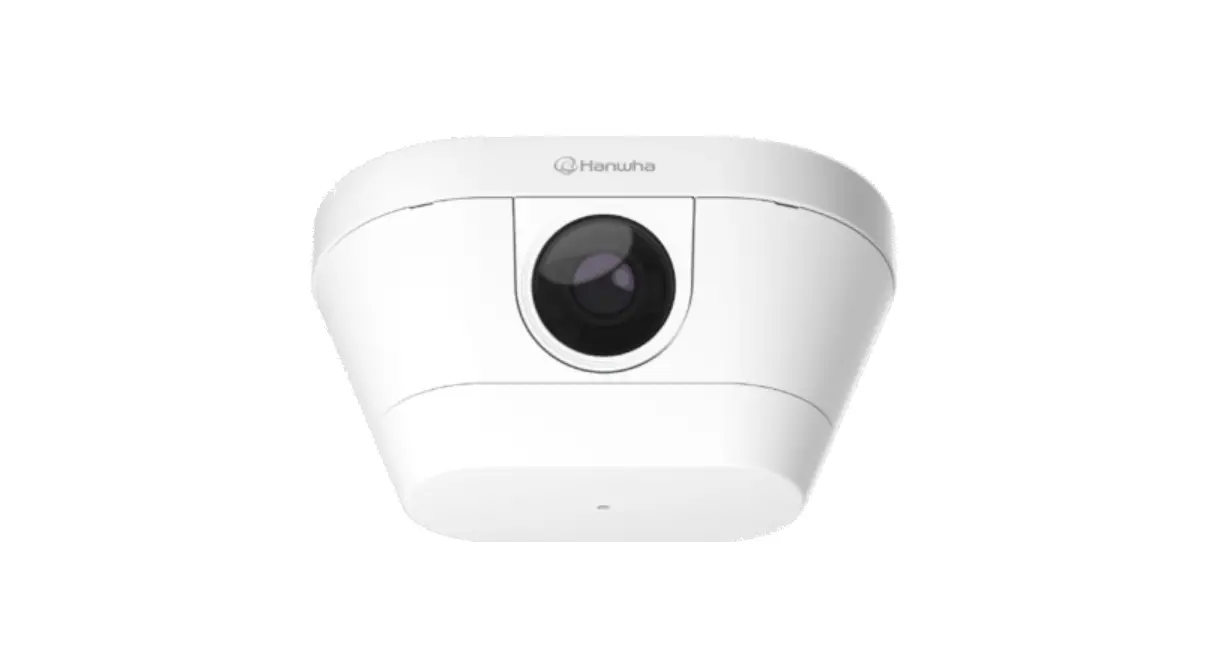
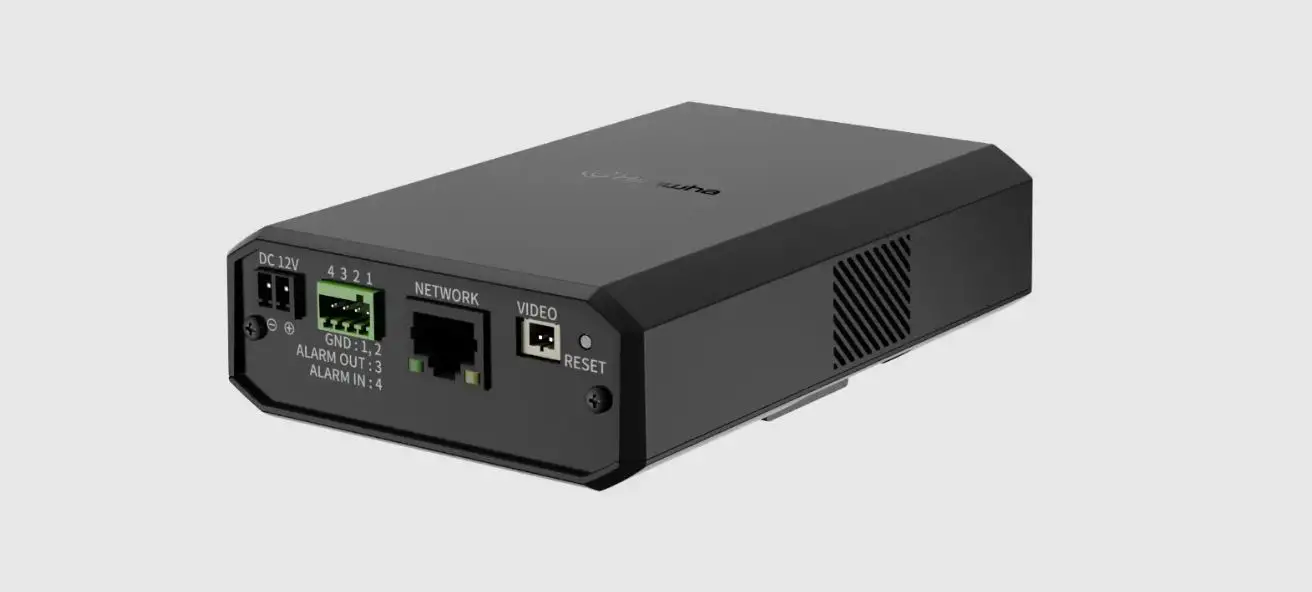
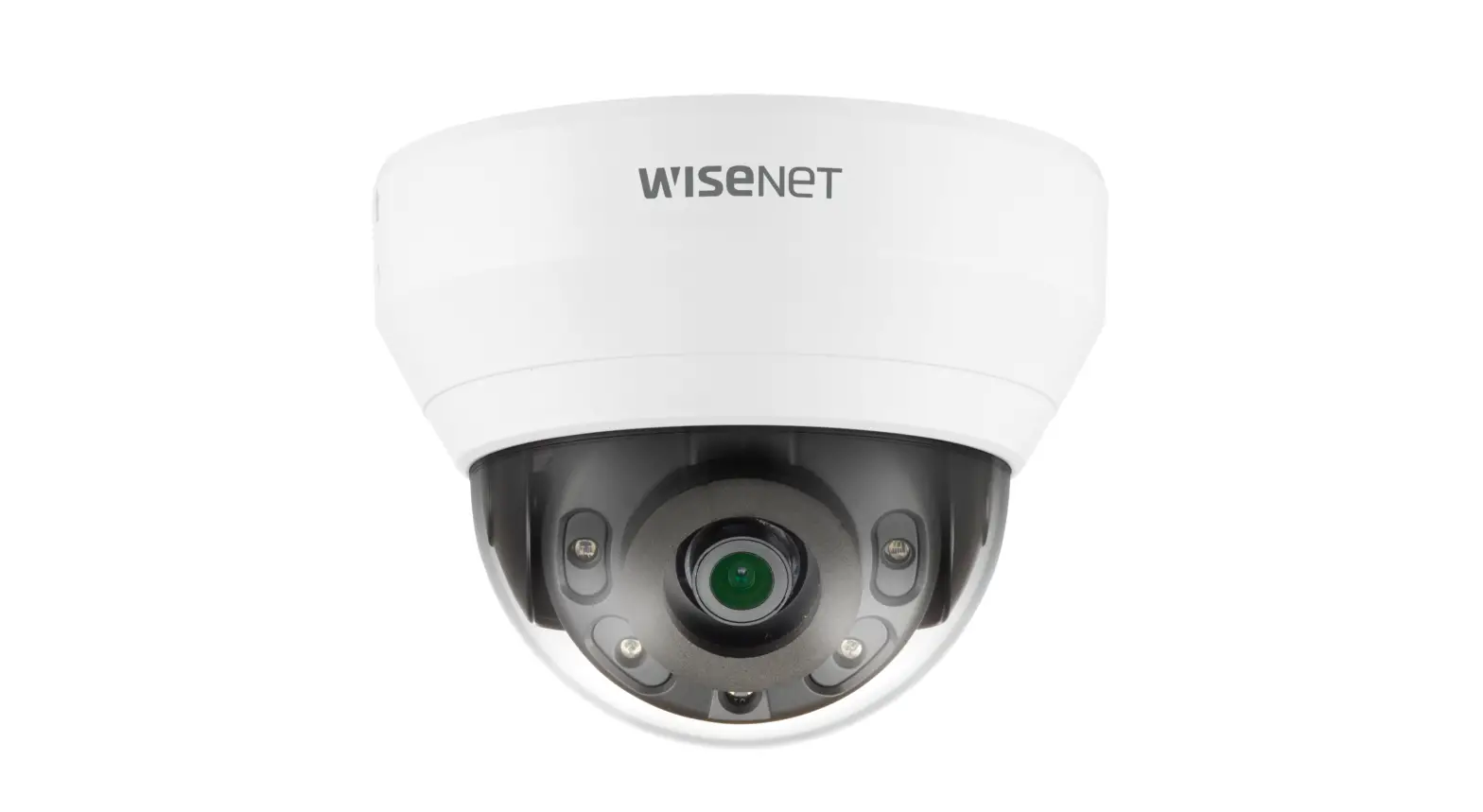
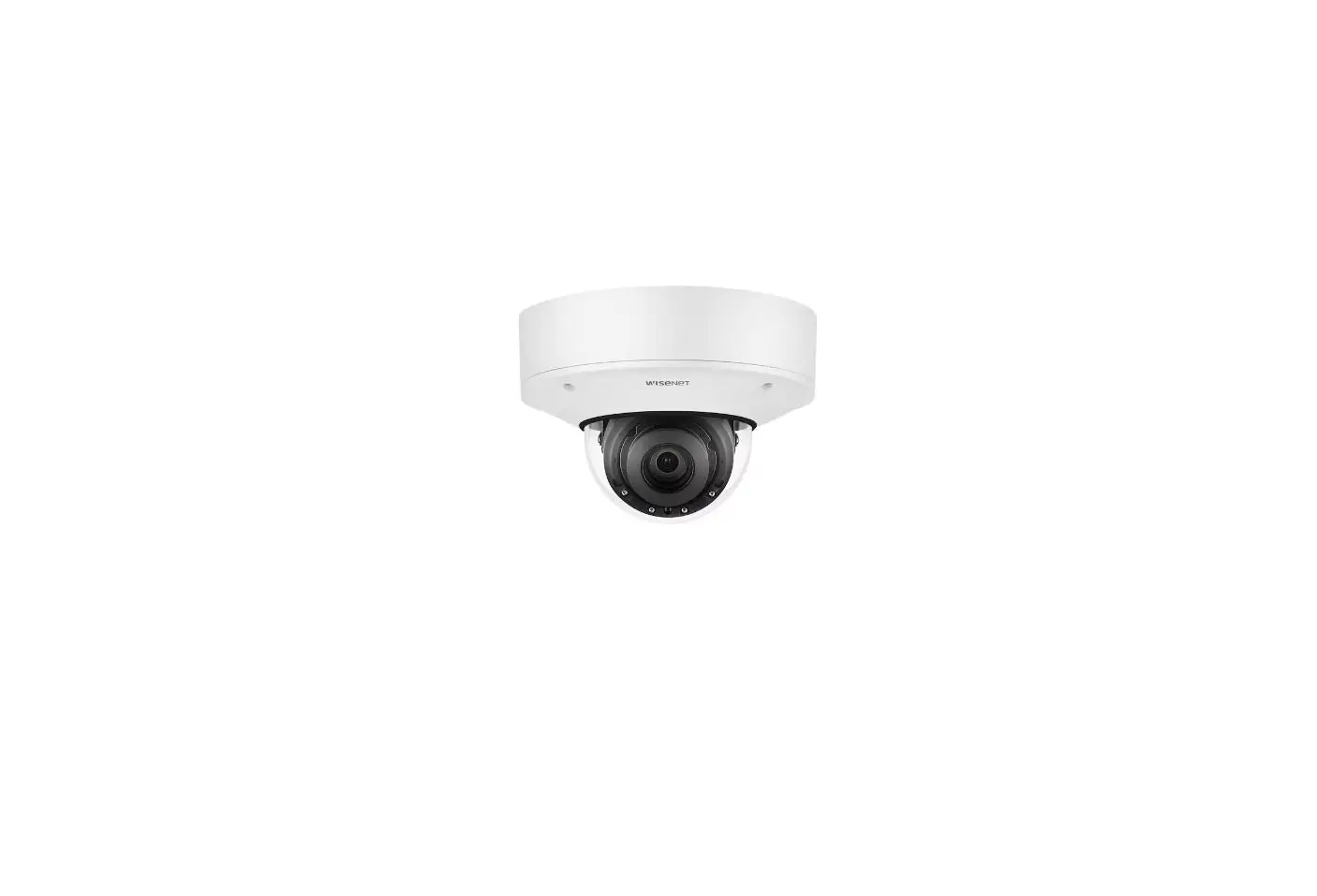
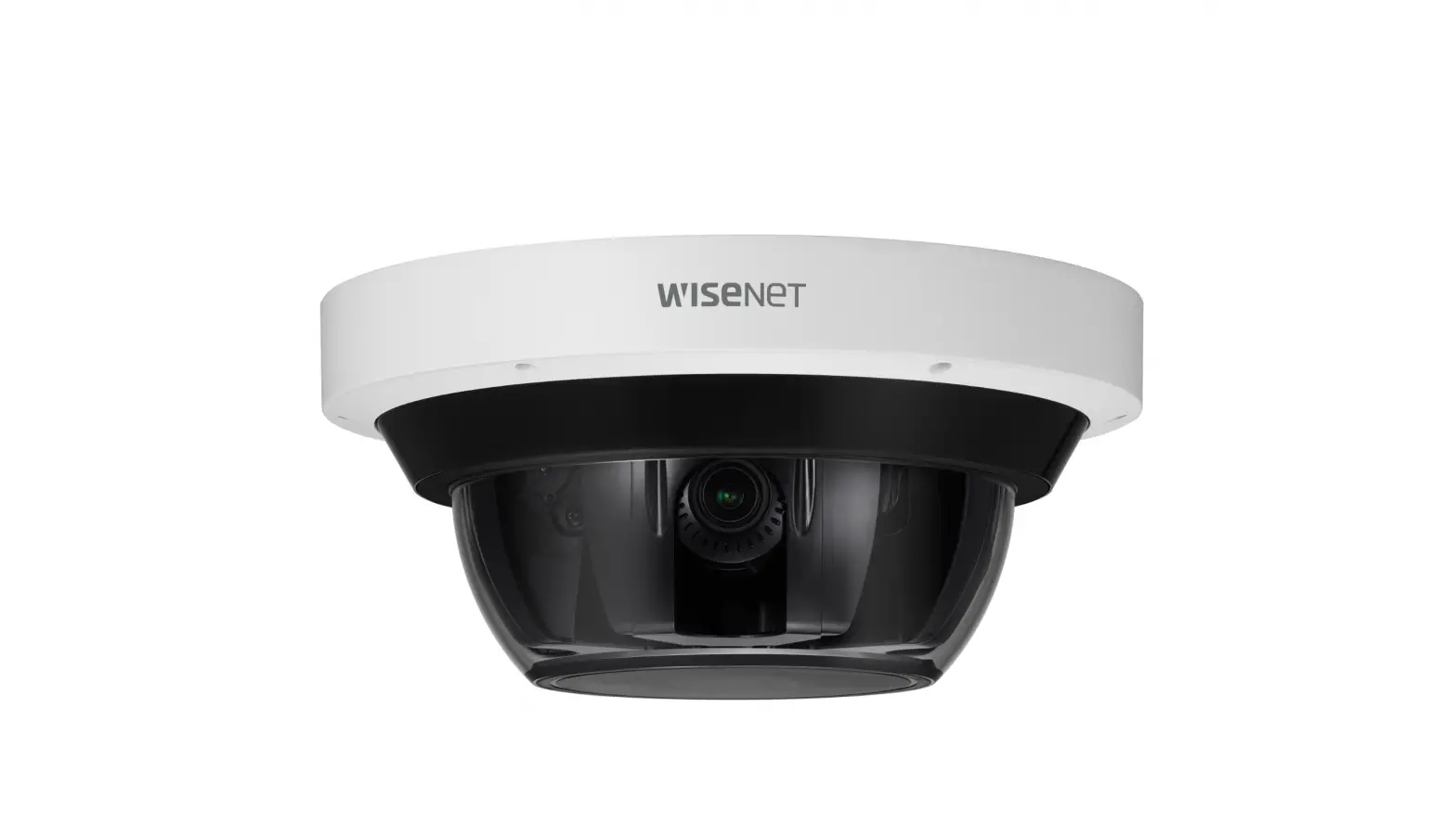
QNV-C8011R Network Camera
Product Information:
The Network Camera is a high-quality camera designed for
surveillance purposes. It is available in three models: QNV-C9011R,
QNV-C8011R, and QNV-C8012. For detailed instructions and additional
information, please refer to the product manuals available on the
Hanwha Vision website.
It is recommended to use the officially compatible VMS version
or the latest Hanwha NVR version when integrating the camera with
VMS or Hanwha NVR. The camera includes Risk Group 1 LEDs, and an
RG1 warning label should be attached to the end-product.
Hanwha Vision is committed to manufacturing environmentally
friendly products and has obtained the Eco mark, which signifies
compliance with the EU RoHS Directive.
Please ensure correct disposal of this product and batteries in
accordance with local regulations. For more information, refer to
the product warranty information available on the Hanwha Vision
website.
Note: The product accessories may vary depending on the sales
country.
Product Usage Instructions:
Password Setting:
- When accessing the product for the first time, register the
login password by following these steps:- Enter “admin” in the input box for User ID.
- Enter the desired password in the input field.
- Click “Sign in” to complete the password registration.
Login:
Whenever accessing the camera, a login window will appear.
Follow these steps to log in:
- Enter the User ID (admin) in the input box.
- Enter the password in the input field.
- Click “Sign in” to access the camera.
Connecting to WiFi:
Camera Setting:
- Connect the OTG adapter (5-pin) and WiFi dongle to the micro
USB terminal of the camera. - Ensure the WiFi dongle is properly connected and
recognized.
Smartphone Setting:
- Install the Wisenet Installation application on your
smartphone. - Turn on the WiFi and select the camera SSID from the available
networks. - Launch the Wisenet Installation application.
- Log in to the camera using the provided credentials.
- The video feed will be connected and displayed on your
smartphone. - You can adjust the angle of view while watching the video
through your smartphone.
Note: During the initial connection, the video will be played
without requiring a login.
NETWORK CAMERA
Quick Guide
QNV-C9011R/QNV-C8011R/QNV-C8012
Important Please check `Manuals’ from our website, before connecting to the Supply, https://www.hanwhavision.com/en/download-data/
Warranty Please check “Product warranty information” from our website. https://www.hanwhavision.com/en/support/warranty/
We recommend to use the officially compatible VMS version or latest Hanwha NVR version when integrating with VMS or Hanwha NVR.
The Risk Group 1 of a LEDs include in the equipment, so should be attached RG1 warning label at the end-product.
Hanwha Vision cares for the environment at all product manufacturing stages, and is taking measures to provide customers with more environmentally friendly products. The Eco mark represents Hanwha Vision’s devotion to creating environmentally friendly products, and indicates that the product satisfies the EU RoHS Directive.
Correct Disposal of This Product (Waste Electrical & Electronic Equipment)
(Applicable in the European Union and other European countries with separate collection systems) This marking on the product, accessories or literature indicates that the product and its electronic accessories (e.g. charger, headset, USB cable) should not be disposed of with other household waste at the end of their working life. To prevent possible harm to the environment or human health from uncontrolled waste disposal, please separate these items from other types of waste and recycle them responsibly to promote the sustainable reuse of material resources. Household users should contact either the retailer where they purchased this product, or their local government office, for details of where and how they can take these items for environmentally safe recycling. Business users should contact their supplier and check the terms and conditions of the purchase contract. This product and its electronic accessories should not be mixed with other commercial wastes for disposal.
Correct disposal of batteries in this product
(Applicable in the European Union and other European countries with separate battery return systems.)
This marking on the battery, manual or packaging indicates that the batteries in this product should not be disposed of with other household waste at the end of their working life. Where marked, the chemical symbols Hg, Cd or Pb indicate that the battery contains mercury, cadmium or lead above the reference levels in EC Directive 2006/66. If batteries are not properly disposed of, these substances can cause harm to human health or the environment. To protect natural resources and to promote material reuse, please separate batteries from other types of waste and recycle them through your local, free battery return system.
SAFETY INFORMATION 3
COMPONENT
As for each sales country, accessories are not the same.
4
INSTALLATION 1
2x
TR10
2
~ Not Included : Micro SD Card
5
INSTALLATION
3
~ Directly installing on wall/ceiling
4
~ Not Included
6
INSTALLATION 5
6
~ Not Included : WiFi dongle, OTG adapter
7
INSTALLATION 7
Installation
8
INSTALLATION 8 9
INSTALLATION 9
10
INSTALLATION 10
TR10
2x
11
INSTALLATION 11 13
12
English
PASSWORD SETTING
When you access the product for the first time, you must register the login password.
LOGIN
Whenever you access the camera, the login window appears. Enter the User ID and password to access the camera.
a Enter “admin” in the <User Name> input box. b Enter the password in the <Password> input
field. c Click [Sign in].
CONNECTING TO WiFi
Camera setting
a Connect OTG adapter (5-pin) and Wi-Fi dongle to the micro USB terminal.
J ` For a new password with 8 to 9 characters, you must use at least 3 of the following: uppercase/lowercase letters, numbers and special characters. For a password with 10 characters or longer, you must use at least 2 types of those mentioned. (support up to 64 characters) – Special characters that are allowed. : ~`!@#$%^&*( )_-+={ }[ ]|;:`”<>.,?/
` Space is not allowed for password.
` For higher security, you are not recommended to repeat the same characters or consecutive keyboard inputs for your passwords.
` If you lost your password, you can press the [RESET] button to initialize the product. So, don’t lose your password by using a memo pad or memorizing it.
Smartphone setting
a Install the Wisenet Installation application. b Select the camera SSID after turning on the WiFi. c Run the Wisenet Installation application. d When you log in to the camera, the video will be
connected. ` The video will be played without being logged in during
the initial connection.
e You can adjust angle of view while watching the video through smartphone.
13
: 7 .
Türkiye Distribütörü EDS Elektronik Destek Sanayi ve Ticaret Ltd. ti. Meclis Mah. Teraziler Cad. Hayran Sk. (Eskisi Kiliç Sk.) No: 4 Sancaktepe / stanbul / Türkiye Tel +90.216.313.25.15 Faks +90.216.528.45.98 Koyuncu Elektronik Bilgi lem Sistemleri San. ve Di. Tic. A.. Emek Mah. Ordu Cad. No:18 Sancaktepe / stanbul / Türkiye Tel +90.216.528.88.88 Faks +90.216.313.18.18 NFS Teknoloji ve Otomasyon Sistemleri San. Ve Tic. Ltd. Sti. Cumhuriyet Mah air M.Akif Ersoy Sk. No:36 Üsküdar / stanbul / Türkiye Tel +90.216.505.82.28 Faks +90.216.505.82.29 Sensonet Teknoloji Elekt. ve Bili. Hiz. San. ve Tic. Ltd. ti. Ramazanolu Mah. Transtek Cad. No: 2 Pendik / stanbul / Türkiye Tel +90.216.999.49.49 Faks +90.212.381.61.02 ENTES ELEKTRONK CHAZLAR MALAT VE TC. A.. Dudullu Org.San.Bölg. 1. Cad. No:23 34776 Ümraniye – stanbul / Türkiye Tel +90.216.313.01.10 Faks +90.216.314.16.15
Cihazin Ticaret Bakanliinca önerilen ortalama ömrü Cihazin EEE yönetmeliklerine uygun olduuna benzer beyan
 Hanwha Vision - Global Vision Solution Provider