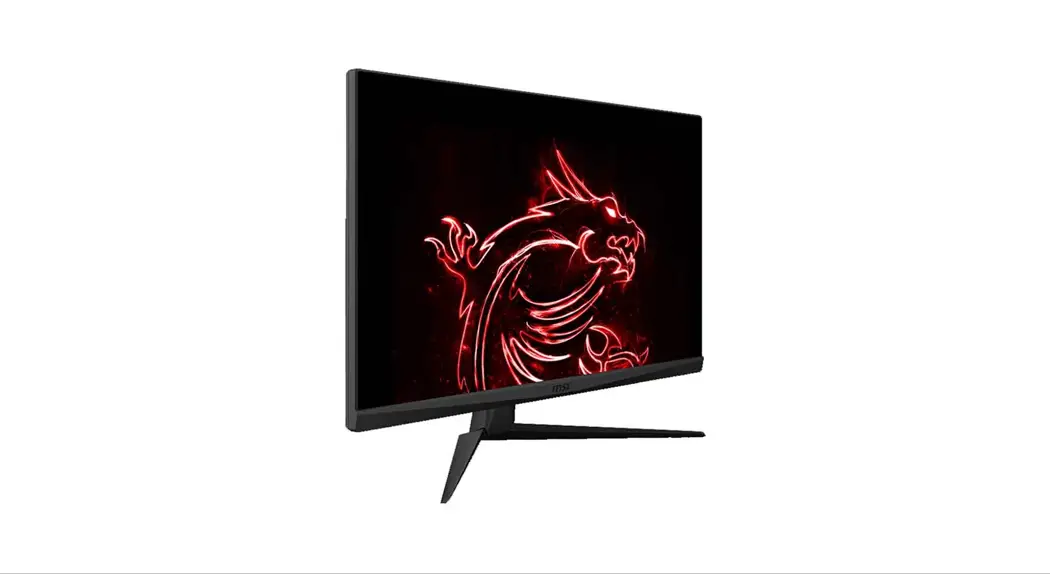
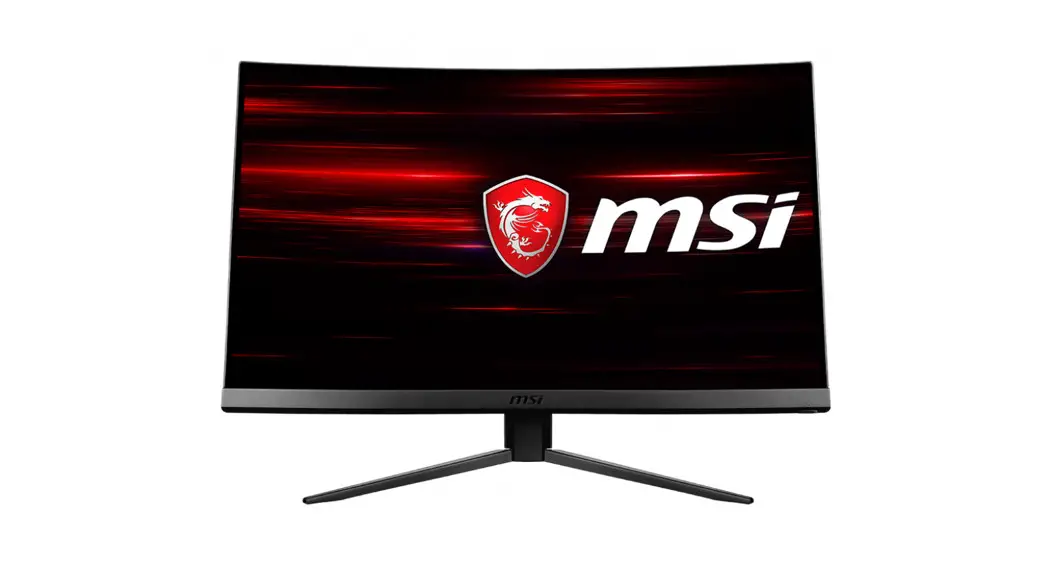
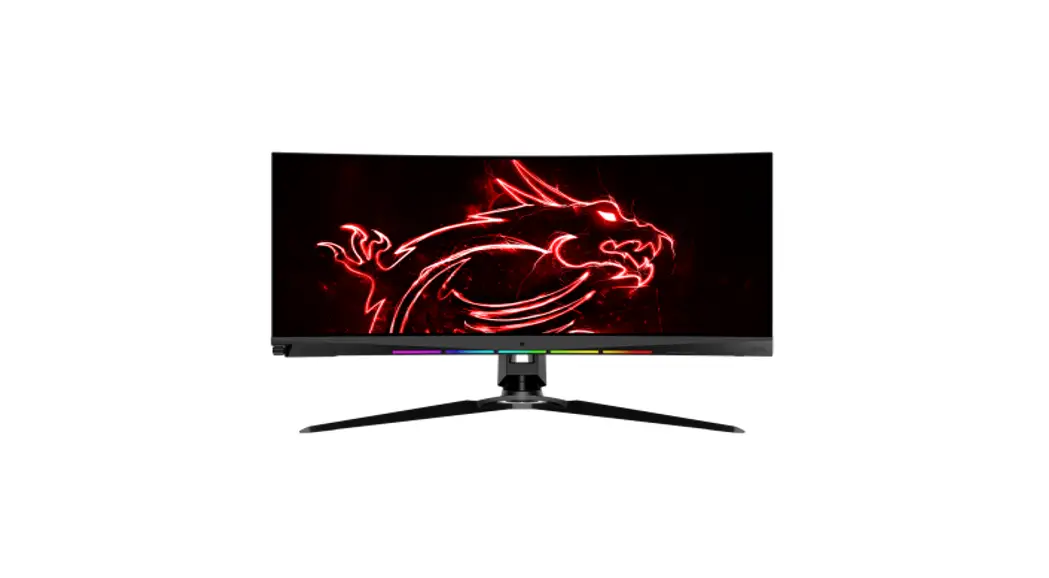
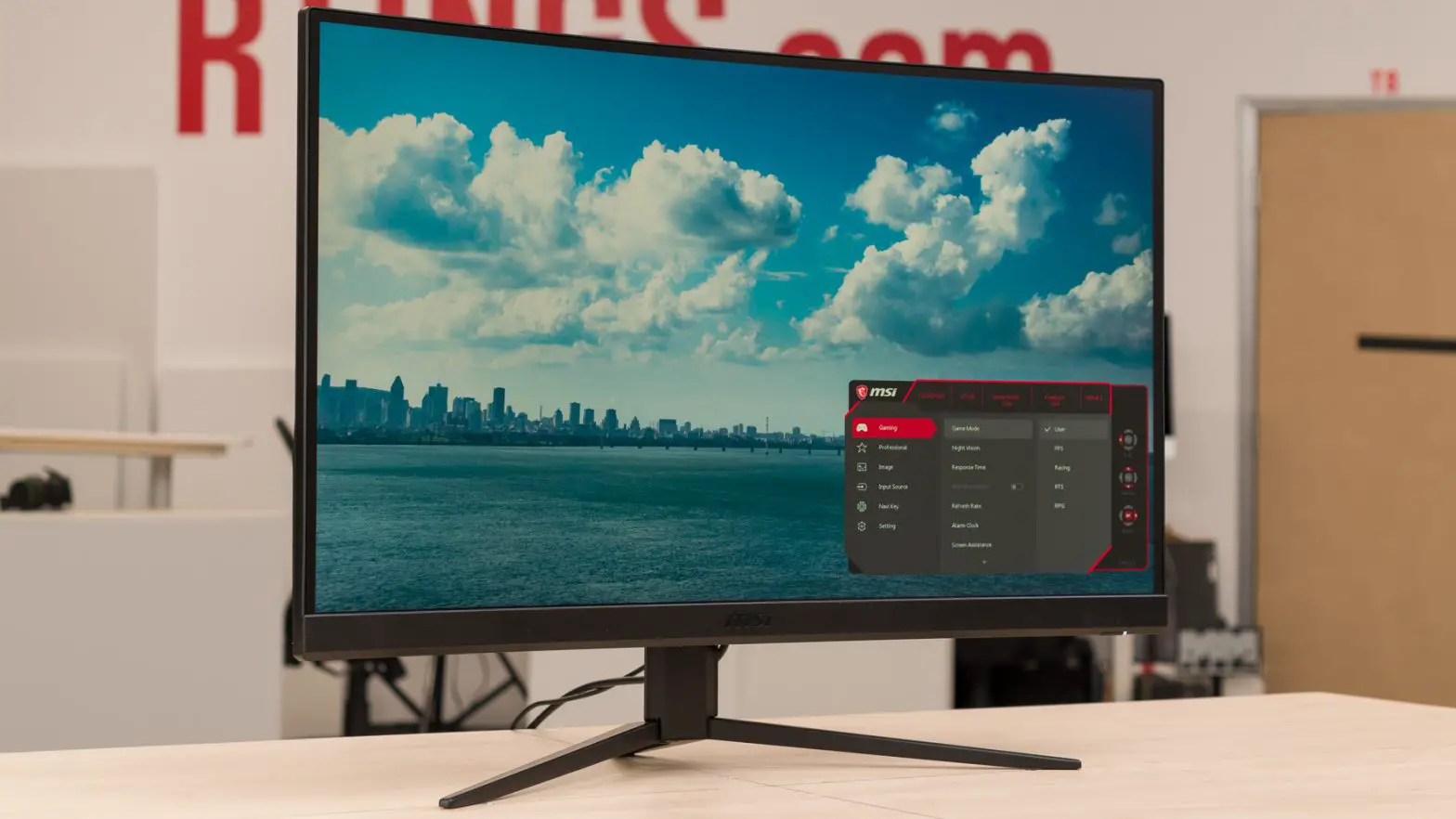
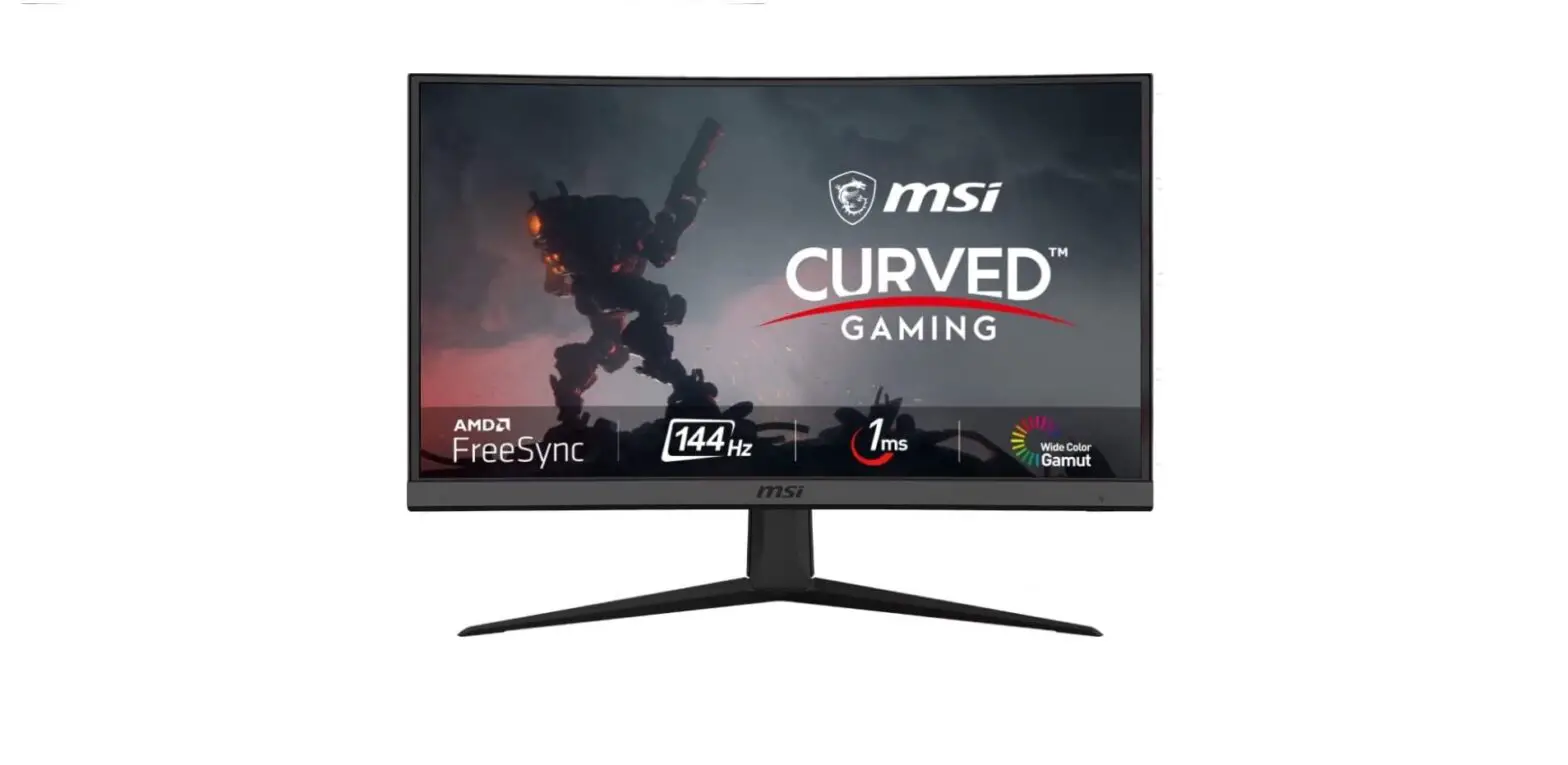
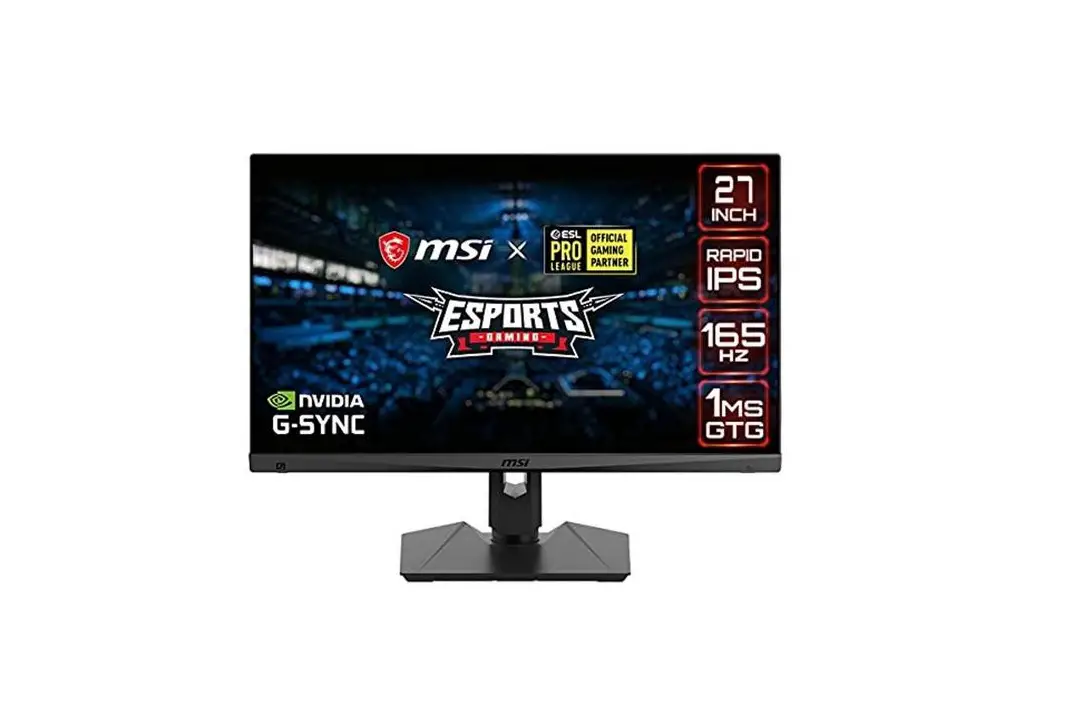
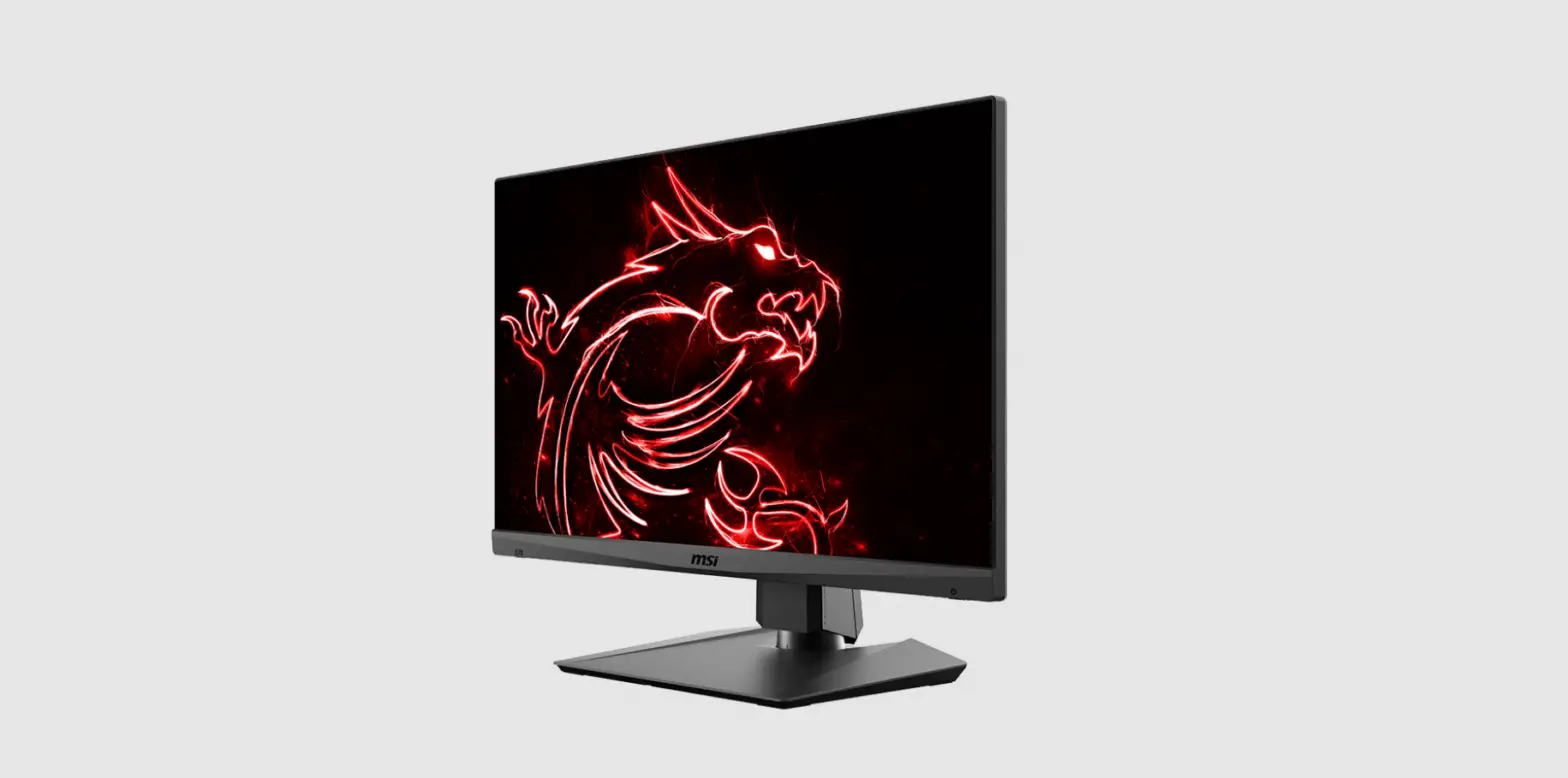
Optix Series LCD Gaming Monitor
Product Information:
- Product Name: Optix MAG301RF (3CC5)
- Product Type: LCD Monitor
- Model: Optix Series
- Revision: V1.0, 2021/02
Product Usage Instructions:
Getting Started:
This chapter provides you with the information on hardware setup
procedures. While connecting devices, be careful in holding the
devices and use a grounded wrist strap to avoid static
electricity.
Package Contents:
- Monitor (Optix MAG301RF)
- Quick Start Guide
- Documentation
- Registration Card
- Warranty Card
- MSI Reward Program Card
- Stand with Screw(s)
- Stand Base with Screw(s)
- Accessories:
- Stand Cover with Screw(s)
- Screw(s) for Wall Mount Bracket(s)
- Power Cord
- Power Adapter
- HDMI Cable (Optional)
- Cables:
- DisplayPort Cable (Optional)
- USB Upstream Cable (for USB Type-B Upstream Port)
(Optional)
Important:
- Contact your place of purchase or local distributor if any of
the items is damaged or missing. - Package contents may vary by country.
- The included power cord is exclusively for this monitor and
should not be used with other products.
Installing the Monitor Stand:
- Leave the monitor in its protective foam packaging. Align the
stand bracket to the monitor groove. - Tighten the stand bracket with screws.
- Connect the base to the stand and tighten the base screw to
secure the base. - Make sure the stand assembly is properly installed before
setting the monitor upright.
Important:
- Place the monitor on a soft, protected surface to avoid
scratching the display panel. - Do not use any sharp objects on the panel.
- The groove for installing the stand bracket can also be used
for wall mount. Please contact your dealer for proper wall mount
kit.
Adjusting the Monitor:
This monitor is designed to maximize your viewing comfort with
its adjustment capabilities.
Important:
- Avoid touching the display panel when adjusting the
monitor. - Please slightly tilt the monitor backwards before pivoting
it.
Monitor Overview:
- Macro Key – To activate OSD Application.
- Power Button
- Navi Key
- Cable Routing Hole
- Kensington Lock
- DisplayPort 1.2
- HDMI 2.0 Port
- Headphone Jack
- USB 2.0 Type-B Upstream Port – For USB Upstream Cable.
Important: Check the package for USB Upstream
Cable and connect it to the PC and monitor. Once this cable is
connected, the USB Type-A Downstream Ports on the monitor will be
ready for use. - USB 2.0 Type-A Port
- Power Jack
Connecting the Monitor to PC:
- Turn off your computer.
- Connect the video cable from the monitor to your computer.
- Assemble the monitor power adapter & power cord.
- Connect the power adapter to the monitor power jack.
- Plug the power cord into the electrical outlet.
- Turn on the monitor.
- Power on the computer and the monitor will auto detect the
signal source.
Optix Series
LCD Monitor
Optix MAG301RF (3CC5)
Contents
Getting Started……………………………………………………………………………………………….. 3 Package Contents……………………………………………………………………………………… 3 Installing the Monitor Stand……………………………………………………………………….. 4 Adjusting the Monitor ………………………………………………………………………………… 5 Monitor Overview………………………………………………………………………………………. 6 Connecting the Monitor to PC …………………………………………………………………….. 8
OSD Setup ……………………………………………………………………………………………………… 9 Navi Key …………………………………………………………………………………………………… 9 Hot Key…………………………………………………………………………………………………….. 9
OSD Menus…………………………………………………………………………………………………… 10 Gaming…………………………………………………………………………………………………… 10 Professional……………………………………………………………………………………………. 12 Image …………………………………………………………………………………………………….. 13 Input Source …………………………………………………………………………………………… 14 Navi Key …………………………………………………………………………………………………. 14 Setting……………………………………………………………………………………………………. 15
Specifications……………………………………………………………………………………………….. 17 Preset Display Modes …………………………………………………………………………………… 19 Troubleshooting……………………………………………………………………………………………. 20 Safety Instructions………………………………………………………………………………………… 21 TÜV Certification…………………………………………………………………………………………… 23 Regulatory Notices……………………………………………………………………………………….. 24
Revision V1.0, 2021/02
2 Contents
Getting Started
This chapter provides you with the information on hardware setup procedures. While connecting devices, be careful in holding the devices and use a grounded wrist strap to avoid static electricity.
Package Contents
Monitor
Optix MAG301RF
Quick Start Guide
Documentation
Registration Card Warranty Card
MSI Reward Program Card
Stand with Screw(s)
Stand Base with Screw(s)
Accessories
Stand Cover with Screw(s) Screw(s) for Wall Mount Bracket(s)
Power Cord
Power Adapter
HDMI Cable (Optional)
Cables
DisplayPort Cable (Optional)
USB Upstream Cable (for USB Type-B Upstream Port) (Optional)
Important
Contact your place of purchase or local distributor if any of the items is damaged or missing.
Package contents may vary by country.
The included power cord is exclusively for this monitor and should not be used with other products.
Getting Started 3
Installing the Monitor Stand
1. Leave the monitor in its protective foam packaging. Align the stand bracket to the monitor groove.
2. Tighten the stand bracket with screws. 3. Connect the base to the stand and tighten the base screw to secure the base. 4. Make sure the stand assembly is properly installed before setting the monitor
upright.
Important
Place the monitor on a soft, protected surface to avoid scratching the display panel. Do not use any sharp objects on the panel. The groove for installing the stand bracket can also be used for wall mount. Please
contact your dealer for proper wall mount kit.
2
1
3
4 Getting Started
Adjusting the Monitor
This monitor is designed to maximize your viewing comfort with its adjustment capabilities.
Important
Avoid touching the display panel when adjusting the monitor. Please slightly tilt the monitor backwards before pivoting it.
-5 O 20O
130mm
O
45
O
45
Getting Started 5
Monitor Overview
1
2
3
5
4
6
7
7
6 Getting Started
8 9 10 10 11
1 Macro Key
To activate OSD Application.
2 Power Button
3 Navi Key
4 Cable Routing Hole
5 Kensington Lock
6 DisplayPort 1.2
7 HDMI 2.0 Port
8 Headphone Jack
9 USB 2.0 Type-B Upstream Port
For USB Upstream Cable.
Important
To Monitor
Check the package for USB Upstream Cable and connect it to the PC and monitor. Once this cable is connected, the USB Type-A Downstream Ports on the monitor will be ready for use.
To PC
10 USB 2.0 Type-A Port
11 Power Jack
Getting Started 7
Connecting the Monitor to PC
1. Turn off your computer. 2. Connect the video cable from the monitor to your computer. 3. Assemble the monitor power adapter & power cord. (Figure A) 4. Connect the power adapter to the monitor power jack. (Figure B) 5. Plug the power cord into the electrical outlet. (Figure C) 6. Turn on the monitor. (Figure D) 7. Power on the computer and the monitor will auto detect the signal source.
B D
C
A
8 Getting Started
OSD Setup
This chapter provides you with essential information on OSD Setup.
Important
All information is subject to change without prior notice.
Navi Key
The monitor comes with a Navi Key, a multi-directional control that helps navigate the On-Screen Display (OSD) menu.
Up/Down/Left/Right: selecting function menus and items adjusting function values entering into/exiting from function menus Press (OK): launching the On-Screen Display (OSD) entering submenus confirming a selection or setting
Hot Key
Users may enter into Game Mode, Screen Assistance, Alarm Clock and Input Source function menus by moving the Navi Key up, down, left or right when the OSD menu is inactive.
Users may customize their own Hot Keys to enter into different function menus.
OSD Setup 9
OSD Menus
Gaming
1st Level Menu 2nd/3rd Level Menu
Game Mode
User
FPS
Racing
RTS
RPG
Night Vision
OFF
Normal
Strong
Strongest
A.I.
Response Time Normal
Fast
Fastest
Description All items can be adjusted by users. Use Up or Down Button to select and
preview mode effects. Press the OK Button to confirm and
apply your mode type.
This function optimizes background brightness and is recommended for FPS games.
Users can adjust Response Time in any mode.
Response Time will be grayed out while MPRT is enabled.
Response Time have to set to Fast after MPRT is disabled.
10 OSD Menus
1st Level Menu 2nd/3rd Level Menu
MPRT
OFF
ON
Refresh Rate Alarm Clock
Screen Assistance
Location Left Top
Right Top
Left Bottom
Right Bottom
Customize
OFF
ON
Location Left Top
Right Top
Left Bottom
Right Bottom
Customize
OFF
15:00 30:00
00:01 ~ 99:59
45:00
60:00
None
Icon
Position
Reset
Description When MPRT is enabled, HDCR and
Brightness cannot be enabled. Response time will be grayed out
while MPRT is enabled. MPRT has to be disabled while
Adaptive-Sync is set to ON. Users can adjust Refresh Rate in any
mode. Default Refresh Rate Location is
Left Top. Location is adjustable in OSD Menu. Press the OK Button to confirm and apply your Refresh Rate Location. This monitor follows and works at the Operating System’s preset Screen Refresh Rate.
Users can adjust Alarm Clock in any mode.
After setting the time, press the OK Button to activate the timer.
Default Alarm Clock Location is Left Top. Users can select their own location.
Users can adjust Screen Assistance in any mode.
Screen Assistance default is None.
OSD Menus 11
1st Level Menu 2nd/3rd Level Menu Adaptive-Sync OFF
ON
Description
Adaptive-Sync prevents screen tearing.
DisplayPort or HDMI default is ON and can be adjusted ON/OFF in any mode, any resolution, any input source and any screen refresh rate.
MPRT will be disabled if AdaptiveSync is enabled.
Professional
1st Level Menu 2nd Level Menu
Pro Mode
User
Anti-Blue
Movie
Office
sRGB
Low Blue Light OFF
ON
HDCR
OFF
ON
MPRT
OFF
ON
Description
Default mode is User.
All items can be adjusted by users.
Use Up or Down Button to select and preview mode effects.
Press the OK Button to confirm and apply your mode type.
Low Blue Light protects your eyes against blue light. When enabled, Low Blue Light adjusts the screen color temperature to a more yellow glow.
Users can adjust Low Blue Light in any mode.
When Pro Mode is set to Reader, it is mandatory to enable Low Blue Light.
Users can adjust HDCR in any mode.
HDCR enhances image quality by increasing the contrast of images.
When HDCR is set to ON, Brightness will be grayed out.
HDCR and MPRT cannot be enabled simultaneously.
When MPRT is enabled, HDCR and Brightness cannot be enabled.
Response time will be grayed out while MPRT is enabled.
MPRT has to be disabled while AdaptiveSync is set to ON.
12 OSD Menus
1st Level Menu 2nd Level Menu
Image Enhancement
OFF Weak
Medium
Strong
Strongest
Description
Image Enhancement enhances image edges to improve their acutance.
Users can adjust Image Enhancement in any mode.
Image
1st Level Menu 2nd/3rd Level Menu
Brightness
0-100
Contrast Sharpness
0-100 0-5
Color Temperature
Screen Size
Cool Normal Warm Customization R (0-100)
G (0-100) B (0-100)
Auto 4:3 16:9 21:9
Description
Users can adjust Brightness in User, FPS, Racing, RTS and RPG mode.
Brightness will be grayed out when MPRT or HDCR are enabled.
Users can adjust Contrast in any mode.
Users can adjust Sharpness in any mode.
Sharpness improves clarity and details of images.
Color Temperature default is Normal.
Use Up or Down Button to select and preview mode effects.
Press the OK Button to confirm and apply your mode type.
Users can adjust Color Temperature in Customization mode.
Users can adjust Screen Size in any mode, any resolution and any screen refresh rate.
Default is Auto.
OSD Menus 13
Input Source
1st Level Menu 2nd Level Menu Description
HDMI1
Users can adjust Input Source in any mode.
HDMI2
DP
Auto Scan
OFF
ON
Users can use the Navi Key to select Input Source at below status:
· While “Auto Scan” is set to “OFF” with the monitor at power saving mode;
· While “No Signal” message box is shown on the monitor.
Navi Key
1st Level Menu 2nd Level Menu
Up / Down / Left OFF
/ Right
Brightness
Game Mode
Screen Assistance
Alarm Clock
Input Source
Refresh Rate
Info. On Screen
Night Vision
Description
Up Button default is Game Mode. Down Button default is Screen Assistance. Left Button default is Alarm Clock. Right Button default is Input Source. All Navi Key items can be adjusted via
OSD Menus.
14 OSD Menus
Setting
1st Level Menu 2nd Level Menu
Language
English
Français
Deutsch
Italiano
Español
Description
Language factory default is English.
Users have to press the OK Button to confirm and apply the Language setting.
Language is an independent setting. Users’ own language setting will override the factory default. When users set Reset to Yes, Language will not be changed.
Português
Bahasa Indonesia
Türkçe
(More languages coming soon)
Transparency 0~5
Users can adjust Transparency in any mode.
OSD Time Out 5~30s
Users can adjust OSD Time Out in any mode.
RGB LED
OFF
ON
Users can adjust RGB LED to ON or OFF. Default is ON.
Power Button OFF
When set to OFF, users can press the power button to turn off the monitor.
Standby
When set to Standby, users can press the power button to turn off the panel and backlight.
Info. On Screen OFF ON
The information of the monitor status will be shown on the right side of the screen.
Users can enable or disable the Info. On Screen. Default is OFF.
OSD Menus 15
1st Level Menu 2nd Level Menu
HDMI CEC
OFF
ON
Reset
YES
NO
Description
Default is OFF.
HDMI CEC (Consumer Electronics Control) supports Sony PlayStation®, Nintendo® SwitchTM, and various audio-visual devices that are CEC-capable.
If HDMI CEC is set to ON:
· The monitor will automatically power on when the CEC device is turned on.
· The CEC device will enter power saving mode when the monitor is turned off.
· When Sony PlayStation® or Nintendo® SwitchTM is connected, Game and Pro Mode will be automatically set to User mode (Default) and can be adjusted to users’ preferred modes later.
Users can Reset and restore settings to original OSD Default in any mode.
16 OSD Menus
Specifications
Model Size Curvature Panel Type Resolution Aspect Ratio Brightness (nits) Contrast Ratio Refresh Rate Response Time
Input Interface
I/O
View Angles DCI-P3*/ sRGB Surface Treatment Display Colors Monitor Power Options Power Adapter Specs Power Input Power Output Adjustment (Tilt) Adjustment (Height) Adjustment (Swivel) Kensington Lock
Optix MAG301RF 29.5 inch Flat Rapid IPS 2560 x 1080 @200Hz 21:9 300 (Typ.) 1000:1 200Hz 1ms HDMI 2.0 Port x2 DisplayPort 1.2 x1 USB 2.0 Type-A Port x2 USB 2.0 Type-B Upstream Port x1 USB 2.0 Type-A Port x2 USB 2.0 Type-B Upstream Port x1 Headphone Jack x1 178°(H) , 178°(V) 85% / 105% Anti-glare 1.07B (8 bit +FRC) 19.0V 3.42A Model: DA-65C19 100~240Vac, 50~60Hz, 1.6A Max 19.0V 3.42A -5° ~ 20° 0 ~ 130mm -45° ~ 45° Yes
Specifications 17
Model
Optix MAG301RF
VESA Mounting Dimension (W x H x D)
Plate Type: 100 x 100 mm Screw Type: M4 x 10 mm
· Thread Diameter: 4 mm · Thread Pitch: 0.7 mm · Thread Length: 10 mm
709.4 x 399.2 x 234.0 mm
Weight
7.25 Kg (net)/ 10.12 Kg (gross)
Environment
Operating
Temperature: 0 to 40 Humidity: 20% to 90%, non-condensing Altitude: 0 ~ 5000m
Storage
Temperature: -20 to 60 Humidity: 10% to 90%, non-condensing
* Based on CIE1976 test standards.
18 Specifications
Preset Display Modes
Standard Resolution
Optix MAG301RF
HDMI
DP
VGA
640×480
@60Hz V
V
@67Hz V
V
@72Hz V
V
@75Hz V
V
Dos-Mode 720×480
@60Hz V
V
720×576
@50Hz V
V
SVGA
800×600
@56Hz V
V
@60Hz V
V
@72Hz V
V
@75Hz V
V
XGA
1024×768 @60Hz V
V
@70Hz V
V
@75Hz V
V
SXGA
1280×1024 @60Hz V
V
@75Hz V
V
WXGA+
1440×900 @60Hz V
V
WSXGA+
1680×1050 @60Hz V
V
Full HD
1920×1080 @60Hz V
V
WFHD
2560×1080 @60Hz V
V
@100Hz V
V
@144Hz V
V
@165Hz X
V
@180Hz V
X
@200Hz X
V
Video
480P
V
V
Timing Resolution
576P
V
V
720P
V
V
1080P @60Hz
V
V
1080P @120Hz
V
V
2560x1080P @60Hz
V
V
2560x1080P @120Hz V
V
Preset Display Modes 19
Troubleshooting
The power LED is off.
· Press the monitor power button again. · Check if the monitor power cable is properly connected.
No image.
· Check if the computer graphics card is properly installed. · Check if the computer and monitor are connected to electrical outlets and are
turned on. · Check if the monitor signal cable is properly connected. · The computer may be in Standby mode. Press any key to activate the monitor.
The screen image is not properly sized or centered.
· Refer to Preset Display Modes to set the computer to a setting suitable for the monitor to display.
No Plug & Play.
· Check if the monitor power cable is properly connected. · Check if the monitor signal cable is properly connected. · Check if the computer and graphics card are Plug & Play compatible.
The icons, font or screen are fuzzy, blurry or have color problems.
· Avoid using any video extension cables. · Adjust brightness and contrast. · Adjust RGB color or tune color temperature. · Check if the monitor signal cable is properly connected. · Check for bent pins on the signal cable connector.
The monitor starts flickering or shows waves.
· Change the refresh rate to match the capabilities of your monitor. · Update your graphics card drivers. · Keep the monitor away from electrical devices that may cause electromagnetic
interference (EMI).
20 Troubleshooting
Safety Instructions
Read the safety instructions carefully and thoroughly.
All cautions and warnings on the device or User Guide should be noted.
Refer servicing to qualified personnel only.
Power
Make sure that the power voltage is within its safety range and has been adjusted properly to the value of 100~240V before connecting the device to the power outlet.
If the power cord comes with a 3-pin plug, do not disable the protective earth pin from the plug. The device must be connected to an earthed mains socket-outlet.
Please confirm the power distribution system in the installation site shall provide the circuit breaker rated 120/240V, 20A (maximum).
Always disconnect the power cord or switch the wall socket off if the device would be left unused for a certain time to achieve zero energy consumption.
Place the power cord in a way that people are unlikely to step on it. Do not place anything on the power cord.
If this device comes with an adapter, use only the MSI provided AC adapter approved for use with this device.
Battery
Please take special precautions if this device comes with a battery.
Danger of explosion if battery is incorrectly replaced. Replace only with the same or equivalent type recommended by the manufacturer.
Avoid disposal of a battery into fire or a hot oven, or mechanically crushing or cutting of a battery, which can result in an explosion.
Avoid leaving a battery in an extremely high temperature or extremely low air pressure environment that can result in an explosion or the leakage of flammable liquid or gas.
Do not ingest battery. If the coin/button cell battery is swallowed, it can cause severe internal burns and can lead to death. Keep new and used batteries away from children.
European Union:
Batteries, battery packs, and accumulators should not be disposed of as unsorted household waste. Please use the public collection system to return, recycle, or treat them in compliance with the local regulations.
Taiwan:
For better environmental protection, waste batteries should be collected separately for recycling or special disposal.
Safety Instructions 21
California, USA: The button cell battery may contain perchlorate material and requires special handling when recycled or disposed of in California. For further information please visit: https://dtsc.ca.gov/perchlorate/
Environment
To reduce the possibility of heat-related injuries or of overheating the device, do not place the device on a soft, unsteady surface or obstruct its air ventilators.
Use this device only on a hard, flat and steady surface. To prevent the device from tipping over, secure the device to a desk, wall or fixed
object with an anti-tip fastener that helps to properly support the device and keep it safe in place. To prevent fire or shock hazard, keep this device away from humidity and high temperature. Do not leave the device in an unconditioned environment with a storage temperature above 60 or below -20, which may damage the device. The maximum operating temperature is around 40. When cleaning the device, be sure to remove the power plug. Use a piece of soft cloth rather than industrial chemical to clean the device. Never pour any liquid into the opening; that could damage the device or cause electric shock. Always keep strong magnetic or electrical objects away from the device. If any of the following situations arises, get the device checked by service personnel: · The power cord or plug is damaged. · Liquid has penetrated into the device. · The device has been exposed to moisture. · The device does not work well or you can not get it working according to the User
Guide. · The device has dropped and damaged. · The device has obvious sign of breakage.
22 Safety Instructions
TÜV Certification
TÜV Rheinland Low Blue Light Certification
Blue light has been shown to cause eye fatigue and discomfort. MSI now offers monitors with TÜV Rheinland Low Blue Light certification to ensure users’ eye comfort and well-being. Please follow the instructions below to reduce the symptoms from extended exposure to the screen and blue light. Place the screen 20 28 inches (50 70 cm) away
from your eyes and a little below eye level. Consciously blinking the eyes every now and then will help to reduce eye strain after
extended screen time. Take breaks for 20 minutes every 2 hours. Look away from the screen and gaze at a distant object for at least 20 seconds
during breaks. Make stretches to relieve body fatigue or pain during breaks. Use the Reader/Anti-Blue mode or turn on the optional Low Blue Light function.
TÜV Rheinland Flicker Free Certification
TÜV Rheinland has tested this product to ascertain whether the display produces visible and invisible flicker for the human eye and therefore strains the eyes of users.
TÜV Rheinland has defined a catalogue of tests, which sets out minimum standards at various frequency ranges. The test catalogue is based on internationally applicable standards or standards common within the industry and exceeds these requirements.
The product has been tested in the laboratory according to these criteria. The keyword “Flicker Free” confirms that the device has no visible and invisible
flicker defined in this standard within the range of 0 – 3000 Hz under various brightness settings. The display will not support Flicker Free when Anti Motion Blur/MPRT is enabled. (The availability of Anti Motion Blur/MPRT varies by products.)
TÜV Certification 23
Regulatory Notices
CE Conformity
This device complies with the requirements set out in the Council Directive on the Approximation of the Laws of the Member States relating to Electromagnetic Compatibility (2014/30/EU), Low-voltage Directive (2014/35/EU), ErP Directive (2009/125/EC) and RoHS directive (2011/65/EU). This product has been tested and found to comply with the harmonized standards for Information Technology Equipment published under Directives of Official Journal of the European Union.
FCC-B Radio Frequency Interference Statement
This equipment has been tested and found to comply with the limits for a Class B digital device, pursuant to Part 15 of the FCC Rules. These limits are designed to provide reasonable protection against harmful interference in a residential installation. This equipment generates, uses and can radiate radio frequency energy and, if not installed and used in accordance with the instruction manual, may cause harmful interference to radio communications. However, there is no guarantee that interference will not occur in a particular installation. If this equipment does cause harmful interference to radio or television reception, which can be determined by turning the equipment off and on, the user is encouraged to try to correct the interference by one or more of the measures listed below:
Reorient or relocate the receiving antenna.
Increase the separation between the equipment and receiver.
Connect the equipment into an outlet on a circuit different from that to which the receiver is connected.
Consult the dealer or an experienced radio/television technician for help.
Notice 1
The changes or modifications not expressly approved by the party responsible for compliance could void the user’s authority to operate the equipment.
Notice 2
Shielded interface cables and AC power cord, if any, must be used in order to comply with the emission limits.
This device complies with Part 15 of the FCC Rules. Operation is subject to the following two conditions:
1. This device may not cause harmful interference, and
2. This device must accept any interference received, including interference that may cause undesired operation.
MSI Computer Corp.
901 Canada Court, City of Industry, CA 91748, USA
(626) 913-0828
www.msi.com
24 Regulatory Notices
WEEE Statement
Under the European Union (“EU”) Directive on Waste Electrical and Electronic Equipment, Directive 2012/19/EU, products of “electrical and electronic equipment” cannot be discarded as municipal waste anymore and manufacturers of covered electronic equipment will be obligated to take back such products at the end of their useful life.
Chemical Substances Information
In compliance with chemical substances regulations, such as the EU REACH Regulation (Regulation EC No. 1907/2006 of the European Parliament and the Council), MSI provides the information of chemical substances in products at: https://storage-asset.msi.com/html/popup/csr/evmtprtt_pcm.html
RoHS Statement
Japan JIS C 0950 Material Declaration
A Japanese regulatory requirement, defined by specification JIS C 0950, mandates that manufacturers provide material declarations for certain categories of electronic products offered for sale after July 1, 2006. https://storage-asset.msi.com/html/popup/csr/cemm_jp.html
India RoHS
This product complies with the “India E-waste (Management and Handling) Rule 2011” and prohibits use of lead, mercury, hexavalent chromium, polybrominated biphenyls or polybrominated diphenyl ethers in concentrations exceeding 0.1 weight % and 0.01 weight % for cadmium, except for the exemptions set in Schedule 2 of the Rule.
Turkey EEE Regulation
Conforms to the EEE Regulations of the Republic Of Turkey.
Ukraine Restriction of Hazardous Substances
The equipment complies with requirements of the Technical Regulation, approved by the Resolution of Cabinet of Ministry of Ukraine as of December 3, 2008 1057, in terms of restrictions for the use of certain dangerous substances in electrical and electronic equipment.
Vietnam RoHS
As from December 1, 2012, all products manufactured by MSI comply with Circular 30/2011/TT-BCT temporarily regulating the permitted limits for a number of hazardous substances in electronic and electric products.
Regulatory Notices 25
Green Product Features
Reduced energy consumption during use and stand-by Limited use of substances harmful to the environment and health Easily dismantled and recycled Reduced use of natural resources by encouraging recycling Extended product lifetime through easy upgrades Reduced solid waste production through take-back policy
Environmental Policy
The product has been designed to enable proper reuse of parts and recycling and should not be thrown away at its end of life.
Users should contact the local authorized point of collection for recycling and disposing of their end-of-life products.
Visit the MSI website and locate a nearby distributor for further recycling information.
Users may also reach us at [email protected] for information regarding proper disposal, take-back, recycling, and disassembly of MSI products.
Warning!
Overuse of screens is likely to affect eyesight.
Recommendations:
1. Take a 10-minute break for every 30 minutes of screen time. 2. Children under 2 years of age should have no screen time. For children aged 2
years and over, screen time should be limited to less than one hour per day.
Copyright and Trademarks Notice
Copyright © Micro-Star Int’l Co., Ltd. All rights reserved. The MSI logo used is a registered trademark of Micro-Star Int’l Co., Ltd. All other marks and names mentioned may be trademarks of their respective owners. No warranty as to accuracy or completeness is expressed or implied. MSI reserves the right to make changes to this document without prior notice.
Technical Support
If a problem arises with your product and no solution can be obtained from the user’s manual, please contact your place of purchase or local distributor. Alternatively, please visit https://www.msi.com/support/ for further guidance.
26 Regulatory Notices