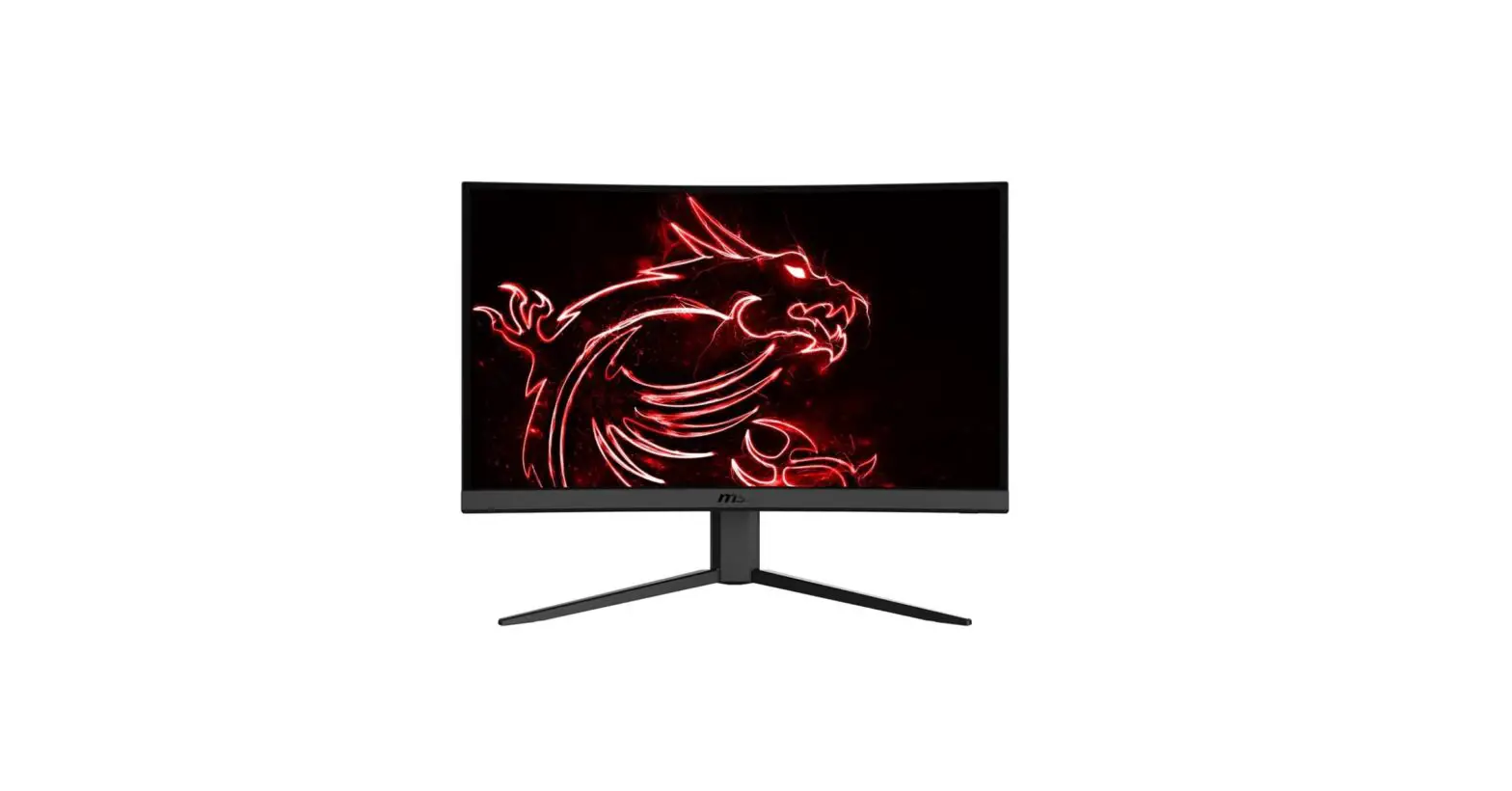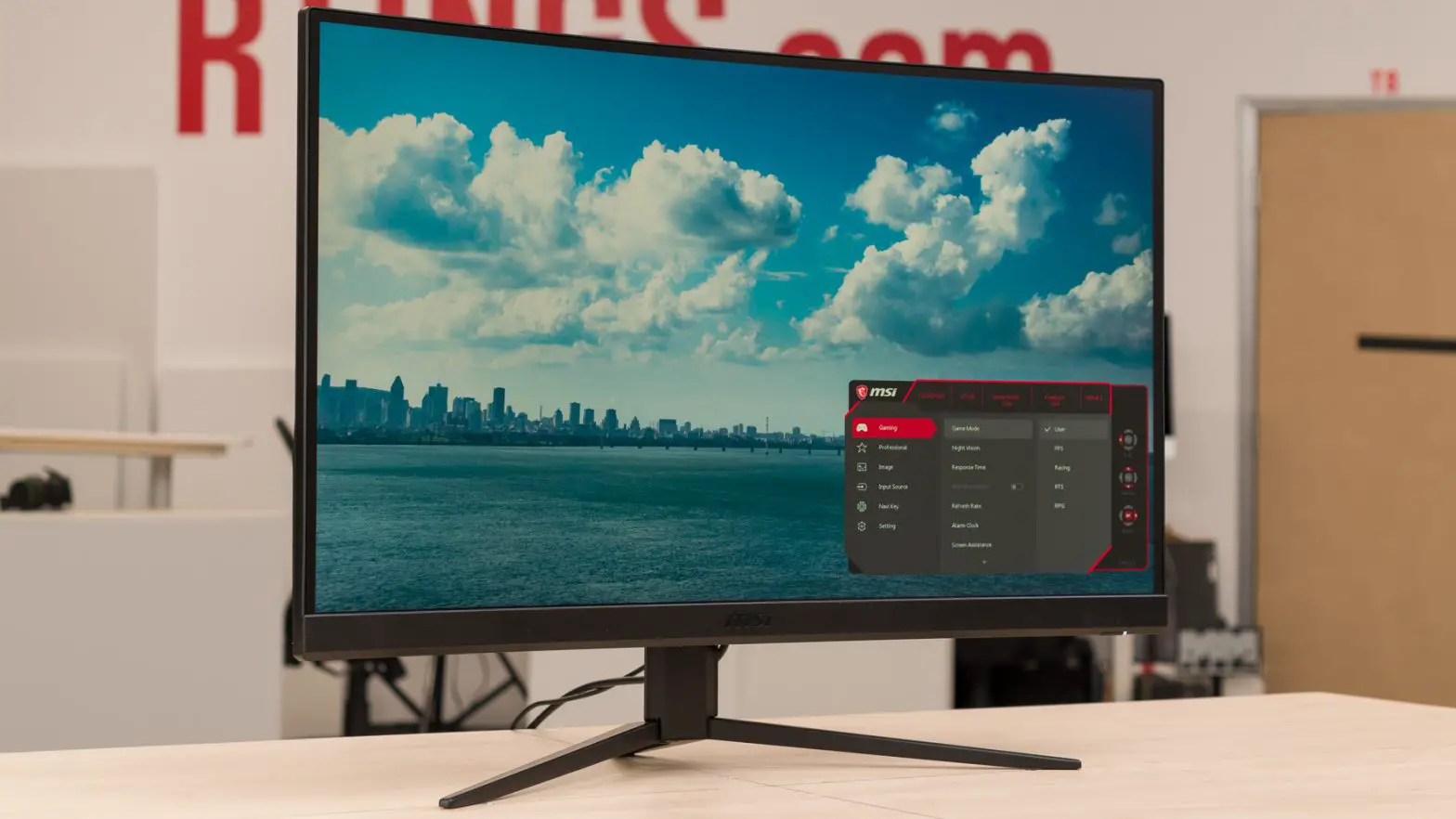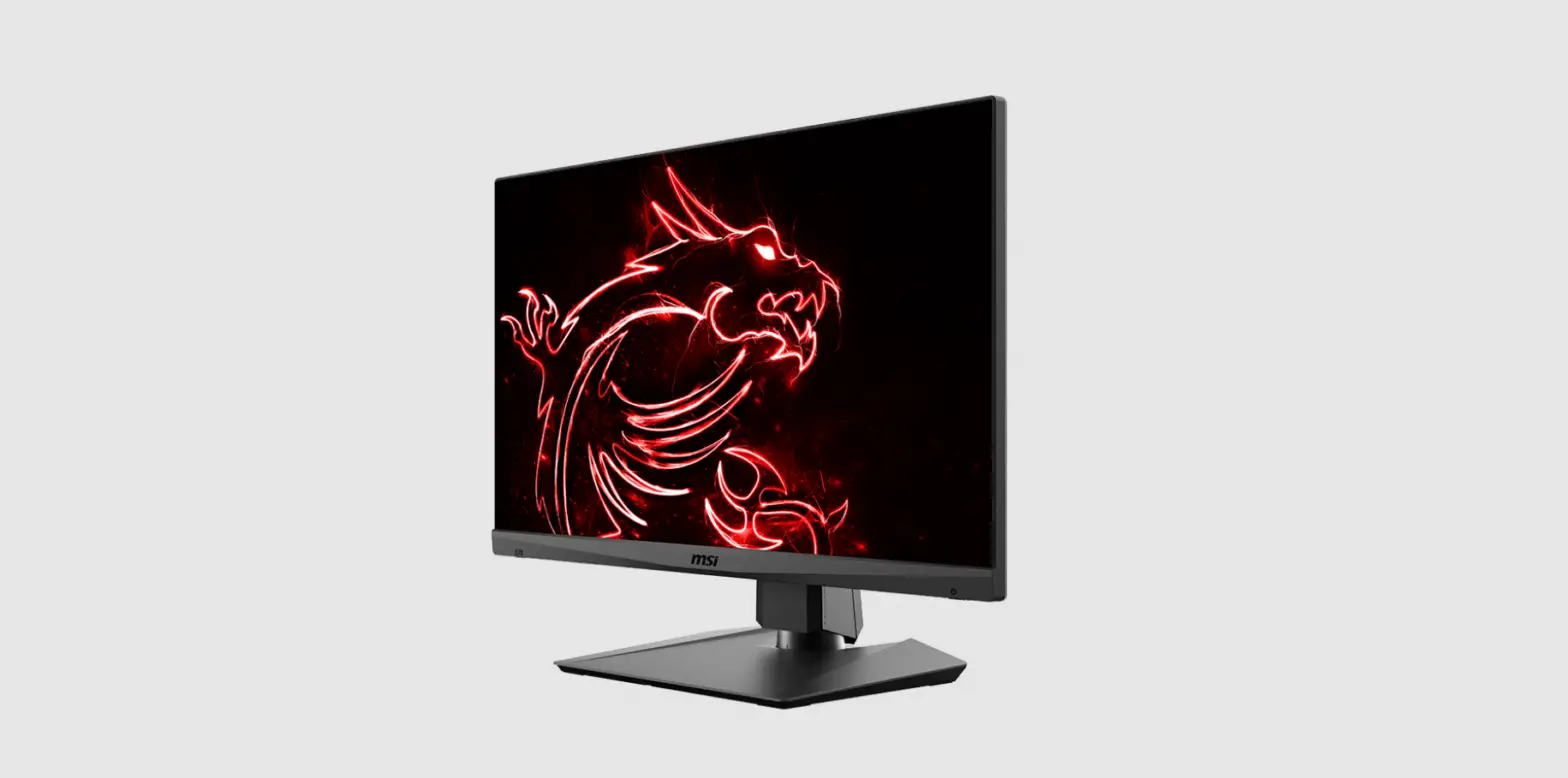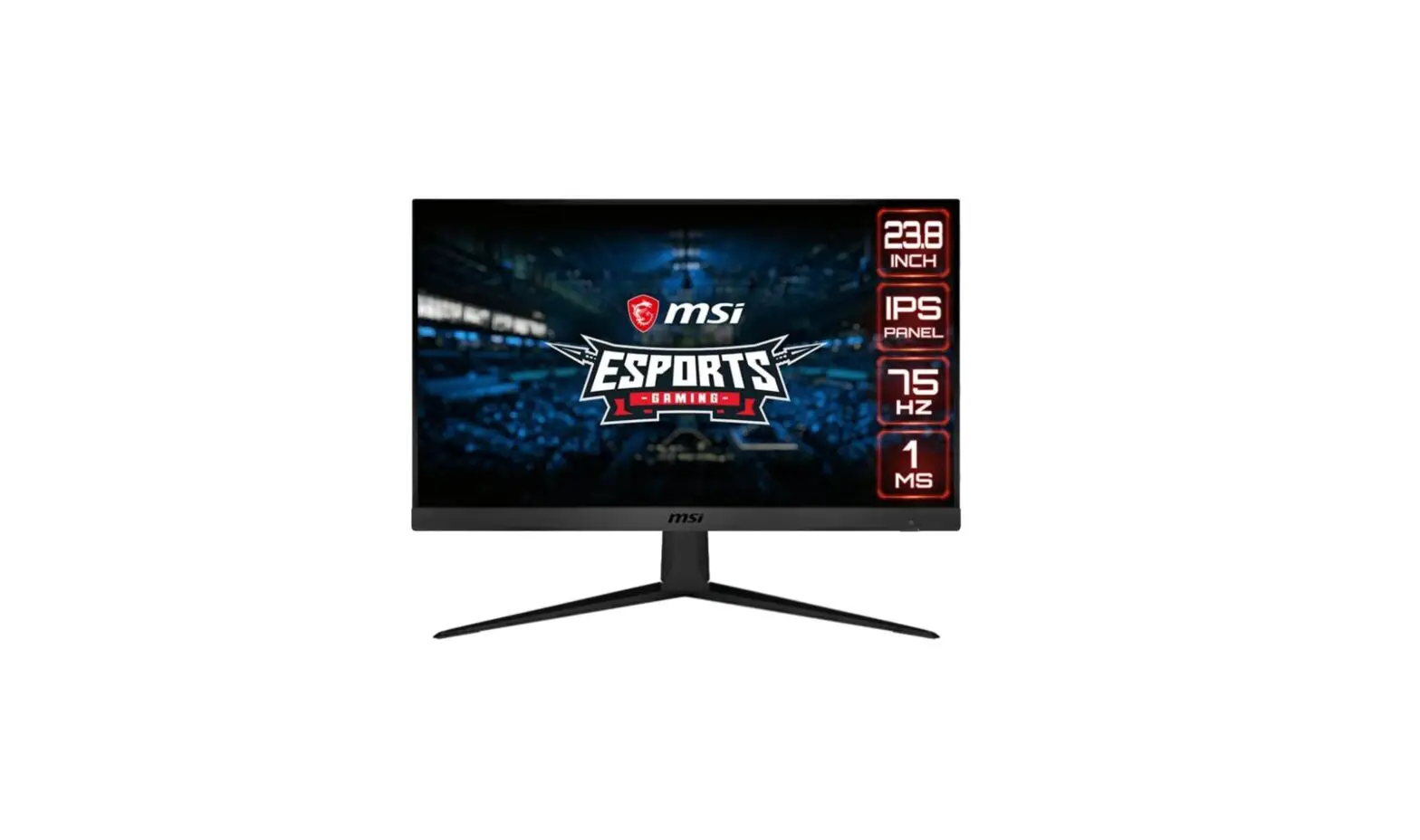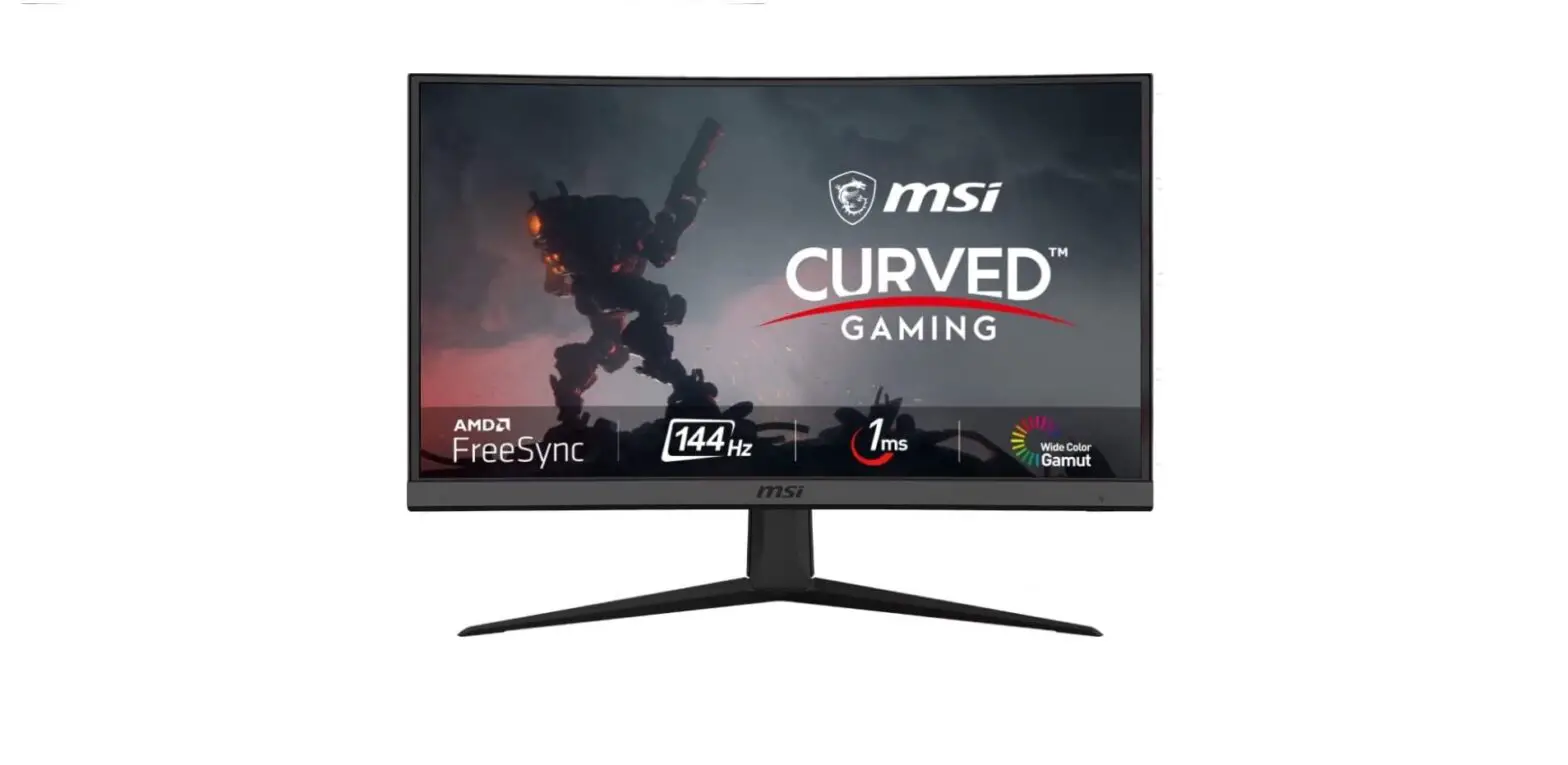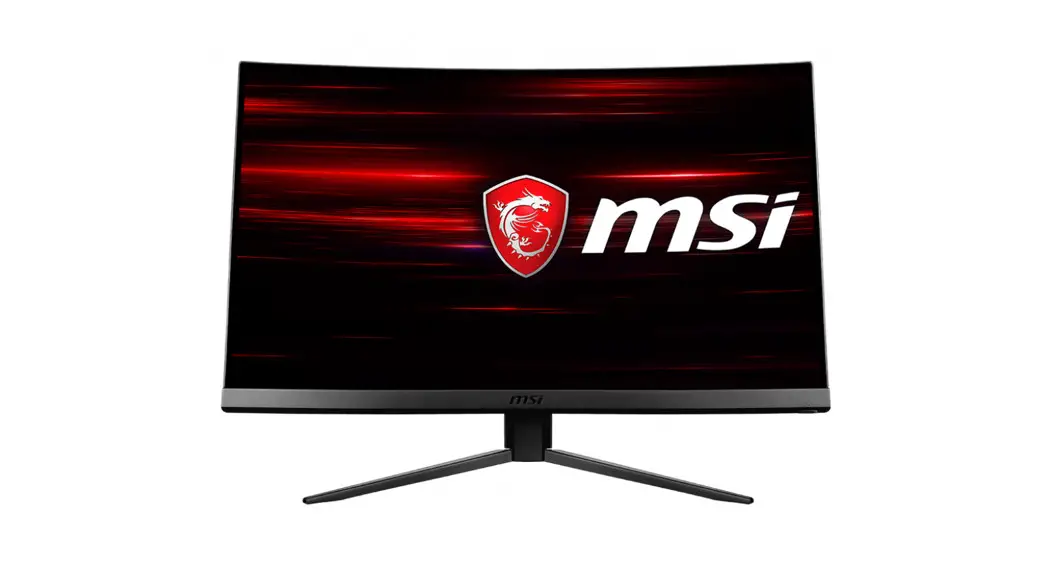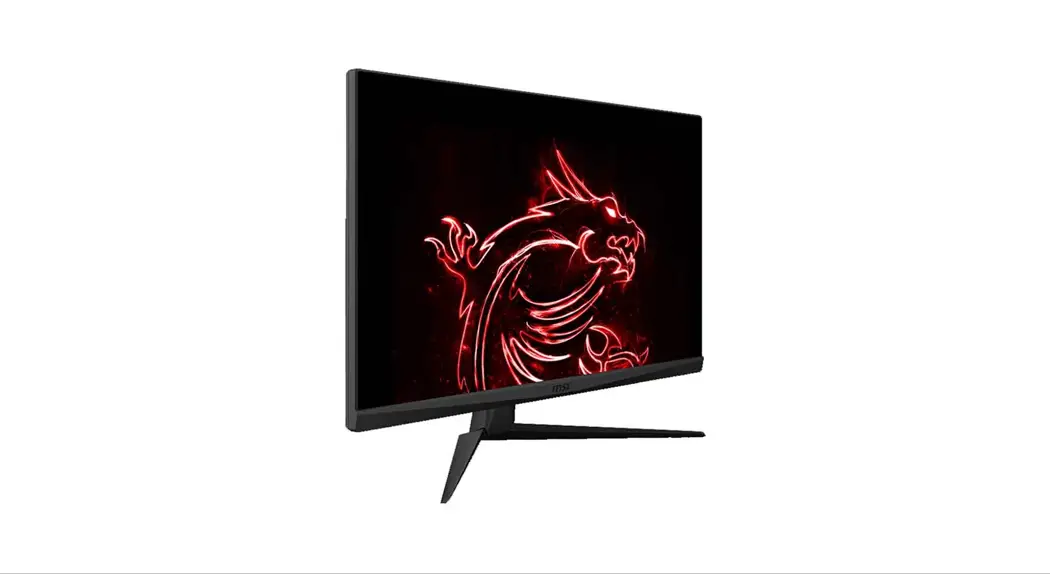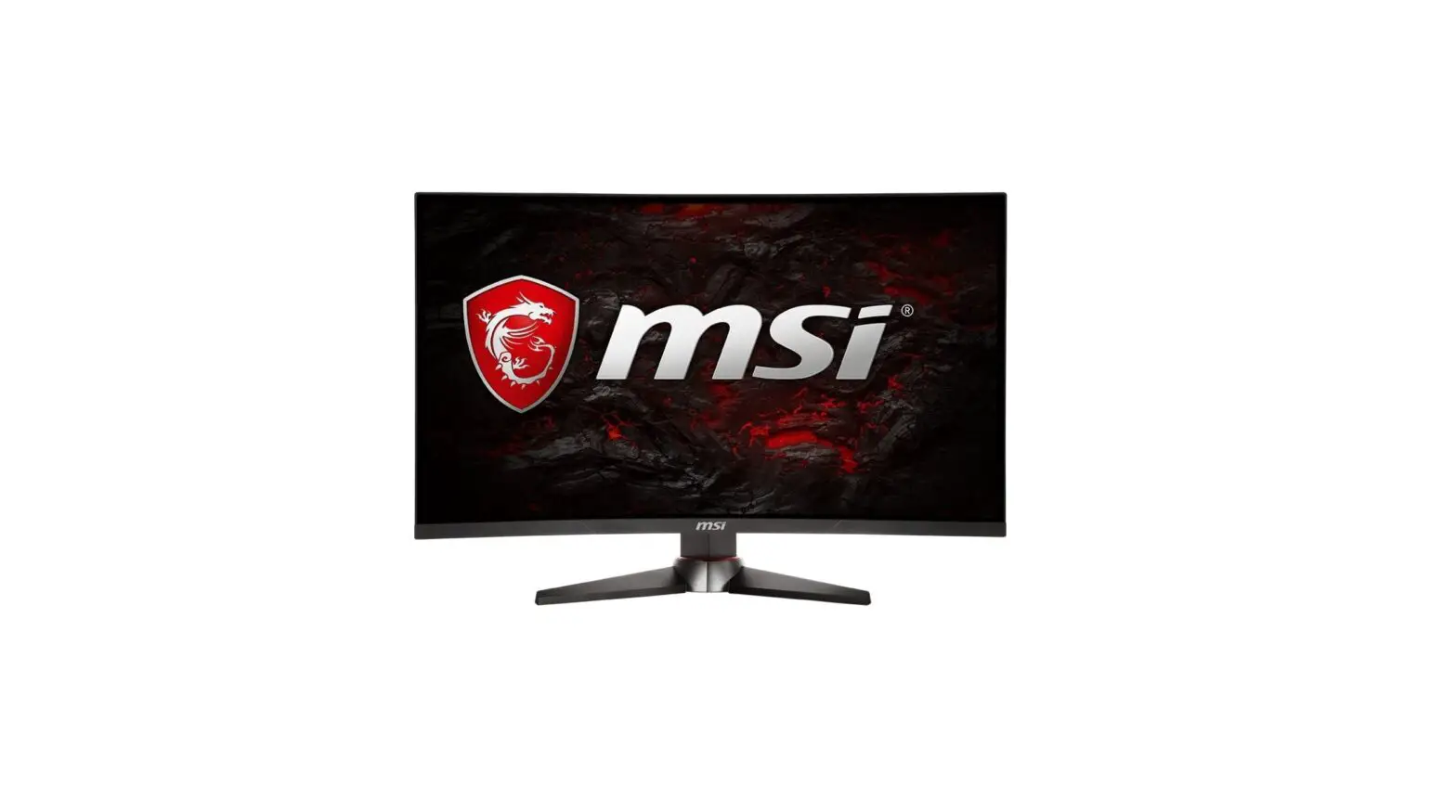
msi Optix MAG27CQ Gaming Monitor User Manual
Safety Prevention Measures
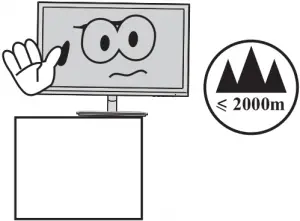
- Please always place this device on a stable surface; otherwise,
it may fall and be be damaged.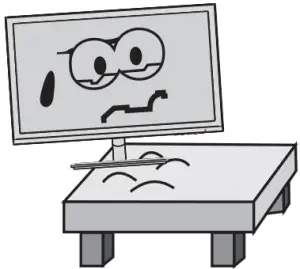
- The altitude and the tropical environment the adapter fits depend on which adapter is used for the device.
The rating plate on the back of the device with the above warning sign indicates that t h i s p r o d u c t i s applicable for the safe use of the region with a l t i t u d e o f 2,000m and below.
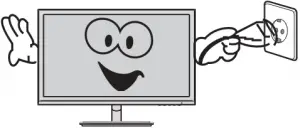
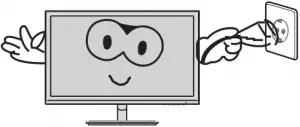
- Do not hold the plug w i t h w e t h a n d ; otherwise, electric shock may occur. Make sure the plug has a good touch because poor touch may cause fire.

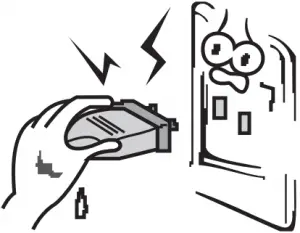
- Do not use a broken power plug nor keep a power cord near heat source; otherwise, electric shock or fire may occur.
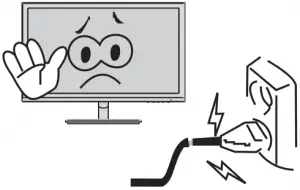
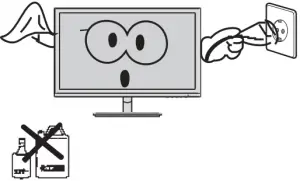
- When cleaning the device, be sure to remove the power plug, use a piece of soft cloth rather t h a n i n d u s t r i a l chemical to clean the device, be sure not to let water enter the device.

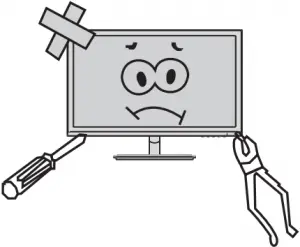
- Do not disassemble this device without permission. In case of failure, be sure to contact a professional servicing person to fix it.The unauthorized disassembly of this device may result in electric shock or fire.

- In case of rare smell or noise out of this device, be sure to immediately cut off the power supply and ask a professional servicing person to fix the problem.

- When this device is idle for long time, be sure to power it off;otherwise,electric shock or fire may occur.
Note:
The device with AC switch may use such AC switch as cut-off component.
The device without AC switch may use power plug or coupler as cut-off component.
In case of the normal use of the equipment, make sure the cut-off component can be accessed easily.
Installation Instructions
Accessories
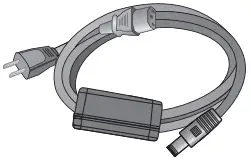
- Power adapter
- Signal cable

- User manual

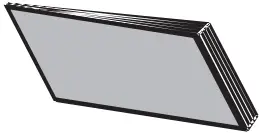
- Base/Stand

- Warranty card
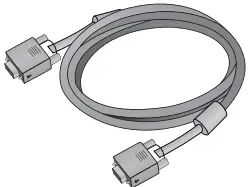
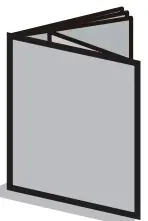
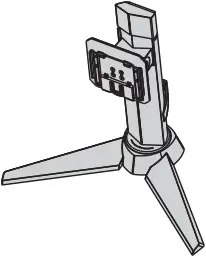
(The above pictures are for illustration only and the physical accessories shall govern.)
Adjustment of Rotation Angle
- The screen may be inclined 5° forward and 20°backward.

- The angle may be adjusted left and right within -30°-30°

- Vertical direction can be adjusted up and down within 65mm.
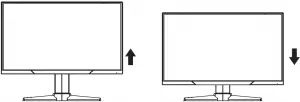
- When adjusting the angle of the display, be sure not to touch or press the screen area.

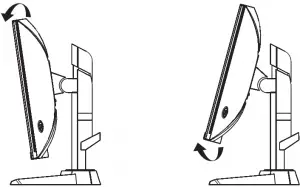
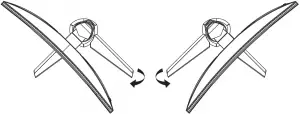
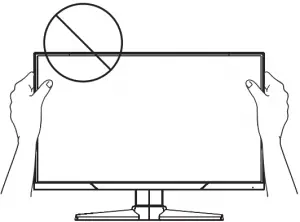
(The above pictures are for illustration only and the physical accessories shall govern.)
Project Assembly
See the assembly sketch on the cover of the packaging case.
Connect the Monitor to PC

Warning:
Before connecting the LCD monitor to the PC, please power down the PC and the monitor.
Power adapter
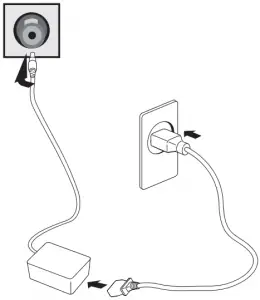
- Warning: Always use the power cord of standard configuration.
- DVI Port :
Connect the DVI cable into the DVI IN port in the back of the monitor (this needs the support of the monitor).
- HDMI Port :
Connect the HDMI cable into the HDMI IN port into the back of the monitor (this needs the support of the monitor).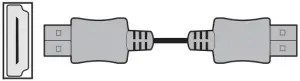
- DP Port :
Connect the DP cable into the DP IN port of
the monitor (this needs the support of the monitor). - Audio Interface
Connect the AUDIO cable to the AUDIO out port in the back of the display (this needs the support of the monitor).
- Power Plug
Connect the power cord of the monitor into the POWER port in the back of the monitor.
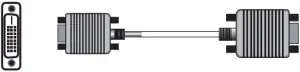
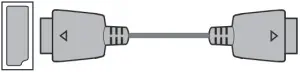

(The above pictures are for illustration only and the physical accessories shall govern.)
User Setup
Schematic Diagram of Keys
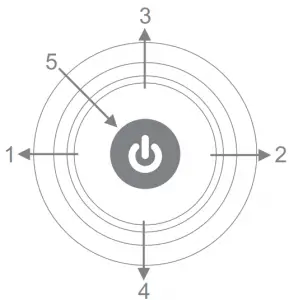
Description of Keys’ Functions
| 1. | 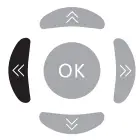 | MENU key: Press this key to pop up the main menu/back to the previous menu (in case of main menu, exit). |
| 2. | 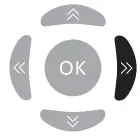 | When a menu is open, press this key as the RIGHT key to enter the submenu; When no menu is open, press this key to switch to the desired signal input source. |
| 3. | 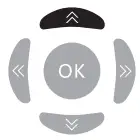 | When a menu is open, press this key as the UP key to increase the progress bar value; When no menu is open, press this key to switch to the desired mode. |
| 4. |
| When a menu is open, press this key as the DOWN key to decrease the progress bar value; When no menu is open, press this key to switch to the desired sight bead (with sight bead switch activated). |
| 5. | 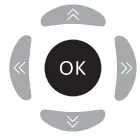 | POWER/MENU Key: Press this key shortly to pop up Main Menu/Confirm; hold this key to power off. |
| 6. | LED Indicator | Blue: Normal power-on state; Blinking blue: Power saver state. |
Note: The physical keys of the specific model shall govern.
| First level menu item | Second level menu item | Third level menu item | Instructions | |
|
Game
|
Mode | Standard | Normal use mode | |
| Movie | Application mode of seeing film | |||
| FPS | First person shooting game mode | |||
| RTS | Strategic game mode | |||
| Eye Saver | Eye-protecting blue light filtered application mode | |||
| DCR | Off | Inactivate dynamic contrast | ||
| On | Activate dynamic contrast | |||
| FreeSync | Off | Inactivate FreeSync function | ||
| On | Activate FreeSync function, only AMD display card supported (the support from the display is needed) | |||
| Aspect ratio | Auto | Automatic image scale adjustment | ||
| 16:9 | Adjust image to be wind screen | |||
| 4:3 | Adjust image to be 4:3 | |||
|
Crosshair | None | Inactivate sight bead function | ||
 | Switch to the red round sight bead | |||
 | Switch to the green round sight bead | |||
 | Switch to the red cross sight bead | |||
 | Switch to the green cross sight bead | |||
| Response time | Off | OD off mode (the support from the display is needed) | ||
| Normal | OD general mode, reducing motion vague (the support from the display is needed) | |||
| Extreme | OD top speed mode, reducing motion vague (the support from the display is needed) | |||
|
| 50 | |||
| 100 | ||||
| Brightness | Adjust display bright | |||
| 0 | ||||
| 50 | ||||
| 100 | ||||
| Contrast | Adjust display contrast | |||
| Image | 0 | |||
| Warm | Set as cold color temperature | |||
| Cool | Set as warm color temperature | |||
| Color Temp. | User | R G B 50 50 50 100 100 100 | Slightly adjust red color temperature | |
| Slightly adjust green color temperature | ||||
| 0 0 0 | Slightly adjust blue color temperature | |||
| Gamma | 1.8 | Adjust color tone brightness grey 1.8 | ||
| 2.2 | Adjust color tone brightness grey 2.2 | |||
| Input | DVI | DVI (digital) signal input | ||
| HDMI | HDMI (digital) signal input | |||
| DisplayPort | DisplayPort (digital) signal input | |||
| Setup
| Language | 繁中 | 繁體中文 | |
| English | English | |||
| French | French | |||
| German | German | |||
| Italian | Italian | |||
| Spanish | Spanish | |||
| Korean | Korean | |||
| Japanse | Japanse | |||
| Russian | Russian | |||
| Portuguese | Portuguese | |||
| Power Off | Off | Inactivate the timed power-off function | ||
| On | In no-signal state, automatically power off after 1min standby | |||
| LED | Off | LED off | ||
| On | LED on | |||
| Reset | Off | Exit from this function | ||
| On | Restore to factory settings | |||
FAQ
| Faults occurring | Possible solutions |
| The power indicator light is not on |
|
| Impossible plug-and-play |
|
| Dimming picture |
|
| Flickering picture or picture with ripples |
|
| The power indicator light is on (flickering), but the monitor has no pictures. |
|
| Color shortage (red, green and blue) |
|
| Picture with color difference (white looks not white) |
|
| Please confirm the default values of the output dynamic range and the pixel format in the graphics Settings is “all”. when the brightness of the screen is higher than usual. | |
Product Specifications
| Diagonal dimensions | Picture aspect ratio | Picture dimensions (mm) | Dot distance (mm) | Optimal resolution |
| 68.47cm (27″QHD) | 16:9 | 596.7*335.6 | 0.2331*0.2331 | 2560*1440 |
| Ambient temperature | Storage temperature | -20℃ to 60℃ | ||
| Working temperature | 0℃ to 40℃ | |||
| Humidity | RH for operation | 20% to 80% | ||
Remark: When the resolution are 2560*1440@60Hz/3440*1440@60Hz/
1920*1080@144Hz/2560*1440@144Hz/3840*2160@30Hz connection via DVI port, pls choose 24+1 pin double – channel DVI cables.
Note: The actual application of the above parameters shall be subject to the specific model.
Table of Product Preset Modes
In DVI connection mode :
| Display dimensions | Aspect ratio | Preset resolution/Refresh rate | ||||||||
| 27″QHD | 16:9 | 720×400 (70Hz) | 640×480 (60/72/75Hz) | 800×600 ( 56/60/72 /75Hz) | 1024×768 (60/70/75 /120Hz) | 1280×1024 (75/120Hz) | 1440×900 (60/120Hz) | 1680×1050 (60/120Hz) | 1920×1080 (60/120Hz) | 2560×1440 (60Hz) |
In DP connection mode :
| Display dimensions | Aspect ratio | Preset resolution/Refresh rate | ||||||||
| 27″QHD | 16:9 | 720×400 (70Hz) | 640×480 (60/72/75Hz) | 800×600 ( 56/60/72 /75Hz) | 1024×768 (60/70/75 /120Hz) | 1280×1024 (60/75/120Hz) | 1440×900 (60/120Hz) | 1680×1050 (60/120Hz) | 1920×1080 (60/120Hz) | 2560×1440 (60/120/144Hz) |
In HDMI connection mode :
| Display dimensions | Aspect ratio | Preset resolution/Refresh rate | ||||||||
| 27″QHD | 16:9 | 720×400 (70Hz) | 640×480 (60/72/75Hz) | 800×600 ( 56/60/72 /75Hz) | 1024×768 (60/70/75 /120Hz) | 1280×1024 (60/75/120Hz) | 1440×900 (60/120Hz) | 1680×1050 (60/120Hz) | 1920×1080 (60/120Hz) | 2560×1440 (60/120Hz) |
Note: The actual application of the above parameters shall be subject to the specific model.