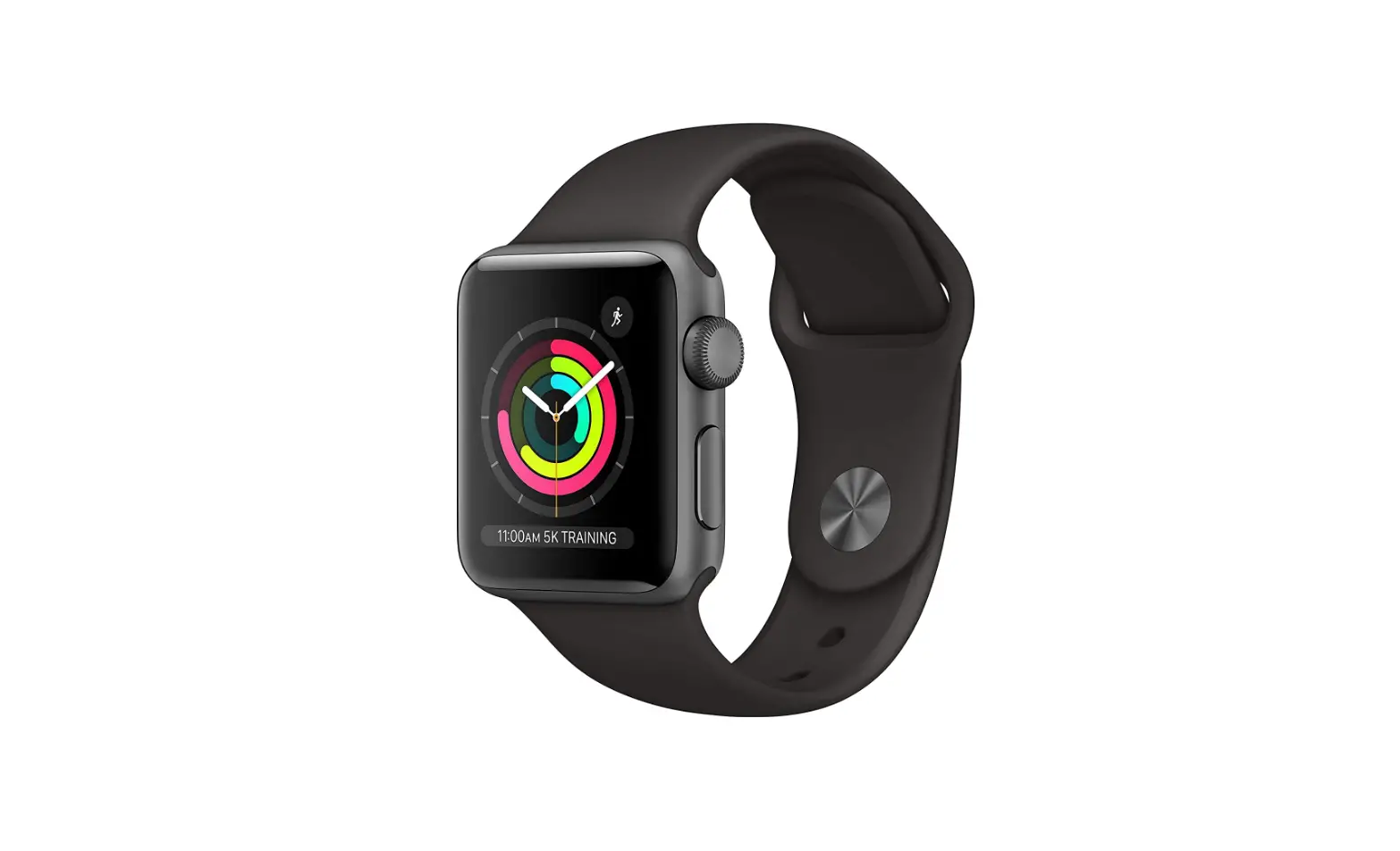
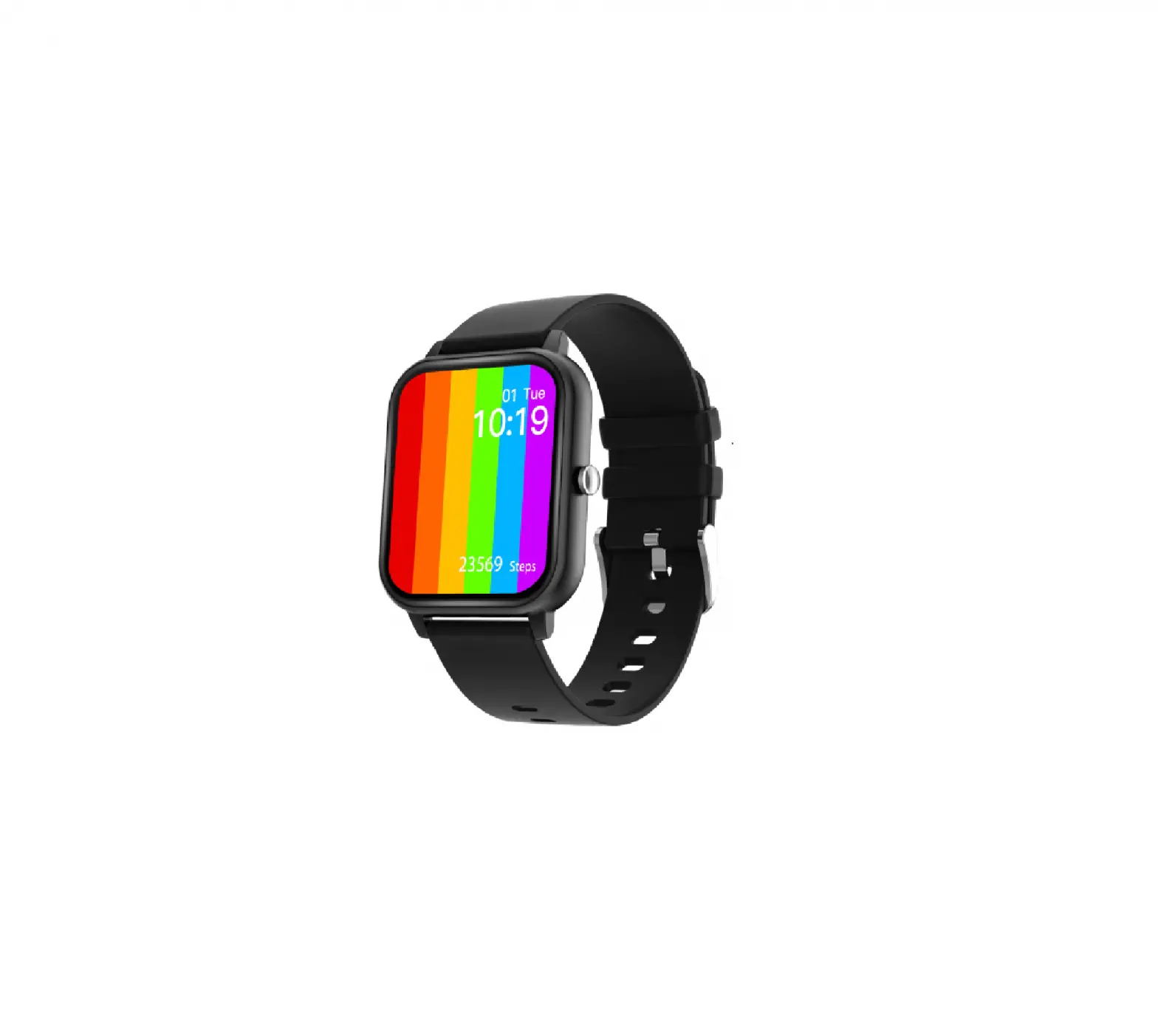
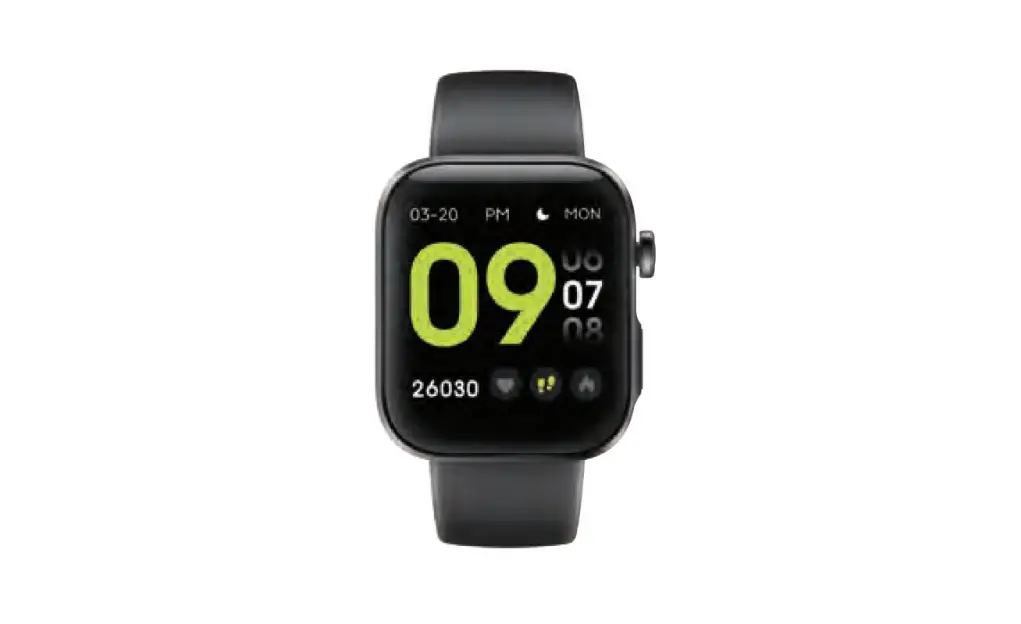
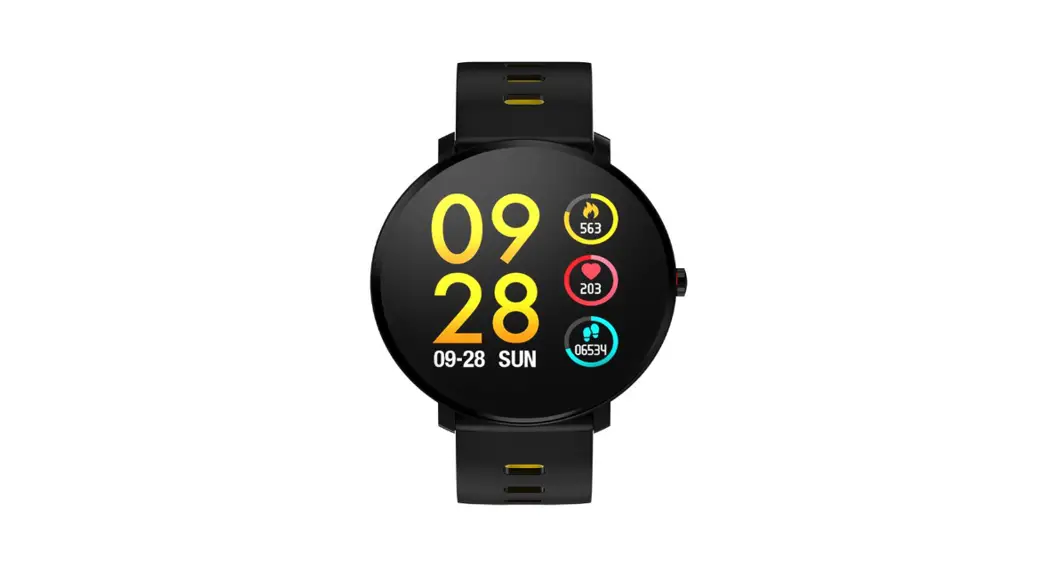
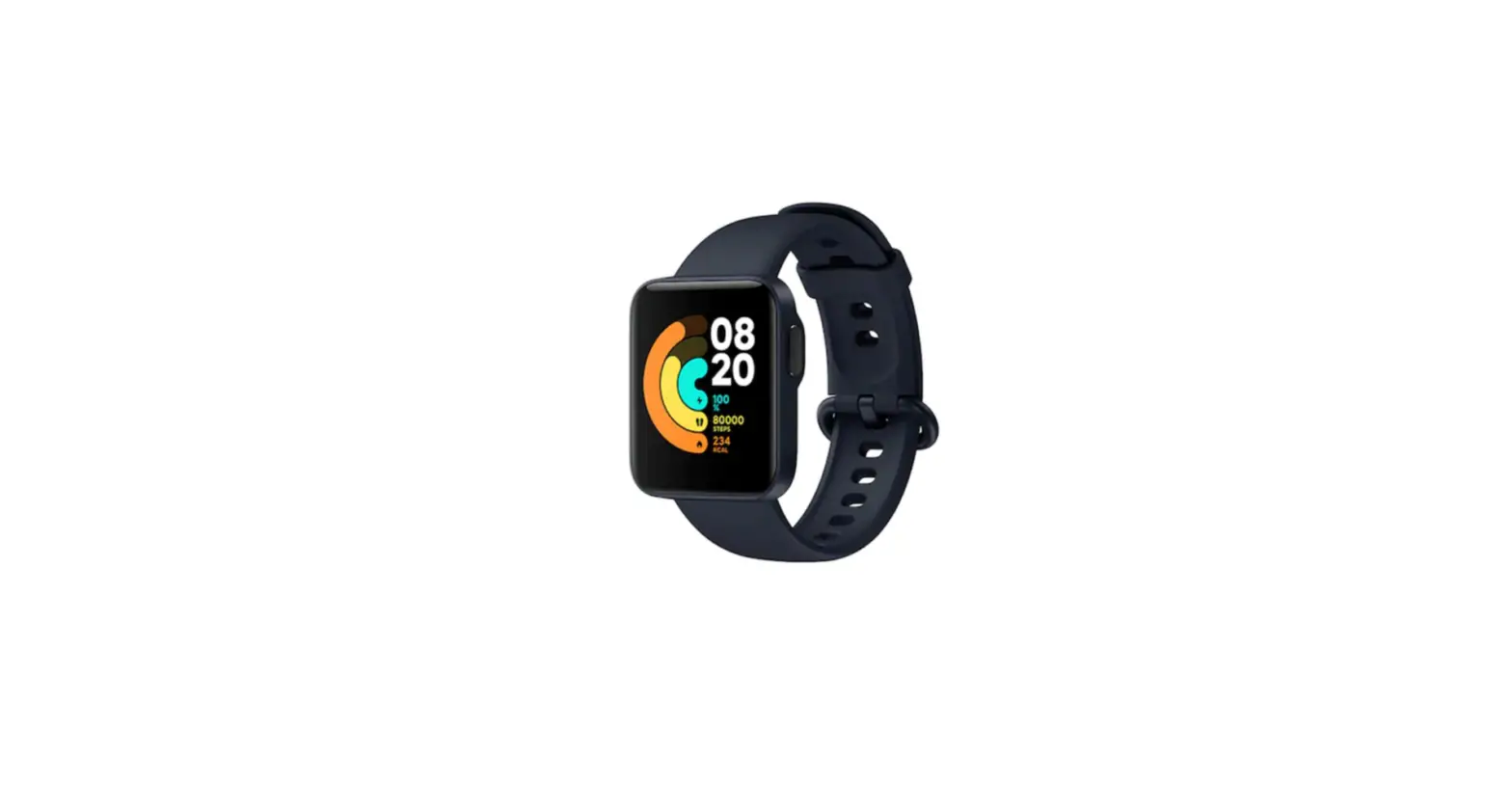
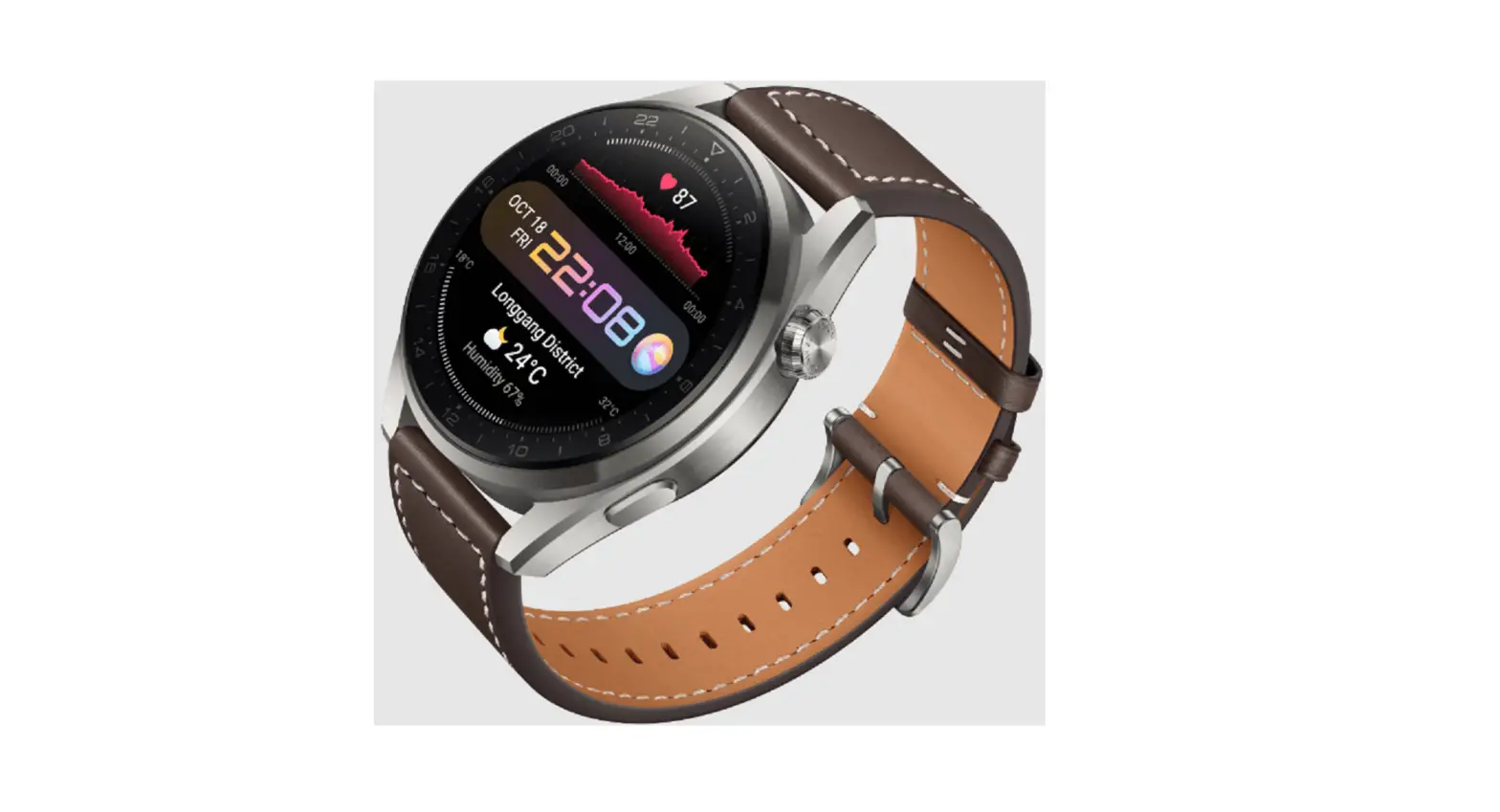
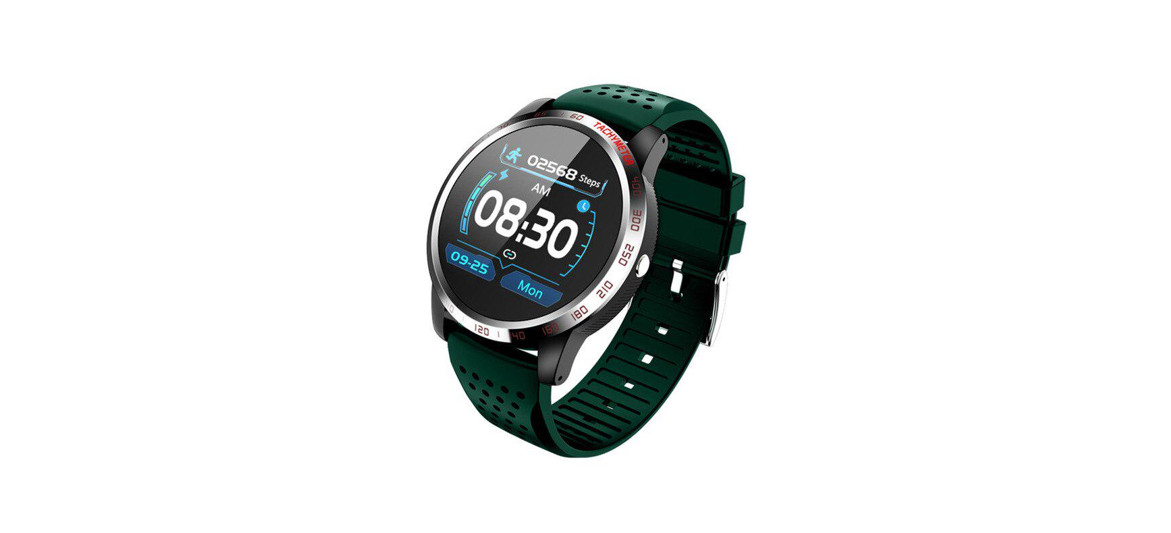
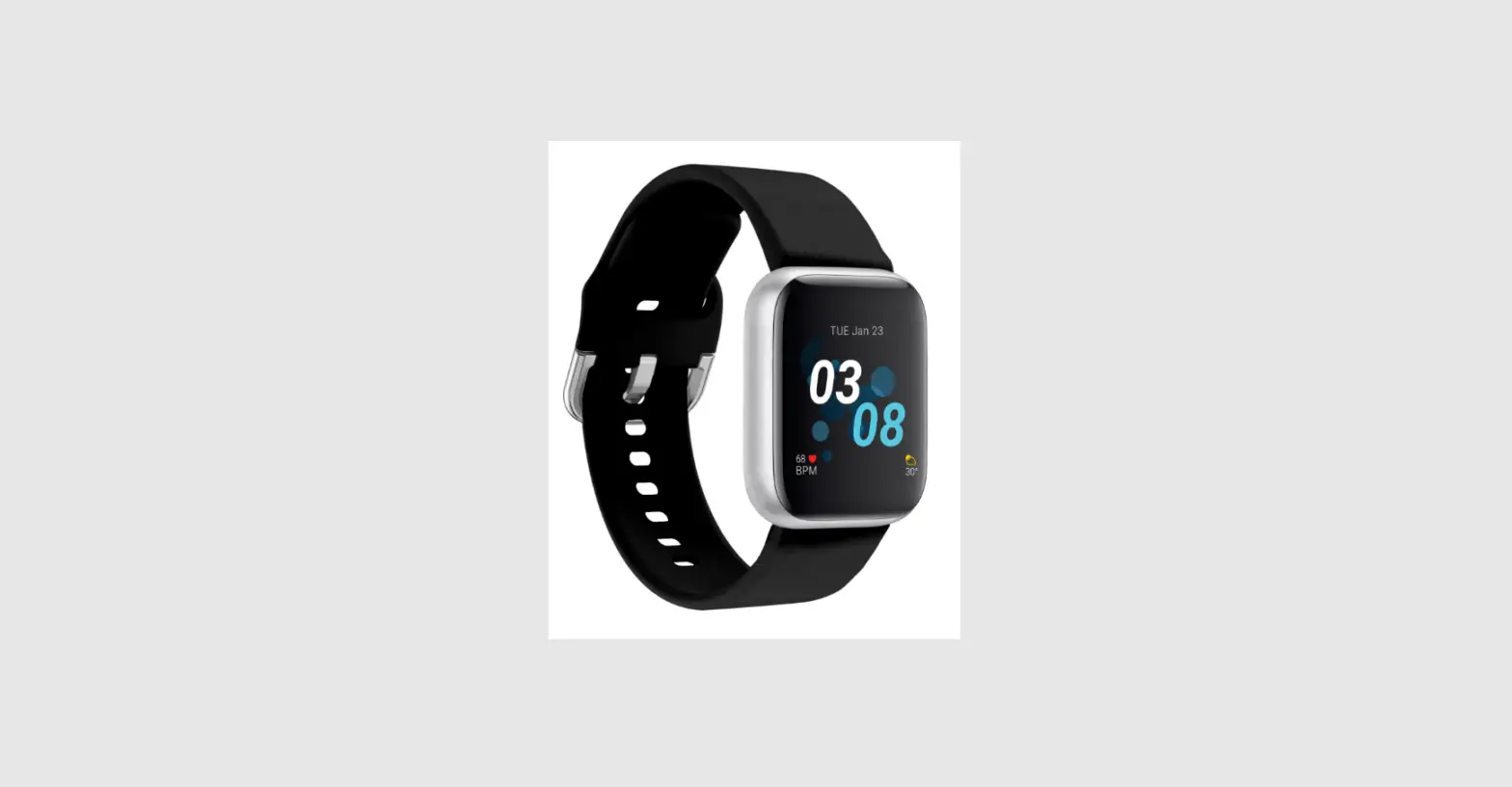
T-WATCH-V3 Programmable Smart Watch
T-WATCH-V3 User Guide
About This Guide
The T-WATCH-V3 User Guide is designed to help users set up the
software development environment for developing applications using
hardware based on the T-Watch 2020. It provides a simple example of
how to use Arduino, including the menu-based configuration wizard,
compiling the Arduino, and firmware download to the ESP32
module.
Release Notes
Date: 2023.04
Version: V1.0
Release Notes: First release.
Table of Contents
- Introduction
- 1.1 T-Watch 2020
- 1.2 Arduino
- 1.3 Preparation
- Get Started
- Configure
- Connect
- Test Demo
- Upload Sketch
- 6.1 Build and Flash
- 6.2 Monitor
- SSC Command Reference
- 7.1 op
- 7.2 sta
- 7.3 ap
- 7.4 mac
- 7.5 dhcp
- 7.6 ip
- 7.7 reboot
Product Usage Instructions
To use the T-WATCH-V3, follow the instructions provided in the
user guide. The guide provides a step-by-step process to set up the
software development environment, configure, connect, test demo,
and upload sketches to the device. Here are some key steps:
- Introduction: Read through the introduction
section to understand what the T-WATCH-V3 is and what it can
do. - Get Started: Follow the instructions in this
section to get started with your T-WATCH-V3. - Configure: This section provides instructions
on how to configure your T-WATCH-V3. - Connect: Follow the instructions in this
section to connect your T-WATCH-V3 to other devices. - Test Demo: Use the test demo section to test
the functionality of your T-WATCH-V3. - Upload Sketch: This section provides
instructions on how to upload sketches to your T-WATCH-V3.
- Build and Flash: Follow the instructions in
this subsection to build and flash your sketch to the device. - Monitor: This subsection provides instructions
on how to monitor your sketch.
reference for SSC commands that can be used with your
T-WATCH-V3.
By following these instructions, you should be able to set up
and use your T-WATCH-V3 with ease.
T-WATCH-V3
User Guide
Version 1.0 Copyright © 2023
About This Guide
This document is intended to help users set up the basic software development
environment for developing applications using hardware based on the T-Watch 2020. Through a simple example, this document illustrates how to use Arduino, including the menu based configuration wizard, compiling the Arduino and firmware download to the ESP32 module.
Release Notes
Date 2023.04
Version V1.0
Release notes First release.
Table of Contents
1. Introduction……………………………………………………………………………………………………………..1
1.1. T-Watch 2020 …………………………………………………………………………………………………………….1
1.2. Arduino …………………………………………………………………………………………………………………….1
1.3. Preparation …………………………………………………………………………………………………………………1
2. Get Started ……………………………………………………………………………………………………………..2
2.1. Download the Arduino Software …………………………………………………………………………………..2 2.1.1. Install Prerequisites………………………………………………………………………………………….2 2.1.2. Toolchain Setup ………………………………………………………………………………………………2 2.2. Install the Arduino Software …………………………………………………………………………………………3 2.3. Set up Path ………………………………………………………………………………………………………………..3
3. Configure ………………………………………………………………………………………………………………..4
4. Connect ………………………………………………………………………………………………………………….5
5. Test Demo ……………………………………………………………………………………………………………6
6. Upload Sketch ………………………………………………………………………………………………………..7
6.1. Build and Flash …………………………………………………………………………………………………………..7
6.2. Monitor………………………………………………………………………………………………………………………8
7. SSC Command Reference ………………………………………………………………………………………..9
7.1. op ……………………………………………………………………………………………………………………………..9
7.2. sta …………………………………………………………………………………………………………………………….9
7.3. ap ……………………………………………………………………………………………………………………………10
7.4. mac …………………………………………………………………………………………………………………………10
7.5. dhcp ………………………………………………………………………………………………………………………..11
7.6. ip …………………………………………………………………………………………………………………………….11
7.7. reboot………………………………………………………………………………………………………………………12
7.8. ram ………………………………………………………………………………………………………………………….12
“QQFOEJY/PUJDFT13 * ‘FEFSBM$PNNVOJDBUJPOT$PNNJTTJPO ‘$$
%FDMBSBUJPOPG$POGPSNJUZ13
1. Introduction
!
1.
Introduction
1.1. T-Watch 2020 V3
T-WATCH-V3 is a development board. It can work independently.
It consists of ESP32 MCU supporting Wi-Fi + BT+ BLE communication protocol and motherboard PCB. And this board has a 1.54-inch LCD screen. For applications ranging from low-power sensor networks to the most demanding tasks. At the core of this module is the ESP32-D0WD chip. ESP32 integrates Wi-Fi (2.4 GHz band) and Bluetooth 4.2 solutions on a single chip, along with dual high performance cores and many other versatile peripherals. Powered by 40 nm technology, ESP32 provides a robust, highly integrated platform to meet the continuous demands for efficient power usage, compact design, security.
Xinyuan provides the basic hardware and software resources that empowers application developers to build their ideas around the ESP32 series hardware. The software development framework provided by Xinyuan is intended for rapidly developing Internetof-Things (IoT) applications, with Wi-Fi, Bluetooth, flexible power management and other advanced system features.
The RF frequency range is 2.402 GHz to 2.480 GHz.
1.2. Arduino
1.3.
A set of cross-platform applications written in Java. The Arduino Software IDE is derived from the Processing programming language and the integrated development environment of the Wiring program. Users can develop applications in Windows/Linux/ MacOS based on Arduino. It is recommended to use Windows 10. Windows OS has been used as an example in this document for illustration purposes.
Preparation
To develop applications for ESP32 you need:
· PC loaded with either Windows, Linux or Mac operating system · Toolchain to build the Application for ESP32 · Arduino that essentially contains API for ESP32 and scripts to operate the Toolchain
· CH9102 serial port driver · The ESP32 board itself and a USB cable to connect it to the PC
Lilygo
!1/12
2022.03
2. Get Started
!
2.
Get Started
2.1. Download the Arduino Software
The quickest how to install the Arduino Software (IDE) on Windows machines
2.1.1. Quick Start Guide The website provides a quick start tutorial · Windows:
https://www.arduino.cc/en/Guide/Windows
· Linux:
https://www.arduino.cc/en/Guide/Linux
· Mac OS X:
https://www.arduino.cc/en/Guide/MacOSX
2.1.2. Installation steps for Windows platform Arduino
Xinyuan
Enter the download interface, select Windows installer to install directly
!2/12
2022.03
!2.2. Install the Arduino Software
2. Get Started
Xinyuan
Wait for installation !3/12
2022.03
!
3.
3.1. Download Git
Download the installation package Git.exe
3. Start a Project
Configure
3.2. Pre-build configuration
Click Arduino icon, then right click and select “Open folder where “ Select hardware -> Mouse ** Right click ** -> Click Git Bash Here
3.3. Cloning a remote repository
$ mkdir espressif $ cd espressif $ git clone –recursive https://github.com/espressif/arduino-esp32.git esp32
Xinyuan
!4/12
2022.03
!
4.
4. Connect
Connect
You are almost there. To be able to proceed further, connect ESP32 board to PC, check under what serial port the board is visible and verify if serial communication works.
Xinyuan
!5/12
2022.03
!
5.
Select File>>Example>>WiFi>>WiFiScan
4. Configure
Test Demo
!
Xinyuan
!6/12
2022.03
!
6.
6.1. Select Board
Tools<<Board<<ESP32 Dev Module
5. Build and Flash
Upload Sketch
6.2. Upload
Sketch << Upload
Xinyuan
!7/12
2022.03
!
6.2.
Serial Monitor
Tools << Serial Monitor
5. Build and Flash
Xinyuan
!8/12
2022.03
6. SSC Command Reference
!
7.
SSC Command Reference
Here lists some common Wi-Fi commands for you to test the module.
7.1. op
Description op commands are used to set and query the Wi-Fi mode of the system. Example
op -Q
op -S -o wmode
Parameter
Parameter -Q -S
wmode
Table 6-1. op Command Parameter
Description Query Wi-Fi mode.
Set Wi-Fi mode. There are 3 Wi-Fi modes:
· mode = 1: STA mode · mode = 2: AP mode · mode = 3: STA+AP mode
7.2. sta
Description sta commands are used to scan the STA network interface, connect or disconnect AP, and query the connecting status of STA network interface. Example
sta -S [-s ssid] [-b bssid] [-n channel] [-h]
sta -Q
sta -C [-s ssid] [-p password]
sta -D
Parameter
Parameter -S scan
Table 6-2. sta Command Parameter Description Scan Access Points.
Xinyuan
!9/12
2022.03
!
Parameter -s ssid -b bssid -n channel -h -Q -D
6. SSC Command Reference
Description Scan or connect Access Points with the ssid. Scan the Access Points with the bssid. Scan the channel. Show scan results with hidden ssid Access Points. Show STA connect stutus. Disconnected with current Access Points.
7.3. ap
Description ap commands are used to set the parameter of AP network interface. Example
ap -S [-s ssid] [-p password] [-t encrypt] [-n channel] [-h] [-m max_sta]
ap Q ap L
Parameter
Parameter -S -s ssid -p password -t encrypt -h -m max_sta -Q -L
Table 6-3. ap Command Parameter
Description Set AP mode. Set AP ssid. Set AP password. Set AP encrypt mode. Hide ssid. Set AP max connections. Show AP parameters. Show MAC Address and IP Address of the connected station.
7.4. mac
Description mac commands are used to query the MAC address of the network interface. Example
mac -Q [-o mode]
Xinyuan
!10/12
2022.03
! Parameter
Parameter -Q -o mode
6. SSC Command Reference
Table 6-4. mac Command Parameter Description Show MAC address.
· mode = 1: MAC address in STA mode. · mode = 2: MAC address in AP mode.
7.5. dhcp
Description dhcp commands are used to enable or disable dhcp server/client. Example
dchp -S [-o mode]
dhcp -E [-o mode]
dhcp -Q [-o mode]
Parameter
Parameter -S -E -Q
-o mode
Table 6-5. dhcp Command Parameter
Description
Start DHCP (Client/Server). End DHCP (Client/Server). show DHCP status.
· mode = 1 : DHCP client of STA interface. · mode = 2 : DHCP server of AP interface. · mode = 3 : both.
7.6. ip
Description ip command are used to set and query the IP address of the network interface. Example
ip -Q [-o mode]
ip -S [-i ip] [-o mode] [-m mask] [-g gateway]
Xinyuan
!11/12
2022.03
! Parameter
Parameter -Q
-o mode
-S -i ip -m mask -g gateway
6. SSC Command Reference
Table 6-6. ip Command Parameter Description Show IP address.
· mode = 1 : IP address of interface STA. · mode = 2 : IP address of interface AP. · mode = 3 : both
Set IP address. IP address. Subnet address mask. Default gateway.
7.7. reboot
Description reboot command is used to reboot the board. Example
reboot
7.8. ram
ram command is used to query the size of the remaining heap in the system. Example
ram
Xinyuan
!12/12
2022.03
Any Changes or modifications not expressly approved by the party responsible for compliance could void the user’s authority to operate the equipment.
This device complies with part 15 of the FCC Rules. Operation is subject to the following two conditions: (1) This device may not cause harmful interference, and (2) this device must accept any interference received, including interference that may cause undesired operation.
Note: This equipment has been tested and found to comply with the limits for a Class B digital device, pursuant to part 15 of the FCC Rules. These limits are designed to provide reasonable protection against harmful interference in a residential installation. This equipment generates, uses and can radiate radio frequency energy and, if not installed and used in accordance with the instructions, may cause harmful interference to radio communications. However, there is no guarantee that interference will not occur in a particular installation. If this equipment does cause harmful interference to radio or television reception, which can be determined by turning the equipment off and on, the user is encouraged to try to correct the interference by one or more of the following measures:
–Reorient or relocate the receiving antenna. –Increase the separation between the equipment and receiver. –Connect the equipment into an outlet on a circuit different from that to which the receiver is connected. –Consult the dealer or an experienced radio/TV technician for help.
This device complies with FCC radiation exposure requirement set forth for an uncontrolled environment.
 GitHub - espressif/arduino-esp32: Arduino core for the ESP32
 Arduino IDE 1 Installation (Linux) | Arduino Documentation