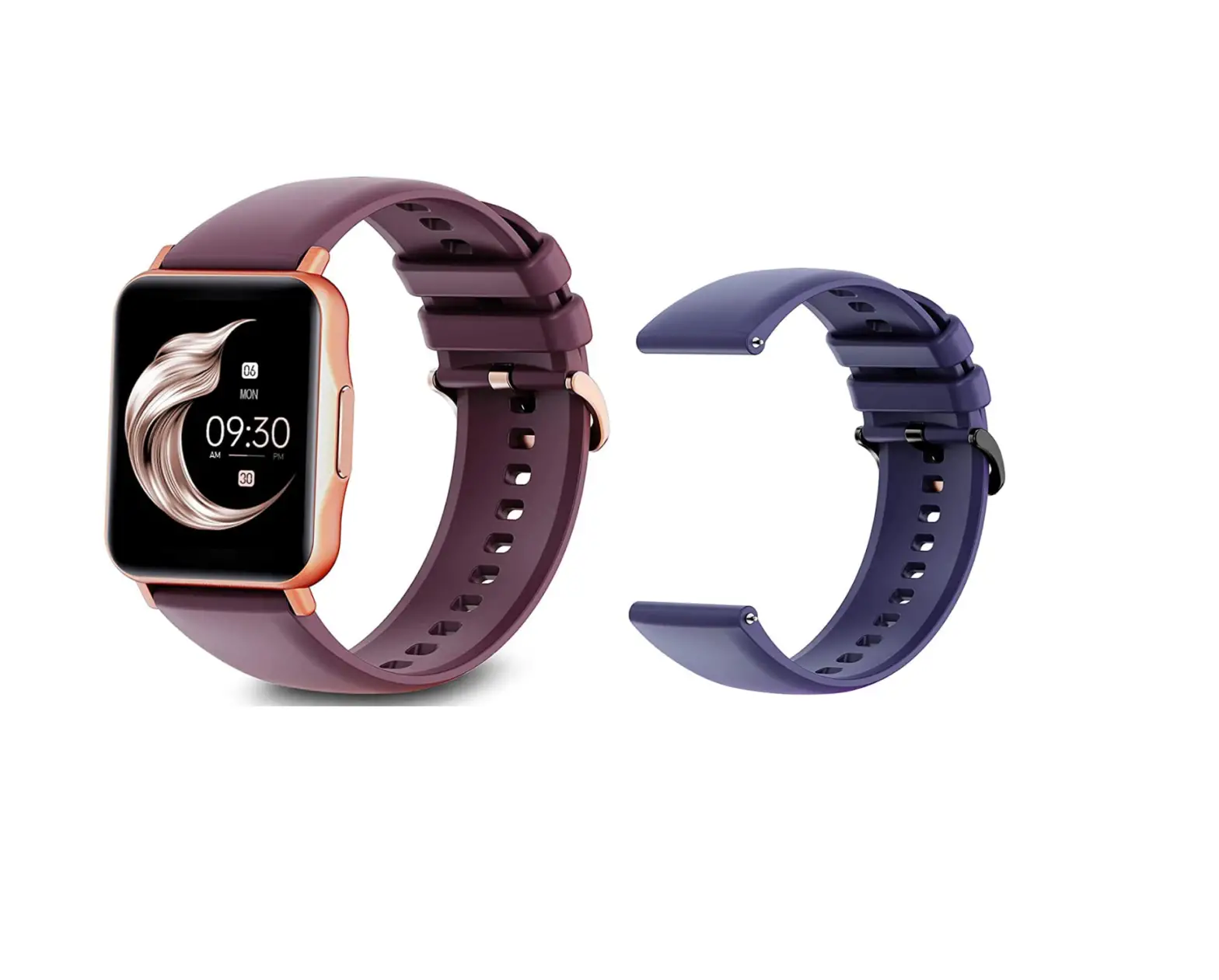
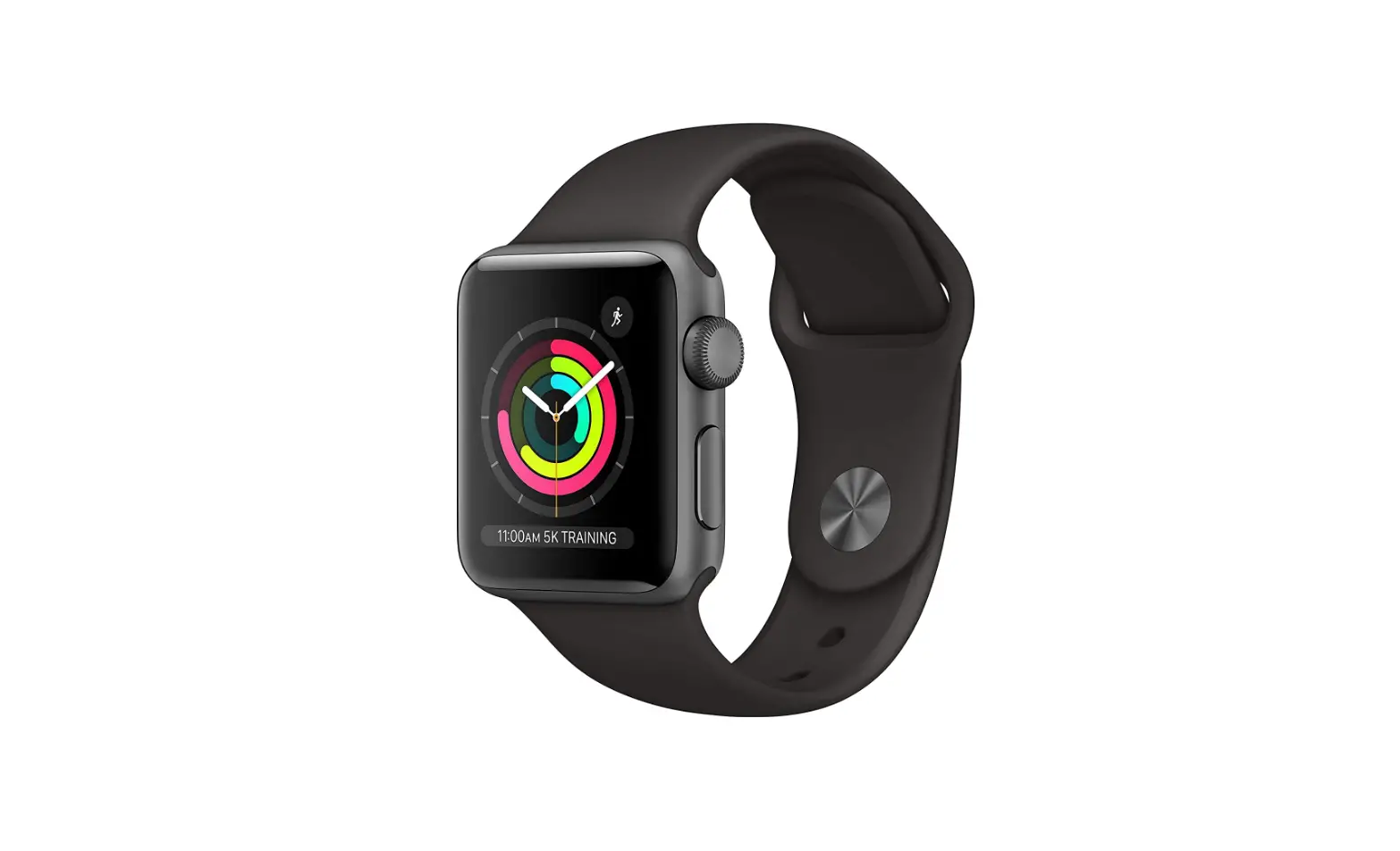
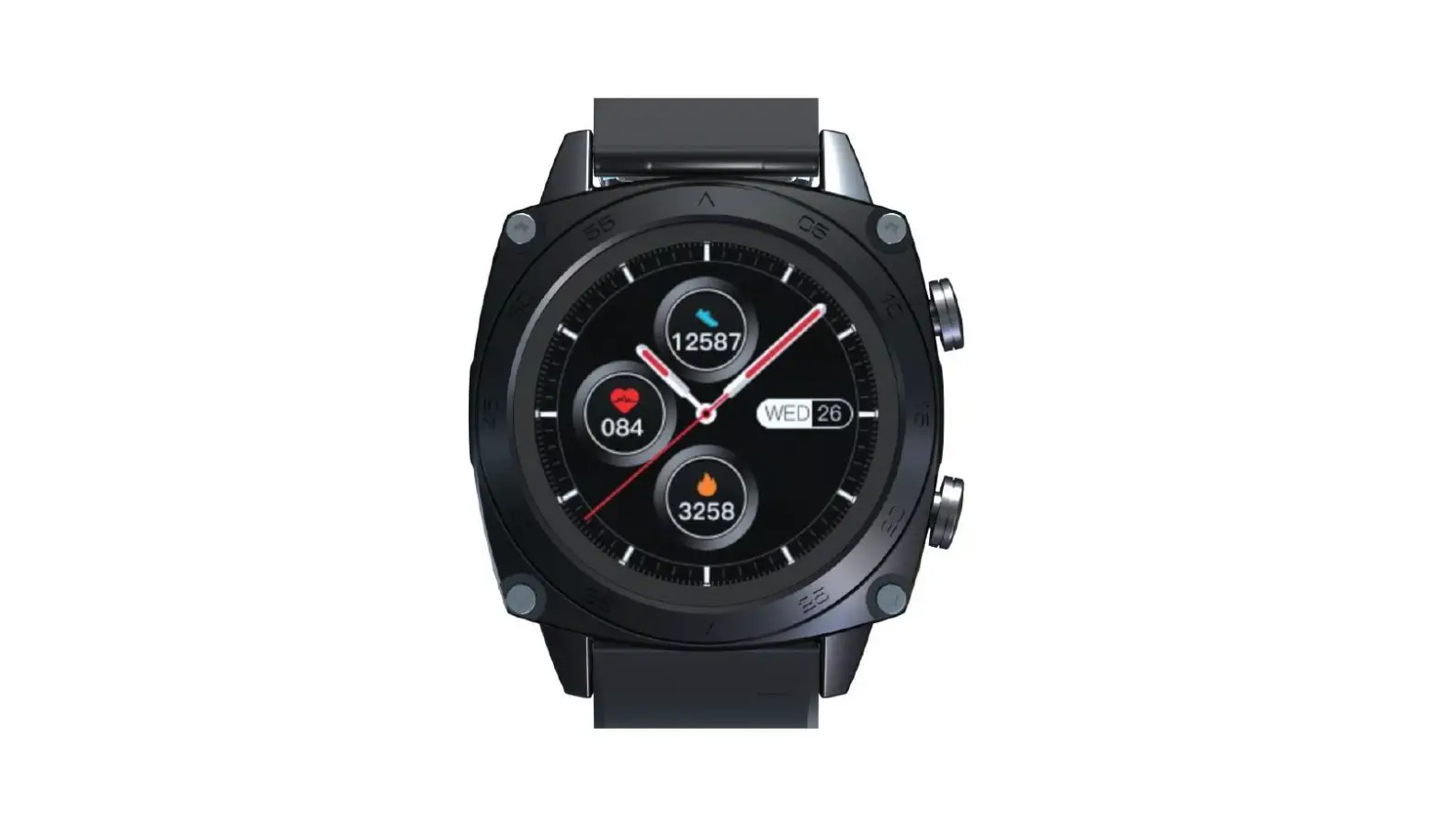
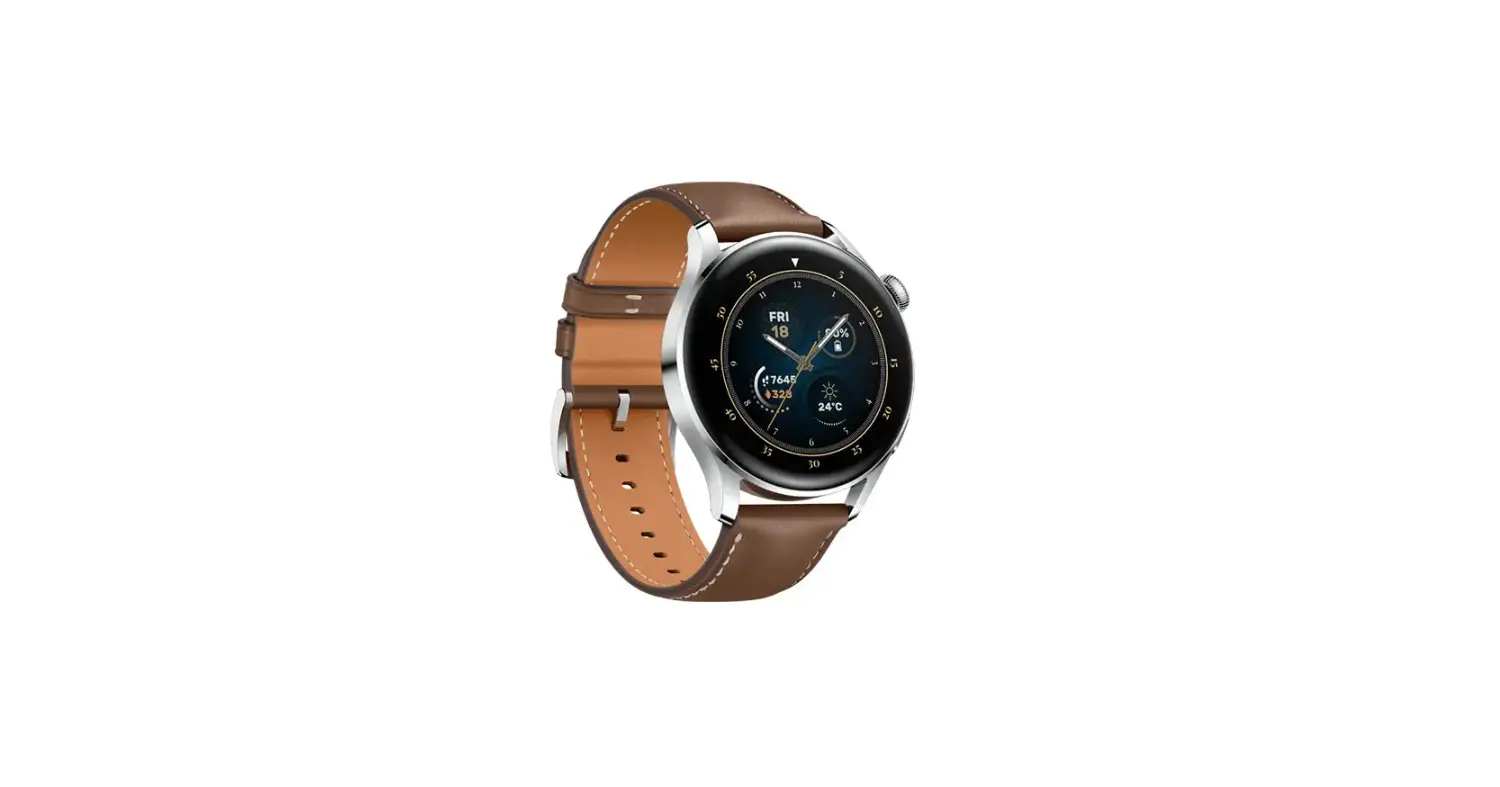
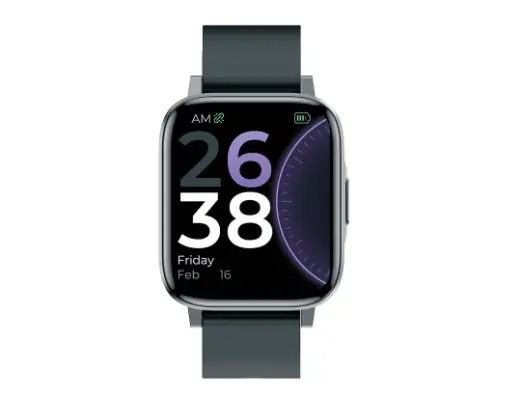
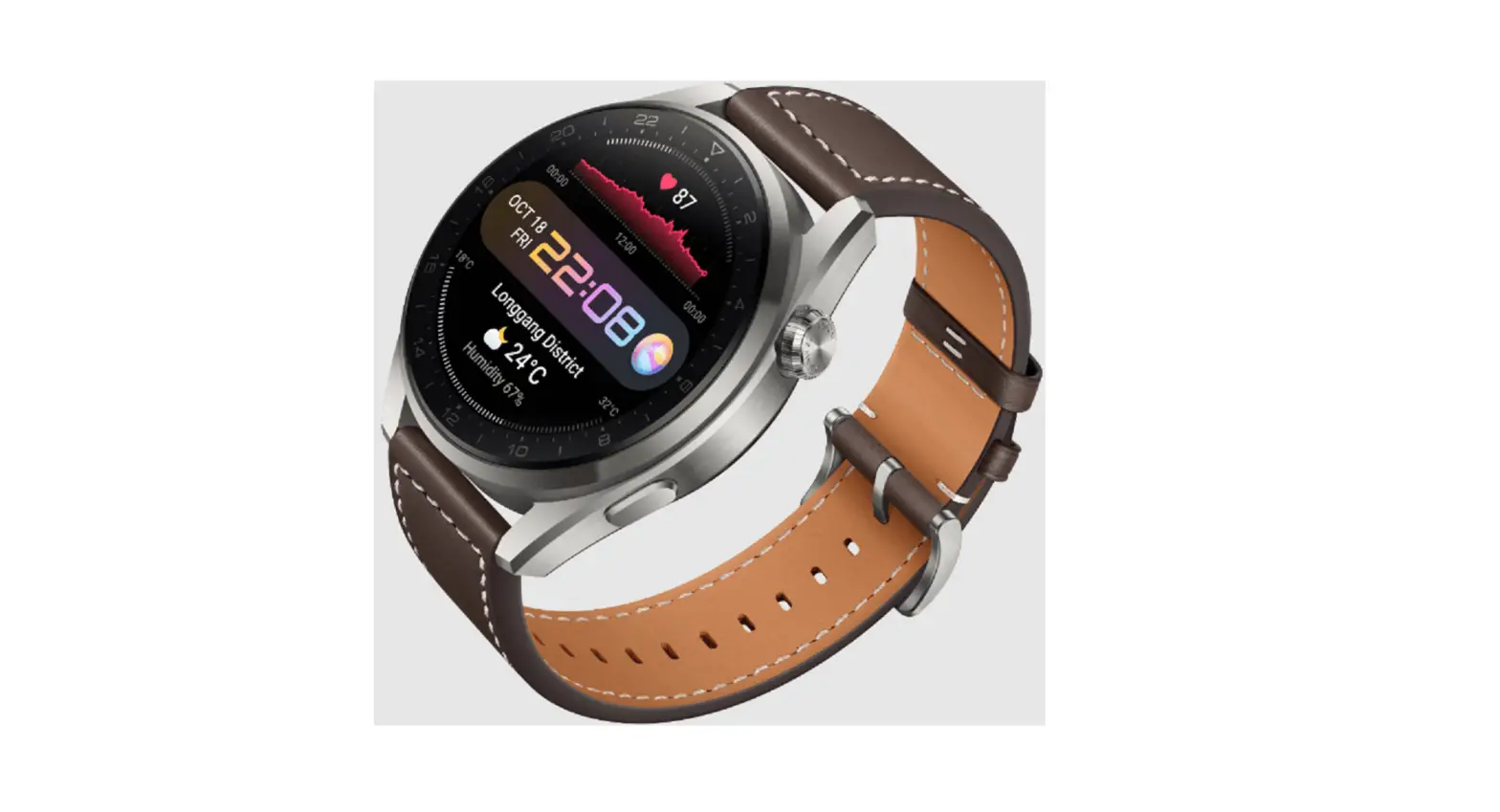
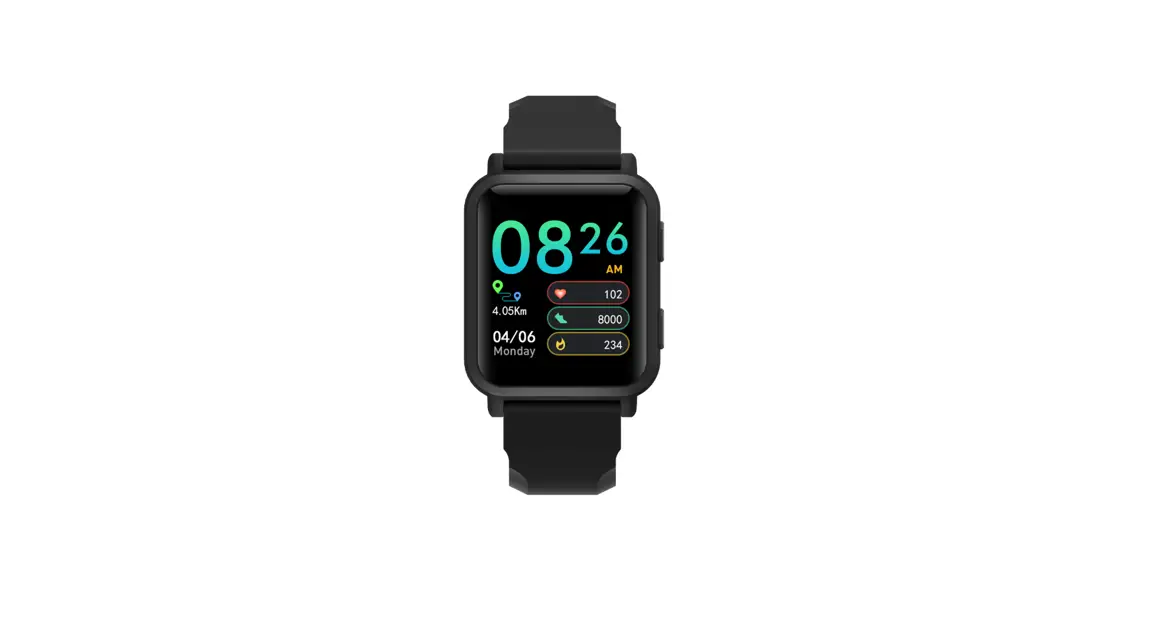
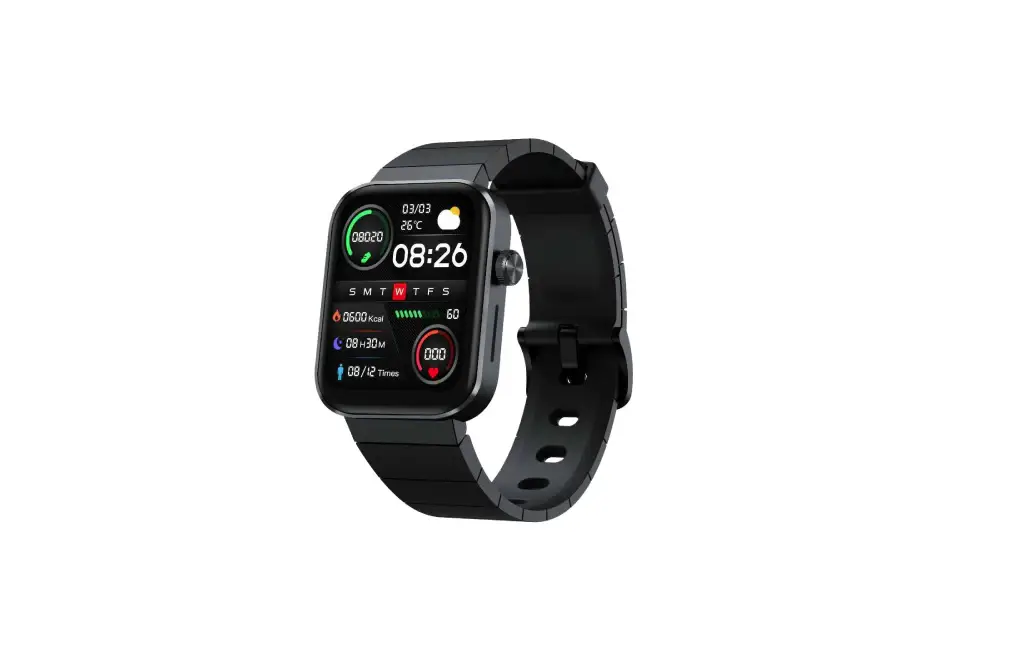
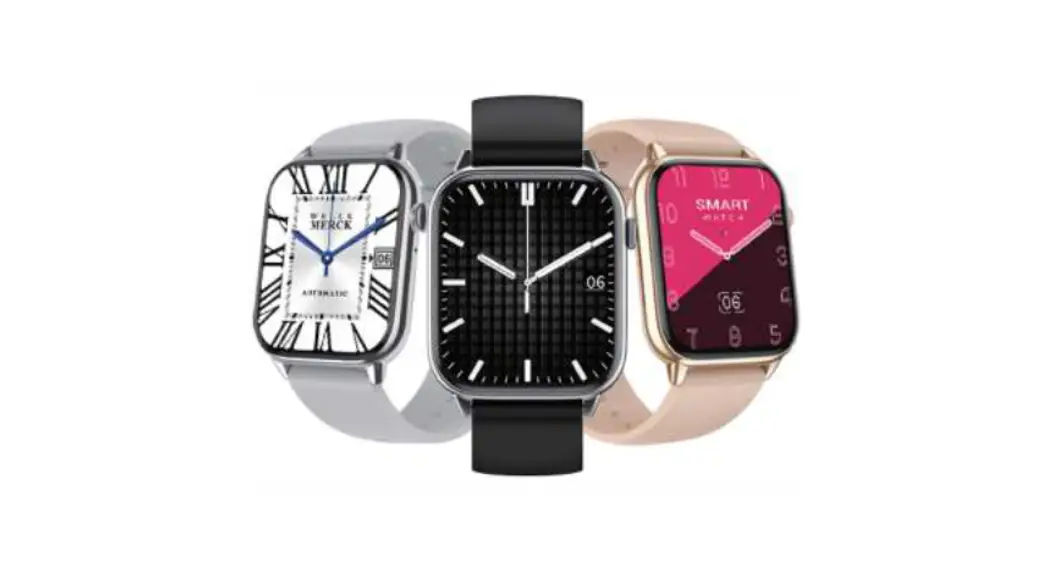
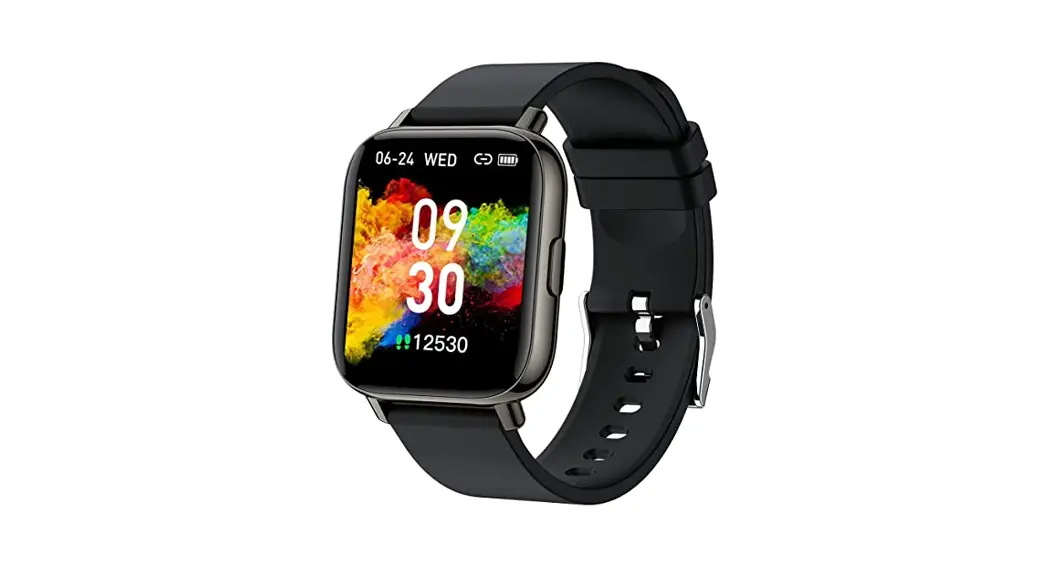
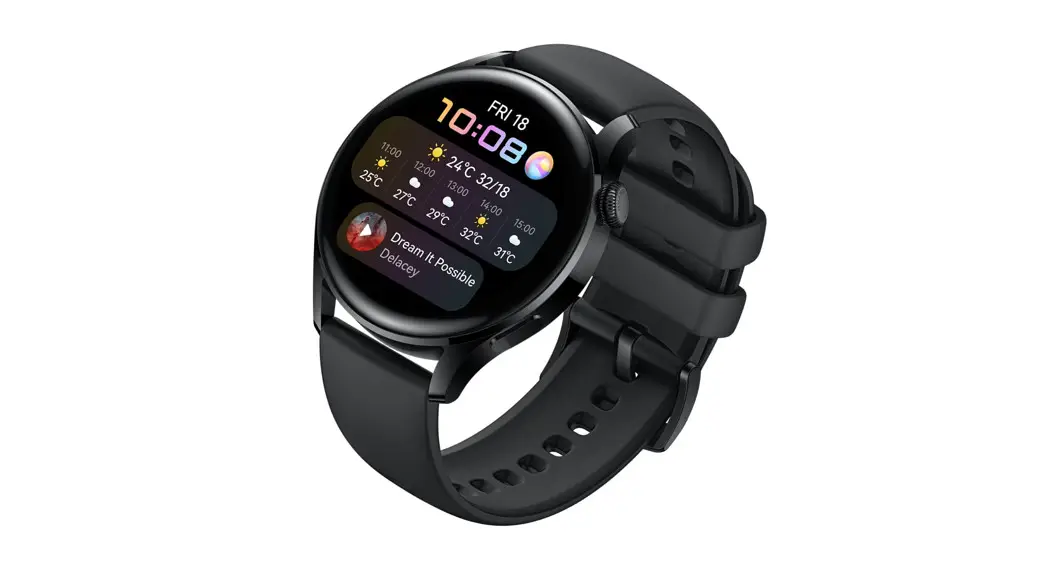
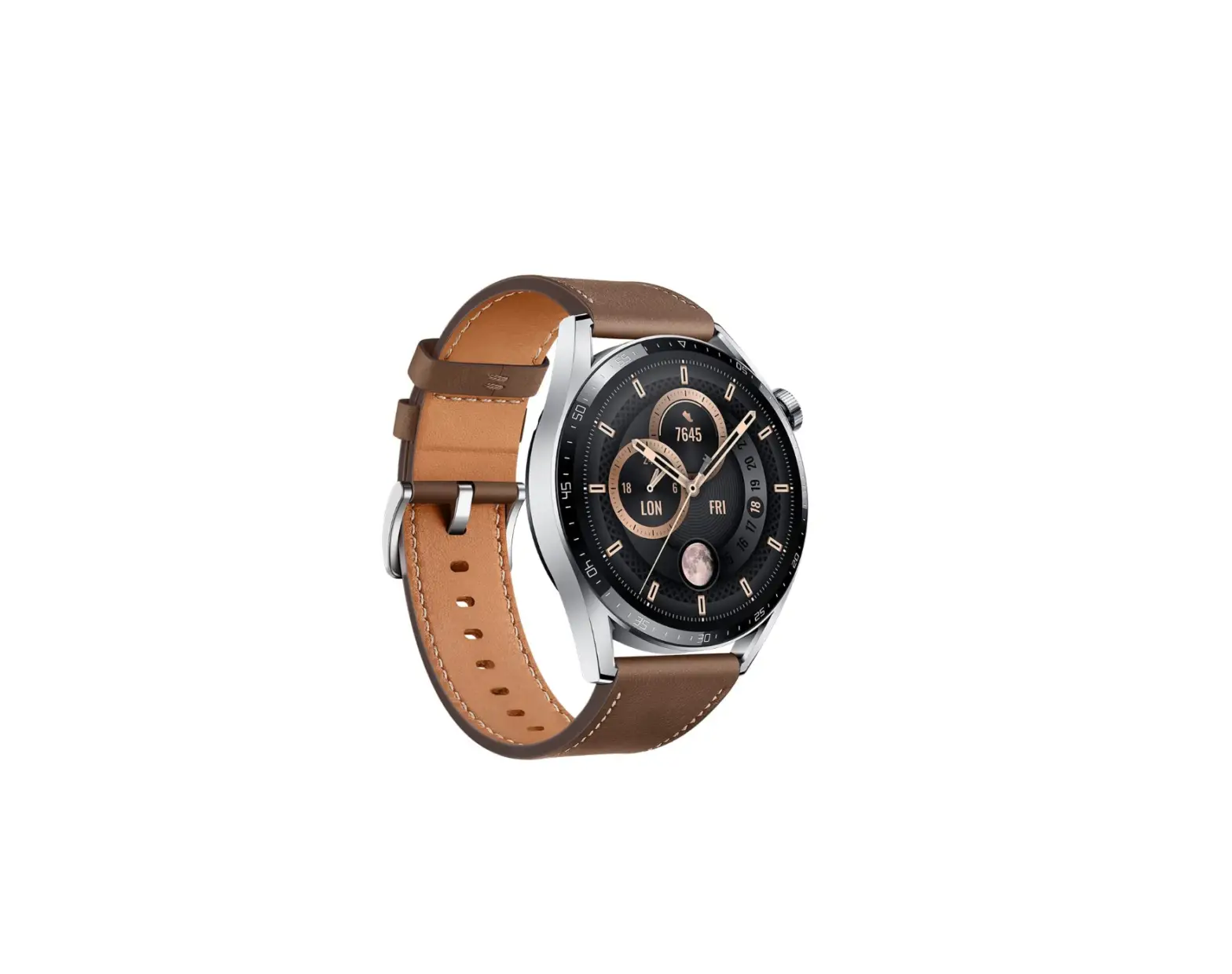
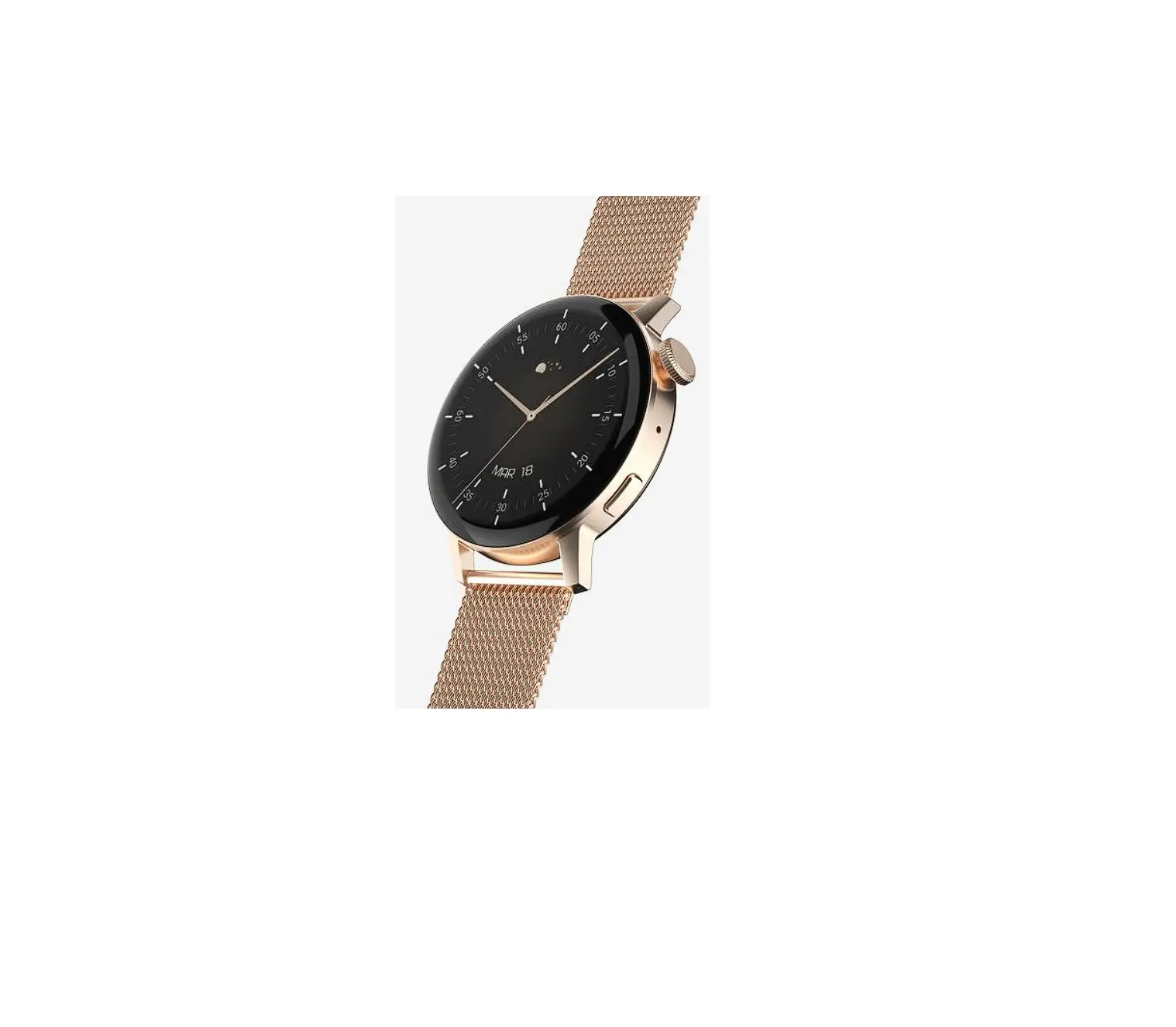
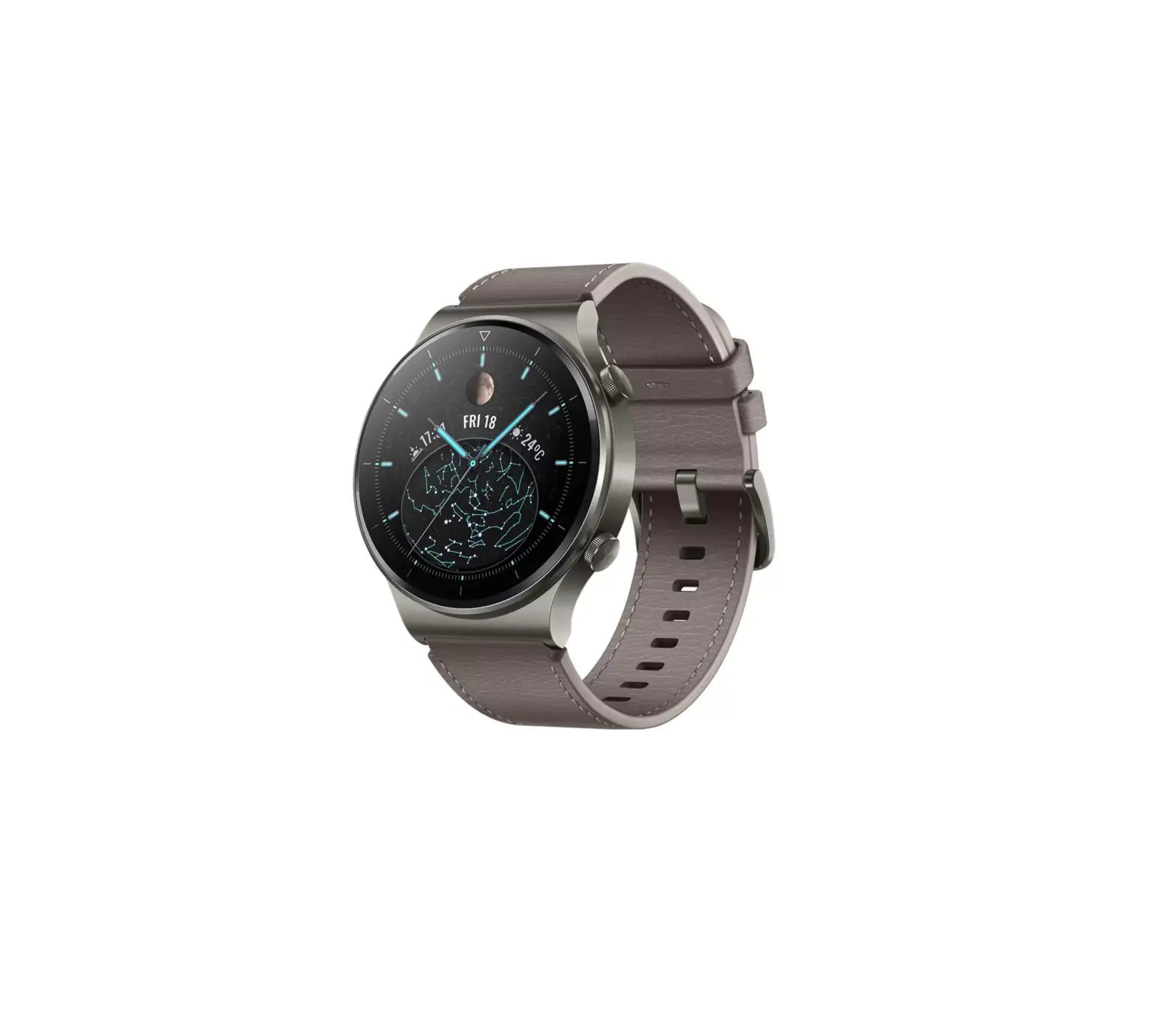
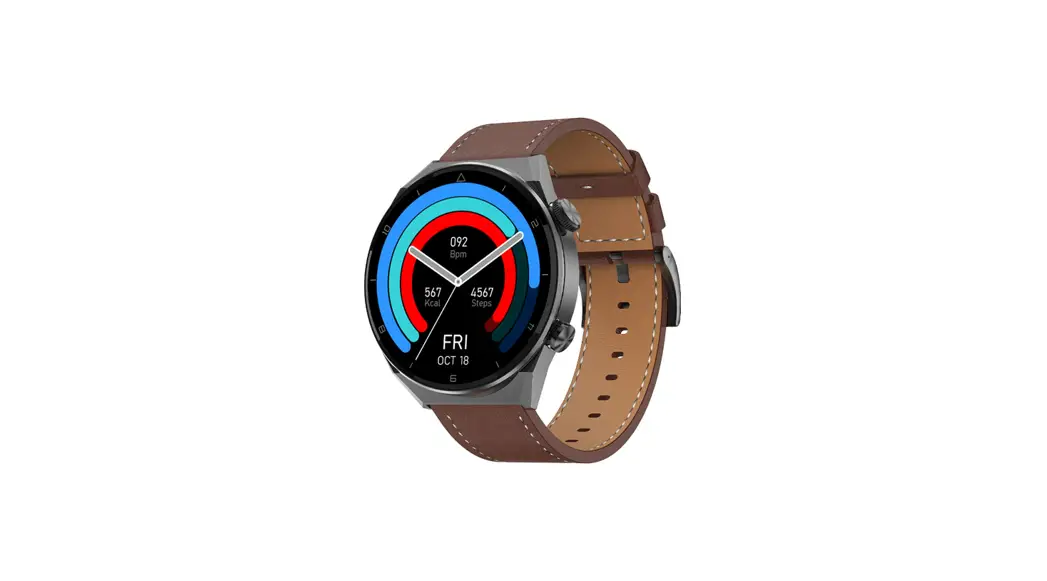
Q3 Smart Watch
SMART WATCH
Quick Guide
Please read this manual carefully before use and keep it for
future use.
- Decline: control panel
- Swipe up: SMS notification
- Swipe right: shortcut sidebar
- Left swipe: menu functions
- Long press: dial switch
- Short press: to turn on/off the screen, enter
the menu function, and return to the dial - Double click: switch menu mode
- Long press: turn on or off
Function Keys
- Short press: screen on/off. If the boot fails
after you press and hold the power button for 3 seconds, please
charge and try again.
Connect to Phone
Step 1: Download and Install
Download App: IOS mobile phones can search for `KaFit’ in the
App Store, and Android mobile phones can search for `KaFit’ in
other app stores (such as App Store) to download and install; or
scan the code to download and install.
Step 2: Pair and Connect the Watch
- Check the Bluetooth name of the device in
[Settings>About] - Open the App on your phone, log in or register your
account - Click [Device>Add Device>Start Search] in the App
- Select the Bluetooth name of the watch in the search results to
complete the pairing
Please keep the watch’s battery level above 20% before pairing
to avoid pairing failure due to insufficient battery. During
pairing and connection, make sure that the Bluetooth of the mobile
phone is turned on and is within the effective connection distance
with the watch. This device requires Android4.4 and above system,
IOS8.4 and above system.
Function Introduction
Dial Switch
Press and hold for 2 seconds on the main screen to enter the
watch face switching interface, swipe left or right to switch the
watch face to be selected, and click the selected watch face. You
can also switch by rotating the button in the upper right
corner.
Control Panel
Function summary: Do Not Disturb mode, brightness adjustment,
settings, audio call mode, my QR code. You can swipe down on the
home screen to enter this function.
Sport Data
Shows the number of steps, kilometers, and calories recorded on
the day, and the goal can be set in the APP.
Sport
Sports include walking, running, mountain climbing, cycling,
swimming, yoga, elliptical machine and other modes. Click the icon
to start the exercise.
Heart Rate
Turn on the timing detection on the App, and the interface
displays the heart rate data of the day.
Sleep
This interface displays the sleep monitoring status of the day,
the data is updated every day, and the data can be uploaded and
saved synchronously by connecting to the App.
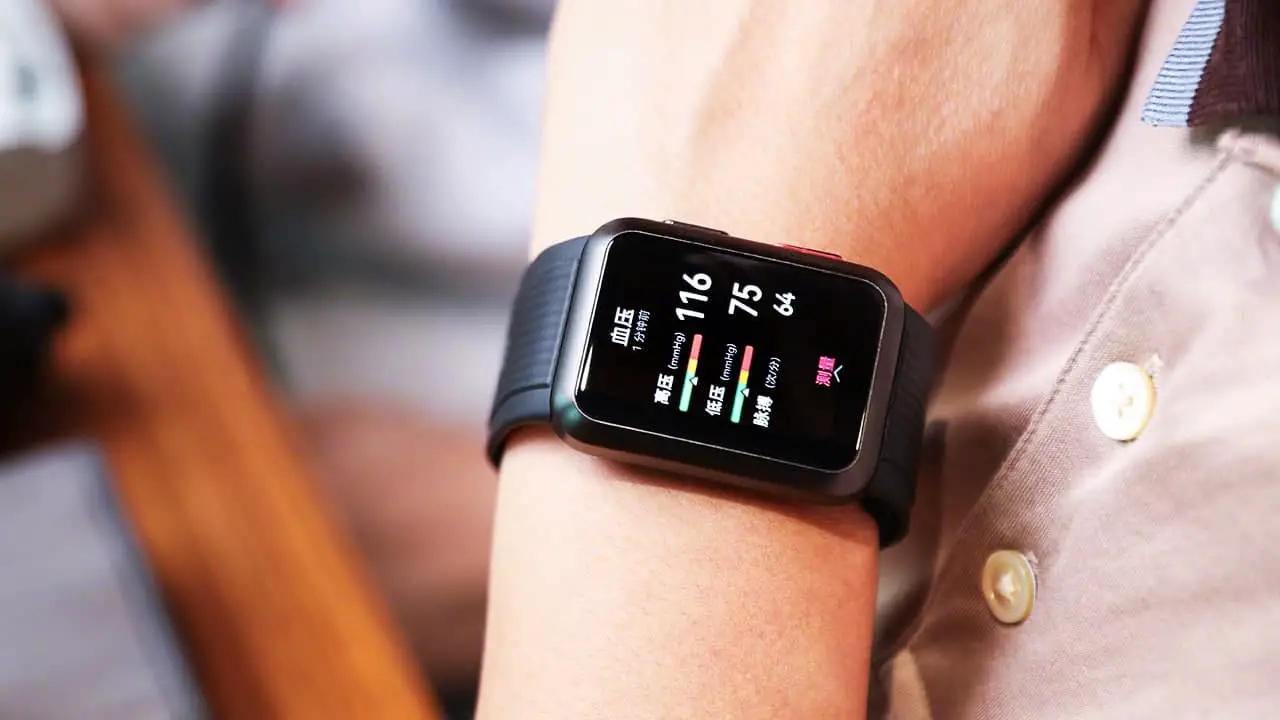
Blood Pressure
When entering the blood pressure measurement interface, the
green light at the bottom lights up to start the measurement, and
the measurement is completed within 30 to 60 seconds. The
measurement at this time is based on the PPG technology.
Blood Oxygen
When entering the blood oxygen measurement interface, the green
light at the bottom lights up to start the measurement, and the
measurement is completed within 30 to 60 seconds. The measurement
at this time is based on the PPG technology.
Bluetooth for Calls
Click on the Control Panel to enter the Bluetooth settings for
calling; after enabling the searchable function, use the mobile
phone to connect to the Bluetooth below to use the calling
function.
SMART WATCH
Quick guide
Please read this manual carefully before use and keep it for future use
Touch and button
Decline: control panel Swipe up: SMS notification Swipe right: shortcut sidebar Left swipe: menu functions Long press: dial switch
Power button
Short press: to turn on/off the screen, enter the menu function, and return to the dial
Double click: switch menu mode Long press: turn on or off
Function keys
Short press: screen on/off If the boot fails after you press and hold the power button for 3 seconds
please charge and try again.
01
Connect to phone
download and install Download App: IOS mobile phones can search for `KaFit’ in the App Store, and Android mobile phones can search for `KaFit’ in other app stores (such as App Store) to download and install; or scan the code to download and install.
Pair and connect the watch Check the Bluetooth name of the device in [Settings>About]
Open the App on your phone, log in or register your account
Click [Device>Add Device>Start Search] in the App
Select the Bluetooth name of the watch in the search results to complete the pairing
Please keep the watch’s battery level above 20% before pairing to avoid pairing failure due to insufficient battery.
During pairing and connection, make sure that the Bluetooth of the mobile phone is turned on and is within the effective connection distance with the watch.
This device requires Android4.4 and above system, IOS8.4 and above system. 02
Function introduction
Dial switch
Press and hold for 2 seconds on the main screen to enter the watch face switching interface, swipe left or right to switch the watch face to be selected, and click the selected watch face. You can also switch by rotating the button in the upper right corner.
Control panel
Function summary: Do Not Disturb mode, brightness adjustment, settings, audio call mode, my QR code.
You can swipe down on the home screen to enter this function
Sport data
Shows the number of steps, kilometers, and calories recorded on the day, and the goal can be set in the APP.
03
S4port
Sports include walking, running, mountain climbing, cycling, swimming, yoga, elliptical machine and other modes
Click the icon to start the exercise.
Heart rate
Turn on the timing detection on the App, and the interface displays the heart rate data of the day;
Sleep
This interface displays the sleep monitoring status of the day, the data is updated every day, and the data can be uploaded and saved synchronously by connecting to the App.
04
Blood pressure When entering the blood pressure measurement interface, the green light at the bottom lights up to start the measurement, and the measurement is completed within 30 to 60 seconds. The measurement at this time is based on the PPG technology.
Blood oxygen When entering the blood oxygen measurement interface, the green light at the bottom lights up to start the measurement, and the measurement is completed within 30 to 60 seconds. The measurement at this time is based on the PPG technology.
Bluetooth for calls Click on the “Control Panel” to enter the Bluetooth settings for calling; after enabling the searchable function, use the mobile phone to connect to the Bluetooth below to use the calling function.
05
Call records Up to 8 call records can be kept, and the latest call record will overwrite the oldest record.
Frequent contacts It can be added through “App-Device-Frequent Contacts”. Add, delete, sort, and add up to 8 frequently used contacts.
Dial
After using the mobile phone to connect and call Bluetooth, you can use the dialing function normally.
06
Music
Can control the phone’s music playback.
Weather
After the watch is connected to the App and the location permission is turned on, this is the case. The weather interface will display the real-time weather temperature and weather type.
Alarm
You can set a single alarm clock, a recurring alarm clock, and up to 5 alarm clocks.
07
Stopwatch
This interface is a stopwatch function. It has start, pause and reset functions.
Message
Turn on the push of relevant information on the App side, and the watch side can receive the corresponding message push, up to 8 messages can be saved, and the upper limit will be automatically overwritten.
You can swipe up on the home screen to enter this function
Find phone
When the watch and the APP are connected, click to find the phone, the phone will ring and the watch will show that the search is successful; if the watch is not connected to the APP, the watch will prompt that it is not connected.
08
Settings
The settings include dial switch, view, brightness adjustment, screen out time, language, QR code, system settings and other functions.
09
[Notification function] Sedentary reminder It can be enabled in App [Device>Other Settings>Sedentary reminder] to set the start time, end time and Do Not Disturb period.Alarm reminder Remind after setting and turning on the alarm.
Incoming call You can answer or reject the call.
10
Precautions
1 Do not disassemble, repair, or modify the product without authorization.
2 Do not violently bump the product, so as not to cause damage to the product
3 Please avoid strong magnetic field, direct light or high temperature environment.
4 This product is not used for disease diagnosis, treatment and prevention purposes.
5 The waterproof rating of this product is IP68, avoid prolonged immersion in water
6 Please avoid wearing the watch strap too tightly and keep the place where the watch comes in contact with the skin clean.
7 Children please use this product under the guidance of their parents to avoid harm.
Common problem handling
Watch won’t turn on ·Please press and hold the power button for more
than 3 seconds. ·Maybe the battery is too low, please charge it in time.
11
Bluetooth is not connected or unable to connect ·Please try to restart the watch and reconnect. ·Please try to restart the phone’s Bluetooth and
connect again. ·Do not connect the phone to other Bluetooth devices
at the same time.
Inaccurate heart rate/blood pressure/blood oxygen · The measured value is inaccurate, which is generally
caused by the poor contact between the sensor of the watch and the human body. ·Please make sure that the sensor is in full contact with your wrist during measurement. ·Please keep your body still and the watch close to your wrist during measurement.
Sleep data is not accurate enough · Sleep monitoring is to simulate the natural state of
falling asleep and waking up, and needs to be worn normally. · Wear it when you fall asleep too late or when you fall asleep, errors may occur. · Sleep data is not monitored during the day, and the default sleep monitoring is from 9:00 pm to 9:00 noon the next day.
12
FCC Statement Note: This equipment has been tested and found to comply with the limits for a Class B digital device, pursuant to part 15 of the FCC Rules. These limits are designed to provide reasonable protection against harmful interference in a residential installation. This equipment generates, uses and can radiate radio frequency energy and, if not installed and used in accordance with the instructions, may cause harmful interference to radio communications. However, there is no guarantee that interference will not occur in a particular installation. If this equipment does cause harmful interference to radio or television reception, which can be determined by turning the equipment off and on, the user is encouraged to try to correct the interference by one or more of the following measures: –Reorient or relocate the receiving antenna. –Increase the separation between the equipment and receiver. –Connect the equipment into an outlet on a circuit different from that to which the receiver is connected. –Consult the dealer or an experienced radio/TV technician for help.
This device complies with part 15 of the FCC Rules. Operation is subject to the following two conditions:(1) This device may not cause harmful interference, and (2) this device must accept any interference received, including interference that may cause undesired operation.
Any changes or modifications not expressly approved by the party responsible for compliance could void the user’s authority to operate the equipment.
The device has evaluated to meet general RF exposure requirement. The device can be used be in portable exposure without restriction.