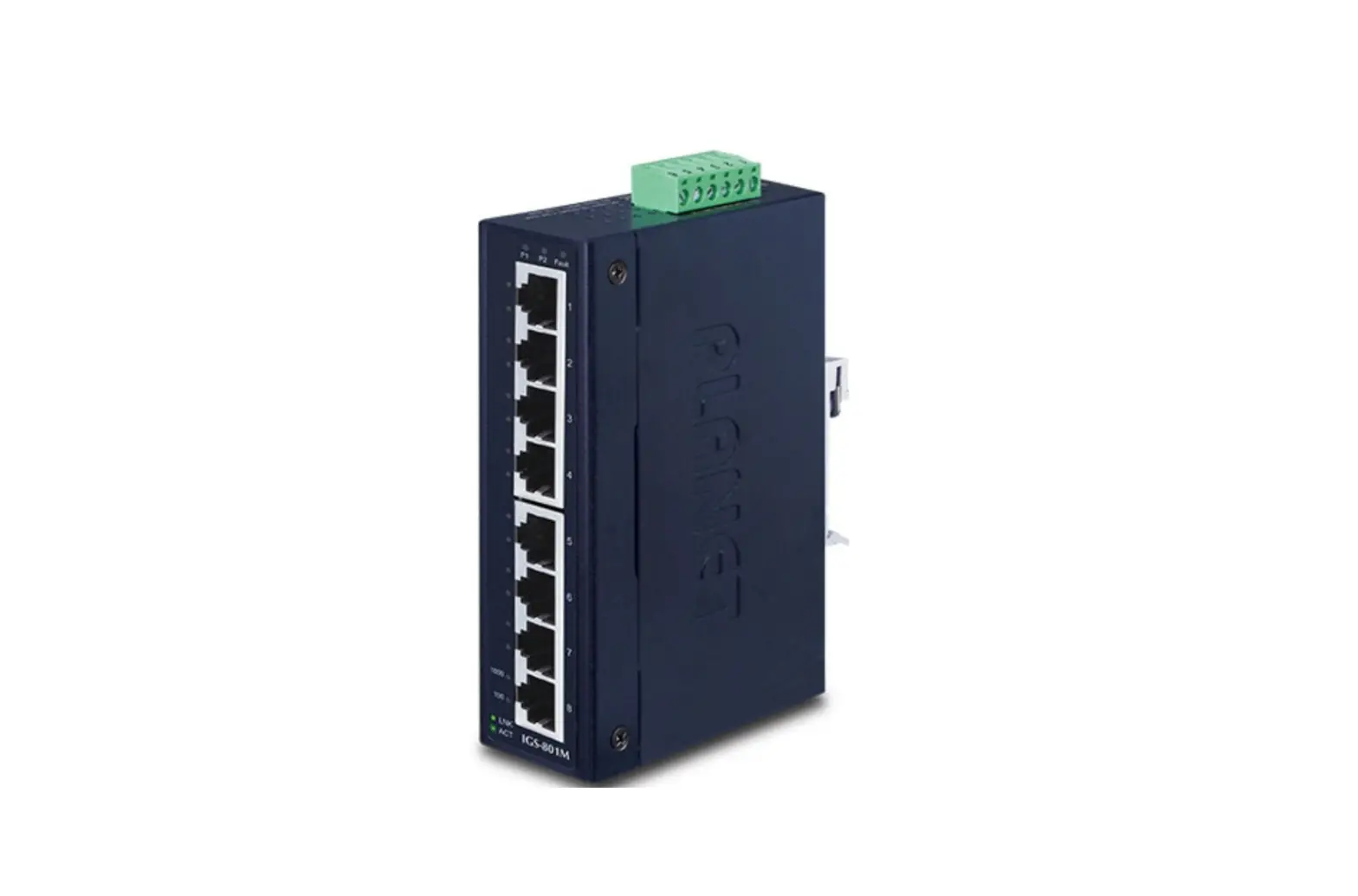
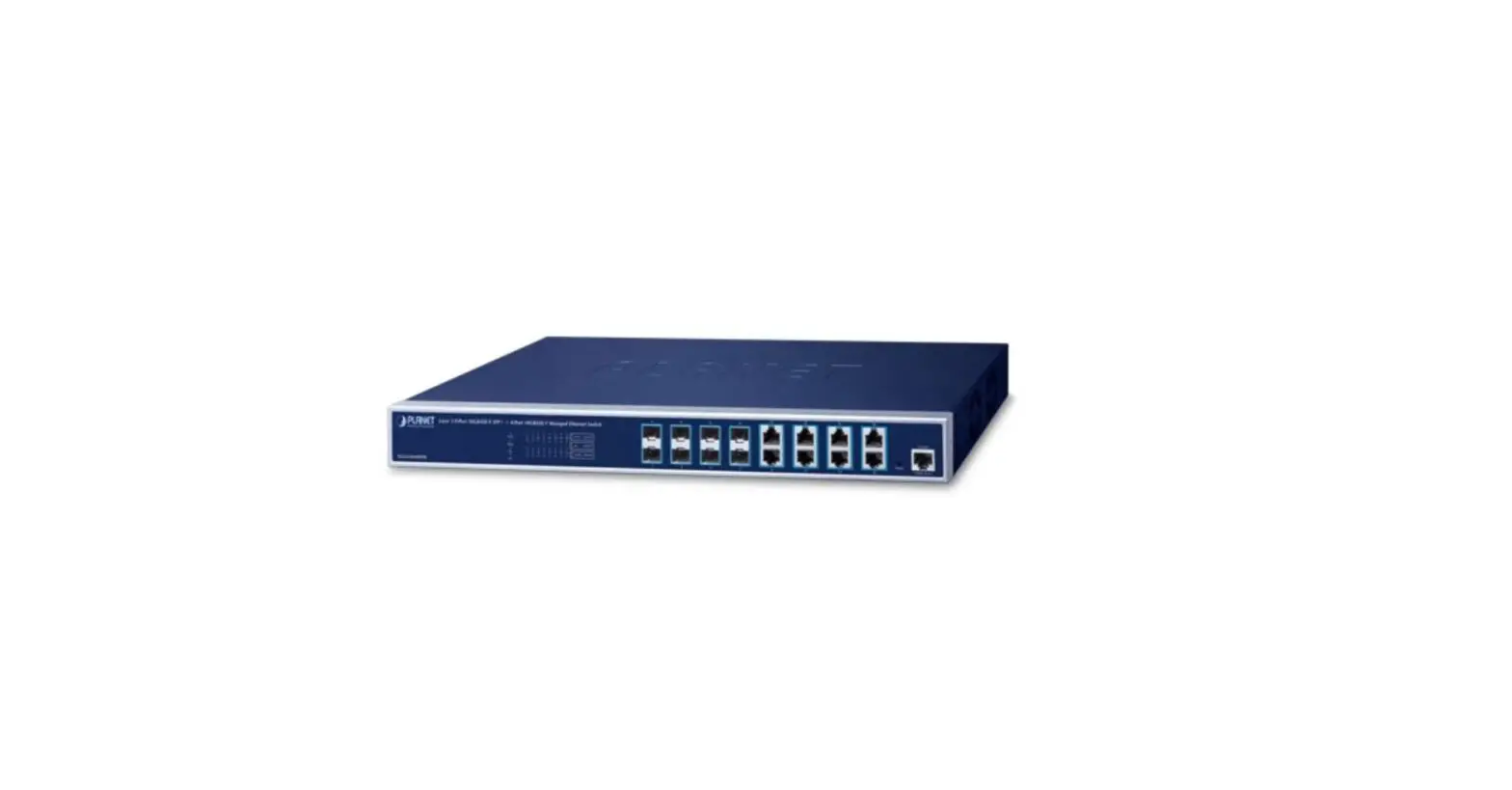
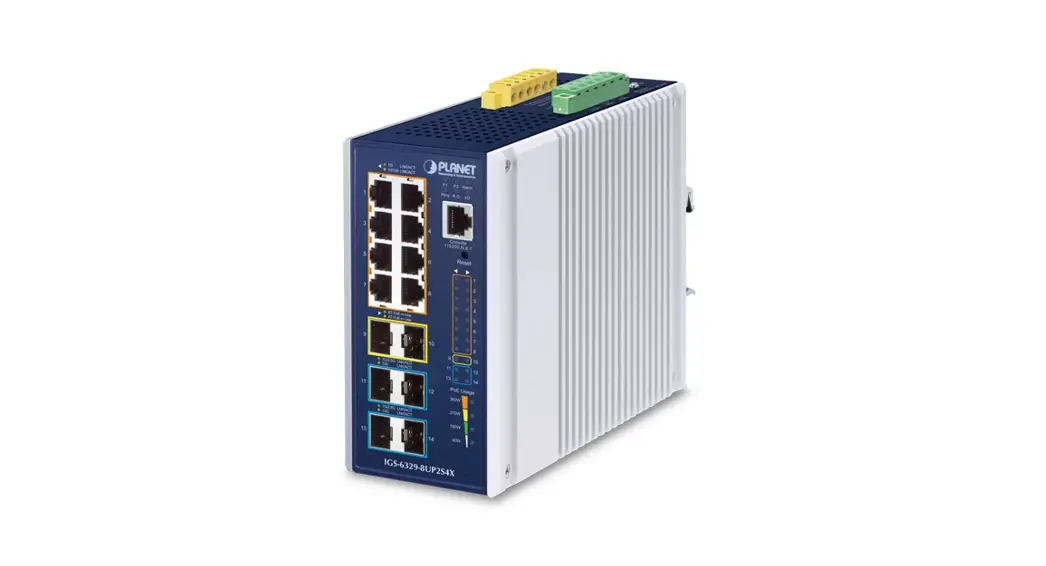
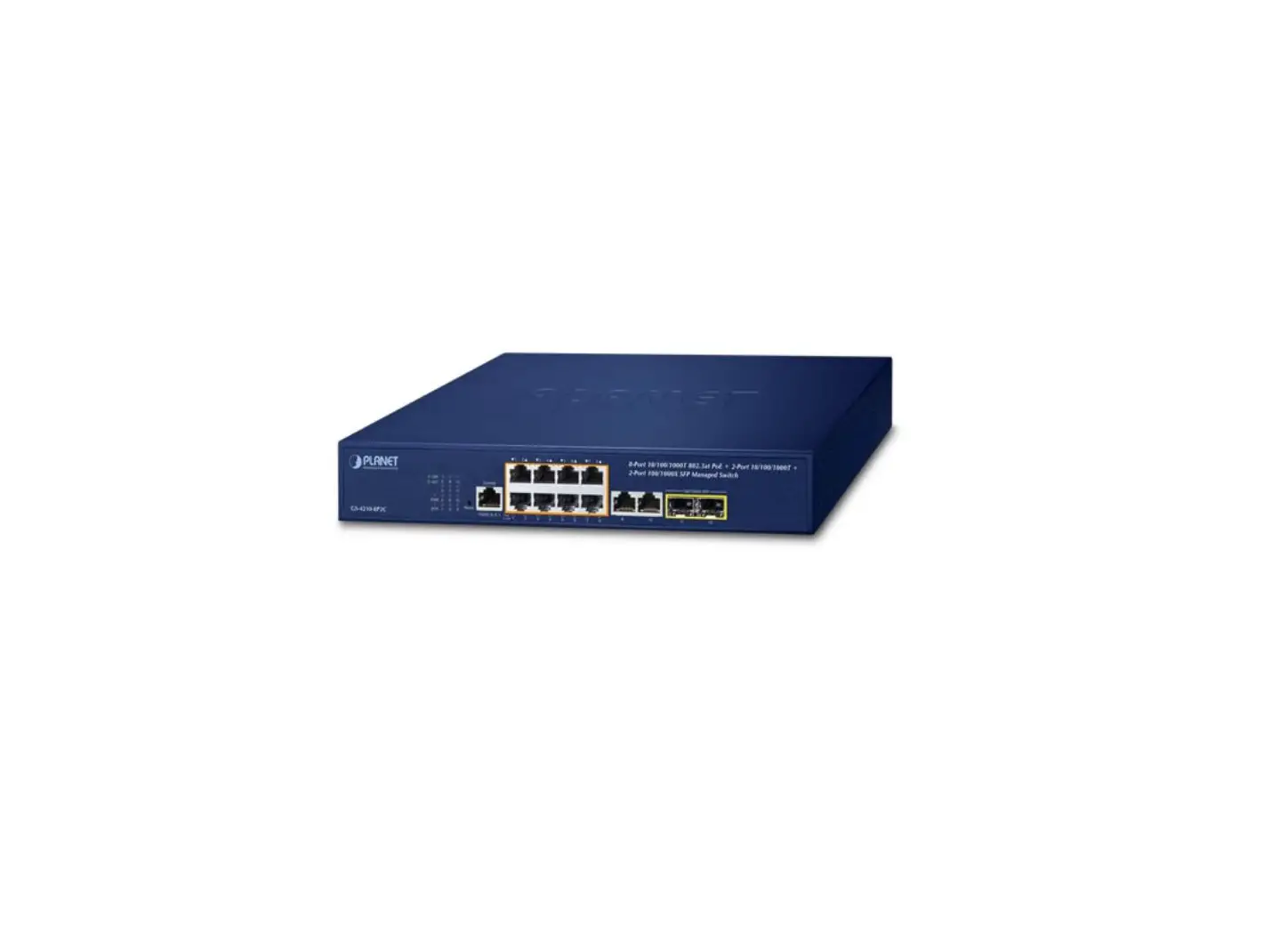
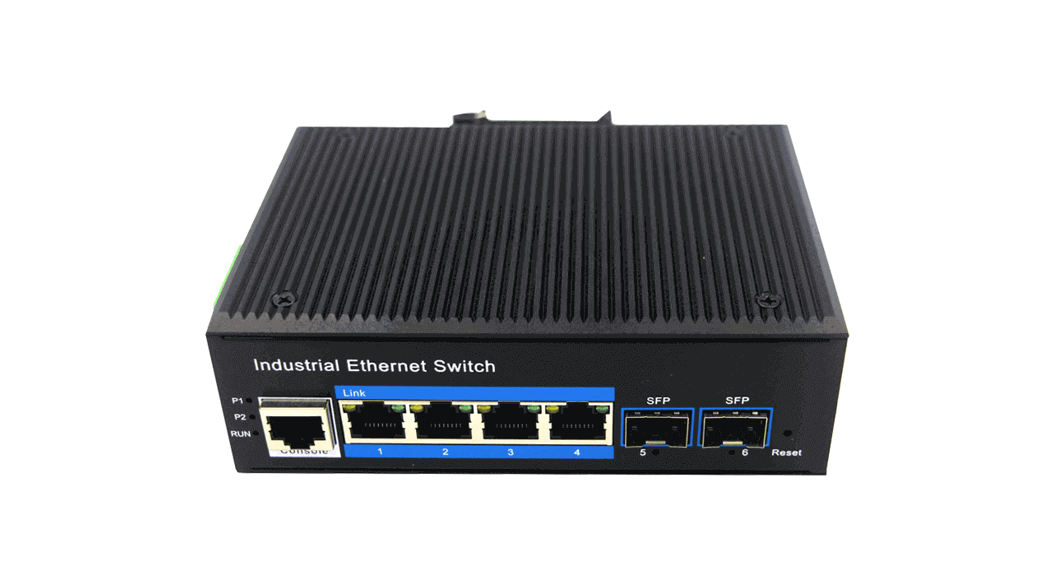
IGS-6325-4T2X Industrial L3 Multi-Gigabit or 10Gigabit Managed Ethernet Switch
Industrial L3 Multi-Gigabit/10Gigabit Managed Ethernet
Switch
Product Description
The PLANET L3 Multi-Gigabit/10Gigabit Industrial Managed Switch
is a high-performance network switch designed for industrial use.
It comes in three models: IGS-6325-4T2X, IGS-6325-4UP2X, and
IGS-6325-5X1T. The IGS-6325-4T2X is a 4-port 2.5GBASE-T + 2-port
10G SFP+ Managed Ethernet Switch. The IGS-6325-4UP2X is a 4-port
2.5GBASE-T 802.3bt PoE + 2-port 10G SFP+ Managed Ethernet Switch.
The IGS-6325-5X1T is a 5-port 10GBASE-X SFP+ + 1-port 10GBASE-T
Managed Ethernet Switch.
Package Contents
Upon opening the package, you should find the following
items:
| Item | IGS-6325-4T2X | IGS-6325-4UP2X | IGS-6325-5X1T |
|---|---|---|---|
| Industrial Managed Switch | 1 | 1 | 1 |
| DB9 to RJ45 Interface RS232 Console Cable | 1 | 1 | 1 |
| Quick Installation Guide sheet | 1 | 1 | 1 |
| Wall Mounting Kit | 1 | 1 | 1 |
| RJ45 Dust Cap | 5 | 5 | 2 |
| SFP Dust Cap | 2 | 2 | 5 |
If any of the items are missing or damaged, please contact your
dealer immediately. If possible, keep the original packing
materials to repack the product in case there is a need to return
it to us for repair.
Requirements
The Industrial Managed Switch provides a remote login interface
for management purposes. To manage the switch, you will need:
- A workstation running Windows XP/2003/2008/Vista/7/8/10/11, MAC
OS X or later, Linux, UNIX, or other platforms compatible with
TCP/IP protocols. - A workstation installed with an Ethernet NIC (Network Interface
Card). - A serial port connection (terminal) with a COM Port (DB9) or
USB-to-RS232 converter. - A terminal emulator, such as Hyper Terminal included in Windows
XP/2003, putty or Tera Term. - A serial cable with one end attached to the RS232 serial port
and the other end to the console port of the Industrial Managed
Switch. - An Ethernet port connection with standard network (UTP) cables
with RJ45 connectors. - A PC installed with a web browser. It is recommended to use
Chrome 98.0.xxx or above to access the Industrial Managed
Switch.
Wiring the Power Inputs
The upper panel of the Industrial Managed Switch has an inlet
power socket and consists of one green terminal block connector
with 6 contacts. Follow the steps below to insert the power
wire:
- Insert positive/negative DC power wires into Contacts 1 and 2
for Power 1, or Contacts 5 and 6 for Power 2.
Terminal Setup
Follow the steps below to set up the terminal:
- Connect one end of the serial cable to the RS232 serial port of
the workstation and the other end to the console port of the
Industrial Managed Switch. - Open a terminal emulator, such as Hyper Terminal included in
Windows XP/2003, putty or Tera Term, on the workstation. - Configure the terminal emulator with the following
settings:
- Baud rate: 9600
- Data bits: 8
- Parity: None
- Stop bits: 1
- Flow control: None
Industrial L3 Multi-Gigabit/10Gigabit Managed Ethernet Switch
IGS-6325-4T2X/IGS-6325-4UP2X/IGS-6325-5X1T Quick Installation Guide
Table of Contents
1. Package Contents……………………………………………………………………… 3 2. Requirements…………………………………………………………………………… 4 3. Wiring the Power Inputs …………………………………………………………….. 5
3.1 Grounding the Device…………………………………………………………… 7 4. Terminal Setup…………………………………………………………………………. 8
4.1 Logging on to the Console…………………………………………………….. 9 4.2 Configuring IP Address via Console ……………………………………….. 10 4.3 Storing the current switch configuration………………………………….. 11 5. Starting Web Management ………………………………………………………… 12 5.1 Logging in to the Industrial Managed Switch ……………………………. 12 5.2 Saving Configuration via Web ………………………………………………. 15 6. Restoring Default Configuration ………………………………………………….. 17 7. Customer Support …………………………………………………………………… 19
1. Package Contents
Thank you for purchasing PLANET L3 Multi-Gigabit/10Gigabit Industrial
Managed
Switch,
IGS-6325-4T2X/IGS-6325-4UP2X/IGS-6325-5X1T.
“Industrial Managed Switch” mentioned in this Quick Installation Guide
refers to the above models.
The descriptions of these models are shown below:
IGS-6325-4T2X
Industrial L3 4-Port 2.5GBASE-T + 2-Port 10G SFP+ Managed Ethernet Switch
IGS-6325-4UP2X
Industrial L3 4-Port 2.5GBASE-T 802.3bt PoE + 2-Port 10G SFP+ Managed Ethernet Switch
IGS-6325-5X1T
Industrial L3 5-Port 10GBASE-X SFP+ + 1-Port 10GBASE-T Managed Ethernet Switch
Open the box of the Industrial Managed Switch and carefully unpack it. The box should contain the following items:
IGS-6325-4T2X IGS-6325-4UP2X IGS-6325-5X1T
The Industrial
Managed Switch
DB9 to RJ45 Interface
RS232 Console Cable
Quick Installation
Guide sheet
Wall Mounting Kit
RJ45 Dust Cap
5
5
2
SFP Dust Cap
2
2
5
If any of these are missing or damaged, please contact your dealer immediately. If possible, retain the carton including the original packing materials to enable you to repack the product in case there is a need to return it to us for repair.
3
2. Requirements
The Industrial Managed Switch provides remote login interface for management purposes. The following equipment is necessary for further management: Workstations running Windows XP/2003/2008/Vista/7/8/10/11, MAC OS X
or later, Linux, UNIX, or other platforms are compatible with TCP/IP Protocols. Workstations are installed with Ethernet NIC (Network Interface Card). Serial Port Connection (Terminal) The above Workstations come with COM Port (DB9) or USB-to-RS232 converter. The above Workstations have been installed with terminal emulator,
such as Hyper Terminal included in Windows XP/2003, putty or Tera Term. Serial cable — one end is attached to the RS232 serial port, while the other end to the console port of the Industrial Managed Switch. Ethernet Port Connection Network cables — Use standard network (UTP) cables with RJ45 connectors. The above PC is installed with Web browser.
It is recommended to use Chrome 98.0.xxx or above to access the Industrial Managed Switch.
4
3. Wiring the Power Inputs
The Upper Panel of the Industrial Managed Switch indicates an inlet power socket and consists of one green terminal block connector with 6 contacts. Please follow the steps below to insert the power wire.
1. Insert positive/negative DC power wires into Contacts 1 and 2 for Power 1, or Contacts 5 and 6 for Power 2.
DC 9-48V, AC 24V (IGS-6325-4T2X & IGS-6325-5X1T)
DI0 DI1 DO0 DO1 GND GND
1 2 3 4 5 6
Max. Fault Alarm Loading: 24V, 1A
1 2 3 4 5 6
DC Input: 9-48V , 4A max. AC Input: 24V , 2A max.
V1+ PWR1
V2+ Alarm PWR2
Figure 3-1: IGS-6325-5X1T Upper Panel (Wiring methods also apply to IGS-6325-4T2X except different max. input current values)
Refer to the table below for the Input Voltage and Current Values for each model
DC Input Voltage Max. DC Input Current AC Input Voltage Max. AC Input Current
IGS-6325-4T2X 9-48V DC 3A 24V AC 1.5A
IGS-6325-5X1T 9-48V DC 4A 24V AC 2A
5
2. Insert positive/negative DC power wires into Contacts 1 and 2 for Power 1, or Contacts 5 and 6 for Power 2.
DC 48-54V (IGS-6325-4UP2X)
Dual power input is required for maximum PoE loading. Refer to user’s manual for
more details.
DI0 DI1 DO0 DO1 GND GND
1 2 3 4 5 6
Max. Fault Alarm Loading: 24V, 1A
1 2 3 4 5 6
V1+ PWR1
Alarm
V2+ PWR2
DC Input: 48-54V , 8.3A max.
Figure 3-2: IGS-6325-4UP2X Upper Panel
DC Input Voltage Max. DC Input Current
IGS-6325-4UP2X 48-54VDC 8.3A
PWR1 and PWR2 must provide exactly the same DC voltage for power load balance while operating with dual power input.
3. Tighten the wire-clamp screws for preventing the wires from loosening.
1
2
3
V1+ V1-
Power 1
4
5
6
V2+ V2-
Power 2
Figure 3-3: Power 1 & 2 Pins of Terminal Block Connector
6
1. The wire gauge for the terminal block should be in the range from 12 to 24 AWG.
2. Please check the AWG Ampere specification before connecting PLANET Industrial Managed Switch.
3.1 Grounding the Device
Users MUST complete grounding wired with the device; otherwise, a sudden lightning could cause fatal damage to the device.
Earth Ground
DI0 DI1 DO0 DO1 GND GND
1 2 3 4 5 6
Max. Fault Alarm Loading: 24V, 1A
1 2 3 4 5 6
DC Input: 9-48V , 4A max. AC Input: 24V , 2A max.
V1+ PWR1
V2+ Alarm PWR2
Figure 3-4: Grounding Method (applies to all three models)
LIGHTNING DAMAGE IS NOT COVERED UNDER WARRANTY.
7
4. Terminal Setup
To configure the system, connect a serial cable to a COM port on a PC or notebook computer and to RJ45 type serial (console) port of the Industrial Managed Switch.
IGS Industrial Managed Switch
PC/Workstation with Terminal Emulation Software
Console 115200,N,8,1
Console Port 115200,N,8,1
RJ45 to DB9 RS232 Cable
Serial Port
A terminal program is required to make the software connected to the Industrial Managed Switch.
1. Run terminal program on the OS.
2. When the following screen appears, make sure that the COM port should be configured as: Baud: 115200 Parity: None Data bits: 8 Stop bits: 1 Flow control: None
8
4.1 Logging on to the Console
Once the terminal has been connected to the device, power on the Industrial Managed Switch and the terminal will display “running testing procedures”. Then, the following message asks to log in user name and password. The factory default user name and password are shown as follows as the login screen in Figure 4-1 appears.
IGS-6325-5X1T is used as a representative in all the following console screens.
Username: admin Password: admin
Figure 4-1: Console Login Screen The user can now enter commands to manage the Industrial Managed Switch. For a detailed description of the commands, please refer to the following chapters.
1. For security reason, please change and memorize the new password after this first setup.
2. Only accept command in lowercase letter under console interface.
9
4.2 Configuring IP Address via Console
The Industrial Managed Switch is shipped with default IP address shown below:
IP Address: 192.168.0.100 Subnet Mask: 255.255.255.0 To check the current IP address or assign a new IP address to the Switch, please use the commands as follows Display of the Current IP Address 1. At the “#” prompt, enter “show ip interface brief”. IGS-6325-Series # show ip interface brief 2. The screen displays the current IP address shown in Figure 4-2.
Figure 4-2: IP Information Screen Configuration of the IP Address 3. At the “#” prompt, enter the following command and press <Enter> as
shown in Figure 4-3. IGS-6325-Series# configure terminal IGS-6325-Series(config)# interface vlan 1 IGS-6325-Series(config-if-vlan)# ip address 192.168.1.100 255.255.255.0 The previous command would apply the following settings for the Industrial Managed Switch.
10
IP Address: 192.168.1.100 Subnet Mask: 255.255.255.0
Figure 4-3: Configuring IP Address Screen 4. Enter “exit” command twice to return to the global configuration mode. 5. Repeat step 1 to check if the IP address has changed.
4.3 Storing the current switch configuration
1. At the “#” prompt, enter the following command and press <Enter>. # copy running-config startup-config
Figure 4-4: Saving Current Configuration Command Screen If the IP is successfully configured, the Industrial Managed Switch will apply the new IP address setting immediately. You can access the Web interface of the Industrial Managed Switch through the new IP address.
If you are not familiar with the console command or the related parameter, enter “help” anytime in console to get the help description.
11
5. Starting Web Management
The following shows how to start up the Web Management of the Industrial Managed Switch. Note the Industrial Managed Switch is configured through an Ethernet connection. Please make sure the manager PC must be set to the same IP subnet address.
For example, the default IP address of the Industrial Managed Switch is 192.168.0.100, then the manager PC should be set to 192.168.0.x (where x is a number between 1 and 254, except 100), and the default subnet mask is 255.255.255.0.
IGS Industrial Managed Switch
RJ45/UTP Cable
IP Address: 192.168.0.x
IP Address: 192.168.0.100
Figure 5-1: IP Management Diagram
5.1 Logging in to the Industrial Managed Switch
1. Use Chrome 98.0.xxx or above for Web browser and enter IP address https://192.168.0.100 (the factory-default IP address) to access the Web interface.
12
2. When the following dialog box appears, please enter the default user name “admin” and password “admin” (or the password you have changed before) as shown in Figure 5-2. Default IP Address: 192.168.0.100 Default Username: admin Default Password: admin
Figure 5-2: Login Screen 3. After entering the password, the main screen appears as shown in Figure
5-3.
Switch-Menu Sub-menu
Figure 5-3: Web Main Screen of Industrial Managed Switch
13
The Switch Menu on the top of the Web page lets you access all the commands and statistics the Industrial Managed Switch provides. The Switch Menu always contains one or more buttons, such as “System”, “Switching”, “Routing”, “QoS”, “Security”, “Ring” and “Maintenance”.
Figure 5-4: Switch Menu
Figure 5-5: Switch Sub-menu
Figure 5-6: Switch Sub-menu In addition to the menu items that IGS-6325-4T2X/IGS-6325-5X1T presents above, the IGS-6325-4UP2X which supports IEEE 802.3bt PoE also provides a specific menu item for related PoE functional settings.
14
Figure 5-6: Switch Sub-menu (ONLY for IGS-6325-4UP2X) Now, you can use the Web management interface to continue the Switch management.
If you are not familiar with Switch functions or the related parameter, press “Help icon” anytime on the Web page to get the help description.
5.2 Saving Configuration via Web
To save the current configuration as a startup configuration, click the “Save” icon, and then the startup configuration file will be loaded automatically across a system reboot. 1. Click the Save icon on the top Switch Menu bar.
2. Press the “Save Configuration” button.
15
3. Or the other way to save the setting is to Click Maintenance, and Save Startup Config.
16
6. Restoring Default Configuration
IP address has been changed or admin password has been forgotten
To reset the IP address to the default IP address “192.168.0.100” and the user password to factory default (default password is admin), press the recessed reset button on the front panel for about 10 seconds. After the device reboots, you can log in the management Web interface within the same subnet of 192.168.0.xxx with default password. Please note that all the previous settings will disappear after resetting the switch to factory default.
P1 P2 Alarm Ring R.O. I/O
6
2.5G LNK 10G/1G LNK
5G/100 LNK
10GBASE-T
Console
5
115200,N,8,1
Reset
4
Reset Button
3
5
4
3 2
2
1
2.5G LNK/ACT 10G/1G LNK/ACT 1
IGS-6325-5X1T
Figure 6-1: IGS-6325-5X1T Reset Button
17
18
P1 P2 Alarm Ring R.O. I/O
2.5GBASE-T
1
Console 115200,N,8,1 2
Reset
3
1G/2.5G LNK/ACT 4
10/100 LNK/ACT
5 1G/2.5G LNK/ACT 10G LNK/ACT
6
Reset Button
IGS-6325-4T2X
Figure 6-2: IGS-6325-4T2X Reset Button
P1 P2 Alarm Ring R.O. I/O
PoE Usage 120W 240W 360W
2.5GBASE-T
1
Console 115200,N,8,1
2 Reset
3
1G/2.5G LNK/ACT
4
10/100 LNK/ACT
802.3bt PoE++ 802.3at PoE+
5
Reset Button
6 1G/2.5G LNK/ACT 10G LNK/ACT
IGS-6325-4UP2X
Figure 6-3: IGS-6325-4UP2X Reset Button
7. Customer Support
Thank you for purchasing PLANET products. You can browse our online FAQ resource on PLANET web site to check if it could solve your issue. If you need more support information, please contact PLANET switch support team. PLANET online FAQs: https://www.planet.com.tw/en/support/faq Switch support team mail address: [email protected] Industrial User’s Manual: https://www.planet.com.tw/en/support/downloads?&method=keyword&keyword =IGS-6325&view=3#list
(Please select your switch model name from the Product Model drop-down menu)
Copyright © PLANET Technology Corp. 2023. Contents are subject to revision without prior notice. PLANET is a registered trademark of PLANET Technology Corp. All other trademarks belong to their respective owners.
19
 FAQ - PLANET Technology