P1000 CO2 Smart Probe
SP1000 CO2 Smart Probe
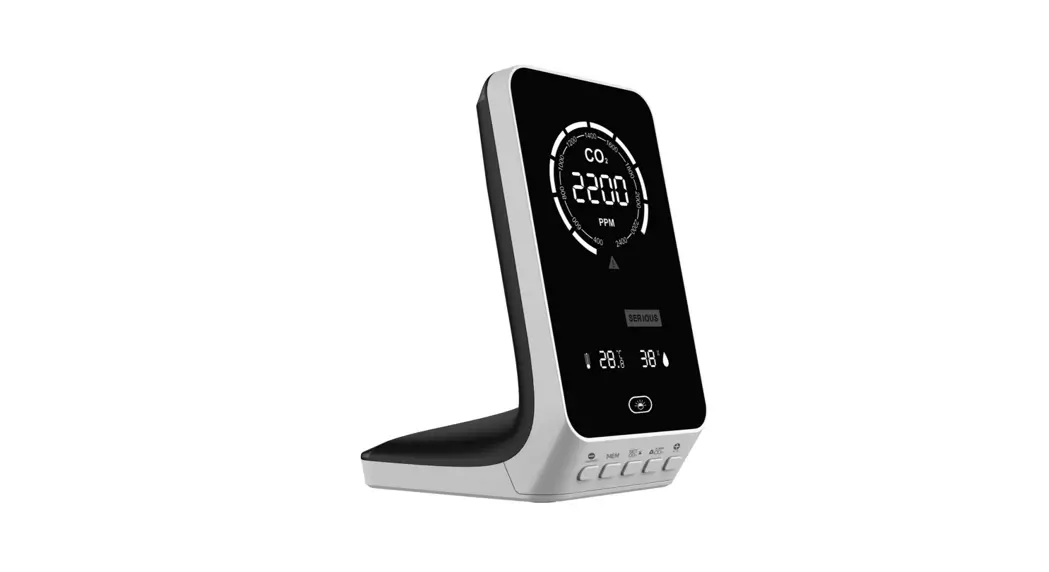
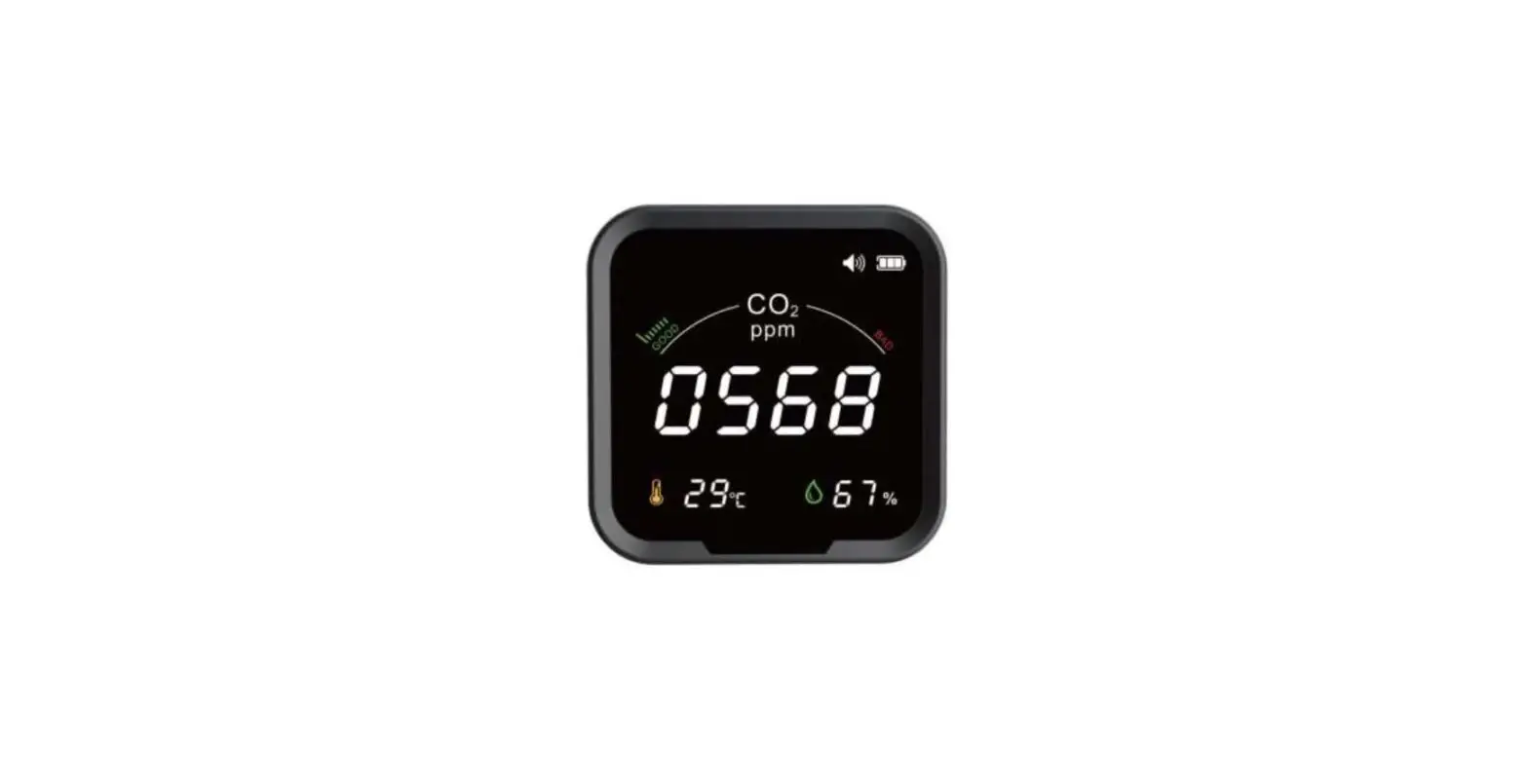
The SP1000 CO2 Smart Probe is a product developed by Test
Products International, Inc. that uses an NDIR CO2 sensor for
accuracy. It connects to a smartphone through Bluetooth and uses
the TPI Smart Probe App to display temperature readings. The device
is designed to perform ambient CO2 level checks and can connect up
to six SP1000 smart probes to a single mobile device. The product
comes with a 3-year limited warranty.
Safety Considerations
When using the SP1000, never attach it to a hot surface or
breathe directly into it while performing measurements, as doing so
can skew the actual ambient reading. Additionally, avoid exposing
the unit to damp environments for extended periods of time.
Instrument Overview
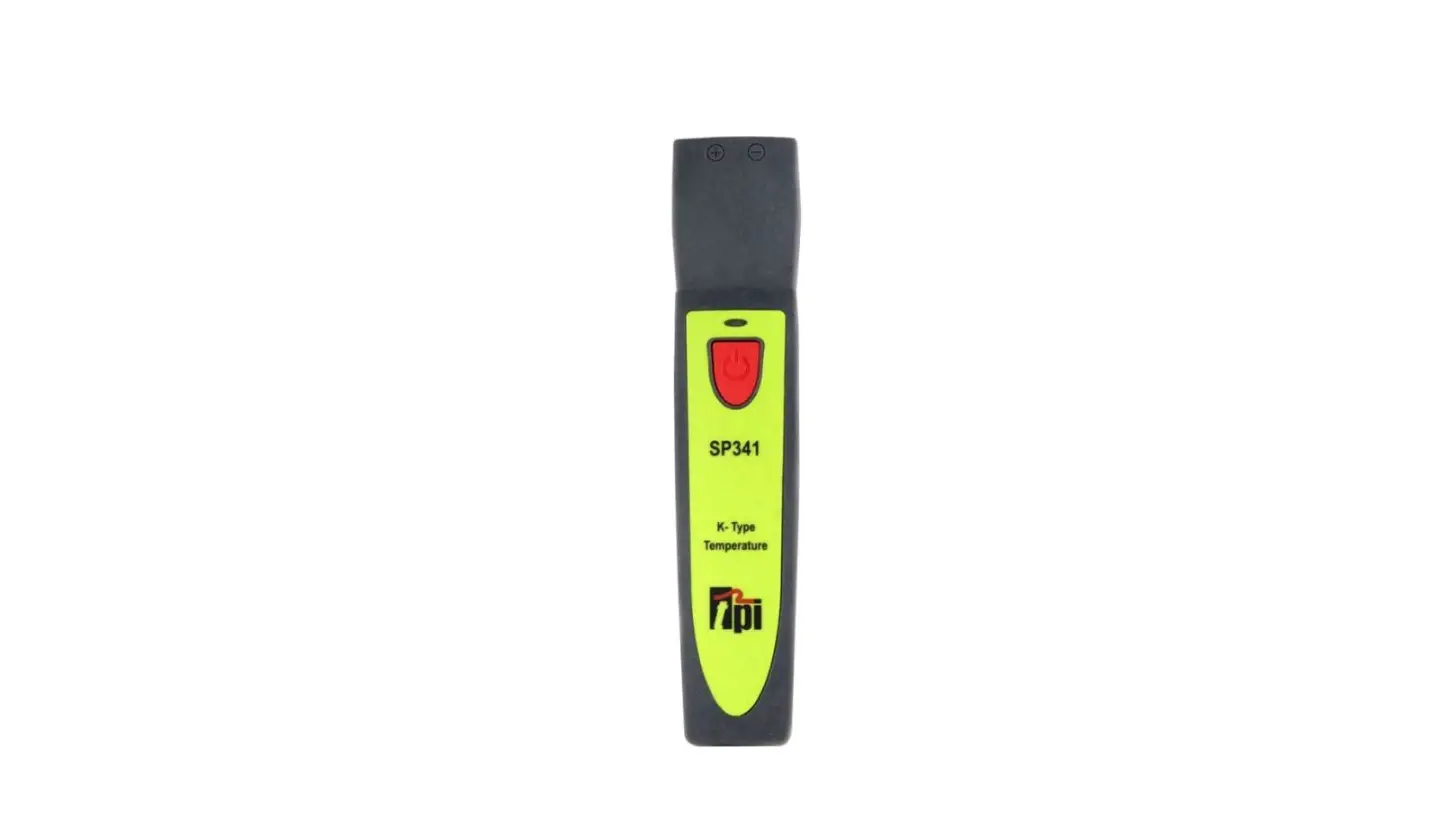
The SP1000 has a sensing area, an SP341 status LED indicator, a
power key, a built-in magnet for hands-free operation, and a serial
number location. The last three digits of the serial number are the
product identification number and are marked in bold. Use this
number to distinguish between models when several SP1000’s are
connected to a phone or tablet. The battery compartment is accessed
by turning the screw counter-clockwise until it is just above the
compartment door and lifting on the screw.
Using the SP1000
- Download and install the TPI Smart Probe App onto your mobile
device. - Press and hold the SP1000 On/Off key down until it turns on.
The LED indicator will initially be orange and blink. - The SP1000 will auto-connect to your mobile device. The LED
indicator will turn green and blink to indicate a link has been
established. The App will display the model and ID number of the
smart probe connected. - If the SP1000 does not auto-connect, tap refresh on the
App. - Tap the list icon to access optional functions, including
Show/Hide, Unit, and Zeroing Sensors. - To view the measured CO2 in ppm, tap refresh. This will also
clear any accumulated data.
Additional App Features
The TPI Smart Probe App has additional features, including graph
mode and data display mode. Graph mode displays temperature as a
line graph, and each SP1000 being used will have a different color
in the App. Data display mode shows measured data in a list
format.
Visit
www.testproductsintl.com to test the TPI Advantage.
SP1000 CO2 Smart Probe
Test Products International, Inc.
Uses NDIR CO2 sensor for accuracy Connects to smart phone and uses the TPI Smart Probe App Perform ambient CO2 level checks Up to 6 SP1000 smart probes can connect to a single mobile device (most devices) 3 Year Limited Warranty
Test the TPI Advantage
Visit www.testproductsintl.com
TABLE OF CONTENTS
A. Introduction……………………………………………………… 1 B. Safety Considerations………………………………………… 1 C. Specifications……………………………………………………. 1 D. Instrument Overview………………………………………….. 2 E. Taking a Measurement………………………………………… 3 F. Additional App Features………………………………………. 4 G. Drop Down Menu……………………………………………….. 5 H. Entering Company and Customer Information………… 5 I. Performing Ambient Air Tests……………………………….. 6 J. Maintenance……………………………………………………….. 7 K. Trouble Shooting…………………………………………………. 7 L. Accessories………………………………………………………… 7 M. Warranty……………………………………………………………. 8 N. Replacing Batteries……………………………………………… 8
A. INTRODUCTION
1. Congratulations: Thank you for purchasing TPI products. The SP1000 is easy to use and built to last. It is backed by a 3 year limited warranty.
2. Product Description: The SP1000 is an ambient CO2 “Smart Probe”. It connects to your mobile device and uses the TPI Smart Probe App to display temperature readings. Data can be exported to a CSV file as well.
B. SAFETY CONSIDERATIONS
1. Never attach the SP1000 to a hot surface. 2. Never breath directly into the SP1000 while performing measurements.
Doing so will skew the actual ambient reading. 3. Do not expose the unit to damp environments for extended periods of
time.
C. SPECIFICATIONS
1
D. INSTRUMENT OVERVIEW
1. Sensing area. 2. SP341 status LED indicator.
Orange and blinking = Bluetooth not connected Green and blinking = Bluetooth connected Blinking Red with either of the above = Low battery 3. Power Key. Press and hold to turn the instrument on. Press and hold to turn the instrument off.
4. Built-in magnet. Attach to metal surfaces for hands free operation. Ensure surface is not hot.
5. Serial number location. Last three digits are the product identification number and marked in bold. Use this number to distinguish between models when several SP1000’s are connected to a phone or tablet.
6. Screw to open battery compartment. Turn the screw counter clockwise until it is just above the compartment door. Lift on the screw to open the compartment.
2
E. TAKING A MEASUREMENT
1. Download and install the TPI Smart Probe App onto your mobile device. Run the App. The “Main-Real Time” screen will be displayed.
The App will say “No Devices” until a smart probe has been connected.
2. Press and hold the SP1000 On/Off key down until it turns on. The LED indicator will initially be orange and blink.
The SP1000 will auto connect to your mobile device. The LED indicator will turn Green and blink to indicate a link has been established. The App will display the model and ID number of the smart probe connected.
If the SP1000 does not auto connect tap refresh on the App.
3. Tapping the list icon allows optional functions to be accessed. These include Show/Hide, Unit, and Zeroing Sensors.
Displays the measured CO2 in ppm.
Refresh This also clears any data accumulated.
Show/Hide : Allows a device to be seen or hidden. Useful when multiple devices are connected. Unit : Select unit of measure. PPM is the only unit available. Zeroing Sensors: This does not work with the SP1000. This function works with other smart probe models.
3
F. ADDITIONAL APP FEATURES
1. Tapping “Graph” switches the display to graph mode. The temperature will be displayed as a line graph.
If multiple SP1000’s are being used, each will have a different color in the App.
2. Tapping “Data” switches the display to show the measured data in a list format.
Each reading in the list will be dated and time stamped.
3. Tapping the mail icon enables test data to be exported in a CSV file via email.
Tap “Graph”. Each SP1000 is displayed in a different color in the line graph.
Tap “Data”. The measurement data is shown in a list with a date and time stamp. Tapping the Refresh icon clears this data.
Tap the mail icon. Test data will be exported in a CSV file via email.
4. Exported data in the CSV file display with the date and time stamp.
If a company and customer name has been entered they will be exported too. See page 5 for setting up the customer and company name.
4
Company Name : Company Address : Customer Name : Customer Address : Building Name : Building Address :
Test Products Intl 9615 SW Allen Blvd Sample Customer 1111 Sample Way Bldg 3 2222 Sample Ave
Date
Time 5/9/2018 5/9/2018 5/9/2018 5/9/2018 5/9/2018 5/9/2018 5/9/2018 5/9/2018
SP1000-008(ppm)
13:30:42
601
13:30:40
599
13:30:38
597
13:30:36
595
13:30:34
593
13:30:32
590
13:30:30
589
13:30:28
587
G. DROP DOWN MENU
The Smart Probe App has a Drop Down menu allowing access to additional app features.
1. Tap the Drop Down Menu icon to access additional features.
Main – Real Time: Tapping this returns you to the main screen. Select Application: Tapping this pulls up sub applications for variious smart probes. These include Temperature differential (SP341), Air Volume Calulation (SP565), and Tightness Test (SP620). Note: There are no sub applications for the SP1000.
Company Info: Allows you to enter your information to show up on the CSV file report. You can enter your company name, address, and email. Customer Info: Allows you to enter the information of the customer the tests are being performed for. You can enter the customer name, address, and email. You can also enter the building information in cases where the tests are being performed somewhere off-site from the customer. Exit: Closes the Smart Probe App.
H. ENTERING COMPANY AND CUSTOMER INFORMATION
The Smart Probe App allows you to enter your company information and the customer information who the test is being performed for. This information will be exported in the CSV file (see page 4).
1. Tap the Drop Down Menu icon to access additional features. 2. Select “Company Info” to enter your information to show up on
the CSV file report. You can enter your company name, address, and email. 3. Select “Customer Info” to enter the information of the customer the tests are being performed for. You can enter the customer name, address, and email. You can also enter the building information in cases where the tests are being performed somewhere off-site from the customer.
5
I. PERFORMING AMBIENT AIR TESTS
1. Start the app on your smart device. 2. Turn the SP1000 on. If multiple SP1000’s are being used
turn each one on after one has connected to the smart device. 3. Move from room to room with the SP1000 allowing the readings to stabilize in each area. Take care not to breath directly into the sensor area. Doing so will cause the readings to rise and be inaccurate. Another option is to leave the SP1000 in an area on a table face up or use the magnet on the back to attach it to something metal. This will prevent any chance of breathing into the sensor area and skewing the readings. 4. The measurement data can be exported in a CSV file for report generation.
6
J. MAINTENANCE
1. Clean the surface of the instrument with a damp cloth. 2. Replace the three AAA batteries when the low battery indicator appears.
K. TROUBLE SHOOTING
Symptom CO2 seems inaccurate.
Probable Cause
· Low battery. · Make sure not to breath into the
sensor area during tests. · Ensure connection with phone is
working.
SP1000 does not turn on.
· Dead or low batteries. · Not holding down power switch
until unit turns on. · Defective POWER ON switch.
CO2 reads high all the time.
· Make sure not to breath into the sensor during tests.
L. ACCESSORIES
Included Accessories
Part Number Description
A1000SP
Soft pouch
Optional Accessories
Part Number Description
A925
Carrying case for 4 smart
probes
A926
Carrying case for 1 or 2
smart probes
Test Products International offers a variety of K-Type thermocouple probes for many applications. Visit www.testproductsintl.com for additional information.
7
M. WARRANTY
This product is warranted to the purchaser against defects in material and workmanship for three years from the date of purchase.
Covered by Warranty: Repair parts and labor; or replacement of the product at company’s option. Normal transportation charges to the purchaser are also covered.
Not Covered by Warranty: Damages to the product which are the result of abuse, improper use or maintenance are not covered. Any other expense, consequential damages, incidental damages, or incidental expenses including damages to property are not covered. Transportation expenses to the company are not covered.
Some states do not allow the exclusion or limitation of incidental or consequential damages, so the above limitations or exclusions may not apply to you.
To Obtain Warranty Performance: Include with the product: your name, address, phone number, written description of the problem and proof of purchase date. Carefully package and return to:
TPI, Inc. 9615 SW Allen Blvd. Beaverton, OR 97005 USA 503-520-9197 www.testproductsintl.com
TPI Canada 342 Bronte Rd. S., Unit 6 Milton, Ontario L9T 5B7 Canada 905-693-8558 www.tpicanada.com
TPI, Europe Ltd.. Longley House, International Drive Southgate Crawley West Sussex RH10 6AQ England 44(0) 1293 530196 www.tpieurope.com
Implied Warranties: Any implied warranties including implied warranties of merchantability and fitness for a particular purpose, are limited in duration to three years from date of purchase. To the extent any provision of this warranty is prohibited by federal or state law and cannot be preempted, it shall not be applicable. This warranty gives you specific legal rights, and you may also have other rights which vary from state to state.
N. REPLACING BATTERIES
1. Turn the battery compartment screw counter clockwise until it is just above the compartment door. Lift on the screw to open the compartment.
2. Replace the three AAA batteries.
3. Re-install the battery cover and tighten the screw by turning it clockwise.
8
NOTES
Test Products International, Inc.
9615 SW Allen Blvd., Ste. 104 Beaverton, OR 97005 Tel: 503-520-9197
www.testproductsintl.com
Test Products International, Ltd.
342 Bronte Road South, Unit #6 Milton Ontario Canada L9T 5B7
Tel: 905-693-8558 www.tpicanada.com
Test Products International Europe Ltd.
Longley House, International Drive Southgate, Crawley, West Sussex RH10 6AQ
Tel:: +44 (0) 1293 530196 www.tpieurope.com
 Test Products International - USA
 TPI Canada
 TPI Europe