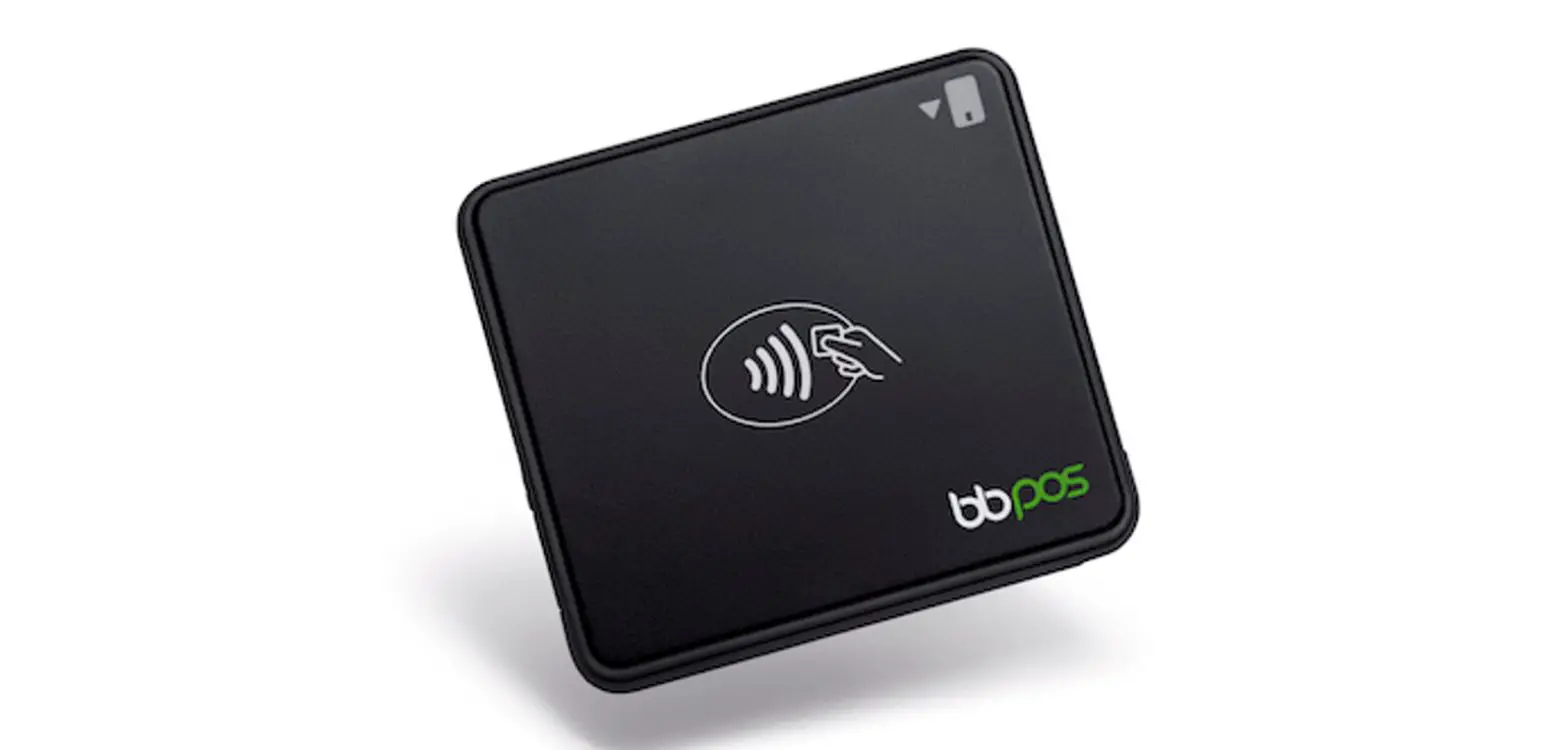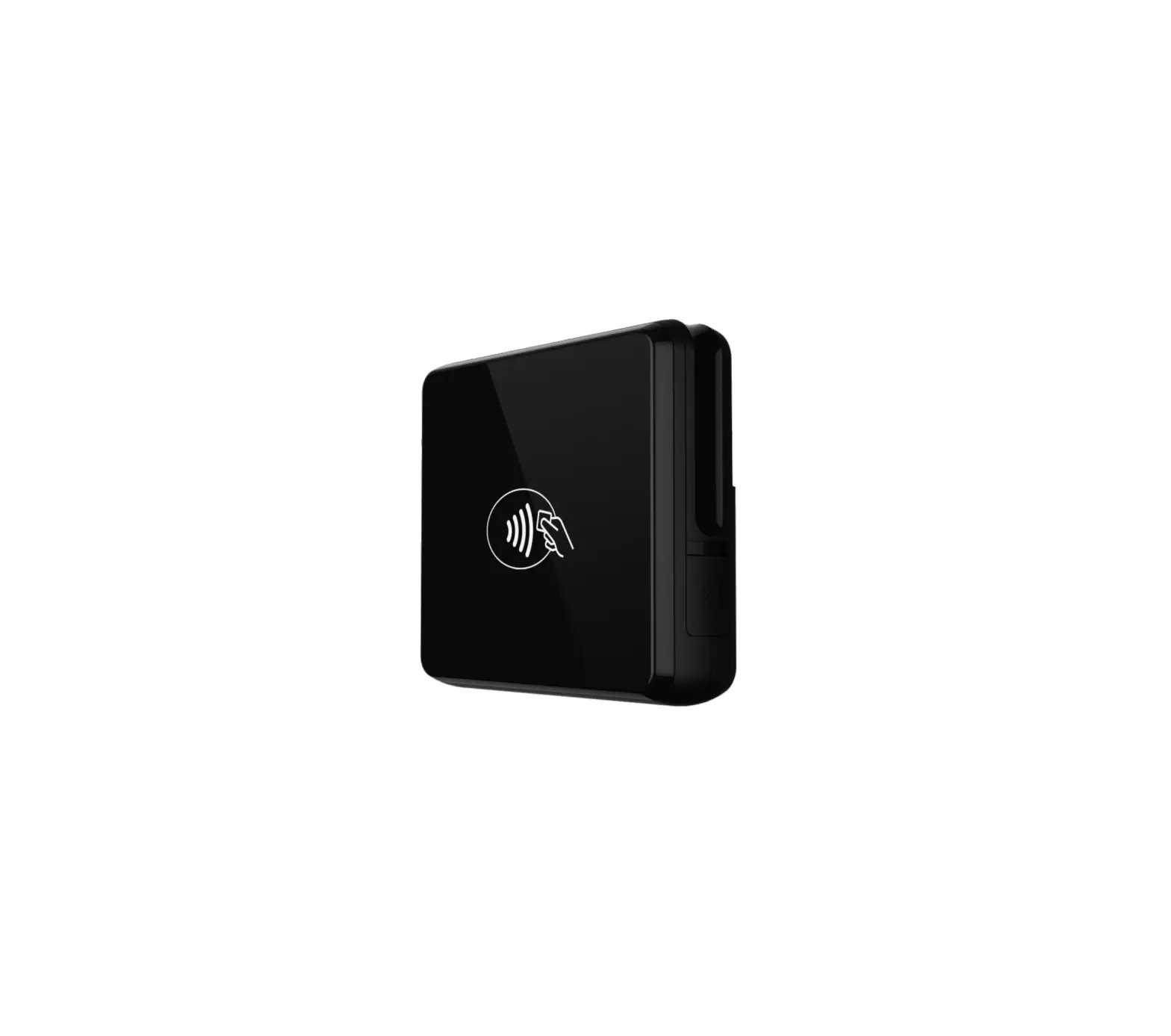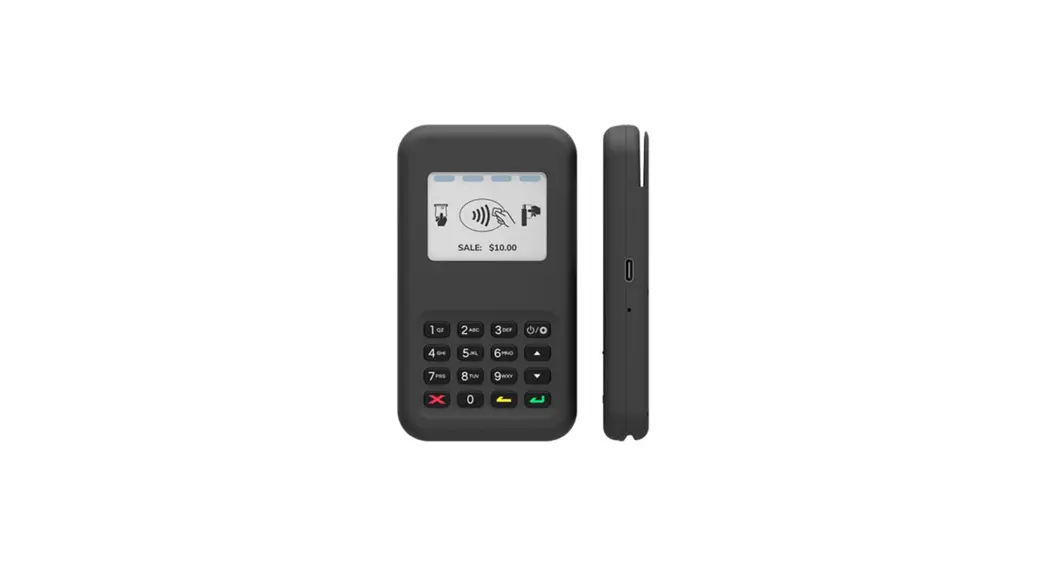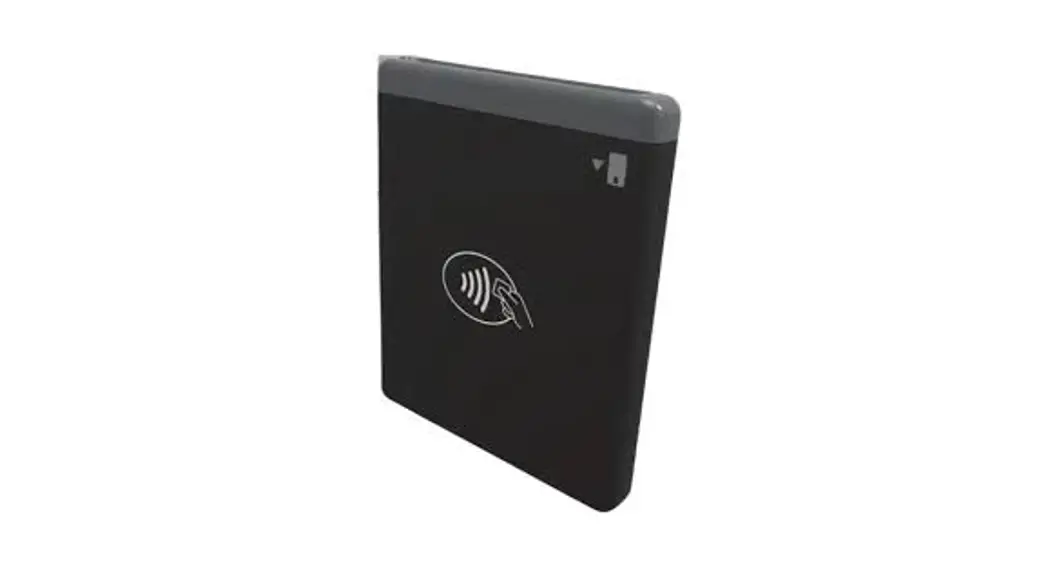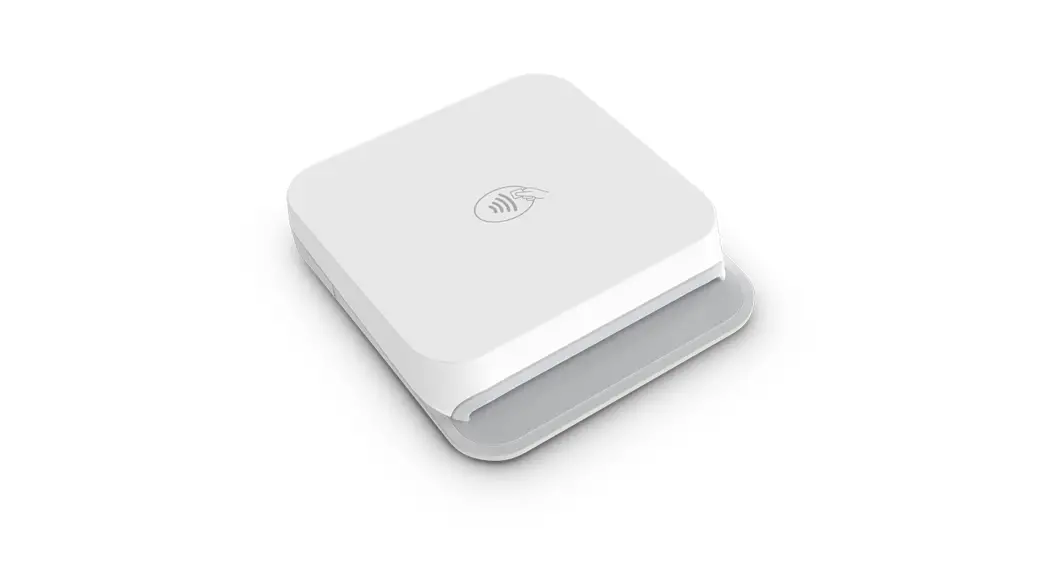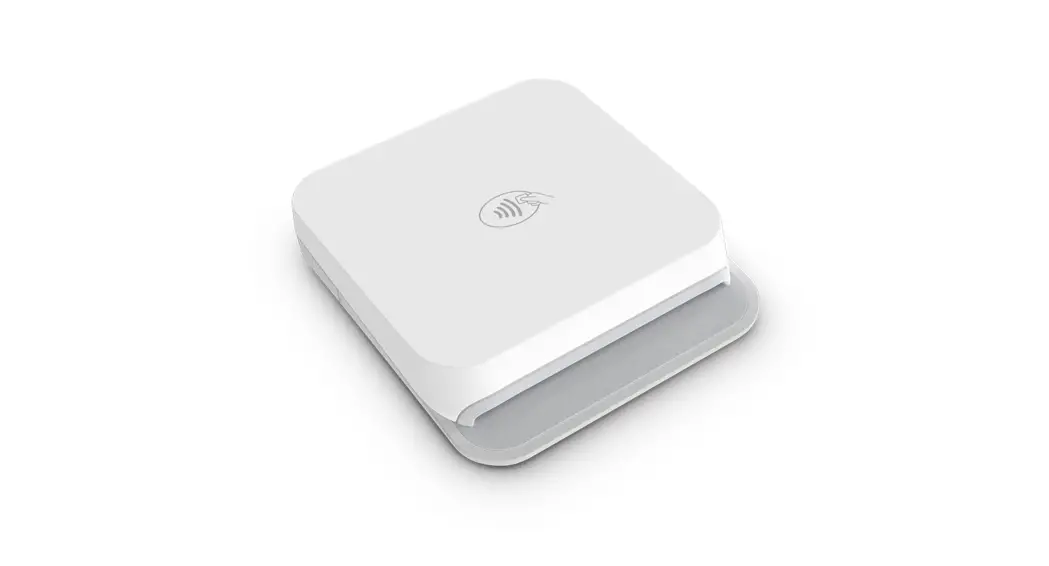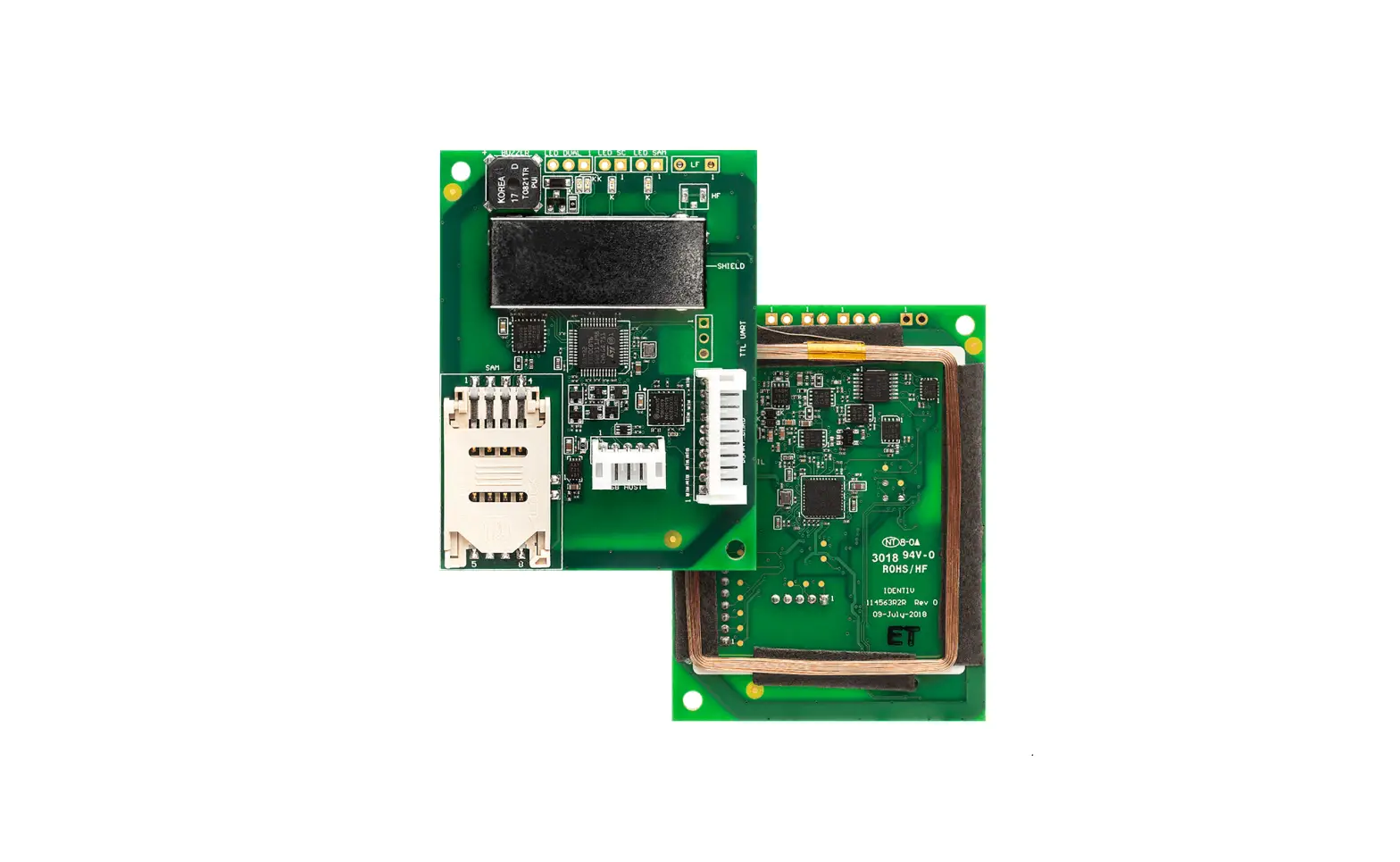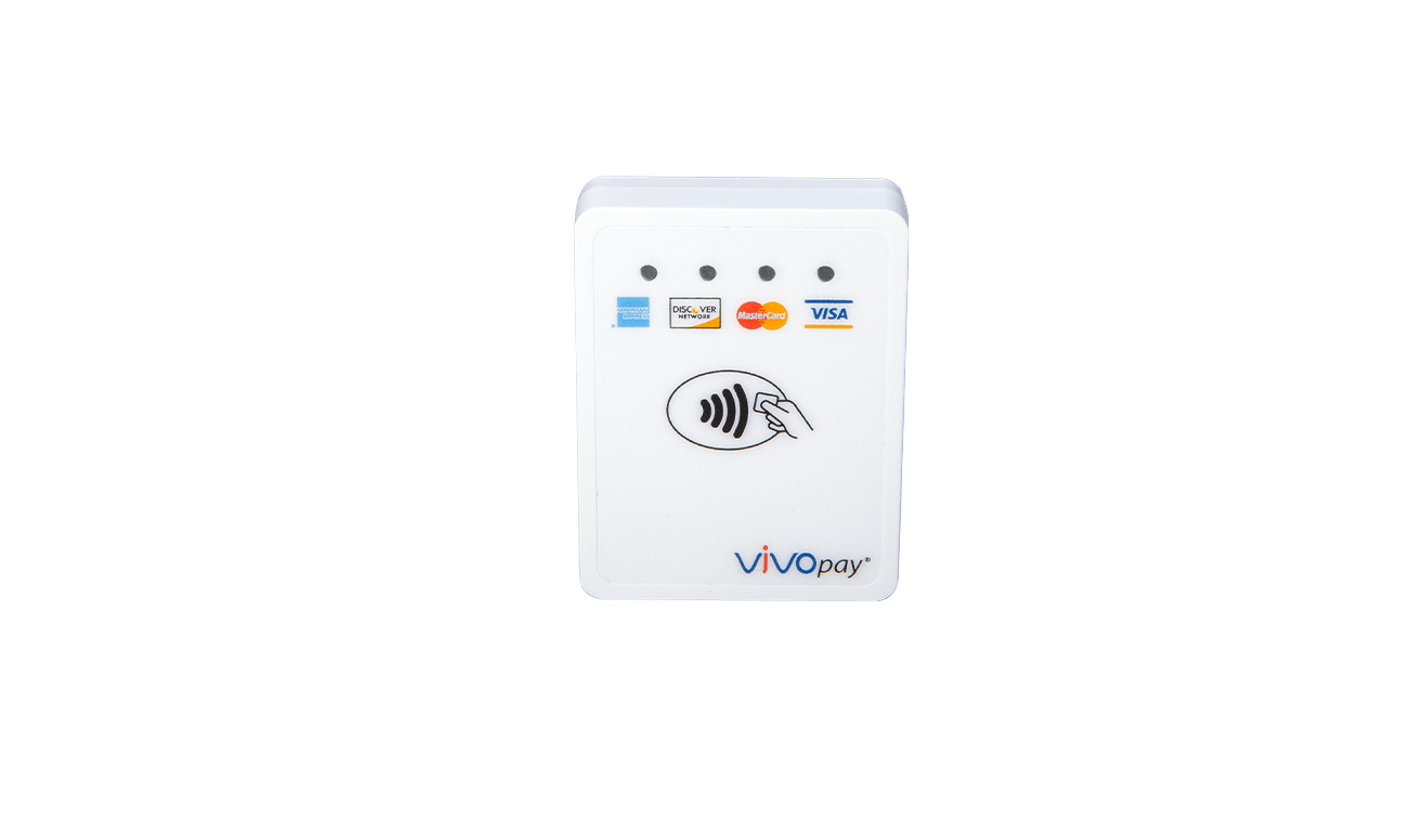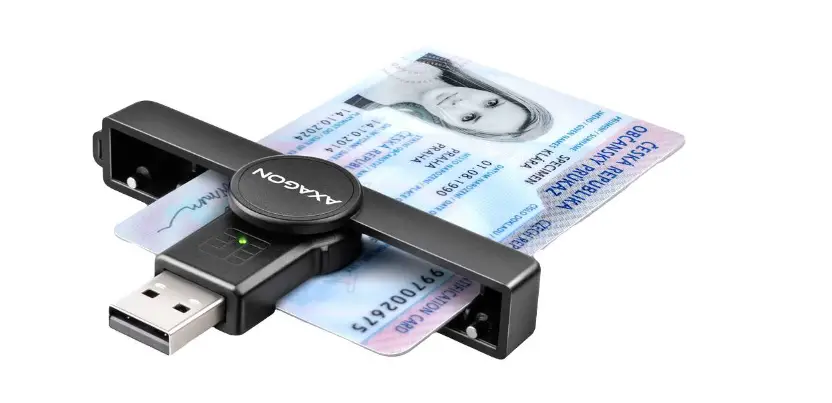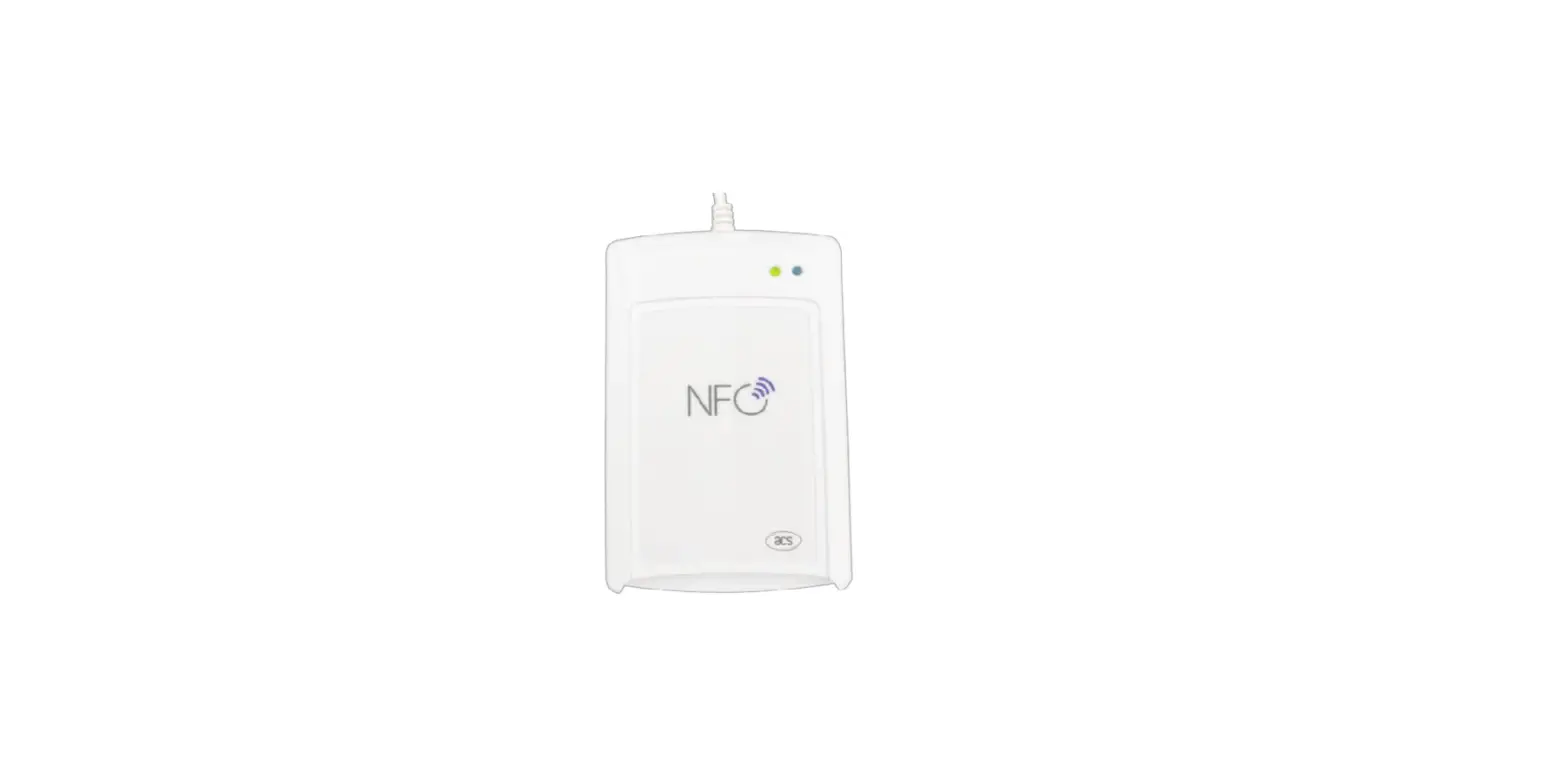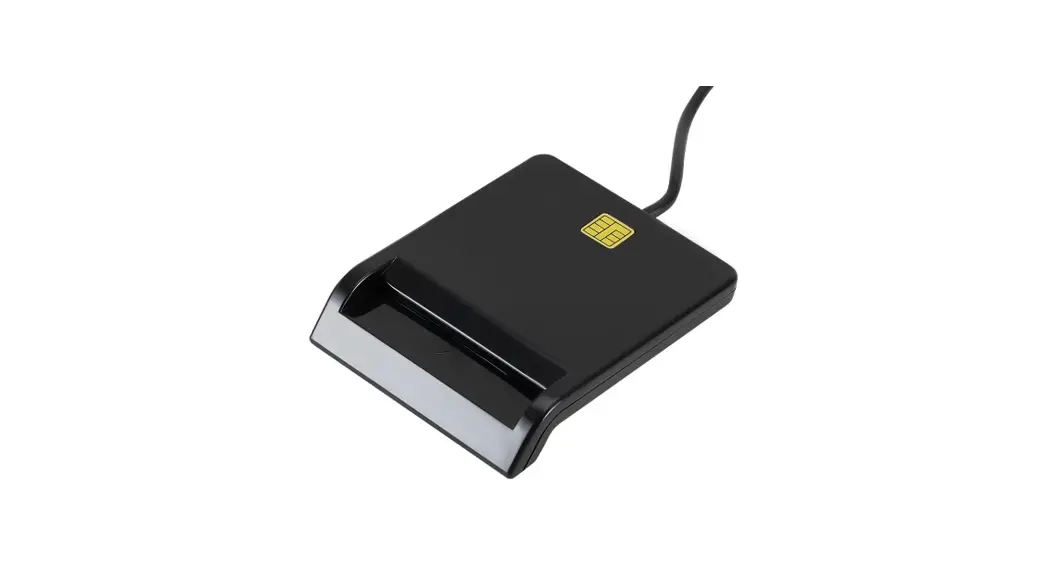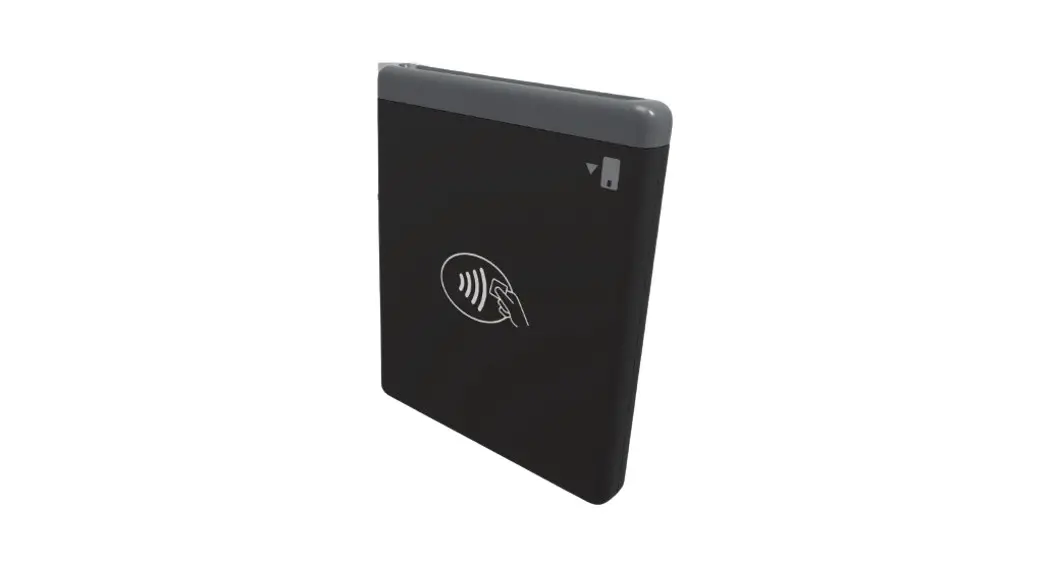

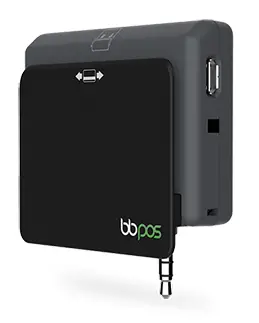
bbpos -Chipper- OTA EMV- Smart- Card and -Mag -Stripe -Track -1&2 -Reader
Introduction
The Chipper OTA is an offering of standalone applications developed to aid users in updating their Chipper series devices to the latest firmware version that ensures CAPK readiness. It is imperative that the firmware in your Chipper series device(s) is updated to the latest version to ensure that there is no interruption in your transaction processing. Starting on January 1, 2022, all EMV transactions will be declined regardless of card brand if the firmware is not updated to the latest recommended version.
Purpose
The purpose of this document is to help understand the applications designed to update the Chipper series firmware to a specific version necessary to address CAPK readiness.
How does Chipper OTA work?
BBPOS has developed a standalone Android, iOS, Windows, and Mac application that will update a Chipper series device via Bluetooth or USB.
How to upgrade your Chipper?
Expected time taken:
| Platform | Expect time taken |
 |
4 – 5 minutes |

|
7– 8 minutes |
 |
4 minutes |
 |
<4 minutes |
Reminder: In the merchant environment, the firewall of Intranet/WIFI network must have a rule to allow traffic to the BBPOS TMS server. The rule is to allow ingress/egress traffic of HTTPS to the domain api.emms.bbpos.com
The standalone Chipper OTA application has been developed with simplicity in mind and designed to be “plug and play”. The instructions on how to use the application are as follows:
| Step | Screen | Description |
| 1. | 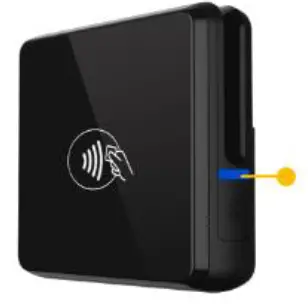 | Turn on the device to be updated. Ensure that your Chipper is powered on with network connectivity. |
| 2. | 
| Download the Chipper OTA. |
| Android version: Scan the QR code or Click the link below to download the Chipper OTA. | ||
| QR code: | ||
|
| ||
| URL: https://play.google.com/store/apps/detail s?id=com.bbpos.chipperotaapp | ||
| iOS version: Scan the QR code or Click the link below to download the Chipper OTA. | ||
| QR code: | ||
|
| ||
| URL: https://apps.apple.com/app/chipper- ota/id1589744317 |
| 3. | 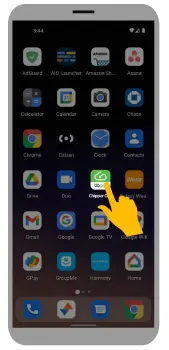 | Open the Chipper OTA. |
| 4. | 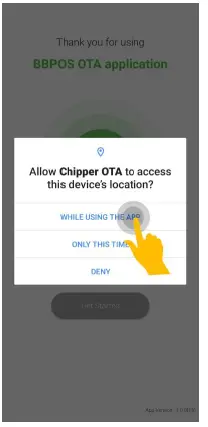 | If prompted, select “While Using the App” to allow location permissions usage. |
| 5. | 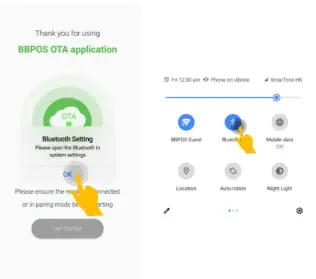 | If prompted, open the Bluetooth in system settings, Click OK. |
| 6. | 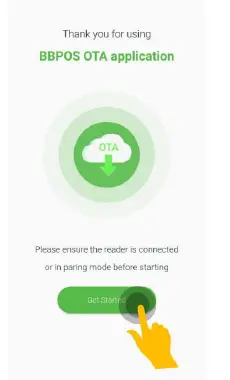 | Click Get Started to connect to the Chipper through Bluetooth with your Android/iOS device. |
| 7. | 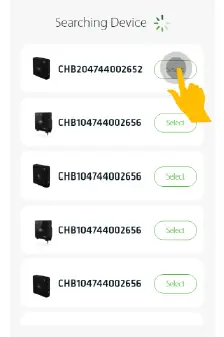 | Click Select to pick the Chipper you want to upgrade from the available device list. |
| 8. | 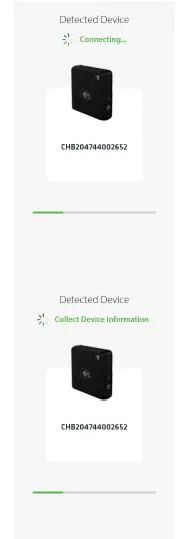 | Connecting > Collect Chipper Information |
| 9. | 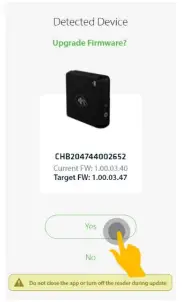 | Click Yes , then the update will be started.
Reminder: Do not close the app or turn off the reader during update. |
| 10. | 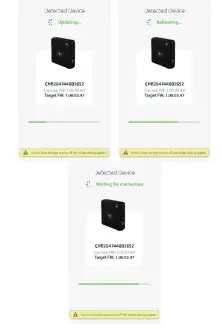 | Updating > Rebooting > Waiting for connection
Reminder: Do not close the app or turn off the reader during update. |
| 11. | 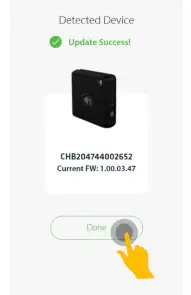 | Update Success! Click Done. |
| 12. | 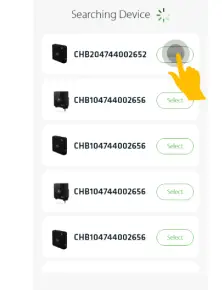 | You may now close the application or select another device to update |
| Step | Screen | Description |
| 1. | 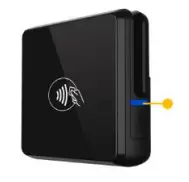 | Turn on the device to be updated. Ensure that your Chipper is powered on with network connectivity. |
| 2. | 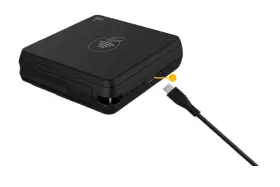 | Connect Chipper with a USB cable. |
| 3. | 
| Download the Chipper OTA. |
| Windows version: Click the link below to download the Chipper OTA. URL: https://developer.bbpos.com/app/chip per-ota-app/chipper-ota-app.exe | ||
| Mac version: Click the link below to download the Chipper OTA. URL: |
| 4. | 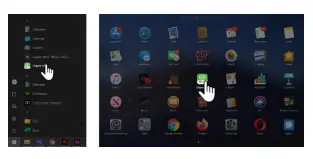 | Open the Chipper OTA. |
| 5. | 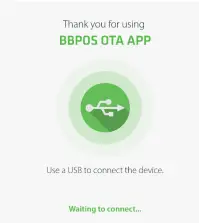 | Waiting for connection.
Reminder: Do not remove the USB cable while connecting. |
| 6. | 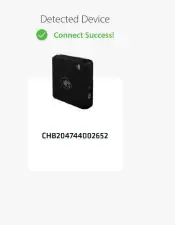 | Connect Success! |
| 7. | 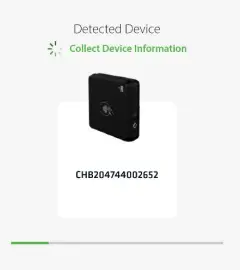 | Collect Device Information. |
| 8. | 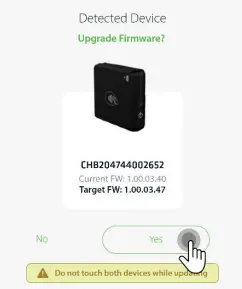 | Click Yes , then update will be set.
Reminder: Do not close the app or turn off the reader during update. |
| 9. | 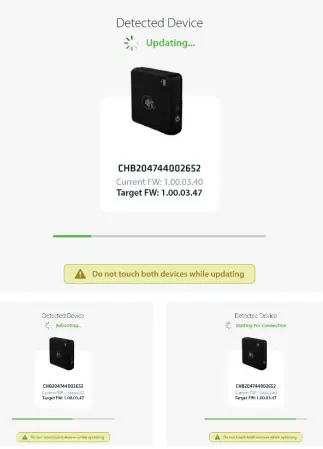 | Updating > Rebooting > Waiting for connection
Reminder: Do not close the app or turn off the reader during update. |
| 10. | 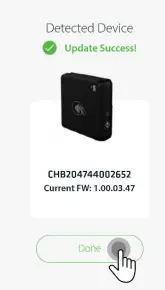 | Update Success!
Click Done , then disconnect the device. |
| 11. | 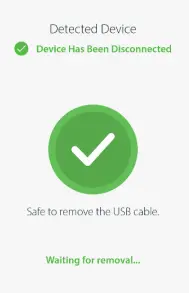 | Safe to remove the USB cable. |
| 12. | 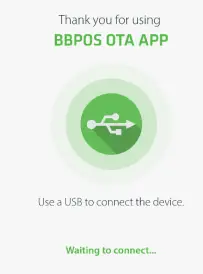 | You may now close the application or connect another device to update. |
| Screen | Description | |
| 4.1 | 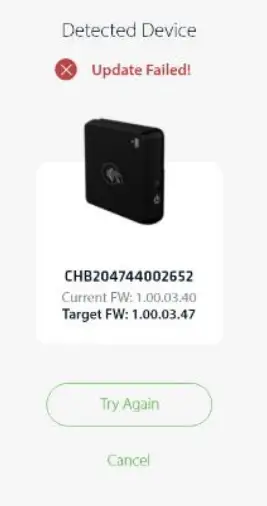 | Error Message: Update Failed!
Possible Reasons: 1. Device is not suitable for firmware upgrade. 2. Device battery is below 50% charge. |
| 4.2 | 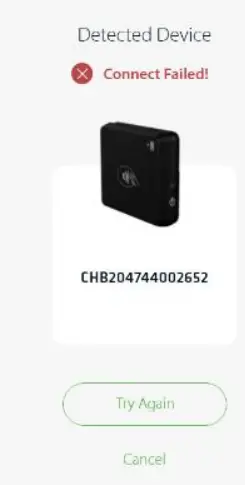 | Error Message: Connect Failed!
Possible Reasons: Firewall/IP might block your Chipper connection to the BBPOS server.
Possible Solutions: 1. In the merchant environment, the firewall of Intranet/WIFI network must have a rule to allow traffic to the BBPOS server. The rule is to allow ingress/egress traffic of HTTPS to the domain api.emms.bbpos.com
2. Contact your service provider for support. |
| 4.3 | 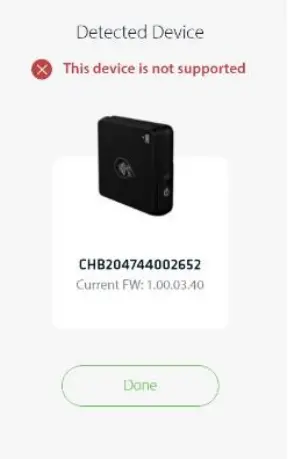 | Error Message: This device is not supported.
Possible Reasons: Your Chipper might not be able to update depending on the software / hardware version.
Possible Solutions: 1. Update Chipper OTA to the latest version.
2. Contact your service provider for support. |
 BBPOS | We are the founders of mPOS technology.
 BBPOS | We are the founders of mPOS technology.
 developer.bbpos.com/app/chipper-ota-app/chipper-ota-app.exe
 Chipper OTA - Apps on Google Play