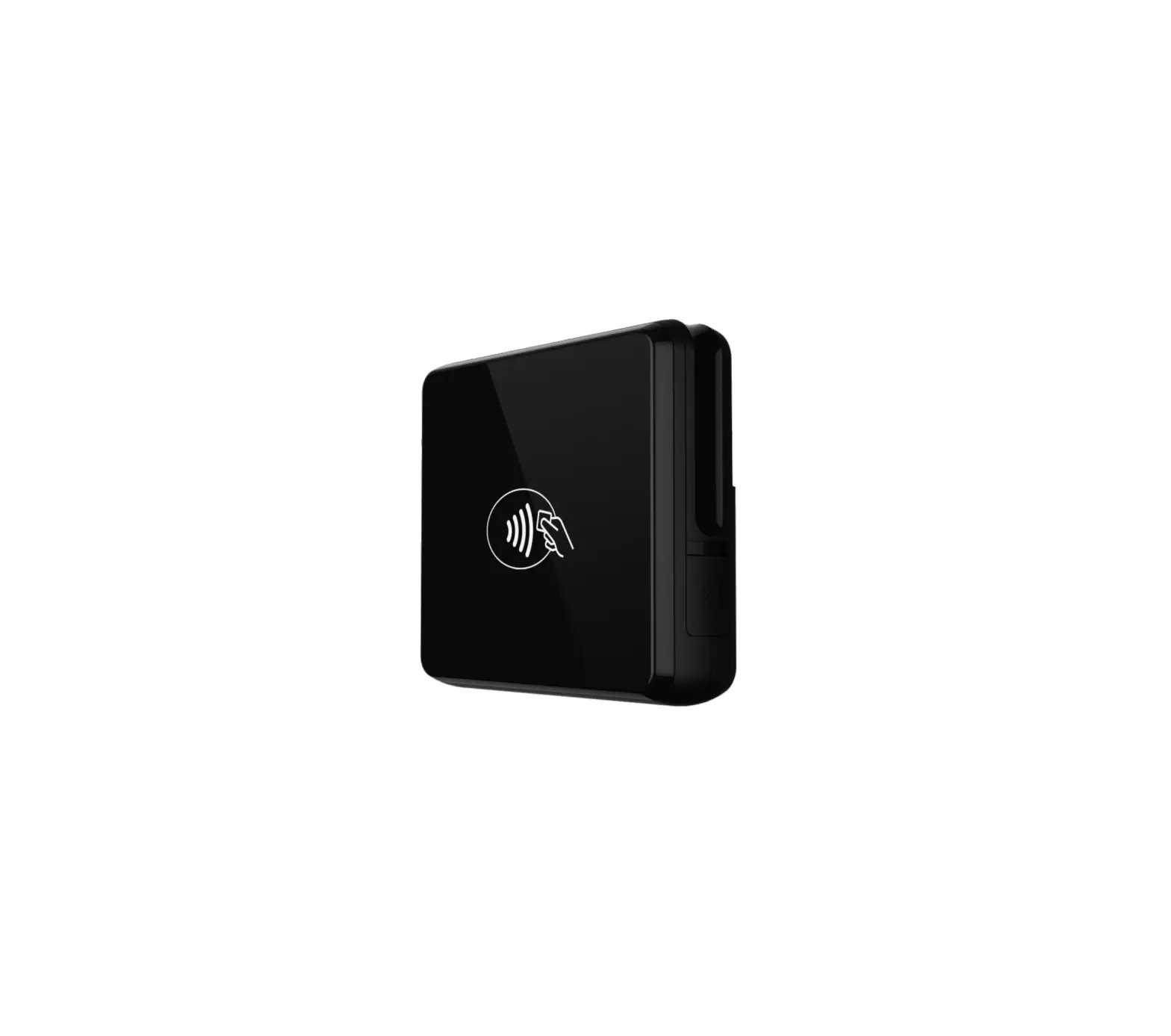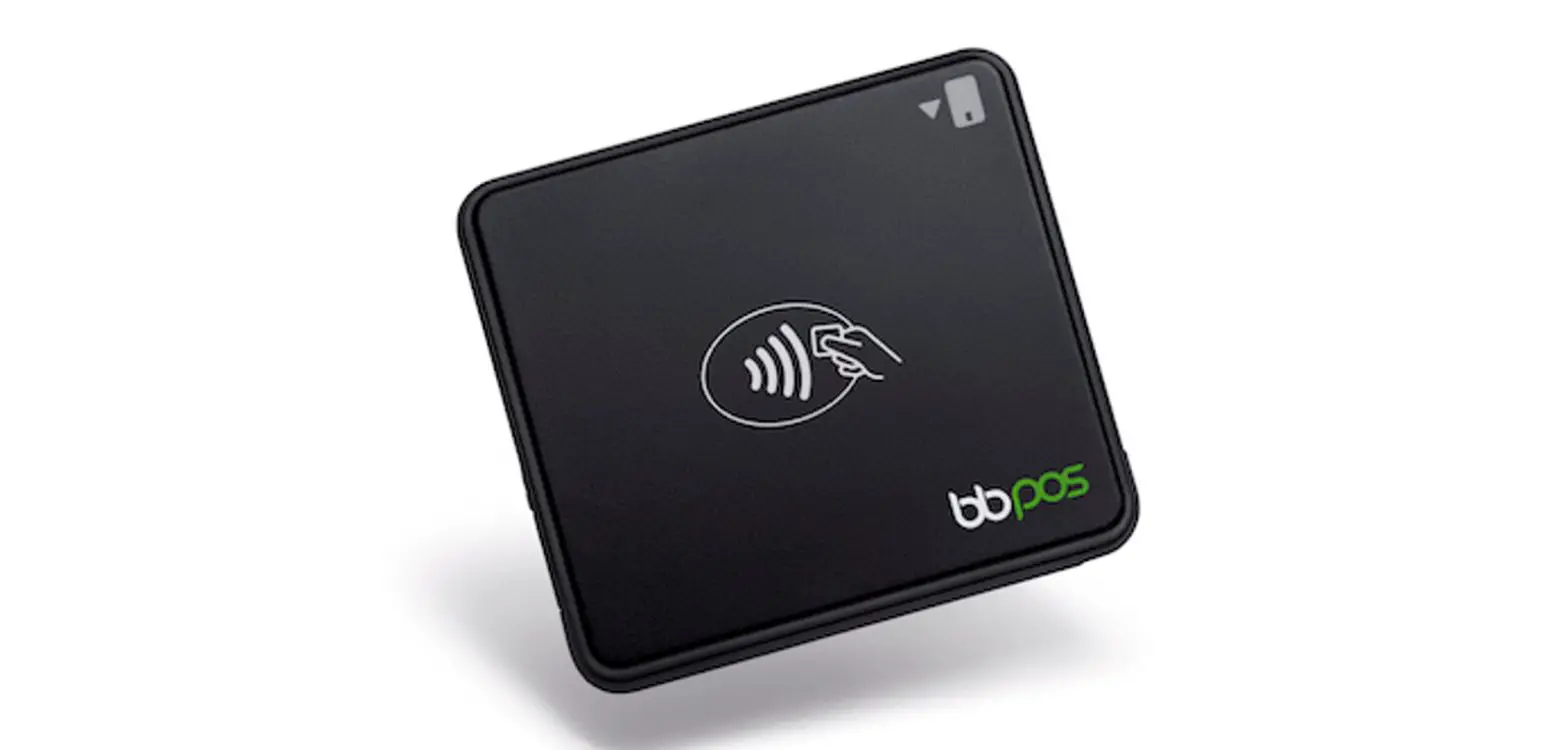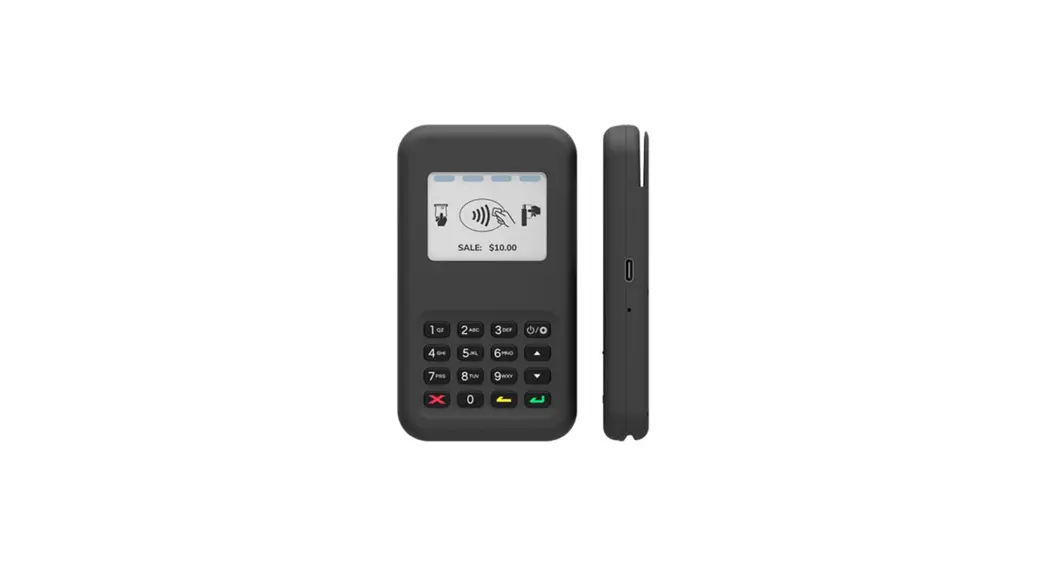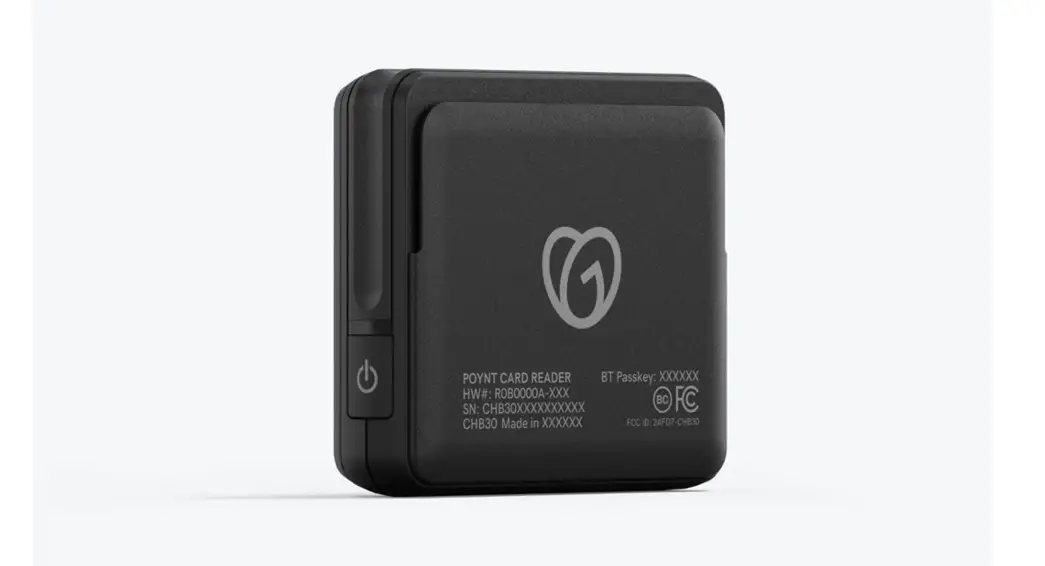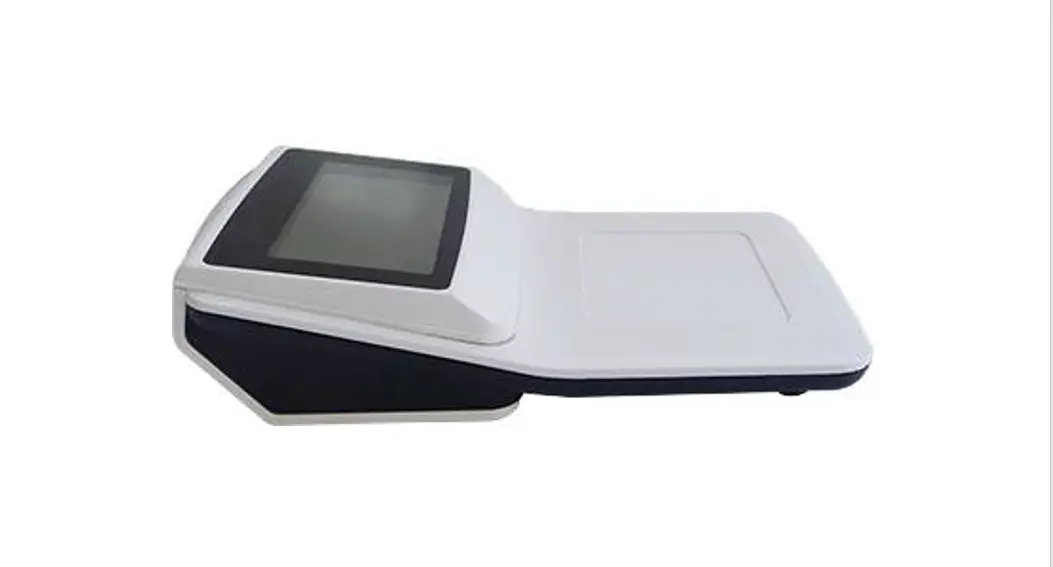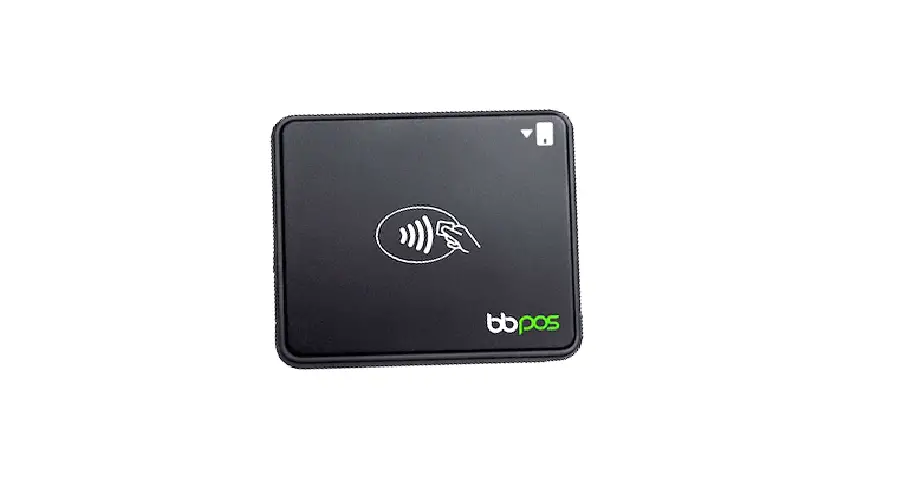

bbpos POS Go Card Reader Device
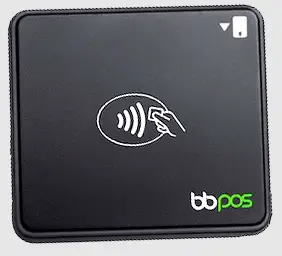
Please note: These are designs are not final and are subject to change.
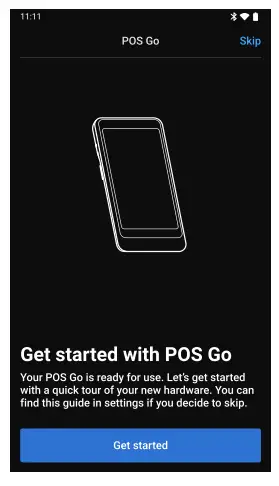
Get started with POS Go
Your POS Go is ready for use. Let’s get started with a quick tour of your new hardware. You can find this guide in settings if you decide to skip.
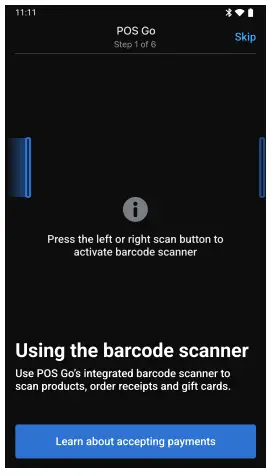
Using the barcode scanner
Use POS Go’s integrated barcode scanner to scan products, order receipts and gift cards.
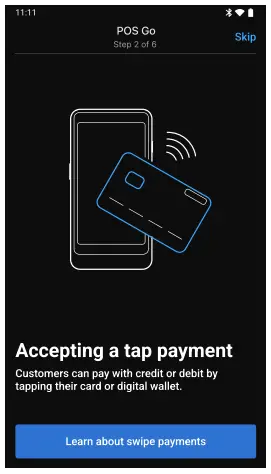
Accepting a tap payment
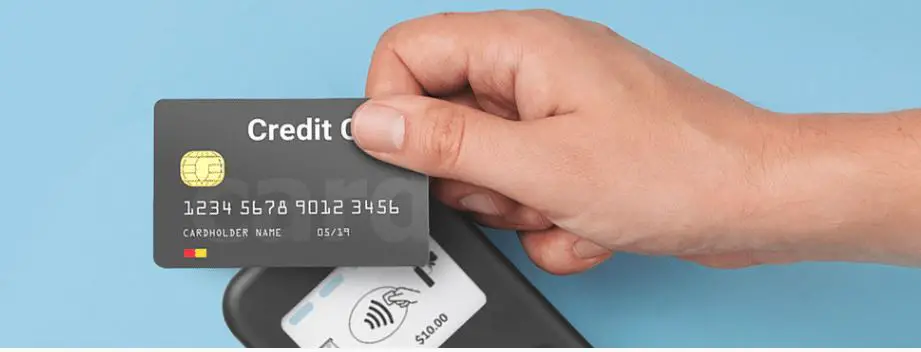
Customers can pay with credit or debit by tapping their card or digital wallet.
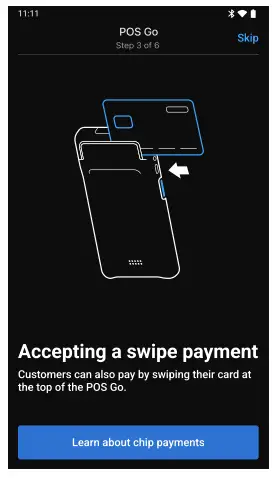
Accepting a swipe payment
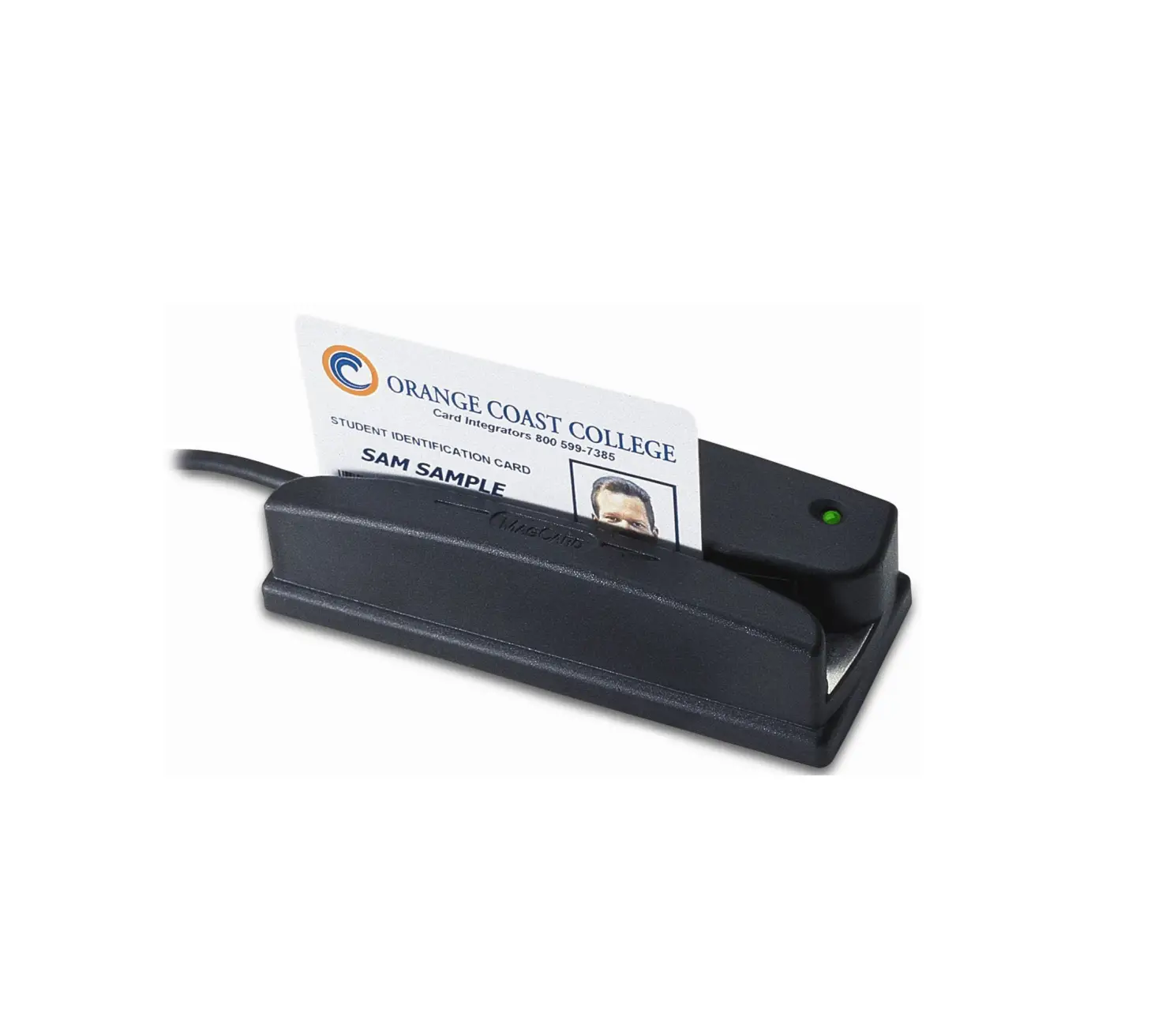
Customers can also pay by swiping their card at the top of the POS Go.
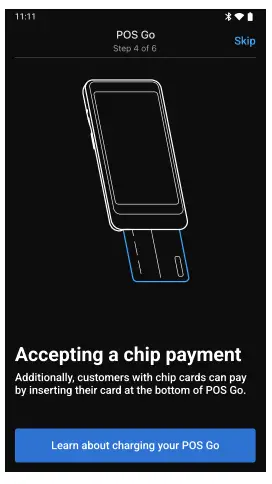
Accepting a chip payment
Additionally, customers with chip cards can pay by inserting their card at the bottom of POS Go.
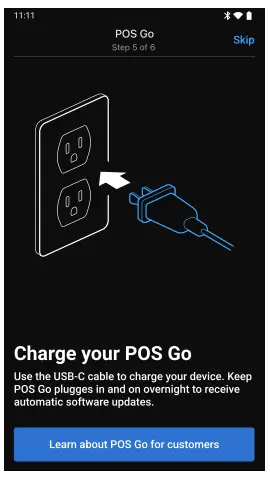
Charge your POS Go
Use the USB-C cable to charge your device. Keep POS Go plugges in and on overnight to receive automatic software updates.
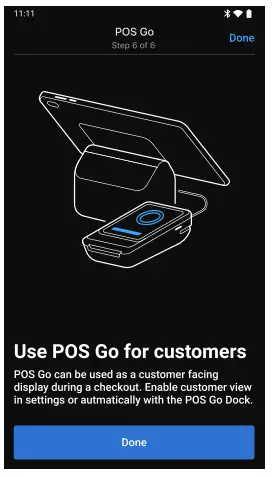
Use POS Go for customers
POS Go can be used as a customer facing display during a checkout. Enable customer view in settings or autmatically with the POS Go Dock.