AULA Gaming Mechanical Keyboard User Manual
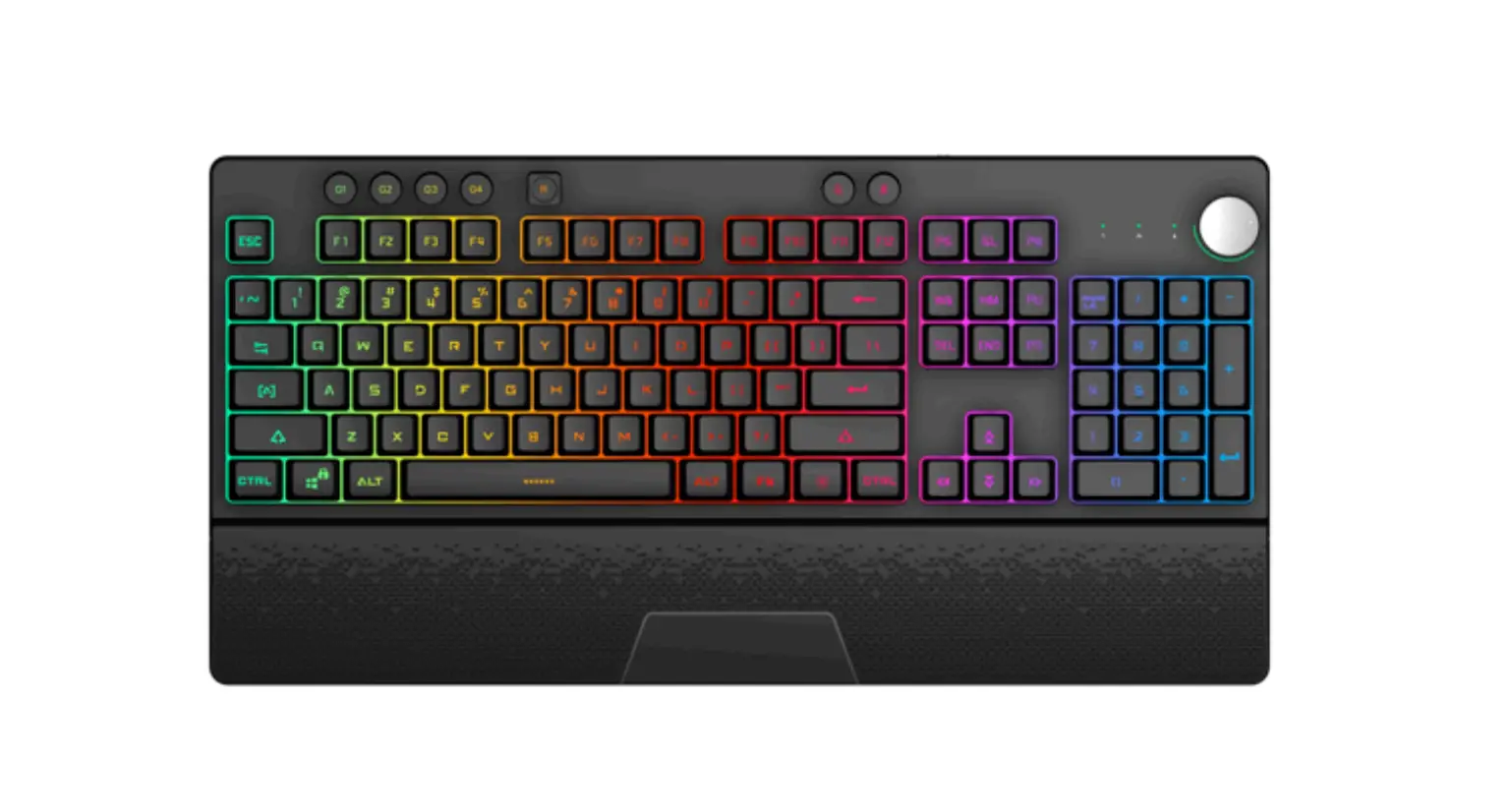
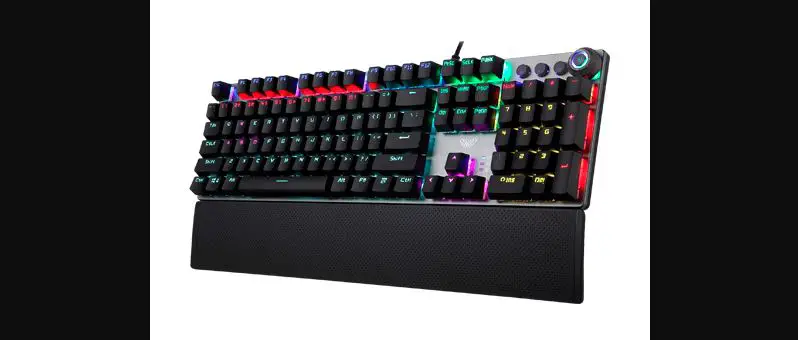
Product Overview
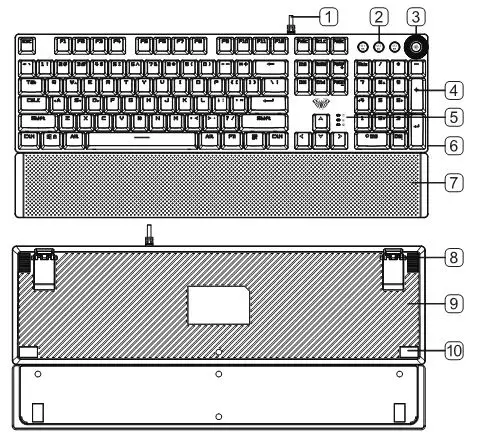
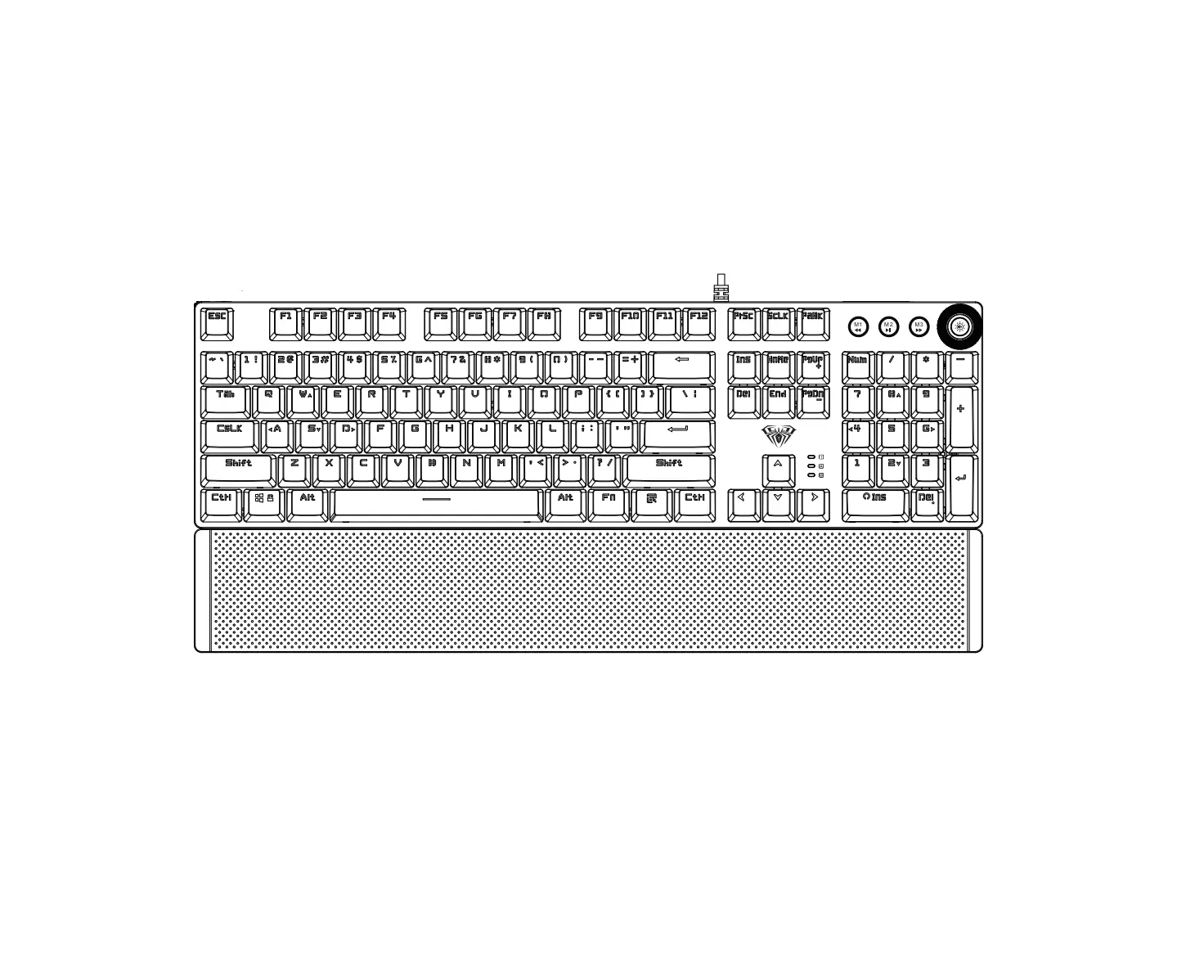
1 Cable
2 Mode key
3 Light effect/volume knob
4 Double-injection Keycap
5 Indicator light
6 Metal plate
7 Magnetic Hand Rest
8 Holder
9 Bottom cover
10 Mat
Product description
- Knob dual mode switching design
- 3 custom light mode buttons to record lighting effects according to player preferences
- Multimedia shortcut function button design
- Key cap double injection molding process, durable wear, no fading
- Designed with mechanical switches for durability and excellent hand feel
- The button responds sensitively, triggering stroke 2.0mm
- The hand rest uses ultrasonic welding technology, and the magnetic design is perfectly matched with the keyboard.
- With smart sleep mode: the host enters sleep or standby state, the backlight function is turned off, and the previous mode is restored after the host starts.
Product features
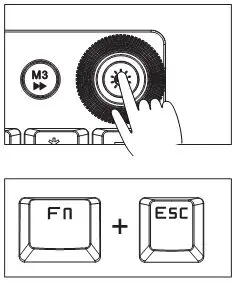
- Knob dual mode design, default lighting mode, like “light effect mode” and “multimedia mode”
- Operation mode: long press for 3 seconds to switch the multimedia mode, the knob light is off; the light effect mode, the knob light is on
- FN+ESC 1~2 seconds to restore factory defaults
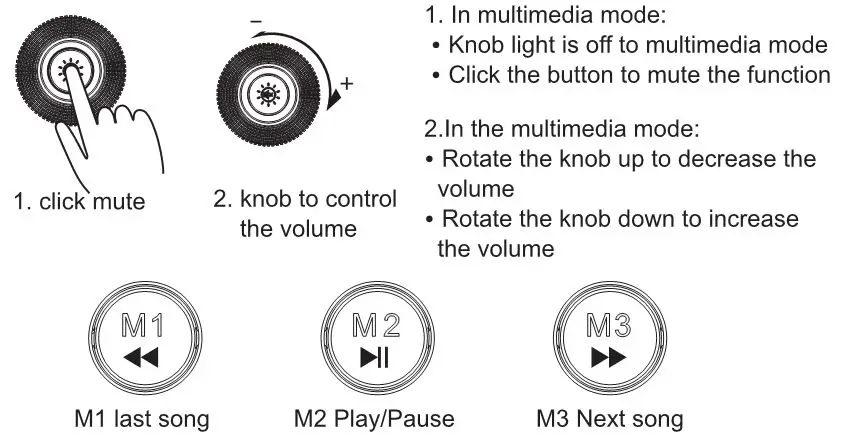
Multimedia mode
Light effect mode
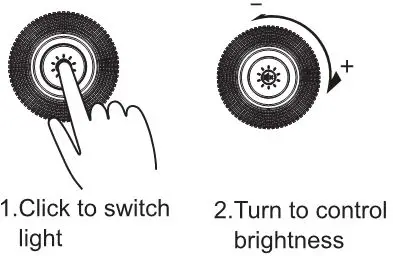
- In the light effect mode
· The rotation indicator lights up to the lighting mode
· Click the button to switch the light effect mode and store up to 19 lighting effects. - in the light effect mode
· Rotate the knob down to dim the brightness of the light
· Rotate the knob down to increase the brightness of the light
Custom lighting mode
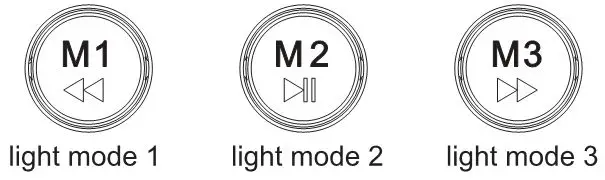
- The M1/M2/M3 button has been set to the game area lighting.
- In addition, you can make your own lights according to your preferences. After pressing the M button for 3 seconds, the knob indicator flashes to flash the keyboard, and then press the M button to confirm.
 M1 light mode 1, default light button WSADCQETBMVFZ
12345 Shift Tab Ctrl Alt <Light on>
 M2 light mode 2, default light button QWERDFBASMCGYH
123456 Esc SpaceTab <Light on>
 M3 light mode 3, default light button WASDREQ 1234 Shift Ctrl Space Tab Enter Esc Home End FageUp Insert Delete F1 <Light on>
Full key macro programming setting
104-key macro programming can be customized, the game is more fun and the performance is stronger. Driver interface introduction
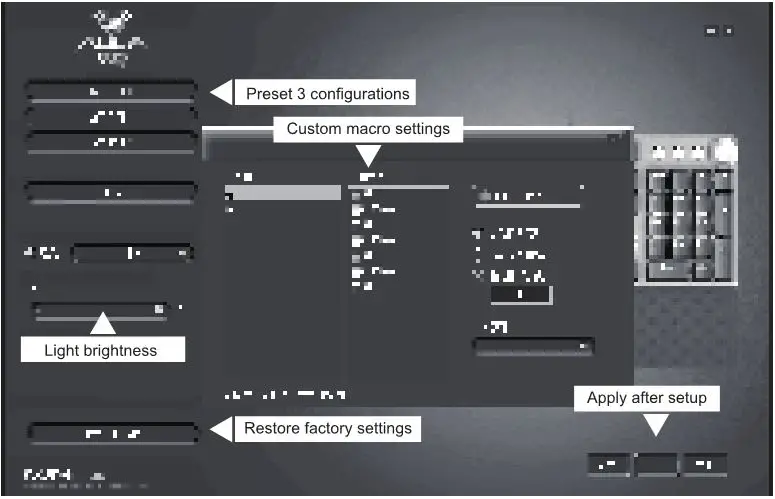
Support for key change / Support macro programming / Multimedia change button /Light effect control /Brightness adjustment
Specification
- Transmission method: wired USB
- Number of buttons: 108
- Key route: 4.0mm
- Key force: 60+-10g
- Key life times: 50 million
- Rated current and voltage: DC5V/250mA
- Product Size:435(L)×123(W)×38.5(H)±0.5mm
- Hand tray size:435(L)×68(W)×14.5(H)±0.5mm
- Product weight:0.83KG(Hand rest)
- System requirement: Vista/Windows 7,8,10/Mac
Installation
Plug and play
The wired mechanical keyboard supports plug and play. After connecting with USB, the computer will automatically detect the keyboard without driver or CD.
Package Contents
- Wired mechanical keyboard
- Hand rest
- key puller
- Instruction manual