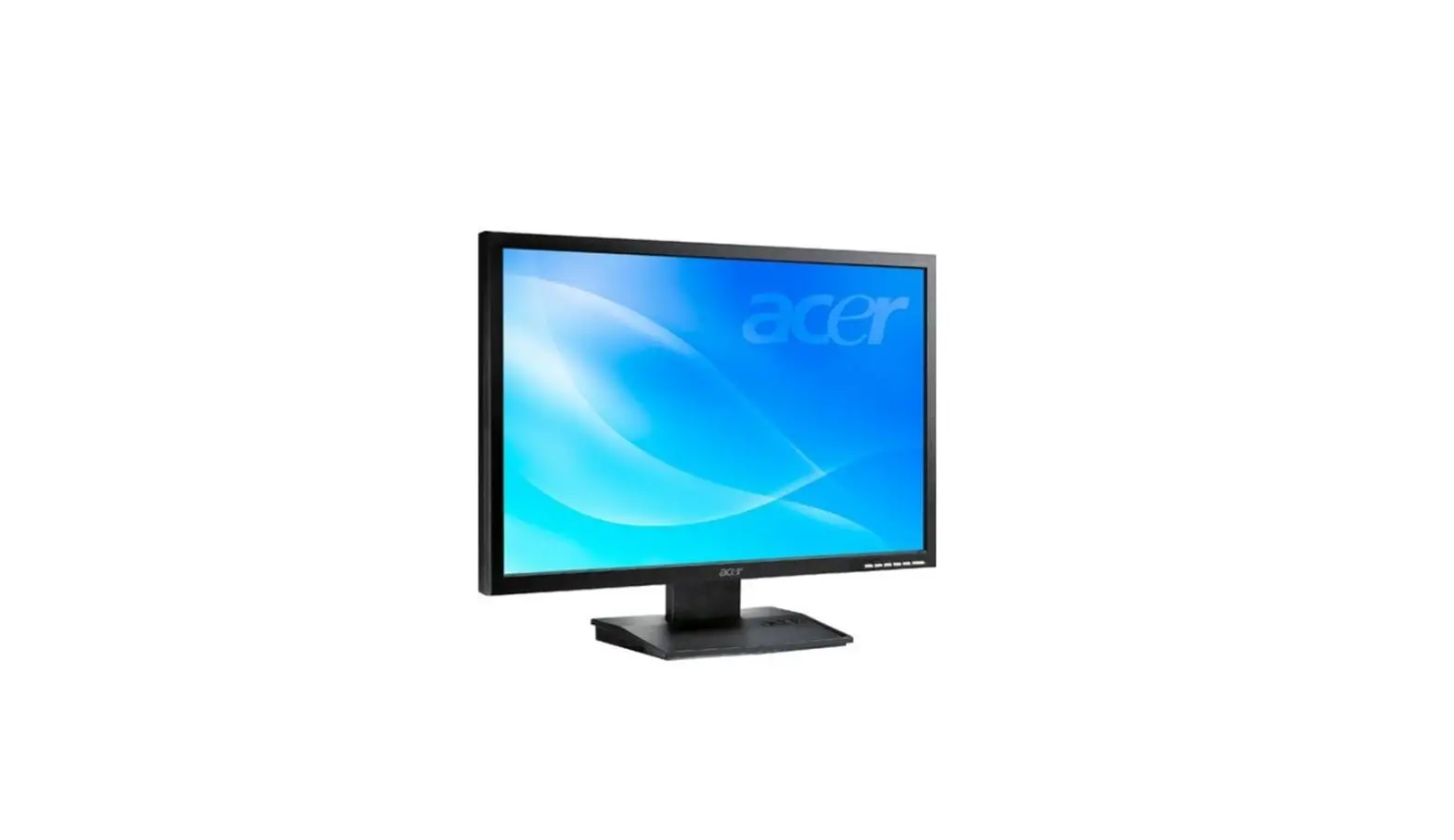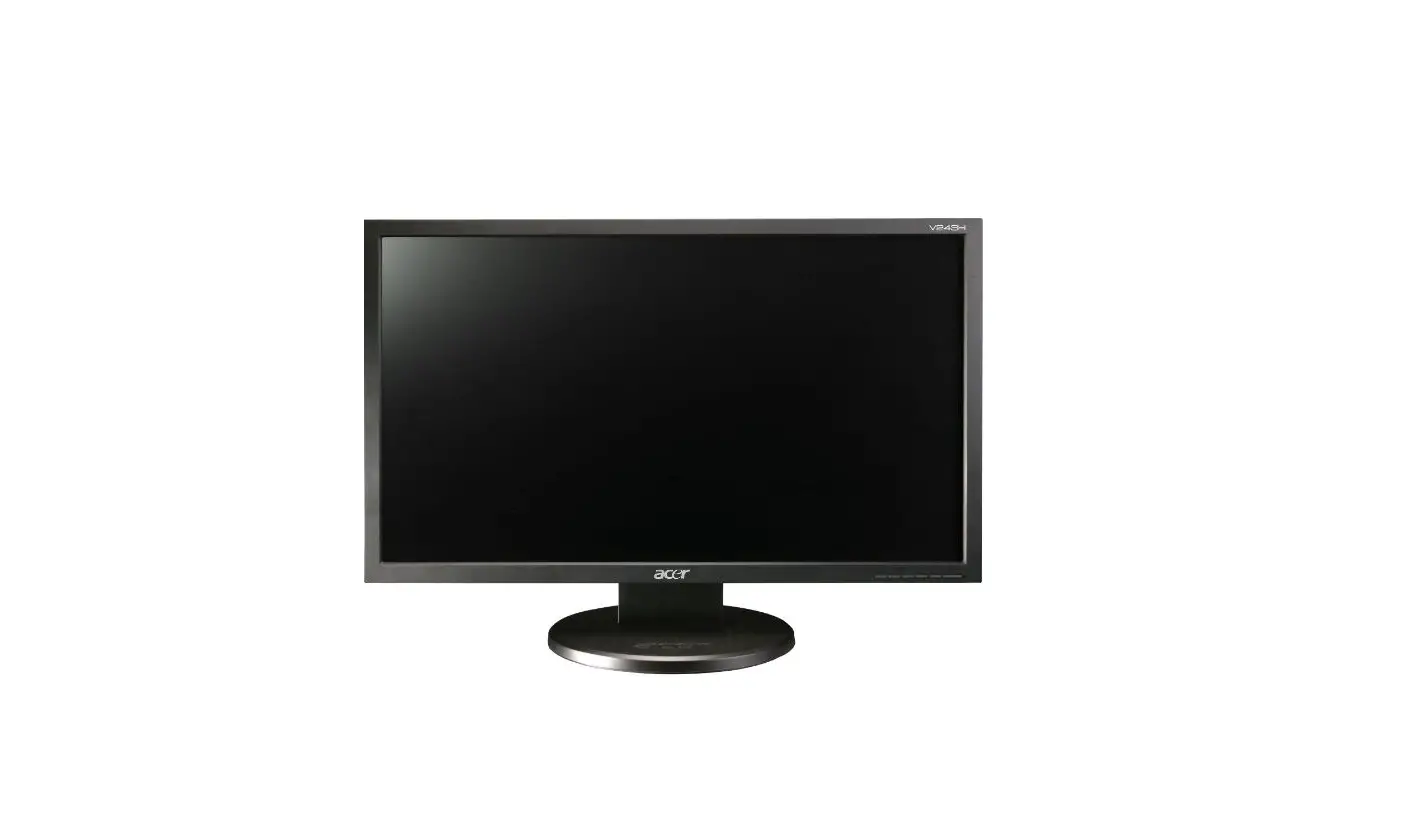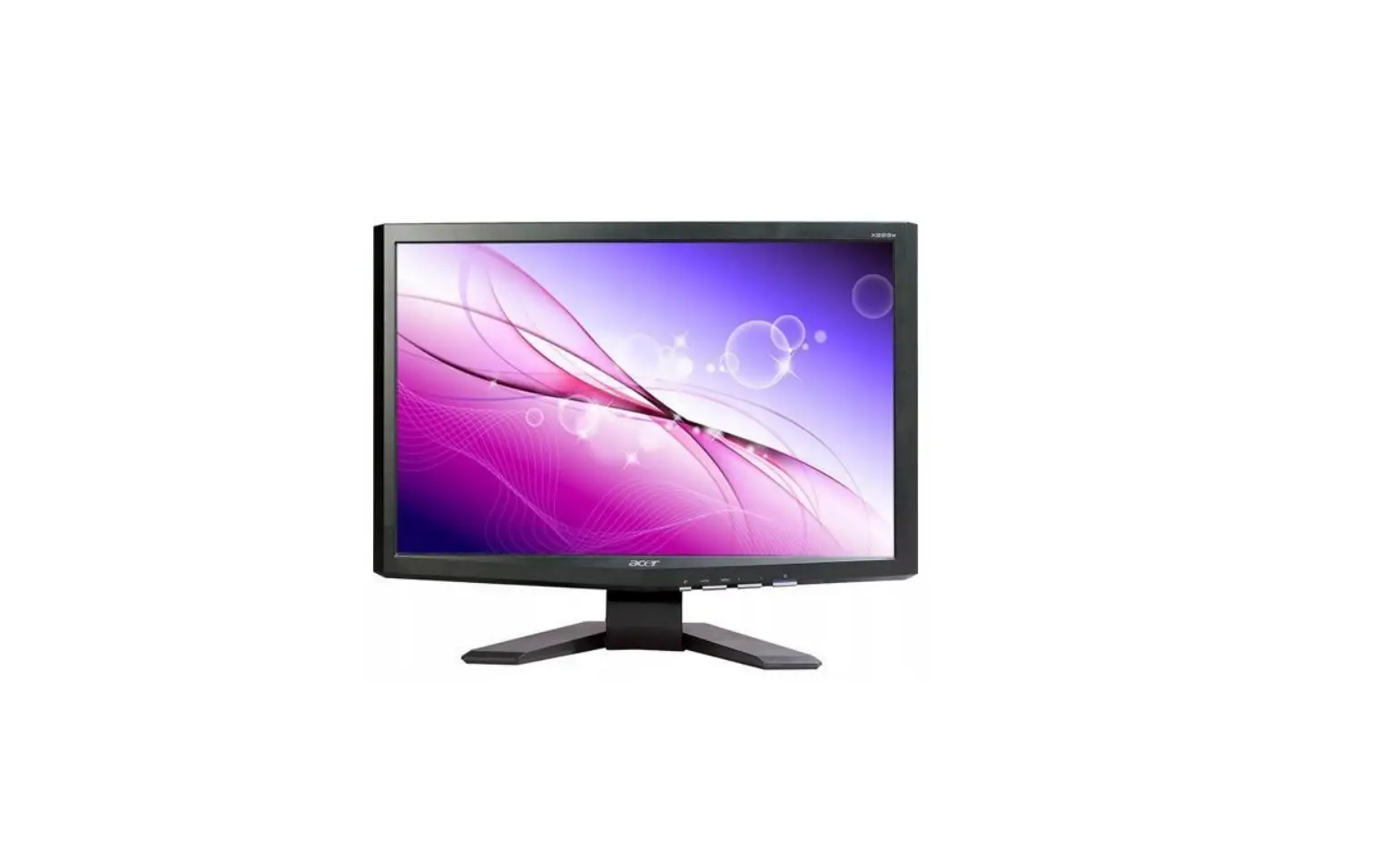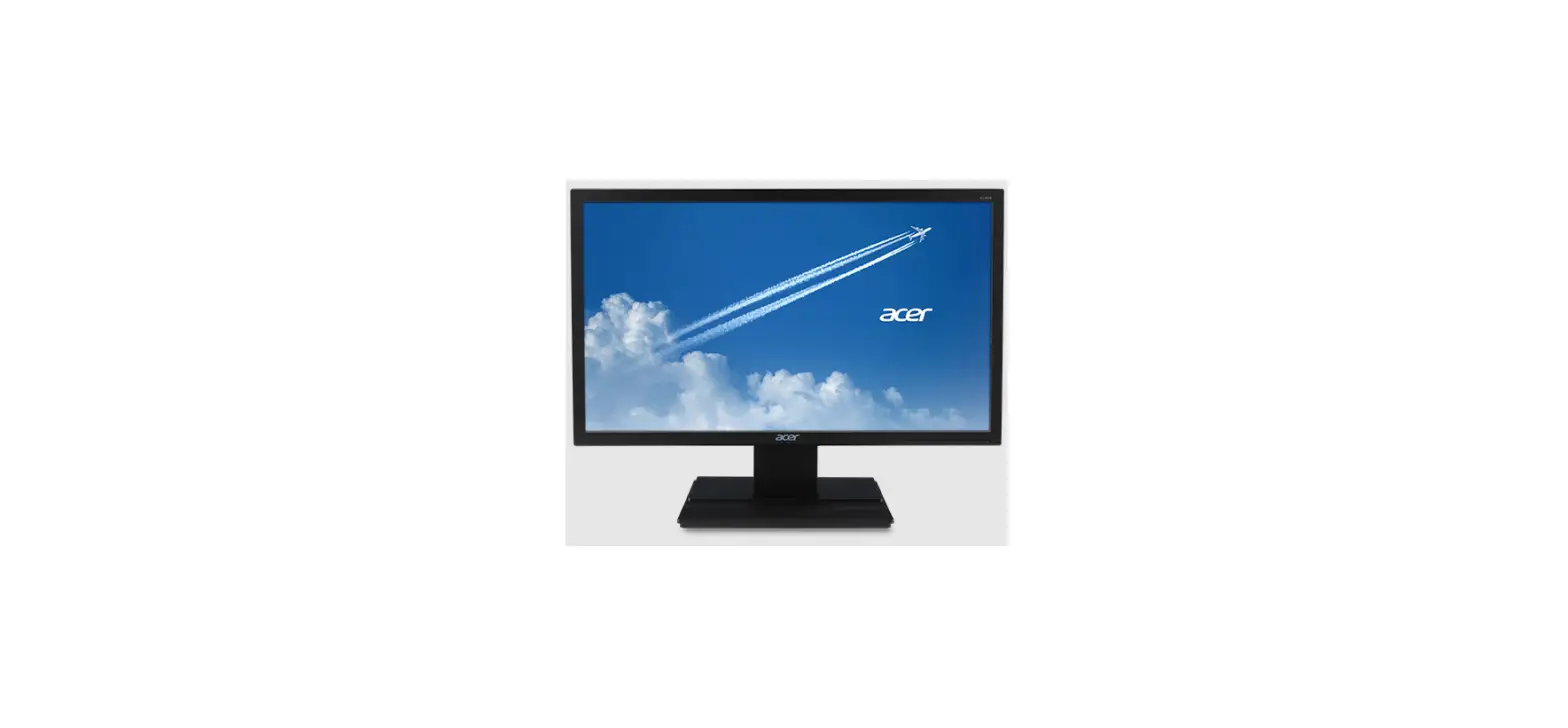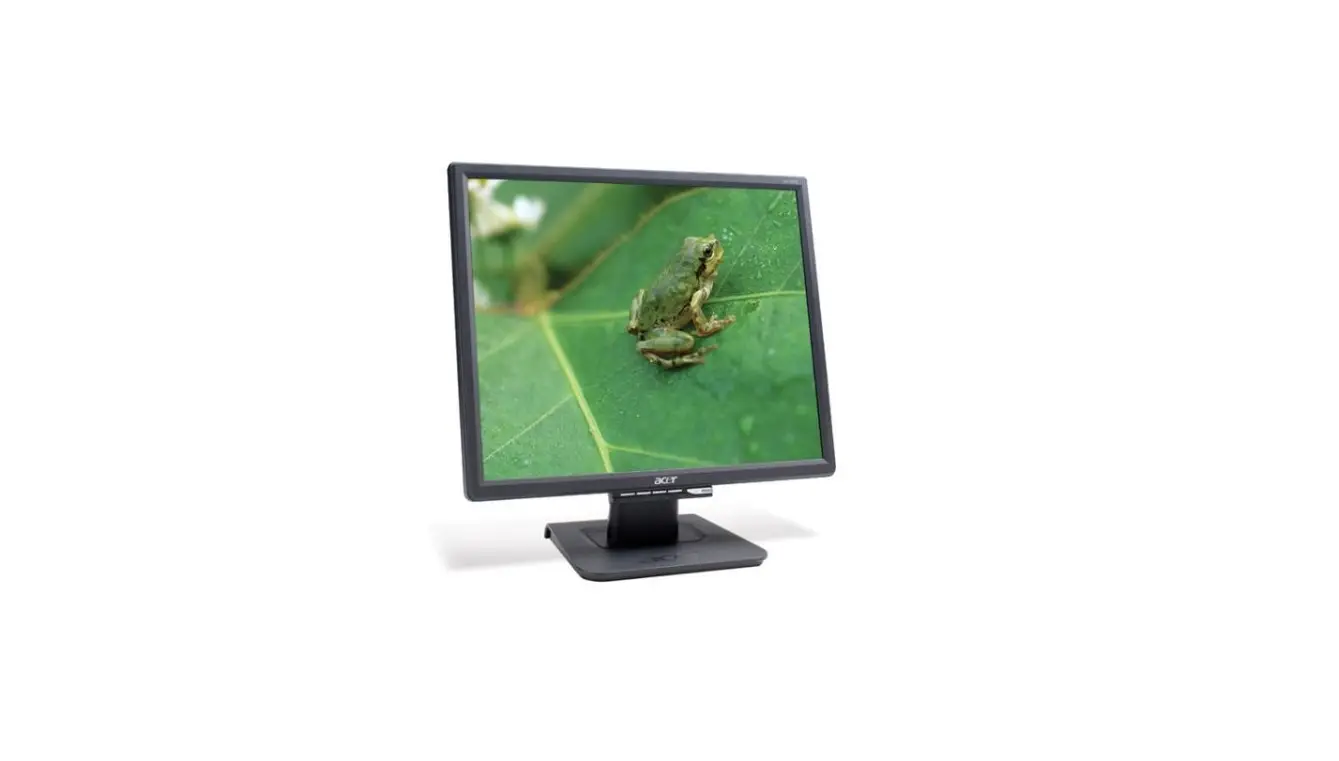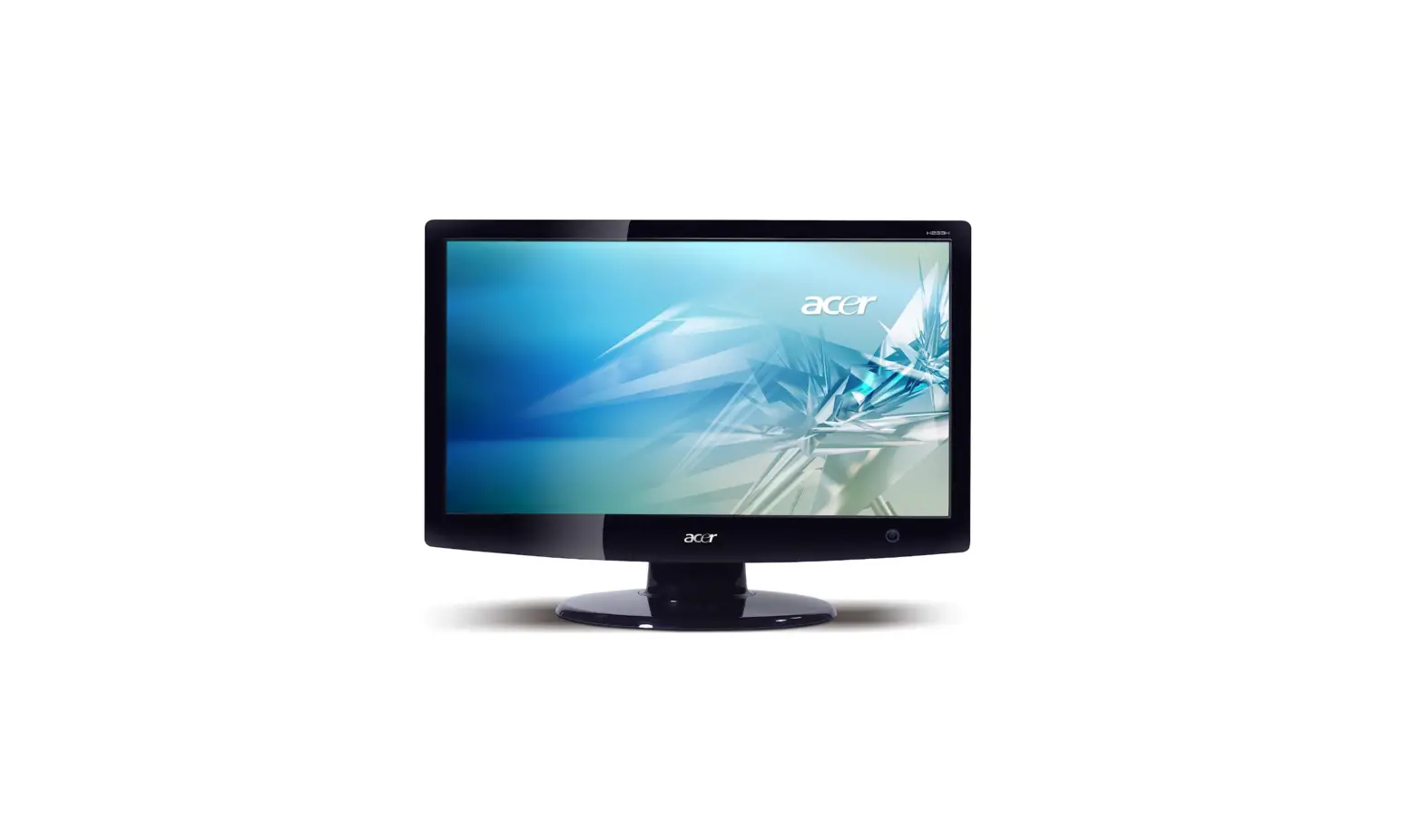

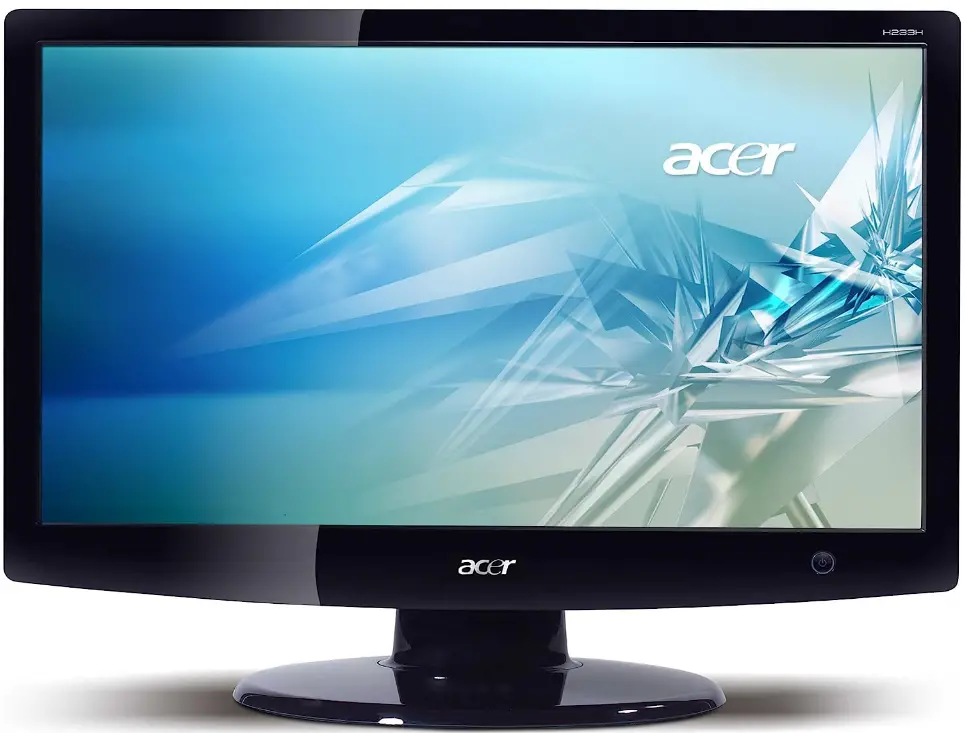
Acer H233H 23-Inch Widescreen LCD Monitor
Unpacking
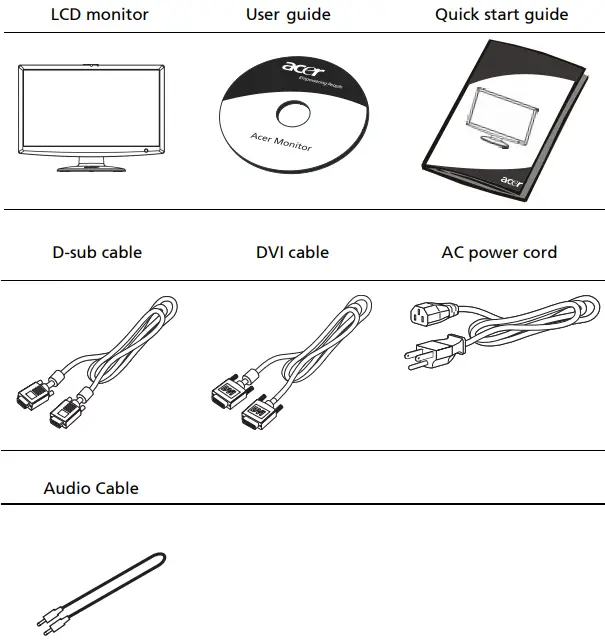
Please check that the following items are present when you unpack the box, and save the packing materials in case you need to ship or transport the monitor in the future.
Attaching the base (for selected models)
Note: Remove the monitor and monitor base from its packaging. Carefully place the monitor face-down on a stable surface — use a cloth to avoid scratching the screen.
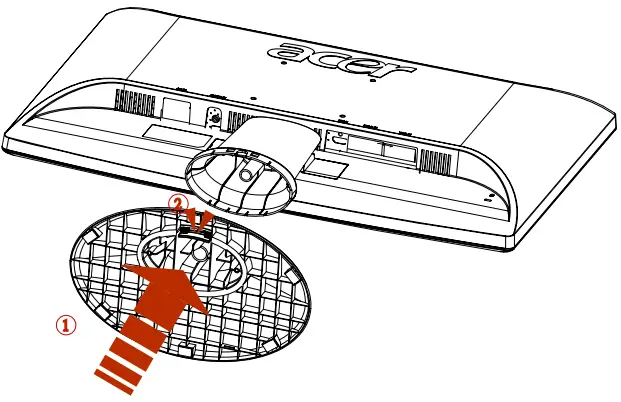
- Attach the monitor stand arm to the base.
- Ensure that the base is locked onto the monitor stand arm.
Note: Take care when performing the installation to avoid injuring yourself.
Screen position adjustment
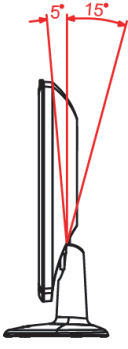
To optimize the viewing position, you can adjust the monitor tilt, using both of your hands to hold the edges of the monitor. The monitor can be adjusted to 15 degrees up or 5 degrees down.
Connecting the power cord
- Check first to make sure that the power cord you use is the correct type required for your area.
- The monitor has a universal power supply that allows operation in either 100/120 V AC or 220/240 V AC voltage area. No user- adjustment is required.
- Plug one end of the power cord to the AC inlet, and plug the other end into an AC outlet.
- For units using 120 V AC: Use a UL-listed cord set, type SVT wire and plug rated 10 A/125 V.
- For units using 220/240 V AC: Use a cord set consisting of H05VV-F cord and plug rated 10 A/250 V. The cord set should have the appropriate safety approvals for the country in which the equipment will be installed.
Power saving
The monitor will be switched to “power saving” mode by the control signal from the display controller, as indicated by the amber-colored power LED. The power saving mode will be kept until a control signal has been detected or the keyboard or mouse is activated. The recovery time from “power saving” mode back to “on” is around 3 seconds.
Display Data Channel (DDC)
To make installation easier, so long as your system supports the DDC protocol, the monitor is able to plug and play. The DDC is a communication protocol through which the monitor automatically informs the host system about its capabilities; for example, supported resolutions and corresponding timing. The monitor supports the DDC2B standard.
Connector pin assignment
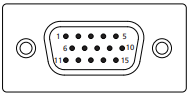
15-pin color display signal cable
| PIN No. | Description | PIN No. | Description |
| 1 | Red | 9 | +5 V |
| 2 | Green | 10 | Logic ground |
| 3 | Blue | 11 | Monitor ground |
| 4 | Monitor ground | 12 | DDC-serial data |
| 5 | DDC-return | 13 | H-sync |
| 6 | R-ground | 14 | V-sync |
| 7 | G-ground | 15 | DDC-serial clock |
| 8 | B-ground |
24-pin color display signal cable
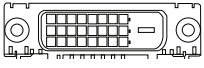
| PIN No. | Description | PIN No. | Description |
| 1 | TMDS data 2- | 13 | NC |
| 2 | TMDS data 2+ | 14 | +5 V power |
| 3 | TMDS data 2/4 shield | 15 | GND (return for +5 V hsync.vsync) |
| 4 | NC | 16 | Hot-plug detection |
| 5 | NC | 17 | TMDS data 0- |
| 6 | DDC clock | 18 | TMDS data 0+ |
| 7 | DDC data | 19 | TMDS data 0/5 shield |
| 8 | NC | 20 | NC |
| 9 | TMDS data 1- | 21 | NC |
| 10 | TMDS data 1+ | 22 | TMDS clock shield |
| 11 | TMDS data 1/3 shield | 23 | TMDS clock+ |
| 12 | NC | 24 | DDC TMDS clock- |
19-pin color display signal cable*
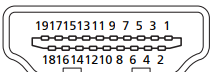
| PIN No. | Description | PIN No. | Description |
| 1 | TMDS Data2+ | 2 | TMDS Data2 Shield |
| 3 | TMDS Data2– | 4 | TMDS Data1+ |
| 5 | TMDS Data1 Shield | 6 | TMDS Data1– |
| 7 | TMDS Data0+ | 8 | TMDS Data0 Shield |
| 9 | TMDS Data0– | 10 | TMDS Clock+ |
| 11 | TMDS Clock Shield | 12 | TMDS Clock– |
| 13 | CEC | 14 | Reserved (N.C. on device) |
| 15 | SCL | 16 | SDA |
| 17 | DDC/CEC Ground | 18 | +5V Power |
| 19 | Hot Plug Detect |
* only for certain models
Standard timing table
| Mode Resolution | |||||
| 1 | VGA | 640×480 | 60 | Hz | |
| 2 | MAC | 640×480 | 66.7 | Hz | |
| 3 | VESA | 720×400 | 70 | Hz | |
| 4 | SVGA | 800×600 | 56 | Hz | |
| 5 | 800×600 | 60 | Hz | ||
| 6 | XGA | 1024×768 | 60 | Hz | |
| 7 | 1024×768 | 70 | Hz | ||
| 8 | VESA | 1152×864 | 75 | Hz | |
| 9 | SXGA | 1280×1024 | 60 | Hz | |
| 10 | WXGA | 1280×800 | 60 | Hz | |
| 11 | WXGA+ | 1440×900 | 60 | Hz | |
| 12 | UXGA | 1920×1080 | 60 | Hz | |
Installation
To install the monitor on your host system, please follow the steps below:
Steps
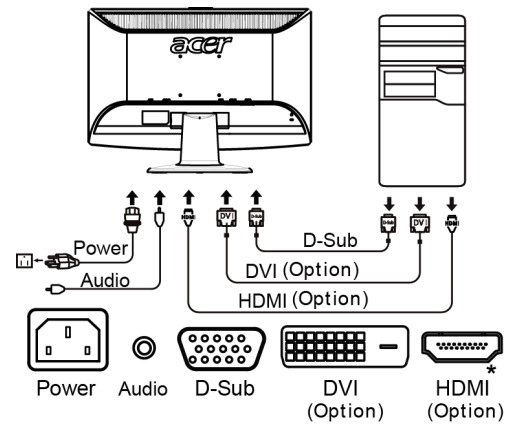
- Connect the video cable
a Make sure both the monitor and computer are switched off.
b Connect the VGA video cable to the computer.
c Connect the digital cable (only for dual-input models).- Make sure both the monitor and computer are switched off.
- Connect one end of the 24-pin DVI* cable to the back of the monitor and the other end to the computer’s port.
- Connect one end of the 19-pin HDMI* cable to the back of the
monitor and the other end to the computer’s port.
- Connect the power cord
Connect the power cord to the monitor, then to a properly grounded AC outlet. - Turn on the monitor and computer
Turn on the monitor first, then the computer. This sequence is very important. - If the monitor does not function properly, please refer to the troubleshooting section to diagnose the problem|
 for selected models
 for selected models
Users controls
Front panel controls
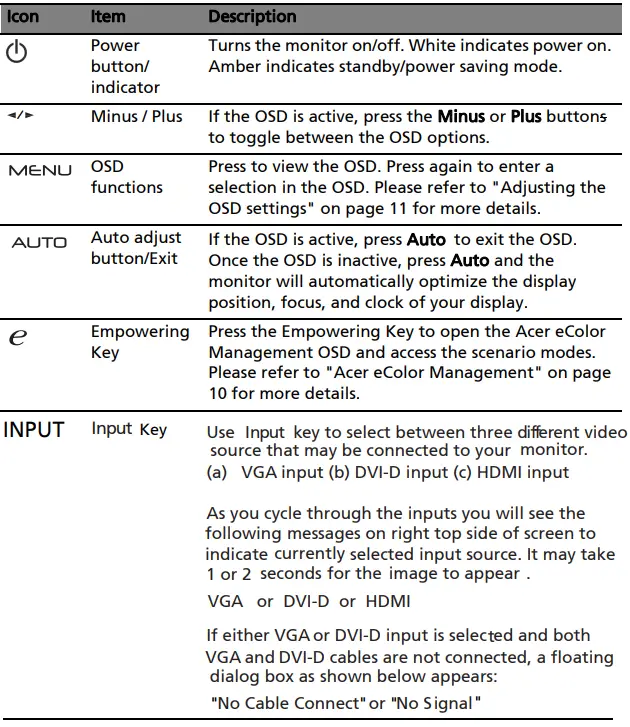
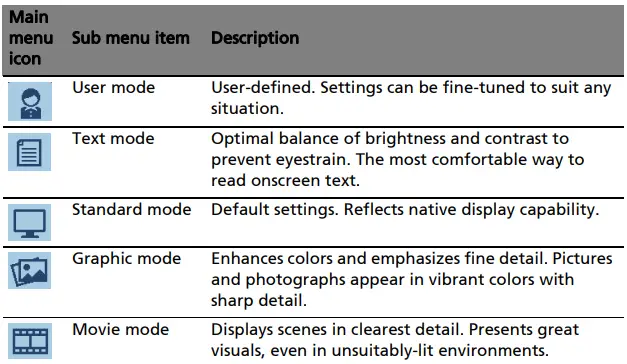
Acer eColor Management
Operation instructions
- Press the
 Empowering Key to open the Acer eColor Management OSD and access the scenario modes.
 - Press
 to select the mode.
 - Press the Auto-adjust button to confirm the mode and exit Acer eColor Management.
 Empowering Key to open the Acer eColor Management OSD and access the scenario modes.
 to select the mode.
Features and Benefits
Adjusting the OSD settings
Note: The following content is for general reference only. Actual product specifications may vary.
The OSD can be used for adjusting the settings of your LCD Monitor. Press the Menu key to open the OSD. You can use the OSD to adjust the picture quality, OSD position and general settings. For advanced settings, please refer to following page:
Adjusting the picture quality
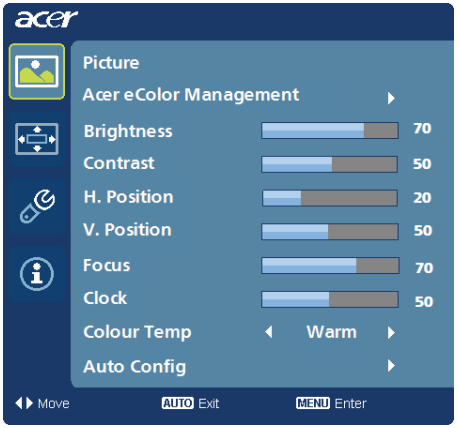
- Press the Menu key to bring up the OSD.
- Using the keys, select
 Picture from the OSD. Then navigate to the picture element you wish to adjust.
 - Use the keys to adjust the sliding scales.
- The Picture menu can be used to adjust the current Brightness, Contrast, Colour Temp, Auto Config, and other image-related qualities.
 Picture from the OSD. Then navigate to the picture element you wish to adjust.
Adjusting the OSD position
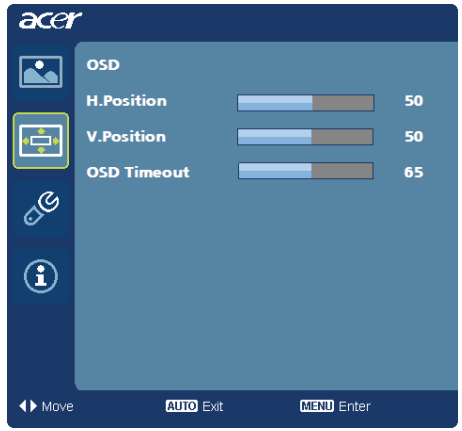
- Press the Menu key to bring up the OSD.
- Using the directional keys, select
 OSD from the onscreen display. Then navigate to the feature you wish to adjust.
 OSD from the onscreen display. Then navigate to the feature you wish to adjust.
Adjusting the setting
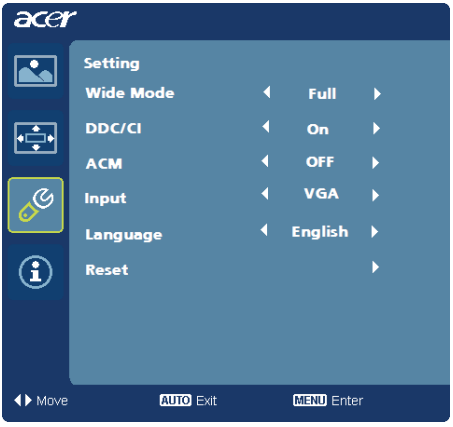
- Press the Menu key to bring up the OSD.
- Using the keys, select
 Setting from the OSD. Then navigate to the feature you wish to adjust.
 - The Setting menu can be used to adjust the screen Menu Language and other important settings.
 Setting from the OSD. Then navigate to the feature you wish to adjust.
Product information
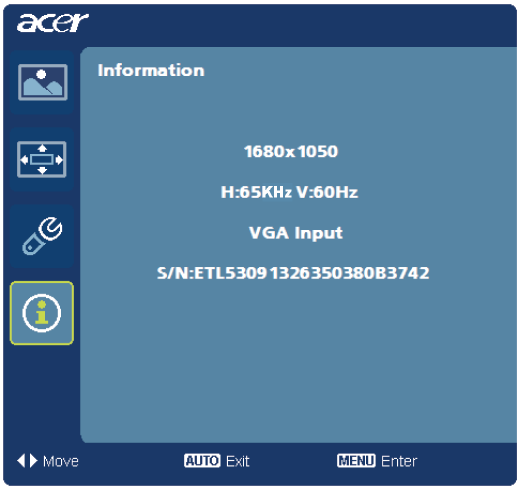
- Press the Menu key to bring up the OSD.
- Using the keys, select
 Information from the OSD. Then the basic information of LCD monitor will show up for current input.
 Information from the OSD. Then the basic information of LCD monitor will show up for current input.
Troubleshooting
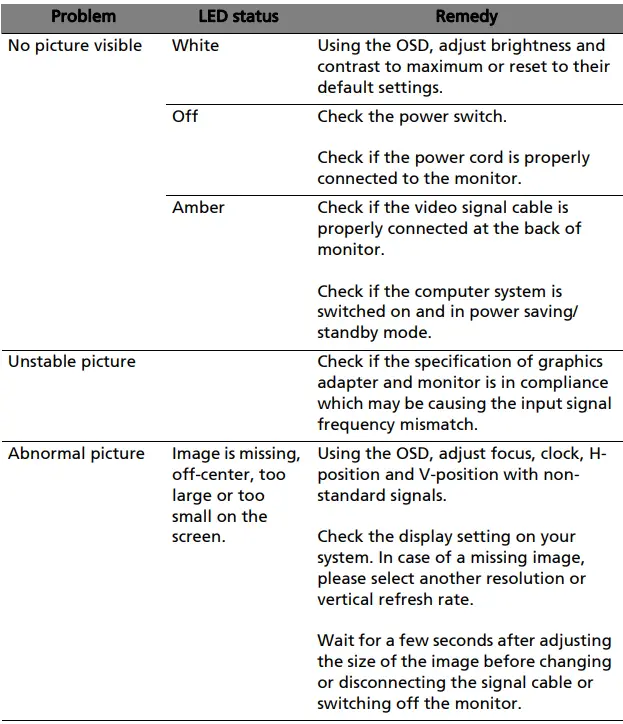
Before sending your LCD monitor for servicing, please check the troubleshooting list below to see if you can self-diagnose the problem.
VGA mode
DVI/HDMI* mode
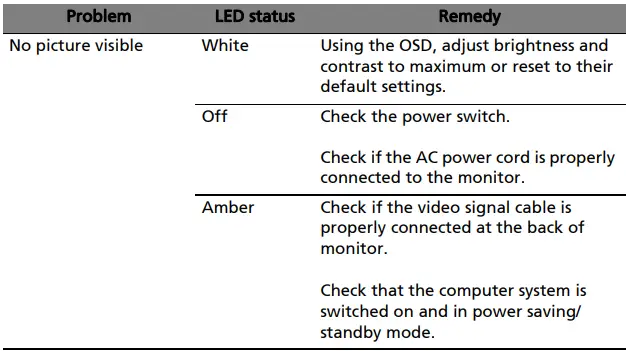
* for selected models
FAQ’s
How do I connect my Acer H233H monitor to my computer?
Connect one end of the included VGA or HDMI cable to the corresponding port on the back of the monitor and the other end to your computer's VGA or HDMI port.
Does the Acer H233H monitor have built-in speakers?
No, the Acer H233H monitor does not have built-in speakers. You will need to connect external speakers or headphones to your computer for audio output.
What is the resolution of the Acer H233H monitor?
The Acer H233H monitor has a native resolution of 1920 x 1080 pixels (Full HD) and a 16:9 aspect ratio.
Can I adjust the height and tilt of the Acer H233H monitor?
Yes, the Acer H233H monitor features a tilt-adjustable stand that allows you to adjust the vertical viewing angle.
Does the Acer H233H monitor support multiple inputs?
Yes, the Acer H233H monitor typically supports multiple inputs such as VGA and HDMI, allowing you to connect multiple devices simultaneously.
How do I adjust the brightness and other settings on the Acer H233H monitor?
Use the control buttons located on the front or side of the monitor to access the on-screen display (OSD) menu and navigate through the settings to adjust brightness, contrast, color, and other display options.
Can I mount the Acer H233H monitor on a wall or monitor arm?
Yes, the Acer H233H monitor is VESA mount compatible, so you can attach it to a wall mount or monitor arm that supports the VESA mounting standard.
Does the Acer H233H monitor support HDCP (High-bandwidth Digital Content Protection)?
Yes, the Acer H233H monitor supports HDCP, allowing you to play protected content from Blu-ray players, game consoles, and other devices.
Is the Acer H233H monitor Energy Star certified?
Yes, the Acer H233H monitor is designed to meet Energy Star standards for energy efficiency.
Does the Acer H233H monitor have a built-in webcam?
No, the Acer H233H monitor does not have a built-in webcam.
Can I rotate the screen orientation of the Acer H233H monitor?
No, the Acer H233H monitor does not have a pivot function for screen rotation. It is a fixed landscape orientation monitor.
Does the Acer H233H monitor have a DVI port?
The Acer H233H monitor may have a DVI port depending on the specific model. However, it is more commonly equipped with VGA and HDMI ports.