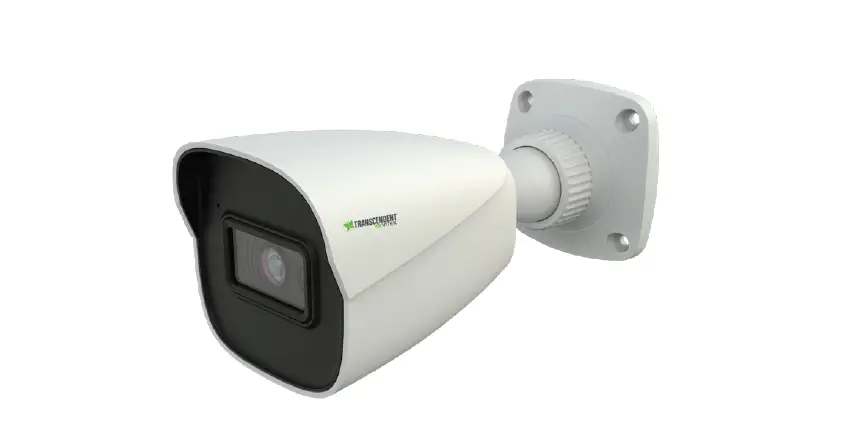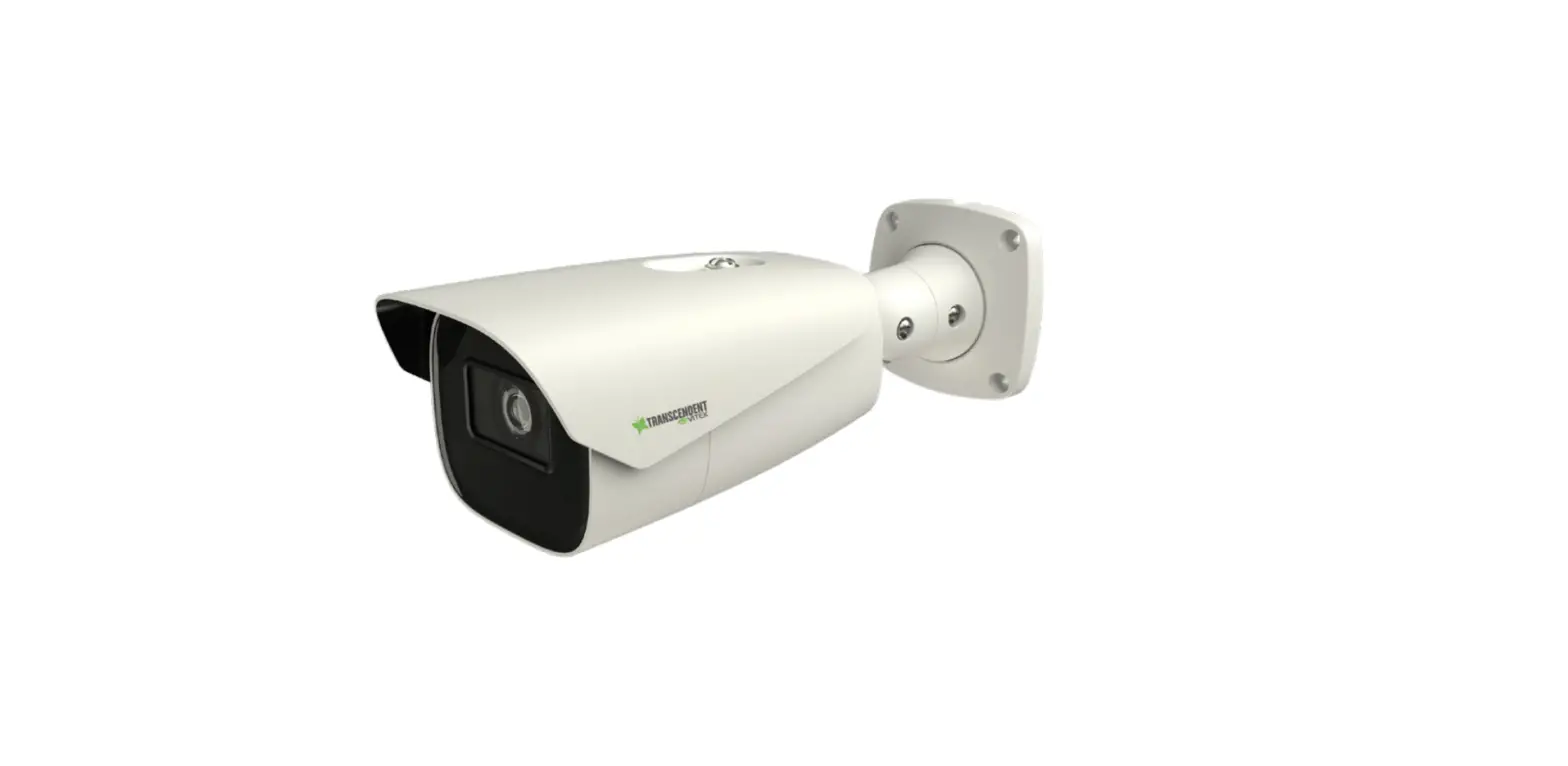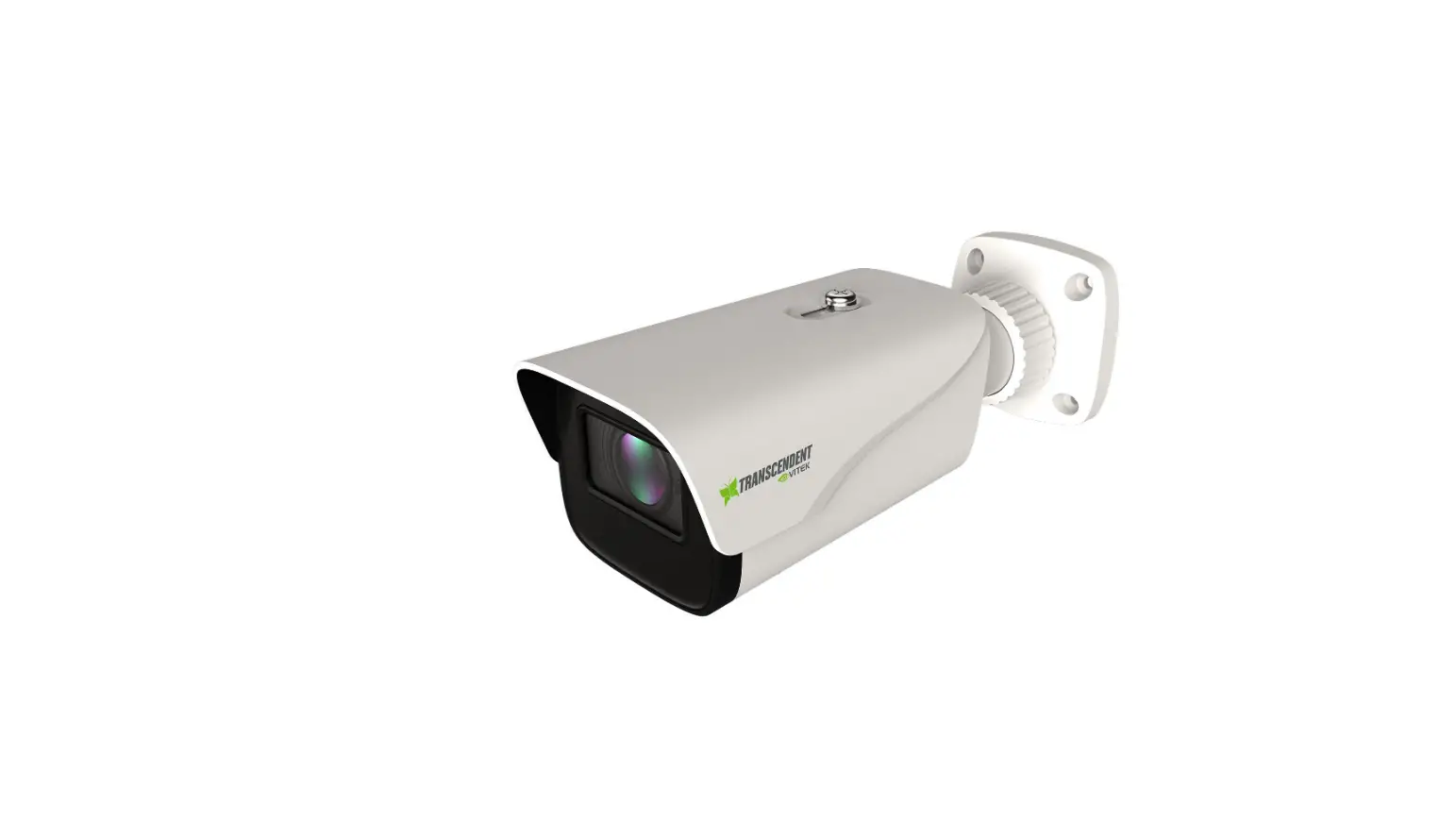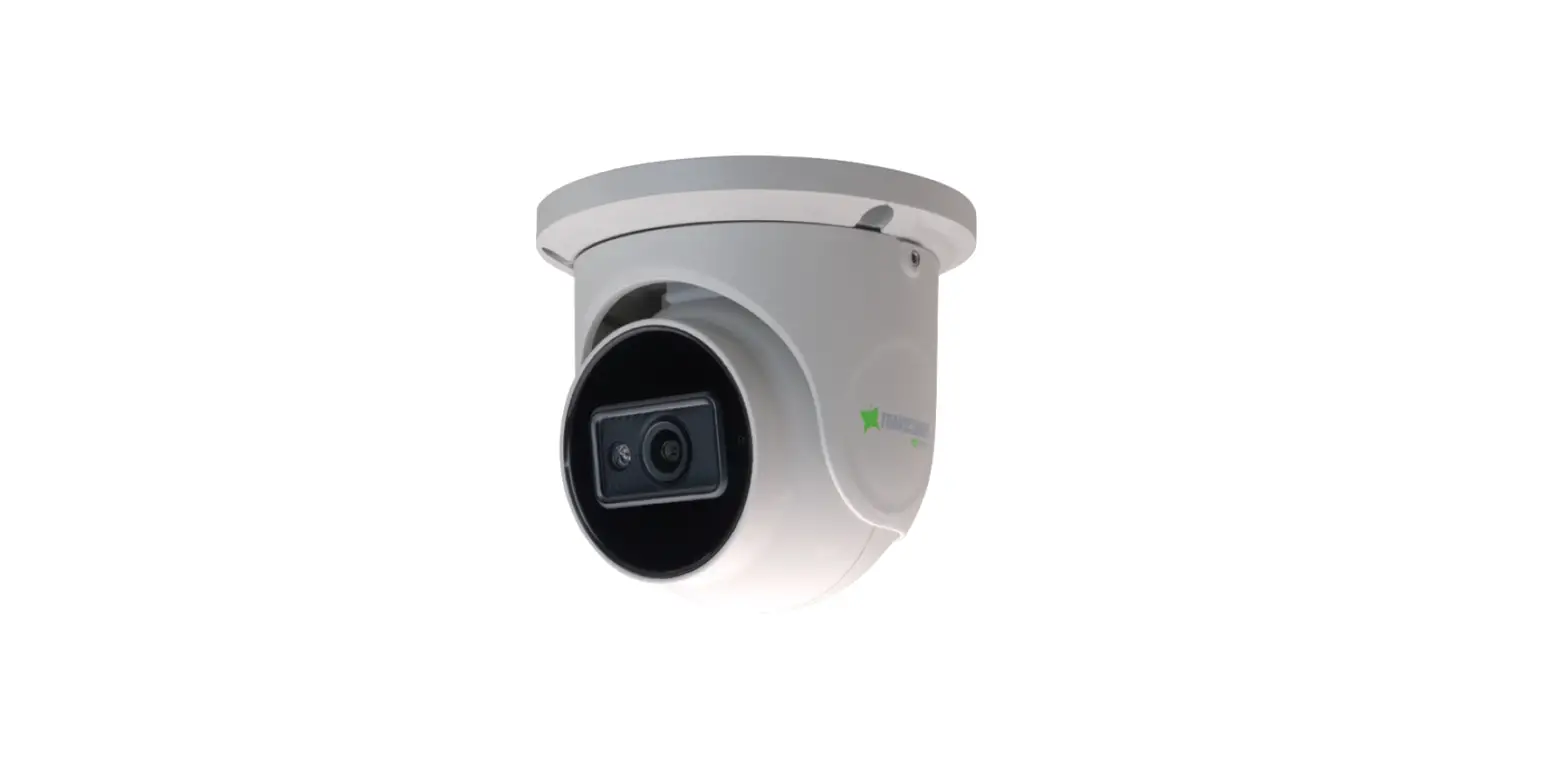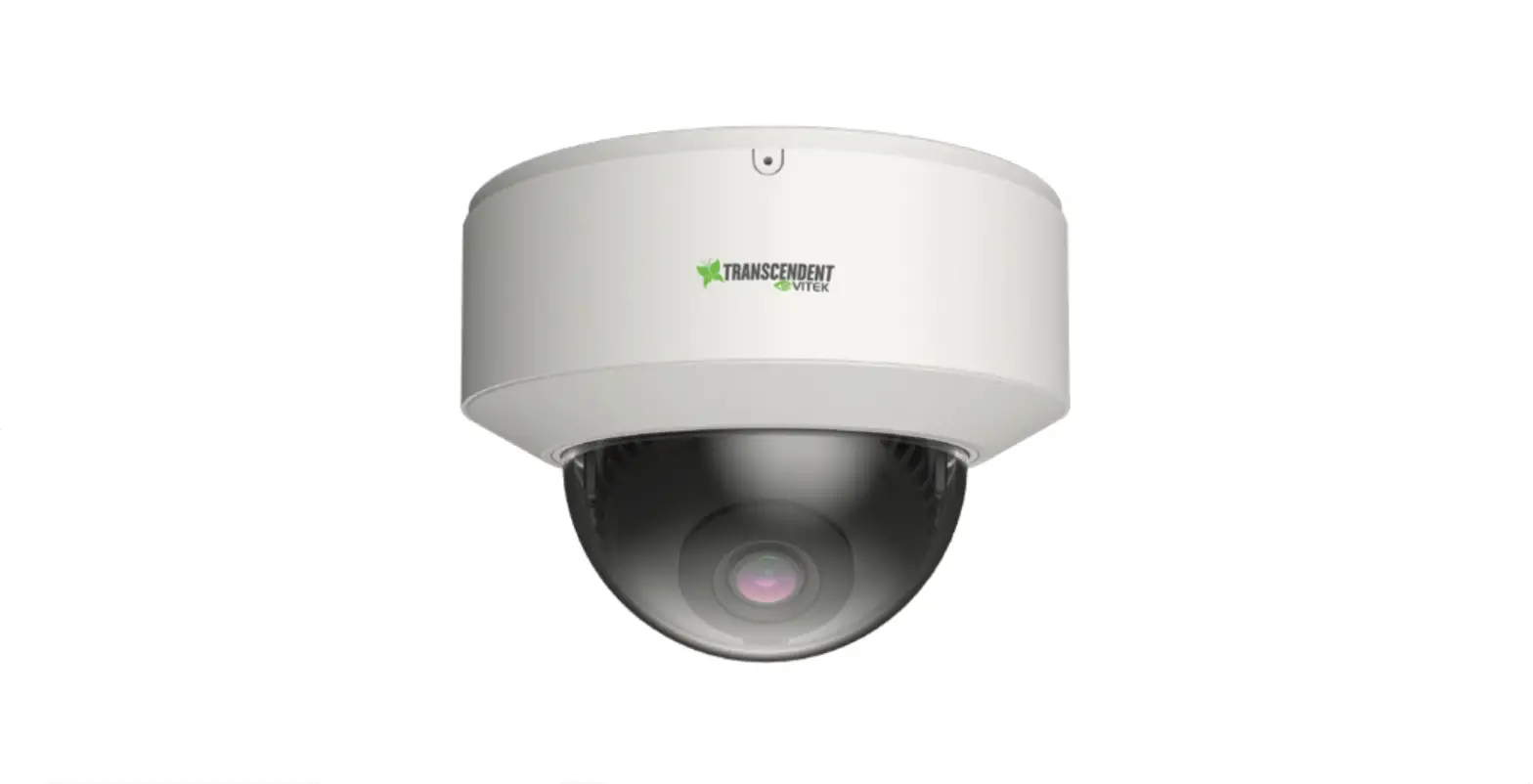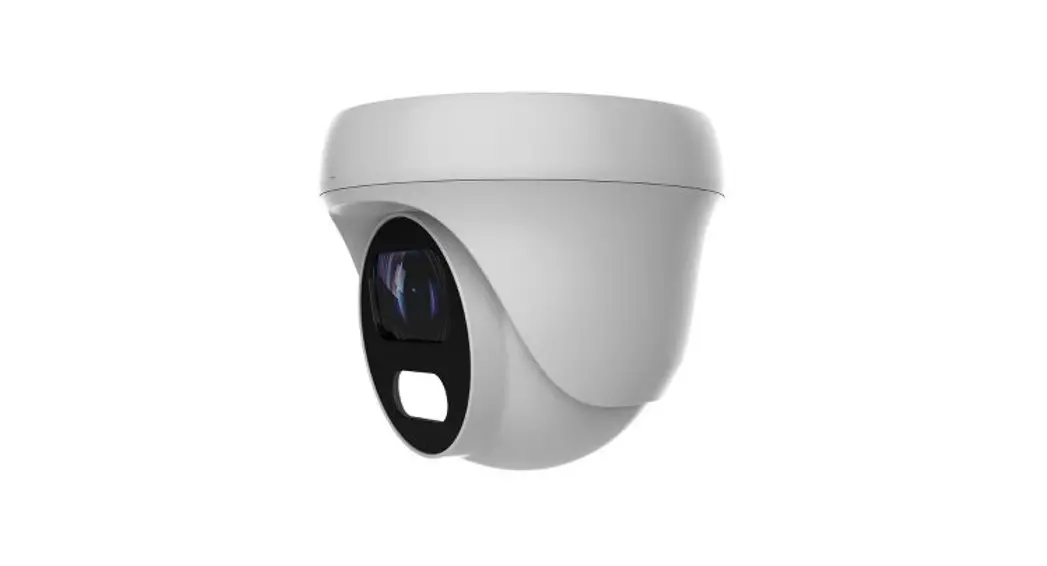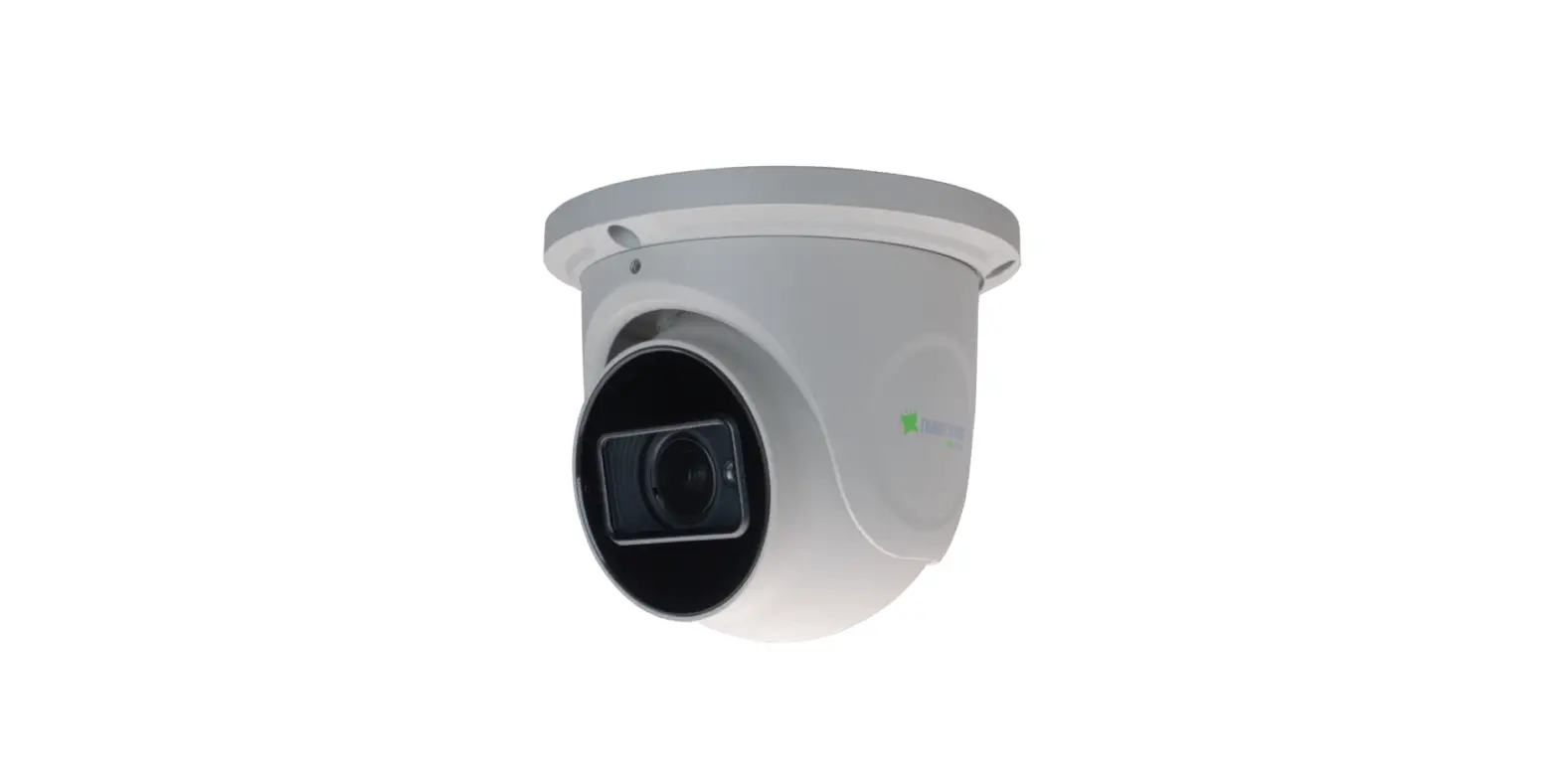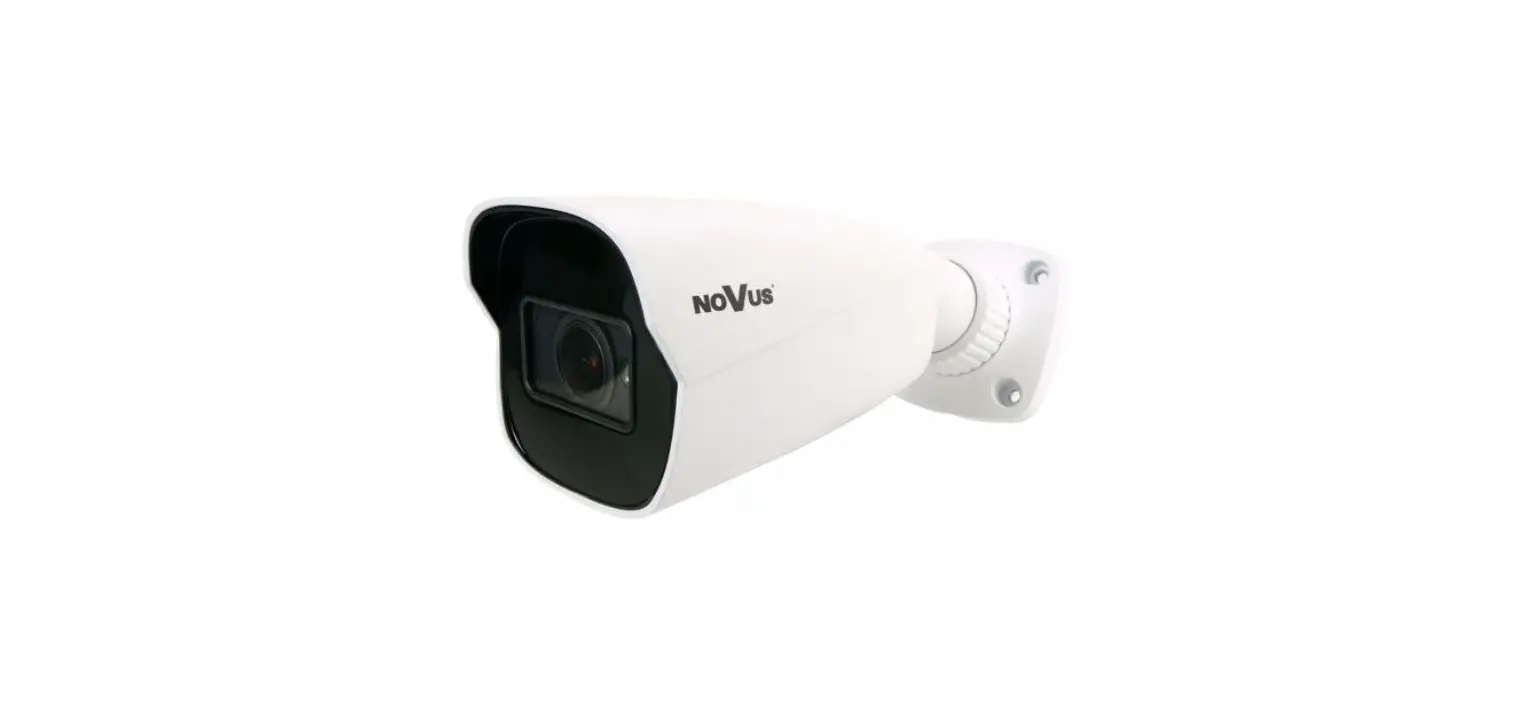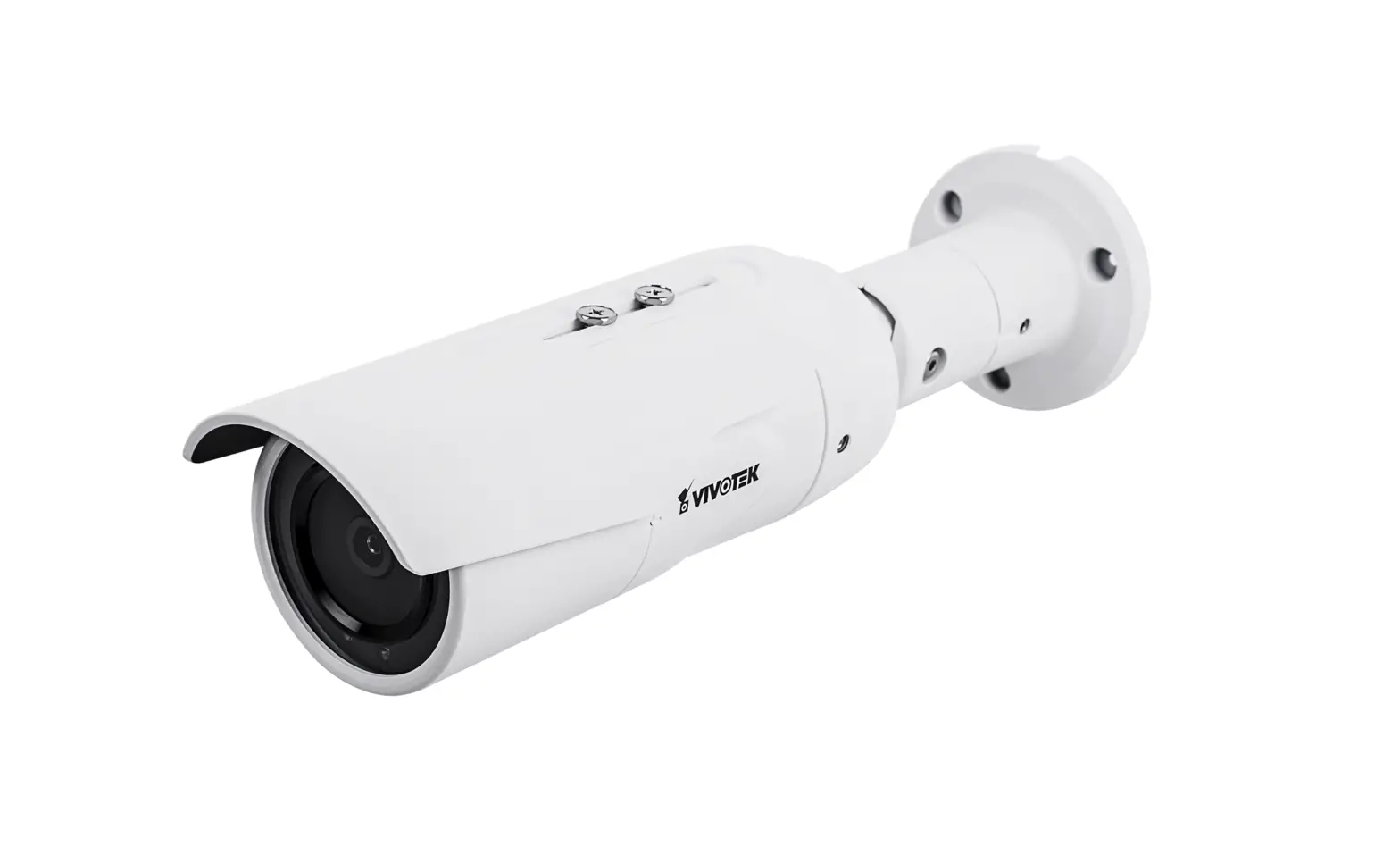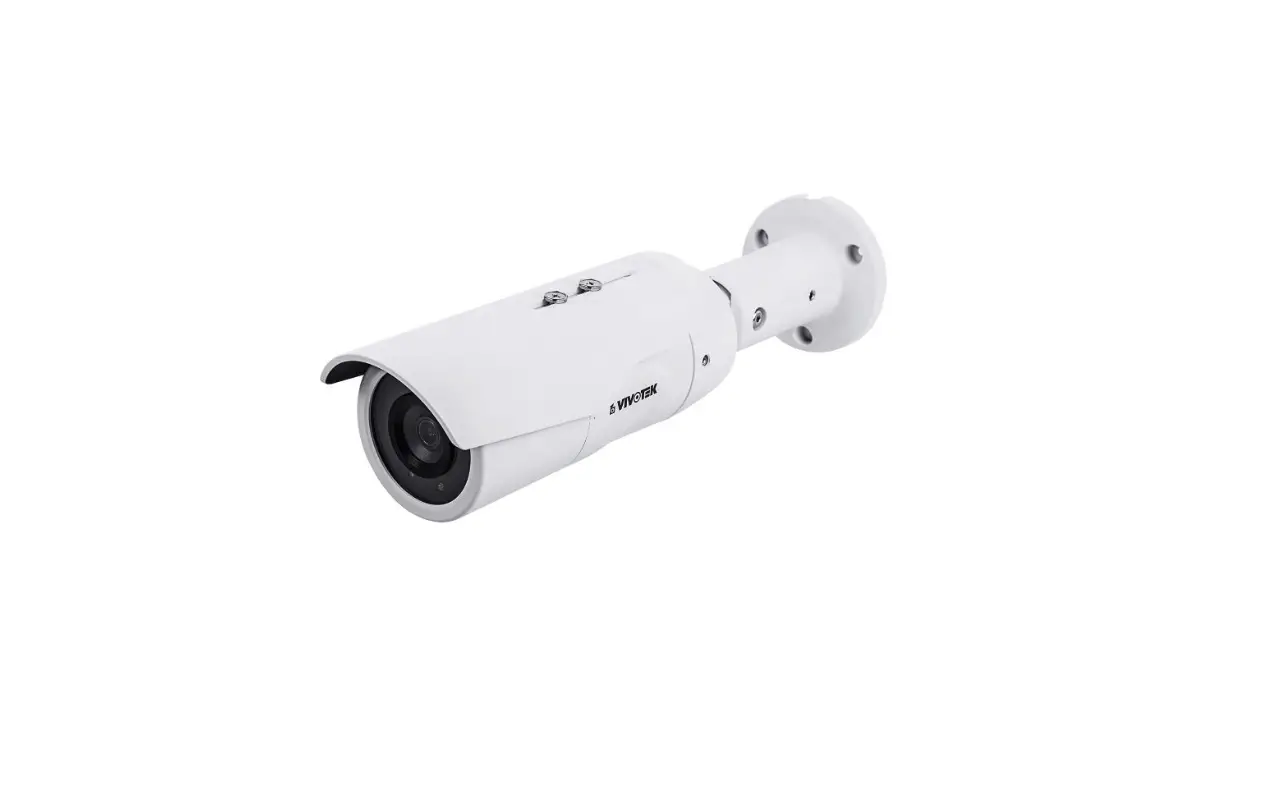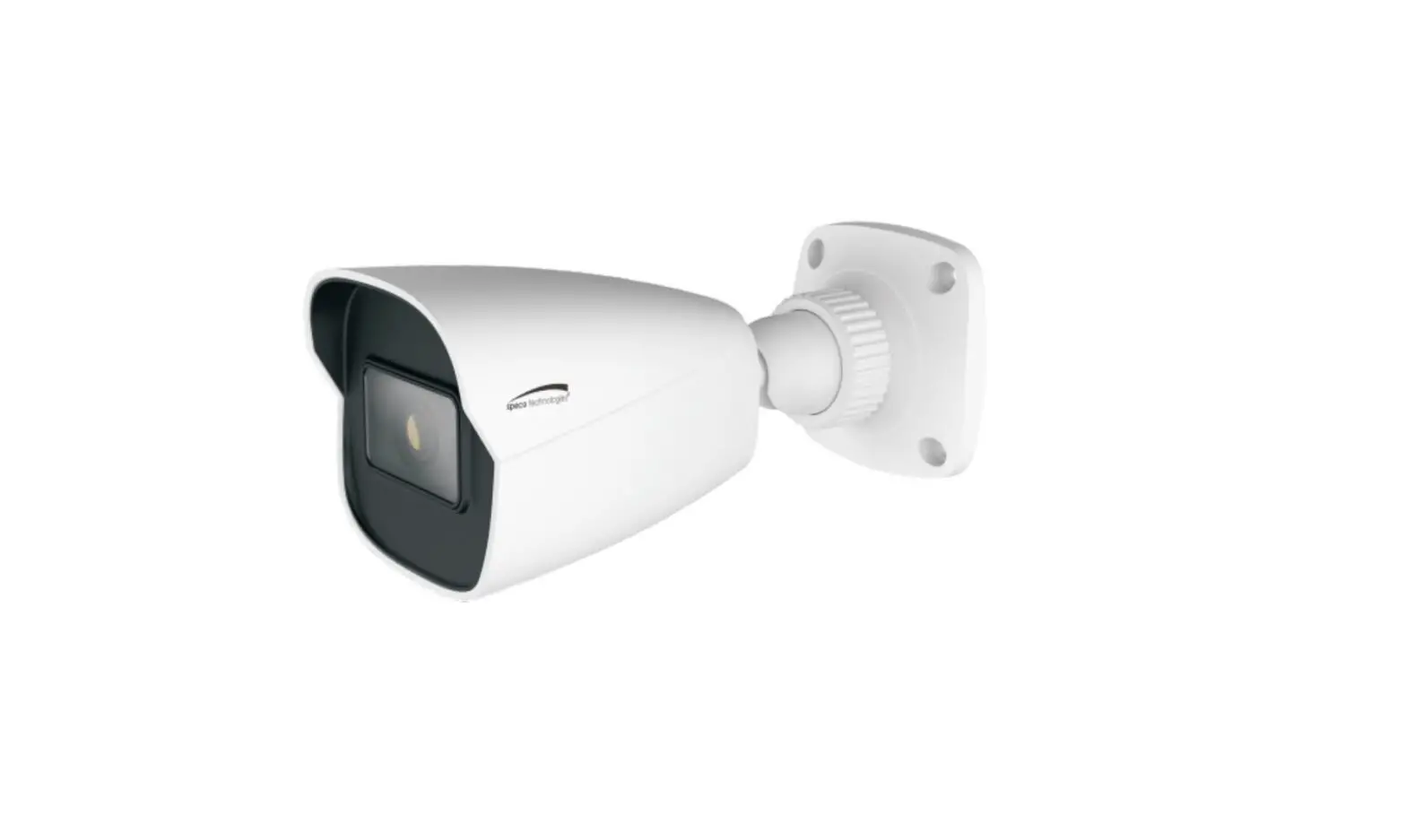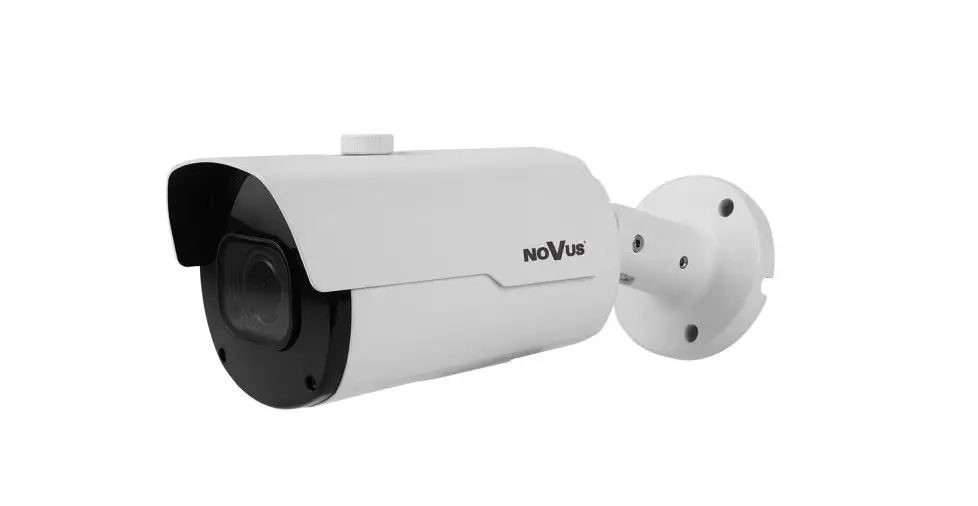

VITEK VTC-TNB4RFA4-2 Transcendent Series 4 MegaPixel Gen. IV Advanced A.I. Fixed IP Bullet Camera
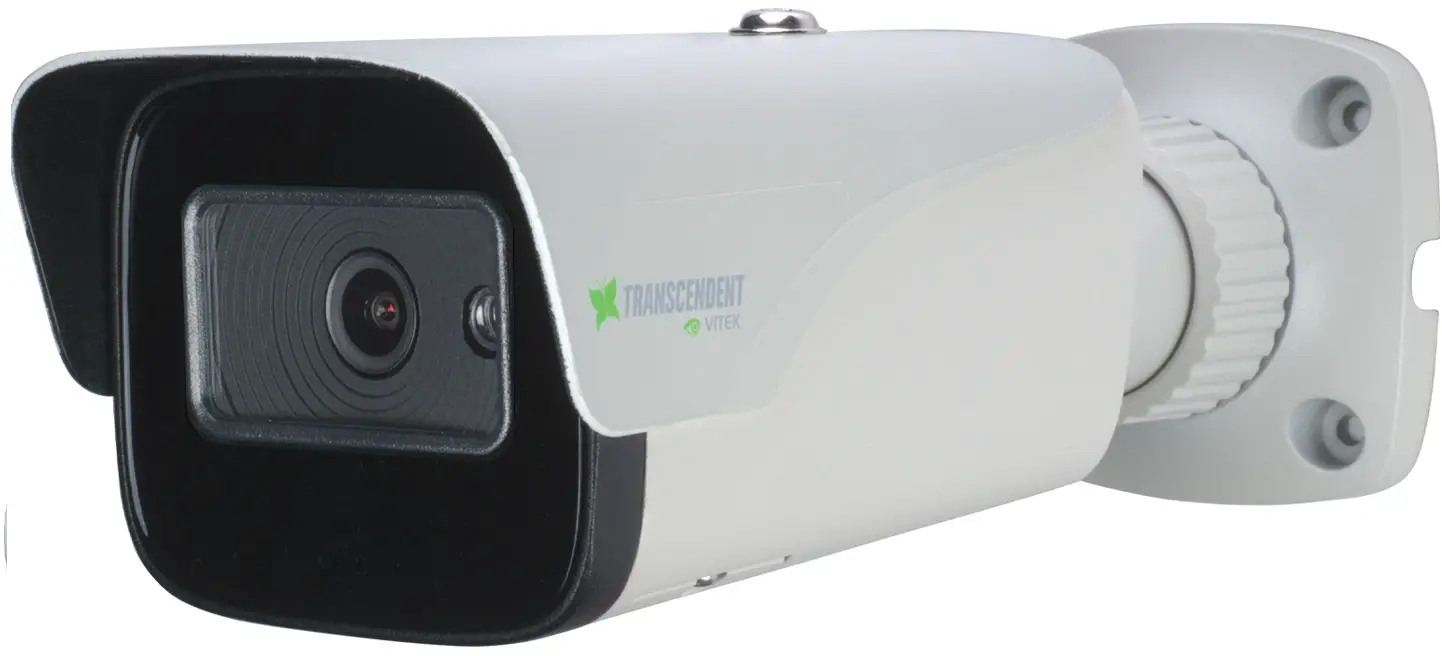
VITEK VTC-TNB4RFA4 Transcendent Series 4 MegaPixel Gen. IV
Advanced A.I. Fixed IP Bullet Camera
The VVIITTEEKK VTC-TNB4RFA4 is a high-quality fixed IP bullet camera from the Transcendent Series with 4 megapixel resolution and advanced artificial intelligence capabilities. It is designed for outdoor use and is weather-resistant. The camera is available in two colors, black and charcoal.
Features
- 4 Megapixel Resolution
- Advanced Artificial Intelligence Capabilities
- Weather-Resistant Design
- Available in Black and Charcoal
- Micro SD Card Slot
- Power Over Ethernet (PoE) Capability
- Audio Input (Please research local, state and federal laws regarding the implementation of audio surveillance)
- 1/3” 4.0 Megapixel CMOS Image Sensor
- NDAA Compliant
- Up to 30fps live view @ 4 MegaPixel (2592×1520)
- 3.6 or 2.8mm Fixed Iris Lens Options Available
- Matrix IR (up to 165’ IR Range)
- True Wide Dynamic Range
- True Mechanical Day/Night function by ICR
- XD-DNR (3D & 2D-DNR) Noise Reduction
- Gen. IV Advanced Analytics: Regional Entrance / Exit Detection, Line Crossing, Target Counting [All by Human / Motor Vehicle Classification] Face Detection, Object Abandoned / Missing, Heat Map, Video Blur, Video Color Cast Detection, Abnormal Video
- H.265+/H.265/H.264+/H.264/MJPEG
- 1 Ch. Audio In*
- Remote Viewing via CMS, Internet Explorer, iOS & Android Apps
- ONVIF Compliant
- MicroSD Card Slot for Local Recording (256GB)
- IP67 Weather Resistance
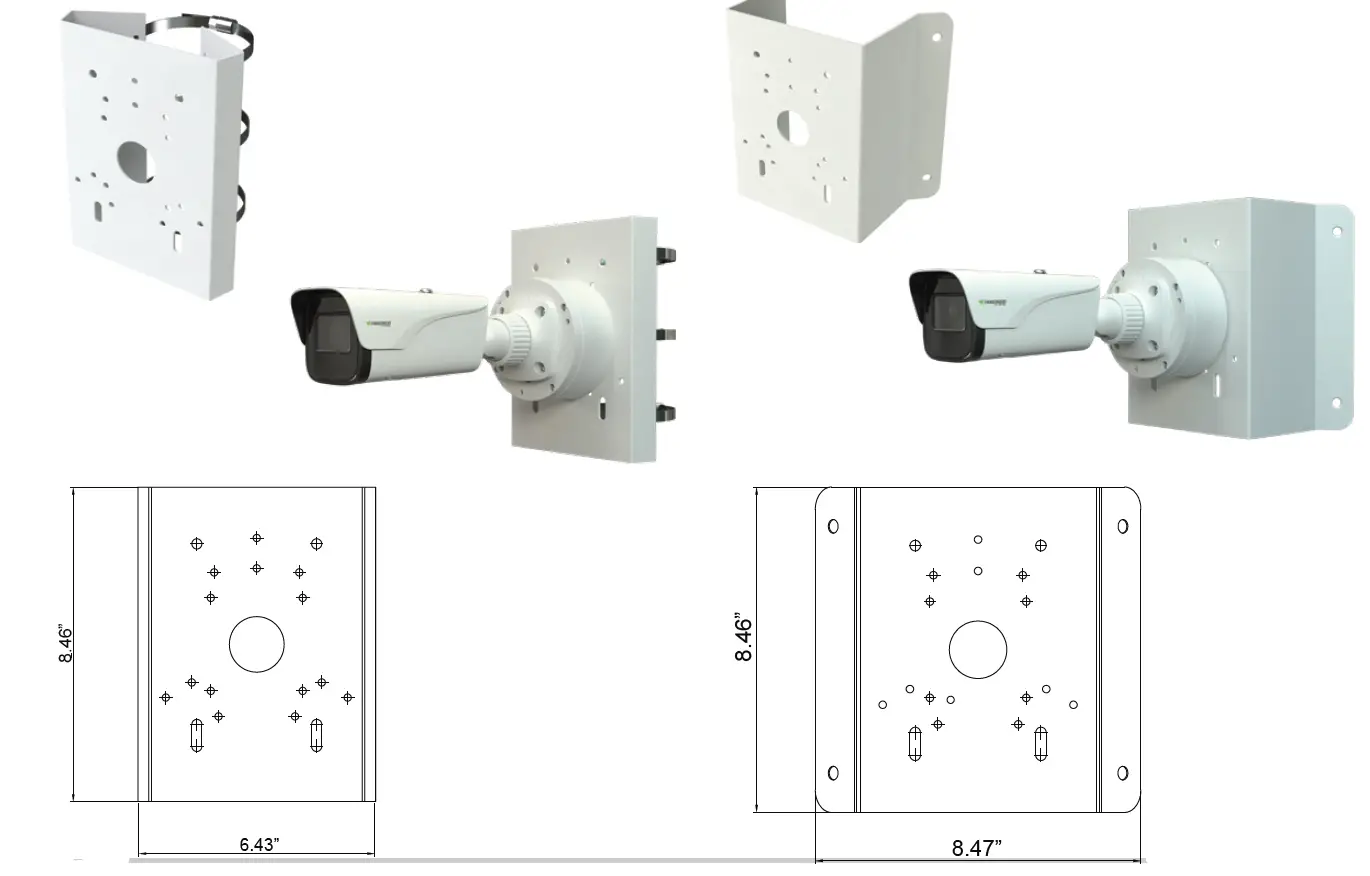
- Wall Mount Included & Junction Boxes (VT-TJB08) Available (see pg. 9 for additional mounting options)
- 12VDC & PoE (Power over Ethernet) Operation
For complete user guide, software, tools, and updates, visit: www.vitekcctv.com/Downloads
Components and Accessories
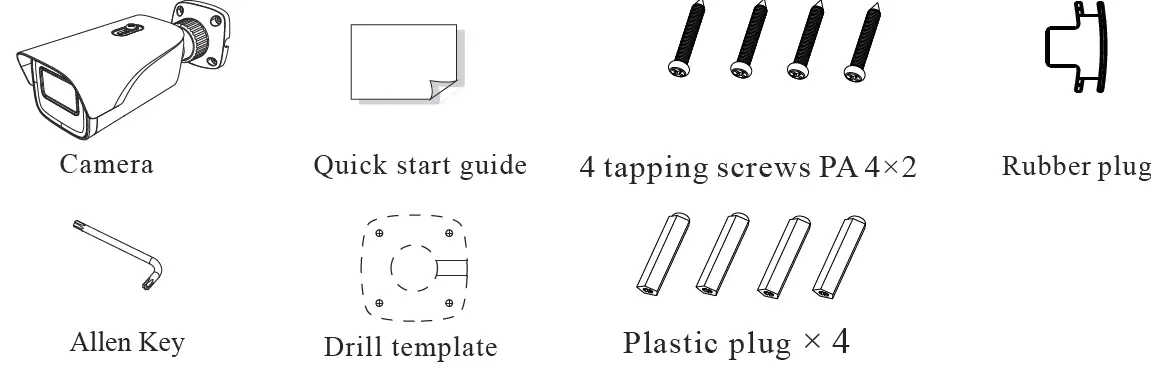
- Camera
- Rubber Plug
- Allen Key
- Drill Template
- Fixed Ring
- Mounting Base
- Network Connector*
- Audio Input
- Power Connector*
- Micro SD Card Slot
- Reset Button
- Sunshield
Requires connection to Ethernet or approved 12VDC power supply.
Installation
Before beginning installation, make sure that the wall or ceiling is strong enough to withstand 3 times the weight of the camera. The mounting steps are as follows:
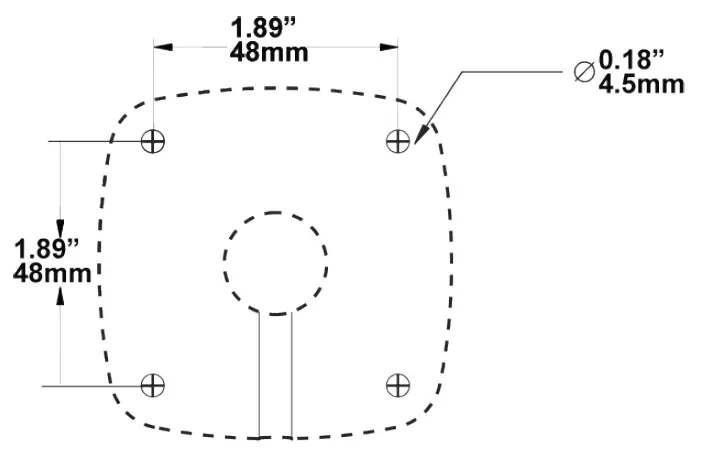
- Attach the drill template to the place where you want to install the camera, then drill 3 screw holes and 1 cable hole (if routing the cables through the mounting base) according to the drill template.
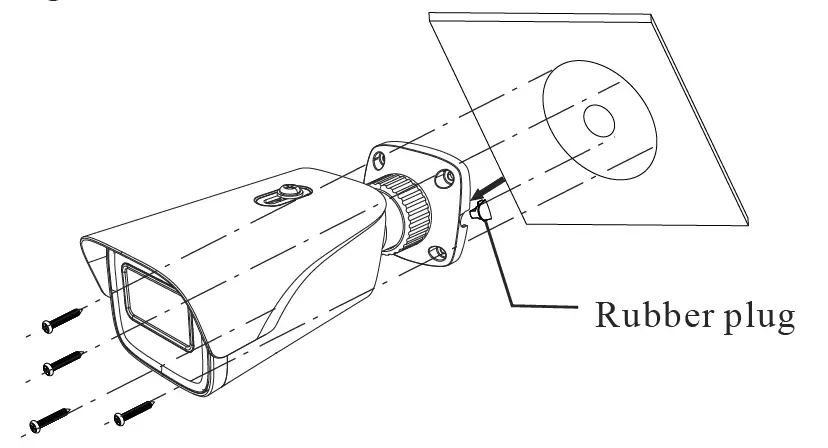
- Route the cables and connect the power & video cables, use the rubber plug to fill the gap of the mounting base, then secure the mounting base to the ceiling or wall with screws.
- If not powering the camera with PoE, connect the power cable to an approved 12VDC power supply.
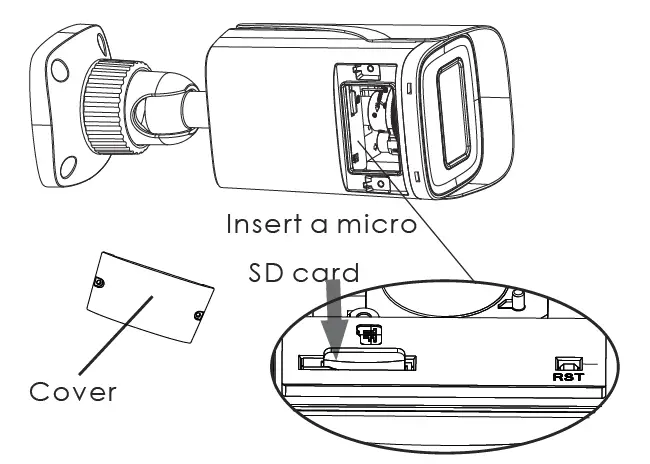
- Insert a micro SD card into the camera by removing the bottom cover, inserting the card, and replacing the cover.
Before beginning installation, make sure that the wall or ceiling is strong enough to withstand 3 times the weight of the camera. The mounting steps are as follows:
MicroSD Card Installation: Remove the bottom of the cover from the camera, insert card and replace the cover (be sure it is even).
- Attach the drill template to the place where you want to install the camera, then drill 3 screw holes and 1 cable hole (if routing the cables through the mounting base) according to the drill template

- Route the cables and connect the power & video cables, use the rubber plug to fill the gap of the mounting base, then secure the mounting base to the ceiling or wall with screws

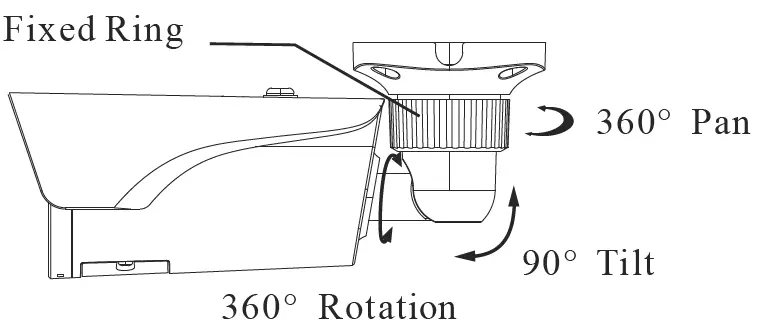
- Loosen the mount lock to adjust the pan and tilt, then tighten the mount lock to secure the viewing angle adjustments

- Carefully remove the protective film from the lens to complete the installation.
LAN Configuration
The camera can be accessed on the local network either using the IP-Tool or directly in a web browser. Follow these steps to configure LAN:
- Make sure the camera and PC are connected to the LAN.
- Locate the IP-Tool installer at www.vitekcctv.com/Downloads/Software/Transcendent-IPTool_v2.0.2.zip,then install it on the PC.
- Open the installed application and modify the IP address of the camera. The default IP address is 192.168.226.201. Please modify the IP address of your device according to the practical situation.
- Double-click the IP address and the system will pop up the web browser to connect IP-CAM. The IE browser will download the Active X control. After downloading, a login window will pop up.
- Input the default admin password: 123456.

The camera can be accessed on the local network either using the IP-Tool or directly in a web browser.
Accessing the Camera Using the IP-Tool
- Make sure the camera and PC are connected to the LAN.
- Locate the IP-Tool installer at www.vitekcctv.com/Downloads/Software/ Transcendent-IPTool_v2.0.2.zip, then install on the PC. Open the installed application.

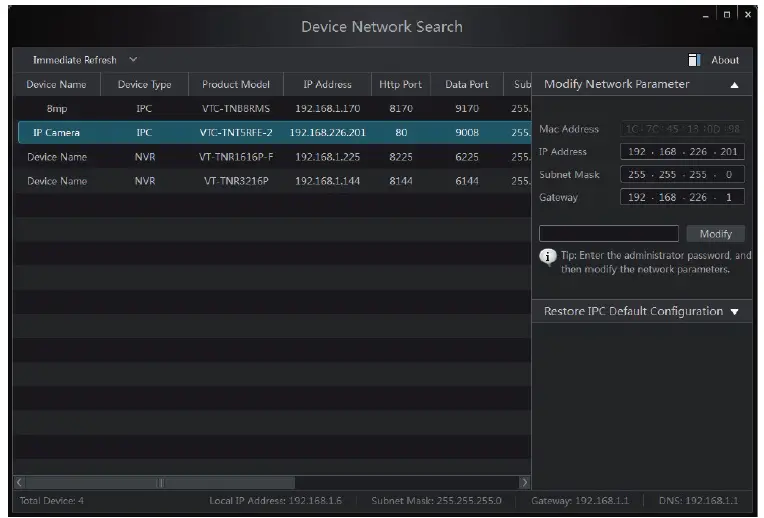
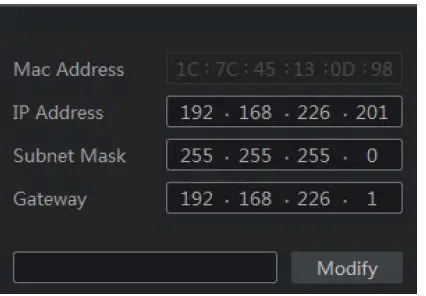
- Modify the IP address. The default IP address is 192.168.226.201. Click the information of the camera listed in the above table to show the network information on the right side. Modify the IP address and gateway of the camera and make sure its network address is in the same local network segment as the computer’s. Please modify the IP address of your device according to the practical situation. For example, the IP address of your computer is 192.168.13.4. So the IP address of the camera shall be changed to 192.168.13.X. After modification, please input the password of the administrator and click “Modify” button to modify the setting. Default admin password: “123456″.

- Double-click the IP address and then the system will pop up the web browser to connect IP-CAM . IE browser will download the Active X control. After downloading, a login window will pop up as shown below:

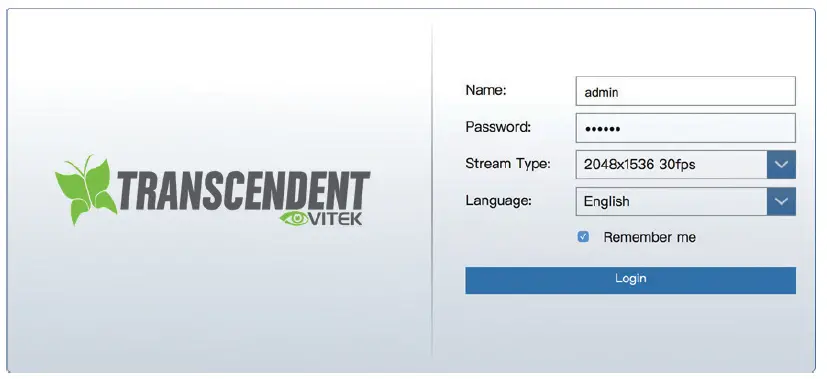
Input the user name and password to log in. Default user name: admin / Default password: 123456.
Directly Access Through a Web Browser
The default network settings are as shown below:
- IP address: 192.168.226.201 HTTP: 80
- Subnet Mask: 255.255.255.0 Data Port: 9008
- Gateway: 192.168.226.1
You may use the above default settings when you log in the camera for the first time.
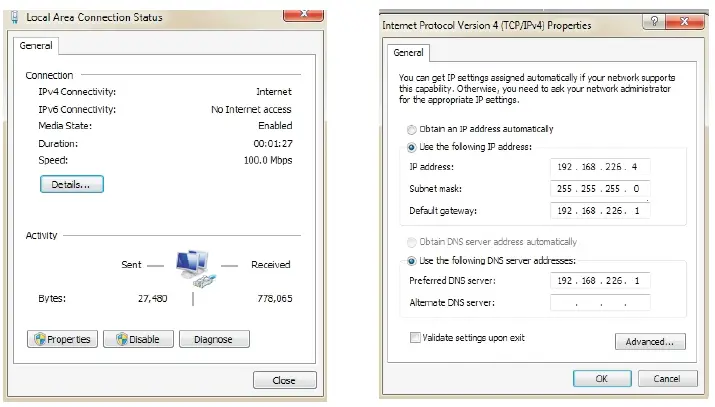
- Manually set the IP address of the PC. The network segment should be the same as the default settings of IP-CAM. Open the network and share center. Click “Local Area Connection” to pop up the following window. Select “Properties” and then select Internet protocol according to the actual situation (for example: IPV4). Next, click “Properties” button to set the network of the PC.

- Open the IE Browser and input the default address of IP-CAM and confirm. The IE browser will download Active X control.
- After downloading Active X control, the login dialog box will pop up.
- Input the default username and password and then enter to view.
Access the camera by the router or virtual server for example.
- Make sure the camera is connected to the LAN; Then log into the camera via LAN and go to System Congfig–Network ConfigPort menu to set up the port number.
- Enter System Config-Network Config-IP Address menu to modify the IP address. Da Sana nDAGSAIRAD s02iy arCDB

- Go to the router’s management interface through IE browser to forward the IP address and port of IP-CAM in the “Virtual Server”.

- Open the web browser and input its WAN IP and HTTP port to access the IP-CAM.
- For additional setup, features and functions, please scan the QR code on the front page of this quick guide and download the complete manual
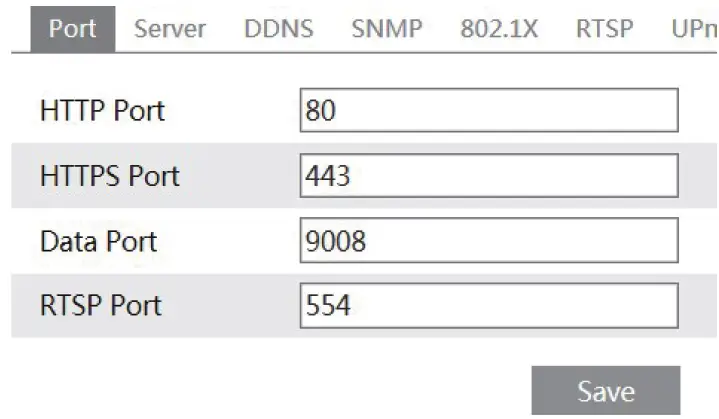
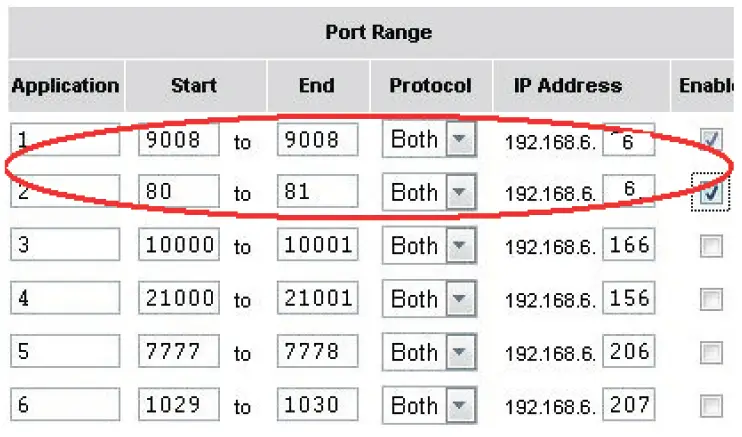
For more information and detailed usage instructions, please refer to the complete user guide available at: www.vitekcctv.com/Downloads.
Please research local, state and federal laws regarding the implementation of audio surveillance.

PLEASE NOTE:
Complete User Guide, Software, Tools, and Updates are available online. Scan the QR Code or visit: http://www.vitekcctv.com/Downloads
Overview
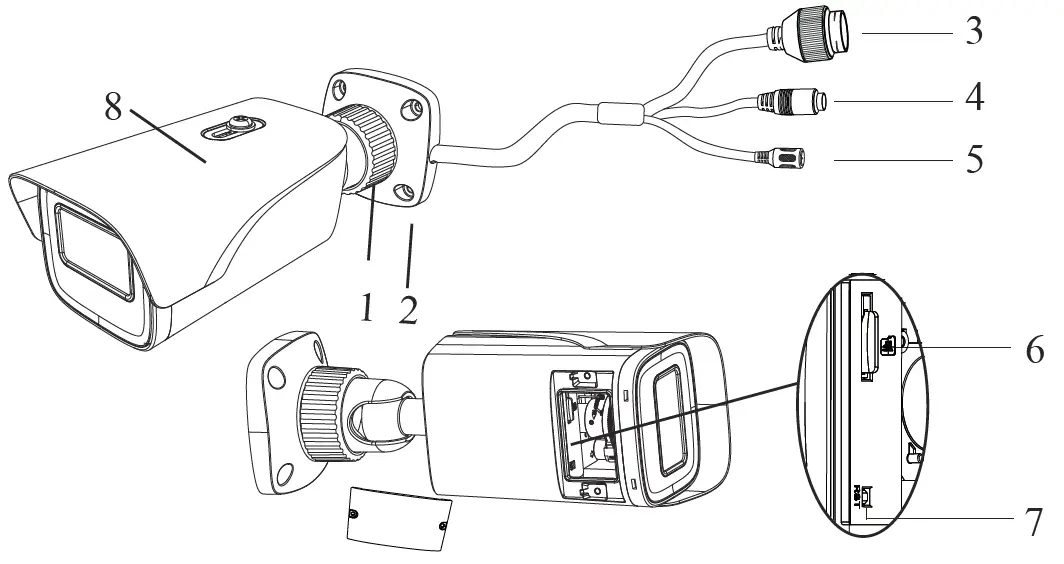
- Fixed Ring
- Mounting Base
- Network connector
- Audio Input
- Power connector
- Micro SD card slot
- Reset
- Sunshield
Connect the Weather Resistant Cap to an Ethernet patch cable. Connect the cameras ethernet adaptor. If not powering the camera with PoE, also connect the power Cable to an approved 12VDC Power supply.
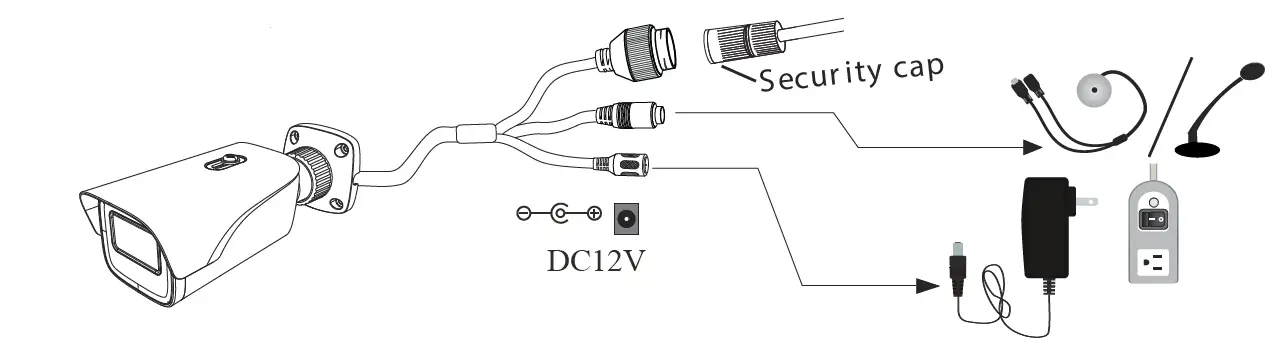
Weather Resistant Network Coupler
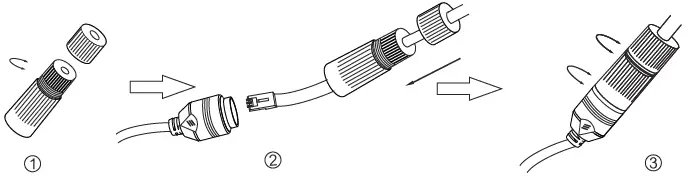
- Loosen the nut from the Weather Resistant Network Coupler,
- Run ethernet cable through coupler, then attach a RJ-45 connector.
- Tighten the nut and coupler for a weather resistant seal
VTC-TNB4RFA4/-2 Detailed Specifications
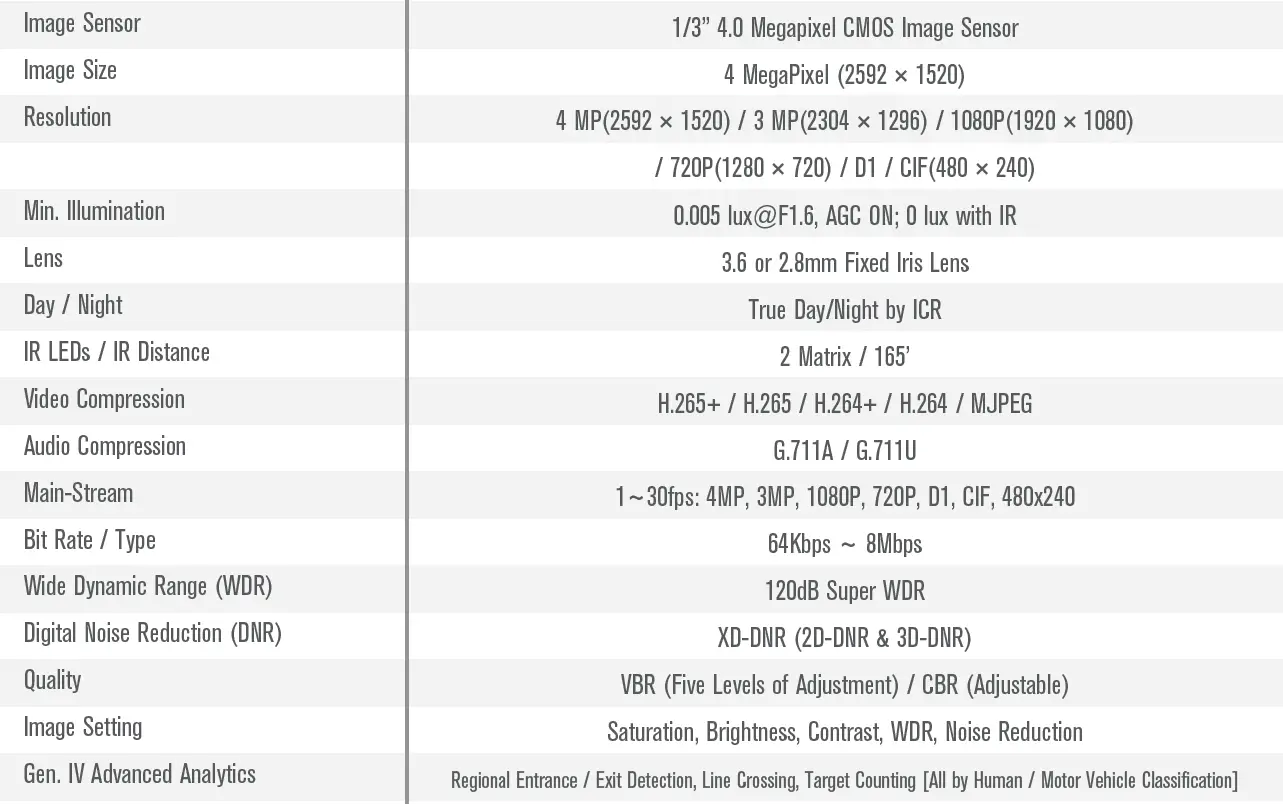
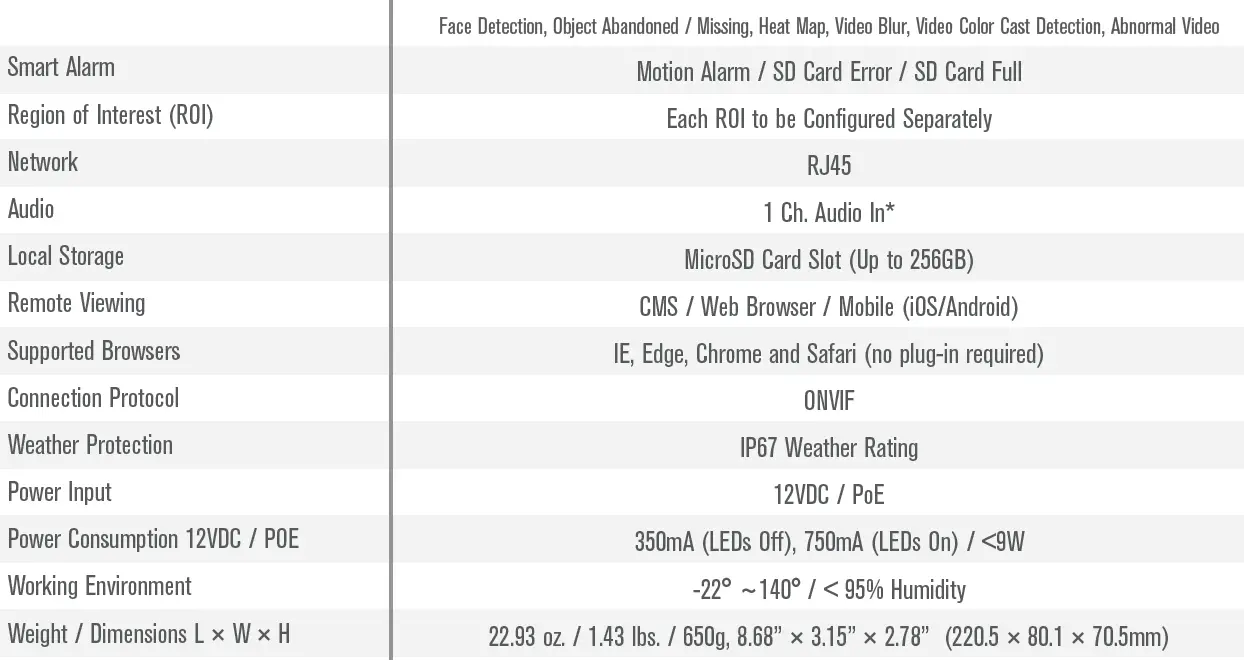
OPTIONAL ACCESSORIES
RELATED PRODUCTS FOR VTC-TNB4RFA4
VT-TJB08
Optional Junction Box
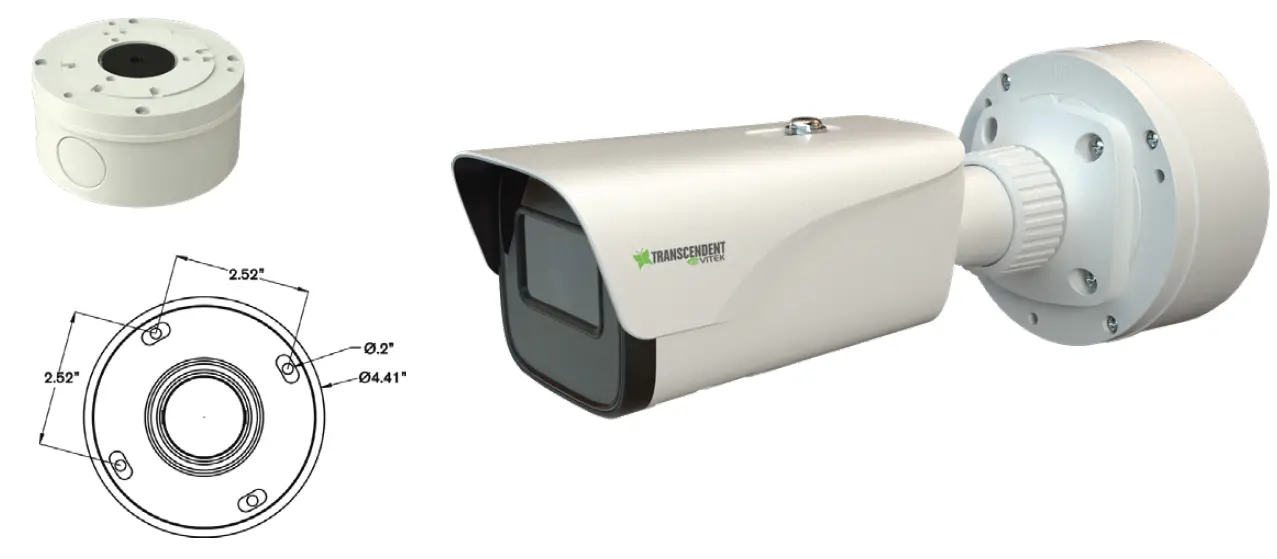
VT-TPLMT
Transcendent Universal Pole Mount (reqs. VT-TJB08)
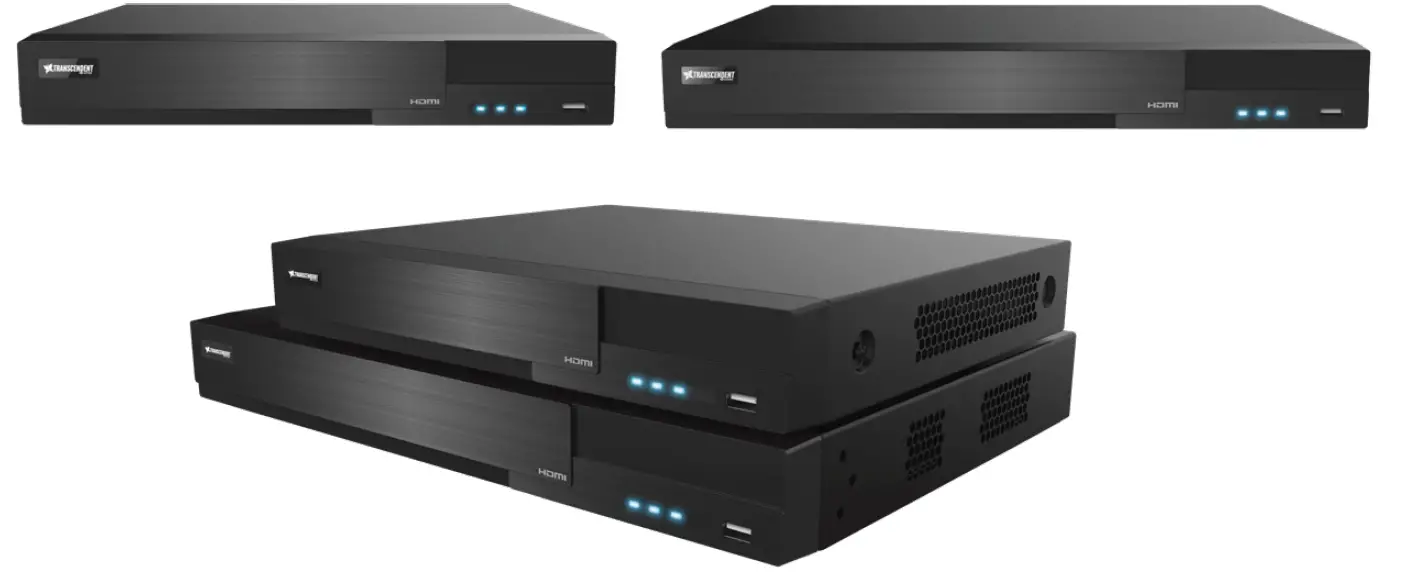
NEWLY UPDATED Transcendent NVRs
A Standalone Solution with Analytic Support and NDAA Compliance!
- 8MP (4K) HDMI Output
- H.265S / H.265+ / H.265 / H.264 Video Compression
- Analytic Support Including Basic Face Detection, License Plate Recognition, and More!
- Available in 4, 8, and 16 Channels
- Up to 24TB Depending on Model (12TB per HDD)
- PoE Support on ALL Models
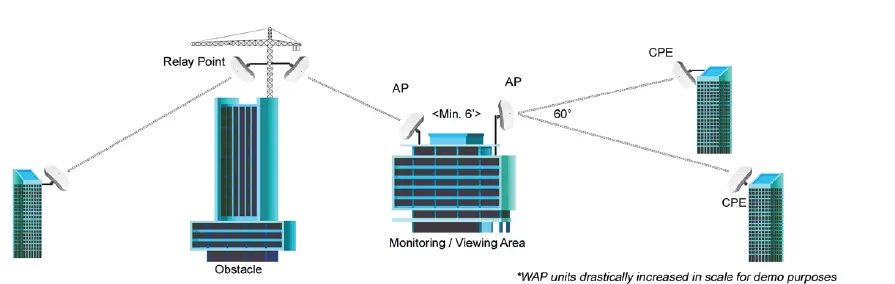
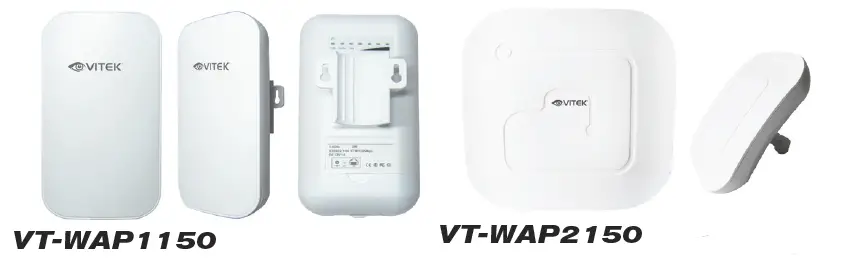
Also Consider Vitek NDAA Compliant Wireless Access Points to Reduce Costly Cable Installation! VT-WAP1150 and VT-WAP2150 High Speed 5.8GHz DIP AP / CPE Wireless Bridge w/ 8MB Storage, 64MB RAM, 150MBps transmission, and Point-to-Multi-Point (P2MP) Topology
 Downloads - VITEK IVP, Inc.