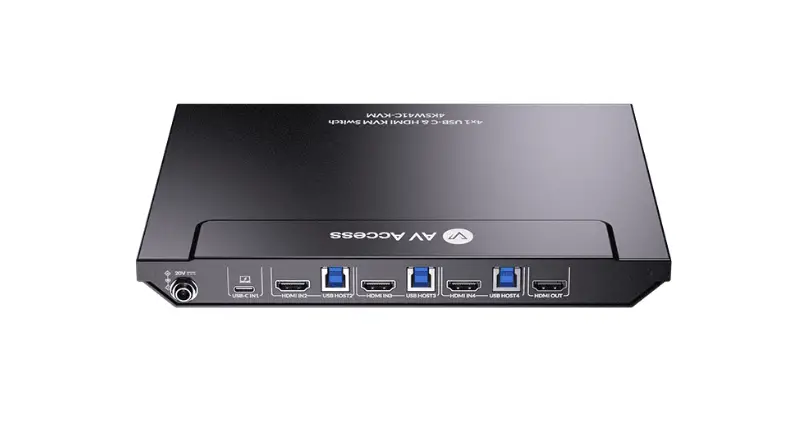
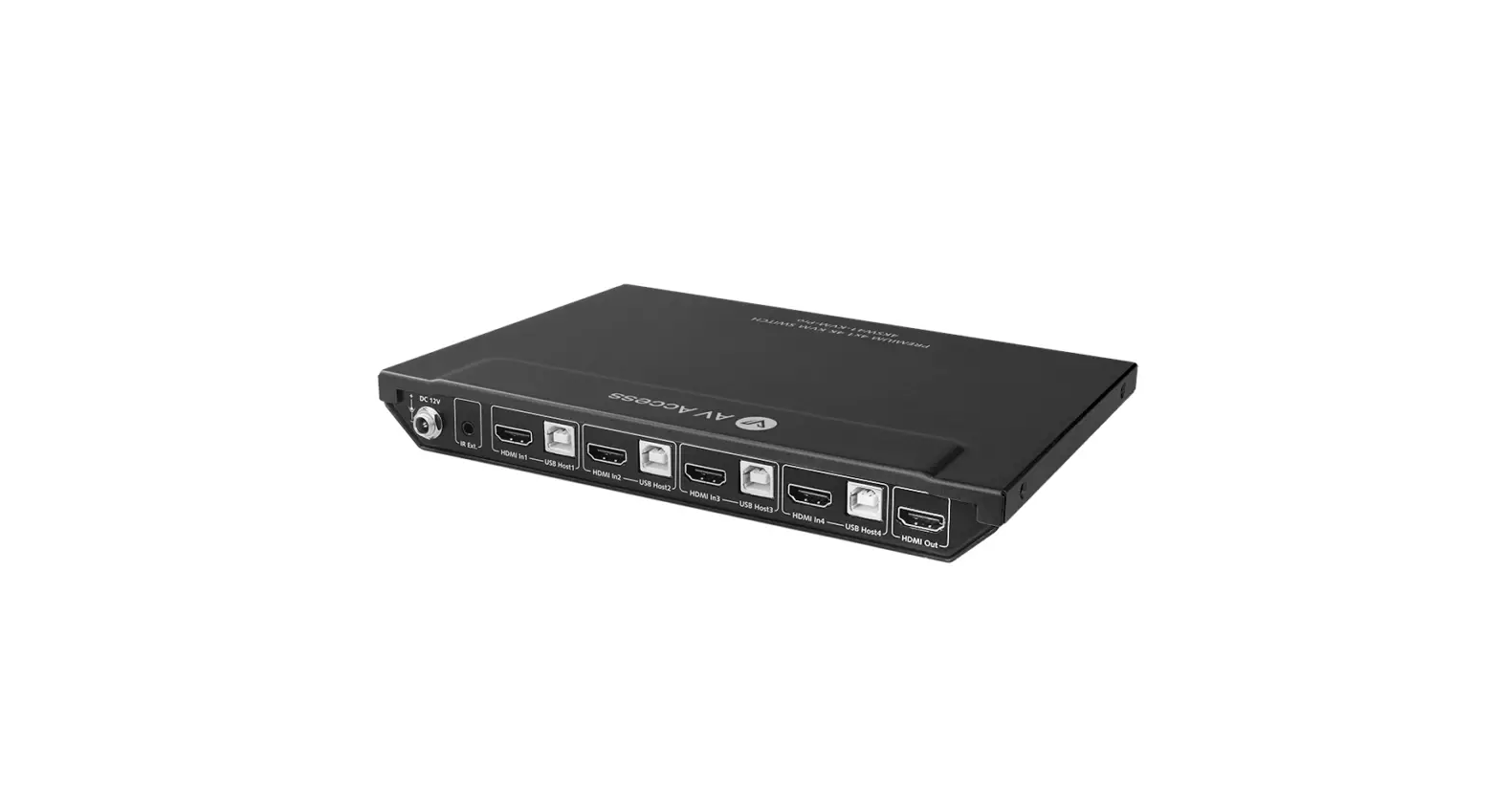
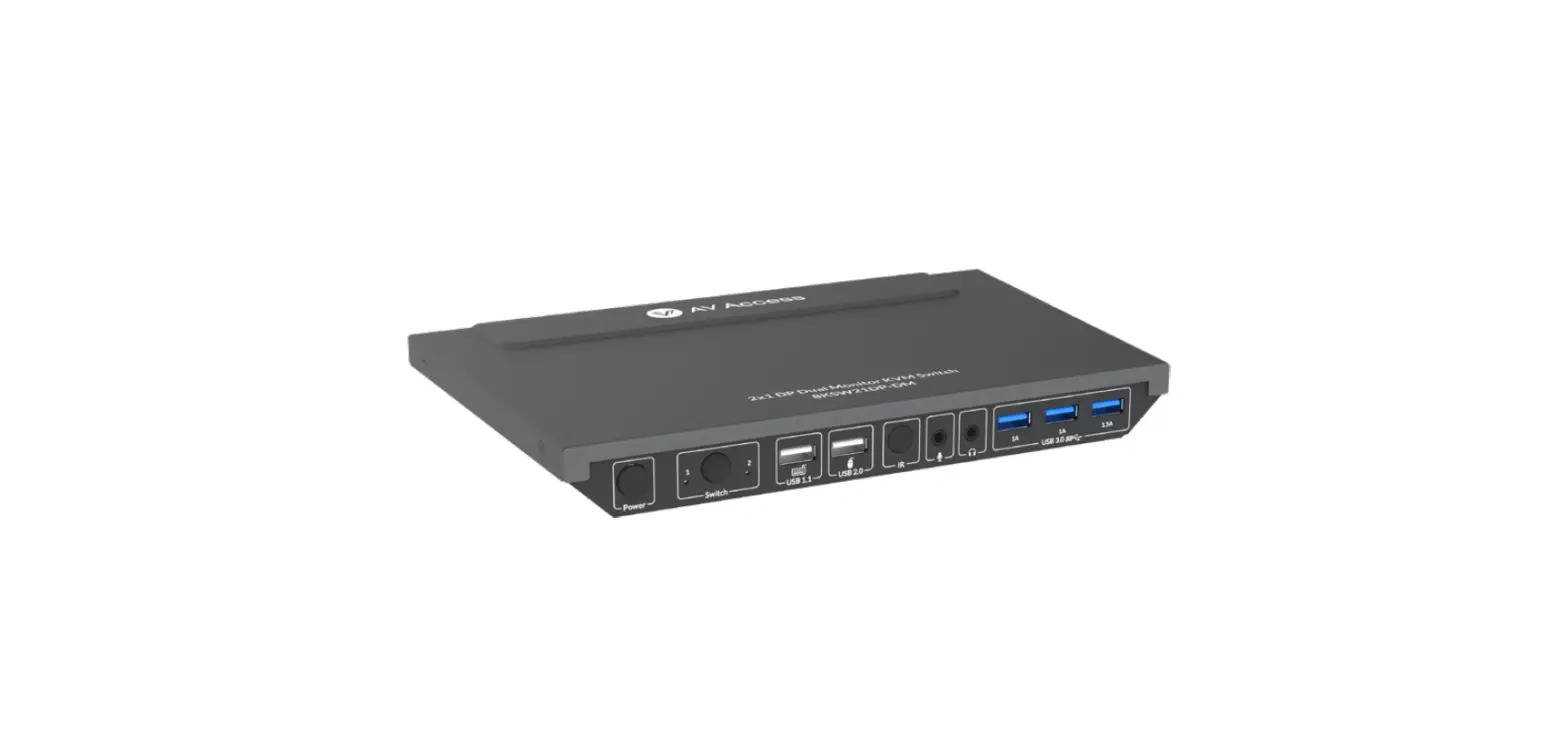
4KSW31C-DM 3×1 Dual Monitor USB-C and HDMI KVM Switcher
Product Information: The 3×1 Dual Monitor USB-C&HDMI KVM
Switcher (model 4KSW31C-DM) is a versatile device that allows you
to connect multiple computers or laptops to two external monitors
and control them using a single set of keyboard, mouse, and other
peripherals. It supports a wide range of operating systems
including Windows, Mac OS, and Linux, and offers various control
options such as front panel buttons, IR remote, and hotkey switch.
Features: – USB-C 3.2 input with two HDMI outputs: The switcher
comes with one full-functional USB-C 3.2 input that can be extended
to two HDMI outputs. It supports USB data transmission and 65W
charging. – Dual independent HDMI input channels: Each HDMI input
group supports two independent HDMI input channels, allowing you to
connect two HDMI output ports of a computer or laptop to two
external monitors. Each monitor has its own independent channel and
can support different resolutions. – High-resolution support: The
switcher supports dual 4K@60Hz outputs in DP MST mode through the
USB-C input. The HDMI inputs support 4K@60Hz resolution. It also
supports high refresh rates such as 2560×1440@144Hz and 1080P@240Hz
/ 165Hz / 144Hz / 120Hz. – USB docking function: The USB-C input
supports USB docking function, providing wired network connection
for the laptop’s USB-C port. When switched to USB-C input, all USB
devices can be connected directly to the laptop without the need
for additional USB docking devices. – Multiple peripherals
interfaces: The switcher features three super high-speed USB 3.0
ports, one USB 2.0 port, and one USB 1.1 port for keyboard. It also
provides independent mic input and audio output (3.5mm earphone)
ports. Product Usage Instructions: 1. Package Contents: Before
starting the installation, please ensure that the package includes
the following items: – Switcher x 1 – Power Adapter (DC 20V 6A) x 1
– IR Remote x 1 – USB 3.0 Type-A to Type-B Cable x 2 – USB 3.2
Type-C to Type-C Cable x 1 – HDMI Cable x 2 – User Manual x 1 2.
Control of the Switcher: The switcher can be controlled using
various methods: – Power Button (Front Panel): Press this button to
power on/off the device. When the device is powered on, the
button’s backlight will light up blue. – Switch Button and LED
(Front Panel): Press this button to select the input group among
USB-C In1, HDMI In2A & HDMI In2B, and HDMI In3A & HDMI
In3B. The LED lights indicate the selected input source. – IR
Remote: Use the included IR remote to control the switcher. –
Hotkey Switch: Connect a keyboard to the special USB 1.1 port on
the switcher and use hotkeys to switch between input sources. 3.
Connection Setup: a. Connect the USB-C input of the switcher to a
computer or laptop using the provided USB 3.2 Type-C to Type-C
Cable. b. Connect the HDMI output ports of the computer or laptop
to the HDMI inputs of the switcher using the provided HDMI cables.
c. Connect the two external monitors to the HDMI outputs of the
switcher. d. Connect peripherals such as keyboard, mouse, and other
USB devices to the corresponding ports on the switcher. e. Connect
a wired network connection to the USB-C port on the switcher
(optional). 4. Power On and Switching: a. Press the Power Button on
the front panel to power on the switcher. b. Use the Switch Button
on the front panel, IR remote, or hotkey switch to select the
desired input source. c. The connected monitors will display the
output from the selected input source. Note: For further details
and troubleshooting, please refer to the User Manual provided with
the product. For more information, you can visit the official
website of the product manufacturer: www.avaccess.com.
3×1 Dual Monitor USB-C&HDMI KVM Switcher
4KSW31C-DM
User Manual
Table of Contents
Introduction ……………………………………………………………………………………………… 2 Overview …………………………………………………………………………………………………………………….. 2 Features………………………………………………………………………………………………………………………. 2 Package Contents ……………………………………………………………………………………………………… 3 Panel……………………………………………………………………………………………………………………………. 3 Front Panel…………………………………………………………………………………………………………. 3 Rear Panel…………………………………………………………………………………………………………… 4
Application……………………………………………………………………………………………….. 6 Control of the Switcher………………………………………………………………………………. 6
Front Panel Control …………………………………………………………………………………………………… 7 IR Remote Control……………………………………………………………………………………………………… 7 Hotkey Function ………………………………………………………………………………………………………… 8 Specifications……………………………………………………………………………………………. 8 Warranty ………………………………………………………………………………………………… 10
www.avaccess.com
1
Introduction
Introduction
Overview
4KSW31C-DM is a 3×1 USB-C&HDMI KVM Switcher. It supports one USB-C input, two sets of dual channel HDMI + USB inputs and two HDMI outputs. The USB-C input supports DP MST mode, and can output two videos up to 4K@60Hz, it also supports USB data transmission with data rate up to 5Gbps, 65W charging and provides wired LAN connection for the connected laptop. HDMI inputs and HDMI outputs supports resolution up to 4K@60Hz 4:4:4 8bit and HDCP 2.2 compatibility. With multiple peripheral devices, the switcher can share two displays and all USB devices among the three inputs.
The switcher features automatically wake-up the connected PC in standby mode, which can reduce the switching time. It also supports direct switching through buttons on front panel, IR remote and hotkey through keyboard connected to the special USB 1.1 port. It provides a wide compatibility choice for different operating systems, such as Windows, Mac OS and Linux, no driver required and simple plug and play.
Features
3×1 USB-C&HDMI KVM Switcher: One full-functional USB-C 3.2 input, which can be extended to two HDMI outputs, supports USB data transmission and 65W charging. Each HDMI input group support two independent HDMI input channels, which can be connected to two HDMI output ports of the PC and extended to two external monitors. Each monitor has independent channel, which can support different resolution.
USB-C input supports DP MST mode with dual 4K@60Hz outputs. HDMI inputs support output 4K@60Hz resolution. Both USB-C and HDMI inputs support high refresh rate such as 2560×1440@144Hz, 1080P@240Hz / 165 Hz / 144 Hz / 120Hz.
USB-C input supports USB docking function: It can provide wired network connection for the laptop USB-C port connected. When switch to USB-C input, all USB devices can be connected with the laptop connected to the USB-C port and no need to connect to other USB docking devices.
www.avaccess.com
2
Introduction
Multiple Peripherals interfaces: Three super high-speed USB 3.0 ports. One USB 2.0 port and one USB 1.1 port for keyboard. Provides independent mic input and audio output (3.5mm earphone) ports.
Supports USB 3.0 data transmission with the speed up to 5Gbps. Supports automatic wake-up function automatically wake up the PC
in standby mode when switching. Fast switching time of 2-3s, based on the virtual interaction function. Supports multiple control options, including IR Remote, front panel
buttons and hotkey switch.
Package Contents
Before you start the installation of the product, please check the package contents: Switcher x 1 Power Adapter (DC 20V 6A) x 1 IR Remote x 1 USB 3.0 Type-A to Type-B Cable x 2 USB 3.2 Type-C to Type-C Cable x 1 HDMI Cable x 2 User Manual x 1
Panel
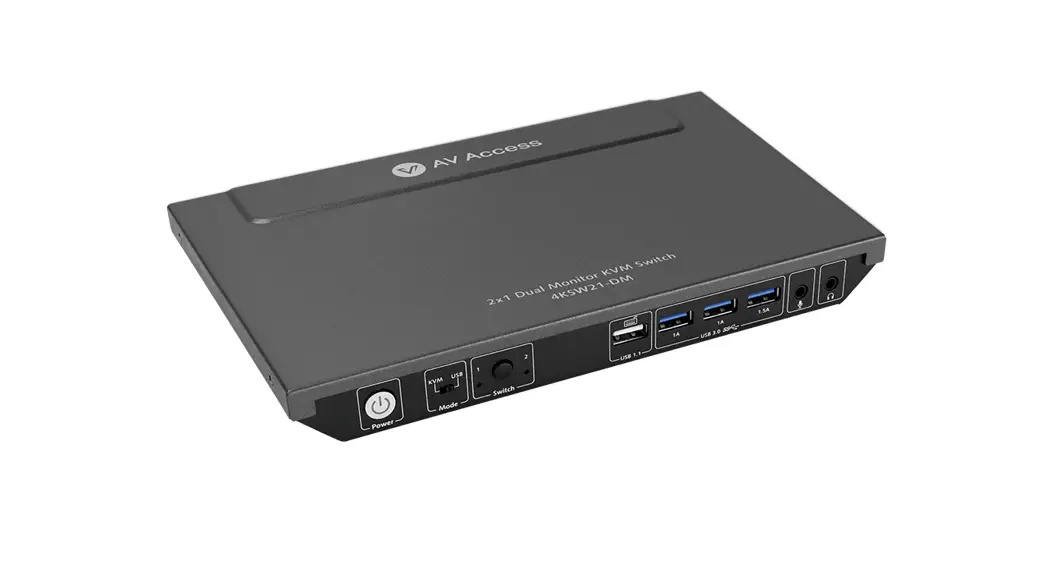
Front Panel
1
2
3
4
5
67
8
9
No. Name
Description
Press to power on/off the device. When the device is
1 Power Button powered on, the backlight of the button will light
blue.
Press to select input group among USB-C In1, HDMI
In2A & HDMI In2B, and HDMI In3A & HDMI In3B.
2
Switch Button and LED 1~3
LED 1~3: On: Select USB-C In1 / HDMI In2A & HDMI In2B / HDMI In3A & HDMI In3B as input source.
Off: The corresponding input / input group is not
selected.
www.avaccess.com
3
No. Name
3 USB 1.1
4 USB 2.0 5 IR 6 MIC In 7 Line Out 8 USB 3.0 9 Update
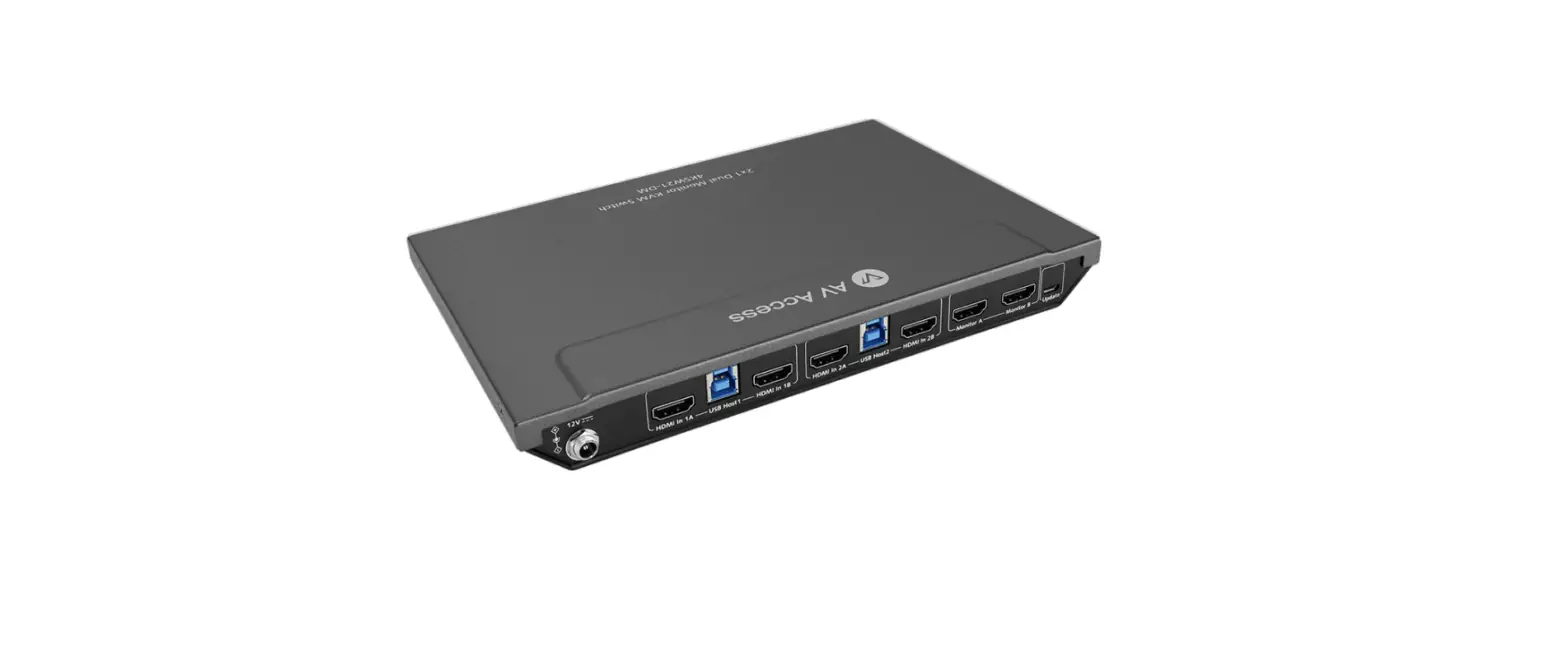
Rear Panel
Introduction
Description USB 1.1 type-A port, can be used to connect to a USB keyboard for hotkey function. (Detail information, please refer to “Hotkey Function” section) Note: It is specialized for connecting keyboard and not recommended to connect to other USB slave devices. USB 2.0 type-A port. Connect to a USB device such as a mouse. IR receiving window. Receive IR signals. Connect to a Microphone. The Microphone follows the USB-C Input / USB Host port selected. Connect to an earphone. The earphone follows the USB-C Input / USB Host port selected. USB 3.0 type-A ports, can be used to connect to USB 3.0 high-speed device for KVM function. Micro USB port. Connect to a PC for firmware upgrade.
1
2
3
No. Name
1 20V/6A
2 USB 3.0 (1.5A)
3
Monitor A & Monitor B
4 Desktop 3
www.avaccess.com
4
5
6
Description
Connect to the power adapter provided.
Connect to a USB deice.
Note: The port supports a high power of 5V 1.5A,
it can be used for connecting USB devices with
high power, such as connecting a USB Camera.
Connect to two displays such as TVs.
HDMI In3A & HDMI In3B: Connect to two HDMI output ports of PC respectively. HDMI In3A and HDMI In3B can be seen as a group, hereinafter referred to as group 3 in this manual. USB Host3: Connect to a host device. USB Host3 is bound with group 3. When select group 3 as sources to input, the USB devices can be
4
No. Name 5 Desktop 2
6 Laptop 1
www.avaccess.com
Introduction
Description connected to the host PC connected to USB Host3 port. HDMI In2A & HDMI In2B: Connect to two HDMI output ports of PC respectively. HDMI In2A and HDMI In2B can be seen as a group, hereinafter referred to as group 2 in this manual. USB Host2: Connect to a host device. USB Host2 is bound with group 2. When select group 2 as sources to input, the USB devices can be connected to the host PC connected to USB Host2 port. USB-C In1: USB 3.2 type-C port. Supports PD 2.0 specification, maximum 5Gbps data rate. Please use the following cable: USB type-C to type-C cable (USB 3.2 Gen 1 or above). Connect to a USB type-C device such as a laptop. It supports the following functions: For transmitting video signal as an input
source, USB-C In1 port supports DP MST mode, and can output two videos (two 4K@60Hz maximum) at the same time, users can switch to input 1 to select USB-C In1 as input source for two HDMI outputs; Note: The laptop connected needs to support DP 1.4a standard and support MST output of its USB-C port to enable the two 4K@60Hz outputs. For transmitting USB data as a host port, when select USB-C In1 as input source, the USB devices can be connected to the laptop connected with USB-C In1 port; For charging the connected laptop with the ability of 65W. The port has a built-in 1G network adapter function. The LAN port can provide Internet access for the connected USB-C laptop through this port.
5
No. Name
Application
Description LAN: Connect to a local area network for network connection of the source connected with USB-C In1 port.
Application
Warnings: Before wiring, disconnect the power from all devices. During wiring, connect and disconnect the cables gently.
When switch input source to USB-C In1, group 2 or group 3: The connected USB devices, microphone and earphone can be
connected to USB-C In1, group 2 or group 3. When switch to USB-C In1, the displays connected to Monitor A and
Monitor B will output different video from USB-C In1 (supports DP MST)
respectively. When switch to group 2/3, the displays connected to
Monitor A and Monitor B will output video from HDMI In 2A/3A and
HDMI In 2B/3B respectively.
Keyboard Mouse
MIC Earphone
Removable Hard Disk
Front Panel
MIC
Line Out
USB
In
USB
Rear Panel
USB Power Supply
HDMI Out
USB HDMI In Host
HDMI In
HDMI
USB
In
Host
HDMI In LAN
USB-C In
Display
Display
PC
PC
Laptop
Control of the Switcher
You can choose to switch input sources at your convenience through front panel button, IR remote or Hotkey function.
www.avaccess.com
6
Control of the Switcher
Front Panel Control
Users can choose to use front panel buttons to do basic switching operations. Connect the switcher as required and power on all the attached devices. Then users can switch source through the button on front panel by pressing it.
IR Remote Control
The included remote handset can be used to switch three inputs to two display devices.
Point the remote handset directly at the IR windows on front panel.
Turn on a CEC-enabled display device
Turn off a CEC-enabled display device
Select the previous source input Select a specific source input
Select the next source input
Button IR Codes Description
ON
0x1D
Turn on the CEC enabled display.
OFF
0x1F
Turn off the CEC enabled display.
0x1B
Switch to the previous input (Cycle from group 3
to USB-C In1).
0x11
Switch to the next input (Cycle from USB-C In1 to
group 3).
1
0x17
Switch to USB-C Input 1.
2
0x12
Switch to input group 2.
3
0x59
Switch to input group 3.
4
0x08
Reserved.
System Code Switch
The IR Remote provided with the switcher is shipped in “00” IR system code. In the event that Remote’s IR signal interferes with IR devices, e.g., TV, DVD player, the Remote can be switched to
www.avaccess.com
7
[email protected]
Short press to change the system code of the IR remote
Specifications “4E” code by short pressing the System Code Switch on the Remote panel.
Hotkey Function
One USB 1.1 port on front panel of the switcher supports keyboard hotkey function. This function is enabled by default, and can be set to disabled/enabled through combined keys on the connected keyboard.
Supported Hotkey: Tab (default), Caps Lock
Key Operation
Function
Press “Ctrl” (“Left”) + “Alt” +
Enable hotkey.
“Shift” + “[”
Press “Ctrl” (“Left”) + “Alt” +
Disable hotkey.
“Shift” + “]”
Press the “Hotkey” twice quickly Switch to this hotkey.
Press “Hotkey” +”1″
Switch to input USB-C In 1.
Press “Hotkey” +”2″
Switch to input group 2.
Press “Hotkey” +”3″
Switch to input group 3.
Press “Hotkey” + “Left”
Switch to previous input group (Cycle
from group 3 to USB-C In 1).
Press “Hotkey” + “Right”
Switch to next input group (Cycle from
USB-C In 1 to group 3).
For example:
If you want to use the “Caps Lock” as a hotkey, please ensure the Hotkey
function is enabled, and press the “Caps Lock” key twice quickly to switch
the hotkey to it, and other hotkeys are invalid. If you need to use other
hotkeys, please repeat the above steps.
Specifications
Technical
Input & Output Ports
Input/Output Signals
1 x USB-C In (USB 3.2 Gen 1); 4 x HDMI In; 2 x USB Host (USB 3.0 Type-B port); 1 x LAN; 3 x USB Device (USB 3.0 Type-A port); 1 x USB 1.1 (USB 1.1 Type-A port); 1 x USB 2.0 (USB 2.0 Type-A port); 1 x Line Out; 1 x Mic In; 1 x DC 20V/6A USB-C Input: USB 3.2, supports DP MST mode, can output two videos (resolutions up to 4K@60Hz 4:4:4 8bit) at the same time
www.avaccess.com
8
Specifications
Technical
Input/Output Resolution Supported
HDR Format Supported
Audio Format Supported
Max Data Rate Maximum Pixel Clock Control Method
HDMI Input/Output: HDMI 2.0 with resolutions up to 4K@60Hz 4:4:4 8bit / 4K@60 4:2:0 12bit with HDCP 2.2 compatibility SMPTE: 1280x720P1,2,3,4,5,6,7,8, 1920x1080I6,8, 1920x1080P1,2,3,4,5,6,7,8,9,10,11,12, 2560×10809, 3840×10809, 3840×21602,3,5,6,8, 4096×21602,3,5,6,8 VESA: 800×6008, 1024×7688, 1280×7688, 1280×8008, 1280×9608, 1280×10248, 1360×7688, 1366×7688, 1400×10508, 1440×9008, 1600×9008, 1600×12008, 1680×10508, 1920×12008, 2560×14401,2,3,4,5,6,7,8,9,10 1 = at 23.98 Hz, 2 = at 24 Hz, 3 = at 25 Hz, 4 = at 29.97 Hz, 5 = at 30 Hz, 6 = at 50 Hz, 7 = at 59.94 Hz, 8 = at 60 Hz, 9 = 120Hz, 10 = 144Hz, 11 = 165Hz, 12 = 240Hz All HDR formats, including HDR 10, HLG, HDR 10+ and Dolby Vision HDMI: Fully supports audio formats in HDMI 2.0 specification, including PCM 2.0/5.1/7.1, Dolby TrueHD, Dolby Atmos, DTS-HD Master Audio, and DTS:X MIC IN: Stereo LINE OUT: Stereo HDMI: Up to 18Gbps USB-C: 5Gbps
HDMI: 600MHz
Front panel buttons, IR Remote, Hotkeys
General Operating Temperature Storage Temperature Humidity Power Consumption Device Dimensions (W x H x D) Product Weight
0°C to + 45°C (32 to + 113 °F) -20 to +70°C (-4 to + 158 °F) 20% to 90%, non-condensing 85W (Max) 269.6mm x 27.5mm x 142.6mm/ 10.61” x 1.08” x 5.61” 0.92kg/2.03lbs
www.avaccess.com
9
Warranty
Transmission Distance
Cable Type Range
Input/Output:
HDMI
7.5m/25ft (passive cable) 15m/50ft (active cable)
Input/Output: 5m/16ft
USB-C
Input: 1m/3.3ft (USB 3.2 Gen 1 or above)
Supported Video
1080P@60Hz 24bpp 4K@30Hz 4:4:4 24bpp
4K@60Hz 4:4:4 24bpp 4K@60Hz 4:4:4 24bpp
Warranty
Products are backed by a limited 1-year parts and labor warranty. For the following cases AV Access Technology Limited shall charge for the service(s) claimed for the product if the product is still remediable and the warranty card becomes unenforceable or inapplicable. 1. The original serial number (specified by AV Access Technology Limited) labeled
on the product has been removed, erased, replaced, defaced or is illegible. 2. The warranty has expired. 3. The defects are caused by the fact that the product is repaired, dismantled or
altered by anyone that is not from an AV Access Technology Limited authorized service partner. The defects are caused by the fact that the product is used or handled improperly, roughly or not as instructed in the applicable User Guide. 4. The defects are caused by any force majeure including but not limited to accidents, fire, earthquake, lightning, tsunami and war. 5. The service, configuration and gifts promised by salesman only but not covered by normal contract. 6. AV Access Technology Limited preserves the right for interpretation of these cases above and to make changes to them at any time without notice.
Thank you for choosing products from AV Access.
If you have any question, please contact us via the following emails: General Enquiry: [email protected] Customer/Technical Support: [email protected]
www.avaccess.com
10
 AV Access | Quality & Budget Assured Pro AV Product Manufacturer