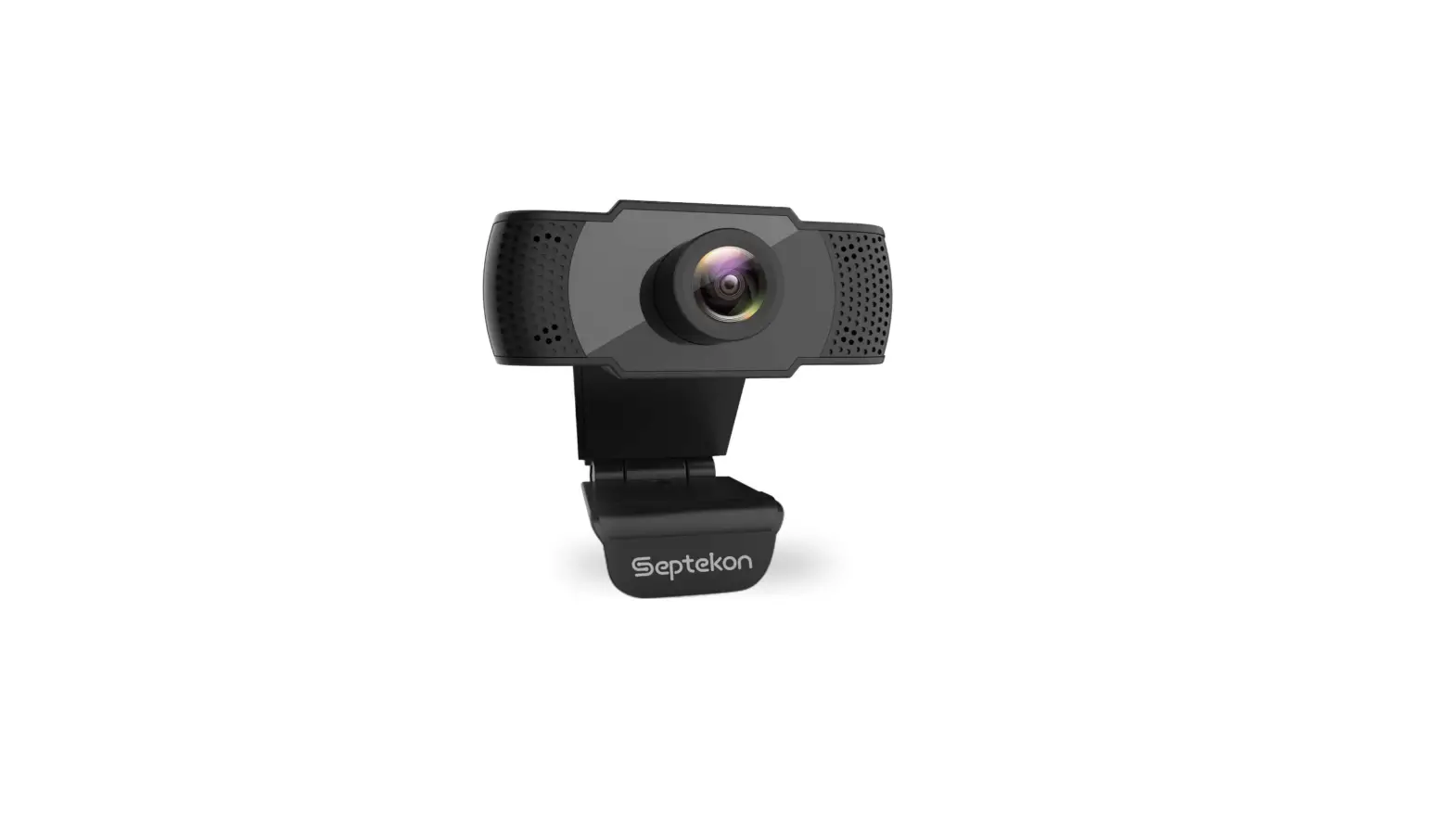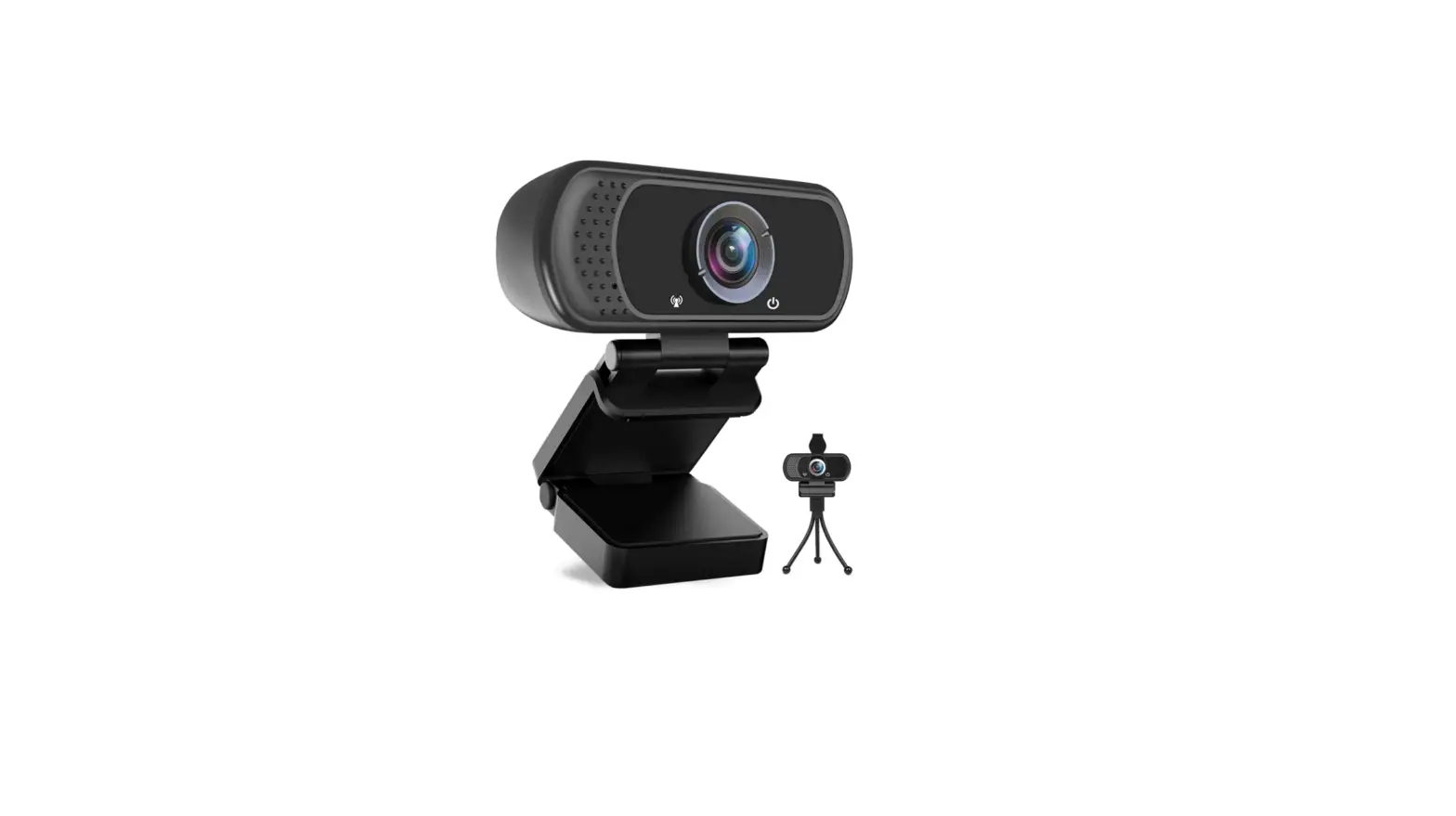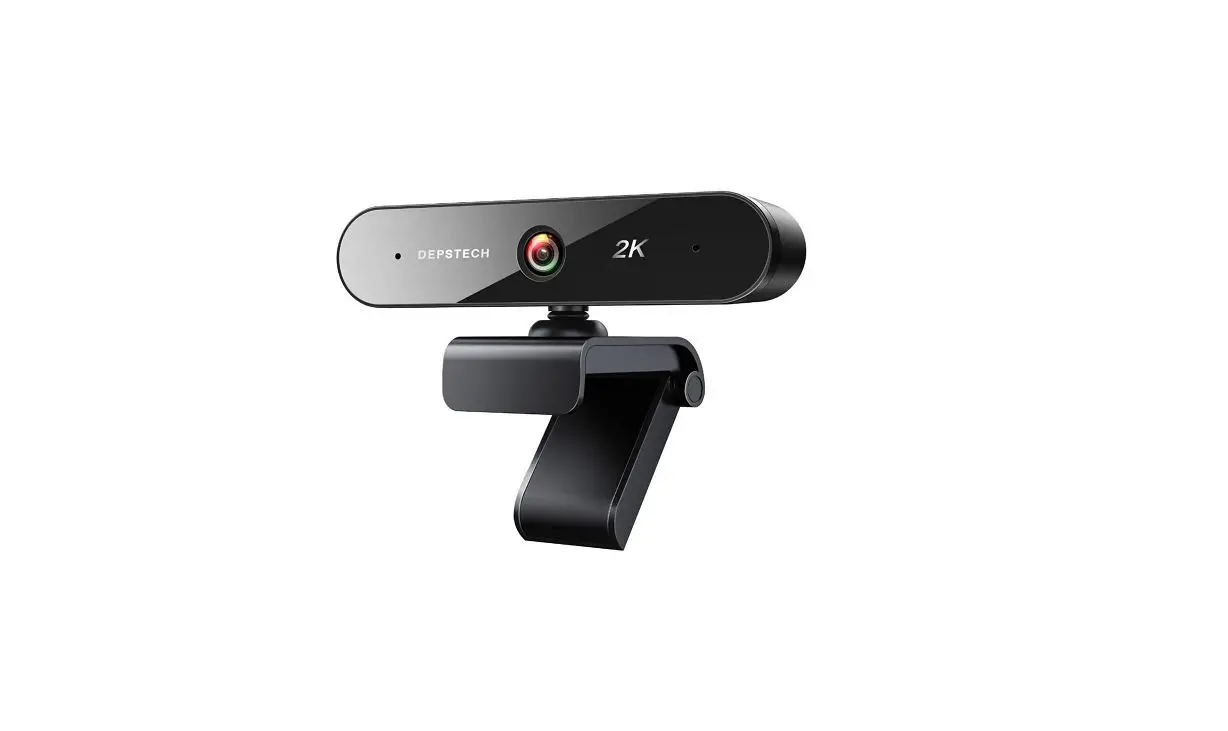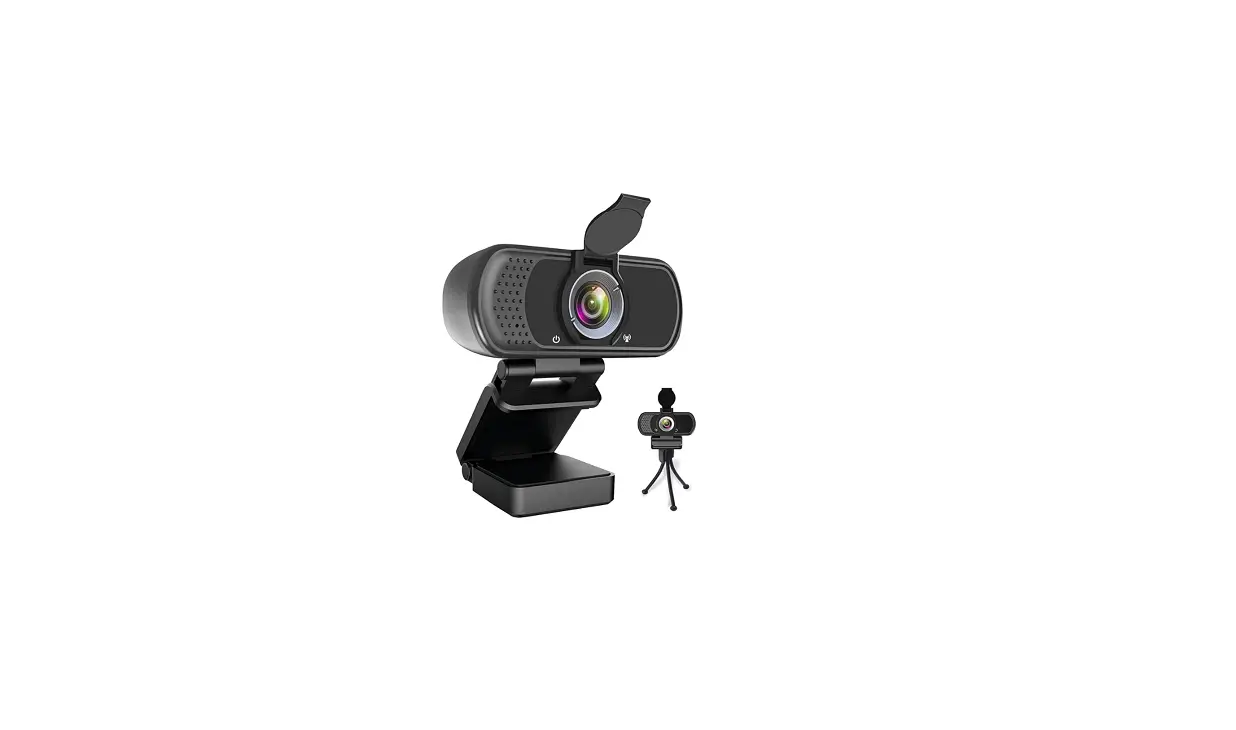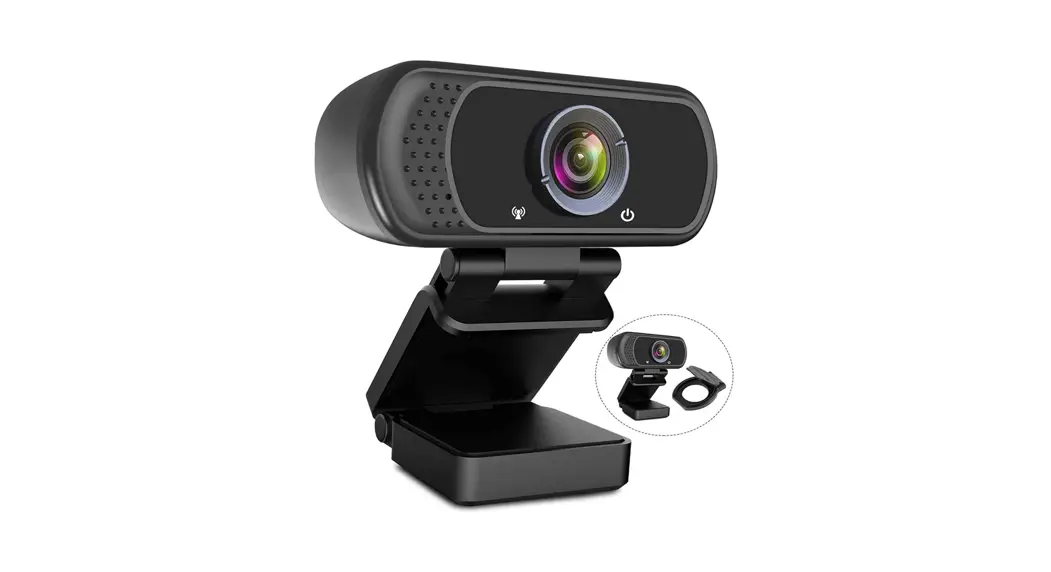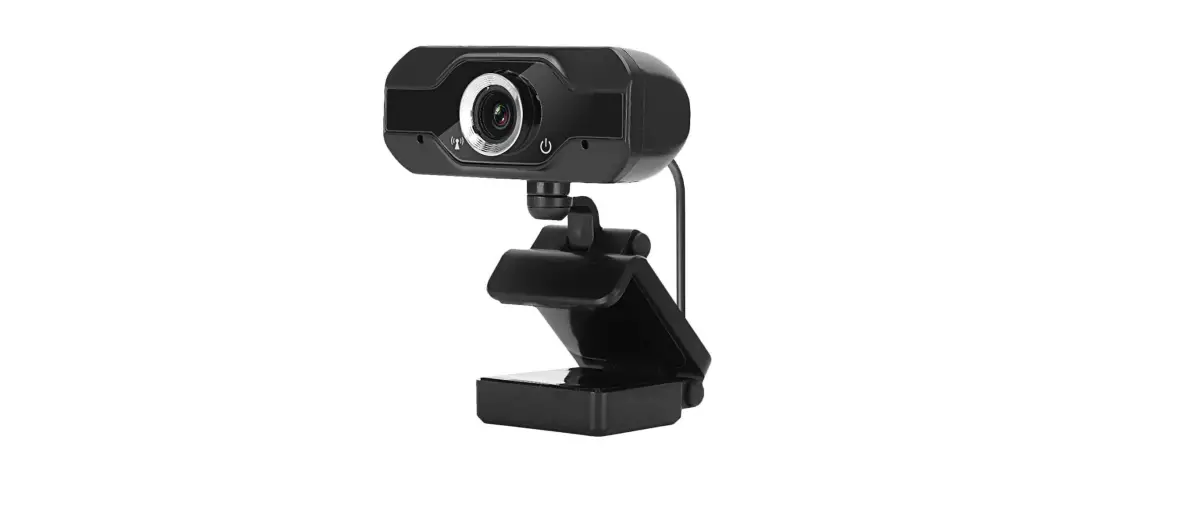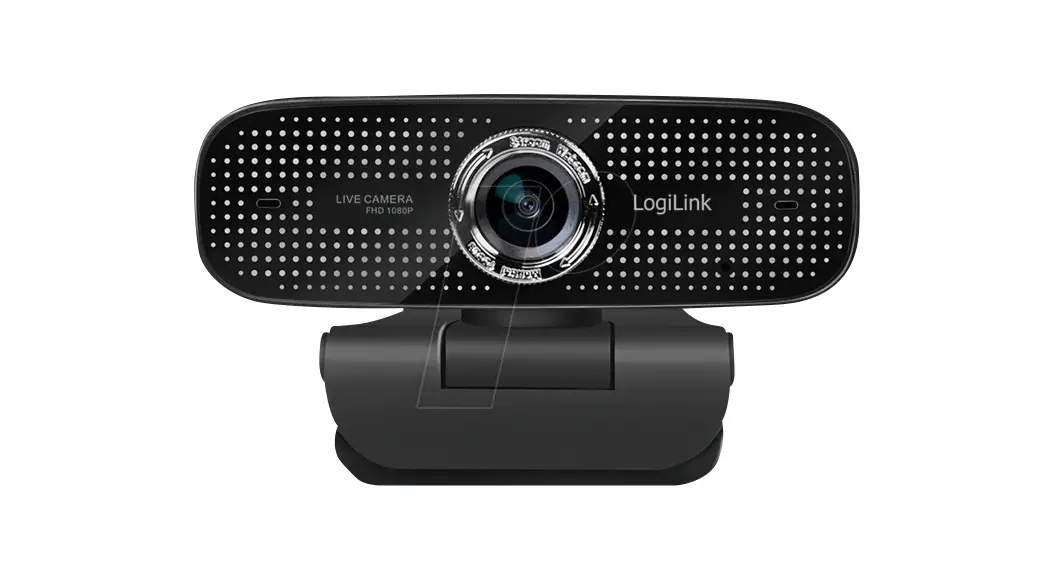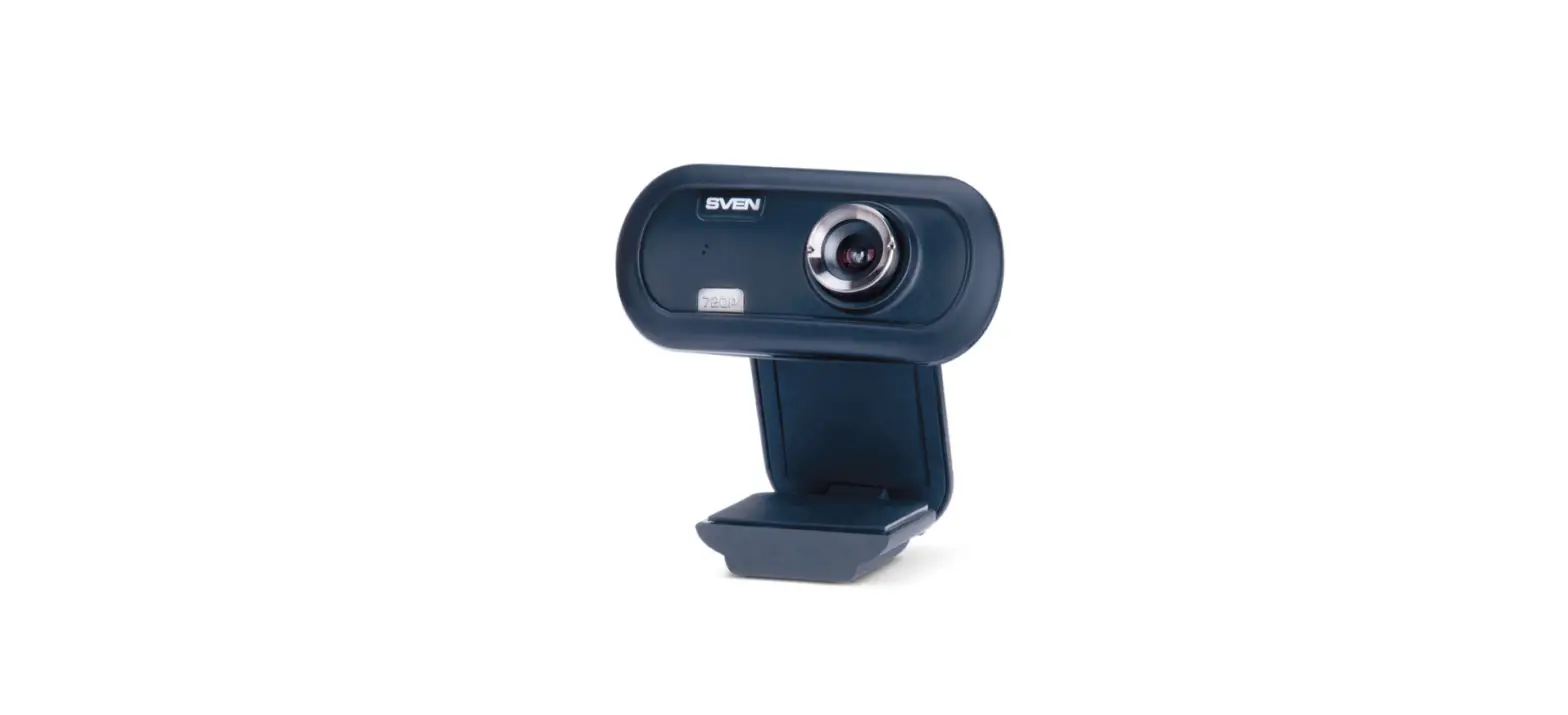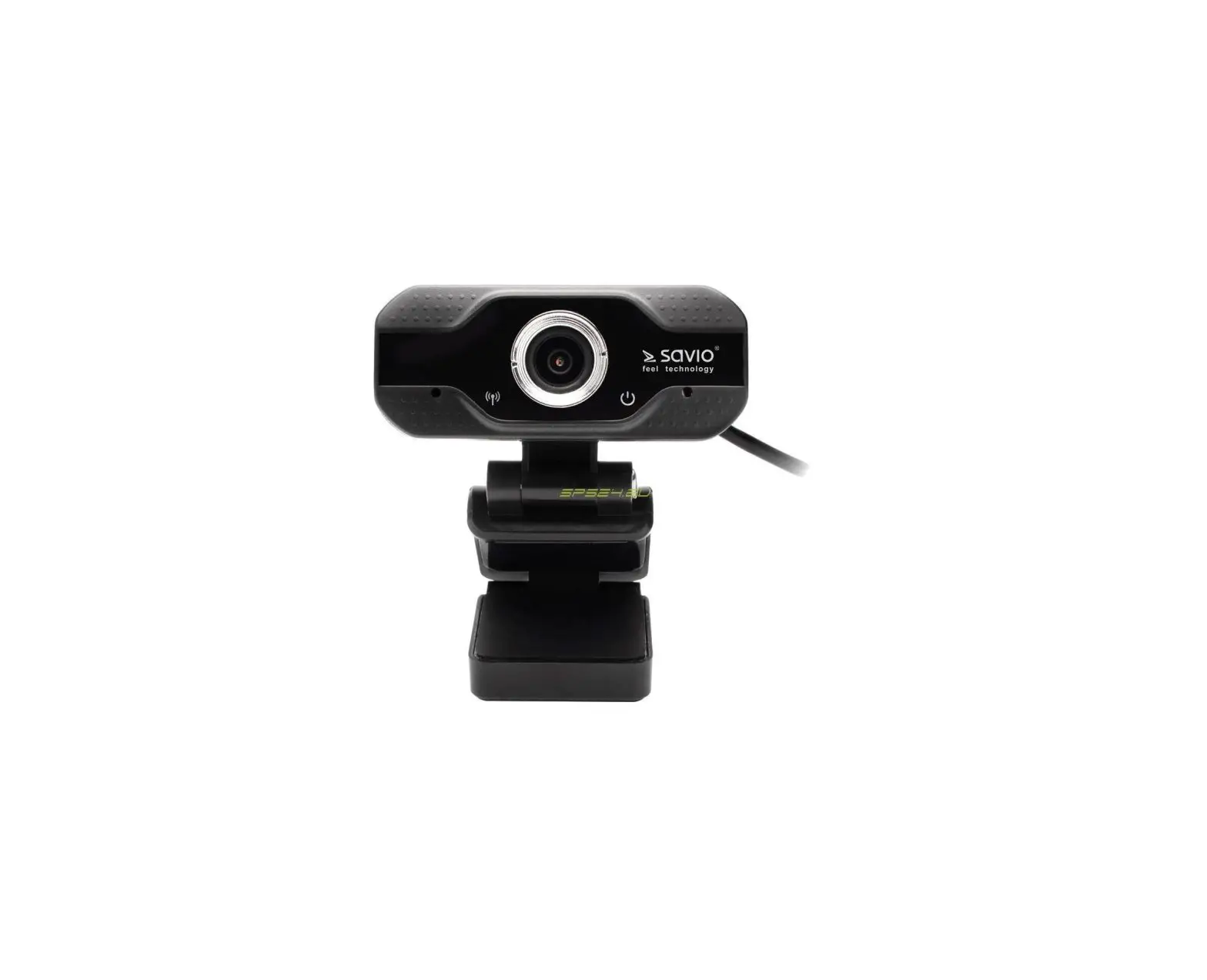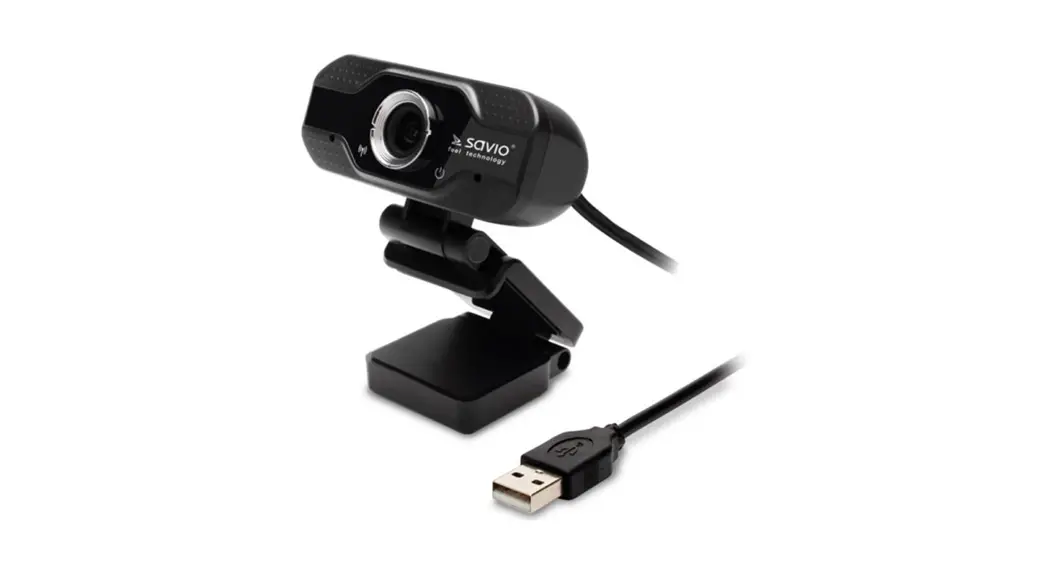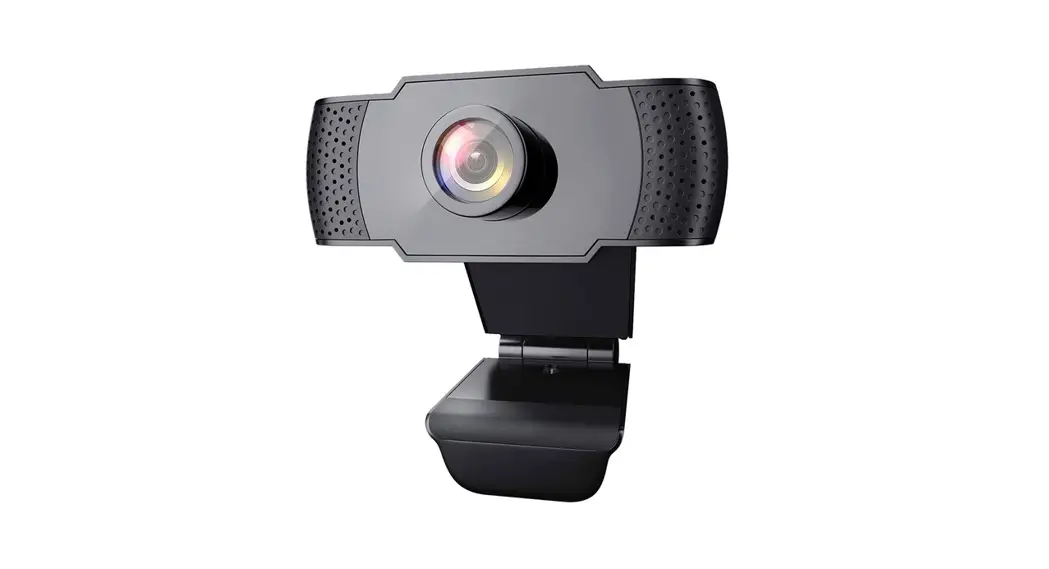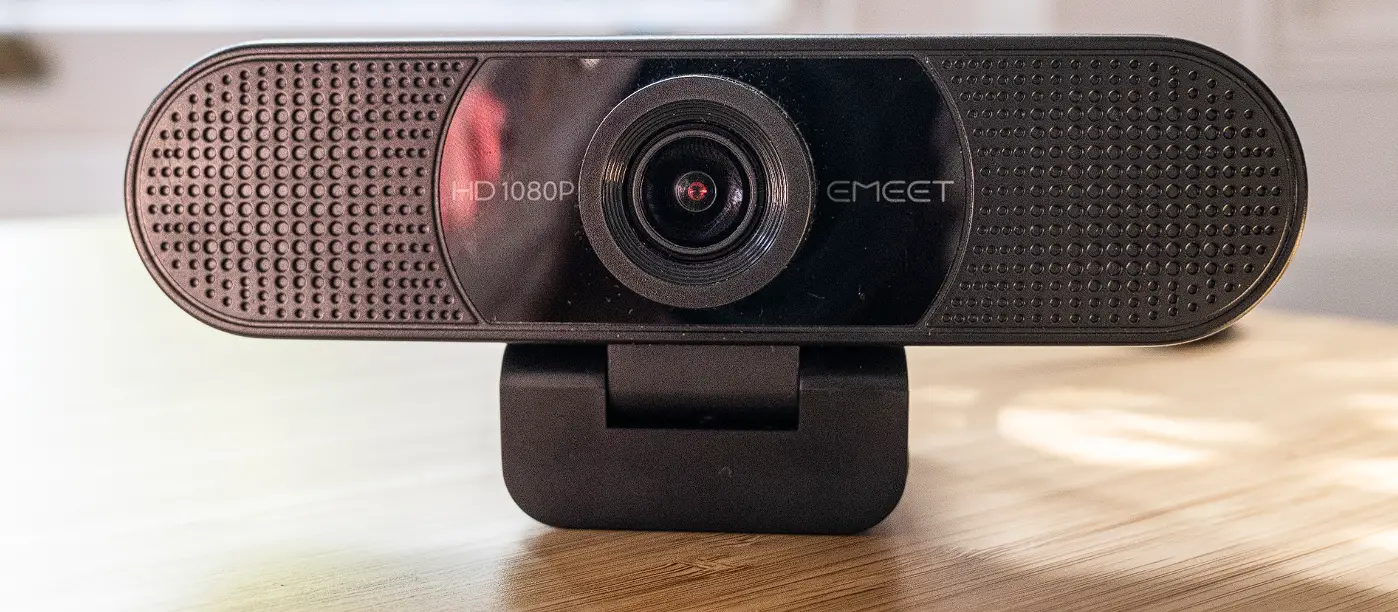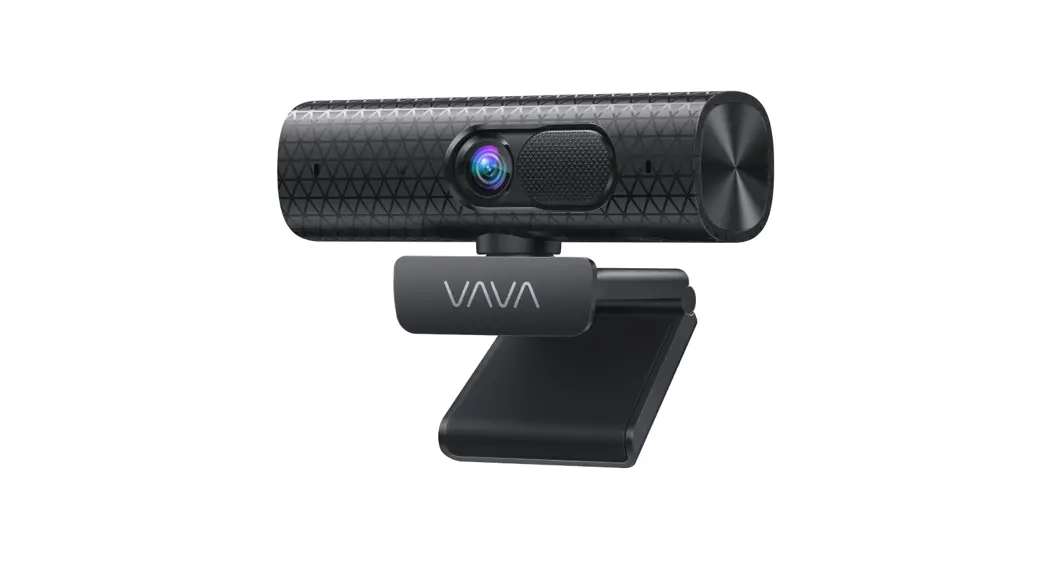
 VAVA 2K HD Webcam
User Manual
VA-VD020
Package Contents
- 1×Webcam
- 1×User Manual
- 1×Tripod Stand
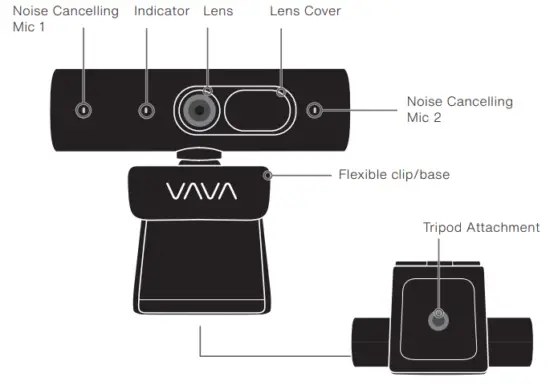
Explore Your Device
| Compatible System | Mac OS X 10.10 or later, Microsoft Windows XP/7/8/10, Android v5.0 or later, Chrome OS |
| Display Resolution | Max: 5.0 Megapixels (2688×1944) |
| Video Resolution | 2k (2560×1440) 30fps, 1080P (1920×1080) 60fps |
| FOA | 90° |
Setting Up
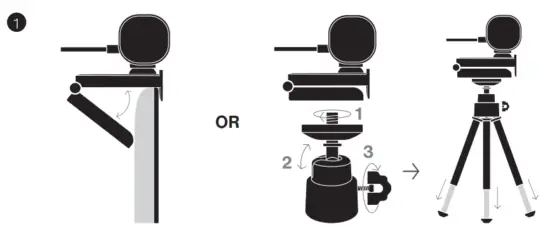
Clip the webcam on the screen. Optionally, you can mount it with the tripod stand and place it as desired.
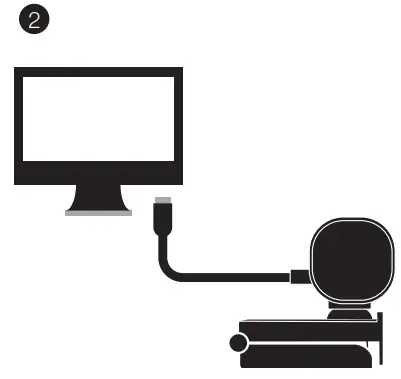
Insert the USB cable into the PC.
 Open the camera on the PC, the indicator lights up.
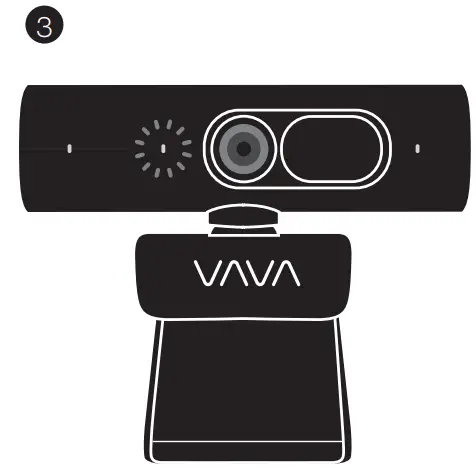

- This is a plug & play webcam. If the webcam cannot be detected, unplug it and restart your PC and try again.
- The microphones will be enabled when the webcam is working.
- The tripod stand is extendable and the angle can be adjusted.
Use on Computer
Windows OS
- Select
 , and then select “Camera” in the list of apps or type “camera” in the search bar.
 - If you want to use the camera within other apps, you will need to enable the camera in the “Windows Security Settings”.
- Select Photo or Video and take a picture or make a video. Select > Photos to see photos or videos.
 , and then select “Camera” in the list of apps or type “camera” in the search bar.
Mac OS
- Select “Finder”, click “Applications”, and start “Photo Booth”. (Refer toPhoto Booth Guide on Apple’s official website.)
- If you want to use the camera within other apps, you will need to enable access in the Mac OS “Security & Privacy settings”.
- Select the camera from the list of attached devices in the app to see photos or videos in Photo Booth.
*You can capture HD Video with “QuickTime Player”.
Hardware Requirements
- 3.6GHz Intel® Core™2 Duo or above
- Audio format: PCM, compatible with UAC1.0
- Video format: YUV, MJPEG
- USB 2.0 port
Requirements for 2K HD video recording
- 3.6 GHz Intel® Core™2 Duo
- 8 GB RAM
- 2560 x 1440 HD screen resolution
Troubleshooting
Q: How to use the microphone of a webcam?
A:
- If your computer has a mic, the audio will use the default mic on your PC. Please manually switch to the microphone of the webcam.
- Try other apps with video call functions.
Q: How to set the webcam as the primary audio device of my computer?
A:
- Select Control Panel – Audio, then select VAVA VA-VD020 as the default device for playing and recording.
- Mac OS X: Select System Preference – Audio, then select VAVA VA-VD020 as the default device for audio input and output.
- In your app with the video call function, check the audio settings and make sure you have enabled VAVA VA-VD020.
Q: Is the webcam applicable for smart TV?
A: Webcam is only applicable for PC, but it can be compatible with smart TVs that support UVC protocol, not for all smart TVs.
Q: What if the computer cannot detect the webcam?
A:
- Try with other ports of your computer.
- Make sure the webcam is not connected to USB concentrators or hubs.
- Try with another computer.
- Restart your computer and try again.
Safety Instructions
For Best Performance & Maintenance
- If the webcam becomes hot after running for a long time, stop using it for a period.
- Do not touch the lens with fingers or sharp or coarse materials; use a clean, soft cloth for cleaning.
- Do not use it in hot, cold, dusty, or humid locations.
- Avoid dropping the camera; impacts may cause damage to the lens, internal malfunction, or scratches to the camera surfaces.
Warranty Service
- 18-Month Default Warranty
- Lifetime Technical Support
FCC Compliance
This device complies with Part 15 of the FCC Rules. Operation is subject to the following two conditions:
1) This device may not cause harmful interference, and
2) This device must accept any interference received, including interference that may cause undesired operation.
 WEEE Compliance
DO not dispose of products as unsorted municipal waste and collect such WEEE separately, for proper treatment, recovery, and recycling, please take this product(s) to designated collection points where it will be accepted free of charge. Please contact your local authority for further details of your nearest designated collection station.
E-mail
[email protected]
Manufacturer
Manufacturer: Shenzhen NearbyExpress Technology Development Co., Ltd.
Address: Floor 7, Building E, Galaxy World Phase II, Shenzhen, China
Learn more about the EU Declaration of Conformity: https://www.vava.com/pages/user-manual
 Made in China
Rev_1.1_EN
#LETSVAVA
vava.com
 VAVA Official Site - Evolve
 User Manual – VAVA