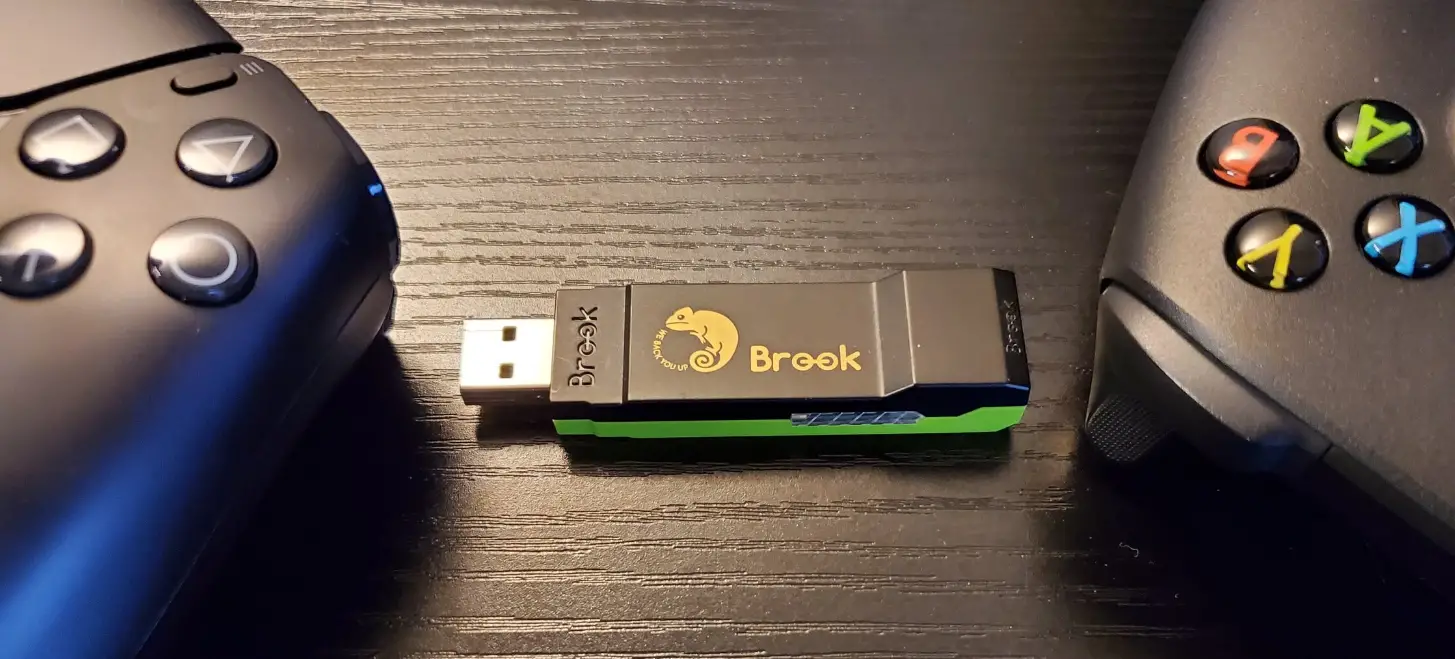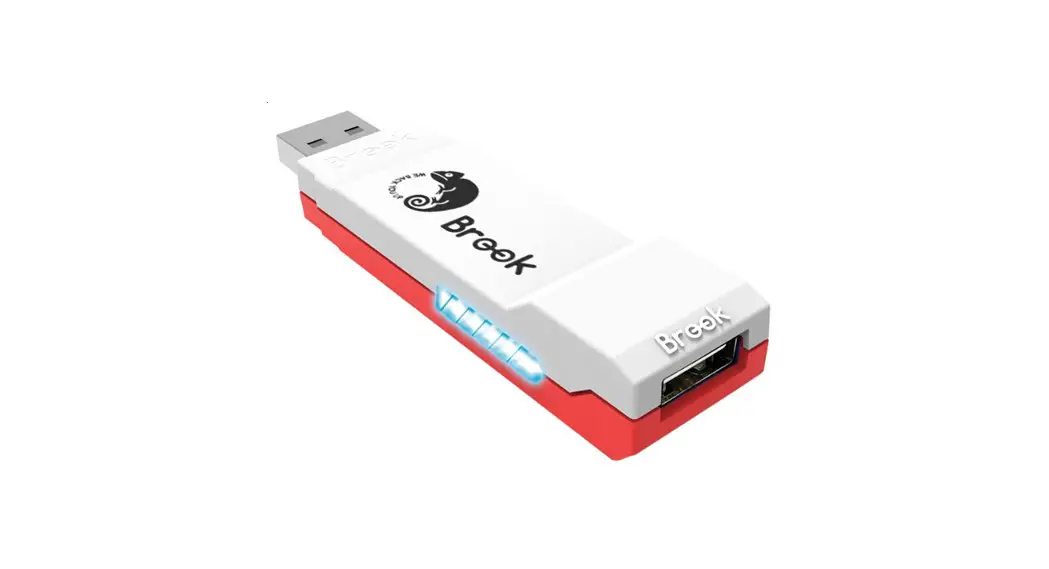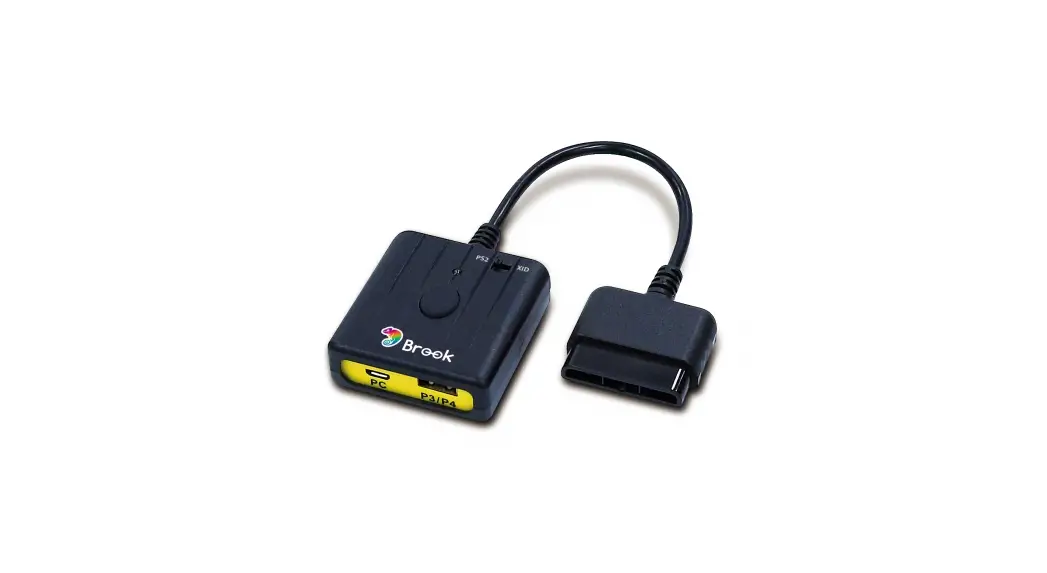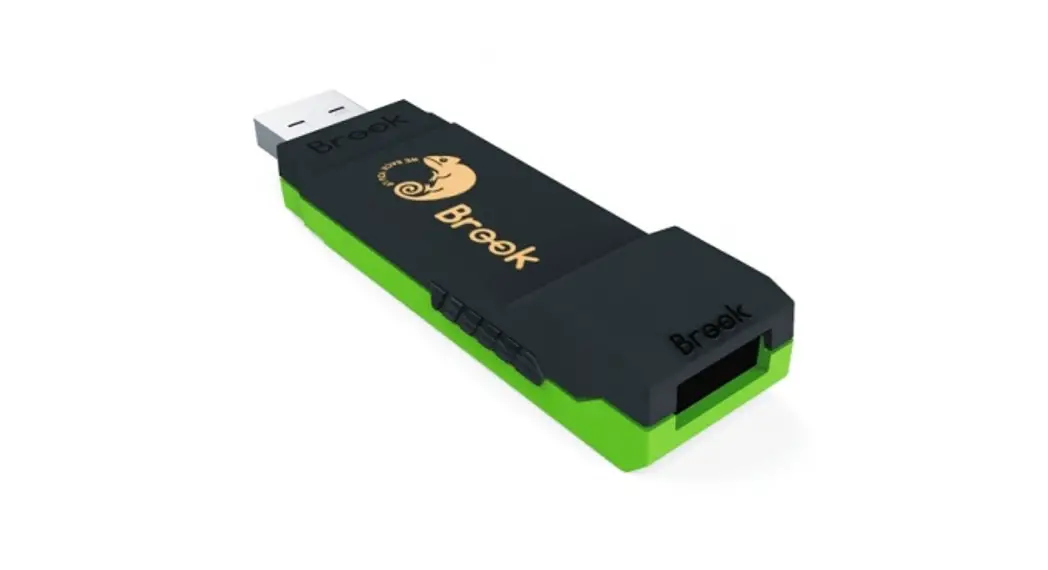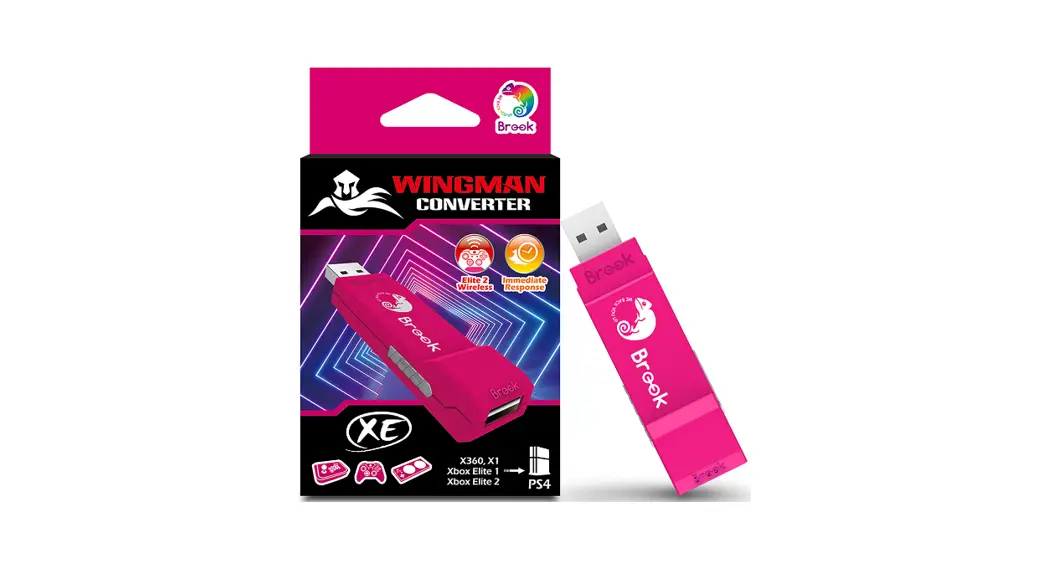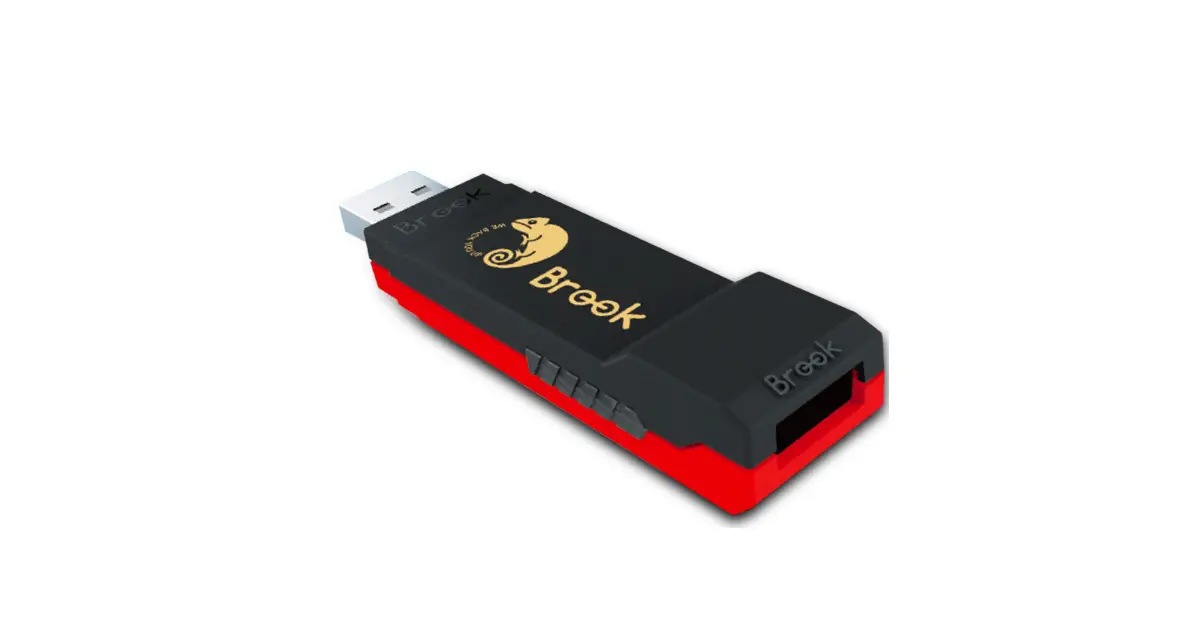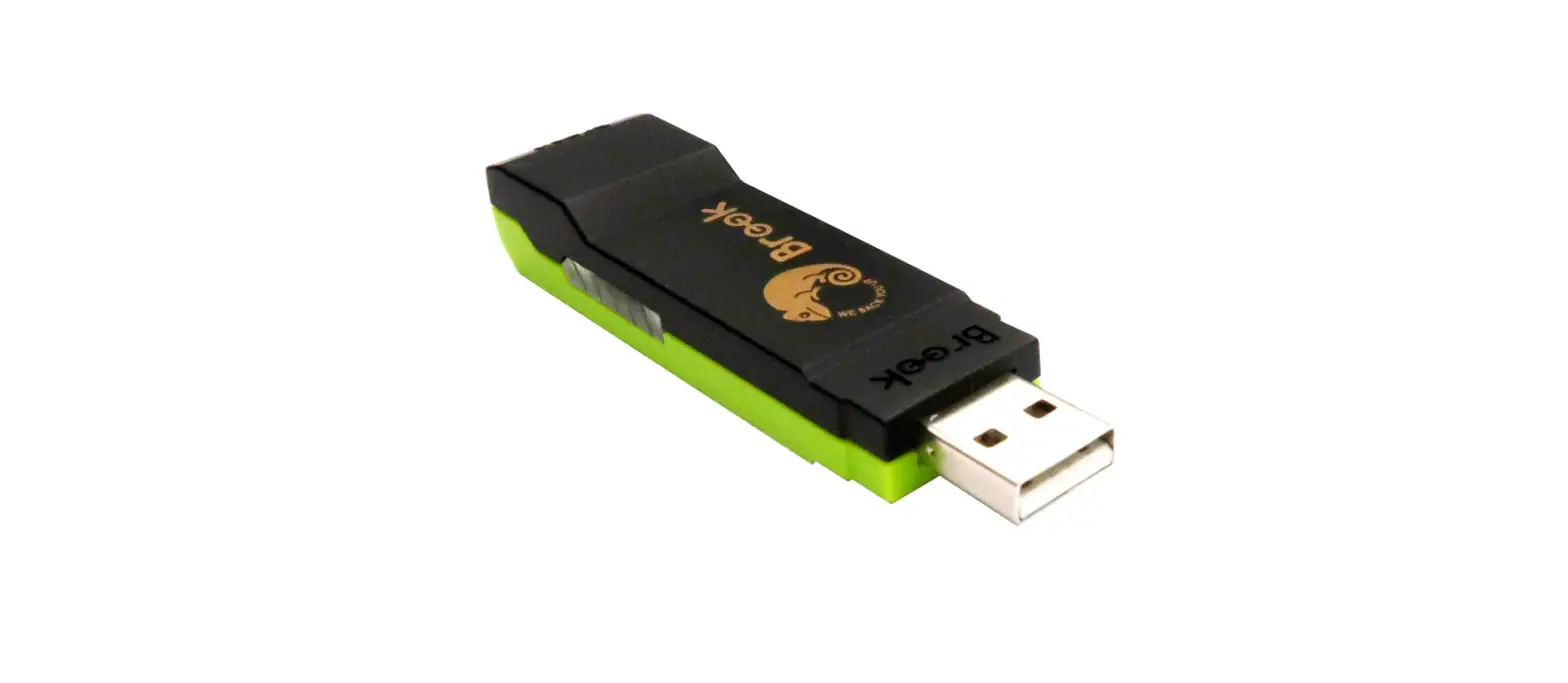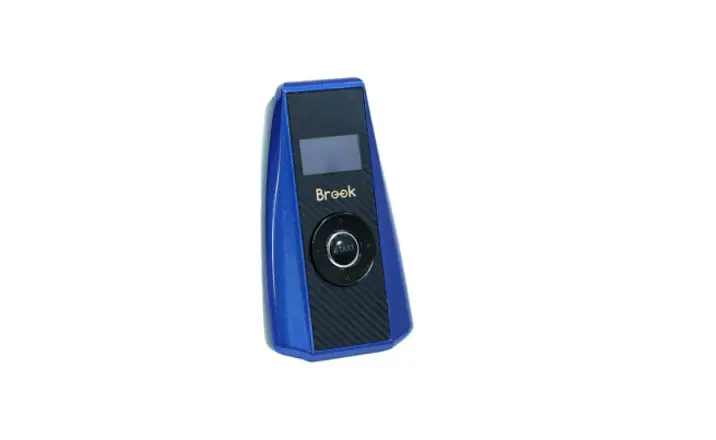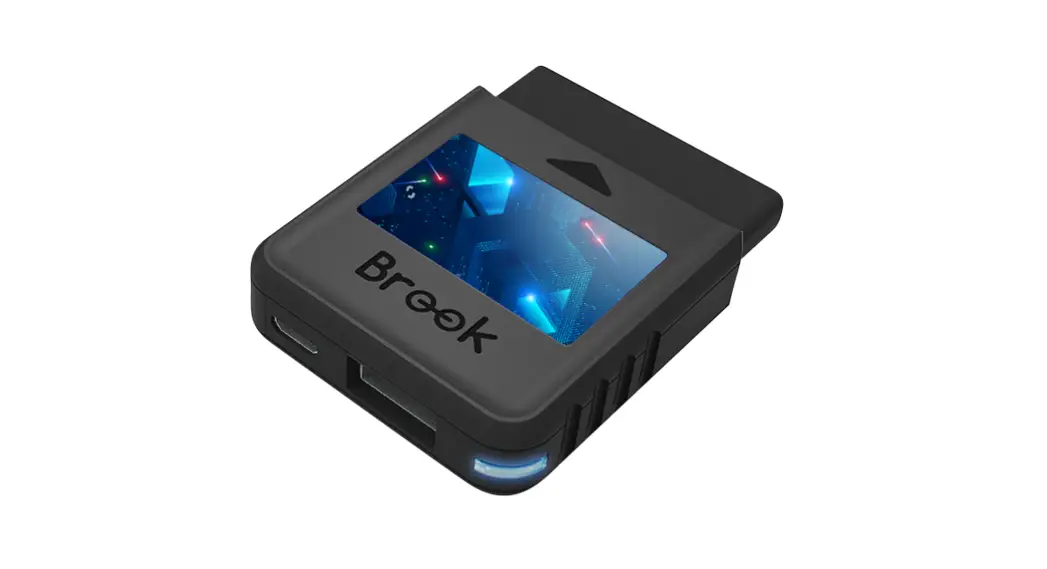
 Wingman PS2
Manual 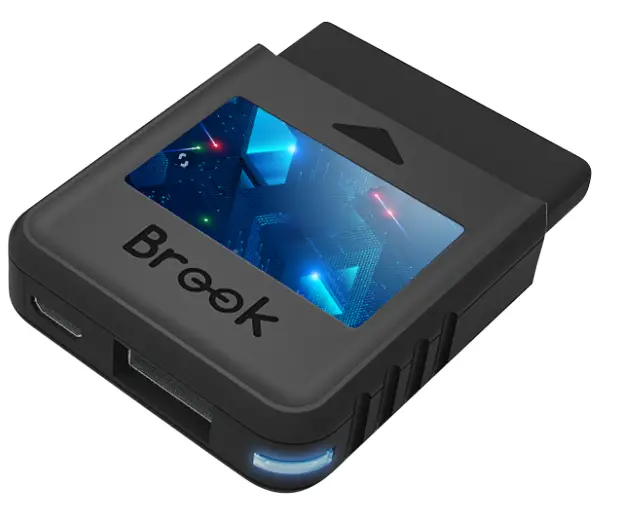
Company: Brook
Connection Diagram and Notice
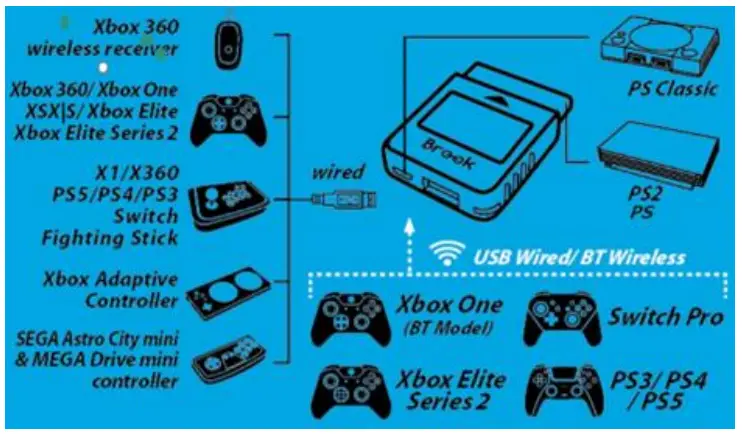
NOTICE
- Wireless controllers must be connected via USB cable at first-time use for the purpose of registration.
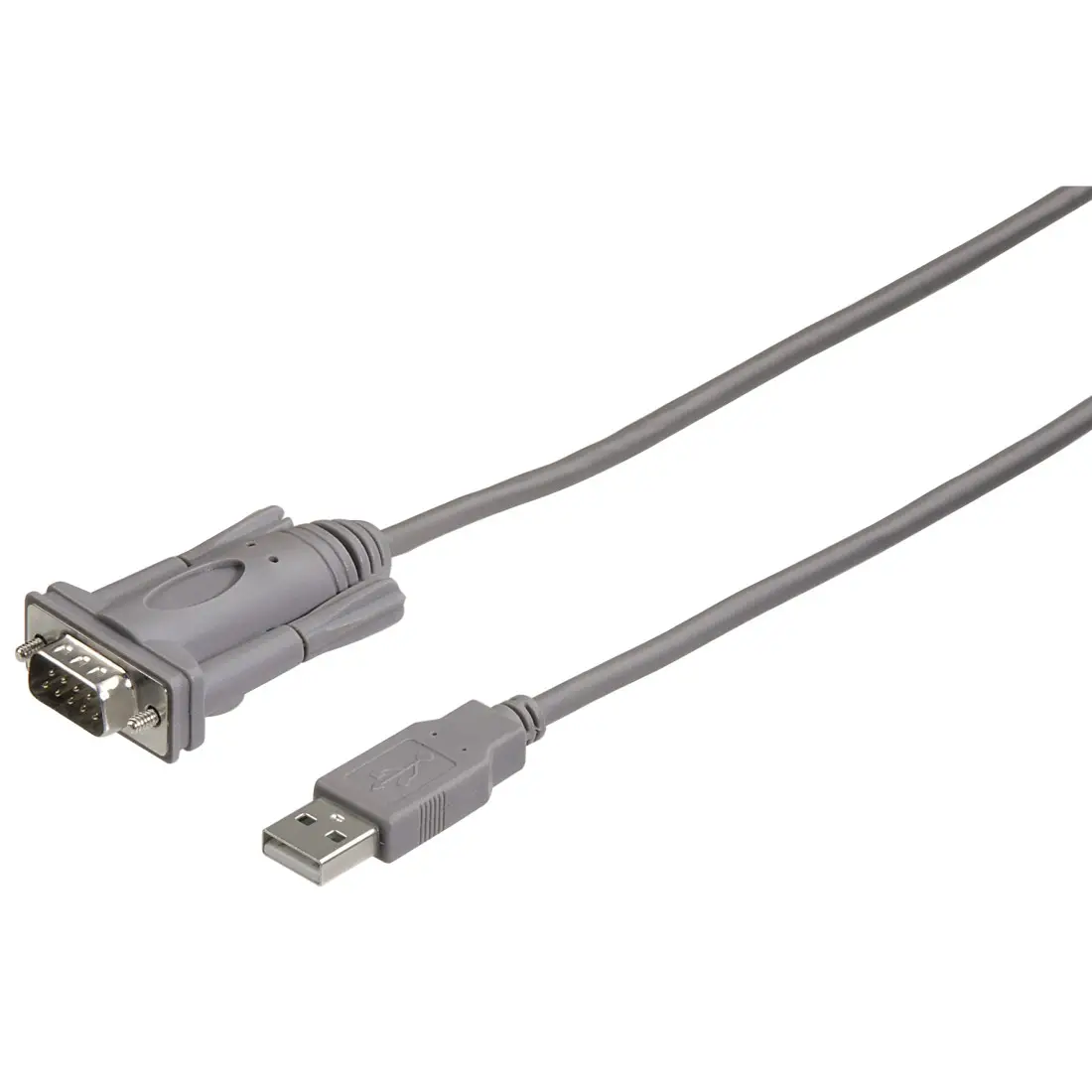
- When the power supply of the wired handle is insufficient, an additional micro USB can be connected to supply power.
- Each Wingman PS2 only connects to a single device.
- ◼ Wingman PS2 supports most of the accessories that are compatible with original specifications.
- To expand the number of supported accessories, the firmware will be updated irregularly.
- Turbo and Remap can only be set in gamepad mode.
LED Display
Connection: The status mode of the Wingman PS2 connects to the console and controller.
| LED | Frequency | Status |
| Green | Flashing Slowly | Successfully connected to console |
| Green | Flashing Fast | Enter Bluetooth pairing mode |
| Light blue | Permanently On | • Successfully connected to console and controller • Digital output |
| White | Permanently On | • Successfully connected to console and controller • Analog output |
| White | One Blinking | PS classic turn into X-Input mode |
| White | Two Blinking | X-Input mode turns into PS classic |
Function: Turbo & Remap
| LED | Frequency | Status |
| Yellow | Permanently On | Entering Turbo setting |
| Purple | Permanently On | Entering Remap setting |
Connection
- Connects to Console
Connect the Wingman PS2 to PS or PS2 console, or connect the Wingman PS2 to PS Classic via USB. The Green LED flashing slowly indicates the connection is successful. - Connects to Wired Controller
Connect the PS3/PS4 game controller to the converter via a USB cable. The registration of the controller starts automatically. The Permanently Light blue indicates the connection is successful. ◼Some devices with high power consumption, such as PS5 and Switch Pro controller, require an external USB power source for normal use.
 - Connects to Wireless Controller
(1) PS5 / PS4 / PS3 / Switch Pro
The USB cable is removed and the controller is ready for wireless use. The Permanently Light blue indicates the connection is successful.Please note that this process only needs to be completed once.
(2) Xbox 360
Connect the wireless X360 wireless receiver to the converter through the USB port. The permanently Light blue indicates the connection is successful.
(3) Xbox One/Xbox Elite 2
Hold the Brook Key for 1 second to enter wireless pairing mode. Then press the Pair button on the wireless controller to begin pairing. The permanently Light blue indicates the connection is successful.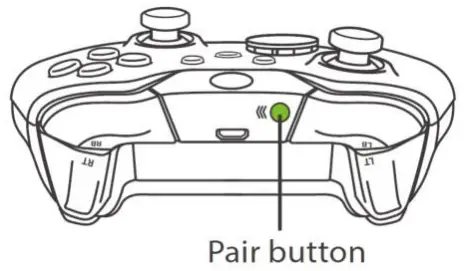 If the Xbox one and Elite2 controller are plugged into the USB cable, the Bluetooth connection must be repaired.If you repeatedly press the Xe key for a short period of time, it may cause the controller to crash
 ◼Some devices with high power consumption, such as PS5 and Switch Pro controller, require an external USB power source for normal use.
PS3/PS4/PS5/PS Classic Controller
| PS/PS2 | ✕ | ● | ■ | ▲ | L1 | R1 | L2 | R2 | L3 | R3 | START | Select | PS Key |
| PS3 | ✕ | ● | ■ | ▲ | L1 | R1 | L2 | R2 | L3 | R3 | START | SELECT | PS Key |
| PS4/PS5 | ✕ | ● | ■ | ▲ | L1 | R1 | L2 | R2 | L3 | R3 | OPTION | SHARE | PS Key |
| PS Classic | ✕ | ● | ■ | ▲ | L1 | R1 | L2 | R2 | L3 | R3 | START | SELECT | - |
Xbox 360/Xbox one Controller
| PS/PS2 | ✕ | ● | ■ | ▲ | L1 | R1 | L2 | R2 | L3 | R3 | START | Select | PS Key |
| Xbox One | A | B | X | Y | LB | RB | LT | RT | LSB | RSB | MENU | VIEW | XE key |
| Xbox 360 | A | B | X | Y | LB | RB | LT | RT | LSB | RSB | START | BACK | Xe key |
| PC | A | B | X | Y | LB | RB | LT | RT | LSB | RSB | START | BACK | Xe key |
Switch Controller
| PS/PS | ✕ | ● | ■ | ▲ | L1 | R1 | L2 | R2 | L3 | R3 | START | Select | PS Key |
| Switch | B | A | Y | X | L | R | ZL | ZR | L3 | R3 | + | - | Home |
Turbo Function Settings
The following instructions are based on the PS5 controller.
For those using another controller, please refer to the Corresponding Buttons List.
| ❶ Enter the setting mode Press SHARE + PS Key at the same time and the Yellow LED will be permanently on. | 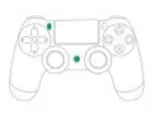 |
| ❷ Choosing one or more turbo buttons (e.g. ■ as turbo function) Hold SHARE, then press ■. More than one button can be chosen. ◼■ Buttons that can be set as Turbo include: ✕/●/■/▲ /L1/R1/L2/R2/L3/R3 | 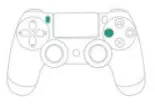 |
| ❸ Save Release all buttons, then press OPTIONS to save settings. | 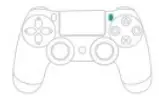 |
| ❹ Exit Press PS Key, the Yellow LED will be off. | 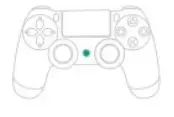 |
Clearing Turbo Function
The following instructions are based on the PS5 controller. For those using another controller, please refer to the Corresponding Buttons List.
| ❶ Enter the setting mode Press SHARE + PS Key at the same time and the Yellow LED will be permanently on. | 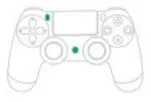 |
| ❷ Erasing all Turbo function buttons Press SHARE + OPTIONS at the same time. | 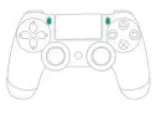 |
| ❸ Exit Press PS Key and the Yellow LED will be off. | 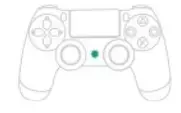 |
Remap Settings
The following instructions are based on the PS5 controller.
For those using another controller, please refer to the Corresponding Buttons List.
| ❶ Enter the setting mode Press OPTION + PS Key at the same time, the Purple LED will be permanently on. | 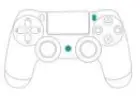 |
| ❷ Transfer a function from one button to another. (e.g., Setting ■ as ●) Press ■ and release. Hold SHARE, then press ●. | 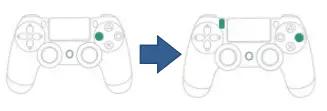 |
| ❸ Transfer a function from one button to multiple buttons. (e.g., Setting ✕ as ■+●) Press ✕ and release. Hold SHARE, then press ■+●. | 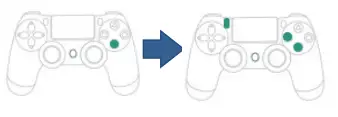 |
| ❹ Save Release all buttons then press OPTIONS to save settings. | 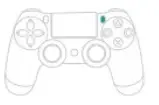 |
| ❺ Exit Press PS Key and the Purple LED will be off. | 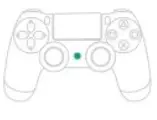 |
Clearing Remap Function
The following instructions are based on the PS5 controller. For those using another controller, please refer to the Corresponding Buttons List
| ❶ Enter the setting mode Press OPTIONS + PS Key at the same time, and the Purple LED will be permanently on. | |
| ❷ Erasing all Remap function buttons Press SHARE+ OPTIONS | 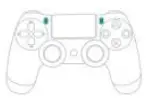 |
| ❸ Exit Press PS Key and the Purple LED will be off. | 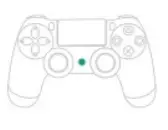 |
Switch the Input mode
The default mode is PS classic mode.
The following instructions are based on the PS5 controller.
For those using another controller, please refer to the Corresponding Buttons List.
| PS classic switch to X-Input Mode Hold on select + D pad-Down for 2 seconds. | 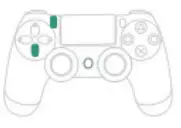 |
| X-Input switch to PS classic mode Hold on select + D pad-up for 2 seconds. | 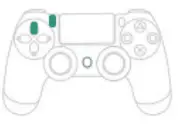 |
Other
FCC Statement:
This device complies with part 15 of the FCC Rules. Operation is subject to the following two conditions:
- This device may not cause harmful interference.
- This device must accept any interference received, including interference that may cause undesired operation.
NOTE
This equipment has been tested and found to comply with the limits for a Class B digital device, pursuant to part 15 of the FCC Rules. These limits are designed to protect reasonably against harmful interference in a residential installation.
This equipment generates, uses, and radiates radiofrequency energy, and if not installed and used in accordance with the instructions, may cause harmful interference to radio communications. However, there is no guarantee that interference will not occur in a particular installation.
If this equipment does cause harmful interference to radio or television reception, which can be determined by turning the equipment off and on, the user is encouraged to try to correct the interference by one or more of the following measures:
- Reorient or relocate the receiving antenna.
- Increase the separation between the equipment and receiver.
- Connect the equipment into an outlet on a circuit different from that to which the receiver is connected.
- Consult the dealer or an experienced radio/TV technician for help.
- Changes or modifications not expressly approved by the party responsible for compliance could void the user’s authority to operate the equipment.
P/N: Wingman PS2、M/N: ZPP0062