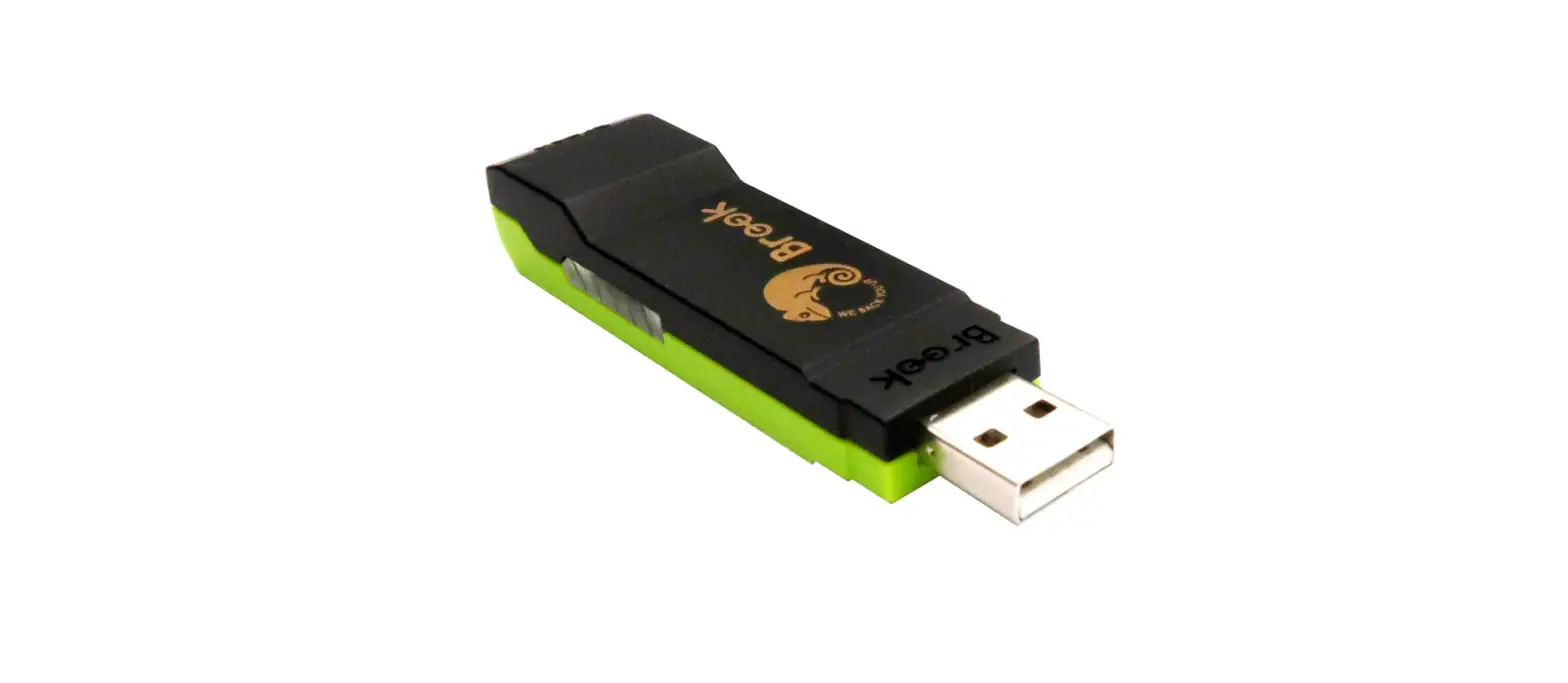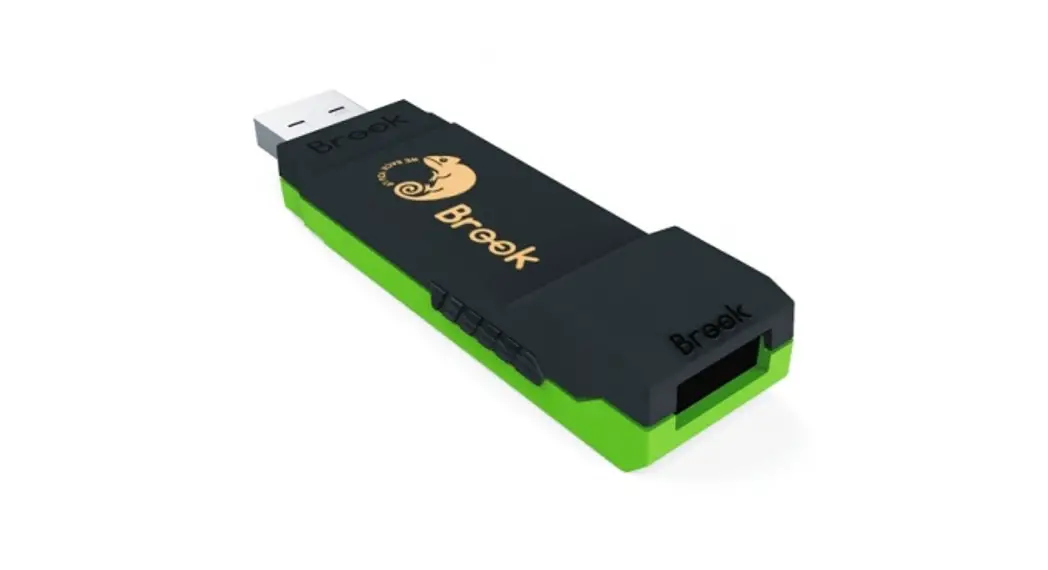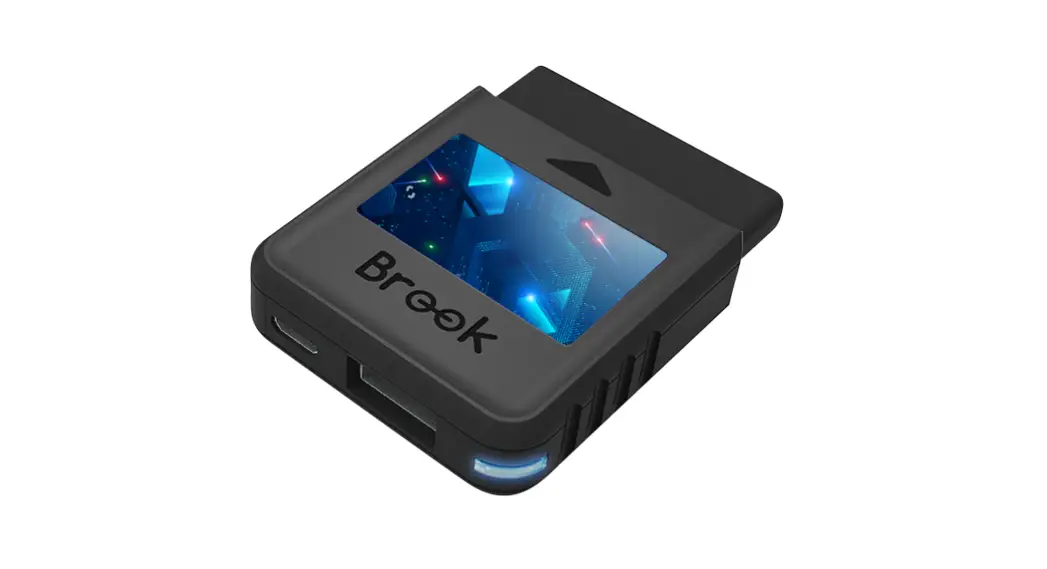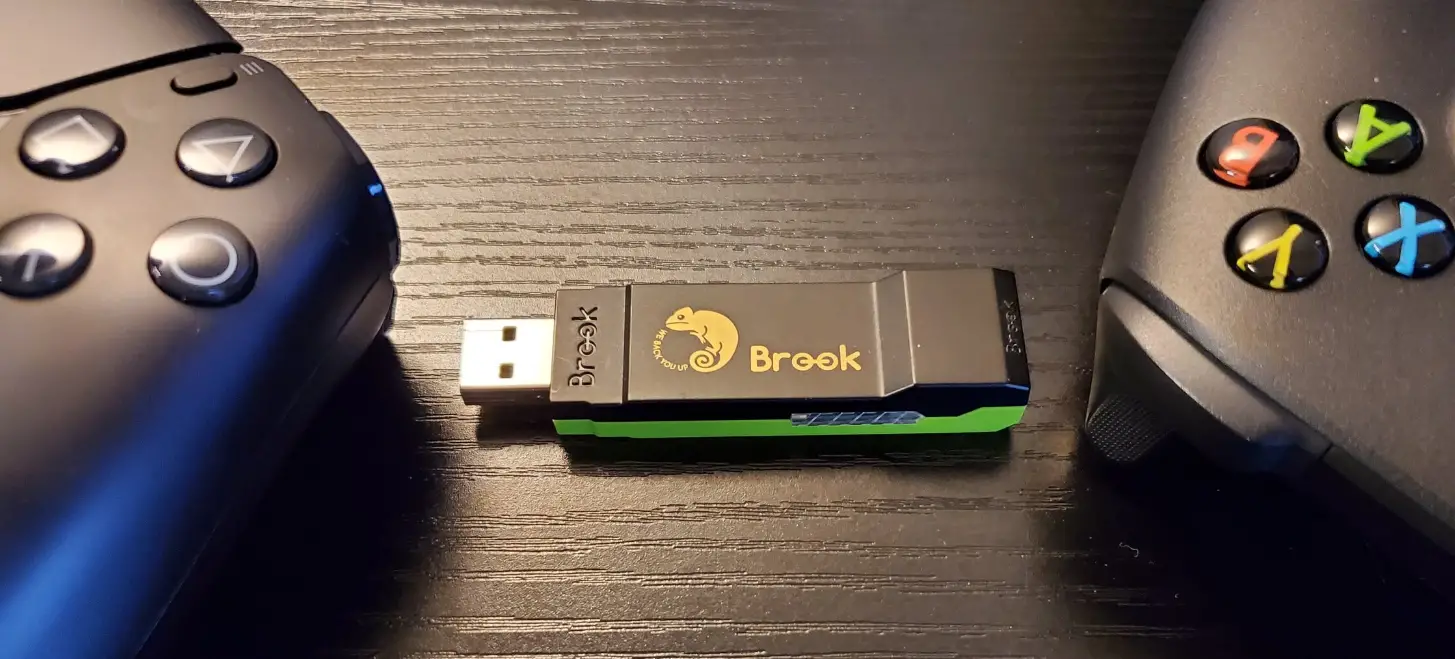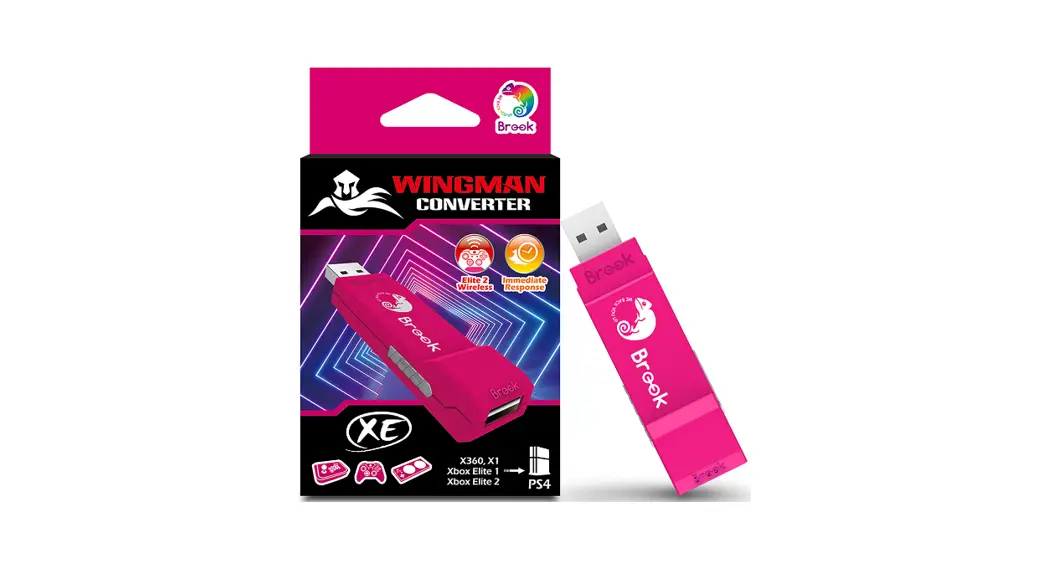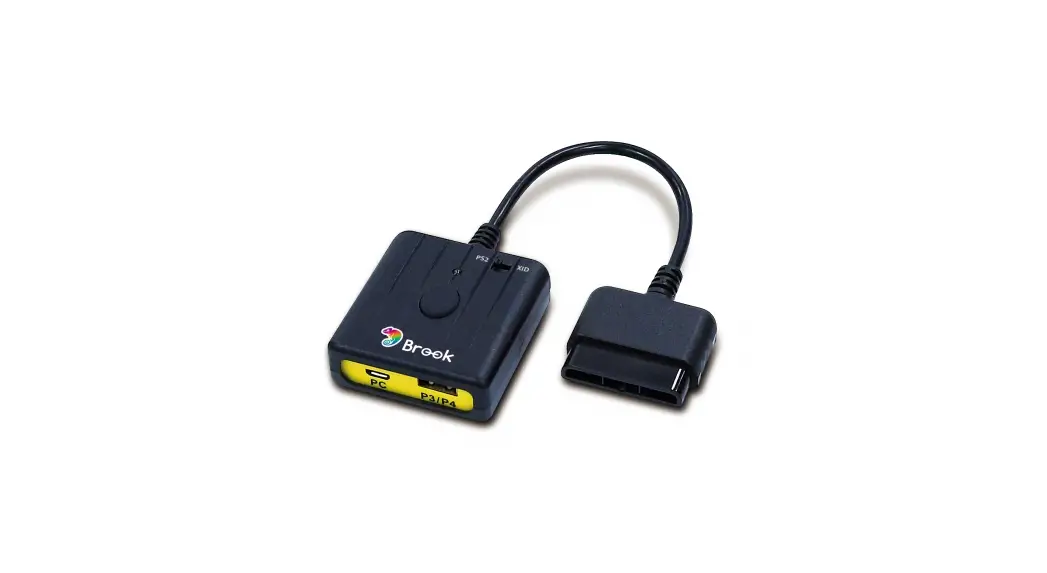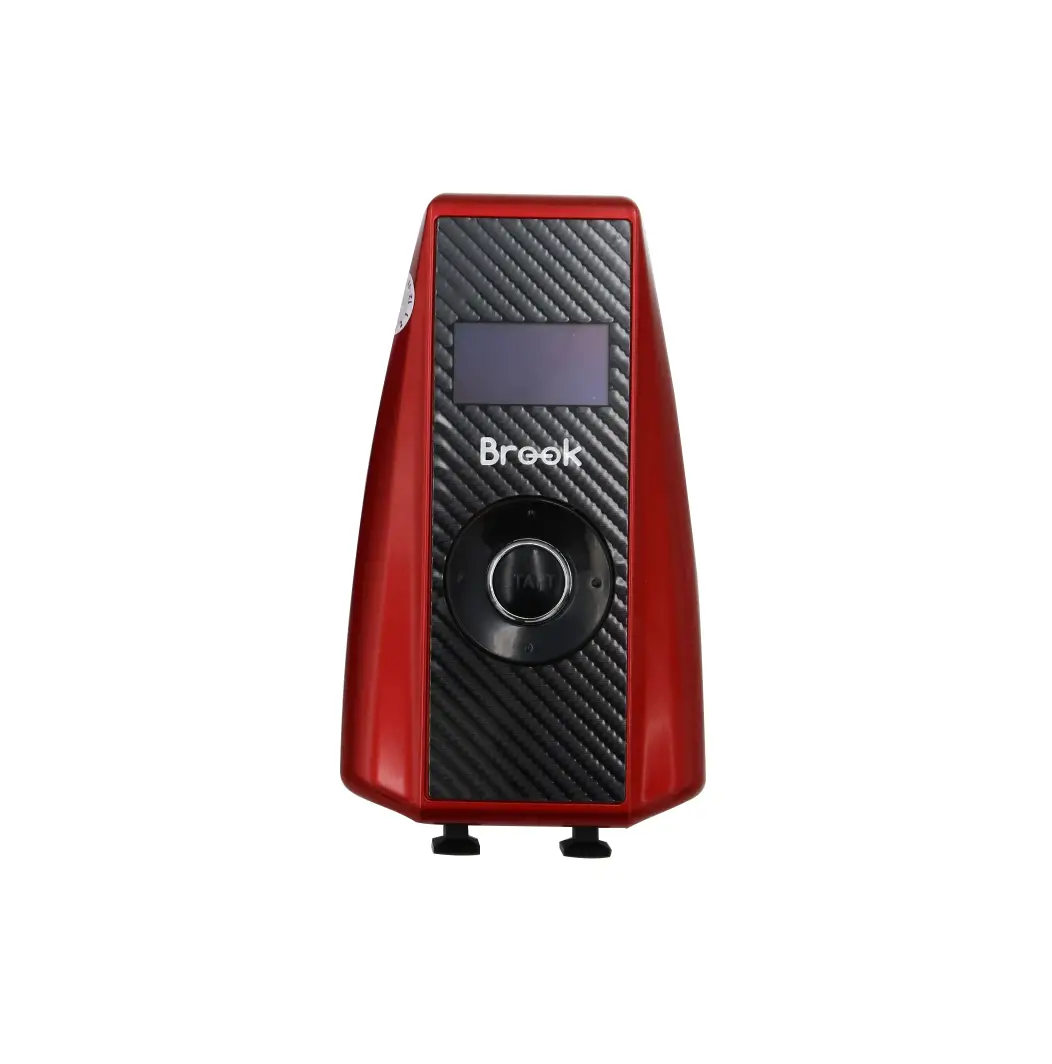


 B08H1SYGWV Wingman Converter
User Guide
B08H1SYGWV Wingman Converter
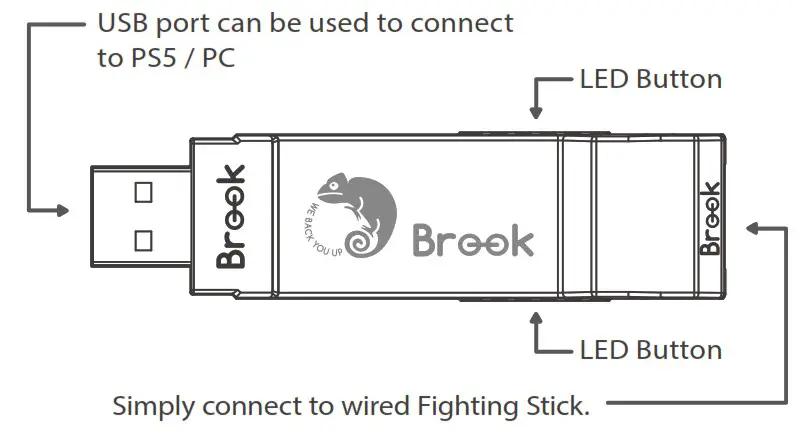
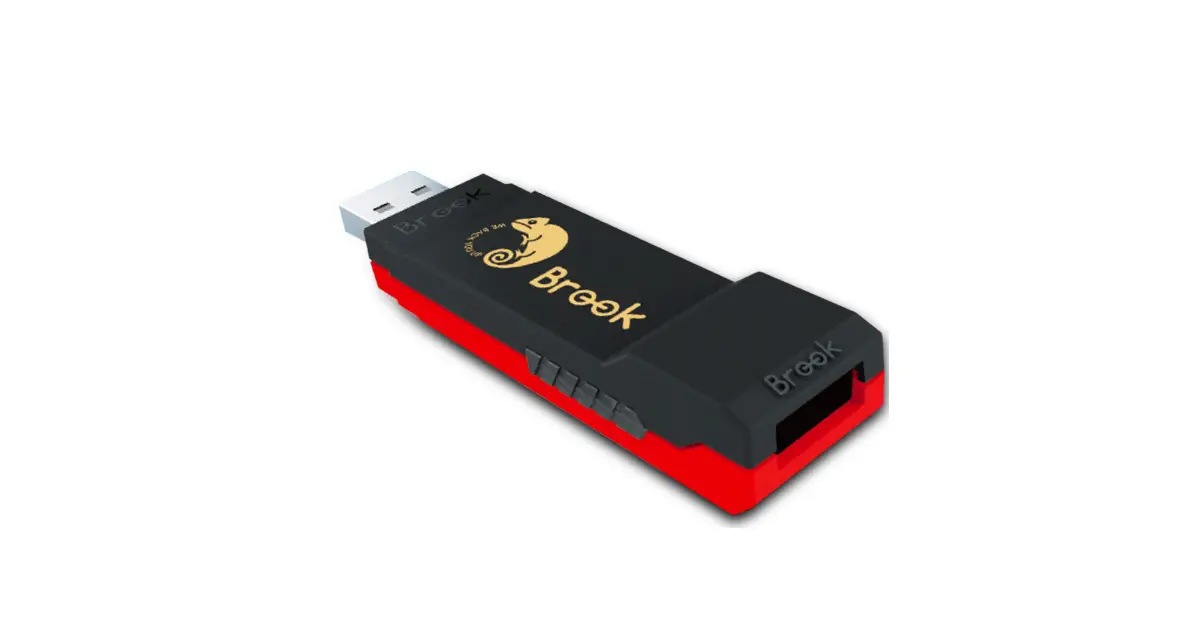
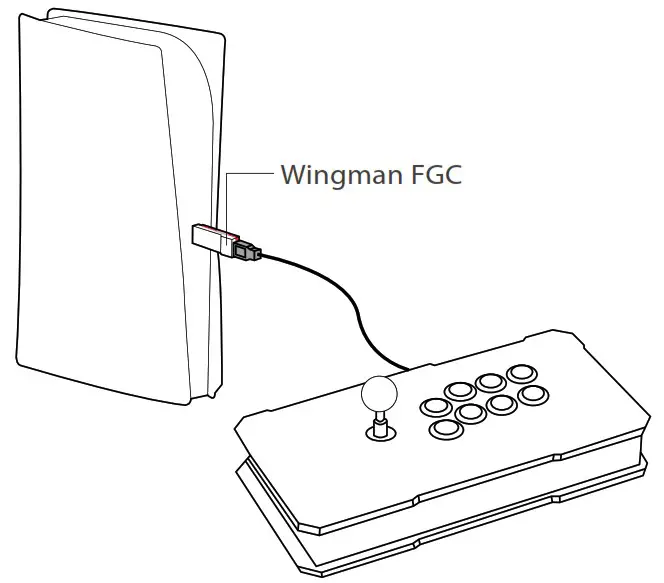
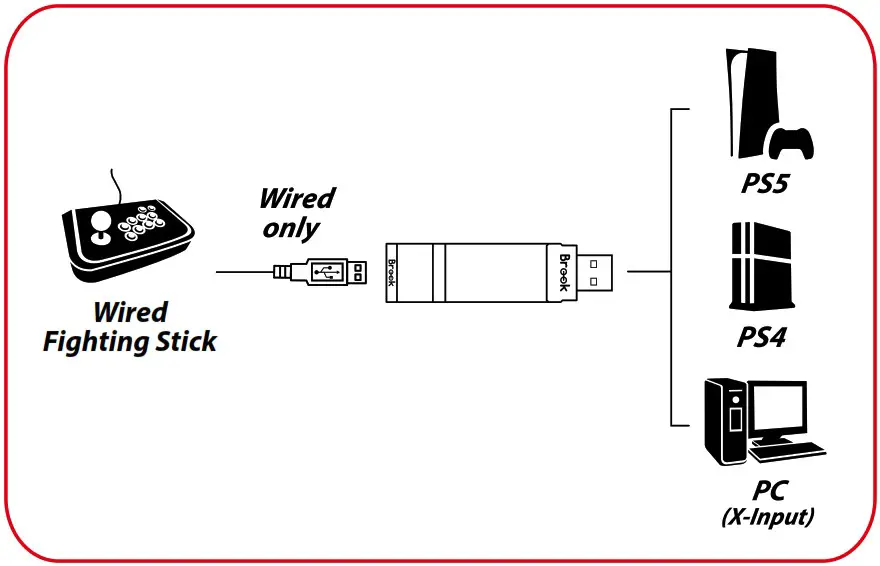
• Each Wingman FGC can only connect to a single Fighting Stick device. Wingman FGC supports most of the accessories that are compatible with original factory specifications. To expand the number of supported accessories, firmware will be updated irregularly.
LED Display
| Lighting | Status |
| Blue LED Permanently on | The converter and the Wired Fighting Stick are currently connected. |
| Blue LED Slow blinking (Once every two seconds) | Wired Fighting Stick is not connected. |
| Red LED Blinking | Turbo-Remap button is being pressed |
| Red LED Permanently on | Entering Turbo-Remap Settings |
Connecting to the Device
- Connects to Console
Insert Wingman FGC into the PS5 console USB port. Slow blinking of the Blue LED indicates that the connection to the console is successful. - Connects to Wired Controller
Connect the Wired Fighting Stick to Wingman FGC through the USB port.
| X1/X1E2 | X360 | PS4/PS5 | PS3 | Switch | PC |
| D-Pad (U/D/L/R) | |||||
| Lx / Ly | |||||
| Rx / Ry | |||||
| A | A | ╳ | ╳ | B | A |
| B | B | ○ | ○ | A | B |
| X | X | □ | □ | Y | X |
| Y | Y | △ | △ | X | Y |
| LB | LB | L1 | L1 | L | LB |
| RB | RB | R1 | R1 | R | RB |
| LT | LT | L2 | L2 | ZL | LT |
| RT | RT | R2 | R2 | ZR | RT |
| LSB | LSB | L3 | L3 | L3 | LSB |
| RSB | RSB | R3 | R3 | R3 | RSB |
| MENU | START | OPTIONS | START | + | START |
| View+MENU /MENU | BACK+ START | SHARE /Create | SELECT | – | BACK |
| Xe Key | Xe Key | PS Key | PS Key | Home | Xe Key |
| VIEW/ SHARE | BACK | TP Key | - | Capture | - |
Turbo Function Settings
The following instructions are based on the PS4 controller.
Turbo Function Settings
Buttons that can be set as Turbo function buttons include: ╳, ○, □, △, L1, R1, L2, R2, L3, R3 (hereinafter referred to as FK)
Step 1. Enter setting mode: Press SHARE+PS Key, the RED LED of the Wingman FGC will be permanently on.
Step 2. Choosing a FK button: (e.g. Setting ╳ as turbo function) Hold SHARE, then press ╳
Step 3. Completing Setting Mode: Release all buttons, then press OPTIONS to save settings.
Step 4. Exit setting mode: Press PS Key, the BLUE LED of the Wingman FGC will be permanently on.
Cancelling Turbo Function
Step 1. Enter setting mode: Press SHARE+PS Key, the RED LED of the Wingman FGC will be permanently on.
Step 2. Erasing all Turbo function buttons Press SHARE+OPTIONS
Step 3. Exit setting mode: Press PS Key, the BLUE LED of the Wingman FGC will be permanently on.
Turbo Frequency Setting
The following instructions are based on the PS4 controller.
Step 1. Enter the setup mode
Press SHARE+PS Key, the RED LED of the Wingman FGC will be permanently on.
Step 2. Turbo Frequency Setting
The Up button increases frequency while the Down button decreases it.
To increase frequency: press both SHARE and the Up buttons, and the indicator will flash faster.
To decrease frequency: press both SHARE and Down buttons, then the indicator will flash slower.
Step 3. Save
Press OPTIONS to save your settings.
Step 4. Exit
Press the PS Key button to leave Turbo setup mode. The RED LED indicator will then turned o.
The following instructions are based on the PS4 controller.
Button Remap Settings
Buttons that can be Remap include: ╳, ○, □, △, L1, R1, L2, R2, L3, R3 (hereinafter referred to as FK)
Step 1. Enter setting mode: Press OPTIONS+PS Key, the RED LED of the Wingman FGC will be permanently on.
Step 2. Choosing a FK button: (e.g. Setting □ as ╳+○ ) Press □
Step 3. Choosing button to be set: Hold SHARE, then press ╳+○ .
Step 4. Completing setting mode: Release all buttons, then press OPTIONS to save settings.
Step 5. Exit setting mode: Press PS Key, the BLUE LED of the Wingman FGC will be permanently on.
Cancelling Button Remap Settings
Step 1. Enter setting mode: Press OPTIONS+PS Key, the RED LED of the Wingman FGC will be permanently on.
Step 2. Erasing all settings for Button Remap Settings. Press SHARE+OPTIONS.
Step 3. Exit setting mode: Press PS Key, the BLUE LED of the Wingman FGC will be permanently on.
FCC Statement:
This device complies with part 15 of the FCC Rules. Operation is subject to the following two conditions:
- This device may not cause harmful interference, and
- this device must accept any interference received, including interference that may cause undesired operation.
NOTE: This equipment has been tested and found to comply with the limits for a Class B digital device, pursuant to part 15 of the FCC Rules. These limits are designed to provide reasonable protection against harmful interference in a residential installation.
This equipment generates, uses and can radiate radio frequency energy and, if not installed and used in accordance with the instructions, may cause harmful interference to radio communications. However, there is no guarantee that interference will not occur in a particular installation. If this equipment does cause harmful interference to radio or television reception, which can be determined by turning the equipment off and on, the user is encouraged to try to correct the interference by one or more of the following measures:
- Reorient or relocate the receiving antenna.
- Increase the separation between the equipment and receiver.
- Connect the equipment into an outlet on a circuit different from that to which the receiver is connected.
- Consult the dealer or an experienced radio/TV technician for help.
- Changes or modifications not expressly approved by the party responsible for compliance could void the user’s authority to operate the equipment.
- Ambient Operating Temperature ………………….0 ℃ to +50 ℃
ISED Statement:
This device contains licence-exempt transmitter(s) that comply with Innovation, Science and Economic Development Canada’s licence-exempt RSS(s). Operation is subject to the following two conditions: (1) this device may not cause interference, (2) this device must accept any interference, including interference that may cause undesired operation of the device.

FCC ID: 2ADKM005A
IC: 29174-ZPP005A
P/N: Wingman FGC
M/N: ZPP005A
For the latest user guide and more information, visit our website: www.brookaccessory.com

202304V1
 Brook Gaming