
SEAGATE SeaChest for SSDs
Revision History
| Version and Date | Description of Changes |
| Rev A, August 2019 | First release of document. |
Introduction
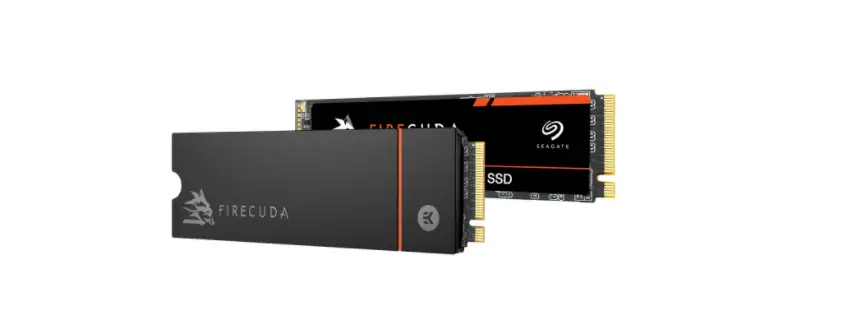
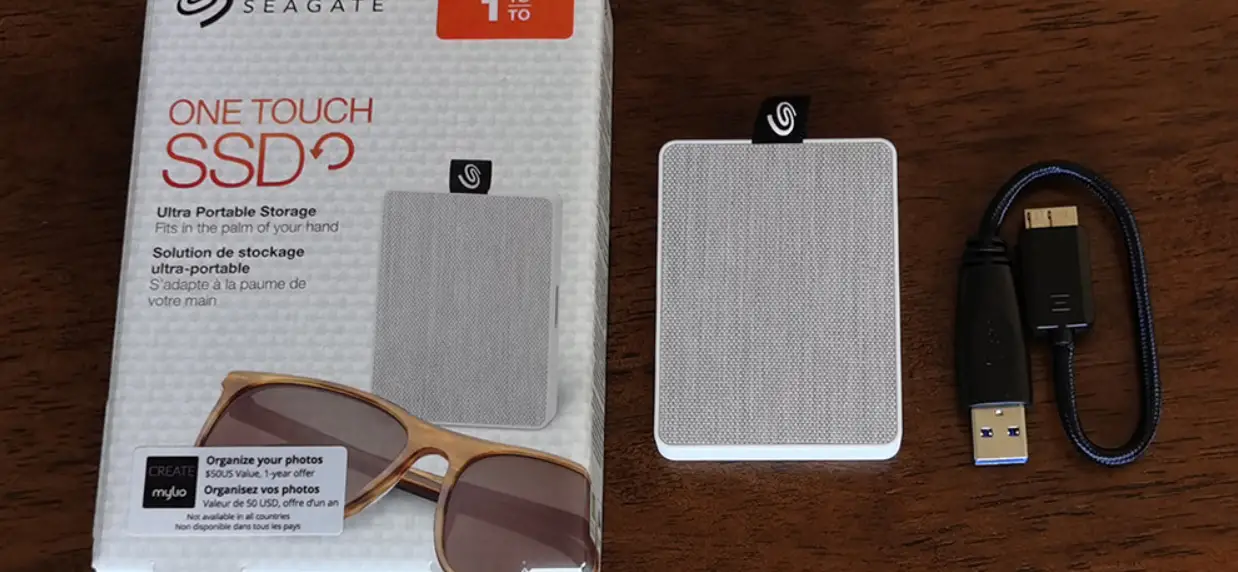
This document describes how to use the SeaChest™ toolset for SSDs. SeaChest is a collection of command line interface (CLI) utilities for managing Seagate solid state drives (SSDs) on a system. The SeaChest toolset for SSDs is a subset of a larger tool called SeaChest Utilities.
SeaChest Utilities provides the following features and tools for managing SSDs:
- Displays SSD information such as model, capacity, temperature, serial number, and life remaining
- Monitors the health of SSDs
- Displays Self-Monitoring Analysis and Reporting Technology (SMART) attributes
- Performs firmware updates (Seagate only)
- Runs diagnostic commands
- Runs erase commands (Seagate only)
NOTE SeaChest Utilities supports all SSDs; however the level of support for non-Seagate drives varies depending on each drive. Firmware update and erase commands, for example, are supported only for Seagate drives.
NOTE For open source applications, you can find the link to the openSeaChest tools,here: https://github.com/Seagate/openSeaChest
Supported Operating Systems
SeaChest Utilities is supported on the following operating systems:
- Windows
- Windows
- Windows Server
- Linux
- Ubuntu
- RedHat
- CentOS
- SUSE Linux Enterprise
- Tiny Core (which provides the USB-bootable tool)
Installation
To install the SeaChest SSD toolset in Windows, you must first install the larger library of tools called SeaChest Utilities.
- Go to the SeaChest Utilities support page on the Seagate website: https://www.seagate.com/support/software/seachest/
- Download SeaChest Utilities. The zip file downloads to your computer.
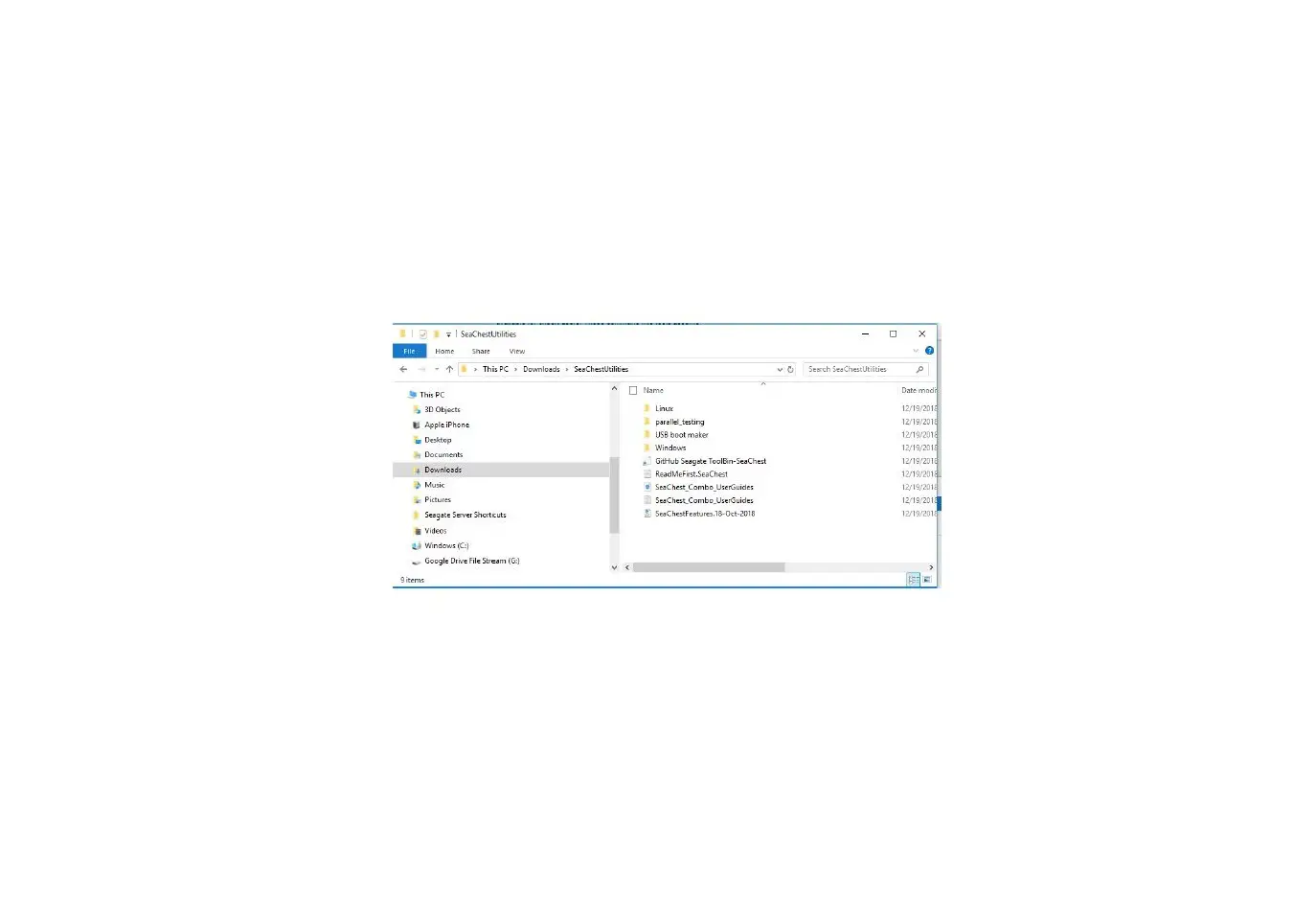
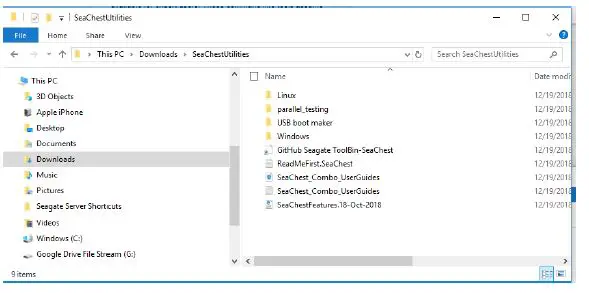
- Right-click on the zip and Extract All. You should see the files shown below.

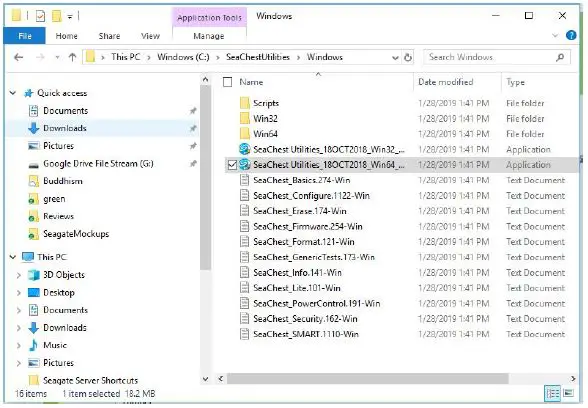
- Open the folder for your operating system and click the SeaChest Utilities setup file.

- Run the setup file and follow the instructions.
- After installation, right-click the SeaChest Utilities desktop icon and pin to the taskbar.

- Now you can open SeaChest from the taskbar.
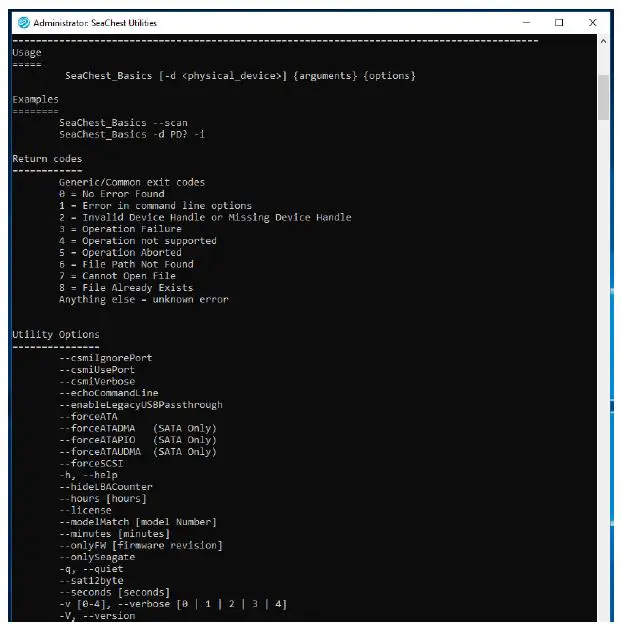
- When you click the SeaChest Utilities taskbar icon, a command window opens as shown here. This shows the short help output.
NOTE If you open any SeaChest utility without any other command line options, you get the short help output. To get the long help output add the -h command.
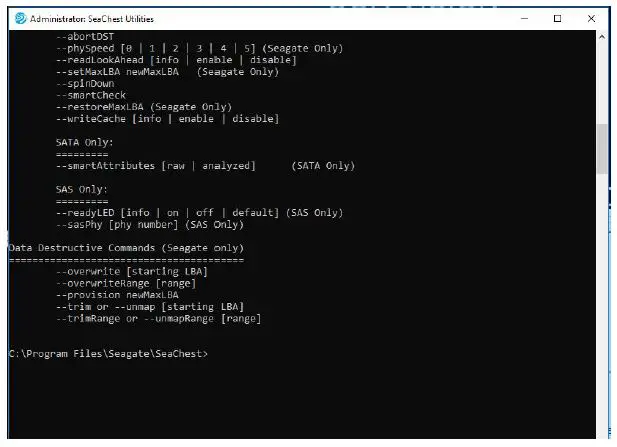
- Scroll down to the command prompt: C:\Program Files\Seagate\SeaChest>. You can enter commands here.
Conventions
The following table shows conventions used in this document.
Table 1 Conventions
| Symbol | Meaning |
| -> | Is defined as … |
| a | b | Alternatives (a or b) |
| […] | Zero or one occurrence |
| {…} | Zero or more occurrences |
| (a | b | c) | Choose exactly one of the alternatives |
Case Sensitivity
SeaChest SSD commands are cAsE SeNsiTiVe.
Getting Started
Use Device Handle with All Commands
With the exception of the -s [or] –scan commands, shown below, you must use the drive name (device handle) before all commands. This tells your system the drive or drives on which to perform an operation.
NOTE SeaChest Utilities tools are accessible from Linux and Windows operating systems. In this guide, examples are shown as they appear in Windows.
To access SeaChest Utilities and find your device handles, perform the following steps.
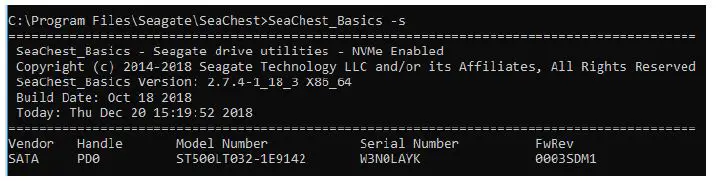
- At the command prompt, enter:

- You can now see the following information.

- In this example, the handle or device name is PD0 for the only device in the system. You can enter a device handle before the command like this:

NOTE In Linux, this same device handle looks like this -d /dev/sg0 or –device/dev/sg0


SSD-Customized Commands
Type the utility before each command, for example, SeaChest_Basics -V, –version
Table 2 SSD-Customized Commands
| Command Name/Description | Utility | Command | SATA | SAS | NVMe |
| Basic Commands | |||||
| SeaChest Help (unique help for each utility) | SeaChest_Basics SeaChest_Security SeaChest_PowerControl | -h, –help –help –help | x | x | x |
| Show system properties | SeaChest_Basics | -V, –version | x | x | x |
| Show drives | SeaChest_Basics | -s, –scan | x | x | x |
| Device Information Commands | |||||
| Show drive properties (property asset) (property version) (power features) (interface) | SeaChest_Basics | -i, –deviceInfo | x | x | x |
| x | x | x | |||
| x | x | x | |||
| x | x | x | |||
| Show drive security capabilities | SeaChest_Basics, SeaChest_Security | -i, –deviceInfo –tcgInfo | x | x | |
| Power Commands | |||||
| Show drive power-capabilities | SeaChest_PowerControl | -i, –deviceInfo –showEPCSettings –showPowerConsumption | x | ||
| Show drive power mode | SeaChest_Basics | –checkPowerMode | x | x | x |
| Standby | SeaChest_PowerControl | –standby | x | ||
| Test Commands | |||||
| Short self test | SeaChest_Basics | –shortDST –poll | x | x | x |
| Self test progress | SeaChest_Basics | –progress dst | x | x | x |
| Show self test log | SeaChest_SMART | –showDSTLog | x | x | |
| SMART Command | |||||
| Show drive SMART properties | SeaChest_Basics | –smartAttributes [raw | analyzed] | x | ||
| Firmware download | SeaChest_Basics | –downloadFW <FW file name> | x | x | x |
| Erase Commands | |||||
| Security Erase (can be aborted; stops if you enter passwords) | SeaChest_Erase | –secureErase | x | ||
| Sanitize erase | SeaChest_Erase | –sanitize blockerase –poll–confirm this-will-erase-data. | x | x | x |
| Set Tunable Capacity Command | |||||
| Set tunable capacity | SeaChest_Basics | –provision, –setMax | x | x | x |
Basic Commands
Help
Help output for all SeaChest tools is unique to that tool as shown below. To see help information for SeaChest utilities use the -h [or] –help commands.
Table 3 Show System Properties
| Parameter | Description |
| Command | SeaChest_Basics -h [or] –help SeaChest_Security –help SeaChest_PowerControl –help |
| Function | Shows help information for the SeaChest utilities. |
Show System Properties
The SeaChest command to show system properties is, -v, –version.
Table 4 Show System Properties
| Parameter | Description |
| Command | SeaChest_Basics –version |
| Function | Shows the following properties of the host system and the SeaChest utility: n Utility version n Build date n Compiled architecture n Compiler used n Compiler version n Operating System Type n Operating System version n Operating System name n Edition n RAID support |
Show Drives
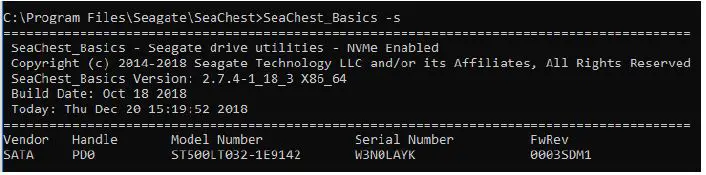
The SeaChest command to show drives on a system has two versions: -s, –scan.
NOTE You must start with a scan of the system to discover the device names. When you know the device handle names, you can enter further commands.
Table 5 Show Drives
| Parameter | Description |
| Command | SeaChest_Basics -s [or] –scan |
| Function | Shows a list of all drives on the system with the following information:
NOTE Handle is the operating system’s name for the device. |
Device Information Commands
Show Drive Properties
NOTE This command includes mixed-case letters.
Now that you know the drive names, you can use the -i [or]–deviceInfo command to see drive properties. See below for command syntax. -d means device (or drive), PD<handle number> is the device name, and -i [or]–deviceInfo is the command.
Table 6 Show Drive Properties
| Parameter | Description |
| Command | SeaChest_Basics -d PD<handle number> -i [or]–deviceInfo |
| Function | Shows the following properties of a drive: n Product name n Serial number n Firmware number n MaxLBA n Interface speed n Security n World wide name n Capacity n Temperature n Power on time n Drive Self Test information n SMART status n Total Bytes Written |
| Comment | SeaChest_Basics –usbChildInfo Add this command to display details about drives in the USB enclosure. |
Show Drive Security Capabilities
NOTE This command includes mixed-case letters.
PD<handle number> is the device handle and -i [or]-deviceInfo, –tcgInfo are the commands.
Table 7 Show Drive Security Capabilities
| Parameter | Description |
| Command | SeaChest_Basics -d PD<handle number> -i, –deviceInfo [or] SeaChest_Security -d PD<handle number> –tcgInfo |
| Function | Shows the drive security capabilities. |
Power Commands
Show Drive Power Capabilities
NOTE This command includes mixed-case letters.
The utility is SeaChest_PowerControl. PD<handle number> is the device name and -i [or]–deviceInfo[or]–showEPCSettings [or]–showPowerConsumption are the commands.
Table 8 Show Drive Power Capabilities
| Parameter | Description |
| Command | SeaChest_PowerControl -d PD<handle number> -i,–deviceInfo [or] SeaChest_PowerControl -d PD<handle number> –showEPCSettings [or] SeaChest_PowerControl -d PD<handle number> –showPowerConsumption |
| Function | Shows the drive power capabilities |
Show Drive Power Mode
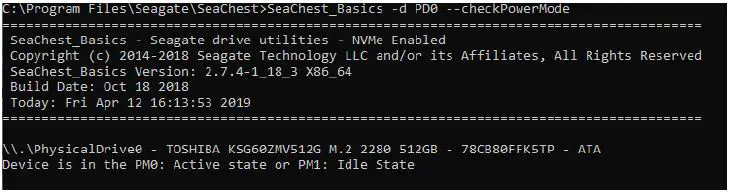
To show a drive’s power mode, use this command:
Table 9 Show Power Mode
| Parameter | Description |
| Command | SeaChest_Basics -d PD<handle number> –checkPowerMode |
| Function | Shows power mode of the drive. Here is an example: |
Standby (SATA only)
NOTE This command includes mixed-case letters.
Table 10 Standby
| Parameter | Description |
| Command | SeaChest_PowerControl -d PD<handle number> –standby |
| Function | Puts the drive on standby power. |
Test Commands
Short Self Test
NOTE This command includes mixed-case letters.
PD<handle number> is the device name, SeaChest_Basics is the utility, and -shortDST –poll is the command. This command provides active progress until the test completes. If –poll is omitted then you can go back later and check with –progress dst.
Table 11 Short Self Test
| Parameter | Description |
| Command | SeaChest_Basics -d PD<handle number> -shortDST –poll |
| Function | Runs short self test. |
Self Test Progress
NOTE This command includes mixed-case letters.
PD<handle number> is the device name, SeaChest_Basics is the utility, and –progress dst is the command.
Table 12 Self Test Progress
| Parameter | Description |
| Command | SeaChest_Basics -d PD<handle number> –progress dst |
| Function | Shows self test progress. |
Show Self Test Log
NOTE This command includes mixed-case letters.
PD<handle number> is the device name, SeaChest_SMART is the utility, and –showDSTLog is the command.
Table 13 Show Self Test Log
| Parameter | Description |
| Command | SeaChest_SMART -d PD<handle number> –showDSTLog |
| Function | Shows self test log. |
SMART Commands
Show Drive SMART Properties
NOTE This command includes mixed-case letters.
PD<handle number> is the device name, SeaChest_Basics is the utility, and –smartAttributes [raw | analyzed] is the command.
Table 14 Show SMART Properties
| Parameter | Description |
| Command | SeaChest_SMART -d PD<handle number> –smartAttributes [raw | analyzed] |
| Function | Shows SMART properties. |
Firmware Commands
Download Firmware
To download firmware for Seagate drives, use this command:
Table 15 Show Drive Properties
| Parameter | Description |
| Command | SeaChest_Basics -d PD<handle number> –downloadFW <firmware file name> |
| Function | Downloads firmware for Seagate drives. |
Security Erase
The Erase command is supported by Linux only.
SeaChest_Erase is the utility, and –secureErase is the command.
NOTE In Linux, the command is -d /dev/sg
Table 16 Show Drive Properties
| Parameter | Description |
| Command | SeaChest_Erase -d /dev/sg –secureErase –confirm this-will-erase-data. |
| Function | Erases the drive. |
| Comment | If the command operation is aborted, the drive remains locked by a temporary password. |
Sanitize Erase
The Sanitize Erase command is supported by Linux only.
SeaChest_Erase is the utility.
Table 17 Show Drive Properties
| Parameter | Description |
| Command | SeaChest_Erase -d /dev/sg –sanitize blockerase –poll –confirm this-command-will-erase-data. |
| Function | Erases the drive. |
| Comment | You cannot abort this command. If power is removed and reconnected, it continues where it left off. |
Set Tunable Capacity Command
Set Tunable Capacity
SeaChest_Basics is the utility.
Table 18 Set Tunable Capacitys
| Parameter | Description |
| Command | SeaChest_Basics -d PD<handle number> –provision [or] –setMax |
| Function | Sets tunable capacity. |
Seagate Technology LLC
AMERICAS Seagate Technology LLC 10200 South De Anza Boulevard, Cupertino, California 95014, United States, 408-658-1000
ASIA/PACIFIC Seagate Singapore International Headquarters Pte. Ltd. 7000 Ang Mo Kio Avenue 5, Singapore 569877, 65-6485-3888
EUROPE, MIDDLE EAST, AND AFRICA Seagate Technology (Netherlands) B.V. Koolhovenlaan 1, 1119 NB Schiphol-Rijk, Netherlands, 31-20-316-7300
Publication Number: 100847684, Rev. A,
August 2019
© 2019, Seagate Technology LLC All rights reserved. Publication number: 100847684, Rev. A, August 2019
Seagate Technology reserves the right to make changes to the product(s) or information disclosed herein at any time without notice.
Seagate, Seagate Technology and the Spiral logo are registered trademarks of Seagate Technology LLC in the United States and/or other countries. SeaTools and SeaChest are either trademarks or registered trademarks of Seagate Technology LLC or one of its affiliated companies in the United States and/or other countries. All other trademarks or registered trademarks are the property of their respective owners.
The NVMe word mark and/or NVMExpress design mark are trademarks of NVMExpress, Inc. The PCIe word mark and/or PCIExpress design mark are registered trademarks and/or service marks of PCI-SIG No part of this publication may be reproduced in any form without written permission of Seagate Technology LLC. Call 877-PUB-TEK1(877-782-8351) to request permission.
When referring to drive capacity, one gigabyte, or GB, equals one billion bytes and one terabyte, or TB, equals one trillion bytes. Your computer’s operating system may use a different standard of measurement and report a lower capacity. In addition, some of the listed capacity is used for formatting and other functions, and thus will not be available for data storage. Actual quantities will vary based on various factors, including file size, file format, features and application software. Actual data rates may vary depending on operating environment and other factors. The export or re-export of hardware or software containing encryption may be regulated by the U.S. Department of Commerce, Bureau of Industry and Security (for more information, visit www.bis.doc.gov), and controlled for import and use outside of the U.S. Seagate reserves the right to change, without notice,product offerings or specifications.
 The Leader in Mass Data Storage Solutions | Seagate US
 GitHub - Seagate/openSeaChest: Cross platform utilities useful for performing various operations on SATA, SAS, NVMe, and USB storage devices.