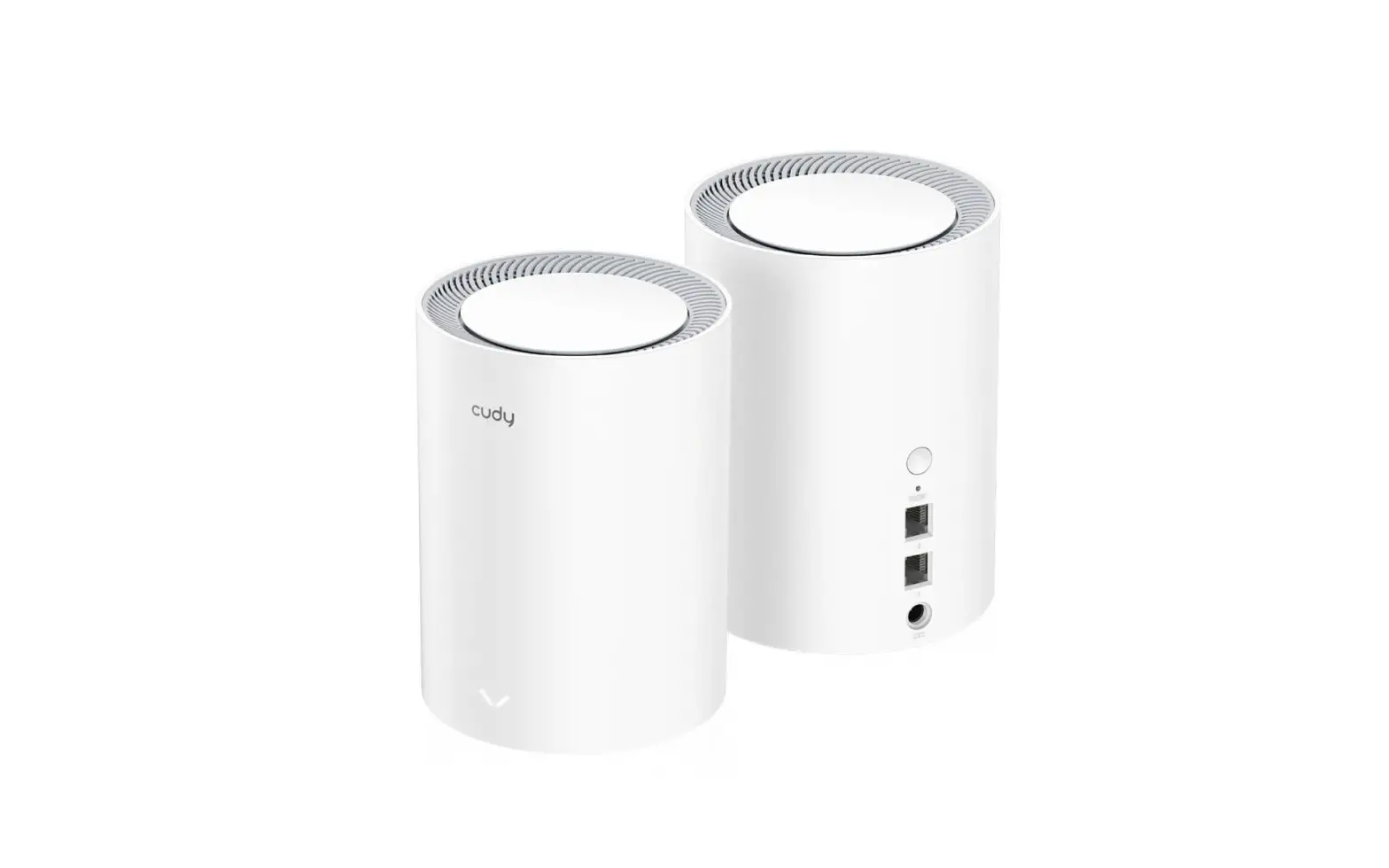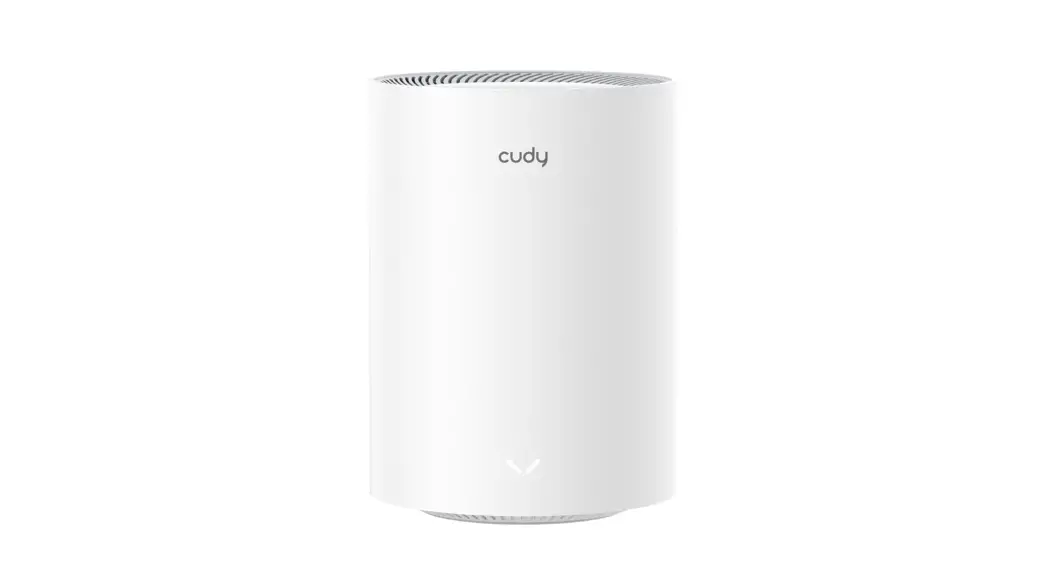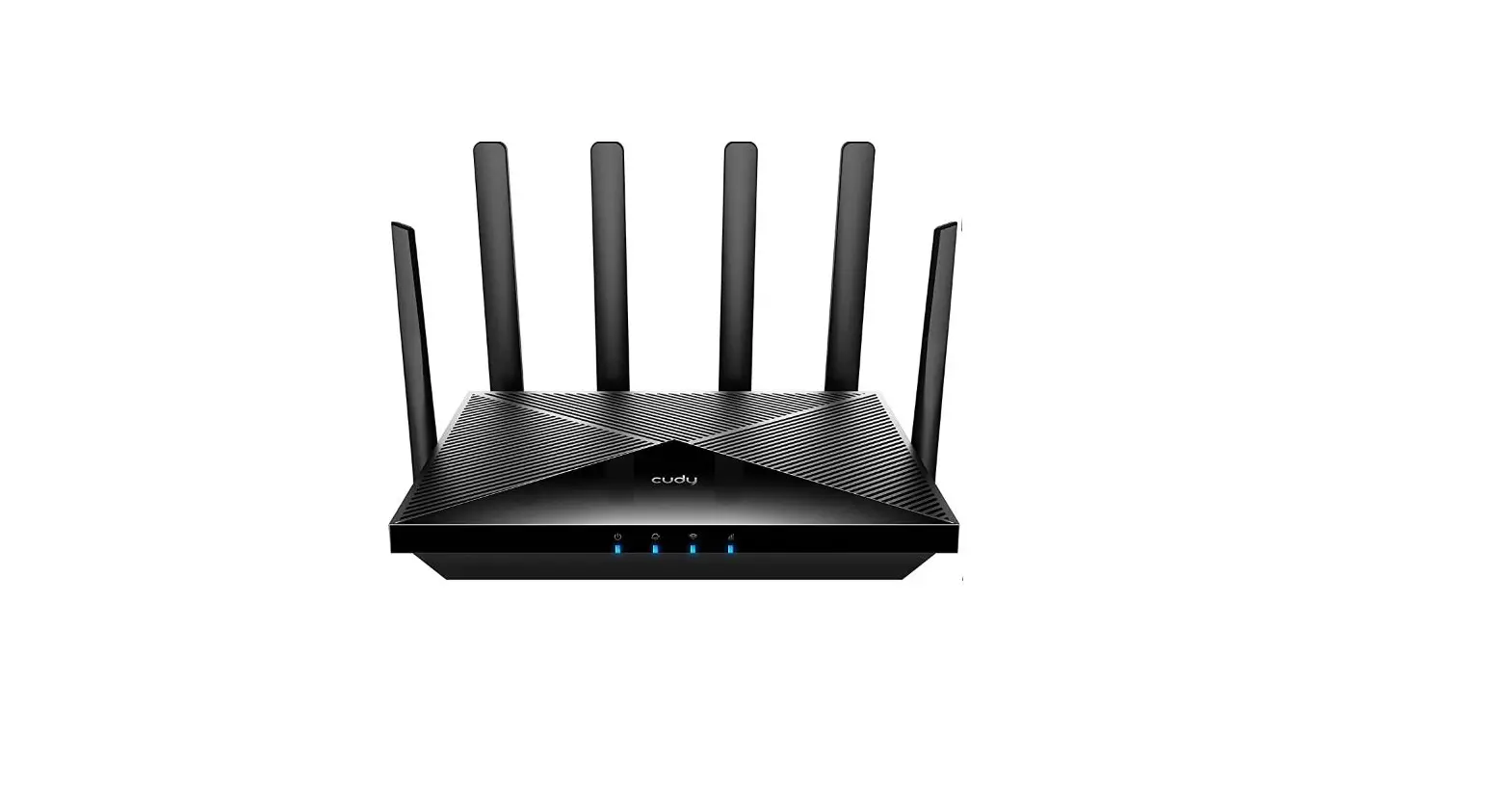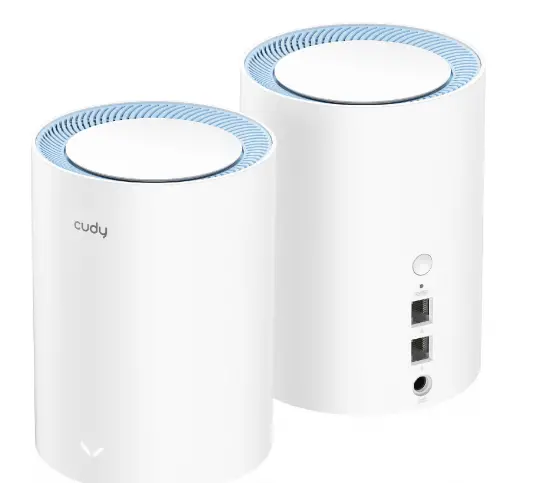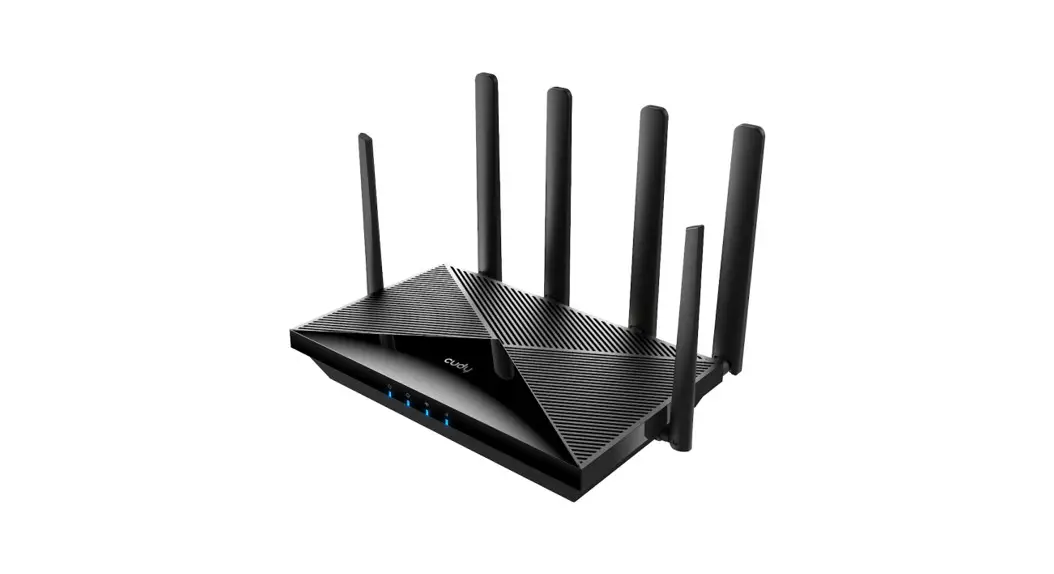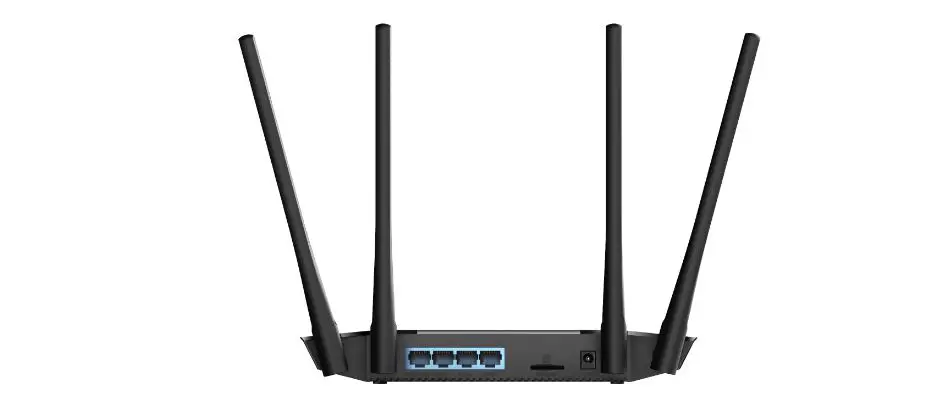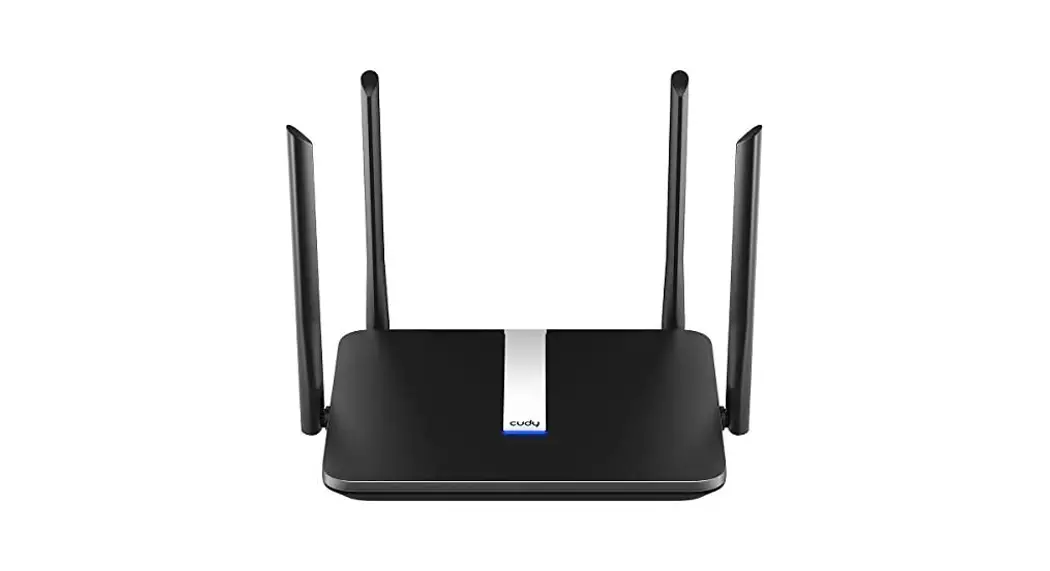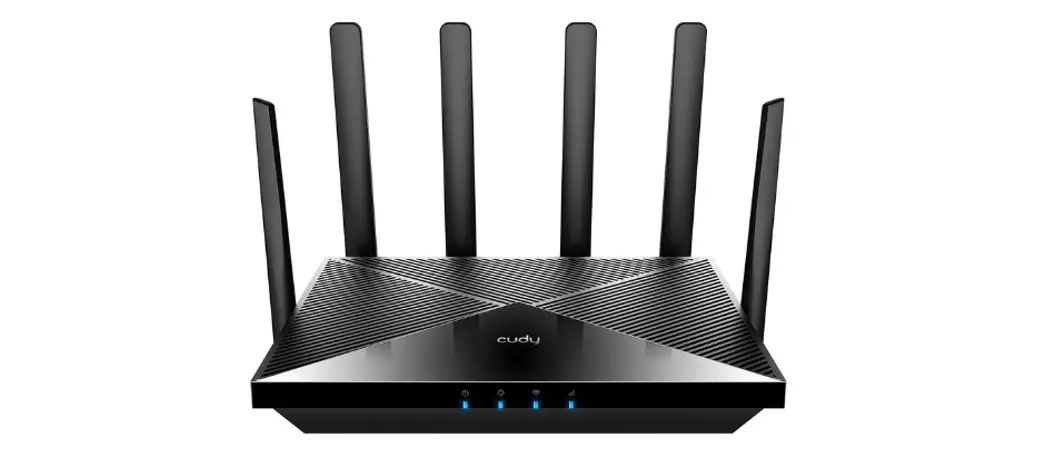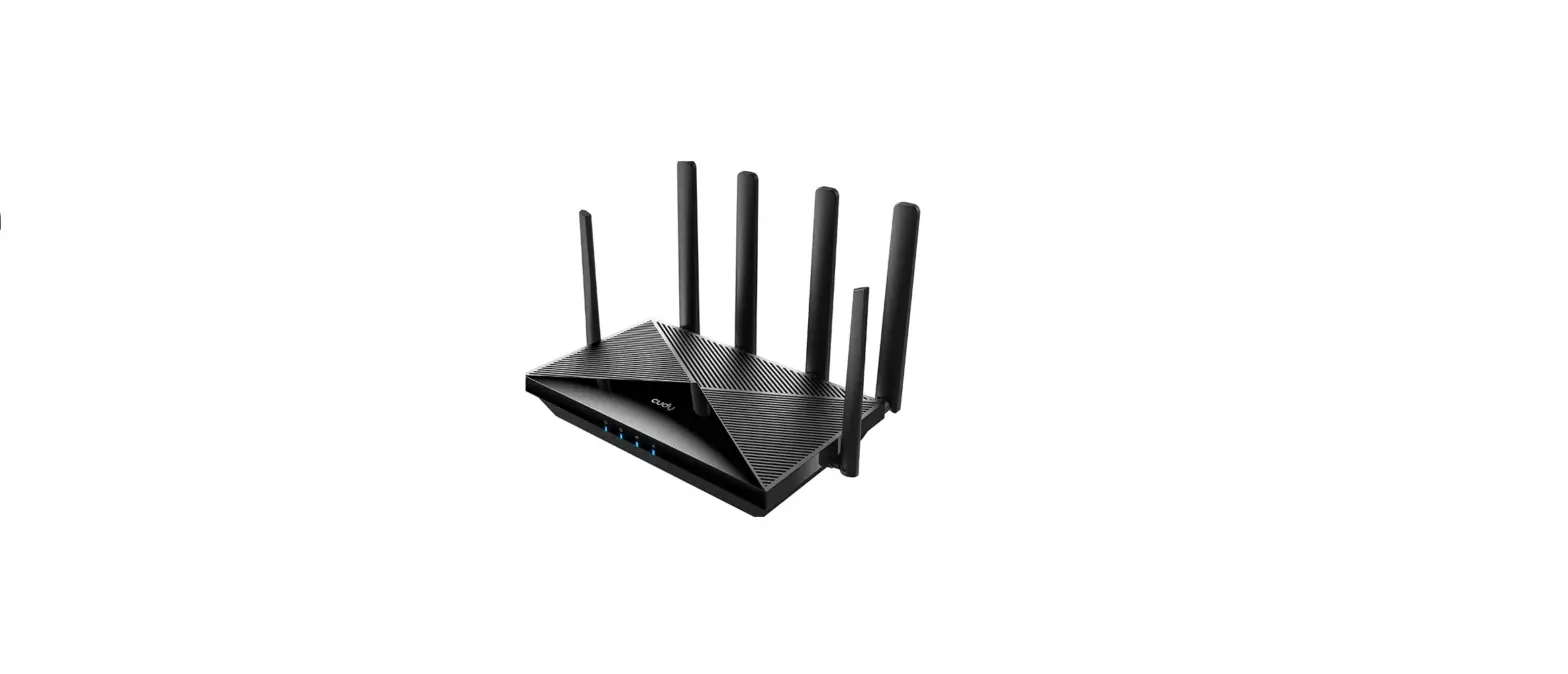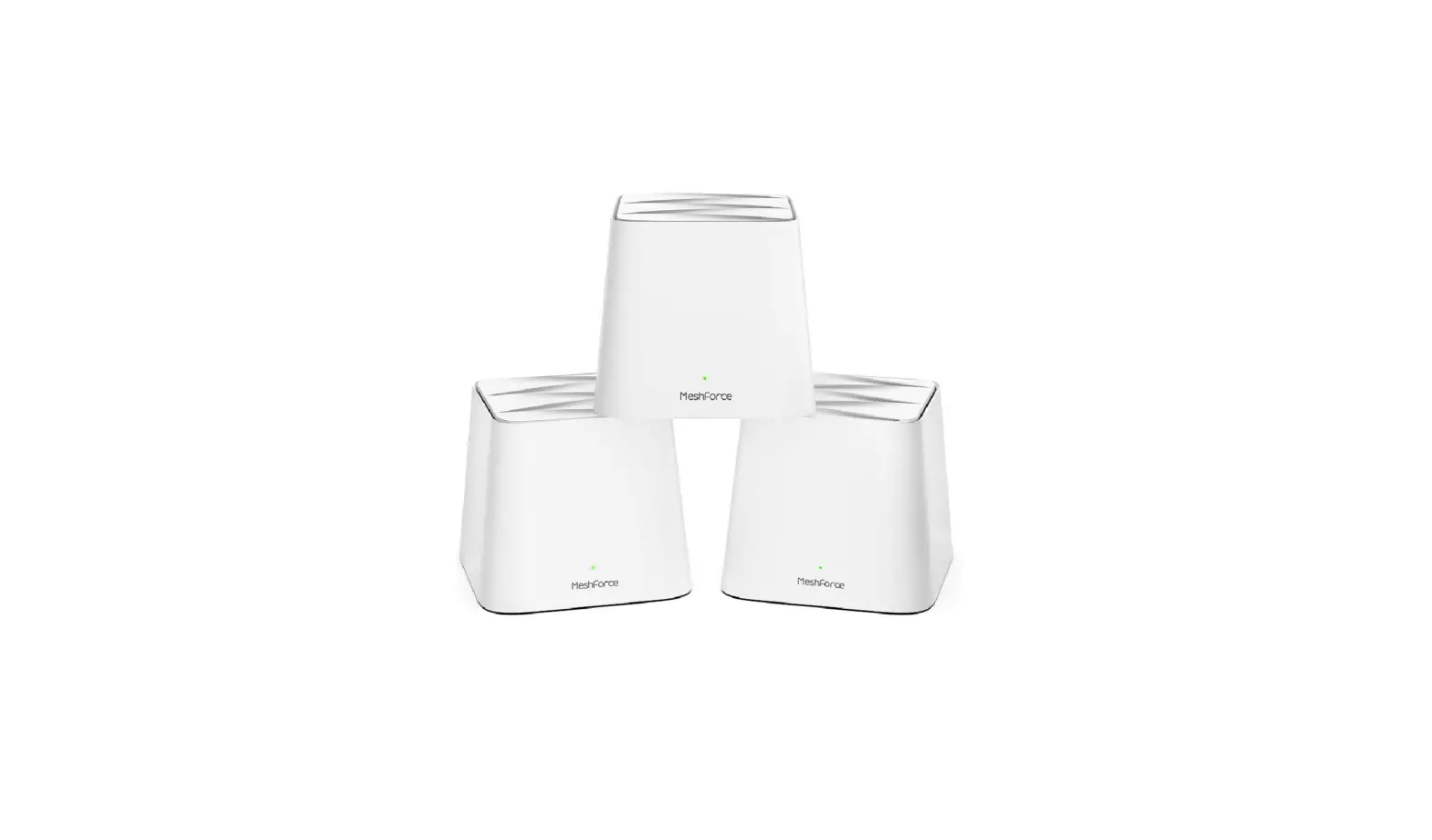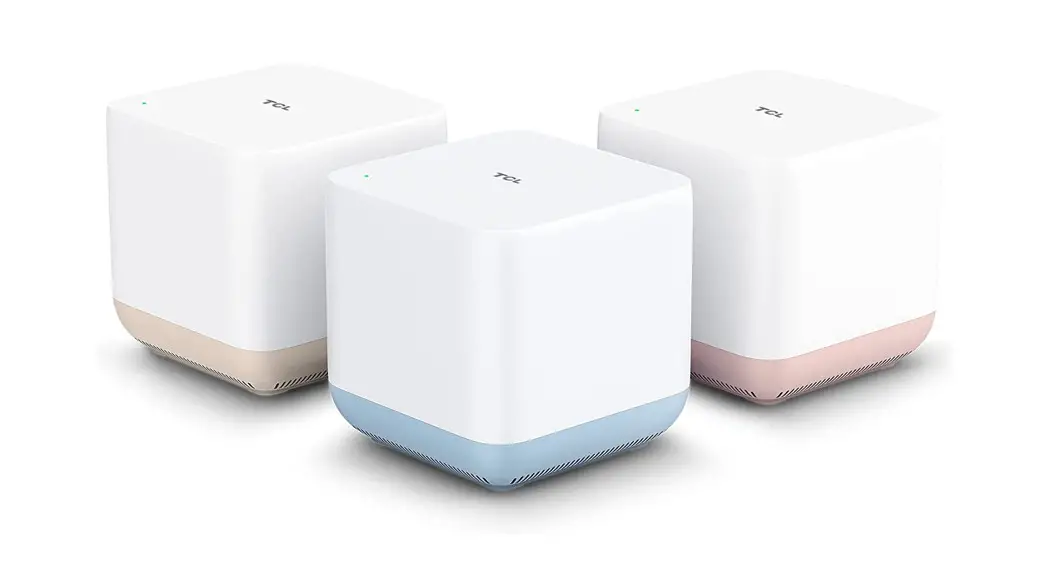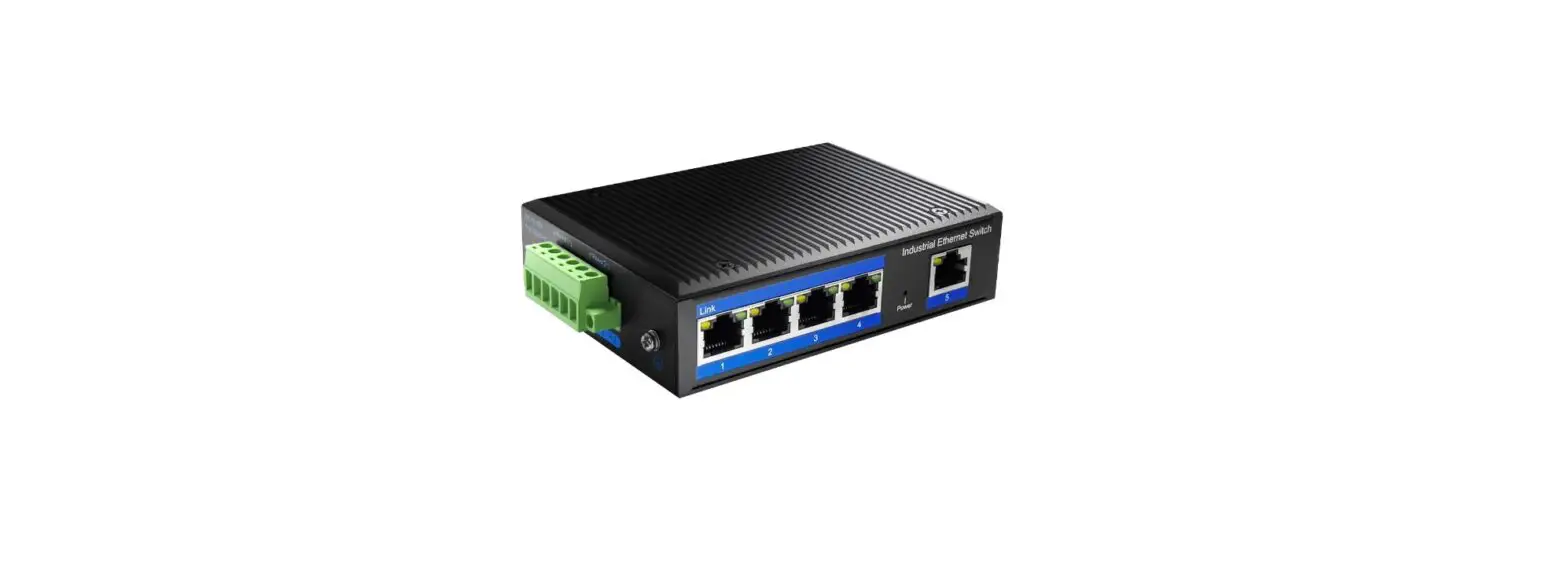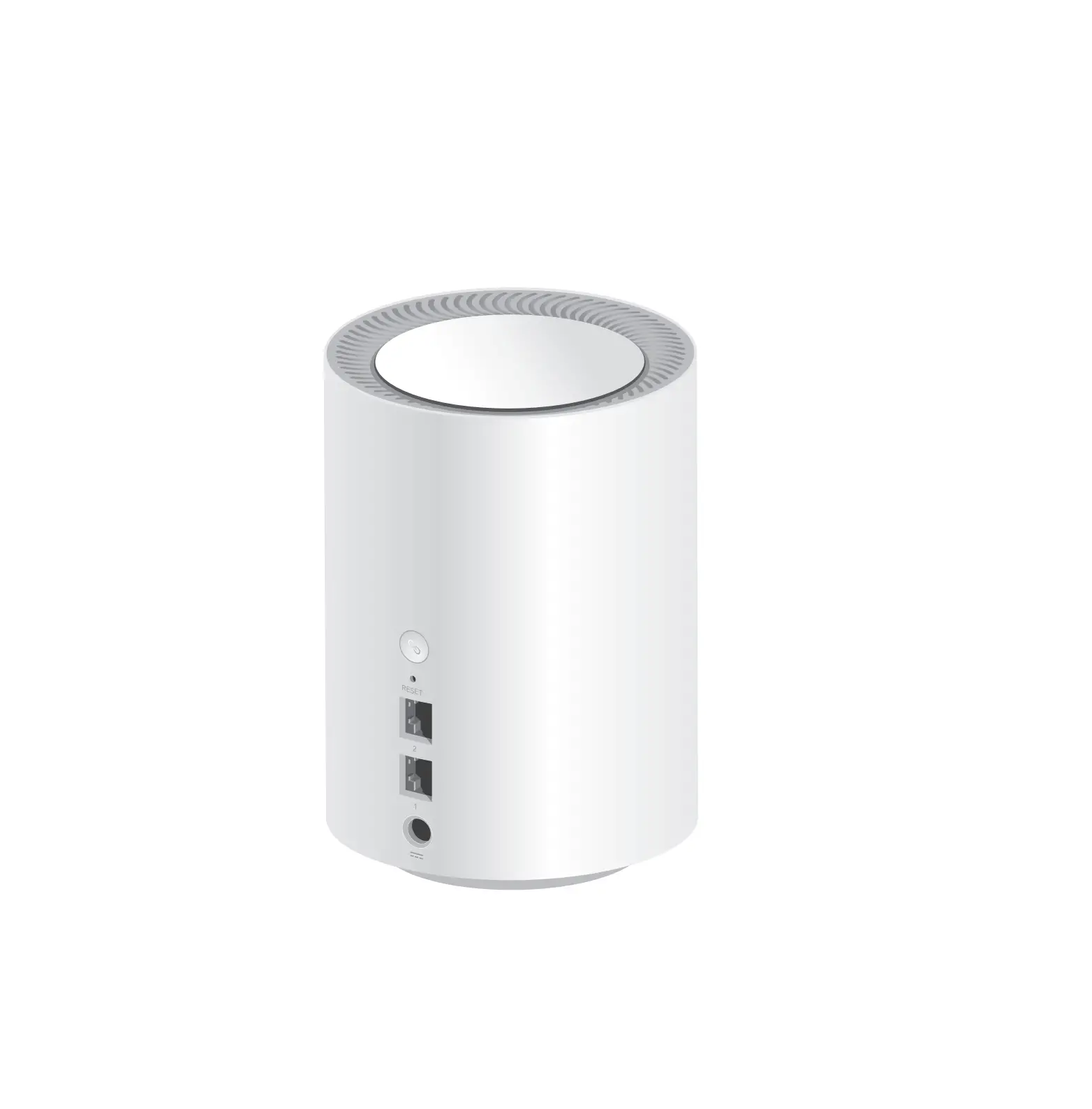
cudy M1800 Mesh Network
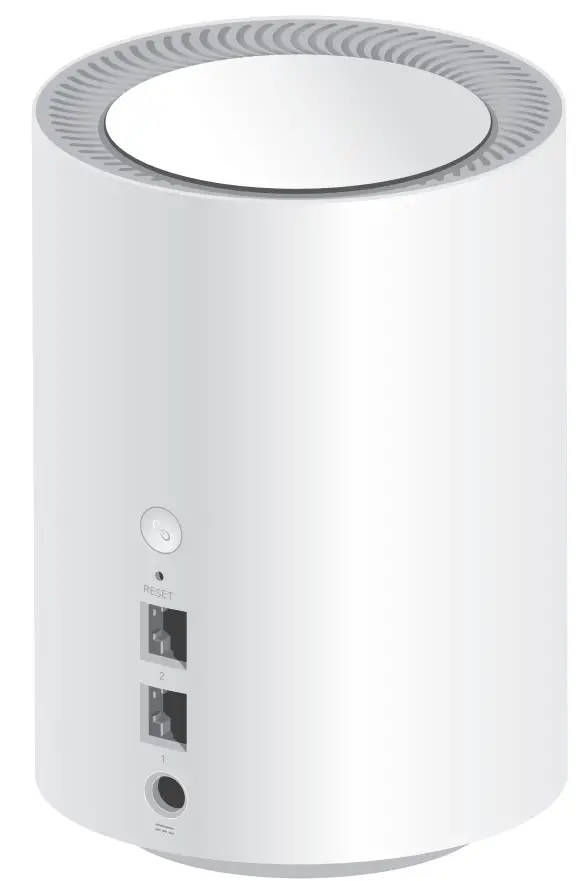
Quick Installation Guide
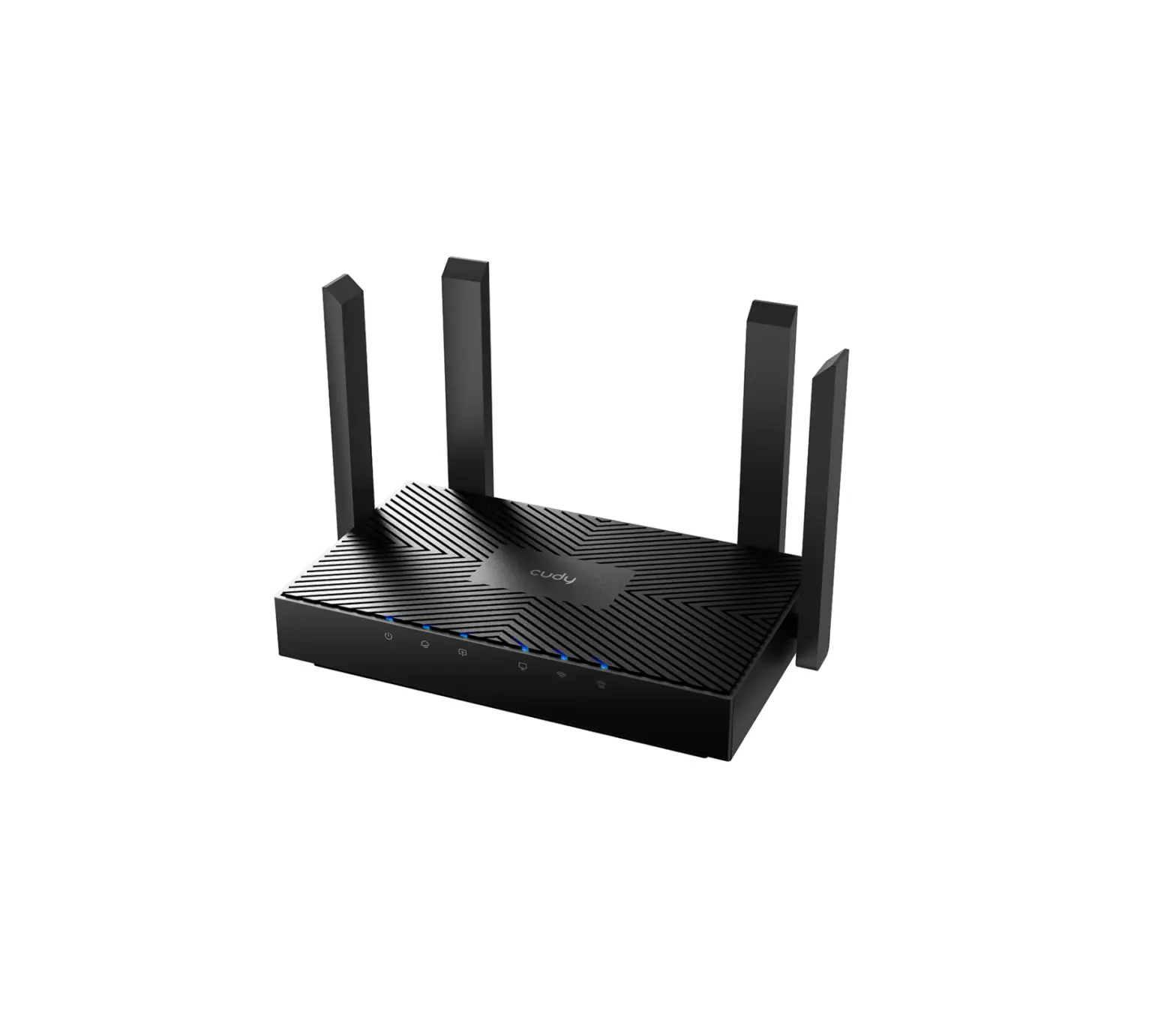
If your internet connection is through an ethernet cable directly from the wall instead of through a DSL/Cable/Satellite modem, connect the ethernet cable to the router’s Port #1, and skip steps 1, 2 ,3.
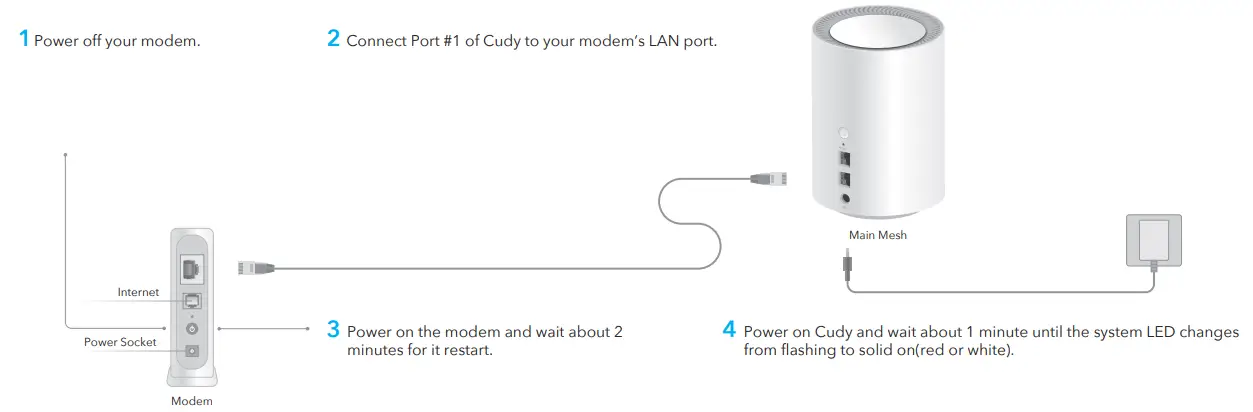
5 Connect your computer to the router (Wired or Wireless)
Wired
Turn off the Wi-Fi on your computer and connect it to router’s Port #2 via an ethernet cable.
Wireless
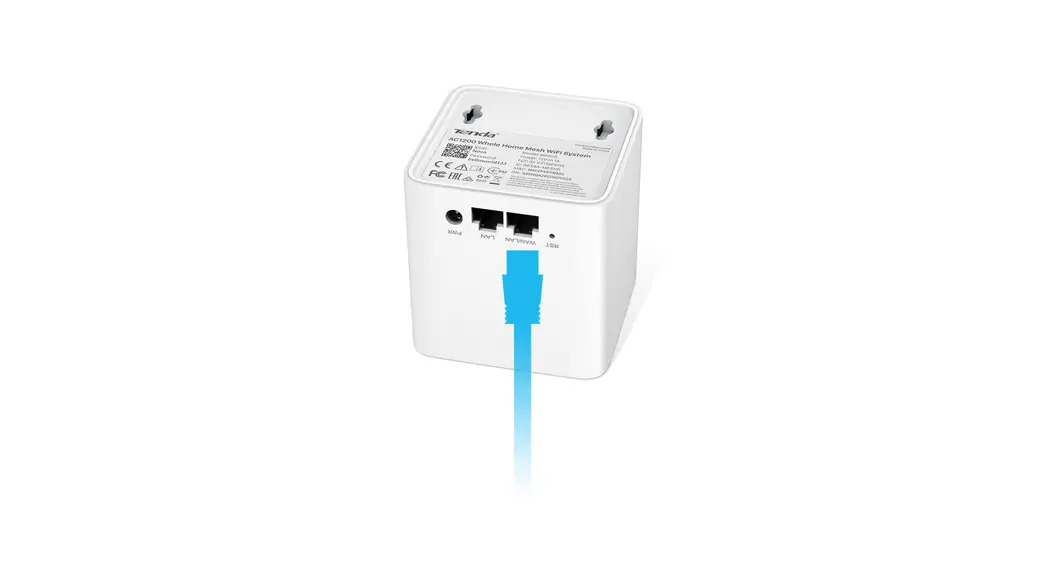
Connect your device to the router’s Wi-Fi using the SSID (network name) and Password printed on the bottom of the router.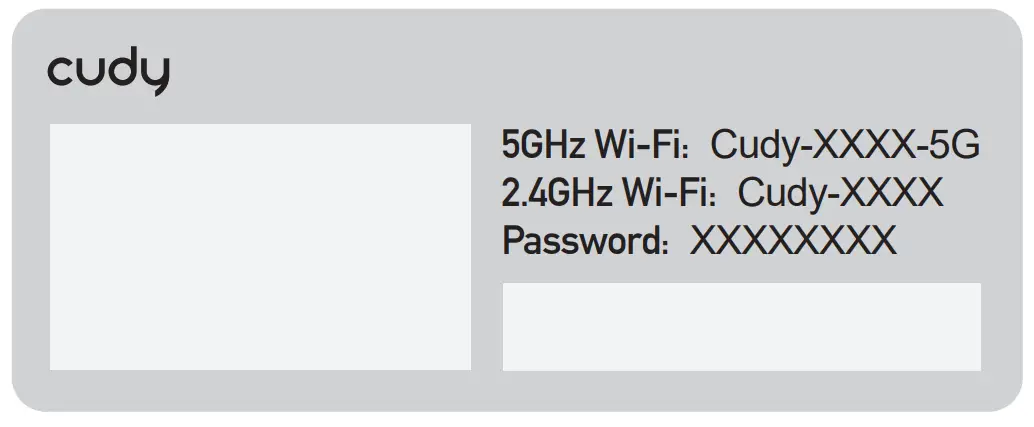
6 Launch a web browser, and enter http://cudy.net/ in the address bar. Use admin for password to log in.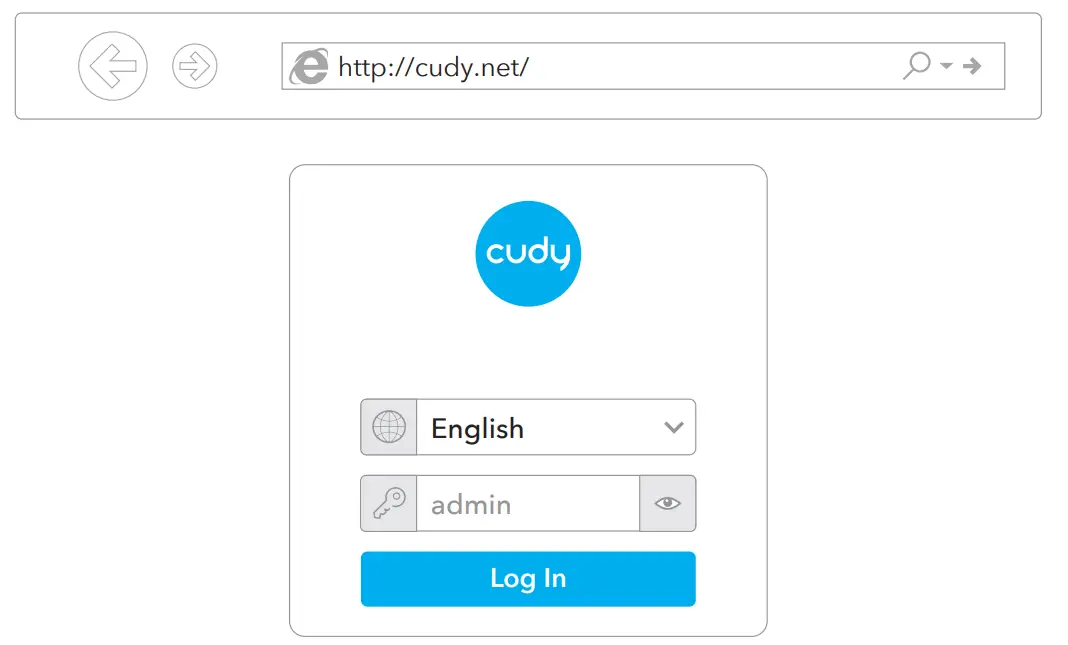
Note: If the login window does not appear, please refer to FAQ > Q1.
7 Then below popup will appear, please follow step by step instructions to set up the internet connections.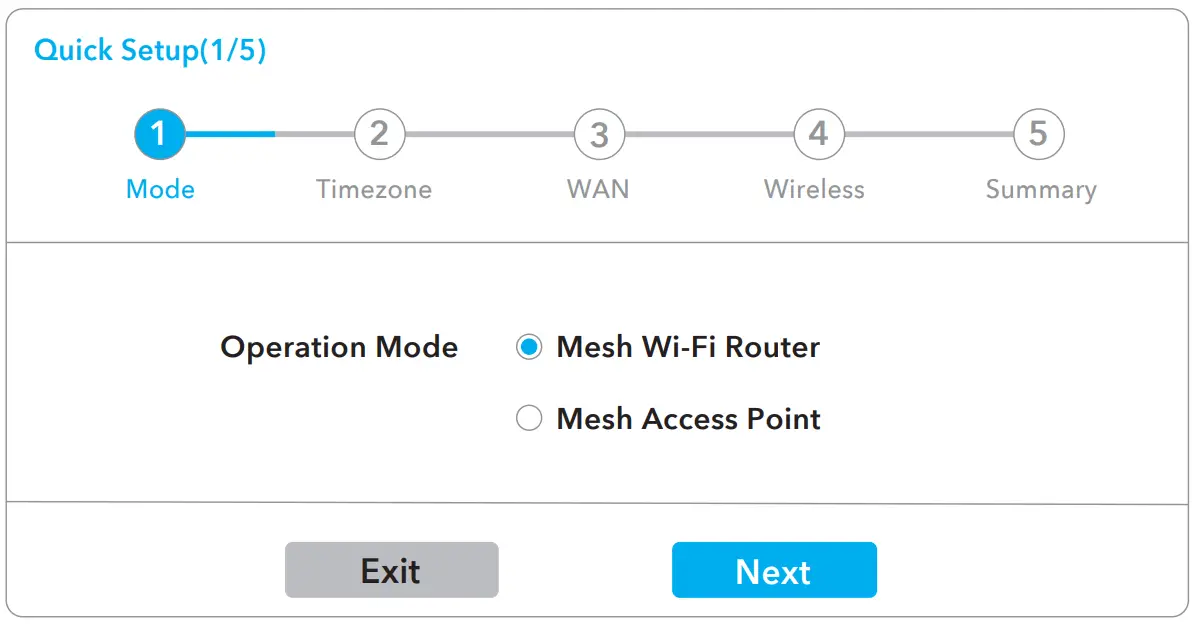
8 Add more mesh units
Power on the add-on mesh unit, waiting for its system LED becomes solid on.9 Within 2 minutes, press the pair button of both the add-on mesh unit and the main mesh(the one you already configured).
Waiting for the system LED of the add-on unit becomes solid white, means successfully.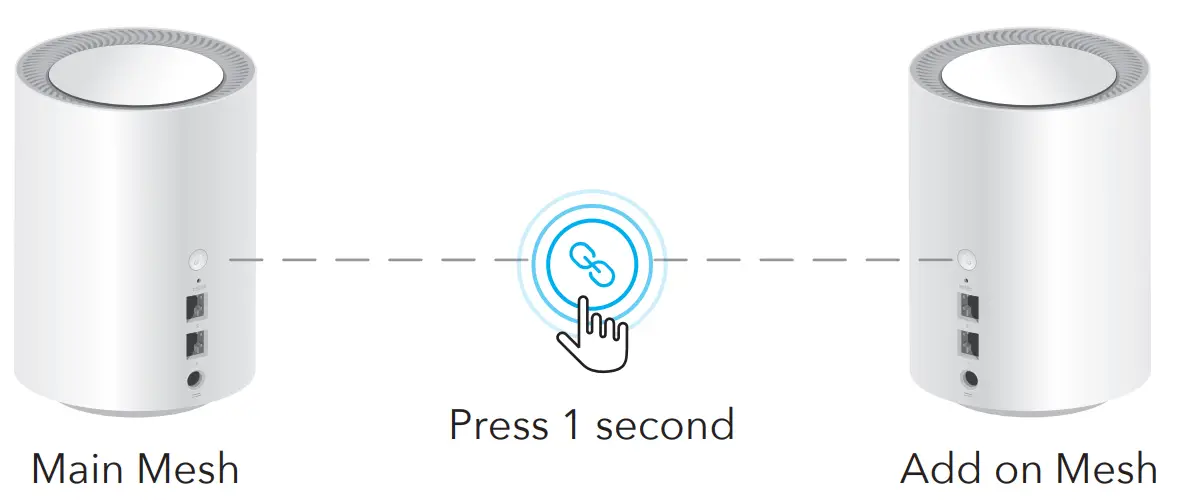
Note: For other LED status, please check the LED status explanation. Or you can contact our support team [email protected]
LED Explanation
| LED Status | Main Mesh | Add on Mesh | |
| Red | Flash | Starting up | Starting up |
| Solid | System ready, no internet | System ready, not connected to main mesh | |
| White | Flash | Pairing | Connected to main mesh, signal not good |
| Solid | Connected to internet | Connected to main mesh, signal good | |
| Red White Red | N/A | Pairing | |
Button |  | Press and hold 1 second to start pairing. |
Reset | Press and hold 6 seconds to reset the router to its factory default settings. |
 | Email: [email protected] |
 | Driver & Manual: www.cudy.com/download |

Frequently Asked Questions (FAQ)
A1: If the computer is set to a static IP address, change its settings to obtain an IP address and DNS server address automatically.
A2: Verify that http://cudy.net/ or 192.168.10.1 is correctly entered in the web browser .
A3: Use another web browser and try again.
A4: Reboot your router and try again.
A5: Disable and then enable the network adapter being used.
A: Please make sure the router is connected, power and broadband interface has no loose. If everything is normal but still no signal, please try to use computer to set, or restore the router to factory settings. If after restoring factory settings but still no signal, you can restart the router, if it still doesn’t work, maybe the router has fault.
 Download Center