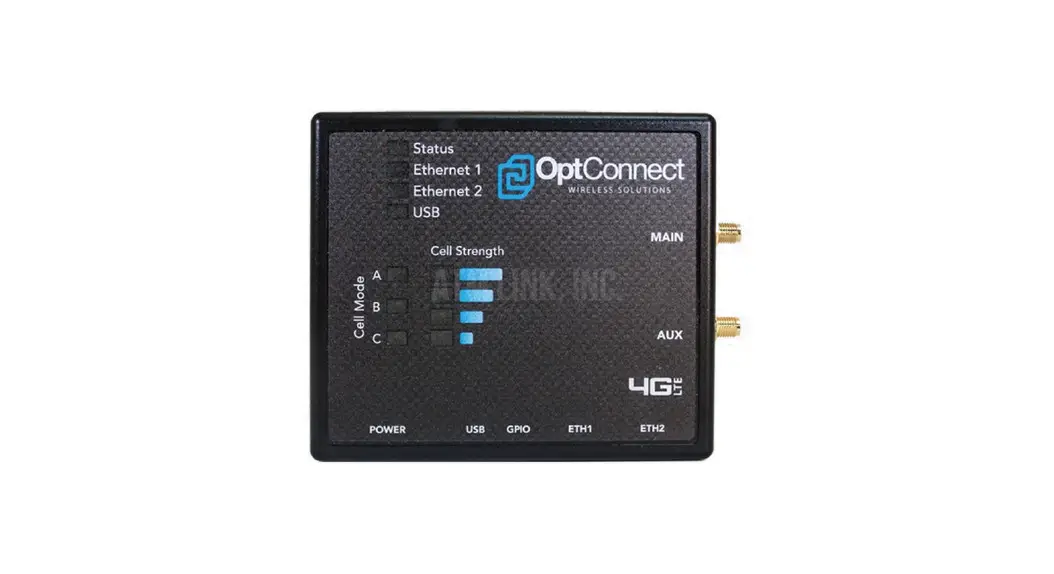
 COMPLETE Wireless Modem
User Guide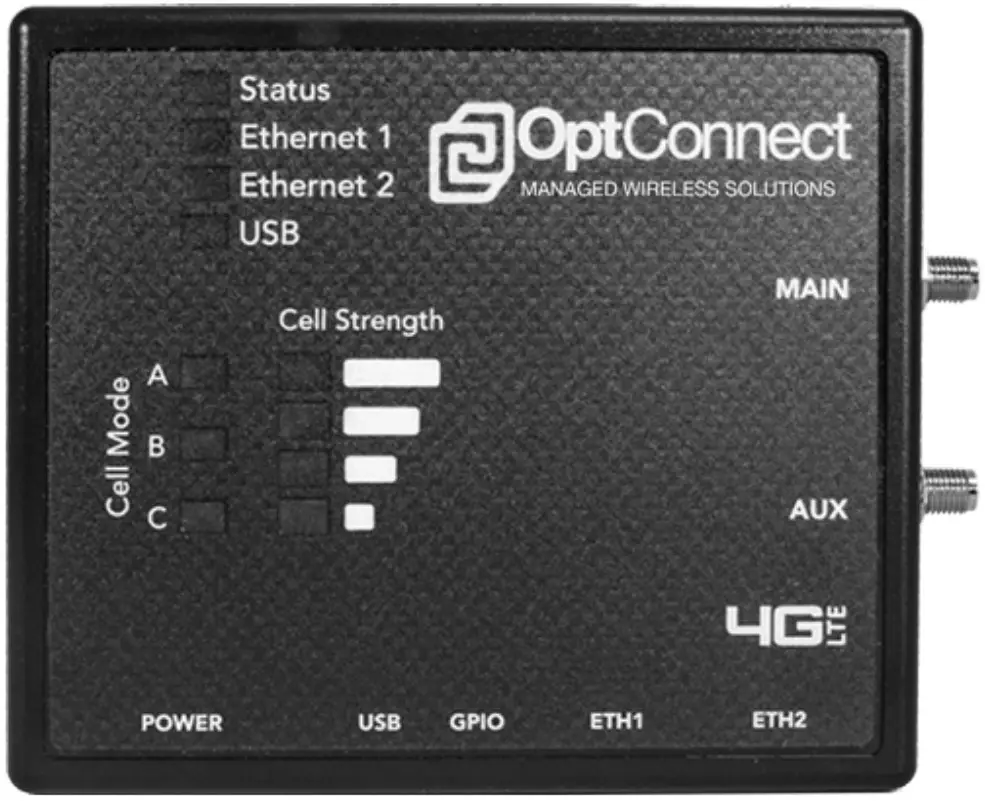
COMPLETE Wireless Modem
Thank you for choosing OptConnect for your wireless communication needs.
Should you need help installing your new OptConnect Wireless modem, we offer free technical support 24 hours a day, 7 days a week, 365 days a year.
To talk to one of our connectivity experts, call the Customer Care Center at 877-678-3343 ext. 3.
OPTCONNECT’S ONLINE CUSTOMER PORTAL
https://summit.optconnect.com/login Summit enables you to access your wireless portfolio everywhere you go and is accessible on phones, tablets, and computers.
To access Summit for the first time, contact your sales representative.
SUMMIT PROVIDES:
 | Cellular Connectivity Failure Notifications |
 | Reset Wireless Options |
 | Signal Strength Statuses |
 | Connectivity Confirmations |
 | Description Fields for Device Tracking |
Payment Gateway
Payment Gateway Programming is only recommended for use with ATMs that are not upgraded or capable of using TLS 1.2 security.
If your ATM is TLS 1.2 complaint, you should use ROUTER Programming, as the ROUTER programming will provide a higher level of security for your ATM.
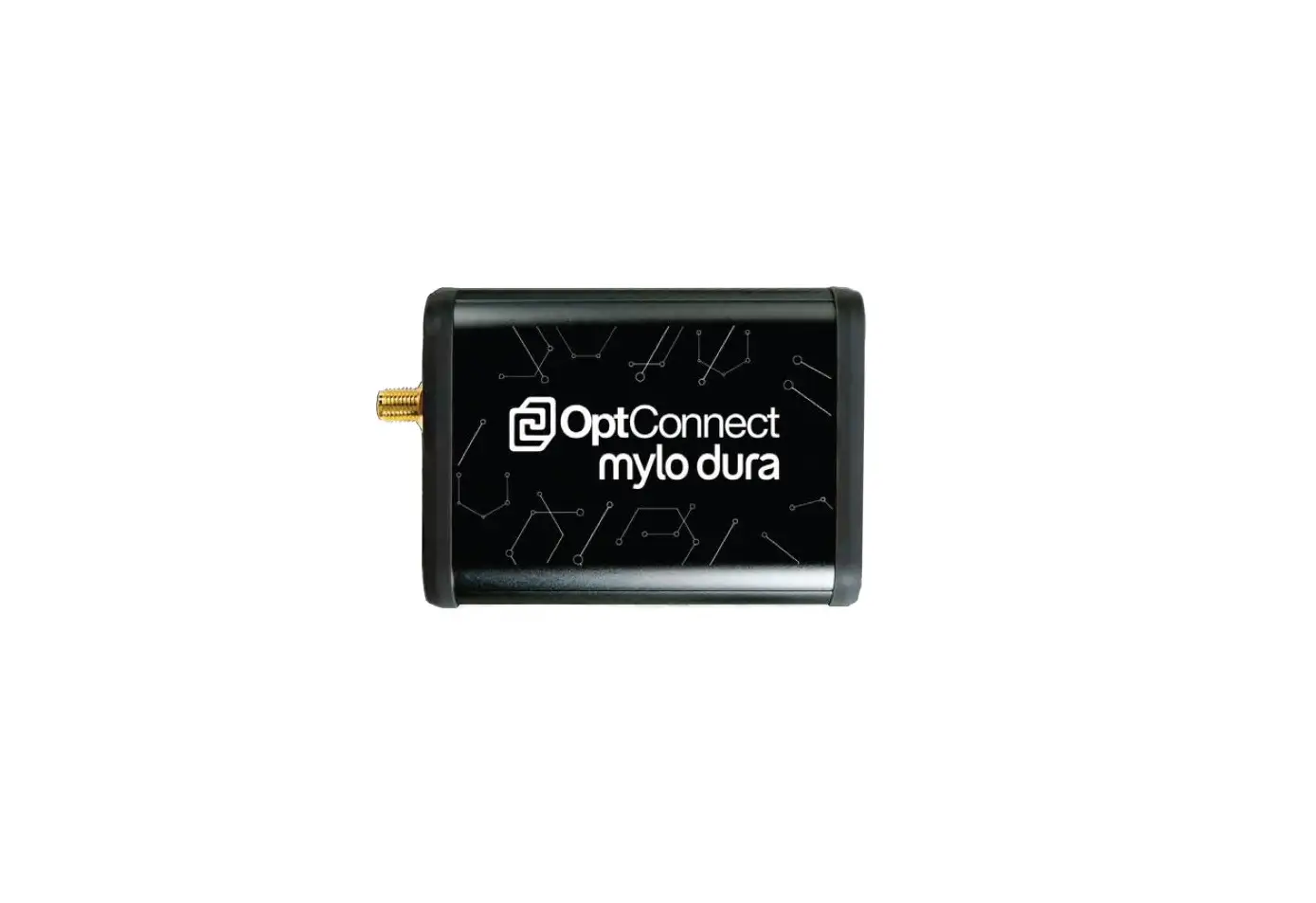
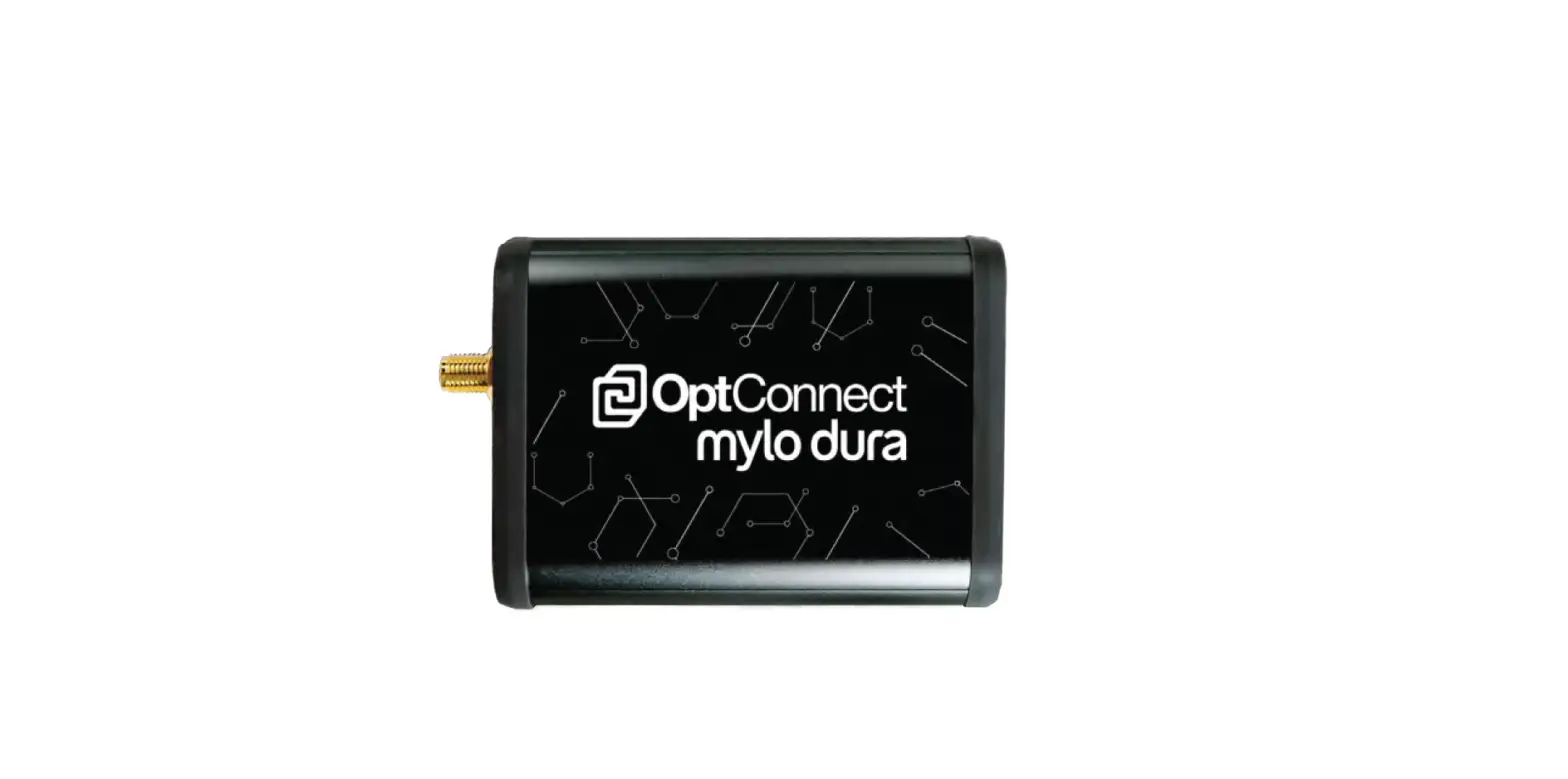
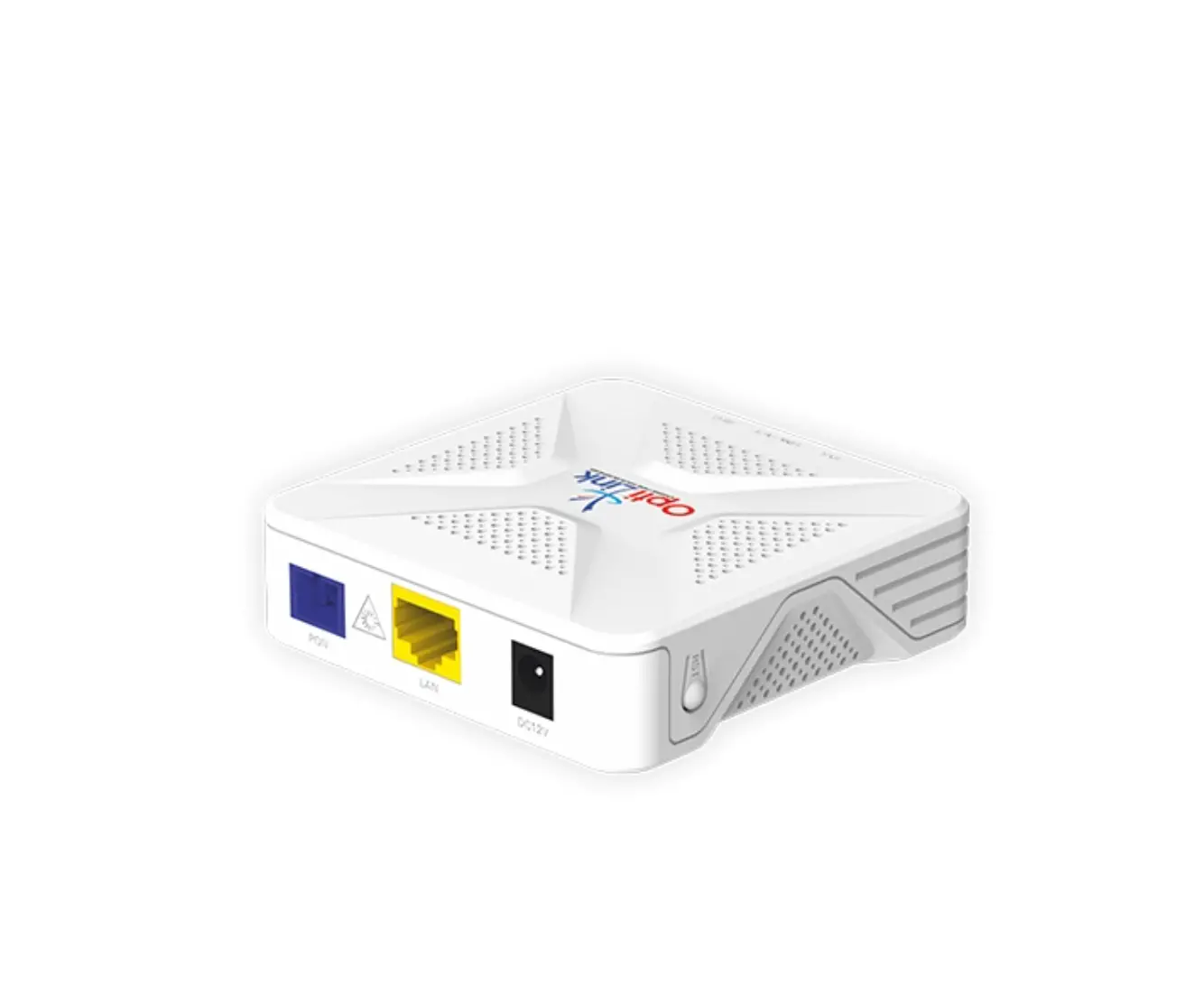
PACKAGE CONTENTS
Please verify your package contents.
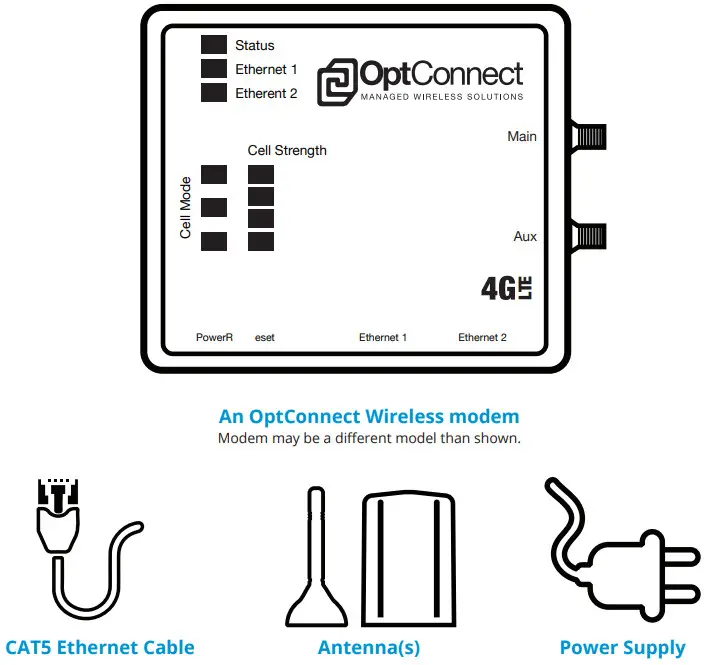
* Only use the 5v power supply that was shipped with your device.
Damage resulting from use with any other power supply voids warranty
If any of these items are missing or damaged, please contact the OptConnect Customer Care Center at 877-678-3343 ext. 3.
DEVICE DETAILS
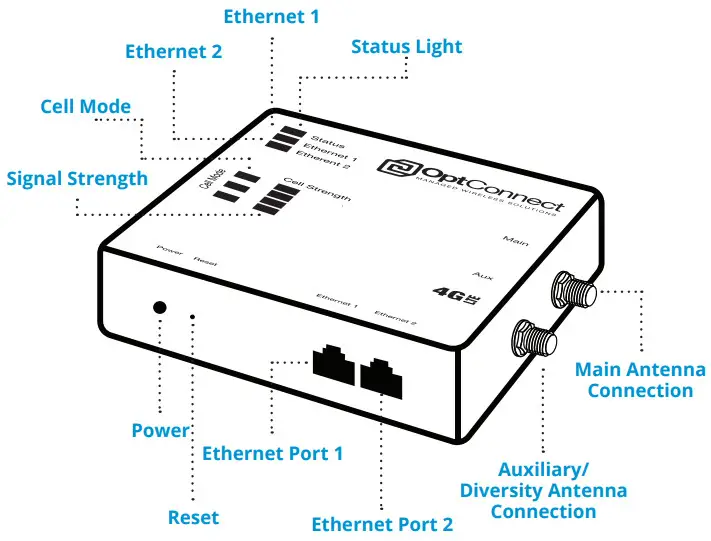
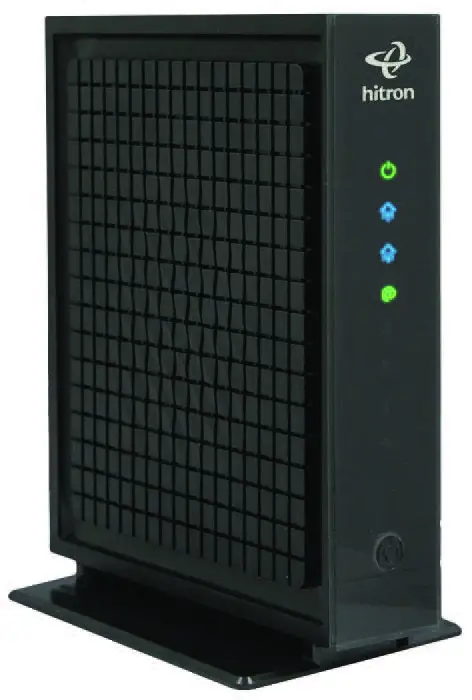
Power: If connections are all secure, the unit will power up with an orange status light that will soon change to green. The unit is getting proper power once the status light turns to green and starts to blink.
Reset: Resetting a unit should only be performed when instructed by an OptConnect Customer Care Associate. Resetting the device will remove necessary routing tables, rendering the device inoperable if done without a Customer Care Associate on the phone.
Antenna Connections: Proper installation of your OptConnect unit requires that both antenna(s) be used (if 2 are provided). Antenna(s) should be placed outside of any metal enclosures, 6-8” apart, and standing vertically, while magnetically connected to a metal base when possible.
Cell Mode: The unit has lights indicating the cellular connection mode.
Those lights are labeled as A, B, and C. Each light represents the type of cellular connection network. Light A represents 4G connectivity. Light B represents 3G connectivity, and Light C represents 1X connectivity. The illuminated Cell Mode light(s) indicate the unit is connected to the lights corresponding network.
Cell On: The cell on light is located next to the signal strength in place of the cell mode lights. The cell on light will be solid or blinking once the unit is connected to a cellular network. If this light does not illuminate, please contact OptConnect Customer Care at 877-678-3343 ext. 3.
SET UP INSTRUCTIONS
- TWIST AND LOCK POWER SUPPLY INTO PLACE, SECURELY ATTACH ANTENNAS
 * Always connect both antenna leads or dual 4G antennas.
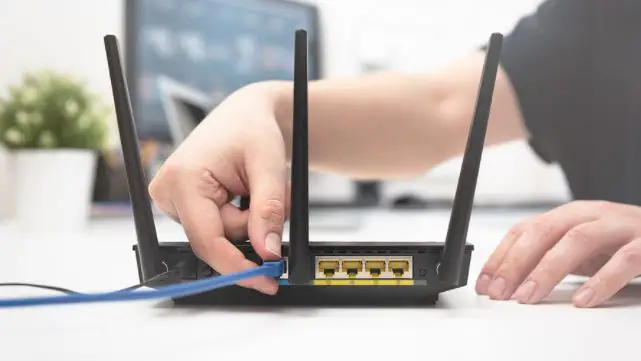
 - INSERT PHONE LINE/ETHERNET CABLE
 * CAT 5e or higher Patch Cable can be up to 300’ from your device.
 - VERIFY STATUS LIGHTS
Once the Cell Mode and Signal Strength lights are solid, your OptConnect unit is ready to be used.
The Cell Mode and Signal Strength lights will flash during use or while data is being transmitted through the unit. If lights are not flashing while in use or are not green, please see the reference chart below to understand what the lights are indicating.
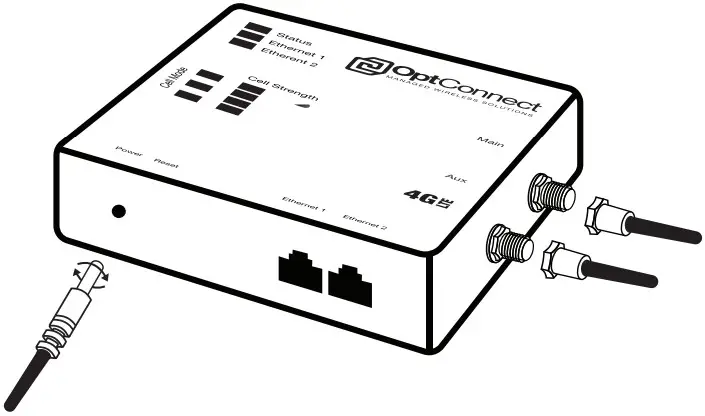 * Always connect both antenna leads or dual 4G antennas.
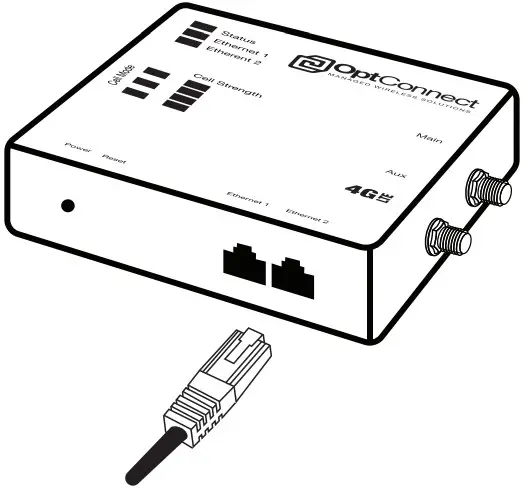 * CAT 5e or higher Patch Cable can be up to 300’ from your device.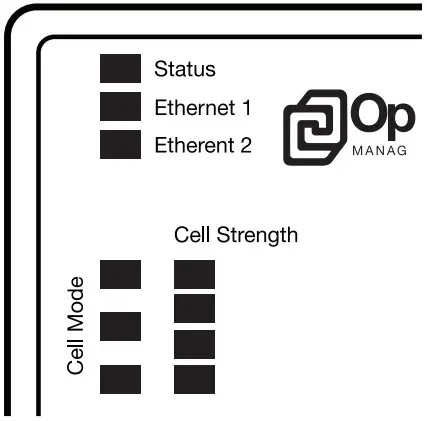
*STATUS LIGHTS
| Green Flashing | Status is good. Ready for transactions. |
| Orange Flashing | Processing boot-up sequence. |
| Orange Constant | Call the OptConnect Customer Care Center. |
| Red Constant | Confirm power cord is locked into place. Call the OptConnect Customer Care Center. |
CELL MODE AND SIGNAL STRENGTH LIGHTS
| Green Constant | Status is good. Ready for transactions. |
| Slow Green Flashing | Connecting with carrier or transmitting data. |
| Fast Green Flashing | Call the OptConnect Customer Care Center. |
| Red Constant | Call the OptConnect Customer Care Center. |
4. USING YOUR DEVICE IN NON-ATM ENVIRONMENT
(Kiosk, Digital Sign, etc. | For ATMs turn the page)
Upon proper installation, the OptConnect unit is designed to provide a network connection, automatically allowing attached hardware (such as a Kiosk, Smart-Safe, Digital Sign, etc.) to communicate through the internet connection provided by the OptConnect unit. If specific routing rules are required, please call the OptConnect Customer Care Center at 877-678-3343 ext. 3.
ATM PROGRAMMING
An OptConnect unit accepts and routes data by using 2 different methods (Router vs. Payment Gateway). To maintain the highest security standards, OptConnect highly recommends that the ATM be programmed to use the wireless device as a ROUTER, allowing the ATM to house and perform the security encryption of the ATM transaction.
OptConnect as a Router:
This is OptConnect’s preferred and strongly recommended programming method and is the most secure way of routing traffic. In Router mode, the OptConnect unit simply directs traffic from attached equipment to a remote host. The attached equipment is programmed with the required routing settings, performs the SSL/TLS encryption and decryption, and passes transactional data through the cellular network provided by the OptConnect unit to the remote host.
In router mode, the OptConnect unit does not participate in the interception, routing, or the encryption of data required for SSL/TLS, and merely acts as a method by which the attached equipment can connect to a wireless network. It is important to note that while using the OptConnect as a router, the equipment software application must remain up-to-date (according to industry standards) in order to facilitate the SSL/TLS encryption.
OptConnect as a Payment Gateway:
This is not OptConnect’s recommended programming method as it is not as secure, but we do provide instructions if you choose to configure your device as a payment gateway. This method of use allows the device to participate in the interception, routing, and security encryption of data provided by the attached equipment (ATM, Kiosk, POS, etc.). The OptConnect receives unencrypted data from the attached equipment, determines remote host protocols and routing rules, establishes an SSL/TLS session, encrypts and decrypts data, converts data to original protocols, and returns the data to the attached equipment.
Benefits of using the OptConnect as a Payment Gateway include:
- SSL/TLS encryption facilitated by the OptConnect unit
- SSL/TLS encryption is remotely managed and updated as needed by OptConnect (as per industry requirements)
- Captures the terminal ID making it available for viewing in the OptConnect Summit dashboard.
- Higher level troubleshooting and fault triaging with OptConnect Customer Care. An OptConnect Customer Care Associate has visible access to encrypted data routing to the remote host(s) and can find faults in routing rules or terminal communication settings easily and quickly. Many customers have learned to depend on our ability to quickly and effectively triage cellular and/or terminal programming faults.
NAUTILUS HYOSUNG ATMS ROUTER
***ATM IS PERFORMING SSL/TLS ENCRYPTION***
Customer Setup >
Select Processor >
Communication >
Select TCP/IP
-1(X) Cancel to Return-
TCP/IP Type:
| PROCESSOR | TCP/IP TYPE |
| Cardtronics | Visa Framed |
| Columbus Data | Standard |
| Data Stream (ASAI) | Visa Framed |
| DNA (Money Tree) | Standard |
| EFX | Visa Framed |
| Elan/Genpass | Visa Framed |
| 1st ISO / First Data / Core Data | Standard |
| ITS Systems Integrators Co Inc | Standard |
| Metavante / PAI / FIS | Standard |
| NRT/TNS | Visa Framed |
| Planet Payment | Standard |
| Switch Commerce | Visa Framed |
| Worldpay / RBS Lynk | Standard |
SSL: Enable
Version: TLS 1.2
SSL CERT: Disable*
-2(x) Cancel to Return-
*If your processor has issued, and you have loaded a specific terminal certificate on the ATM, then this option should be ENABLED
Customer Setup >
*Standard 3 Options >
Status Monitoring: Enable
Comm Header: Enable
Comm ID: Refer to Page 25
CRC: Disabled
-2(X) Cancel to Return-
*Please verify with processor if set up on STD1 or STD3
System Setup >
Terminal IP >
DHCP: Disabled*
IP Address: 192.168.1.91
Subnet Mask: 255.255.255.0
Gateway: 192.168.1.90
DNS: 8.8.8.8 or 8.8.4.4
-2(X) Cancel to Return-
*If your ATM will not be setup for RMS RECEIVE, you can use DHCP ENABLED
Host Setup >
Host Address >
Address 1&2:
Unless otherwise specified by your processor, all URLs should be entered in lower case
| PROCESSOR | URL |
| Cardtronics | pos.tnsi.com |
| Columbus Data | atm.columbusdata.net |
| Data Stream (ASAI) | asaiatmssl.asaiatm.com |
| DNA (Money Tree) | atmssl.dnsatm.com |
| EFX | emv.sibisystems.com |
| Elan/Genpass | pos.tnsi.com |
| 1st ISO / First Data / Core Data | sslgb.1stiso.com |
| ITS Systems Integrators Co Inc | *tls1.itssystems.com or tls2.itsystems.com |
| Metavante / PAI / FIS | eftdebitatm.fnfis.com |
| NRT/TNS | tls1.nrttech.com |
| Planet Payment | atm.planetpayment.net |
| Switch Commerce | atm1.switchcommerce.net |
| Worldpay / RBS Lynk | tptrans.lynksystems.com |
*Verify with the processor, which URL AND PORT is to be used with the ATM.
NAUTILUS HYOSUNG ATMS ROUTER
Host Port 1&2:
| PROCESSOR | PORT |
| Cardtronics | 5550 |
| Columbus Data | 6965 |
| Data Stream (ASAI) | 30000 |
| DNA (Money Tree) | 8002 |
| EFX | 9057 or 9056 |
| Elan/Genpass | 5166 |
| 1st ISO / First Data / Core Data | 8440 |
| ITS Systems Integrators Co Inc | *777 |
| Metavante / PAI / FIS | 443 |
| NRT/TNS | 8007 |
| Planet Payment | 5306 |
| Switch Commerce | 1440 |
| Worldpay / RBS Lynk | 6661 |
-1(x) Cancel to Return-
*Verify with the processor, which URL AND PORT is to be used with the ATM.
* For FirstISO = SSL Length without ( W / O ) E T X with Routing ID: FSTISO in the Host Setting
*Host Setup >
Routing ID: Refer to page 25
*STD1 only
You are now ready to initialize your ATM. Once booted, perform a balance inquiry. If this transaction fails, verify your programming as outlined in the previous steps. If programming is correct, please call the OptConnect Customer Care Center at 877-6783343 ext. 3 for assistance.
HANTLE/GENMEGA ATMS ROUTER
***ATM IS FACILITATING SSL/TLS ENCRYPTION***
Customer Setup >
Change Processor >
Communication Type: SSL Pass Through
SSL >
Version: TLS 1.2
Certification: Disabled
-1(x) Cancel to Return-
**Standard 3 Option >
Comm Header: Enable
Status Monitoring: Enable
Use 12 Sequence Number: Disabled
Use TCP/IP CRC: Disabled
-3(x) Cancel to Return-
* For PAI = SSL Length with ETX
**Please verify with processor if set up on STD1 or STD3
System Setup>
Device Setup >
ATM TCPIP Setup >
Set TC/IP Mode: Static
IP Address: 192.168.1.91
Subnet Mask: 255.255.255.0
Default Gateway: 192.168.1.90
Change DNS Server>
Change DNS Server #1: 8.8.8.8
Change DNS Server #2: 8.8.4.4
-3(x) Cancel to Return-
Host Setup>
Host IP Address >
Change Host IP 1&2: enter Host URL
Unless otherwise specified by your processor, all URLs should be entered in lower case
| PROCESSOR | URL |
| Cardtronics | pos.tnsi.com |
| Columbus Data | atm.columbusdata.net |
| Data Stream (ASAI) | asaiatmssl.asaiatm.com |
| DNA (Money Tree) | atmssl.dnsatm.com |
| EFX | emv.sibisystems.com |
| PROCESSOR | URL |
| Elan/Genpass | pos.tnsi.com |
| 1st ISO / First Data / Core Data | sslgb.1stiso.com |
| ITS Systems Integrators Co Inc | *tls1.itssystems.com or tls2.itsystems.com |
| Metavante / PAI / FIS | eftdebitatm.fnfis.com |
| NRT/TNS | tls1.nrttech.com |
| Planet Payment | atm.planetpayment.net |
| Switch Commerce | atm1.switchcommerce.net |
| Worldpay / RBS Lynk | tptrans.lynksystems.com |
*Verify with the processor, which URL AND PORT is to be used with the ATM.
Change Host Port 1&2:
| PROCESSOR | HOST PORT |
| Cardtronics | 5550 |
| Columbus Data | 6965 |
| Data Stream (ASAI) | 30000 |
| DNA (Money Tree) | 8002 |
| EFX | 9057 or 9056 |
| Elan/Genpass | 5166 |
| 1st ISO / First Data / Core Data | 8440 |
| ITS Systems Integrators Co Inc | *777 |
| Metavante / PAI / FIS | 443 |
| NRT/TNS | 8007 |
| Planet Payment | 5306 |
| Switch Commerce | 1440 |
| Worldpay / RBS Lynk | 6661 |
-1(x) Cancel to Return
*Verify with the processor, which URL AND PORT is to be used with the ATM.
Host Setup >
Routing ID: Refer to Page 25
Check F7 – MAC Verification and make sure this is Disabled
-2(x) Cancel to Return
You are now ready to initialize your ATM. Once booted, perform a balance inquiry. If this transaction fails, verify your programming as outlined in the previous steps. If programming is correct, please call the OptConnect Customer Care Center at 877-678-3343 ext. 3 for assistance.
TRITON ATMS ROUTER
***ATM IS FACILITATING SSL/TLS ENCRYPTION***
6. Configure Terminal >
6. Communication >
8. Communication Protocol: TCPIP
-Select Enter to save changes-
6. Configure Terminal >
6. Communication >
9. Communication Message Format
| PROCESSOR | MESSAGE FORMAT |
| Cardtronics | TDL |
| Columbus Data | TDL TCP/IP NO CRC |
| Data Stream (ASAI) | TDL TCP/IP NO CRC |
| DNA (Money Tree) | TDL TCP/IP NO CRC |
| EFX | TDL |
| Elan/Genpass | TDL |
| 1st ISO / First Data / Core Data | TDL TCP/IP NO CRC |
| ITS Systems Integrators Co Inc | TDL TCP/IP NO CRC |
| Metavante / PAI / FIS | TDL |
| NRT/TNS | TDL |
| Planet Payment | TDL |
| Switch Commerce | TDL |
| Worldpay / RBS Lynk | TDL TCP/IP NO CRC |
-Select Enter to save changes-
6. Configure Terminal >
6. Communication >
3. Permanent TCP/IP Connection: Uncheck
4. Comm Header: Enable
5. Routing / Comm ID: (see page 25)
-Select Enter to save changes-
TRITON ATMS ROUTER
6. Configure Terminal >
6. Communication >
F4. SSL Enable: Check**
** Check tsocketx.ocx version. Must be TLS 1.2 Compliant
Important: SSL must be checked before entering the host URL Name.
8. Terminal Status
> 4 Configuration Summary
tsocketx.ocx file must be 3.x.x.2 or higher
Lower version requires ATM software update
-Select Enter to save changes-
6. Configure Terminal >
6. Communication >
1. Host IP Address:
Unless otherwise specified by your processor, all URLs should be entered in lower case
| PROCESSOR | URL |
| Cardtronics | pos.tnsi.com |
| Columbus Data | atm.columbusdata.net |
| Data Stream (ASAI) | asaiatmssl.asaiatm.com |
| DNA (Money Tree) | atmssl.dnsatm.com |
| EFX | emv.sibisystems.com |
| Elan/Genpass | pos.tnsi.com |
| 1st ISO / First Data / Core Data | sslgb.1stiso.com |
| ITS Systems Integrators Co Inc | *tls1.itssystems.com or tls2.itsystems.com |
| Metavante / PAI / FIS | eftdebitatm.fnfis.com |
| NRT/TNS | tls1.nrttech.com |
| Planet Payment | atm.planetpayment.net |
| Switch Commerce | atm1.switchcommerce.net |
| Worldpay / RBS Lynk | tptrans.lynksystems.com |
-Select Enter to save changes-
*Verify with the processor, which URL AND PORT s to be used with the ATM.
6. Configure Terminal >
6. Communication
2. Host IP Port: enter HOST PORT 1 & 2
TRITON ATMS ROUTER
| PROCESSOR | PORT |
| Cardtronics | 5550 |
| Columbus Data | 6965 |
| Data Stream (ASAI) | 30000 |
| DNA (Money Tree) | 8002 |
| EFX | 9057 or 9056 |
| Elan/Genpass | 5167 |
| 1st ISO / First Data / Core Data | 8440 |
| ITS Systems Integrators Co Inc | *777 |
| Metavante / PAI / FIS | 443 |
| NRT/TNS | 8007 |
| Planet Payment | 5306 |
| Switch Commerce | 1440 |
| Worldpay / RBS Lynk | 6661 |
*Verify with the processor, which URL AND PORT is to be used with the ATM.
-Select Enter to save changes –
2. Diagnostics >
7. Modem/Ethernet >
6. Configure Ethernet Settings:
| CONFIGURE ETHERNET SETTINGS | |
| 6. Enable DHCP | Uncheck |
| 1. IP Address | 192.168.1.91 |
| 2. Subnet Mask | 255.255.255.0 |
| 3. Default Gateway | 192.168.1.90 |
| 4. Primary DNS | 8.8.8.8 |
5. System Parameters >
5. Restart the Terminal >
Press “Enter” to restart
You are now ready to initialize your ATM. Once booted, perform a balance inquiry. If this transaction fails, verify your programming as outlined in the previous steps. If programming is correct, please call the OptConnect Customer Care Center at 877-6783343 ext. 3 for assistance.
NAUTILUS HYOSUNG ATMS PAYMENT GATEWAY
Nautilus Hyosung ATMs capable of TCP/IP communication include: 1500SE,1800CE/SE, 2700CE/T, 5000CE, MM5300CE/XP, MM5100T, HALO, HALO II, 4000W, FORCE
Once the physical installation is complete, the “Status” light is flashing green, and the “Cell Mode” and Signal Strength lights are solid green, enter the ATMs Operator menu using your master password.
If your ATM menus appear differently than described in this guide, please call the OptConnect Customer Care Center at 877678-3343 ext. 3.
* Payment Gateway cannot be used with Optconnect mylo, neo, neo2 or solo routers
SET ATM COMMUNICATION TYPE: TCP/IP
Customer Setup >
Select Processor >
Communication>
*See Pg. 25 for the correct Telephone Numbers. Only Use the telephone numbers printed in this guide with an Optconnect Router.
Select TCP/IP
– 1(X) Cancel to Return-
Select TCP/IP Type:
| TCP/IP TYPE | |
| Cardtronics | Visa Framed |
| Columbus Data | Standard |
| Data Stream (ASAI) | Visa Framed |
| DNA (Money Tree) | Standard |
| EFX | Visa Framed |
| Elan/Genpass | Visa Framed |
| 1st ISO / First Data / Core Data | Standard |
| ITS Systems Integrators Co Inc | Standard |
| Metavante / PAI / FIS | Standard |
| NRT/TNS | Visa Framed |
| Planet Payment | Standard (SSL Enabled) |
| Switch Commerce | Visa Framed |
| Worldpay / RBS Lynk | Standard |
NAUTILUS HYOSUNG ATMS PAYMENT GATEWAY
SSL: Disabled
-2(x) Cancel to Return-
Customer Setup>
*Standard 3 Options >
Status Monitoring: Enable
Comm Header: Enable
Comm ID: (refer to page 25)
CRC EN/Disable: Disable
-2(x) Cancel to Return-
*Please verify with processor if set up on STD1 or STD3
Wireless TCP/IP communication requires defining two different sets of parameters. Communication between the ATM and the Wireless modem is regulated by the parameters defined in System Setup. Communication between the wireless modem and the Host Processor is regulated by parameters defined in Host Setup.
DEFINE TCP/IP PARAMETERS FOR ATM
System Setup >
Terminal IP:
| TERMINAL IP | |
| DHCP | Disable |
| IP Address | 192.168.1.91 |
| Subnet Mask | 255.255.255.0 |
| Default Gateway | 192.168.1.90 |
| DNS | 8.8.8.8 or 8.8.4.4 |
-2(X) Cancel to Return-
NAUTILUS HYOSUNG ATMS PAYMENT GATEWAY
DEFINE TCP/IP PARAMETERS FOR HOST PROCESSOR
Host Setup >
Host Address >
URL En/Disable: Disable
Host Address 1 & 2 :
192.168.1.90
Host Port: 1&2:
| PROCESSOR | HOST PORT 1 | HOST PORT 2 |
| Cardtronics | 7004 | 7004 |
| Columbus Data | 7006 | 7006 |
| Data Stream (ASAI) | 451 | 451 |
| DNA (Money Tree) | 561 | 561 |
| EFX | 446 | 446 |
| Elan/Genpass | 5166 | 5166 or 5167 |
| 1st ISO / First Data / Core Data | 8440 | 8440 |
| ITS Systems Integrators Co Inc | 888 | 888 |
| Metavante / PAI / FIS | 450 | 450 |
| NRT/TNS | 7008 | 7008 |
| Planet Payment | 5306 | 5306 |
| Switch Commerce | 7003 | 7003 |
| Worldpay / RBS Lynk | 6661 | 6661 |
-1(x) Cancel to Return-
*Host Setup >
Routing ID: Refer to page 25
*STD1 only
You are now ready to initialize your ATM. Once in service, perform a balance inquiry. If this transaction fails, verify your setup in the previous steps. If you are still unable to perform a successful balance inquiry, call the OptConnect Customer Care Center at 877-678-3343 ext. 3 for assistance.
HANTLE/GENMEGA ATMS PAYMENT GATEWAY
Hantle/Genmega ATMs capable of TCP/IP communication include: 1700W, C4000, 4000T, X4000, G1900, G2500, GT3000, ONYX, ONYX-W, GT5000, C6000
Once the physical installation is complete, the “Status” light is flashing green, and the “Cell Mode” and Signal Strength lights are solid green, enter the ATM’s Operator Menu using your master password.
If your ATM menus appear differently than described in this guide please call the OptConnect Customer Care Center at 877678-3343 ext. 3 for further assistance.
SET ATM COMMUNICATION TYPE: TCP/IP
Customer Setup >
Change Processor >
Communication
Options:
| TCP/IP TYPE | |
| Cardtronics | Visa Framed |
| Columbus Data | Standard |
| Data Stream (ASAI) | Visa Framed |
| DNA (Money Tree) | Standard |
| EFX | Visa Framed |
| Elan/Genpass | Visa Framed |
| 1st ISO / First Data / Core Data | Standard |
| ITS Systems Integrators Co Inc | Standard |
| Metavante / PAI / FIS | Standard |
| NRT/TNS | Visa Framed |
| Planet Payment | Standard (SSL Enabled) |
| Switch Commerce | Visa Framed |
| Worldpay / RBS Lynk | Standard |
HANTLE/GENMEGA ATMS PAYMENT GATEWAY
SET ATM COMMUNICATION TYPE: TCP/IP (cont.)
*Standard 3 Option >
Comm Header: Enable
Status Monitoring: Enable
Use 12 Sequence Number: Disabled
Use TCP/IP CRC: Disabled
-3(x) Cancel to Return-
*Please verify with processor if set up on STD1 or STD3
DEFINE TCP/IP PARAMETERS FOR ATM
System Setup >
Device Setup >
ATM TCP/IP Setup:
| ATM TCP/IP SETUP | |
| TCP/IP Mode | Static IP |
| IP Address | 192.168.1.91 |
| Subnet Mask | 255.255.255.0 |
| Default Gateway | 192.168.1.90 |
***SELECT APPLY***
-3(x) Cancel to Return-
DEFINE TCP/IP PARAMETERS FOR HOST PROCESSOR
Host Setup >
Host IP Address >
Change Host IP Address 1 & 2:
192.168.1.90
HANTLE/GENMEGA ATMS PAYMENT GATEWAY
DEFINE TCP/IP PARAMETERS FOR HOST PROCESSOR
Change Host Port 1&2:
| PROCESSOR | HOST PORT |
| Cardtronics | 7004 |
| Columbus Data | 7006 |
| Data Stream (ASAI) | 451 |
| DNA (Money Tree) | 561 |
| EFX | 446 |
| Elan/Genpass | *5166 |
| 1st ISO / First Data / Core Data | 8440 |
| ITS Systems Integrators Co Inc | 888 |
| Metavante / PAI / FIS | 450 |
| NRT/TNS | 7008 |
| Planet Payment | 5306 |
| Switch Commerce | 7003 |
| Worldpay / RBS Lynk | 6661 |
*Try port 5167 or contact processor if 5166 fails.
Configuration: Scheduled
-1(x) Cancel to Return-
Host Setup >
Routing ID (see page 25)
You are now ready to initialize your ATM. Once in service, perform a balance inquiry. If this transaction fails, verify your setup in the previous steps. If you are unable to perform a successful balance inquiry, call the OptConnect Customer Care Center at 877-678-3343 ext. 3 for assistance.
TRITON ATMS PAYMENT GATEWAY
Triton ATMs Capable of TCP/IP communication include: Traverse, RL1600, RL2000, RL5000, RT2000, FT5000, ARGO Once the physical installation is complete, the “Status” light is flashing green, and the “Cell Mode” and Signal Strength lights are solid green, enter the ATM’s Operator Menu using your master password.
If your ATM menus appear differently than described in this guide please call the OptConnect Customer Care Center at 877678-3343 ext. 3 for further assistance.
SET ATM COMMUNICATION TYPE: TCP/IP
6. Terminal Configuration >
6. Communication >
8. Communication Protocol:
| TCP/IP TYPE | |
| Cardtronics | TCP/IP |
| Columbus Data | TCP/IP |
| Data Stream (ASAI) | TCP/IP |
| DNA (Money Tree) | TCP/IP |
| EFX | TCP/IP |
| Elan/Genpass | TCP/IP |
| 1st ISO / First Data / Core Data | TCP/IP |
| ITS Systems Integrators Co Inc | TCP/IP |
| Metavante / PAI / FIS | TCP/IP |
| NRT/TNS | TCP/IP |
| Planet Payment | TCP/IP No CRC |
| Switch Commerce | TCP/IP |
| Worldpay / RBS Lynk | TCP/IP |
TRITON ATMS
PAYMENT GATEWAY
SET ATM COMMUNICATION TYPE: TCP/IP (cont.)
6. Configure Terminal >
6.Communication >
9. Communication Message Format
| TCP/IP TYPE | |
| Cardtronics | TDL |
| Columbus Data | TDL TCP/IP No CRC |
| Data Stream (ASAI) | TDL TCP/IP No CRC |
| DNA (Money Tree) | TDL TCP/IP No CRC |
| EFX | TDL |
| Elan/Genpass | TDL |
| 1st ISO / First Data / Core Data | TDL TCP/IP No CRC |
| ITS Systems Integrators Co Inc | TDL TCP/IP No CRC |
| Metavante / PAI / FIS | TDL |
| NRT/TNS | TDL |
| Switch Commerce | TDL |
| Worldpay / RBS Lynk | TDL TCP/IP No CRC |
6. Configure Terminal >
6.Communication >
3. Permanent TCP/IP Connection: UNCHECK
4. Comm Header Enable
5. Routing / Comm ID (see page 25)
6. Configure Terminal >
6.Communication >
F4. SSL Enable: UNCHECK
TRITON ATMS PAYMENT GATEWAY
6. Configure Terminal >
6.Communication >
1. Host IP Address:
192.168.1.90
SET ATM COMMUNICATION TYPE: TCP/IP (cont.)
6. Configure Terminal >
6.Communication >
2. Host IP Port:
| PROCESSOR | HOST PORT |
| Cardtronics | 7004 |
| Columbus Data | 7006 |
| Data Stream (ASAI) | 451 |
| DNA (Money Tree) | 561 |
| EFX | 446 |
| Elan/Genpass | 5167 |
| 1st ISO / First Data / Core Data | 8440 |
| ITS Systems Integrators Co Inc | 888 |
| Metavante / PAI / FIS | 450 |
| NRT/TNS | 7008 |
| Planet Payment | 5306 |
| Switch Commerce | 7003 |
| Worldpay / RBS Lynk | 6661 |
-2(x) Enter to Return to Main Menu-
TRITON ATMS
PAYMENT GATEWAY
DEFINE TCP/IP PARAMETERS FOR ATM
2. Diagnostics >
7. Modem / Ethernet >
6. Configure Ethernet Settings:
| CONFIGURE ETHERNET SETTINGS | |
| 6. Enable DHCP | Uncheck |
| 1. IP Address | 192.168.1.91 |
| 2. Subnet Mask | 255.255.255.0 |
| 3. Default Gateway | 192.168.1.90 |
-4(x) Enter to Return to Main Menu-
5. System Parameters >
5. Restart the Terminal > Enter
Once in service, perform a balance inquiry. If this transaction fails, verify your setup in the previous steps. If you are unable to perform a successful balance inquiry, call OptConnect Customer Care at 877-678-3343 ext. 3 for assistance.
PROCESSOR PHONE NUMBERS
For ATMs Using Dialup Connection Only
OptConnect’s standard configuration supports Dial-up communication to the following processors:
| PROCESSOR | PRIMARY | SECONDARY |
| Cardtronics | 1-866-403-6745 | 1-866-403-6747 |
| Columbus Data | 1-800-886-1798 | 1-888-923-3608 |
| Data Stream/ASAI | 1-877-543-5921 | 1-877-543-5922 |
| DNS (MoneyTree) | 1-800-816-5409 | 1-800-816-5410 |
| EFX | 1-866-649-6124 | 1-866-649-6126 |
| Elan/Genpass | 1-800-472-6210 | 1-800-472-6210 |
| 1st ISO / First Data / Core Data | 1-877-999-1309 | 1-800-530-784 |
| ITS Systems Integrators Co Inc. | 1-888-764-6464 | 1-888-764-5858 |
| Metavante | 1-866-956-5788 | 1-800-883-7723 |
| NRT/TNS | 1-877-824-0930 | 1-877-824-0927 |
| Switch Commerce | 1-855-572-1978 | 1-855-572-1979 |
| Worldpay / RBS Lynk | 1-800-827-5965 | 1-800-486-5965 |
ROUTING & COMMUNICATION IDs
| PROCESSOR | STD. 1 | STD.3 |
| 1st ISO | N/A | CDEPOT |
| Cardtronics | CTSTRA | CTSTRI |
| Columbus Data | CDHY | CDSAA0 |
| Data Stream/ASAI | N/A | XXTRX |
| DNS (MoneyTree) | N/A | 588497 |
| EFX | N/A | 000000 |
| Elan | N/A | A01105 |
| Metavante | N/A | 000000 |
| Planet Payment | N/A | 000000 |
| Switch Commerce | SC101 | 123SC101 |
| Worldpay | Numerical part of TID | LNKATM |
If you require any configuration or routing changes, please contact the OptConnect Customer Care at 877-678-3343 ext. 3 for assistance.
GENERAL TROUBLESHOOTING
OptConnect tests every wireless modem in-house before shipping. Each wireless modem completes a live data connection test before being cleared for shipment. Should you experience problems with your wireless modem, please verify all installation and instructions in this guide and refer to the following troubleshooting steps when diagnosing any issues that may arise.
If you are still experiencing problems, please contact the OptConnect Customer Care Team at 877.678.3343 ext. 3 for further assistance.
IF YOUR DEVICE OR MACHINE IS UNABLE TO COMPLETE TRANSACTIONS
- Verify that the wireless modem is plugged in, the “Status” light is flashing green, and the ”Cell Mode”, “Cell On”, and Signal Strength lights are solid green.
- Verify that the CAT5E Ethernet Patch Cable (included) is connected to an open Ethernet port on your device and the Ethernet port on the wireless modem.
If connected to an ATM, confirm that the ATM is programmed correctly for your processor and that the terminal setup is valid according to processor.
IF YOU EXPERIENCE INTERMITTENT COMMUNICATION ISSUES
- Verify that signal strength is sufficient. If the Signal Strength lights indicate low signal strength (1 to 2 bars), reposition the antennas, ensuring they are installed per our guidelines on pg 3. Allow a minimum of 5 seconds for the wireless modem to refresh the Signal Strength lights after moving the antennas. If the signal strength does not improve, it may be necessary to purchase an upgraded antenna or an in-line signal booster. Contact the OptConnect Customer Care Center for troubleshooting or your sales representative to order a new antenna or booster.
- If the Signal Strength lights are flashing, disconnect power from the wireless modem, wait 15 seconds, then reconnect power. Allow at least 5 minutes for the wireless modem to reboot. If the Signal Strength lights do not stop flashing after 10 minutes, please call the OptConnect Customer Care Team at 877.678.3343 ext. 3 for further assistance.
- Some sources of cellular interference can include: cooler or refrigeration units, heating units, microwave ovens, neon signs, fluorescent lights, industrial equipment, high-powered sound equipment, nearby fuse panels, and in some cases power lines running behind a wall. This is a list of some possible cellular interference sources and is in no way all inclusive. Distancing the wireless modem from one of these sources of interference may be needed to stabilize the cellular connection.
COMMON ATM ERRORS
Below is a list of the most common ATM error codes associated with communication between the ATM and its Host Processor. These errors are most often the result of incorrect programming at the ATM. After verifying the ATM programming and clearing any errors, if you are still experiencing problems completing transactions, please contact the OptConnect Customer Care Center at (877) 678-3343 for further assistance.
COMMON ATM ERROR CODES NAUTILUS HYOSUNG, HANTLE, GENMEGA CODES
| D15XX | TCP/IP Connection Timeout | Verify Ethernet cable is plugged in and secure. Check Ethernet cable for kinks or damage. Verify ATM programming. Verify Ethernet ports are not damaged. |
| D17XX | Message Data Not Received | Verify all programming. Check Ethernet cable for kinks or damage. |
| D25XX | TCP/IP Communication Lost | Verify all programming, especially Host TCP/ IP settings. Check Ethernet cable for kinks or damage. |
TRITON CODES
| 192 | Communication Error | Verify all programming. Verify Ethernet cable is connected properly and is not damaged or kinked. |
| 236 | TCP/IP Communication Lost | Verify all programming, especially Host TCP/ IP settings. Check Ethernet cable for kinks or damage. |
| 237 | TCP/IP Device Failed | This occurs when outgoing communication is successful, but return communication from the Host fails. Verify all programing. Check for presence of hardware that could cause noise interference. |
WARRANTY INFORMATION
LIFETIME EXTENDED MAINTENANCE PLAN
To Receive a Warranty:
To receive a warranty, the unit must be installed as per OptConnects recommendations as noted on pages 3 & 4. On-Site troubleshooting must be completed and an OptConnect customer Care Representative must consider the unit inoperable and warrantable. A warranty will be denied if installation procedures and proper troubleshooting steps have not been followed.
Lifetime Extended Maintenance Plan
Some wireless modems include the Lifetime Extended Maintenance Plan. The Lifetime Extended Maintenance Plan provides for a guaranteed replacement of equipment in the event of failure. This plan remains in effect as long as customers continue to pay a monthly service charge.
After working with OptConnect to diagnose a problem, OptConnect will ship a replacement unit at no cost to the customer. The customer shall be responsible for shipping back faulty equipment to OptConnect in a timely manner using the prepaid shipping label provided at time of warranty. Customer must return the faulty equipment to OptConnect within 20 days or they will be charged $300.00 for the non-return of the faulty equipment.
Physical damage, lost or stolen equipment, or modems damaged by acts of God are not covered under warranty.
CUSTOMER CARE CENTER
 24/7 – 365 Days a Year
Available to help whenever you need us. One Call Resolution
Accurate information on the first call. Prompt Response Time
Customer satisfaction is our highest priority.
Please contact the Customer Care Center at 877.678.3343 ext. 3 if you have any questions regarding your OptConnect Device.
 OptConnect Complete Connect Guide 2019
 Summit Login