
arvig Set Up Webmail Through the Apple iPhone

How to install
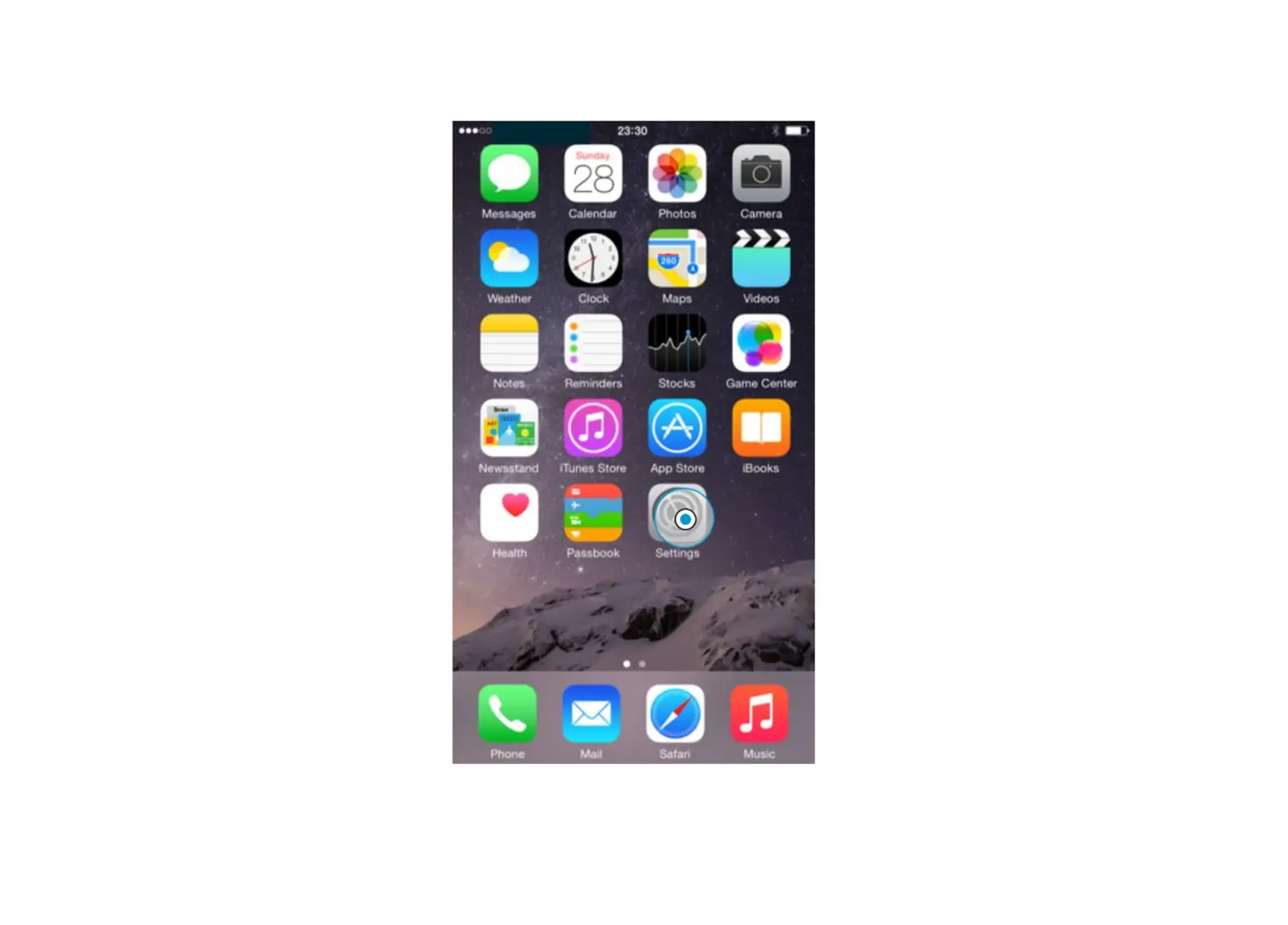
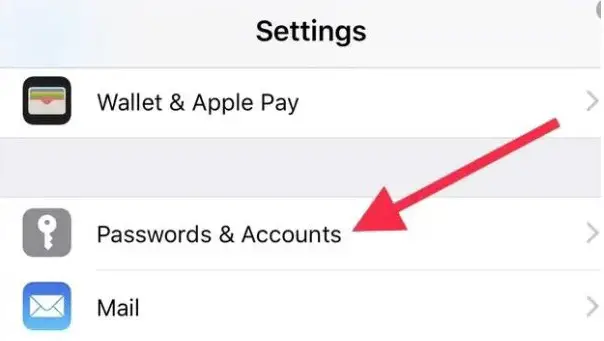
- Tap Settings, then Passwords and Accounts.

- Select Add Account.
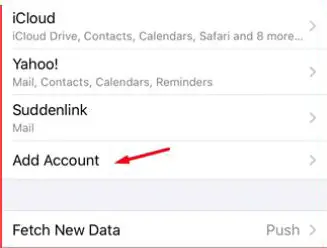
- Choose Other, then Add Mail Account.
- Enter your Name, Email (full address), Password and Description (recommended if you have multiple emails), then tap Next.
- Select IMAP at the top of the screen.
- Enter the following under Incoming Mail Server:
A. Host Name: webmail.arvig.net
B. Username: full email address
C. Password: your email password - Enter the following under Outgoing Mail Server:
D. Host Name: webmail.arvig.net
E. Username: full email address
F. Password: your email password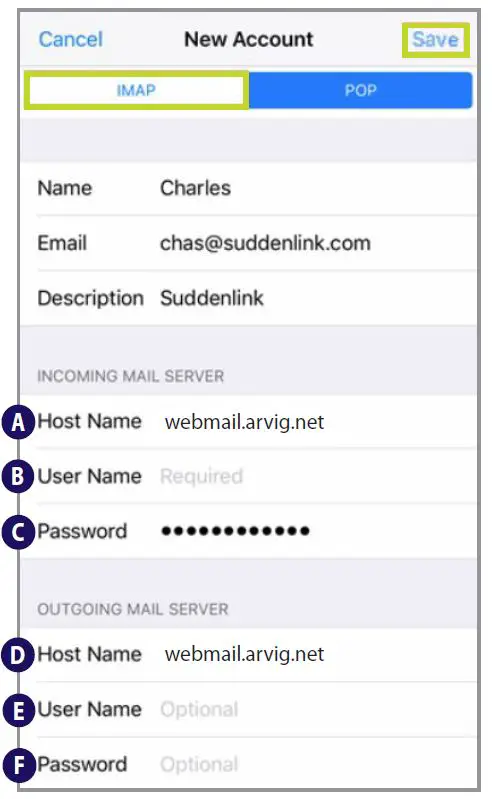
- Tap Next, then close Settings.
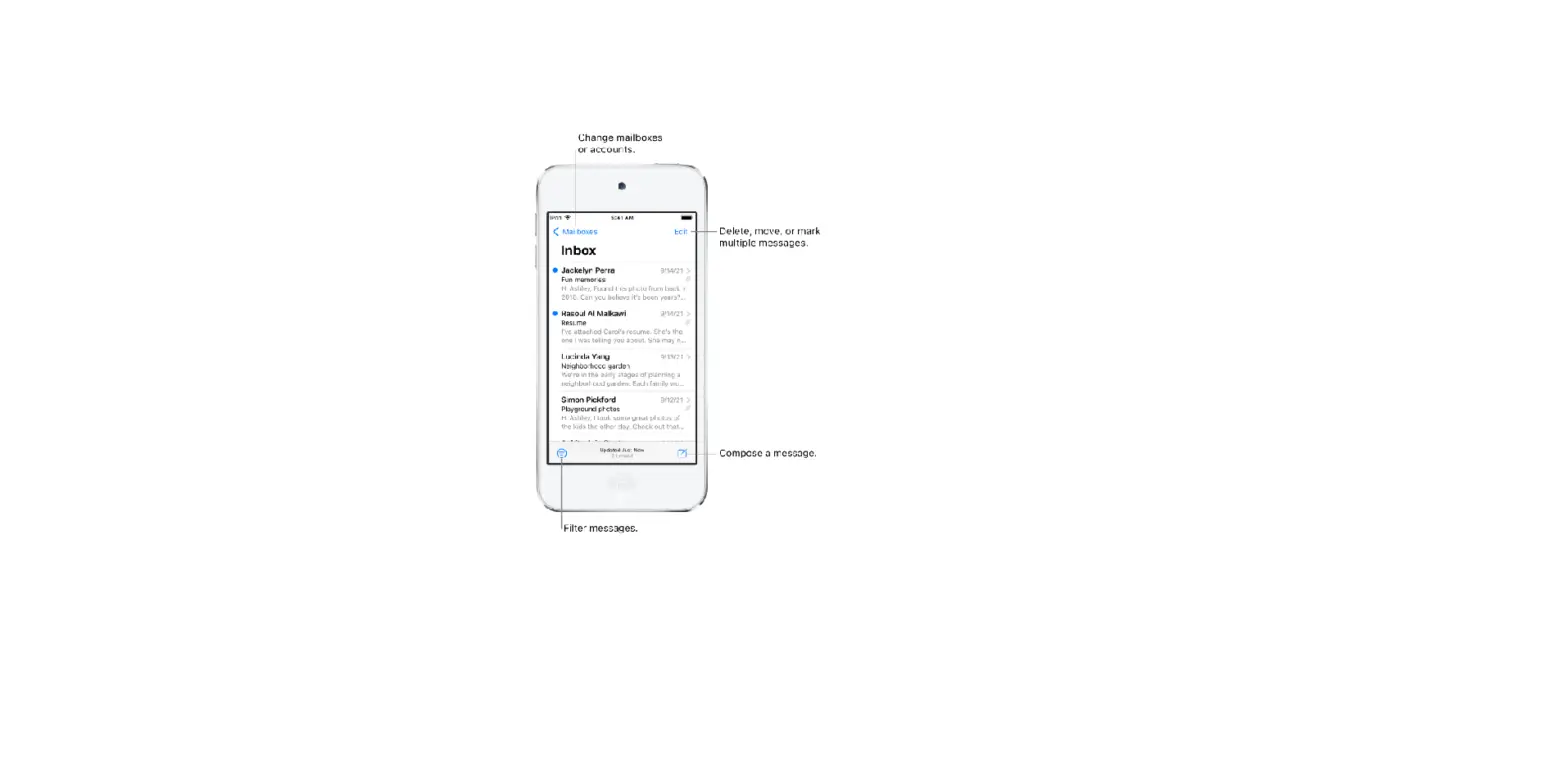
- Open the Mail app and pull/swipe down on the screen to refresh and check for mail.
888.99.ARVIG | arvig.net
Based on Arvig service area; some restrictions apply. ©Arvig 2021