
152 Robbins Rd, Downingtown, PA, 19335, USA – HuddleCamHD.com I 1 800 – 486-5276
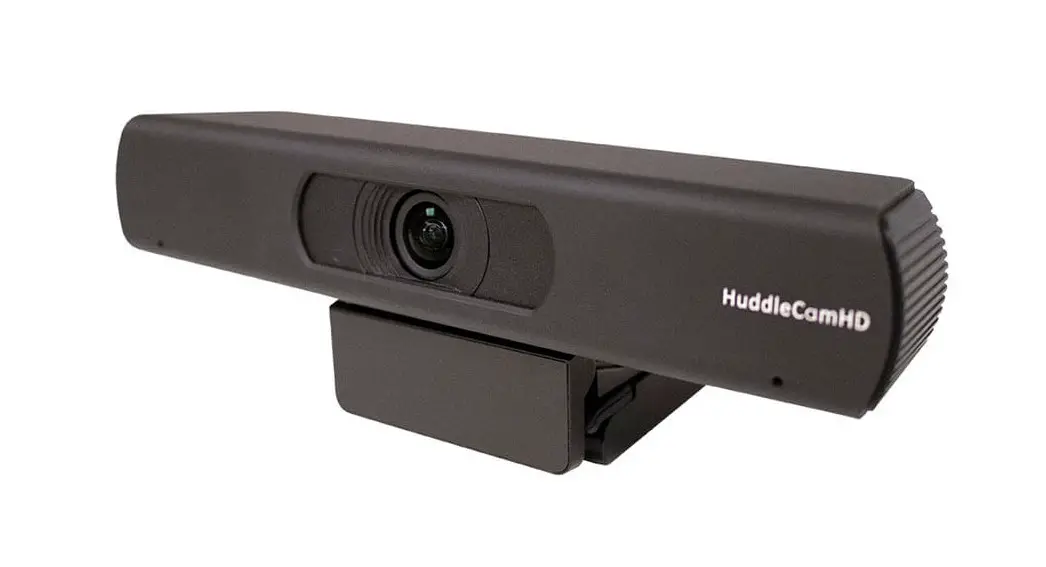
HuddleCamHD Pro
USB 3.0 EPTZ CAMERA
INSTALLATION & OPERATION MANUAL
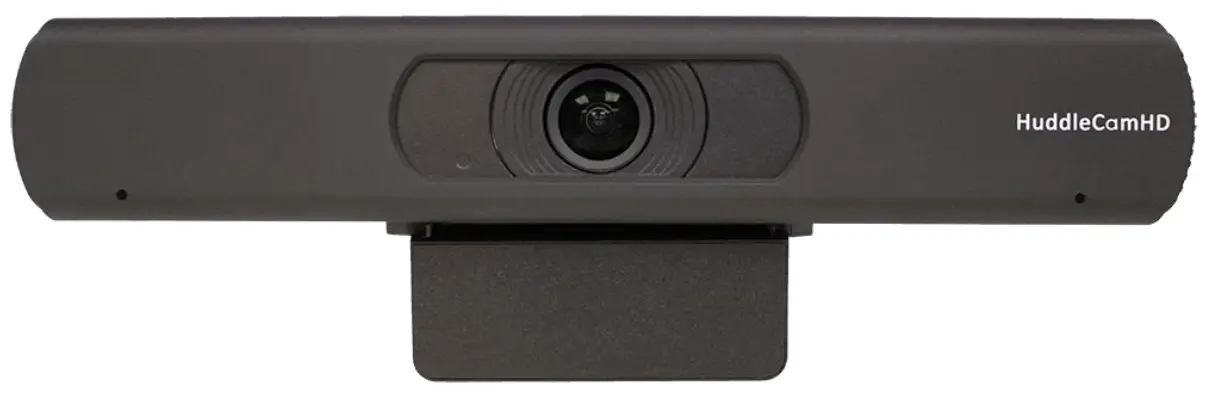
Please check HUDDLECAMHD.com for the most up to date version of this document
Precautions
Safety Tips
- Please read this manual carefully before using the camera.
- Avoid damage from stress, violent vibration, or liquid intrusion during transportation, storage, or installation.
- Take care of the camera during installation to prevent damage to the camera case, ports, or lens.
- Do not apply excessive voltage. (Use only the specified voltage.) Otherwise, you may experience electrical shock.
- Keep the camera away from strong electromagnetic sources.
- Do not aim the camera at bright light sources (e.g. bright lights, the sun, etc.) for extended periods of time.
- Do not clean the camera with any active chemicals or corrosive detergents.
- Do not disassemble the camera or any of the camera’s components. If problems arise, please contact your authorized dealer.
- Contact your authorized dealer for repair.
In the Box
Supplied Equipment
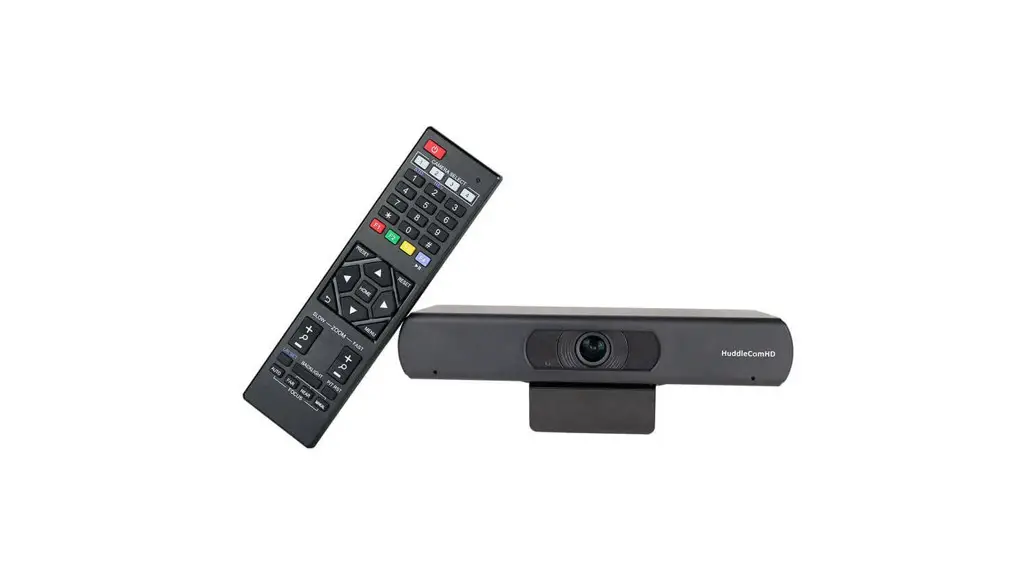
- HC-EPTZ-USB Camera (1)
- USB 3.0 A-B cable (1)
- IR Remote Controller (1)
- Quick Start Guide (1)
Physical Description
1. Front View
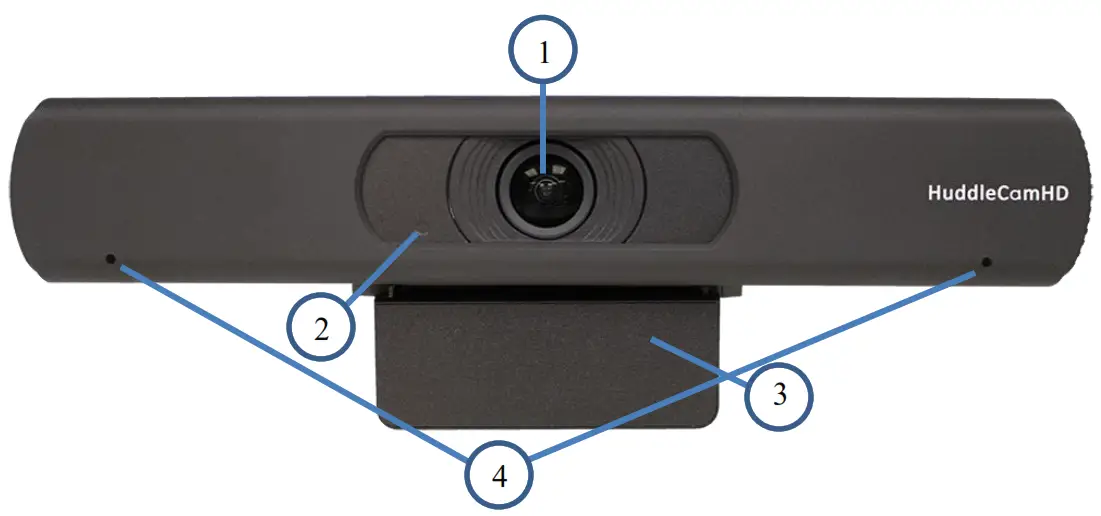
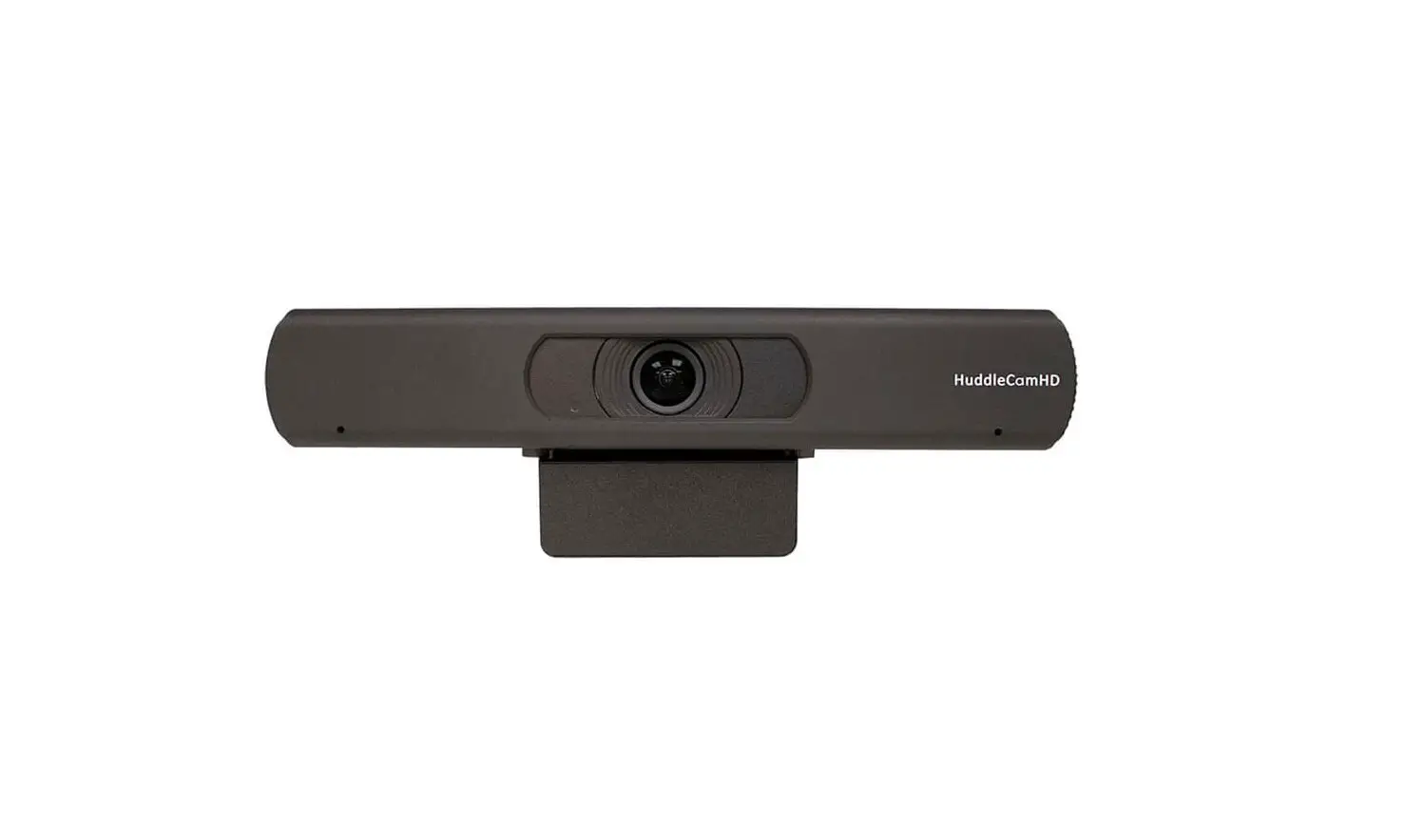
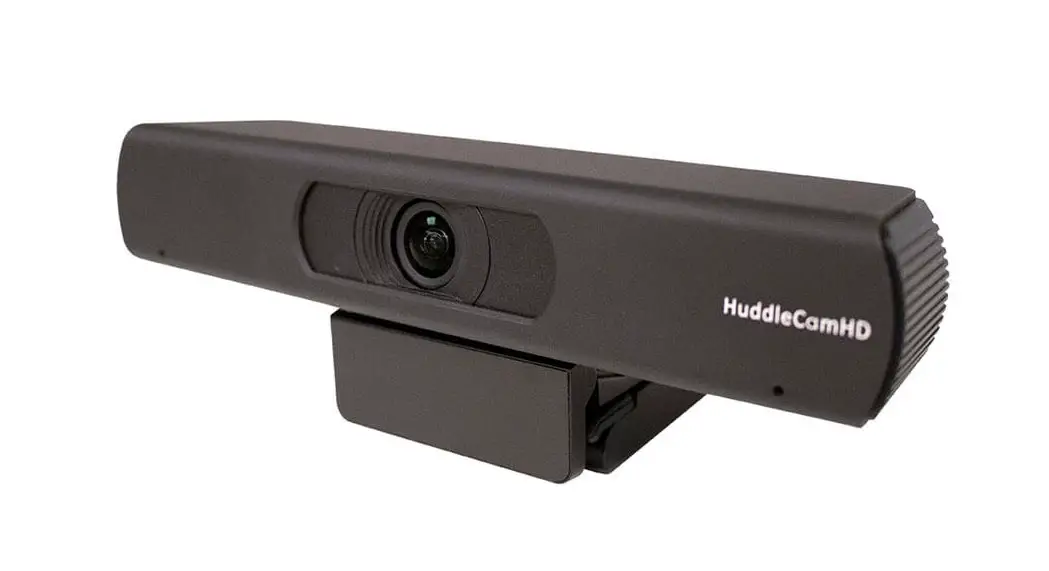
- Lens
108° Field of View lens 4 - Power LED
Blue LED lights when the unit is powered and on. - Mounting Base
Mounting base for the camera. 1/4-20 mounting screw. - Microphone Array
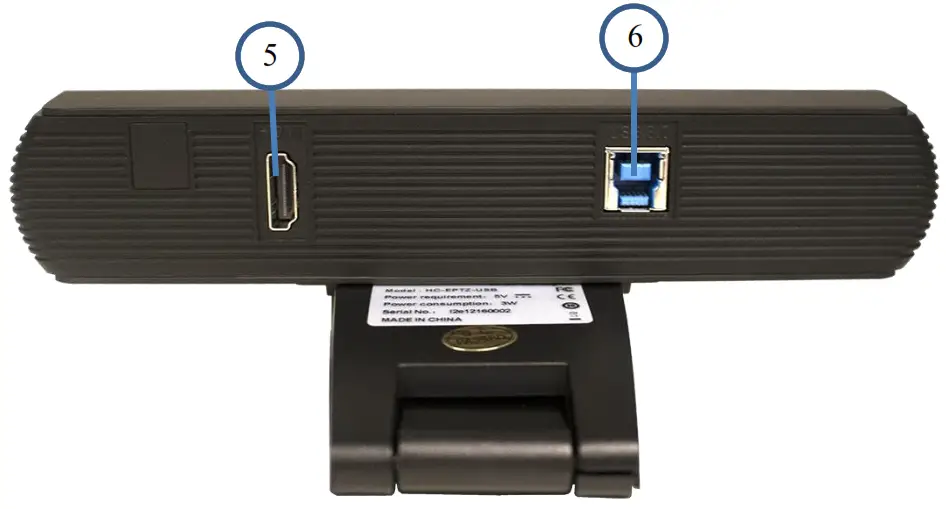
Beamforming microphone arrayRear View

- HDMI Connection
HDMI 1.4 (4K@30) connection to display (Video only) - USB 3.0 Connection
For connecting to PC for video and power (Video and audio)
OSD MENU
On-Screen Display Menu
Use the OSD menu to access and change the camera’s settings.
Note: Electronic P/T/Z functionality is disabled when the OSD menu is displayed.
The camera OSD Menu offers the following settings options:
Exposure
| Full Auto | |
| ▪ ExpCompMode ▪ Exp Comp | On / Off -7 ~ +7 |
| Note: Only available when ExpCompMode is “On” | |
| ▪ Gain Limit ▪ Backlight ▪ DRC Strength ▪ Anti-Flicker | 0 ~ 15 On / Off 0 ~ 8 Off / 50Hz / 60Hz |
| Shutter Priority | |
| Shutter | 1/30s, 1/60s, 1/90s, 1/100s, 1/125s, 1/200s, 1/250s, 1/350s, 1/500s, 1/725s, 1/1000s, 1/1500s, 1/2000s, 1/3000s, 1/4000s, 1/6000s, & 1/10000s |
| DRC Strength | 0 ~ 8 |
| Bright | |
| ▪ Bright ▪ Gain Limit ▪ DRC Strength ▪ Anti-Flicker | 0 ~ 17 0 ~ 15 0 ~ 8 Off / 50Hz / 60Hz |
Color
| Auto | |
| ▪ AWB Sens ▪ RG Tuning ▪ BG Tuning ▪ Saturation ▪ Hue | Low / Middle / High -10 ~ +10 -10 ~ +10 60% ~ 200% 0 – 14 |
| Indoor | |
| ▪ Saturation ▪ Hue | 60% ~ 200% 0 ~ 14 |
| Indoor | |
| ▪ Saturation ▪ Hue | 60% ~ 200% 0 ~ 14 |
| Outdoor | |
| ▪ Saturation ▪ Hue | 60% ~ 200% 0 ~ 14 |
| OnePush | |
| ▪ AWB Sens ▪ RG Tuning ▪ BG Tuning ▪ Saturation ▪ Hue | High / Low / Normal -10 ~ +10 -10 ~ +10 60% ~ 200% 0 ~ 14 |
| Manual | |
| ▪ RG Tuning ▪ BG Tuning ▪ Saturation ▪ Hue | 0 ~ 255 0 ~ 255 60% ~ 200% 0 ~ 14 |
| VAR | |
| ▪ Color Temp ▪ RG Tuning ▪ BG Tuning ▪ Saturation ▪ Hue | 2500K ~ 8000K -10 ~ +10 -10 ~ +10 60% – 200% 0 ~ 14 |
| Image | |
| ▪ Luminance ▪ Contrast ▪ Sharpness ▪ Flip-H ▪ Flip-V ▪ Gamma ▪ Style ▪ LDC | 0 ~ 14 0 ~ 14 Auto / 0 ~ 15 Off / On Off / On Default / 0.45 / 0.5 / 0.56 / 0.63 Clarity / Bright / PC / Clarity (LED) / Norm Off /-10 ~ +10 |
| Noise Reduction | |
| ▪ 2D-NR ▪ 3D-NR | Close / Auto / 1 ~ 5 Close / 1 ~ 8 |
| Setting | |
| ▪ Language ▪ EPTZ ▪ Zoom Limit ▪ DVI Mode ▪ HDMI Format ▪ Auto Framing ▪ H264 Enable ▪ Audio Enable • *Requires power cycle | English, Chinese, French On / Off 1x-3x / 1x-4x / 1x-8x / 2x-4x / 2x-8x / 3x-8x DVI / HDMI 1080p30 / 1080i60, 1080i50, 4K@30 On / Off On / Off * On / Off * |
| • Information • Restore Default | Displays current camera settings Restore camera default settings |
IR Remote Controller
Note: IR Remote will only work on other HuddleCamHD Pro cameras
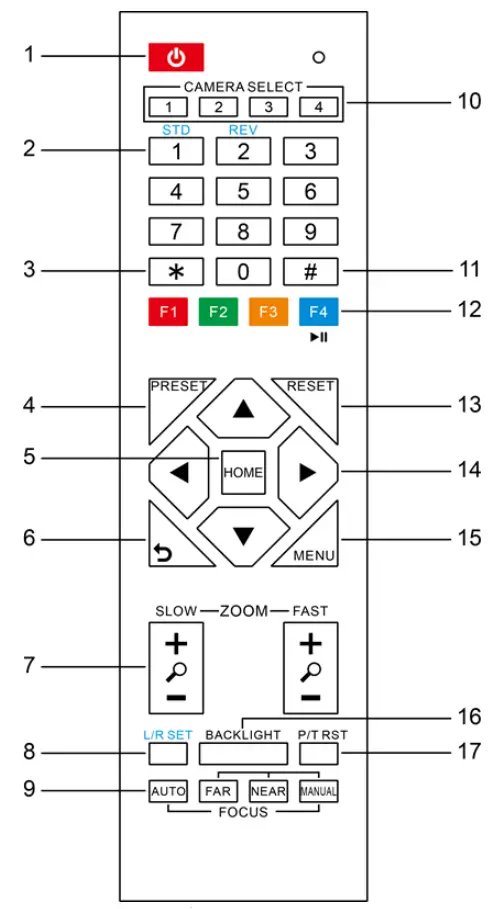
- Standby Button:
Press this button to enter standby mode. Press it again to enter normal mode.
NOTE: Power consumption in standby mode is approximately half of the normal mode. - Position Buttons:
To set preset or call preset - * Button:
For multiple functions. - Preset Button
Allows for setting a preset
NOTE: [PRESET] + Numeric button (0–9) to set - Home Buttons
Press the Home button to send the camera back to front - Return Button
Press the button to back previous menu - Zoom Buttons
Zoom+: Zoom In (Slow and fast speed)
Zoom-: Zoom Out (Slow and fast speed) - L/R Set Button
Set the left & right direction of the remote control.
(not available on this model) - Focus Buttons
Used for focus adjustment
Press AUTO to adjust the focus on the center of the object automatically. To adjust the focus manually, presthe MANUAL button, and adjust it with FAR and NEAR. - Camera Address Select Buttons
Camera the button corresponding to the camera which you want to operate with the remote controller - # Button
For multiple functions - Multiple function Buttons
Function 1. Set camera IR address
Press 3 keys contiguously can set camera IR address as follow:[*] + [#] + [F1]: IR Address 1
[*] + [#] + [F2]: IR Address 2
[*] + [#] + [F3]: IR Address 3
[*] + [#] + [F4]: IR Address 4Function 2. Image freezing function
Press [F4] to start the freeze function. The word “Freeze” displays on the upper left corner. After five seconds, the display disappears automatically (though the freeze feature continues). To cancel the freeze, press the [F4] key the word “Unfreeze” displays on the upper left corner. After five seconds, the display disappears automatically. - Reset Button
Clear preset: Erase a preset position [RESET] + numeric button (0-9), or: [*] + [#] + [RESET]: Erase all presets - Pan/Tilt Control Buttons
Allows for Electronic Pan/Tilt control (Note you must digitally zoom before electronic P / T is available) - Menu Buttons
Menu Button: Press this button to enter or exit the OSD menu. - Backlight Button
Backlight button: Press this button to enable the backlight compensation. Pres it again to disable the backlight compensation.
NOTE: Only available in manual exposure mode.
NOTE: If there is a light begin the subject, the subject will appear dark. In this case, press the backlight ON/OFF button. To cancel the function, press the backlight ON/OFF button - P/T RST Button
Press this button to self-calibrate pan & tilt once again.
NOTE: not available on this model[*] + [#] + [1]: Display OSD menu in English
[*] + [#] + [3]: Display OSD menu in Chinese
[*] + [#] + [6]: Quickly restore the default settings
[*] + [#] + [8]: Show the camera version
[*] + [#] + [9]: Quickly set mount mode (flip/normal)
Connection Instructions
- Connect included USB 3.0 cable to the camera and USB 3.0 port of PC.
- Wait for the camera to power on.
- Select and configure the camera in your software of choice.
NOTE: Failure to follow this sequence may result in no connection to PC
Care Of The Unit
Remove dust or dirt on the surface of the lens with a blower (commercially available).
Installation Instructions
Monitor Installation
When mounting the HuddleCamHD camera on a monitor, ensure that the mounting screw is fastened tightly to the camera. Use the top mount to rest the camera on a monitor. Position the bottom mount on the back of the monitor to secure the camera in position. You can rotate the camera lens as necessary.
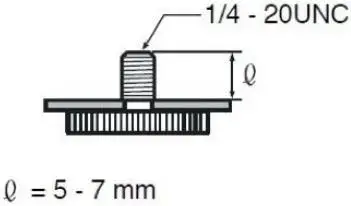
Tripod Installation
When using the HuddleCamHD camera with a tripod, screw the tripod to the bottom of the camera. The tripod screw must fit shown specifications:
Troubleshooting
| Problem | Cause | Resolution |
| There is no power to the camera | USB Port is not supplying proper power | Test another USB port |
| USB Cable is Disconnected | Ensure cable connections are secure | |
| Camera will not connect to the PC via USB | USB cable is faulty | Try new USB Cable |
| Camera connects sometimes. | Test another USB port and ensure you are not using a USB extender or USB hub | |
| Camera is unable to pan or Tilt | Menu is currently displayed on the screen | Retry after exiting the menu |
| No electronic zoom has been performed | Zoom first then try panning or tilting | |
| Remote control not working | The “camera select” button on the remote control is not set to match the “IR select” switch number set on the camera | Choose the correct “IR select” number to match camera settings |
| Camera is unable to Zoom | EPTZ is not enabled in the OSD | Make sure EPTZ has been enabled in the OSD |
| Digital Zoom limit is lx | Increase Digital Zoom range via OSD | |
| The Camera is not working at all | No response or image from camera | Disconnect power, and wait a few minutes, then connect the power again. Retry. |
Important Notes Regarding USB Connectivity:
USB 3.0 ports are backward compatible with USB 2.0 devices. USB 2.0 ports are not completely forward compatible with USB 3.0 devices (some USB 3.0 devices will connect to USB 2.0 with limited functionality).
External USB hubs should be avoided (i.e. give the camera its own USB port on the device) as they are not well suited to transmitted HD video reliably.
USB extension systems must be fully compatible with the version of the USB that you are using and must utilize an external power supply when required. Caution: Some “Compatible” USB 3.0 extenders do not actually have the full 5Gbps bandwidth required for uncompressed HD video – so check bandwidth specs.
Always connect the HuddleCamHD camera directly to the device in order to associate the UVC drivers before attempting to use any extension system.
USB 3.0 power saving settings in the device’s operating system should be turned off completely for reliable USB camera connectivity.
HuddleCamHD Cameras
All HuddleCamHD camera utilize the UVC (USB Video Class) drivers that are built into Windows, Mac OSD, and Linux to stream HD video to your device via your device’s USB port (USB 2.0 or 3.0 depending upon the HuddleCamHD model).
When your device successfully recognizes the camera, your device will register the HuddleCamHD camera as an “imaging device”.
You can see this in your Windows Device Manager program (type “device manager” into the Windows search tool) as shown in the screenshot, below:

In this example, you can see the HuddleCamHD model in use connected as a fully functional USB 3.0 device (HuddleCamHD) as well as a USB 2.0 device with limited functionality (USB2.0 Camera).
If your device has not connected to or has not recognized the HuddleCamHD camera as an imaging device, try reconnecting the camera via USB (USB 2.0 or USB 3.0 depending upon the HuddleCamHD model). If the camera still does not operate properly, please contact HuddleCamHD support at [email protected] for further assistance.
Similarly, you can see a connected device in System Information on a Apple computer. See screenshot below:
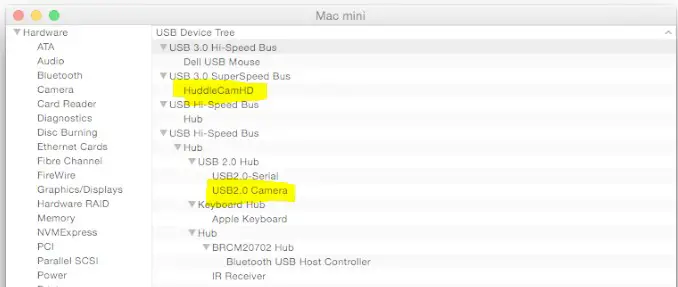
In this example, you can see the HuddleCamHD model in use connected as a fully functional USB 3.0 device “HuddleCamHD” as well as a “USB2.0 camera” with limited functionality (USB2.0 camera).
Specs
Model Number: HC-EPTZ-USB
Camera & Lens
| Video CMOS Sensor Resolution Frame Rate Zoom Focal Length Field of View Backlight Compensation Min Lux Compression Noise Reduction | 1/2.5” CMOS 8.51M Mega Pixel 3840×2160*, 1920×1080, 1280×720,1024×576, 960×540,640×480, 640×360 50Hz: 1 ~ 25 60Hz: 1 ~ 30 8X Digital Zoom f=2.8mm 108° Supported 0.05 Lux (@ F1.8, AGC ON) MJPEG, YUY2, H.264 2D & 3D Digital Noise Reduction |
*Cannot perform 3840×2160@30 via H.264
Rear Board Connectors
| • Video Interface • Power Supply Interface • Working Environment | USB 3.0, USB 2.0 with reduced quality HDMI 1.4 USB 3.0, type B Indoor |
Physical
| • Material • Dimensions • Weight • Box Dimensions • Boxed Weight • Color • Operating Temperature • Storage Temperature • Operating Humidity • Working Environment | Aluminum, Plastic 7.63”W x 2.36”H x 3.66”D (194mm x 60mm x 93mm) 0.7 lbs (0.34 kg) 9.375” x 4.3125” x 4.625” (238mm x 109.5mm x 117.5mm) 2.4 lbs (1.1 kg) Black 32°F to +113°F (0°C to +45°C) -14°F to 140°F (-10°C +60°C) 10% – 80% Indoor only |
General
| • MTBF • Warranty | >30000h 5 years parts and labor |
 Network and USB 4K EPTZ Webcam with Optical Zoom - HuddleCamHD