Create amazing iPhone photos and videos
The iPhone camera helps you take great photos in any situation—from everyday moments to studio-quality portraits. You can also record video while you take photos and capture bright shots in low-light situations. Use the editing tools in the Photos app to make adjustments later.
Capture the moment
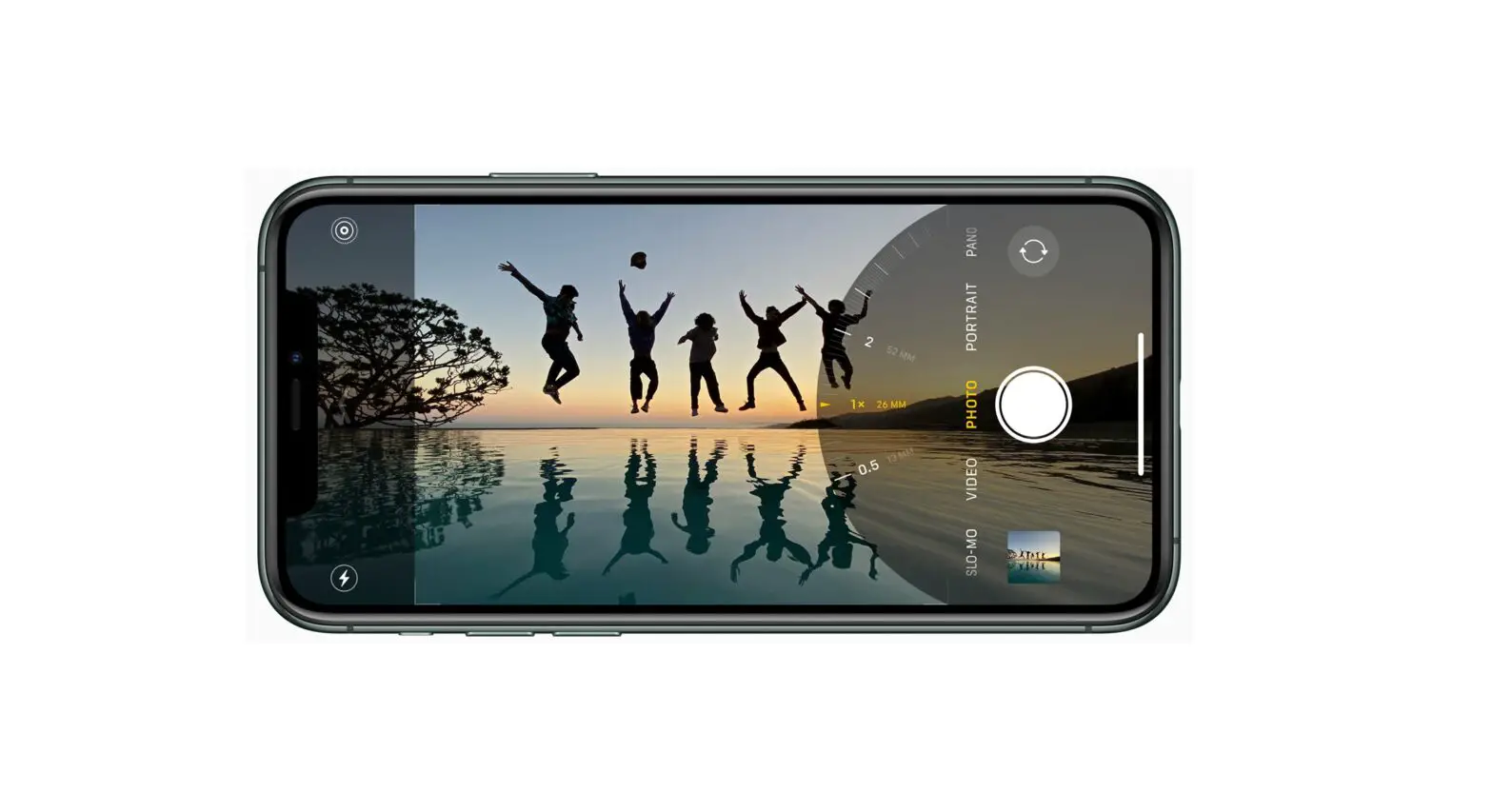
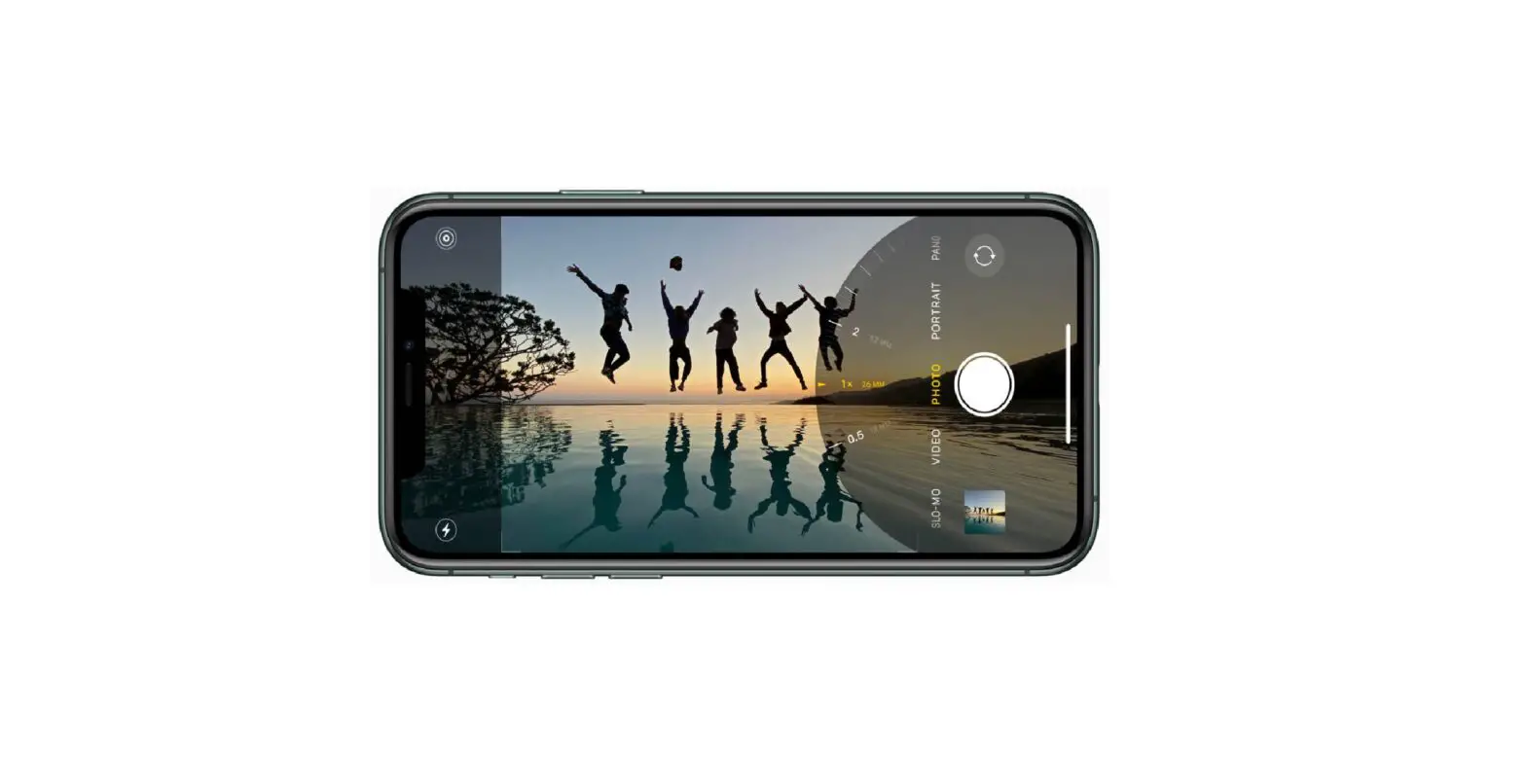
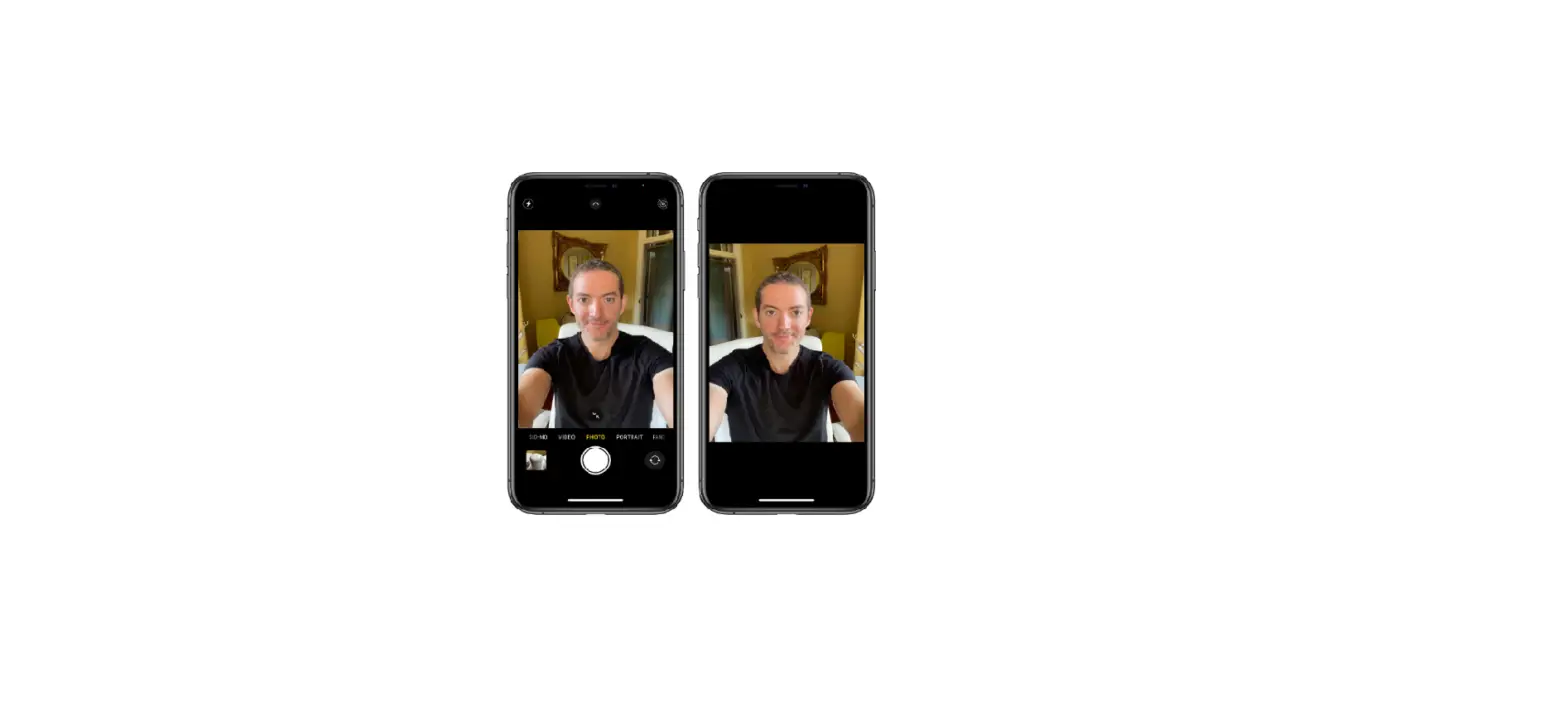
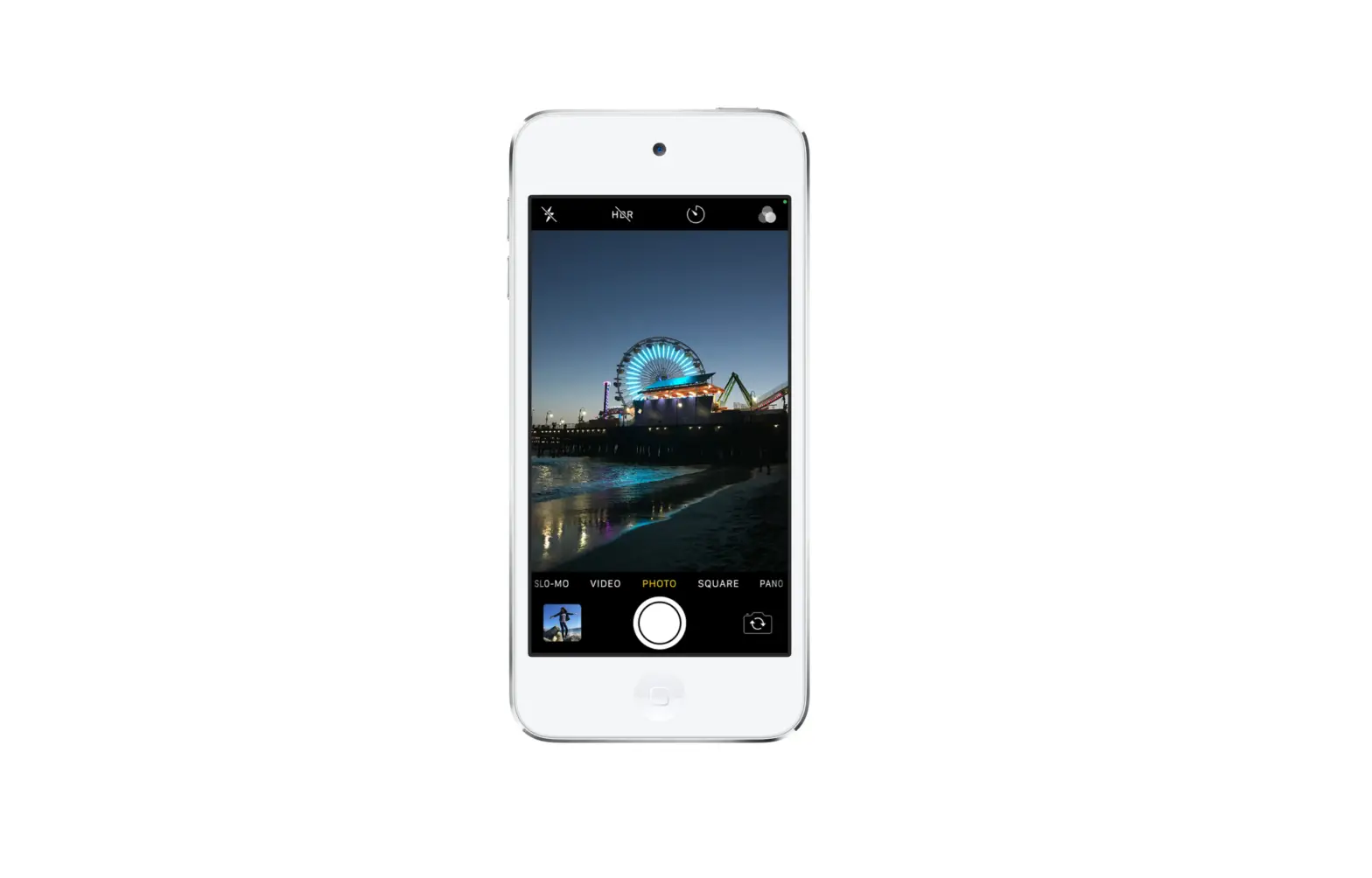
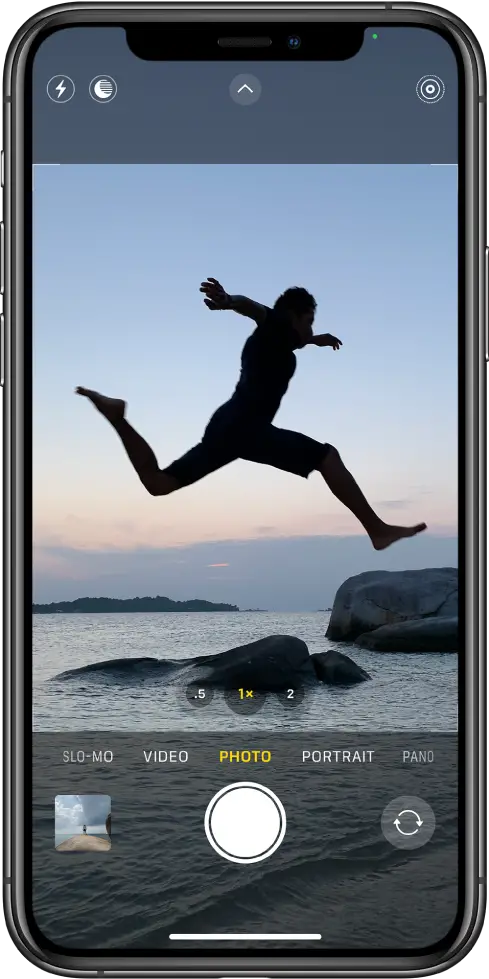
With your iPhone nearby, you’re always ready to capture a great photo. To quickly open Camera, just swipe left on the Lock Screen. Camera automatically focuses the shot and adjusts the exposure. If you want to zoom in on your subject, pinch the screen open, or touch and hold the zoom controls, then drag the slider to the left (on models with Dual or Triple camera systems).
Shoot portraits like a pro
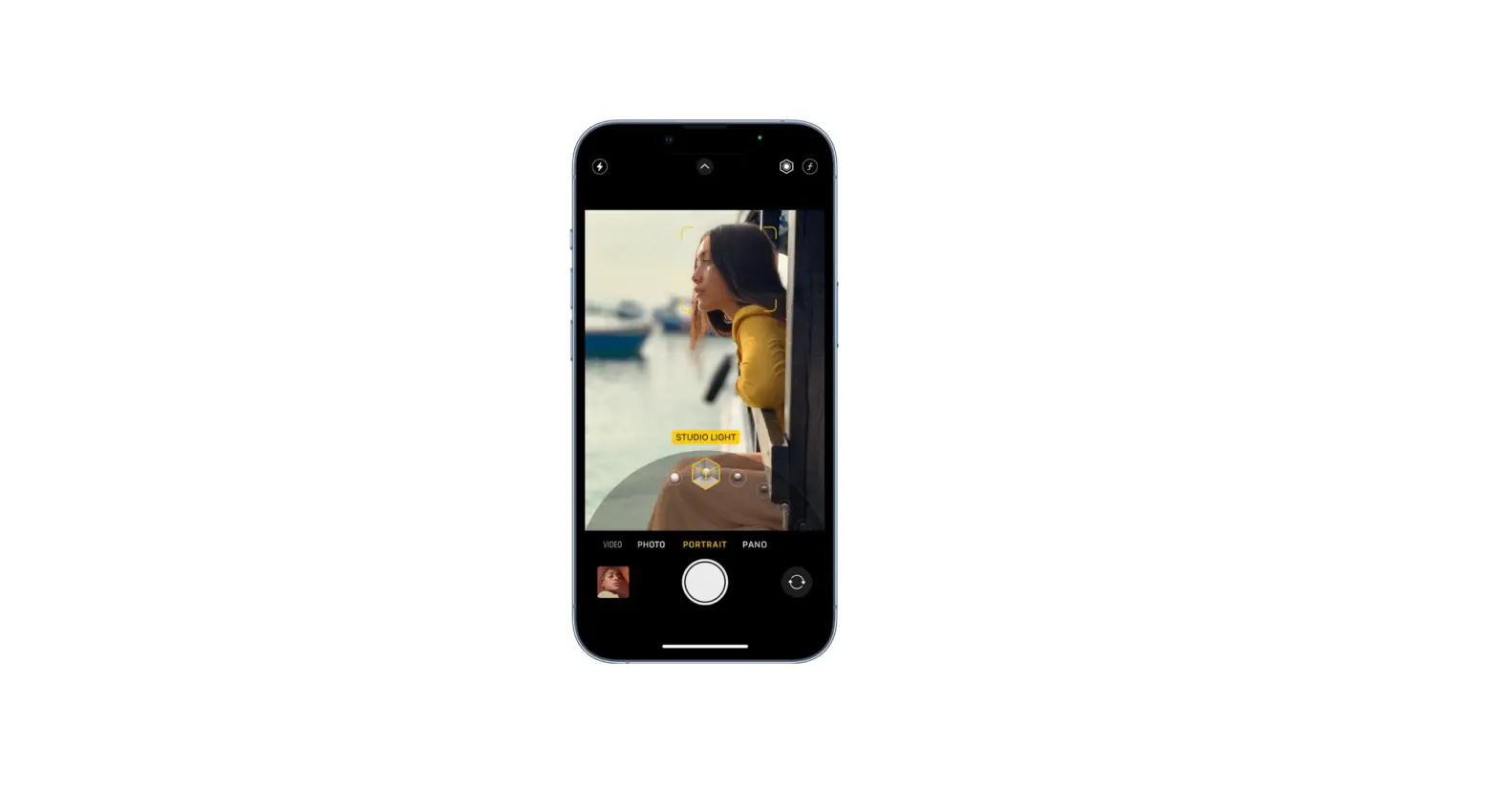
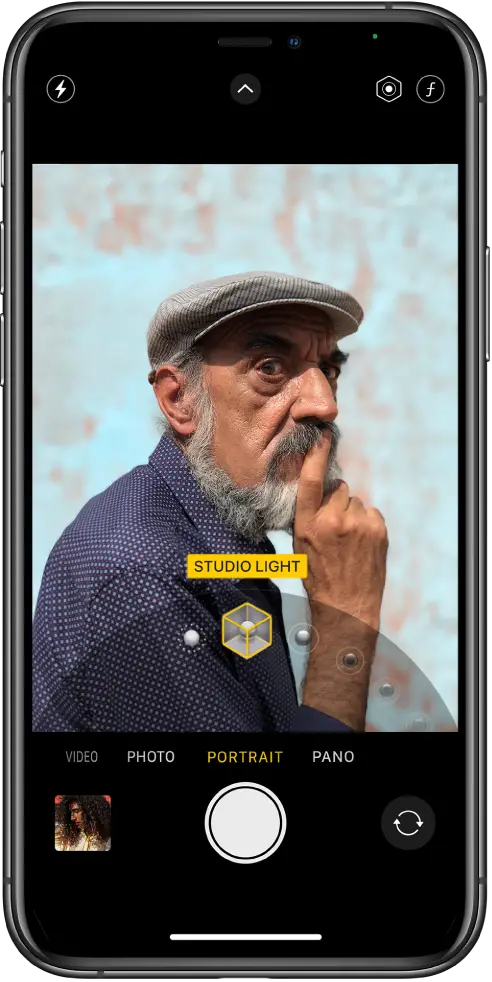
On models that support Portrait mode, create stunning portraits that use a depth-of-field effect—your subject stays sharp while the background blurs. Switch to Portrait mode, then drag the slider to choose a lighting effect. On iPhone XS and later, tap  to adjust the background blur, or
  to fine-tune the intensity of the studio-lighting effects.
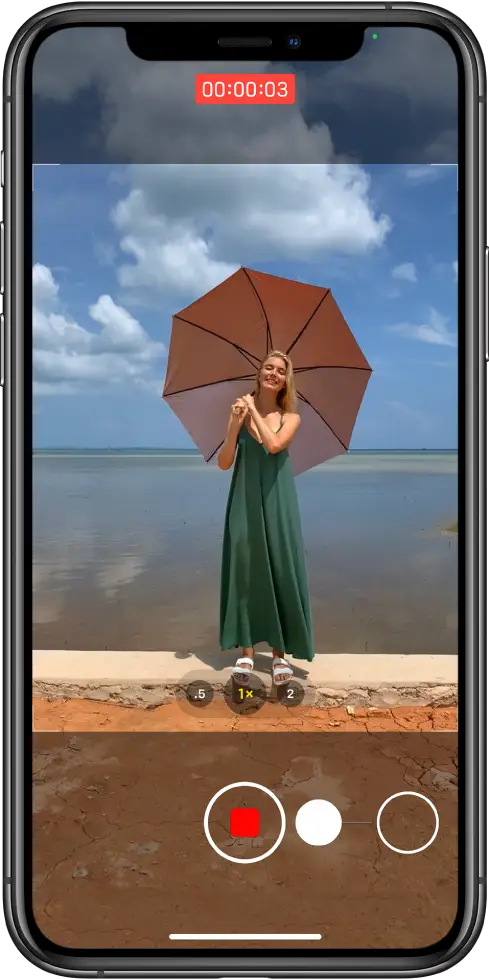
Take a video in Photo mode
Sometimes when you’re taking a photo, you also want to catch the action in a video. When you’re in Photo mode, just hold the Shutter button to capture a QuickTake video (available on iPhone XS, iPhone XR, and later). To keep recording, slide the Shutter button to the right over the lock, then tap  to keep taking still photos.
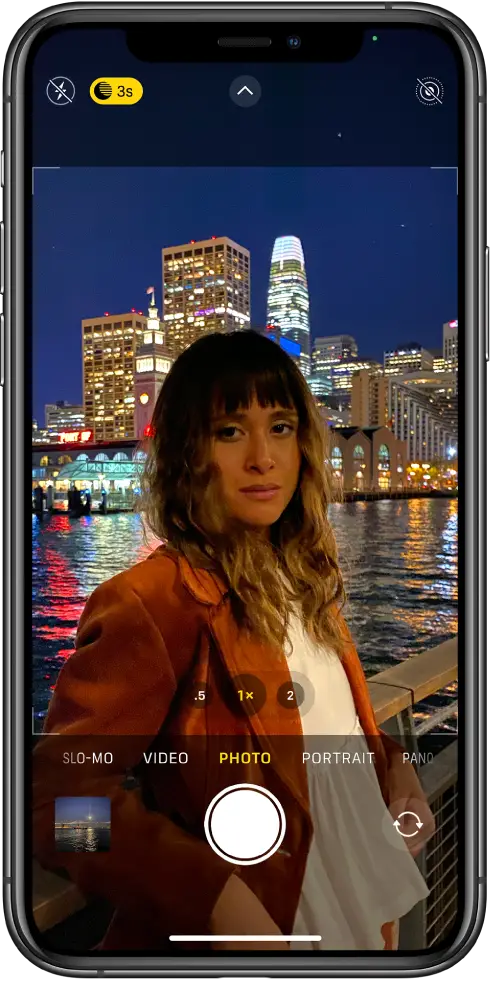
Low light? No problem
On iPhone 11 models and iPhone 12 models, Night mode automatically takes bright, detailed photos in darker settings. When  turns yellow, Night mode is on. Tap the Shutter button, then hold your iPhone still to capture the shot. To experiment with Night mode, tap at the top of the screen, then move the slider below the frame to adjust the exposure time.
On iPhone 12 models, Night mode is also available when you take selfies with the front camera and use the Ultra Wide camera to zoom out.
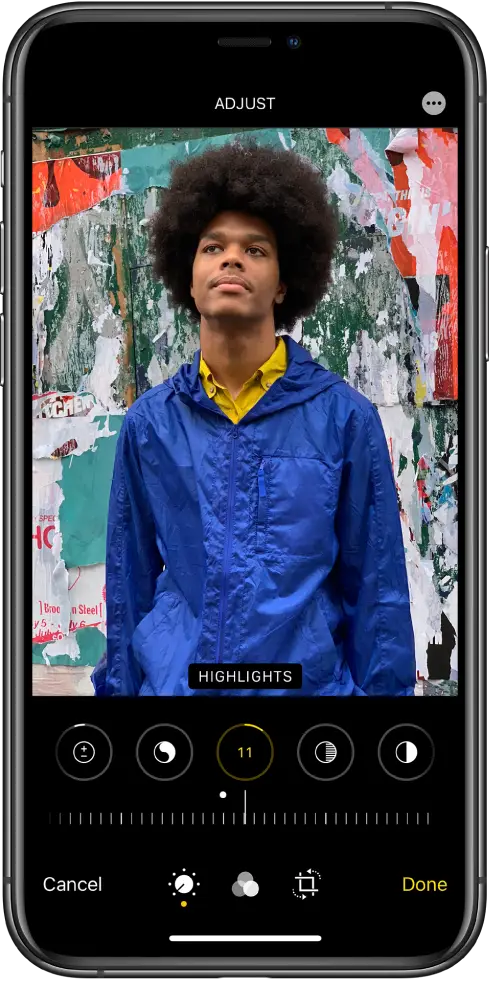
Add the final touches
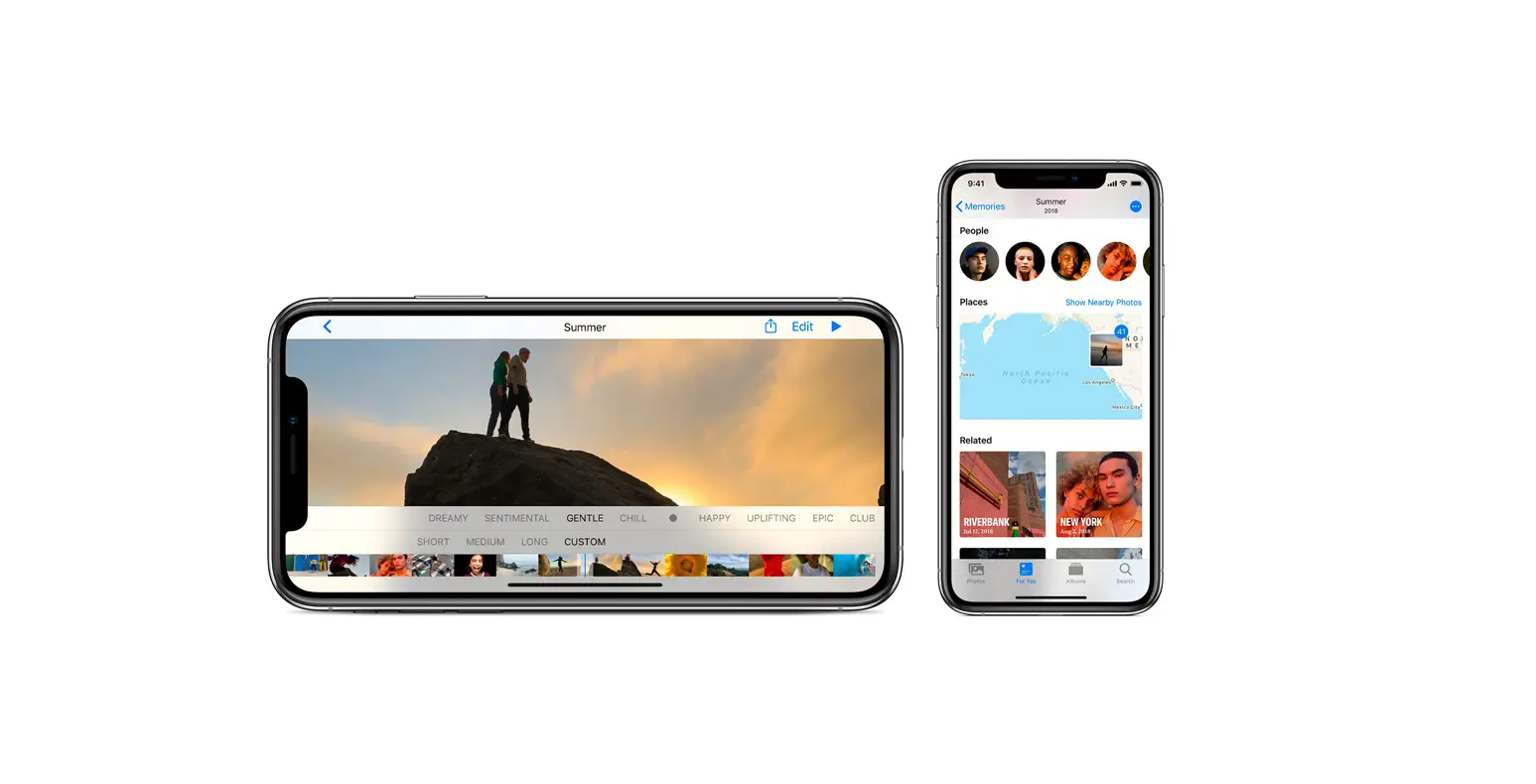
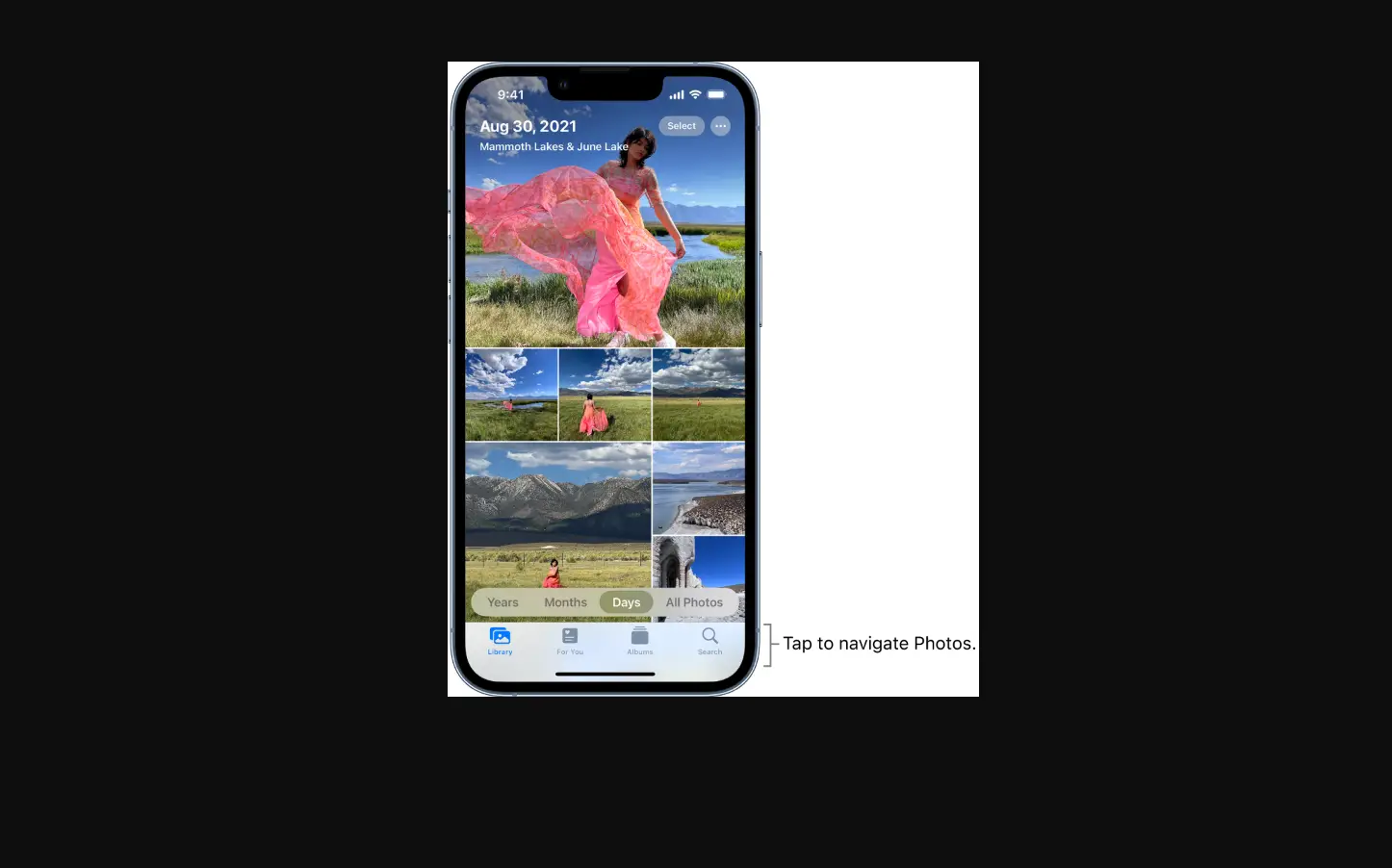
After you take a photo or video, use the iPhone editing tools to turn it into a masterpiece. Open a photo or video in the Photos app, tap Edit, then tap the buttons at the bottom of the screen to adjust lighting, add a filter, and crop or rotate. As you make edits, tap the photo to compare your changes to the original. Tap Revert to undo your changes.
Want to learn more? Check out the Camera and Photos chapters.