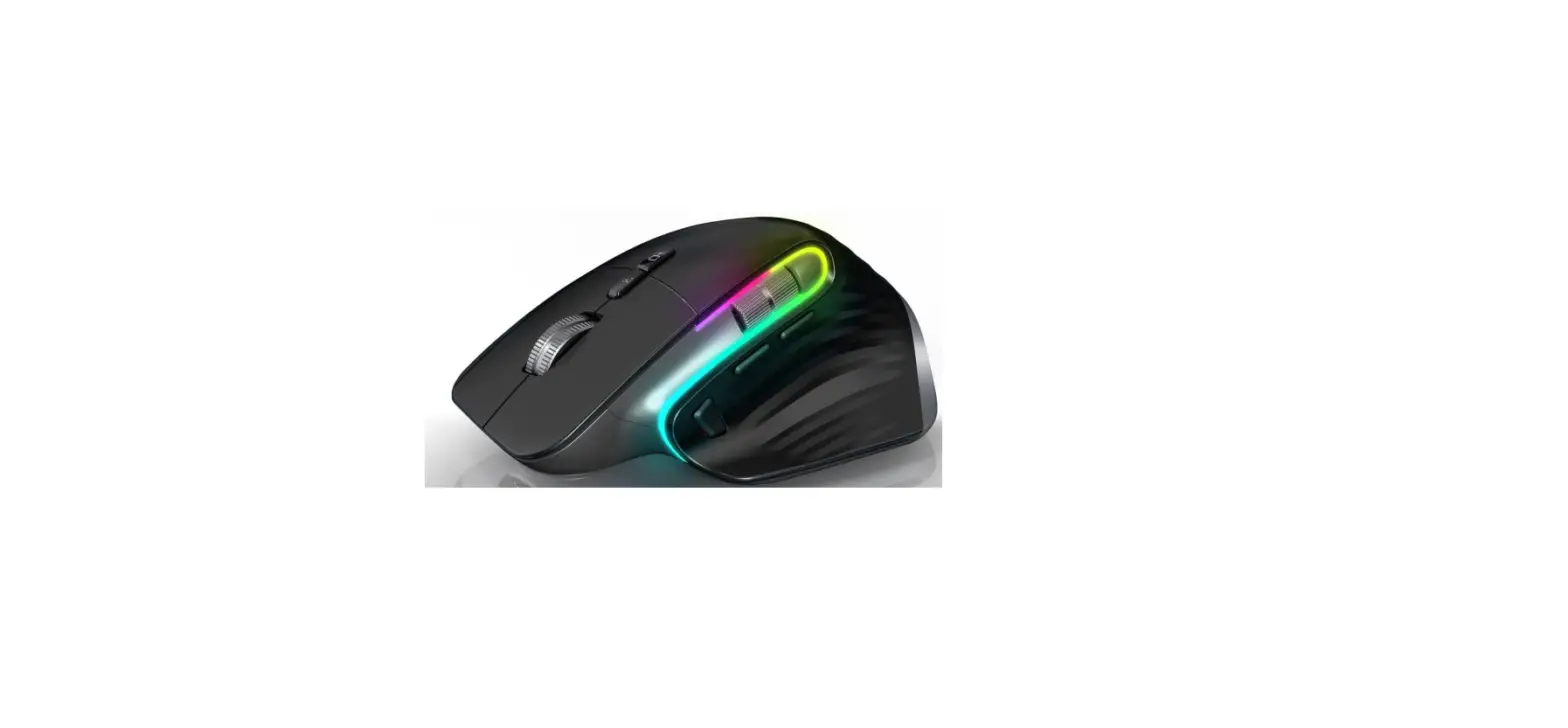

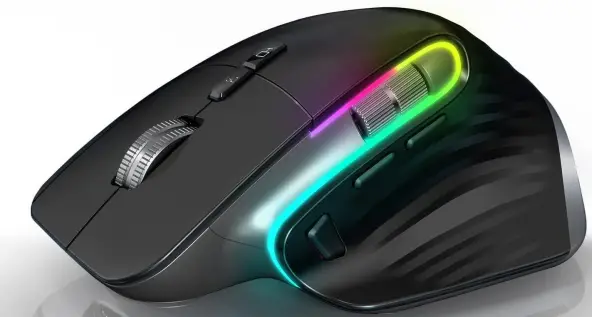
OEM M10 Three-Mode Rechargeable Wireless Mouse
Product introduction
Method of use
System switching Windows / Mac
- The LOGO indicator indicates the system. The default system is WIN Long press
 for 5 seconds —–LOGO blue light on for 30 seconds
 —- WIN system Long press for 5 seconds —-LOGO green light for 30 seconds
 —- OS X system
- Tip: Please switch to the corresponding system when using the mouse. (Mode switch) There are three channels in 2.4G, BT1 and BT2
- For example: 2.4G connected to Windows (it is the default system does not adjust)
- (BT1) If your device is a Mac, connect the mouse and then switch to the Mac system. Hold down for 5 seconds —-LOGO green on for 30 seconds —- OS X system.
- (BT2) If your device is Windows, please connect the mouse to switch the Windows system and hold down for 5 seconds —-LOGO blue light for 30 seconds —- WIN system.
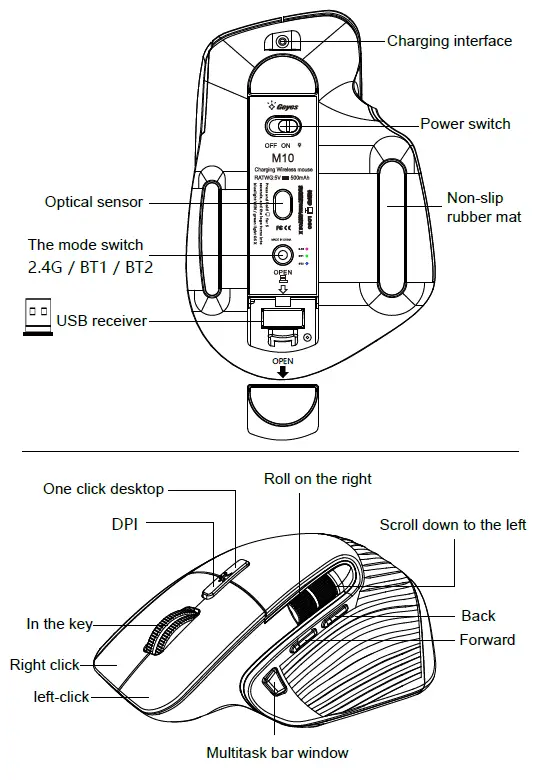
- Multi-task window: Windows click to pop up several small Windows to quickly select the window you want, with the scroll wheel to scroll down to find recently used software and files.
- Mac: Press to select the software to open
- One-click Desktop Windows: One click to quickly return to the desktop, another click to restore the previous window. One-click Desktop Mac: When all applications are Max, press to display the desktop and then click the desktop to quickly return to the desktop, move the cursor up to the top to select the software to open, and then press to restore the previous window.
 for 5 seconds —–LOGO blue light on for 30 seconds
2.4G Wireless Connection (red light)
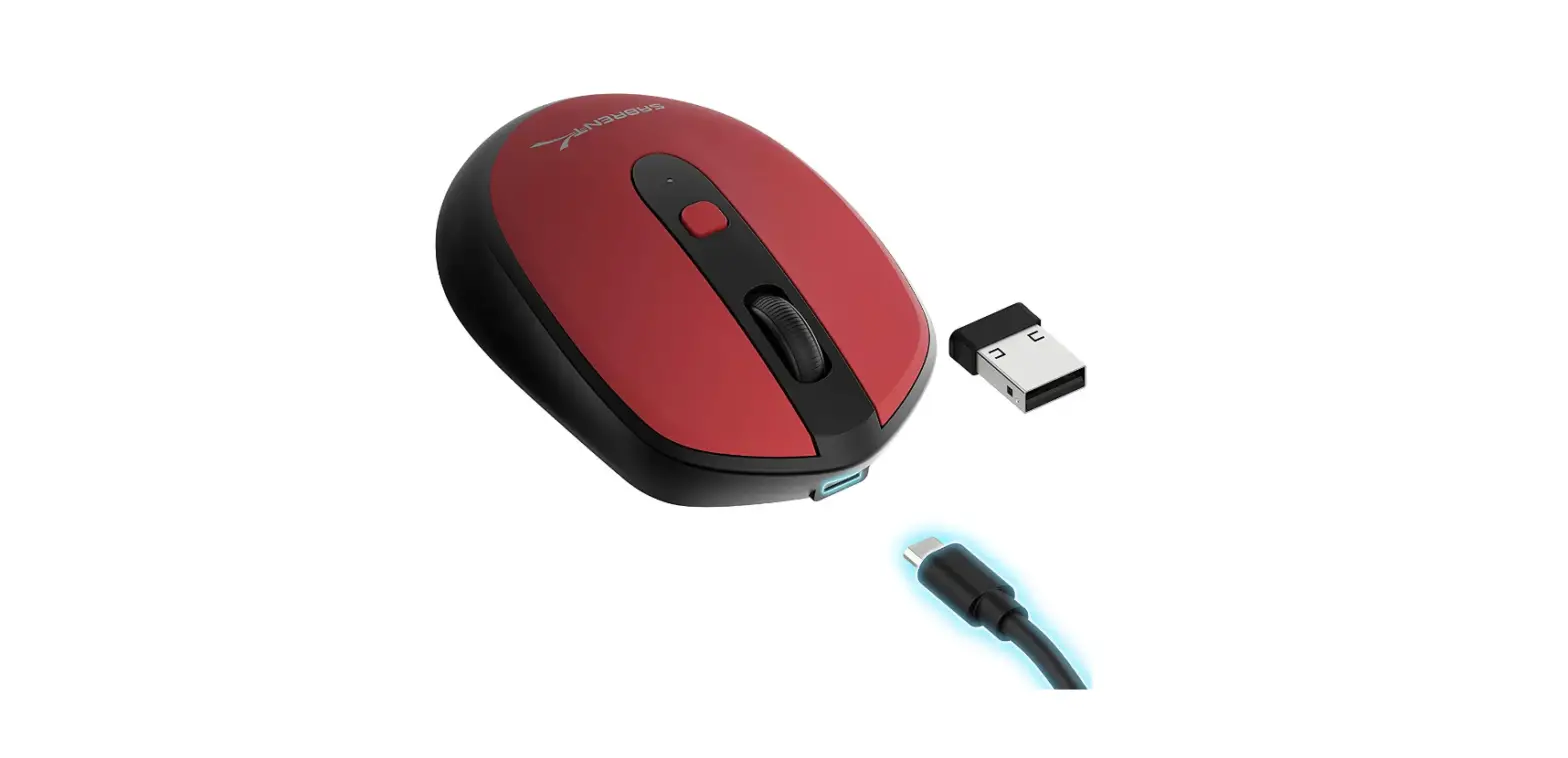
- Take out the receiver from the mouse (USB receiver bin) and insert it into the USB interface of the computer (device).
- Within a distance of more than 30cm from the mouse receiver, switch the mouse power switch to ON (switch to ON/
 until the mouse is connected), and then press the mouse button at will to use it.
 until the mouse is connected), and then press the mouse button at will to use it.
Bluetooth connection
 Windows 10 (Green light)
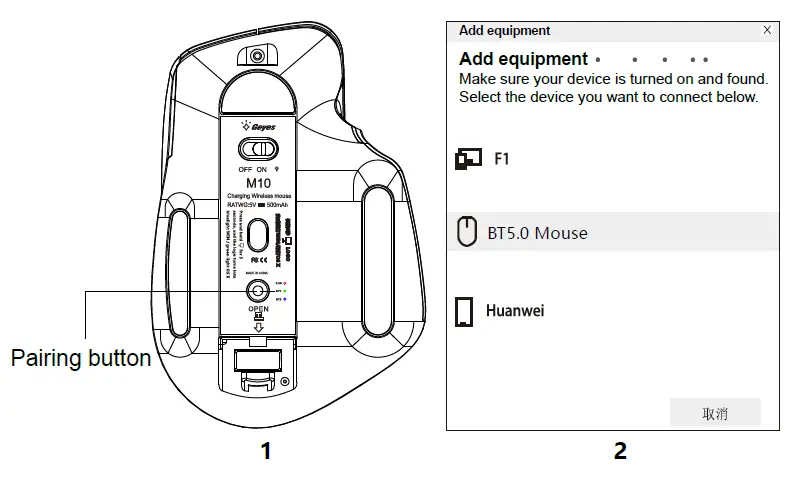
Connection steps
- Turn ON the mouse power switch (turn the switch to ON/, and turn the Bluetooth pairing switch to BT1 to enable the Mouse bluetooth)
- Click Start — Settings
 — Device-
 to add Bluetooth or another device — Bluetooth
  (At this point the device starts searching for the Bluetooth mouse)
 - Press and hold the pairing button (FIG. 1) for 3-5 seconds and release it. A quick green light flashes in the mouse, indicating that the Bluetooth mouse has been successfully started.
- After the computer searches for the Bluetooth Mouse, “BT5.0 Mouse” will be displayed (Figure 2). Click the device to automatically connect and show that it has been connected, so it can be used immediately.
 — Device-
 to add Bluetooth or another device — Bluetooth
  (At this point the device starts searching for the Bluetooth mouse)
 Mac (Blue light)
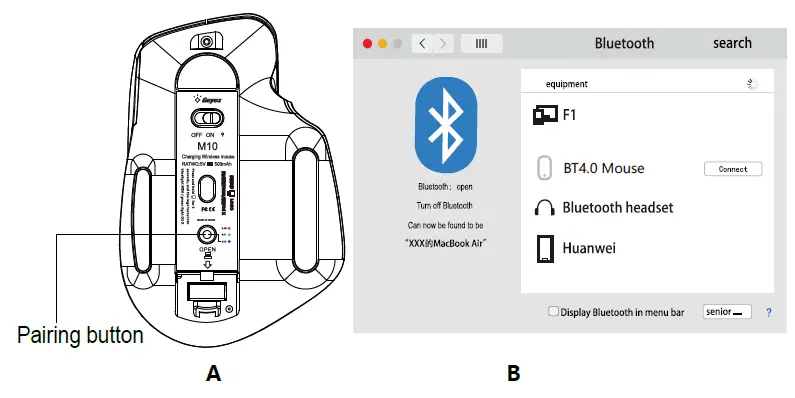
Connection steps
- Turn on the mouse power switch (turn the switch to ON/, and turn the Bluetooth pairing switch to BT2 to enable the Mouse Bluetooth)
- Click the MAC icon in the upper left corner — System Preferences — Bluetooth (MAC Bluetooth will search for bluetooth mouse immediately)
- Press and hold the pairing button (FIG. A) for 3-5 seconds and then release it. A quick blue flashing light will appear in the mouse, indicating that the Bluetooth mouse has been successfully started.
- After the computer searches for the Bluetooth Mouse, “BT4.0 Mouse” (FIG. B) will be displayed. Click the device to automatically pair and connect, and it will show that it is connected, and now it can be used normally.
Other features
DPI/ lamp control adjustment
Short press DPI to adjust the LOGO indicator to blink 1000- blink twice 1600(default)- blink three 2400- blink four 3200- blink five 4000 RGB lamp control adjustment hold down the DPI button for 5 seconds to switch 12 equivalency
2.4 Wireless/Bluetooth switching
After connecting 2.4G wireless mode and Bluetooth mode BT1 and BT2, you can freely switch the device you want to connect according to your needs. Press the mode switch to select the device you want.
Shut down the mouse
When the mouse is not used temporarily, you can turn the toggle switch to the (OFF) position to turn OFF the mouse power, which can save power and mistress.