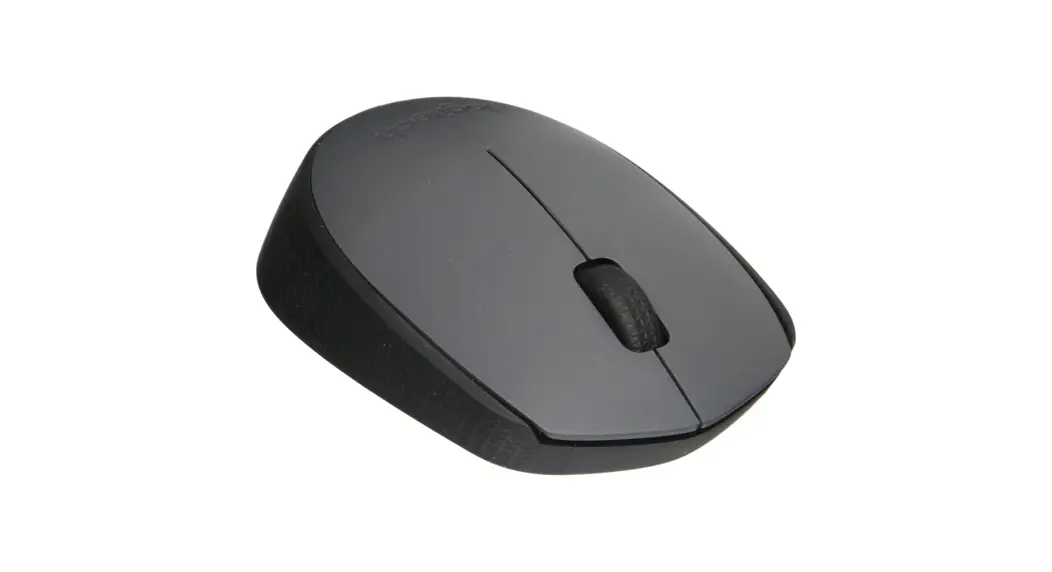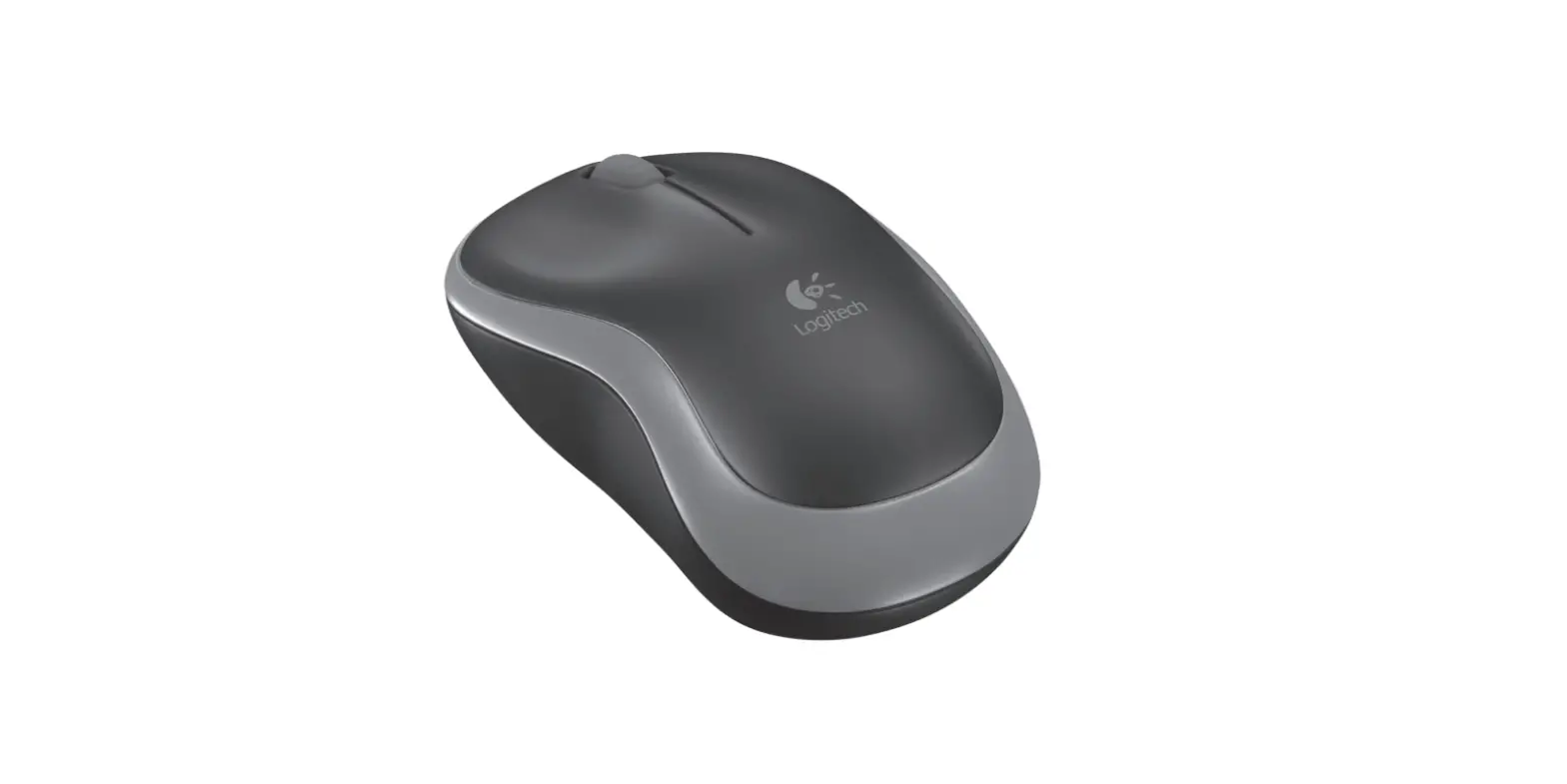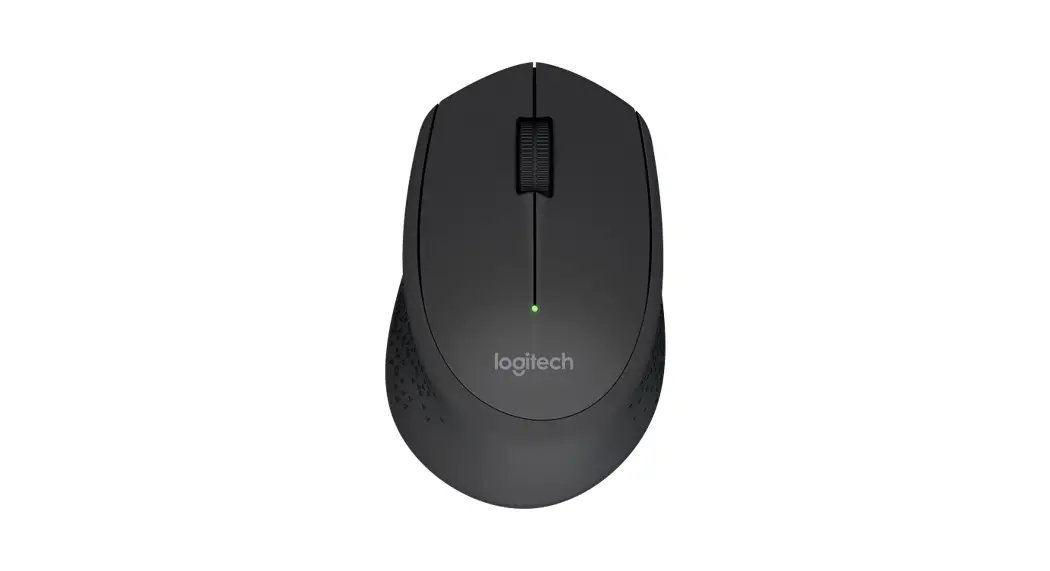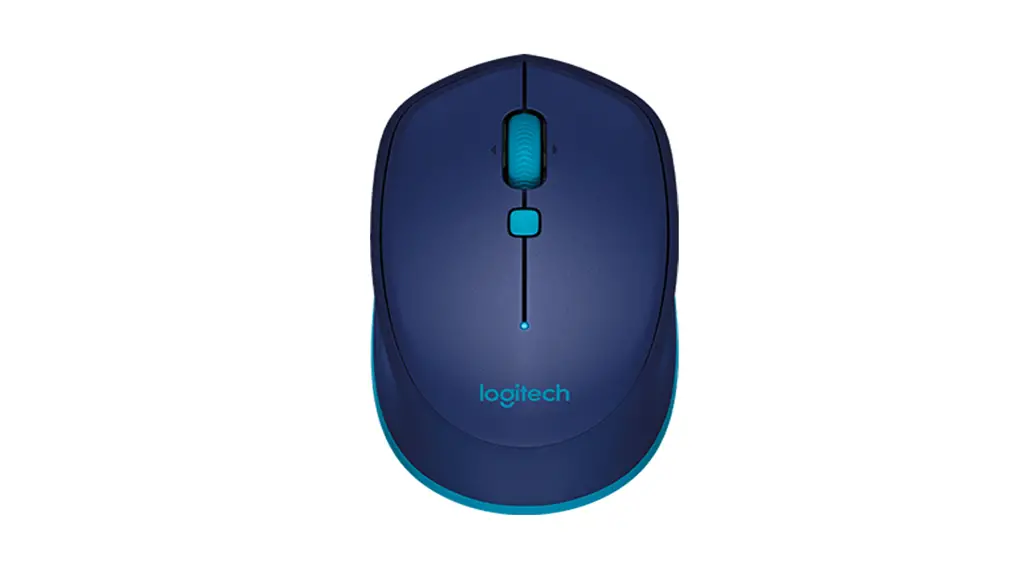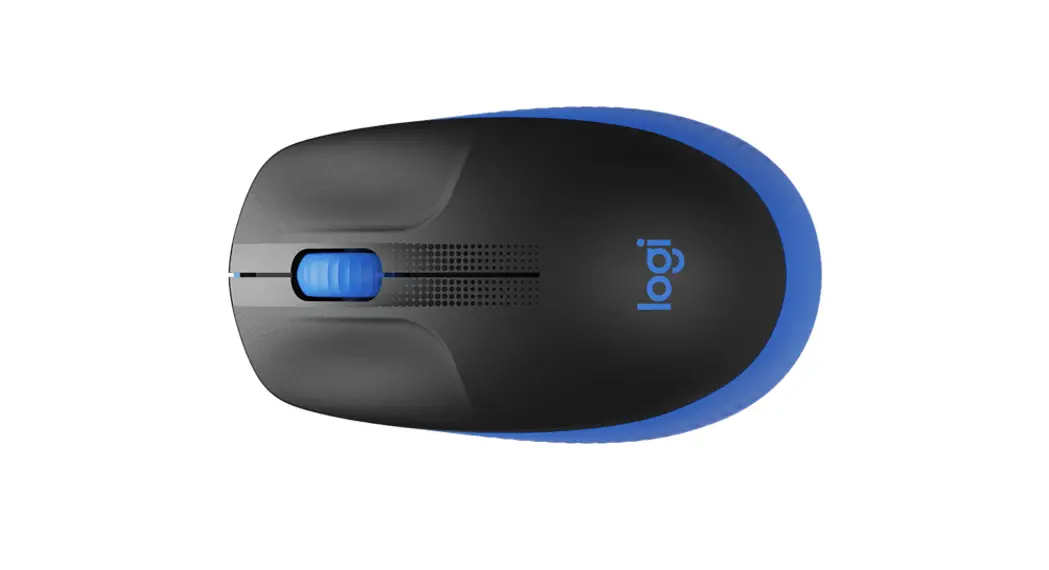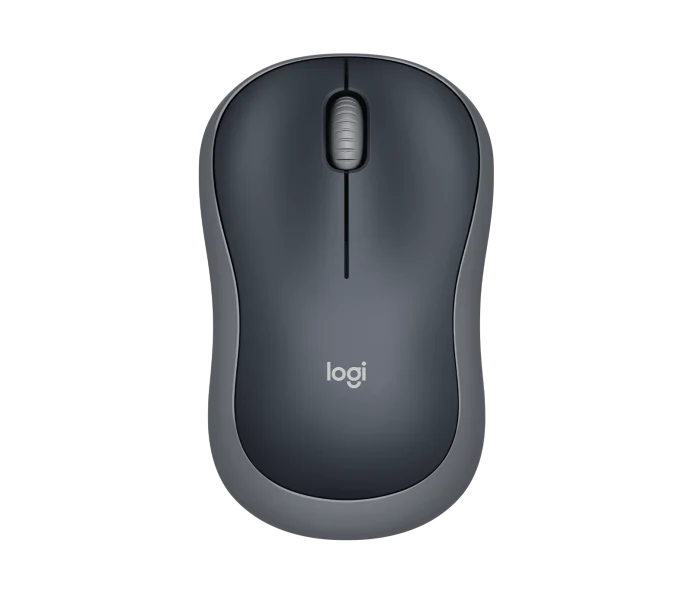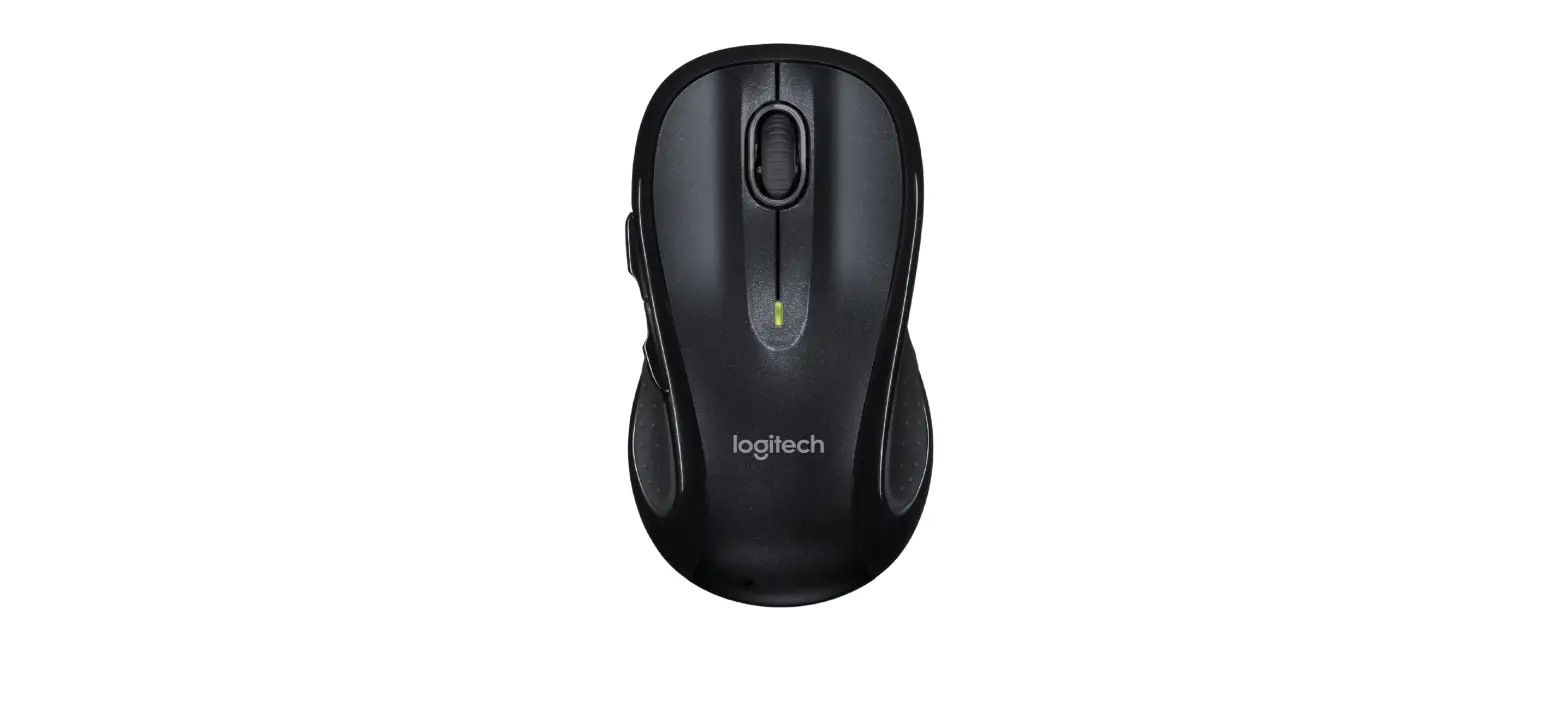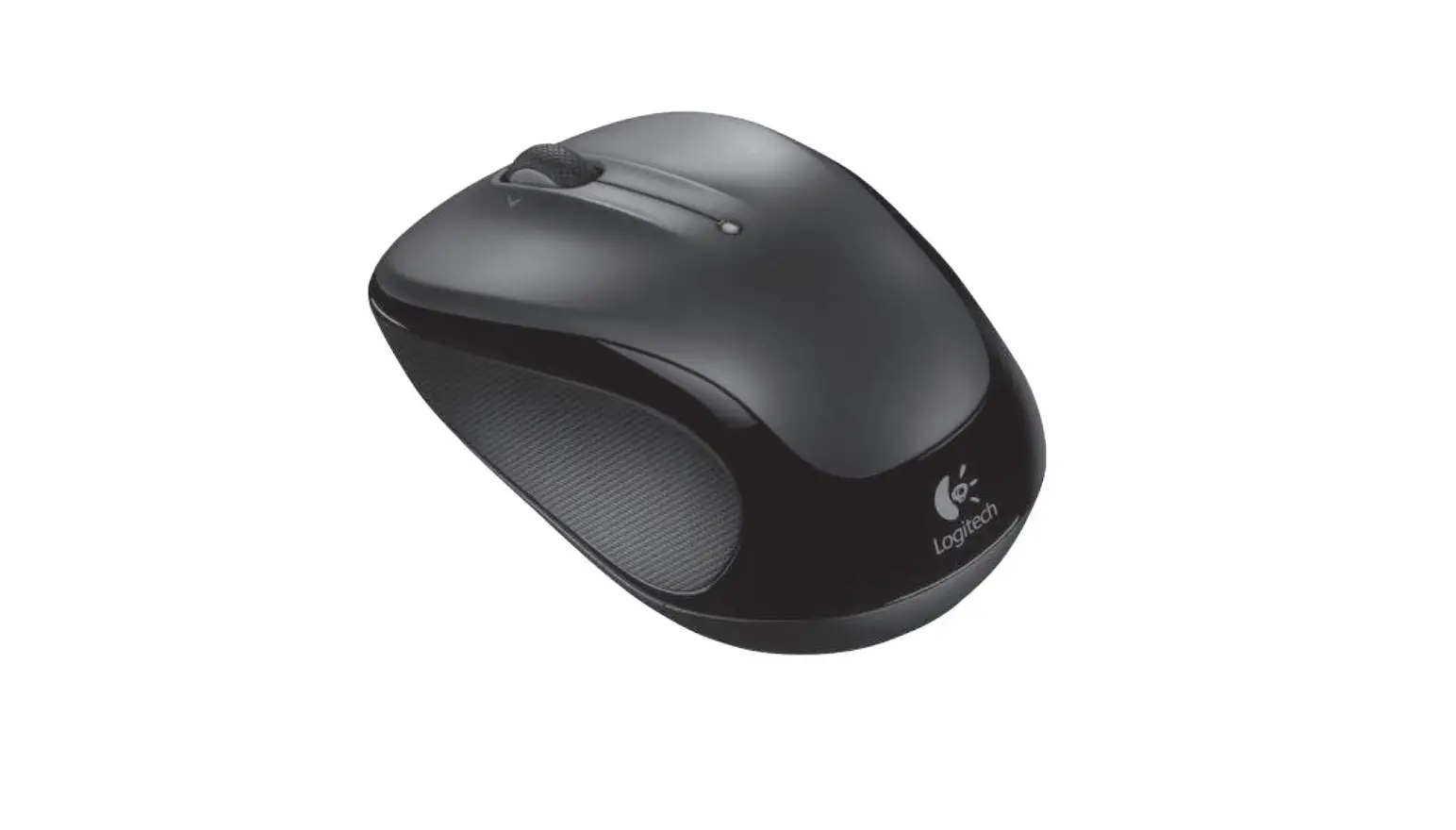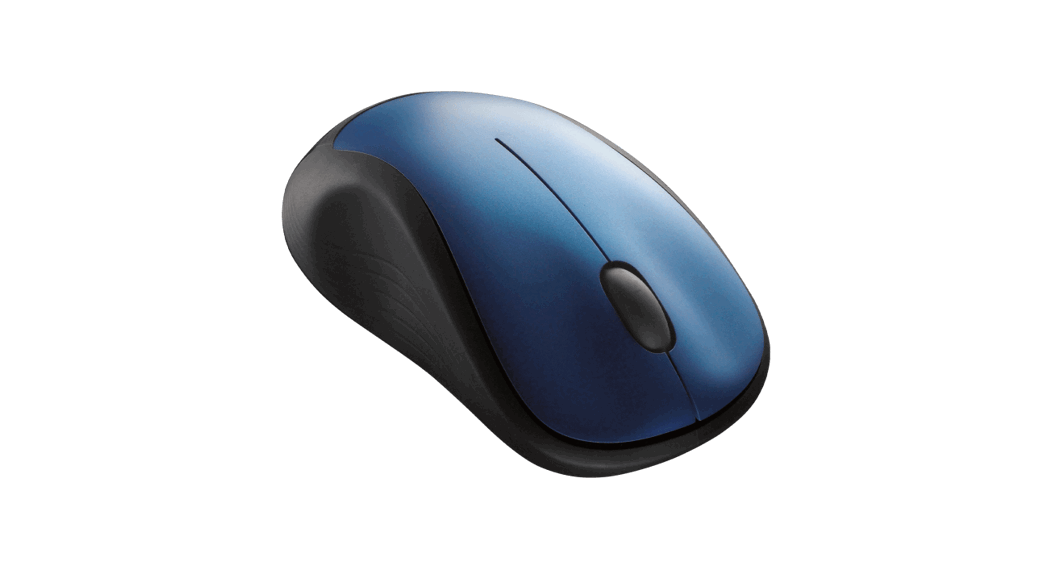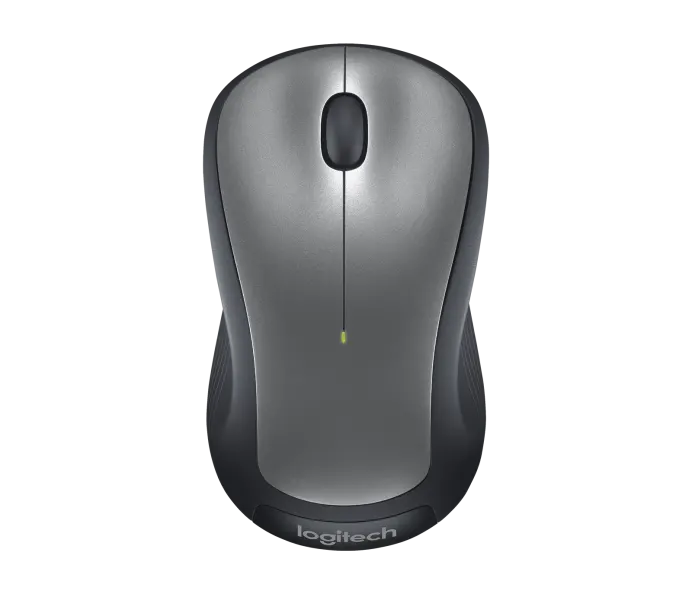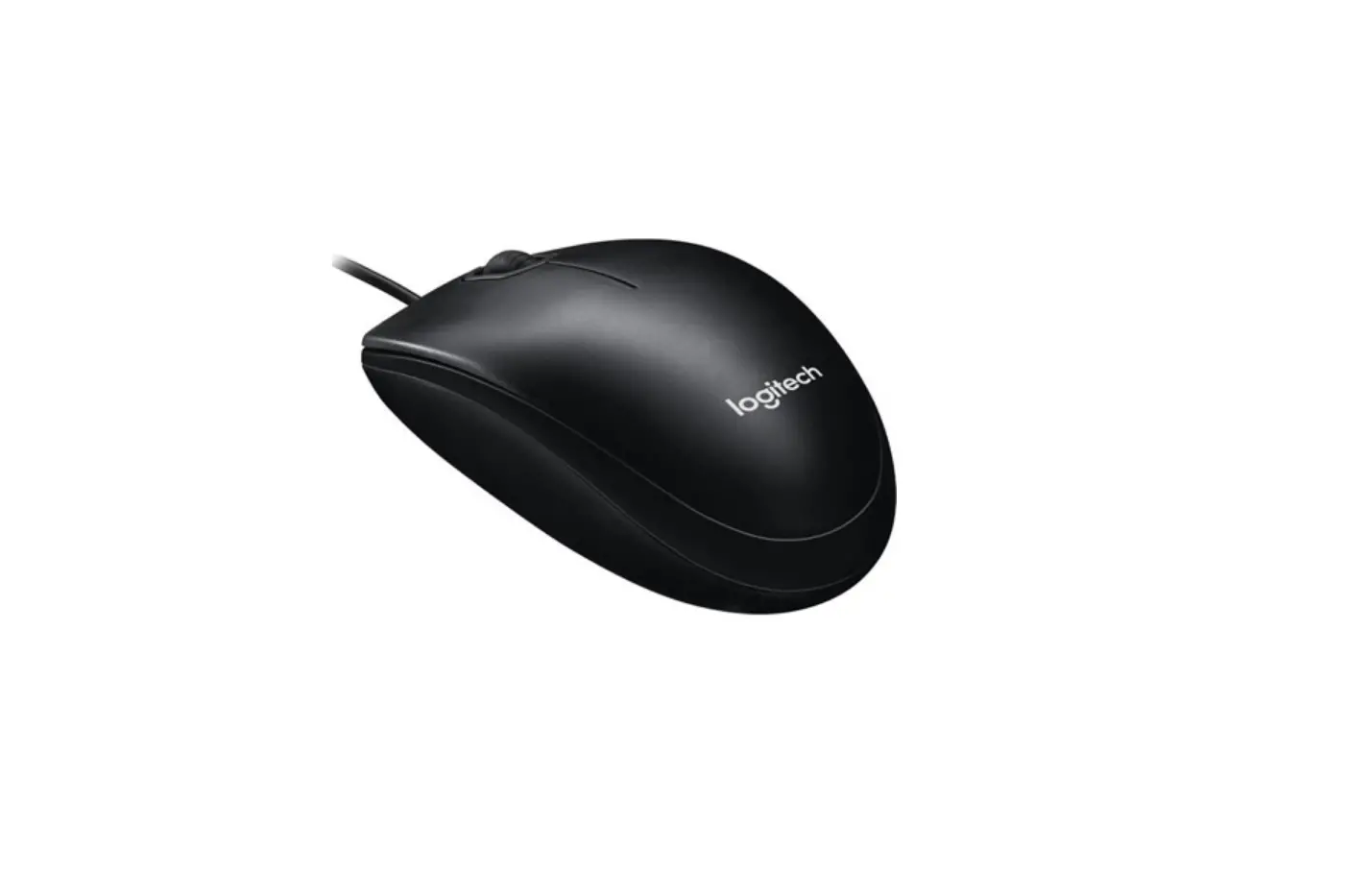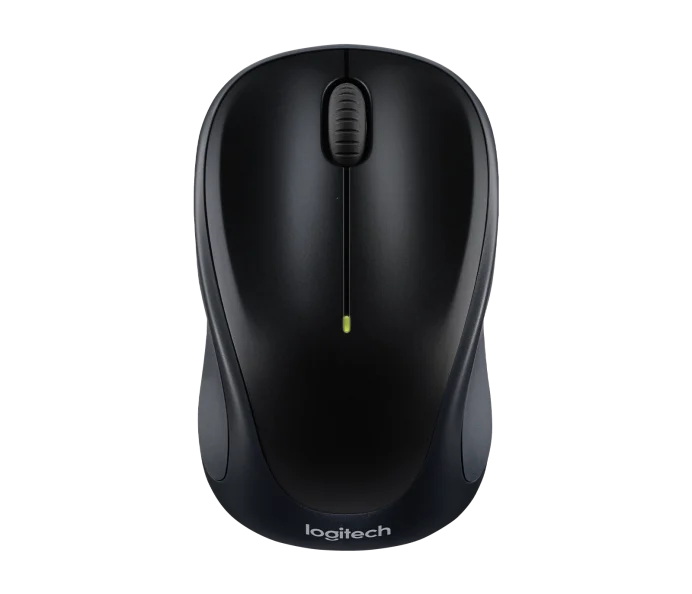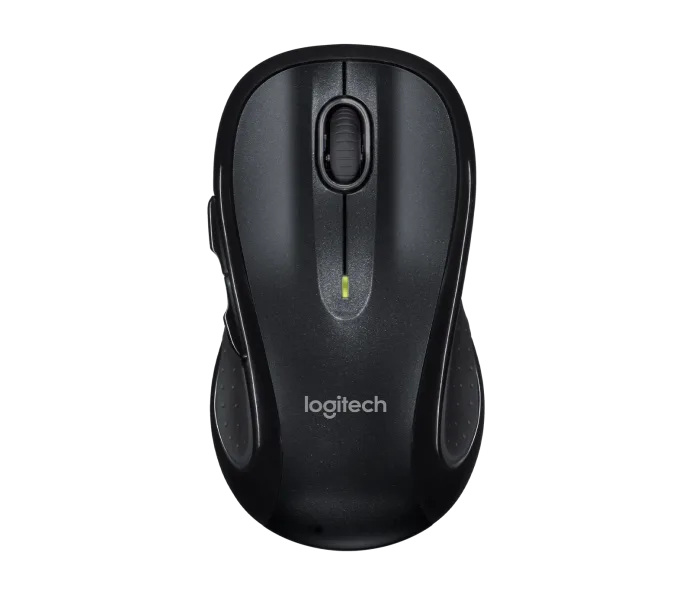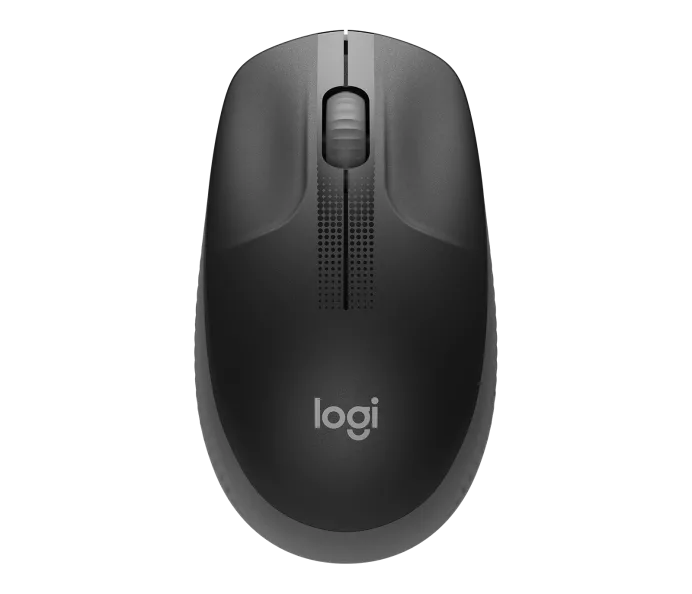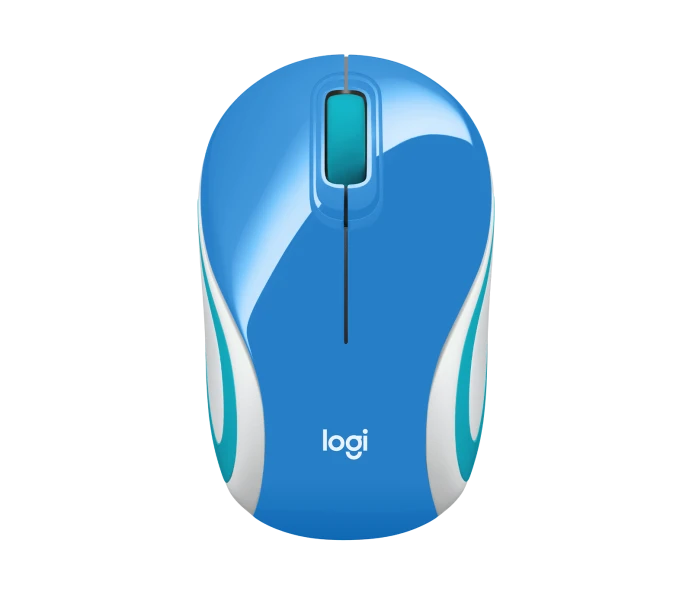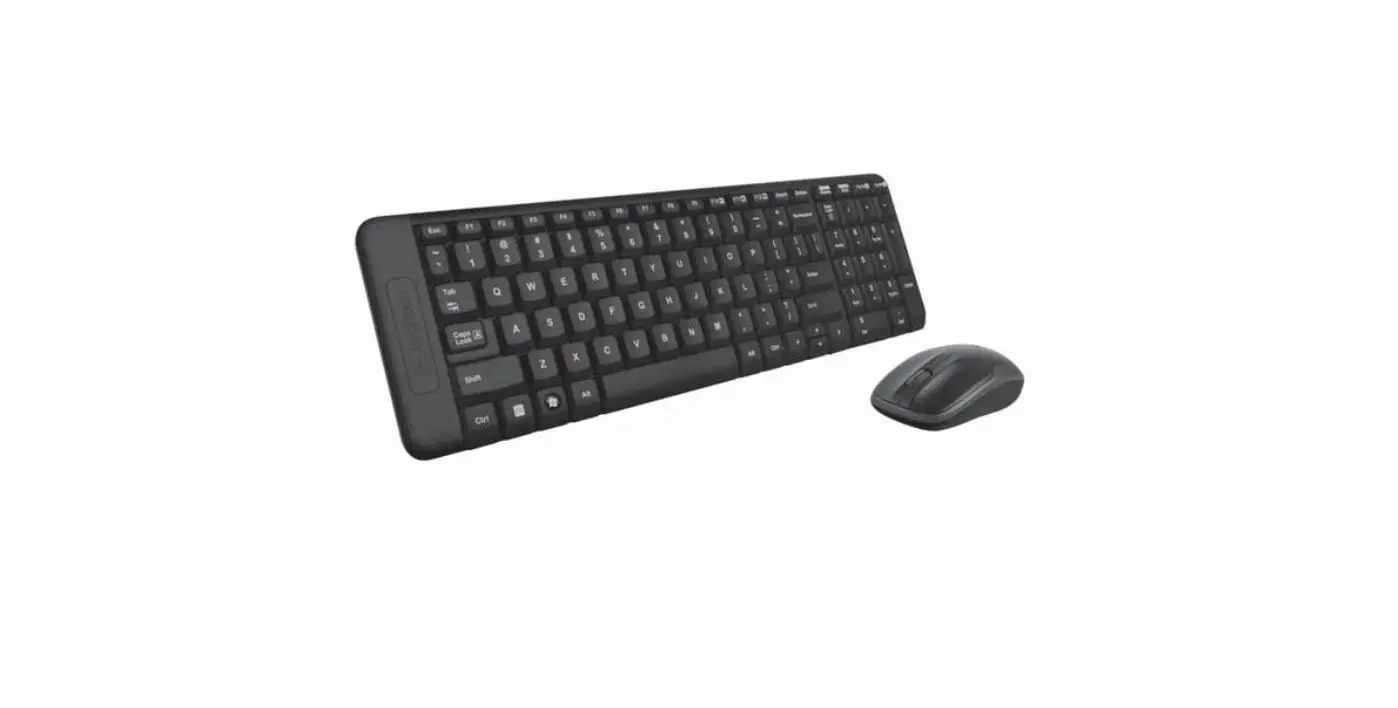

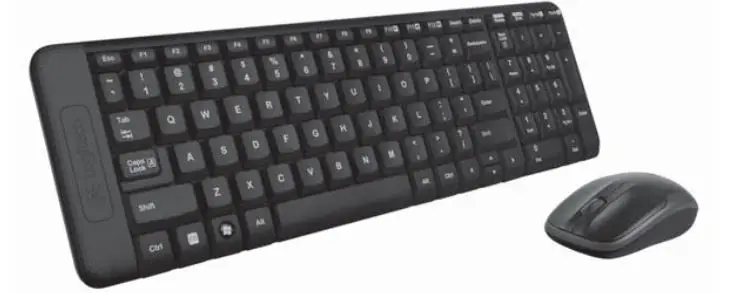
logitech M150 Wireless Mouse
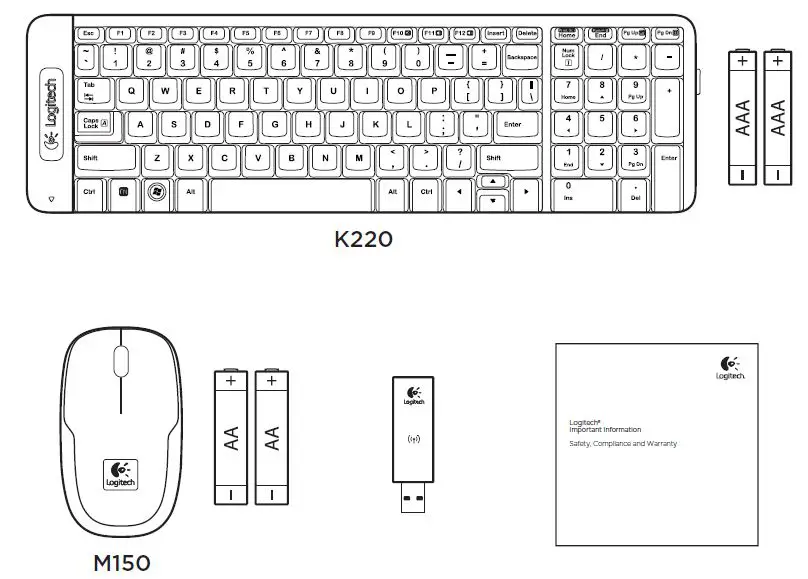
IN THE BOX
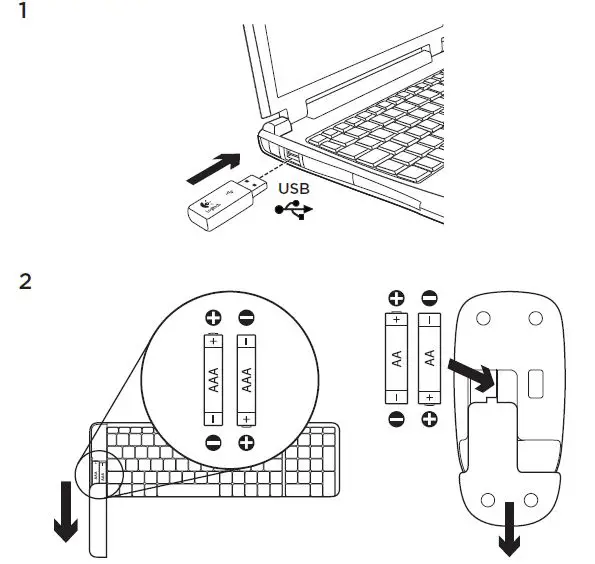
INSTALLATION
Keyboard features
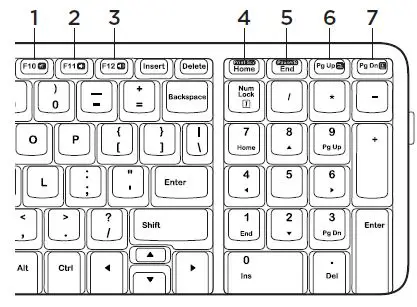
Hotkeys
- Mute
- Volume Down
- Volume Up
- Print screen
- Pause break
- Context menu
- Scroll lock
Mouse features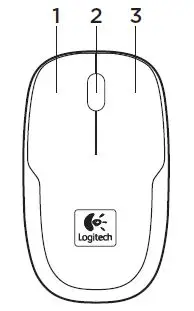
- Left button
- Scroll wheel
- Right button
Help with setup:
The keyboard and mouse are not working
- Check the orientation of the batteries inside the keyboard and mouse, or replace the batteries.
- Is the USB receiver securely plugged into a computer USB port? Try moving the USB receiver to a USB port closer to the keyboard and mouse.
- If the USB receiver is plugged into a USB hub, try plugging it directly into your computer.
- Remove any metal object between the receiver and the keyboard/mouse that may interfere with reception. Try using the mouse on a different surface.
- Restart the computer.
- If these suggestions don’t work, download the Reconnection Utility from http://www.logitech.com/connect_utility.
What do you think?
Please take a minute to tell us. Thank you for purchasing our product. www.logitech.com/ithink
 Logitech | Defy Logic - Tools to Create a Better Tomorrow