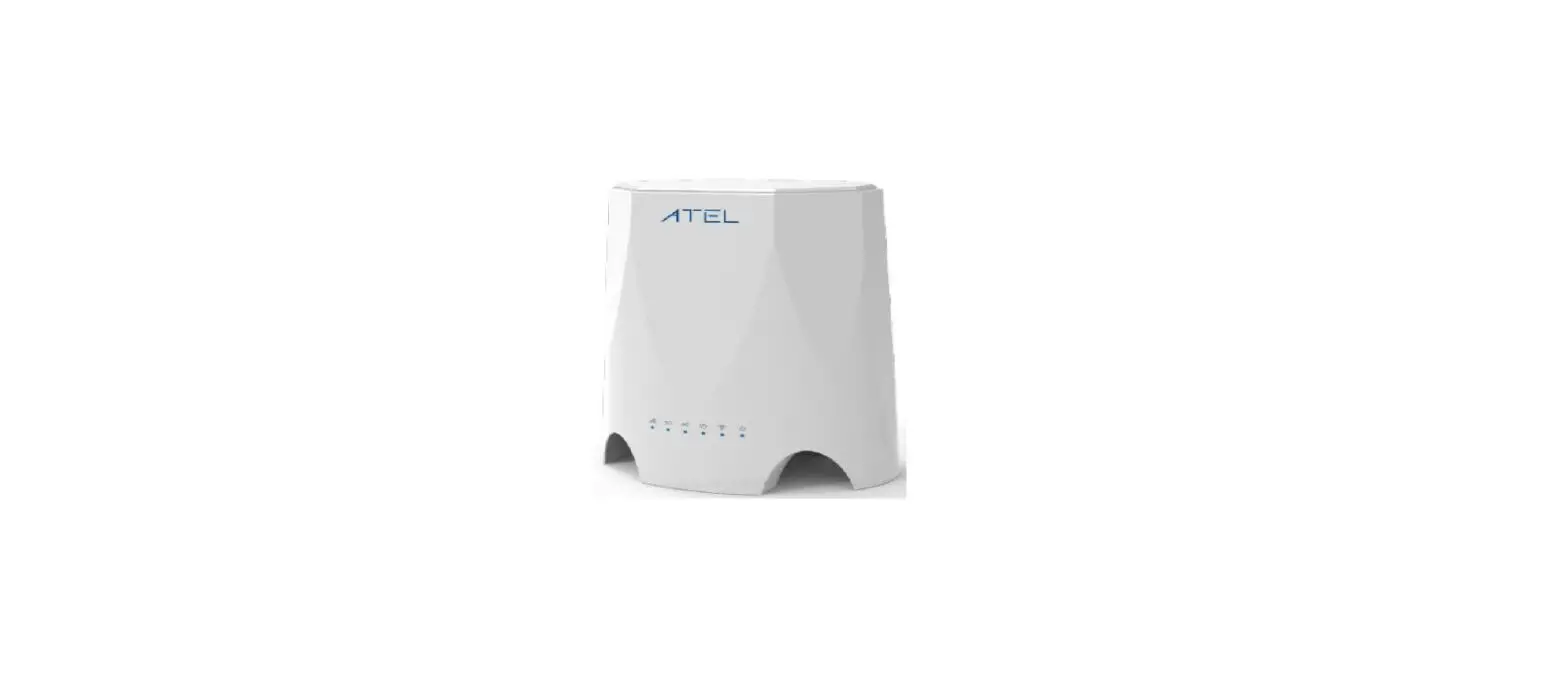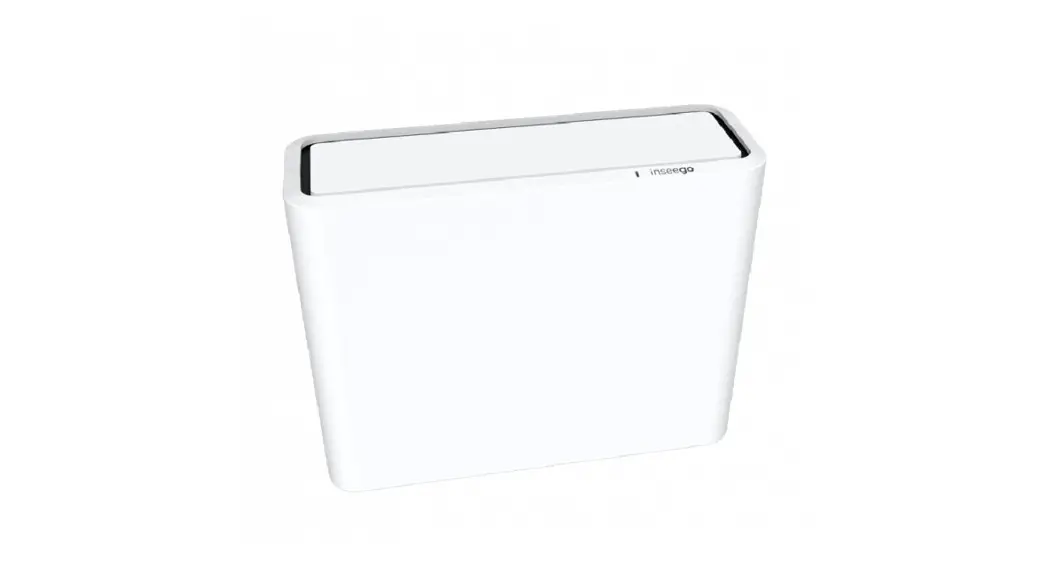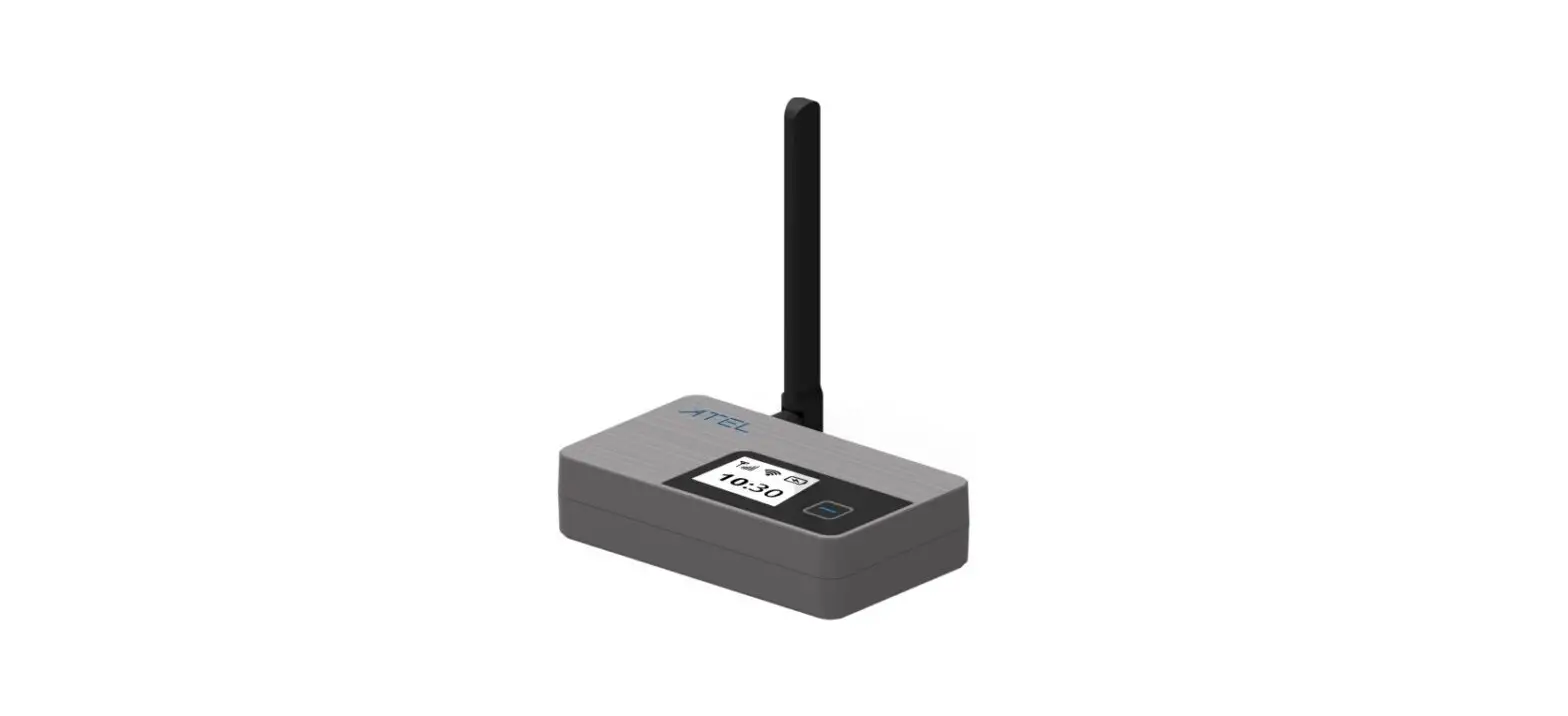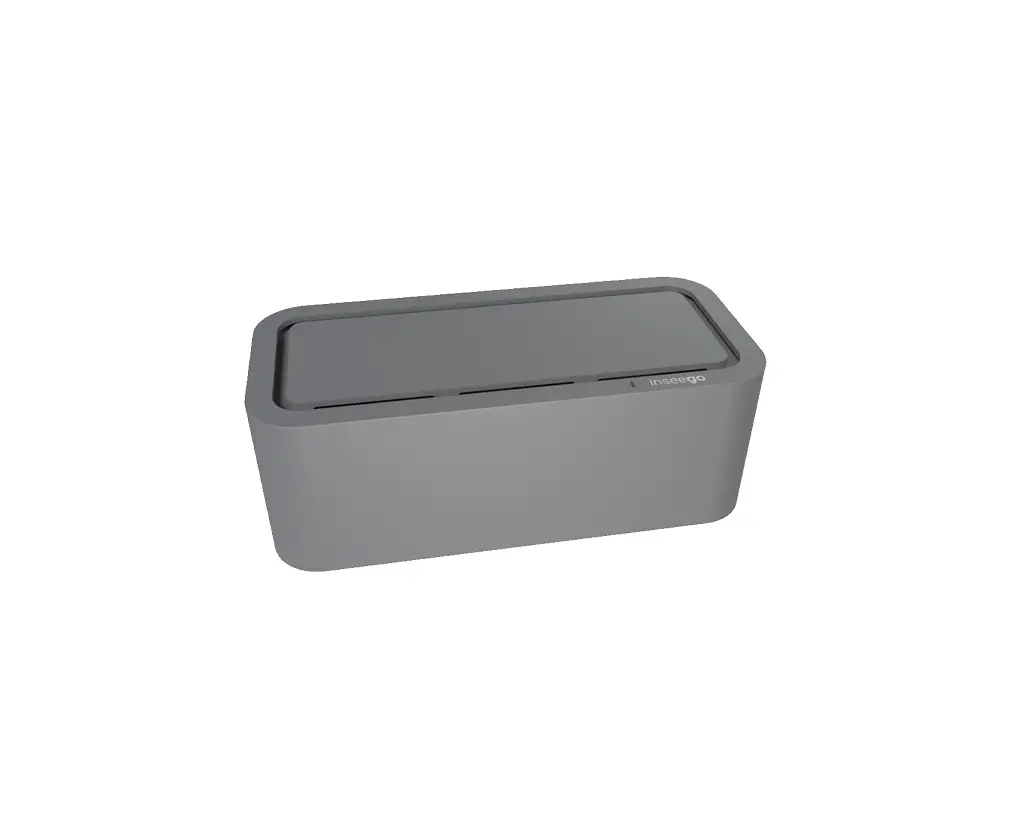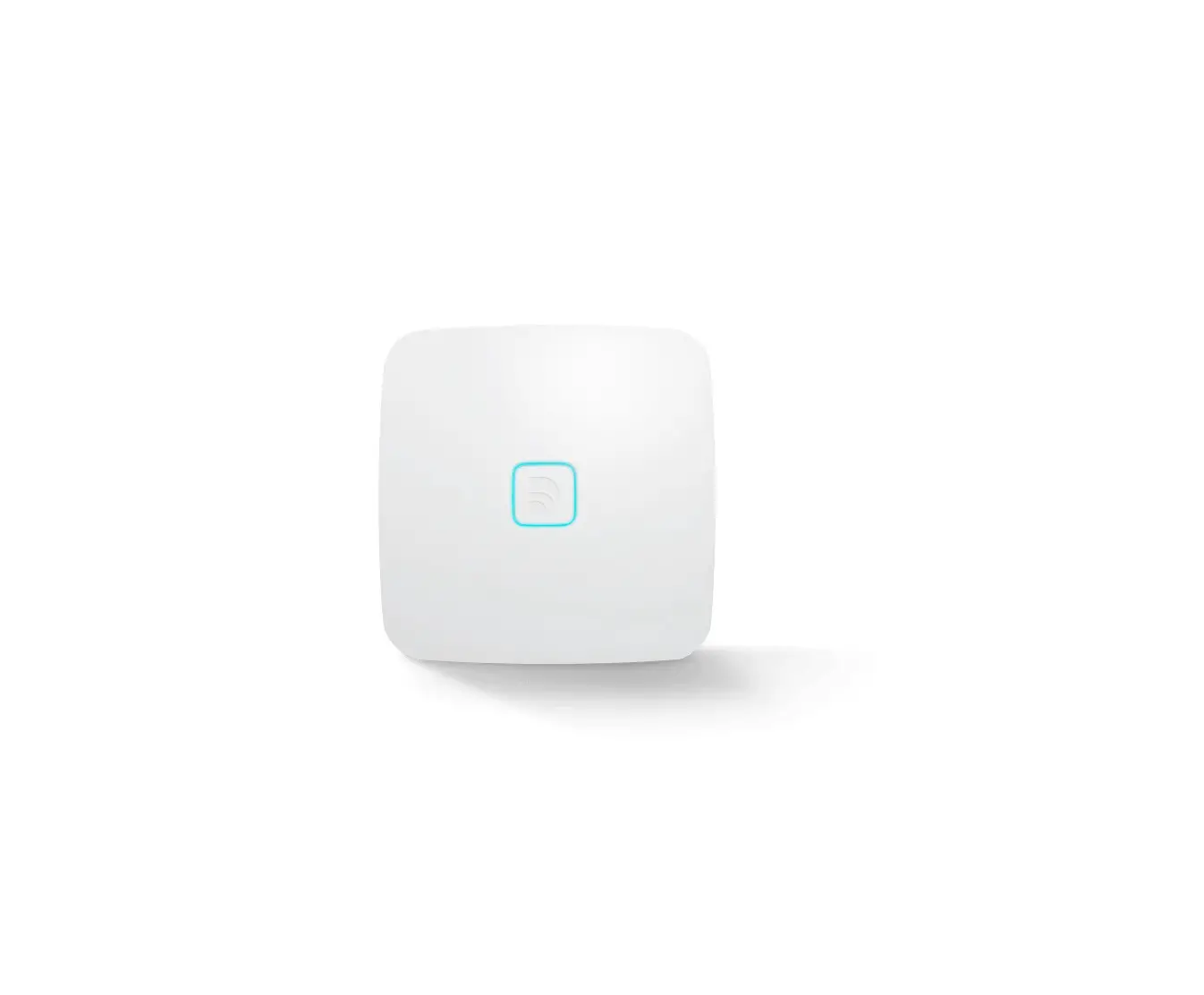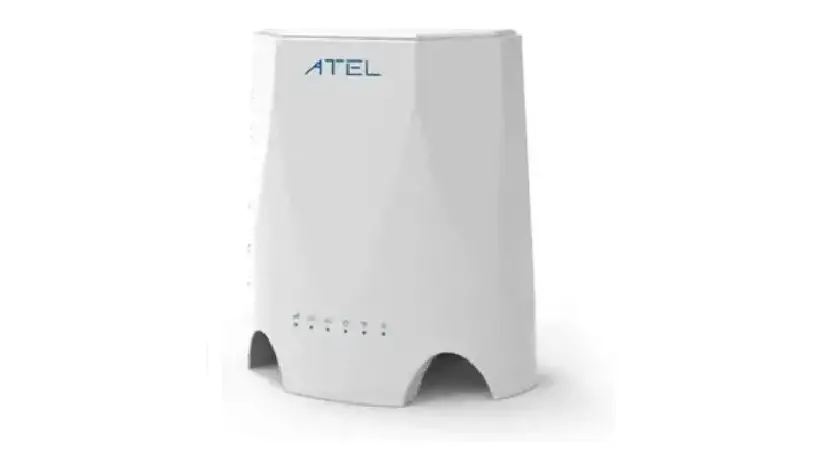

ATEL WB550 5G Indoor Fixed Wireless Access Router
Product Information
- Product Name: WB550 Apex by ATEL
- Product Type: 5G Indoor Fixed Wireless Access Router
- Product Version: 1.8
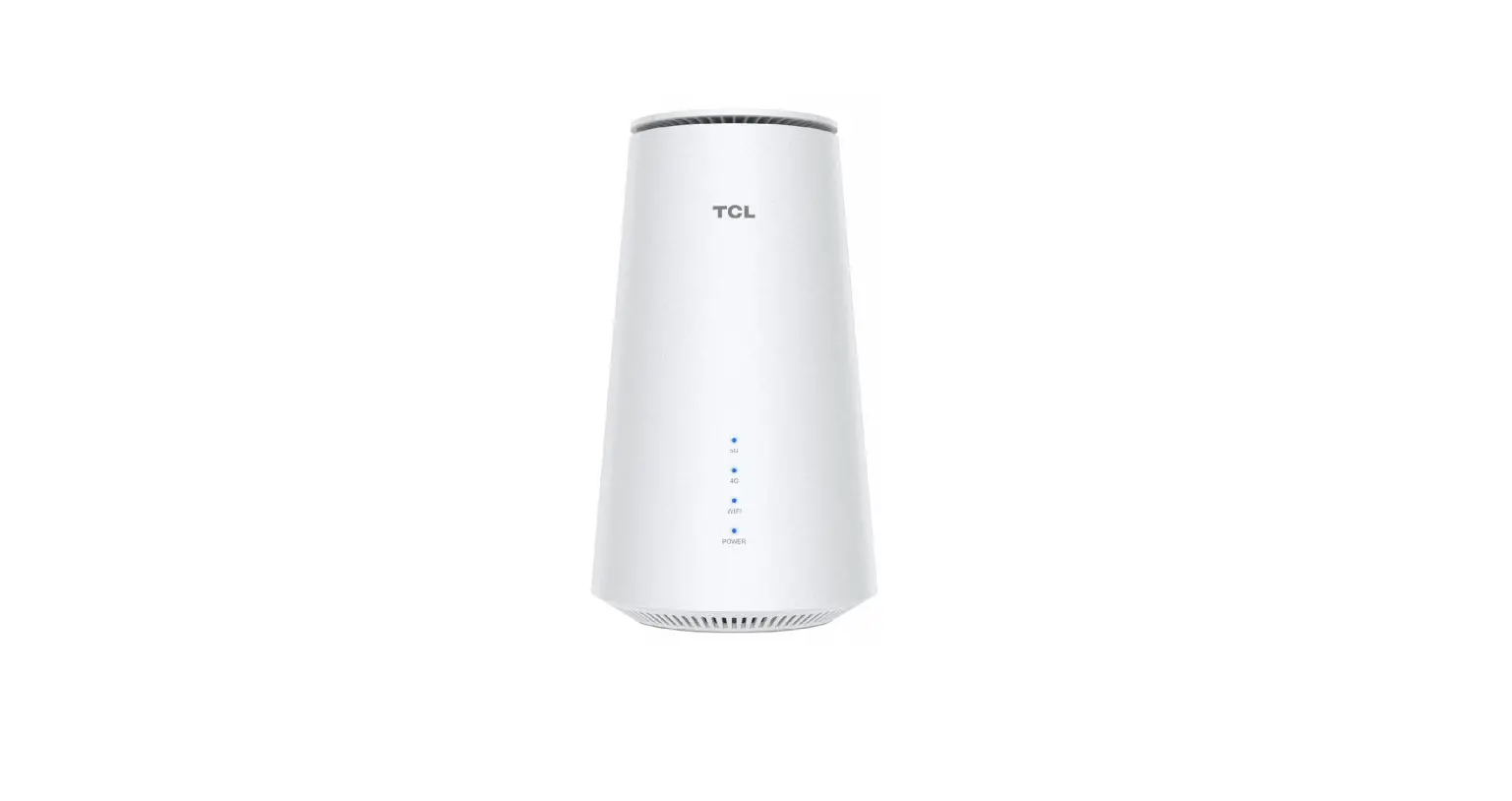
LED Indicator Descriptions
| LED | Description |
|---|---|
| Signal | On Green – Good signal, RSRP >= -95dBm On Blue – Normal signal, -95dBm > RSRP >= -115dBm On Red – Weak signal, -115dBm > RSRP >= -125dBm Blinking Red – Error, No SIM card or Failed to detect SIM card Off – No Signal |
| 5G Network | On Green – Device is in a connected state with 5G Network Off – Device is in a disconnected state with 5G Network |
| 4G Network | On Green – Device is in a connected state with 4G Network Off – Device is in a disconnected state with 4G Network |
| LAN | On Green – Client is connected over LAN Off – No Client is connected over LAN |
| WiFi Power | On Green – Client is connected over WLAN Off – No Client is connected over WLAN |
| Device Label | On Green – Indicates Device is powered On Off – No input power to the device |
Product Usage Instructions
Setting up your WB550 5G FWA Router
Install a 4FF SIM
- Install the SIM card as directed by the image above the spring-loaded SIM slot.
- To remove a SIM, press the edge of the SIM inward and the SIM will pop outward from the SIM slot.
- NOTE: Use Nano SIM (4FF) Card Size
Connect the Power Adaptor
- Connect your Power adaptor to wall outlets.
- Connect the Power Adaptor output with the DC Port (12V) of the WB550 FWA Router. If power is working, the Power LED will turn On.
Connection with Wired or Wireless Clients
- Use the LAN port to connect your wired client using an Ethernet cable.
- To connect over WiFi, scan the WiFi SSID name as mentioned on the device label and input the password key for authentication on your wireless device.
WebGUI Online Device Management Portal
You can access your WB550 5G Indoor Fixed Wireless Access Router Online Portal to view device status, change your device settings, and perform manual software upgrades.
- While you are connected with WB550 5G FWA Router over WiFi or LAN, use any web browser and enter http://192.168.0.1 in the URL address bar.
- The login username is admin and the password can be found on the device label. Click on the Login button to login.
- From the HOME menu, you can view device information and network status, such as Signal Quality and Network Name.
- If the network status is showing Connected and you can see IP addresses in Internet status, that indicates that the WB550 is connected with the network and ready to use.
About your 5G FWA Router
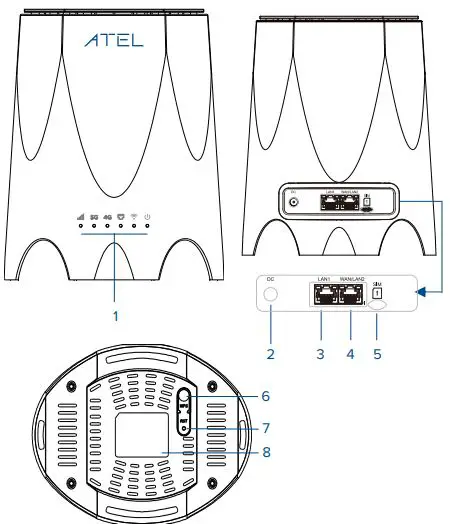
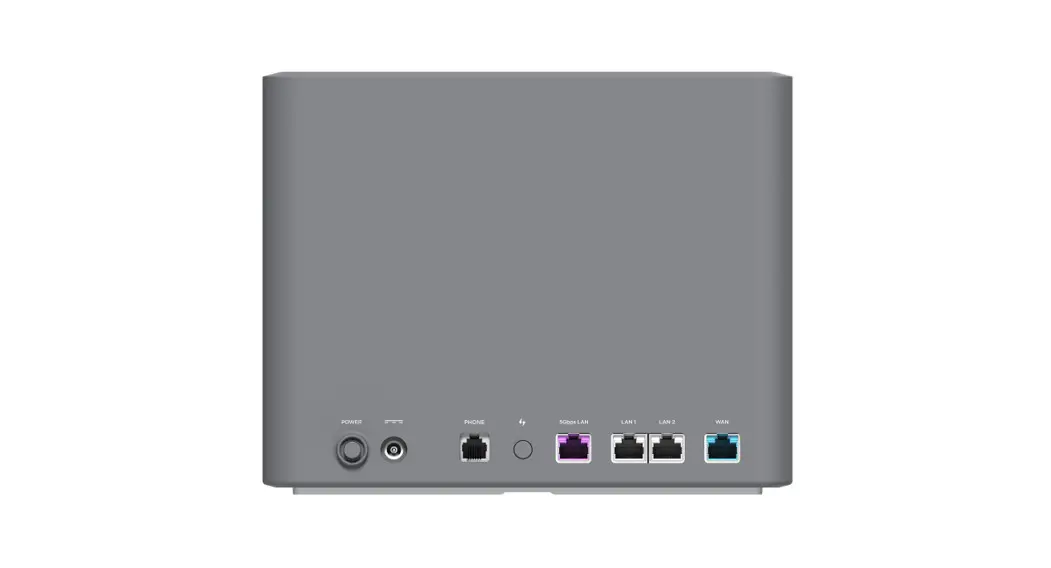
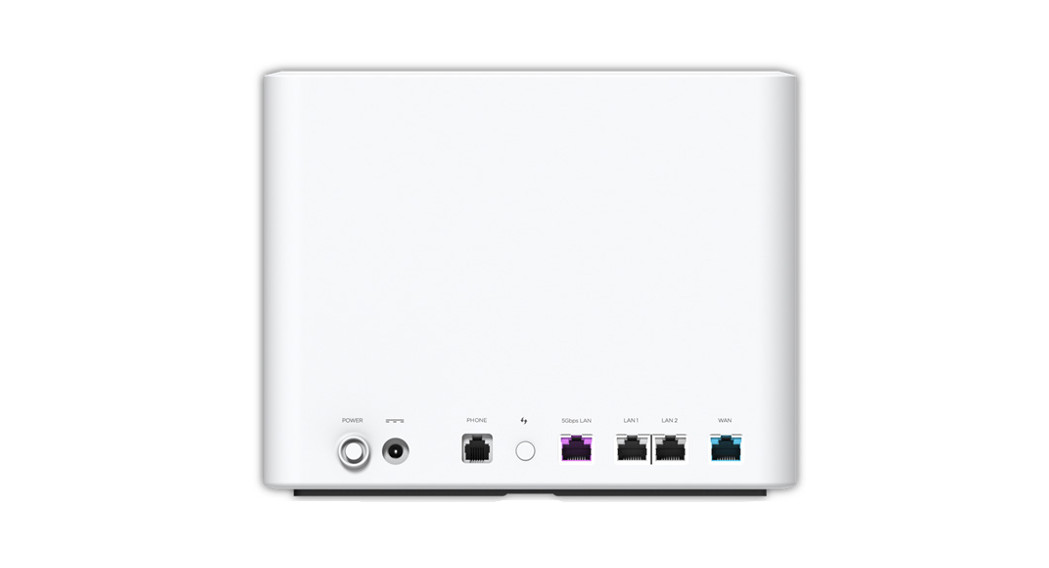
| 1. LEDs Indicates device status with an individual LED. Refer to the LED descriptions table on page 5 for more details. | 2. DC Use this port to connect the Power adapter for power supply. |
| 3. LAN Use this port to connect your wired device over Ethernet. | 4. WAN/LAN Use this port to connect your wired device over Ethernet or connect to WAN when the port is configured in WAN mode. |
| 5. SIM Slot The U-SIM card must be inserted into the 4FF SIM Slot (see image). | 6 WPS Press this button for 5 seconds to activate the WPS feature. This helps connect wireless devices without entering the WiFi Password. |
| 7. RST / Reset Button Use a pin to push and hold this button for about 5 seconds for factory reset. | 8. Device Label Provides basic information about the device (e.g. Model name, IMEI, WiFi Details etc.). |
Setting up your WB550 5G FWA Router
Install a 4FF SIM
- Install the SIM card as directed by the image above the spring-loaded SIM slot.
- To remove a SIM, press the and the SIM will pop outward from the SIM slot.
NOTE: Use Nano SIM (4FF) Card Size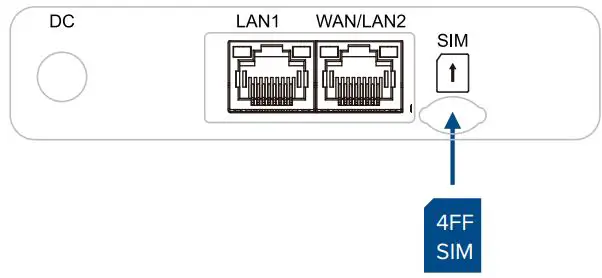
Connect the Power Adaptor
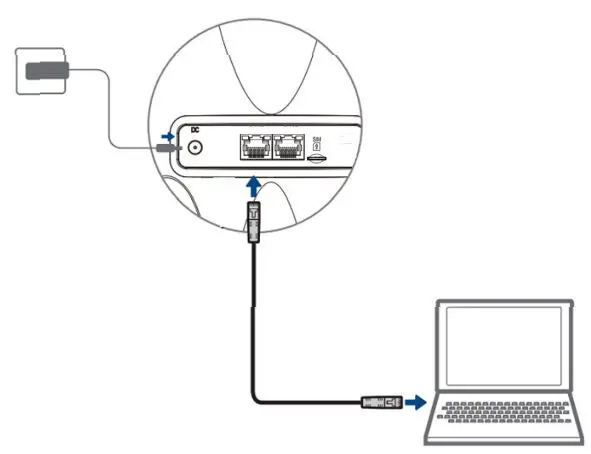
- Connect your Power adaptor to wall outlets.
- Connect the Power Adaptor output with the DC Port (12V) of the WB550 FWA Router. If power is working, will find the Power LED is turned On.

LED Indicator Descriptions
| On | Green | Good signal, RSRP > = -95dBm |
| On | Blue | Normal signal, -95dBm > RSRP >=-115dBm | |
| On | Red | Weak signal -115dBm > RSRP >=-125dBm | |
| Blinking | Red | Error, Due to No SIM card or Failed to detect SIM card. | |
| Off | — | No Signal | |
| On | Green | Device is in a connected state with 5G Network. |
| Off | — | Device is in a disconnected state with 5G Network. | |
| On | Green | Device is in a connected state with 4G Network. |
| Off | — | Device is in a disconnected state with 4G Network. | |
| On | Green | Client is connected over LAN. |
| Off | — | No Client is connected over LAN. | |
| On | Green | Client is connected over WLAN. |
| Off | — | No Client is connected over WLAN. | |
| On | Green | Indicates Device is powered On. |
| Off | — | No input power to the device. |
 Signal
 5G Network
 4G Network
 LAN
LAN WiFi
WiFi Power
PowerWebGUI Online Device Management Portal
You can access your WB550 5G Indoor Fixed Wireless Access Router Online Portal to view device status, change your device settings, and perform manual software upgrades.
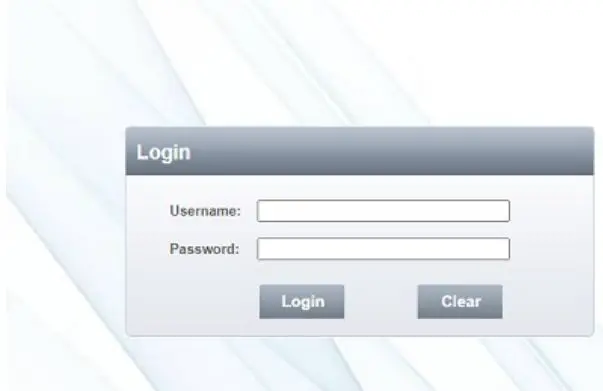
- While you are connected with WB550 5G FWA Router over WiFi or LAN. Use any web browser and enter https://192.168.0.1 in the URL address bar.
- The login username is “admin” and password can be found on the device label. Click on the “Login” button to login.

- From the HOME menu, you can view device information and network status, such as, Signal Quality, Network Name.
- If network status is showing Connected and you can see IP addresses in Internet status, that indicates that the WB550 is connected with the network and ready to use.


- For WiFi related settings (i.e. SSID Name and Password), go to SETTINGS > Wi-Fi Settings.
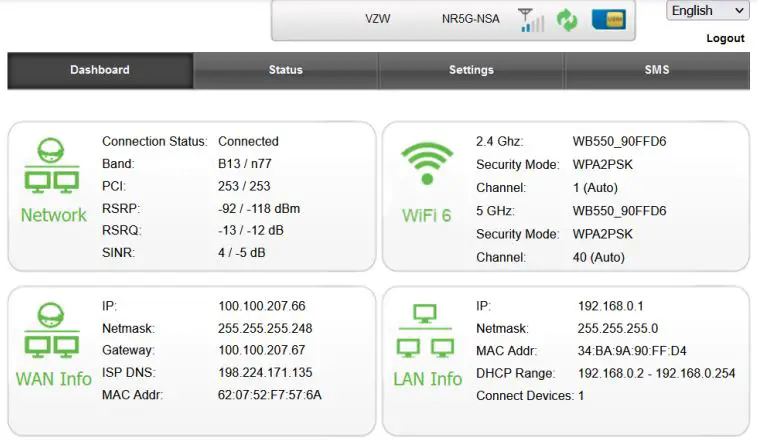
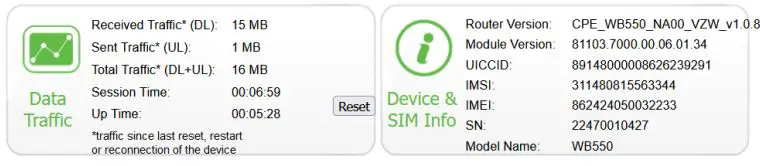
For more details, please refer to the User Manual. ATEL’s remote management platform, ATRACS, is available for the WB550. Please refer to the ATRACS User Manual for details.
Factory Resetting of Your WB550
You can reset your WB550 5G Fixed Wireless Access Router to factory default settings in two ways:
- Using the Reset Button
- Make sure your WB550 is powered on.
- Insert a pin into the Reset pin hole, push down and hold up to 2-4 seconds. The WB550 will then reboot. Push down and hold up to 5 more seconds, the device will then restore the factory defaults.

- Using the WebGUI Portal (Online Portal)
- Make sure your WB550 is powered on and you have access to the WebGUI.
- Go to Settings > Basic: Management > Factory Reset, Click on the Restore button.
- The WB550 will then restore to the factory default settings.
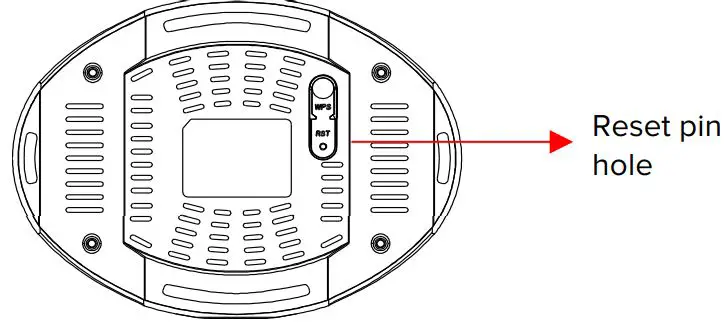
Note: When performing the Factory Reset or Restart process, make sure the power adaptor is connected to the WB550 FWA Router to ensure uninterrupted power supply.
FAQ
- The Power LED indicator is not ON.
- Confirm the power adapter is plugged properly into the AC socket.
- Confirm the power adapter is connected to the WB550 FWA Router properly.
Note: Use only the Power Adaptor that is provided and comes packaged with the WB550 FWA Router.
- Web Based Utility (WebGUI) cannot be accessed.
- Ensure that the WB550 is powered on.
- Ensure that your wireless client is connected and has acquired the IP address from the WB550 over Wired or wireless connection.
- Check with another web browser or try to reset the browser cache memory.
- Try to Reboot or factory reset the device.
- WB550 FWA Router cannot access the network.
- Ensure your USIM card is valid and active.
- Check the 5G/4G LED, it should be On. If it is off, then login to WebGUI and check the Network details available on the home page.
- Network status should be showing Connected. If it is showing disconnected or connecting, check the network parameters RSRP, SINR values.
- SINR value (dB) should be Positive. RSRP value must be greater than -115dBm. Preferred value should be around -90 dBm.
- Try to Reboot or factory reset the WB550.
Regulatory Statements
Please review the Regulatory Statements for this device in the device User Manual, available at www.ATEL-USA.com.
Voice/Emergency calls
ATEL cannot guarantee the voice or E911 calls availability. Making a successful call depends on your hardware (telephone) availability, physical location, wireless signal strength, and/or
network services. You should never rely solely on any wireless mobile device for essential communications (medical emergencies, for example). Check with your wireless service providers. When making an emergency call, remember to give all the necessary information as accurately as possible.
Disclaimer
Certain variations may be present between the device and user manual description depending on software release or specific network services. ATEL shall not be held legally responsible for such deviations, if any, nor for their potential consequences.
Limited Warranty
The full ATEL USA Warranty Policy can be found at www.atel-usa.com/warranty. On this page you can “Start a Warranty Claim”, “Check on an Existing Claim” and read our Warranty Policy by clicking on “ATEL’s Warranty Policy”. Please follow all warranty instructions available and if you have any questions contact us at [email protected].
 @AsiatelcoUSA
 @ATEL USA
 @atel-asiatelco
 @ATEL_USA
Our Website: www.atel-usa.com Contactusat:[email protected] For Warranty information, see our website under the Support tab. © 2023 Asiatelco Technologies, Inc. All Rights Reserved
 USA Location information - USA.com
 ATEL-USA