
User Manual V1.0
3-Axis Stabilized Handheld Camera
GuiLin FeiYu Technology Incorporated Company
Product Overview
Product Overview
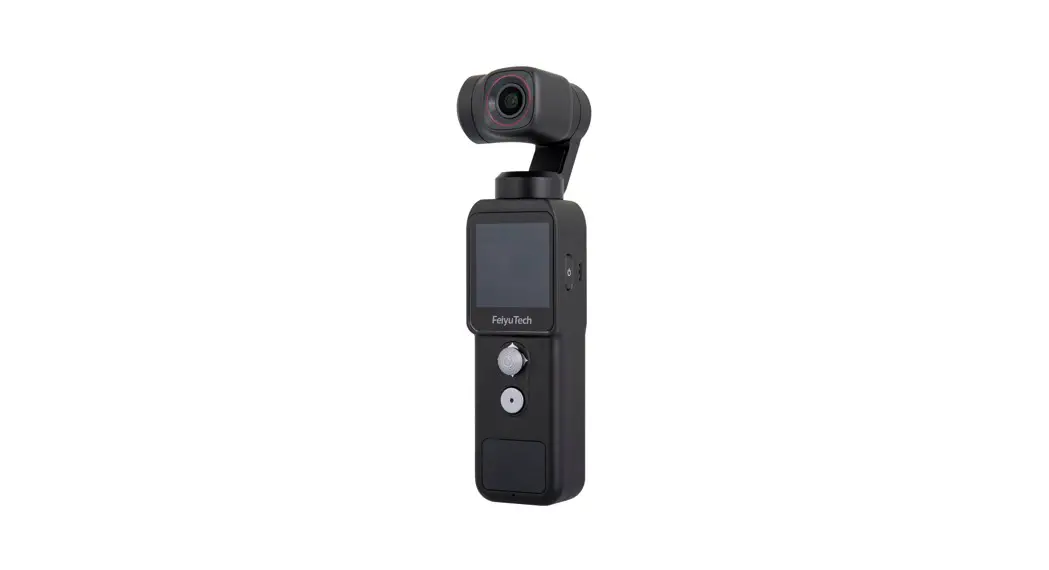
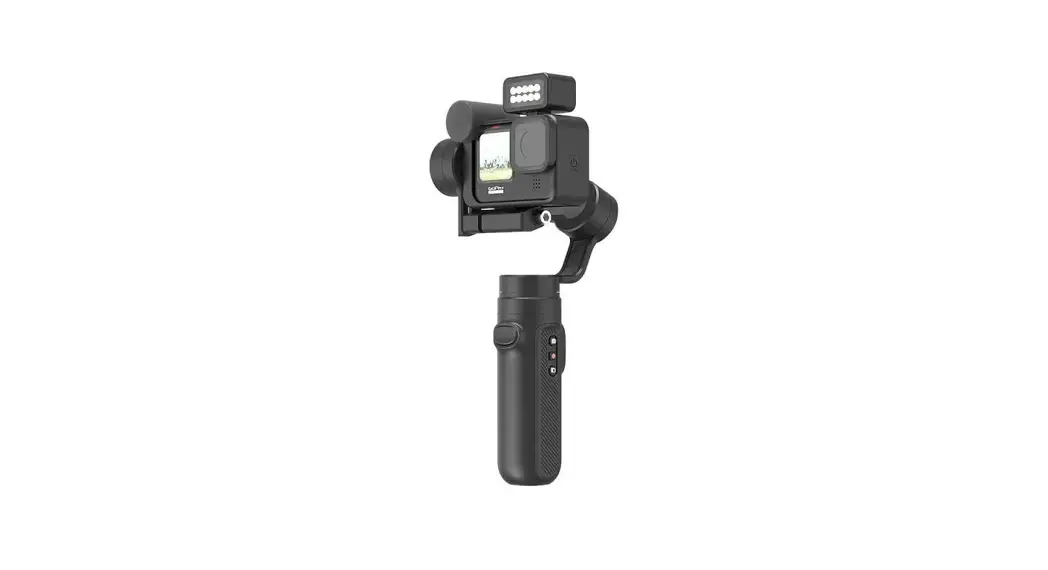
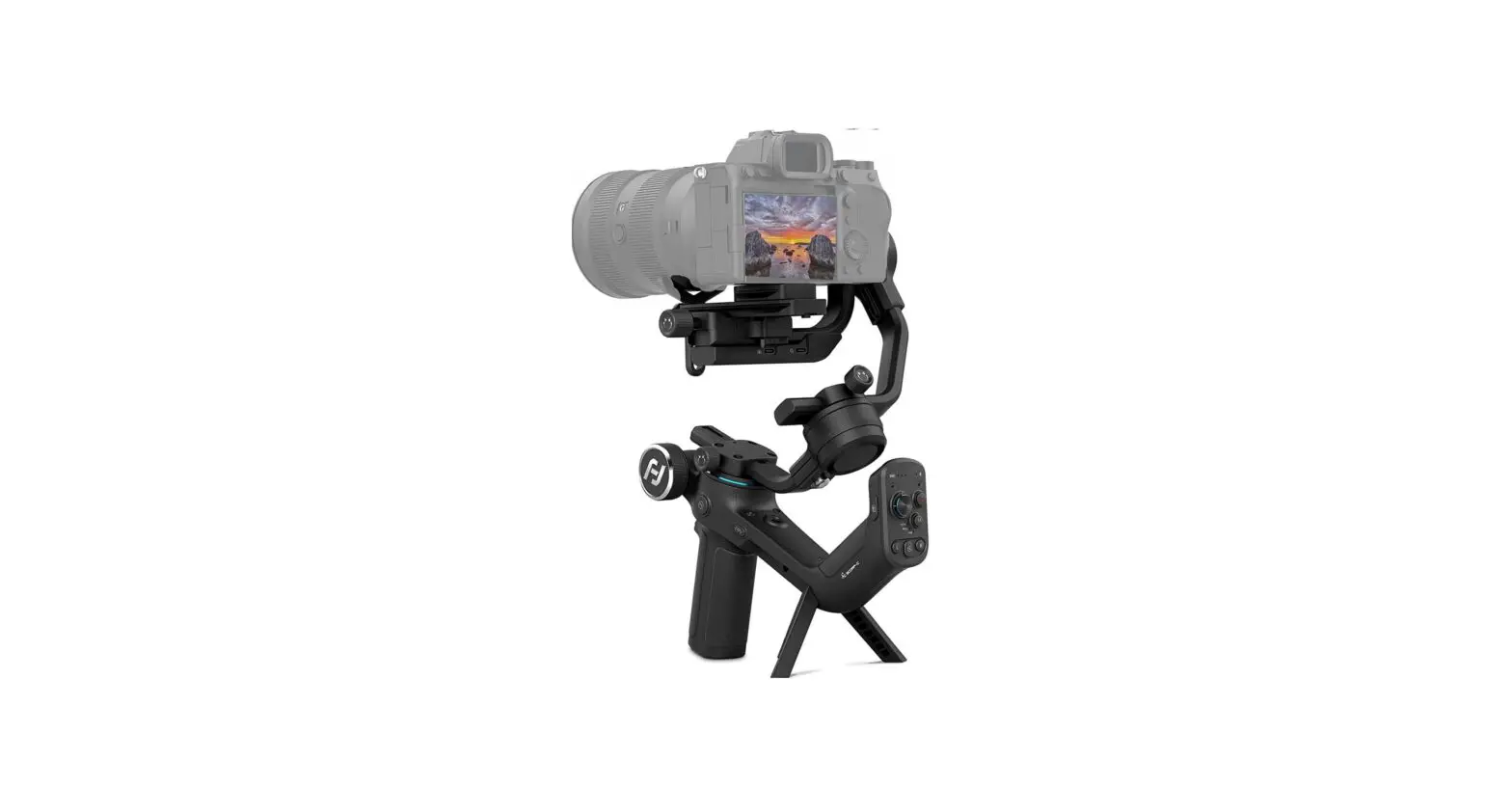
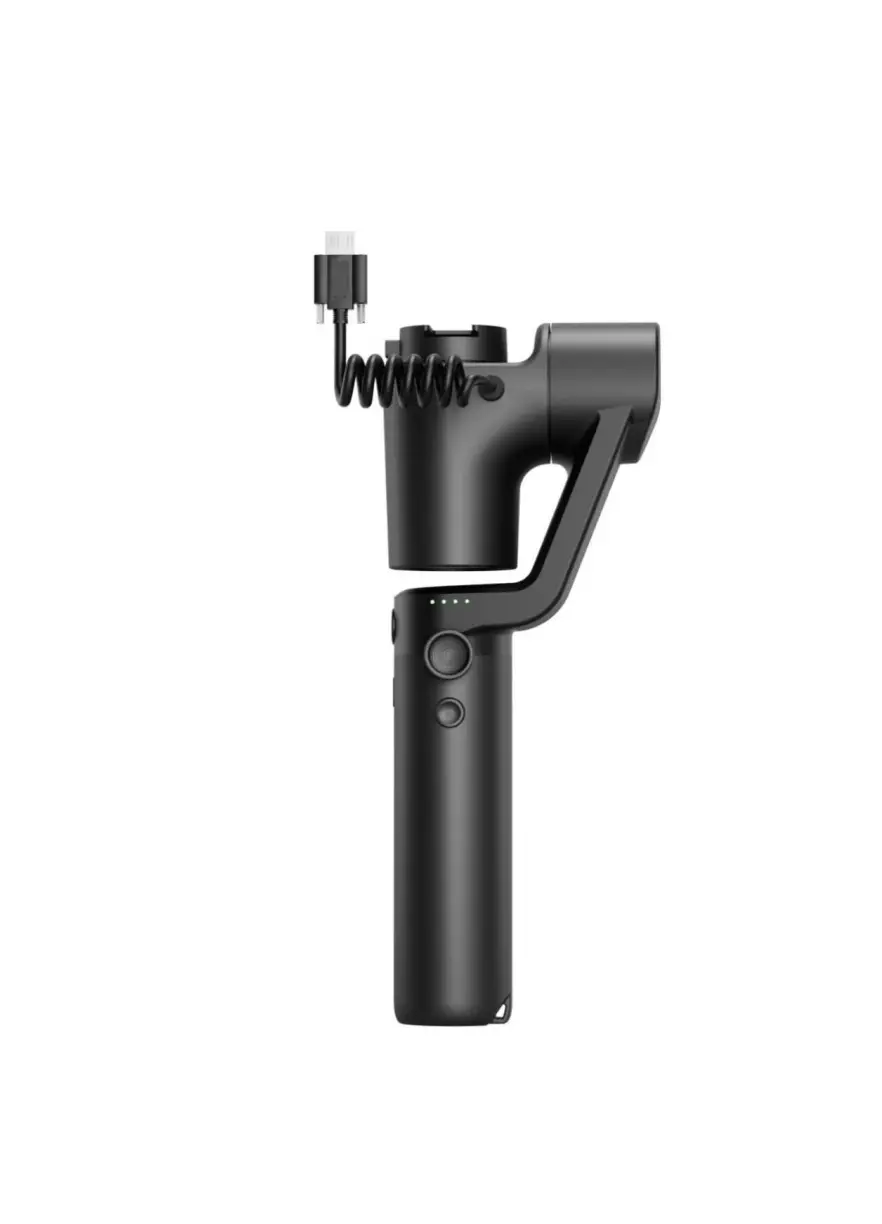
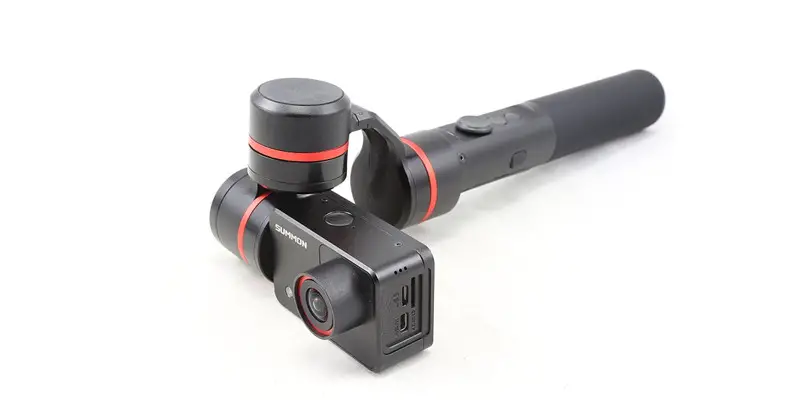
Summon is a controllable all-in-one camera with a 3-axis stabilization function. It has a simple and elegant structure and is easy to operate, the photographing and shooting are controllable so as to take stable HD videos and pictures. It has realized some functions including fixed-point shooting, following a shooting, and time-lapse photography.
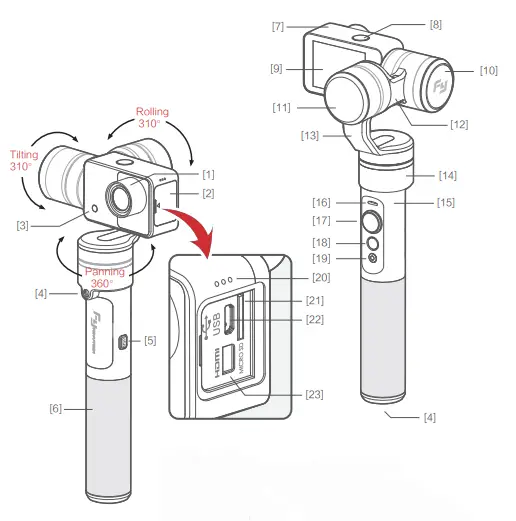
| [1] Camera lens | [13] Erecting arm |
| [2] Dust cover | [14] Panning axis |
| [3] Fill flash | [15] Control connecting base |
| [4] 1/4 inch screw hole | [16] Indicator light |
| [5] USB port | [17] Joystick |
| [6] Hand shank | [18] Function button |
| [7] Camera | [19] Shutter |
| [8] Photo / Video switchover button | [20] Microphone |
| [9] Camera back screen | [21] Micro SD port( Excluding card) |
| [10] Tilting axis | [22] SD reading port |
| [11] Rolling axis | [23] HDMI interface |
| [12] Cross arm | |
How to use Summon
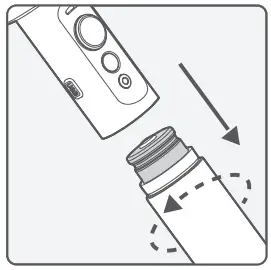
- Install battery Remove the hand shank and insert one 22650 battery into it.

- Power on and power off The function button on the control panel can control power on and power off.

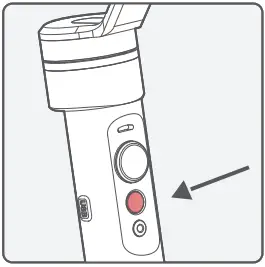
Power on:
Long press the function button for 0.5 seconds for power on.
Power off:
Long press the function button for 3 seconds for power off and the indicator light turns off.
 If the battery power is too low, the screen shall turn off automatically, lease long-press the function button for 3 seconds so as to make sure the unit completely powers off. Then you can recharge or replace the battery.
Single tap this button to switch below Photo mode and Video mode. Long press this button to open WiFi function, and long press again to turn off WiFi function.
The default is Video mode.
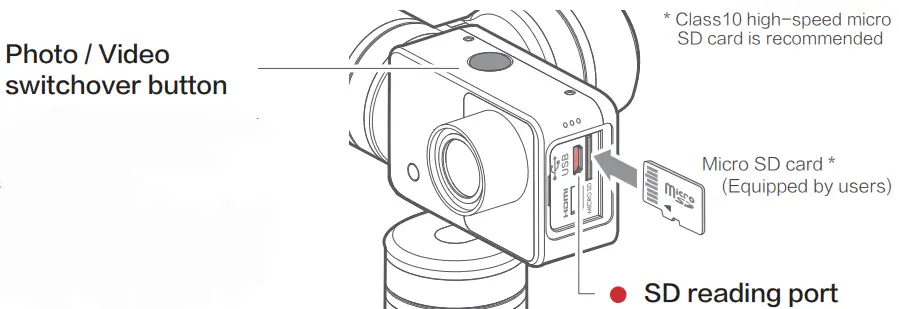
Connect to a computer with USB data cable so as to read the video and picture files in a SD card.
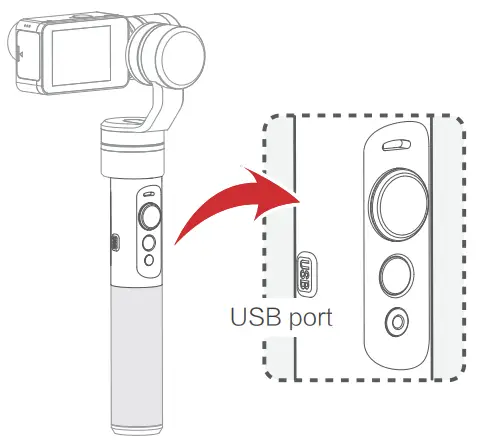
 USB port
Connect with USB data cable by this port to upgrade firmware or charge the battery.
Please refer to “Firmware upgrade” for the operation of the firmware upgrade.
Please refer to “Charging mode” for the charging mode. Joystick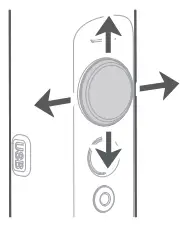
Control the orientation of camera lens | Control camera menu | ||
| Joystick | Camera lens | Joystick Up | Camera menu |
| Up | Down | Down | Upward selection |
| Down | Up | To the left | Downward selection |
| To the left | To the left | To the right | Return to the previous menu / Exit |
| To the right | To the right | Joystick Up | Access the next menu / Confirm |
* Triple tap function button to access camera menu, the joystick can set the camera menu at this moment.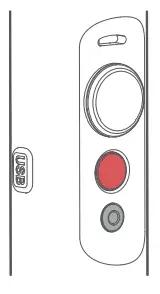
Function button
Switch working mode or access camera menu.
Please refer to “Introduction of camera menu” and “Introduction of working mode” Shutter
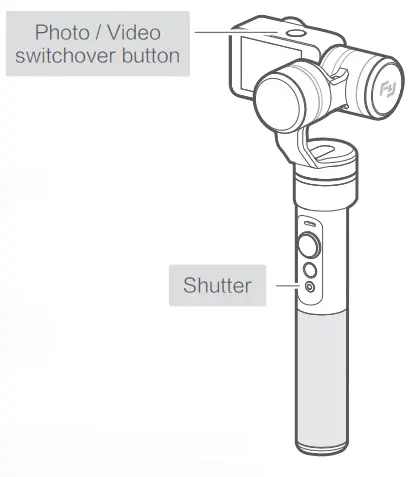
Single tap this button to start or stop photographing or recording. In Photo mode, single tap this button to take a picture.
In Video mode, single tap this button to start recording, and press again to stop recording.
Double-tap this button to turn on the fill flash, and double-tap again to turn off the fill flash.
The video files are named as MOV_xxxxx.mov, for example, “MOV_00001.mov”
The picture files are named as IMG_xxxxx.jpgv, for example, “IMG_00001.jpg”
Triple tap function button to access camera menu
 Menu display in Video mode Menu display in Video mode |  Menu display in Photo mode Menu display in Photo mode | ||
| Media Playback | Media Playback | ||
| Movie Size | 1080 | Resolution | 16M |
| Field Of View | H | Field Of View | H |
| Distortion Correct | ON | Distortion Correct | ON |
| Slow Motion | OFF | Scheduled picture | OFF |
| White Balance | AUTO | Photo Burst | OFF |
| Timelapse | OFF | Timelapse | OFF |
| Timelapse Duration | OFF | Timelapse Duration | OFF |
| Level Speed | Level Speed | ||
| Vertical Speed | Vertical Speed | ||
| Invert Mode | OFF | Invert Mode | OFF |
| Date Stamp | OFF | Date Stamp | OFF |
| Date & Time | Date & Time | ||
| Language | EN | Language | EN |
| System | System | ||
| Wi-Fi-Password | Wi-Fi-Password | ||
| Format | Format | ||
Menu introduction
Only display in Video modeOnly display in Photo mode
Media Playback
| VIDEO | Playback recorded videos | JPG Check the pictures |
| Joystick | VIDEO | JPG |
| Up | Check the previous video | Check the previous picture |
| Down | Check the next video | Check the next picture |
| To the left | Return to menu | Return to menu |
| To the right | Play videos | Check picture information |
Under the “VIDEO” or “JPG” option, click the ” Photo / Video switchover button” enter the delete menu, you can choose to delete a single file or delete all files.
Movie Size
Only display in Video mode. You can choose from below video sizes:
| 1080P (60fps) / 1080P (30fps) / 720P (120fps) / 720P (60fps) / VGA (240fps) / 4K (25fps) / 4K (15fps) / 2.7K (30fps) / 1440P (30fps) Factory default setting is 1080P (60fps) |
Tips: non-high-speed micro SD card is not available for 4K format shooting.
Resolution
| 16M (4508*3456) / 12M (4000*3000) / 8M (3264*2448) / 5M (2592*1944) Factory default setting is 16M (4508*3456) |
Field Of View
You can choose from Wide, Medium and Narrow grades.
The factory default setting is Wide.
Distortion Correct
Repair the distortion caused by camera lens to avoid the barrel shape distortion of pictures.
Factory default setting is“On”.Slow Motion
Open the slow-motion function. Only display in Video mode except for 4K video sizes.
Factory default setting is “Off”.White Balance
Tap to adjust the white balance. Only display in Video mode. Can be set to be Auto / Daylight / Cloudy / Fluor H / Tungsten, the boot-up default is “Auto”.Scheduled picture
Only display in Photo mode.
Factory default setting is “Off”. You can choose from below:
| 2S Take a picture after 2 seconds | 10S Take a picture after 10 seconds |
| Double Take the first picture after 10 seconds and take the second picture after 2 seconds | |
| Off Don’t use this function | |
Photo Burst
Only display in Photo mode. 3 / 5 / 10 pictures are settable for continuous shooting, the factory default setting is Off.
Press Shutter button for continuous shooting after setting.
Timelapse
Open the timelapse function and set the internal time for shooting two adjacent photos.
You can choose from 3 sec / 5 sec / 10 sec / 30 sec /1 min / Off.
Factory default setting is Off.
Timelapse
Duration Set the shooting time of time-lapse photography.
Level Speed
Open the panning axis rotation function and set the panning axis rotation speed for time-lapse photography. The settable numerical range is -20 ← 0 → +20(“+” stands for clockwise rotation,“ -”stands for anticlockwise rotation),the bigger the number the faster the rotation speed, the maximum rotation speed is 360°/ 6 min, and the minimum is 360°/ 120 min. If the number increases by 1, the time needs for rotating 60° shall decrease by 6 minutes; if the number decreases by 1, the time needs for rotating 360° shall increase by 6 minutes. The time needs for rotating 360°between two numbers is as the following table (“min” stands for minutes) There is no rotation when the number is set as 0.

Vertical Speed
Turn on the tilting axis rotation function to set the tilting axis rotation speed for time-lapse photography. Please refer to“Level Speed setting”.
Invert Mode
Invert the screen display after opening. Can be used for inversion shooting. Factory default setting is “Off”.
Date Stamp
The shooting date and time shall be displayed on the picture after this function is opened. Settable options: Off / Date / Date & Time. Factory default setting is Off.
Date & Time
Can set the current date, time and format. Turn the joystick to the right to successively select the date and time format desired to be modified, turn the joystick up to increase the numerical value while turn it down to decrease the numerical value. After setting all items, turn the joystick to the right to save the settings and return to the previous menu.
Language
Set the menu to be in English / Simplified Chinese / Traditional Chinese / German / French / Spanish / Portuguese. The factory default setting is English.
System
| Factory Reset | Restore to the factory settings |
| System Info | Check information related to the system |
| Card Info | Check the capacity and free space of SD card |
WIFI-Password
Set WiFi password.
Format
Format SD card
Introduction of photographing and shooting
Photographing
Switch to Photo mode by “Photo / Video switchover button”. Single tap “Shutter” button to photograph. Special modes: Photo Burst / Scheduled picture
Shooting
Switch to Video mode by “Photo / Video switchover button”. Single tap “Shutter” button to start recording and press this button again to stop recording.
Special mode: Slow Motion / Panorama shooting
 Timelapse
( Please refer to “Actual Operations” for detailed operations ) Automatically take a picture in the set time interval, panning axis moves by the set horizontal speed (or tilting axis moves by the set vertical speed), and automatically compose a video after shooting.
Panorama Shooting
In video mode, triple tap the “Shutter” button to start panorama shooting, the heading axis will automatically rotate shooting. Shooting range: 360 ° Recording Time: 8s
Introduction of operating mode
Working mode
Panning mode
The camera is allowed to pan left or right. Vertical tilts or rolls are restricted.
Panning and Tilting mode
The camera is allowed to pan left or right and tilt up and down. Rolls are restricted.
Lock mode
The camera stays in its current orientation. All panning, tilting and rolls are restricted.
Other functions
Reset
Reset the tilting axis to initial orientation and initial mode.
Standby
In standby mode, keep in power-up state, the motor stops working, the indicator light flashes for three times,
and single tap again to wake it up.
Operation instructions of function button
| Operation | Function | Explanation |
| Single tap | Panning Mode / Lock Mode | Single tap to switch between panning mode and lock mode |
| Double-tap | Panning and Tilting Mode | Under panning and tilting mode, single tap to switch to lock mode |
| Triple tap | Access camera menu | Control camera menu by the joystick ( Please refer to “Joystick” ) |
| Quadruple tap | Reset | Reset the tilting axis to initial orientation and initial mode |
| Long press for 1 second | Standby | Single tap again to wake it up, or triple tap to initialize ( Please refer to “Initialization”) |
LED indicator instructions
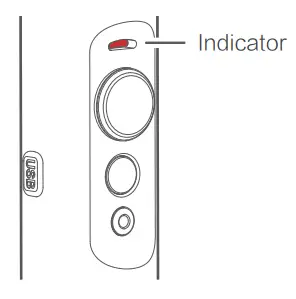
| Indicator status | Mode / Status |
| Single flash | Panning mode |
| Double flashes | Panning and Tilting mode |
| Three flashes | Standby |
| Always on | Lock mode / Initializing |
| Flash quickly | Initialization failure / Malfunction |
Inversion shooting
Turn the hand shank to the upward side of camera to realize the inversion for shooting in the scenes with low angle.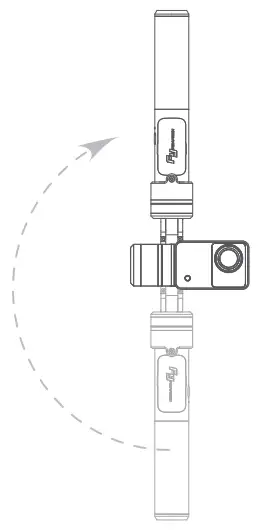
Firmware upgrade
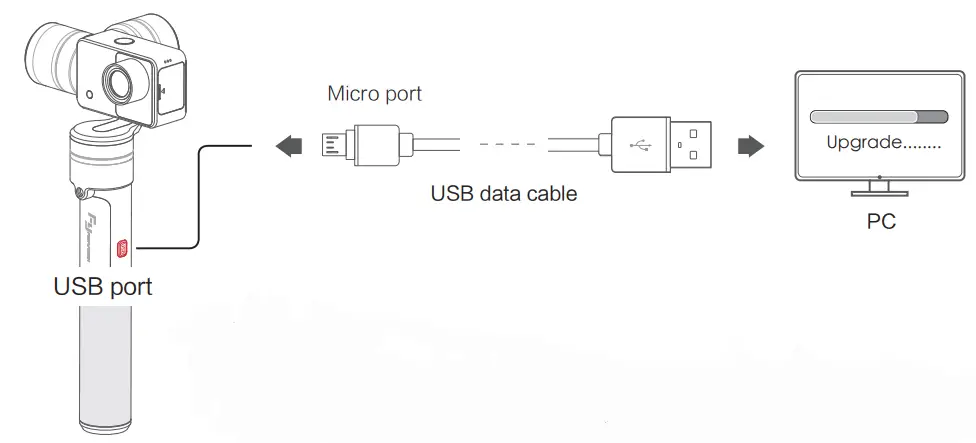
Upgrade steps
- Please visit the official website www.feiyu-tech.com to download the relevant programs for upgrading, including the USB drive program, firmware upgrade software, and product firmware, and install the relevant software, decompress the firmware files for standby application.
- Connect the USB cable with the micro port as the above picture.
- Please upgrade the relevant firmware according to the operation instructions of the firmware upgrade software.
Charging mode
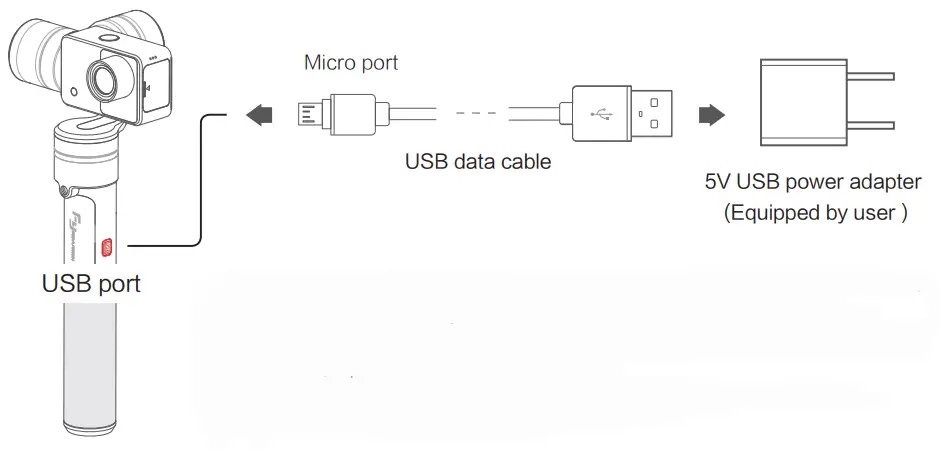 After power off, connect the USB data cable to USB port, and connect with 5V USB power adapter by USB cable (equipped by user). Or take out the battery, and use the corresponding charger to charge the battery (equipped by user).
The red indicator light is on during charging, and the green light is on after the battery is fully charged.
Initialization
Initialization is required in these cases
- There is a small angular deviation between tilting angle and the horizontal line after boot-up.
- There is a small angular deviation between the rolling angle and horizontal line.
Under lock mode, panning angle drifts.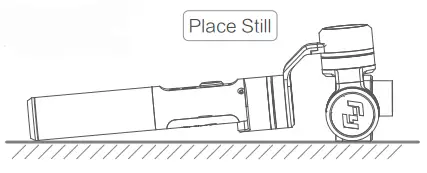
- In boot-up state, long press for 0.5 second to make the motor stop working, the indicator light shall flash for three times.
- Triple tap function button, place it on a still surface after the indicator light is on, and keep it in a static state as shown in the right picture:
- Initialization succeeds if the indicator light restores to flashing for three times.
When the initialization failed, the LED indicator will flash quickly, repeat step (2) & (3) to reinitialize.
Operating example
Take time-lapse photography as an example:
(1)Install the battery, long-press the function button for 0.5 seconds to power on.
(2)Triple tap function button to access the menu.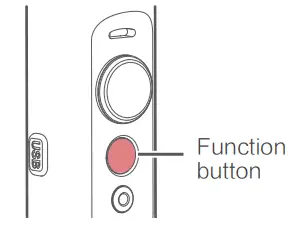
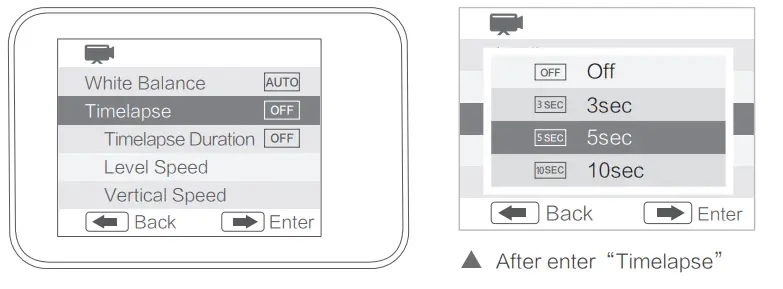
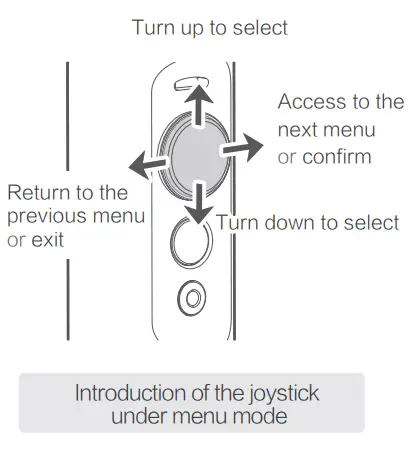 (3)To select “Timelapse”, turn the joystick to the right to access this interface, you can set the interval time of continuous pictures taken by time-lapse photography. For example, you can set it as 5 seconds. Turn the joystick to the right to save, and return to the previous menu.
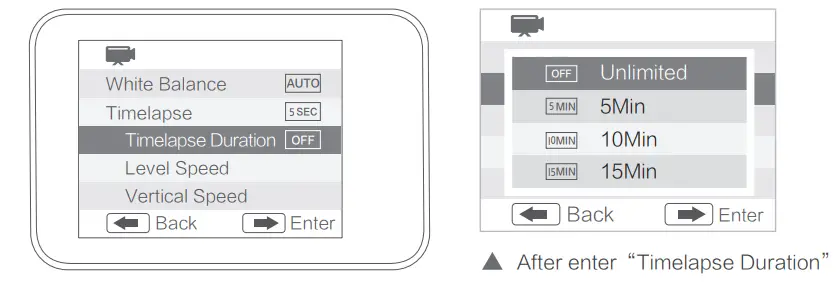
 (4)To select “Timelapse Duration”, turn the joystick to the right to access this interface, you can select from unlimited / 5 / 10 / 15 / 20 / 30 / 60 minutes. The default is “unlimited”, i.e. no limit to the shooting time. Turn the joystick to the right to save, and return to the previous menu.
 (5)To select “Level Speed”, turn the joystick to the right to access this interface, set the speed of panning movement, take “+15” as an example (“+” is for clockwise rotation, “-” is for anticlockwise rotation). Turn the joystick to the right to save, and return to the previous menu.
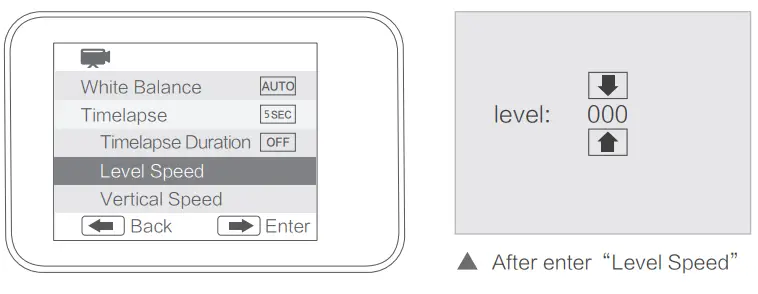 (6)Single tap the Shutter after setting, panning axis shall rotate according to the set speed and take a picture for every 5 seconds. The pictures shall automatically generate videos after shooting.
Single tap the Shutter button to end the shooting in advance, the pictures shall automatically generate videos after shooting and can be previewed in “Media Playback”
 Product Parameters
 Product Parameters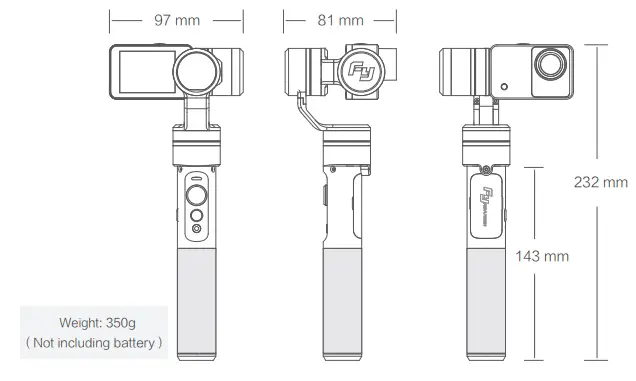
| Tilting angle range | 310° | Maximum control speed | ±120°/s |
| Rolling angle range | 310° | Battery model | 22650 |
| Panning angle range | 360° | Working voltage | 3.7V ~ 4.2V |
| Graph sensor | 16 megapixels | Lens field angle | 95° |
| Lens specification | 1 / 2.3” | Aperture Size | f 2.8 |
| Display screen | 2.0 inch / 4:3, Resolution: 320×240 |
| ISO | 50~3200 , Automatic |
| Video resolution | 4K@25FPS / 4K@15FPS / 2.7K@30FPS / 2.7K@15FPS / 1920x1440P@30FPS / 1080P@60FPS / 720P@120FPS / VGA@240FPS |
| Photograph resolution | 16M (4608*3456) / 12M (4000*3000) / 8M (3264*2448) / 5M(2592*1944) |
| Video format | MOV |
| Picture format | JPG |
| Working environment | Temperature: -10~+50℃ Humidity: 30%~80% |
| Storage environment | Temperature: -10~+150℃ Humidity: 30%~90% |
| Memory card | Maximum support 64GB Support transfer rate of Class 10 Micro SD card |
| WIFI | High-performance and low power consumption SDIO WiFi 2.4G, 802.11b/g/n Farthest distance is 10 meters in open and clear environment |
List of Articles
| Name | Quantity | Name | Quantity |
| Summon | 1 | Lens filter cap | 1 |
| 22650 rechargeable battery | 1 | User manual | 1 |
| USB cable (micro port, 50cm) | 1 | Warranty card | 1 |
DISCLAIMER
Prohibit any user for any illegal purpose. Users will be responsible for all behaviors of purchase and use products.
The Company assumes no liability for any risks related to or resulting from the debug and use of this product (including the direct, indirect or third-party losses).
For any unknown sources of using, we will not be at any services.
The updating and changes of product firmware and program may cause changes in function descriptions in this user manual, please read the instructions carefully before upgrading the firmware and use the corresponding user manual.
You can get the latest user manual from the official website: www.feiyu-tech.com
Feiyu Tech reserves the right to amend this manual and the terms and conditions of use the product at any time.
Attention
Please correctly assemble the product in accordance with the installation diagram.
Please upgrade the firmware and program with the standard data cable.
Please make sure the product is powered off when not in use.
 Everyone Can Make a Movie
For more information, please visit our official website
www.feiyu-tech.com
Support Email: [email protected]

 FeiyuTech - Official Website