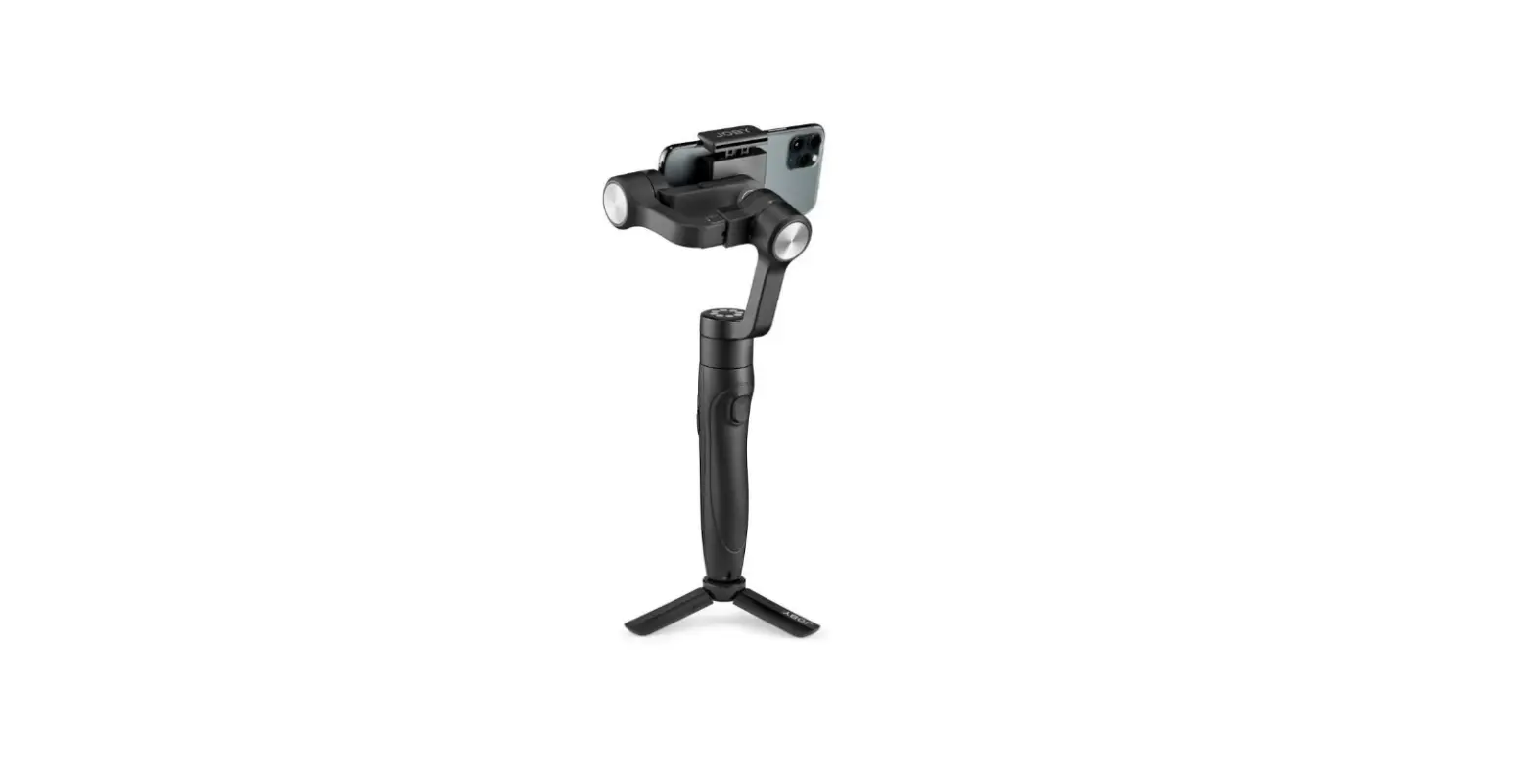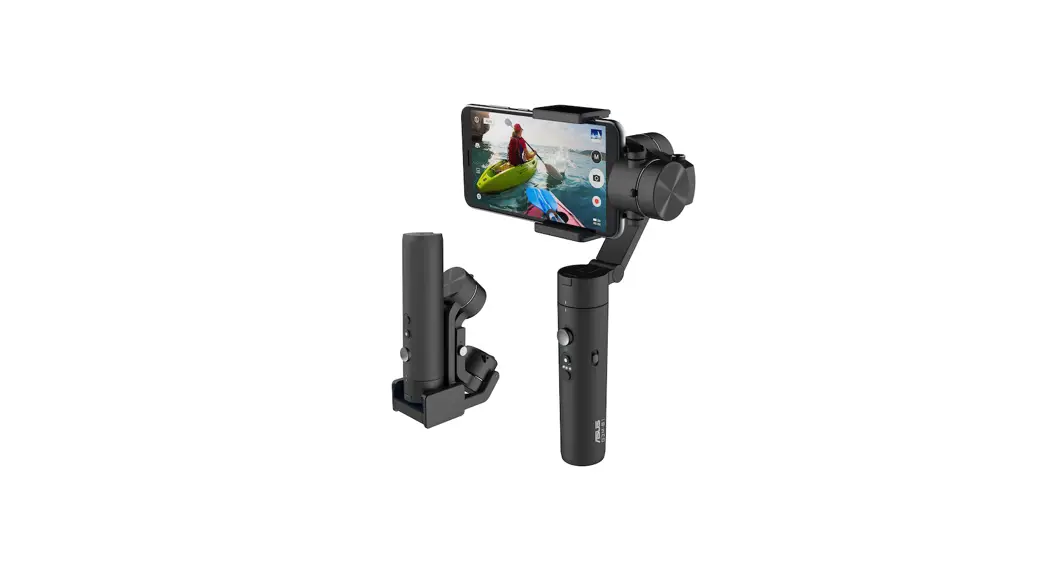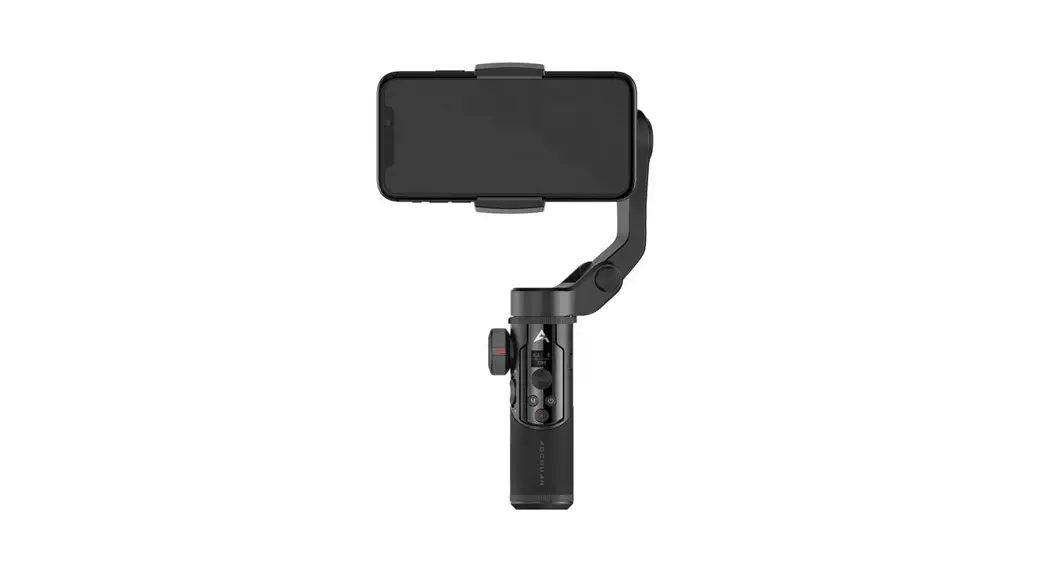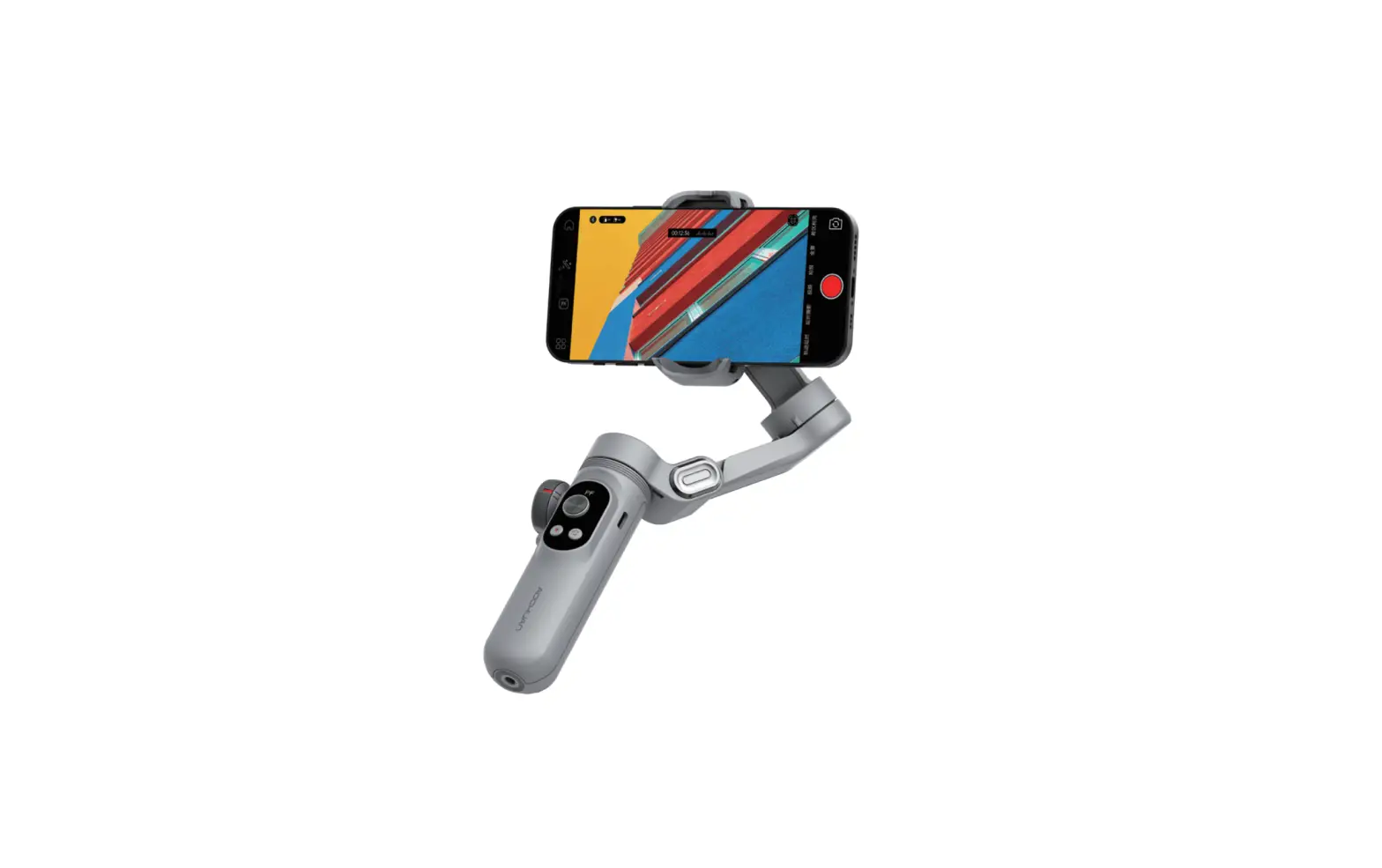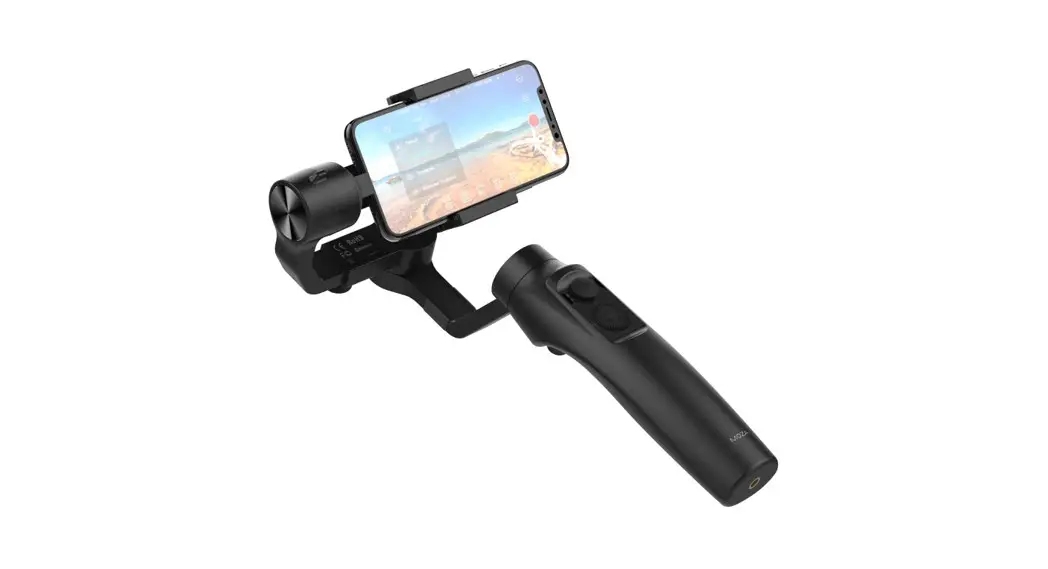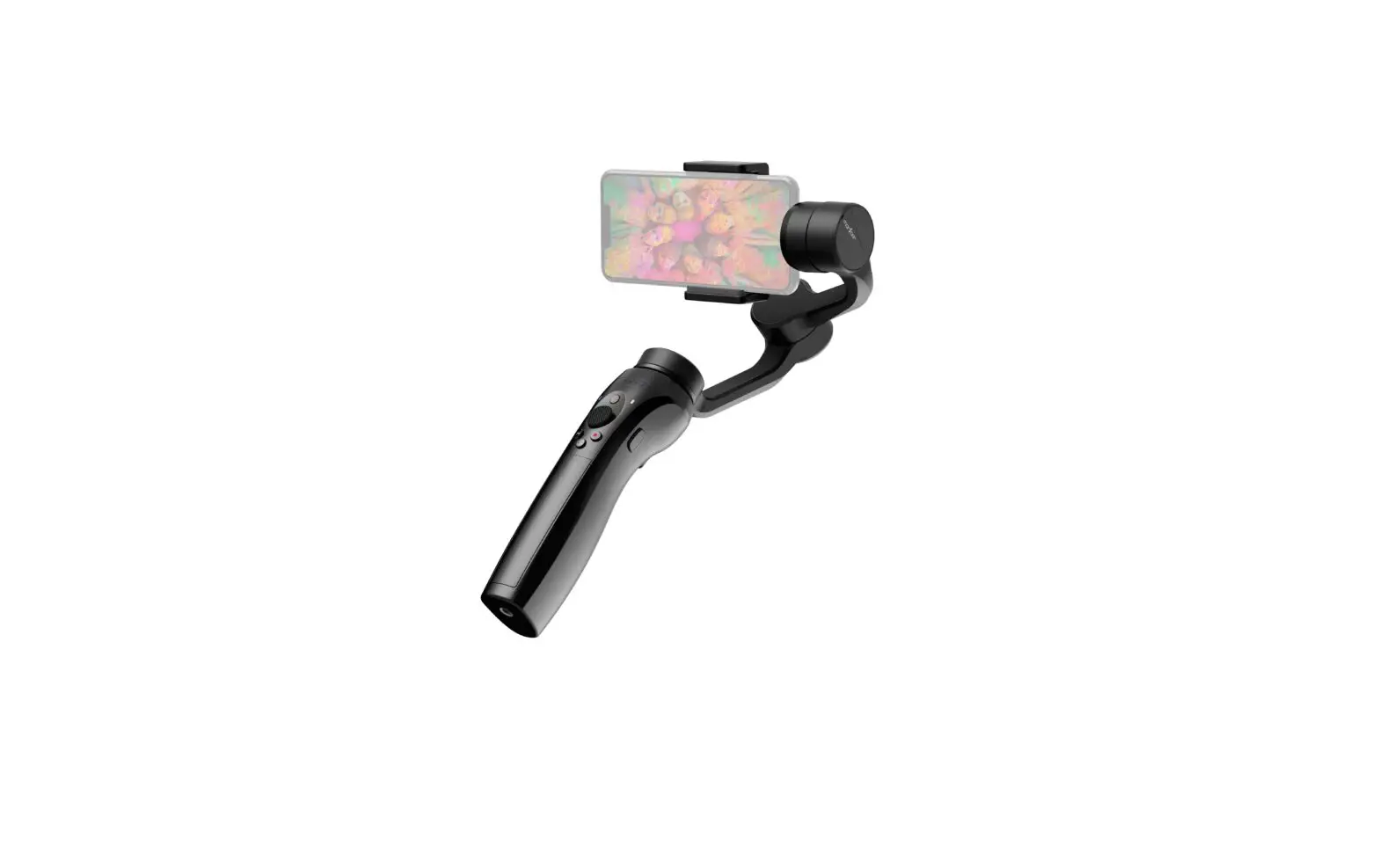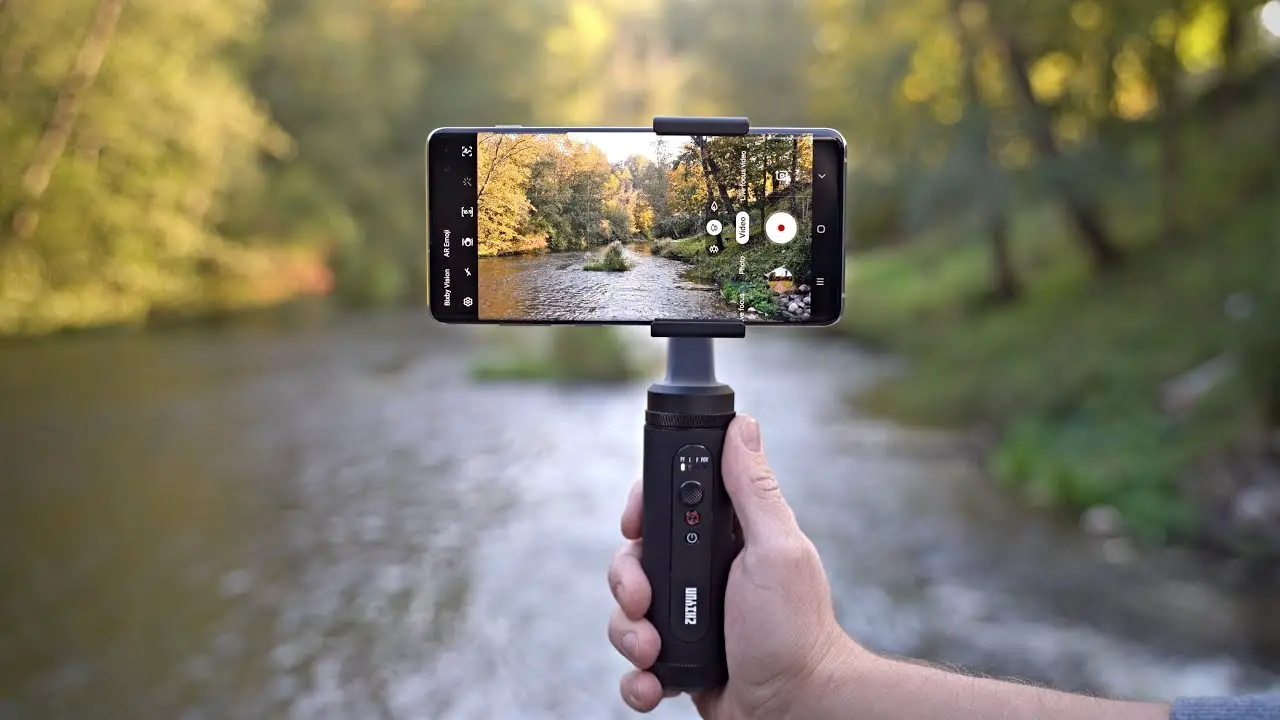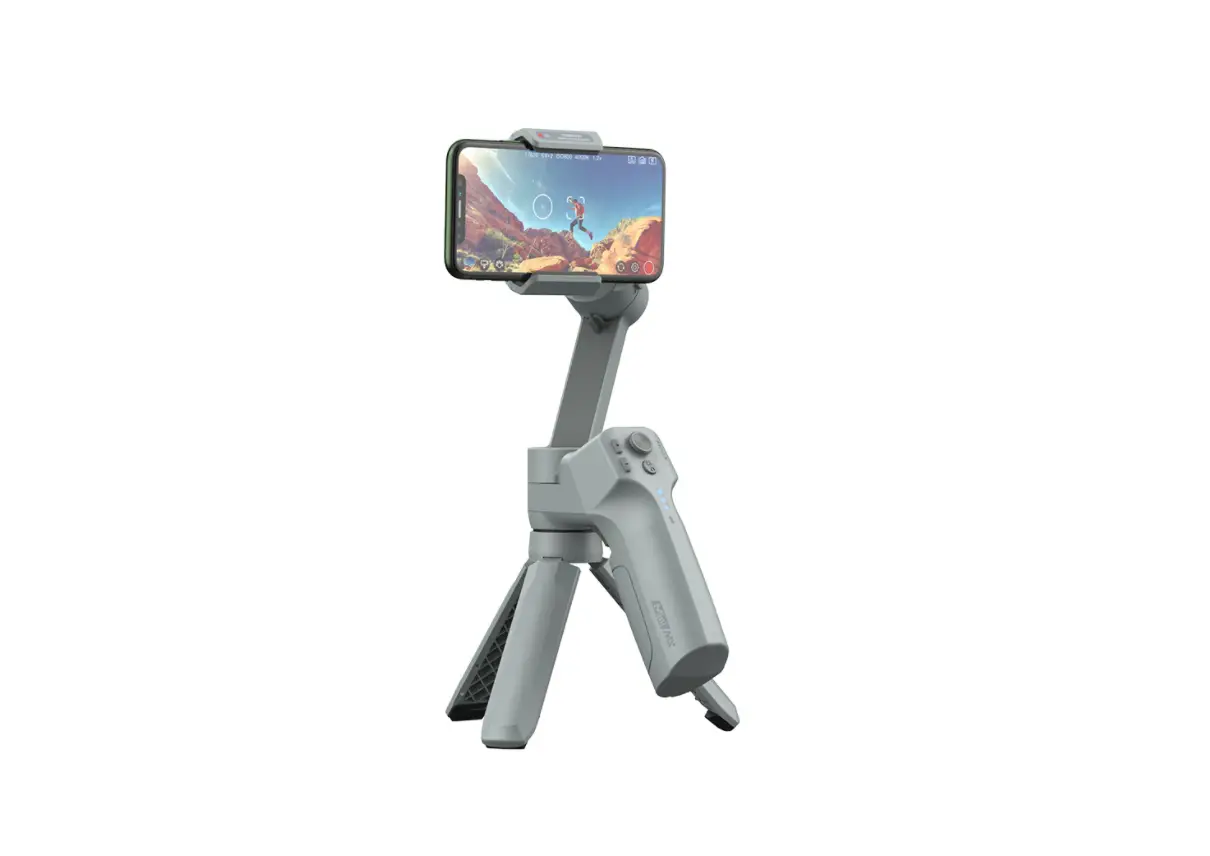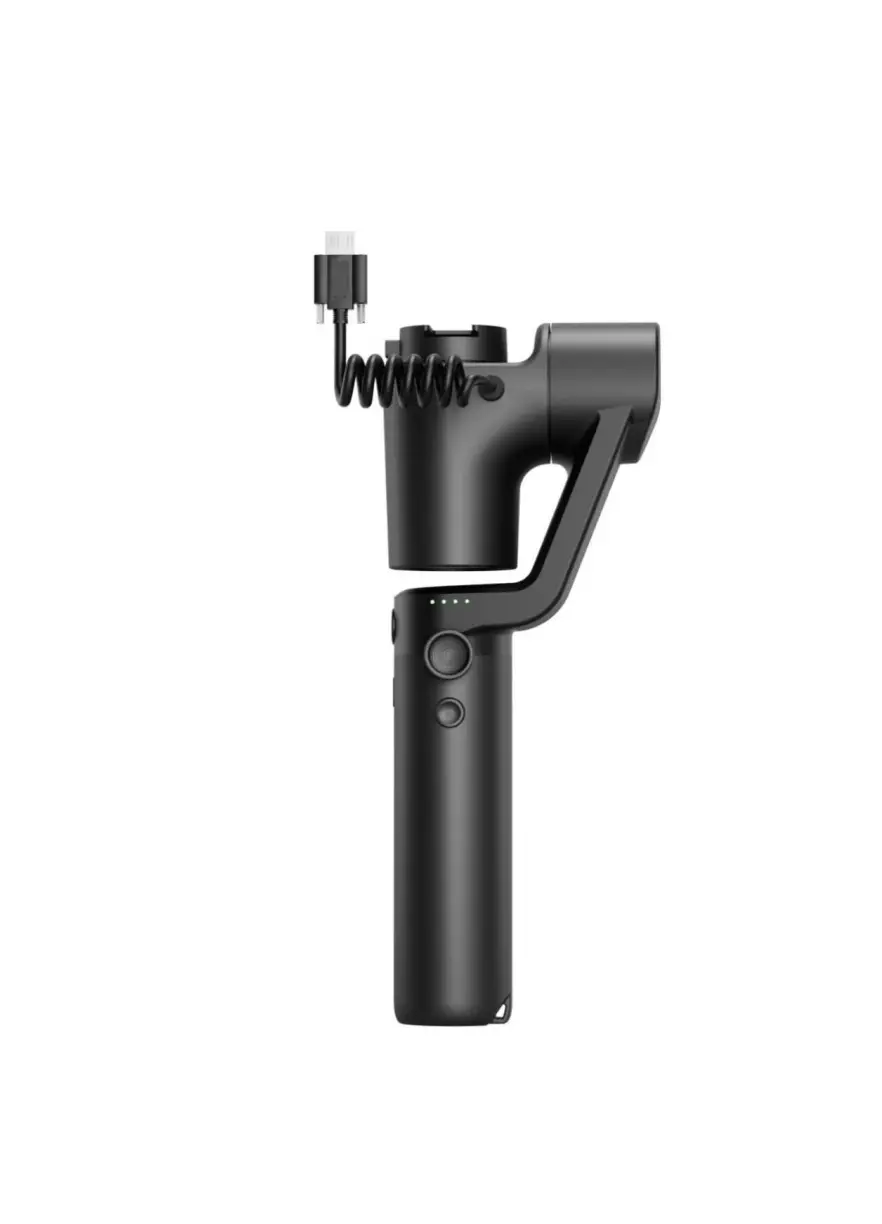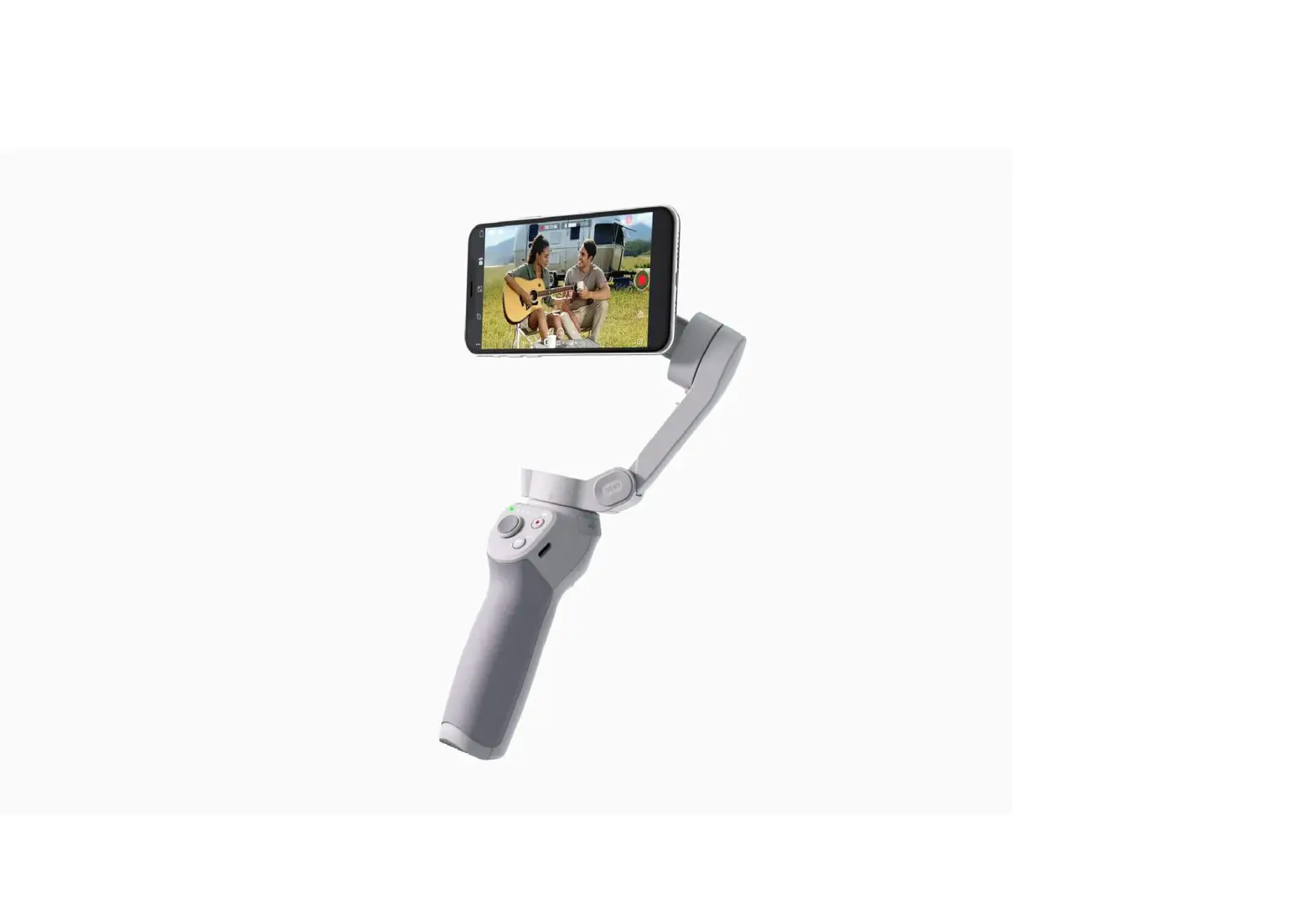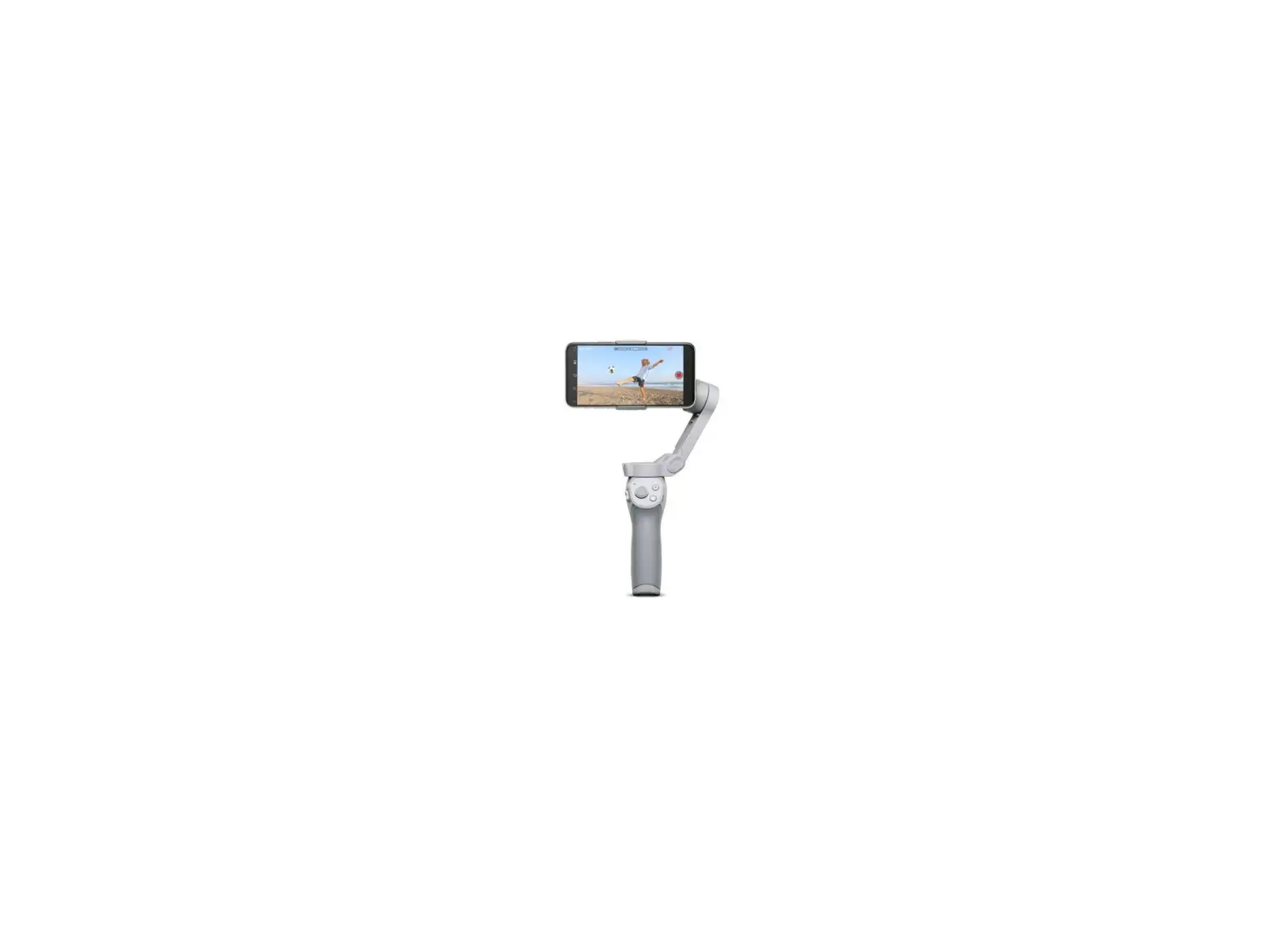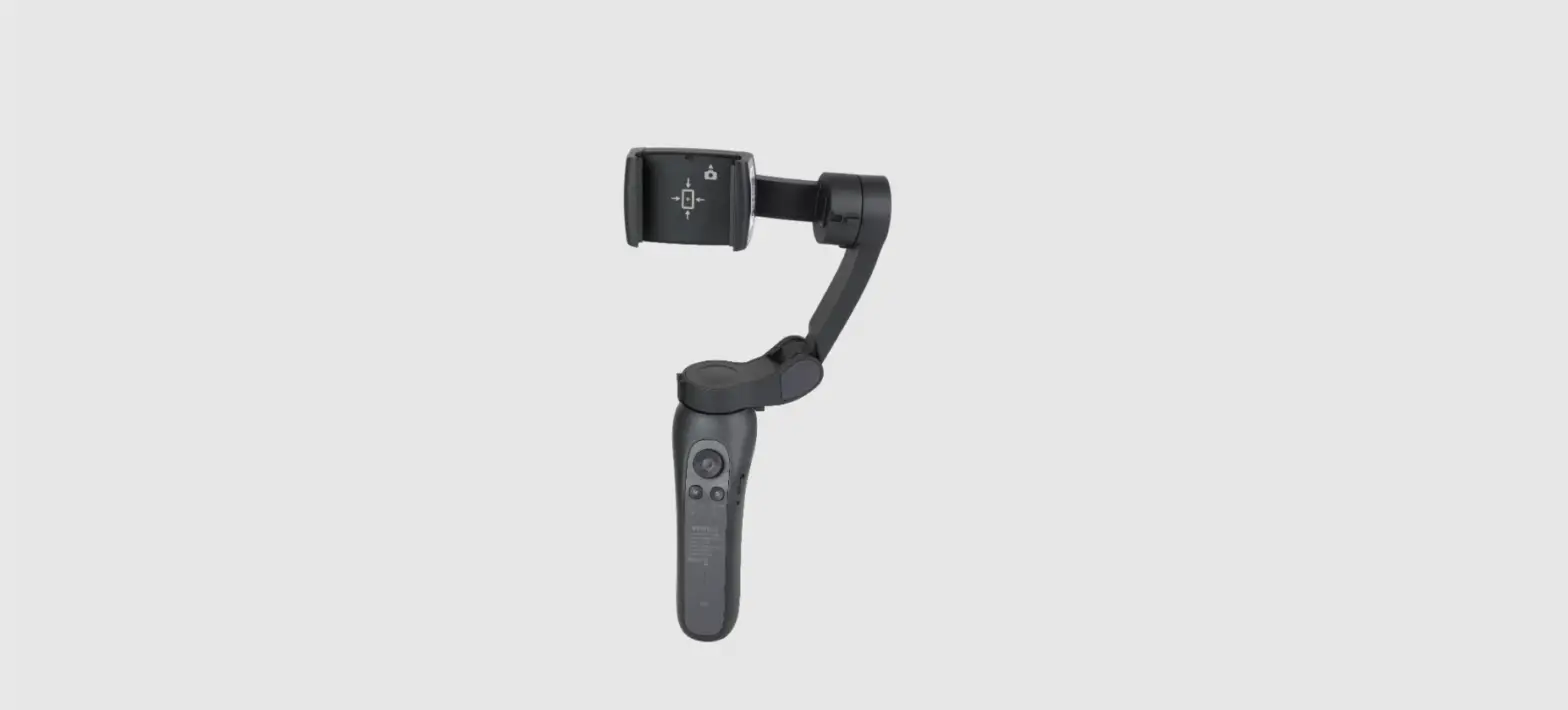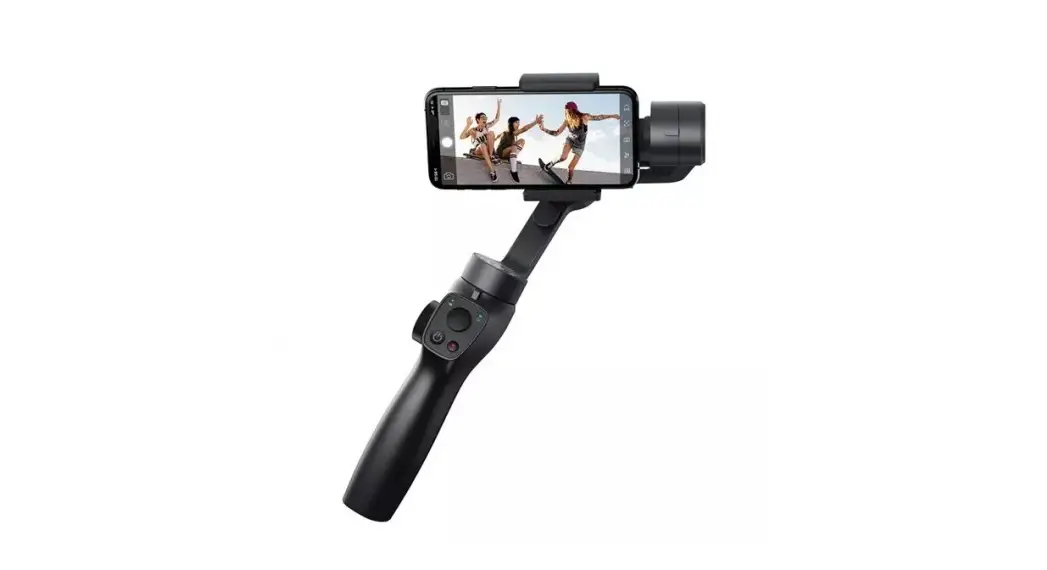

3-Axis Handheld Stabilizer for Smartphone
User Manual
V 1.0
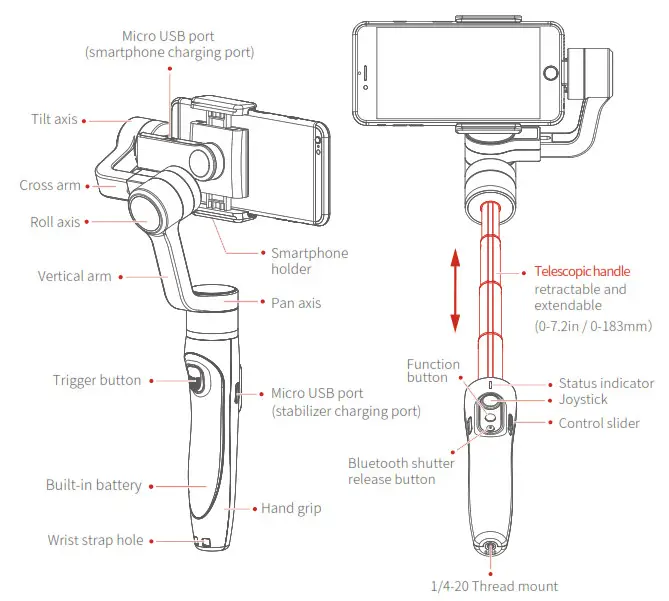
Product overview
- Structure
The smartphone shown in illustrations is for reference only
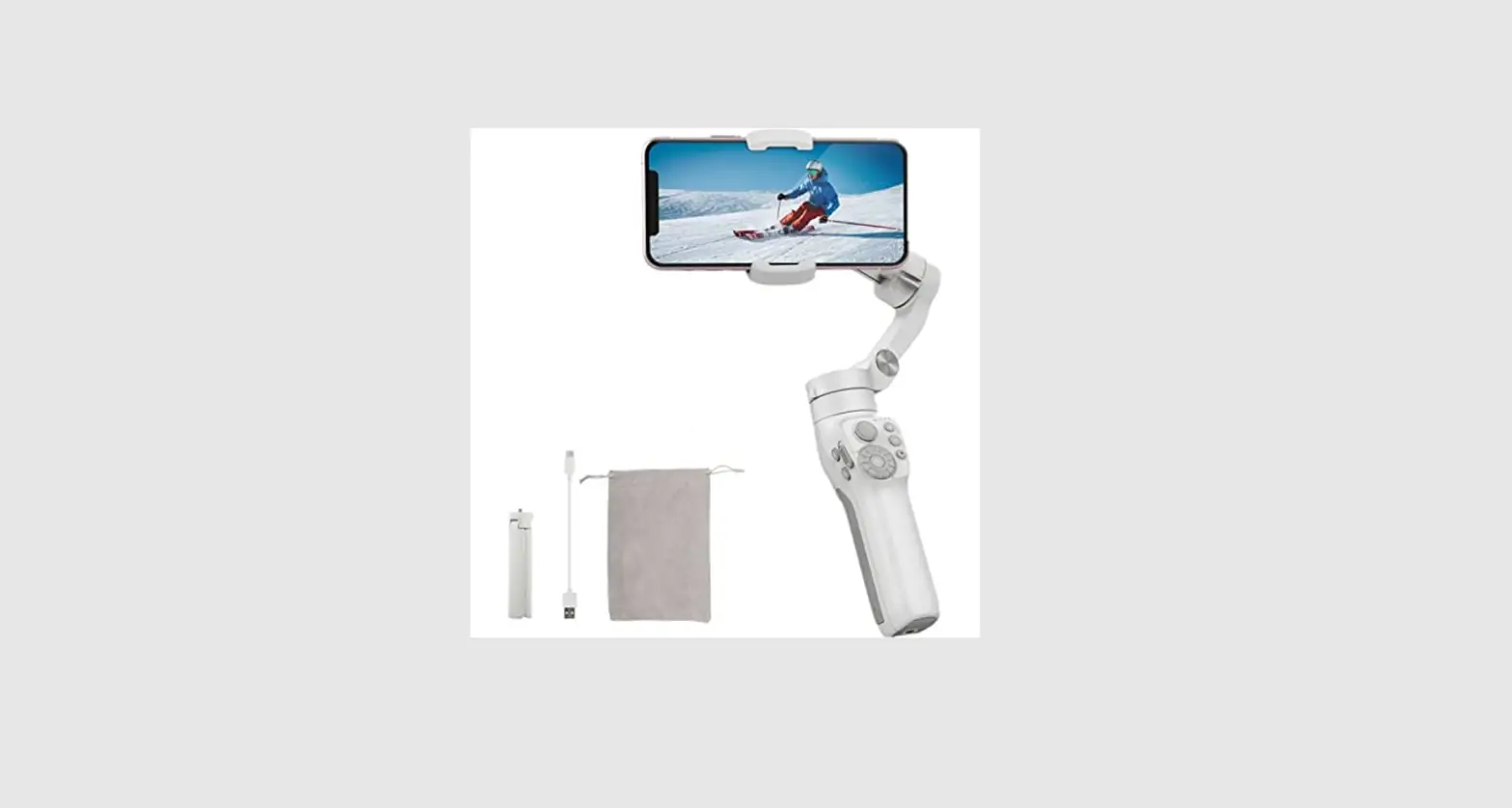
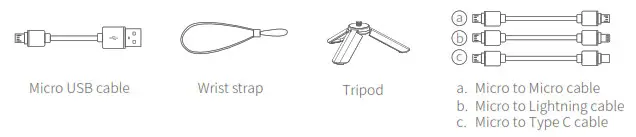
- Included items

Product setup
- Stabilizer charging
Fully charge the battery before powering on the stabilizer for the first time.
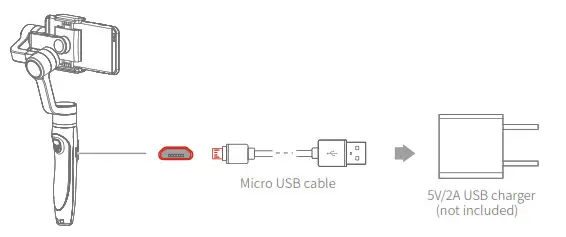
Charge the stabilizer with the Micro USB cable.
The indicator is red in charging status. It will turn green when the battery is fully charged.
 (1) Install the smartphone before powering on the stabilizer.
2) When not in use, turn off the stabilizer and then remove the smartphone. - Insert smartphone
The stabilizer must be powered off when mounting the phone.
Smartphone holder width range : 2.2-3.3in / 57-84mm
It’s recommended to remove your smartphone protective case.
Place the smartphone in the holder, push it against the back of the holder and slide it towards the side of the stabilizer. - Balancing smartphone
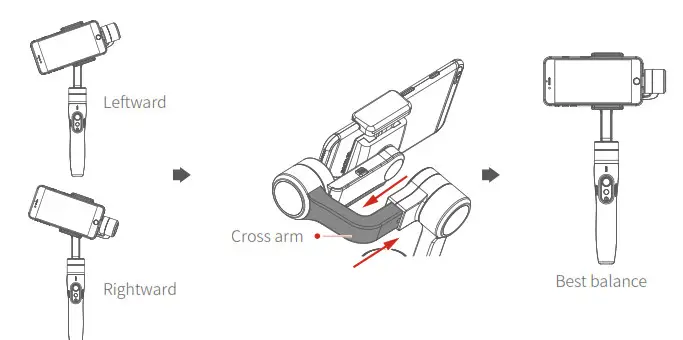
When the stabilizer is off, if the smartphone is unbalanced after being mounted, adjust the cross arm until the phone stays horizontal.
(1)If the smartphone tilts to the left, pull cross arm out to the right until phone is horizontal.
(2)If the smartphone tilts to the right, push cross arm in to the left until phone is horizontal.
Note: The smartphone must be balanced as explained above to guarantee correct stabilizer functioning. - Smartphone orientation
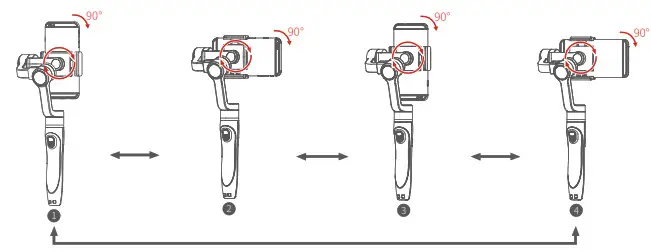
Simply rotate the phone holder until you reach the orientation that you need.
If the phone obstructs the rotation, reposition the phone.
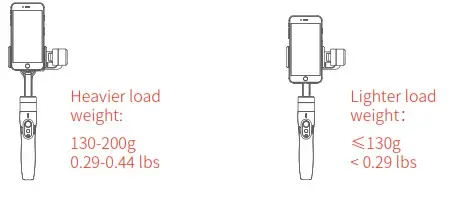
When mounting the phone vertically, consider the phone weight for positioning the holder:
Heavier phone: the holder is positioned in the middle.
Lighter phone: the holder is positioned towards the bottom.
- Power on / off
Make sure the smartphone is secure before powering on the stabilizer.
When the battery is low, the status indicator will blink red three times every 5 seconds, charging the stabilizer.
Power on:
press and hold the function button until the status indicator turns green and the stabilizer beeps.
Power off: press and hold the function button until the status indicator changes from a flashing red to a solid red light and stabilizer beeps.
Note: Turn on the stabilizer only when the phone is mounted, otherwise motors might be damaged.
Vibrating is normal for the first few seconds after turning on the stabilizer. It will disappear when the motor’s auto-adjustment is done. - Smartphone charging
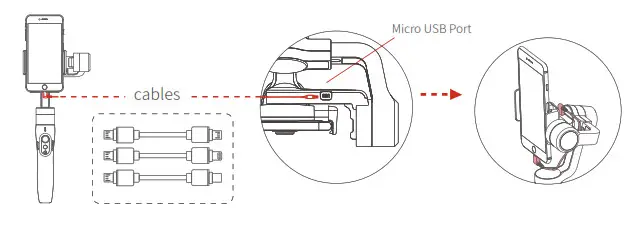
Should you need to charge your smartphone, you can opt to connect the phone to the stabilizer using the corresponding cable (included).
 (1) Install the smartphone before powering on the stabilizer.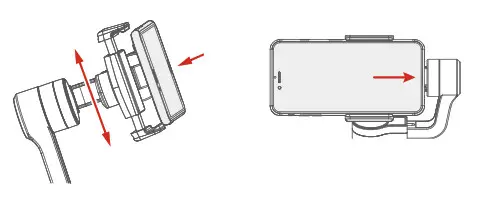
Controls and operations
1. Status indicator
The current model of the stabilizer can be identified by the indicator status as follows: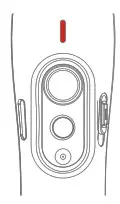
| Indicator status | Mode / Status |
| Blue light flashes once | Pan mode |
| Blue light flashes twice | Follow mode |
| Constant blue light | Lock mode / stabilizer initialization / motion control mode |
| Blue light keeps flashing | Initialization failure/ malfunction |
| Red light flashes three times | Low power |
| Red light keeps flashing | Stabilizer powering off |
2. Bluetooth shutter release button
By connecting via Bluetooth or App you can trigger pictures and videos on your phone as follows: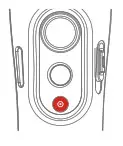
| Button | Actions |
| Single-click | Take a photo |
| Press & Hold | Start video recording / Stop video recording |
Note: Single click during video recording allows taking a picture.
You can tap the Bluetooth shutter release button during a single recording session as many times as you like to take multiple stills.
Troubleshooting: if the stabilizer fails to connect to the App, power off the stabilizer. Press and hold both the Bluetooth shutter release button and the function button to reset the Bluetooth connection.
3. Joystick control
The stabilizer joystick can control pan (move the joystick right/left) and tilt (move the joystick up/down).
If the stabilizer is in follow mode, the joystick can control the roll axis angle (-30° ~ +30°) when moved right/left.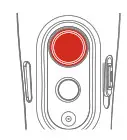
4. Other controls and functions
| Function button | Function | Explanation |
| Single-click | Pan Mode / Lock Mode | Single tap to switch between pan mode and lock mode |
| Double click | Follow made | When in follow mode you can use the joystick left/right to control the roll axis angle (-30° — +30°) or up/down to control the tilt axis angle. When in follow mode, click the function button once to return to pan mode |
| Triple-click | Switching camera lens | It needs to be used with the App |
| Four clicks | Motion control mode | Both the pan and tilt directions can be rotated |
| Five clicks | Reset | After the reset to restart succeeds or fails, you can click the function button the stabilizer |
| Trigger button | Function | Explanation |
| Press& Hold | Temporary Lock | In the pan mode or follow mode, holding the trigger button temporarily locks the pan and tilts until released |
| Double click | Reset to default | Centers the camera away from the user on all 3 axes ( pan, tilt, and roll) and switches back to the default pan mode |
| Control slider | Function | Explanation |
| Sliding up-down | Adjust parameters | Adjust phone camera parameters when using the stabilizer app |
5. Automatic rotation of the smartphone
From horizontal to vertical:
- Hold the stabilizer horizontally parallel to the ground.
- Press and hold the trigger button and at the same time click once on the function button.
Form vertical to horizontal (reset):
- Hold the stabilizer horizontally parallel to the ground.
- Double-click on the trigger button.
Note: The automatic rotation function works ONLY if the stabilizer is held horizontally parallel to the ground.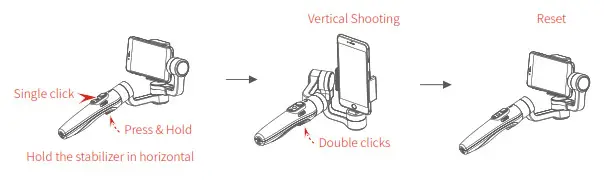
Operation modes
Pan mode (Default mode) ⸺ The roll and tilt directions are fixed, and the
smartphone moves according to the hand movement direction of the user.
Follow mode ⸺ The roll direction is fixed, and the smartphone moves according to the hand movement direction of the user.
Lock mode ⸺ The orientation of the smartphone is fixed.
Reset ⸺ Return to pan mode (default mode).
Manual Lock
Smartphones can be manually positioned while in pan mode, follow mode and lock mode. Both the pan and tilt can be manually set.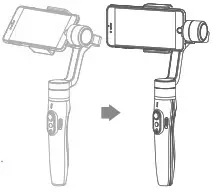
Manually move smartphone to the desired position, and hold for half a second. New tilt and/or pan positions are automatically saved.
Motion Control Mode
The stabilizer can easily create constant speed movement by using the motion control mode. This mode can be used for recording both regular video and timelapse photography. For best results, attach the stabilizer to the included tripod to keep it completely still.
- Set motion speed in the App
To set the motion speed, connect to the App and select the desired speed from the motion control option in the settings menu.Smart stabilizer rotation speed 12 18 24 30 1 2 4 8 15 30 1 4 8 seconds
/turnseconds
/turnseconds
/turnseconds
/turnminutes
/turnminutes
/turnminutes
/turnminutes
/turnminutes
/turnminutes
/turnhour
/turnhours
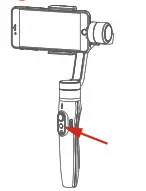
/turnhours/ turn - Enter motion control mode by clicking the function button 4 times

- Set rotation start position

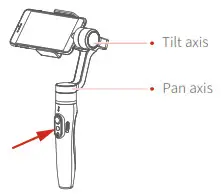
Record the first position (rotation start position) by manually moving the smartphone to the desired position. Hold in position for half a second. Click the function button to record the rotation start position. - Set rotation end position

Record the second position (rotation end position) by manually moving the smartphone to the desired position. Hold in position for half a second. Click the function button to record the rotation end position. - The stabilizer moves from rotation start position to rotation end position

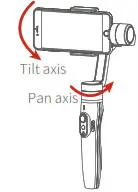
The stabilizer automatically returns to the start position. The tilt axis and the pan axis start to rotate uniformly from the start to the end position according to the set rotation speed.
Exit operations:
When in motion control mode, you can double click the trigger button to reset the stabilizer to the default mode.
After the auto-rotation is finished, the stabilizer automatically exits auto-rotation mode and enters follow mode.
Stabilizer reset
Reset stabilizer when:
- Smartphone fails to remain level.
- The stabilizer has not been used for a long period of time.
- The stabilizer is used in extreme temperature variations.
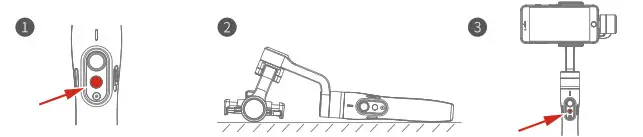
- Click the function button five times. The motors will stop working. The status indicator turns solid blue.
- Place the stabilizer on a flat, horizontal surface. The stabilizer will automatically reset after a few seconds detecting no movement. The blue light will flash three times to indicate end of the reset process.
- After the reset is successful, click the function button to restart.
Note: if the reset is not successful, click the function button to restart. Try the reset process again.
App download and firmware upgrade
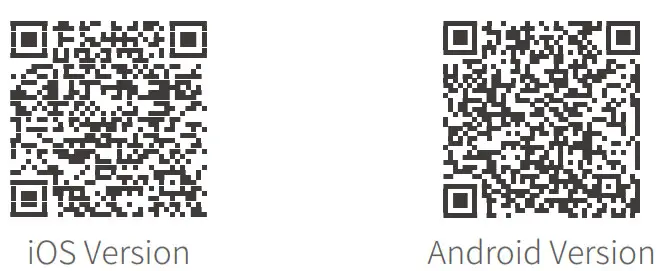
- App download

https://apps.apple.com/us/app/id1468057679
http://www.feiyu-tech.com/download/App/Stabilizer.apk
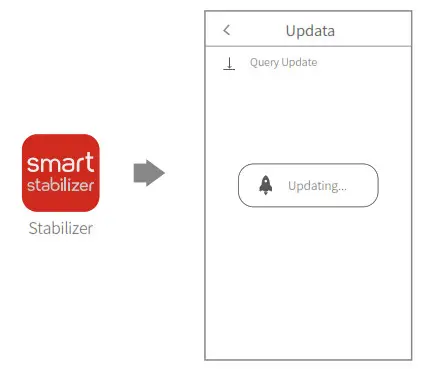
- Firmware upgrade
Connect the stabilizer to the App to upgrade the firmware.

Technical specifications
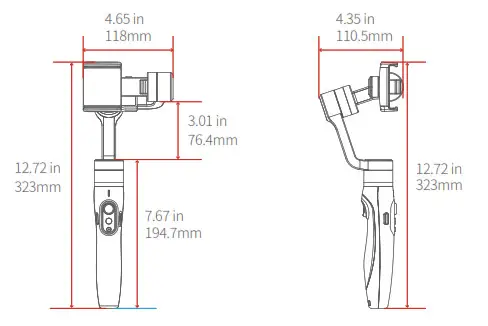
| Max. tilt range | 320° | Maximum load weight | 210g / 0.46 lbs |
| Max. roll range | 320° |
| Max. pan range | 320° |
| Operation time | operation time in motion shooting: around 5 hours; operation time in normal shooting: around 10 hours |
| Phone compatibility | smartphones (mobile phone width range: 2.2-3.3in / 57-84mm) |
| Weight | 428g / 0.94 lbs (Not including the smartphone) |
IMPORTANT NOTES
- The smartphone must be balanced to guarantee the correct functioning of the stabilizer.
- Turn on the stabilizer only when the smartphone is mounted, otherwise, motors might be damaged.
- Vibrating is normal for the first few seconds after turning on the stabilizer. It will disappear when the motor’s auto-adjustment is done.
- Do not force the motors to rotate rapidly since they cannot spin 360°.
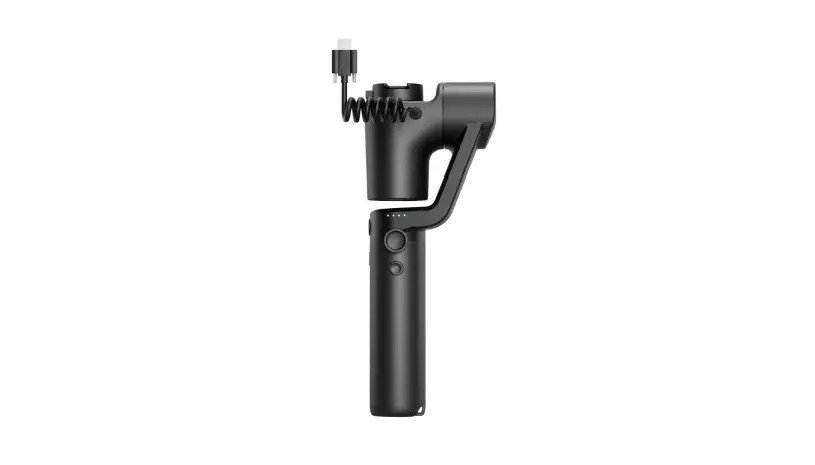
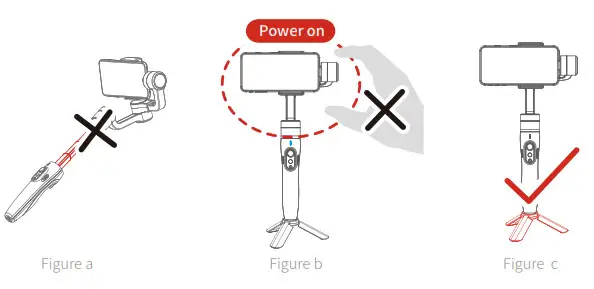
- Keep the stabilizer away from impact when the telescopic handle is extended. (as shown in Figure a)
- When the stabilizer is powered on, don’t grab the top part. (as shown in Figure b)
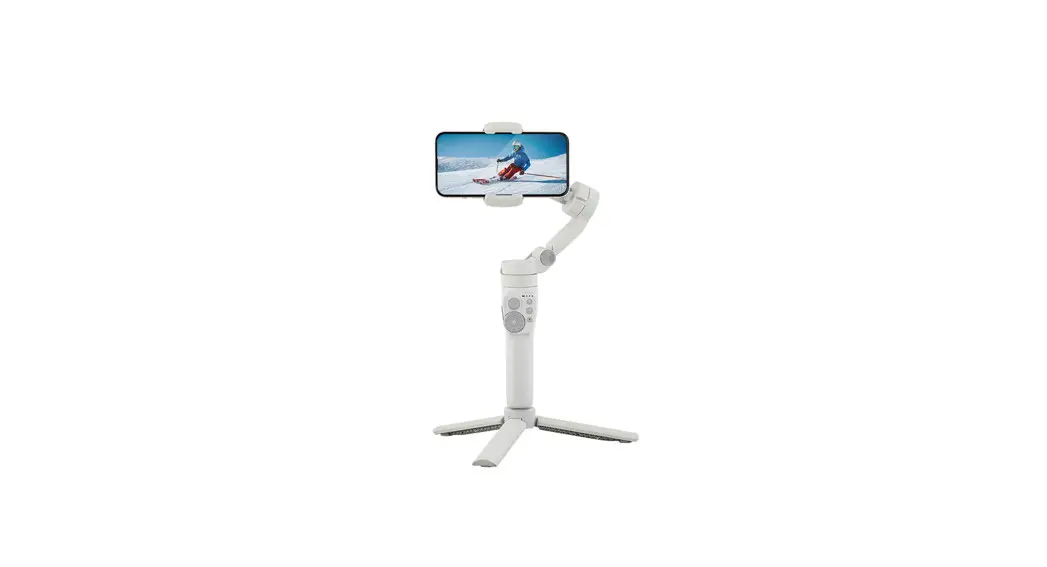
- If placing the stabilizer on a flat surface, put the stabilizer on a tripod to ensure it is upright. (as shown in Figure c)
- Keep the stabilizer away from water.
- The stabilizer is not compatible with quick chargers.
FAQ
- The stabilizer can’t stabilize or motors are powerless after booting.
Ensure that the smartphone has been mounted and balanced correctly on the stabilizer. - The vibration happens when using the stabilizer in the normal way.
The default value of motor strength is a bit high so that the stabilizer can work properly in portrait mode. If the smartphone is lighter in weight, there might be vibrations. If that happens, connect the stabilizer with the App and adjust the rate of motor strength. - “No Stabilizer Found” or “Connection Fail” when trying to connect the stabilizer with the App.
(1) Forget the stabilizer or cancel pairing in the Bluetooth list of the smartphone. Close and open the phone’s Bluetooth then search again the stabilizer.
(2) If the stabilizer can’t be found in the Bluetooth list, it may be connected with previously paired phones. Turn off the Bluetooth of other phones and search again in the App.
(3) Reboot the smartphone if the problem persists. - iPhone moves randomly when performing face tracking or object tracking.
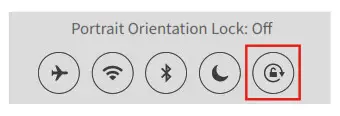
(1) Go to the phone control center and make sure the screen rotation is unlocked.
(2) Restore default settings in the App.
DISCLAIMER
Any use for illegal purposes is prohibited. Users are responsible for properly using products.
The manufacturer assumes no liability for any risks related to or resulting from the debug and use of this product (including the direct, indirect or third-party losses).
Firmware upgrades may cause changes in function descriptions in this user manual. Read the instructions carefully before upgrading the firmware and use the corresponding user manual.
The manufacturer reserves the right to amend this manual and the terms and conditions of using the product.
Certification and Compliance
 FCC ID:
This device complies with part 15 of the FCC Rules. Operation is subject to the following two conditions:
- This device may not cause harmful interference, and
- this device must accept any interference received, including interference that may cause undesired operation.
NOTE: This equipment has been tested and found to comply with the limits for a Class B digital device, pursuant to part 15 of the FCC Rules. These limits are designed to provide reasonable protection against harmful interference in a residential installation. This equipment generates, uses and can radiate radio frequency energy and, if not installed and used in accordance with the instructions, may cause harmful interference to radio communications. However, there is no guarantee that interference ill does not occur in a particular installation. If this equipment does cause harmful interference to radio or television reception, which can be determined by turning the equipment off and on, the user is encouraged to try to correct the interference by one or more the following measures:
—Reorient or relocate the receiving antenna.
—Increase the separation between the equipment and receiver.
—Connect the equipment into an outlet on a circuit different from that to which the receiver is connected.
—Consult the dealer or an experienced radio/TV technician for help.

 twitter.com/jobyinc
 facebook.com/jobyinc
 instagram.com/jobyinc
 youtube.com/jobyinc
© 1996-2019 Vitec Imaging Solutions Spa
Via Valsugana, 100
36022 Cassola (VI) Italy