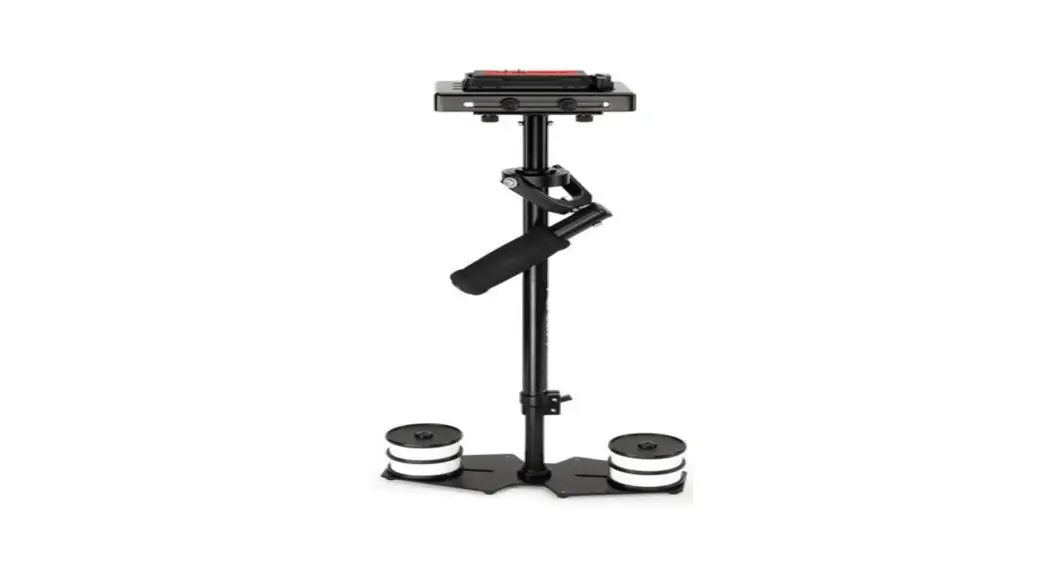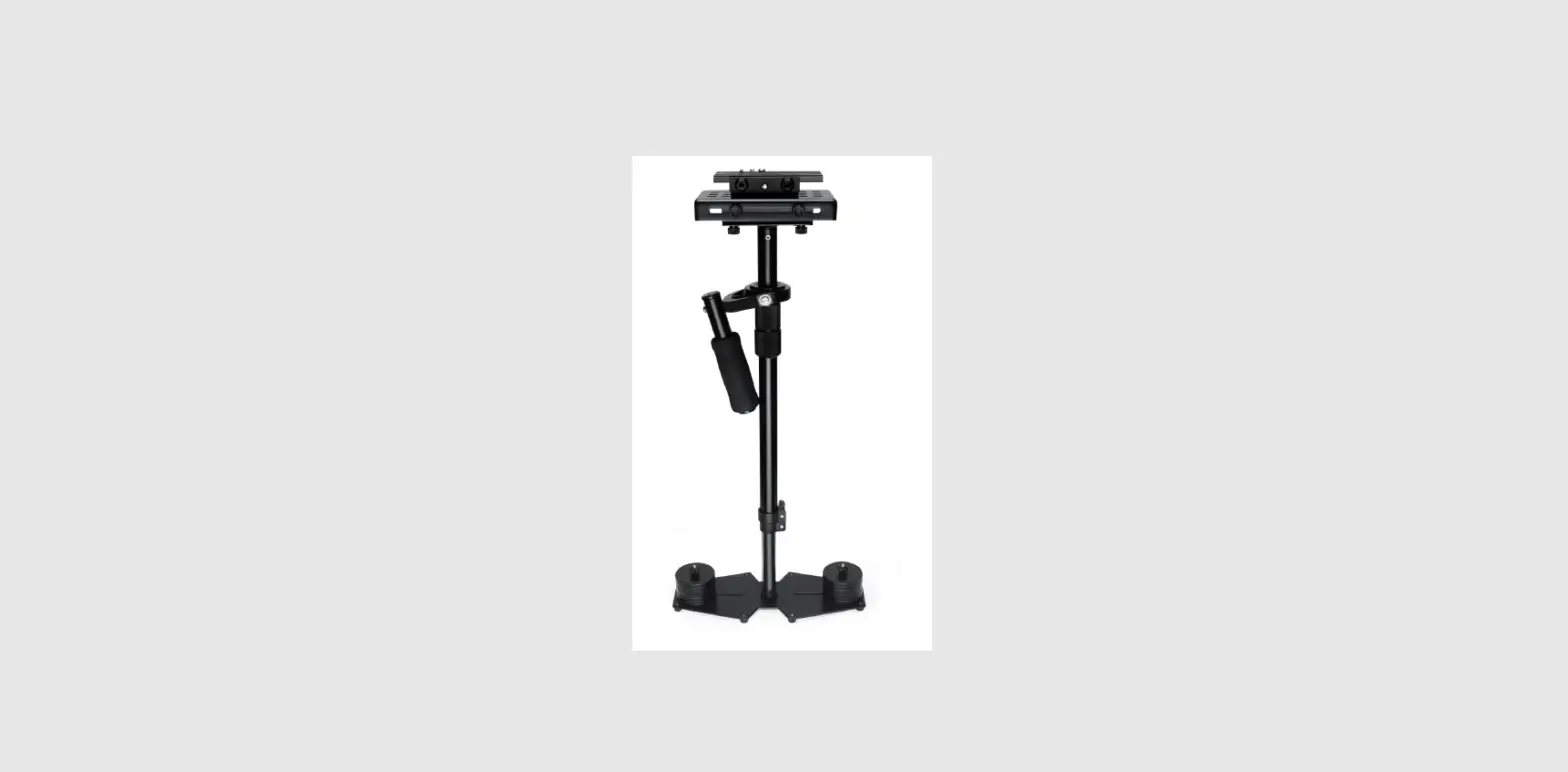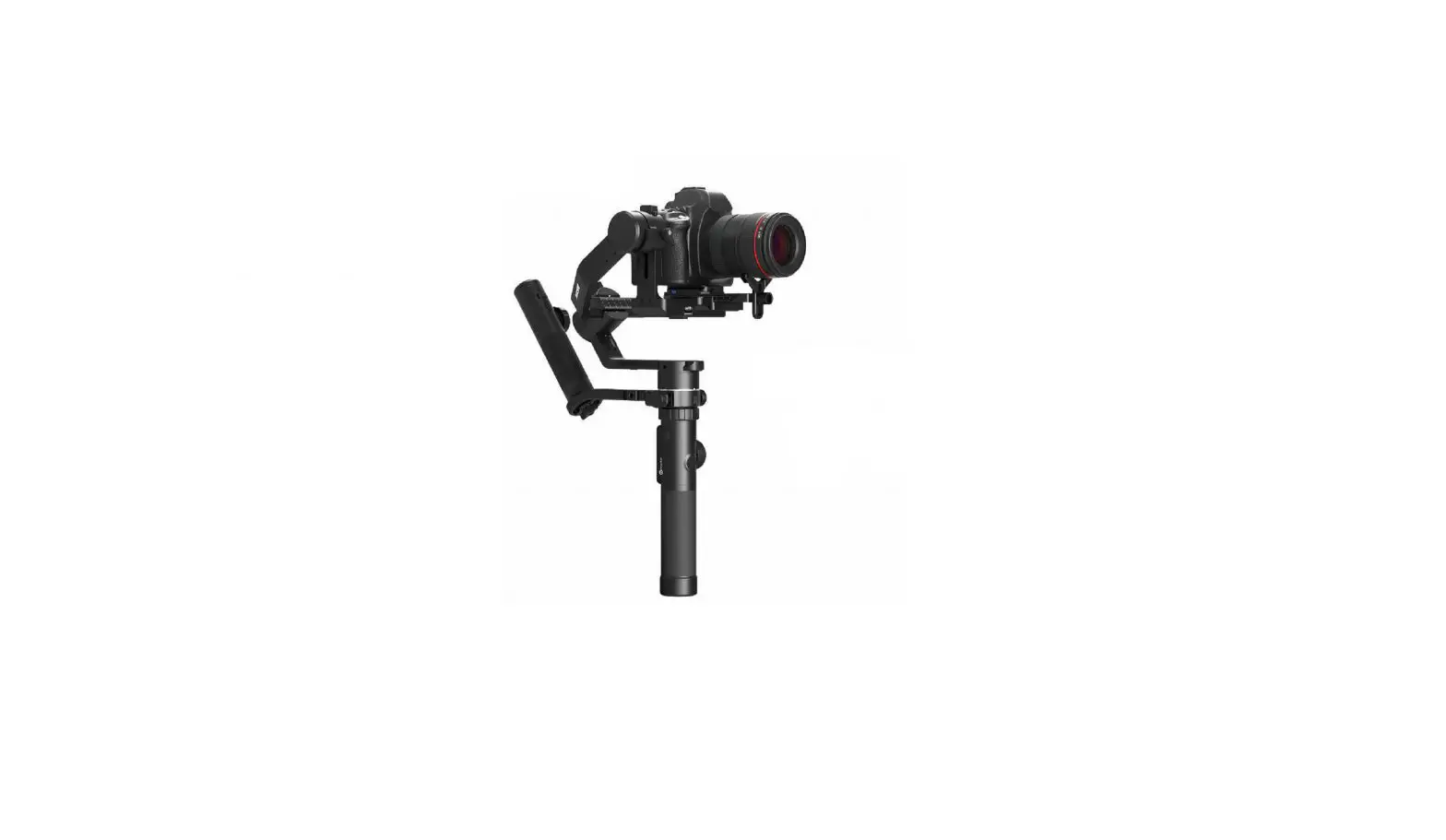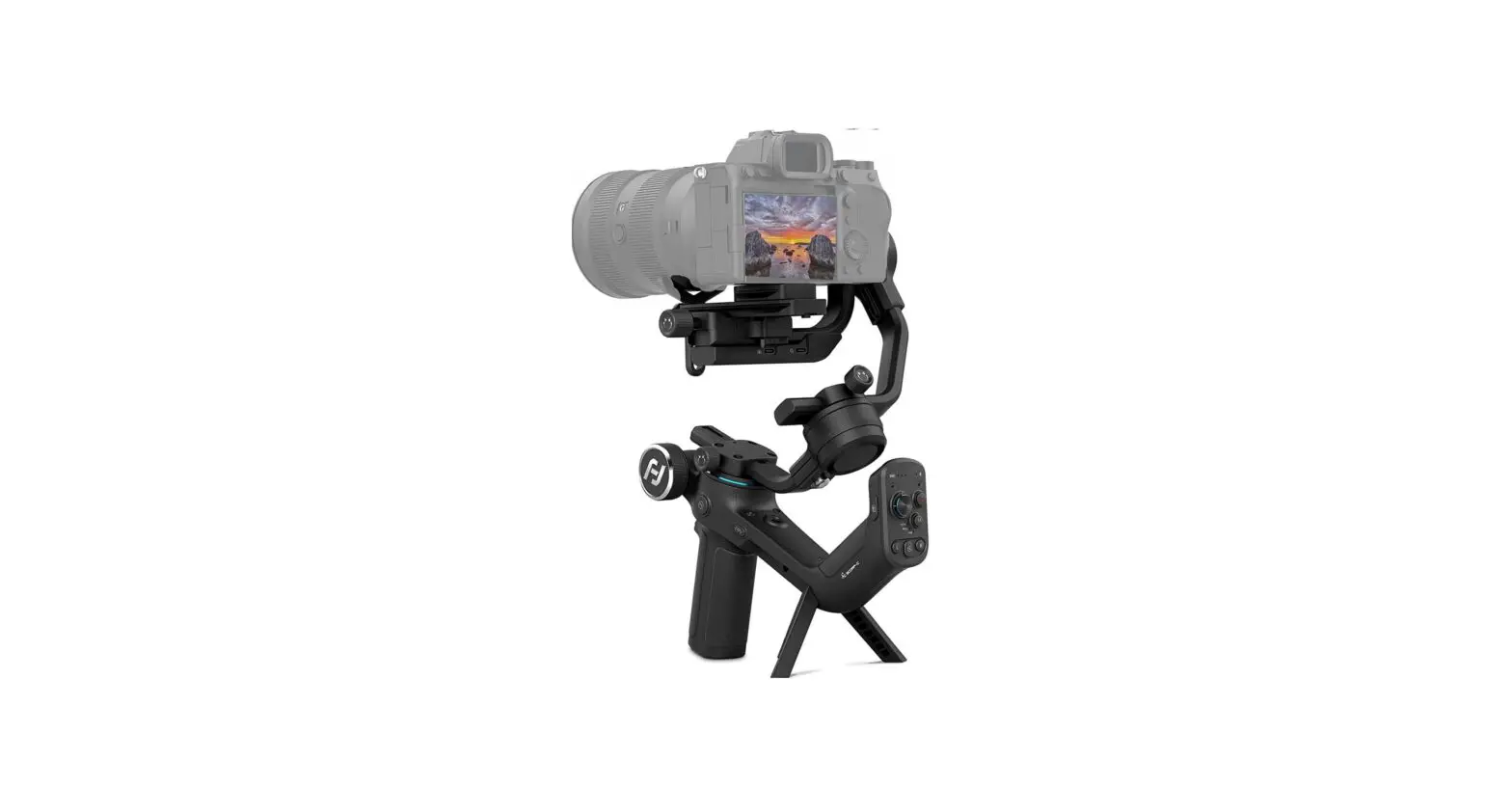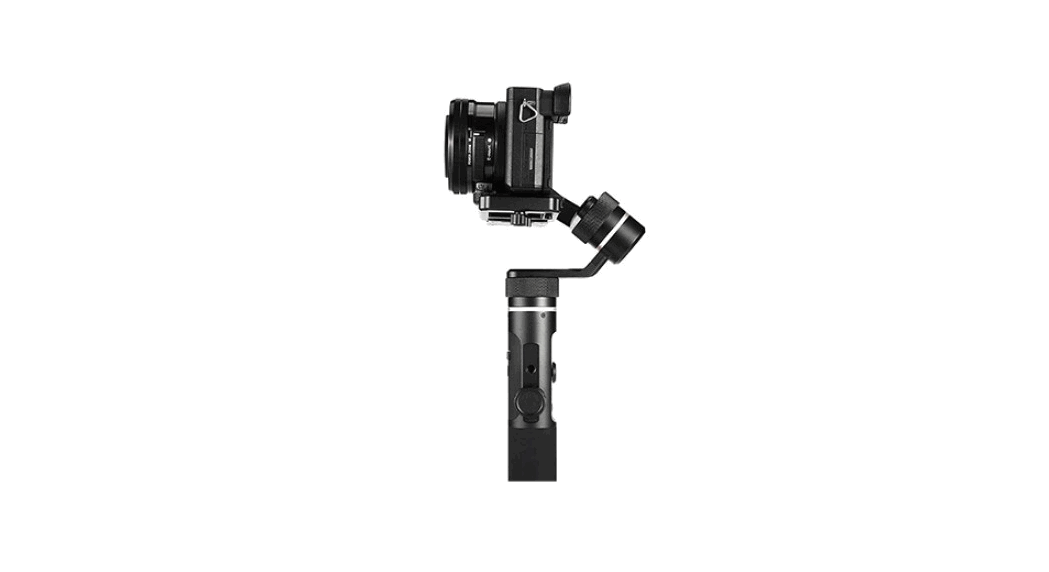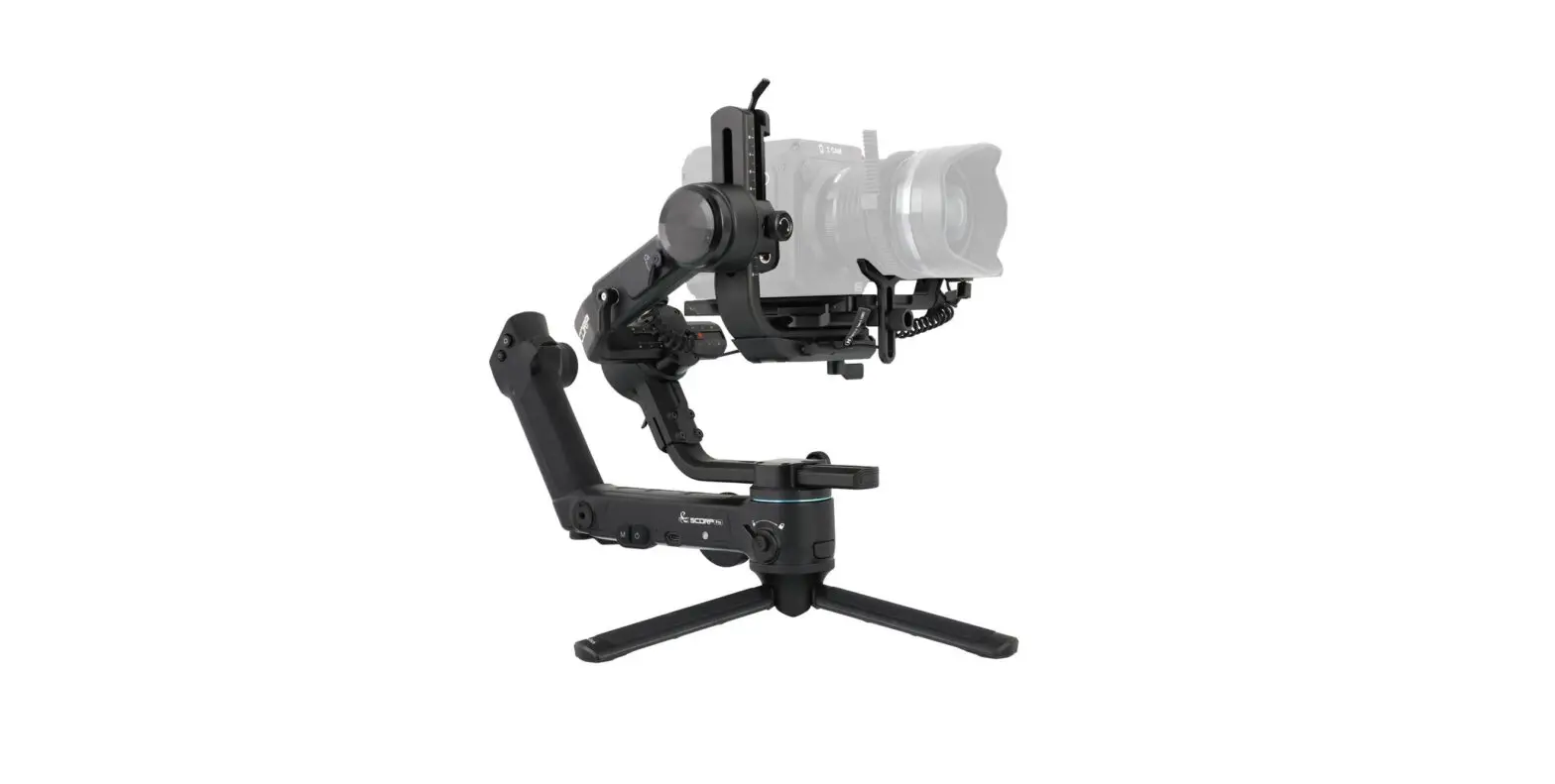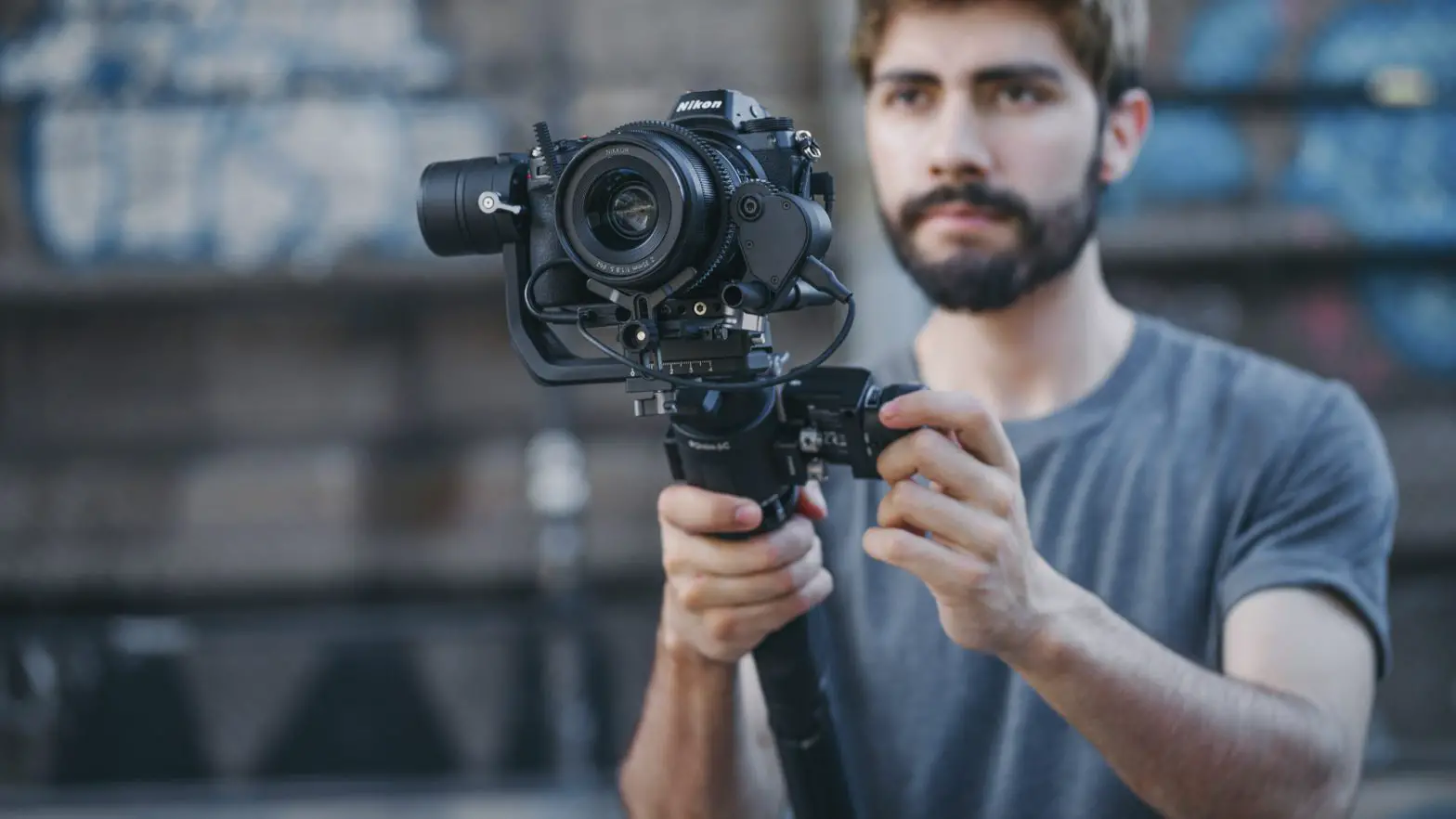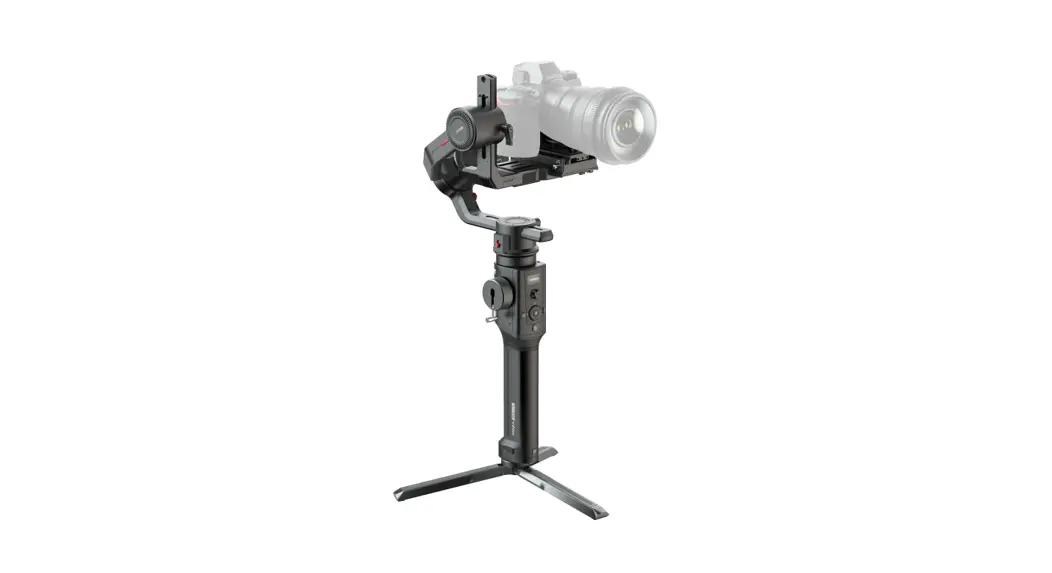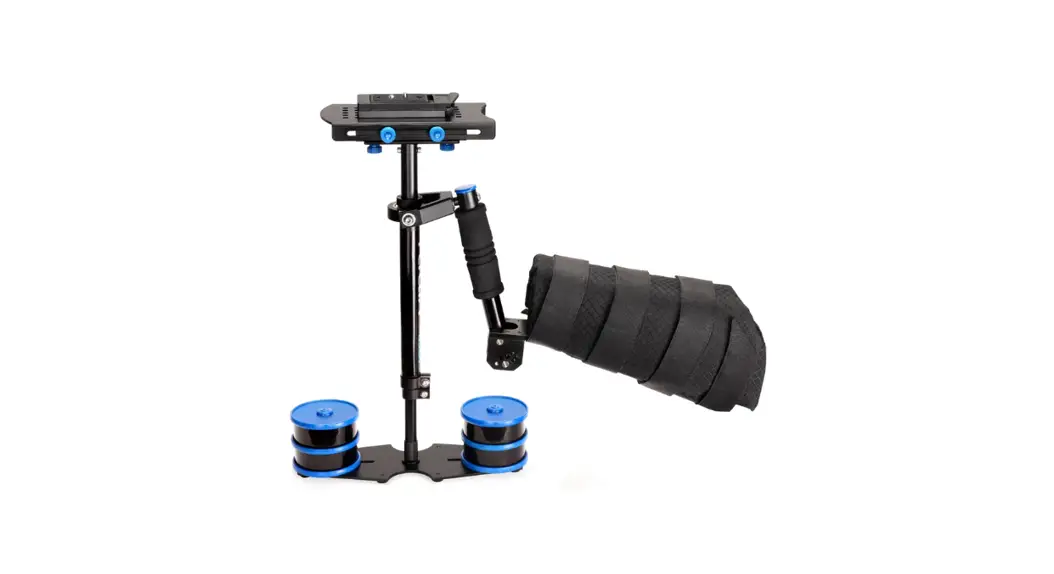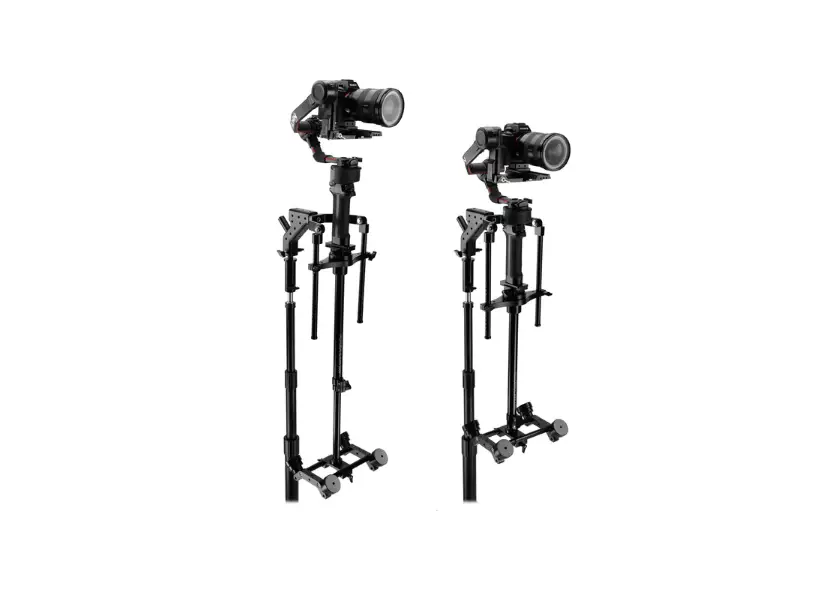

G-Axis 5000 Gimbal Support Handheld Camera Stabilizer (FLCM-GX-5000)
Assembly Manual
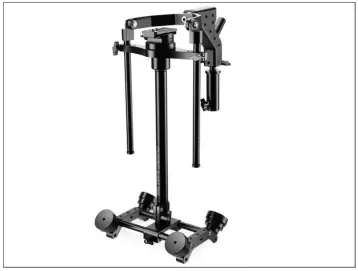
What’s In The Box
Please inspect the contents of your shipped package to ensure you have received everything that is listed below.
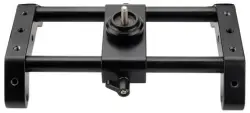
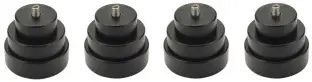
Base Weight Platform 12 x Weights
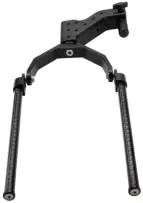
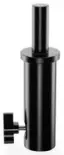
Gimbal extension Gimbal Support
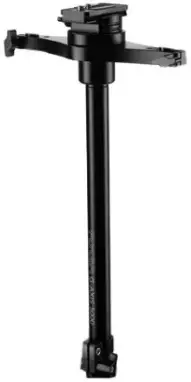
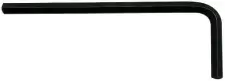
Flycam G-Axis 5000 Stabilizer Allen Key (3/16″)
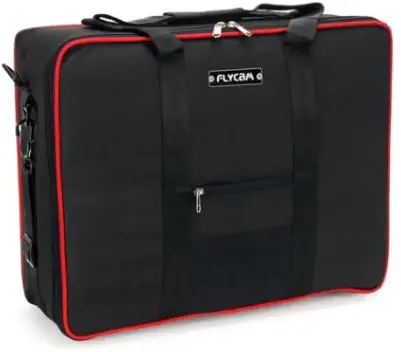
Bag Packing
All rights reserved.
No part of this document may be reproduced, stored in a retrieval system, or transmitted by any form or by any means, electronic, mechanical, photo-copying, recording, or otherwise, except as may be expressly permitted by the applicable copyright statutes or in writing by the Publisher.
G-Axis 5000 Gimbal Support Setup
- Insert the Flycam G-Axis 5000 Stabilizer into the Base Weight Platform.
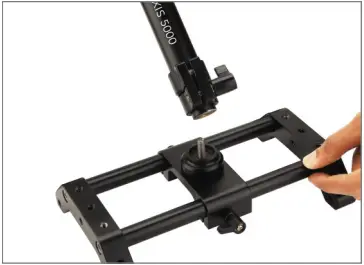
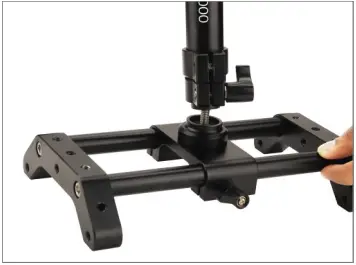
- Then rotate the Flycam G-Axis 5000 Stabilizer and tighten it properly as shown in the image.
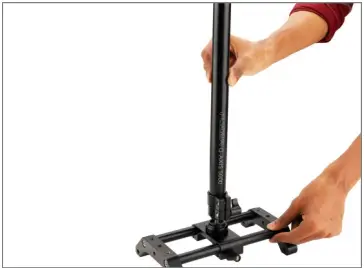
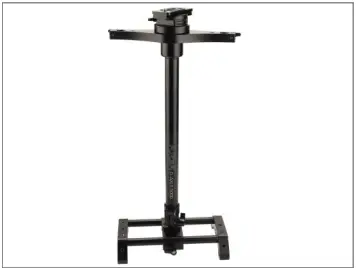
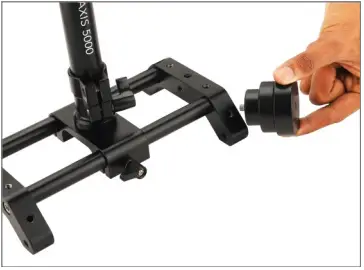
- Then insert the weights into the base platform, as shown in the image.
NOTE: You can add/adjust the counterweight as per your requirement.
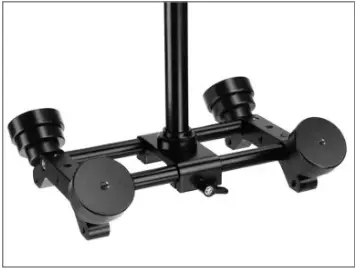
- Now loosen knobs on both sides of the Flycam Stabilizer.
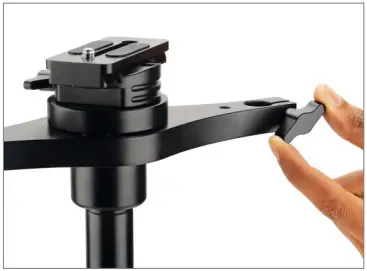
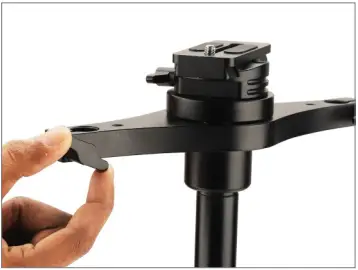
- Then loosen the bolts on each side of the Gimbal extension and insert it onto the Flycam Stabilizer, as shown in the image.
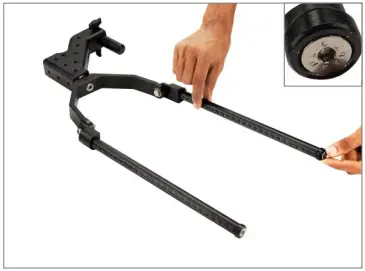
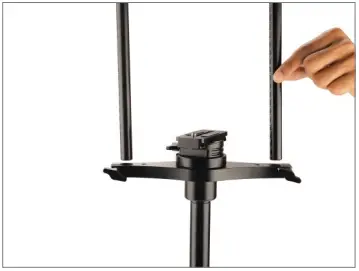
- Tighten it properly with the help of the knob.
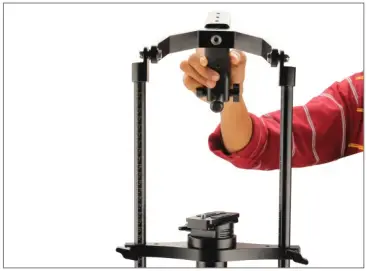
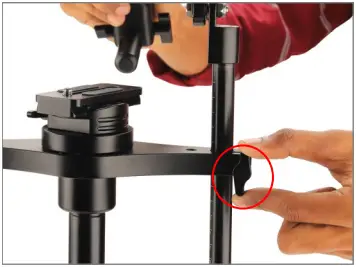
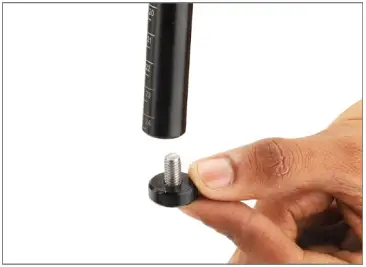
- Now insert the bolts in both the sides and tighten them properly.
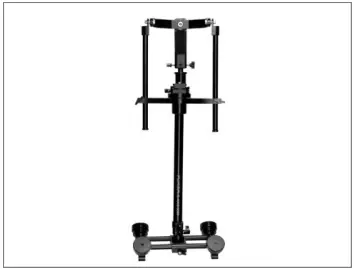
NOTE: PROAIM, G-Axis 5000 stabilizer for Gimbals, allows you to transform the weight of the gimbal including your heavy camera setup onto the entire body through your arm & vest.
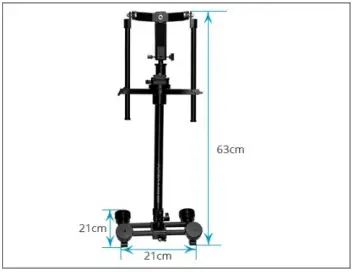
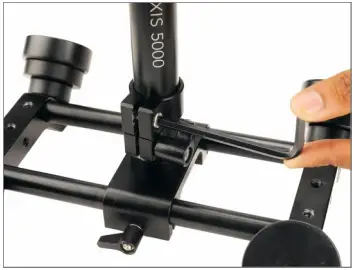
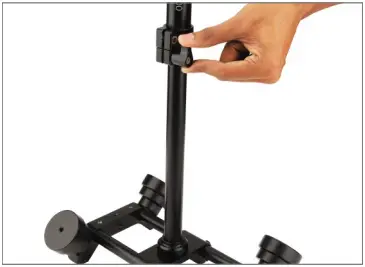
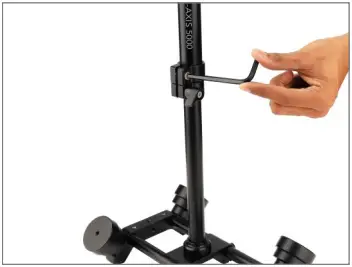
- Loosen the knob and bolt using a 3/16″ Allen Key.
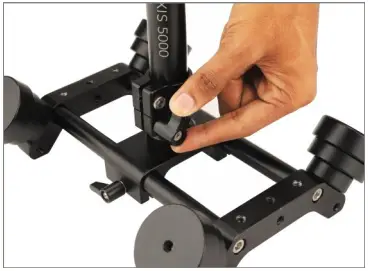
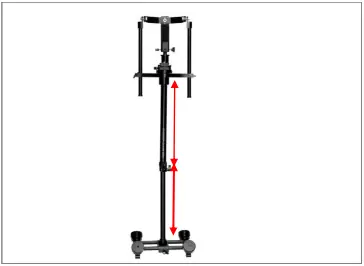
- Now increase the height of the Flycam Stabilizer.
NOTE: It offers a great range of handle height adjustment, which lets you achieve an ideal balance & create cinematic jib shots transitioning from low to high-angle & high to low-angle.
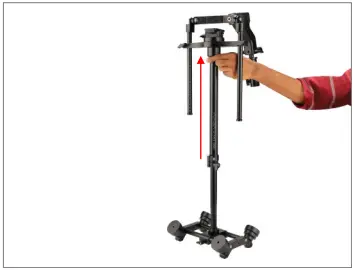
- Again, tighten the knob and bolt properly using a 3/16′ Allen Key.
NOTE: When you shoot with heavy loads on your arms, it not only affects your physics badly but also minimizes the productivity & lowers the visual quality drastically.
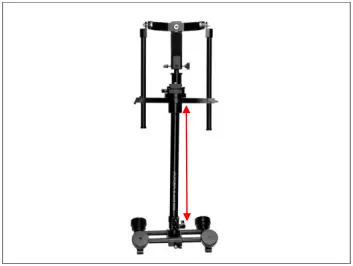
- Loosen both the knobs and insert the Gimbal support.
NOTE: Handle is provided with the 1/4″ threads to mount accessories like monitor, follow focus etc.
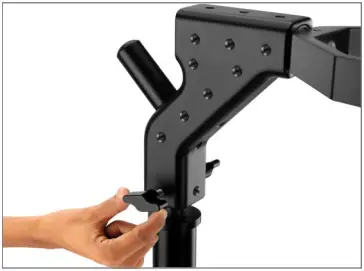
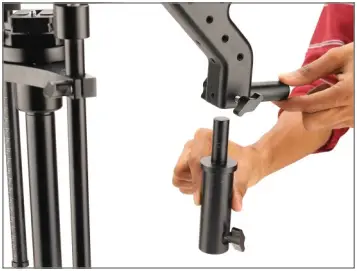
- Then securely tighten both the knobs, as shown in the image.
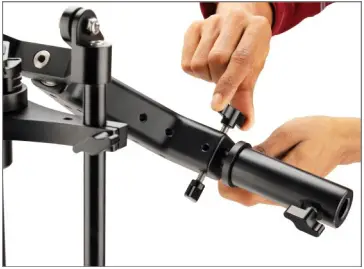
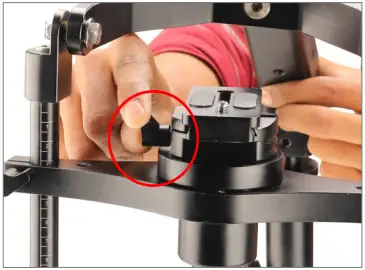
- Loosen the knob and remove the P-QRG.
NOTE: The quick-release mechanism offers you easy swapping of camera gimbals & the smooth padding on top of it protects your gimbal from twisting & scratching.
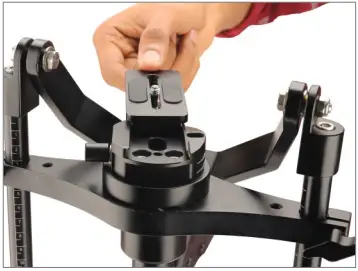
NOTE: P-QRG is a compact plate that quickly mounts handheld Gimbal to different gears. It is constructed of High-Grade CNC Aluminum & features both 3/8″-16 and 1/4″-20 screws for mounting.
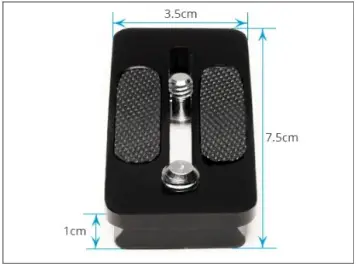
- Then insert the P-QRG into the Gimbal’s handle and secure it properly with a screw driver.
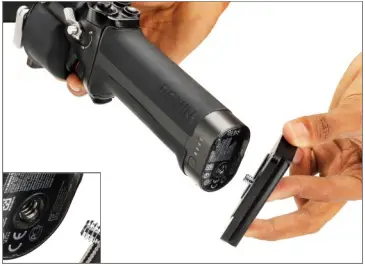
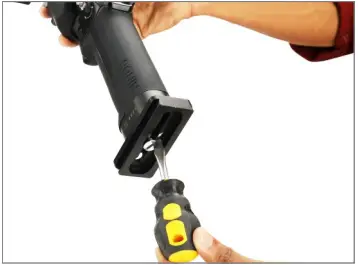
- Mount the Gimbal (Not Included) onto the Flycam Stabilizer and secure it by tightening the knob.
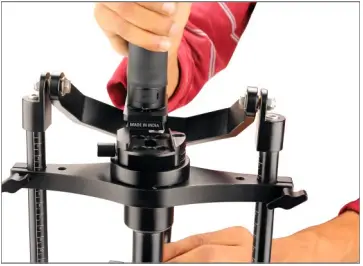
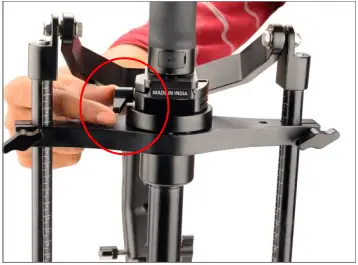
- Loosen the knobs and slide the handle as shown in the image.
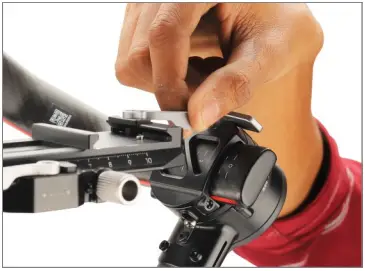
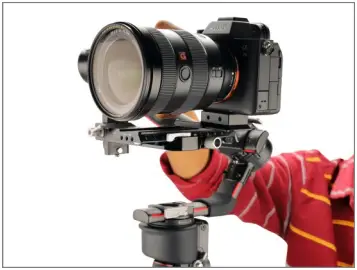
- Then tighten the knob properly and your setup is now ready, as shown in the image.
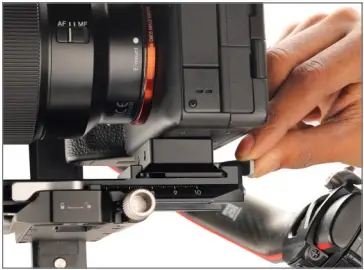
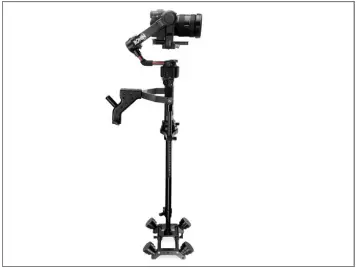
C-Stand Setup
- Loosen the knob of the Gimbal support and mount it on a C-stand(Not Included).
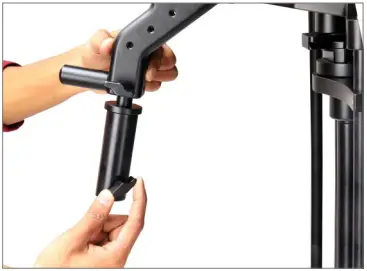
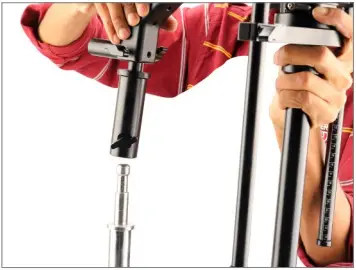
- Then tighten the knob properly.
NOTE: You can use your stand for the balancing process or in-between takes to hold it.
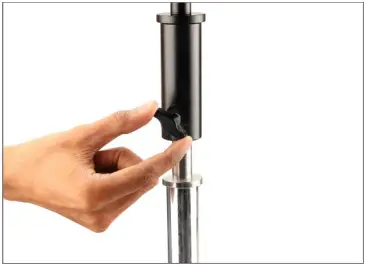
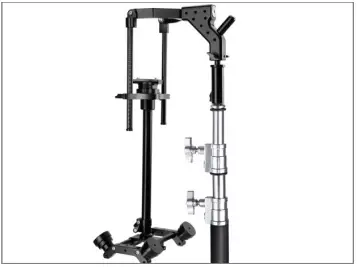
- Now loosen both the knobs of the Base Weight Platform, as sown in the image.
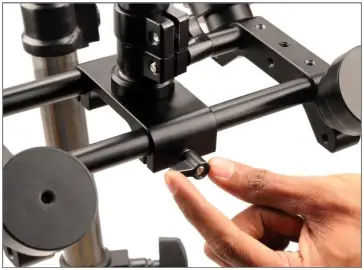
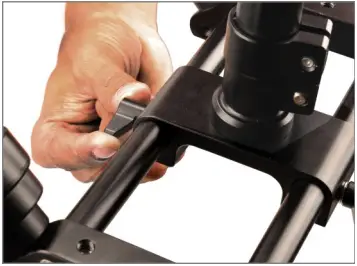
- Then to balance the Flycam Stabilizer, move the Base Weight Platform and properly tighten it from both the knobs.
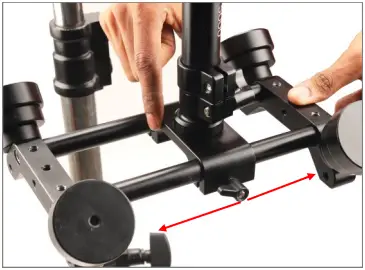
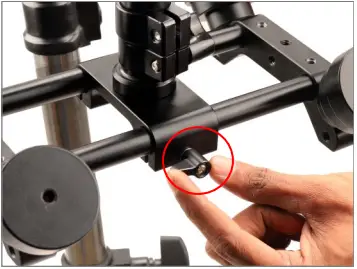
NOTE: It offers a great range of handle height adjustment which lets you achieve an ideal balance & create cinematic jib shots transitioning from low to high-angle & high to low-angle.
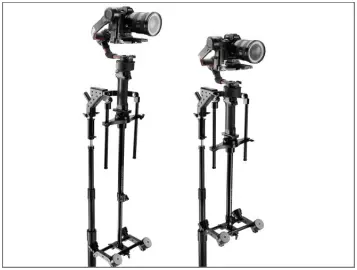
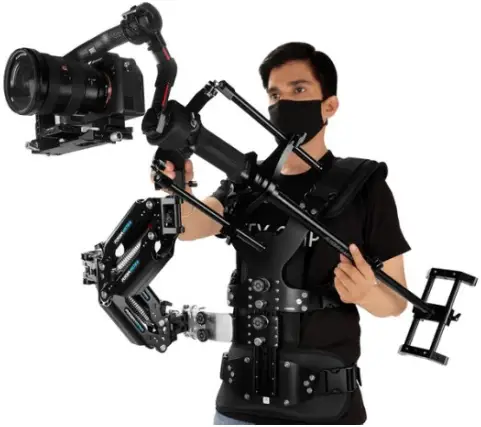
YOUR FLYCAM G-AXIS 5000 GIMBAL SUPPORT CAMERA STABILIZER ALL DRESSED UP AND READY TO GO!
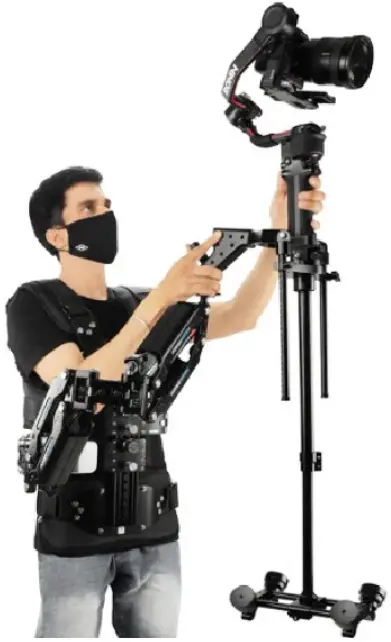
(SHOWN WITH OPTIONAL ACCESSORIES)
Warranty: We offer one year warranty for our products from date of purchase. Within this period of time, we will repair it without charge for labor or parts. Warranty doesn’t cover transportation costs nor does it cover a product subjected to misuse or accidental damage. Warranty repairs are subjected to inspection and evaluation by us.
Liability: We are not liable for damage caused by products that we do not supply or from mishandling in transit, accident, misuse, neglect, lack of care of the product, or service by anyone other than our company.
Contact Us: In case of any kind of dissatisfaction, please Contact us immediately and we promise our utmost support and care until you use our product.