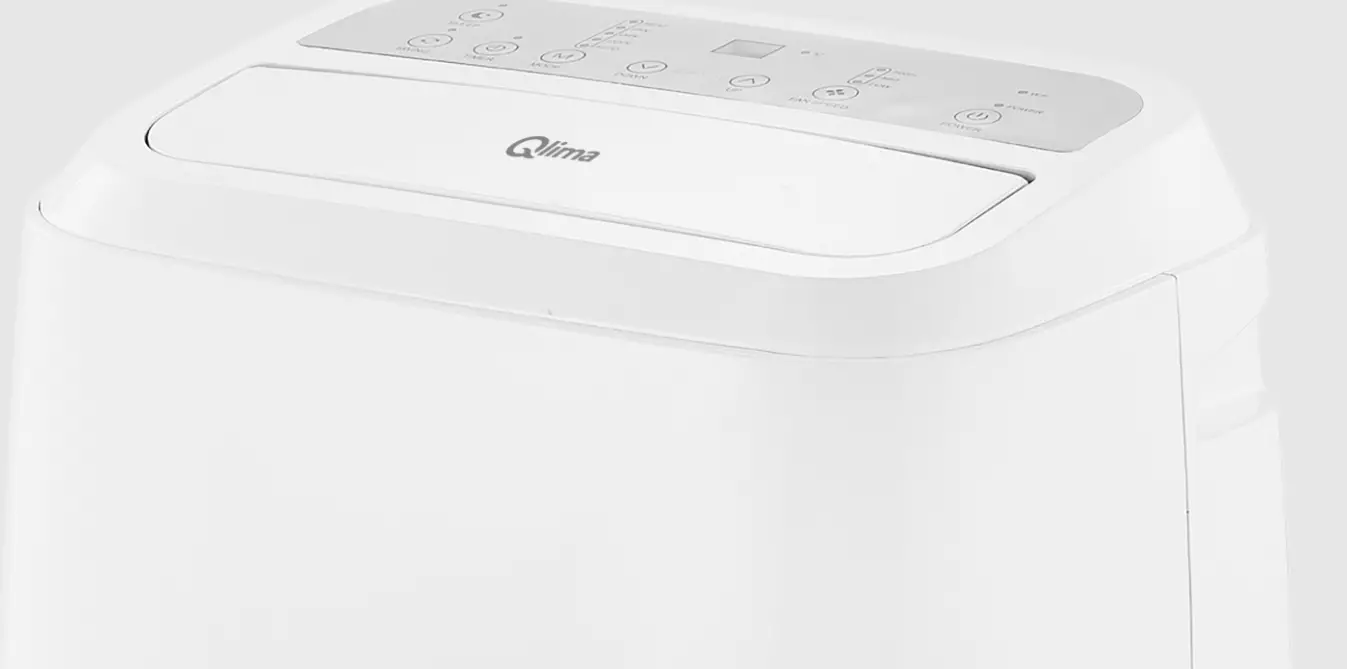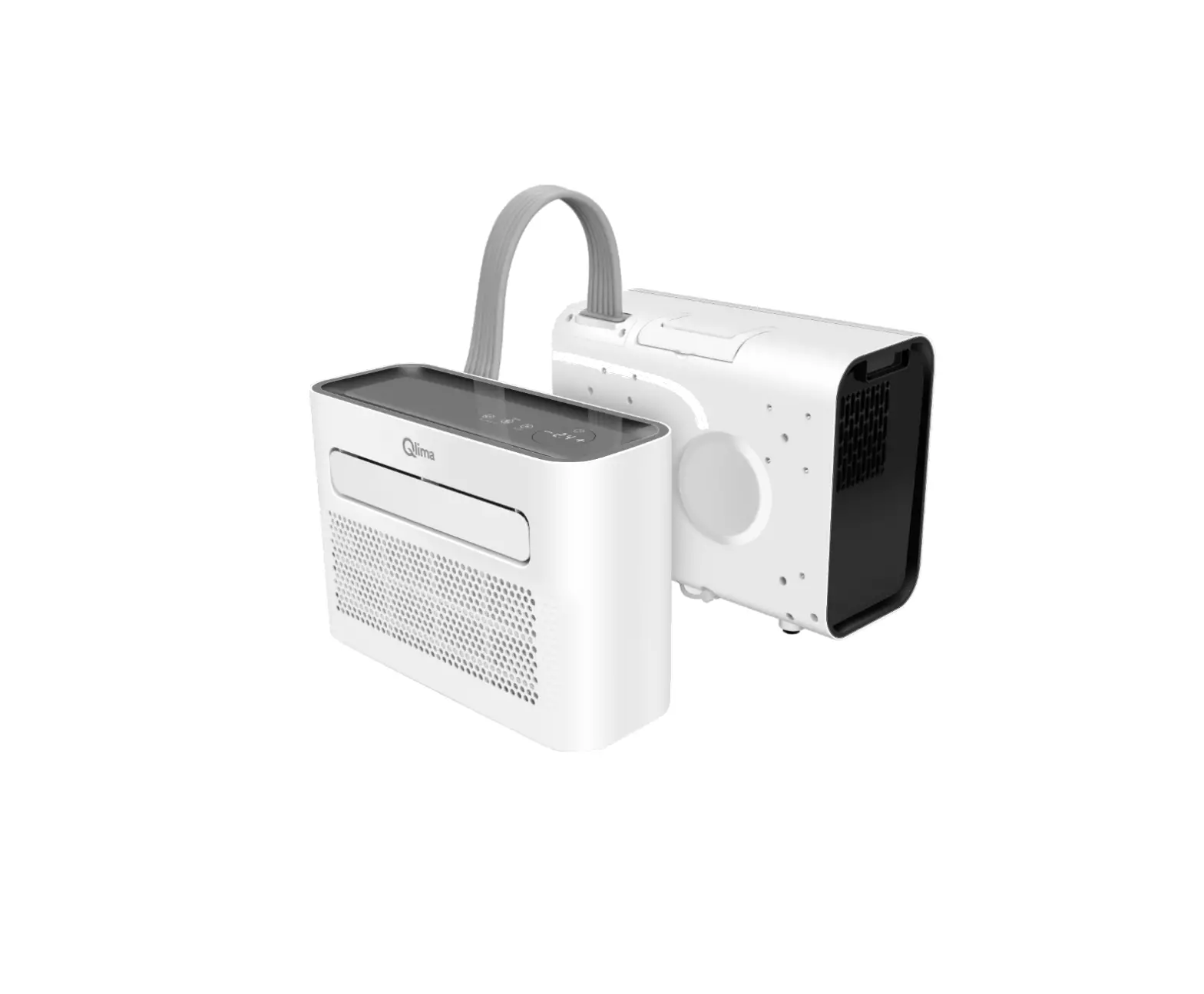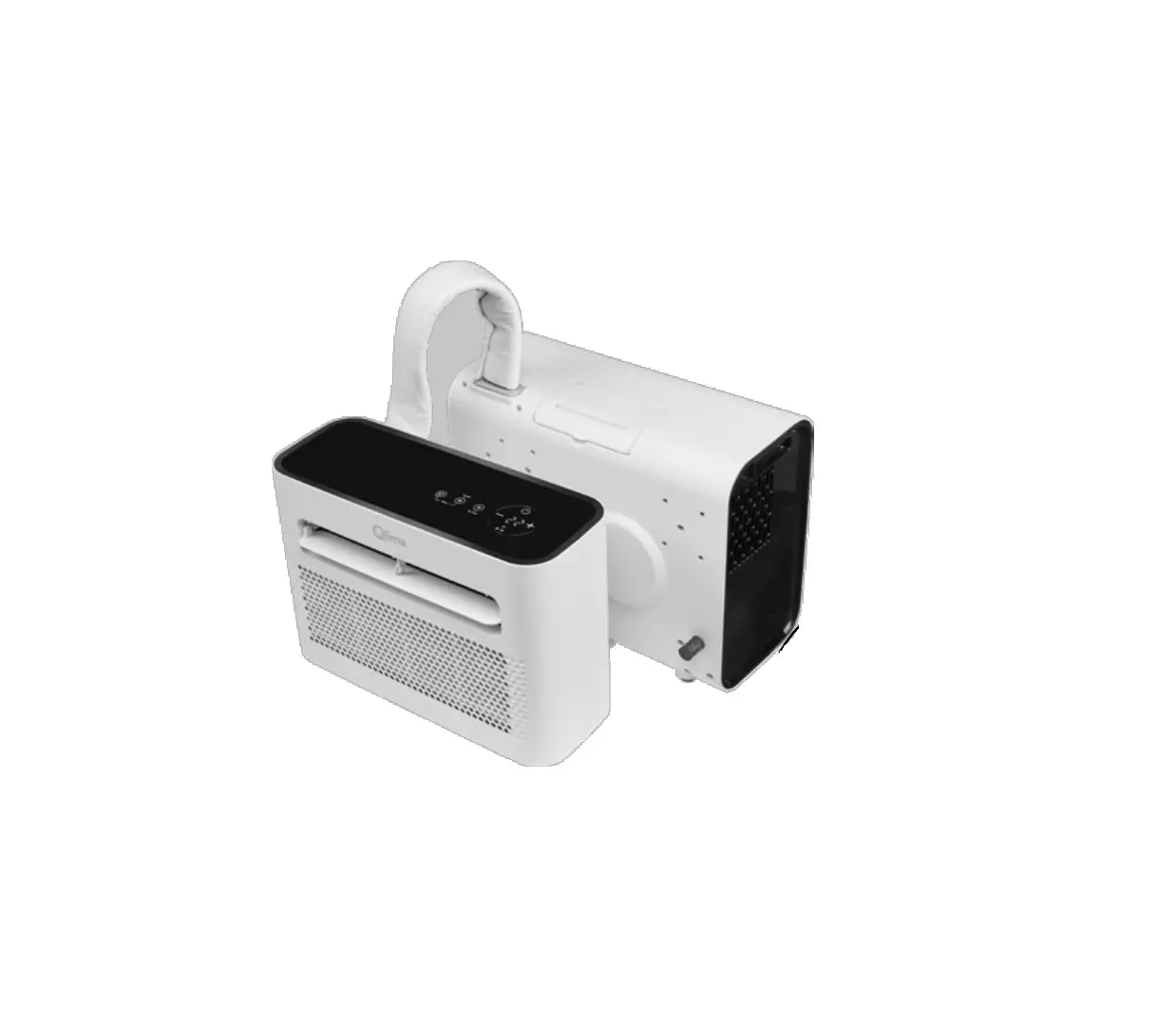

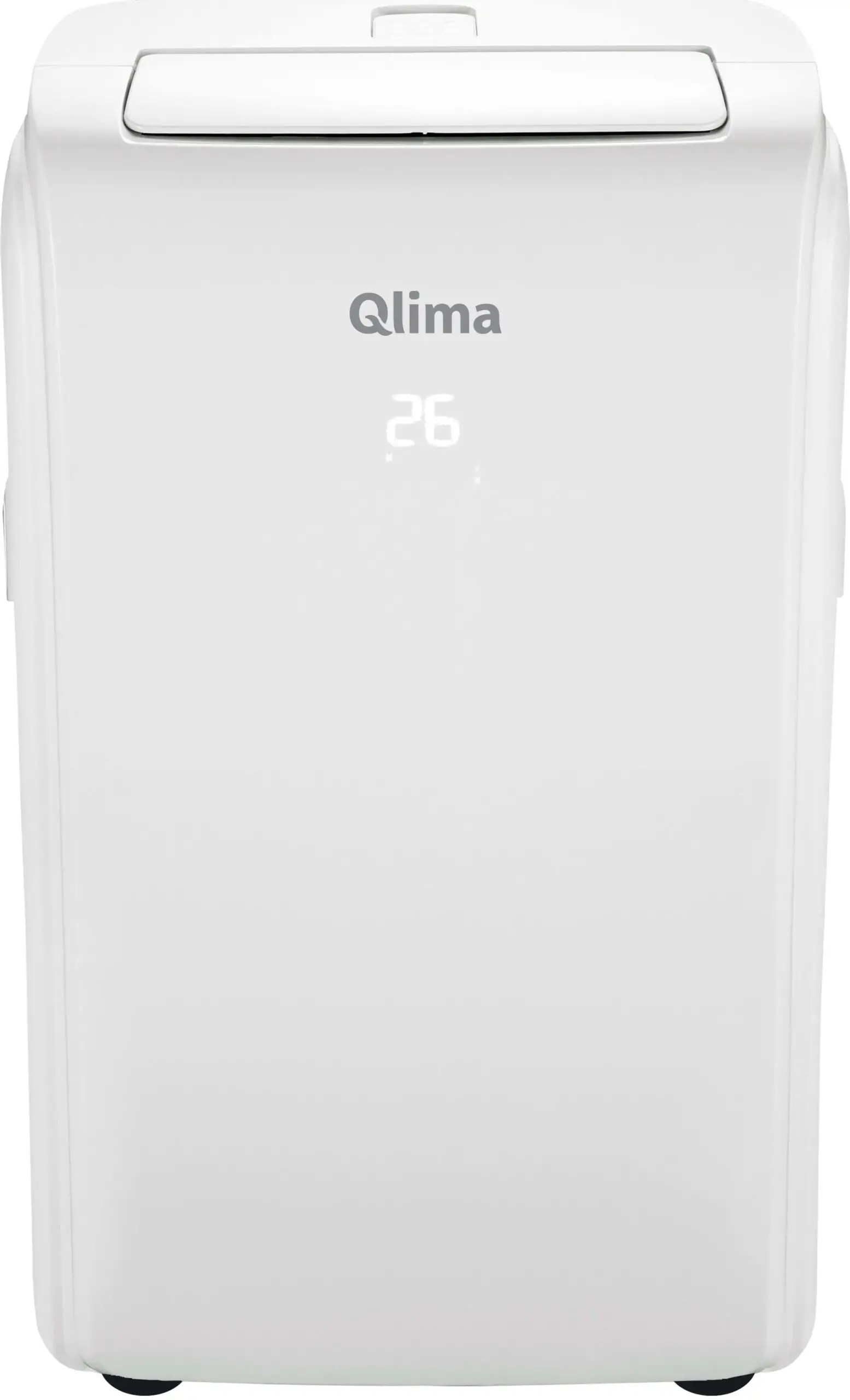
Qlima PH534 Mobile Air Conditioner
Let’s get start!
Operation guideline. Please take below simple guideline instruction as reference.
| Operation Steps | Operation Items | New Account | Re-install APP (registered before) |
| Step 1 | Download and Install APP | YES | YES |
| Step 2 | Registration Account | YES | NO |
| Step 3 | Login | YES | YES |
| Step4 | Add Device to control | YES | Registered Device will remain. |
- If the appliance have the Wi-Fi function , the transmission power: less than 20dBm, and the radio frequency range is: 2412MHz-2472MHz.
- The appliance is compliant with the RE Directive (2014/53/EU).
Wi-Fi Module specification and basic information
- Minimum specifications on a Smart phone: Android 5.0 version or higher 10S 10.0 version or higher
- Basic parameters forWi-Fi:
Parameters Details Network frequency 2.400 – 2.500GHz Standards of WLAN
IEEE 802.11 b/g/n(channels 1-14) Protocol stack support
IPv4/IPv6/TCP/UDP/HTTPS/TLS/Multicast DNS
Security support
WEP/WPA/WPA2/AES128
Network type support STA/AP/STA+AP - Wi-Fi module reset method
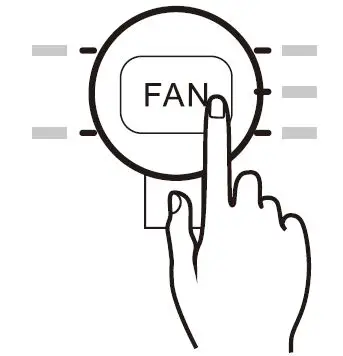
On control panel, please press the “FAN” button 6 times within 4 seconds.
Download and Install the App
Method1: Please scan the QR code with a browser scanner, and download and install the APP. 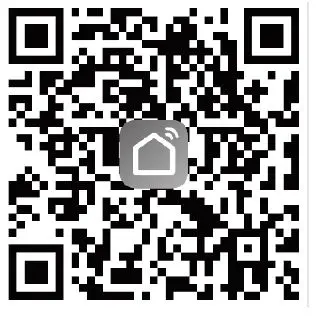
Method2: For Android smartphones, open the Google “Play Store” on your smartphone and search “Smartlife-Smartliving”, download and install the APP. 
For IOS smart phone, open the Apple “App Store” on your smartphone and search “Smart life-Smart living”, download and install the APP.  Note:
Note:
Alternatively, you could also download the “TUYA Smart” application which is also compatible but has some slight differences in the layout and functions Please enable the permissions of Storage/Location/Camera for this APP when installing. Otherwise, it will have some problems when operating.
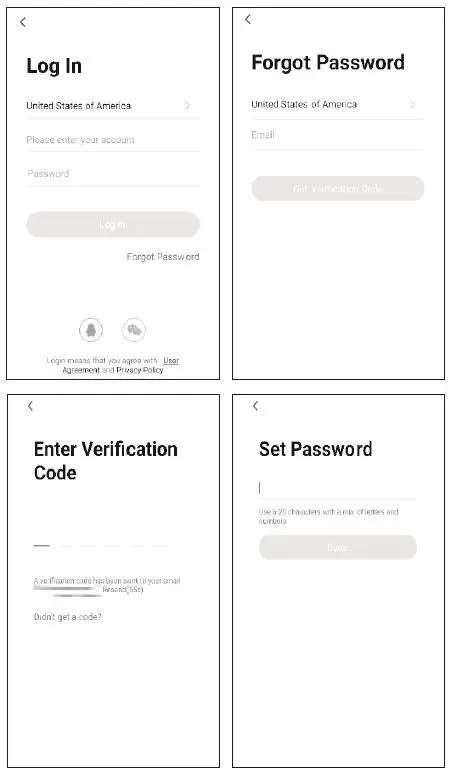
Registration
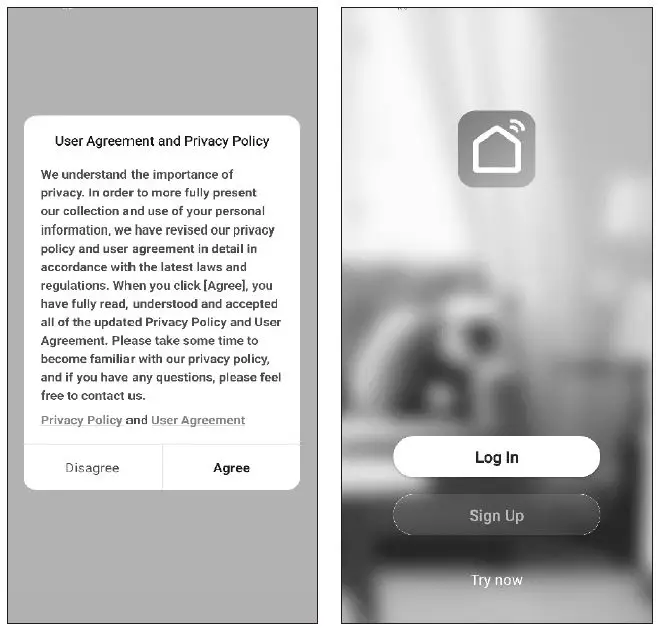
- If you don’t have any account please tap button “Sign Up”.
- Read the Privacy Policy and tap “Agree”.

- Tap ” > ” and choose the country.

- Enter your E-mail address.
- Tap the button “Get verification code”.

- Enter the verification code you received from E-mail.
- Set the Password with 6-20 characters including characters and numbers.
- Tap “Done”.

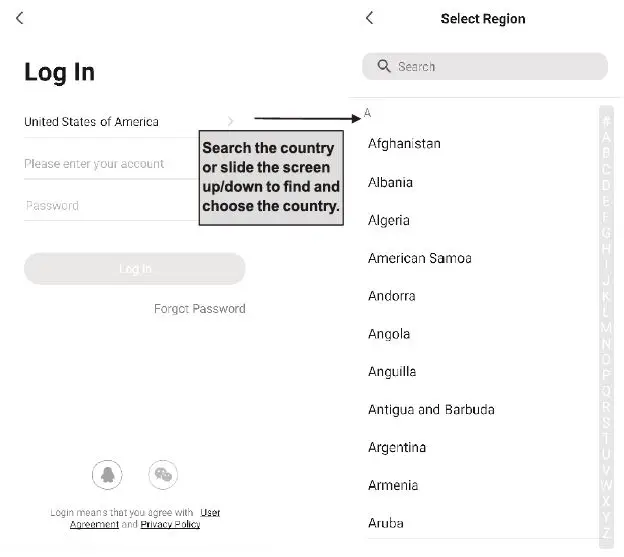
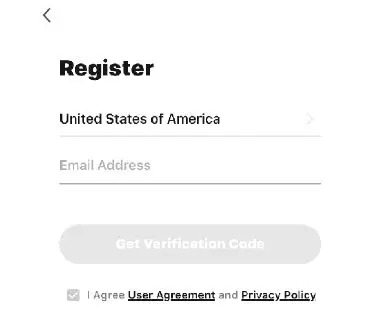
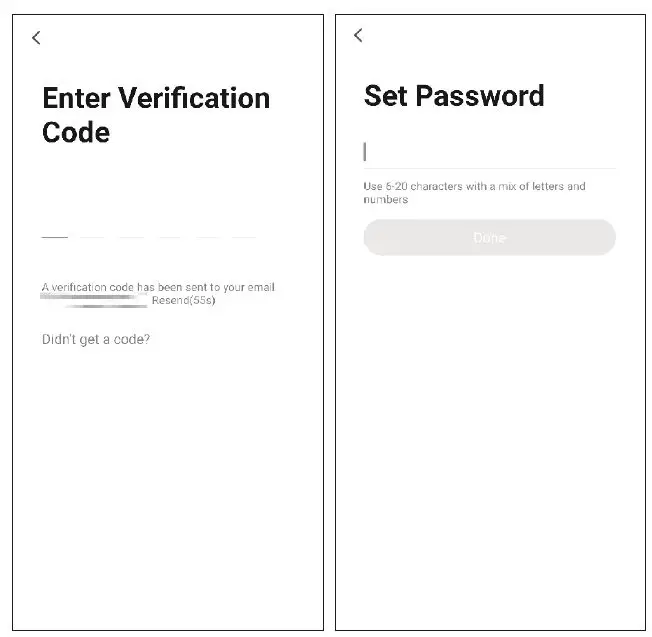
Login
- If you already have account, tap “Log in”.
- Enter your registered account and password.
- Tap “Log in”

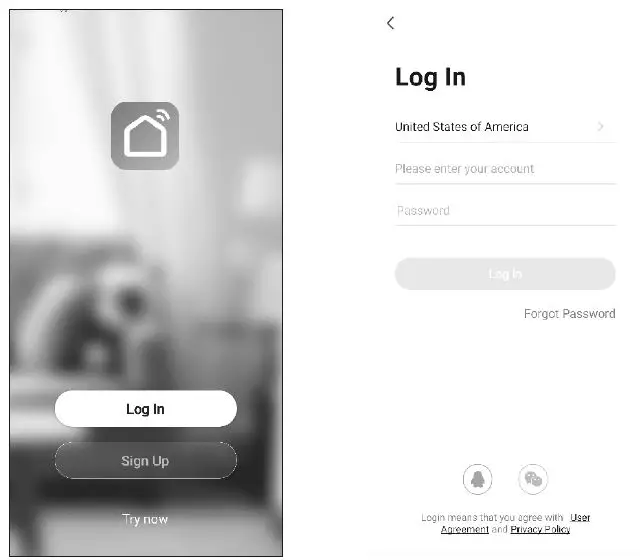
Forgot the password
If you forgot the password or you want to reset the password, operate as below:
- Tap “Forgot password”.
- Enter your account(E-mail address) and tap the button “Get verification code”.
- Enter the verification code received by your E-mail.
- Set the new password and tap the button “Done “.

Add device
There are 2 methods to add the device.
CF mode
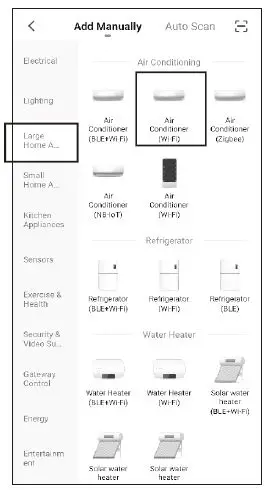
Click “+” in the upper right corner of the “Home” screen or tap “Add device” on the room which has no device
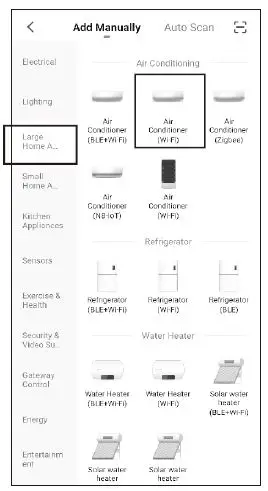
- Tap the “Large home appliances” logo.
- Tap the “Air conditioner(Wi-Fi)” logo.

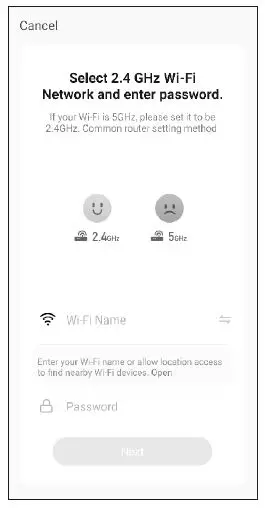
- Input the password of the Wi-Fi which the same as your smart phone connected, then tap “Next”.

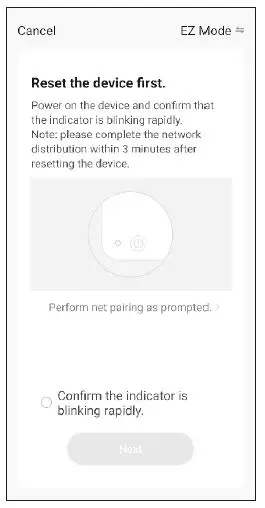
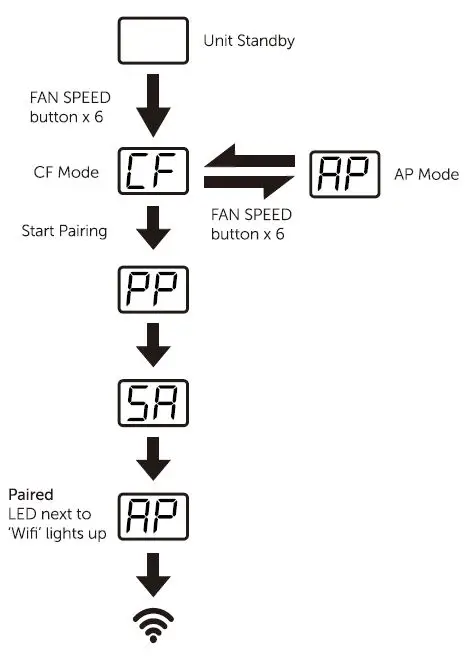
- Power on the appliances, no need to launch the appliances. Press the “FAN” button on the control panel 6 times within 4 seconds, until the LED screen show “CF”, which can make Wi-Fi reset, there will be switch between “CF” and “AP” if press many times.
- Follow the comments on the next screen to reset the Wi-Fi module, then check “Confirm the device is reset” and tap “Next”. Note: On top of the appliance, press the “FAN” button 6 times within 4 seconds, until the screen display “CF”.
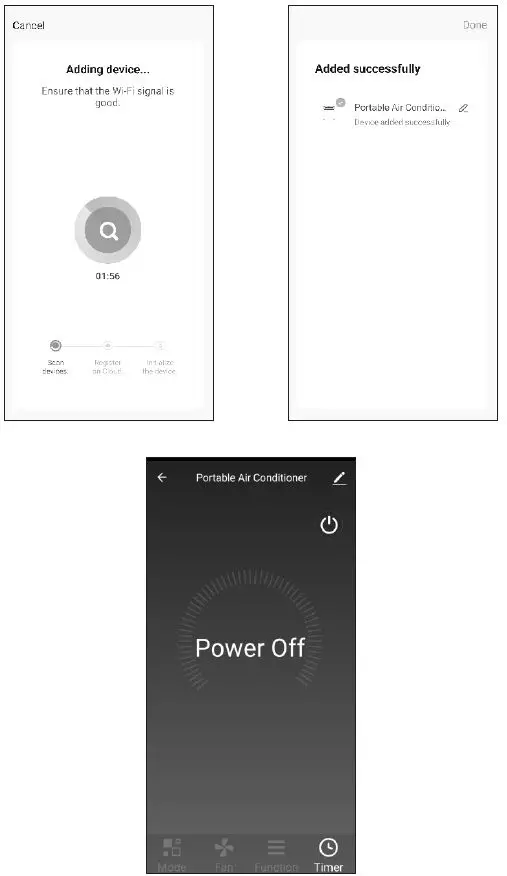
- You can see the percent rate of the connecting process, at the same time “PP”, “SA”, “AP” shining in turn on the appliances display.
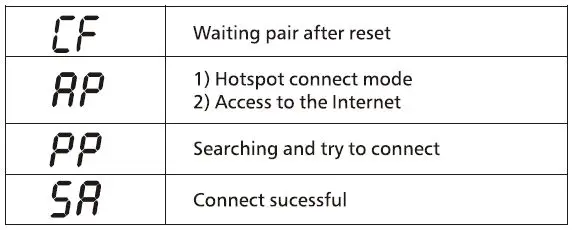
“PP” means “Searching the router” .
“SA” means “connected to the router” .
“AP” means “connected to the server”.
 Note: On top of the appliance, press the “FAN” button 6 times within 4 seconds, until the screen display “CF”.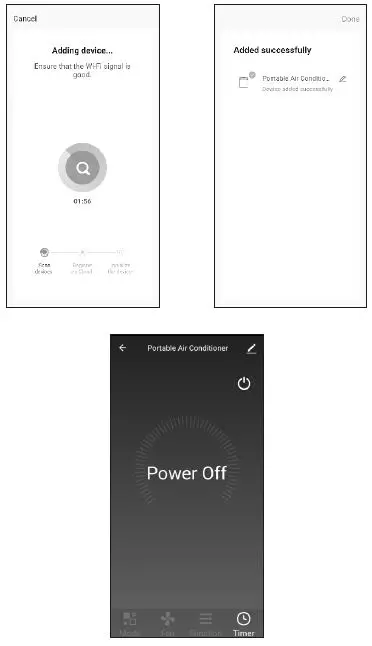
2-AP mode
- Power on the indoor unit, no need to launch the appliance.
- Click”+” in the upper right corner of the “Home” screen or tap “Add device” on the room which has no device.

- Tap the “Large Home Appliances” logo and the “Air conditioner(Wi-Fi)” logo.

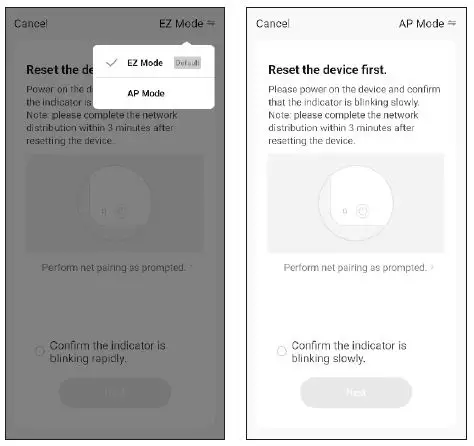
- Tap in the upper right corner and choose “AP Mode” then follow the comments on the screen to reset the Wi-Fi module then check “Confirm the device is reset” and tap “Next”.

- Tap in the upper right corner and choose “AP Mode” then follow the comments on the screen to reset the Wi-Fi module then check “Confirm the device is reset” and tap “Next”.
- Read the instruction carefully and tap “Connect now”.
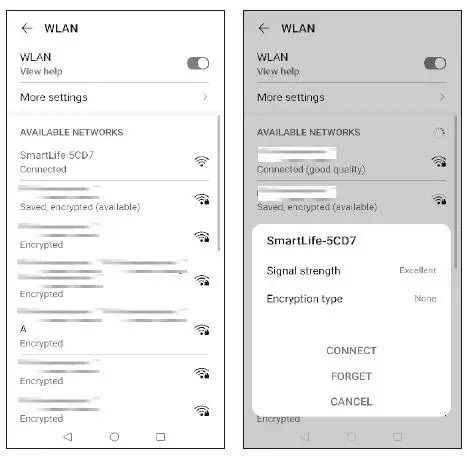
- In the network setting screen, select “Smartlife-****”, and tap it to connect.

- You can see the percent rate of connecting process, at the same time “PP”, “SA”, “AP” shining in turn on the appliances display.
“PP” means “Searching the router”.
“SA” means “connected to the router”.
“AP” means “connected to the server”.
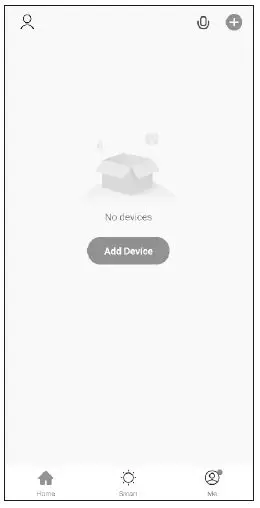
Pairing Process 

Trouble Shooting
| Description | Analysis of cause |
|
appliance can’t be configured successfully | 1. Check the mobile connected WLAN router SSID and password is correct; 2. Check whether there are additional settings of WLAN router as shown below. 1) Firewall by the router itself or by PC 2) MAC address filtering 3) Hidden SSID 4) DHCP server Reboot WLAN router, mobile device and appliance (WLAN module) and connect the appliance by CF mode again. Before rebooting, check nobody has already connected to same appliance. |
|
Mobile can’t control appliance | 1. When the appliance (WLAN module) is rebooted and app displays the device remove, ignoring this confirmation will lead to mobile device losing control permission of the appliance. You will need to connect the appliance by CF mode again. 2. In case of power failure, mobile device will lose control permission of appliance for 3 minutes after power failure. (Notification will now show up on the mobile device.) If you cannot control the app (appliance) even after power is restored, you will need to connect the appliance by CF mode again. |
|
Mobile can’t find appliance | 1. App display appliance Device offline. Please check the following conditions. 1) The appliance has been reconfigured. 2) Appliance out of power. 3) Router out of power. 4) Appliance can’t connect to the router. 5) Appliance can’t connect to network through the router. 6) Mobile devices can’t connect to the network. 2. After adding the device, it disappears in device list . Hold and slide down to refresh the device list. If it has no change, shut down the app and start again. |