Product Information: Hard Disk Drive Accessories Guide for
Avigilon Systems
Overview
The Hard Disk Drive Accessories Guide provides instructions for
replacing hard drives in Avigilon Systems. It includes
compatibility information, steps to verify a hard disk failure,
identifying the failed physical hard drive, generating logs for
technical support, and replacing hard drives. The guide also
provides information about AI NVR Hard Disk Drives and the
materials and equipment required for replacement.
Product Compatibility
The following hard drive part numbers are compatible with
specific Avigilon NVR models:
- AINVR-HDDS-HOT-16TB: Compatible with AI NVR Premium+
128/160TB - AINVR-HDDS-HOT-12TB: Compatible with AI NVR Premium 128/160TB
and AI NVR Premium+ 96TB - AINVR-HDDS-HOT-8TB: Compatible with AI NVR Premium 96TB
- AINVR-HDDS-HOT-4TB: Compatible with AI NVR 2 Value 16/24TB and
AI NVR Premium+ 64TB - AINVR-HDDS-HOT-2TB: Compatible with AI NVR Premium 64TB and AI
NVR Standard 32/48TB
Product Usage Instructions
Step 1: Verifying a Hard Disk Failure
- Access Server Management from any ACC Client application or
compatible browser on a workstation connected to the same network
as the appliance. - On the Storage panel of the AI NVR, monitor the storage
capacity and status of virtual disks on the Virtual Disks panel and
physical disks on the Physical Disks panel. - Expand a virtual disk on the Virtual Disks panel to monitor the
status of the physical disks that are part of it.
Step 2: Identifying the Failed Physical Hard Drive
Follow the instructions provided in the user guide of your
appliance to identify the physical hard drive that is affected.
Step 3: Generating Logs for Avigilon Technical Support
- Prepare log files as requested by Avigilon Technical Support to
help resolve the issue. - Open a support request with Avigilon Support and attach the
required logs as proof of the failed hard drive.
Step 4: Replacing Hard Drives
If you have a replacement hard drive available, you can install
it yourself using the following steps:
- Refer to the user guide of your appliance to open Server
Management. - Determine if the issue is due to a failed hard drive by
following Step 1. - Identify the physical hard drive that needs replacement by
following Step 2. - Follow the provided instructions to replace the hard drive in
either the front or rear drive bays.
For more detailed information and assistance, contact Avigilon
Technical Support at avigilon.com/contact.
Hard Disk Drive Accessories Guide
For Avigilon Systems
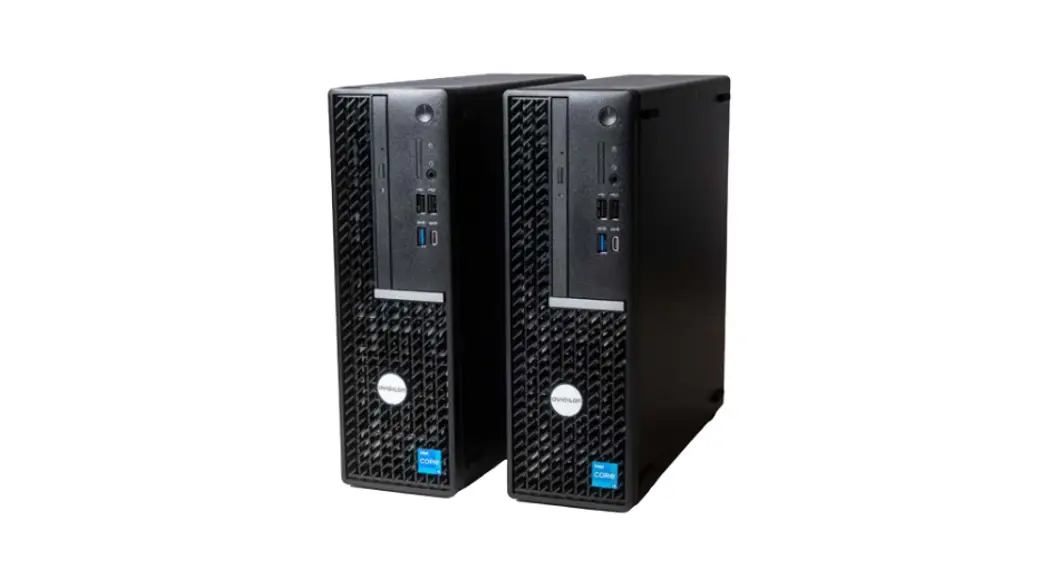
AI NVR 2 Value (6-24TB) AI NVR Premium+ (64-160TB) AI NVR Premium (64-160TB) AI NVR Standard (24-48TB) AI NVR Value (6-12TB)
© 2023, Avigilon Corporation. All rights reserved. AVIGILON, the AVIGILON logo, AVIGILON CONTROL CENTER and ACC are trademarks of Avigilon Corporation. Other names or logos mentioned herein may be the trademarks of their respective owners. The absence of the symbols TM and ® in proximity to each trademark in this document or at all is not a disclaimer of ownership of the related trademark. This document has been compiled and published using product descriptions and specifications available at the time of publication. The contents of this document and the specifications of the products discussed herein are subject to change without notice. Avigilon Corporation reserves the right to make any such changes without notice. Neither Avigilon Corporation nor any of its affiliated companies: (1) guarantees the completeness or accuracy of the information contained in this document; or (2) is responsible for your use of, or reliance on, the information. Avigilon Corporation shall not be responsible for any losses or damages (including consequential damages) caused by reliance on the information presented herein. Avigilon Corporation avigilon.com 20230623
2
Table of Contents
Before You Start
4
Product Compatibility
5
Overview
6
Step 1: Verifying a Hard Disk Failure
7
Step 2: Identifying the Failed Physical Hard Drive
9
Step 3: Generating Logs for Avigilon Technical Support
10
Step 4: Replacing Hard Drives
11
About AI NVR Hard Disk Drives
11
Replacing Hard Drives in Front or Rear Drive Bays
12
Materials and Equipment
12
Replacing the Hard Drive
12
For More Information
13
3
Before You Start
You can upgrade hard drives or replace the spare hard drives with hot swappable drives. The hard drives in the front and back drive bays are hot-swappable. The hard drives in the internal drive bays are not hotswappable. A hard drive is referred to also as a hard disk drive (HDD).
Tip: For assistance with any of the procedures in the document, contact Avigilon Technical Support at avigilon.com/contact at any time.
Before You Start
4
Product Compatibility
Hard Drive Part Number AINVR-HDDS-HOT-16TB AINVR-HDDS-HOT-12TB AINVR-HDDS-HOT-8TB
AINVR-HDDS-HOT-4TB
AINVR-HDDS-HOT-2TB
Compatible NVRs
AI NVR Premium+ 128/160TB AI NVR Premium 128/160TB
AI NVR Premium+ 96TB AI NVR Premium 96TB
AI NVR 2 Value 16/24TB AI NVR Premium+ 64TB AI NVR Premium 64TB AI NVR Standard 32/48TB
AI NVR 2 Value 12TB AI NVR Standard 24TB AI NVR Value 12TB
AI NVR 2 Value 6TB AI NVR Value 6TB
Product Compatibility
5
Overview
Complete this procedure from Server Management. For more information on how to open the Server Management, refer to the user guide of your appliance.
To replace the hard drive:
1. Use Server Management to determine if the problem you are seeing with your appliance is due to a failed hard drive. See Step 1: Verifying a Hard Disk Failure on the next page.
2. Identify the physical hard drive that is affected. See Step 2: Identifying the Failed Physical Hard Drive on page 9.
3. Prepare log files requested by Avigilon Technical Support to help resolve an issue. See Step 3: Generating Logs for Avigilon Technical Support on page 10.
4. Open a support request with Avigilon Support and attach the required logs as proof of the failed hard drive.
5. Avigilon Support will arrange for a technician to deliver the replacement drive, replace the failed drive if you haven’t already, and take away the failed drive.
6. If you have a replacement hard drive already available you can install it now. See Step 4: Replacing Hard Drives on page 11 if you are installing it yourself.
Overview
6
Step 1: Verifying a Hard Disk Failure
To check if the issue is due to a failed hard drive, use Server Management accessed from any ACC Client application or compatible browser on a workstation on the same network as the appliance.
On the Storage panel of the AI NVR you can:
l Monitor the storage capacity and the status of the virtual disks configured on the device on the Virtual Disks panel, and the physical disks installed on the device on the Physical Disks panel.
l Expand a virtual disk on the Virtual Disks panel to monitor the status of the physical disks that are members of that virtual disk.
l View details about each physical disk, including capacity, model, and serial number on the Physical Disks panel.
l Set the status of a physical disk to Offline before removing it from the appliance for replacement if it ever fails.
Important: The storage physical disk is a hard disk drive (HDD) that must be replaced with an HDD of the same capacity.
Click Storage on the navigation bar to open the Virtual Disks and Physical Disks panels.
In the…
Virtual Disks panel
To…
View the capacity and status of a virtual disk
You can…
View information about the virtual disk, including its label, the RAID mode in use, and its capacity.
When a virtual disk is:
l Correctly working, Ready is displayed. l Not correctly working, one of several error states is displayed.
Complete maintenance on a virtual disk
Click
to check consistency of the virtual disk.
Monitor the status of the physical disk members of a virtual disk
Click to display information about all the physical disks that are
members of the virtual disk and to hide the information. When the member disks are displayed, the status of each disk is listed. When a physical disk is:
l Correctly working, Ready is displayed. l Not correctly working, one of several error states is displayed.
Step 1: Verifying a Hard Disk Failure
7
In the…
Virtual Disks and Physical Disks panel
Physical Disks panel
To…
Prepare to replace a physical disk
You can…
Click . You are prompted to Eject or Cancel. The status changes to Offline and changes to , indicating all services have stopped. For more information on replacing a physical disk, see Step 4: Replacing Hard Drives on page 11.
View the capacity and status of each physical disk.
View information about each physical disk, including its label, capacity, model, serial number and status is listed.
When a physical disk is:
l Correctly working, Ready is displayed. l Not correctly working, one of several error states is displayed.
Rebuild the virtual disk after replacing a failed member physical disk.
Click to rebuild the virtual disk.
Note: An HDD in a RAID that has been taken offline has to be rebuilt to return it to service.
Identify an HDD.
Click . The LED on the hard drive will blink for identification.
Step 1: Verifying a Hard Disk Failure
8
Step 2: Identifying the Failed Physical Hard Drive
Hard drives are located at the front and rear drive bays. See the table in Step 1: Verifying a Hard Disk Failure on page 7 for instructions to identify the failed hard drive using Server Management. Alternatively, follow these instructions to manually identify the failed hard drive.
1. Visually inspect the hard drive status indicators to determine which hard drive is affected. 2. Look for one of the three indications that a hard drive needs replacing:
LED Indicator
Description
Flashes green, orange, then off
The hard drive is predicted to fail.
Four short orange flashes per second The hard drive has failed.
Blinks green for three seconds, orange for three seconds, and off for six seconds
The hard drive rebuild has been aborted.
3. Note the hard drive number which is printed on the recorder case below the front drives, and adjacent to the rear and internal drives. This hard drive number is required to turn the hard drive offline.
a. Status indicator. b. Activity indicator.
Step 2: Identifying the Failed Physical Hard Drive
9
Step 3: Generating Logs for Avigilon Technical Support
Use the Server Management Logs panel to view the Server Logs and System Logs panes and prepare log files requested by Avigilon Technical Support to help resolve an issue.
Typically, Avigilon Technical Support assists you to access and filter the logs on this panel to isolate the logs that they require. You then copy and paste the logs into a text file, save it and send it to Avigilon Technical Support.
By default, a log pane displays 100 warning messages from the logs.
You can filter the logs to display the information that you need:
1. In the drop down list, select the type of logs that you need. l For the Server Logs: o Exception Logs o FCP Logs o Server Logs o WebEndpoint Logs l For the System Logs: o System Logs o Boot Logs o Web Server Logs
2. In the Maximum Logs drop down list, select the number of log messages you want to display each time.
3. Enter text in the Filter field to apply a filter to the log listings. 4. Click the Sync button to display the updated logs. 5. In your web browser, open a Technical Support Issue with Avigilon, and upload the saved logs.
Step 3: Generating Logs for Avigilon Technical Support
10
Step 4: Replacing Hard Drives
Important: Only replace a hard drive if an error is displayed in the hard drive LED indicator, and the ACC Server Management Web Interface.
About AI NVR Hard Disk Drives
The hard disk drives (HDDs) on the AI NVR are set up in a RAID configuration. This allows information to be recorded across several HDDs. If one HDD fails on an AI NVR VAL or up to two HDDs fail on an AI NVR STD, AI NVR PRM, or AI NVR PRM+ there is enough information on the other HDDs for the appliance to continue recording video. This allows you to replace a failed HDD without any downtime. If two disks have failed on an AI NVR STD, AI NVR PRM, or AI NVR PRM+, they have to be replaced one at a time.
To replace a failed HDD:
1. In the Server Management page, open the Storage panel.
2. In the Physical Disks panel, click . You are prompted to Eject or Cancel. The status changes to Offline and changes to , indicating all services have stopped.
Important: An HDD in a RAID that has been taken offline has to be rebuilt to return it to
service. If you decide not to remove the HDD after ejecting it, click
to rebuild the RAID
with this HDD. The progress of the rebuilding is displayed in the Physical Disks panel. This
may take several hours.
3. You can now remove the HDD from the appliance, as described in the next sections.
Step 4: Replacing Hard Drives
11
Replacing Hard Drives in Front or Rear Drive Bays
Before you replace the hard drive, remove the front bezel of the appliance. For rear hard drive replacement, ensure the hard drive is visible and accessible.
Important: When installing a replacement hard drive, the hard drive automatically rebuilds. Existing data will be overwritten. Make sure the replacement hard drive is blank.
Materials and Equipment
l Replacement hard drive l Installation instructions l Physical drive disassembly
Replacing the Hard Drive
1. Locate the failed hard drive at the front or back of the appliance, depending on the model.
2. Press the release button on the front left of the hard drive. 3. When the handle is released, pull the hard drive out of the appliance. 4. Remove the four screws from the side of the hard drive carrier. 5. Lift the failed hard drive out of the carrier. 6. Insert the replacement hard drive into the carrier and screw it into place. The hard drive connectors
should face the back. 7. When the hard drive is secured in the carrier, insert the hard drive back into the appliance. 8. Once the hard drive is inserted all the way in, push the handle against the hard drive to lock it into
place.
The appliance immediately starts rebuilding the hard drive. This may take several hours.
Replacing Hard Drives in Front or Rear Drive Bays
12
For More Information
For additional product documentation and software and firmware upgrades, visit support.avigilon.com.
Technical Support
Contact Avigilon Technical Support at support.avigilon.com/s/contactsupport.
Product User Guides
For product user guides, visit the Downloads page at avigilon.com/video-infrastructure.
Limited Warranty
Avigilon warranty terms for this product are provided at avigilon.com/warranty.
For More Information
13
References
 End-to-End Security System Solutions | Avigilon
-
Contact Sales - Avigilon
-
NVR Security Systems: Surveillance Video Storage & Servers
-
All Brands Limited Warranty & Product Policies
 Avigilon Support Community
-
Avigilon Support Community
-
NVR Security Systems: Surveillance Video Storage & Servers
-
Avigilon Support Community
-
Avigilon Support Community
-
Contact Sales - Avigilon
-
Avigilon Customer Support - Avigilon
 End-to-End Security System Solutions | Avigilon
 Avigilon Support Community
 NVR Security Systems: Surveillance Video Storage & Servers