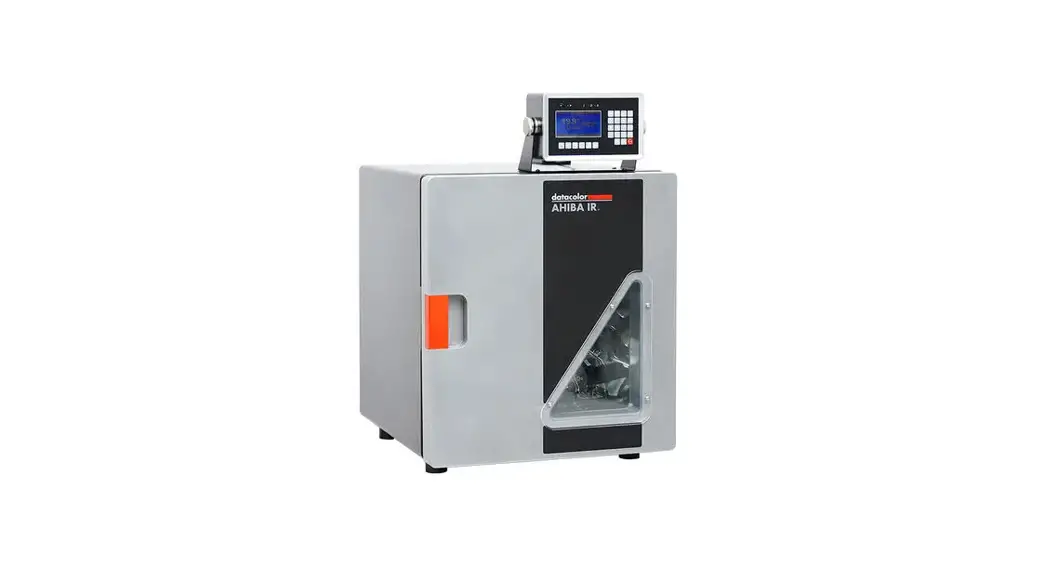
 Ahiba IR Pro
USER`S GUIDE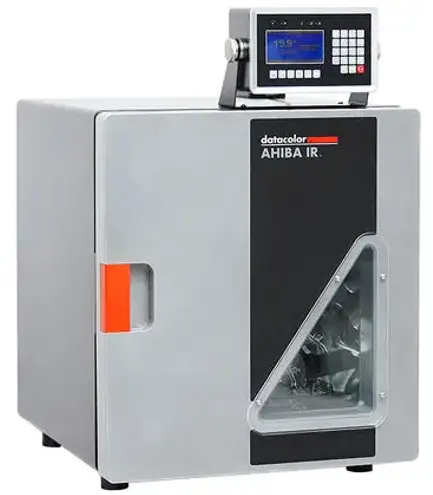
Committed to Excellence. Dedicated to Quality. Ce1Hied to ISO 9001:2008 in Manufacturing Centers Worldwide. @2010 Oatacolor Inc.
Oatacol..- and other Oatacolor product trademarks are the property of Oatacolor Inc.
Ahiba IR Pro USER`S GUIDE
(Part No. 72-990132, June 2010)
All efforts have been made to ensure the accuracy of the information presented in this format. However, should any errors be detected, Datacolor appreciates your efforts to notify us of these oversights.
Changes are periodically made to this information and are incorporated into forthcoming versions.
Datacolor reserves the right to make improvements and/or changes in the product(s) and/or program(s) described in this material at any time. ©2010 Datacolor. Datacolor and other Datacolor product trademarks are the property of Datacolor.
Microsoft and Windows are either registered trademarks of Microsoft Corporation in the United States and/or other countries.
To obtain information on local agents, contact either of the offices listed below or visit our website at www.datacolor.com/locations/.
Support Questions?
If you need help with a Datacolor product, please contact one of our top-rated technical support teams located around the world for your convenience. You can find contact information below for the Datacolor office in your area.
Americas
+1.800.982.6496 (toll-free)
NSA[email protected]
Europe
EMA[email protected]
Asia Pacific
ASP[email protected]
Or contact your local representative.
Datacolor has representatives in over 100 countries … for a complete list,
visit: www.datacolor.com/locations/
Designed and Developed by:
Datacolor USA
5 Princess Road Lawrenceville, NJ 08648
Assembled at Datacolor Technology (Suzhou):
No. 288 Suhong Road,
Suzhou Industrial Park
Export Processing Zone B, Suzhou,
Jiangsu, P.R. China 215021
Committed to Excellence. Dedicated to Quality.
Certified to ISO 9001:2008 in Manufacturing Centers Worldwide.
Ahiba IR Pro
Overview
Ahiba IR Pro is an infrared dyeing machine that handles a wide variety of processes in exhaust dyeing laboratories. It can be used as an atmospheric or high-temperature dyer. The unit can also be used to simulate wash fastness testing.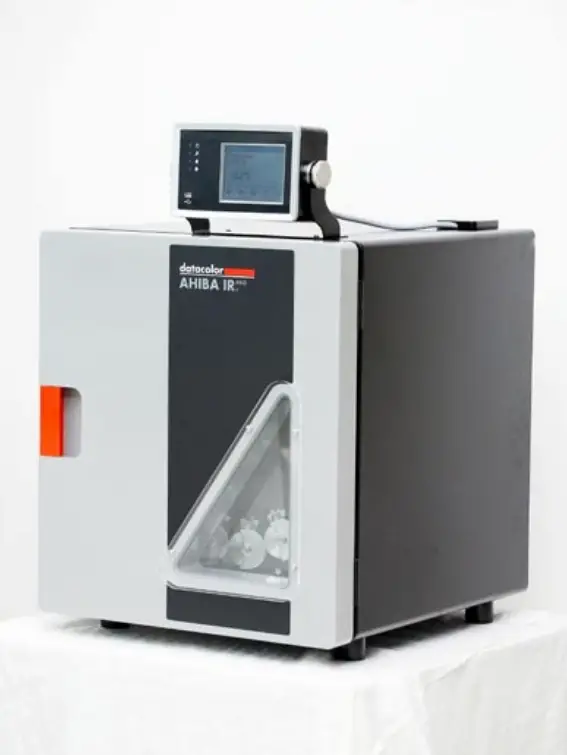
The Ahiba IR Pro controller includes firmware that is used to program customized temperature/time sequences. Microprocessor technology ensures that the controller accurately follows the pre-defined dyeing curves.
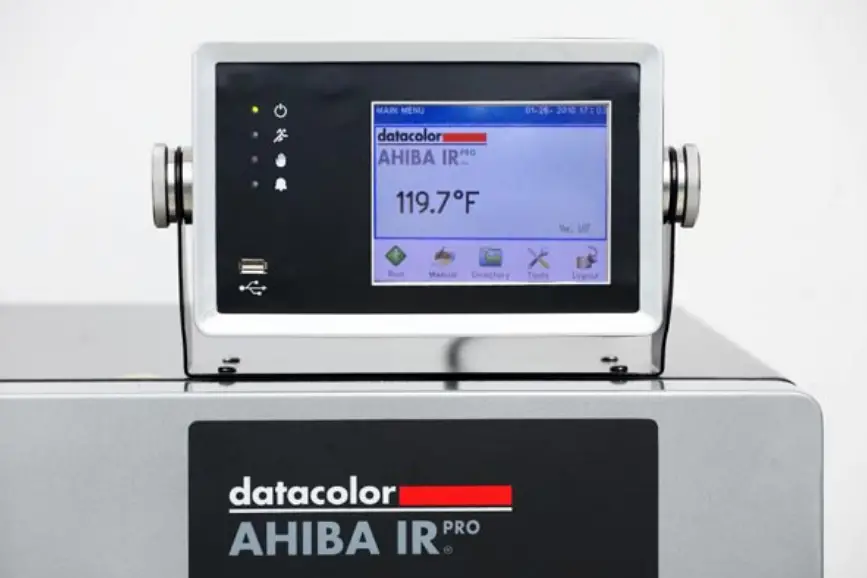
The user interface employs an icon-driven interface that helps eliminate all operator obstacles that exist with text-driven interface designs. A touch screen completes the data entry tools.
Features
- Heating Source: 3 1000W infrared quartz lamps.
- Cooling Source: Cold water heat exchanger system is used to control chamber temperature and act to cool the beakers at controlled rates.
- Temperature Monitoring: Protects the equipment and samples from overheating.
- Type of Fibers: All fibers
- Dyeing Positions: Accommodates up to 20 dyeing positions
- Types of Substrates:
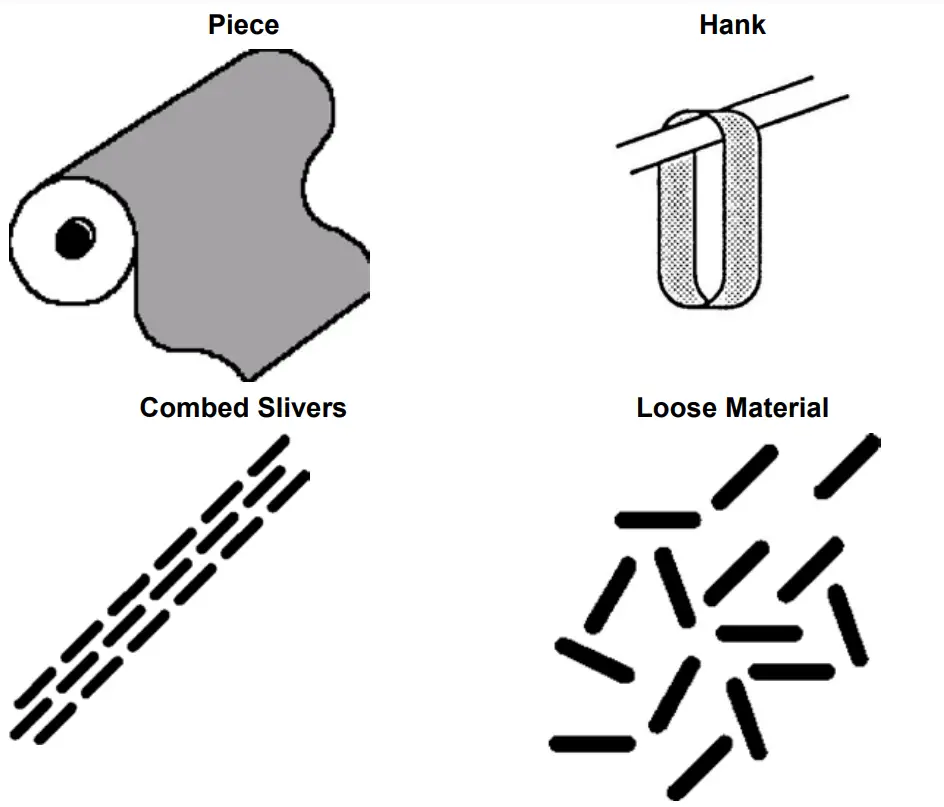
- Liquor Ratio:
1:3 (Synthetics)
1:5 (Natural) - Wash Fastness Testing. The unit can also be used to simulate wash fastness testing.
- User Interface: Icon and menu-driven user interface. The maximum number of custom programs stored locally is 99, each containing a maximum of
15 steps.
Accessories
Standard Accessories
The following accessories are included with the system:
- Hex screwdriver for tightening and loosening beaker tops
- Reference beaker
- Complete set of beakers. Note: If optional dosing beakers are ordered, all necessary accessories to complete the dosing process will be included.
- Replacement set of o-rings for beaker lids
- Beaker preparation basket
- Spare bayonet sensor
- USB Flash Drive (Containing: User Manual, Wiring Diagram, Application Program)
Optional Accessories
Optional accessories for the Ahiba IR Pro include the following:
- Self-refilling dosing syringe
- Accessories for membrane dosing
- Accessories for injection dosing
These accessories can be ordered with the system, or ordered at a later time. See also Appendix, Accessories List for details to order these accessories.
About the Beakers
The Ahiba IR Pro can work with several different beaker sizes. A standard unit includes a single set of beakers, and the beaker size is defined when the order
is placed. The table below summarizes this information:
| Beaker Size (Maximum) | Maximum Number of beakers that can fit into the unit | Ideal Sample Size |
| 150 ml | 20 | 5 grams |
| 300 ml | 15 | 10 grams |
| 500 ml | 8 | 25 grams |
| 500 ml | 10 | 25 grams |
| 1000 ml | 8 | 50 grams |
| 5 liter | 1 | 250 grams |
 INFORMATION
A unit can be equipped with either dosing or non-dosing beakers. Injection dosing or membrane dosing beakers are available.
Units equipped with a 5L drum should limit the heating gradient input to 2.5°C/min, this is due to the mass of the beaker and to prevent “Temperature out of Range” errors.
A unit fitted with either dosing option will include all accessories required to accomplish the dosing (e.g. 10cc self-refilling dosing syringe, dosing adapter or
needle pack).
The ideal sample size is based on the 10:1 liquor ratio. The maximum fill volume of the beaker should be limited to less than 2/3 of the total beaker volume, to achieve maximum agitation of the sample and dyebath inside the beaker.
The number of beakers supplied is based on the number of dyeing positions ordered with the unit.
See also Appendix, Optional Accessories in this guide for a complete list of optional accessories.
Safety Labels and Precautions
The following symbols are found on the equipment and in the documentation:
 | Do Not Touch |
 | The surface is Hot. There is a danger of burn injuries in the operation of this unit. |
 | High Voltage |
 | Hot Air Exhaust |
 | Stop. Warning that a specific action is prohibited. |
 | CAUTION. When this appears in the documentation, it indicates that the step to be performed requires precautions. |
INFORMATION. Indicates there is additional information relevant to the topic.
The precautions below should always be considered during the unit assembly, operation, and maintenance.
General Precautions
- The equipment shall only be operated as instructed in this guide. If equipment is used in a manner other than that specified in this document, the protection provided by this instrument may be impaired.
- Read this user’s guide carefully before placing the unit in service.
- This unit weighs 75kg. Any movement or relocation of the unit requires a minimum of four persons.
Electrical/Environmental Precautions
- To prevent an electrical shock or fire, be sure to use the power cord supplied by Datacolor.
- The power cord must be plugged into an outlet with a protective grounding terminal. Do not invalidate protection by using an extension cord without protective grounding.
CAUTION
Turn the main power switch to OFF and remove the power cord from the electrical outlet before any internal service work is done.
Use Precautions
- Unit is to be used only as laboratory dyeing equipment.
- Units equipped with a 5L drum should limit the heating gradient input to 2.5°C/min, this is due to the mass of the beaker and to prevent “Temperature out of Range” errors.
- Continue operating only as long as the unit functions properly.
- Certain internal parts may reach a temperature greater than 50°C/122°F. The unit can only be operated when the door is closed.
CAUTION
When the door is opened, internal parts should only be handled after the unit has cooled to 50° C.
Maintenance Precautions
- The unit should be operated, maintained, and repaired only by authorized, trained personnel.
- Careful cleaning of the unit enhances the reliability and extends the life of the equipment.
Chemical Handling Precautions
- Always observe the standards and regulations applicable to the chemicals being used.
- Datacolor assumes no responsibility for the handling of chemicals.
Operating Principles
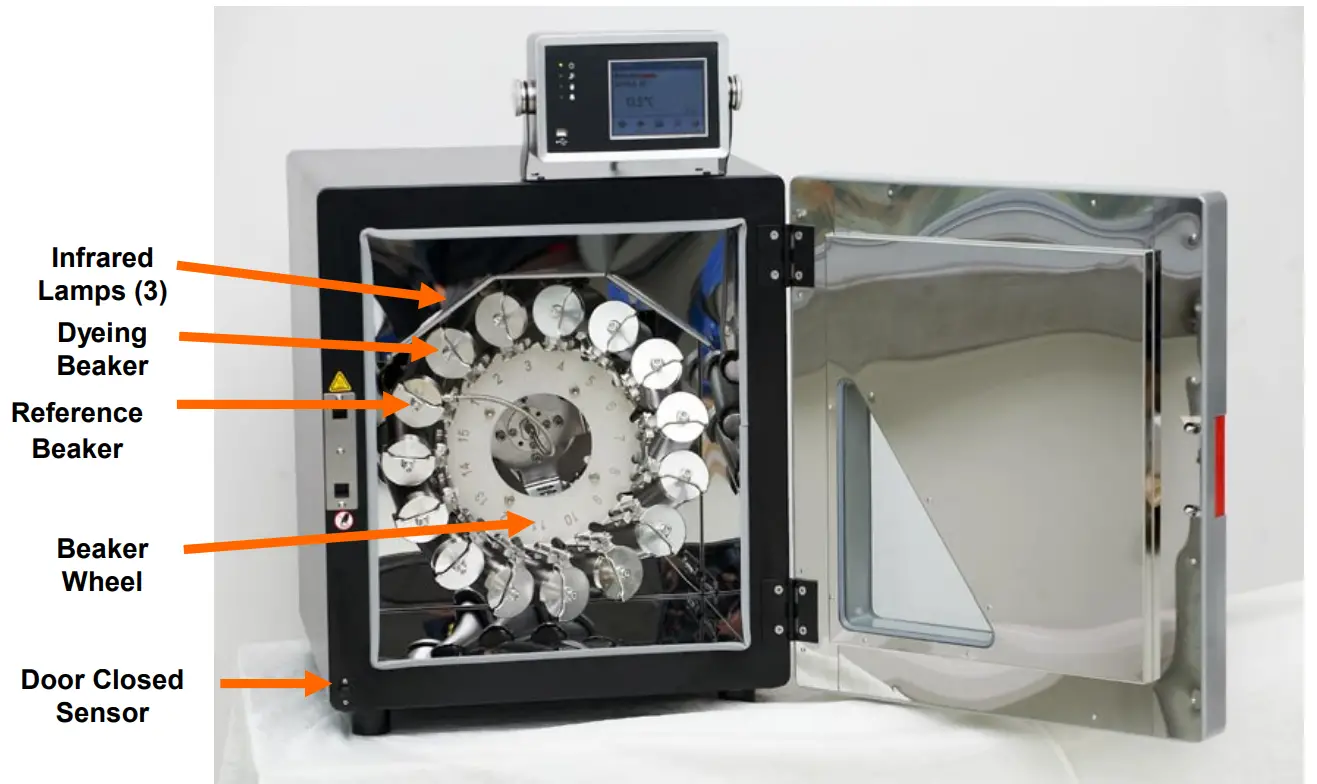
Ahiba IR Pro consists of a rotating wheel that accommodates a maximum of 20 beakers. The unit employs a radiant infra-red heating technology to heat the
liquor in the beakers and uses a cold water heat exchanger-cooling system. The design reduces energy consumption while providing temperature control and accuracy.
Heating and Cooling Schematic
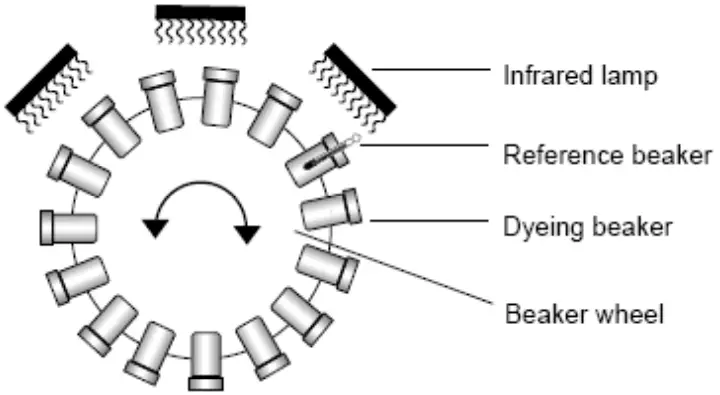
- Three (3) high-performance infrared lamps are used to heat the beakers. They are mounted at the top of the unit. The heat is transferred from the beaker to the dyebath liquor.
- The design of the beakers ensures accurate beaker-to-beaker temperatures.
- A reference beaker fitted with a temperature sensor is used to measure the dyebath temperature. The actual temperature is reported to the controller via a rotary switch.
- 2 high CFM blower fans are used to circulate air in the chamber; this constant air flow ensures level heat transfer to all beakers. To cool the beakers a cold water solenoid opens and allows cold water to flow through the heat exchanger this cold air is blown into the dyeing chamber and heat transfer between the beakers happens. The hot air is circulated back through the heat exchanger and cooled.
- A multiple backup safety system monitors the temperature and protects the equipment and samples from overheating.
Beaker Rotation
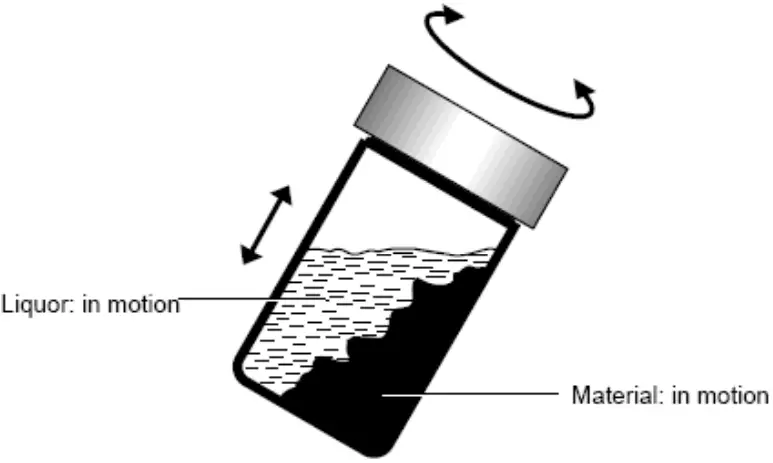
- Rotation Speed: 5 – 50 rpm (selectable)
- Beaker Movement: Programmed reverse function reverses wheel direction in accordance with parameter set in dyeing program (0-9 min).
Equipment Controls and Indicators
Overview
This section itemizes all of the controls and indicators included on the Ahiba IR Pro.
Front of Unit
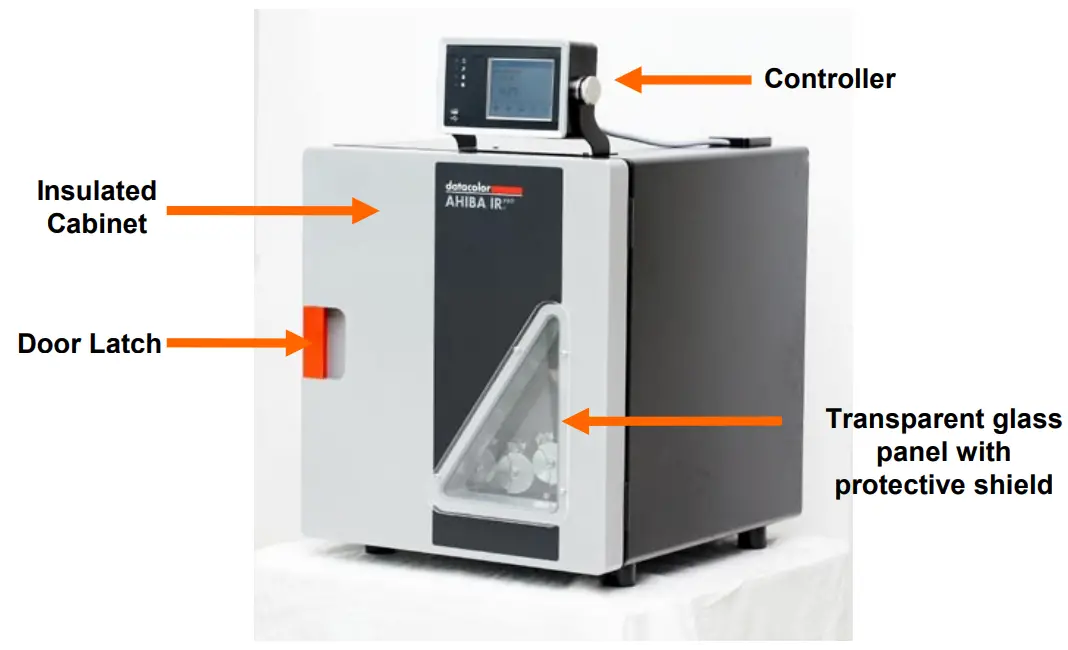
Inside of Unit
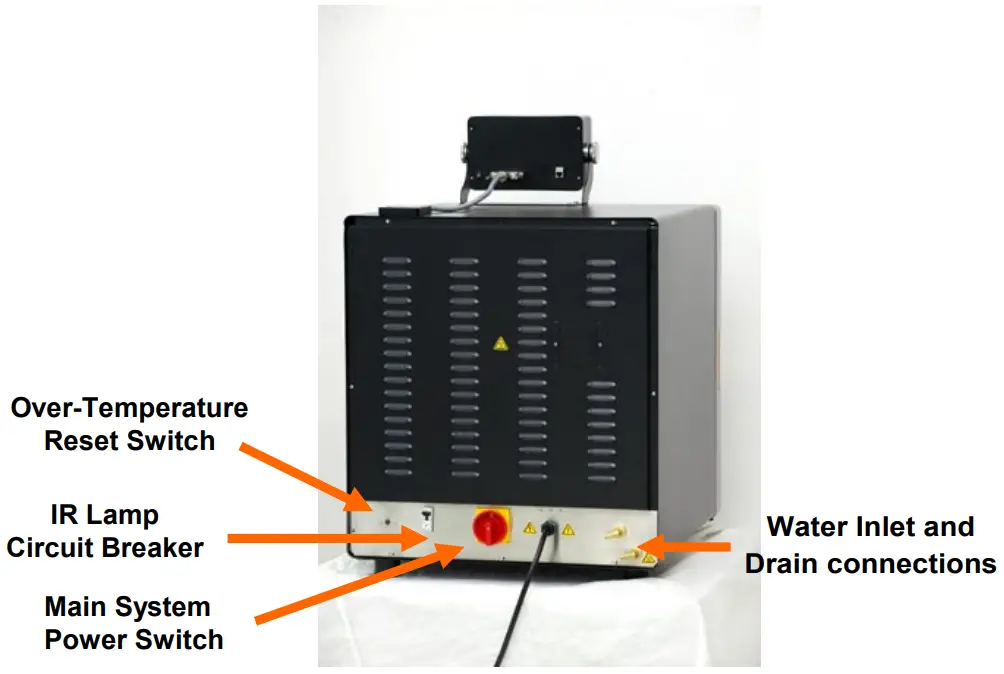
Back of Unit
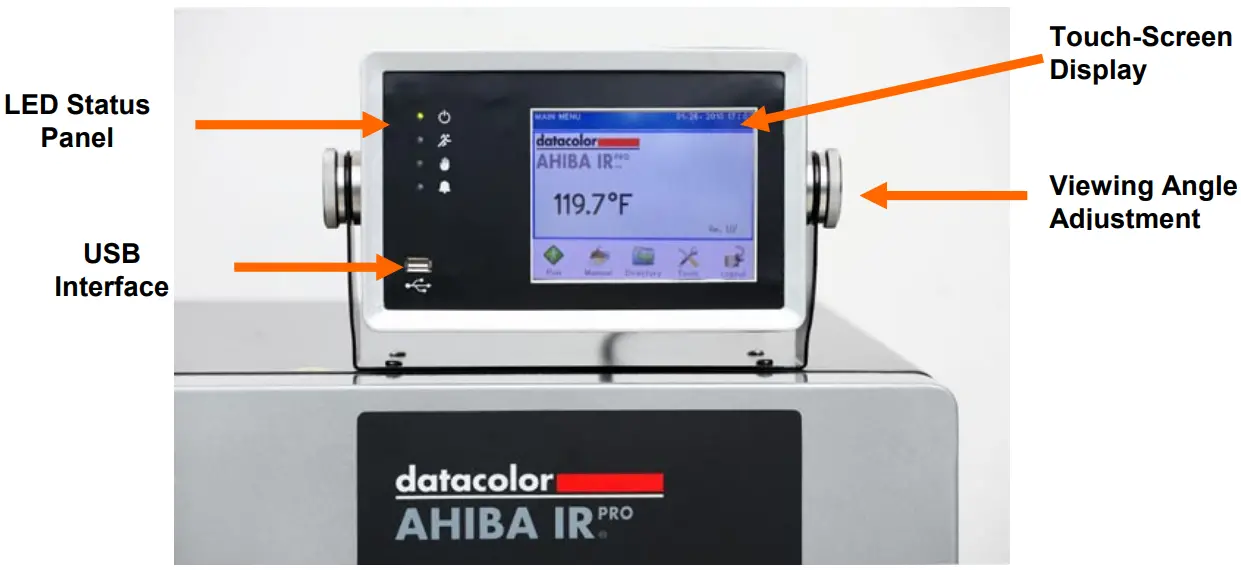
Controller
System Setup and Maintenance
The steps required to prepare the unit for operation include:
- Select a location
- Mount the controller to the machine (hardware provided)
- Attach controller grounding wire.
- Connect the main communication cable to the controller
- Connect the unit to a power source
- Connect to cold water supply and gravity drain
- Beaker installation
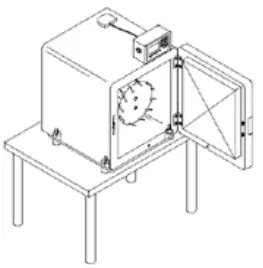
System Location
The Ahiba IR Pro should be placed on a stable, level table. The table should have sufficient height to allow for easy opening and closing of the door, and easy viewing of the controller.
CAUTION
There should be a minimum of 6 inches (152mm) between the back of the unit and the wall or any other obstacles, for proper ventilation.
Power Connections
The controller and the Ahiba IR Pro base unit have separate power controls.
Water Connection
Water: Use only filtered and softened water.
| Pressure: | 2-3 bar (30-45 psi) |
| Hardness: | <10 dH |
| Temperature: | Ideally <15°C |
| Hose: | Min. diameter 3/8” (10mm), Hi-Temp. |
Main Power Connection
You must connect the power cord of the unit to an electrical outlet or power box with proper earth grounding.CAUTION
The power connection should be made by a certified electrician.INFORMATION
Prior to connecting the Ahiba IR Pro unit, ensure that the local line voltage agrees with the line voltage specified on the nameplate. See also the Main Power Supply Connection below for schematics. 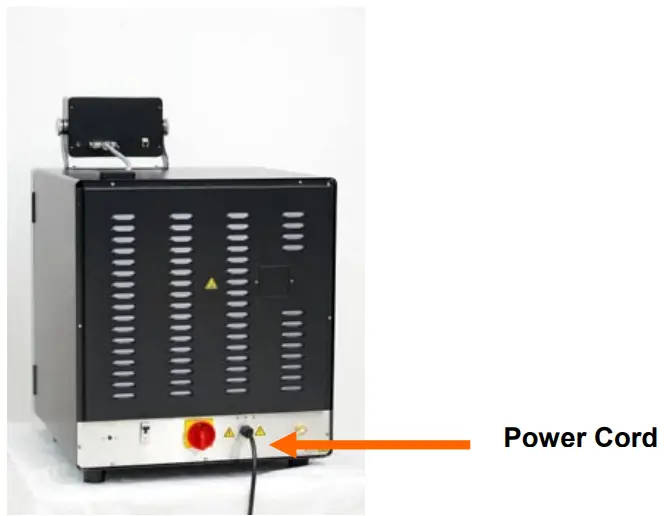
The Ahiba IR Pro requires proper earth ground.
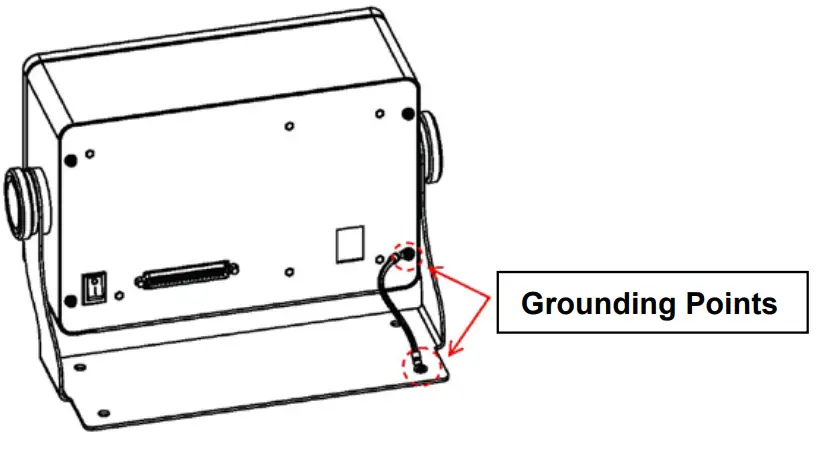
Controller Grounding Connection
In order to protect the electronics in the controller box, a grounding wire must be installed between the controller and the base unit. This wire is provided for you. Ensure the connections are tight. See the illustration below:
Main Power Supply Connection
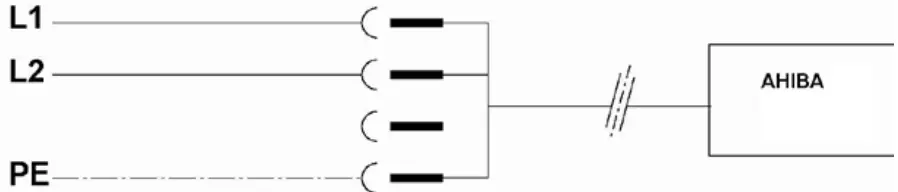
Below are the power connections that can be used.
230V AC standard mains (e.g., Europe)

230V AC high power mains (e.g., US, Canada, Japan)
230V AC, 2/PE, 50/60 Hz, 3850 W; Fuse: 15 A
Controller Power Supply
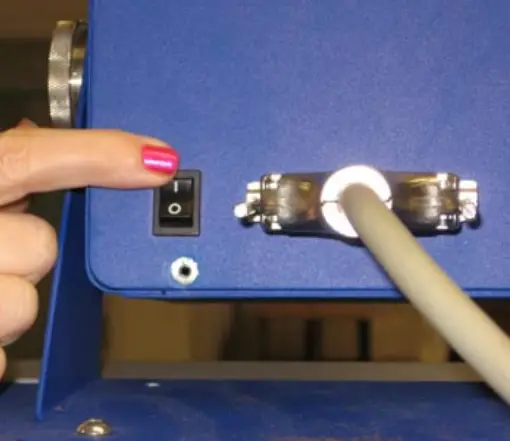
The Ahiba IR Pro controller is powered separately from the machine. Before turning the controller on, check that the power connection from the main power cord is completed and checked for correct voltage levels. When you have verified the connection;
- Turn on the main power switch located on the lower back of the unit.
- Locate the controller power switch on the rear of the controller box:

- Press the top of the button to activate the controller. Press the bottom of the button to cut the power to the controller.
Beaker Preparation, Cleaning, and Maintenance
Beaker Installation
The beaker wheel is fitted with a simple mechanical latching system to lock the beakers in place on the wheel. Beaker installation includes the following steps:
- Secure beaker lids. This is done each time a dyeing process is run.
- Install beakers
- Install/connect reference beaker and sensor cable
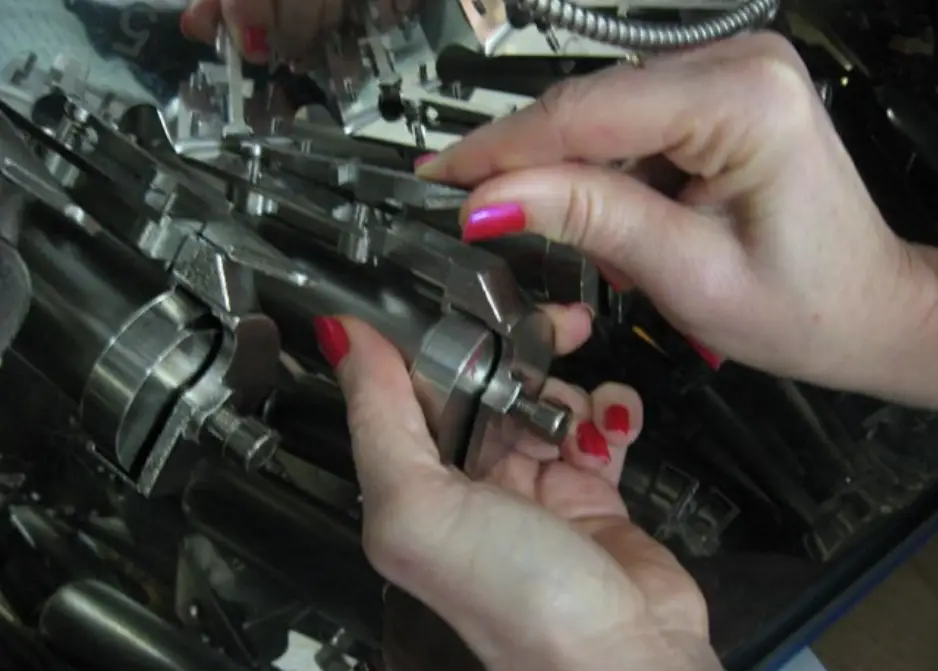 All of the steps described below must be performed for each dyeing cycle.
Securing the Beaker Lids
Before the beakers are attached to the wheel, the lids must be secured using the hex screwdriver supplied with the unit. To secure the lids:
- Ensure the beaker lid and beaker flange are smooth and even sealed.
- Tighten the dog point socket head screws using the hex screwdriver provided with the unit.

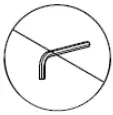
 CAUTION
Do not replace the hex screwdriver with a hex key.
This will cause the lid to be over-tightened. - Install the beakers on the wheel.
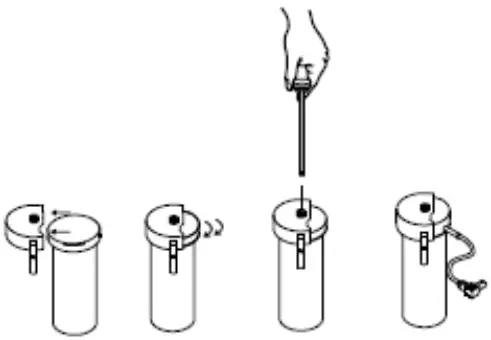
Use the following guidelines when installing the beakers on the wheel:
- Do not mix beaker sizes in a single process. All beakers loaded on the wheel must be the same size.
- The Ahiba IR Pro uses custom-designed pressure-tested beakers. The seal between the beaker and the lid is accomplished with an o-ring seal. This o-ring is a maintenance part and additional o-rings are supplied with the unit.
- Over tightening of the beaker will damage the o-ring and cause damage to the lid. If additional tightening is required to ensure the seal, it is time to replace the o-rings. See also Appendix, System Maintenance for the maintenance schedule.
- The beakers should be distributed evenly around the wheel. Do not overload one section of the wheel with the beakers (see diagram below).
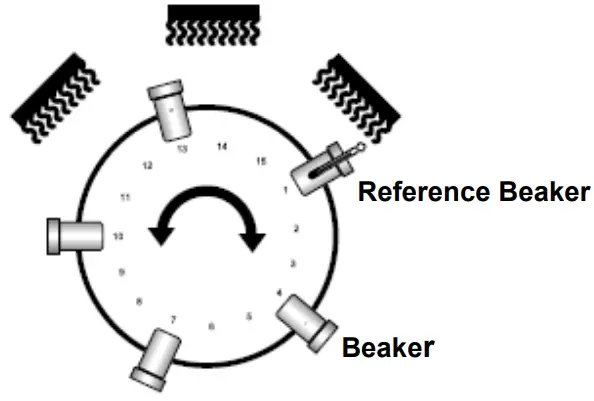
- All beakers must have the same liquor volume.
- All beakers should be at the same approximate temperature as the reference beaker. See also Appendix, Beaker Loads for minimum and maximum beaker load specifications.
Beaker Connections
Below are some guidelines to consider when connecting a beaker to the wheel:
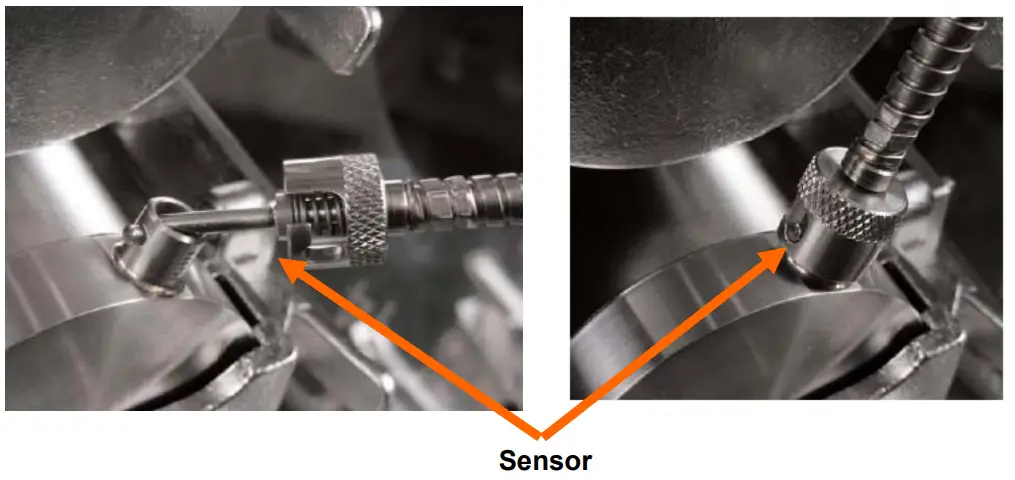
- The sensor lead is connected and locked to the beaker by the rotating collar of the sensor.
- Continue turning the collar until the connection is locked.
- To ensure that the cable is locked to the beaker lid, pull on it slightly.
 INFORMATION
The reference beaker ALWAYS serves as a dyeing beaker. This ensures that all beakers have the same volume, and begin the process at the same temperature, which will result in accurate, repeatable dyeings.
Temperature Sensor Cable
The Bayonet PT-100 temperature sensor cable should remain connected to the machine at all times. The only reason for removal is for defect, and it must be replaced. 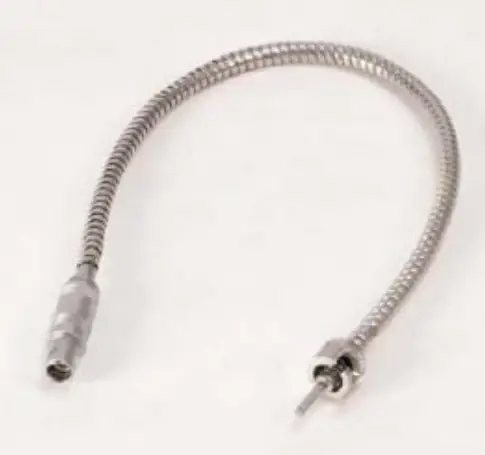
INFORMATION
The temperature sensor cable is plugged into the center of the drive shaft. It is secured by a holding clamp. This prevents accidental disconnection of the sensor from the plug.
The sensor should be connected to the reference beaker before installing the beaker on the beaker wheel. It should be removed prior to removing the reference beaker when the dyeing is completed.
CAUTIONS
- Avoid pulling hard on the temperature sensor cable.
- Avoid wetting the temperature sensor cable with water.
- Avoid heavy bending of the cable.
- The reference beaker lid can be heated to a maximum of 140°C (284°F)
- Do not connect the temperature sensor cable to the reference beaker lid until the lid is completely dry.
Beaker Dosing
The Ahiba IR Pro can be ordered with custom beaker lids that allow you to inject liquid chemicals into the beakers during the dyeing process. Dosing is done using a self-refilling, manual dosing syringe, and an optional accessory available with the unit. All dosing beakers are fitted with a patented dosing protector that diffuses the flow of the liquor onto the substrate. This prevents the chemical from coming into direct contact with the substrate.
Below are drawings of the installation of the dosing protector: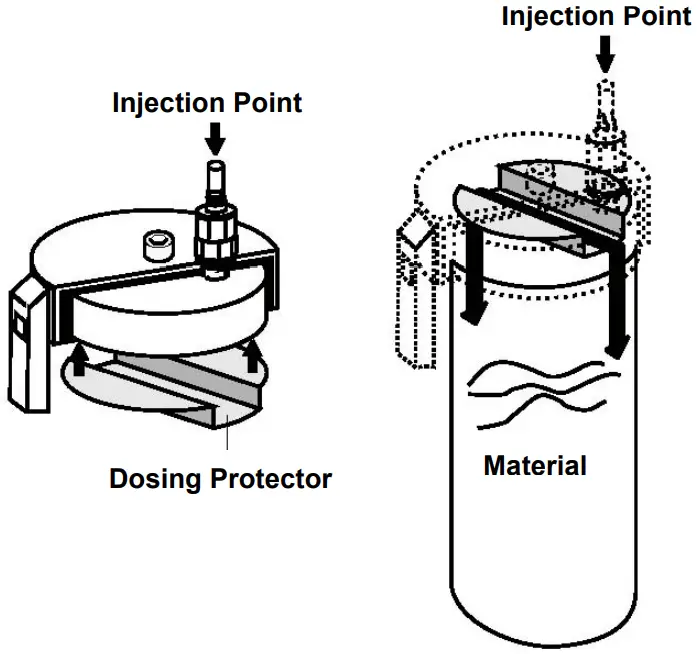
INFORMATION
When dosing a beaker, the liquid chemical being dosed should not come into direct contact with the substrate. All dosing beakers are fitted with a dosing protector, which diffuses the flow of the liquor onto the substrate. This prevents the substrate from being directly contacted with the chemical. Thoroughly rinse the injection nipples with warm water after each use. This cleans the working parts, extends the life of the seals, and prevents clogging due
to dried chemicals.
Self-Refilling Dosing Syringe
A self-refilling dosing syringe can be used with Ahiba IR Pro. See also Appendix, Accessories, Dosing Syringe Accessories for details on replacement parts.
Beaker Preparation Basket
The Ahiba IR Pro comes standard with a beaker preparation basket with each unit. This is included with your unit, it must be assembled. Directions for assembly are supplied. See also, Accessories, and Beaker Preparation Basket for a picture.
Beaker Cleaning and Maintenance
All beakers must be removed and cleaned after each dye cycle. In most cases cleaning with water after each dye cycle should be sufficient. However, if dyestuff is still present, a chemical cleaning should be performed to remove residual dyestuff remaining in the beaker. The beakers, lids, and brackets can be cleaned in a washing machine (e.g. glass washing machine, ultrasonic cleaner, etc.) All beaker lid o-rings should be inspected prior to use and replaced if any sign of wear such as flattening, tears, or cuts are observed. See also Appendix, Maintenance Schedule for maintenance information.
Touch Screen Display CareCleaning:
- Use soft lint-free cloths, either distilled water or screen cleaner (if you use screen cleaner, make sure it’s ammonia and alcohol-free), and optionally, you can have cleaning wipes (wipes that are specifically designed for this purpose.)Don’t:
- Don’t give unnecessary pressure on the screen as it will not work better with more pressure. It is a touch screen, not a pressure screen. So use a reasonably delicate touch with it.
- Don’t use tap water or mineral water as they could leave white marks on the screen because of the dissolved salts.
- Don’t use paper towels or any type of cloth that is not lint-free, as they can leave residue or even scratch the display.
- Don’t spray liquid directly on the screen. Apply the liquid to a cloth and then wipe the screen.
- Don’t use Windex or any other glass cleaner that contains ammonia or alcohol, as they can degrade the display panel.
- Don’t clean the display while it is on. When the display is dark, it is much easier to see dirt and fingerprints that need to be removed.
Program Controls
Overview
The Ahiba IR Pro employs a powerful user interface that communicates programming and system information, using internationally-recognized symbols,
translatable text, and icons. Because of this design, Ahiba IR Pro allows for maximum flexibility and delivers a very easy-to-follow and understand interface.
The IR Pro’s color touch screen display utilizes color change to alert the operator of certain statuses and LED lights and a status bar visually displays important information about the process. The controller also has a variable audible alarm system that alerts the operator to the conditions and status of the process. Sophisticated firmware runs monitoring and controls in the background, ensuring proper operation, and control of the process. When an error occurs, the controller communicates the error via text status messages, display color change, LED light, and audible alarms.
The Ahiba IR Pro works with stored programs that contain the customized time and temperature dyeing sequences. The unit can hold a maximum of 99 programs, each having a maximum of 15 steps. A stored program remains in the system memory until it is deleted by the operator. Programs can be edited to change processing specifications or to add or remove steps. An installed USB flash drive slot allows for fast program back-up and transfer of programs to multiple machines. One step in a program includes the following inputs:
- Temperature
- Gradient
- Time at temperature
- Speed of rotation
- Reversing time
- Hold process step (if needed) This information is entered through touches on the display and a numeric keypad and icons on the display screen.
Controller and User Interface
The Ahiba IR Pro interface is an icon and text-driven touch screen interface. Multi-language-translated icons are available. The controller is operated in two
primary ways – as an operator or an administrator. Password-protected controls allow administrators to restrict or allow access to operators. The default setting for “operator” allows only the running of stored processes and manual mode operation. The following sections will describe operations as an “operator” and later as an “administrator”.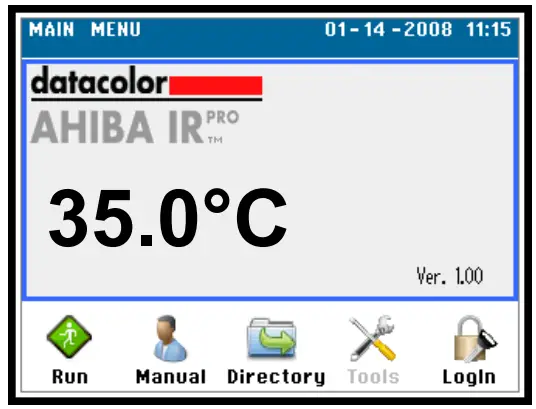
“Operator”
By default for an operator the Ahiba IR Pro will allow access to 3 main screens:
- Run Program Screen
- Run “Manual Mode” Screen
- Program Directory Screen
System Idle Screen
The Main Menu or “System Idle” screen is displayed when the system is powered on. It is also displayed when no process is running.
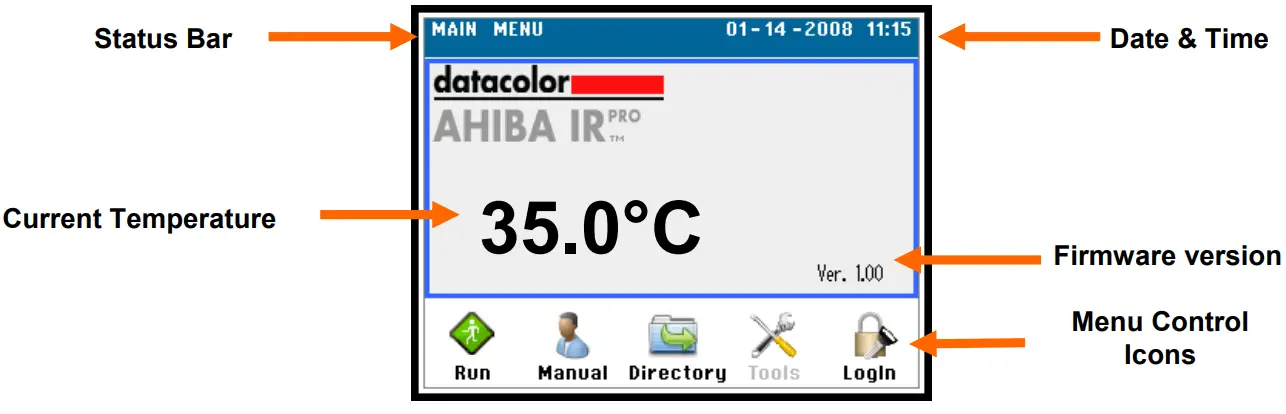
Run Program Screen
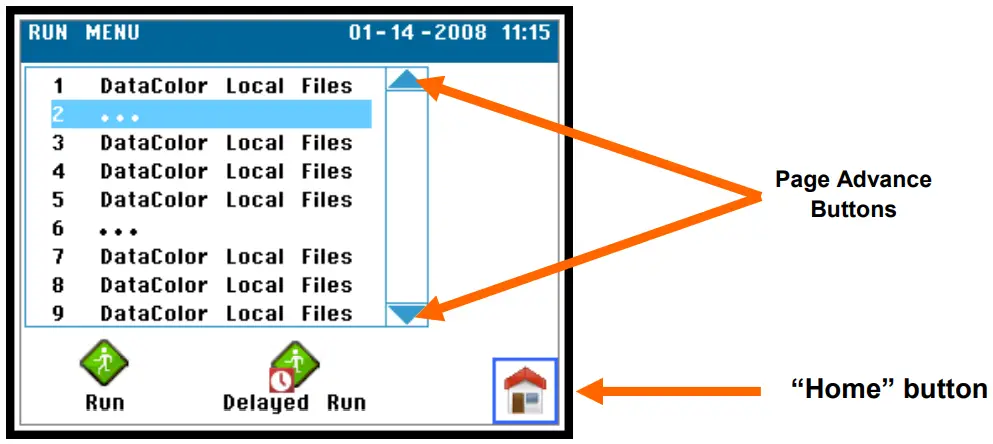
Pressing the “Run” icon from the system idle screen will drive to the Run Program screen and allow the operator to select a program to run or run in “delayed run” mode. Simply touch to highlight the desired program number and then press “Run” or “Delayed Run”. Page advance buttons will advance the screen by one page at a time to access all 99 program slots. Programs are sorted by the program number assigned at the time the program was created. Pressing the “Home” button will drive to the system’s idle screen.
Process Running Screen
The Process Running Screen will display below: all the parameters for a program.
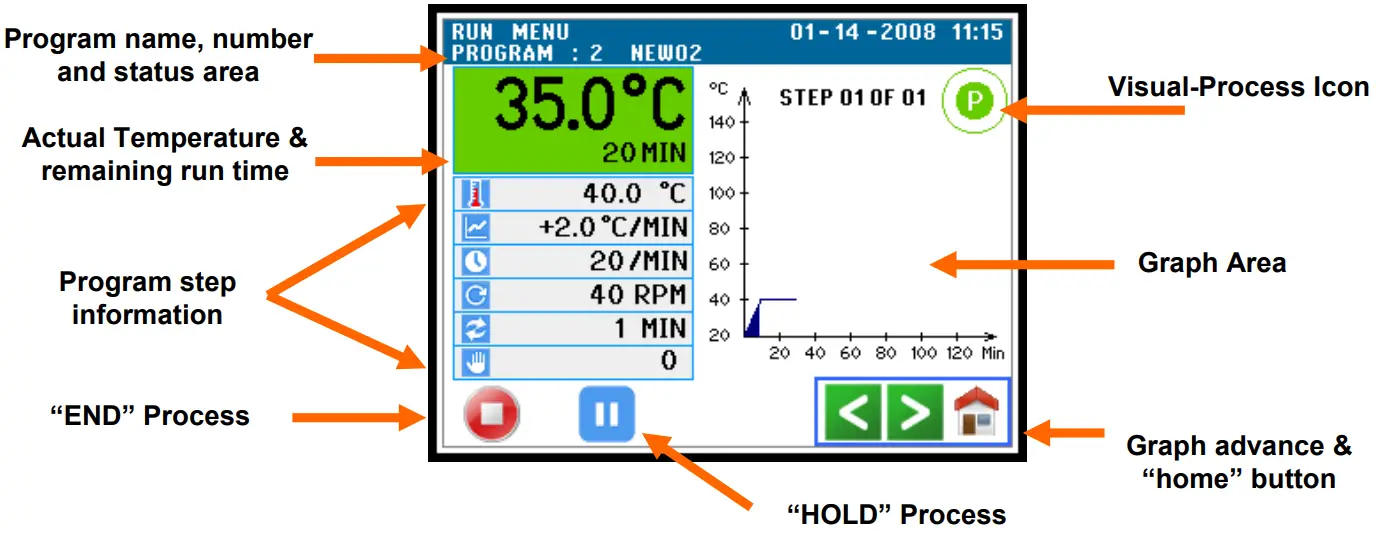 The Process Running Screen display includes all the information needed to know the exact status of the machine and the progress of the process.
- Program Name, Number, and Status Area. Displays the name and program number of the program running. This area will also display any status messages that are needed to the operator. This area will change colors as different statuses are registered.
• Colors.
Normal = Blue
Hold = Yellow
Alarm = Red - Actual Temperature & Remaining Run Time. A large readout of the actual temperature of the beakers and an estimated run time to the end of the process. This are will change colors as different statuses are registered. Working normally this area is colored green.
- Program Step Information. Displays all the parameters of the programmed step.
- “END” Process. A button to “END” or stop the process. Pressing this will be followed by a confirmation screen
- “HOLD” Process. A button to put the unit into a manual “HOLD” step. The temperature will remain as it is at the time HOLD is pressed until The “CONTINUE” button is pressed.
- Visual-Process Icon. Icons are visible on all screens of the controller while a program is running. If you leave the process running screen the visual-process icon will still display and give you a visual reference of the status of the program. Step information will also be displayed with the icon. In the event of a HOLD or an error, the character in the center will change and the color will change.
- Graph Area. Displays a graphical reference of the status of the running program. All steps programmed in the process will be displayed. As the program progresses the graph area will shade in full. The maximum displayed graph area is 120min. Pressing the left and right arrows will advance the graph.
Delayed Program Run Screen
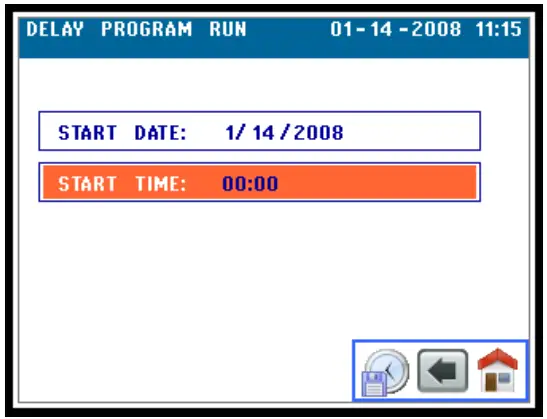
After selecting a program and the “delayed program run” button is pressed you must enter a date and time of when you wish the program to start. Touching the area will open a numeric keypad to enter the data. After setting the date and time press  the save button and the delayed start will begin. If you wish to stop the delayed program run simply press the cancel
  button and the process is stopped.
 INFORMATION
While the IR Pro is running in “Delayed Program Run” no other programs can be started. All monitoring systems are operating. The beaker wheel will turn at 5rpm during the delayed run to help agitate the beakers.
Run “Manual Mode” Screen
The Ahiba IR Pro offers a unique ability to input a quick single-step program called “Manual Mode”. All features operate exactly the same as program mode
with the exception of multiple steps. Touching the area will open the numeric keypad and allow the data points to be changed.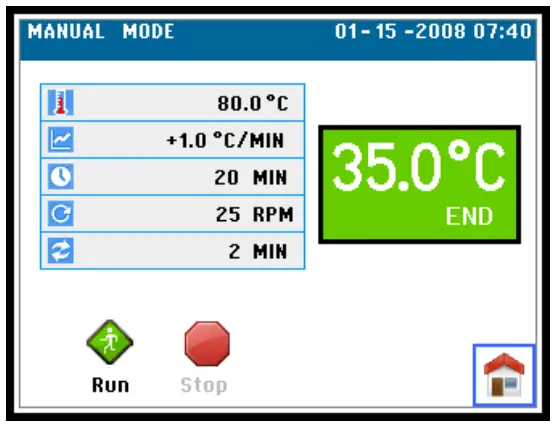
Program Maintenance Screen
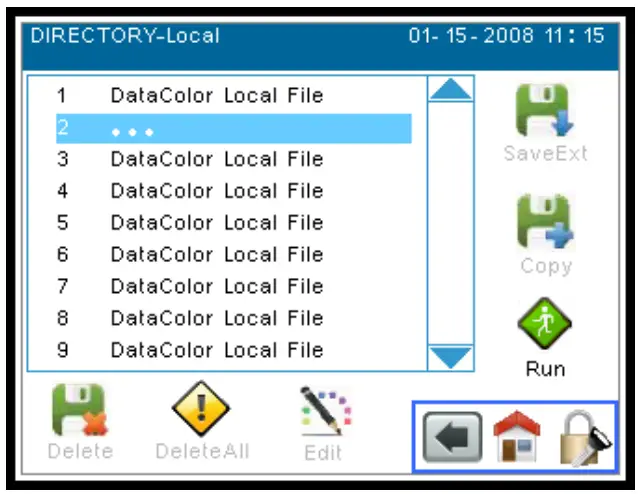
The program maintenance screen displays all available program slots. If the slot is already occupied, the name of the stored program will be visible. If no program exists in a slot,”…” will display for the slot. The directory consists of multiple screens to accommodate all 99 program slots. Page advance buttons
on the right side allow you to advance to other pages. In “operator” mode all functions are grayed out except “RUN”. You must be logged in as administrator” or have been given rights by the administrator to access the other functions allowed on this screen.
 LED Indicators
LED indicators are located on the left side of the controller. These are used to communicate specific information to the operator. They are bright and visible from a distance, making it easy to monitor the system status from across a room.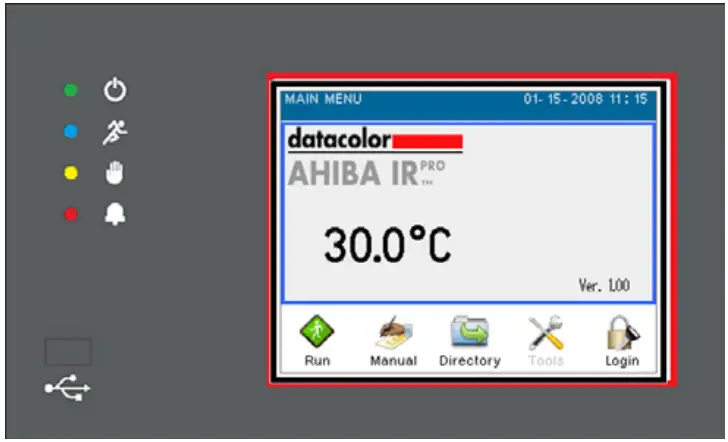
Below is a key for these symbols
 | Power On. When the controller is on, this indicator is solid green. |
 | Process Running. When the process is running, this indicator is flashing blue. |
 | Alarm. When the controller detects an alarm, this indicator is solid red. |
 | Process Hold. When a programmed hold or manually set hold is applied, this indicator is flashing yellow. |
Numeric Keypad
On Ahiba IR Pro at times when areas of the controller are pressed where numerical data is needed a keypad will be displayed.
USB Host Interface
 The Ahiba IR Pro controller has onboard a USB host interface. This interface serves to allow for the program back up and transfer to other units or a PC for additional storage.
- During a program run if the USB flash memory is plugged into the slot on the controller the program information will be recorded on the drive for easy reading on a PC. This information will include a plot of the actually performed dyeing curve compared with the programmed curve, time, and date stamp of each reading. The reading interval will be every one minute.
“Administrator”
The IR Pro offers lab managers the flexibility of assigning tasks or limiting operators’ ability to perform certain functions. If you are logged in as an “administrator” you will have access to perform all tasks and functions on the Ahiba IR Pro controller. These tasks include:
- Program Maintenance – includes creating and editing programs, deleting programs from local and external memory, saving programs to external memory, loading programs from external memory, and copying programs from one location to another.
- User Setup – to include setting time and date, changing the master temperature configuration, and authorizing “operator” access to tasks.
- Password Setup – you can assign a new password. The default shipping “PASSWORD” for Administrator is “3662”.
To log in as “Administrator” press the login icon from the “system idle” screen and enter the password. You will remain logged in until the power to the controller is turned off or until you press the logout icon from the “system idle” screen.
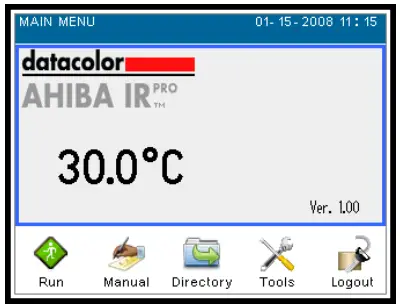
Notice the “Tools” icon is no longer grayed out and the “login” icon has changed to a “logout” icon.
Program Directory Screen
To perform program maintenance you must enter the screen through the “Directory”  icon from the “system idle” screen then select which area you wish to perform the maintenance – either the “local memory” or the “external flash drive memory”. More detail on how to perform tasks will be described later.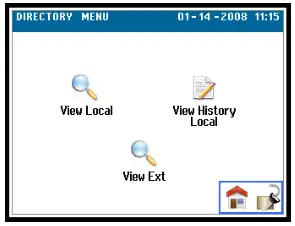
Local Memory
In the local memory you can;
- Delete an existing program from the local memory
- Delete ALL local memory
- Save a local program to the external flash drive for backup or transfer to another unit.
- Copy a program from one memory location slot to another
- “RUN” an existing program
- Edit an existing program or create a new program.
External Memory
In the external memory you can:
- Delete an existing program from the external memory
- Delete ALL external flash drive memory
- Load a program from the external flash drive to the local memory.
View History Local
The History file is a historical data file of the last 30 programs run on the unit. This is only viewing data. The data is stored in the program number and name, the start time and date, the end time and date, and if any errors were recorded.
User Setup Screen
The user setup screen allows administrators to configure the controller as your lab needs prescribe:
 Temperature & Time Setup – this is an icon that will allow you to adjust the controller to display all temperatures in °C or °F. It also allows you to adjust the date and time and format of the date and time display.
- Password Setup – is an icon that allows you to assign your unique 4-digit numeric password.
- Language – is an icon that allows you to select one of the 7 available languages (English, German, French, Spanish, Portuguese, Italian, or Chinese). The text under each icon will change and the menu names and status messages will all be in the language selected.
- Operator Access – is an icon that opens a screen that allows you to assign operator access to certain functions. These functions include:
- Program Maintenance
- User Setup
- USB Host Interface
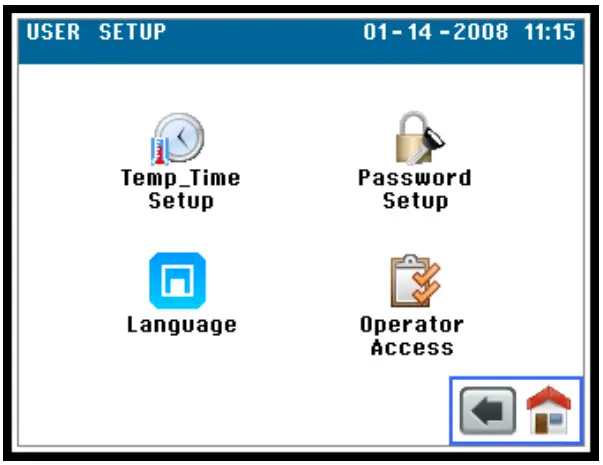 Temperature & Time Setup – this is an icon that will allow you to adjust the controller to display all temperatures in °C or °F. It also allows you to adjust the date and time and format of the date and time display.
Programs
Overview
This section provides instructions and examples for creating a program for Ahiba IR Pro. Keep in mind the following:
• You must be logged in as an administrator or have been given access by the administrator to access this function.
• The local memory can accommodate up to 99 programs.
• Programs can have alpha-numeric program names of up to 19 characters or a default name will be assigned.
• A program can include up to a maximum of 15 steps.
• A step has defined as temperature, gradient, time, rotation speed, reverse rotation, and process HOLD A process HOLD is generally used when the program requires operator intervention. A hold can be included as a program step or can be inserted manually at run time. See also Running a Program, Program Holds for a detailed discussion of this option.
Limit Values
When entering data for a program, all entries are checked against the following
limits to ensure they are within the operating range of the machine:
| Parameter | Limit Value |
| TEMPERATURE | +20°C +140°C |
| (Processing temperature | +77°F +284°F |
| TIME (minutes) | 0 – 180 min |
| GRADIENT | -4.0°C +4.0°C/min |
| (optional input) | -7.2°F +7.2°F |
| SPEED | 5 – 50 rpm |
| REVERSE | 0-9 min |
| HOLD | 0 or 1 |
Units equipped with a 5L drum should limit the heating gradient input to 2.5°C/min, this is due to the mass of the beaker and to prevent “Temperature out of Range” errors.
Creating a Program
Below are the steps for creating a new program:
- From the System, Idle screen, press the Directory
 button. Select the local memory. The Program Directory screen displays.
 - Select an empty memory location “…” and the line will highlight it. Next press the program edit icon
 . An automatic program name is assigned“NEWP#”. If you wish to change it, press and highlight the “name” area and a keyboard will display and a different program name can be assigned. If enter is pressed your program name will save.
 - After assigning a program name press the enter icon
 . The below screen is displayed and known as the program edit screen.
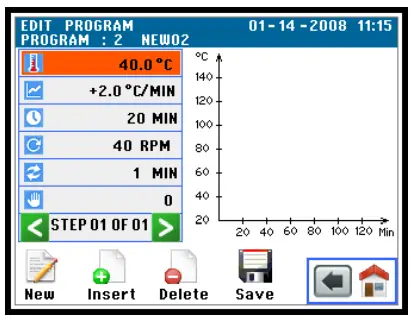
4. The screen above shows all the data that can be entered for a single step.
Default values are already assigned for certain areas. To gain access to an area simply touch the area and it will highlight and a numeric keypad will display so data can be entered. Pressing enter will save that data.
 | Temperature control icon. Provides control to the temperature input line. |
 | Gradient control icon. Provides control to the gradient input line. |
 | Time control icon. Provides control to the time input line. |
 | Motor Speed control icon. Provides control to the rotational speed input line. |
 | Reversing icon. Provides control to allow the beaker wheel direction to be changed at preset intervals. |
 | Hold the control icon. Provides control to HOLD input line. Also used to put the unit into the manual hold. |
5. After all step data is entered press the new step icon to enter additional steps (you may enter up to 15). Data from the previous step is automatically written into the new step so you only need to edit the area that needs changing. After all, the steps are entered press
 to save your program.
Editing a Program
- From the System, Idle screen, press the Directory button. Select the local memory. The Program Directory screen displays.
- Select an existing program from the local memory and the line will highlight it. Next press the program edit icon.
- . Press the enter icon. The below screen is displayed and known as the program edit screen.
- All steps previously-stored are accessible. Use the
 icons to advance the program to the step you wish to edit the data. Touch and highlight the area you wish to change the data and a keypad will appear to enter the data. After all, changes are made press
  to save your changes.
 - In the program edit section, you have the ability to insert a new step or delete a step of a given program.
o To Insert a step – use the icons to get to the step you want to insert a step at and press the insert step  icon and a new step is created and all future steps are advanced by 1 step. The data of your new step can be edited.
o To Delete a step – use the icons to get to the step you want to delete and press the delete  step icon and the step will be deleted and all future steps are reduced by 1 step.
 icons to advance the program to the step you wish to edit the data. Touch and highlight the area you wish to change the data and a keypad will appear to enter the data. After all, changes are made press
 Deleting a Program
From Local Memory
- From the System, Idle screen, press the Directory button. Select the local memory. The Program Directory screen displays.
- Touch and highlight the program number you wish to delete. Press the delete
 icon, and a confirmation menu will appear, pressing “yes” will delete
the program from the local memory. - You can also “Delete All” local memory. By pressing the delete all
 icon, a confirmation menu will appear, and pressing “yes” will delete ALL programs stored in the local memory.
From External Memory
1. From the System Idle screen, press the Directory button. Select the external memory. The Program Directory screen displays.
2. Touch and highlight the program number you wish to delete. Press the delete icon, and a confirmation menu will appear, pressing “yes” will delete the program from the external memory.
3. You can also “Delete All” external memory. By pressing the delete all  icon, a confirmation menu will appear, pressing “yes” will delete ALL programs stored in the external memory.
Copy a Program
Is a function on the IR Pro controller that allows you to make an exact copy of an existing program in a different program slot. From the program directory screen, you can highlight a program and then press the copy  icon and assign your copied program to a new program slot. A confirmation menu will appear. If you try to copy to an existing “full” location you will have the ability to over-write.
- You might use this function if you only want to change or edit a small part of the program to run and not lose your original program information.
Save to External Memory
The IR Pro controller has the ability to back up your locally stored programs to a USB flash drive (supplied with the unit). This backup can be useful to transfer programs between multiple machines or to transfer data between your controller and your PC.
- From the program directory screen, you can highlight a program and then press the
 save icon and assign your copied program to a new program slot. A confirmation menu will appear. If you try to save to an existing “full” location you will have the ability to over-or I te.
Load from External Memory
The IR Pro controller allows for programs created on other machines to be easily uploaded into the local memory. Programs created on a PC can also be easily uploaded into the local memory via your USB flash drive (supplied with the unit).
- From the System, Idle screen, press the Directory button. Select the external memory. The Program Directory screen displays.
- From the program directory screen, you can highlight a program and then press the loading icon and assign your program to a destination slot. A confirmation menu will appear. If you try to save to an existing “full” location slot you will have the ability to over-write.
INFORMATION
The program can be manually stopped at any time by pressing the STOP button.
CAUTION
Do not unplug the bayonet sensor from the reference beaker when a program is running. The temperature will drop very quickly, activating temperature monitoring, and the program will stop running.
- From the System, Idle screen, press the icon. The Program Directory screen displays. Press and highlight the program number you wish to run and then press the run icon. Your program will immediately start and the display will switch to the Process Running screen. The following information is displayed:
- The actual beaker temperature and residual dyeing time clock (large font) will be displayed. This is the approximate time needed to complete all steps in the process.
• The program name and number.
• The program step information.
• The visual-process icon will begin shading and the step number of the total steps is displayed.
• The graph will display an outline of the programmed curve, as the program progresses the graph area will shade in.
• The Blue LED will be flashing.
• The program will run through all steps in the program. - When the process is completed:
• The Blue LED will be turned off.
• “END of Process” will be displayed in the status area.
• An audible alert will sound.
Program Hold
A HOLD is generally used when the program requires operator intervention. An example of this is when the operator needs to dose (add) chemical auxiliaries at prescribed times in the process, it is pre-programmed. If a HOLD is included in the program, you are alerted through the following warnings:
- An audible alarm will sound.
- The Status Area and Temperature and Time Area will change to yellow color.
- The visual-process icon will change color and the center character will change from “P” to an “H”.
- A status message will appear in the Status Area stating “Operator Action Required”.
- A yellow (hold) LED will light.
- Re-starting a program that is on “HOLD”, simply press the continue
 icon and the display will return to normal and the next step in the program will advance.
Hold Precautions and Tips
- When a hold is enabled and the door opened, the IR lamps are turned off, and the motor stops turning. As a result, the temperature inside the
beaker drops. You should limit the time the door is open.
Manual Program Hold
The operator can manually place a hold on the program. To do this:
- Press the Pause
 icon. The program will hold its current position.
 - The display will change as previously mentioned in a programmed HOLD.
- Press the continue icon to resume the program.
Alarms and Status Messages
The Ahiba IR Pro uses a combination of visual and auditory alerts to communicate process and system information to the user. These include:
- Audible alert system
- LED panel
- Status Message Area and screen color change Specific combinations of these alerts are used to communicate specific problems. See also Troubleshooting Alerts and Alarms for complete information and corrective action to be taken regarding each alarm combination.
Audible Alerts
The Ahiba IR Pro has three distinct audible alerts:
- Continuous tone. This is a general alarm.
- Long Beep/Short Beep. This indicates the current step is a program hold.
- Series of Short Beeps. This indicates the end of the program.
- Anytime there is an audible alert pressing the alarm silence icon will silence the alarm. It will not clear the alarm. LED Panel Below is a key for these symbols:
LED Panel
Below is a key for these symbols
| Power On. When the controller is powered on, this indicator is solid green. |
| Process Running. When a process is running, this indicator is flashing blue. |
| Alarm. When the controller detects an alarm, this indicator is solid red. |
 | Process Hold. When a programmed hold or manually set hold is applied, this indicator is flashing yellow. |
Troubleshooting Alerts and Alarms
Below are alarm combinations that may occur while you are running a process and a fault is detected.
| Alert/Alarm Combination | Message | Possible Problem |
Temperature Alarm• Continuous buzzer tone • Display and status • Red LED displays solid red • Type of temperature the alarm is displayed in the Status Area | Different situations trigger this alarm. (1) System has detected a beaker temperature variation of greater than±5°C. The alarm is displayed on the screen and a continuous buzzer tone sounds. The system will attempt to self-correct, depending on the situation. When the temperature variation returns to within ±5°C, the alarm will reset. The buzzer will stop. (2) During a heating or cooling cycle in the program, the system has detected a temperature variation of ±15°C. The program must be re-started at step #1 after the problem is corrected. (3) Controller has detected either a PT-100 open or PT-100 short circuit. • PT-100 open -The screen displays a temperature of 350°. When the temperature is above 350° C, the cooling system is activated. The alarm will automatically reset when the correct temperature is measured. • PT-100 Short CircuitTemperature displays 0° The system will not operate until the problem is fixed. | T-100 The temperature sensor cable is unplugged or defective Problem with the cooling line is affecting the controller’s ability to stabilize the temperature problem with the fan ventilation system and is affecting the controller’s ability to stabilize the temperature |
| Alert/Alarm Combination | Message | Possible Problem |
| Door Open Alarm• Continuous buzzer tone • Screen turns Red color. • Door Open appears on display status area. | The door has been opened while the process is running | Defect indoor closed sensor. The door is open |
| Roll-o-Matic Al a r m
• Red Alarm LED lights | M o t o r motion detection has stopped. • When detection of the drive motor stops for more than 2 minutes, this alarm triggers. The system will stop heating, and the program will stop. The program must be restarted from step #1. The alarm will reset and the alarm icon will disappear when the wheel starts turning again. | Defective motor; Defective motor position switch; defective reversing circuit on the power interface card |
| Power Interruption
• Continuous alarm sounds. | Power to the unit has been disrupted for longer than 2 minutes. If the power is disrupted for more then 2 minutes, the process must be restarted. Press the Alarm Reset button on the keypad to reset this alarm. The icon will disappear from the display. | Power failure. |
| Alert/Alarm Combination | Message | Possible Problem |
| Process HOLD • Audible alarm sounds. • Yellow LED lights. • Screen turns a yellow color • Message is displayed in the Status Area | A process HOLD has been engaged, either automatically from parameters entered in the program step, or manually entered by the operator. A Status Message appears – “Program Halted, Operator Action Required” Press the Continue  icon and the program will continue or advance to the next step. icon and the program will continue or advance to the next step. |
Other general information messages will display in the Status area. This area is used to relay information to the operator about the success or failure of certain functions. Some of these messages include:
- “Program Saved Successful”
- “Program Deleted”
- “Copy Program Successful”
- “Operator Access Changed Successfully”
- “Passcode Changed Successfully”
- Many others
Appendix
Specifications
| External Dimensions (H x W x D) | 864mm x 597mm x 648mm 26.4° x 22.4° x 26.8– |
| Internal Dimensions (H x W x D) | 500mm x 450mm x 330mm (19.7′ x 17.7′ x13°) |
| Weight | 74 Kg, 163 lbs |
| Electrical Supply | 230V AC t10%, 50/60 Hz |
| Heating Power | 3000 W |
| Total Power | 3850 W |
| Operating Temperature | 5°C to 40°C (Environmental) 80% max. relative humidity up to 31°C 50% relative humidity up to 40° C. |
| Approvals | UL, CSA, CE |
* Specifications are subject to change without notice.
Minimum/Maximum Beaker Loads
Minimum Beaker Load
| Beaker Size | Minimum No. of Beakers |
| 150cc | 4 beakers |
| 300cc | 4 beakers |
| 500cc | 4 beakers |
| 1000cc | 4 beakers |
Maximum Breaker Load
| Beaker Sizes (max) | Maximum # of Beakers | Ideal Sample Size |
| 150 ml | 20 beakers | 5 grams |
| 300 ml | 15 beakers | 10 grams |
| 500 ml | 8 beakers | 25 grams |
| 1000 ml | 8 beakers | 50 grams |
| 5 liter | 1 beaker | 250 grams |
Maintenance List
Below is a routine maintenance checklist and schedule of tasks that should be performed to ensure the proper operation of the unit.
| Machine Part/Procedure | Party Responsible for Maintenance | Every C y c l e | Quarterly | Yearly |
| Accessories Wash beakers, beaker lids, and dosing accessories thoroughly. Flush nipples with clean, warm water. | User | x | ||
| Machine Keep the interior surfaces clean and shiny in order to maximize reflection. | User | x | ||
| Dyeing Beaker Check for leaks. Replace O-ring if necessary. | User | x | ||
| Drive Check belts and listen for drive noise. If necessary, adjust or replace belts | Datacolor Service | x | ||
| Speed of the Drive Check and calibrate, if necessary. Tolerance = ±2 rpm. | Datacolor Service | x | ||
| Temperature Calibration Check the temperature calibration and adjust if necessary. Tolerance ±1°C NOTE: Contact Datacolor Service personnel to complete this check. | Datacolor Service personnel | x | ||
| Gradient Test Test and ensure maximum achievable gradient is within tolerance. Make repairs as needed. | Datacolor Service personnel | x |
Glossary of Icons
Below are a listing of the screens on the Ahiba IR Pro controllers and the active icons on each screen.
| Screen | Icon Use | Icon |
| Main menu, “System Idle” | Run Menu |  |
| Manual mode |  | |
| Directory menu | | |
| Tool menu |  | |
| Login |  | |
| Logout |  | |
| Run menu Screen | Run Program | |
| Delayed Run |  | |
| Home Screen |  | |
| Process Running Screen | Stop Program |  |
| HOLD Program |  | |
| Continue Program | | |
| Graph scroll left |  | |
| Graph scroll right |  | |
| Home Screen | | |
| Delayed run screen | Delay program save | |
| Delay program cancel | | |
| Previous screen |  | |
| Home Screen | | |
| Manual mode screen | Run manual program | |
| Screen | Icon Use | Icon |
| Manual mode screen | Stop manual program | |
| Home Screen | | |
| Directory menu screen | View local Memory |  |
| View ext. Memory |  | |
| View History local |  | |
| View the Local menu screen | Delete Program | |
| Delete All Programs | | |
| Edit Program |  | |
| Save External | | |
| Copy Program |  | |
| Run Program | | |
| Previous screen | | |
| Home Screen | | |
| Login | | |
| Logout | | |
| View Ext. menu screen | Load ext. Memory |  |
| Delete Program | | |
| Delete All Programs | | |
| Previous screen | | |
| Home Screen | | |
| View history local | Previous Screen | |
| Screen | Icon Use | Icon |
| View history local | Home Screen | |
| Previous Screen | | |
| Home Screen | | |
| Enter |  | |
| Edit program screen | New Step | |
| Insert Step |  | |
| Delete Step |  | |
| Save Changes |  | |
| Previous step | | |
| Next step | | |
| Temperature |  | |
| Gradient |  | |
| Isotherm time |  | |
| RPM |  | |
| CW/CCW |  | |
| Hold |  | |
| Previous Screen | | |
| Home Screen | | |
| Tool Screen | Configuration menu |  |
| user setup |  |
| Screen | Icon Use | Icon |
| User setup menu | Temp_time Setup |  |
| Language |  | |
| Passcode setup | | |
| Operator access |  | |
| Previous Screen | | |
| Home Screen | | |
| Temp time setup | Save Changes | |
| Previous Screen | | |
| Home Screen | | |
| Passcode | Save Changes | |
| Previous Screen | | |
| Home Screen | | |
| Language | Save Changes | |
| Previous Screen | | |
| Home Screen | | |
| Operator access | Save Changes | |
| Previous Screen | | |
| Home Screen | |
Accessories
Beaker Preparation Basket
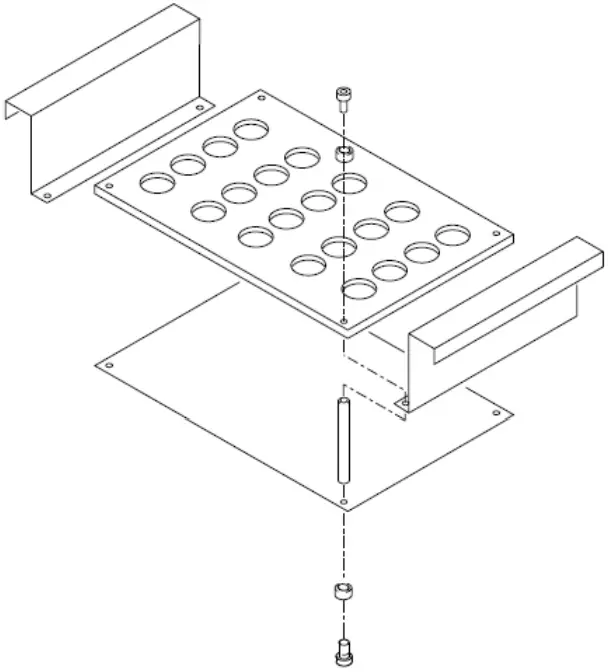
A beaker preparation basket is available with the unit. You must assemble it.
Below is an assembly diagram:
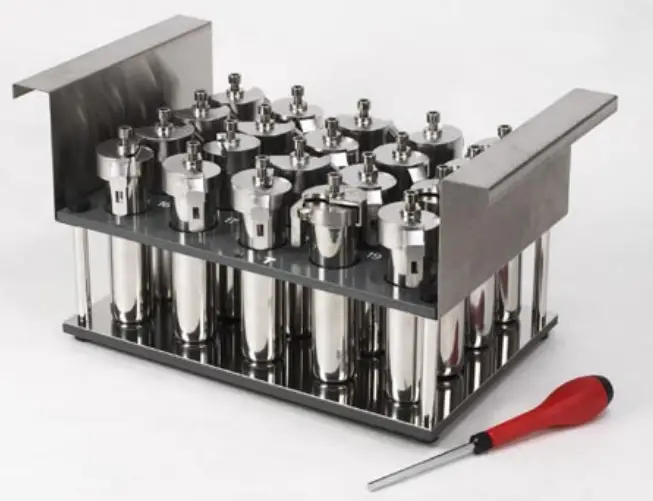
Below is a picture of a fully loaded beaker prep basket.
Beaker Prep Basket
Dosing Accessories
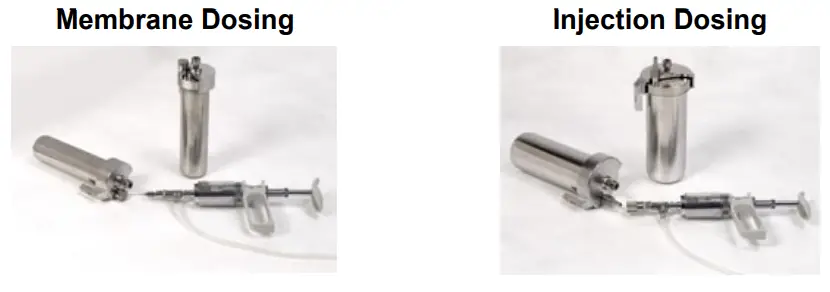
Accessories are available for both membrane dosing and injection dosing techniques.
Dosing Syringe Part
CAUTION
Thoroughly rinse the dosing syringe with warm water following each use. This cleans the interior of the parts extends the life of the seals and prevents clogging due to dried chemicals
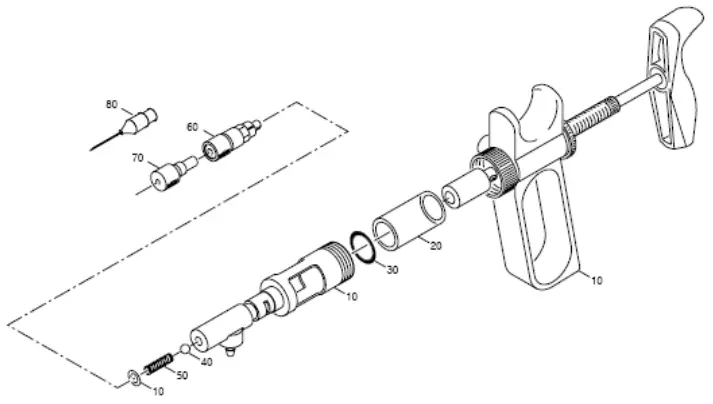
Below is information for ordering replacement parts from Datacolor for the dosing syringe
| Drawing Position | Description | Part No |
| 10 | 10cc Dosing Injector | 474070 |
| 20 | Dosing Injector 10cc | 474077 |
| 30 | Glass cylinder 10cc | 474080 |
| 40 | Seal to injector | 474082 |
| 50 | Valve Ball | 474081 |
| 60 | Valve Spring | 474007 |
| 70 | Dosing Adapter Teflon Seal | 474083 |
| 20 | 5cc Dosing Injector Glass cylinder 5cc | 474087 |
| 80 | Membrane Dosing Needle (Pack of 12) | 842016 |
N O T E
 Delivering Color Worldwide - Global Locations | Datacolor