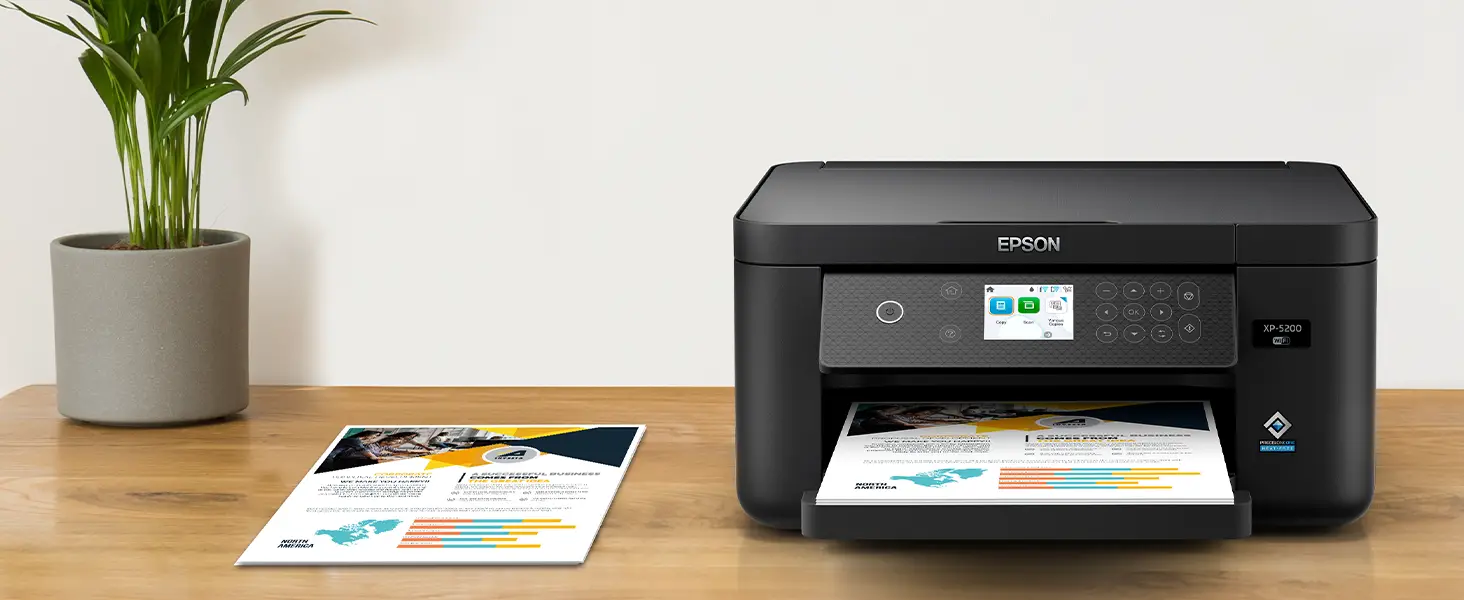
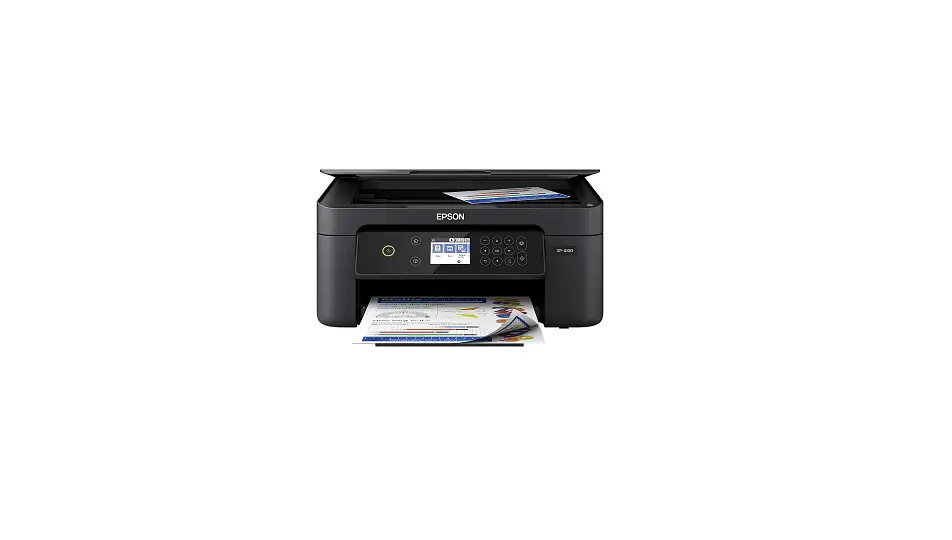
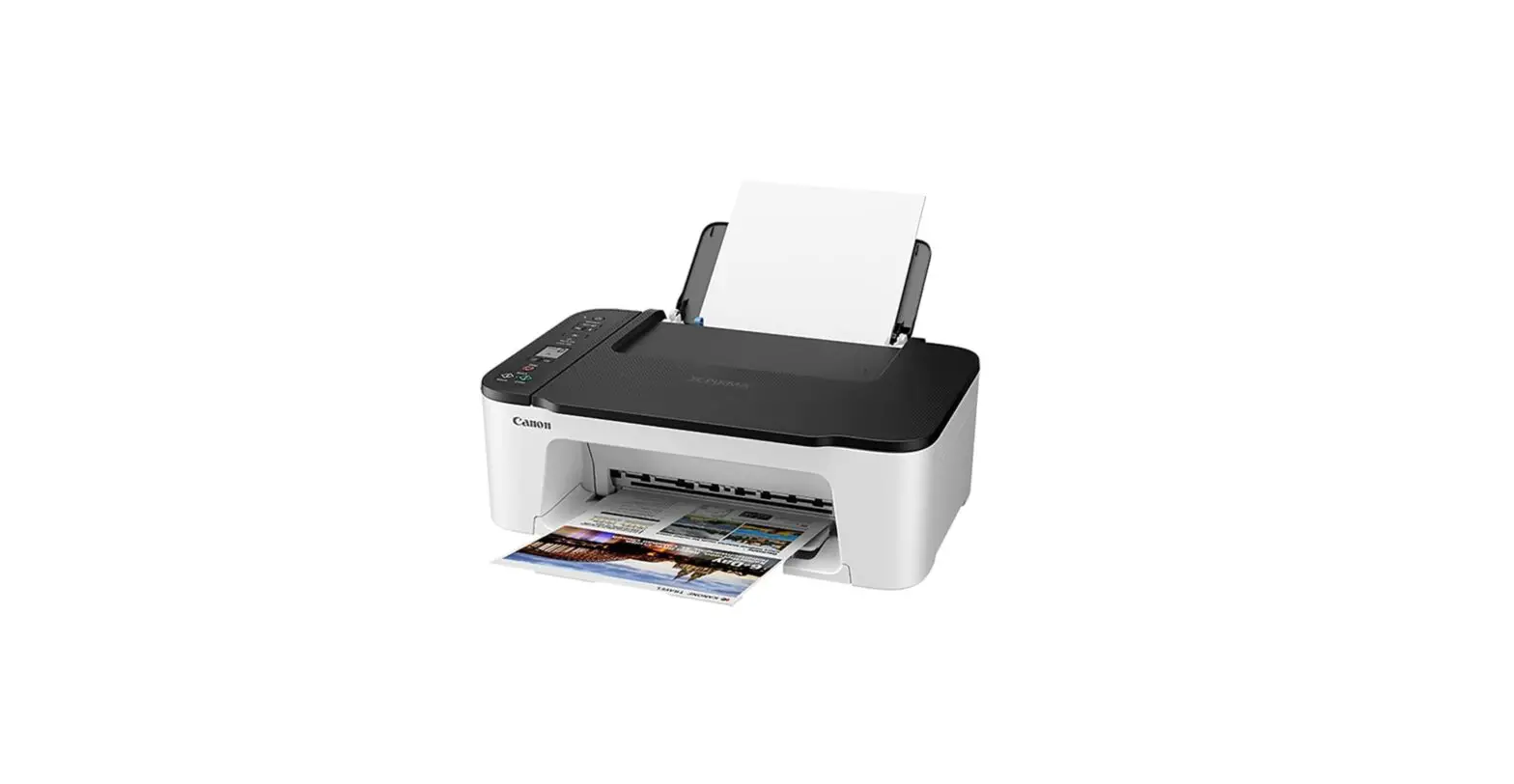
XP-5200 Wireless Color Inkjet Printer
Product Information:
The XP-5200 is a printer/scanner product by Epson. It comes with
an easy setup process and includes initial ink cartridges for
reliable printer setup. The printer supports mobile device setup
and offers various features such as voice-activated printing.
Product Usage Instructions:
1. Unpack
Note: Do not open ink cartridge packages until you are ready to
install the ink. Cartridges are vacuum packed to maintain
reliability.
- Remove all protective materials from the product and lift up
the scanner unit until it locks into place. - Remove all protective materials from inside the product.
Caution: Do not touch the flat white cable. - Lower the scanner unit. Note: Continue to lower the scanner
unit even if you feel some resistance. - Connect the power cord to the back of the product and to an
electrical outlet. Caution: Do not connect to your computer
yet.
2. Choose a setup method
OR
To use your mobile device for setup, continue to step 1.
If you do not want to use a mobile device for setup, skip to the
Turn on and configure section.
- Download the Epson Smart Panel app from your device’s app
store. Do not launch the app yet. - Hold the power button until it lights up to turn on the
product. Note: Do not connect your product to your computer
yet. - Launch the app and follow its instructions to set up your
product. If necessary, tap the + icon on the top right corner of
the app’s home screen, tap Start setting up, and follow the
instructions to set up your product.
3. Turn on and configure
- Raise up the control panel, turn on the product and wait for
the power light to turn on. Note: If an error code appears, turn
off the product and check that no protective material has been left
inside the product. - Press or to select your language, then press OK. Note: You can
change the language later using the product’s control panel. For
more information, see the online User’s Guide. - When you see the Epson Smart Panel setup screen, select
Continue setup without the app and press OK.
4. Install ink cartridges
Caution: Keep ink cartridges out of the reach of children and do
not drink the ink. Note: The included initial cartridges are
designed for reliable printer setup and cannot be used as
replacement cartridges or resold. After setup, the remaining ink is
available for printing.
- Lift up the scanner unit until it locks into place.
- Gently shake the black ink cartridge. Caution: Do not shake the
other ink cartridges. - Unpack the ink cartridges.
- Remove only the yellow tape from each ink cartridge. Caution:
Do not remove any other labels or seals, or ink will leak. Do not
touch the areas shown here. - Insert the cartridge in the holder for each color. Press each
cartridge down until it clicks. Make sure all cartridges are pushed
down into place. - Lower the scanner unit. Note: Continue to lower the scanner
unit even if you feel some resistance. - Press OK. The printer starts charging the ink.
- Follow the on-screen instructions to adjust the print.
5. Load paper
See the online User’s Guide for information about loading
capacity, available paper types and sizes, and loading
envelopes.
- Make sure the product is done charging the ink, then pull out
the paper cassette.
XP-5200
Start Here
IMPORTANT: Before using this product, make sure you read these instructions and the safety instructions in the online User’s Guide. Note: This printer is designed for use with Epson® cartridges only, not third-party cartridges or ink. For important ink information, visit http://epson.com/epsonink (U.S.) or http://epson.ca/epsonink (Canada) or see your printer box.
1 Unpack
Note: Do not open ink cartridge packages until you are ready to install the ink. Cartridges are vacuum packed to maintain reliability.
1 Remove all protective materials from the product and lift
up the scanner unit until it locks into place.
2 Remove all protective materials from inside the product.
Caution: Do not touch the flat white cable.
3 Lower the scanner unit.
Note: Continue to lower the scanner unit even if you feel some resistance.
4 Connect the power cord to the back of the product and to
an electrical outlet.
Caution: Do not connect to your computer yet.
2 Choose a setup method
The Epson Smart Panel® app can help you set up your printer through an interactive, step-by-step process using your smartphone or tablet.
OR
To use your mobile device for setup, continue to step 1.
If you do not want to use a mobile device for setup, skip to the “Turn on and configure” section.
1 Download the Epson Smart Panel app
from your device’s app store. Do not launch the app yet.
2 Hold the power button until it lights up to turn on the
product.
Note: Do not connect your product to your computer yet.
3 Launch the app and follow its instructions to set up your product. If necessary, tap the + icon on the top right
corner of the app’s home screen, tap Start setting up, and follow the instructions to set up your product.
For information on connecting your product to a computer, using voice-activated printing, or solving problems, or for details on reaching Epson support, see the sections on the back of this sheet.
3 Turn on and configure
1 Raise up the control panel, turn on the product and wait
for the power light to turn on.
Note: If an error code appears, turn off the product and check that no protective material has been left inside the product.
2 Press or to select your language, then press OK.
Note: You can change the language later using the product’s control panel. For more information, see the online User’s Guide.
3 When you see the Epson Smart Panel setup screen, select
Continue setup without the app and press OK.
4 Install ink cartridges
Caution: Keep ink cartridges out of the reach of children and do not drink the ink. Note: The included initial cartridges are designed for reliable printer setup and cannot be used as replacement cartridges or resold. After setup, the remaining ink is available for printing.
1 Lift up the scanner unit until it locks into place.
2 Gently shake the black ink cartridge.
Caution: Do not shake the other ink cartridges.
3 Unpack the ink cartridges.
4 Remove only the yellow tape from each ink cartridge.
Caution: Do not remove any other labels or seals, or ink will leak. Do not touch the areas shown here.
5 Insert the cartridge in the holder for each color. Press
each cartridge down until it clicks. Make sure all cartridges are pushed down into place.
6 Lower the scanner unit.
Note: Continue to lower the scanner unit even if you feel some resistance.
7 Press OK. The printer starts charging the ink. Ink
charging takes approximately 5 minutes. When you see a completion message on the printer’s LCD screen, charging is complete. Caution: Don’t turn off the printer or raise the scanner unit while it is charging or you’ll waste ink. Note: As part of setup, your product’s serial number will be sent to a secure Epson server so that you can be eligible to participate in programs we may offer from time to time, including the Epson ink replenishment program. You will have a separate opportunity to consent to participating in such programs.
8 Follow the on-screen instructions to adjust the print
quality of your product. Note: · You need to load 4 sheets of letter-size paper before you can
adjust the print quality. See “Load paper” on this sheet for details. · Select Adjust Later if you want to adjust the print quality later. For more information, see the online User’s Guide.
5 Load paper
See the online User’s Guide for information about loading capacity, available paper types and sizes, and loading envelopes.
1 Make sure the product is done charging the ink, then pull
out the paper cassette.
2 Squeeze the tab on the
right edge guide and slide the side edge guides all the way out.
3 Insert paper with the
glossy or printable side down.
4 Slide the edge guides
against the paper, but not too tightly.
5 Keep the cassette flat as
you insert it all the way.
6 Pull out the output tray.
7 Follow the instructions on the LCD screen to select your
paper settings and adjust the print quality of your product, if necessary.
6 Install software
Note: · An Internet connection is required to obtain the product software. · To print from a ChromebookTM, go to
http://epson.com/support/chromebookprint (U.S.) or http://epson.ca/support/chromebookprint (Canada) for instructions.
Firmware Update Notice: The printer is designed to work only with genuine Epson-branded cartridges. Other brands of ink cartridges and ink supplies are not compatible and, even if described as compatible, may not function properly or at all. Epson periodically provides firmware updates to address issues of security, performance, minor bug fixes and ensure the printer functions as designed. These updates may affect the functionality of third-party ink. Non-Epson branded or altered Epson cartridges that functioned prior to a firmware update may not continue to function.
1 Make sure the product is NOT CONNECTED to your
computer.
Windows®: If you see a Found New Hardware screen, click Cancel and disconnect the USB cable.
2 Download and run your product’s software package:
http://epson.com/support/xp5200 (U.S.) http://epson.ca/support/xp5200 (Canada)
3 Follow the instructions on the computer screen to run the
setup program.
4 When you see the Select Your Connection screen, select
one of the following and follow the on-screen instructions:
· Wireless connection In most cases, the software installer automatically attempts to set up your wireless connection. If setup is unsuccessful, you may need to enter your network name (SSID) and password.
· Direct USB connection Make sure you have a USB cable (not included).
Mobile and voice-activated printing
· Print directly from your AndroidTM (v4.4 or later) device*. Simply connect your printer and device to the same network and tap the menu icon to select the print option.
· Turn your mobile device into an intuitive, easy-to-use printing and scanning control center with Epson Smart Panel. Download the app from your mobile device’s app store.
· Print remotely with Epson ConnectTM. See your online User’s Guide for instructions or learn more at http://epson.com/connect (U.S.) or http://epson.ca/connect (Canada).
· Use voice-activated assistants to print a variety of creative and everyday items from your Epson product. Simply add your product to an Epson Connect account, then link the account to a voice-activated assistant. See http://epson.com/voice (U.S.) or http://epson.ca/voice (Canada) for more information.
* May require the Epson Print Enabler or Mopria Print Service app from Google PlayTM.
Any problems?
Network setup was unsuccessful. · Print a network connection report to identify network
problems and solutions. See your online User’s Guide for instructions. · Make sure you select the right network name (SSID). · Restart your router (turn it off and then on), then try to connect to it again. · The printer can only connect to a network that supports 2.4 GHz connections. If your router offers both 2.4 GHz and 5 GHz connections, make sure the 2.4 GHz connection is enabled. · If you see a firewall alert message, click Unblock or Allow to let setup continue. · If your network has security enabled, make sure you enter your network password (WEP key or WPA passphrase) correctly. Be sure to enter your password in the correct case.
There are lines or incorrect colors in my printouts. Run a nozzle check to see if there are any gaps in the printout. Then clean the print head, if necessary. See the online User’s Guide for more information.
The product’s screen is dark. Make sure your product is turned on, and press any button to wake it from sleep mode.
Setup is unable to find my printer after connecting it with a USB cable. Make sure the printer is turned on and the USB cable is securely connected.
Any questions?
User’s Guide
Windows: Click the icon on your desktop or Apps screen to access the online User’s Guide.
Mac: Click the icon in Applications/Epson Software/Guide to access the online User’s Guide.
If you don’t have a User’s Guide icon, go to the Epson website, as described below.
Videos
Visit http://epson.com/support/xp5200videos (U.S.) or http://epson.ca/support/xp5200videos (Canada) to view support videos (videos available only in English).
Technical support
Visit http://epson.com/support/xp5200 (U.S.) or http://epson.ca/support/xp5200 (Canada) to download drivers, view manuals, get FAQs, or contact Epson.
Call (562) 276-4382 (U.S.) or (905) 709-3839 (Canada), 7 am to 4 pm, Pacific Time, Monday through Friday. Days and hours of support are subject to change without notice. Toll or long distance charges may apply.
Recycling
Epson offers a recycling program for end-of-life hardware and ink cartridges. Please go to http://epson.com/recycle (U.S.) or http://epson.ca/recycle (Canada) for information on how to return your products for proper disposal.
Need paper and ink?
Ensure brilliant results with Epson specialty and plain papers, engineered specifically for Epson printers. Find Epson papers and Epson Genuine Ink at http://epson.com (U.S. sales) or http://epson.ca (Canadian sales) and at Epson authorized resellers. Call 800-GO-EPSON (800-463-7766).
XP-5200 replacement ink cartridges
Color
Standard-capacity
High-capacity
Black
222120
222XL120
Cyan
222220
—
Magenta
222320
—
Yellow
222420
—
EPSON, Epson Smart Panel, and Claria are registered trademarks, EPSON Exceed Your Vision is a registered logomark, and Epson Connect is a trademark of Seiko Epson Corporation.
Designed for Excellence is a trademark of Epson America, Inc.
Windows is a registered trademark of Microsoft Corporation in the United States and/or other countries.
Mac is a trademark of Apple Inc., registered in the U.S. and other countries.
Android, Chromebook, and Google Play are trademarks of Google LLC.
General Notice: Other product names used herein are for identification purposes only and may be trademarks of their respective owners. Epson disclaims any and all rights in those marks.
This information is subject to change without notice.
© 2022 Epson America, Inc., 1/22
Printed in XXXXXX
CPD-61856
References
 Epson Canada | Homepage
-
Mobile Printing and Scanning Solutions | Epson Canada
-
No Third Party Ink Cartridges | Epson Canada
-
Recycling Program - For Printers, Hardware, Ink Cartridges | Epson Canada
-
SPT_CHROMEBOOKPRINT | Chromebook Support for Epson Printers | Mobile and Cloud Solutions | Other Products | Support | Epson Canada
-
SPT_C11CK61201 | Epson XP-5200 | XP Series | All-In-Ones | Printers | Support | Epson Canada
-
SPT_C11CK61201 | Epson XP-5200 | XP Series | All-In-Ones | Printers | Support | Epson Canada
-
Alexa and Siri | Voice-activated Printing | Epson Canada
-
Epson Global Portal
-
Mobile Printing and Scanning Solutions | Epson US
-
No Third Party Ink Cartridges | Epson US
-
Recycling Program - For Printers, Hardware, Ink Cartridges | Epson US
-
SPT_CHROMEBOOKPRINT | Chromebook Support for Epson Printers | Mobile and Cloud Solutions | Printers | Support | Epson US
-
SPT_C11CK61201 | Epson XP-5200 | XP Series | All-In-Ones | Printers | Support | Epson US
-
SPT_C11CK61201 | Epson XP-5200 | XP Series | All-In-Ones | Printers | Support | Epson US
-
Alexa and Siri | Voice-activated Printing | Epson US
 Epson Canada | Homepage
 Epson Global Portal