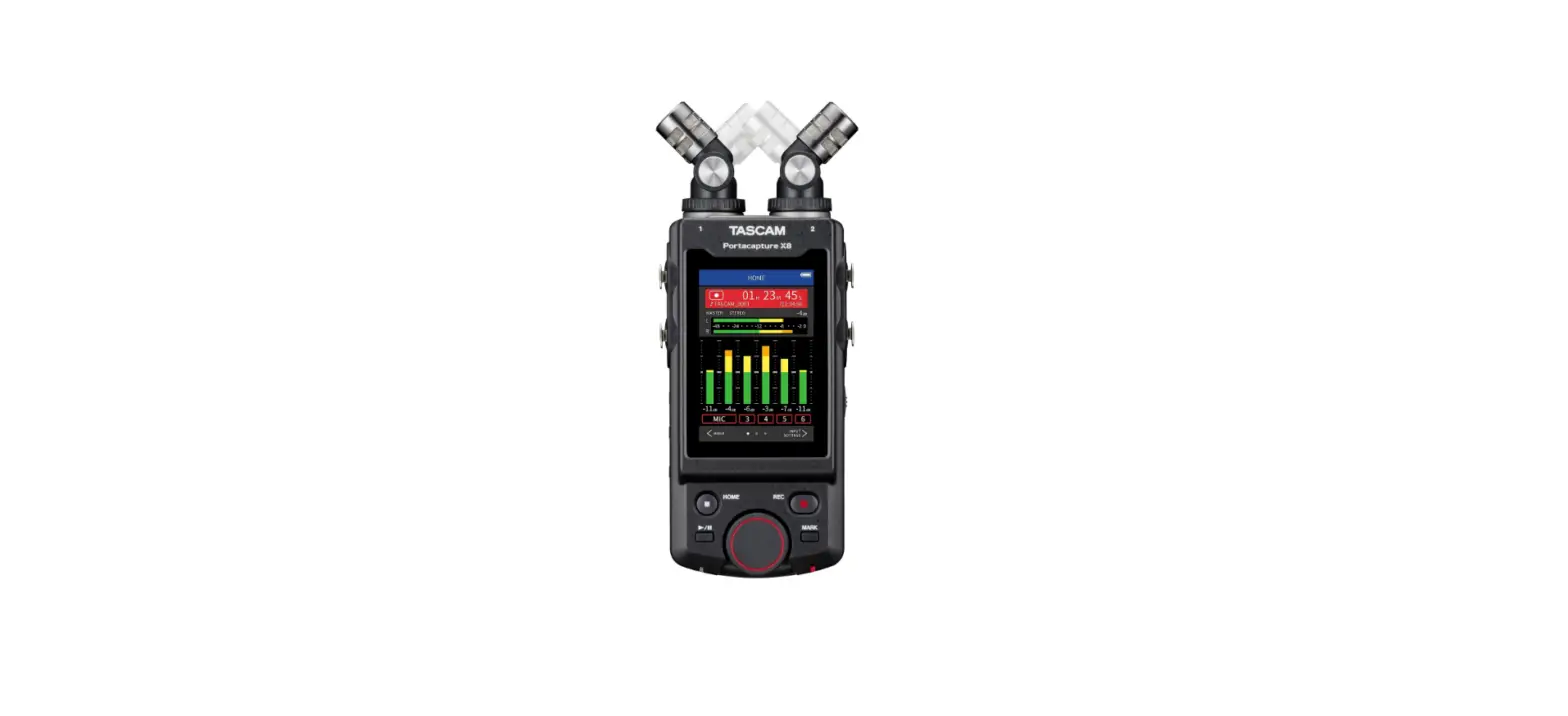
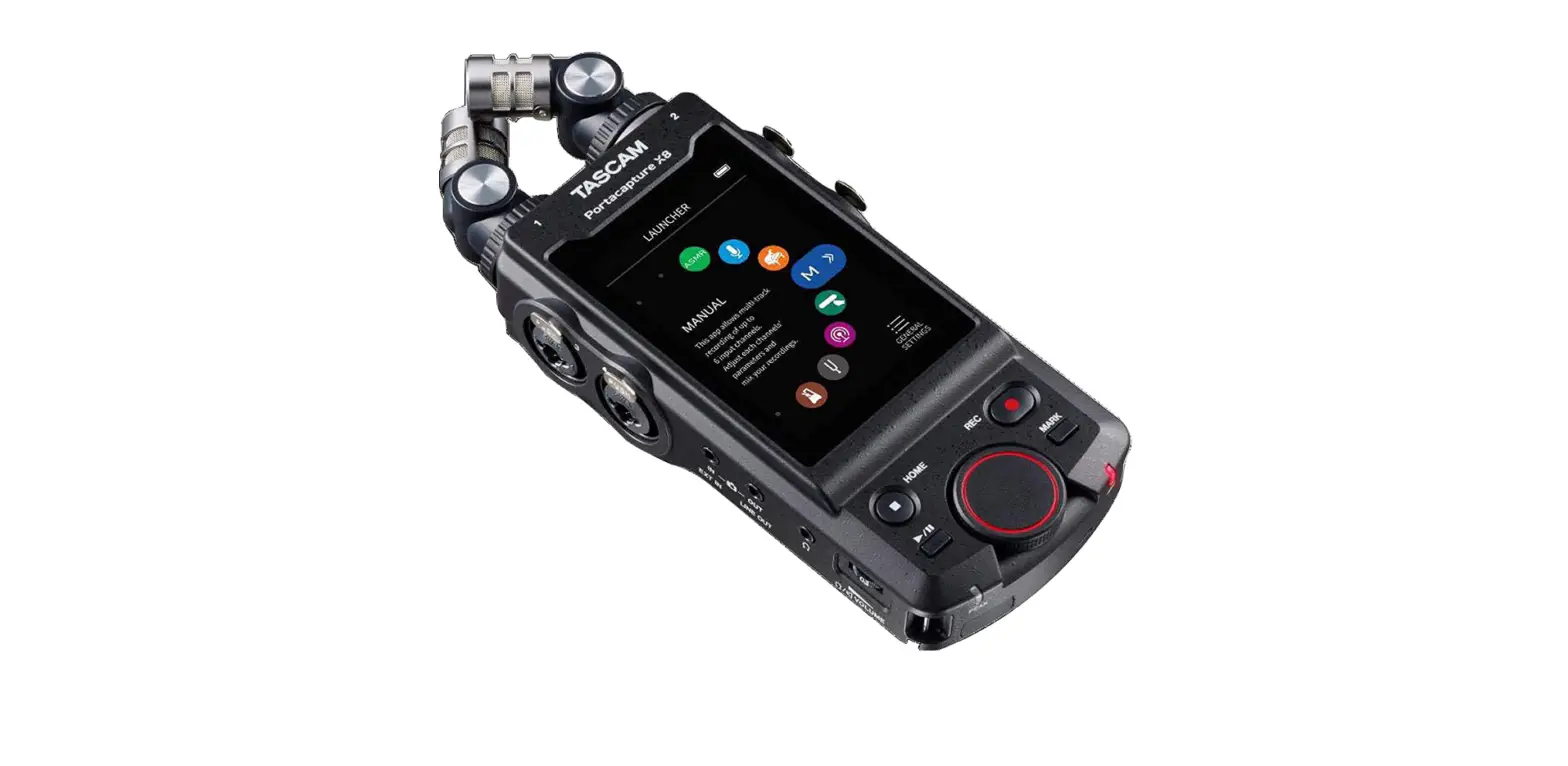
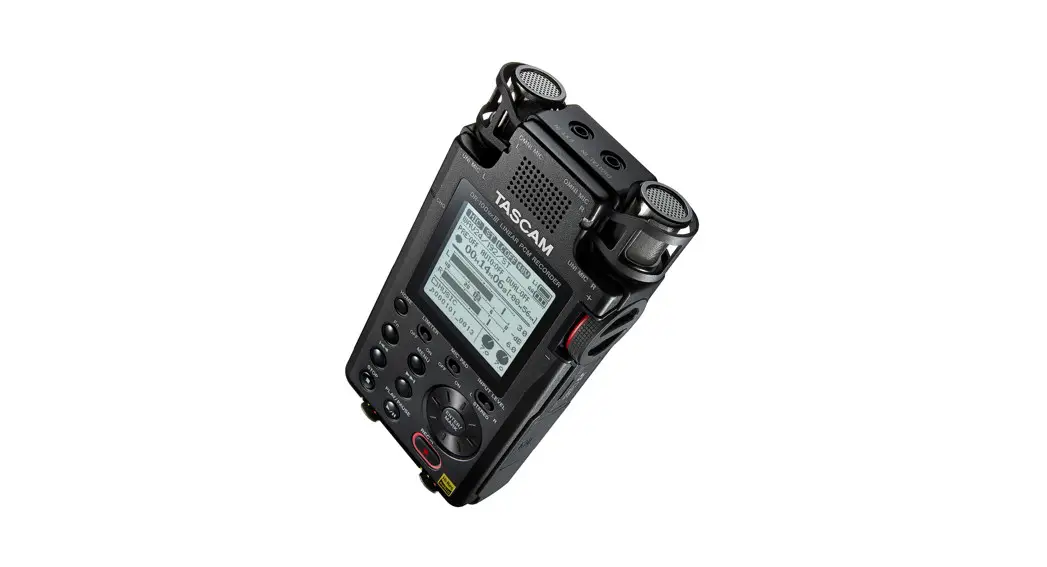
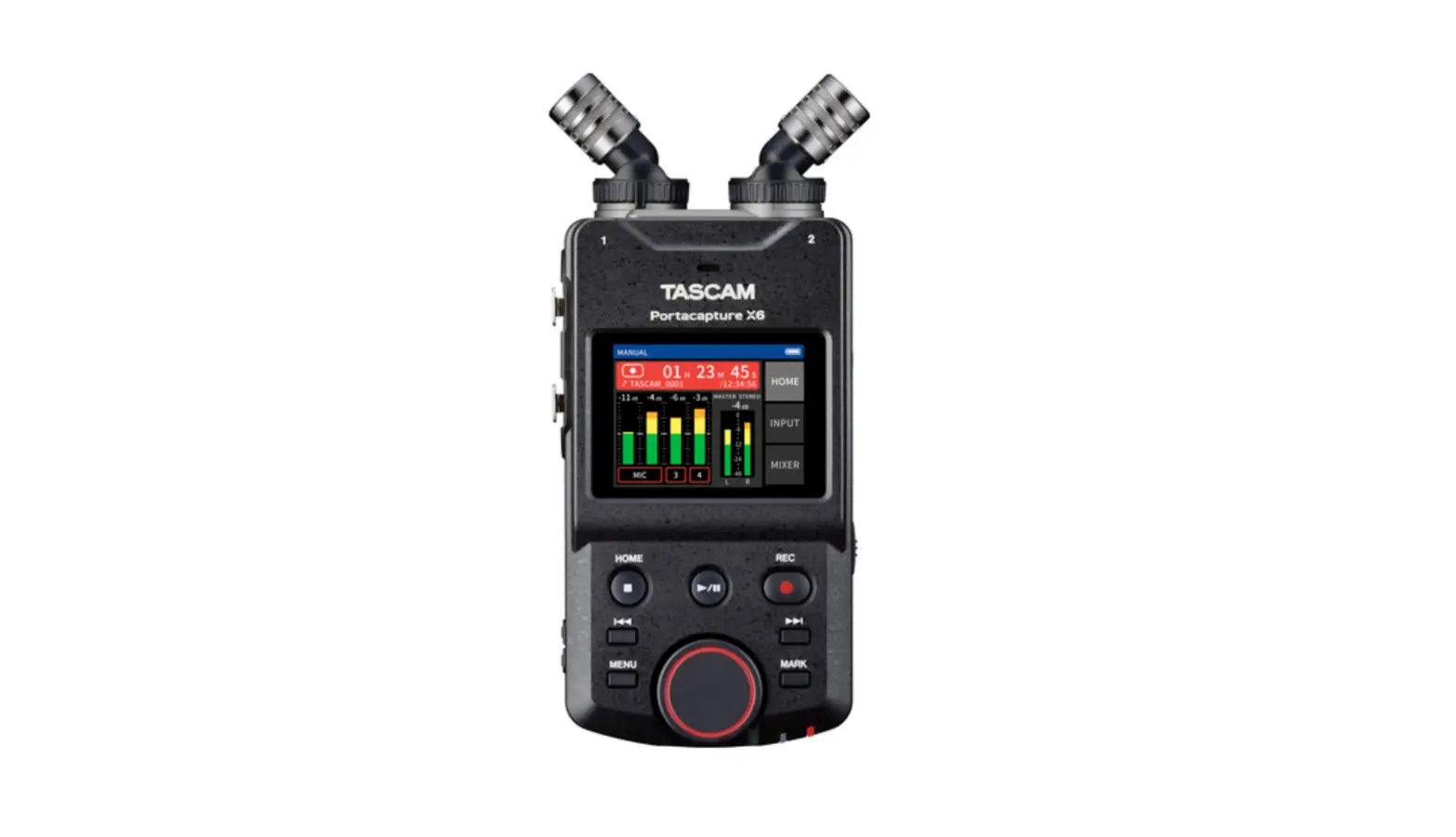
Portacapture X8 32-Bit Float Portable Audio Recorder
Product Information
The TASCAM Portacapture X8 is a versatile audio interface with
several functions and features. It supports firmware version 1.30,
which includes the following additions and changes:
- The audio interface now supports the 32-bit float format.
- The USB MIX MINUS function can now be used in the PODCAST
app. - Input settings can now be saved and loaded in each recording
app. - Unit settings and recording app settings can now be saved and
recalled with a single tap from the LAUNCHER screen.
Wireless Timecode Synchronization
The Portacapture X8 also supports wireless timecode
synchronization with devices that use AtomX SYNC by Atomos Pty Ltd
and UltraSync BLUE.
ASIO Driver Installation (Windows)
- Install the ASIO driver for Portacapture (Ver 1.10 or
later). - Launch the ASIO driver for Portacapture and turn on the 32-bit
float function on the 32-bit float page. - For more details, visit the product page on the TASCAM website:
https://tascam.com/
Audio MIDI Setup (macOS)
- Open the Audio MIDI Setup app from the Applications
folder. - Select Portacapture X8 as the Sound Input and Sound Output
device. - Change the input/output format to 32-bit Float.
- No additional software installation is required as the standard
OS driver will be used.
USB MIX MINUS Function
The USB MIX MINUS function allows for preventing echo generation
during telephone interviews or remote recordings when the
Portacapture X8 is connected via USB to a computer or
smartphone.
To turn on the MIX MINUS function:
- When the PODCAST app is stopped, tap the Shortcut Menu
button. - Tap the USB MIX MINUS ON icon.
To turn off the MIX MINUS function:
- When the PODCAST app is stopped, tap the Shortcut Menu
button. - Tap the USB MIX MINUS OFF icon.
Saving and Loading Input Settings
The Portacapture X8 allows for saving and loading input settings
in each recording app. Up to three dynamics presets can be saved
and shared among all recording apps.
To save input settings:
- Open the INPUT SETTINGS Screen for the input channel with the
desired settings. - Tap PRESET SAVE.
- Select the preset to load.
To save/load dynamics presets in the MUSIC and FIELD apps:
- In the MUSIC/FIELD app’s Home Screen, select DYNAMICS
PRESET. - Scroll to the bottom of the DYNAMICS PRESET Screen and tap a
preset to load it. - When the SAVE PRESET Screen opens, select the save destination
preset.
The SAVE icon at the bottom right of the DYNAMICS PRESET Screen
can also be tapped to open the SAVE PRESET Screen (INPUT SETTINGS
Screen) for saving presets.
Portacapture X8
Contents
The following functions have been added or changed since firmware version 1.30……………………………………………………………………………………………2 The audio interface now supports the 32-bit float format. ………………………………………………………………………………………………………………………………………………………………….. 2 The USB MIX MINUS function can now be used in the PODCAST app. ………………………………………………………………………………………………………………………………………………. 2 Input settings can now be saved and loaded in each recording app. ………………………………………………………………………………………………………………………………………………… 3 Unit settings and recording app settings can now be saved and recalled with a single tap from the LAUNCHER screen. ……………………………………………………….. 3
The following function have been added or changed since firmware version 1.20 …………………………………………………………………………………………….5 Wireless timecode synchronization with devices that use AtomX SYNC by Atomos Pty Ltd and UltraSync BLUE is now supported. …………………………………….. 5
The following functions have been added or changed since firmware version 1.10……………………………………………………………………………………………6 Overload display has been added for analog circuits……………………………………………………………………………………………………………………………………………………………………………. 6 A SOLO monitoring function has been added to the INPUT SETTINGS Screen. ……………………………………………………………………………………………………………………………….. 6 A SOLO monitoring function has been added to the MIXER Screen…………………………………………………………………………………………………………………………………………………… 6 A hold function has been added to the remote control app (Portacapture Control), enabling separate holding of the unit and the control app………………. 7 A shortcut to the LAUNCHER from all apps has been added……………………………………………………………………………………………………………………………………………………………….. 7
0822.MA-3477B
1 TASCAM Portacapture X8
Portacapture X8
The following functions have been added or changed since firmware version 1.30
o The audio interface now supports the 32-bit float format. o The USB MIX MINUS function can now be used in the PODCAST app. o Input settings can now be saved and loaded in each recording app.
o Unit settings and recording app settings can now be saved and recalled with a single tap from the LAUNCHER screen.
The audio interface now supports the 32-bit float format.
When using with Windows 1. Install the ASIO driver for Portacapture (Ver 1.10 or later).
Check the page for this product on the TASCAM website (https:// tascam.com/) for details.
2. Launch the ASIO driver for Portacapture, and turn ON the 32-bit
float function on the 32 bit float page.
Turning the MIX MINUS function on 1. When the PODCAST app is stopped, tap the Shortcut Menu button. 2. Tap the USB MIX MINUS ON icon.
When using with macOS 1. Open the Audio MIDI Setup app from the Applications folder. 2. Set the Portacapture X8 as the Sound Input and Sound Output
device.
3. Change the input/output format to 32-bit Float.
NOTE The standard OS driver will be used, so there is no do so need to install any software.
The USB MIX MINUS function can now be used in the PODCAST app.
By using this function when conducting a telephone interview or remote recording with this unit connected by USB to a computer or smartphone, echo generation at the other end can be prevented.
MIX MINUS function off (normal state)
MIC
Connected mic or
built-in mic
music
MIC music
Computer
The MIX MINUS function is activated and the MIX MINUS icon will be shown on the Home Screen.
Turning the MIX MINUS function off 1. When the PODCAST app is stopped, tap the Shortcut Menu button. 2. Tap the USB MIX MINUS OFF icon.
The MIX MINUS function is deactivated and the MIX MINUS icon will disappear from the Home Screen. NOTE When MIX MINUS is on, mix cannot be selected as the reverb input.
MIX MINUS function on
MIC Connected
mic or built-in mic
music MIC
Computer
2 TASCAM Portacapture X8
Portacapture X8
Input settings can now be saved and loaded in each recording app.
Up to three dynamics presets can be saved to be shared and used by all recording apps.
Saving presets 1. Open the INPUT SETTINGS Screen for the input channel with
settings that you want to save.
2. Tap PRESET SAVE.
3. Tap the preset to load.
Saving/loading dynamics presets in the MUSIC and FIELD apps
1. On the Home Screen of the MUSIC/FIELD app, select DYNAMICS
PRESET.
2. Scroll to the bottom of the DYNAMICS PRESET Screen, and tap a
preset to load it.
3. When the SAVE PRESET Screen opens, tap the save destination
preset.
Tapping the SAVE icon at the bottom right of the DYNAMICS PRESET Screen will open the SAVE PRESET Screen (INPUT SETTINGS Screen) where presets can also be saved.
NOTE
i Up to three presets can be saved.
i The parameters saved and their default values are as follows. GAIN LOW/HIGH: LOW
GAIN:
-18.0 dB
Auto gain:
OFF
Low cut:
OFF
Noise Gate:
OFF
Limiter/comp:
OFF
EQ:
OFF
i Saved presets can be used with other recording apps.
4. When a confirmation pop-up opens, tap YES.
Loading presets
1. Open the INPUT SETTINGS Screen for the input channel for which
you want to load settings.
2. Tap PRESET LOAD.
The LOAD PRESET Screen will open.
Unit settings and recording app settings can now be saved and recalled with a single tap from the LAUNCHER screen.
All unit settings can now be saved, and apps can be launched with a single tap from the LAUNCHER.
Saving user settings 1. Tap the Shortcut Menu button in the recording app with the
settings that you want to save.
2. Tap the SAVE USER SETTINGS icon.
3 TASCAM Portacapture X8
3. When a confirmation pop-up opens, tap YES.
Portacapture X8
The recording app with the user settings applied will be shown in the LAUNCHER.
Recalling user settings Tap a USER SETTINGS icon in the LAUNCHER. This will launch the app with the saved settings.
Deleting user settings 1. Continuously press the touchscreen when the LAUNCHER is open.
This activates user setting deletion mode.
NOTE If sliding occurs while pressing and holding, lift the finger once before pressing and holding again.
2. Tap the icon for the user setting you want to delete.
3. When a confirmation pop-up opens, tap YES.
4. Tap anywhere besides a USER SETTINGS icon to end user setting
deletion mode. NOTE
A maximum of three user settings can be saved.
4 TASCAM Portacapture X8
Portacapture X8
The following function have been added or changed since firmware version 1.20
o Wireless timecode synchronization with devices that use AtomX SYNC by Atomos Pty Ltd and UltraSync BLUE is now supported.
Wireless timecode synchronization with devices that use AtomX SYNC by Atomos Pty Ltd and UltraSync BLUE is now supported.
By connecting a Bluetooth adapter (AK-BT1 sold separately) to the Bluetooth device port on this unit, connection with AtomX SYNC by Atomos Pty Ltd and UltraSync BLUE devices to receive timecode is possible. Received timecode is written to the files recorded by this unit. Using this timecode data simplifies the aligning of video and audio files created by multiple units.
NOTE i The remote control app for this unit (Portacapture Control) and
AtomX SYNC/UltraSync BLUE cannot be used simultaneously. i If the recording format is set to MP3, timecode cannot be added to
recording files.
Connecting AtomX SYNC/UltraSync BLUE devices
1. Remove the cover from the Bluetooth connection device port on
this unit, and install an AK-BT1 in it.
2. From this unit’s GENERAL SETTINGS screen, open the OTHER
SETTINGS screen, and select TIMECODE for BLUETOOTH.
3. Tap CONNECT on the TIMECODE Screen to search for a nearby
AtomX SYNC/UltraSync BLUE device and pair with it. When pairing completes, “CONNECTED” will appear and AtomX SYNC/UltraSync BLUE information will be shown.
TIMECODE USERBITS
FPS DEVICE
This shows the timecode as hours: minutes: seconds: frames. This shows the user bits (date, time, scene number or other chosen data) set with AtomX SYNC/UltraSync BLUE. This shows the frame rate. This shows the name of the AtomX SYNC/UltraSync BLUE device.
Disconnecting from AtomX SYNC/UltraSync BLUE devices
From this unit’s GENERAL SETTINGS screen, open the OTHER SETTINGS screen, and select OFF for BLUETOOTH.
Connecting another AtomX SYNC/UltraSync BLUE device
Unpairing first is necessary to switch connection from an already paired AtomX SYNC/UltraSync BLUE device to a different AtomX SYNC/ UltraSync BLUE device.
1. From this unit’s GENERAL SETTINGS screen, open the OTHER
SETTINGS screen, and select TIMECODE for BLUETOOTH.
2. Tap FORGET on the TIMECODE Screen to unpair with the device. 3. Tap CONNECT on the TIMECODE Screen to search for the new
AtomX SYNC/UltraSync BLUE device and pair with it.
Display when connected to an AtomX SYNC/UltraSync BLUE device Tap the project status bar to switch between displaying hours, minutes and seconds and received time code.
e
d
Displaying hours, minutes and seconds
Connection status
Displaying received time code
Blinking green Blinking red Unlit
Receiving timecode from an AtomX SYNC/ UltraSync BLUE device Running by itself based on the last received timecode Already paired, but not receiving timecode or running by itself
NOTE i Timecode data can be shown in the same manner in all recording
apps. i Using punch in/out in the MANUAL app, timecode will be shown or
added to recording files. i When timecode is being received, the AK-BT1 LED will blink every
second.
5 TASCAM Portacapture X8
Portacapture X8
The following functions have been added or changed since firmware version 1.10
o Overload display has been added for analog circuits. o A SOLO monitoring function has been added to the INPUT SETTINGS
Screen. o A SOLO monitoring function has been added to the MIXER Screen.
o A hold function has been added to the remote control app (Portacapture Control), enabling separate holding of the unit and the control app.
o A shortcut to the LAUNCHER from all apps has been added.
Overload display has been added for analog circuits.
When an analog circuit overloads, the entire level meter for the corresponding channel becomes red. This enables quick determination of the overloading input.
A SOLO monitoring function has been added to the INPUT SETTINGS Screen.
In the MANUAL and PODCAST apps, tapping the SOLO button on the INPUT SETTINGS Screen enables solo monitoring of the input channel being shown (AFL).
When it appears like this, the input is overloading and the sound could be distorted. If this occurs, make adjustments in the following ways so that the sound does not distort. o Lower the volume of the sound source. o If the input source is a mic, move the mic further from the sound
source. o If distortion occurs when the input gain is HIGH, switch it to LOW.
NOTE This overload display functions the same for the meters in all recording apps.
NOTE i If inputs are stereo linked, they will be monitored as a stereo source. i Solo monitoring on the INPUT Screen is PFL.
A SOLO monitoring function has been added to the MIXER Screen.
In the MANUAL and PODCAST apps, tapping the meter of a track on the MIXER screen enables solo monitoring of it (AFL).
6 TASCAM Portacapture X8
NOTE i If inputs are stereo linked, they will be monitored as a stereo source. i Solo monitoring on the INPUT Screen is PFL.
A hold function has been added to the remote control app (Portacapture Control), enabling separate holding of the unit and the control app.
A hold function has been added to the Portacapture Control app. Touch and hold the icon to activate the hold function, which prevents operation from Portacapture Control. In this state, the buttons and touchscreen on the unit can still be operated.
Portacapture X8
A shortcut to the LAUNCHER from all apps has been added.
To return to the LAUNCHER screen from an app screen, press and hold the HOME [8] button.
NOTE This function can only be used when stopped.
Touch and hold the icon when the hold function is active to deactivate it. Through firmware version 1.03, the HOLD switch on the unit would disable operation of both the unit itself and Portacapture Control. Since version 1.10, this switch disables operation of the buttons and touchscreen of the unit, but allows operation with Portacapture Control.
7 TASCAM Portacapture X8