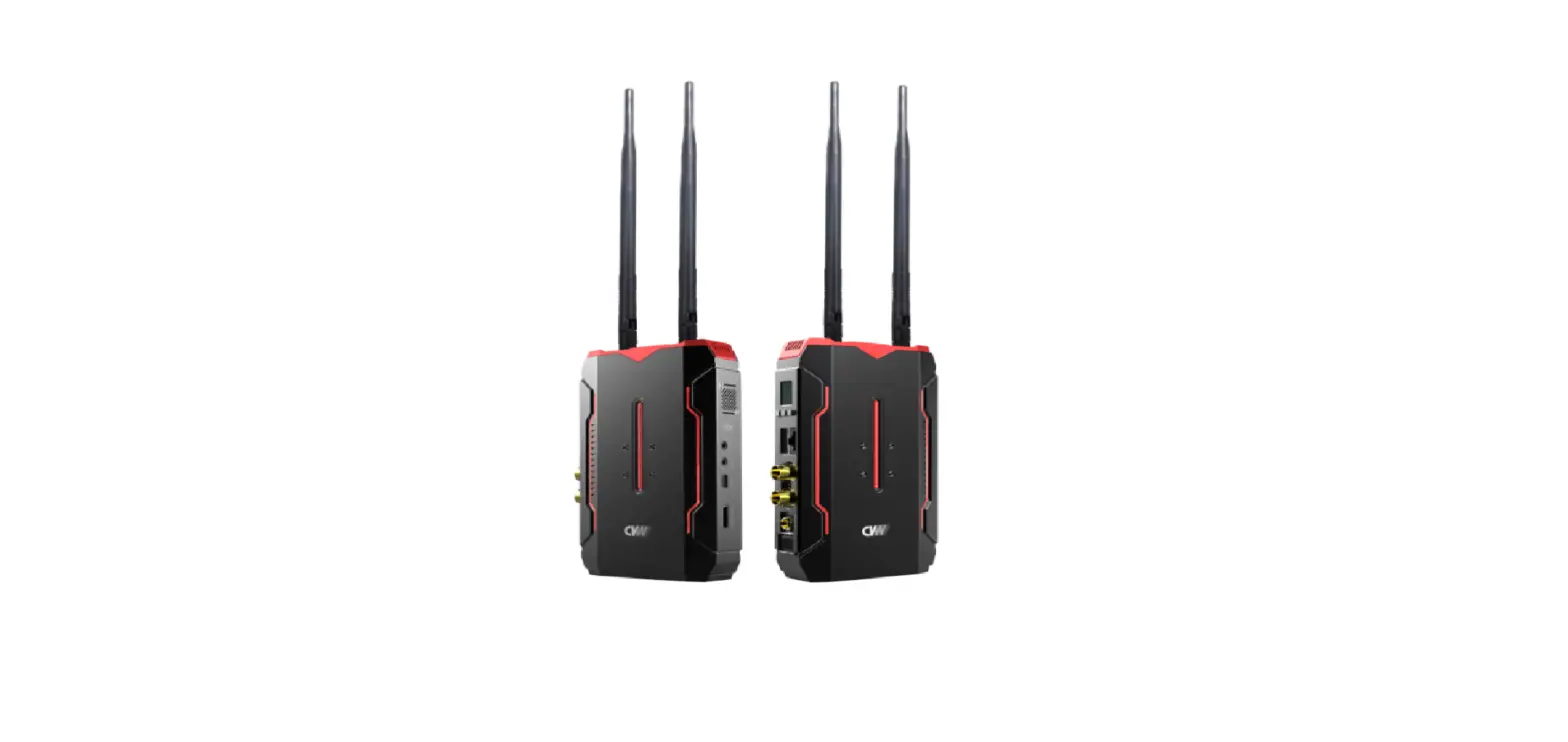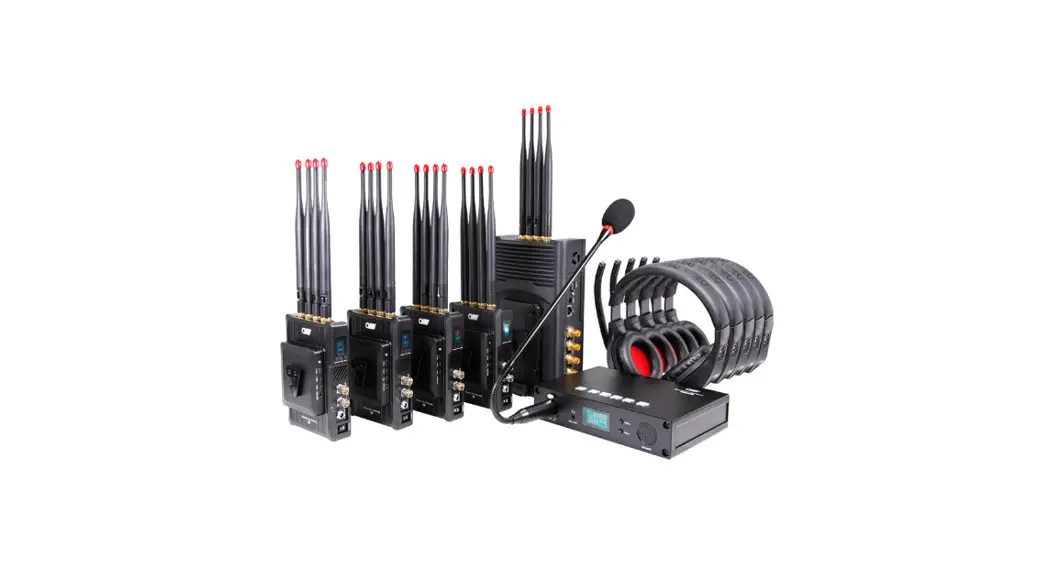
 Beam Link Ultimate All
In One Wireless Transmission
User Manual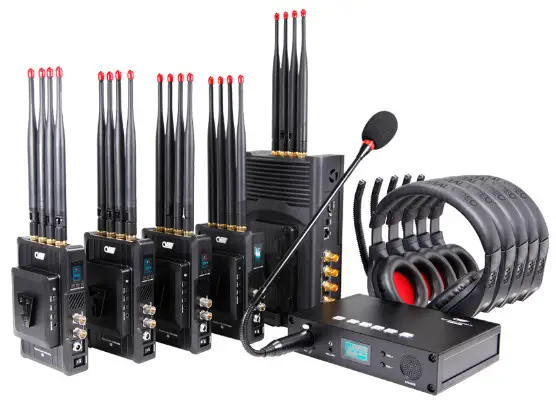
This user manual applies to Beam Link-Ultimate:
Transmitter:7081 *4
Receiver:3060+3081
Beam Link Ultimate All In One Wireless Transmission
Thank you for choosing CVW’s professional wireless HD audio and video transmission product. Read the following precautions carefully before using this product:
- Do not use this product for a long time in the sun or dusty place.
- Be sure to use this product within the temperature and humidity ranges.
- Do not operate the product under vibration or strong magnetic fields.
- Do not put conductive materials in the product vents.
- Do not open the product yourself without the guidance of our professionals.
- Before power-on, make sure that the adapter input voltage is AC110V-220V, and that the output voltage and current meet the product specifications.
- Before power-on, make sure that the antennas are installed.
- This product is a 5GHz WiFi device. When there are devices with the same frequency around, there may be mutual interference. In this case, solve the problem by switching the frequency channel of the product.
Special Precautions
When installing the machine with the double-thread screw supplied with the product, tighten the product with the fastening screw plate. Do not hold the machine for rotary tightening to prevent the screw from being unable to be removed from the machine.
The RS232 and Tally function interfaces of this product are non-standard physical interfaces. If you need this function, communicate with the sales staff.
About the User Manual
This Manual details the product specifications, instructions for use, precautions, and troubleshooting. Read the Manual carefully before using the product. If you have any questions or difficulties in using this product, contact the company or the seller in time.
Product Features
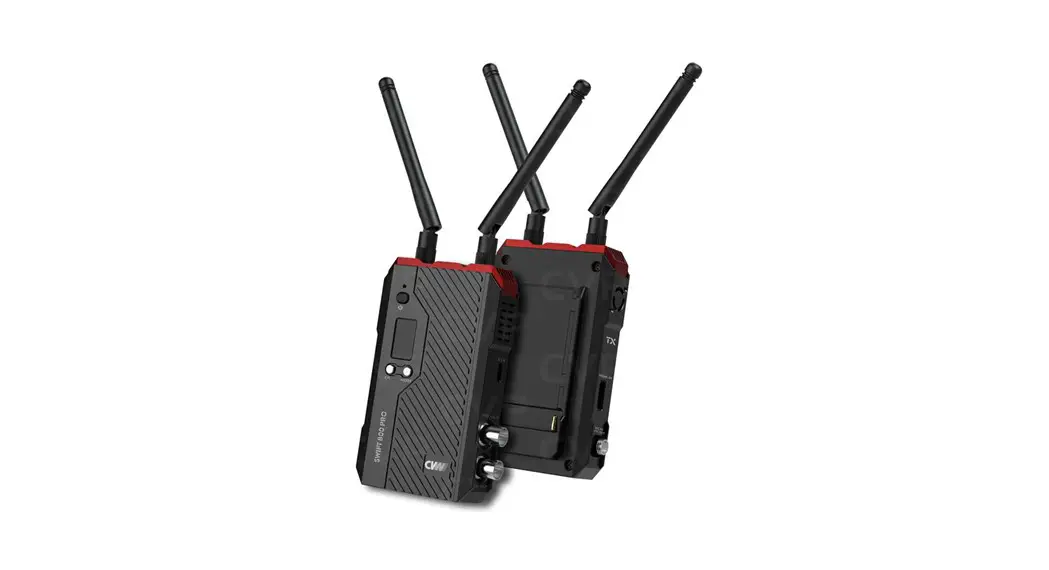
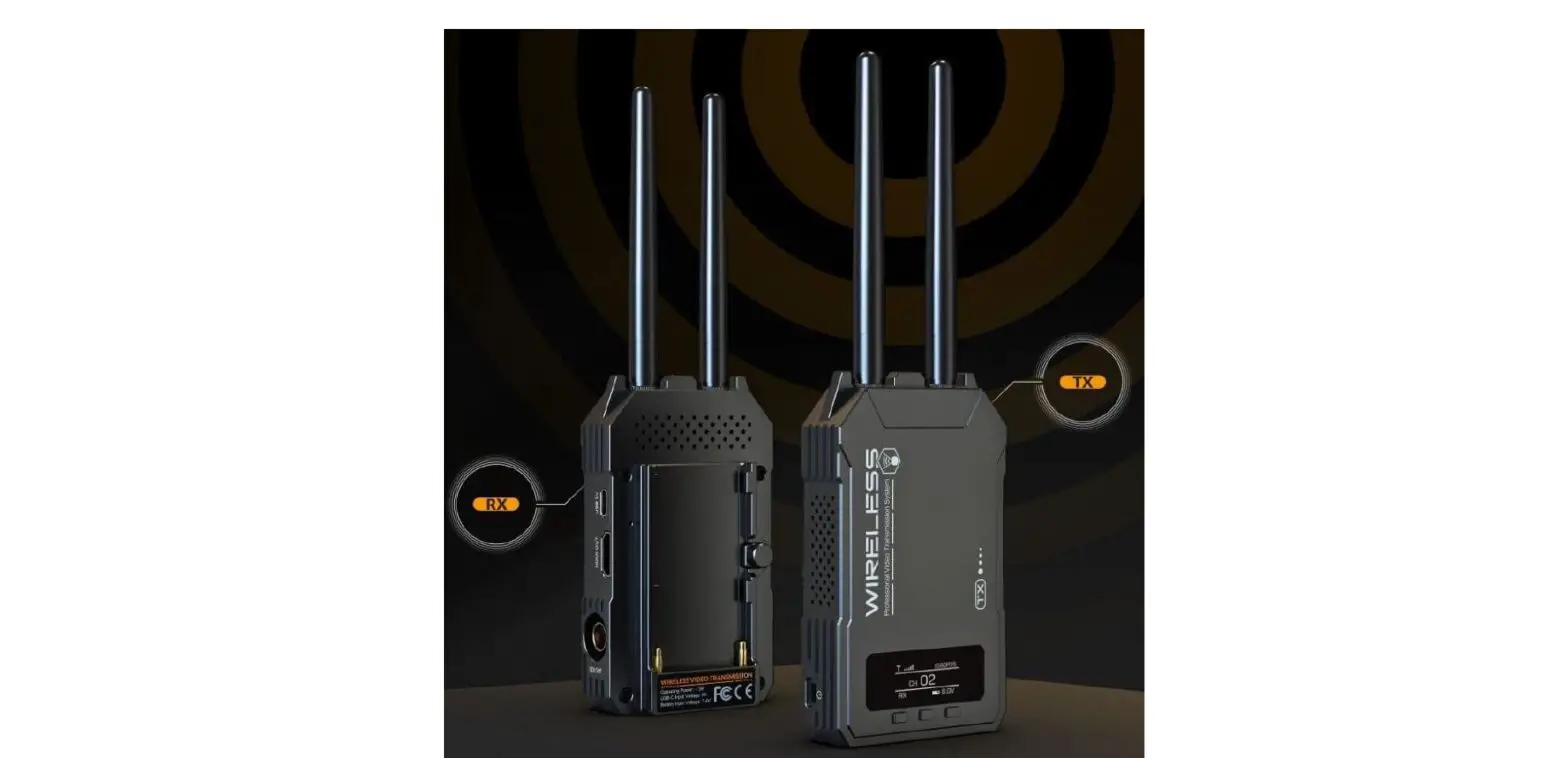
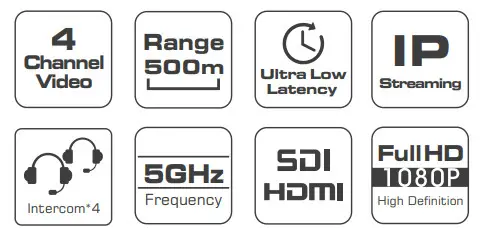
Beam Link-Ultimate is an upgraded version of the Beam Link Quad that adds voice intercom capabilities. It is a set of 4TX-to-1RX full-HD audio and video wireless transmission system and wireless voice intercom system. The 4-channel image transmission and voice intercom share one wireless channel and supports the highest video resolution of 1080P/60Hz. This system is based on 5G wireless network technology for transmission, along with advanced 4×4 MIMO and Beam-Forming technology. Image processing is performed using H.264 technology, and thus the images has higher resolution and the latency is lower. It is the best companion for the director to shoot, using advanced VoIP technology, integrated with voice intercom function, which is clear in voice and easy to carry. The transmitters CP7081, and the receiver is the combination of CP3060 and CP3081, which are connected via a network cable.
Brief Introduction
- High-quality and ultra low latency
This product supports HD-SDI&3G-SDI input and output as well as HDMI full-HD input and output, with the highest resolution of 1080P/60Hz. With highest compress ratio and best video resolution using H.264 technology, and the latency is as low as 70ms. - 4 transmitters and 1 receiver share one wireless channel
This product supports 4 video streams input simultaneously, with resolution up to 1080P60 per channel. 4 video streams share one wireless channel, which greatly saves spectrum resources and provides great convenience for users to perform multi-camera shooting. - Beam-Forming
Combined with 4×4 MIMO and Beam-Forming technology, this product has advantages over other WiFi products in the market in terms of transmission distance and video resolution. Beam-Forming technology makes wireless signals more concentrated and stronger in the direction from which they are transmitted to the receiver, allowing them to transmit farther and be less susceptible to interference from other signals, thus making them more stable. - Support RS232/422
This product supports transparent controlling transmission device via RS232/422 interface, which is convenient for users to control the remote device through the local device at the receiving terminal, such as the PTZ. - Standard mode and streaming mode
This product supports switching between two operating modes, namely standard mode and streaming mode(RTSP). In standard mode, this product supports 4TX-to- 1RX, and the video outputs interface are HDMI and 3G-SDI. In streaming mode, this product supports 4TX-to-Multiple RX, and the video streaming interface is LAN port(RJ45) .. - Voice intercom
Each video transmitter and receiver terminal of the product is equipped with a 3.5mm voice intercom interface. One-to-one full-duplex intercom or one-to-many broadcast can be performed on the transmitter and receiver terminals. The receiver hands-free call mode is automatically didactive when the headphones are plugged in. The headphone jack supports the mainstream four-segment 3.5mm mobile phone headphones on the market.
Packing List
The following items are included in the product package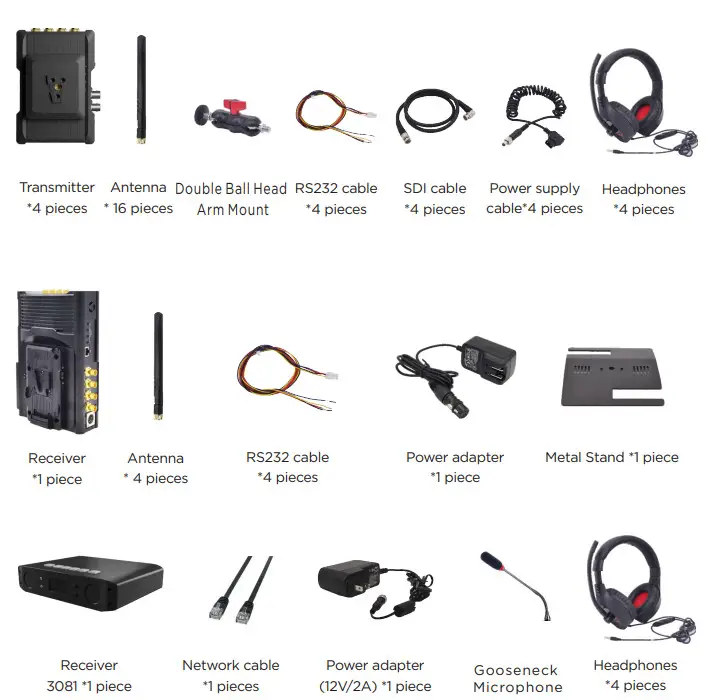
Notice: The transmitter comes with the Sony NP-F type battery dock and has preassembled V-mount connector. The receiver has preassembled V mount battery plate and V-mount connector.
Users can choose single-ear headphones or double-ear headphones when ordering.
Structure & Interface
TX: 7081
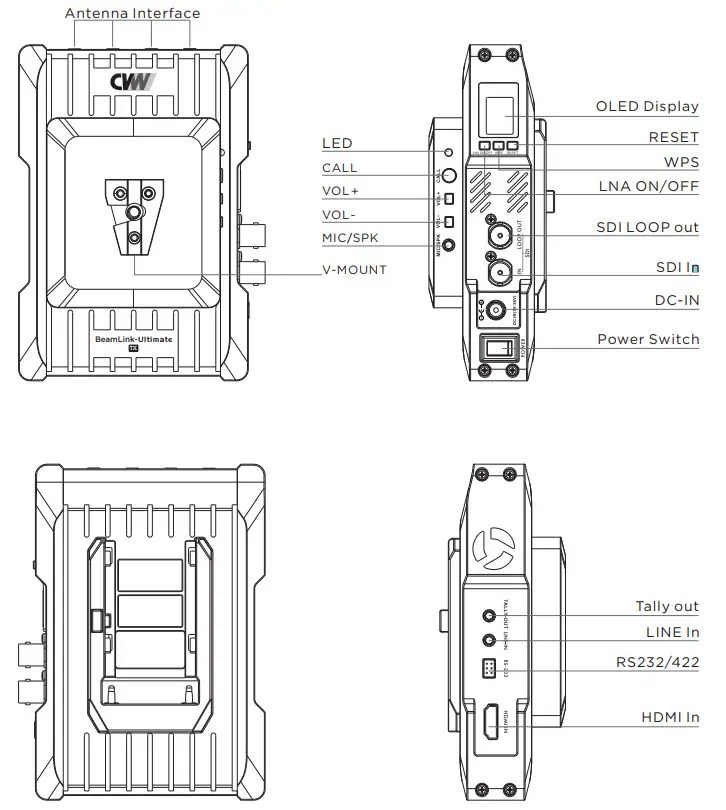
| Function | Operation | Description |
| High-gain and low-gain mode switching | Hold the “LNA on/off” button for 3 seconds to switch the mode. | “L” (Low-gain mode):It is suitable for short distance and complex environment. with strong anti-interference ability. After switching to “L mode”. “L” letter will be displayed on OLED screen. “H” (High-gain mode):It is suitable for long distance, and its anti-interference ability is weaker than “L” mode. The string will disappear on OLED screen after switching to “H mode”. |
| External Audio | Press the “LNA ON/ OFF” button for about 6s | The audio signal in the video is from the’LINE IN” interface. the microphone icon displays beside the transmitter number on OLED screen. |
| Code matching | Press the “WPS/ RTSP” button for about 3s | In the code matching process of the transmitter and receiver, the word “WPS” will always be displayed on the OLED display, and the string will disappear after the code matching complete. The transmitter and receiver need to be in code matching status at the same time for code matching. |
| Standard and streaming mode switching | Press the “WPS/ RTSP” button for about 6s | When switching to streaming mode, the word “RTSP” will be displayed on the OLED display, and the product will enter streaming mode. |
| Reset theencoding board | Press the button for about 3s | During the reset of the encoding board, the “RESET” string will always be displayed on the OLED display of the transmitter, and the string will disappear after the reset. |
| Call request | Short press the “CALL”button | Making call request to director actively. |
| Increase the volume | Short press the “+”button | Increase the volume |
| Decrease the volume | Short press the “-“but ton | Decrease the volume |
| Function | Operation | Description |
| LED | Solid Yellow | During booting process |
| Solid Orange | Successful Bootup | |
| Blinking in Yellow | Calling | |
| Blinking in Red | Low Battery Warning |
RX: 306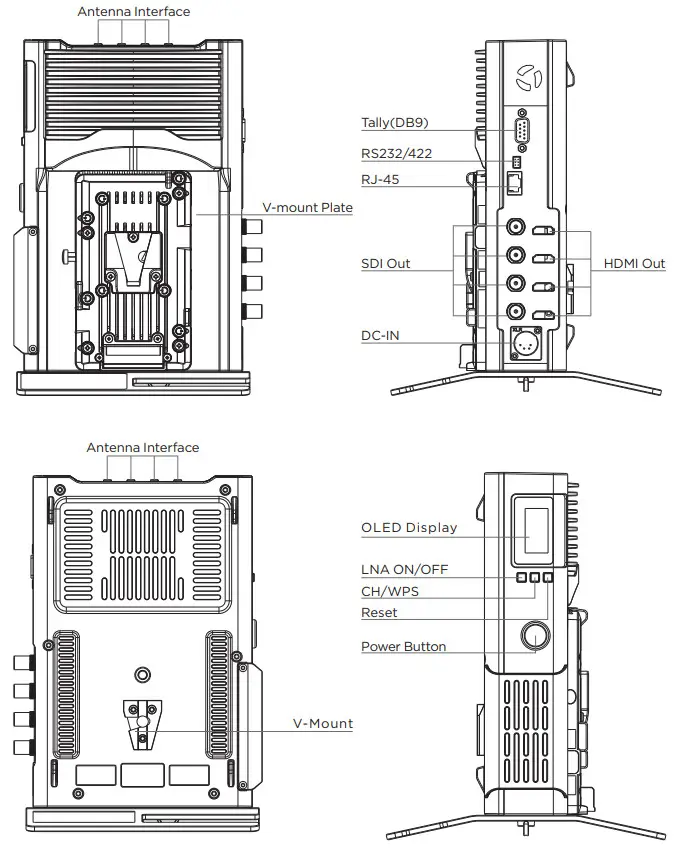
Receiver Key Operation
| Function | Operation | Description |
| Frequency channel switching | Short press the “CH/WPS” button about 1S | Channel number increases one cycle from CH1 to CH11 when each short pressing. After receiver frequency switching, transmitters will automatically display the updated channel number. |
| Hold the “LNA on/off” button for 3 seconds to switch the mode. | Line-of-sight scenarios: TX-to-RX <200m/656ft: L(low-gain) mode is recommended. | |
| High-gain and low-gain mode switching | OLED with “L” letter means low-gain mode. | RX-to-LX >=200m/656ft: H(high-gain) mode is recommended. |
| OLED without “L” letter means high-gain mode. | None-line-of-sight scenarios (Human or wall blocking signal): H(high-gain) mode is recommended. | |
| Code matching | Press the “CH/ WPS” button for about 3s | During the code matching process of the transmitter and receiver, the word “WPS” will always be blink displayed on the OLED display, and the string will disappear after the code matched. The transmitter and receiver need to be in code matching status at the same time to achieve code matching success. |
| OLED display switching between landscape mode and portrait mode | Short press the “LNA ON/OFF” button for about 1s | Short press the “LNA ON/OFF” button, and the display will switch between landscape mode and portrait mode. |
| Reset decode board | First, short press the [RESET] button for cyclical selection among 1, 2, 3 and 4 to reset the corresponding decode board. Then press and hold the [RESET] button for 3s to confirm the restart. | After long pressing the button to confirm, the “RESET” string will be displayed on the OLED display for 3s, and the string will disappear after the decoding board begins to reset. |
RX: 3081
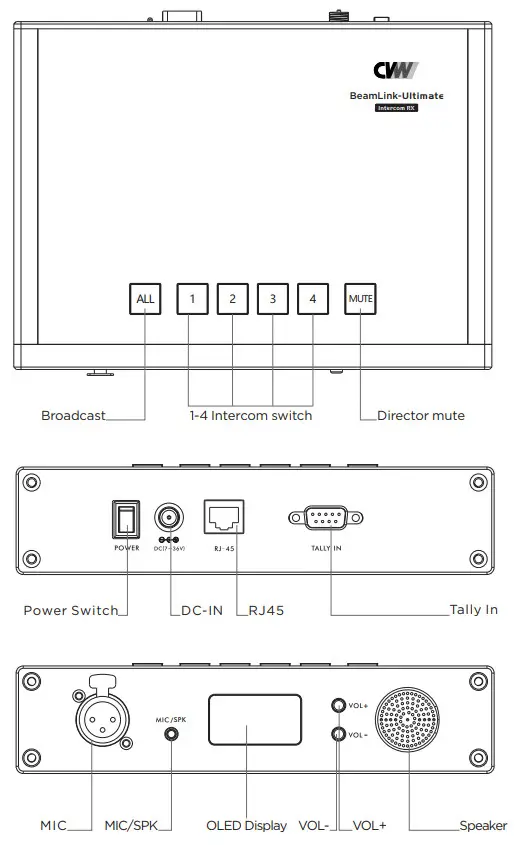
Intercom Receiver
| Function | Operation | Description |
| Broadcast call One-to-one full-duplex call | Short press the “ALL” button Short press one of the “1~4” buttons | Enter the broadcast call mode, the receiver speak, and all the transmitters listen. Receiver makes a single full duplex call to the one of the selected transmitter. |
| Mute | Short press the “MUTE” button | Whether in one-to-one or broadcast mode, the microphone at the live production terminal is turned off. At this time, the live production can hear the voice from the transmitting terminal, but the transmitting terminal cannot hear the voice from receiver. |
| Increase the volume | Short press the “+”button | Increase the volume, the system will remember the current settings, and no resetting is required next time. |
| Decrease the volume | Short press the “-”button | Decrease the volume, the system will remember the current settings, and no resetting is required next time. |
| Hands-free mode | Pull out the headphones | Hands-free microphone and speaker will be activated. |
| Headphone mode | Insert the headphones | Hands-free microphone and speaker will be turned off, and the headphones will be activated. |
Product Installation
For transmitter
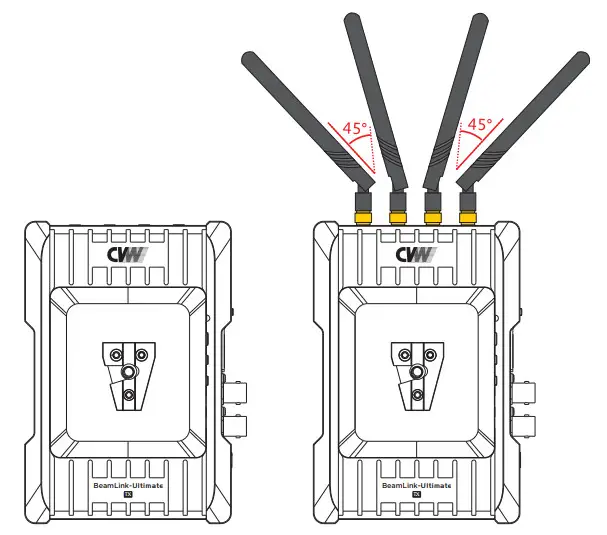
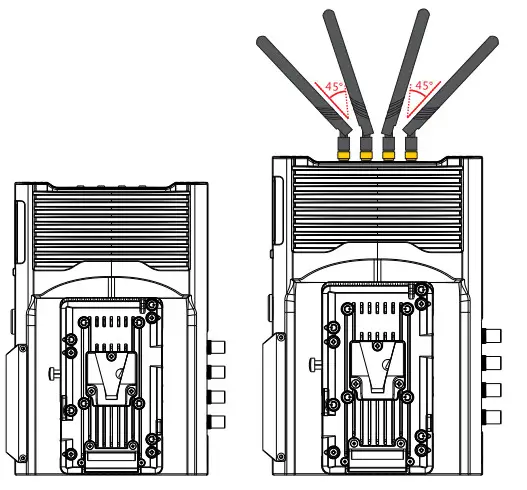
- Please install all the antennas on the transmitter and make them in a fan shape as shown in the picture.

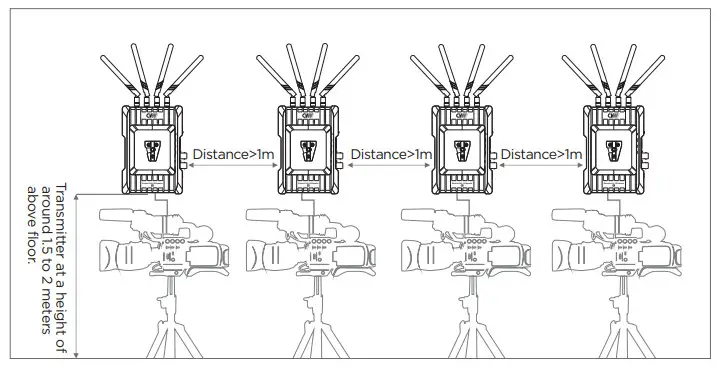
- Please fix the transmitter via the screw at the bottom or the V-mount at the back, and place it at a height of around 1.5 to 2 meters above floor. Please make sure that the distance between each transmitter is more than 1 meter.

- Please connect the transmitter and camera with SDI or HDMI cable.

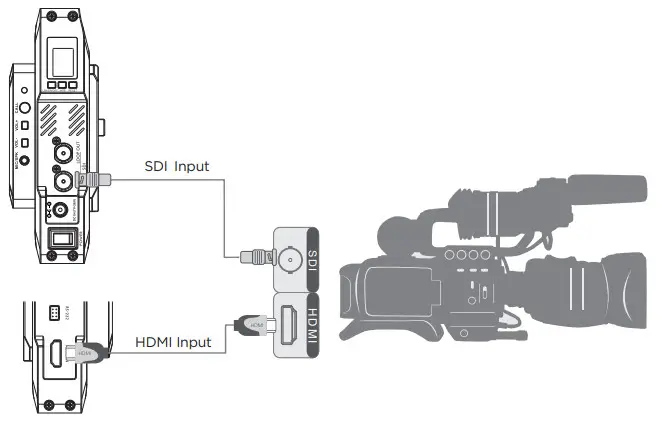
Receiver Installation
- Please install all the antennas on the receiver, and make them in a fan shape as shown in the picture.

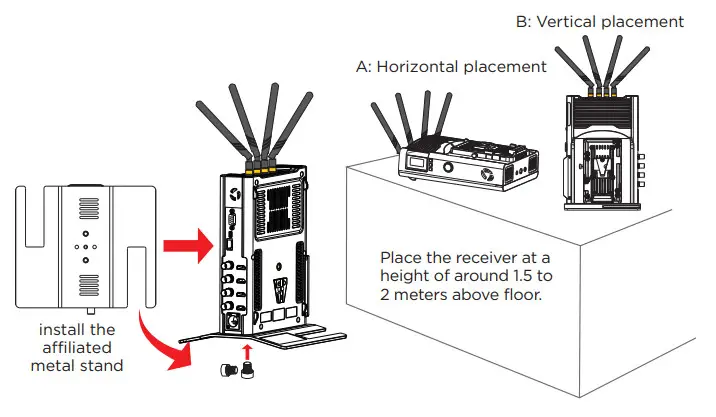
- Please place the receiver at a height of around 1.5 to 2 meters above floor. Receiver can be placed in vertical or horizontal positions, and can be fixed via the screw at the bottom or V-mount at the back. Please install the affiliated metal stand before placing the receiver in vertical position.

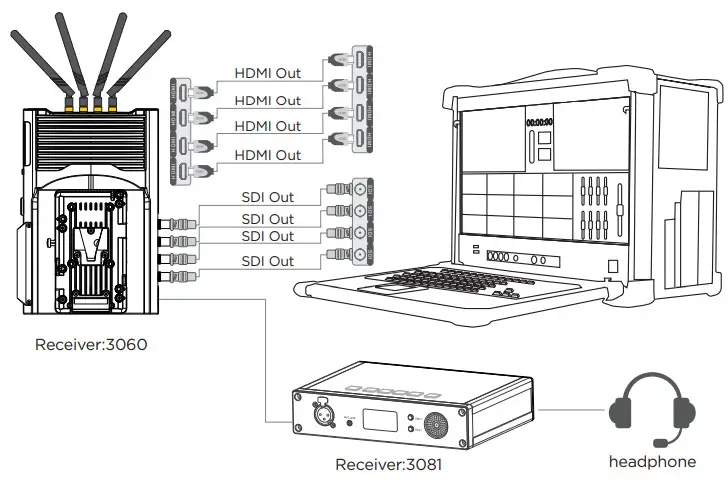
- Please connect the receiver and video switch console or monitor with SDI or/and HDMI cable.

- The receiver can be powered by both the V-mount lithium battery and DC-IN port via the affiliated power adapter. If the mentioned two types of power supply are connected at the same time, the lithium battery is prioritized in power supplying, and the battery will switch to the power adapter for power supplying automatically after the battery power is exhausted.
 This system supports tally function. When tally input is connected to GND, tally out will be 5V voltage, which can provide 200mA max source current. And when tally input is OPEN(disconnected to GND), tally out will be low.
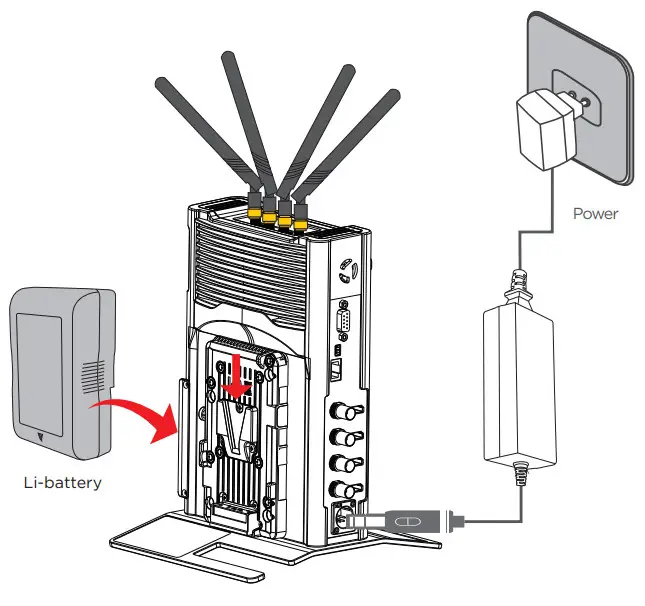 This system supports tally function. When tally input is connected to GND, tally out will be 5V voltage, which can provide 200mA max source current. And when tally input is OPEN(disconnected to GND), tally out will be low.
Product Application
Standard mode
In standard mode, the four channel video sources are connected to the four transmitters via HDMI or SDI cable respectively. The receiver will receive the four channel signals and transport them to switch console or/and monitor via HDMI or/and SDI.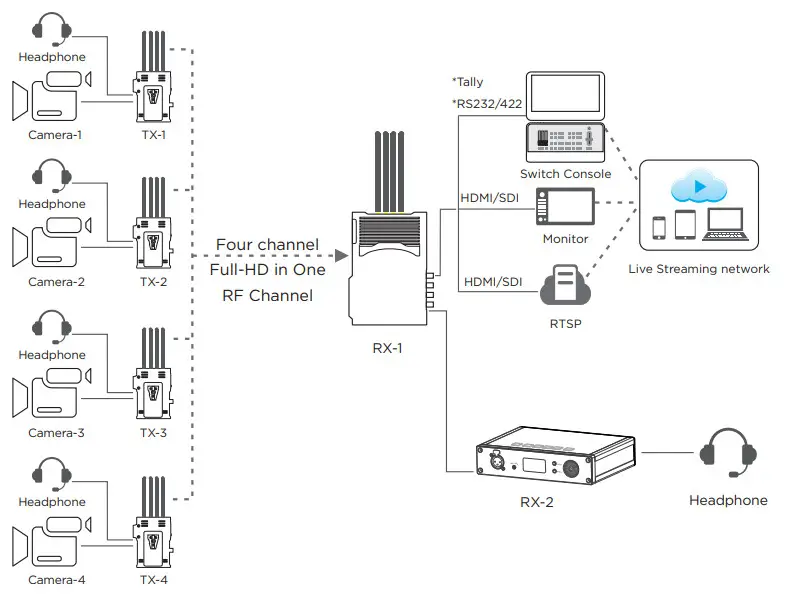
Streaming mode
In streaming mode, the four channel video sources are connected to the four transmitters via HDMI or SDI cable respectively. The receiver will receive the four RTSP streaming’s from the four transmitters and send them to the switch console through the LAN port. You can also connect the receiver with mobile devices such as your mobile phone, tablet and PC via WiFi,and watch the live video on the mobile phone, tablet and PC.
Note: In streaming mode, a switch with three RJ45 ports are required. 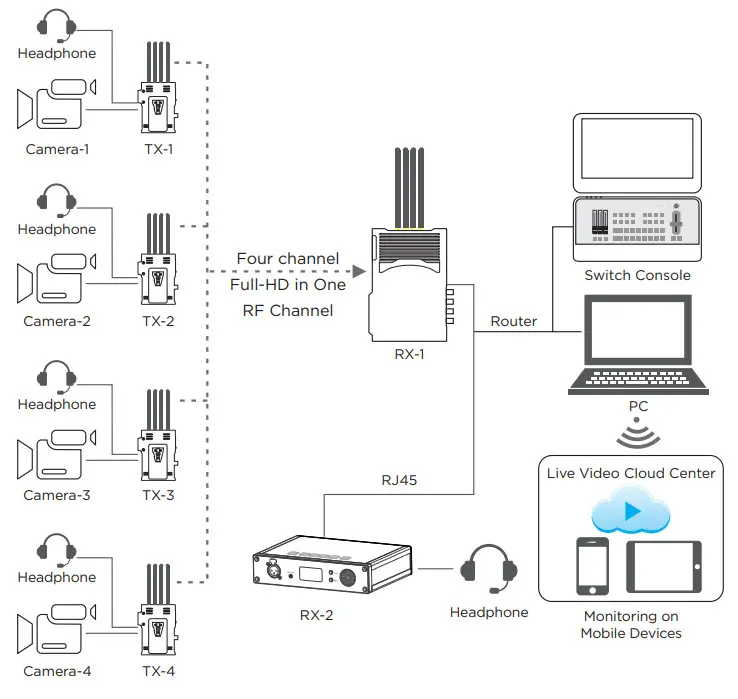
OLED Display Description
TX:7081
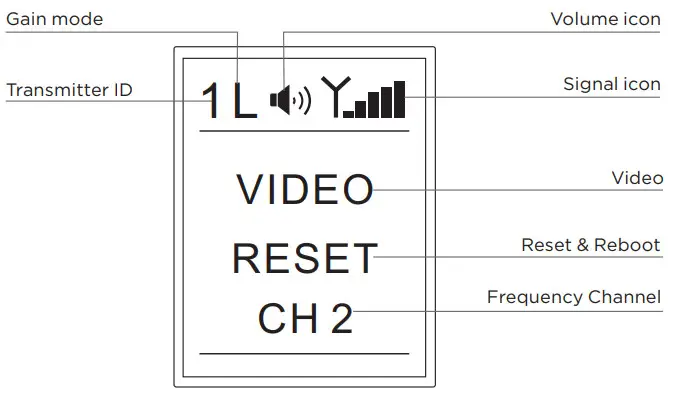
| Icon | Content | Status |
| Transmitter ID | Numbers 1~4 | Four transmitters are numbered 1, 2, 3 and 4, respectively |
| Microphone icon E | External audio input mode | |
| Gain Mode | L | Low-gain mode |
| Blank | High-gain mode | |
| Volume icon | Volume bar | Display the intercom volume of the transmitter |
| Signal Icon | X | Connecting not complete |
| Signal bar | Successful network connection | |
| Video | Blank | No video signal input |
| VIDEO | Video signal input connected | |
| WPS | In code matching status | |
| Reset & Reboot | Reset | The device is resetting and rebooting |
| RTSP | The device is Streaming mode | |
| Blank | Standard mode | |
| Frequency Channel | CH* | Display current frequency channel (1~11) |
RX:3060
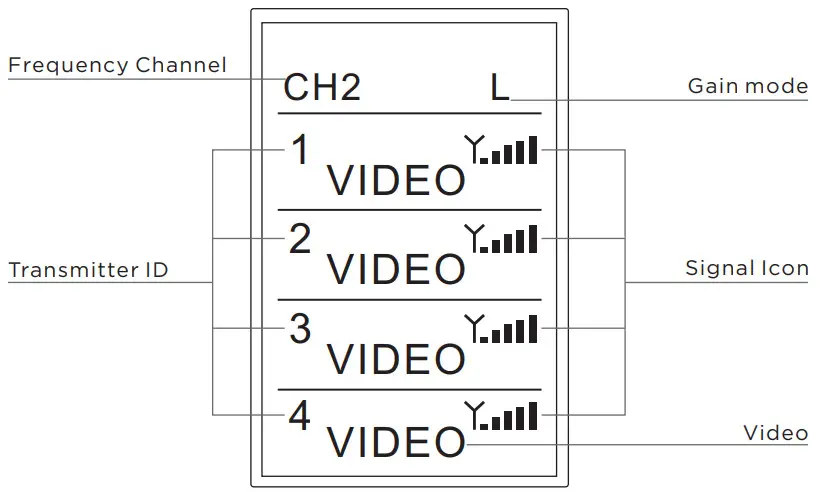
| Icon | Content | Status |
| Transmitter ID | Numbers 1~4 | Four transmitters are numbered 1, 2, 3 and 4, respectively |
| Frequency Channel | CH* | Display current frequency channel (1~11) |
| Signal Icon | X | Connecting not complete |
| Signal bar | Successful network connection | |
| Video | Blank | No video signal received from TX |
| VIDEO | Video signal received from TX |
Intercom Receiver:3081
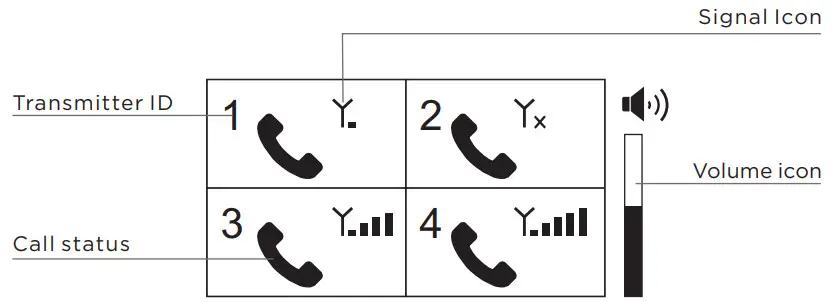
| Icon | Content | Status |
| Transmitter ID | Numbers 1~4 | Display the status of the corresponding transmitters respectively. |
| Call status | Telephone symbol | When the phone is displayed, it indicates that the channel voice call is connected. |
| Blank | Corresponding transmitter is in the idle status. | |
| Signal status | “X” or signal bar | The signal bar is displayed when the wireless signal at the corresponding transmitting terminal is connected, otherwise “X” is displayed. |
| Volume | Display volume | Display the current relative volume |
Functional Instructions
Tally function
Insert the Tally light into the transmitter’s Tally output interface first, then connect the switch console to the receiver’s Tally input interface, and then control the Tally light of the four transmitters through the switch console. When tally input is connected to GND, tally out will be 5V voltage, which can provide 200mA max source current.And when tally input is OPEN (disconnected to GND),tally out will be low. Tally interface of the transmitter and receiver: The transmitter’s Tally interface is a standard φ3.5 headphone interface. The receiver’s Tally interface is a DB9 female.
Tally light output interface: The DB9 header of the Tally input interface is defined as follows:
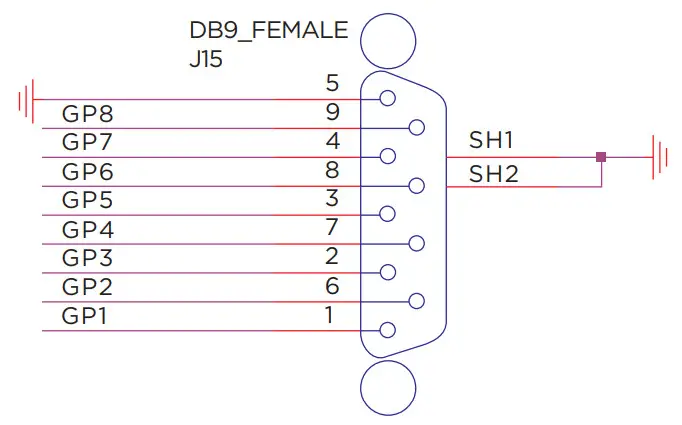
Note:
Both the 3060 and the 3081 tally ports are available, but only one of them can be used at same time.
| DB9 pin | Tally | Illustrate |
| 1 | 1R | Channel 1 red |
| 6 | 1G | Channel 1 green |
| 2 | 2R | Channel 2 red |
| 7 | 2G | Channel 2 green |
| 3 | 3R | Channel 3 red |
| 8 | 3G | Channel 3 green |
| 4 | 4R | Channel 4 red |
| 9 | 4G | Channel 4 green |
| 5 | GND | Ground Connection |
RS232/RS422 transparent transmission
Description:
This interface defaults to RS232 function. For RS422 function, contact the sales staff in advance for customized information!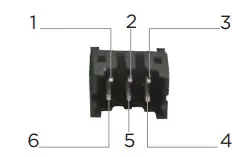
RS232 | RS422 | |||
Pin No | Name | Description | Name | Description |
1 | NC | NC | RXD- | Receive data RX- |
2 | P12V | No voltage output by default (Reserve 12V voltage output) | P12V | No voltage output by default (Reserve 12V voltage output) |
3 | NC | NC | TXD- | Transmit data TX- |
4 | TXD | Transmit data TX | TXD+ | Transmit data TX+ |
5 | GND | Ground | GND | Ground |
| 6 | RXD | Receive data RX | RXD+ | Receive data RX+ |
Attached: Baud rate settings
Log in to the backplane parameter settings page to change the baud rate settings: (For specific operating steps, refer to “Video Parameter Settings”)
Streaming Function
When the receiver is set to streaming mode, the transmitter needs to switch to streaming mode. At this time, the word “RTSP” is displayed on the transmitter’s OLED display, the SDI and HDMI ports at the receiver have no video output, and the video is transmitted to the streaming media software through the LAN port of the receiver for decoding .
In this mode,video is decoded using software .And there are lots of IP based decoding software on market. The following is an example of common VLC streaming media software:After the transmitter and receiver build a network connection, the transmitter network indicator is always on, the receiver network connection display normal; the transmitter is connected to the HDMI or SDI video source, and the receiver’s network port is connected to the streaming device.
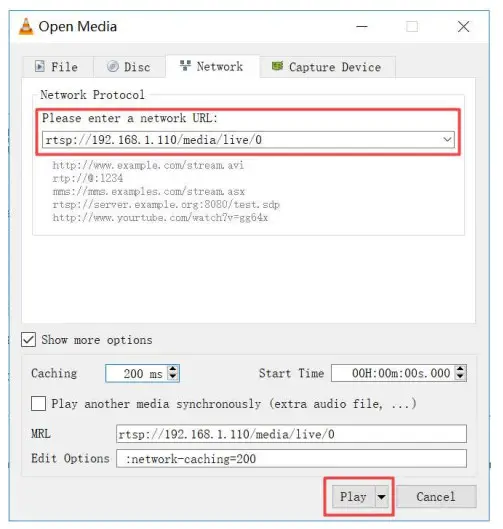
Take the VLC on PC as an example. After running VLC, select to turn on the network stream.Fill in the address “rtsp://xx.xx.xx.xx/media/live/0”, where xx.xx.xx.xx is the corresponding transmitter IP address. Click “Play” to start.
Note that the transmitter must be connected to the video source, and the IP address of the device running VLC (such as a computer) must be the same network segment as the IP address of the encoding board. Otherwise, the streaming will fail.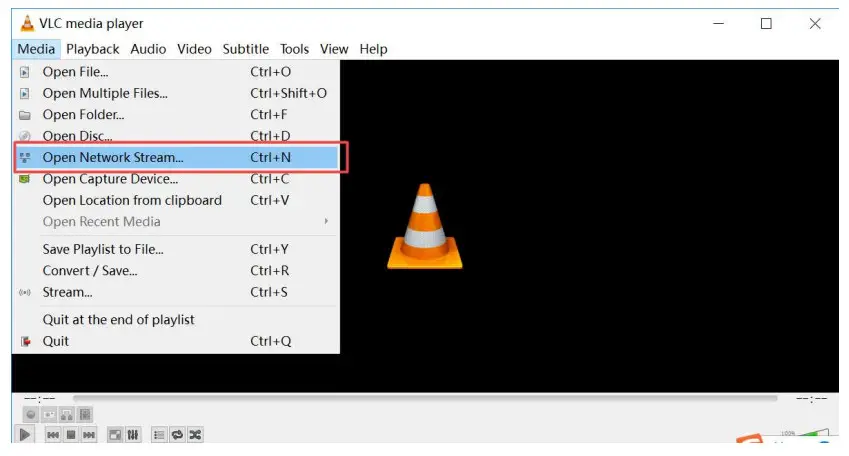
Encoder/Decoder Configuration and Upgrading
Each transmitter has one encoder, and its configuration and software upgrading need to be implemented on its encoder . Since the receiver has four decoders, the configuration and software upgrading need to be implemented on its each decoder respectively.
Keep the computer connected to the receiver through LAN port, and keep the receiver connected with all transmitters normally.
Each transmitter has one wireless transmission module and one encoder. Receiver has one wireless transmission module and four decoders.
All modules and each encoder/decoder have their respective IP address as follows, and all configuration and upgrading operation must be implemented under its own IP address.
| Transmitter | |
| Wireless transmission module IP (WiFi IP) | 192.168.1.201, 192.168.1.202, 192.168.1.203, 192.168.1.204 |
| Encoder IP | 192.168.1.111, 192.168.1.112, 192.168.1.113, 192.168.1.114 |
| Receiver | |
| Wireless transmission module IP (WiFi IP) | 192.168.1.100 |
| Decoder IP | 192.168.1.211,192.168.1.212,192.168.1.213,192.168.1.214 |
Open internet browser, and enter transmitter’s encoder or receiver’s decoder IP address in the address bar to enter the parameter settings page.
All transmitter’s encoder and receiver’s decoders need to be configured one by one, please refer to the following configuration case.
Transmitter Encoder Case (transmitter 2):
| IP ETHADDR 192.168.1.112 | Transmitter IP address(192.168.1.111~114). Do not change the IP, otherwise the wireless connection will be shut down. |
| GROUP 2222 | Transmitter ID (four devices correspond to 1111, 2222, 3333 and 4444, respectively), Do not change the ID, otherwise the wireless connection will be shut down |
Standard Mode Bitrate
| 8000 | Range(1000-25000)→ Transmission bitrate |
| RTSP Bitrate | Range(1000-15000)→ RTSP streaming bitrate |
SDI Audio Mode 0 1
Serial Baud Rate 2400 9600 19200 38400 57600 115200 → Serial baud rate
File Upload: (Select A Local File)
Save the configuration and then reboot…
Save Environment 2 Software upgrade: ① Select a file; ② Click Save
Receiver module: (Since the receiver has four decoders, there are four corresponding IP addresses need to be configured)
Receiver Decoder Case (Decoder 2):
Version:CM3060V3.15→ Software version
IP ETHADDR
192.168.1.212 → Decoder IP address (192.168.1.211~214)
GROUP
2222 → Corresponding transmitter ID (1111/2222/3333/4444)
LATENCY_MODE
1▼
Serial Baud Rate O 2400 9600 19200 38400 57600 115200 → Serial baud rate
File Upload: (Select A Local File)
| Save the configuration and then reboot Save Environment 2 | Software upgrade: ① Select the file to be upgraded ②Click Save to complete the upgrade |
Wireless Transmission Module Upgrading
Each transmitter has one wireless transmission module, and the software upgrading needs to be implemented on each transmitter. Receiver also has one wireless transmission module, and the software upgrading needs to be implemented on it accordingly.
- The transmitter operates the same as the wireless software upgrade of the receiver.
- The back of each device’s body will be labeled with the IP address of WiFi and the IP address of the encoder/decoder. The default IP addresses are as follows:
| Transmitter | |
| Wireless transmission module IP (WiFi IP) | 192.168.1.201, 192.168.1.202, 192.168.1.203, 192.168.1.204 |
| Encoder IP | 192.168.1.111, 192.168.1.112, 192.168.1.113, 192.168.1.114 |
| Receiver | |
| Wireless transmission module IP (WiFi IP) | 192.168.1.100 |
| 192.168.1.100 | 192.168.1.211,192.168.1.212,192.168.1.213,192.168.1.214 |
(Take the following figure as an example: The device’s operating mode, WiFi IP(wireless transmission module IP), and IP of the Encoder/Decoder can be found.)
Information label on transmitter:
Mode:STA
WiFi IP:192.168.1.201
Encoder IP:192.168.1.111
First, connect the computer to the LAN port of the receiver;
Then enter the device’s WiFi IP (wireless transmission module IP) in the address bar to enter the login page: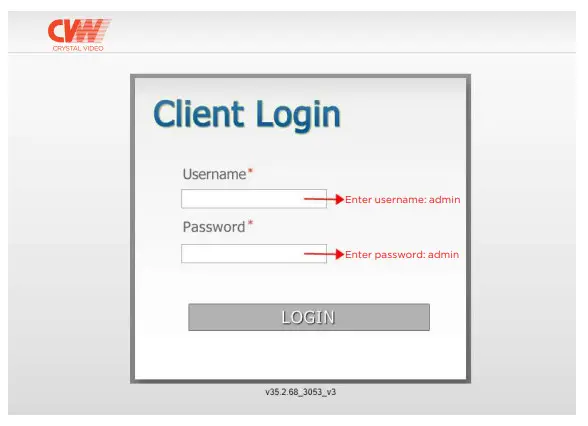 After successful login, enter the WiFi board parameter page of the device: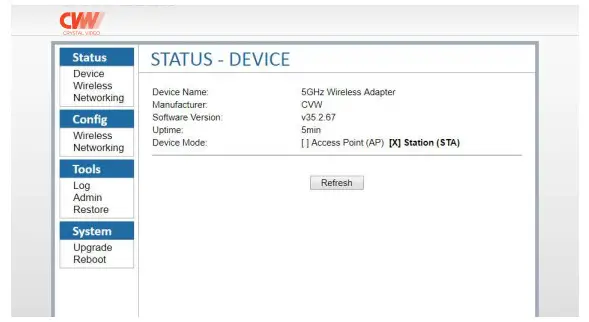
Select the “Upgrade” option in the “System” column.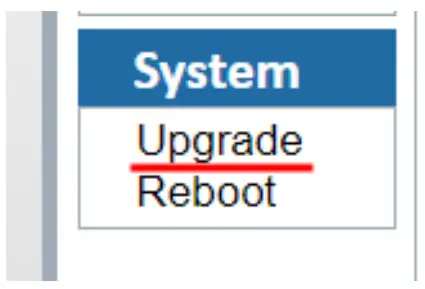
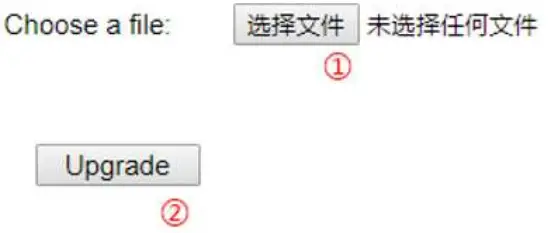
On the “Upgrade” settings page:
The software for the product WiFi board can be upgraded:
- Select the software file to be upgraded
- Click to upgrade
SYSTEM – UPGRADE
Product Specifications
| ITEM | TX:7060 | RX:3060/3081 |
| Frequency | 5190 Hz(1), 5230 Hz(2), 5270 Hz(3), 5310 Hz(4), 5510 Hz(5), 5550 Hz(6), 5590 Hz(7), 5630 Hz(8), 5670 Hz(9), 5755 Hz(10), 5795 Hz(11) | |
| Antenna | 4*4 MIMO 5dBi External antenna | |
| Modulation mode | OFDM | |
| Transmission Power | 19dBm | |
| EVM | ≤- 28dB | |
| Receiving Sensitivity | ≤- 70dBm | |
| Bandwidth | 40MHz | |
| Wireless | 802.11n | |
| Network encryption | WPA2/WPS | |
| Network model | Point to point, RTSP | |
| Transmission Distance | 500m(video code rate: 8Mbps per channel) | |
| Transmission Delay | 70ms(min) | |
| code function | Support automatically code matching | |
| HDMI Protocol | Support HDMI 1.4 | |
| Video Format | SDI: SMPTE 296M 720p50, 720p59.94, 720p60, SMPTE 274M 1080i50, 1080i59.94, 1080i60, 1080p23.98, 1080p24, 1080p25, 1080p29.97, 1080p30 SMPTE424M 1080p50, 1080p59.94, 1080p60 HDMI: 720p50, 720p59.94, 720p60, 1080i50, 1080i59.94,1080i60, 1080p23.98, 1080p24, 1080p25, 1080p29.97, 1080p30, 1080p50, 1080p59.94, 1080p60 | |
| Audio Format | SDI/HDMI Embedded audio Audio via video wireless transmission: PCM Sampling rate: 48KHz Number of bits: 16bit Intercom audio: 3.5mm interface analog input and output | |
| Video Compression Format | H.264 | |
| Remote control | RS232/RS422 | |
| IO port signal return | Support Tally signal return | |
| Interface | SDI in * 1; HDMI in * 1; Tally output * 1; Lemon power coordinates *1; Antenna sub *4; Key * 3; Ship type power switch *1; OLED display screen *1; Np-F970 battery holder *1 | SDI output *4; HDMI output *4; DB9(Tally in) * 1; Antenna sub *4; Power supply coordinate *1; Metal power switch *1; Display screen *1; Key * 3; Battery button connection seat *1 |
| Power Consumption | 10W | 20W |
| Operating Power Supply | DC 12V/2A | DC 12V/3A |
| Temperature | – 10°C – 50°C(Working);- 40°C – 80°C(Storage) | |
| Operating voltage | 7-17V | |
Trouble Shooting
| Trouble | Solutions |
| If mosaic, jams, smear or frame loss appear during use | Lift the transmitter and receiver as high as possible, to 1.5-2m or more; The antennas are installed in fan-shape and facing for ward to receiver, and the transmission effect is the best; The LNA mode is set in H (high-gain mode); When multiple transmitters work at the same time, ensure that the transmitters are at least 1m apart from each other; If there is still a mosaic or a jam, switch the product frequency to the other frequency channel. |
| If in/ out video resolution not matching or display compatibility related | Confirm the software version of the encoder and decoder and contact the technician in time. If the software version is confirmed to be too old, it is necessary to upgrade the software. |
| If there is no connection during use, It is divided into 2 cases | In close range situation(TX-to-RX<2m), if the transmitter and receiver are connected to 4 antennas, the distance needs to be extended to 5m, and the LNA mode should be set to L (low-gain mode); when multiple transmitters work at the same time, ensure that the transmitters are at least 1m apart from each other; In the long-distance situation, lift the transmitter and receiver as high as possible, to 1.5-2m or more; the antenna is fan-shaped and facing for ward,the LNA mode is set to H (high-gain mode); when multiple transmitters works at the same time, ensure that the transmitters are at least 1m apart from each other. |
| When the receiving terminal cannot hear the other party’s voice when speaking one-on-one | a: Confirm whether it is in one-to-one mode; b: Press the “ALL” button again, and then press the button at the corresponding transmitting terminal; c: Whether the headphones are loose; and d: Whether the headphones malfunction, try again after replacing the headphones. |
Precautions
- If transmitter or/and receiver use HDMI cable:(a~f)
a. Do not plug in or pull out the HDMI cable of the transmitter and receiver during normal use.
b. Connect the transmitter to the video source and connect receiver to a monitor via HDMI and then power on the transmitter and receiver.
c. When the OSD prompts that code matching fails after trying code matching, reboot the transmitter and receiver to see whether they can be connected normally. Perform code matching again when it is still unable to be connected after restarting.
d. When there is no video appear on display after change video resolution parameters on transmitter, pull out and then plug in the HDMI cable of the transmitter or receiver.If there is still no video appear, power off and restart the transmitter and receiver.
e. When the network cannot be connected for a long time after switching frequency channel, reboot the transmitter and receiver.
f. When the transmitter and receiver devices are connected normally, there is no output on the monitor at the receiver, or the video output is abnormal, re-plug the HDMI cable of the receiver and check whether the monitor is changed to standby mode. If it is still unable to output normally after the above operation, try to replace the display device. - If there is a picture jam or mosaic during use, it is generally caused by interference in the network. Therefore, try switching the network frequency channel to avoid the interference band. For the frequency channel switching operation,please refers to the frequency channel switching operation instructions.
EU Environmental Protection
Waste electrical products should not be disposed with household waste. Please recycle where facilities exist. Consult to your local authority or retailer for recycling advice. 

http://www.cv-hd.com
SHENZHEN CRYSTAL VIDEO TECHNOLOGY CO.,LTD
ADD: Unit 05-06, Floor 24, Changwon Science & Technology Mansion, Keri 12th Road South,
High-tech Industrial Park, Nanshan District, Shenzhen, P.R. China
E-mail: [email protected]
Post code:518057
Tel: +86-755-29977913
www.cv-hd.com
Facebook:@crystallises Instagram: nanotechnology
 WWW.HD.COM
 CRYSTAL VIDEO