
Holtek HT32 MCU Touch Key Library
Introduction
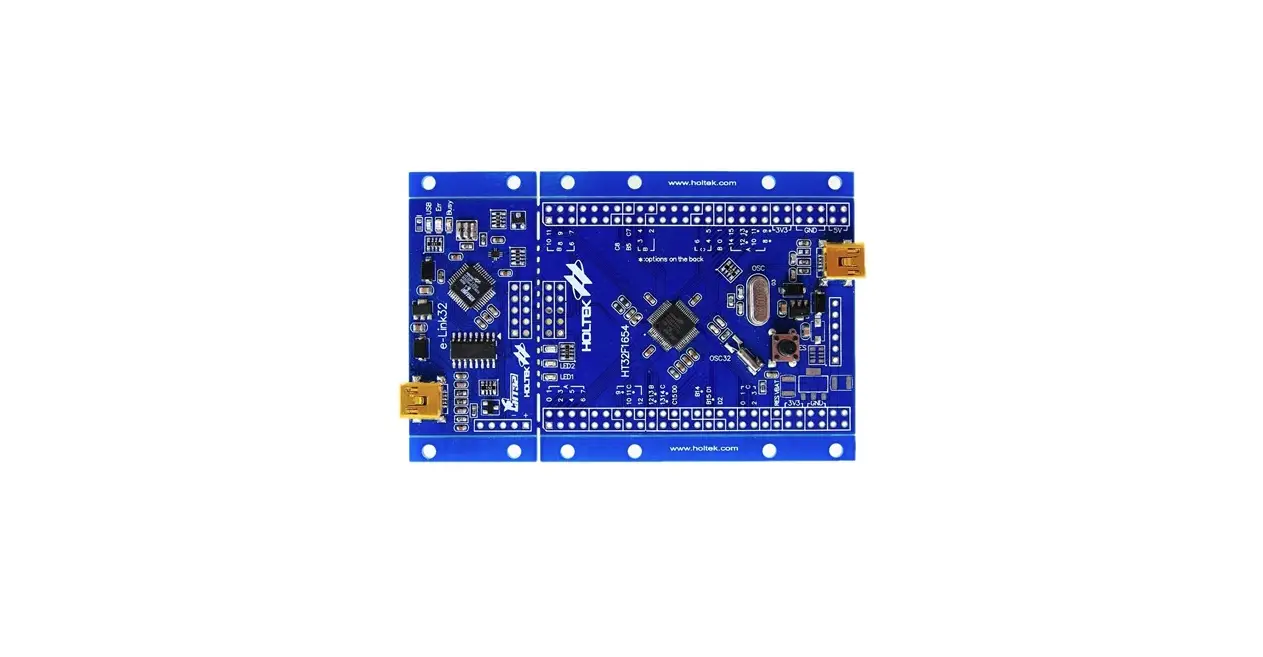
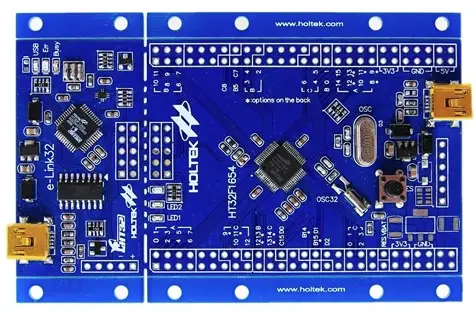
The HT32 touch key library developed by Best Solution is a library that integrates into the MCU all of the touch key underlying driver library files. The library has pre-configured the touch-related MCU hardware, and provides intuitive and flexible touch key sensitivity settings, while integrating common functions such as key detection and power-saving sleep modes. Using the HT32 touch key library simplifies the use of the MCU touch functions, allowing users to get started quickly and reducing the development period. This document will describe in detail the environmental configuration and library usage.
Environmental Configuration
Obtain HT32 Touch Key Library
Contact Best Solution’s FAE or refer to its website: http://www.bestsolution.com.tw/EN/
Or download the library from the Holtek website: https://www.holtek.com
Obtain HT32 Firmware Library
Refer to the following link to quickly obtain the firmware library: https://www.holtek.com/productdetail/-/vg/HT32F54231_41_43_53
Open the link, select the Documents option as shown in Figure 1, where the red box indicates the location of the HT32 compressed files. Note that only the firmware library of version v022 or above supports the HT32 touch key library.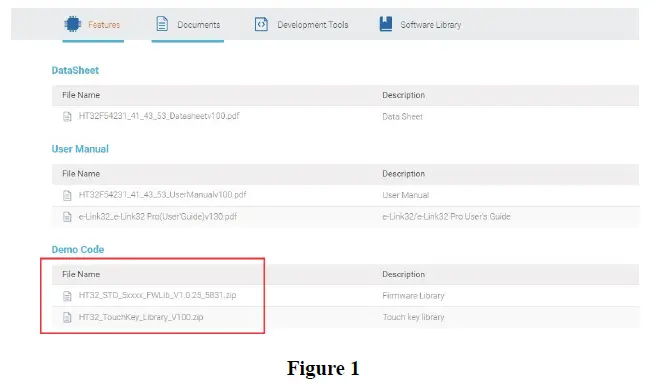
Keil Project Configuration
- The user’s PC needs to have the Keil development tool installed.
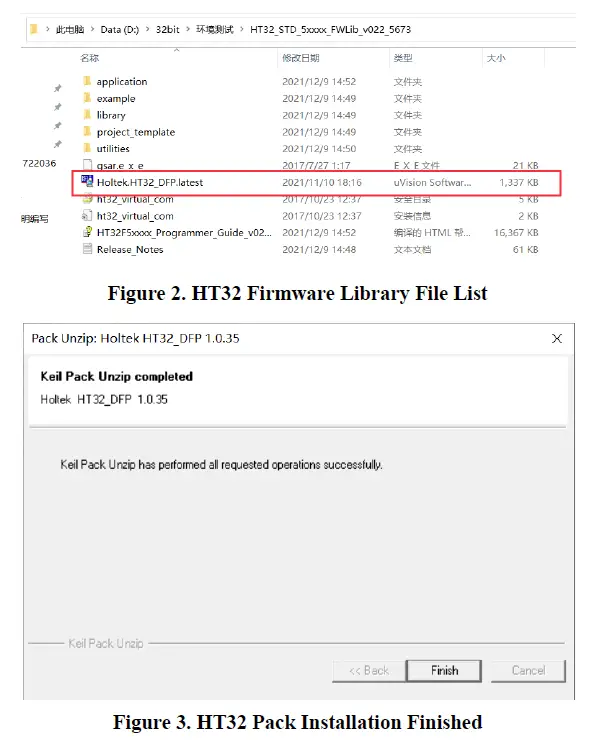
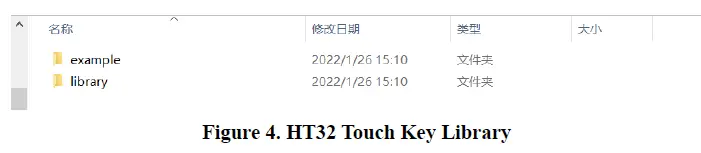
- Unzip the firmware library. The files are listed as shown in Figure 2. Click on Holtek.HT32_DFP.latest to install it, after which the installation completion screen, as shown in Figure 3, will appear.

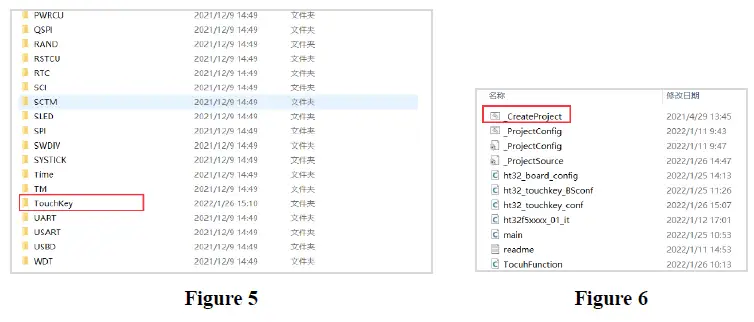
- Unzip the HT32 touch key library which includes two folders, example and library.

- Copy the example and library folders to the HT32_STD_xxxxx_FWLib_v022_XXXX folder.
- Execute ..\example\TouchKey\TouchKey_LIB\_CreateProject.bat (Figure 6).

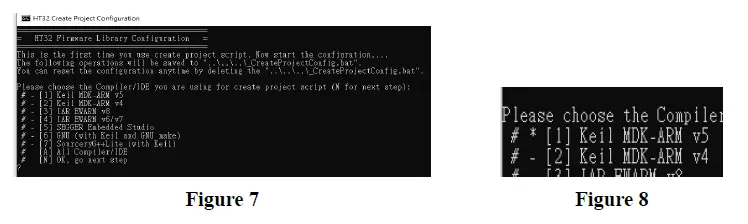
- An interface, as shown in Figure 7, will appear. Input the number corresponding to the user’s IDE, after which a “*” sign will appear before the selected IDE, as shown in Figure 8. Input “N” to go to next step.

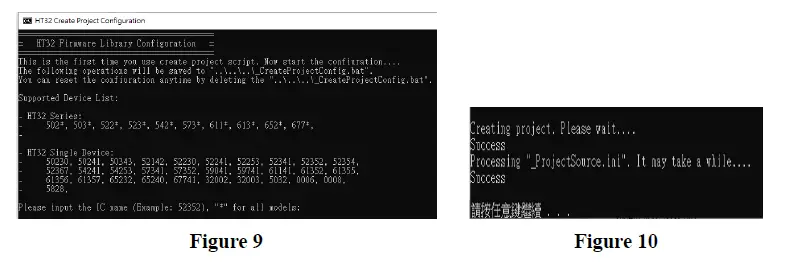
- As shown below, input “*” to create projects for all IC types or input the IC name to create a project for the selected IC.

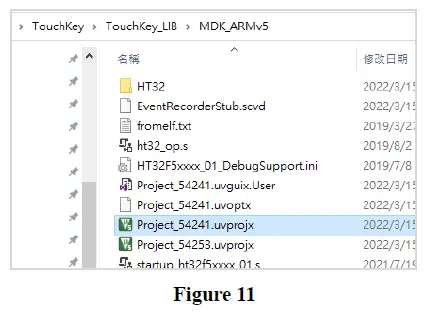
- After finishing steps 1~7, as shown in Figure 11, select the desired IC project such as Project_54xxx.uvprojx from the ..\example\TouchKey\TouchKey_LIB\MDK_ARMv5\ path.

Note that only the MCU with the largest resources in each series is used to create the project. For example, to use the HT32F54231 users must select the HT32F54241 project.
Considerations
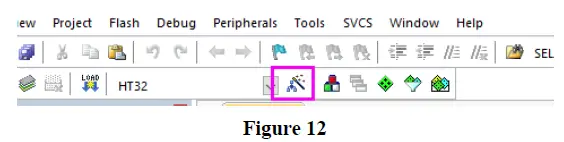
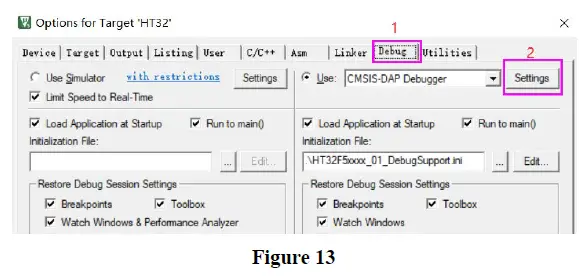
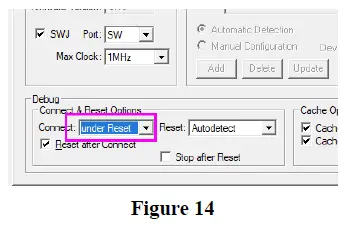
As the touch key program may enter the sleep state, it is required to set the project to power on reset, otherwise it will not be available for programming. The setting steps are as follows.
- Step 1: Click the button in the Keil5 tool menu, as shown below.

- Step 2: Select Debug–> Settings.

- Step 3: Select “under Reset” in the Connect field.

Library Files Description
Library Used Resources
| Keil Project | Usable IC | ROM/RAM Resources | Used IP | Max. Number of Keys |
| HT32F54241 | HT32F54241 HT32F54231 | 7148B / 2256B | Touch key BFTM0 RTC | 24 |
| HT32F54253 | HT32F54243 HT32F54253 | 7140B / 2528B | Touch key BFTM0 RTC | 28 |
- The RTC is used to wake up MCU from the sleep state and used as time base for sleep state processing.
- When the program is loaded into the IC, the Keil will determine whether the ROM or RAM size has been exceeded.
- For the specific use of resources, refer to the actual library version.
Environment and File Description
The HT32 touch key library is located in the following path. ..\example\TouchKey\TouchKey_LIB\MDK_ARMv5\Project_542xx.uvprojx project (Figure15). After the HT32 touch key library project is opened, the main screen is shown as Figure 16.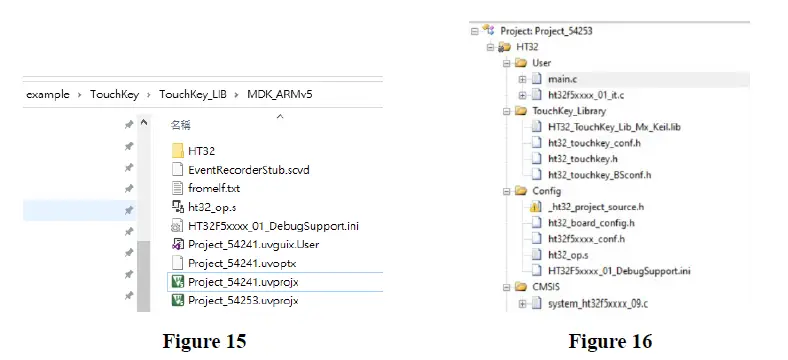
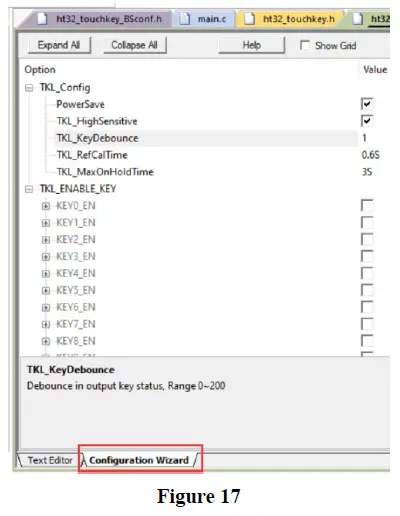
The relevant files are described as follows, among which are the ht32_TouchKey_conf.h and system_ht32f5xxxx_09.c files, included in the Configuration Wizard. See Figure 17.
| File Name | Description |
| main.c | Project main program file |
| ht32f5xxxx_01_it.c | Interrupt main program file |
| ht32_TouchKey_Lib_Mx_Keil.lib | Touch control library file |
| *ht32_TouchKey_conf.h | Touch control parameter file |
| ht32_TouchKey.h | External declaration definition file |
| ht32_TouchKey_BSconf.h | Underlying main parameter file (not recommended to modify) |
| ht32_board_config.h | Hardware definition file (not recommended to modify) |
| *system_ht32f5xxxx_09.c | Clock source and system clock parameter file |
Configuration Wizard Parameters
- ht32_TouchKey_conf.h Configuration Wizard parameters:
Name Function PowerSave Activate the default sleep procedure defined in main.c TKL_HighSensitive Touch sensitivity setting: high or low sensitivity; default to high sensitivity after being enabled TKL_keyDebounce Key debounce time setting TKL_RefCalTime Calibration time. The shorter the time, the more effective it will be in resisting environmental interference, however it will result in lower key sensitivities. TKL_MaxOnHoldTime The maximum time that the key is pressed. The key is automatically released after being pressed for n seconds. KEYn_EN Enable or disable KEYn KeynThreshold KEYn threshold value. The smaller the value, the more sensitive the key will be. - system_ht32f5xxxx_09.c Configuration Wizard parameters:
Name Function Enable High Speed External Crystal Oscillator – HSE Enable or disable HSE (external high speed oscillator) Enable Low Speed External Crystal Oscillator – LSE Enable or disable LSE (external low speed oscillator) Enable PLL Enable or disable PLL PLL Clock Source Select clock source for PLL SystemCoreClockConfiguration (CK_AHB) Select clock source for system CK_AHB
Description of Touch Key Lib Interface Functions
Description of Get Functions
| Item | Description |
| Function Name | TKL_Get_Standby |
| Input Parameter | — |
| Return Value | Counting value (500~60000) |
| Description | Used to obtain the count-down counter value |
| Item | Description |
| Function Name | TKL_Get_KeyRCCValue |
| Input Parameter | Key value (0 ~ max. key value), frequency (0, 1) |
| Return Value | Capacitance value (0~1023) |
| Description | Used to obtain the capacitance value of the specified key |
| Item | Description |
| Function Name | TKL_GetKeyRef |
| Input Parameter | Key value (0 ~ max. key value) |
| Return Value | Reference value (0~65535) |
| Description | Used to obtain the reference value of the specified key |
| Item | Description |
| Function Name | TKL_GetKeyThreshold |
| Input Parameter | Key value (0 ~ max. key value) |
| Return Value | Threshold value (0~255) |
| Description | Used to obtain the threshold value of the specified key |
| Item | Description |
| Function Name | TKL_Get_AllKeyState |
| Input Parameter | — |
| Return Value | Key state (32-bit) BITn stands for KEYn state Bit0 = 1 means that KEY0 is pressed, Bit0 = 0 means that KEY0 is not pressed |
| Description | Used to obtain all key states |
Description of Set Functions
| Item | Description |
| Function Name | TKL_Set_KeyThreshold |
| Input Parameter | Key value (0 ~ max. key value), threshold value (10~127) |
| Return Value | — |
| Description | Used to set the threshold value of the specified key |
| Item | Description |
| Function Name | TKL_Set_Standby |
| Input Parameter | Sleep time (500~60000) |
| Return Value | — |
| Description | Used to set the count-down counter (not recommended to use this function) |
Description of State and Command Functions
| Item | Description |
| Function Name | TKL_Is_Time |
| Input Parameter | Preset constant (kT2mS, kT4mS…kT2048mS) |
| Return Value | — |
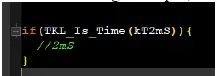
| Description | Time flag for user reference. In the following example, the program enters the function every 2ms. |
| Item | Description |
| Function Name | TKL_Is_AnyKeyPress |
| Input Parameter | — |
| Return Value | 1 = one or more key has been triggered; 0 = no key has been triggered |
| Description | Used to obtain the key press flag |
| Item | Description |
| Function Name | TKL_Is_KeyPress |
| Input Parameter | Key value (0 ~ max. key value) |
| Return Value | 1 = key has been triggered; 0 = key has not been triggered |
| Description | Used to obtain the state flag of the specified key |
| Item | Description |
| Function Name | TKL_Is_Active |
| Input Parameter | — |
| Return Value | 1 = LIB initialisation has finished; 0 = LIB initialisation has not finished |
| Description | Used to obtain the LIB initialisation state flag |
| Item | Description |
| Function Name | TKL_Is_Standby |
| Input Parameter | — |
| Return Value | 1 = allowed to enter sleep state; 0 = not allowed to enter sleep state |
| Description | Used to obtain the sleep state flag. *When a value of 0 is returned, then entering the sleep state may result in an unexpected state. |
| Item | Description |
| Function Name | TKL_Is_KeyScanCycle |
| Input Parameter | — |
| Return Value | 1 = scan has finished; 0 = presently scanning |
| Description | Used to obtain the scan flag |
| Item | Description |
| Function Name | TKL_Reset |
| Input Parameter | — |
| Return Value | — |
| Description | Used to compel LIB to execute a reset action. *Flags used by LIB and RAM will be initialised. *Parameters and AFIO are excluded. |
Description of Touch Key Lib Initialisation Functions
These functions are located in main.c. It is not recommended to modify their contents.
| Name | Function |
| GPIO_Configuration() | I/O port configurations |
| RTC_Configuration() | Touch keys are woken up by the RTC |
| BFTM_Configuration() | Touch key library time bases are implemented by BFTM |
| TKL_Configuration() | Touch key configurations |
Key State Query
As shown below, the main program includes a touch key example which will not be activated by default. To activate this function, modify (0) after #if to (1).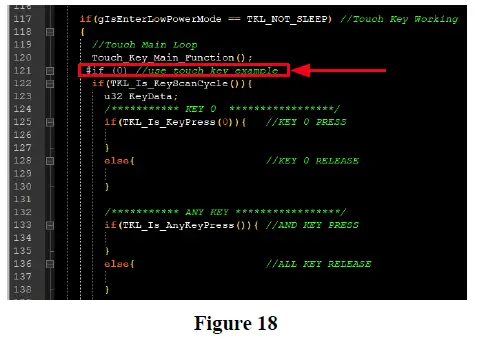
Sleep Mode Description
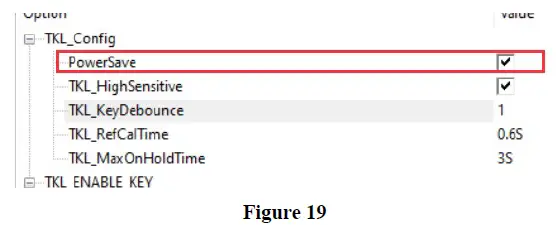
- In ht32_TouchKey_conf.h, select PowerSave to enable the sleep modes.

- After the sleep modes have been enabled, the touch keys will enter the sleep state if the keys have not experienced any touch conditions for a certain period of time.
- A standby time count function is used for down-counting, the current time is obtained using TKL_Get_Standby and the time parameter is set using TKL_Set_Standby.
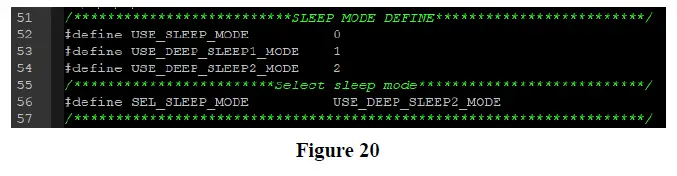
- There are three sleep mode options.
Mode Description USE_SLEEP_MODE Enter Sleep Mode USE_DEEP_SLEEP1_MODE Enter Deep Sleep1 Mode USE_DEEP_SLEEP2_MODE Enter Deep Sleep2 Mode - As shown below, set the required sleep mode using “#define” in the main file.

Conclusion
This document has provided instructions for setting up the entire HT32 touch key development environment, assisting users to get started quickly. In addition, the resources used by the library, as well as various functions and parameters, have been explained in detail, allowing for an easier development process.
Reference Material
For more details, refer to the Holtek website: www.holtek.com or consult the Best Solution website: http://www.bestsolution.com.tw/EN/
Versions and Modification Information:
| Date | Author | Release | Description |
| 2022.03.16 | 谢东霖、梁德浩 | V1.00 | First version |
Disclaimer
All information, trademarks, logos, graphics, videos, audio clips, links and other items appearing on this website (‘Information’) are for reference only and is subject to change at any time without prior notice and at the discretion of Holtek Semiconductor Inc. and its related companies (hereinafter ‘Holtek’, ‘the company’, ‘us’, ‘we’ or ‘our’). Whilst Holtek endeavors to ensure the accuracy of the Information on this website, no express or implied warranty is given by Holtek to the accuracy of the Information. Holtek will bear no responsibility for any incorrectness or leakage.
Holtek will not be liable for any damages (including but not limited to computer virus, system problems or data loss) whatsoever arising in using or in connection with the use of this website by any party. There may be links in this area, which allow you to visit the websites of other companies. These websites are not controlled by Holtek. Holtek will bear no responsibility and no guarantee to whatsoever Information displayed at such sites. Hyperlinks to other websites are at your own risk.
Limitation of Liability
In no event shall Holtek Limited be liable to any other party for any loss or damage whatsoever or howsoever caused directly or indirectly in connection with your access to or use of this website, the content thereon or any goods, materials or services.
Governing Law
The Disclaimer contained in the website shall be governed by and interpreted in accordance with the laws of the Republic of China. Users will submit to the non-exclusive jurisdiction of the Republic of China courts.
Update of Disclaimer
Holtek reserves the right to update the Disclaimer at any time with or without prior notice, all changes are effective immediately upon posting to the website.
 Best Solution Inc