
Infotech N°0002
TS9030 – Software Upgrade Method for WIFI Module
Topic:
This procedure includes a software update method for the WIFI module.
Tools required:
– Laptop
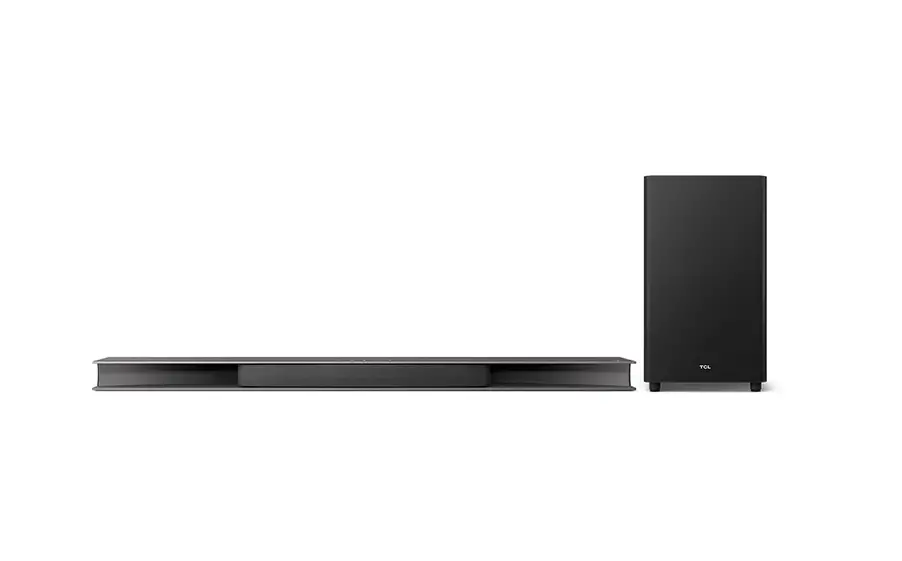
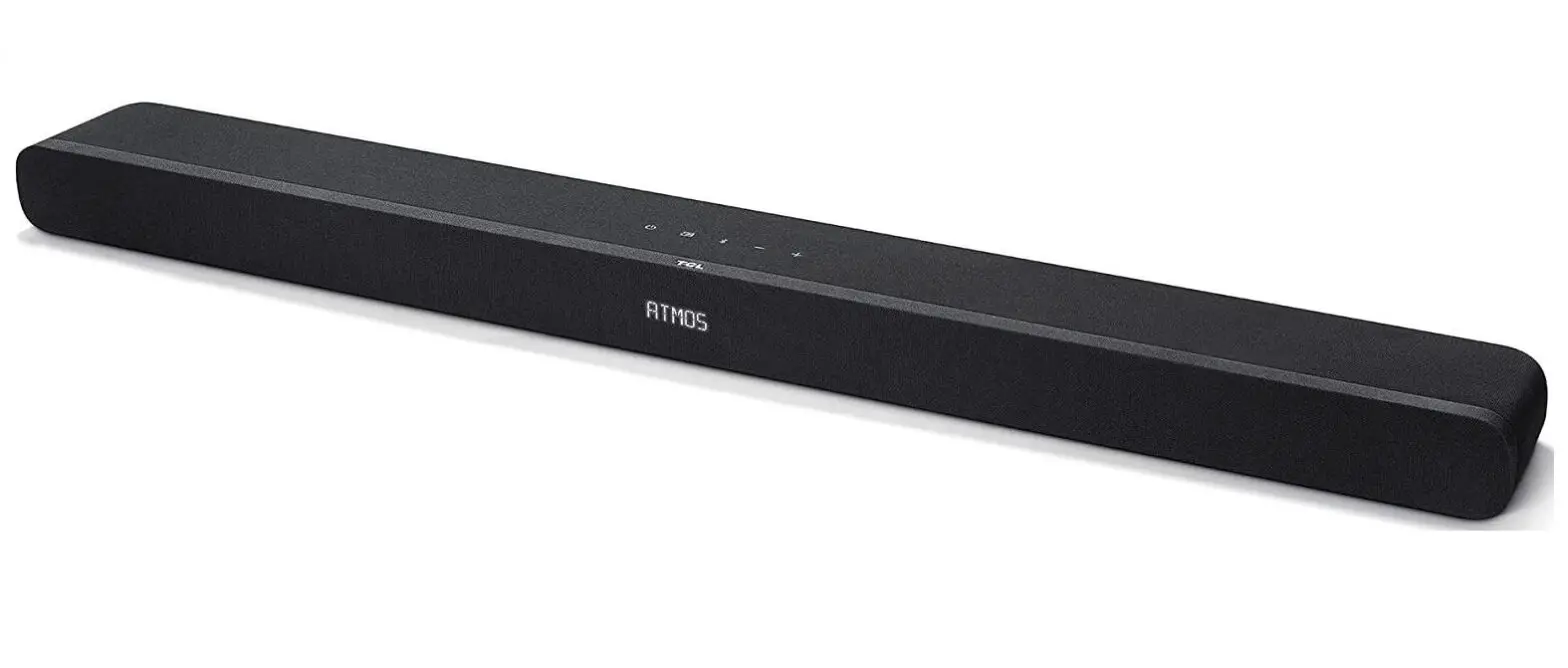
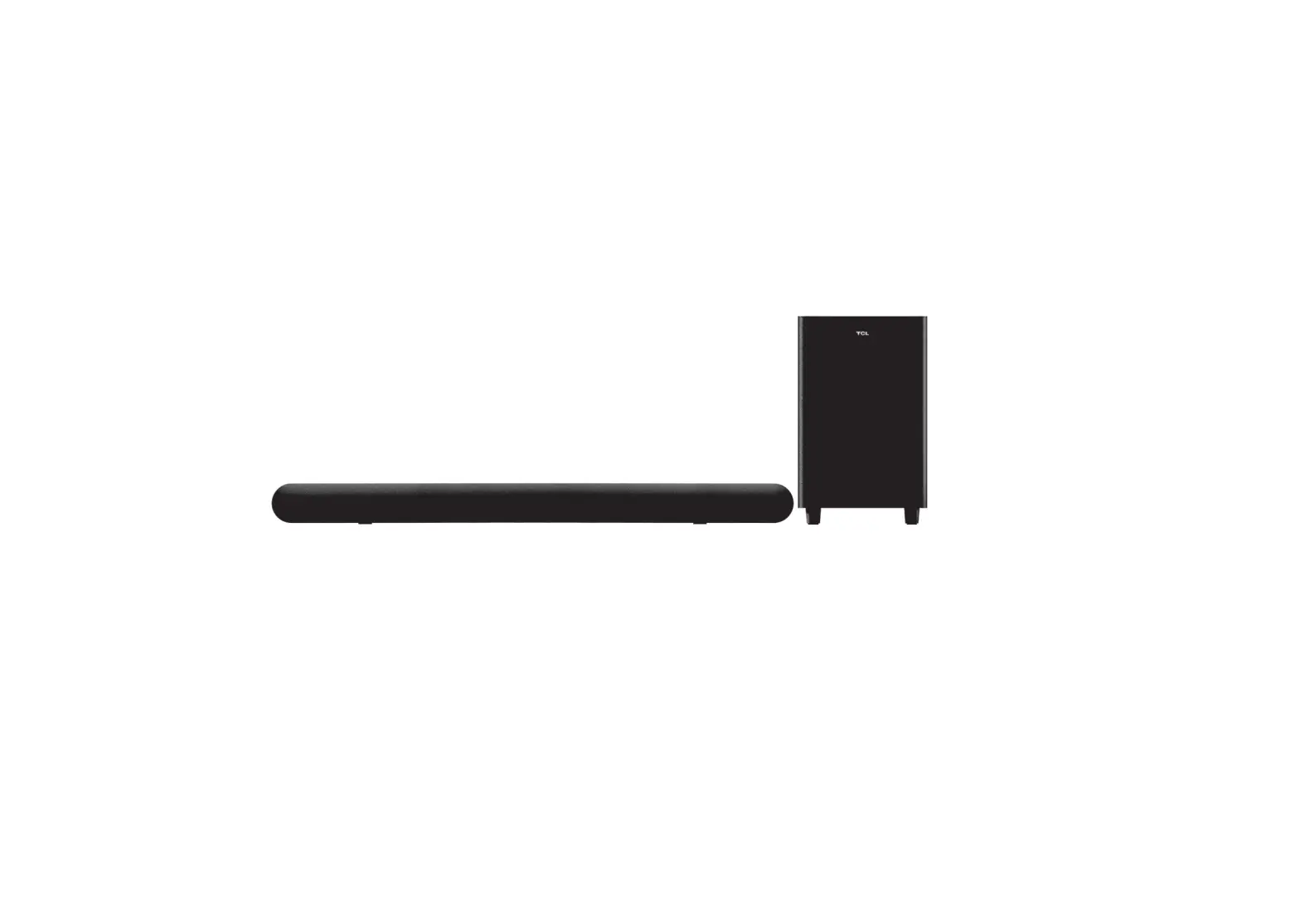
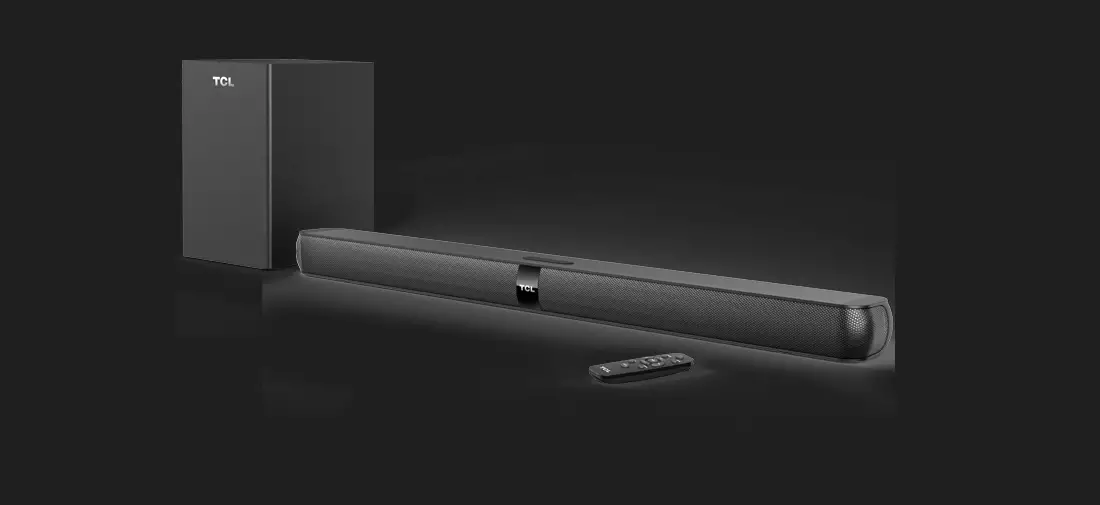
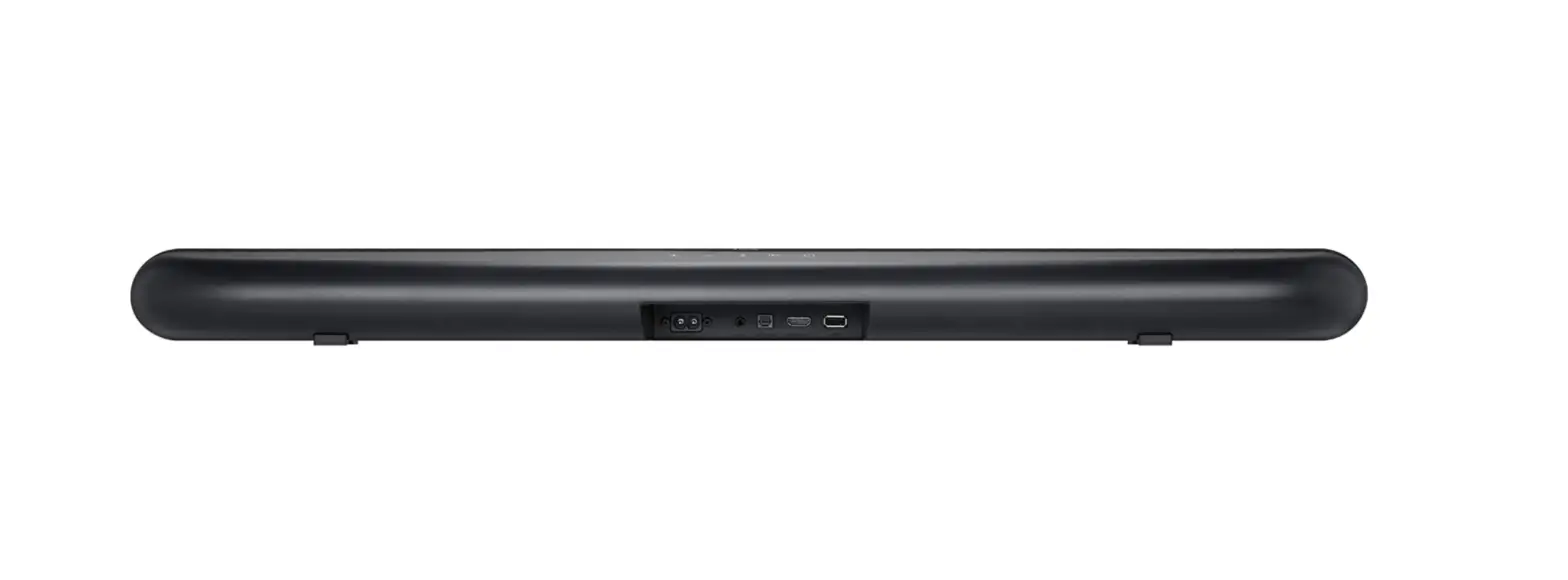
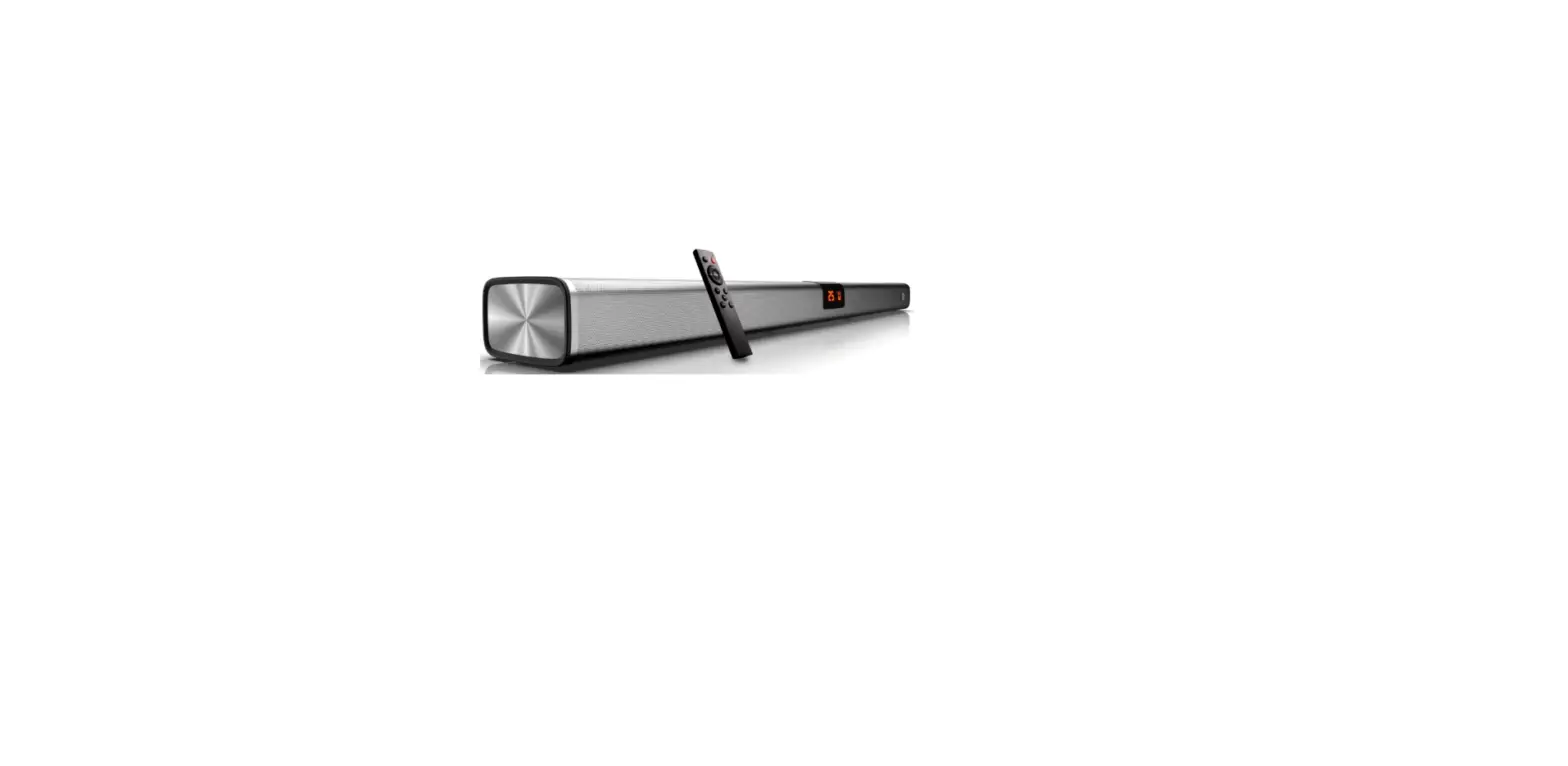
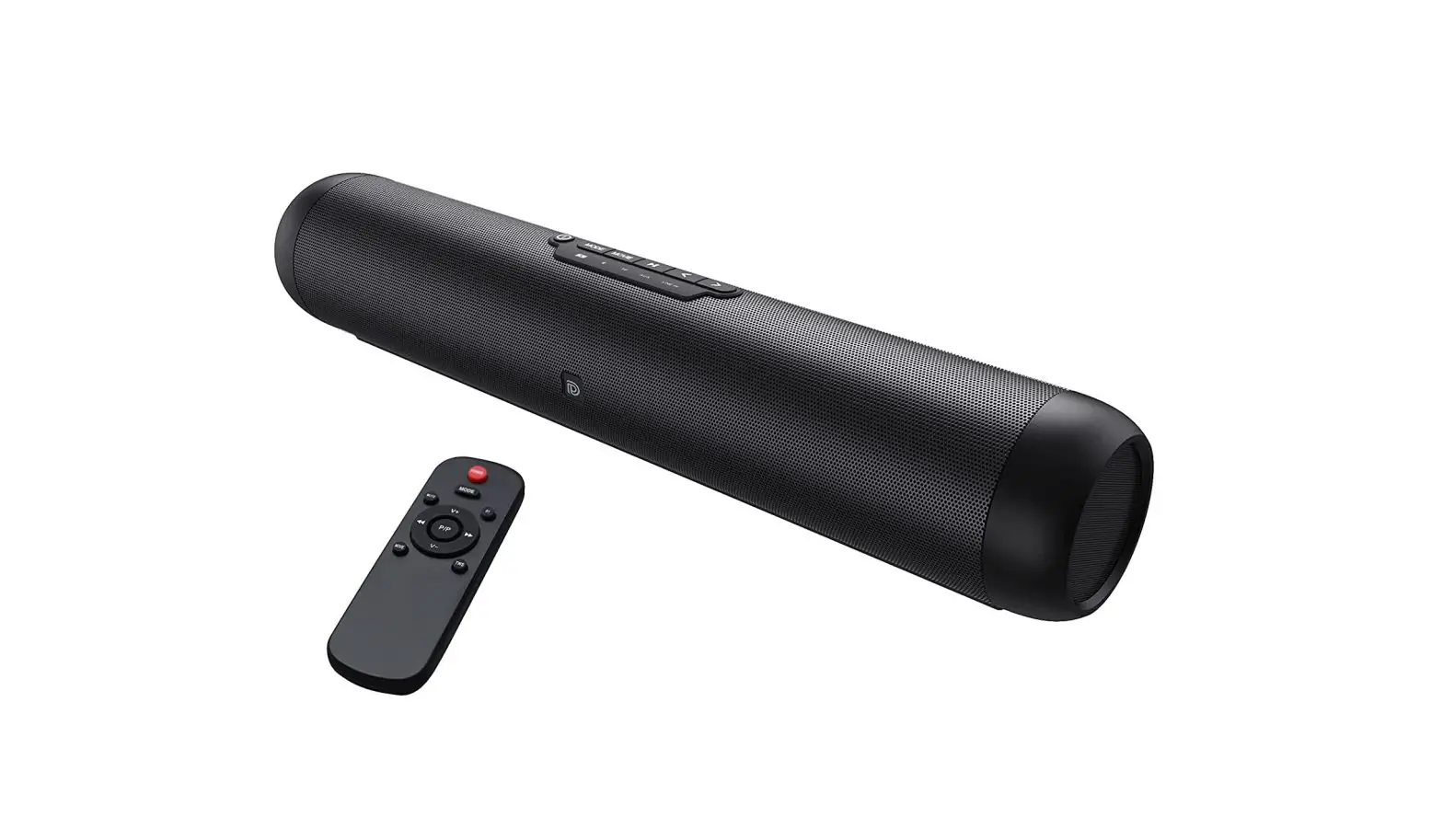
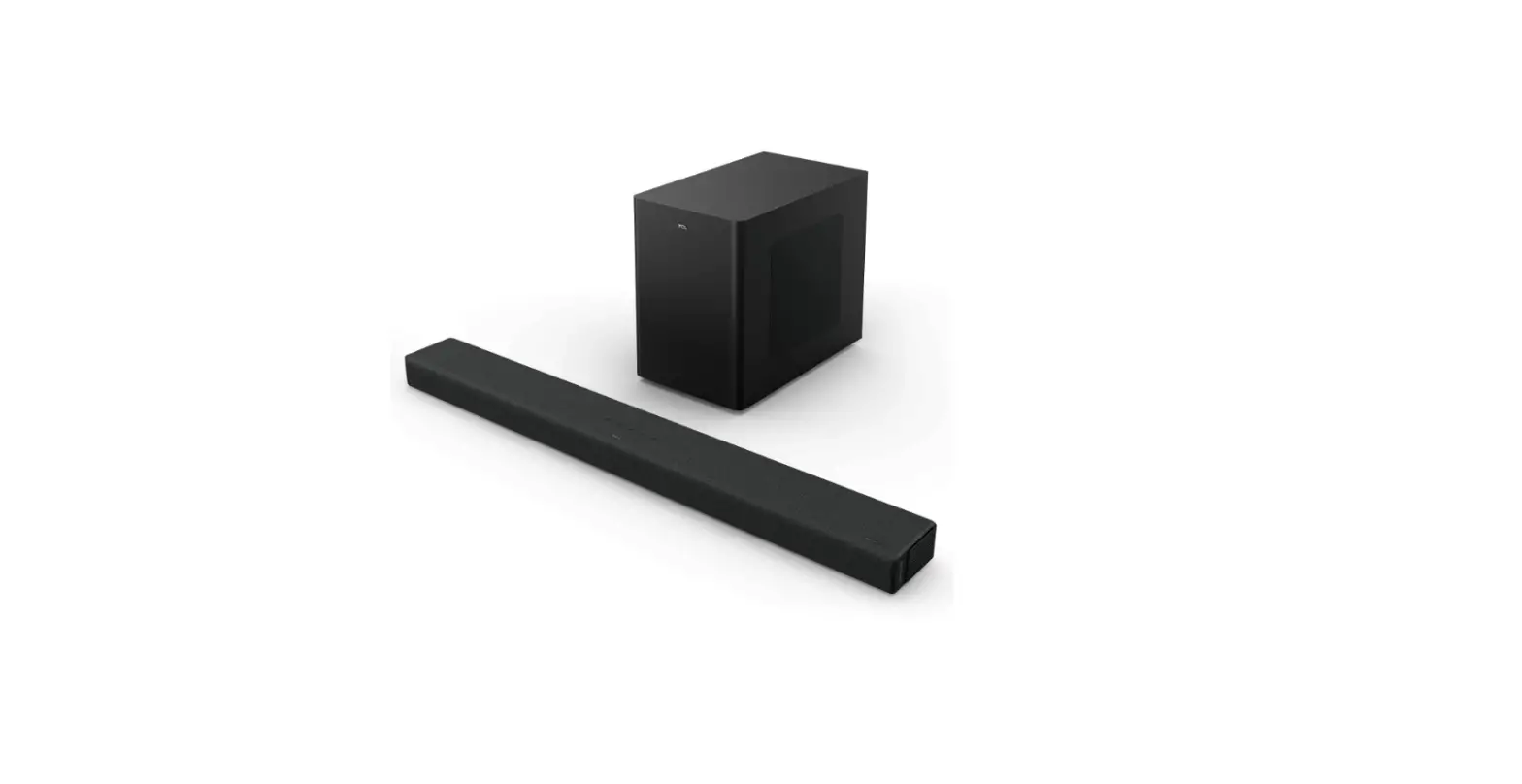
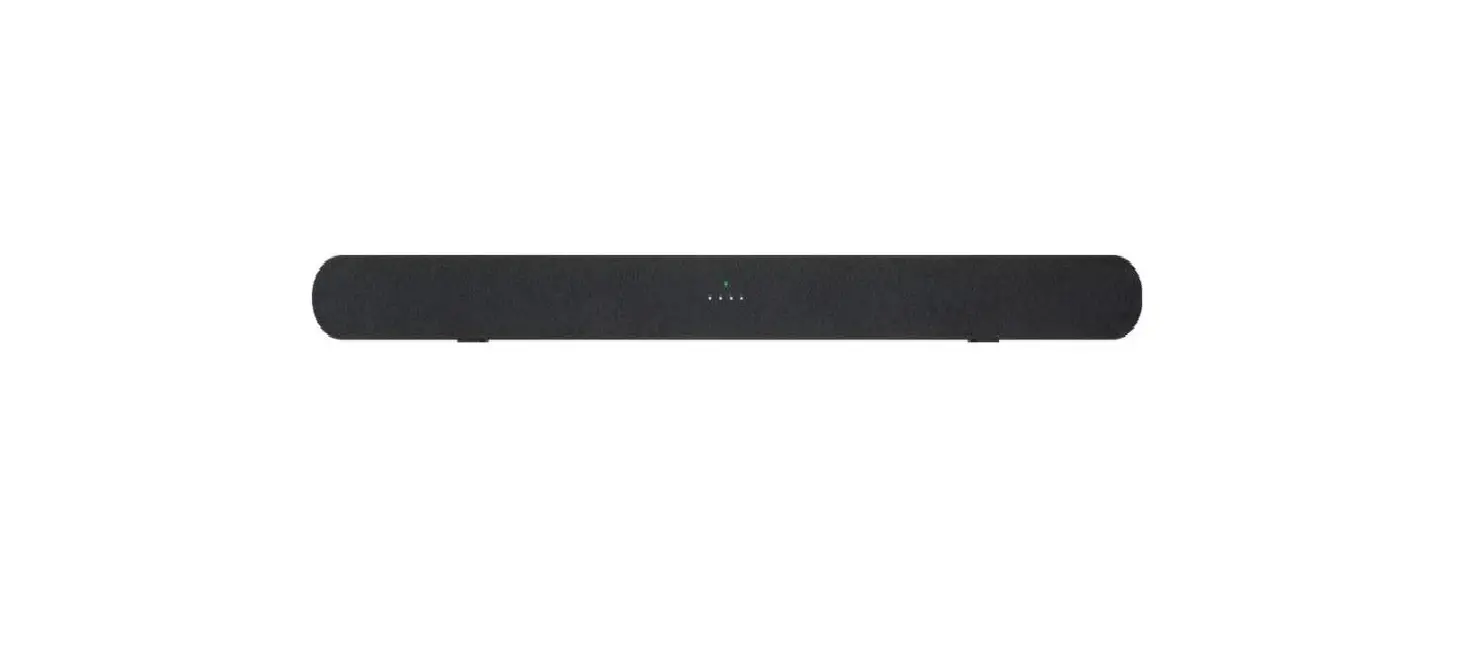
– TS9030 Ray-Danz Soundbar
– USB 2.0 to USB 2.0 Male Cable
Software upgrade method for WIFI Module:
Download the WIFI Module software from CRM:
- Login to your CRM account
- Go to the line Service Tools Software
- Select Category as SBAR and Chassis as AUDIO and SEARCH

Now you can download the WIFI module software from CRM.
Download the USB Burning tool from CRM:
- Login to your CRM account
- Go to the line Service Tools Software
- Select Category as SBAR and Chassis as AUDIO and SEARCH


Now you can download the USB Burning tool from CRM
Software update instructions:
- Download the USB burning tool from CRM
- Unzip the downloaded burning tool

- Install the driver application:
Now go to the driver application: USB_Burning_Tool WorldCup_DeviceInstallDriver

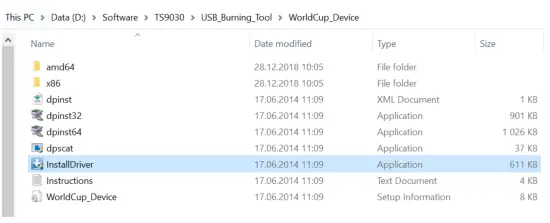 Double click the InstallDriver and a new window will appear (If your computer is password-protected, here we need to enter the username and password and click yes to proceed).
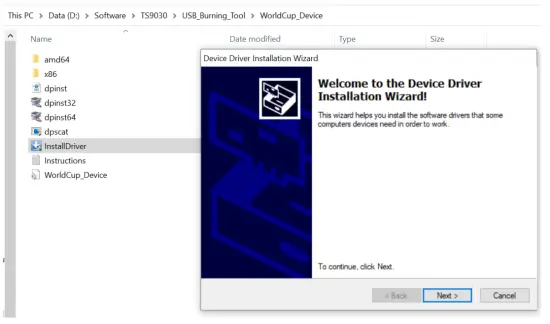 Click Next
Now the driver will be installed automatically and click Finish.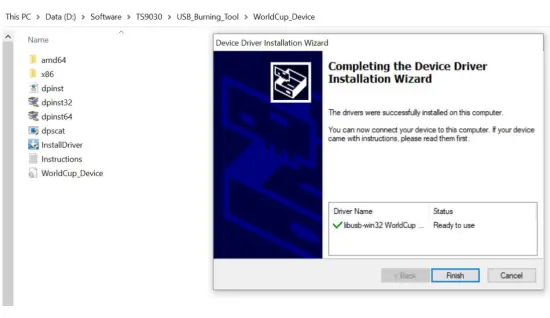
4. Open the application: USB_Burning_Tool
Step-1: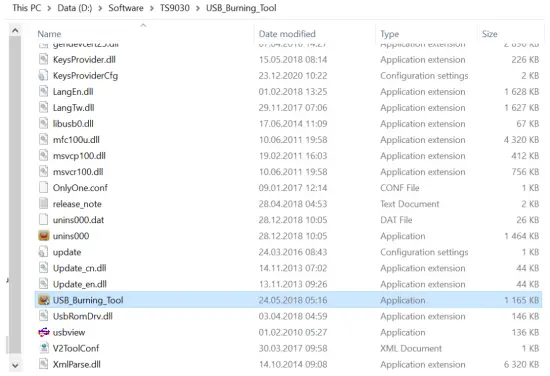
Step-2: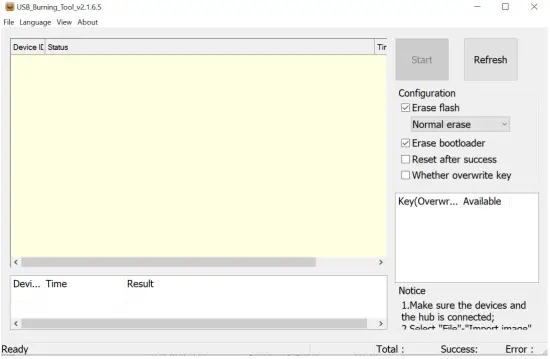 Step-3: – Import the downloaded WIFI module software package named “RSR-TCL-C4A-1.44V2.4-1082-USER-EU.img”
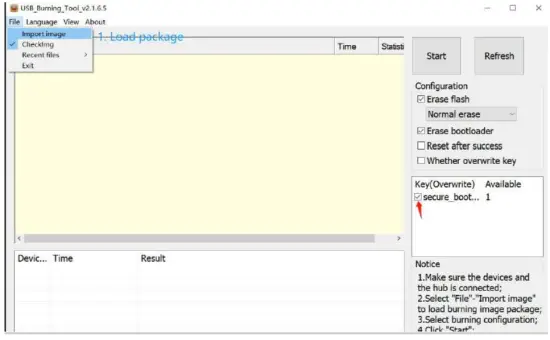 Step-4: – Now connect your laptop to the soundbar using USB 2.0 to USB 2.0 Male cable
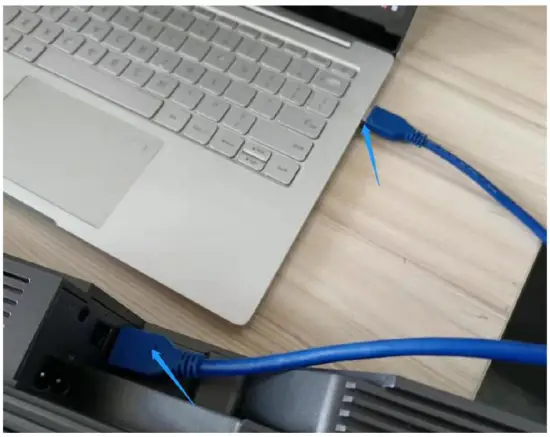 Step-5: Put the soundbar on standby When the soundbar is in standby mode, with the remote control do the key sequence BASS MUTE TREBLE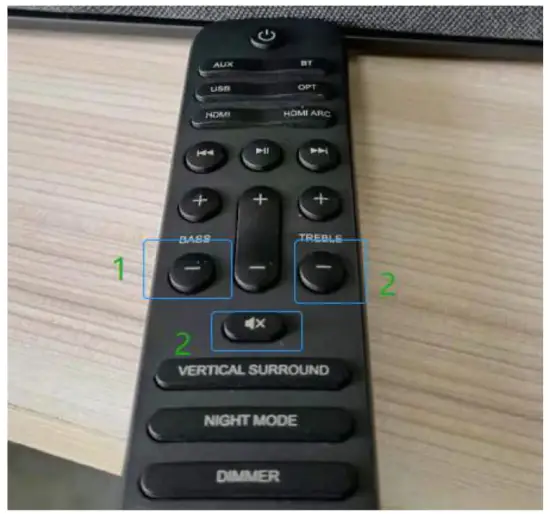
Step-6: Now soundbar will display “UPG-D”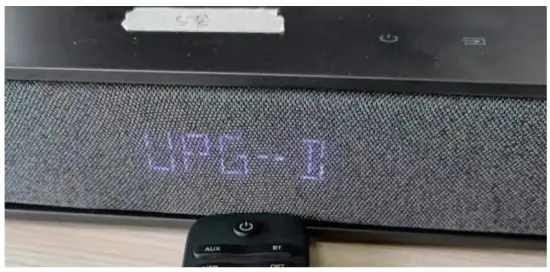 Step-7: USB_Burning_Tool will display “Connect Success” as follows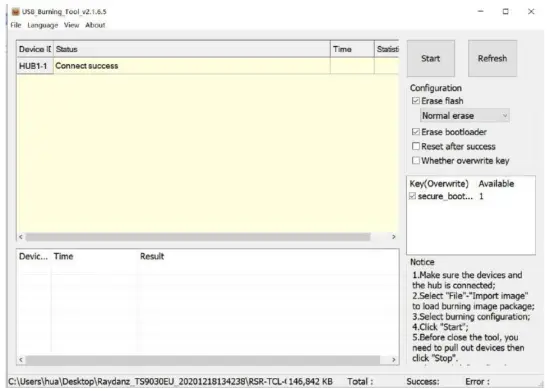
Step-8: Click Start to start the upgrading process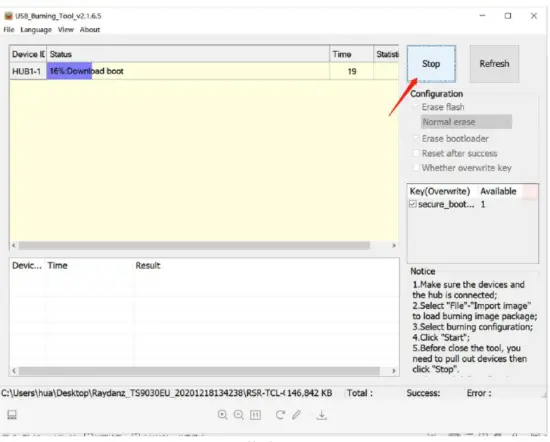
Step- 9: Soundbar will be powered off after the complete update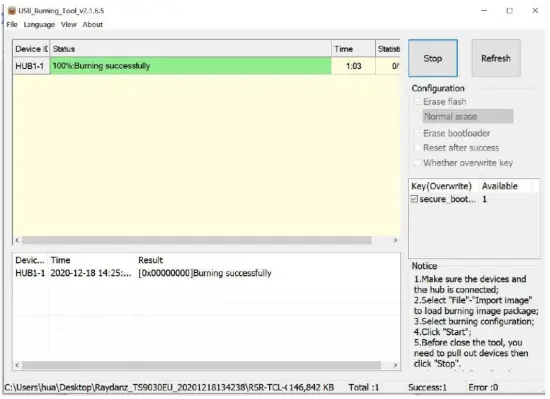 Step-10: Disconnect all the connected cables and restart the soundbar.