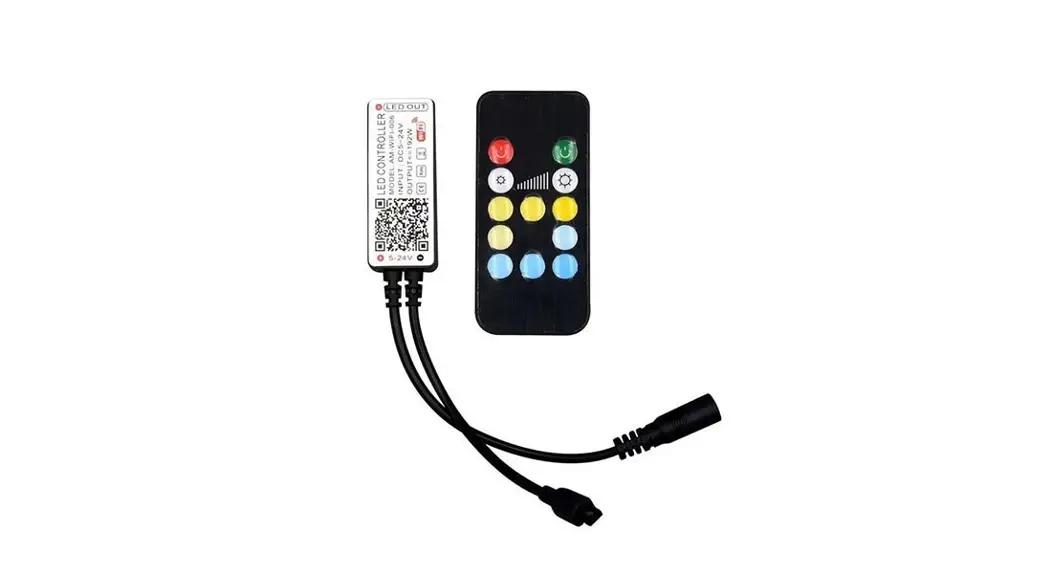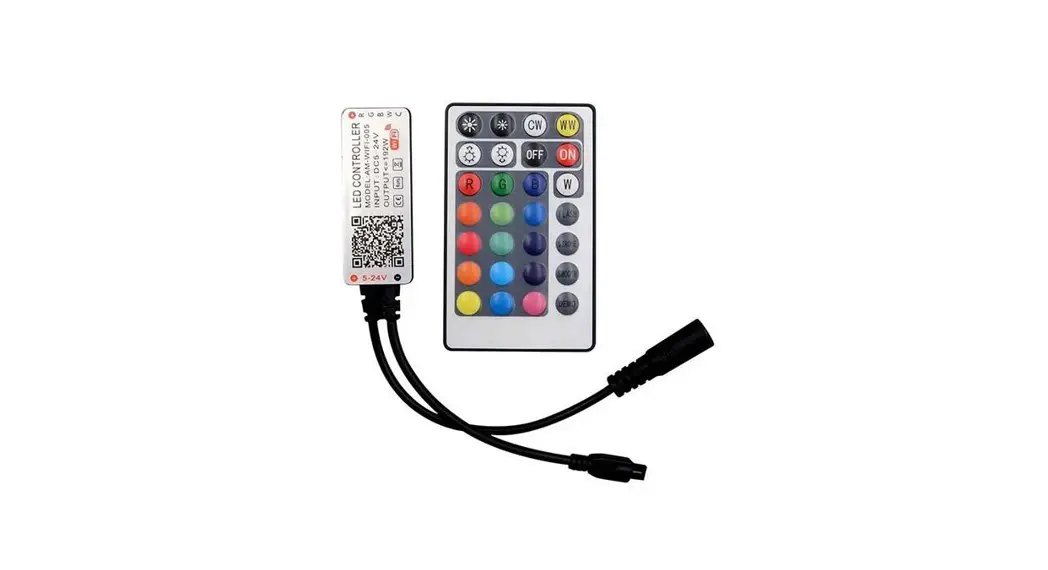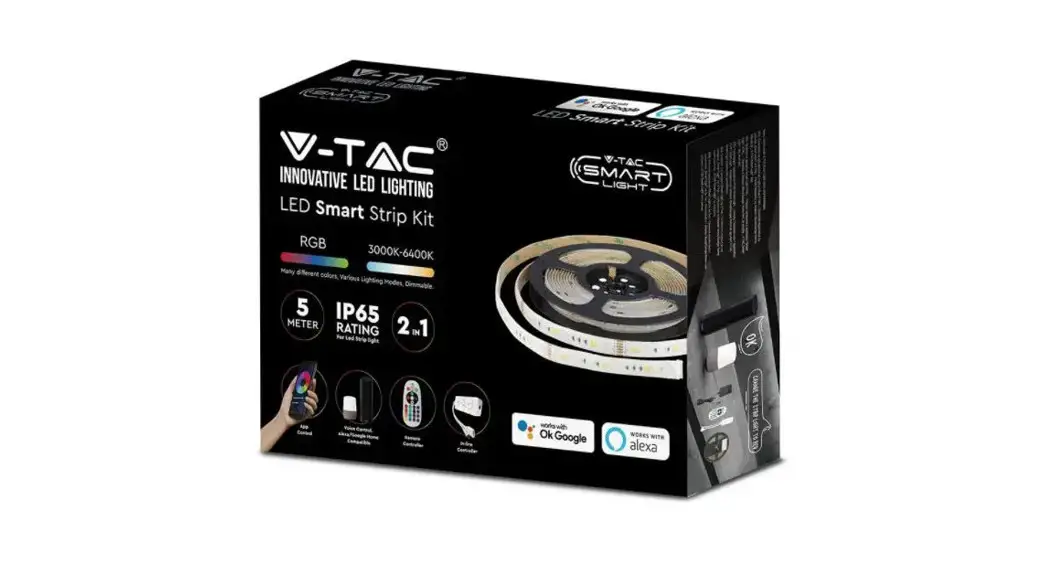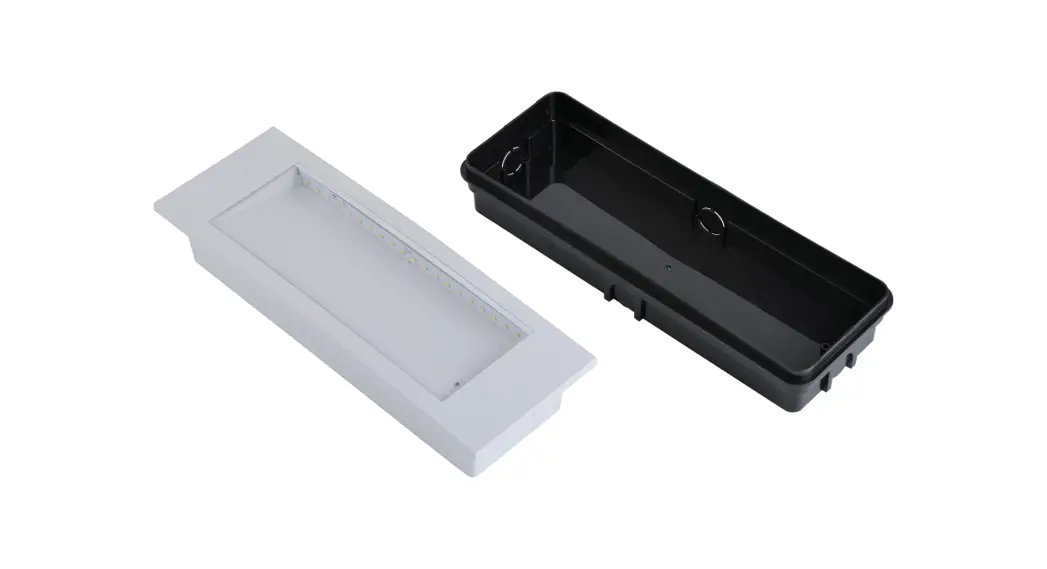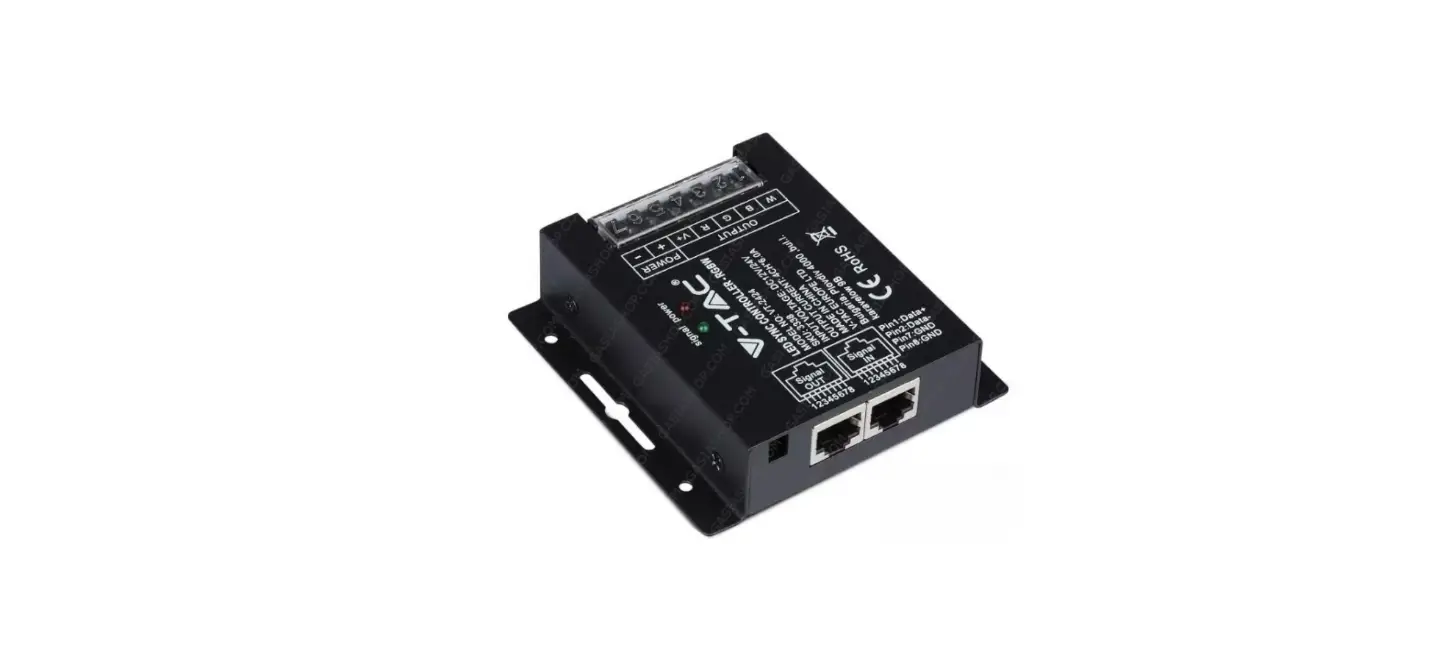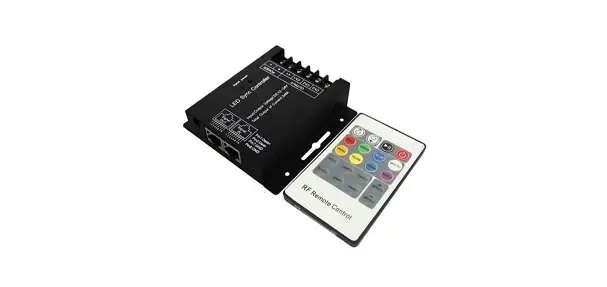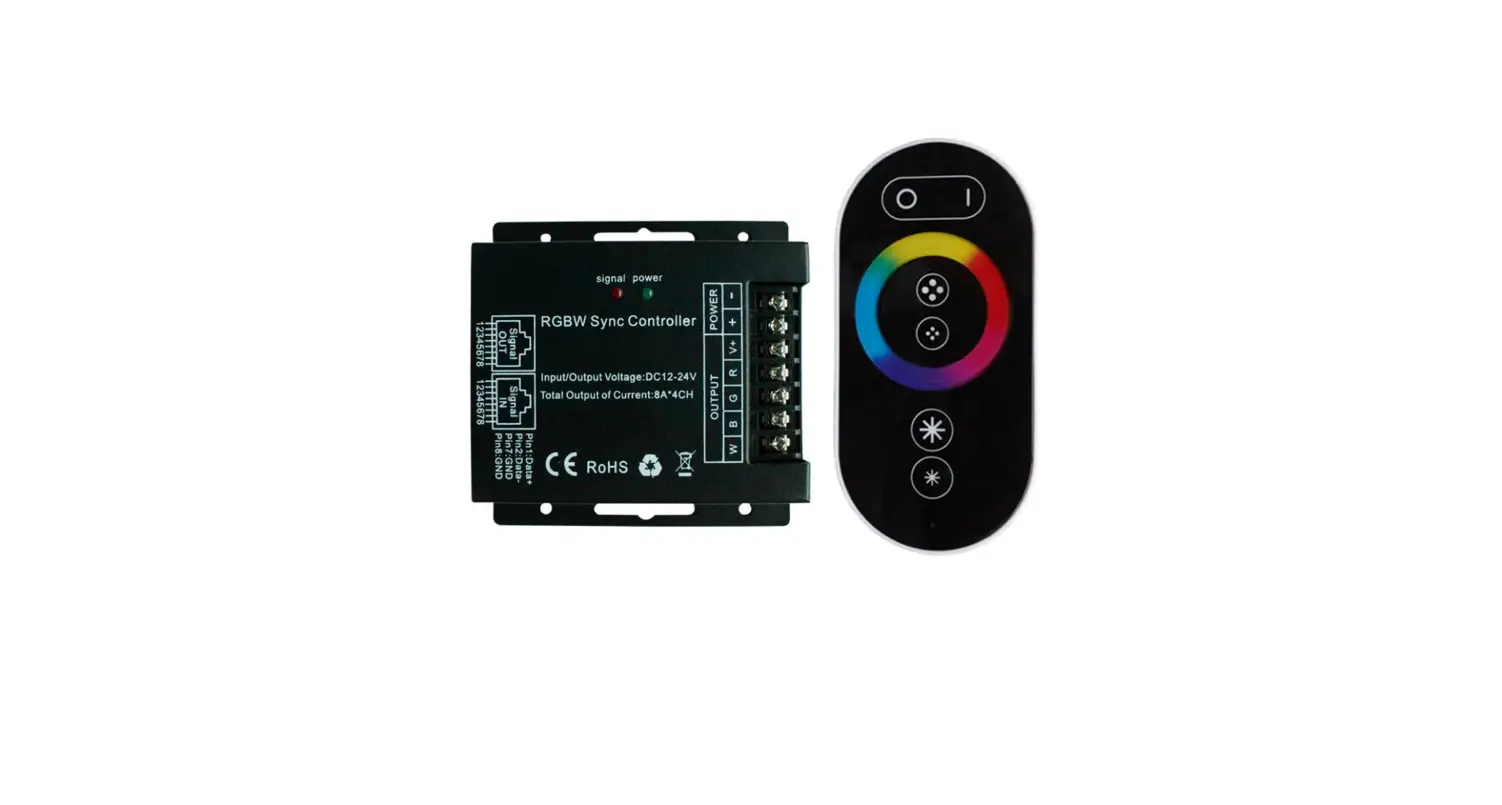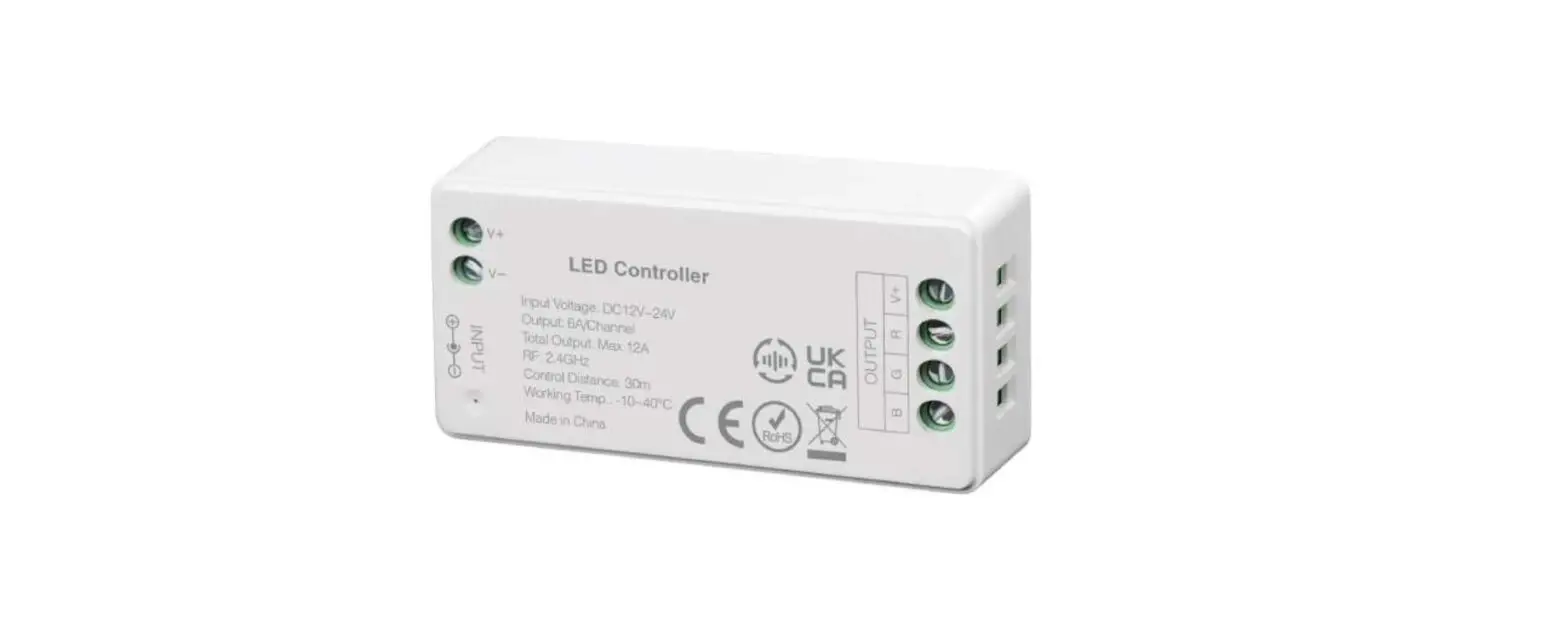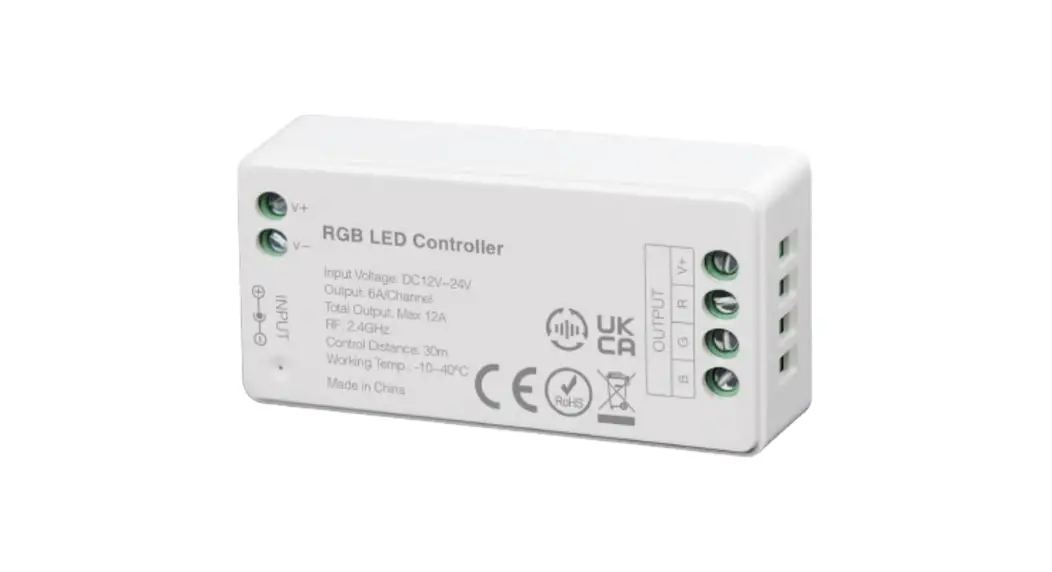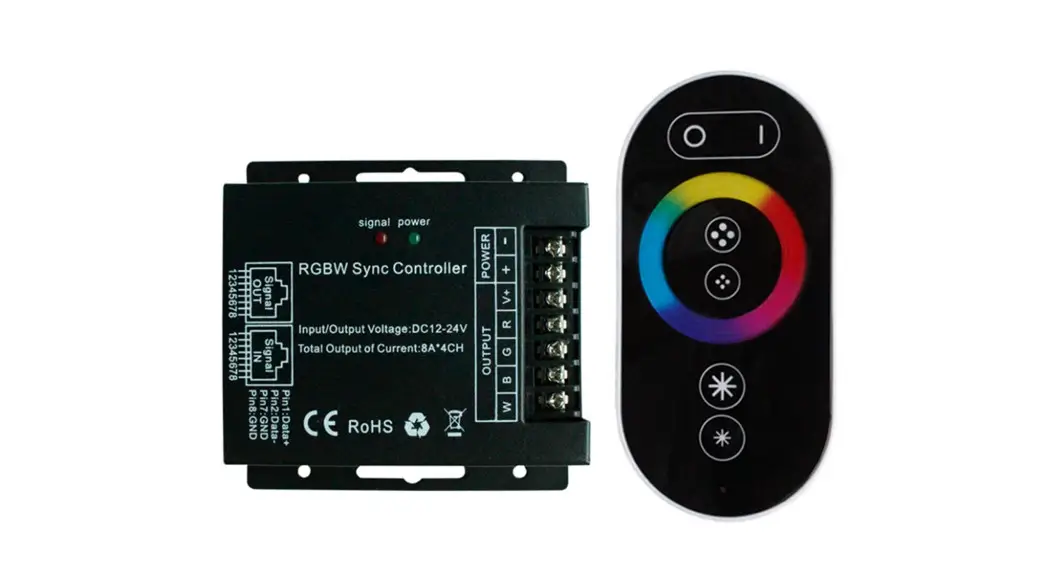
 80133970 LED Controller
Instruction Manual
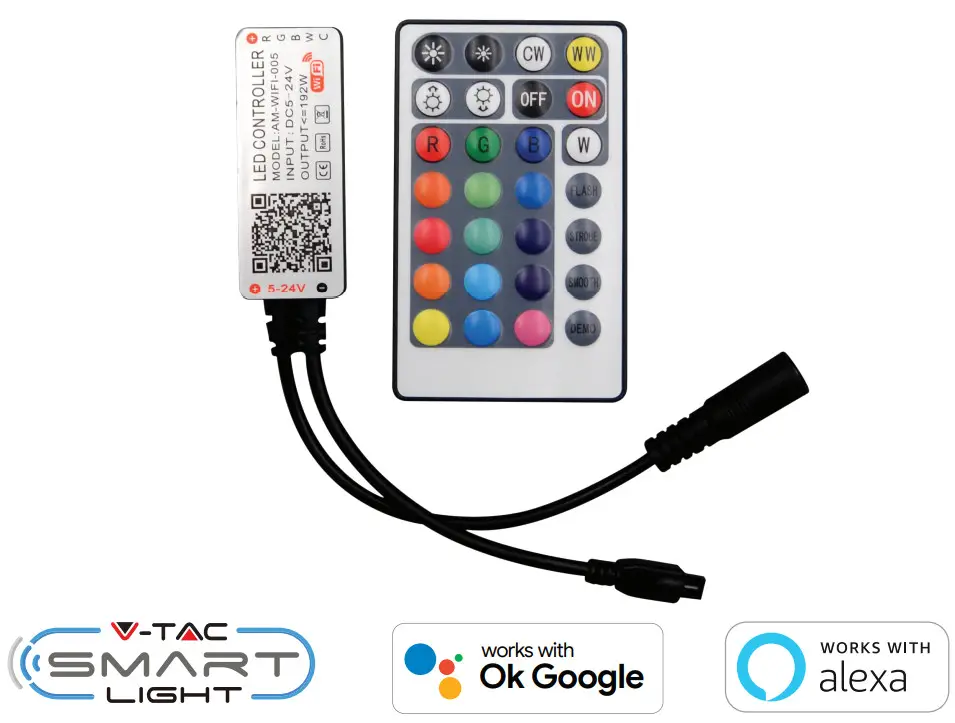
TECHNICAL DATA:
| Model | VT-2429 |
| Output | 5 Channels |
| Output Current | <10A |
| Output Power | 120-144W |
| Input Voltage | DC: 12V/24V |
| Dimension | 59.2x24x10mm |
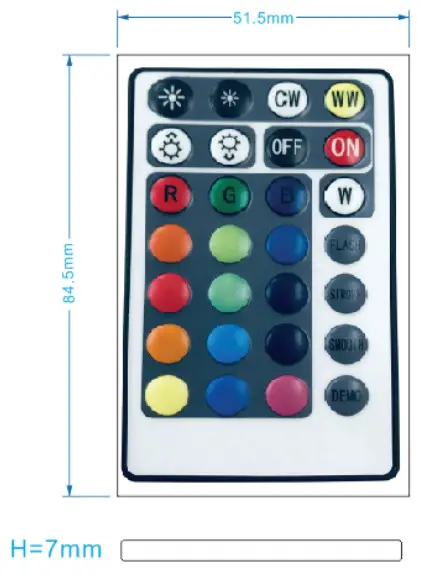
| Remote Size | 51.5×84.5x7mm |
| Connection Mode | Common Anode |
| Network Connection | Powered on& off for 3 times and the light flashes quickly |
INTRODUCTION & WARRANTY

Thank you for selecting and buying V-TAC LED CONTROLLER V-TAC will serve you the best.
Please read these instructions carefully before starting the installation and keep this manual handy for future reference. If you have any other queries, please contact our dealer or local vendor from whom you have purchased the product. They are trained and ready to serve you at their best. The warranty is valid for 2 years from the date of purchase. The warranty does not apply to damage caused by incorrect installation or abnormal wear and tear. The company gives no warranty against damage to any surface due to incorrect removal and installation of the product. The products are suitable for 10-12 Hours of Daily operation. Usage of the product for 24 Hours a day would void the warranty. This product is warranted for manufacturing defects only.
WARNING
- Please make sure to turn off the power before starting the installation.
- Installation must be performed by a cerfied person.
 Caution, risk of electric shock.
 This marking indicates that this product should not be disposed of with other household wastes.

MULTI-LANGUAGE MANUAL QR CODE
Please scan the QR code to access the manual in multiple languages.
REMOTE FUNCTION
| Color temperature brightness+ | Color temperature brightness – | white | Warm colors |
| Static brightness+ Dynamic speed + | Static brightness -Dynamic speed – | Turn off | Turn on |
| Static red | Static green | Static Blue | white (RGB Combination ) |
| Static orange | Static dark green | Static Sapphire blue | 7 colors jump changing |
| Static rose | Static Turquoise blue | Static purple gray | 7 colors breath changing |
| Static goose yellow | Static sky blue | Static dark reddish purple | 7 color fade changing |
| Static yellow | Static cyan | Static purple | Twinkle Flash |
APP INSTALLATION
Step 2: Scan the given QR code, or download “V-TAC Smart Light’ from the App Store (iOS) or the Google Play Store (Android).
 |  |
| https://play.google.com/store/apps/details?id=com.vtac.smartlight | https://itunes.apple.com/cn/app/v-tac-smart-light/id1406697927?l=en&mt=8 |
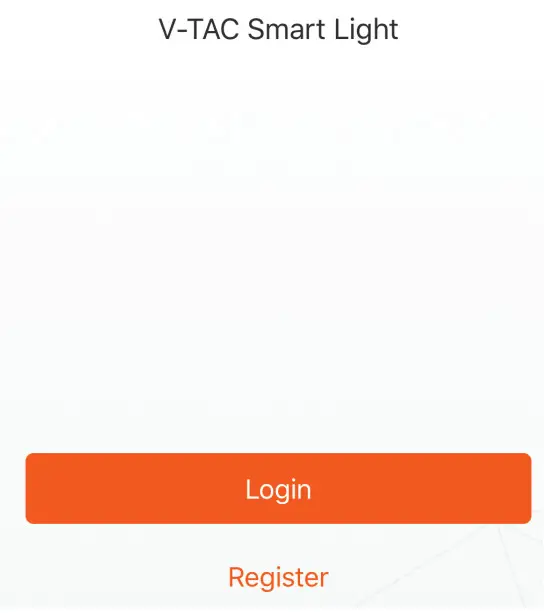
Step 3: Open the V-TAC Smart Light app and tap on the register for creating a new account.
Step 4:
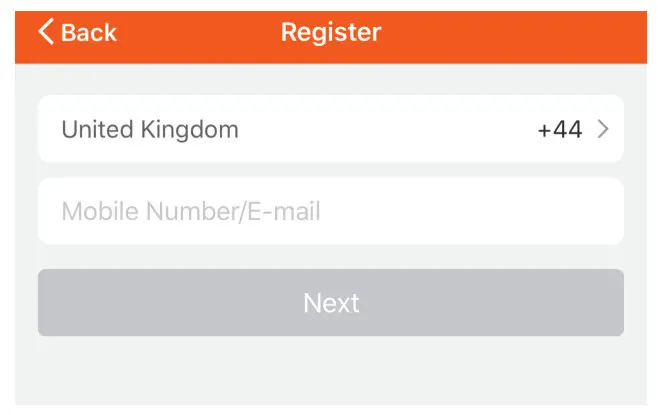
A) Mobile Number: Select the country, then enter your mobile number. Once done, tap ‘Next’.
B) E-Mail: Enter your email id and tap on ‘Next’.
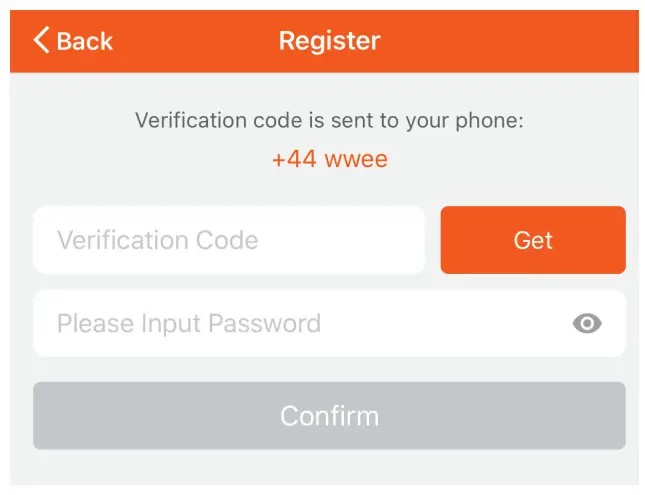
Step 5: Enter the verificaon code which will be sent to your mobile number/email id, then assign a new password to your account and tap on “Confirm”.
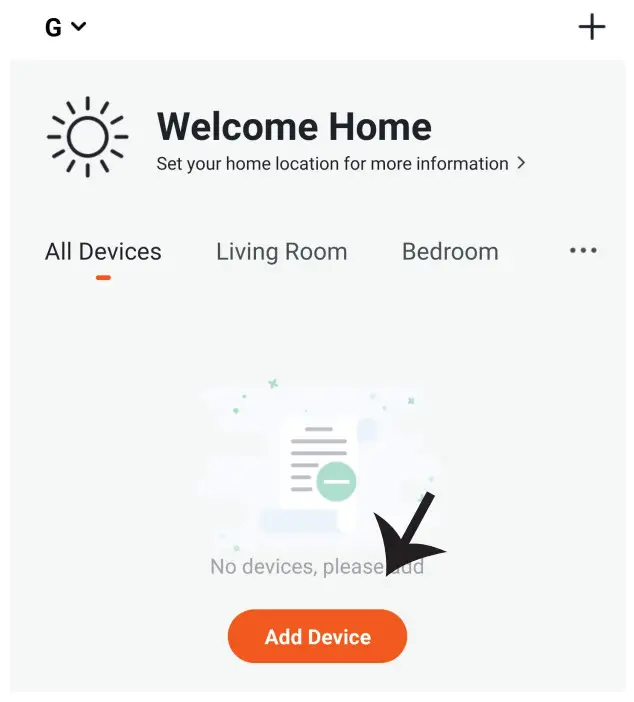
Step 6: Tap on ‘Add Device’ or the + sign.
Make sure the lamp is switched on.
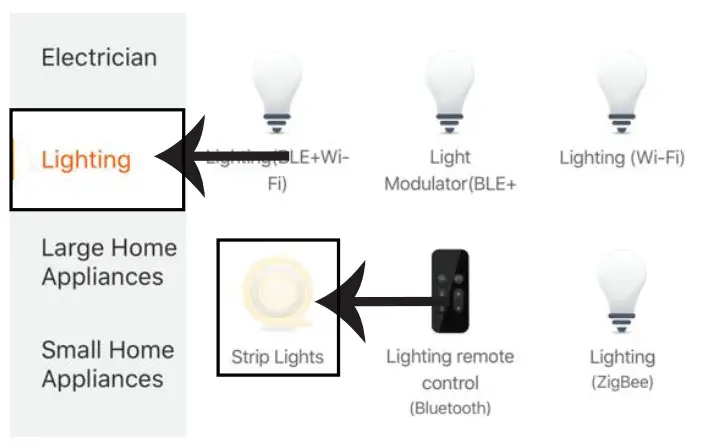
Step 7: Choose ‘Lighting’ to start pairing the light to the app.
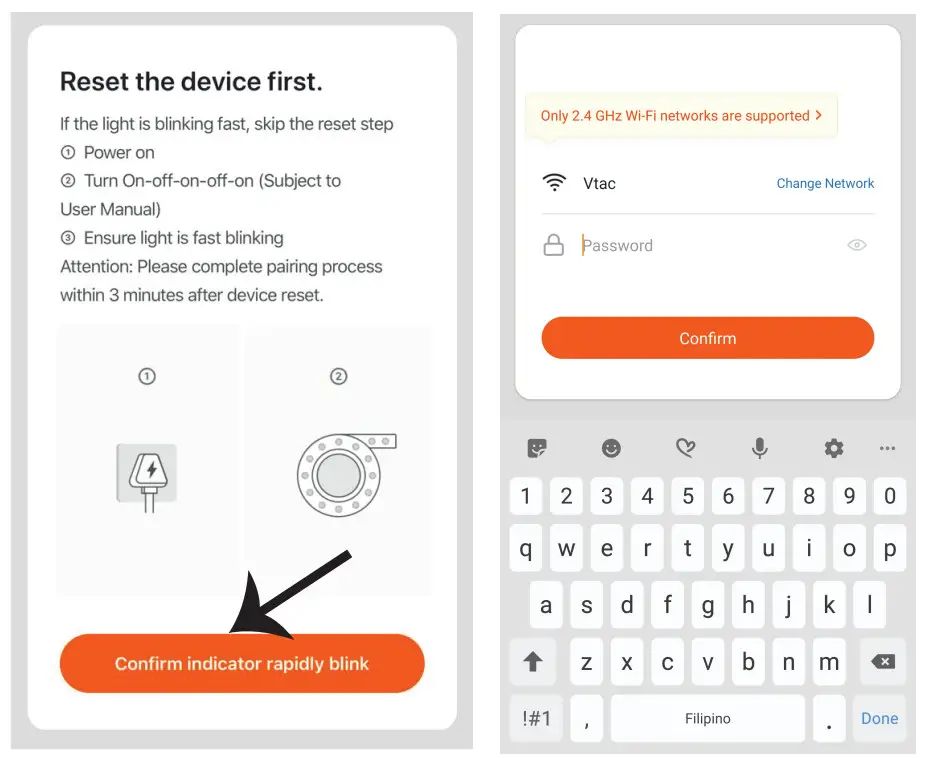
Step 8: To pair the device with LED Smart Strip Light make sure the light is blinks rapidly.
Once the light blinks rapidly, the light is in pairing mode. If the light is not blinking rapidly, you can do one of the following steps:
A. Switch the light on & off repeatedly for 3 times, with short intervals of less than 2 seconds.
B. Tap the ‘How to make the light blink rapidly’ link (as shown on the image to the right)
C. You can also enable pairing mode from the Wi-Fi controller. Press and hold the ON/OFF button for 5-7 seconds and wait for till you observe the light flashing. Please refer to the instruction section “WI-FI CONTROLLER FUNCTIONS”
Network Modes:
- Smart Mode: Light flashes rapidly.
- AP mode: Slow flash, once every 2 seconds.
Confirm if the light blinks rapidly, select the Wi-Fi network, and enter the password.
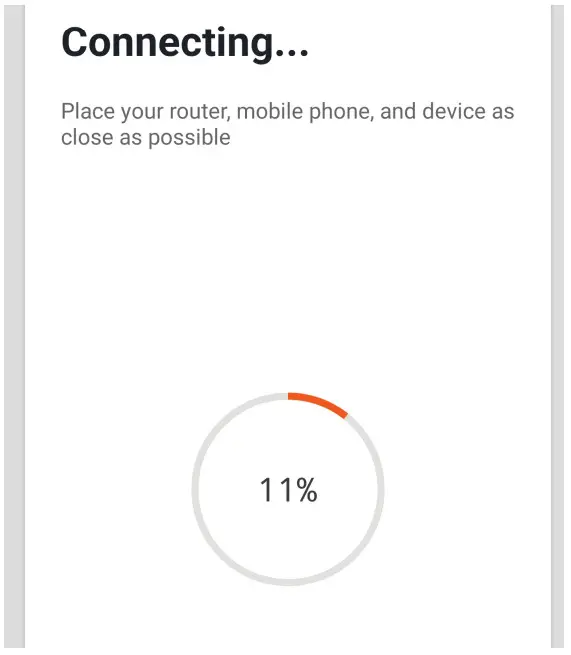
Step 9: Once you have successfully completed step 8, you will be redirected to the below page, where the App searches, registers, and initializes the device(lamp) (ref image below)
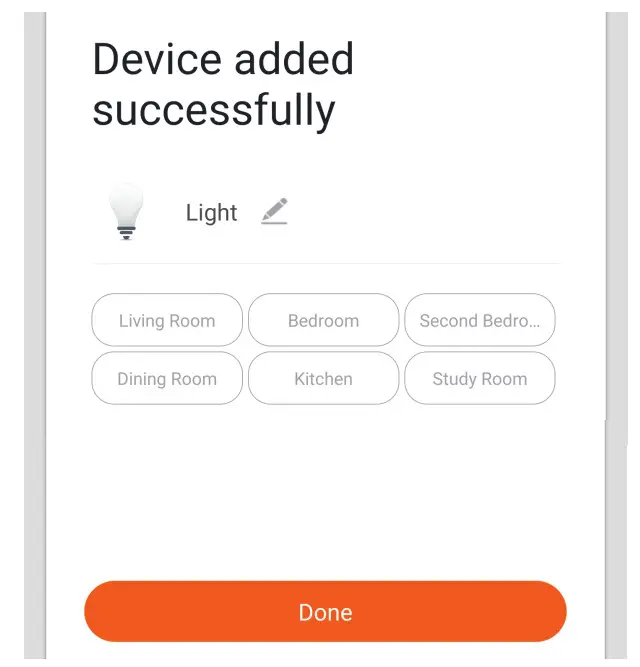
Step 10: Once your device is successfully added, rename the device to your preference.
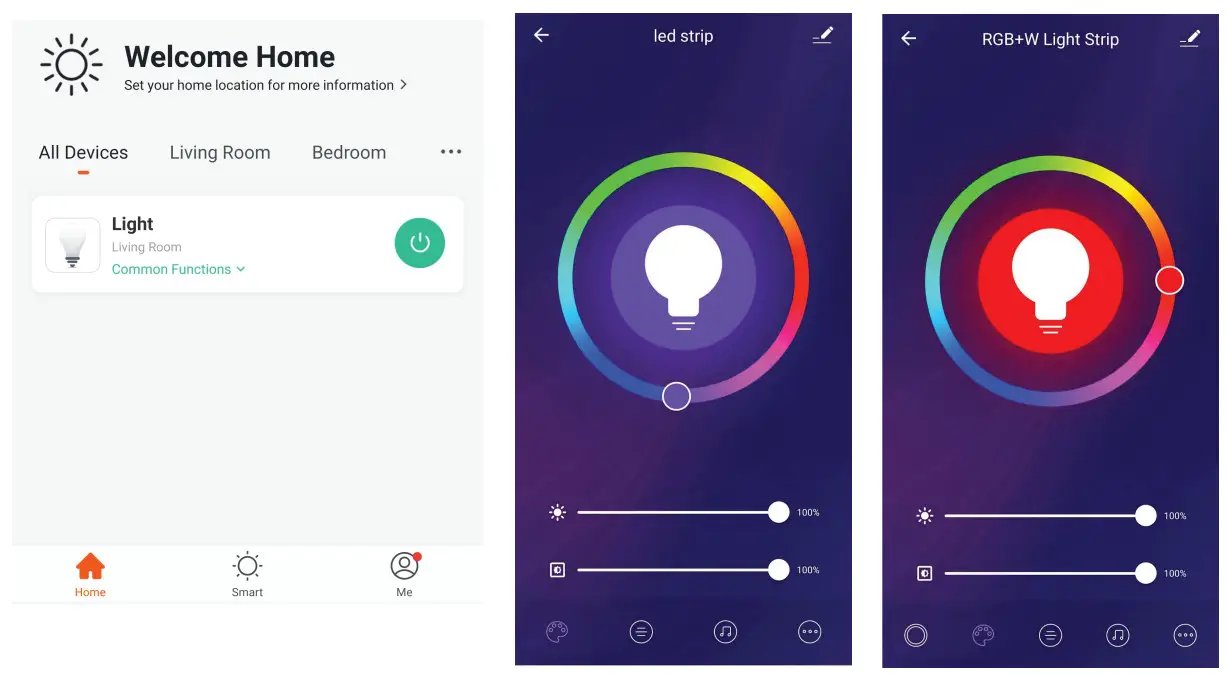
Step 11: After successfully pairing the Wi-Fi receiver with the app, you can start controlling multiple features of the lamp through your mobile– on/off switch, ming & schedules, and more.
ALEXA SETTINGS
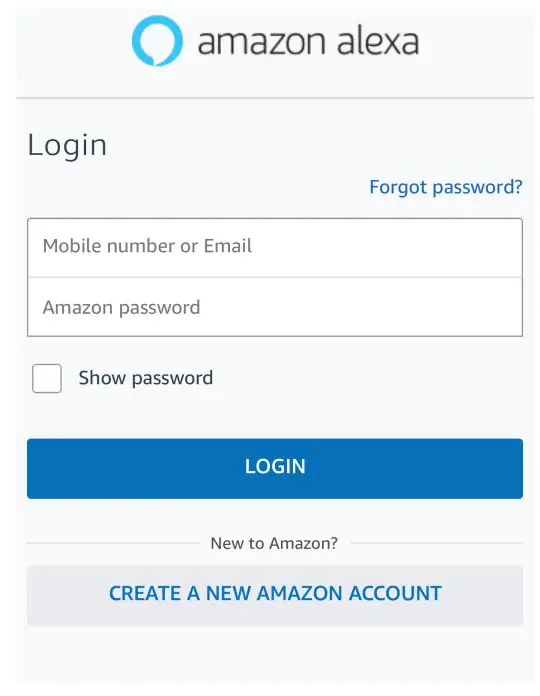
Step1:Install the Amazon Alexa app via the App Store(iOS) or the Play Store (Android) and register. If you already have an existing account with Amazon Alexa, please proceed to log in.
Step2: Once you are on the Amazon Alexa home page, tap on the lower right icon –– where the arrow is pointed–– to add a new device and skill.
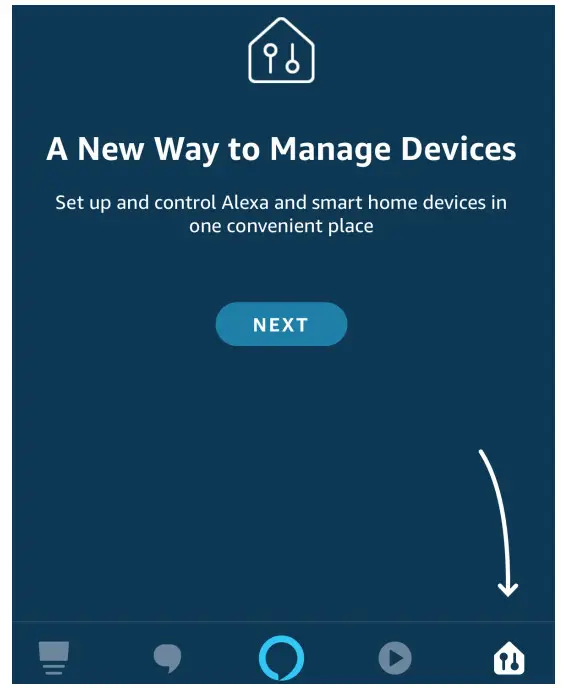
Step3: Tap on  settings and tap on
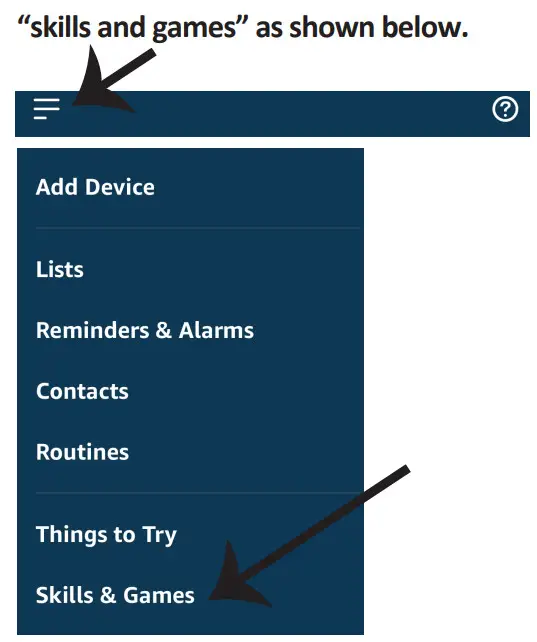
Step4: Search for ‘V-TAC Smart Light’ on the “Skills & Games” page as shown below.
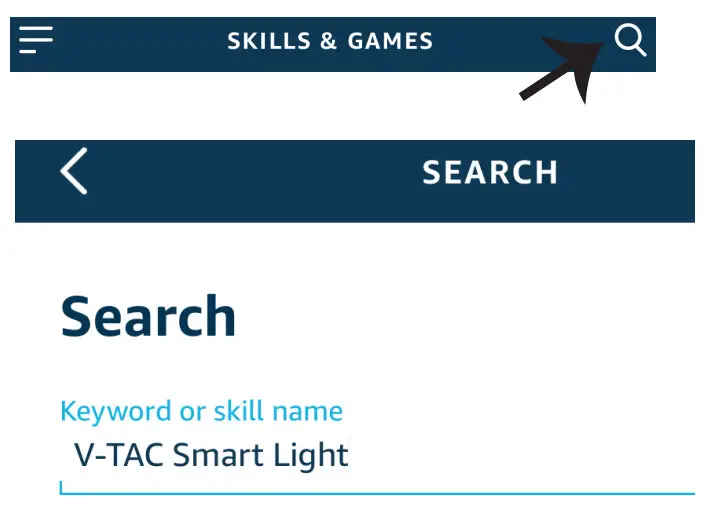
Step5: Enable the Skill.

Step6: Enter your V-TAC Smart Light login ID and password and tap on “Link Now”
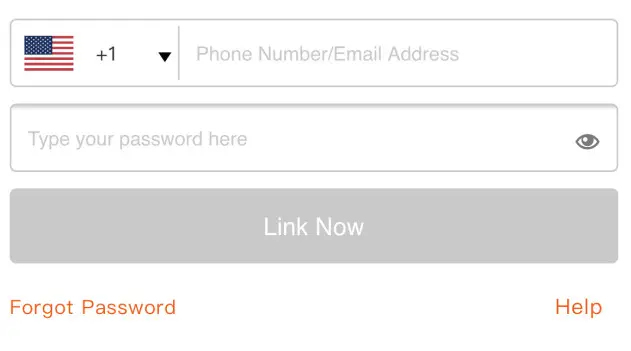
Step7: Once you tap on Link Now, you will be redirected to a new page requesting authorization(Ref Image below).
Tap on “Authorize”
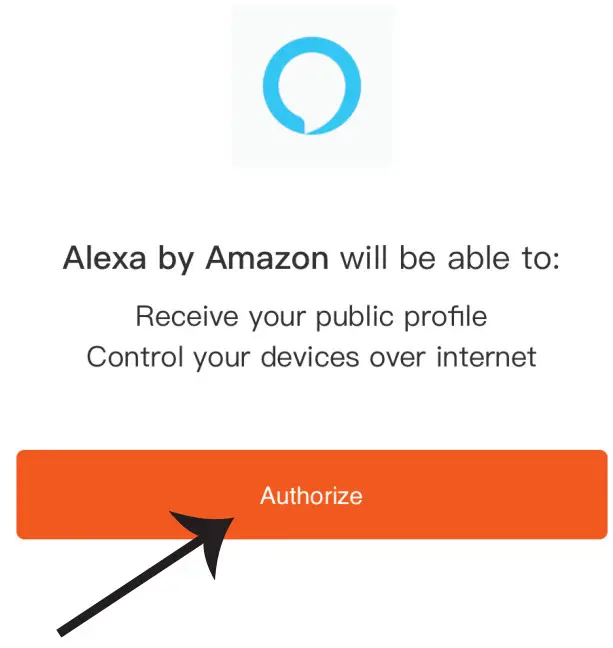
Step8: You will receive confirmaon of the account being linked successfully (Ref Image below)

Step9: Discover your smart device on Alexa. Once you have enabled the skill
A) You can use the voice command ”Alexa discover devices” to the Alexa device which you have.
B) To add the device manually on the home page tap on and tap on Add device, select the device which you are adding and tap on discover device.
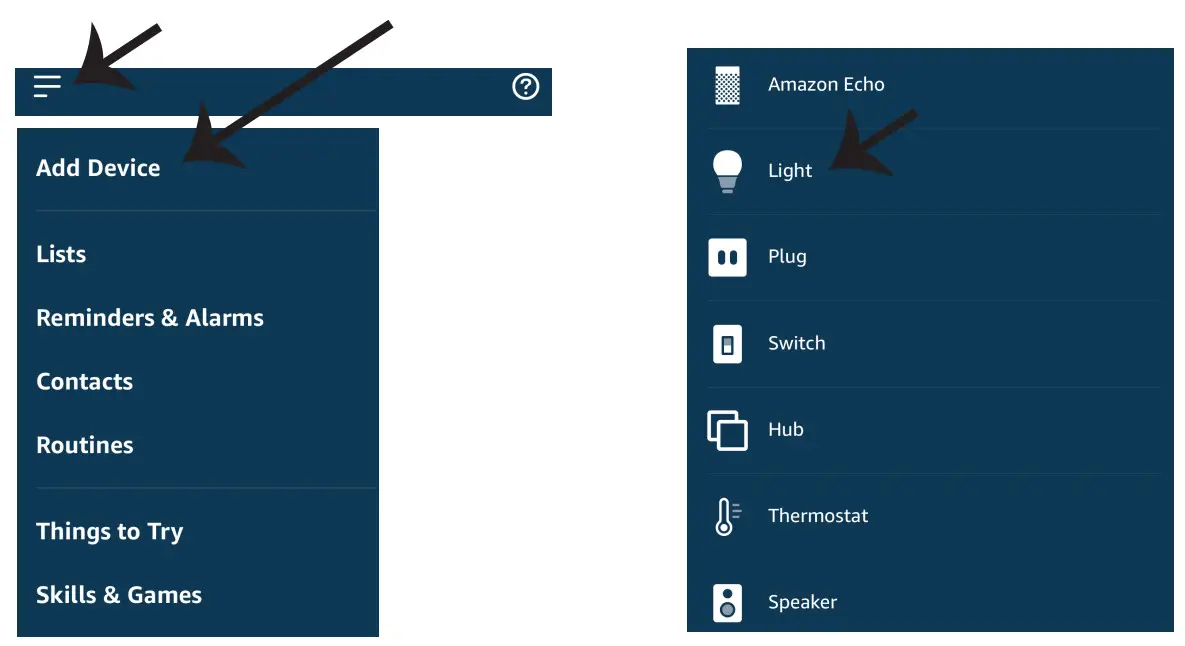
Note: Discovering the device must be done every time the device’s name is changed on the app.
ALEXA Commands
Now, you can control your smart device using voice commands on Alexa. Below are a few commands you can use:
- Alexa, turn on/off the bedroom light.
- Alexa set the bedroom light to 50 percent.
THINGS TO REMEMBER BEFORE STARTING INSTALLATION:
- V-TAC Smart Light App & Amazon Alexa App
- Make sure you have Amazon Alexa Device(including Echo, Echo Tap, or Echo Dot)
- Smart Device – Lamp
- Stable Wifi network
GOOGLE HOME SETTINGS
Step1:
a&b) Install the Google Home app via the App Store (iOS) or the Play Store (Android) and register.
If you already have an existing account with Google Home, please proceed to log in.
c) Create a New Home/Choose from the existing home if any.
d) Power ON the Google Home device and connect it to the App.(Then Proceed to step 2)
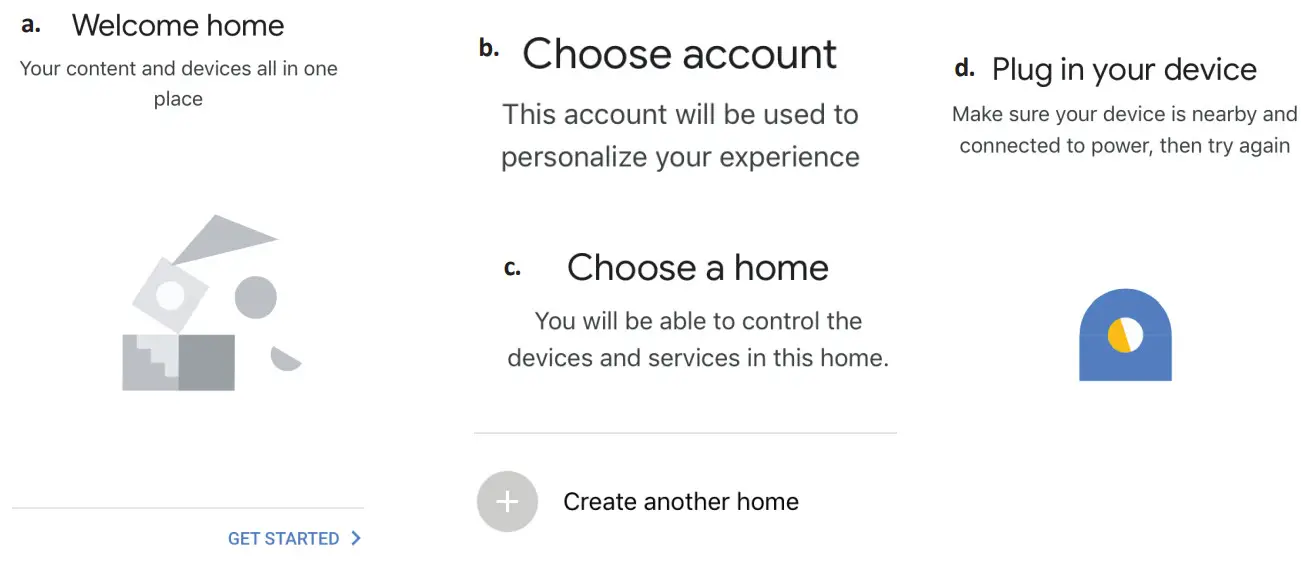
Step2: Once you are on the Google home page, tap on the Add “+” icon– to add a new device and skill. And then tap on Set up the device as shown in the below image.
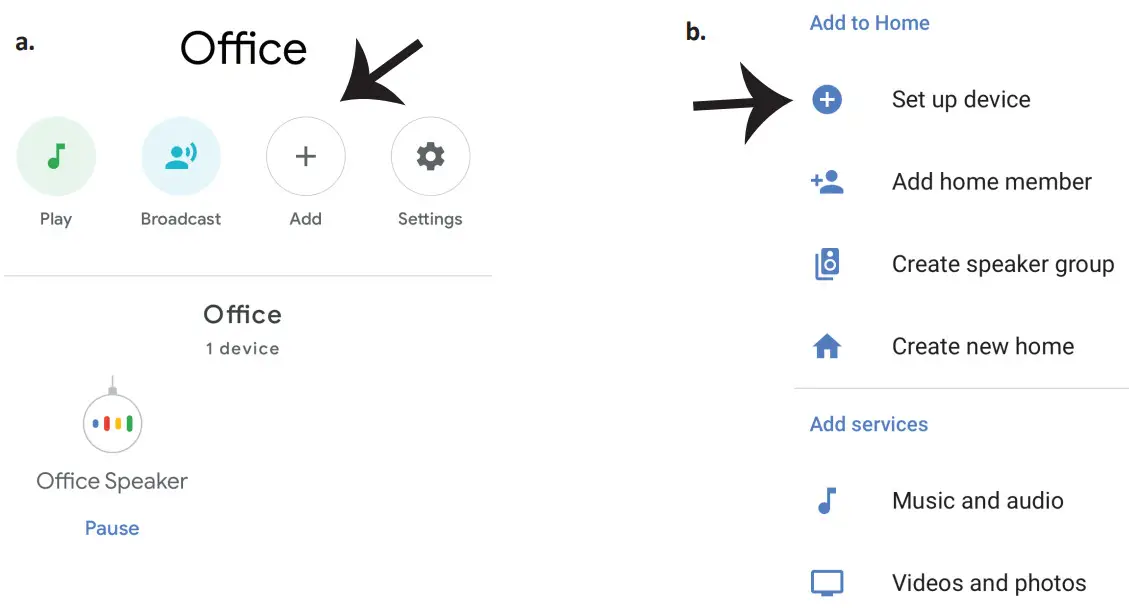
Step3: Make sure the Smart Bulb is paired with the V-TAC Smart Light app before starting step 3. Tap on the arrow second as highlighted in the below image.
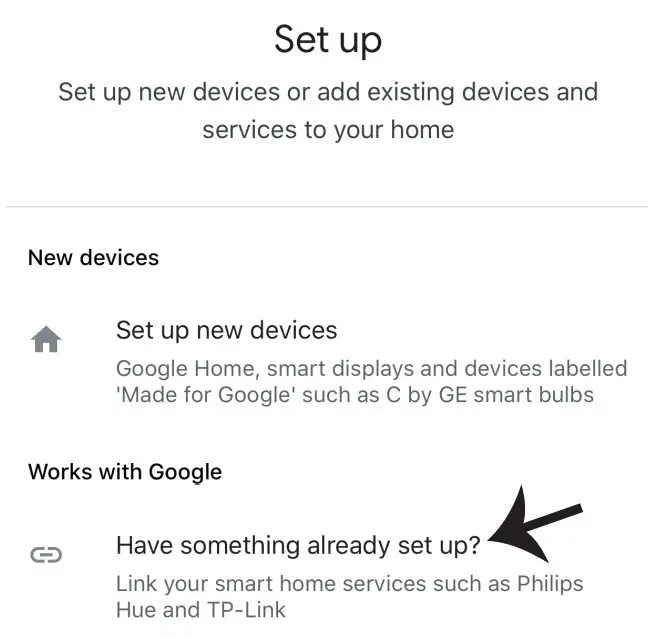
Step4: Type “V-TAC Smart Light” on the search bar and tap on the icon of “V-TAC Smart Light”

Step5: Sign In with your V-TAC Smart Light Login credentials to Link the Smart Light device
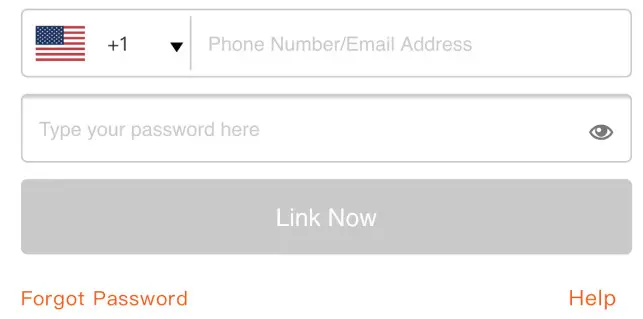
Step6: Tap on Authorize in order to proceed to link the device.
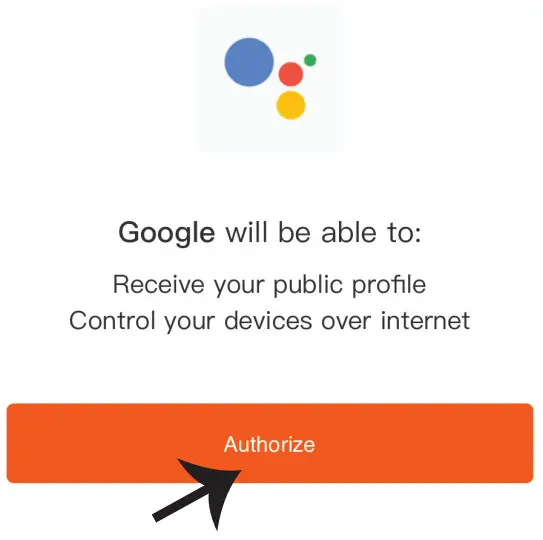
Step7
a. Account will now be linked, please stay on the page you will be redirected in a few seconds to select the device to add to your home.
b. Select the device and tap on Next as shown in image b.
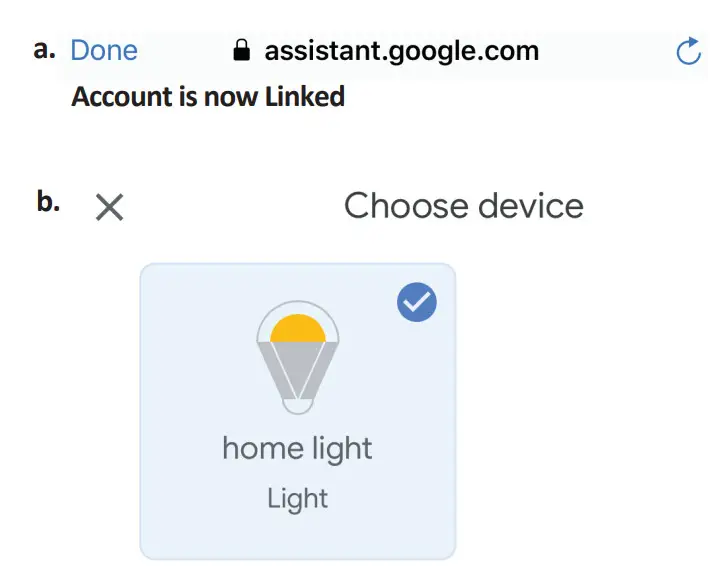
Step8: Select the Home where you would like to add the Smart Light under. (Or) you can create a new home in order to add the Smart Light to it.
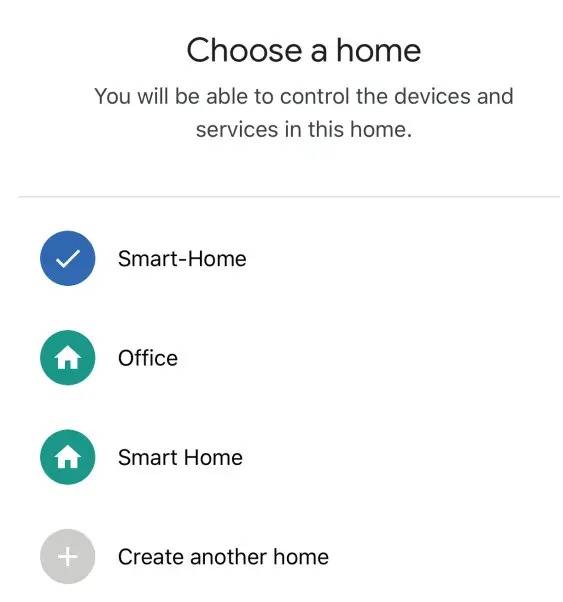
Step9: You have successfully added the Smart Light device to your Google Home App.
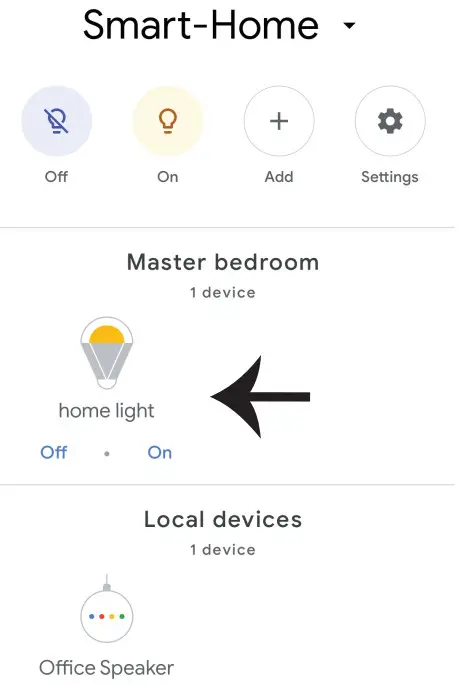
Step10:
a. You can turn the Lamp On/OFF by taping on the On/Off options as shown below. (OR) You can tap on the Smart Lamp.
b. You will be redirected to the page(as shown in image b) where you can control the lights “Power and Dimmingfunconality”.
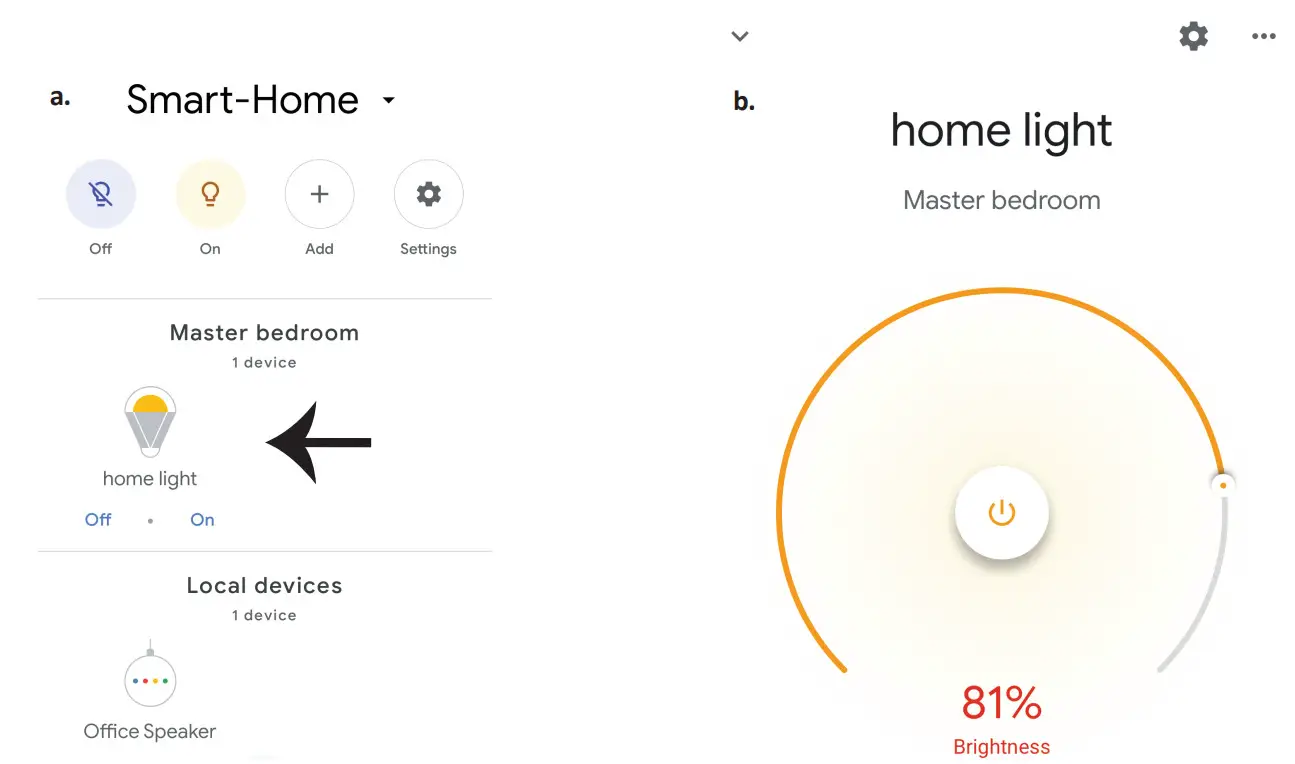
Google Commands:
Now, you can control your smart device using voice commands on Google Home. Below are a few commands you can use:
- OK Google, turn on/off the bedroom light
- OK Google, set the bedroom light to 50 percent.
THINGS TO REMEMBER BEFORE STARTING INSTALLATION:
- V-TAC Smart Light App & Google Home App=
- Make sure you have Google Home Device
- Smart Device – Lamp
- Stable Wifi network
IN CASE OF ANY QUERY/ISSUE WITH THE PRODUCT, PLEASE REACH OUT TO US AT: [email protected] FOR MORE PRODUCTS RANGE, INQUIRY PLEASE CONTACT OUR DISTRIBUTOR OR NEAREST DEALERS. V-TAC EUROPE LTD. BULGARIA, PLOVDIV 4000, BUL.L.KARAVELOW 9B
 TAC.EU