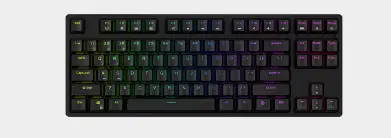
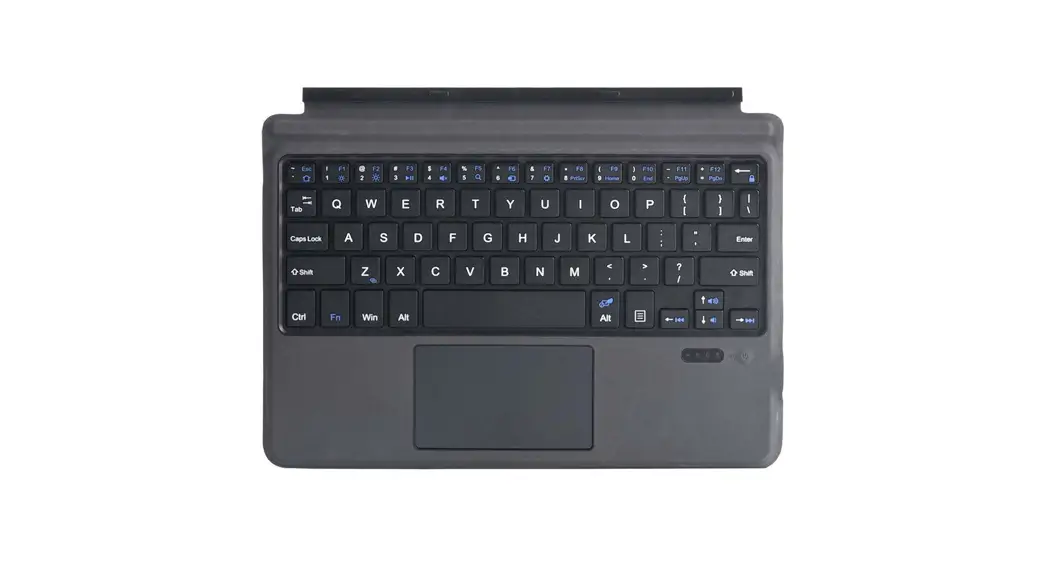
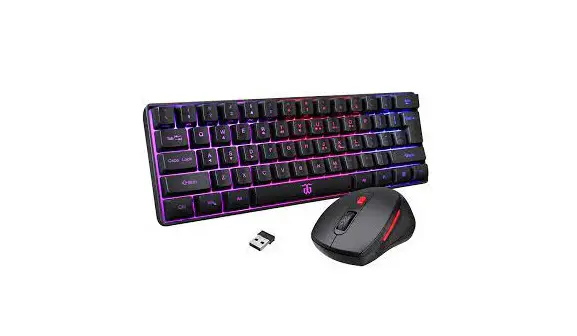
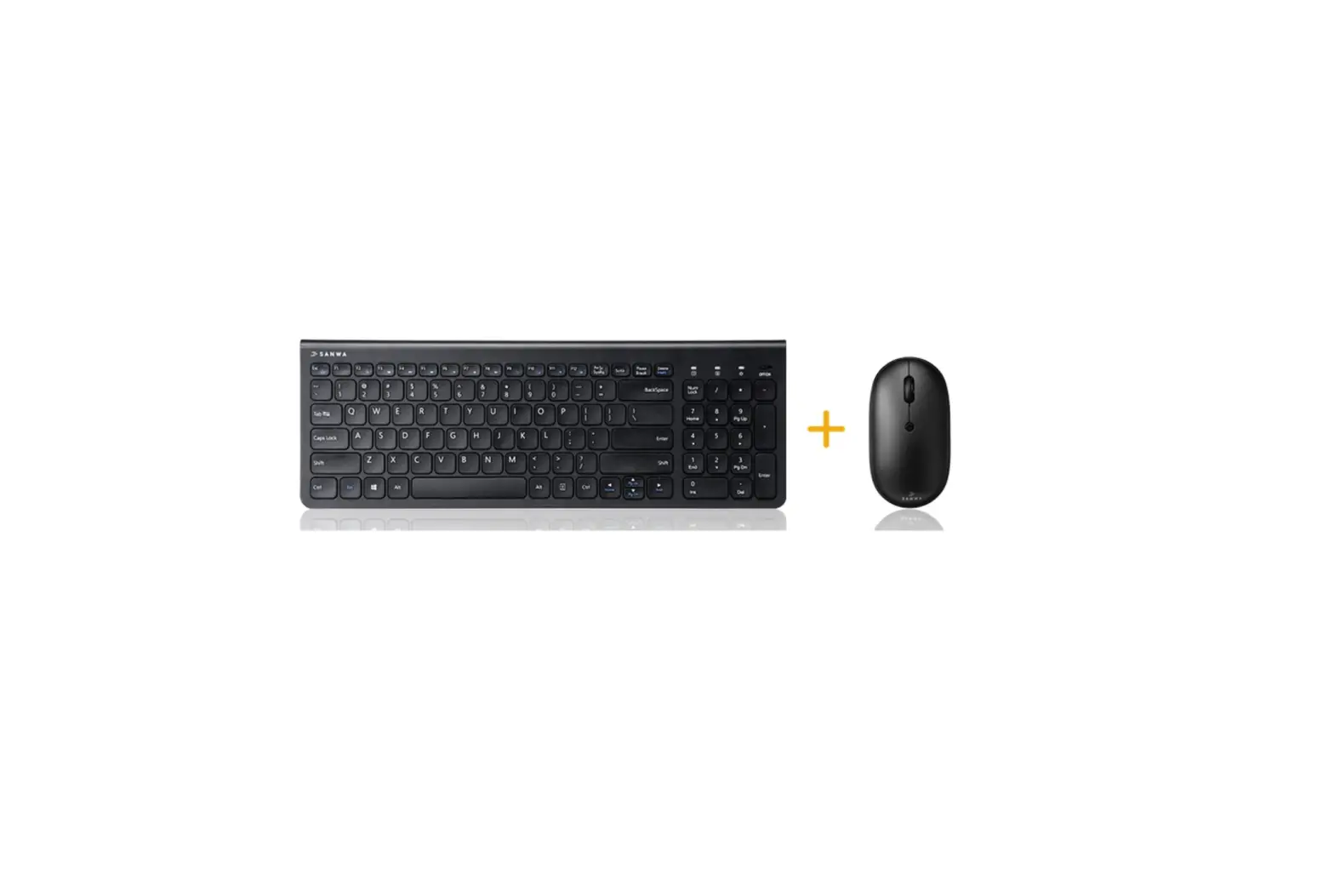
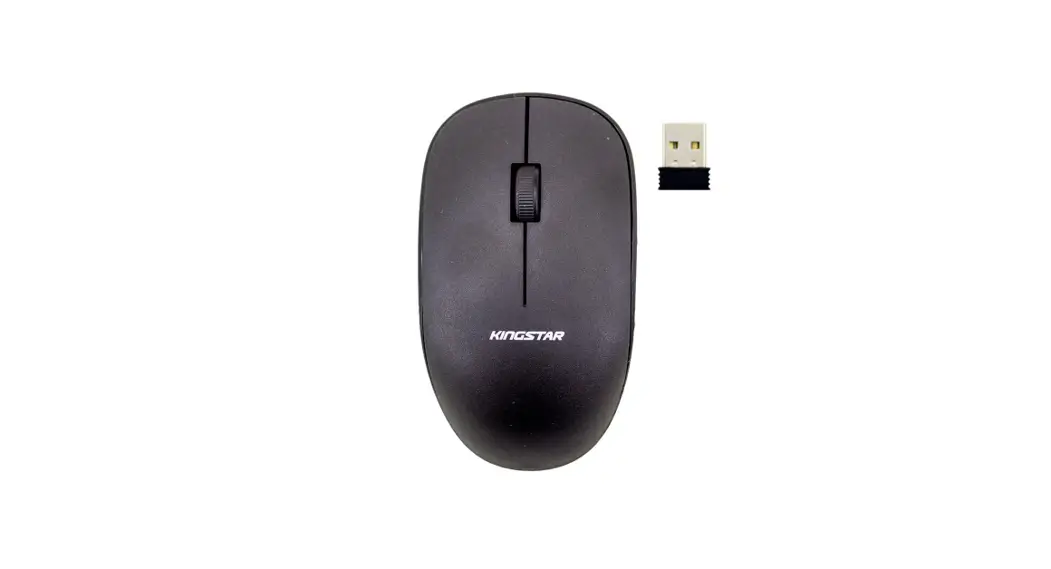
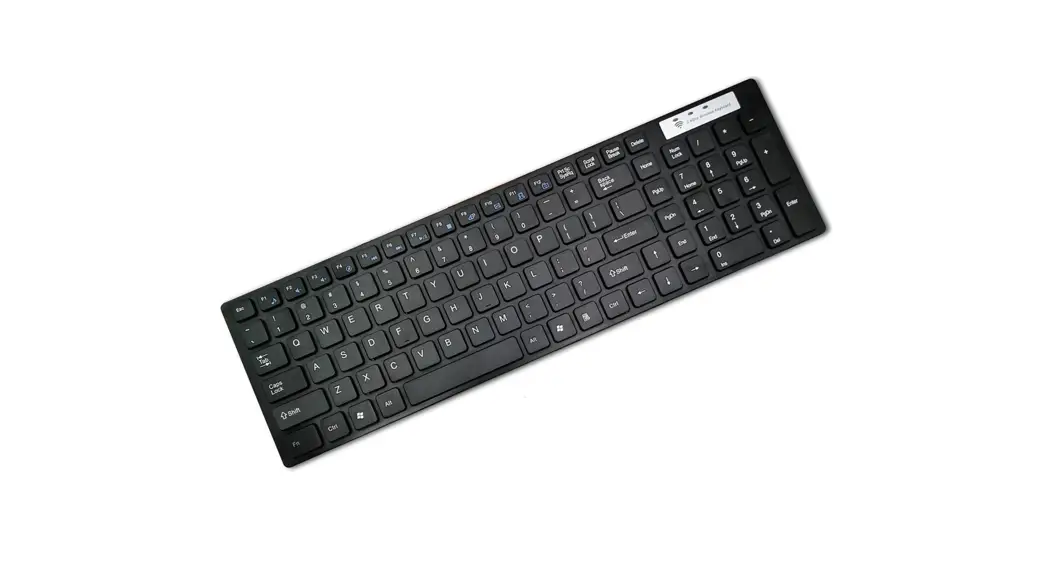
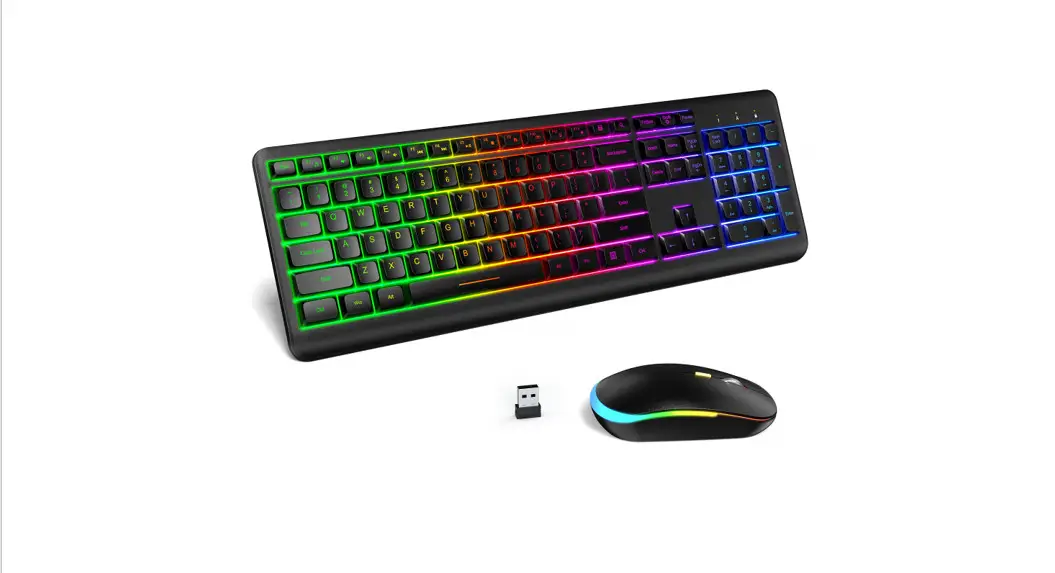
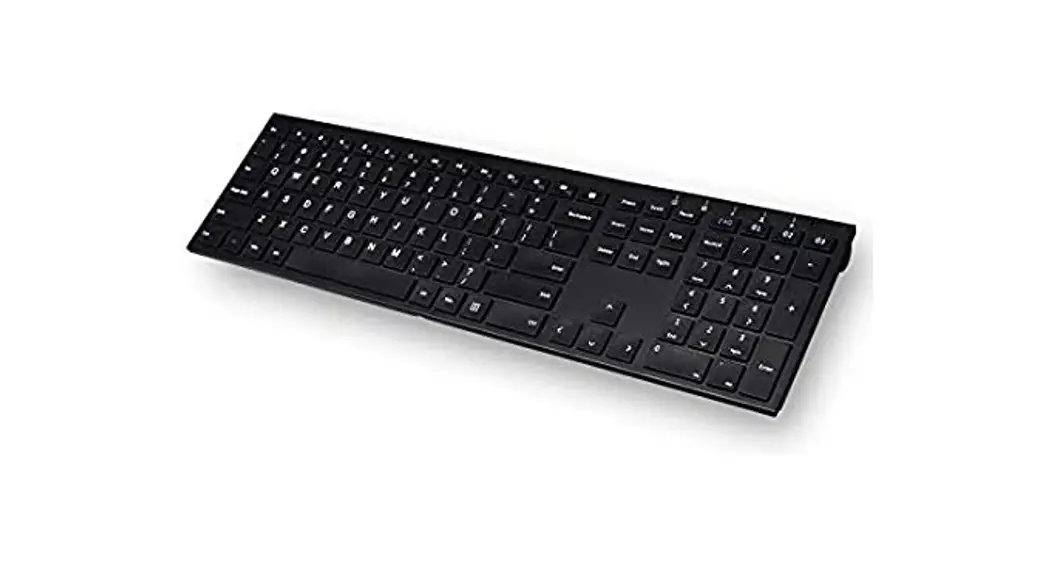
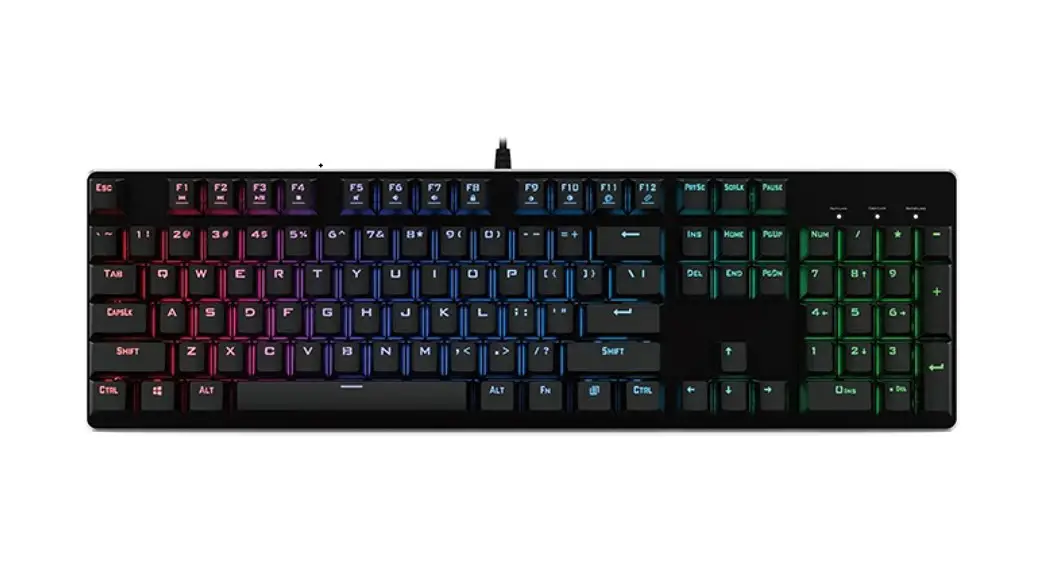
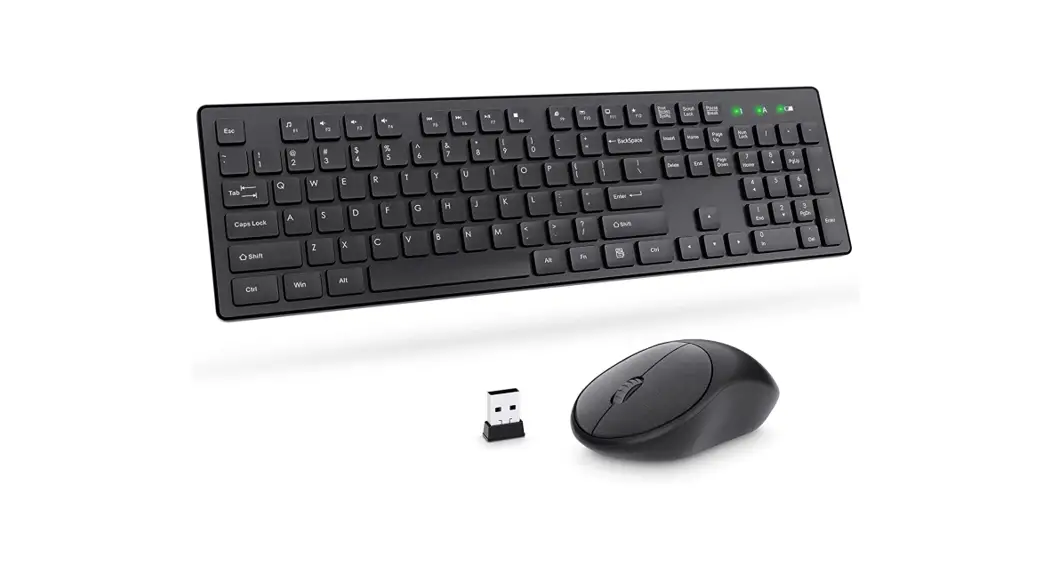
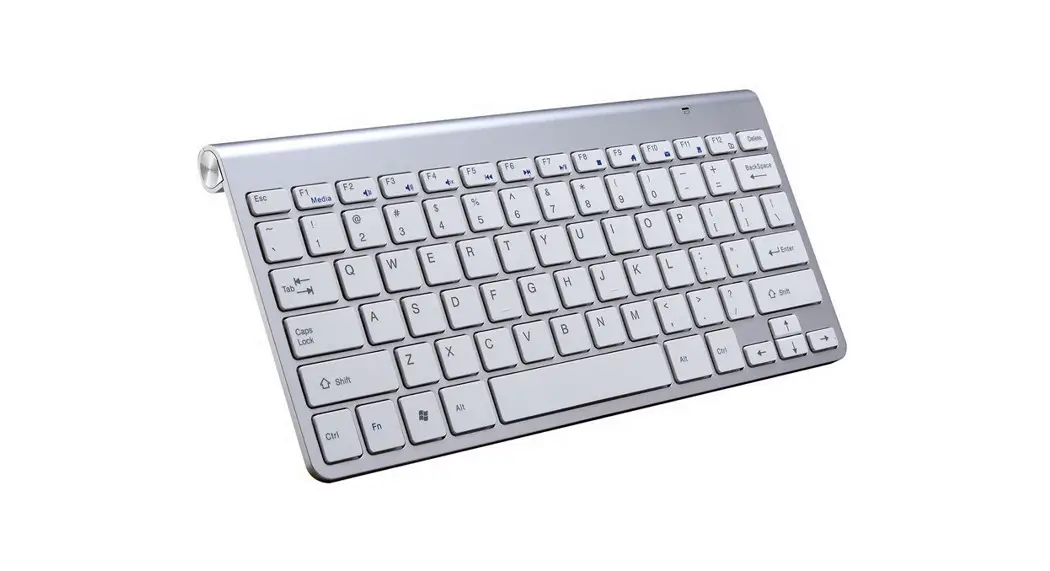
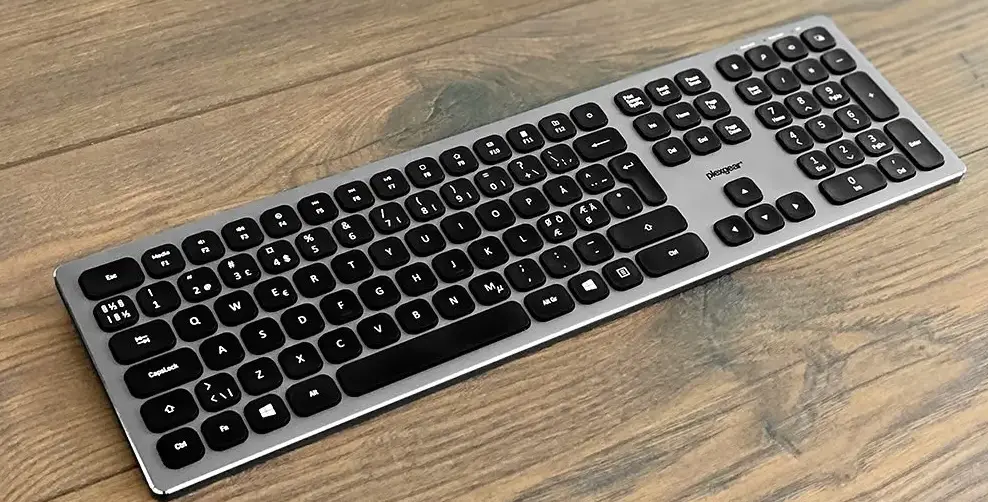
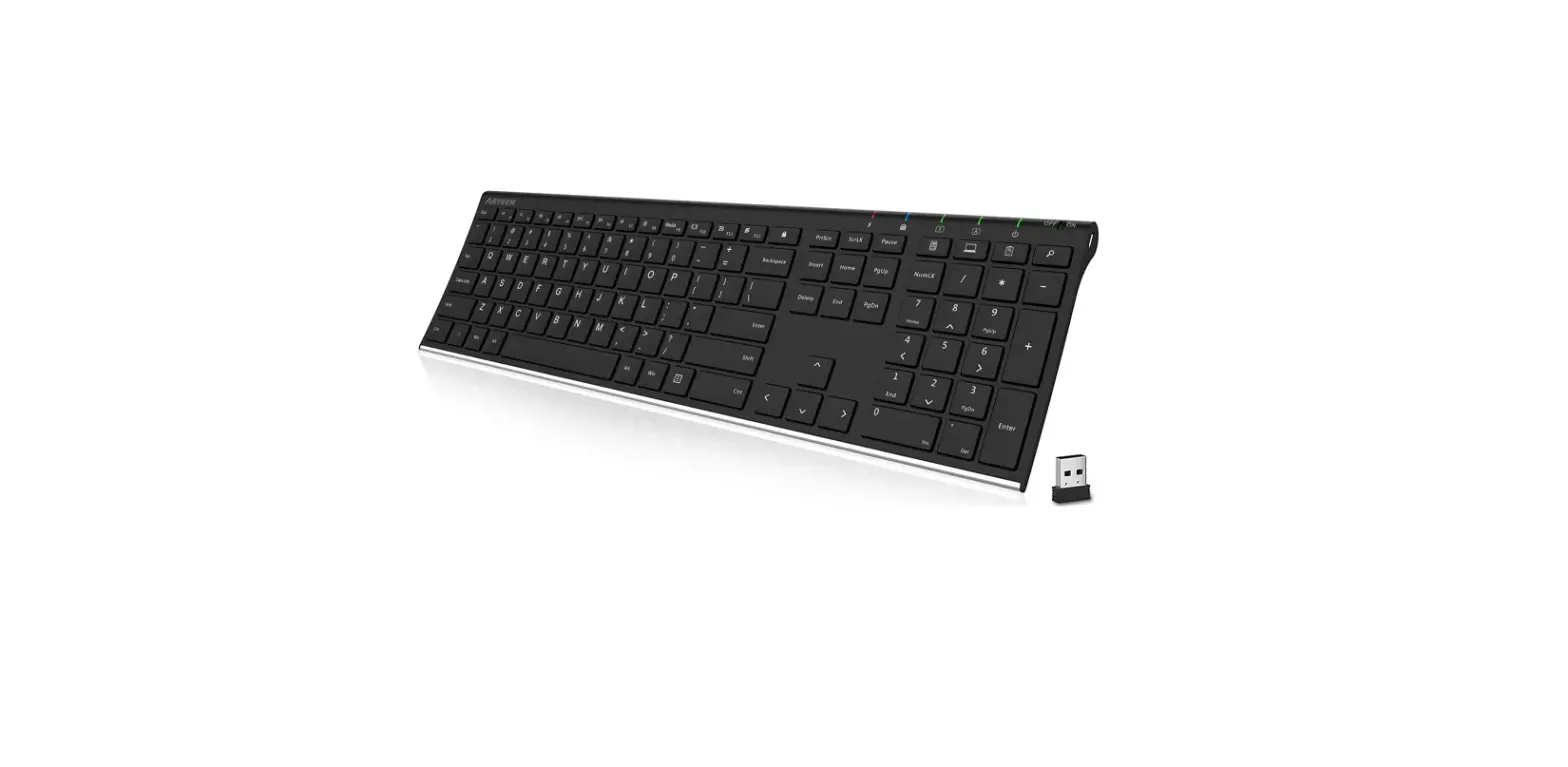
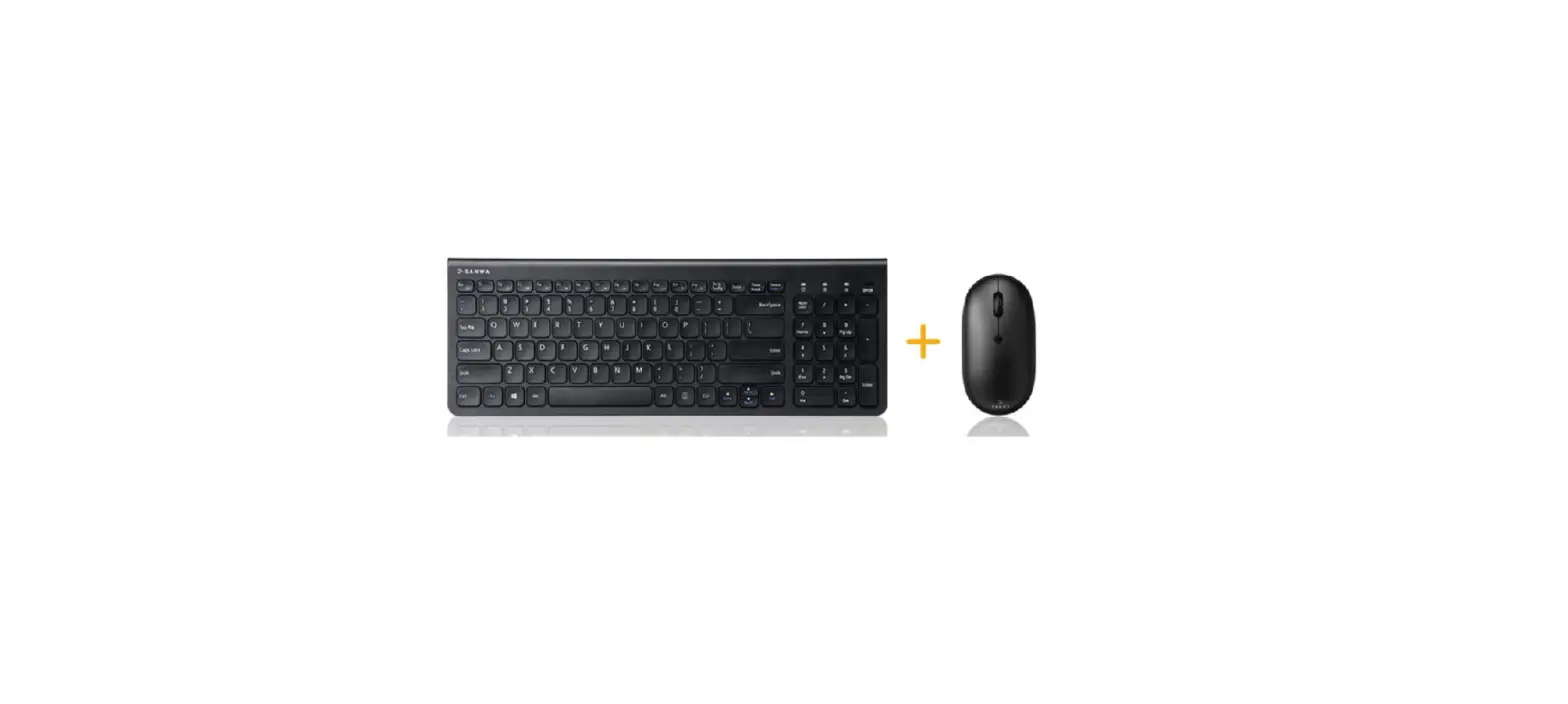
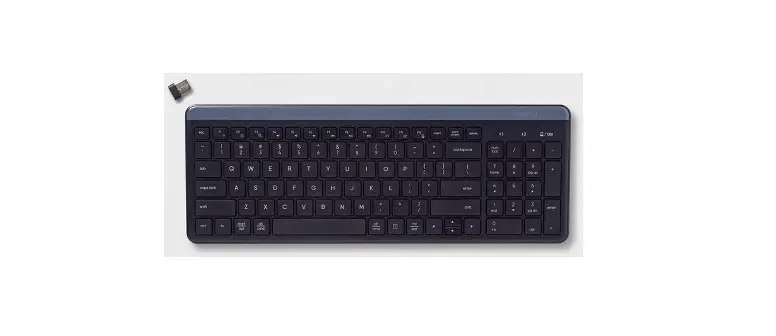
KM202K 2.4G Wireless Keyboard
Product Information: 2.4G Keyboard Instructions (v7.0)
The 2.4G Keyboard is a wireless keyboard that operates on a
2.4GHz frequency. The keyboard is designed to be functional and
easy to use, with a low voltage indicator that alerts users when
the battery needs to be replaced. The device has been evaluated to
meet general RF exposure requirements and can be used in portable
exposure conditions without restriction.
Functional Description
The device has a timer that automatically turns off the keyboard
after 5 seconds of inactivity. If any button remains pressed for 5
seconds after the timer turns off, the light will go out. After the
low voltage indicator reaches the set value, it starts flashing 5
times. When a button is pressed, the timer will be reset for 5
seconds until the battery is depleted.
FCC Warning
The device complies with FCC guidelines regarding RF exposure
and can be used without restriction in portable exposure
conditions.
Product Usage Instructions
To use the 2.4G Keyboard, first ensure that the device is turned
on and the battery has sufficient charge. The low voltage indicator
will flash 5 times when the battery is low and needs to be
replaced.
To type on the keyboard, press the desired keys. The keyboard
will automatically turn off after 5 seconds of inactivity to
conserve battery power. If any key remains pressed for 5 seconds
after the timer turns off, the light will go out.
If the low voltage indicator starts flashing, replace the
battery as soon as possible to ensure continued use of the
keyboard.
2.4G Keyboard Instructions (v7.0)
Product Overview 1. Compatible with USB1.1/2.0 specifications, can assist USB-IF and WHQL 2. High quality BK2425 RF, 16 channel adaptive frequency hopping operation, stable/low power consumption/strong anti-interference ability, directionless 3. Ultra low power design (working=0.7mA, sleep=3uA) 4. Supports 8 * 18 matrices and multiple language versions 5. Can support 18 standard multimedia functions 6. Support CAPS LOCK, NUM LOCK indicator lights, and synchronize LED status with the host 7. Built in maintenance mode for easy detection and repair of defective products 8. Support computer sleep wake-up and self sleep wake-up 9. Intelligent multi-level energy-saving design 10. Support Mouse/Keyboard package mode Code matching instructions Method 1: Combination key pairing Press the “ESC”+”+/=” keys simultaneously for 1 second, and the keyboard will enter the code matching mode (the low voltage indicator light will remain on). Insert the receiver within 20 seconds Successfully matched the code, the LED will immediately turn off; Code matching failed. After 20s, the keyboard exited code matching mode and the LED went out Method 2: Code matching key Press the code matching key, the keyboard enters code matching mode (the low voltage indicator light remains on), and the receiver is inserted within 20s. Successfully matched the code, the LED will immediately turn off Extinguish; Code matching failed. After 20s, the keyboard exited code matching mode and the LED went out Method 3: Software Code Matching Open the code checking software, insert the receiver into the USB interface, and automatically enter the code checking mode. Within 20s, press the keyboard code checking key or press “ESC”+ Press the “+/=” key for 1 second to match the code. If the match is successful, the software will display<Keyboard match successful>; Otherwise, the code matching mode will be launched after 20s. 2.4G wireless keyboard Ver7.0
Functional description
1 Low voltage LED light: used to indicate low voltage and code checking status; At the same time, it can be used to indicate the problem points of defective products during maintenance 1. Code matching status indicator – When the keyboard enters code matching mode, the low voltage LED remains on. If the code matching is successful, the low voltage LED goes out 2. Low voltage status indication – When the battery is at low voltage, the low voltage LED flashes, the voltage is normal, and the low voltage LED goes out 3. Indication of abnormal functional status: 1) Under normal circumstances – when powered on, the indicator light turns on once and then goes off 2) Indicator light not on – MCU not working 3) Indicator light constantly on – RF not working or eeprom not working **Numlock+Caps 2 LED statuses can be synchronized with the host When the Numlock/Caps function is turned on, the LED lights up and indicates 5 seconds. If a button is pressed within 5 seconds, the timer will be reset for 5 seconds Seconds (the button will turn off 5 seconds after being released), and if any button remains on for 5 seconds after the light goes out Note: After the low voltage indicator reaches the set value, it starts flashing 5 times. When a button is pressed, the timer will be reset for 5 seconds until the battery is depleted 2.4G Keyboard Instructions (v7.0) Product Overview 1. Compatible with USB1.1/2.0 specifications, can assist USB-IF and WHQL 2. High quality BK2425 RF, 16 channel adaptive frequency hopping operation, stable/low power consumption/strong anti-interference ability, directionless 3. Ultra low power design (working=0.7mA, sleep=3uA) 4. Supports 8 * 18 matrices and multiple language versions 5. Can support 18 standard multimedia functions 6. Support CAPS LOCK, NUM LOCK indicator lights, and synchronize LED status with the host 7. Built in maintenance mode for easy detection and repair of defective products 8. Support computer sleep wake-up and self sleep wake-up 9. Intelligent multi-level energy-saving design 10. Support Mouse/Keyboard package mode Code matching instructions Method 1: Combination key pairing
Press the “ESC”+”+/=” keys simultaneously for 1 second, and the keyboard will enter the code matching mode (the low voltage indicator light will remain on). Insert the receiver within 20 seconds Successfully matched the code, the LED will immediately turn off; Code matching failed. After 20s, the keyboard exited code matching mode and the LED went out Method 2: Code matching key Press the code matching key, the keyboard enters code matching mode (the low voltage indicator light remains on), and the receiver is inserted within 20s. Successfully matched the code, the LED will immediately turn off Extinguish; Code matching failed. After 20s, the keyboard exited code matching mode and the LED went out Method 3: Software Code Matching Open the code checking software, insert the receiver into the USB interface, and automatically enter the code checking mode. Within 20s, press the keyboard code checking key or press “ESC”+ Press the “+/=” key for 1 second to match the code. If the match is successful, the software will display<Keyboard match successful>; Otherwise, the code matching mode will be launched after 20s. 2.4G wireless keyboard Ver7.0
Functional description 1 Low voltage LED light: used to indicate low voltage and code checking status; At the same time, it can be used to indicate the problem points of defective products during maintenance 1. Code matching status indicator – When the keyboard enters code matching mode, the low voltage LED remains on. If the code matching is successful, the low voltage LED goes out 2. Low voltage status indication – When the battery is at low voltage, the low voltage LED flashes, the voltage is normal, and the low voltage LED goes out 3. Indication of abnormal functional status: 1) Under normal circumstances – when powered on, the indicator light turns on once and then goes off 2) Indicator light not on – MCU not working 3) Indicator light constantly on – RF not working or eeprom not working **Numlock+Caps 2 LED statuses can be synchronized with the host When the Numlock/Caps function is turned on, the LED lights up and indicates 5 seconds. If a button is pressed within 5 seconds, the timer will be reset for 5 seconds
Seconds (the button will turn off 5 seconds after being released), and if any button remains on for 5 seconds after the light goes out Note: After the low voltage indicator reaches the set value, it starts flashing 5 times. When a button is pressed, the timer will be reset for 5 seconds until the battery is
FCC Warning
This device complies with part 15 of the FCC Rules. Operation is subject to the following two conditions: (1) This device may not cause harmful interference, and (2) this device must accept any interference received, including interference that may cause undesired operation. Any Changes or modifications not expressly approved by the party responsible for compliance could void the user’s authority to operate the equipment. Note: This equipment has been tested and found to comply with the limits for a Class B digital device, pursuant to part 15 of the FCC Rules. These limits are designed to provide reasonable protection against harmful interference in a residential installation. This equipment generates uses and can radiate radio frequency energy and, if not installed and used in accordance with the instructions, may cause harmful interference to radio communications. However, there is no guarantee that interference will not occur in a particular installation. If this equipment does cause harmful interference to radio or television reception, which can be determined by turning the equipment off and on, the user is encouraged to try to correct the interference by one or more of the following measures: -Reorient or relocate the receiving antenna. -Increase the separation between the equipment and receiver. -Connect the equipment into an outlet on a circuit different from that to which the receiver is connected. -Consult the dealer or an experienced radio/TV technician for help.
The device has been evaluated to meet general RF exposure requirement. The device can be used in
portable exposure condition without restriction. depleted