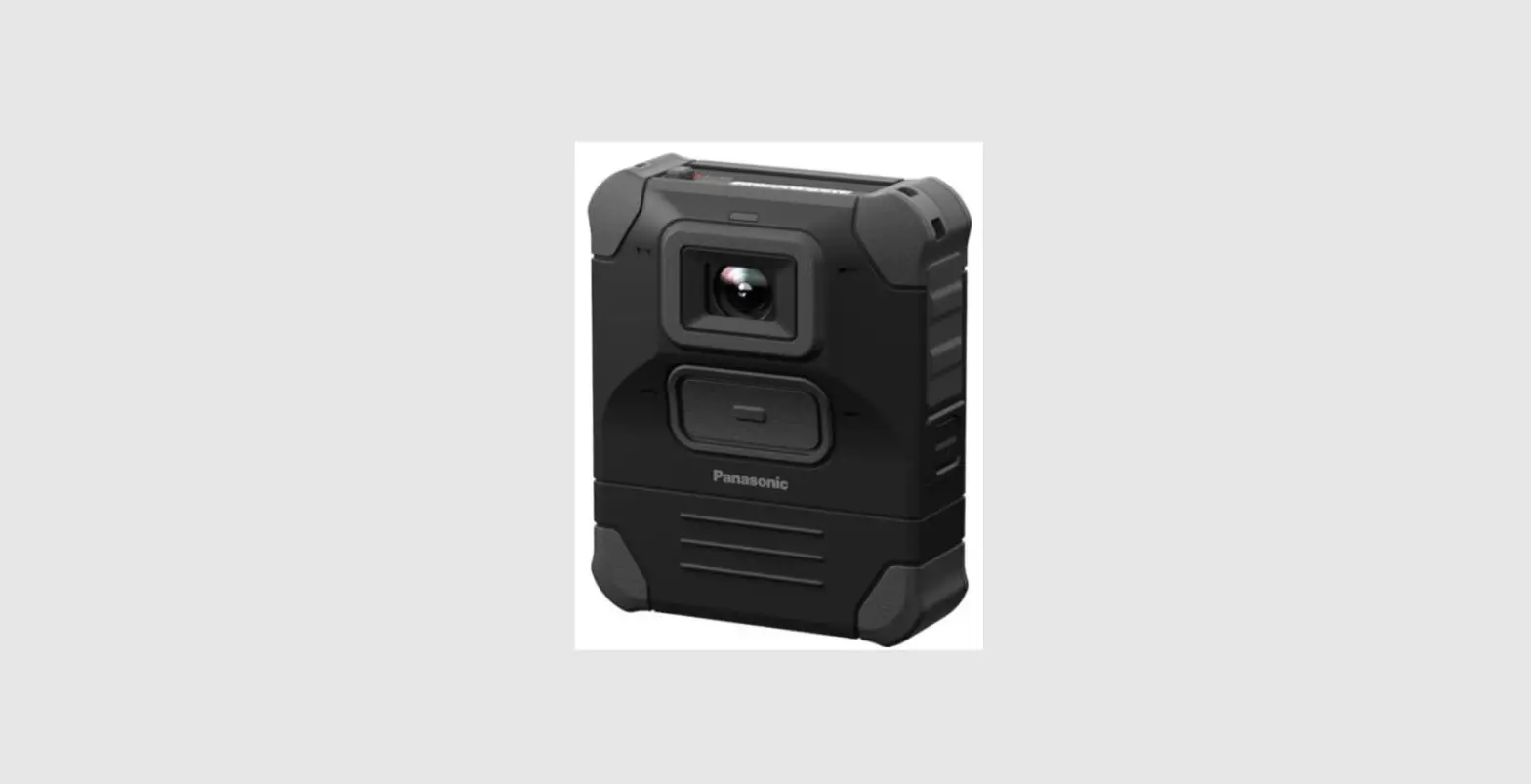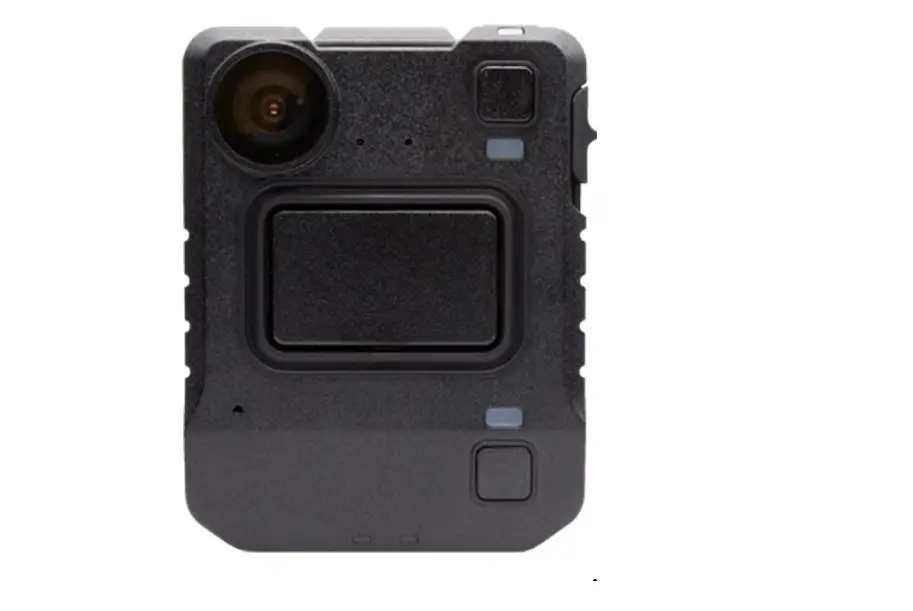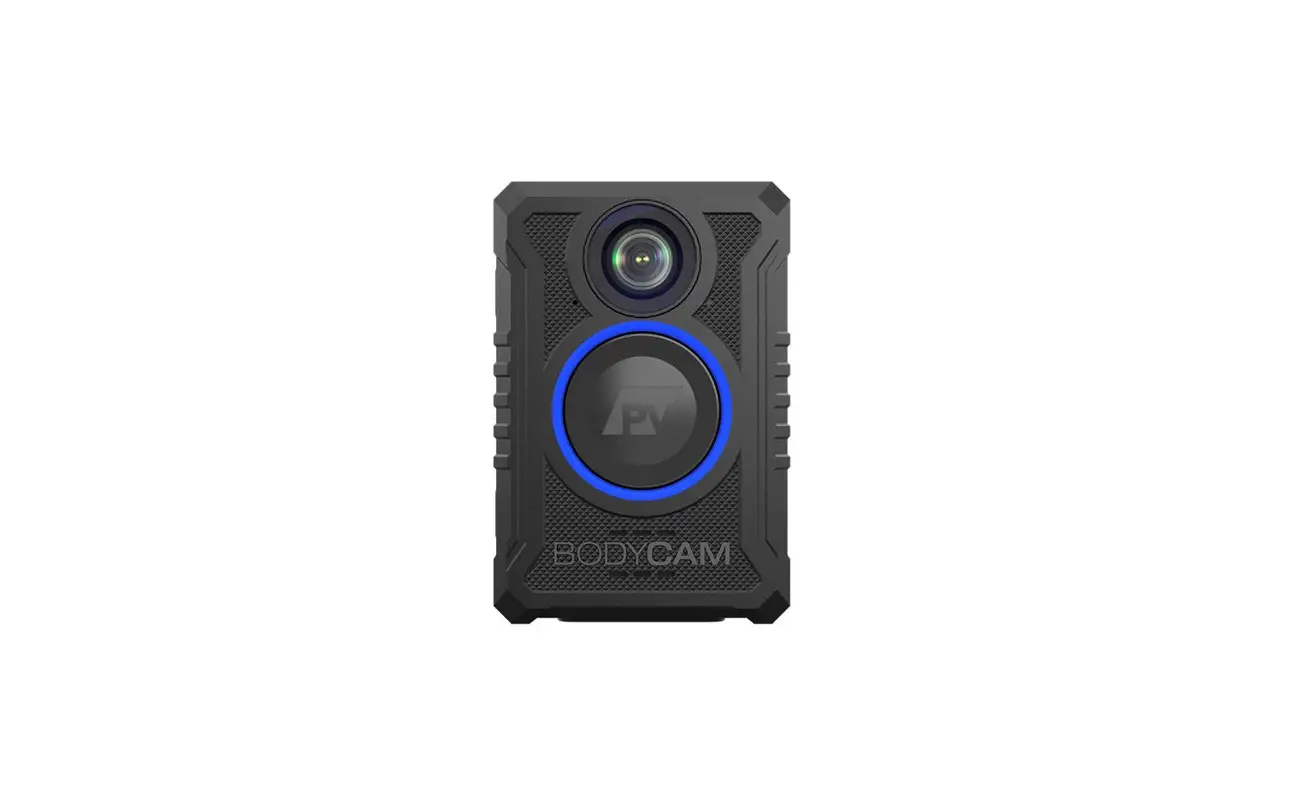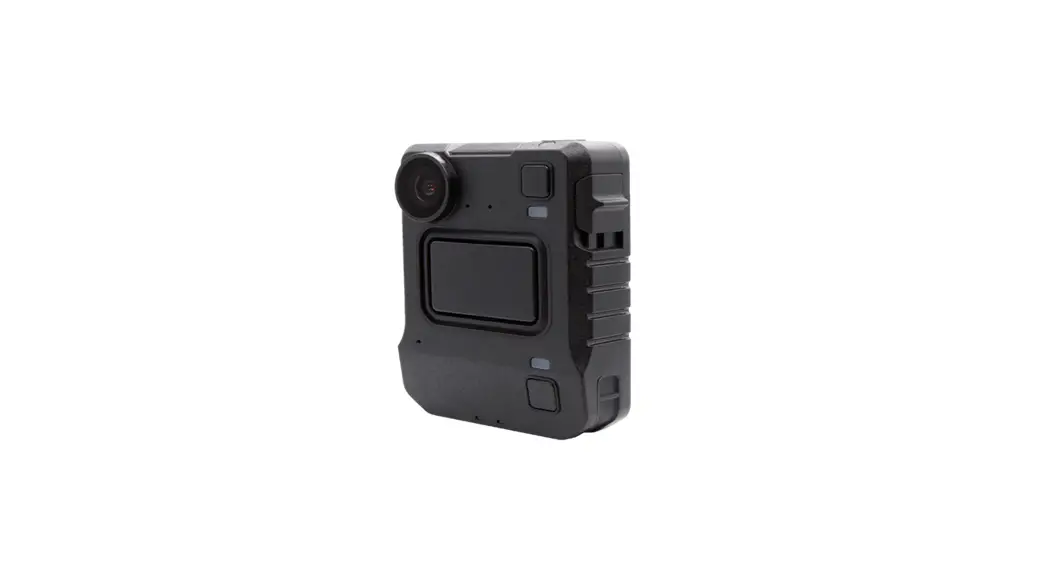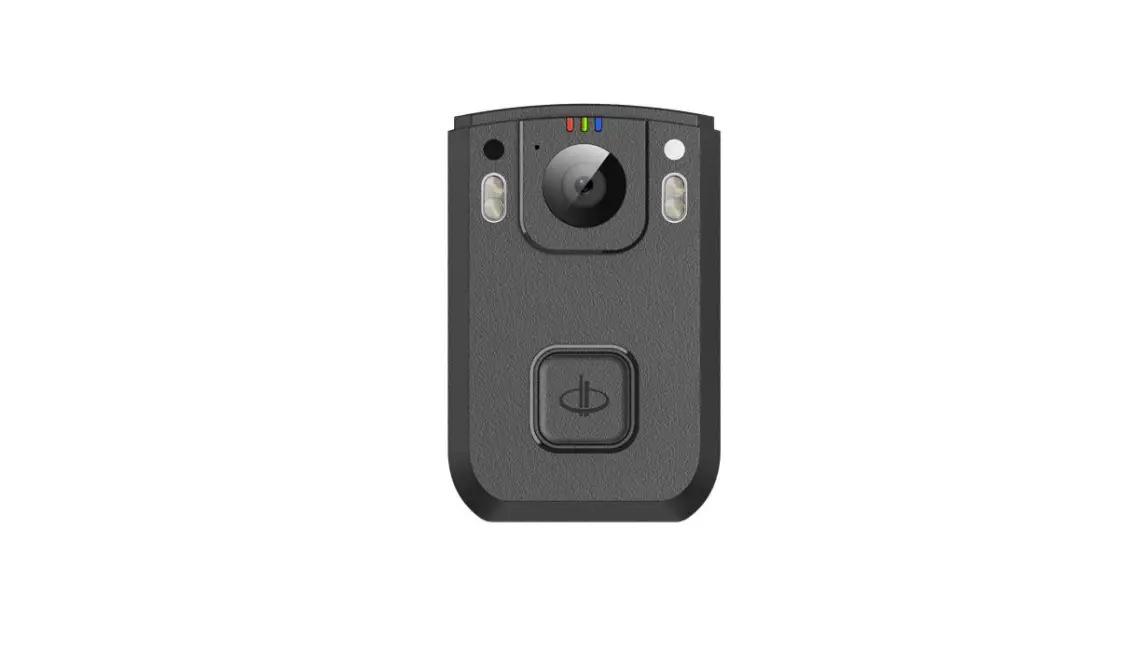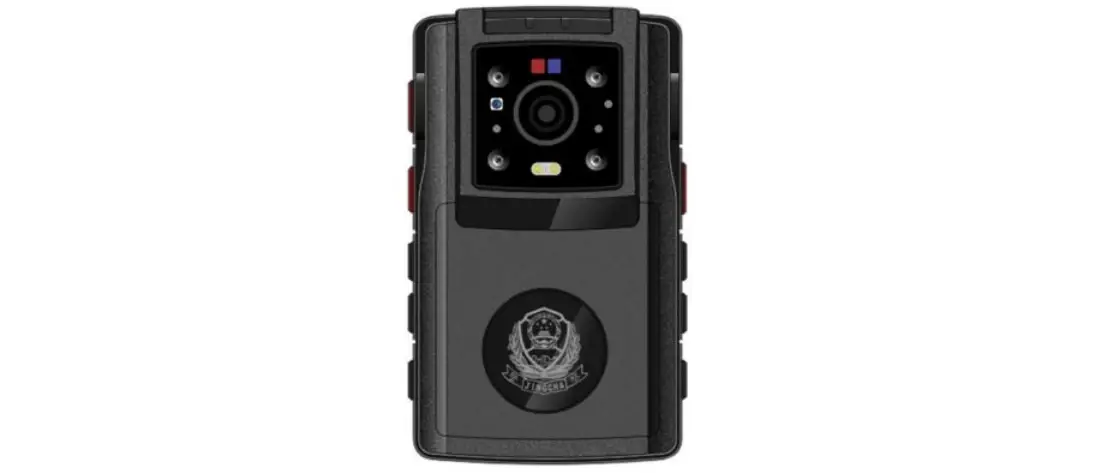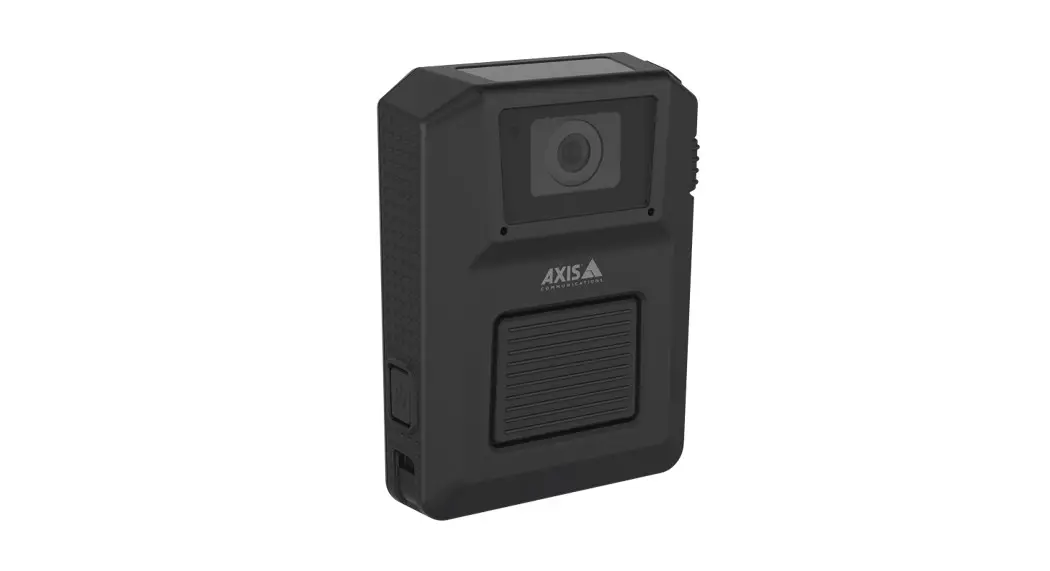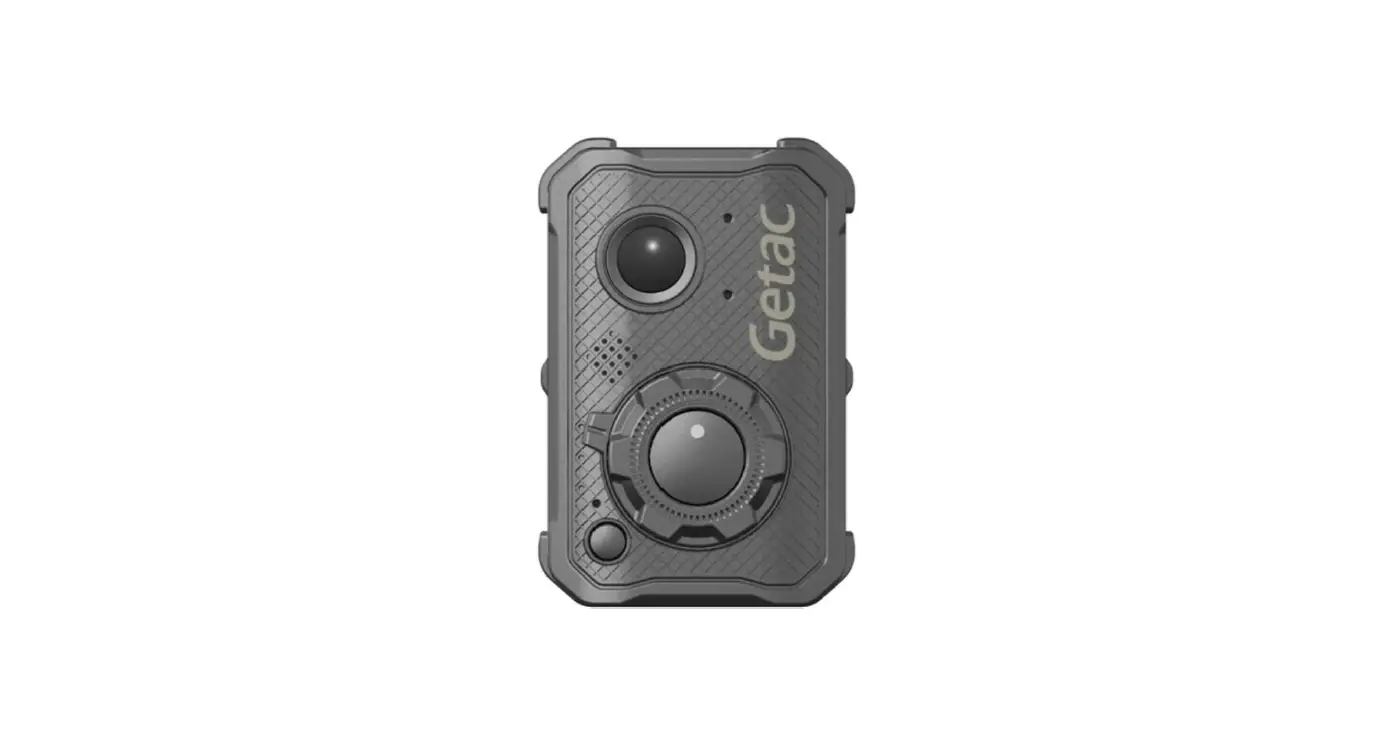

Getac BWC BC-4K Body Worn Camera
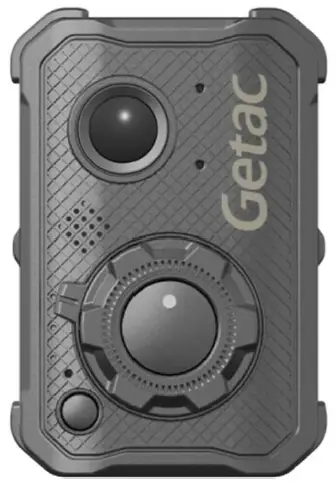
Product Information
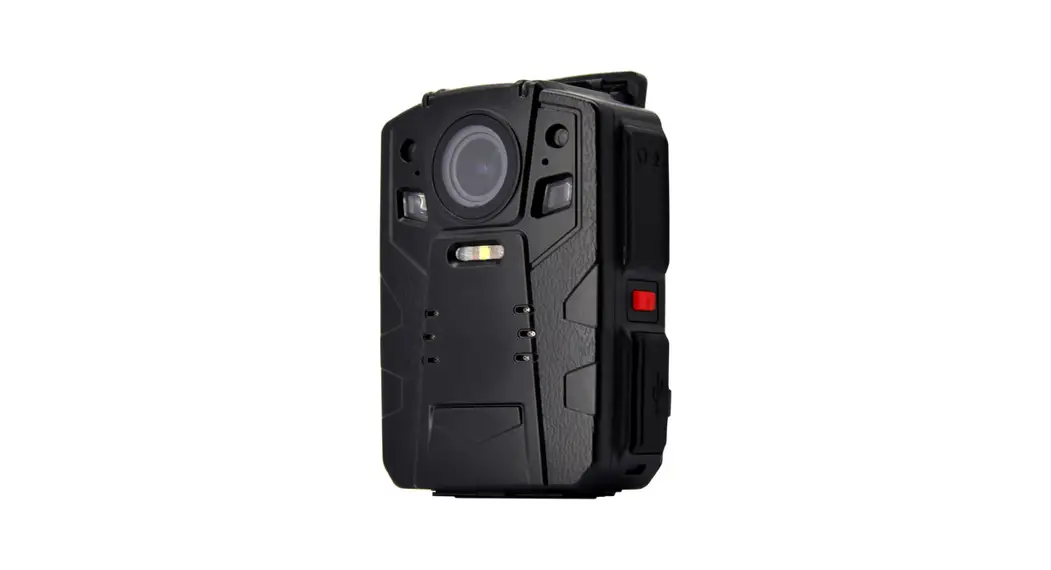
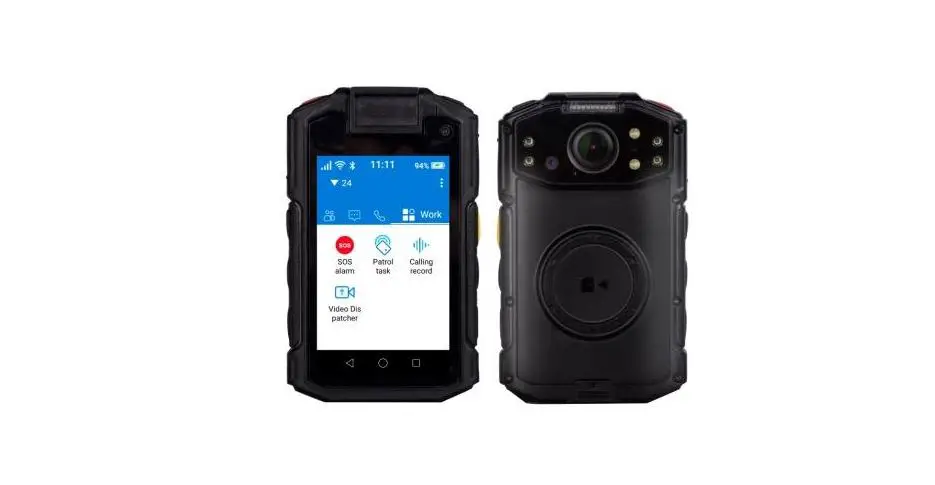
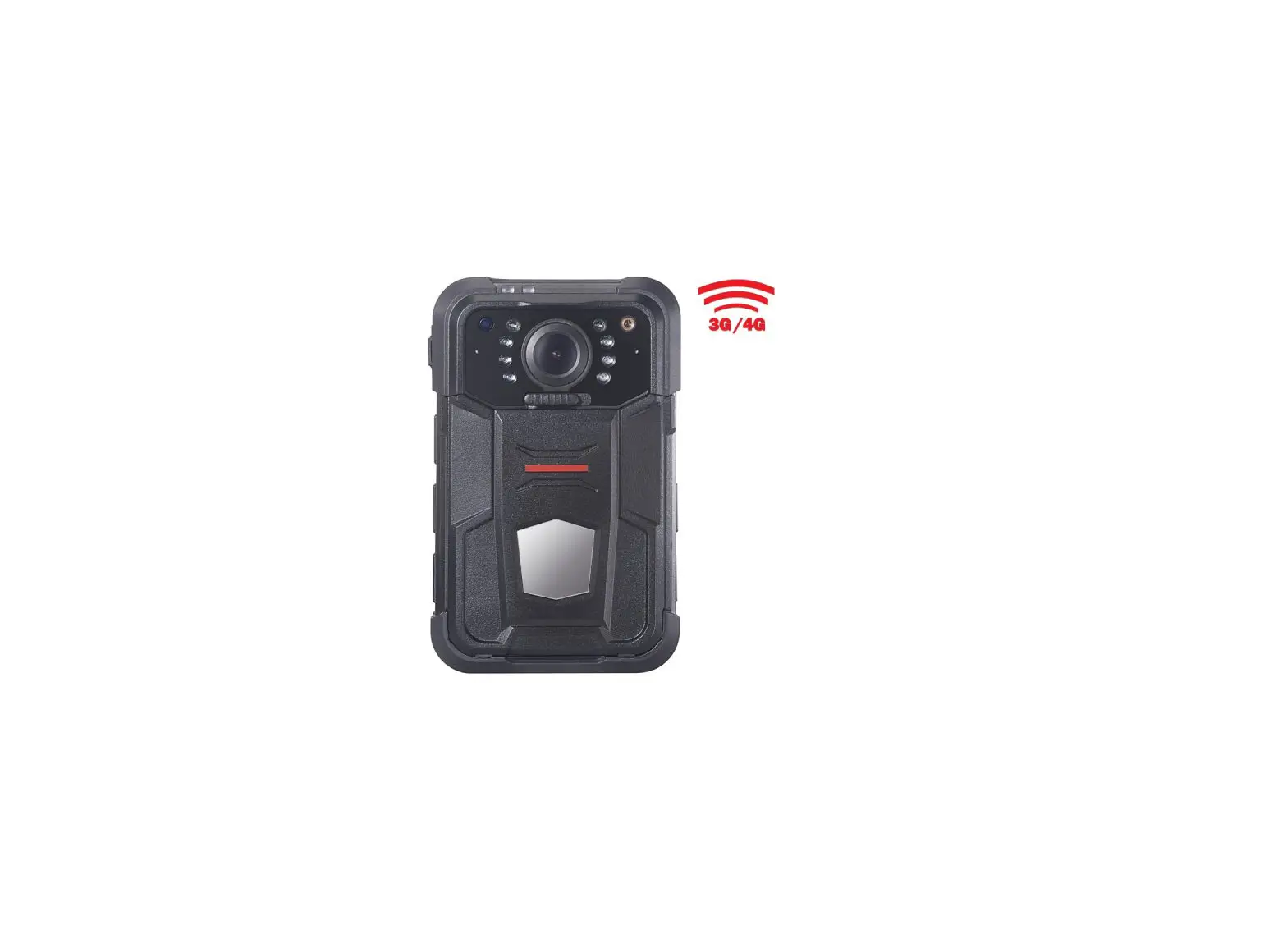
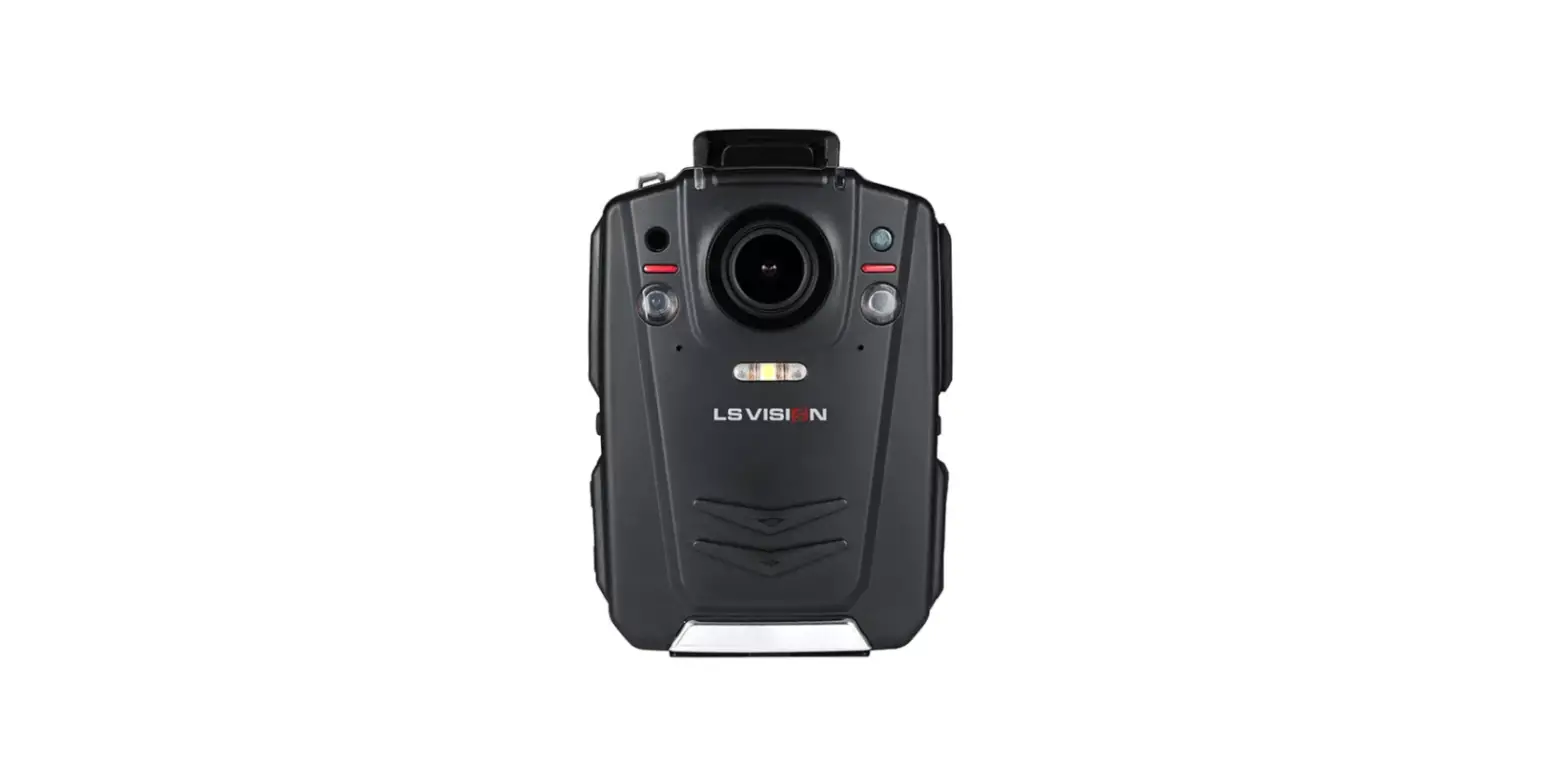
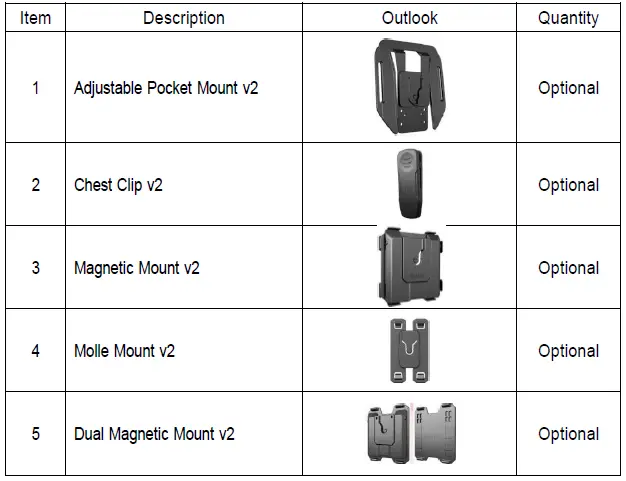
The Getac BWC BC-4K is a body-worn camera designed for law enforcement and other public safety professionals. It comes with a variety of optional accessories including an adjustable pocket mount, chest clip, magnetic mount, Molle mount, and dual magnetic mount. The camera requires an operating system of Windows 10 64-bit or higher with an Intel Core i3 or i5 processor, 4GB of memory, and at least 100GB of disk space. The BWC BC-4K has a dimension of 96 x 65.6 x 25.4 mm and weighs 200g. It has a resolution of 4K (3840×2160)/30FPS, 2K (2560 x 1440)/30FPS, 1920×1080/30FPS, and 1280×720/30FPS with a file format of .MP4. It is equipped with a built-in LTE, GPS, wireless Wi-Fi and Bluetooth, and has an IP67 rating.
Product Usage Instructions
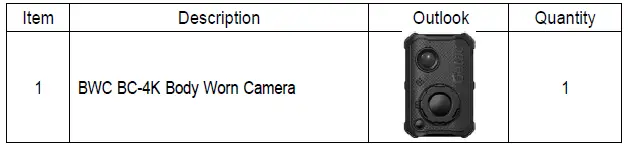
- Unpacking: Open the package and confirm that it contains the BWC BC-4K body-worn camera and any optional accessories you ordered.
- System Requirements: Make sure your computer meets the operating system and system requirements listed in Chapter 2 of the user guide.
- System Operation: Familiarize yourself with the buttons and functions of the BWC BC-4K as outlined in Chapter 4 of the user guide. Use the power button to turn on/off the camera, the main button to start/stop recording and mark/confirm function, and the wheel switch to categorize the instant when stopping recording. The camera also has a normal mode and covert mode switch.
- Battery Charging: When the battery is low, put the camera on the charging dock to charge it.
Unpacking
Standard Package
Optional Accessories
System Requirement
Operating System
| Operating System | Version | Supported | Remark |
| Win10 | 64bit | Yes |
System Requirement
| Item | Specification | Remark | |
| 1 | CPU | Intel Core i3 or i5 above | |
| 2 | Memory | 4.00 GB | |
| 3 | Disk | 100GB |
System Specification
BWC BC-4K Hardware Specifications
| Item | Specification | Remark |
| Dimension | 96 x 65.6 x 25.4 mm | |
| Weight | 200g | |
| RAM | 48Gb | |
| eMMC | 128GB; Built-In | |
| Lens FOV | 140 degree(H) | |
| Wireless – WIFI | 802.11 a/b/g/n/ac 2.4GHz / 5GHz | |
| Wireless – Bluetooth | BLE | |
| LTE | Cat-4 | |
| GPS | Yes | |
| Covert Key | Yes | |
| Video Categorize | 64 Category | |
| Mark Button | Save “Mark” into Metadata file | |
| Power/RF Button | Yes | |
| Resolution | 4K(3840×2160)/30FPS 2K(2560 x 1440)/30FPS 1920×1080/30FPS 1280×720/30FPS | |
| File Format | .MP4 | |
| Operation Temp. | -20 ~ 50 degree C | |
| Drop | 1.8 meter | |
| IP Rating | IP67 | |
| FCC | Yes | |
| CE | Yes | |
| IC | Yes | |
| RoHS | Yes | |
| LTE | Yes; AT&T/FirstNet, Verizon | |
System Operation
BWC Operation
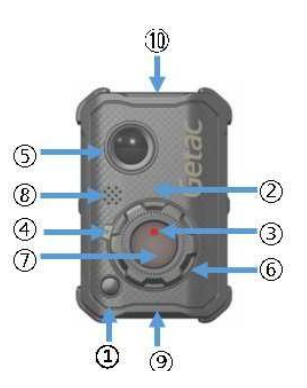
| No. | Description |
| 1 | On/Off Button: Wi-Fi wake-up supported |
| 2 | Microphone |
| 3 | Camera Status LED |
| 4 | Mode Switch (Normal/Covert) |
| 5 | Camera Lens |
| 6 | Wheel Switch |
| 7 | Main Button (Start/Stop/Mark/Confirm) |
| 8 | Speaker |
| 9 | Dock Connector: Connects to the charging dock. |
| 10 | OLED |
BWC Button Function
| Key | Function | Remark | |
| 1 | Power Button | To power on/off body worn camera | |
| 2 | Power Button | To wake up Wi-Fi forcedly | |
| 3 | Main Button | To start/stop recording | |
| 4 | Main Button | To confirm categorize operation & mark |
- LED
Please refer to 5.3. - Microphone
For audio recording purpose. - On/Off Button
Press power button one time to boot BWC. Press power button 10 seconds to shutdown BWC. - Mode Switch
Normal mode and Covert mode switch. - Wheel Switch
When stopping recording, you can use wheel switch to categorize the instant. - Main Button
To start recording/stop recording and mark/confirm function. - Speaker
To provide audio notifications. - Action Description:
Action State Audio Press Power button 1 sec Power on Hello Press Power button for 10 sec Power off Goodbye Wheel select Category Clarify Event-1 Event-… Event-…. Event-64 Confirm Press REC button two times Start Recording Recording Press REC button 3 sec Stop Recording Stop Recording Press Power button Video Mark Mark Mode switch Covert On No sound Mode switch Covert Off Covert Off (or no sound) Battery low at 5%, Shutdown at 1% Battery Low Battery Low Put on dock Battery Charge Battery Charge Memory full at 0byte remaining Memory Full Memory Full Memory low at 4GB remaining Memory Low Memory Low Press power button 1sec when REC Mute On Mute On Press power button 1sec when REC and mute on Mute Off Mute Off Press power button for 3 sec when pre-rec or standby Audio only Recording Audio Only Press Power button 3 sec Audio Stop Audio Stop Server send live on Live On Live on Server send live off Live Off Live off
BWC LED Indicator
- Status LED:
Operation LED Operation Mode Green Solid Available camera (Data Offloaded/Full Charged) Red Solid Storage Full, Battery Low, OTA Red Normal Blinking Normal Recording Red Slow Blinking Audio only Recording, Red/Yellow Slow Blinking Audio mute Recording Yellow Fast Blinking Offloading data Yellow Solid Charging
Audio Prompt
| Operation Mode | Beep Sound | Audio Prompt |
| Video Tag | Beep/Every press | |
| Storage Full | Beep/5 sec | |
| Storage Low<4GB | Beep/5 sec with 10 times | |
| Buffer mode and WiFi connected | Beep * 2 within 1 second | |
| Recording mode and WiFi connected | Beep * 2 within 1 second | |
| Buffer mode and LTE connected | Beep * 2 within 1 second | |
| Recording mode and LTE connected | Beep * 2 within 1 second | |
| Power On | Hello | |
| Power Off | Goodbye | |
| Category | Depend on event | |
| Start Recording | Recording | |
| Stop Recording | Stop Recording | |
| Video Mark | Mark | |
| Covert Off | Covert Off | |
| Battery Low | Battery Low | |
| Battery Charge | Battery Charge | |
| Memory Full | Memory Full | |
| Memory Low | Memory Low | |
| Mute On | Mute On | |
| Mute Off | Mute Off | |
| Audio only recording | Audio Only | |
| Audio Stop | Audio Stop | |
| Live On | Live On | |
| Live Off | Live Off | |
| Wifi On | Wifi on |
OLED Display
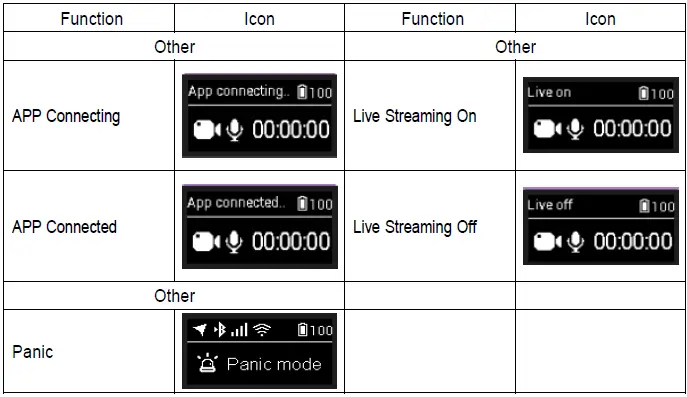
- Icon Definition


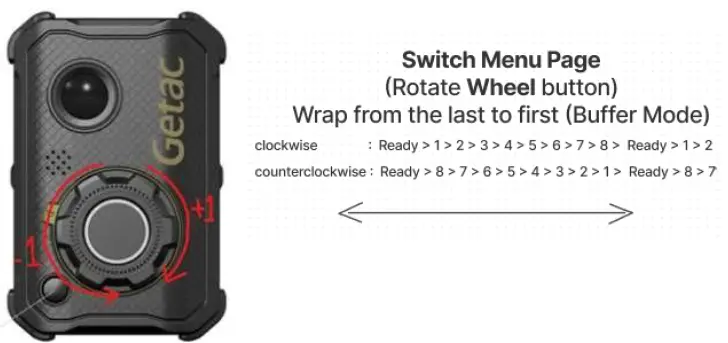
- Menu Operation

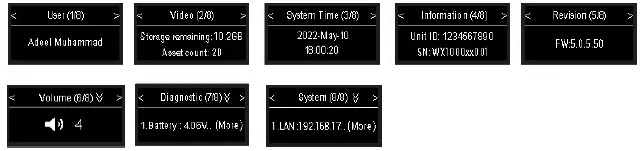
- Menu

- Certification Information
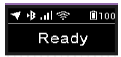
- Turn the “Wheel” during “Ready status”

- Select “System(8/8)” column

- Press “Power button” to enter into 2nd level menu, then to select “Certification”

- Turn the “Wheel” during “Ready status”
- Menu
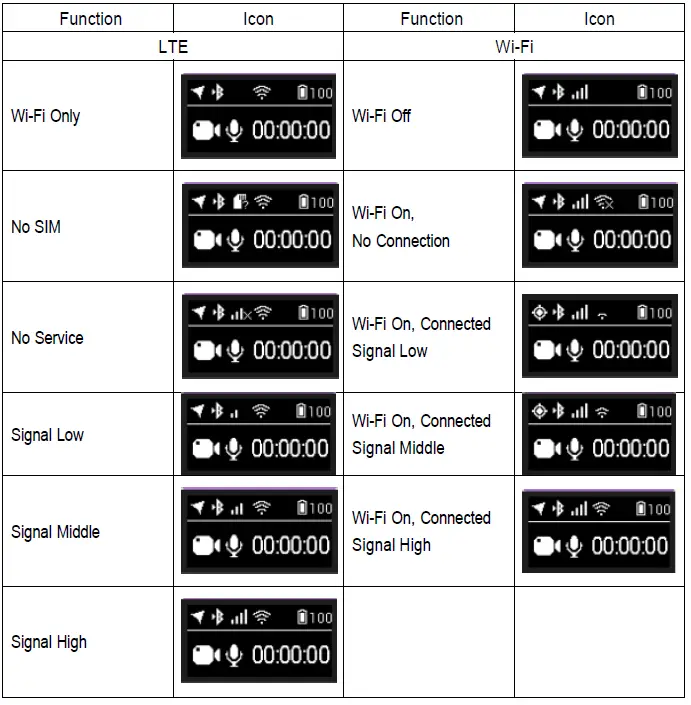
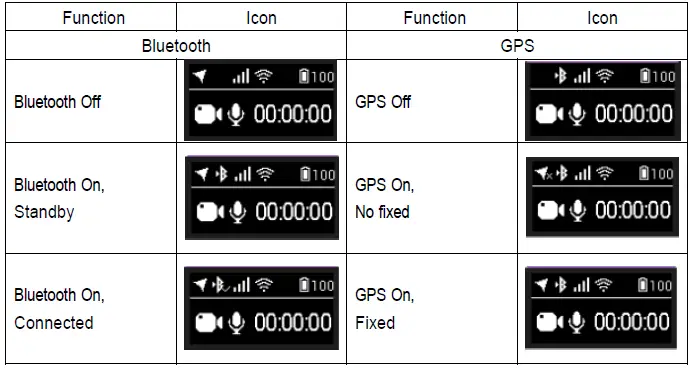
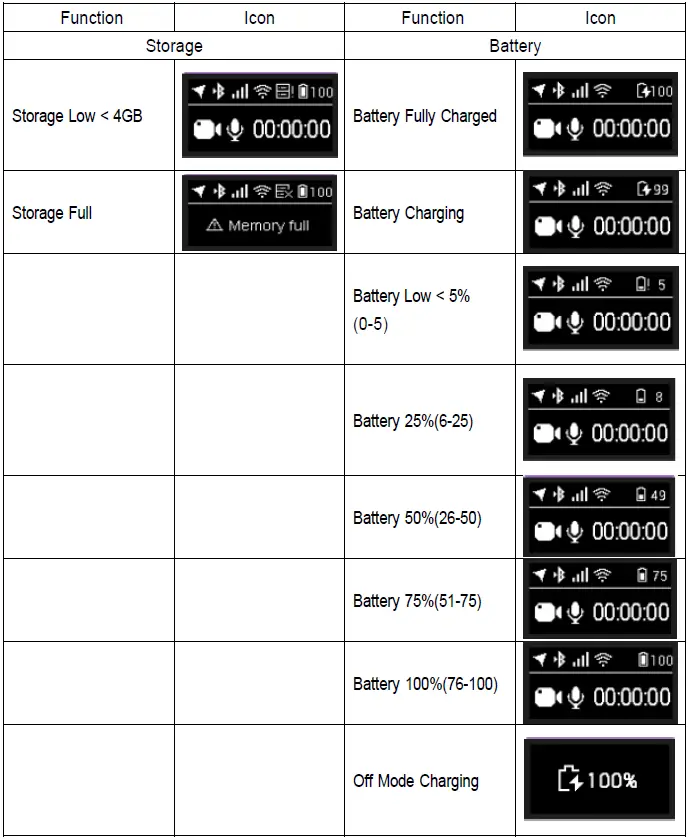


Management
Operation Introduction
Automatic uploading is Quick, Secure and requires no action from the officer. With Getac Cloud, you can securely manage the digital assets obtained from in-car cameras, body worn cameras, interview rooms and other digital devices. Any digital video, image or document may be securely uploaded, browsed, viewed, classified and shared using only a web browser. Getac Enterprise software is one of the most powerful back-end video management tools in the industry. The highly scalable software provides dashboard overview, media management and remote management of all your systems.
Real time Monitoring
The BWC can wirelessly transmit real-time footage when connected to the In-Car Video DVR or In-Car PC. This footage can then be further transmitted to the squad car computer or the police command center to be viewed by the commanding officer. True control means having access to the sensors and information you need to make quick, informed decisions. Getac Real Time Command allows your force to capture, record and store digital evidence crucial to the case. All so you can visualize and associate agency-unique and mission-specific data and sensors in a clear, easy-to-track format. This puts the right information in your hands so you can lead your force with actionable insights.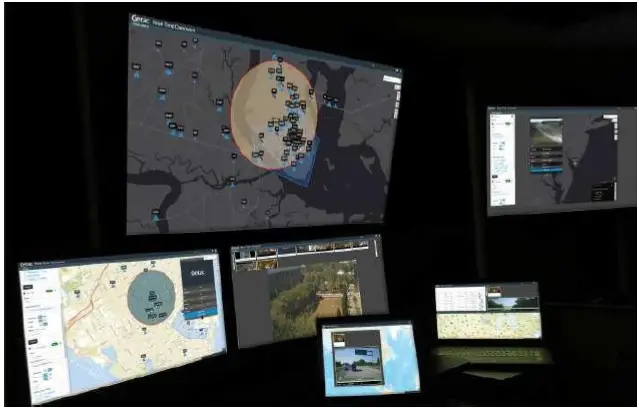
Instant tag
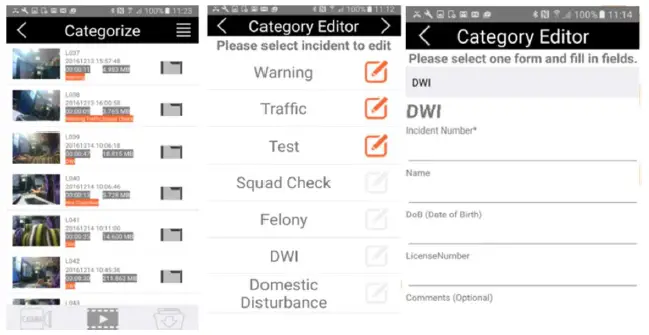
Turning the Dial allows officers to classify incidents into one of 64 different preset classifications for quicker and easier access. The 64 preset BWC evidence categories can be specified for each department. Use the convenient category wheel to easily classify videos by up to four predefined incident types. Our mobile app allows you to view and organize videos on the device without downloading or breaking the chain of custody.
Mobile APP
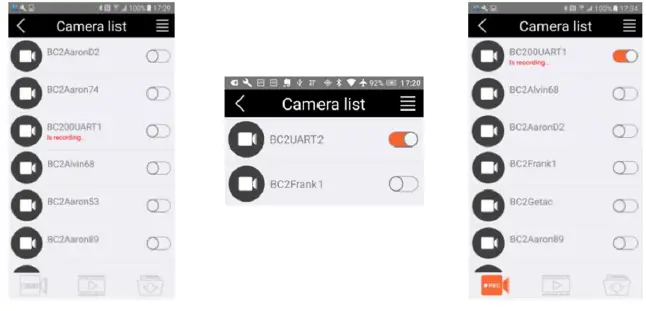
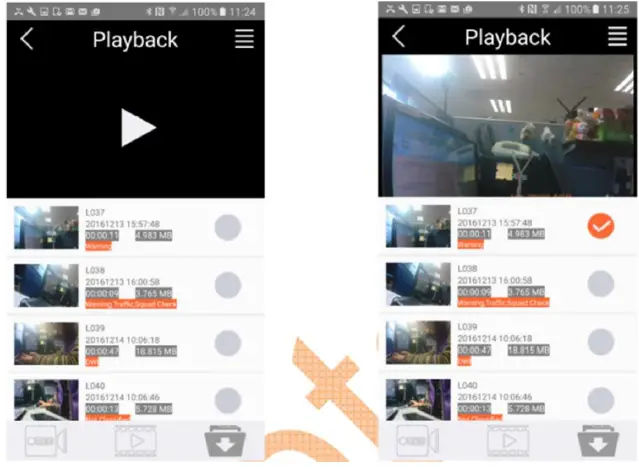
With the mobile Getac BWC App, Police officers can perform video playback and categorize the videos. Videos are not downloaded but merely played off the BWC.
- Remote Recording

- Video Playback

- Instant Category

Troubleshooting
If your issue is more detailed and has not been covered here, please check the rest of the website to see if it has been answered. www.getacvideo.com.
NOTE The information in this manual is subject to change without notice. For the latest version of the manual, please visit the Getac website at www.getacvideo.com.
Notice For SIM slot replacement, please use dedicated hook in the shipping box.
Regulatory Information
NOTE: Marking labels located on the exterior of your device indicate the regulations that your model complies with. Please check the marking labels on your device and refer to the corresponding statements in this chapter. Some notices apply to specific models only.
USA Class A Regulations:
Federal Communications Commission Radio Frequency Interference Statement NOTE:
This device complies with Part 15 of the FCC Rules. Operation is subject to the following two conditions: (1) this device may not cause harmful interference, and (2) this device must accept any interference received, including interference that may cause undesired operation. This equipment has been tested and found to comply with the limits for a Class A digital device, pursuant to part 15 of the FCC Rules. These limits are designed to provide reasonable protection against harmful interference when the equipment is operated in a commercial environment. This equipment generates, uses, and can radiate radio frequency energy and, if not installed and used in accordance with the instruction manual, may cause harmful interference to radio communications. Operation of this equipment in a residential area is likely to cause harmful interference in which case the user will be required to correct the interference at his own expense. This device and its antenna must not be co-located or operating in conjunction with any other antenna or transmitter.
This equipment complies with FCC RF radiation exposure limits set forth for an uncontrolled environment.
Any changes or modifications not expressly approved by the party responsible for compliance could void the authority to operate equipment. A
Please note: The use of a non-shielded interface cable with this equipment is prohibited. Company name: Getac Video Solution Inc.
USA Address: Suite 460, 3600 American West Blvd. Bloomington, MN 55431 USA Phone: 833-820-5172
Industry Canada Statement
RSS-Gen Issue
This device complies with Industry Canada’s licence-exempt RSSs. Operation is subject to the following two conditions: (1) This device may not cause interference; and (2) This device must accept any interference, including interference that may cause undesired operation of the device.
This equipment complies with Innovation, Science and Economic Development Canada’s radiation exposure limits set forth for an uncontrolled environment. The End user must follow the specific operating instructions for satisfying RF exposure compliance. This transmitter must not be co-located or operating in conjunction with any other antenna or transmitter.The device is designed to meet the requirements for exposure to radio waves established by Innovation, Science and Economic Development Canada’s. These requirements set a SAR limit of 1.6 W/kg averaged over one gram of tissue. The highest SAR value reported under this standard during product certification for use when properly worn on the body.
Operation in the band 5150–5250 MHz is only for indoor use to reduce the potential for harmful interference to co-channel mobile satellite systems.
CAUTION:
Do not expose your skin to the BWC when operating it in a very hot or cold environment. The BWC can get uncomfortably warm when you use it in high temperatures. As a safety precaution in such a circumstance, do not place the BWC on your lap or touch it with your bare hands for extended periods of time. Prolonged body contact can cause discomfort and potentially a burn.
Safety Notices
About the Battery
If the battery is mishandled, it may cause fire, smoke or an explosion and the battery’s functionality will be seriously damaged. The safety instructions listed below must be followed.
Danger
- Do not immerse the battery with liquid such as water, sea water or soda. Do not charge/discharge or place the battery in high-temperature (more than 80 C / 176 F) locations, such as near a fire, heater, in a car in direct sunlight, etc.
- Do not use unauthorized chargers.
- Do not force a reverse charge or a reverse connection.
- Do not connect the battery with AC plug (outlet) or car plugs. Do not adapt the battery to unspecified applications.
- Do not short-circuit the battery.
- Do not drop or subject the battery to impacts.
- Do not penetrate with a nail or strike with a hammer. Do not directly solder the battery.
- Do not disassemble the battery.
- Keep the battery away from an extremely low air pressure environment as it may result in an explosion or the leakage of flammable liquid or gas.
Warning
- Keep the battery away from infants.
- Stop using the battery if there are noticeable abnormalities such as abnormal smell, heat, deformities, or discoloration.
- Stop charging if the charging process cannot be finished.
- In case of a leaking battery, keep the battery away from flames and do not touch it.
- Pack the battery tightly during transport.
Caution
- Do not use the battery where static electricity (more than 100V) exists that might damage the protection circuit of the battery.
- When children are using the system, parents or adults must ensure that they are using the system and battery correctly.
- Keep the battery away from flammable materials during charging and discharging.
- In case lead wires or metal objects come out from the battery, you must seal and insulate them completely.
- Caution Texts Concerning Lithium Batteries
Rating Label Information
- About the Input


Copyright © Getac Technology Corporation.
All Rights Reserved. Phone +886 (0)2-2785 7888
Rev: 1.61
Revision History
| Title | Getac BWC BC-4K User Guide | |
| Rev | Date | Description |
| v1.0 | 2021/09/22 | Initiation version. |
| v1.1 | 2021/10/20 | Notice update |
| v1.2 | 2022/02/11 | Model name update |
| v1.3 | 2022/03/11 | Add 5.5. OLED Display |
| v1.4 | 2022/03/29 | Add Input Information |
| v1.5 | 2022/07/25 | |
| v1.6 | 2022/08/05 | |
| v1.61 | 2022/08/11 | |
 Getac Video Solutions - Getac