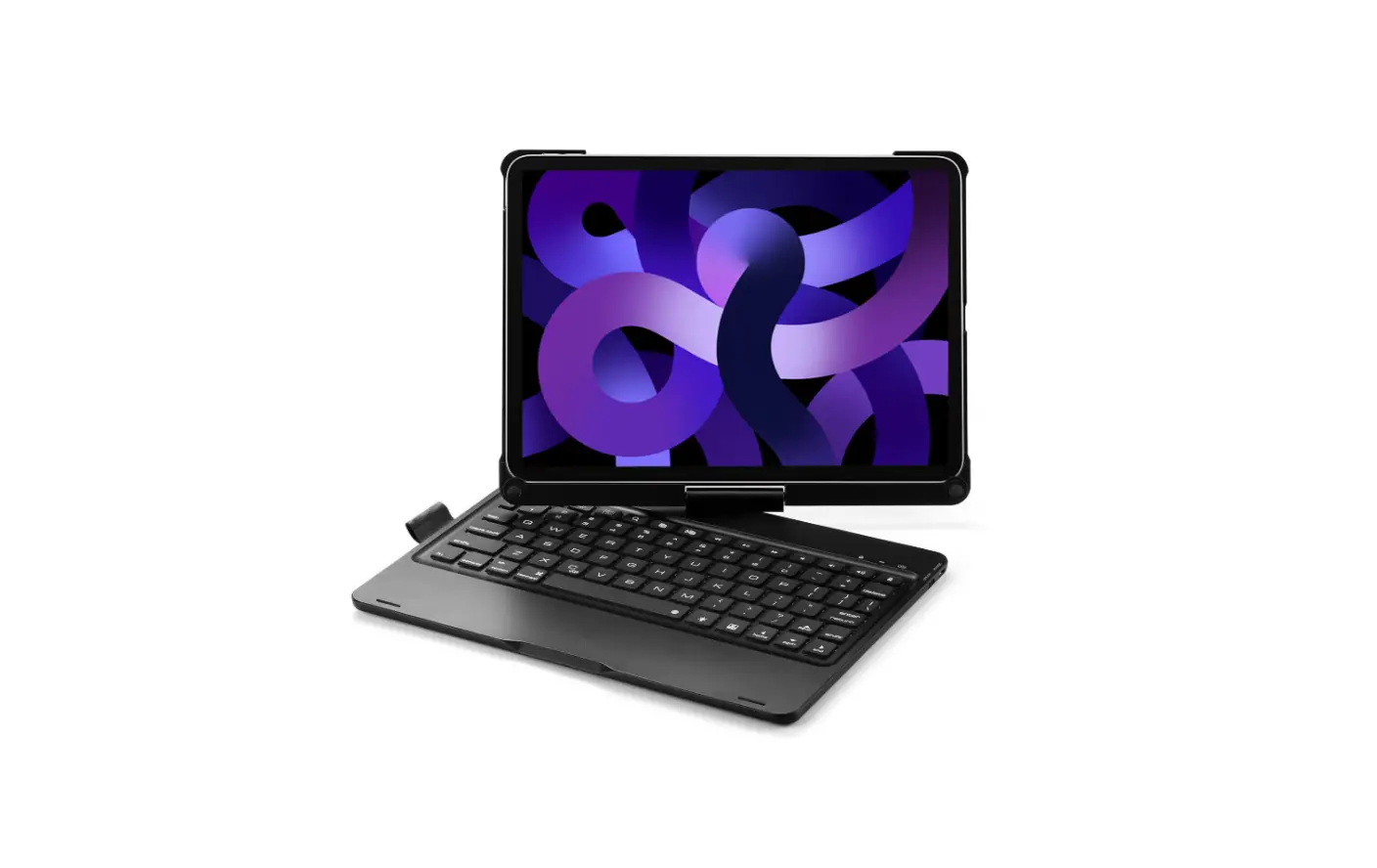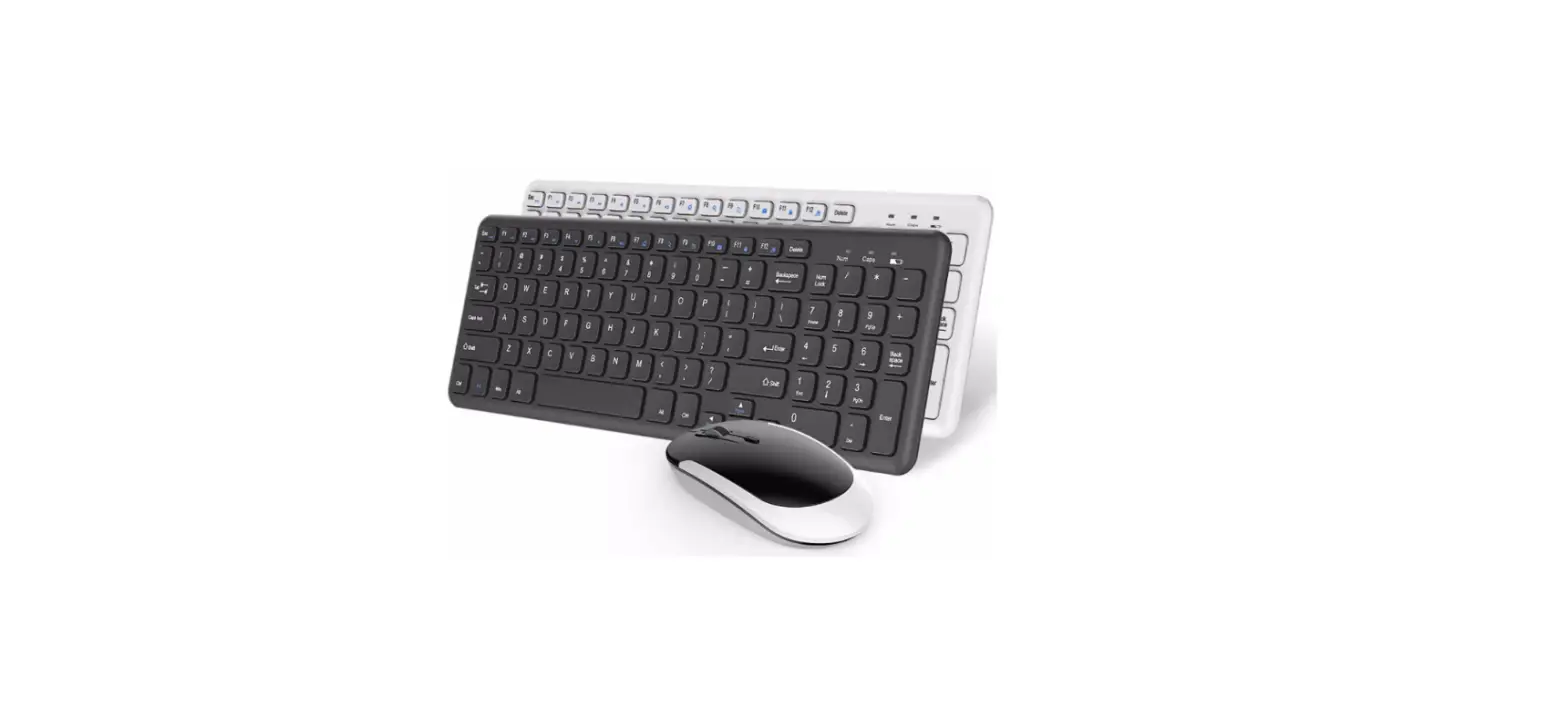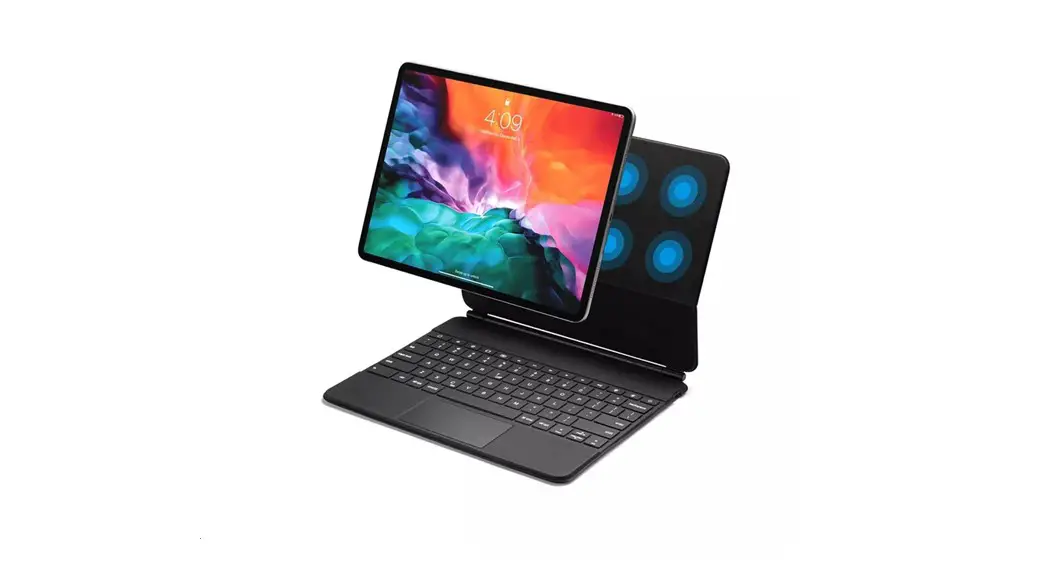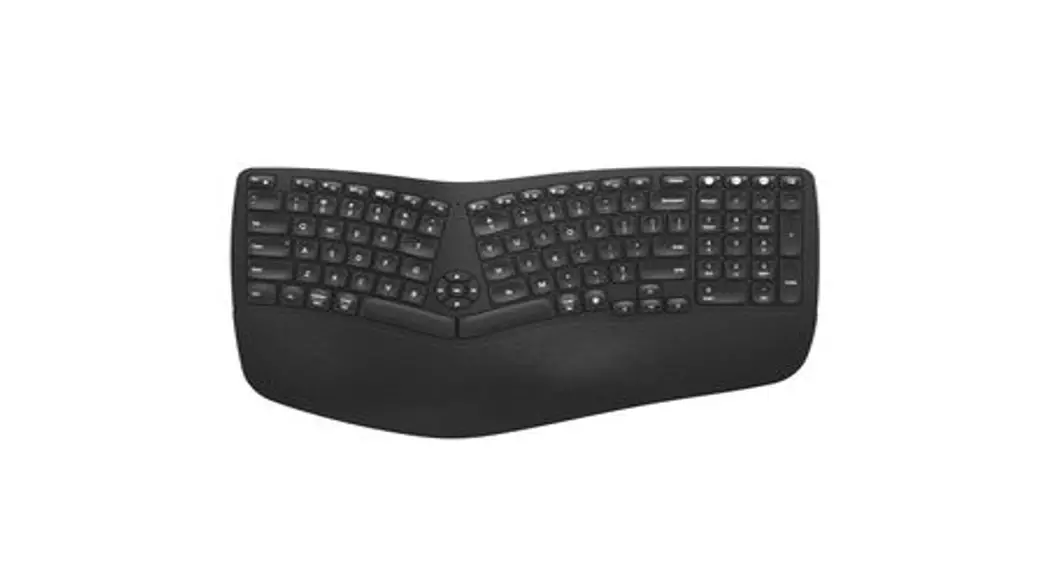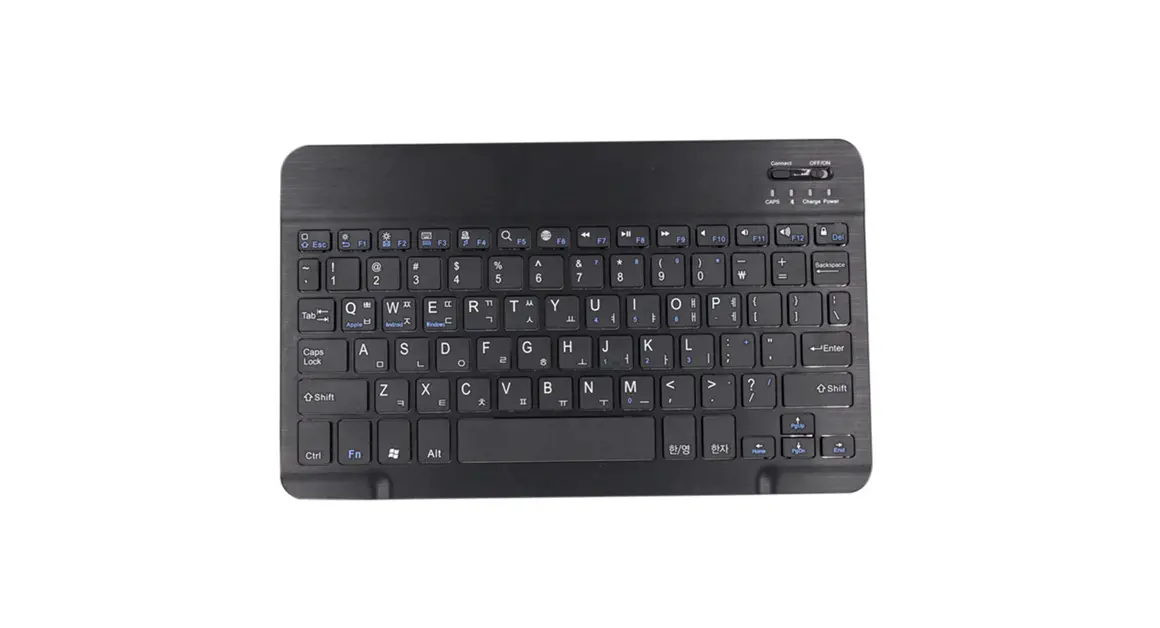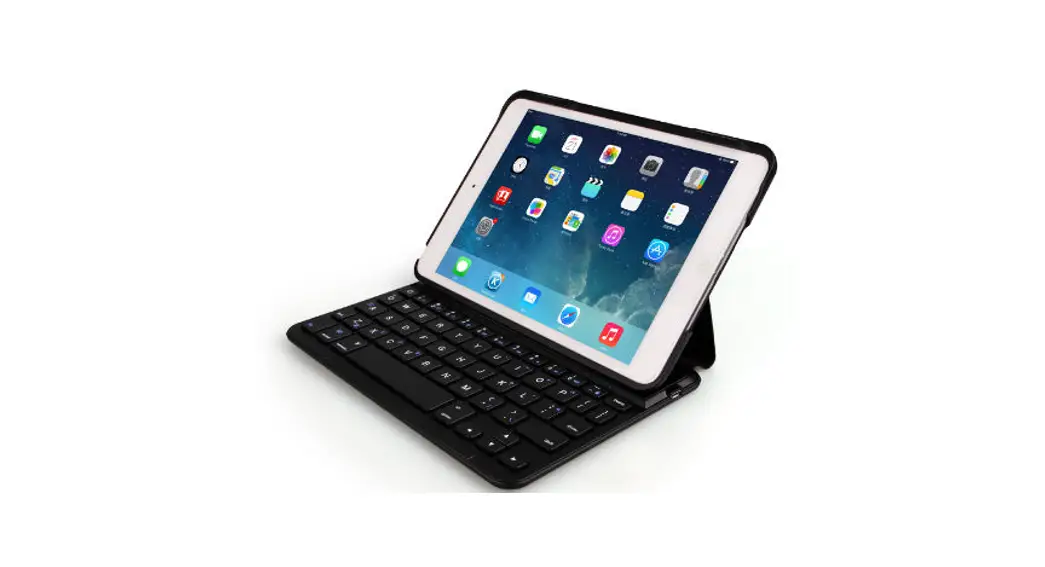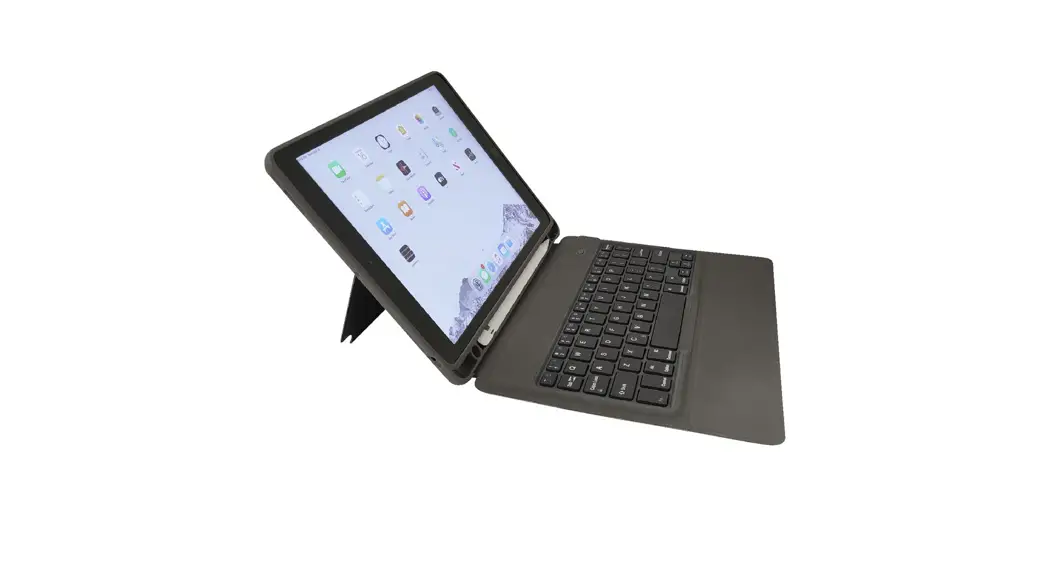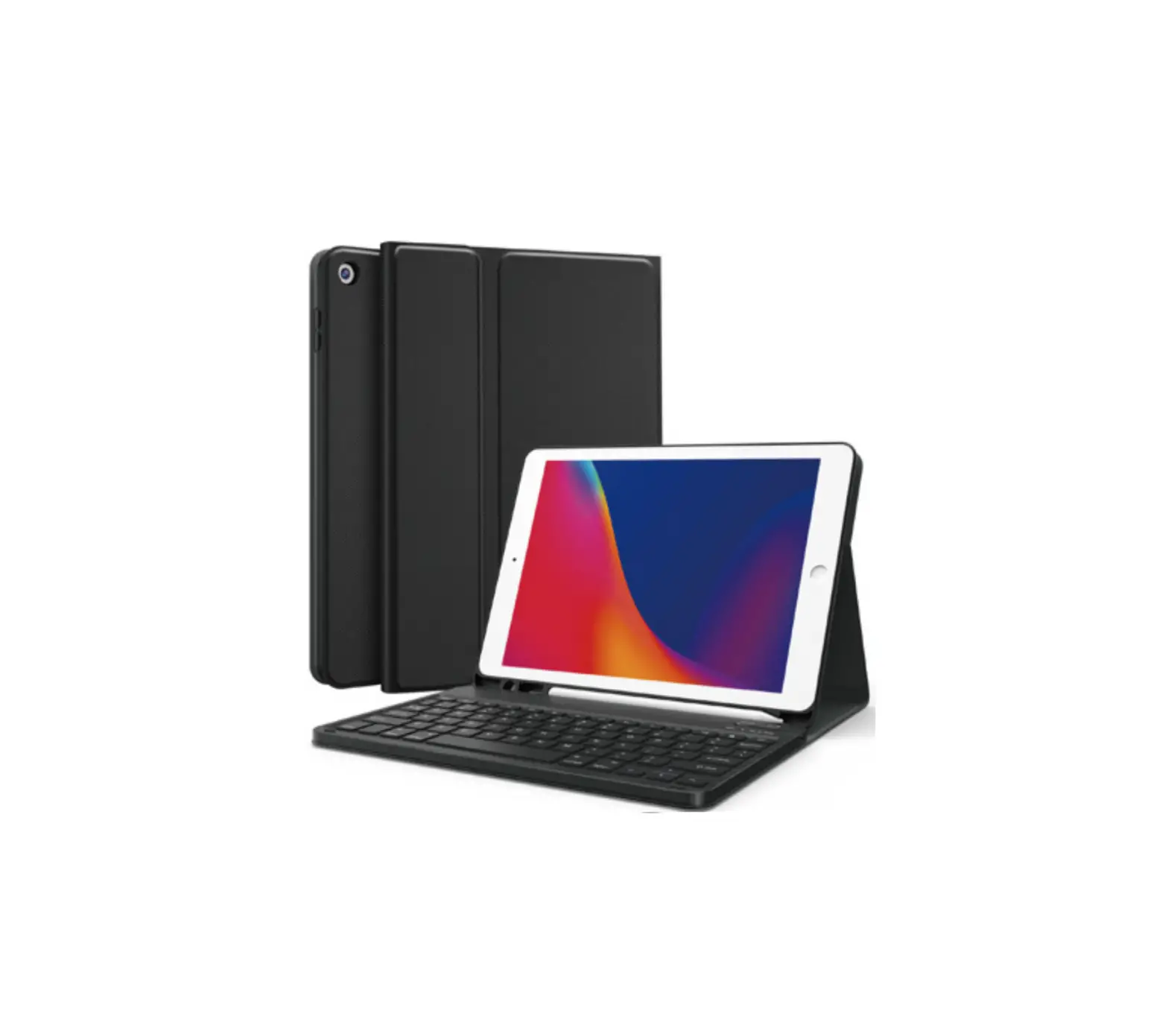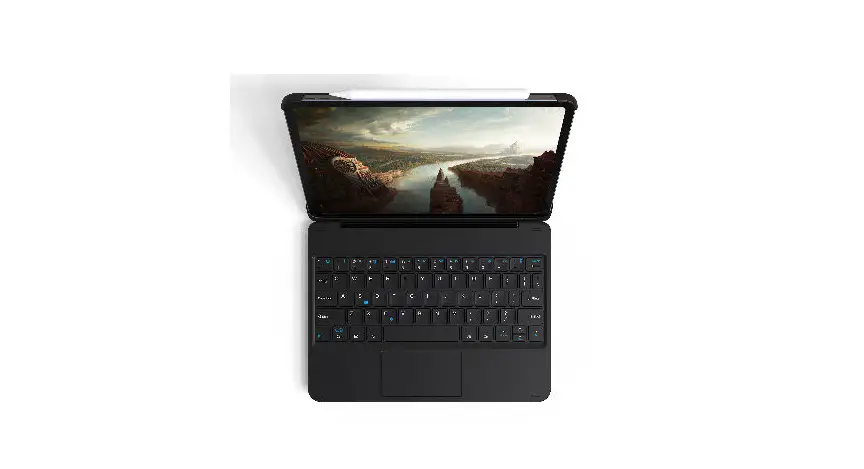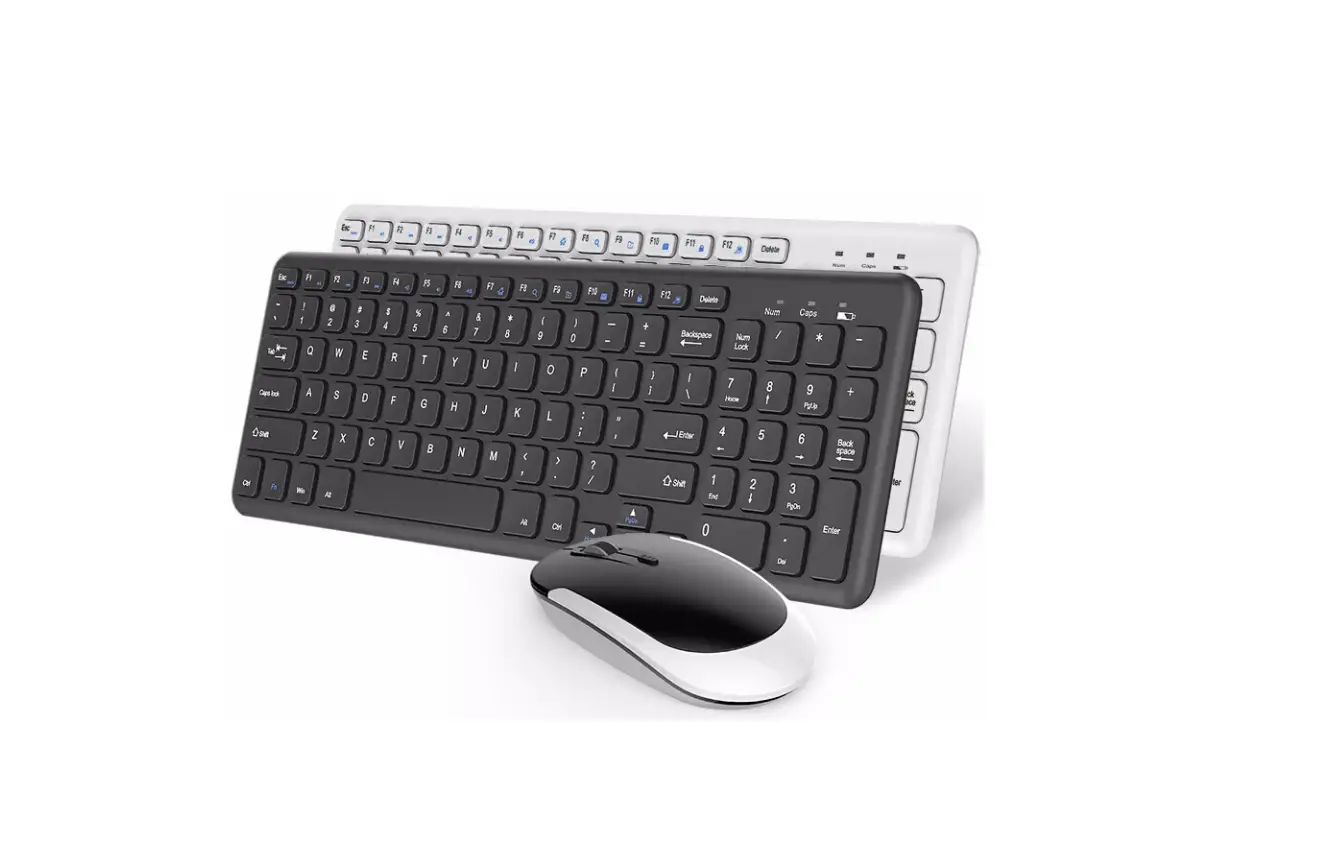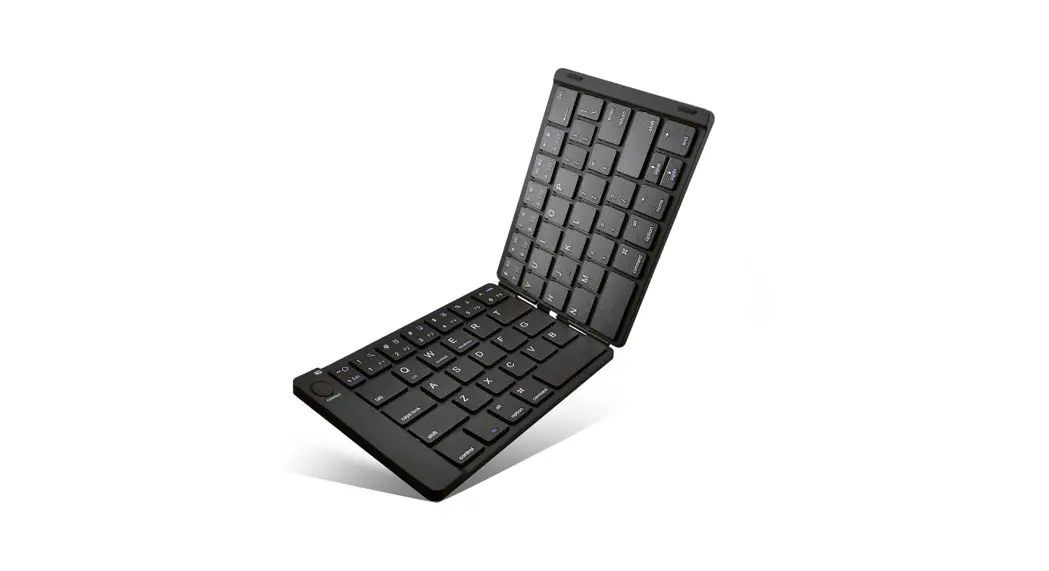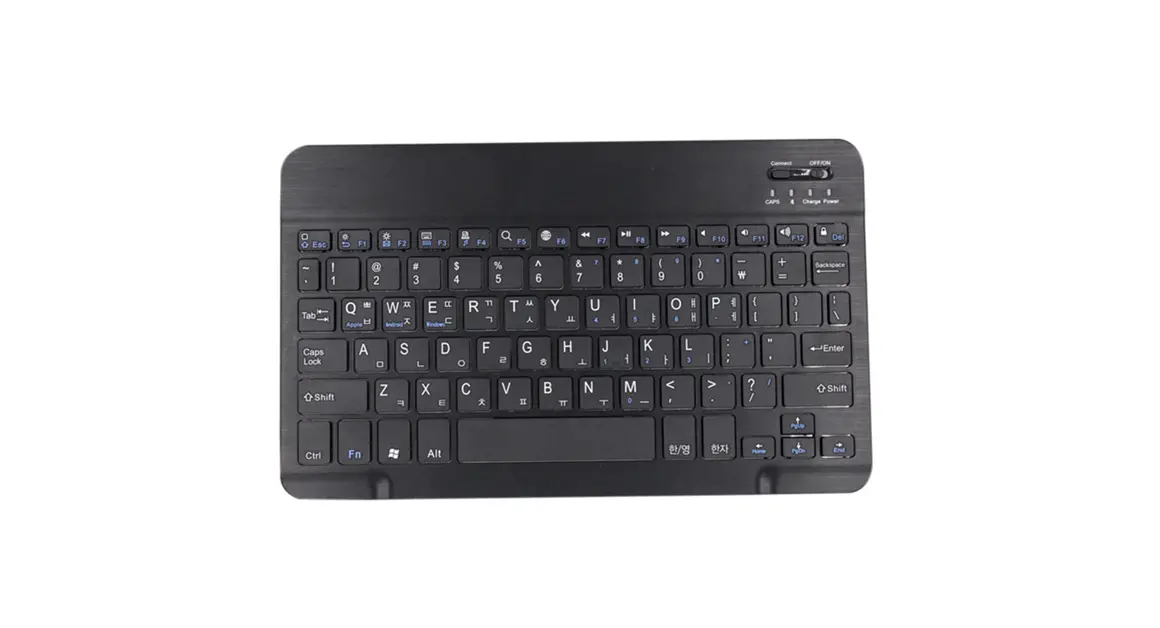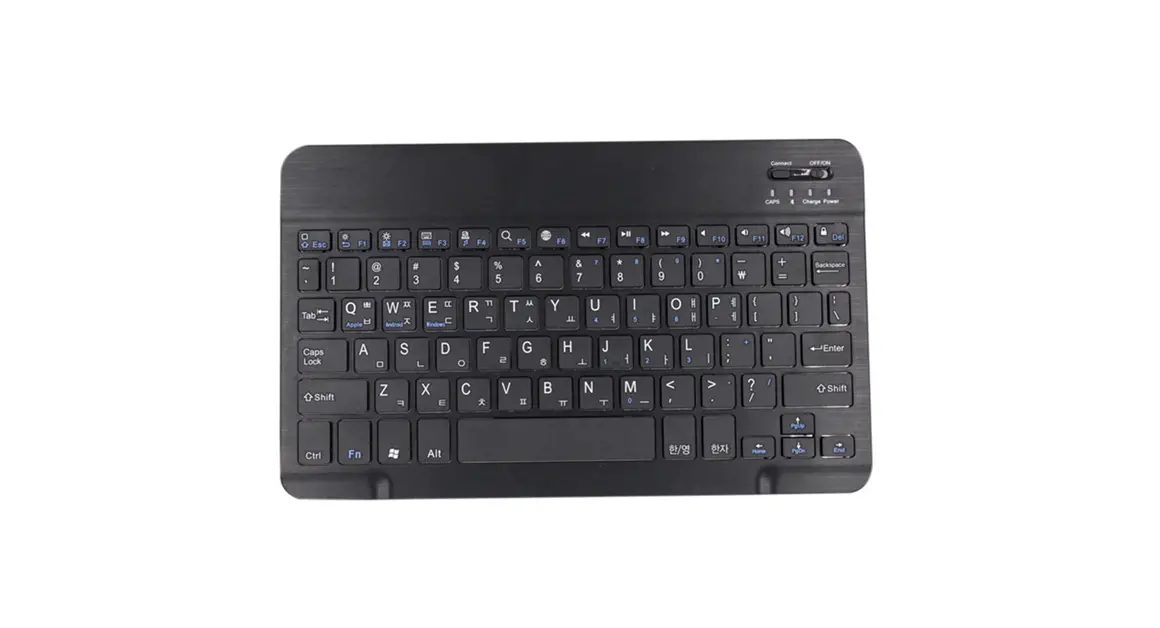
Shenzhen Hangshi Technology HB330B IPAD10.8/11 Inch Tablet Dedicated Leather Keyboard User Manual
Thank you for using the keyboard provided by us, please read this manual carefully before using this product.
Product Overview
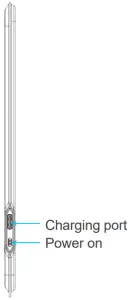
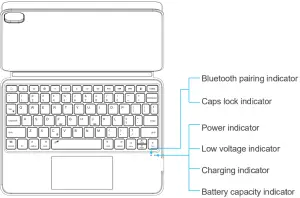
Keyboard indicator | Indicator color | Indicator status |
| Power-on state: Power indicator | Red | The red light turn on for 3 seconds and then off |
| Pairing status: Bluetooth pairing indicator | Blue | 1 flash for 1 second, enter sleep without pairing for 180 seconds. |
| Caps lock indicator | Green | The green light is always on when entering the uppercase state, and the light is off when entering the lowercase state. |
| Low voltage state: charging indicator | Red | When voltage lower than 3.3V, it flash 1 time per 2 seconds. When the voltage is lower than 3.0V, it power off automatically. |
| Charging status: charging indicator | Red/Green | The red indicator light stays on and turn to green light when fully charged. |
| Battery indicator | Red | Each flash of the light represents 25% of the power, and 4 flashes are fully charged. |
Keyboard Connection Steps
- Step 1. Turn on the keyboard switch and move forward, the power indicator will be steady red for 3 seconds and then go out, the keyboard is turned on
- Step 2. Press the FN+Bluetooth key (
 ) to enter the code matching state, and the blue light flashes once per second.
 - Step 3. Turn on the Bluetooth of the device to search, the Bluetooth of the device can be searched by itself or manually to find the keyboard name (Hangshi Keyboard) and click to connect.
 ) to enter the code matching state, and the blue light flashes once per second.
(The tablet that has been paired does not need to be paired again when it is used again, it will automatically connect back when it is turned on.)

Function Key
 | HOME |  | Keyboard display |  | Copy |
 | Paste |  | Screenshot |  | Touch pad |
 | Brightness – | | Brightness + |  | Mute |
 | Volume – |  | Volume + |  | Play/pause |
 | Last track |  | Next track |  | Lock screen |
Fn+  Bluetooth pairing Bluetooth pairing | |||||
Keyboard Specifications
Bluetooth Specification | Bluetooth 3.0 |
| Operating Range | Up to 10 meters |
Modulation System | GFSK |
| Operating Voltage | 3.0-4.2V |
Reconnect time | ≤4S |
| Wake-up time | ≤2S |
Charge time | 2 hours |
Lithium Battery Capacity | 250 mAh |
Uninterrupted Work Time | ≥250 hours(close backlight) ≥3 hours(open backlight) |
| Standby time | ≥365days |
Operating temperature | -10℃~+50℃ |
| Whether to enter the connection pairing | No pairing password |
Charging port | Type-C |
Instructions for use of colorful backlit keyboard
- . Backlit on /off : +

Press first time is turning on the light.
Press second time is increasing brightness.
Press third time is lighting off.  to change the backlit colors. (7-color backlit)
- When the battery is less than 20%, the backlit will be off.
- The backlit won’t work until the keyboard paired with device.

 to change the backlit colors. (7-color backlit)
Energy-saving sleep mode
When the keyboard has no operation instructions for 30 minutes, the keyboard will automatically enter the sleep mode. When you need to use it, just press any key and the keyboard will be awakened, and the keyboard will work normally; if the keyboard is turned on for 3 minutes without pairing, it will stop pairing. Manually Press FN+ to pair again.
Charging
When the voltage is lower than 3.3V, the low-voltage indicator light will flash, and the keyboard should be charged at this time:
- Connect the B end of the original Type-C cable to the keyboard c harging port.
- Connect end A of the original USB cable to the power adapter or the USB port of the computer.
- If the connection is successful, the charging status indicator will turn red. When the power is full, the indicator will turn green and it will turn off when the charging cable is unplugged.
Special Note
- Manual mechanical switch, turn the switch backward to turn on, turn forward to turn off.
- For other Bluetooth devices that can be activated, please carefully check the Bluetooth standards and compatibility before connecting.
- In order to get a longer battery life, we recommend charging the keyboard when the keyboard low battery indicator light flashes.
- If the connection fails, delete the pairing record on the device and try to connect again.
Touchpad Function
Gesture Diagram | iOS System |
 Single finger click | Left mouse button |
| Left click to select the target and drag |
 Three-finger click | Middle mouse button |
| Screenshot |
 Two fingers move vertically Two fingers move horizontally | Middle button vertical scroll Two fingers move horizontally |
| Swipe left/right on the active window to switch |
 Swipe one finger | Move the mouse pointer |
| Key assist function |
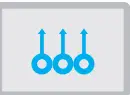 Swipe up with three fingers at the same time | Task switching in recent window |
| Show desktop |
 Double-click quickly for 3 seconds without releasing
 Four-finger click
 Three fingers move left/right at the same time
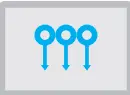 Swipe down with three fingers at the same time
Frequently Asked Questions
- Can I use third-party input methods on iPhones and tablets?
Answer: When the iOS system is connected to an external keyboard, it only supports the “Simplified Pinyin” that comes with the Apple system, and does not support other third-party input methods such as Baidu and Sogou Wubi. - How to use enter to send messages?
Answer: WeChat Me—Settings—Chat—Enter to send a message (open) Find Settings in QQ-Accessibility-Find the Enter key to send a message (open) Some software cannot be set up without upgrading. - Why is the keyboard stuck?
Answer: The keyboard freezes during use. First: check whether the battery is sufficient; second: whether too many devices are connected; third: whether the computer driver is normal.
Safety Caution
 Warning: it can cause fire, electric shock, damage of keyboard system if disobey the safety notes.
 Dangerous (be careful of highly dangerous )
 Warning (be careful of mid dangerous)Caution (slight dangerous should be noted)
- Keep the keyboard away from sharp objects.
- Do not Microwave the keyboard.
- Do not place heavy object on the keyboard.
- Do not force or distorted the keyboard.
- Keep away from oil, chemical or any other organic liquid
FCC Regulatory Compliance
changes or modifications not expressly approved by the party responsible for compliance could void the users authority to operate the equipment. This equipment has been tested and found to comply with the !knits for a Class B digital device, pursuant to Pan 15 of the FCC Rules. These limits are designed to provide reasonable protection against harmful interference in a residential installation. This equipment generates, uses and can radiate radio frequency energy and, if not installed and used in accordance with the instructions. may cause harmful interference to radio communications. However, there is no guarantee that interference will not occur in a particular installation. If this equipment does cause harmful interference to radio or television reception, which can be determined by turning the equipment off and on. the user is encouraged to try to cared the interference by one or more of the following measures:
- Reorient or relocate the receiving antenna.
- Increase the separation between the equipment and receiver.
- Connect the equipment into an outlet on a circuit different from that to which the receiver is connected.
- Consult the dealer or an experienced radio/TV technician for help.
This equipment complies with FCC radiation exposure limits set forth for an uncontrolled environment. This transmitter must not be co-located or operating in conjunction with any overattentive or transmitter.
This device complies with Part 15 of the FCC Rules. Operation is subject to the following two conditions:
- this device may not cause harmful interference. and
- this device must accept any interference received, including interference that may cause undesired operation.
Wireless Technology, Infinite Life
Shenzhen Hangshi Technology Co.,Ltd.
Address: Hangshi Technology Park, G Area, Democracy West Industry park Shajing Baoan District Shenzhen China
Web: www.bow.cn
Nationwide service volume line: 400-682-8008