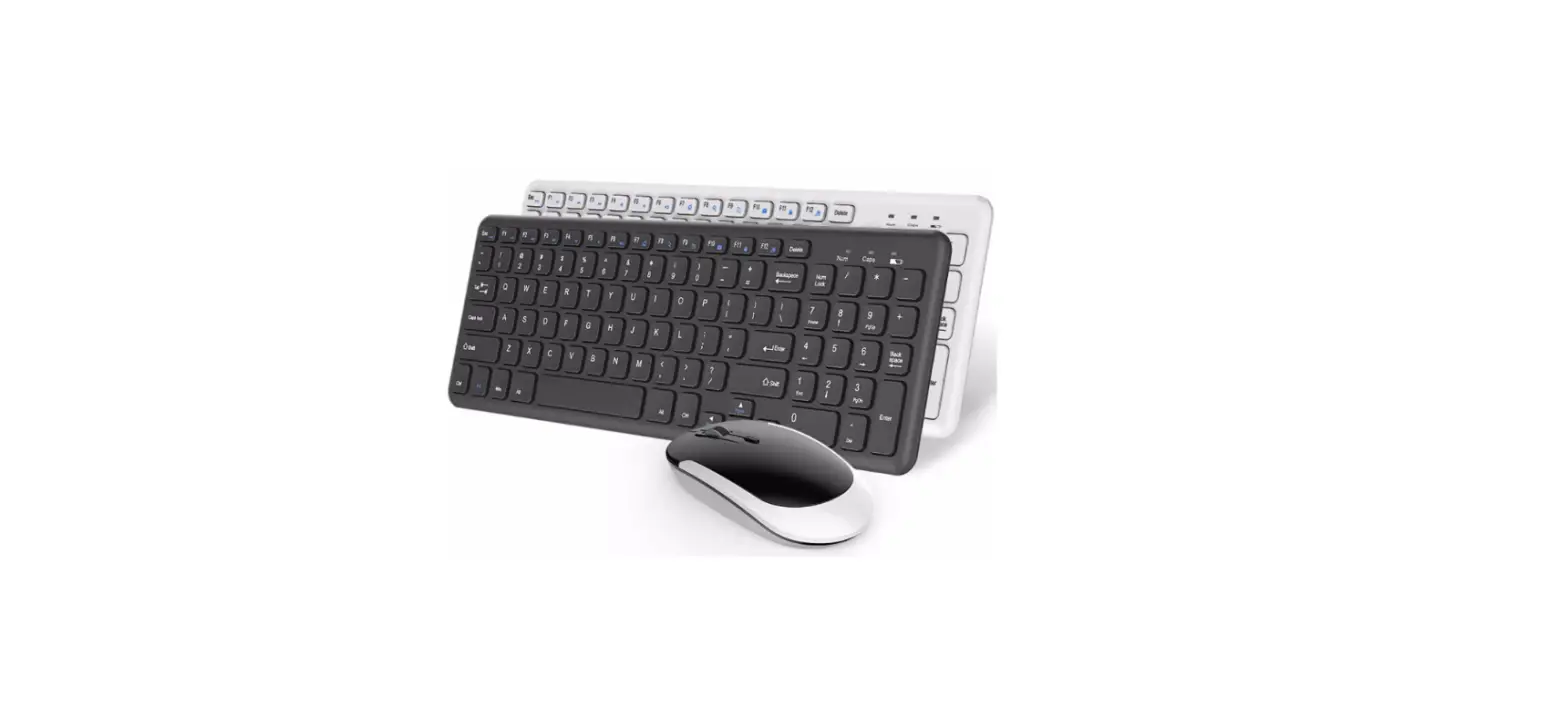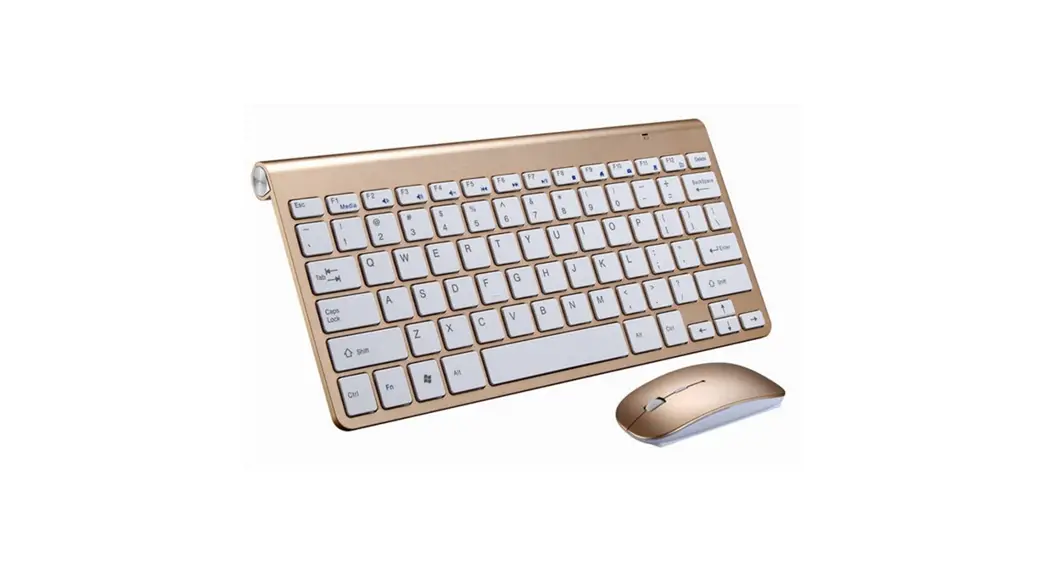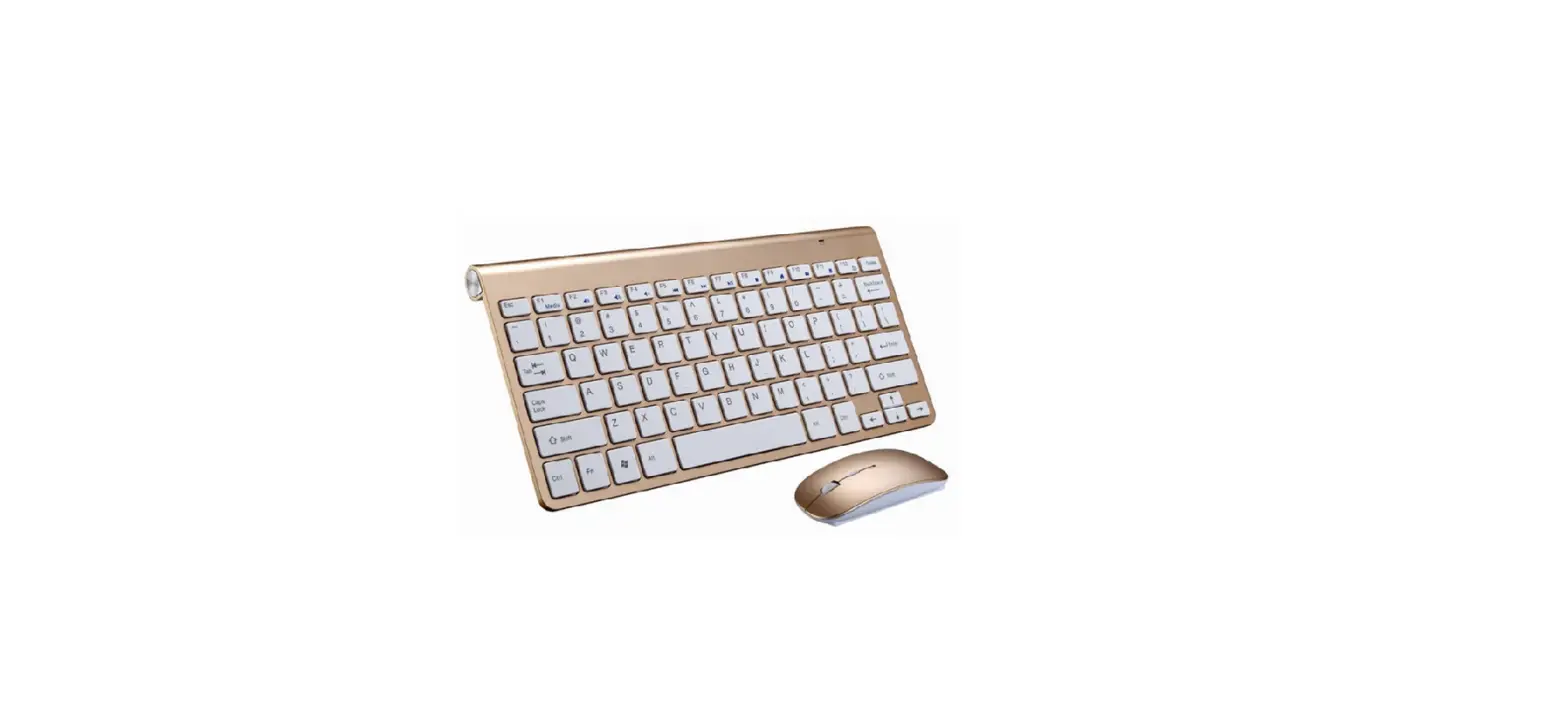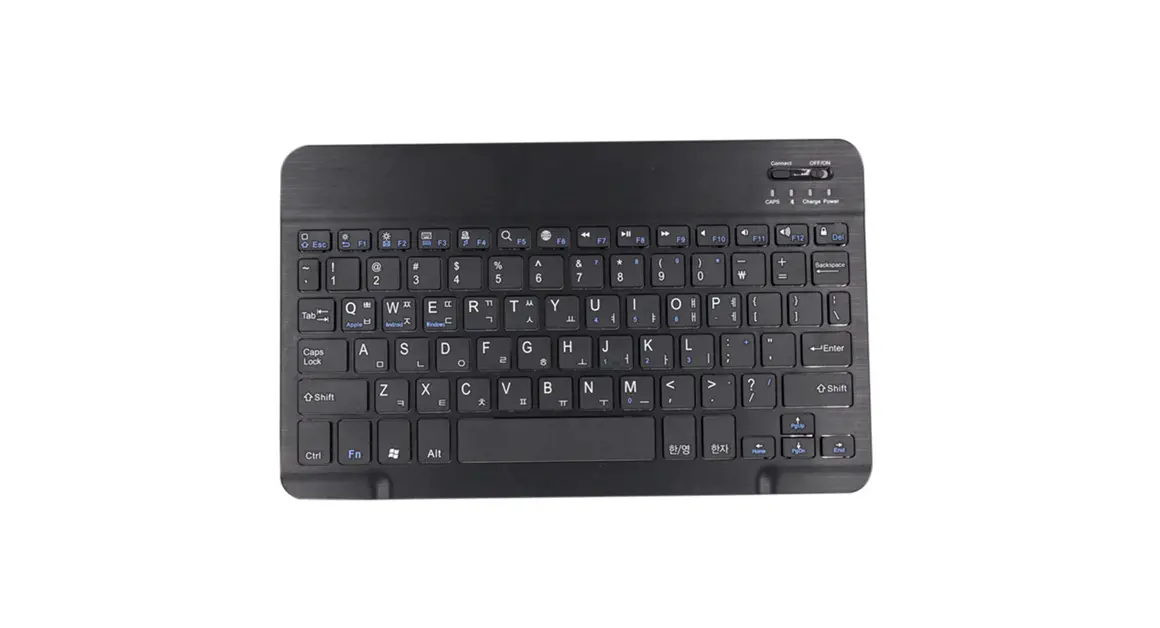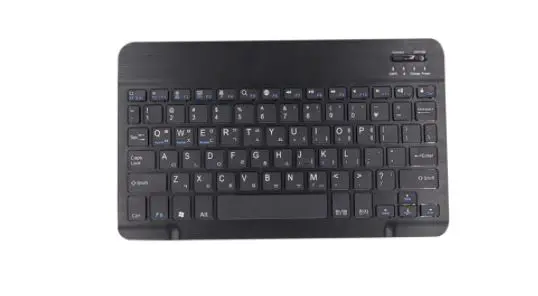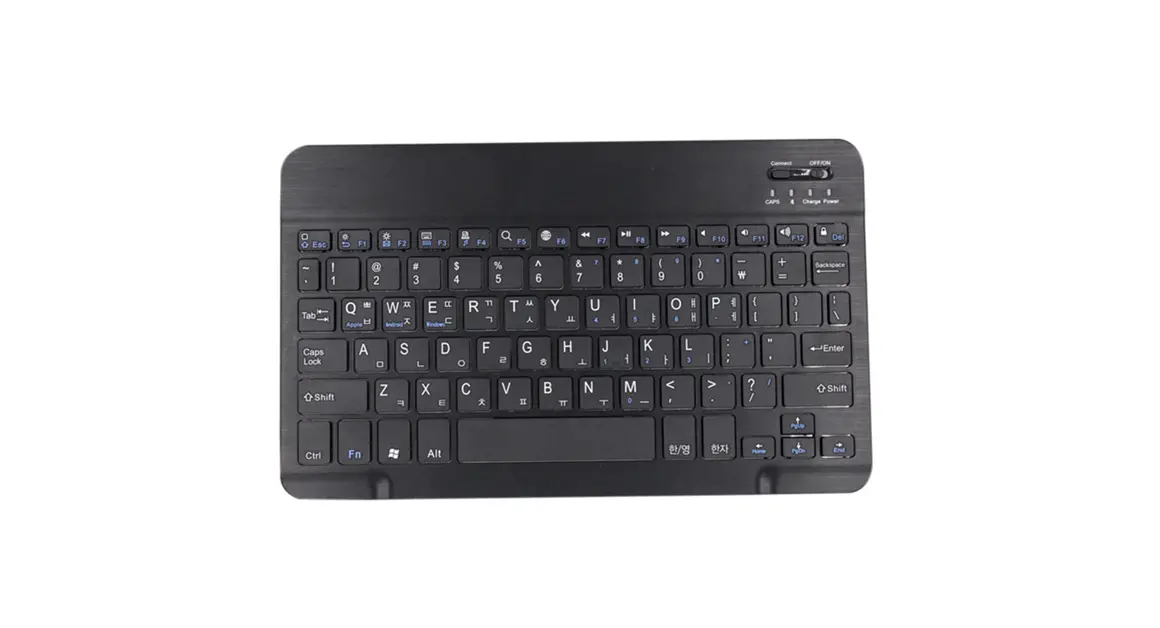
Shenzhen Hangshi Technology HW305-3 2.4GHz Wireless Keyboard User Manual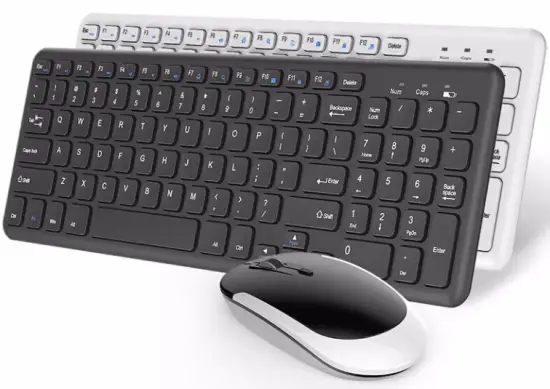
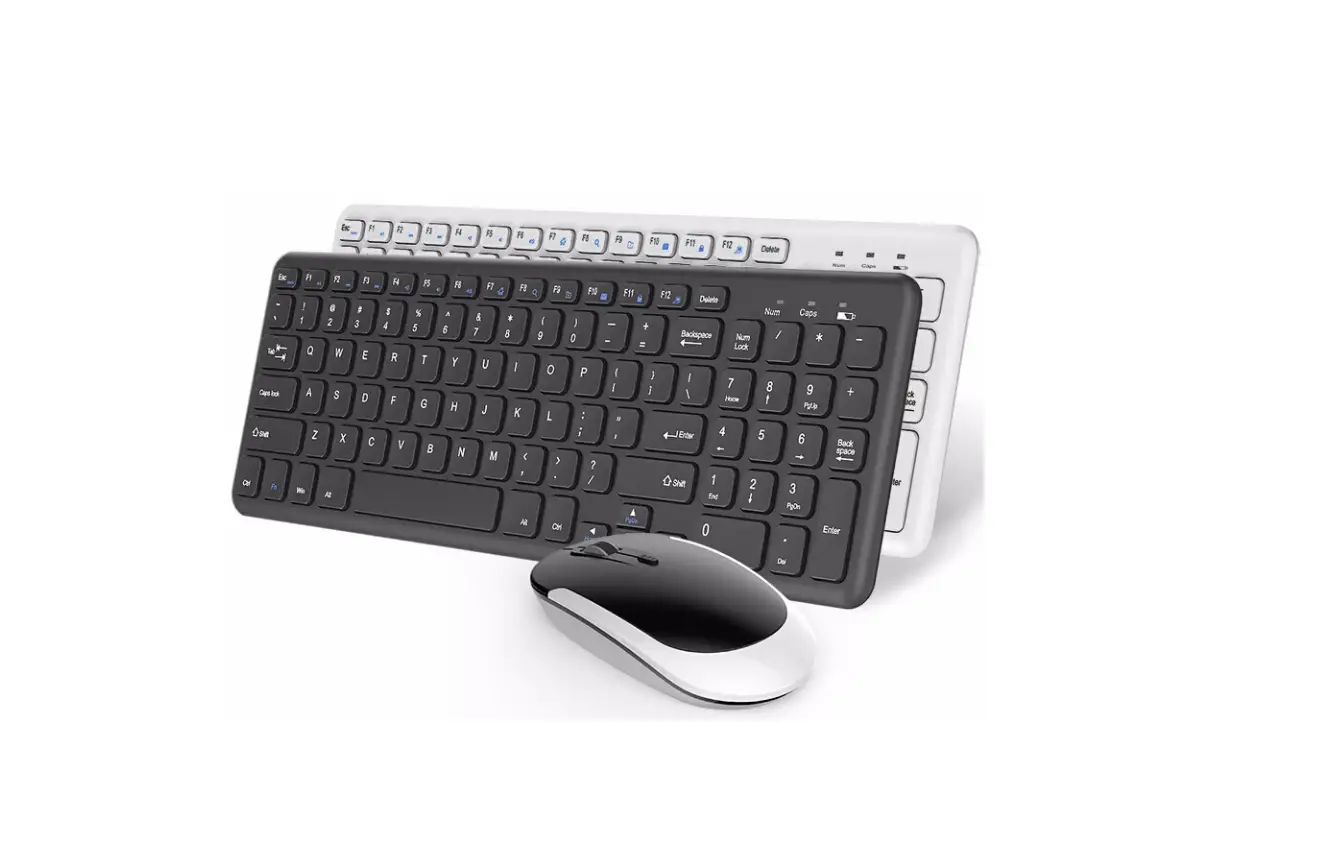
Package Contents
- 1 x 2.4GHz Wireless Keyboard
- 1 x 2.4GHz USB Receiver
- 1 x User Manual
Specification of Keyboard
| Dimensions | 427.64x 116.55x 21.37mm |
| Operating Range | < 10 meters |
| Power Source | 2 x AAA Batteries (Not included) |
| Keys Life | 3 million clicks |
Product overview
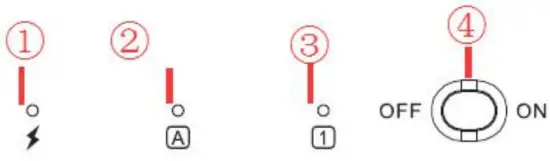
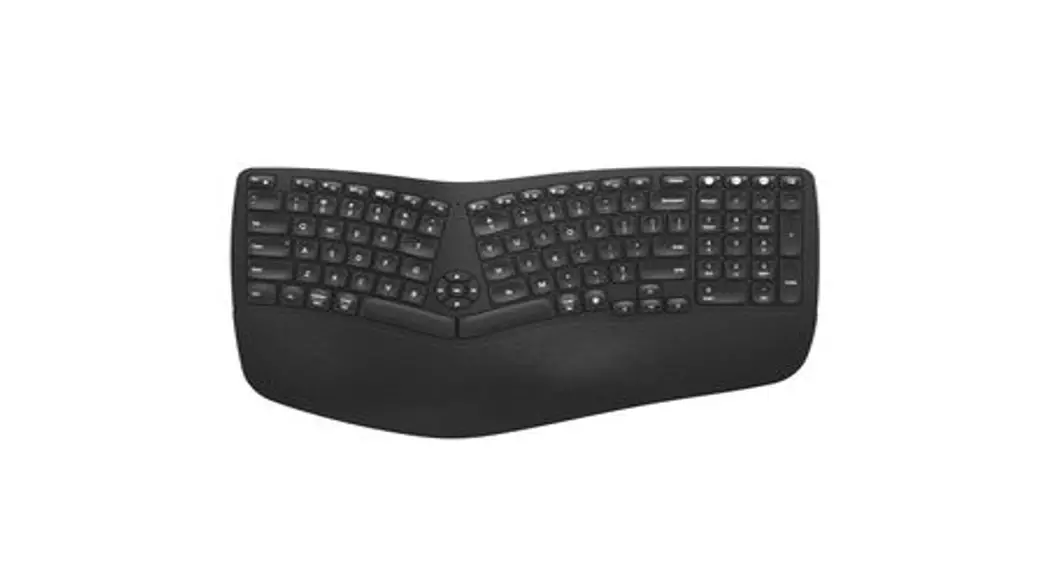
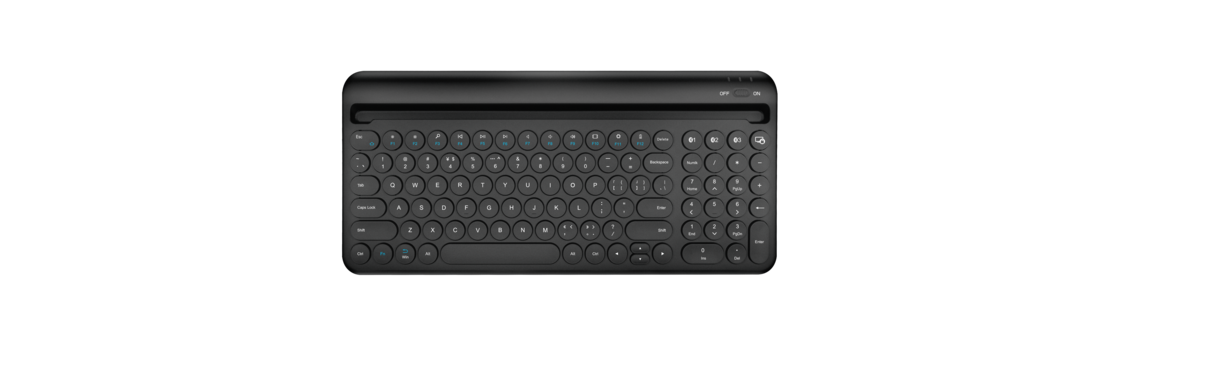
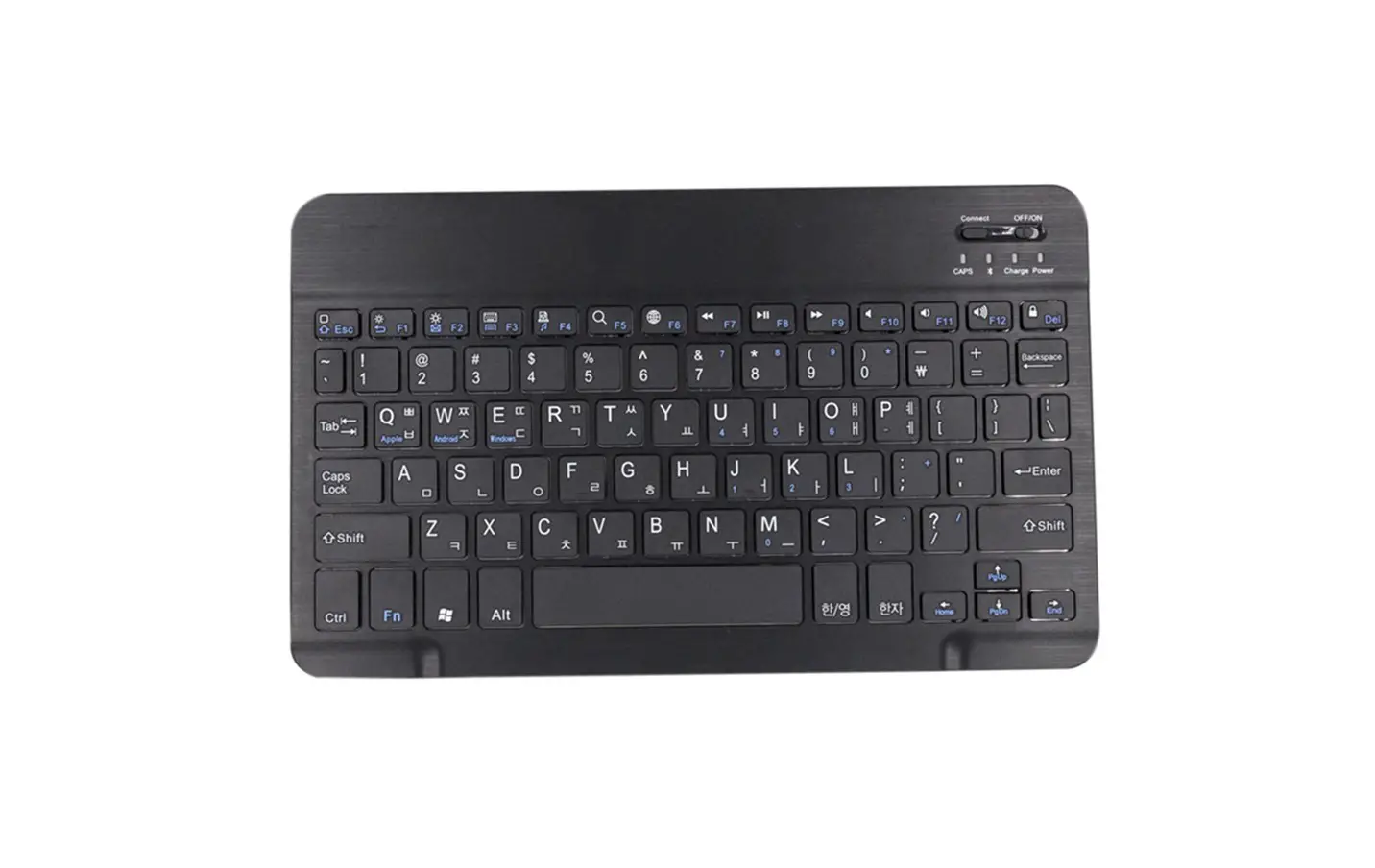
- Low Battery Indicator: Red light will flash when the battery runs out.
- Caps Lock Indicator: The caps lock indicator will be green when caps lock is activated.
- Numeric Indicator: The numeric indicator will be green when Num Lock is activated. Power Indicator: The power indicator will be green for 2 seconds when the keyboard has been turned on successfully.
- Power Switch: Push the switch to the right to turn on and to the left to turn off.
Keys and Functions
To use the shortcut keys, hold the “Fn” key while pressing the desired shortcut key.
| Key icon | Mac | Fn on Mac | Windows | Fn on Windows |
| Esc | Esc | N/A | Esc | N/A |
 | F1 | Brightness- | F1 | Brightness- (Win 10) |
 | F2 | Brightness+ | F2 | Brightness+ (Win 10) |
 | F3 | Mute | F3 | Mute |
 | F4 | Volume- | F4 | Volume- |
 | F5 | Volume+ | F5 | Volume+ |
 | F6 | Previous track | F6 | Previous track |
 | F7 | Play/Pause | F7 | Play/Pause |
 | F8 | Next track | F8 | Next track |
 | F9 | Home | F9 | Web browser |
 | F10 | Search for | F10 | Search for |
Pairing Steps
- Step 1. Insert 2 x AAA batteries ( not included ) into the keyboard.
- Step 2. Slide the power switch to right to turn on the keyboard, then plug 2.4GUSBreceiver into an USB port of the computer.

- Step 3. Insert 1 x AAA batteries ( not included ) into the mouse.
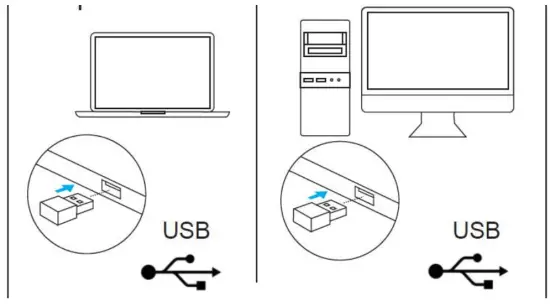
Note: If connection failure , please follow below steps:
Keyboard re-pairing:
- Step 1. Turn on the keyboard, press “Esc+Q” keys, the indicator flash quickly.
- Step 2. Immediately plug the 2.4G USB receiver into the computer within 10s, get the keyboard close to the receiver within 30cm (0.98 foot ).
Note: Re-pairing successfully, they work . If failed, repeat above steps again
Power Saving Mode
The keyboard will enter sleep mode after being idle for 3 seconds.
Press any key to wake up.
Power Steps
If there is no light displayed at all, the battery is completely drained.
For this situation, it is time to replace the battery.
Troubleshooting
If you are unable to connect the device to your tablet, please try the following:
- Make sure the device be switched on.
- Make sure the 2.4G USB receiver be inserted into a USB port of tablet.
- Make sure that there’s enough power in the device.
- Make sure the device are within 10m.
FCC Warning
This equipment has been tested and found to comply with the limits for a Class B digital device, pursuant to part 15 of the FCC Rules. These limits are designed to provide reasonable protection against harmful interference in a residential installation. This equipment generates, uses and can radiate radio frequency energy and, if not installed and used in accordance with the instructions, may cause harmful interference to radio communications. However, there is no guarantee that interference will not occur in a particular installation. If this equipment does cause harmful interference to radio or television reception, which can be determined by turning the equipment off and on, the user is encouraged to try to correct the interference by one or more of the following measures:
- Reorient or relocate the receiving antenna.
- Increase the separation between the equipment and receiver.
- Connect the equipment into an outlet on a circuit different from that to which the receiver is connected.
- Consult the dealer or an experienced radio/TV technician for help.
Caution: Any changes or modifications to this device not explicitly approved by manufacturer could void your authority to operate this equipment. This device complies with part 15 of the FCC Rules.
Operation is subject to the following two conditions:
- This device may not cause harmful interference, and
- this device must accept any interference received, including interference that may cause undesired operation
The device has been evaluated to meet general RF exposure requirement. The device can be used in portable condition without restriction.